

Configure an AWS Secrets Manager Value Credential Provider
The AWS Secrets Manager Credential Provider uses the AWS Secrets Manager Credential Provider Integration to retrieve secrets stored in AWS Secrets Manager.
Prerequisites
Section titled “Prerequisites”You must have the following to create an AWS Secrets Manager Credential Provider:
- A completed AWS Secrets Manager Credential Provider Integration
- A Compatible Server Workload that supports the AWS Secrets Manager Credential Provider
- An AWS Secrets Manager secret that you want to use with this Credential Provider
Compatible Server Workloads
Section titled “Compatible Server Workloads”This credential provider supports secrets stored in either plain text or JSON formats.
Plain Text Secrets: Aembit retrieves the entire secret value and passes it as the credential.
JSON Secrets: When using the JSON format, the Credential Value Type dropdown determines how the credential provider extracts values:
- Single: Extracts one value from the JSON using a specified key
- Username/Password: Extracts two values from the JSON using separate keys for username and password
When you configure a Server Workload to use the AWS Secrets Manager Credential Provider, you must select the appropriate Credential Type based on the secret format.
Accessing AWS Secrets Manager on private networks
Section titled “Accessing AWS Secrets Manager on private networks”If your AWS Secrets Manager is only accessible from a private network (such as an AWS Virtual Private Cloud (VPC)), enable Private Network Access to retrieve secrets through your Aembit Edge component instead of Aembit Cloud.
For details on when to use Private Network Access, how it works, and troubleshooting, see Private Network Access for Credential Providers.
Credential Provider configuration
Section titled “Credential Provider configuration”To configure an AWS Secrets Manager Value Credential Provider, follow these steps:
-
Log into your Aembit Tenant.
-
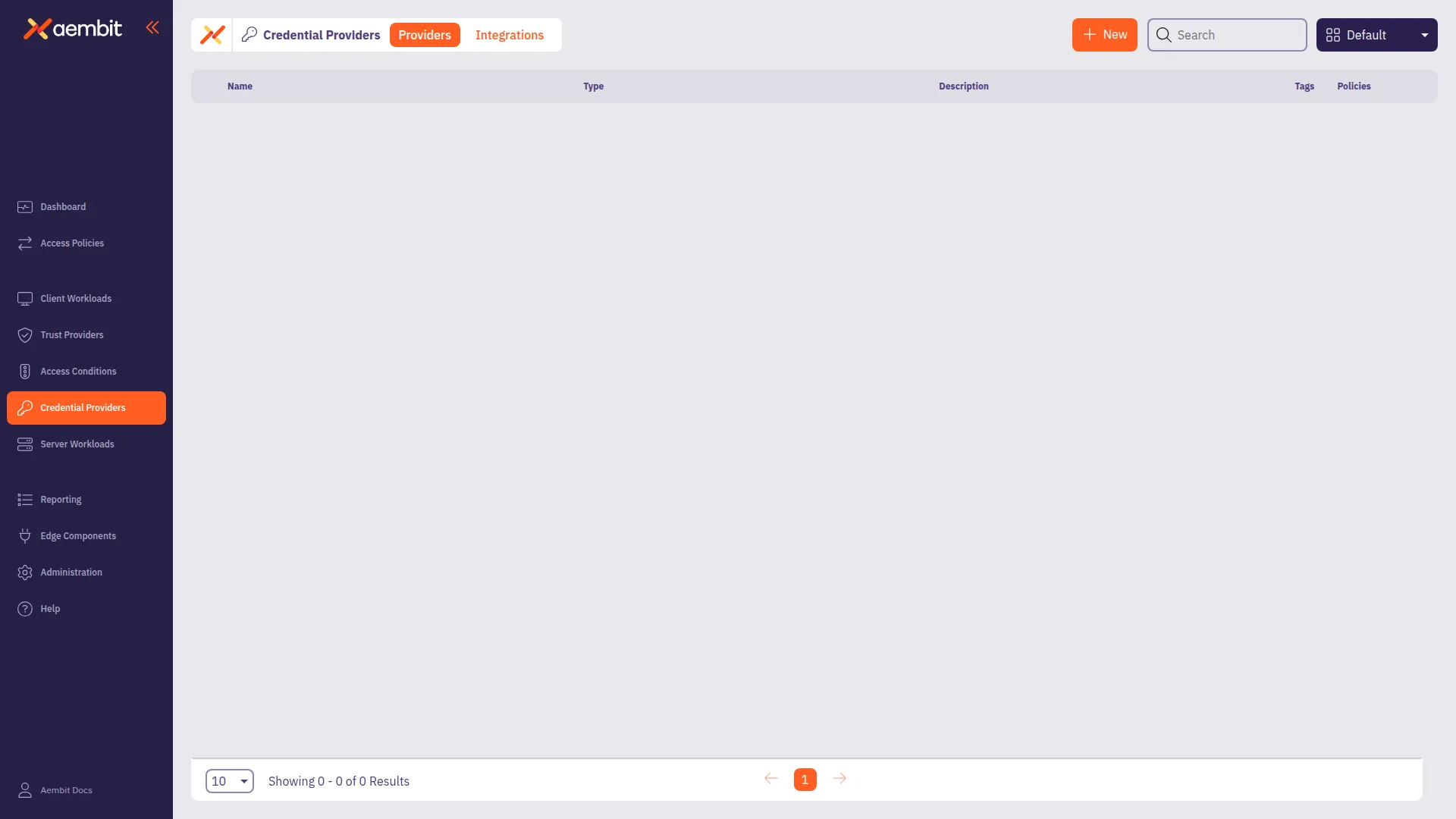
Go to Credential Providers in the left sidebar.
Aembit directs you to the Credential Providers page displaying a list of existing Credential Providers.
-
Click + New.
This opens the Credential Providers dialog window.
-
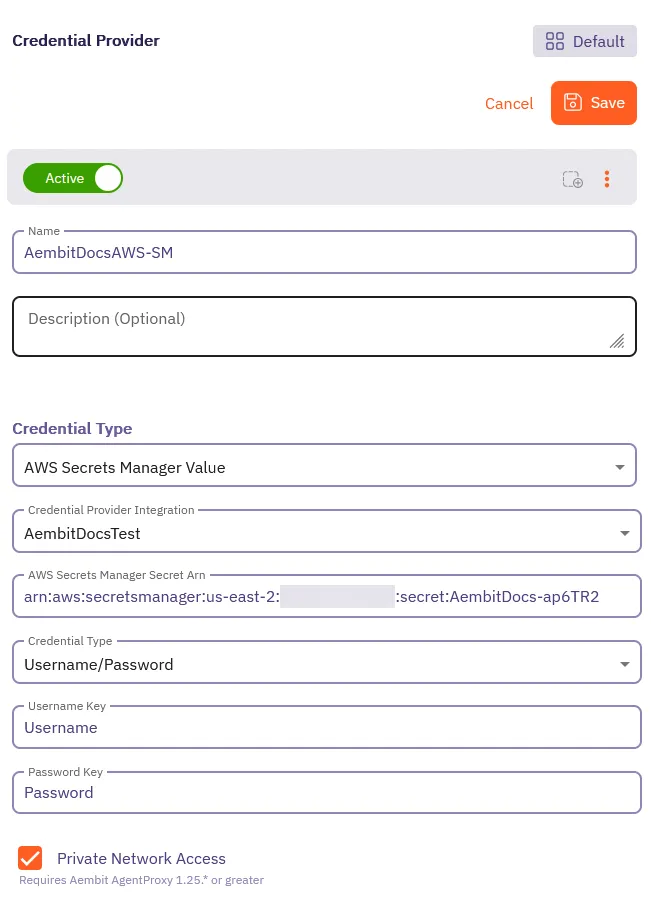
Enter a Name and optional Description for the Credential Provider.
-
For Credential Type, select AWS Secrets Manager Value.
-
For Credential Provider Integration, select the desired AWS Secrets Manager Credential Provider Integration.
If you select an integration with Populate Secrets ARNs turned on, the next field changes to a dropdown menu.
-
In the AWS Secrets Manager Secret ARN field, you have two options depending on the Credential Provider Integration:
-
Without Populate Secrets ARNs - Enter the Amazon Resource Name (ARN) of the AWS Secrets Manager secret that you want to use for this Credential Provider.
-
With Populate Secrets ARNs - Select or search for an existing secret from the dropdown list. Aembit populates this list with the secrets available in your AWS account that match the integration you selected.
-
-
For Credential Value Type, select the type of credential you want to retrieve from AWS Secrets Manager.
The options are:
- Plain Text - Retrieve the entire secret value as a single credential.
- Single Value - Retrieve a single value from the JSON secret using a specified key.
- Username/Password - Retrieve two values from the JSON secret using separate keys for username and password.
See the Compatible Server Workloads section for details on how each type interacts with Server Workloads.
-
Depending on the Credential Value Type you selected, additional fields may appear:
- Secret Key - If you selected Single Value, enter the secret key to extract the value from the JSON secret.
- Username & Password Key - If you selected Username/Password, enter the key for the username in the JSON secret.
-
Select Private Network Access if you have restricted your AWS Secrets Manager secret to only allow access from a private network (such as an AWS VPC) and you want to access it through Aembit Edge Components (Aembit CLI or Agent Proxy).
Once completed, the form should look similar to the following screenshot:
-
Click Save.
Aembit creates the new AWS Secrets Manager Credential Provider and displays it in the list of Credential Providers. You can now use this Credential Provider with your Server Workloads.