This is the abridged developer documentation for DOCS
# What is Aembit?
> An overview of Aembit, its core principles, and key capabilities
Aembit is a cloud-native Identity and Access Management (IAM) platform. It’s derived from the word ‘ambit’ (meaning boundary or scope). Unlike traditional *User IAM* that focuses on human access to applications, Aembit facilitates secure interactions between automated systems or workloads. Aembit is specifically designed for managing access between workloads, or *Workload IAM*. A workload is any application or program that utilizes computing resources to perform tasks. This definition includes CI/CD jobs, databases, third-party APIs, serverless functions, and custom applications. Workloads run in different environments like Kubernetes or virtual machines. Aembit primarily focuses on securing communication between these workloads over TCP/IP networks. Traditional approaches to workload authentication rely on static credentials that are embedded in code, configuration files, or environment variables. These credentials must be manually created, rotated, and protected. This creates significant security and operational challenges.  Aembit takes a fundamentally different approach by shifting from managing static secrets to managing access based on verified workload identity and policy. This Workload IAM approach provides just-in-time, ephemeral credentials while enforcing dynamic access policies.  Unlike traditional approaches that focus on storing and managing secrets, Aembit facilitates secure interactions between automated systems by verifying workload identity and applying policy-based access controls. These include applications, services, and APIs across diverse environments using different identity types (non-human, machine, service account, and others).  [How Aembit works ](/get-started/how-aembit-works)A deeper look at how Aembit works and its architecture → ## Aembit’s core principles [Section titled “Aembit’s core principles”](#aembits-core-principles) * **Manage Access, Not Secrets** - The foundational principle of Aembit is to shift the security focus from *managing static credentials* to *managing access* based on verified workload identity and policy. Instead of relying on long-lived secrets that you must store, protect, and rotate, Aembit employs mechanisms to authenticate workloads based on their intrinsic properties and environment. > Aembit grants access based on defined Access Policies**Access Policy**: Access Policies define, enforce, and audit access between Client and Server Workloads by cryptographically verifying workload identity and contextual factors rather than relying on static secrets.[Learn more](/get-started/concepts/access-policies) and real-time context. * **Zero Trust Architecture** - Aembit’s identity-centric approach aligns with the *principles of Zero Trust* architecture, extending concepts traditionally applied to human users into the domain of non-human workloads. > Aembit never implicitly trusts access. * **Least Privilege** - Aembit verifies every access request based on a Client Workload**Client Workload**: Client Workloads represent software applications, scripts, or automated processes that initiate access requests to Server Workloads, operating autonomously without direct user interaction.[Learn more](/get-started/concepts/client-workloads)‘s identity, the specific resource its requesting (Server Workload**Server Workload**: Server Workloads represent target services, APIs, databases, or applications that receive and respond to access requests from Client Workloads.[Learn more](/get-started/concepts/server-workloads)), and applicable contextual constraints defined in the Access Policy. This confirms adherence to the *principle of Least Privilege*. > Aembit grants only the necessary permissions required for a specific task at a specific time. ## What Aembit can do for you [Section titled “What Aembit can do for you”](#what-aembit-can-do-for-you) Aembit’s value proposition centers on enhancing security and operational efficiency in managing non-human identities. This offers specific benefits for different roles: ### Build applications with secretless access [Section titled “Build applications with secretless access”](#build-applications-with-secretless-access) If you’re building and deploying applications, managing secrets is a common challenge. Aembit solves this by enabling a “secretless” approach for workload-to-workload access. Aembit allows your applications to dynamically obtain credentials based on their verified identity and policy, simplifying your development process by: * Removing the need to embed credentials in application code, configuration files, or environment variables. * Authenticating applications using their runtime attributes (like container signatures), removing the need for initial secrets (“secret zero” problem). * Handling authentication via network interception, so you can focus on business logic instead of auth code.  [Aembit quickstart ](/get-started/quickstart/quickstart-core/)Start building with Aembit by checking out the quickstart guide → ### Advance security maturity and risk reduction [Section titled “Advance security maturity and risk reduction”](#advance-security-maturity-and-risk-reduction) From a strategic perspective focused on risk and security maturity, Aembit provides a dedicated platform to secure non-human identities, a significant source of enterprise risk. By replacing insecure static credentials with an identity-first, secretless approach, Aembit drastically reduces the attack surface and the risk of breaches. Aembit supports implementing a Zero Trust architecture for workloads, simplifies compliance and auditing, and offers centralized visibility and governance to advance your organization’s security maturity by: * Reducing credential exposure risk through ephemeral, Just-In-Time (JIT) access grants. * Implementing Zero Trust principles for machine-to-machine communication. * Centralizing access logs for simplified compliance reporting and incident investigation. * Providing consistent access patterns across cloud, SaaS, and on-premises resources. * Addressing the security gap in non-human workload interactions without adding developer overhead. ### Enhance security posture and enforce access control [Section titled “Enhance security posture and enforce access control”](#enhance-security-posture-and-enforce-access-control) As a security engineer responsible for defining and enforcing controls, Aembit enhances your security posture by focusing on securing non-human identity access. Aembit provides centralized policy management and conditional access capabilities, enabling you to enforce granular controls based on verifiable workload identity and real-time context like security posture. This helps implement Zero Trust principles for workloads and reduces risk by: * Verifying workload identity using concrete attributes like container signatures or cloud metadata. * Implementing fine-grained access controls based on workload context and runtime conditions. * Reducing attack surface by eliminating long-lived static credentials. * Providing standardized logging of all access attempts for troubleshooting and audit trails. * Enabling identity-based security without requiring deep security expertise from application developers. ### Streamline secure deployments and operations [Section titled “Streamline secure deployments and operations”](#streamline-secure-deployments-and-operations) For those focused on automating and managing infrastructure, Aembit integrates workload identity and access management directly into your operational workflows. Aembit enables you to focus on building and deploying applications through the following benefits: * Automating credential management tasks, reducing time spent on access provisioning and rotation. * Eliminating manual secret rotation workflows that distract from core development work. * Integrating with existing workloads without requiring application code changes. * Providing a Terraform provider for managing configurations and infrastructure as code. * Centralizing access management across multiple environments from a single interface.  [Scaling Aembit with Terraform ](/get-started/concepts/scaling-terraform)See how Aembit integrates with Terraform to manage your infrastructure → ## Key capabilities [Section titled “Key capabilities”](#key-capabilities) The tables in the following sections detail Aembit’s primary capabilities, along with example use cases and what benefit Aembit provides for each: ### Secretless workload authentication [Section titled “Secretless workload authentication”](#secretless-workload-authentication) | | | | -------------------- | --------------------------------------------------------------------------------------------------------------------------------------------------------------------------------------------------------------------------------------------------------------------------------------------- | | **Capability** | Aembit authenticates workloads (like applications or scripts) based on their verifiable environment attributes (workload attestation) rather than relying on stored secrets like API keys or passwords. | | **Example Use Case** | In a multicloud setup, an automated script running in an AWS EC2 instance needs to access a database hosted in Google Cloud. Instead of embedding database credentials within the script or its configuration, Aembit verifies the script’s identity based on its AWS environment attributes. | | **Benefit** | Aembit eliminates the risk of the database credentials being exposed if the script’s code or configuration files are compromised. It also removes the operational overhead of rotating and managing those static secrets. | ### Conditional Access Policies [Section titled “Conditional Access Policies”](#conditional-access-policies) | | | | -------------------- | -------------------------------------------------------------------------------------------------------------------------------------------------------------------------------------------------------------------------------------------------------------------------------------------------------------------------------------------------------------------------------------------- | | **Capability** | Aembit enables Multi-Factor Authentication (MFA)-like controls for workloads by defining access policies that consider not just the workload’s identity but also real-time contextual factors like security posture (results from a vulnerability scan), geographical location, or time of day. | | **Example Use Case** | A microservice responsible for processing payments is only allowed to access the production billing API if **all** the following are true: 1) its identity is verified, 2) a recent security scan (for example, via Snyk integration) shows no critical vulnerabilities, 3) the request originates from the expected cloud region, 4) the request originates during specific business hours. | | **Benefit** | Aembit provides a higher level of assurance than identity alone, mimicking for non-human interactions. Aembit enables fine-grained, risk-adaptive control, reducing the likelihood of unauthorized access even if a workload’s basic identity is somehow spoofed. | ### Identity brokering across heterogeneous environments [Section titled “Identity brokering across heterogeneous environments”](#identity-brokering-across-heterogeneous-environments) | | | | -------------------- | -------------------------------------------------------------------------------------------------------------------------------------------------------------------------------------------------------------------------------------------------------------------------------------------- | | **Capability** | Aembit acts as a central intermediary, managing access requests between workloads that might reside in different environments (multiple public clouds, on-premises data centers, SaaS applications, third-party APIs). | | **Example Use Case** | A legacy application running in an on-premises data center needs to fetch customer data from Salesforce (SaaS) and store processed results in an AWS S3 bucket (public cloud). Aembit manages the authentication and authorization for both interactions through a unified policy framework. | | **Benefit** | It simplifies security management in complex, hybrid/multi-cloud setups by providing a single point of control and visibility, eliminating the need to configure and manage disparate access control mechanisms for each environment. | ### Centralized Access Policy management & auditing [Section titled “Centralized Access Policy management & auditing”](#centralized-access-policy-management--auditing) | | | | -------------------- | ------------------------------------------------------------------------------------------------------------------------------------------------------------------------------------------------------------------------------------------------------------------------------------------------------ | | **Capability** | Aembit provides a global system to define, enforce, and monitor access rules between all managed non-human identities. It also offers centralized logging and auditing of all access events. | | **Example Use Case** | A security team needs to define a policy stating that only specific, approved data analytics services running in Kubernetes can access a sensitive data warehouse (like Snowflake ). They also need a consolidated audit trail of all access attempts to this data warehouse for compliance reporting. | | **Benefit** | Centralization simplifies administration, makes sure policy enforcement is consistent across the board, and makes auditing and compliance reporting much easier compared to managing policies and logs scattered across different systems. | ### Automation and “No-Code Auth” [Section titled “Automation and “No-Code Auth””](#automation-and-no-code-auth) | | | | -------------------- | ----------------------------------------------------------------------------------------------------------------------------------------------------------------------------------------------------------------------------------------------------------------------------------------------------------------------------------------------------------------------------------------------------------------------------------------------------------------------------------------------------------------------------------------------------------- | | **Capability** | Aembit automates the process of authenticating workloads and providing them with necessary credentials just-in-time. Its interception mechanism (via Aembit Edge**Aembit Edge**: Aembit Edge represents components deployed within your operational environments that enforce Access Policies by intercepting traffic, verifying identities, and injecting credentials just-in-time.[Learn more](/get-started/concepts/aembit-edge)) aims to secure workload communication without requiring you to modify application code to handle authentication logic. | | **Example Use Case** | A development team deploys a new microservice. Instead of writing code to handle API key retrieval and injection for accessing downstream services, they deploy Aembit Edge Components alongside their service. Aembit then: 1) automatically intercepts outgoing calls, 2) handles authentication/authorization via a central Access Policy, 3) injects credentials as needed. | | **Benefit** | Aembit reduces developer friction, speeds up deployment cycles, and makes sure the security implementation is consistent without placing the burden of complex authentication coding on application developers. It also improves operational efficiency by automating credential lifecycle management. | ## Additional resources [Section titled “Additional resources”](#additional-resources) * [How Aembit Works](/get-started/how-aembit-works) * [Aembit User Guide](/user-guide)
# Conceptual overview
> This page provides a high-level conceptual overview of Aembit and its components
This topic explains how Aembit operates behind the scenes (at a high level) to provide secure, seamless access between workloads. Use the links in each section to dive deeper into specific topics related to how Aembit works or start configuring and using those features. ## Aembit as an identity broker [Section titled “Aembit as an identity broker”](#aembit-as-an-identity-broker) Aembit operates conceptually as an identity broker. It acts as an intermediary, facilitating secure access requests initiated by a Client Workload**Client Workload**: Client Workloads represent software applications, scripts, or automated processes that initiate access requests to Server Workloads, operating autonomously without direct user interaction.[Learn more](/get-started/concepts/client-workloads) (like an application or script) attempting to connect to a target Server Workload**Server Workload**: Server Workloads represent target services, APIs, databases, or applications that receive and respond to access requests from Client Workloads.[Learn more](/get-started/concepts/server-workloads) (like an API or database). These workloads may operate across security boundaries or reside in different compute environments. For example, a Client Workload in AWS accessing a Server Workload in Azure. By centralizing the brokering function, Aembit helps you simplify the management of trust relationships and Access Policies across your disparate security boundaries and environments. ## Workloads [Section titled “Workloads”](#workloads) Workloads are the fundamental entities in Aembit’s access control model. They represent software applications, services, or processes that either request access to resources ([Client Workloads](#client-workloads)) or provide resources that others access ([Server Workloads](#server-workloads)). Aembit establishes secure communication channels between these workloads by verifying their identities, evaluating access policies, and providing Just-In-Time (JIT) credentials without requiring code changes to your applications. ### Client Workloads [Section titled “Client Workloads”](#client-workloads) Client Workloads are the initiators of access requests in Aembit’s security model. They represent any non-human entity that needs to consume services or resources provided by Server Workloads. Examples include: * Web applications requesting data from APIs * Microservices communicating with other services * Background jobs accessing databases * CI/CD pipelines deploying to cloud environments * Scheduled tasks retrieving configuration information When a Client Workload attempts to access a Server Workload, [Aembit Edge](#aembit-edge) intercepts the request and works with [Aembit Cloud](#aembit-cloud) to verify the Client Workload’s identity through an [Access Policy](#access-policies). This verification happens without the Client Workload storing or managing long-lived credentials, eliminating credential sprawl, and reducing security risks.  [More on Client Workloads ](/get-started/concepts/client-workloads)See Core Concepts →  [Configure Client Workloads ](/user-guide/access-policies/client-workloads/)See the Aembit User Guide → ### Server Workloads [Section titled “Server Workloads”](#server-workloads) Server Workloads are the targets of access requests in Aembit’s security model. They represent services or resources that Client Workloads need to access. Examples include: * REST APIs and web services * Databases and data warehouses * Third-party SaaS applications * Cloud provider services * Legacy applications and internal systems Server Workloads can exist in multiple environments, like public cloud, private cloud, on-premises, or SaaS, and Aembit provides consistent access controls regardless of their location. For each Server Workload, you can define authentication requirements, network locations, and specific access restrictions. Aembit helps you manage credentials for Server Workloads through Credential Providers, which generate or retrieve the appropriate authentication material for each Server Workload once Aembit grants access.  [More on Server Workloads ](/get-started/concepts/server-workloads)See Core Concepts →  [Configure Server Workloads ](/user-guide/access-policies/server-workloads/)See the Aembit User Guide → *** ## Access Policies [Section titled “Access Policies”](#access-policies) Aembit uses Access Policies**Access Policy**: Access Policies define, enforce, and audit access between Client and Server Workloads by cryptographically verifying workload identity and contextual factors rather than relying on static secrets.[Learn more](/get-started/concepts/access-policies) to control which Client Workloads can access which Server Workloads and under what conditions. Access Policies evaluate the following components when making access decisions: * **Client Workloads** - Any non-human entity that initiates an access request to consume a service or resource provided by a Server Workload. * Trust Providers**Trust Provider**: Trust Providers validate Client Workload identities through workload attestation, verifying identity claims from the workload's runtime environment rather than relying on pre-shared secrets.[Learn more](/get-started/concepts/trust-providers) - Attest to workload identities and provide information about the environment in which they operate with high reliability and trustworthiness. * Access Conditions**Access Condition**: Access Conditions add dynamic, context-aware constraints to authorization by evaluating circumstances like time, location, or security posture to determine whether to grant access.[Learn more](/get-started/concepts/access-conditions) - Criteria Aembit checks when evaluating an Access Policy to determine whether to grant a Client Workload access to a target Server Workload. * Credential Providers**Credential Provider**: Credential Providers obtain the specific access credentials—such as API keys, OAuth tokens, or temporary cloud credentials—that Client Workloads need to authenticate to Server Workloads.[Learn more](/get-started/concepts/credential-providers) - Systems that provide access credentials, such as OAuth tokens, service account tokens, API keys, or username-and-password pairs. * **Server Workloads** - Software applications that serve requests from Client Workloads such as third-party SaaS APIs, API gateways, databases, and data warehouses. For a simplified illustration of the Access Policy evaluation flow, see \[Evaluation flow: how Aembit grants access]\(/get-started/how-aembit-works#access-policy-flow-putting-it-all together). If a request meets all requirements, Aembit allows the connection and injects the credential. If any step fails, Aembit denies the request and logs the reason.  [More on Access Policies ](/get-started/concepts/access-policies)See Core Concepts →  [Configure Access Policies ](/user-guide/access-policies/)See the Aembit User Guide → *** ### Trust Providers [Section titled “Trust Providers”](#trust-providers) Instead of Client Workloads managing and presenting a long-lived secret for authentication, Aembit uses [Trust Providers](/get-started/concepts/trust-providers) to cryptographically verify the identity of Client Workloads attempting to access target Server Workloads. Trust Providers verify a Client Workload’s identity using evidence obtained directly from its runtime environment—also known as workload attestation**Workload Attestation**: Workload attestation cryptographically verifies a workload's identity using evidence from its runtime environment, such as platform identity documents or tokens, rather than using static credentials.[Learn more](/get-started/concepts/trust-providers). Aembit integrates with many Trust Providers to support attestation across different environments: * AWS * Azure * Kubernetes * CI/CD platforms * Aembit Agent Controller in Kerberos environments Trust Providers supply cryptographically signed evidence, such as platform identity documents or tokens, about the Client Workload to Aembit Cloud. Aembit Cloud then validates this evidence to confirm the workload’s identity before proceeding with access policy evaluation. Upon successful attestation, Aembit Cloud gains high confidence in the Client Workload’s identity without relying on a shared secret.  [More on Trust Providers ](/get-started/concepts/trust-providers)See Core Concepts →  [Set up Trust Providers ](/user-guide/access-policies/trust-providers/)See the Aembit User Guide → *** ### Access Conditions [Section titled “Access Conditions”](#access-conditions) Aembit uses [Access Conditions](/get-started/concepts/access-conditions) to provide a mechanism for adding dynamic, context-aware constraints to Access Policies—similar to Multi-Factor Authentication (MFA) for human identities. Access Conditions allow Access Policies to incorporate rapid environmental or operational factors into the access decision. For example: * **Time** - restrictions based on the time of day or day of the week * **GeoIP** - geographic location of the requesting workload During \[Access Policy evaluation]\(/get-started/how-aembit-works#access-policy-flow-putting-it-all together), after Aembit Cloud matches the Client and Server Workloads to an Access Policy *and* it verifies the Client Workload’s identity, Aembit Cloud explicitly evaluates all associated Access Conditions. Only if all Access Conditions pass, along with the Client Workload’s identity check, does the Access Policy grant access and trigger the Credential Provider. Aembit also integrates with external security posture management tools, such as Wiz or CrowdStrike. This allows Access Policies to enforce conditions such as “Aembit only grants access if Wiz reports a healthy security posture for that Client Workload.  [More on Access Conditions ](/get-started/concepts/access-conditions)See Core Concepts →  [Set up Access Conditions ](/user-guide/access-policies/access-conditions/)See the Aembit User Guide → *** ### Credential Providers [Section titled “Credential Providers”](#credential-providers) Aembit uses [Credential Providers](/get-started/concepts/credential-providers) to facilitate secure authentication between workloads. Credential Providers generate and manage the credentials needed for a Client Workload to authenticate to a Server Workload when an Access Policy determines to grant a Client Workload access. Credential Providers abstract away the complexity of different authentication mechanisms and credential types, providing a consistent interface for workload-to-workload authentication regardless of the underlying systems. When an Access Policy evaluation succeeds, Aembit Cloud triggers the Credential Provider to generate the appropriate credentials for the specific authentication mechanism that the target Server Workload requires. This interaction is what allows a Client Workload to authenticate to a Server Workload without storing or managing long-lived credentials. This design limits exposure and prevents credential sprawl. Aembit supports many types of Credential Providers to accommodate different authentication requirements: * **Basic Authentication** - For systems requiring username/password authentication * **OAuth 2.0** - For modern API authentication flows * **API Key** - For services using API key-based authentication * **Certificate-Based** - For systems requiring mutual TLS authentication * **Cloud Provider Credentials** - For accessing cloud services (AWS, Azure, GCP) through Workload Identity Federation (WIF) * **SAML** - For enterprise federated authentication scenarios * **Kubernetes Tokens** - For Kubernetes-based workloads You can also set up Credential Providers for external secrets management systems like HashiCorp Vault, AWS Secrets Manager, or Azure Key Vault to retrieve sensitive authentication material when needed. To provide **credential lifecycle management** capabilities, Aembit offers [Credential Provider integrations](/user-guide/access-policies/credential-providers/integrations/) with services like GitLab to create, rotate, and delete access credentials on your behalf.  [More on Credential Providers ](/get-started/concepts/credential-providers)See Core Concepts →  [Set up Credential Providers ](/user-guide/access-policies/credential-providers/)See the Aembit User Guide → *** ## Observability [Section titled “Observability”](#observability) Aembit logs every access request (Access Authorization Events) and administrative change. These logs help you understand what’s happening, troubleshoot problems, and meet compliance goals and requirements. Key event types include: * **Audit Logs:** Track administrative changes to the platform. * **Workload Events:** Provide high-level visibility into workload interactions. * **Access Authorization Events:** Offer **detailed, step-by-step visibility** into policy evaluation for each access request. These logs show Client/Server identification, the outcome of **Trust Provider attestation** (identity verification), **Access Conditions verification** (contextual checks), **Credential Provider retrieval**, and the final **Allow/Deny verdict**. This granularity is essential for **troubleshooting access issues**. Aembit logs the following: * Each request’s source, destination, and decision. * The specific policy that allowed or blocked access. * Details about which Trust Provider verified an identity. * What credential Aembit delivered (or why it didn’t). You can view this information in your Aembit Tenant UI or export it to external log systems for long-term storage and analysis by setting up a [Log Stream](/user-guide/administration/log-streams/). See [Audit and report](/get-started/concepts/audit-report)  [More on Auditing ](/get-started/concepts/audit-report)See Core Concepts →  [Audit Aembit logs ](/user-guide/audit-report/)See the Aembit User Guide → *** ## Aembit’s architecture [Section titled “Aembit’s architecture”](#aembits-architecture) Aembit consists of two cooperating systems: [Aembit Edge](#aembit-edge) and [Aembit Cloud](#aembit-cloud). Aembit Edge communicates with Aembit Cloud to handle authentication and authorization of access between your workloads. Separating the control plane and the data plane enables you to centralize policy management in the cloud while keeping the enforcement mechanism close to the workloads in your environments. The interception model employed by Aembit Edge is key to enabling the “No-Code Auth” capability. ### Aembit Edge [Section titled “Aembit Edge”](#aembit-edge) Aembit Edge**Aembit Edge**: Aembit Edge represents components deployed within your operational environments that enforce Access Policies by intercepting traffic, verifying identities, and injecting credentials just-in-time.[Learn more](/get-started/concepts/aembit-edge) acts as the **data plane** or interception point and runs alongside Client Workloads in your infrastructure (such as a Kubernetes cluster). The primary function of Aembit Edge is to intercept outbound network requests from Client Workloads destined for target Server Workloads. Upon interception, Aembit Edge sends requests from Client Workloads to Aembit Cloud which handles the authentication and authorization of that request. If Aembit Cloud approves access, then Aembit Edge does the following: 1. Receives a credential from Aembit Cloud. 2. Injects the credential into the original request “just-in-time.” 3. Forwards the modified request to the intended target Server Workload. Aembit Edge also sends detailed access event logs to Aembit Cloud for auditing purposes.  [More on Aembit Edge ](/get-started/concepts/aembit-edge)See Core Concepts →  [Configure Aembit Edge ](/user-guide/deploy-install/)See the Aembit User Guide → *** ### Aembit Cloud [Section titled “Aembit Cloud”](#aembit-cloud) Aembit Cloud**Aembit Cloud**: Aembit Cloud serves as both the central control plane and management plane, making authorization decisions, evaluating policies, coordinating credential issuance, and providing administrative interfaces for configuration.[Learn more](/get-started/concepts/aembit-cloud) acts as the **control plane** and receives requests intercepted by Aembit Edge. Aembit Cloud determines whether to authorize Client Workload requests and what credential to deliver. The primary functions of Aembit Cloud are to: 1. Evaluate access requests. 2. Authenticate Client Workloads and attest their identities through a [Trust Provider](/get-started/concepts/trust-providers). 3. Enforce [Access Policies](/get-started/concepts/access-policies) (including [Access Conditions](/get-started/concepts/access-conditions) such as GeoIP or time). 4. Interact with external [Credential Providers](/get-started/concepts/credential-providers) to obtain and issue necessary credentials. 5. Communicate access decisions to Aembit Edge. You can [administer Aembit Cloud](/get-started/concepts/administration) through your unique, and isolated Aembit Tenant**Aembit Tenant**: Aembit Tenants serve as isolated, dedicated environments within Aembit that provide complete separation of administrative domains and security configurations.[Learn more](/get-started/concepts/administration) to define access rules, configure trust and credential sources, and monitor access events. Aembit Cloud logs all Access Authorization Events so you can [audit and report](/get-started/concepts/audit-report) metadata related to access control.  [More on Aembit Cloud ](/get-started/concepts/aembit-cloud)See Core Concepts →  [Configure Aembit Cloud ](/user-guide/access-policies/)See the Aembit User Guide → *** ## Administration [Section titled “Administration”](#administration) Administration in Aembit provides a comprehensive framework for managing security policies, credentials, and access controls across your organization to control and monitor how your users access and use Aembit. To administer Aembit, you can do so through your unique, dedicated environment—your [Aembit Tenant](#about-aembit-tenants). Aembit’s Administration UI provides centralized management of all Aembit’s primary components, including Access Policies. Additionally, you can configure and manage advanced Aembit Edge Component features such as TLS Decrypt, PKI-based TLS, proxy steering methods, and more. Aembit’s administration system follows a Role-Based Access Control (RBAC) model, allowing you to delegate specific administrative responsibilities while maintaining the principle of least privilege. Aembit’s administration capabilities include: * **Admin Dashboard** - A central interface providing visibility into system status, recent activities, and security alerts. * **Users** - Management of human users who interact with the Aembit administrative interface. * **Roles** - Predefined and custom sets of responsibilities that you can assign to your users to control their administrative access. * **Permissions** - Granular controls that define what actions your users can perform within your Aembit Tenant. * **Discovery** - Tools for identifying and cataloging workloads across your infrastructure. * **Resource Sets** - Logical groupings of resources that help organize and manage access at scale across your environment. * **Log Streams** - Configuration for sending security and audit logs to external monitoring systems. * **Identity Providers** - Integration with external identity systems for authenticating administrators. * **Sign-On Policies** - Rules governing how administrators authenticate to the Aembit system. ### About Aembit Tenants [Section titled “About Aembit Tenants”](#about-aembit-tenants) Aembit Tenants serve as isolated, dedicated environments within Aembit that provide complete separation of administrative domains and security configurations. Each tenant operates independently with its own set of: * **Administrative Users** - Users who manage the tenant have no access to other tenants. * **Resources** - All workloads, policies, and configurations are tenant-specific. * **Security Boundaries** - Complete isolation makes sure configurations in one tenant can’t affect others.  [More on Administration ](/get-started/concepts/administration)See Core Concepts →  [Configure Admin settings ](/user-guide/administration/)See the Aembit User Guide → *** ## Aembit Terraform Provider [Section titled “Aembit Terraform Provider”](#aembit-terraform-provider) Aembit supports scalable, repeatable infrastructure-as-code (IaC) workflows through the [Aembit Terraform Provider](https://registry.terraform.io/providers/Aembit/aembit/latest). Terraform gives you the ability to: * Codify access policies and workload identity configuration. * Version control changes to your identity and access infrastructure. * Apply changes consistently across staging, production, and multicloud environments. * Automate onboarding for new workloads, trust providers, and credential integrations. This helps reduce manual steps, eliminate configuration drift, and ensure your access policies are reproducible and reviewable. The Aembit Terraform Provider supports all core Aembit resources: | Resource Type | Terraform Support | | -------------------- | ---------------------------- | | Trust Providers | ✅ Create and configure | | Client Workloads | ✅ Manage identity matching | | Server Workloads | ✅ Define endpoints, auth | | Credential Providers | ✅ Integrate secrets/tokens | | Access Policies | ✅ Authorize workload access | | Access Conditions | ✅ Enforce dynamic controls | | Resource Sets | ✅ Segment environments | | Roles & Permissions | ✅ Assign fine-grained access | This full coverage enables you to declare your Aembit configuration as code, just like cloud resources or Kubernetes objects.  [More on Aembit & Terraform ](/get-started/concepts/scaling-terraform)See Core Concepts →  [Scale with Terraform ](/user-guide/access-policies/advanced-options/terraform/)See the Aembit User Guide → *** ## Additional resources [Section titled “Additional resources”](#additional-resources) * [Access Policies](/get-started/concepts/access-policies) * [Audit and report](/get-started/concepts/audit-report) * [Administering Aembit](/get-started/concepts/administration) * [Scaling with Terraform](/get-started/concepts/scaling-terraform)
# About Access Conditions
> Understanding Access Conditions and their role in context-aware authorization
Access Conditions**Access Condition**: Access Conditions add dynamic, context-aware constraints to authorization by evaluating circumstances like time, location, or security posture to determine whether to grant access.[Learn more](/get-started/concepts/access-conditions) add dynamic, context-aware constraints to the authorization process in Aembit Access Policies. They evaluate the circumstances surrounding each access request—such as time, location, or security posture—to determine whether to grant access. While Trust Providers**Trust Provider**: Trust Providers validate Client Workload identities through workload attestation, verifying identity claims from the workload's runtime environment rather than relying on pre-shared secrets.[Learn more](/get-started/concepts/trust-providers) verify “who” is making the request, Access Conditions evaluate “when,” “where,” and “under what security conditions” to allow the request. This provides Multi-Factor Authentication (MFA)-like security for workload interactions by requiring both verified identity and verified context. Aembit evaluates Access Conditions after confirming workload identity but before issuing any credentials. This placement ensures that sensitive access tokens are only generated when both the workload’s identity and its operational context meet policy requirements.  [Start configuring Access Conditions ](/user-guide/access-policies/access-conditions/)See Access Conditions in the User Guide → ## How Access Conditions work [Section titled “How Access Conditions work”](#how-access-conditions-work) The following steps outline how Aembit evaluates Access Conditions during the authorization process: 1. **Request Initiation** - A Client Workload**Client Workload**: Client Workloads represent software applications, scripts, or automated processes that initiate access requests to Server Workloads, operating autonomously without direct user interaction.[Learn more](/get-started/concepts/client-workloads) attempts to access a Server Workload**Server Workload**: Server Workloads represent target services, APIs, databases, or applications that receive and respond to access requests from Client Workloads.[Learn more](/get-started/concepts/server-workloads). 2. **Identity Verification** - Aembit Edge**Aembit Edge**: Aembit Edge represents components deployed within your operational environments that enforce Access Policies by intercepting traffic, verifying identities, and injecting credentials just-in-time.[Learn more](/get-started/concepts/aembit-edge) sends identity evidence to Aembit Cloud**Aembit Cloud**: Aembit Cloud serves as both the central control plane and management plane, making authorization decisions, evaluating policies, coordinating credential issuance, and providing administrative interfaces for configuration.[Learn more](/get-started/concepts/aembit-cloud), where [Trust Providers](/get-started/concepts/trust-providers) verify the Client Workload’s identity through workload attestation. 3. **Context Gathering** - Access Conditions gather contextual information from multiple sources (time, location, security tools). Aembit caches context data it collects from thrid-party security tools in Aembit Cloud to avoid latency and unnecessary API calls on every access request. 4. **Context Evaluation** - Access Conditions evaluate the gathered context against configured rules to determine if the request meets policy requirements. 5. **Authorization Decision** - If all Access Conditions pass, Aembit proceeds to credential issuance. If any condition fails, Aembit immediately denies access. 6. **Credential Issuance** - Only after successful context verification does Aembit invoke the Credential Provider**Credential Provider**: Credential Providers obtain the specific access credentials—such as API keys, OAuth tokens, or temporary cloud credentials—that Client Workloads need to authenticate to Server Workloads.[Learn more](/get-started/concepts/credential-providers) to issue access credentials. The following diagram illustrates this process:  ## Supported condition types [Section titled “Supported condition types”](#supported-condition-types) Aembit supports multiple types of Access Conditions that allow you to control access based on different contextual factors: ### Time-based conditions [Section titled “Time-based conditions”](#time-based-conditions) [Time conditions](/user-guide/access-policies/access-conditions/aembit-time-condition/) restrict access to specific schedules, such as business hours or maintenance windows. These conditions compare the current time (in a specified timezone) against configured allowed time ranges. **Common use cases:** * Limiting development tool access to production systems during business hours only * Restricting automated batch jobs to specific maintenance windows * Enforcing “follow the sun” access patterns for global teams ### Geographic GeoIP conditions [Section titled “Geographic GeoIP conditions”](#geographic-geoip-conditions) [GeoIP conditions](/user-guide/access-policies/access-conditions/aembit-geoip/) restrict access based on the geographic location of the request’s source IP address. Aembit determines location using integrated GeoIP databases and compares it against allowed countries and subdivisions. **Common use cases:** * Ensuring data sovereignty compliance (EU data accessed only from EU locations) * Blocking access from high-risk geographic regions * Enforcing regional access boundaries for compliance requirements ### Security posture conditions [Section titled “Security posture conditions”](#security-posture-conditions) Security posture conditions evaluate the rapid security health of the Client Workload’s environment by integrating with third-party security tools. These conditions make API calls to security platforms and evaluate their responses against configured requirements. **Supported integrations:** * **[Wiz](/user-guide/access-policies/access-conditions/wiz/)** - Verifies cloud security posture, including cluster connectivity and monitoring status * **[CrowdStrike](/user-guide/access-policies/access-conditions/crowdstrike/)** - Confirms endpoint protection status, agent health, and host attributes **Common use cases:** * Blocking access from hosts with outdated security agents * Preventing compromised or non-compliant systems from accessing sensitive resources * Enforcing Zero Trust policies that require continuous security verification ## Benefits of using Access Conditions [Section titled “Benefits of using Access Conditions”](#benefits-of-using-access-conditions) * **Enhanced Security** - Provides MFA-like protection for workloads by requiring both identity and context verification before granting access. * **Zero Trust Implementation** - Enables continuous verification of context on every access request, moving beyond static identity-based authorization. * **Compliance Support** - Helps meet regulatory requirements for data sovereignty, access timing, and security posture verification. * **Risk Reduction** - Prevents access from compromised or non-compliant environments, reducing the risk of lateral movement in security incidents. * **Operational Flexibility** - Allows fine-grained control over when, where, and under what conditions workloads can access resources without modifying application code. * **Audit Trail** - Provides detailed logging of context evaluation results for security monitoring and compliance reporting.
# About Access Policies
> Description of Access Policies, their components, and how the evaluation flow works
Access Policies**Access Policy**: Access Policies define, enforce, and audit access between Client and Server Workloads by cryptographically verifying workload identity and contextual factors rather than relying on static secrets.[Learn more](/get-started/concepts/access-policies) are the central mechanism within Aembit. Access Policies define, enforce, and audit access between Non-Human Identities (NHI), such as applications, scripts, services, and infrastructure components. The fundamental purpose of Access Policies is to govern workload-to-workload interactions. They do by cryptographically verifying workload identity and contextual factors, rather than relying on the distribution and management of static secrets. This approach aims to deliver granular, dynamic, and continuously verifiable control over NHI access, enhancing security posture and simplifying operations in complex, distributed environments. This topic provides high-level details of Aembit Access Policies, focusing on their core components and the intricate interplay between the components during Access Policy evaluation. ## Access Policy components [Section titled “Access Policy components”](#access-policy-components) Click each link card to learn more details about each Access Policy component:  [Client Workloads ](/user-guide/access-policies/client-workloads/)are any non-human entity that initiates an access request to consume a service or resource provided by a Server Workload. →  [Server Workloads ](/user-guide/access-policies/server-workloads/)are software applications that serve requests from Client Workloads such as third-party SaaS APIs, API gateways, databases, and data warehouses. →  [Trust Providers ](/user-guide/access-policies/trust-providers/)attest to workload identities and provide information about the environment in which they operate with high reliability and trustworthiness. →  [Access Conditions ](/user-guide/access-policies/access-conditions/)are criteria Aembit checks when evaluating an Access Policy to determine whether to grant a Client Workload access to a target Server Workload. →  [Credential Providers ](/user-guide/access-policies/credential-providers/)are systems that provide access credentials, such as OAuth tokens, service account tokens, API keys, or username-and-password pairs. → Aembit’s multi-component structure provides many advantages and separates concerns: * Trust Providers handle identity verification * Access Conditions handle context * Credential Providers handle target authentication * Access Policies orchestrate everything This modularity allows Aembit to adapt to diverse environments and authentication protocols. See how Aembit evaluates Access Policies in the next section. ## The Access Policy evaluation flow [Section titled “The Access Policy evaluation flow”](#the-access-policy-evaluation-flow) The power of Aembit Access Policies lies in the coordinated interaction of its distinct components during an access attempt. The following Access Policy evaluation flow diagram illustrates this process:  The following explains the Access Policy evaluation flow in detail: 1. **Request Initiation & Interception** - A Client Workload attempts to connect to a Server Workload. When you deploy Aembit Edge**Aembit Edge**: Aembit Edge represents components deployed within your operational environments that enforce Access Policies by intercepting traffic, verifying identities, and injecting credentials just-in-time.[Learn more](/get-started/concepts/aembit-edge) alongside your Client Workloads, it transparently intercepts this outgoing network request. 2. **Identity Evidence Retrieval** - Aembit Edge interacts with the local environment to retrieve identity evidence suitable for the configured Trust Provider by fetching a cached cloud metadata token or platform OIDC token. Aembit caches identity evidence to prevent Access Policies from failing if the external system goes down for a brief time. Upon successful identification, Aembit Cloud**Aembit Cloud**: Aembit Cloud serves as both the central control plane and management plane, making authorization decisions, evaluating policies, coordinating credential issuance, and providing administrative interfaces for configuration.[Learn more](/get-started/concepts/aembit-cloud) identifies the specific Access Policy that governs the interaction between the now-verified Client Workload and the intended Server Workload. 3. **Match request to an Access Policy** - Aembit Edge sends the identity evidence to Aembit Cloud to match the requesting Client Workload and the Server Workload its requesting to access with an Access Policy. If no policy matches both workloads, Aembit denies the request. 4. **Authentication via Trust Provider** - If you’ve configured a Trust Provider, Aembit Cloud uses the appropriate Trust Provider associated with the identified Client Workload to perform cryptographic attestation, verifying the workload’s identity based on its environment. Aembit also caches the identity evidence from the Trust Provider it uses for attestation. Aembit logs attestation events to its Authorization Log, which you can view in your Aembit Tenant UI. 5. **Access Condition Check** - If you’ve configured Access Conditions, Aembit Cloud evaluates any Access Conditions associated with the matched Access Policy. This may involve checking time constraints, geographic rules, or querying external systems (like Wiz) for security posture data. If using external systems, Aembit caches their security posture data for the same reasons as for Trust Provider identity evidence. The Client Workload must meet all conditions for authorization to proceed. 6. **Credential Provisioning Request** - If Aembit verifies the Client Workload’s identity and it satisfies all Access Conditions, Aembit Cloud logs the Access Policy Authorization Event and then interacts with the Credential Provider. Aembit requests an appropriate access credential required by the target Server Workload (like an OAuth token, a temporary AWS key via STS, or an Azure token via WIF). 7. **Credential Injection & Request Forwarding** - Aembit Cloud returns the policy decision (allow) and the freshly obtained access credential to Aembit Edge. Finally, Aembit Edge injects the credential into the original Client Workload’s request (like adding an `Authorization: Bearer ` header) and forwards the modified request to the actual Server Workload endpoint. ## Additional resources [Section titled “Additional resources”](#additional-resources) * [Aembit Edge: The data plane](/get-started/concepts/aembit-edge) * [Aembit Cloud: The control plane](/get-started/concepts/aembit-cloud) * [Aembit administration](/get-started/concepts/administration) * [Scaling with Terraform](/get-started/concepts/scaling-terraform)
# About Administering Aembit
> Discover Aembit's administration capabilities
This page provides an of all administrative capabilities available in your Aembit Tenant**Aembit Tenant**: Aembit Tenants serve as isolated, dedicated environments within Aembit that provide complete separation of administrative domains and security configurations.[Learn more](/get-started/concepts/administration). ## Admin dashboard [Section titled “Admin dashboard”](#admin-dashboard) The Admin dashboard serves as your command center for monitoring the health and activity of your Aembit deployment. It provides real-time visibility into workload connections, credential usage, and potential security issues. This visibility allows you to identify and address operational concerns. The [Admin dashboard](/user-guide/administration/admin-dashboard/) provides: * Summary metrics for configured workloads and entities * Workload event history with severity indicators * Client and Server Workloads connection metrics * Credential usage analytics * Application protocol distribution * Access condition failure monitoring ## User management [Section titled “User management”](#user-management) User management in Aembit allows you to control who can access your Aembit Tenant and what actions they can perform. This capability is essential for implementing the principle of least privilege and making sure you have proper separation of duties within your organization. [User management](/user-guide/administration/users/) features include: * [Add users](/user-guide/administration/users/add-user) with specific roles and contact information * Configure external authentication options * Manage user credentials and access rights ## Roles and permissions [Section titled “Roles and permissions”](#roles-and-permissions) Aembit’s role-based access control system allows you to create customized roles with precise permissions. This enables you to delegate administrative responsibilities without granting excessive privileges. This granular approach to access control helps maintain security while supporting collaborative administration. [Role-based access control](/user-guide/administration/roles/) provides: * [Create specialized roles](/user-guide/administration/roles/add-roles) beyond default SuperAdmin and Auditor * Configure granular permissions for each role * Integrate with Resource Sets for multi-tenancy ## Workload Discovery [Section titled “Workload Discovery”](#workload-discovery) Workload Discovery automates the identification and management of workloads within your Aembit environment. It simplifies the process of adding new workloads by automatically detecting them to provide a streamlined workflow for onboarding. Workload Discovery allows you to: * [Manage Workload Discovery](/user-guide/administration/discovery/) in your environment. * Integrate security tools like [Wiz](/user-guide/administration/discovery/integrations/wiz) to discover workloads. ## Identity providers [Section titled “Identity providers”](#identity-providers) Identity provider integration allows you to leverage your existing identity infrastructure with Aembit. By connecting your corporate identity provider, you can make sure consistent authentication policies across your organization. This integration simplifies user management through automatic provisioning and role mapping. [Identity provider integration](/user-guide/administration/identity-providers/) enables: * Connect with [SAML 2.0 providers](/user-guide/administration/identity-providers/create-idp-saml) (Okta, Google, Microsoft Entra ID) * Enable Single Sign-On (SSO) authentication * Configure [SSO automatic user creation](/user-guide/administration/identity-providers/automatic-user-creation) for new users ## Resource Sets [Section titled “Resource Sets”](#resource-sets) Resource Sets provide powerful multi-tenancy capabilities, allowing you to segment your Aembit environment for different teams, applications, or business units. This isolation makes sure administrators can only manage resources within their assigned domains. It supports organizational boundaries while maintaining centralized oversight. [Resource Sets](/user-guide/administration/resource-sets/) allow you to: * [Create isolated resource groups](/user-guide/administration/resource-sets/create-resource-set) * [Add workloads and resources](/user-guide/administration/resource-sets/adding-resources-to-resource-set) to specific sets * [Assign roles](/user-guide/administration/resource-sets/assign-roles) for managing each Resource Set * [Deploy Resource Sets](/user-guide/administration/resource-sets/deploy-resource-set) using specific methods ## Global Policy Compliance [Section titled “Global Policy Compliance”](#global-policy-compliance) Aembit’s Global Policy Compliance is a security enforcement feature that allows you to establish organization-wide security standards for Access Policies and Agent Controllers. Global Policy Compliance ensures consistent security practices across your Aembit environment and prevents the creation of policies that might inadvertently expose resources. See [Global Policy Compliance](/user-guide/administration/global-policy/) for more information and configuration details, and see [Global Policy Compliance report dashboard](/user-guide/audit-report/global-policy) to review the compliance status of your Aembit Tenant’s global policies. ## Log streams [Section titled “Log streams”](#log-streams) Log streams extend Aembit’s audit and monitoring capabilities by forwarding logs to external systems. This enables long-term storage, analysis, and compliance reporting. The integration with your existing security monitoring infrastructure allows Aembit activity to become part of your organization’s overall security operations. [Log streams](/user-guide/administration/log-streams/) allow you to: * Forward logs to [AWS S3 buckets](/user-guide/administration/log-streams/aws-s3) * Export logs to [Google Cloud Storage](/user-guide/administration/log-streams/gcs-bucket) * Configure multiple stream types for different log categories ## Sign-on policy [Section titled “Sign-on policy”](#sign-on-policy) Sign-on policy controls how administrators authenticate to the Aembit platform. This central configuration point allows you to enforce strong authentication requirements. It makes sure that access to this privileged system follows your organization’s security standards. The [Sign-on policy](/user-guide/administration/sign-on-policy/) page allows you to: * Configure SSO enforcement requirements * Set up multi-factor authentication policies * Manage authentication grace periods
# About Aembit Cloud
> Understanding Aembit Cloud and its role as the central control plane and management plane for workload identity and access management
Aembit Cloud**Aembit Cloud**: Aembit Cloud serves as both the central control plane and management plane, making authorization decisions, evaluating policies, coordinating credential issuance, and providing administrative interfaces for configuration.[Learn more](/get-started/concepts/aembit-cloud) serves as both the central control plane and management plane for the Aembit Workload Identity and Access Management platform. Operating as a Software-as-a-Service (SaaS) offering, Aembit provides the intelligence, decision-making, configuration, and management capabilities that govern secure interactions between non-human identities across diverse IT environments. As the **control plane**, Aembit Cloud makes authorization decisions, evaluates policies, and coordinates credential issuance. As the **management plane**, it provides the administrative interfaces, configuration management, and operational oversight needed to define policies, manage workloads, and monitor system behavior. Aembit Cloud functions as the authoritative source for defining and evaluating access policies, managing workload identities, brokering credentials, and providing comprehensive visibility into workload-to-workload communications. It centralizes fragmented access management approaches scattered across multiple clouds, on-premises systems, and SaaS applications. The platform enables organizations to shift from managing static, long-lived secrets to managing access based on verified workload identities. By acting as an identity broker and policy enforcement coordinator, Aembit Cloud facilitates Zero Trust security principles for non-human interactions. This ensures that Aembit verifies every access request regardless of network location.  [Start using Aembit Cloud ](/user-guide/administration/)See Administration in the User Guide → ## How Aembit Cloud works [Section titled “How Aembit Cloud works”](#how-aembit-cloud-works) The following steps outline how Aembit Cloud operates as both the control plane and management plane for workload access management: 1. **Policy Configuration** - Administrators use Aembit Cloud’s management plane capabilities to define access policies through web UI or API, specifying which Client Workloads**Client Workload**: Client Workloads represent software applications, scripts, or automated processes that initiate access requests to Server Workloads, operating autonomously without direct user interaction.[Learn more](/get-started/concepts/client-workloads) can access which Server Workloads**Server Workload**: Server Workloads represent target services, APIs, databases, or applications that receive and respond to access requests from Client Workloads.[Learn more](/get-started/concepts/server-workloads) under what conditions. 2. **Identity Verification** - When a workload requests access, Aembit Cloud’s control plane receives attestation data from Aembit Edge**Aembit Edge**: Aembit Edge represents components deployed within your operational environments that enforce Access Policies by intercepting traffic, verifying identities, and injecting credentials just-in-time.[Learn more](/get-started/concepts/aembit-edge) components and validates the workload’s identity using configured Trust Providers**Trust Provider**: Trust Providers validate Client Workload identities through workload attestation, verifying identity claims from the workload's runtime environment rather than relying on pre-shared secrets.[Learn more](/get-started/concepts/trust-providers). 3. **Policy Evaluation** - The control plane’s policy engine evaluates the verified identity against defined access policies, including any Access Conditions**Access Condition**: Access Conditions add dynamic, context-aware constraints to authorization by evaluating circumstances like time, location, or security posture to determine whether to grant access.[Learn more](/get-started/concepts/access-conditions) such as time constraints, geographic location, or security posture requirements. 4. **Context Assessment** - For conditional access policies, the control plane gathers additional context from integrated security tools or environmental factors to make informed authorization decisions. 5. **Credential Brokering** - If Aembit authorizes access, the control plane invokes the appropriate Credential Provider**Credential Provider**: Credential Providers obtain the specific access credentials—such as API keys, OAuth tokens, or temporary cloud credentials—that Client Workloads need to authenticate to Server Workloads.[Learn more](/get-started/concepts/credential-providers) to obtain or generate the necessary access credentials for the target service. 6. **Decision Transmission** - Aembit Cloud sends the authorization decision and credentials (if approved) back to the requesting Aembit Edge component for enforcement and credential injection. The following diagram illustrates this control plane and management plane architecture:  ## Core capabilities [Section titled “Core capabilities”](#core-capabilities) Aembit Cloud integrates multiple key capabilities across both control plane and management plane functions: ### Control plane capabilities [Section titled “Control plane capabilities”](#control-plane-capabilities) **Access Policy Engine** - The core decision-making component that evaluates access policies during workload access requests. **Identity Federation Hub** - Verifies workload identities through attestation and brokers trust between different identity domains. **Credential Brokering** - Interacts with external credential providers to obtain or generate access credentials just-in-time for authorized workloads. ### Management plane capabilities [Section titled “Management plane capabilities”](#management-plane-capabilities) **Administrative Interfaces** - Provides web UI, API, and Terraform provider for configuring, monitoring, and managing the entire platform. **Configuration Management** - Handles the definition, storage, and distribution of policies, workload definitions, and system configurations. **Workload Directory** - Maintains comprehensive inventory and discovery of Client and Server Workloads across the environment. **Auditing and Logging** - Captures, stores, and analyzes detailed records of access events, policy evaluations, and administrative changes. ### Integrated capabilities spanning both planes [Section titled “Integrated capabilities spanning both planes”](#integrated-capabilities-spanning-both-planes) **Security Integrations** - Connects with external security tools (CrowdStrike, Wiz, etc.) for posture assessment and policy enforcement. **Identity Provider Management** - Configures and maintains trust relationships with multiple identity providers across cloud and on-premises environments. **Compliance and Reporting** - Generates compliance reports and provides security monitoring capabilities across both operational and administrative activities. ## Deployment and operational model [Section titled “Deployment and operational model”](#deployment-and-operational-model) ### SaaS delivery [Section titled “SaaS delivery”](#saas-delivery) Aembit Cloud operates as a **multi-tenant SaaS platform**, providing both control plane and management plane capabilities as a managed service: * **High availability** through multi-region deployment with automatic failover * **Scalability** with auto-scaling capabilities to handle millions of workload identities * **Operational simplicity** by consolidating both control and management functions * **Continuous updates** and security patches without customer intervention ### Three-plane architecture separation [Section titled “Three-plane architecture separation”](#three-plane-architecture-separation) The architecture separates responsibilities across three distinct planes: * **Management plane** (Aembit Cloud): Configuration, administration, auditing, monitoring * **Control plane** (Aembit Cloud): Real-time policy evaluation, identity verification, credential brokering * **Data plane** (Aembit Edge): Request interception, credential injection, local enforcement This separation enables **static stability**, where Edge components can continue operating with buffered credentials during temporary Cloud outages, while administrative functions remain centralized for consistency and control. ## Benefits of using Aembit Cloud [Section titled “Benefits of using Aembit Cloud”](#benefits-of-using-aembit-cloud) * **Unified Control and Management** - Combines access control with comprehensive administrative capabilities in a single platform. * **Zero Trust Implementation** - Enables continuous verification of workload identities and context for every access request, regardless of network location. * **Centralized Operations** - Provides single-pane-of-glass management for policies, identities, and access across diverse environments. * **Secretless Architecture** - Facilitates the shift away from static, long-lived secrets to dynamic, identity-based access management. * **Comprehensive Visibility** - Delivers integrated auditing and monitoring of both operational access events and administrative changes. * **Scalable SaaS Delivery** - Leverages cloud-native architecture to handle enterprise-scale workload access management with high availability. * **Identity Federation Abstraction** - Transforms complex, application-specific identity federation into reusable platform capabilities. * **Policy Consistency** - Ensures uniform application of access policies across multi-cloud, SaaS, and on-premises environments through centralized management. * **Operational Resilience** - Maintains service availability through architectural separation and local credential buffering capabilities. * **Administrative Efficiency** - Streamlines policy management, workload discovery, and compliance reporting through integrated management plane functions.
# About Aembit Edge
> Understanding Aembit Edge and its role as the distributed enforcement layer within your environments
Aembit Edge**Aembit Edge**: Aembit Edge represents components deployed within your operational environments that enforce Access Policies by intercepting traffic, verifying identities, and injecting credentials just-in-time.[Learn more](/get-started/concepts/aembit-edge) represents the collection of components deployed directly within your operational environments to enforce Access Policies**Access Policy**: Access Policies define, enforce, and audit access between Client and Server Workloads by cryptographically verifying workload identity and contextual factors rather than relying on static secrets.[Learn more](/get-started/concepts/access-policies) and enable secretless workload communication. It functions as a distributed enforcement and interaction layer, positioned within your compute environments alongside your workloads—spanning Kubernetes clusters, virtual machines, and serverless platforms. The Edge architecture separates the control plane (Aembit Cloud) from the data plane (where workload traffic flows). While Aembit Cloud**Aembit Cloud**: Aembit Cloud serves as both the central control plane and management plane, making authorization decisions, evaluating policies, coordinating credential issuance, and providing administrative interfaces for configuration.[Learn more](/get-started/concepts/aembit-cloud) makes authorization decisions and manages credential lifecycles, Aembit Edge components handle traffic interception, credential injection, and forwarding locally within your environment. This design ensures that your sensitive workload data remains within your network boundaries and never passes through Aembit’s infrastructure. Aembit Edge is essential for translating centralized policies into concrete access control actions at the point where your workloads interact. It eliminates the need for applications to store or manage long-lived secrets by intercepting requests, verifying identities, and injecting short-lived credentials just-in-time.  [Start deploying Aembit Edge ](/user-guide/deploy-install/)See Aembit Edge deployment in the User Guide → ### Edge Component registration [Section titled “Edge Component registration”](#edge-component-registration) Before Aembit Edge can enforce access control, first you must deploy it within your operational environments. This involves installing the necessary components that intercept workload traffic, gather identity evidence, and inject credentials as needed. Upon deployment, Aembit Edge components must register with Aembit Cloud to establish trust and enable policy synchronization. This registration process typically involves the following steps: 1. **Controller Registration** - Agent Controller registers with Aembit Cloud to establish trust. Agent Controller has two registration options: using a Device Code flow or by providing a Controller ID and configured Trust Providers**Trust Provider**: Trust Providers validate Client Workload identities through workload attestation, verifying identity claims from the workload's runtime environment rather than relying on pre-shared secrets.[Learn more](/get-started/concepts/trust-providers). 2. **Proxy Retrieves Token** - Agent Proxy registers with Agent Controller to obtain a token for authenticating with Aembit Cloud. This is typically done via an HTTP/S call to the Agent Controller API endpoint `/api/token`. 3. **Aembit Cloud Grants Token** - Aembit Cloud verifies grants Agent Proxy a token. This token is used to authenticate the Agent Proxy with Aembit Cloud. 4. **Proxy Registration with Aembit Cloud** - The Agent Proxy uses the obtained token to register with Aembit Cloud, allowing it to receive Access Policies and interact with the Aembit Cloud services. From there, Agent Proxy can start intercepting outbound requests from Client Workloads, gathering identity evidence, and [injecting credentials](#credential-injection) as needed based on the Access Policies defined in Aembit Cloud.  ## Credential injection [Section titled “Credential injection”](#credential-injection) Once Aembit Edge registers with Aembit Cloud and is operational, it can perform **credential injection** to enable secure workload communication. This process allows Client Workloads to access Server Workloads without needing to store or manage long-lived credentials. Aembit Edge intercepts outbound requests from Client Workloads, gathers identity evidence, and injects short-lived credentials just-in-time based on the evaluated Access Policy. The credential injection process typically follows these steps: 1. **Request Interception** - Agent Proxy intercepts outbound requests from the Client Workload**Client Workload**: Client Workloads represent software applications, scripts, or automated processes that initiate access requests to Server Workloads, operating autonomously without direct user interaction.[Learn more](/get-started/concepts/client-workloads). This interception allows Aembit to gather identity evidence and contextual information about the Client Workload and its runtime environment. 2. **Identity Attestation** - Agent Proxy collects identity attributes and contextual information about the Client Workload, such as Kubernetes service account tokens, cloud provider metadata, or process information. 3. **Credential Request** - Agent Proxy directly requests the necessary short-lived access credentials from Aembit Cloud for the target Server Workload**Server Workload**: Server Workloads represent target services, APIs, databases, or applications that receive and respond to access requests from Client Workloads.[Learn more](/get-started/concepts/server-workloads) based on the evaluated Access Policy. 4. **Credential Retrieval** - Aembit Cloud interacts with the configured Credential Provider**Credential Provider**: Credential Providers obtain the specific access credentials—such as API keys, OAuth tokens, or temporary cloud credentials—that Client Workloads need to authenticate to Server Workloads.[Learn more](/get-started/concepts/credential-providers) to obtain the necessary short-lived access credentials and returns them to the Agent Proxy. 5. **Credential Injection** - Agent Proxy receives the credentials and injects them just-in-time into the original client request, modifying headers, connection parameters, or authentication fields as required. 6. **Request Forwarding** - Agent Proxy forwards the modified request to the target Server Workload, which can now authenticate the Client Workload using the injected credentials. The following diagram illustrates this process:  ## Supported deployment environments [Section titled “Supported deployment environments”](#supported-deployment-environments) Aembit designed Edge components for deployment across diverse modern computing environments: **Container Orchestration** * [Kubernetes deployment](/user-guide/deploy-install/kubernetes/) - Agent Controller and Agent Injector deployed via Helm chart, with Agent Proxy automatically injected as a sidecar container * [Amazon ECS deployment](/user-guide/deploy-install/serverless/aws-ecs-fargate) - Components deployed as ECS tasks and services using Terraform modules **Virtual Machines** * [Linux deployment](/user-guide/deploy-install/virtual-machine/) - Downloadable installers for Ubuntu 20.04/22.04 LTS and Red Hat Enterprise Linux 8/9 with SELinux support * [Windows deployment](/user-guide/deploy-install/virtual-machine/) - MSI packages for Windows Server 2019/2022 environments **CI/CD Platforms** * [GitHub Actions](/user-guide/deploy-install/ci-cd/github/) - Agent Proxy deployed as a GitHub Action for workflow-based access control * [GitLab CI/CD](/user-guide/deploy-install/ci-cd/gitlab/) - Agent Proxy deployed as a GitLab Runner for pipeline-based access control * [Jenkins Pipelines](/user-guide/deploy-install/ci-cd/jenkins-pipelines) - Agent Proxy deployed as a Jenkins Pipeline step for job-based access control **Serverless Platforms** * [AWS Lambda containers](/user-guide/deploy-install/serverless) - Agent Proxy deployed as a Lambda Extension layer for containerized functions * [AWS Lambda functions](/user-guide/deploy-install/) - Agent Proxy deployed as a Lambda layer for standard Lambda functions **Specialized Deployments** * [Virtual appliance](/user-guide/deploy-install/) - Pre-packaged `.ova` format bundling Agent Controller and Agent Proxy for virtualized environments * [High availability configurations](/user-guide/deploy-install/advanced-options/agent-controller/agent-controller-high-availability/) - Multiple Agent Controller instances with load balancing ## Benefits of using Aembit Edge [Section titled “Benefits of using Aembit Edge”](#benefits-of-using-aembit-edge) * **Local Traffic Control** - Intercepts and processes workload traffic within your environment, ensuring sensitive data never leaves your network boundaries while Aembit enforces Access Policies. * **Secretless Architecture** - Eliminates the need for workloads to store or manage long-lived credentials by handling credential injection transparently at the network layer. * **Environment Integration** - Deploys natively within your existing infrastructure using standard tools like Helm, installers, and container images without requiring application code changes. * **Distributed Enforcement** - Provides consistent policy enforcement across heterogeneous environments while maintaining centralized policy management through Aembit Cloud. * **Performance Optimization** - Processes requests locally to minimize latency and includes credential caching to maintain availability during temporary network disruptions.
# About Auditing and reporting
> Understanding Aembit's auditing and reporting capabilities for workload access monitoring and compliance
**Auditing and reporting** in Aembit provides comprehensive visibility into workload access patterns, administrative changes, and policy evaluation decisions through centralized, identity-centric logging. Unlike traditional logging methods that focus on network artifacts or secrets management events, Aembit’s approach centers on verified workload identities to create clear audit trails. The platform captures three distinct types of events: administrative changes through Audit Logs, high-level workload interactions through Workload Events, and detailed policy evaluation steps through Access Authorization Events. This tiered logging structure enables organizations to monitor both operational workload behavior and administrative governance activities across their distributed environments. Aembit’s auditing capabilities serve multiple critical functions: operational monitoring and troubleshooting, security incident response and forensics, and compliance with frameworks like NIST SP 800-171. The identity-first logging philosophy simplifies attribution and correlation in dynamic environments with ephemeral workloads, providing a single source of intelligence for workload access reviews.  [Start exploring audit and reporting ](/user-guide/audit-report/)See Audit & Report in the User Guide → ## How auditing and reporting works [Section titled “How auditing and reporting works”](#how-auditing-and-reporting-works) The following steps outline how Aembit captures and processes audit information throughout the access control lifecycle: 1. **Access Attempt** - As workloads attempt access and administrators make changes, Aembit generates structured log events capturing the verified identity of participants, actions performed, and contextual information. 2. **Identity Attribution** - Aembit anchors each workload event to a cryptographically verified workload or rather than relying solely on network addresses or temporary tokens, providing clear attribution in dynamic environments. 3. **Tiered Categorization** - Aembit categorizes events into three distinct types: Audit Logs for administrative changes, Workload Events for high-level interactions, and Access Authorization Events for detailed policy evaluation steps. 4. **Contextual Enrichment** - Events include rich contextual metadata such as security posture checks, geographical information, time-based conditions, and environmental attributes to support comprehensive analysis. 5. **Authorization Events** - Access Authorization Events provide granular visibility into each step of policy evaluation, including Trust Provider attestation, Access Condition verification, and Credential Provider results. 6. **Internal Analysis** - Aembit makes events available through the Admin Dashboard for at-a-glance monitoring and dedicated reporting interfaces for detailed investigation with filtering and search capabilities. 7. **Centralized Collection** - Aembit collects all events centrally within Aembit Cloud, providing a unified view across heterogeneous environments and deployment models. 8. **External Export** - Log Streams enable continuous export of events to external systems like AWS S3 and Google Cloud Storage for integration with Security Information and Event Management (SIEM) and Security Orchestration, Automation, and Response (SOAR) platforms and long-term retention. The following diagram illustrates this process:  ## Supported event types and analysis tools [Section titled “Supported event types and analysis tools”](#supported-event-types-and-analysis-tools) Aembit provides multiple event types and analysis interfaces tailored for different monitoring and investigation needs: **Event Types** * [Audit Logs](/user-guide/audit-report/audit-logs/) - Track administrative changes including policy modifications, user management, and configuration updates with administrator identity, timestamps, and affected resources * Workload Events - Monitor high-level workload interactions with severity levels (Info, Warning, Error) while excluding sensitive payload data for privacy * [Access Authorization Events](/user-guide/audit-report/access-authorization-events/) - Provide granular visibility into each step of policy evaluation including Trust Provider attestation, Access Condition verification, and Credential Provider results **Internal Analysis Tools** * [Admin Dashboard](/user-guide/administration/admin-dashboard/) - At-a-glance visibility through summary panels, recent activity widgets, and trend analysis for quick operational awareness * [Dedicated reporting interfaces](/user-guide/audit-report/) - Detailed event exploration with filtering by time range, severity, workload identity, and Resource Set for focused investigation **External Integration** * [Log Streams to AWS S3](/user-guide/administration/log-streams/aws-s3/) - Continuous export of events to Amazon S3 buckets for SIEM integration and long-term storage * [Log Streams to Google Cloud Storage](/user-guide/administration/log-streams/gcs-bucket/) - Export events to Google Cloud Storage (GCS) buckets for analysis in Google Cloud-based security tools * [SIEM integrations](/user-guide/administration/log-streams/) - Configuration guidance for Splunk, Microsoft Sentinel, and other security platforms ## Benefits of using auditing and reporting [Section titled “Benefits of using auditing and reporting”](#benefits-of-using-auditing-and-reporting) * **Identity-Centric Attribution** - Links all events to verified workload or administrator identities rather than network artifacts, providing clear accountability in dynamic environments with ephemeral workloads. * **Comprehensive Visibility** - Captures both operational workload interactions and administrative governance activities through a unified logging framework across heterogeneous environments. * **Compliance Support** - Provides detailed audit trails meeting requirements for frameworks like NIST SP 800-171 with structured records supporting accountability and access enforcement verification. * **Troubleshooting Efficiency** - Enables rapid identification of policy evaluation failures through granular Access Authorization Events that pinpoint exact failure points in complex policy logic. * **Security Investigation** - Delivers rich contextual information including security posture checks, geographical data, and environmental attributes essential for incident response and forensic analysis.
# About Client Workloads
> Understanding Client Workloads and their role as access requesters in Aembit
Client Workloads**Client Workload**: Client Workloads represent software applications, scripts, or automated processes that initiate access requests to Server Workloads, operating autonomously without direct user interaction.[Learn more](/get-started/concepts/client-workloads) represent the software applications, scripts, or automated processes that initiate access requests to Server Workloads**Server Workload**: Server Workloads represent target services, APIs, databases, or applications that receive and respond to access requests from Client Workloads.[Learn more](/get-started/concepts/server-workloads). They’re the “clients” in Aembit’s client-server access model, acting as the requesting party that needs to consume services, APIs, or data from other workloads. Unlike human users, Client Workloads operate autonomously without direct user interaction. They include applications like microservices, CI/CD pipeline jobs, serverless functions, background scripts, and AI agents that need to access databases, APIs, or other services as part of their automated workflows. The core challenge Client Workloads solve is **secretless authentication**—eliminating the need to store and manage long-lived credentials like API keys or passwords within the workload itself. Instead, Aembit identifies and authenticates Client Workloads based on verifiable evidence from their runtime environment.  [Start configuring Client Workloads ](/user-guide/access-policies/client-workloads/)See Client Workloads in the User Guide → ## How Client Workloads work [Section titled “How Client Workloads work”](#how-client-workloads-work) The following steps outline how Client Workloads function within Aembit’s access control flow: 1. **Access Request** - A Client Workload (for example, a microservice, CI/CD job, or Lambda function) attempts to access a Server Workload (for example, a database or API). 2. **Send Identity Evidence** - Aembit Edge**Aembit Edge**: Aembit Edge represents components deployed within your operational environments that enforce Access Policies by intercepting traffic, verifying identities, and injecting credentials just-in-time.[Learn more](/get-started/concepts/aembit-edge) intercepts the request and collects identity evidence from the Client Workload’s runtime environment. This evidence varies by platform—for example, Kubernetes service account tokens, AWS instance metadata, or GitHub Actions OIDC tokens. Aembit Edge then sends this evidence to Aembit Cloud for processing. 3. **Identity Matching** - Aembit Cloud**Aembit Cloud**: Aembit Cloud serves as both the central control plane and management plane, making authorization decisions, evaluating policies, coordinating credential issuance, and providing administrative interfaces for configuration.[Learn more](/get-started/concepts/aembit-cloud) compares the collected evidence against configured Client Workload definitions to identify which specific workload is making the request. 4. **Policy Evaluation** - Once identified, Aembit Cloud locates the appropriate Access Policy**Access Policy**: Access Policies define, enforce, and audit access between Client and Server Workloads by cryptographically verifying workload identity and contextual factors rather than relying on static secrets.[Learn more](/get-started/concepts/access-policies) that links the identified Client Workload to the target Server Workload. 5. **Authentication and Authorization** - The Access Policy’s Trust Providers**Trust Provider**: Trust Providers validate Client Workload identities through workload attestation, verifying identity claims from the workload's runtime environment rather than relying on pre-shared secrets.[Learn more](/get-started/concepts/trust-providers) cryptographically verify the Client Workload’s identity, and any Access Conditions**Access Condition**: Access Conditions add dynamic, context-aware constraints to authorization by evaluating circumstances like time, location, or security posture to determine whether to grant access.[Learn more](/get-started/concepts/access-conditions) are evaluated. 6. **Credential Retrieval** - If access passes authorization, Aembit obtains the necessary credentials from the configured Credential Provider**Credential Provider**: Credential Providers obtain the specific access credentials—such as API keys, OAuth tokens, or temporary cloud credentials—that Client Workloads need to authenticate to Server Workloads.[Learn more](/get-started/concepts/credential-providers). The Credential Provider is specifically associated with the target Server Workload and knows how to generate or retrieve the appropriate authentication credentials (such as API keys, OAuth tokens, or database passwords) that the Server Workload expects. 7. **Credential Injection** - Aembit Edge injects the obtained credentials into the Client Workload’s original request and forwards the modified request to the Server Workload. The following diagram illustrates this process:  ## Supported identification methods [Section titled “Supported identification methods”](#supported-identification-methods) Aembit offers multiple identification methods tailored to different deployment environments, called [Client Workload Identifiers](/user-guide/access-policies/client-workloads/identification/). These enable you to accurately recognize Client Workloads based on their runtime context and platform-specific attributes. **Cloud Platforms** * [AWS identifiers](/user-guide/access-policies/client-workloads/identification/#aws-client-workload-identifiers) - EC2 Instance ID, ECS Task Family, Lambda ARN, IAM Role ARN, Account ID, and Region * [Azure identifiers](/user-guide/access-policies/client-workloads/identification/#azure-client-workload-identifiers) - Subscription ID and VM ID * [Google Cloud identifiers](/user-guide/access-policies/client-workloads/identification/#gcp-client-workload-identifiers) - Identity Token claims **Container Orchestration** * [Kubernetes identifiers](/user-guide/access-policies/client-workloads/identification/#kubernetes-client-workload-identifiers) - Pod Name, Pod Name Prefix, Service Account Name, and Namespace **CI/CD Platforms** * [GitHub Actions identifiers](/user-guide/access-policies/client-workloads/identification/#github-client-workload-identifiers) - Repository and Subject claims from OIDC tokens * [GitLab Jobs identifiers](/user-guide/access-policies/client-workloads/identification/#gitlab-client-workload-identifiers) - Namespace Path, Project Path, Ref Path, and Subject claims from OIDC tokens * [Terraform Cloud identifiers](/user-guide/access-policies/client-workloads/identification/#terraform-cloud) - Organization ID, Project ID, and Workspace ID from OIDC tokens **Virtual Machines and Generic** * [Hostname and Process identifiers](/user-guide/access-policies/client-workloads/identification/#generic-client-workload-identifiers) - System hostname, process name, process user, and source IP * [Aembit Client ID](/user-guide/access-policies/client-workloads/identification/#generic-client-workload-identifiers) - Native Aembit identifier for edge cases Aembit supports [configuring multiple identifiers](/user-guide/access-policies/client-workloads/identification/client-workload-multiple-ids) for a single Client Workload definition to increase specificity and prevent misidentification. ## Benefits of using Client Workloads [Section titled “Benefits of using Client Workloads”](#benefits-of-using-client-workloads) * **Secretless Authentication** - Eliminates the need for Client Workloads to store or manage long-lived identity secrets like API keys or passwords. * **Environment-Native Identity** - Leverages existing platform identity mechanisms (Kubernetes service accounts, cloud metadata, OIDC tokens) rather than introducing new credential management overhead. * **Precise Access Control** - Enables granular policies that specify exactly which workloads can access which resources, supporting the principle of least privilege. * **Automated Credential Management** - Handles the entire credential lifecycle automatically, from identity verification to credential injection, reducing operational burden. * **Audit and Compliance** - Provides detailed logging of which workloads accessed what resources and when, supporting security monitoring and compliance requirements.
# About Credential Providers
> Understanding Credential Providers and their role in secure access credential management
Credential Providers**Credential Provider**: Credential Providers obtain the specific access credentials—such as API keys, OAuth tokens, or temporary cloud credentials—that Client Workloads need to authenticate to Server Workloads.[Learn more](/get-started/concepts/credential-providers) bridge the gap between authorized Client Workloads**Client Workload**: Client Workloads represent software applications, scripts, or automated processes that initiate access requests to Server Workloads, operating autonomously without direct user interaction.[Learn more](/get-started/concepts/client-workloads) and the authentication requirements of target Server Workloads**Server Workload**: Server Workloads represent target services, APIs, databases, or applications that receive and respond to access requests from Client Workloads.[Learn more](/get-started/concepts/server-workloads). They obtain the specific access credentials—such as API keys, OAuth tokens, temporary cloud credentials, or signed tokens—that Client Workloads need to authenticate successfully to Server Workloads. Credential Providers function as an abstraction layer, decoupling Client Workloads from the complex authentication mechanisms required by diverse Server Workloads. Whether a target service requires AWS federation, OAuth 2.0 flows, JWT validation, or basic API keys, the Client Workload doesn’t need to implement the corresponding protocol logic. Aembit invokes Credential Providers only after rigorous security checks: first, Trust Providers**Trust Provider**: Trust Providers validate Client Workload identities through workload attestation, verifying identity claims from the workload's runtime environment rather than relying on pre-shared secrets.[Learn more](/get-started/concepts/trust-providers) verify the Client Workload’s identity through attestation, and second, all Access Conditions**Access Condition**: Access Conditions add dynamic, context-aware constraints to authorization by evaluating circumstances like time, location, or security posture to determine whether to grant access.[Learn more](/get-started/concepts/access-conditions) must pass. This ensures that credentials are only dispensed to trusted and authorized requesters.  [Start configuring Credential Providers ](/user-guide/access-policies/credential-providers/)See Credential Providers in the User Guide → ## How Credential Providers work [Section titled “How Credential Providers work”](#how-credential-providers-work) The following steps outline how Aembit uses Credential Providers during the authorization process: 1. **Request Access** - A Client Workload**Client Workload**: Client Workloads represent software applications, scripts, or automated processes that initiate access requests to Server Workloads, operating autonomously without direct user interaction.[Learn more](/get-started/concepts/client-workloads) initiates a request to access a Server Workload, which Aembit Edge**Aembit Edge**: Aembit Edge represents components deployed within your operational environments that enforce Access Policies by intercepting traffic, verifying identities, and injecting credentials just-in-time.[Learn more](/get-started/concepts/aembit-edge) intercepts. 2. **Identity and Context Verification** - Aembit first verifies the workload’s identity through Trust Providers and evaluates all Access Conditions. 3. **Credential Provider**Credential Provider**: Credential Providers obtain the specific access credentials—such as API keys, OAuth tokens, or temporary cloud credentials—that Client Workloads need to authenticate to Server Workloads.[Learn more](/get-started/concepts/credential-providers) Selection** - Once all security checks pass, Aembit selects the appropriate Credential Provider based on the matched Access Policy configuration. 4. **Backend Interaction** - The Credential Provider interacts with the relevant backend system (AWS Security Token Service (STS), OAuth server, internal vault, etc.) to obtain the required access credential. 5. **Credential Acquisition** - The provider generates, retrieves, or manages the specific credential format needed by the target Server Workload. 6. **Secure Transmission** - Aembit Cloud**Aembit Cloud**: Aembit Cloud serves as both the central control plane and management plane, making authorization decisions, evaluating policies, coordinating credential issuance, and providing administrative interfaces for configuration.[Learn more](/get-started/concepts/aembit-cloud) securely transmits the obtained credential back to the Aembit Edge component that intercepted the original request. 7. **Credential Injection** - Aembit Edge modifies the original client request by injecting the credential (typically into HTTP headers) before forwarding it to the Server Workload. The following diagram illustrates this process:  ## Supported provider types [Section titled “Supported provider types”](#supported-provider-types) Aembit offers multiple types of Credential Providers to accommodate the varied authentication mechanisms used by modern and legacy Server Workloads: ### Local providers [Section titled “Local providers”](#local-providers) **Local Credential Providers** store and manage credential values within the Aembit platform itself. When invoked, Aembit retrieves the pre-configured secret from its internal secure storage. **Supported local types:** * **[API Key](/user-guide/access-policies/credential-providers/api-key/)** - For services authenticating via static API keys. * **[Username & Password](/user-guide/access-policies/credential-providers/username-password/)** - For services using traditional username/password authentication. **Common use cases:** * Legacy systems that don’t support modern authentication methods * Basic APIs requiring static key-based authentication * Bridging authentication for systems during modernization transitions ### Remote providers [Section titled “Remote providers”](#remote-providers) **Remote Credential Providers** interact with external systems to dynamically generate or retrieve access credentials on behalf of Client Workloads. Aembit acts as a broker to these external credential authorities. **Cloud provider federations:** * **[AWS Security Token Service Federation](/user-guide/access-policies/credential-providers/aws-security-token-service-federation/)** - Uses AWS Workload Identity Federation via OIDC to obtain temporary AWS credentials * **[Azure Entra Workload Identity Federation](/user-guide/access-policies/credential-providers/azure-entra-workload-identity-federation/)** - Leverages OIDC federation to authenticate with Azure Entra ID * **[Google Cloud Platform Workload Identity Federation](/user-guide/access-policies/credential-providers/google-workload-identity-federation/)** - Integrates with GCP WIF via OIDC for short-lived tokens **Standards-based authentication:** * **[JSON Web Token (JWT)](/user-guide/access-policies/credential-providers/json-web-token/)** - Generates and signs JWTs according to specified configurations * **[OAuth 2.0 Authorization Code](/user-guide/access-policies/credential-providers/oauth-authorization-code/)** - Implements the full OAuth Authorization Code flow with user consent * **[OAuth 2.0 Client Credentials](/user-guide/access-policies/credential-providers/oauth-client-credentials/)** - Uses Client Credentials flow for machine-to-machine authentication **Platform-specific providers:** * **[Aembit Access Token](/user-guide/access-policies/credential-providers/aembit-access-token/)** - Generates OIDC ID tokens for authenticating to the Aembit API itself * **[Vault Client Token](/user-guide/access-policies/credential-providers/vault-client-token/)** - Authenticates to HashiCorp Vault via OIDC to retrieve Vault tokens * **[Managed GitLab Account](/user-guide/access-policies/credential-providers/managed-gitlab-account/)** - Manages the credential lifecycle for GitLab service accounts **Common use cases:** * Accessing cloud services with temporary, scoped credentials * Integrating with modern SaaS applications using OAuth 2.0 * Connecting to enterprise secrets management systems * Authenticating to CI/CD platforms and development tools ### Advanced configurations [Section titled “Advanced configurations”](#advanced-configurations) Aembit supports sophisticated configurations for complex scenarios: * **[Multiple Credential Providers](/user-guide/access-policies/credential-providers/multiple-credential-providers/)** - Associate multiple providers with a single Access Policy for different authentication paths. * **[OIDC Dynamic Claims](/user-guide/access-policies/credential-providers/advanced-options/dynamic-claims-oidc)** - Customize token claims based on workload context. * **[Vault Dynamic Claims](/user-guide/access-policies/credential-providers/advanced-options/dynamic-claims-vault)** - Use dynamic claims to configure HashiCorp Vault roles based on workload attributes. * **[Integration Options](/user-guide/access-policies/credential-providers/integrations/)** - Extended integration capabilities for specialized platforms. ## Benefits of using Credential Providers [Section titled “Benefits of using Credential Providers”](#benefits-of-using-credential-providers) * **Security Abstraction** - Shields Client Workloads from complex authentication protocols, reducing the risk of implementation errors and credential exposure. * **Dynamic Credential Management** - Facilitates the use of short-lived, ephemeral credentials wherever possible, reducing the risk of credential compromise. * **Simplified Development** - Eliminates the need for developers to implement and maintain diverse authentication mechanisms in their applications. * **Centralized Control** - Provides a single point of configuration and management for access credentials across heterogeneous environments. * **Zero-Touch Authentication** - Enables “secretless” architectures where Client Workloads don’t need to handle credentials directly. * **Policy-Driven Access** - Ensures credentials are only issued after identity verification and policy compliance, enforcing least privilege access. * **Operational Flexibility** - Allows authentication method changes without modifying Client Workload code, supporting system modernization efforts. * **Comprehensive Coverage** - Supports both modern federated authentication and legacy systems, enabling unified access management across diverse infrastructures.
# Scaling Aembit with Terraform
> Description of how to scale with the Aembit Terraform provider
Aembit supports scalable, repeatable infrastructure-as-code workflows through its [official **Terraform provider**](https://registry.terraform.io/providers/Aembit/aembit/latest). By managing Aembit resources declaratively in code, you can automate onboarding, ensure consistent policies across environments, and scale access controls alongside your infrastructure. This guide explains how the Aembit Terraform Provider works and how to use it to scale Aembit in production environments. ## Why Use Terraform with Aembit? [Section titled “Why Use Terraform with Aembit?”](#why-use-terraform-with-aembit) Terraform gives you the ability to: * **Codify access policies and workload identity configuration** * **Version control changes** to your identity and access infrastructure * **Apply changes consistently** across staging, production, and multicloud environments * **Automate onboarding** for new workloads, trust providers, and credential integrations This helps reduce manual steps, eliminate configuration drift, and ensure your access policies are reproducible and reviewable. ## What Can You Manage? [Section titled “What Can You Manage?”](#what-can-you-manage) The Aembit Terraform Provider supports all core Aembit resources: | Resource Type | Terraform Support | | -------------------- | ---------------------------- | | Trust Providers | ✅ Create and configure | | Client Workloads | ✅ Manage identity matching | | Server Workloads | ✅ Define endpoints, auth | | Credential Providers | ✅ Integrate secrets/tokens | | Access Policies | ✅ Authorize workload access | | Access Conditions | ✅ Enforce dynamic controls | | Resource Sets | ✅ Segment environments | | Roles & Permissions | ✅ Assign fine-grained access | This full coverage enables you to declare your Aembit configuration as code, just like cloud resources or Kubernetes objects. ## How the Terraform Provider Works [Section titled “How the Terraform Provider Works”](#how-the-terraform-provider-works) 1. **Authenticate** with your Aembit Tenant by providing an access token. 2. **Declare resources** like workloads, policies, and credential providers in `.tf` files. 3. **Run `terraform apply`** to push the desired state to Aembit. 4. Aembit **provisions or updates** the corresponding resources in your tenant. Example provider block: ```hcl provider "aembit" { token = var.aembit_api_token tenant_id = var.aembit_tenant_id } ```
# About Server Workloads
> Understanding Server Workloads and their role as access targets in Aembit
Server Workloads**Server Workload**: Server Workloads represent target services, APIs, databases, or applications that receive and respond to access requests from Client Workloads.[Learn more](/get-started/concepts/server-workloads) represent the target services, APIs, databases, or applications that receive and respond to access requests from Client Workloads**Client Workload**: Client Workloads represent software applications, scripts, or automated processes that initiate access requests to Server Workloads, operating autonomously without direct user interaction.[Learn more](/get-started/concepts/client-workloads). They’re the “servers” in Aembit’s client-server access model, acting as the resource providers that Client Workloads need to consume services, data, or functionality from. Server Workloads can be virtually any service that provides functionality to other systems—from modern cloud-native APIs and microservices to legacy on-premises databases, from third-party SaaS platforms like Snowflake and Stripe to AI services like OpenAI and Claude. The key characteristic is that they receive incoming requests and provide responses, making them the targets of access control policies. The core challenge Server Workloads address is **centralized access management**—providing a unified way to define, configure, and manage access to diverse services regardless of their location, protocol, or authentication requirements. Instead of managing separate authentication configurations for each service, Aembit creates a logical abstraction that standardizes how [Client Workloads](/get-started/concepts/client-workloads) access any target service.  [Start configuring Server Workloads ](/user-guide/access-policies/server-workloads/)See Server Workloads in the User Guide → ## How Server Workloads work [Section titled “How Server Workloads work”](#how-server-workloads-work) The following steps outline how Server Workloads function within Aembit’s access control flow: 1. **Access Request** - A [Client Workload](/get-started/concepts/client-workloads) attempts to access a target service (the Server Workload), such as making an API call to a database or third-party service. 2. **Server Workload Identification and Policy Lookup** - Aembit Edge**Aembit Edge**: Aembit Edge represents components deployed within your operational environments that enforce Access Policies by intercepting traffic, verifying identities, and injecting credentials just-in-time.[Learn more](/get-started/concepts/aembit-edge) intercepts the outbound request and matches the destination (host and port) against configured Server Workload definitions. Aembit Cloud**Aembit Cloud**: Aembit Cloud serves as both the central control plane and management plane, making authorization decisions, evaluating policies, coordinating credential issuance, and providing administrative interfaces for configuration.[Learn more](/get-started/concepts/aembit-cloud) then locates the appropriate Access Policy that links the identified Client Workload to the target Server Workload, along with any required Trust Providers**Trust Provider**: Trust Providers validate Client Workload identities through workload attestation, verifying identity claims from the workload's runtime environment rather than relying on pre-shared secrets.[Learn more](/get-started/concepts/trust-providers) and Access Conditions**Access Condition**: Access Conditions add dynamic, context-aware constraints to authorization by evaluating circumstances like time, location, or security posture to determine whether to grant access.[Learn more](/get-started/concepts/access-conditions). 3. **Authentication Requirements** - The Server Workload definition specifies what type of authentication the target service expects (such as Bearer tokens, API keys, or database credentials). 4. **Credential Provisioning** - Aembit obtains the required credentials from the configured Credential Provider**Credential Provider**: Credential Providers obtain the specific access credentials—such as API keys, OAuth tokens, or temporary cloud credentials—that Client Workloads need to authenticate to Server Workloads.[Learn more](/get-started/concepts/credential-providers), which knows how to generate or retrieve the specific authentication credentials that the target service expects. 5. **Request Forwarding** - Aembit Edge injects the obtained credentials into the Client Workload’s original request (such as adding HTTP headers or modifying connection parameters) and forwards the authenticated request to the actual target service. 6. **Response Handling** - The target service processes the authenticated request and returns its response, which Aembit Edge forwards back to the Client Workload transparently. The following diagram illustrates this process:  ## Supported environments [Section titled “Supported environments”](#supported-environments) Aembit supports virtually any service as a Server Workload, regardless of location, protocol, or authentication method. Aembit’s flexibility allows organizations to centralize access control across their entire technology stack. The [Server Workload guides](/user-guide/access-policies/server-workloads/guides/) provide configuration examples for many common services, but this list isn’t exhaustive. You can configure Aembit to work with any service that accepts network requests. **Cloud Platforms and APIs** * [AWS services](/user-guide/access-policies/server-workloads/guides/aws-cloud) - S3, Lambda, and other AWS APIs * [Microsoft Graph](/user-guide/access-policies/server-workloads/guides/microsoft-graph) - Office 365 and Azure services * [Google Cloud services](/user-guide/access-policies/server-workloads/guides/gcp-bigquery) - BigQuery and other GCP APIs **Databases and Data Platforms** * [Local databases](/user-guide/access-policies/server-workloads/guides/local-mysql) - MySQL, PostgreSQL, Redis on-premises * [AWS databases](/user-guide/access-policies/server-workloads/guides/aws-redshift) - RDS, Redshift, and other managed databases * [Snowflake](/user-guide/access-policies/server-workloads/guides/snowflake) - Cloud data warehouse platform * [Databricks](/user-guide/access-policies/server-workloads/guides/databricks) - Analytics and machine learning platform **Third-Party SaaS and APIs** * [Financial services](/user-guide/access-policies/server-workloads/guides/stripe) - Stripe, PayPal payment processing * [AI and ML platforms](/user-guide/access-policies/server-workloads/guides/openai) - OpenAI, Claude, Gemini APIs * [Developer tools](/user-guide/access-policies/server-workloads/guides/github-rest) - GitHub, GitLab, Slack APIs * [Security platforms](/user-guide/access-policies/server-workloads/guides/okta) - Okta, Beyond Identity, GitGuardian **CI/CD and DevOps** * [Version control](/user-guide/access-policies/server-workloads/guides/gitlab-rest) - Git repositories and CI/CD platforms * [Infrastructure tools](/user-guide/access-policies/server-workloads/guides/hashicorp-vault) - HashiCorp Vault, Key Management Service (KMS) services * [Monitoring platforms](/user-guide/access-policies/server-workloads/guides/pagerduty) - PagerDuty, SauceLabs **Legacy and On-Premises Systems** * Any HTTP/HTTPS-based service or API * Database servers using standard protocols (SQL, NoSQL) * Custom applications and microservices * Legacy systems accessible over TCP ## Benefits of using Server Workloads [Section titled “Benefits of using Server Workloads”](#benefits-of-using-server-workloads) * **Centralized Access Management** - Provides a single point of control for managing access to diverse services across hybrid and multi-cloud environments. * **Abstraction from Implementation Details** - Decouples access policies from specific service locations, authentication methods, or infrastructure changes. * **Standardized Authentication** - Enables consistent authentication patterns regardless of the target service’s native authentication requirements. * **Simplified Credential Management** - Eliminates the need for Client Workloads to store or manage service-specific credentials. * **Policy Resilience** - Access policies remain stable even when services change locations, ports, or authentication methods. * **Audit and Compliance** - Provides comprehensive logging of which workloads accessed which services and when, supporting security monitoring and compliance requirements.
# About Trust Providers
> Understanding Trust Providers and their role in verifying workload identities in Aembit
Trust Providers**Trust Provider**: Trust Providers validate Client Workload identities through workload attestation, verifying identity claims from the workload's runtime environment rather than relying on pre-shared secrets.[Learn more](/get-started/concepts/trust-providers) validate the identity of [Client Workloads](/get-started/concepts/client-workloads) through a process called workload attestation**Workload Attestation**: Workload attestation cryptographically verifies a workload's identity using evidence from its runtime environment, such as platform identity documents or tokens, rather than using static credentials.[Learn more](/get-started/concepts/trust-providers). Instead of relying on pre-shared secrets like API keys, passwords, or certificates Trust Providers verify identity by consulting trusted systems in the workload’s runtime environment. The core idea is simple but powerful: rather than asking, “What secret do you know?”, Trust Providers ask, “Can your environment vouch for who you are?” It’s similar to checking someone’s government-issued ID rather than taking their word for it. You can think of Trust Providers as a kind of certificate authority for workloads—but instead of issuing certificates, they produce cryptographically verifiable claims about a workload’s environment. Aembit uses these claims to establish trust before granting access, reducing the risk of unauthorized workloads posing as trusted ones.  [Start configuring Trust Providers ](/user-guide/access-policies/trust-providers/)See Trust Providers in the User Guide → ## How Trust Providers work [Section titled “How Trust Providers work”](#how-trust-providers-work) The following steps outline the process of how Trust Providers work in Aembit: 1. **Client Workload Request** - A Client Workload**Client Workload**: Client Workloads represent software applications, scripts, or automated processes that initiate access requests to Server Workloads, operating autonomously without direct user interaction.[Learn more](/get-started/concepts/client-workloads) (for example, a microservice or application) attempts to access a Server Workload**Server Workload**: Server Workloads represent target services, APIs, databases, or applications that receive and respond to access requests from Client Workloads.[Learn more](/get-started/concepts/server-workloads) (for example, a database or API). 2. **Workload Attestation** - When a Client Workload attempts to access a Server Workload, Aembit Edge**Aembit Edge**: Aembit Edge represents components deployed within your operational environments that enforce Access Policies by intercepting traffic, verifying identities, and injecting credentials just-in-time.[Learn more](/get-started/concepts/aembit-edge) gathers identity evidence from the Client Workload’s runtime environment. 3. **Evidence Submission** - Aembit Edge submits this identity evidence to Aembit Cloud**Aembit Cloud**: Aembit Cloud serves as both the central control plane and management plane, making authorization decisions, evaluating policies, coordinating credential issuance, and providing administrative interfaces for configuration.[Learn more](/get-started/concepts/aembit-cloud). 4. **Trust Provider Validation** - Aembit Cloud uses a configured Trust Provider to validate the submitted evidence. The Trust Provider checks the evidence against its own records and policies to confirm the workload’s identity. 5. **Identity Confirmation** - If the Trust Provider validates the evidence, Aembit Cloud confirms the Client Workload’s identity. 6. **Access Policy**Access Policy**: Access Policies define, enforce, and audit access between Client and Server Workloads by cryptographically verifying workload identity and contextual factors rather than relying on static secrets.[Learn more](/get-started/concepts/access-policies) Evaluation** - With the workload’s identity established, Aembit Cloud proceeds with evaluating the remaining components of the Access Policy. At this point in the process, Aembit continues to evaluate the Access Policy, which may include additional Access Conditions**Access Condition**: Access Conditions add dynamic, context-aware constraints to authorization by evaluating circumstances like time, location, or security posture to determine whether to grant access.[Learn more](/get-started/concepts/access-conditions), such as checking the workload’s attributes, permissions, or other contextual information. The following diagram illustrates this process:  ## Supported environments [Section titled “Supported environments”](#supported-environments) Aembit integrates with a variety of Trust Providers to support workload attestation across different environments, including: **Cloud Providers** * [AWS Role](/user-guide/access-policies/trust-providers/aws-role-trust-provider) and [AWS Metadata Service](/user-guide/access-policies/trust-providers/aws-metadata-service-trust-provider) * [Azure Metadata Service](/user-guide/access-policies/trust-providers/azure-metadata-service-trust-provider) * [Google Cloud Platform Identity Token](/user-guide/access-policies/trust-providers/gcp-identity-token-trust-provider) **Container Orchestration** * [Kubernetes Service Account](/user-guide/access-policies/trust-providers/kubernetes-service-account-trust-provider) **CI/CD Platforms** * [GitHub Actions](/user-guide/access-policies/trust-providers/github-trust-provider) * [GitLab Jobs](/user-guide/access-policies/trust-providers/gitlab-trust-provider) * [Terraform Cloud Identity Token](/user-guide/access-policies/trust-providers/terraform-cloud-identity-token-trust-provider) **On-Premises** * [Kerberos](/user-guide/access-policies/trust-providers/kerberos-trust-provider) ## Benefits of using trust providers [Section titled “Benefits of using trust providers”](#benefits-of-using-trust-providers) * **Enhanced Security** - Eliminates reliance on static, long-lived secrets, reducing the attack surface. * **Simplified Management** - Centralizes identity verification, simplifying access control across diverse environments. * **Improved Auditability** - Provides a clear audit trail of workload identities and access attempts. * **Zero-Trust Architecture** - This approach verifies every workload access request before granting access, enabling a zero-trust model.
# How Aembit works
> A simplified description of how Aembit works, including its architecture and components
In modern technical environments, applications, services, scripts, and APIs frequently need to communicate with each other and access shared resources like databases, SaaS platforms, or other internal services. These automated systems operating without direct human interaction are **Non-Human Identities (NHI)** or just **workloads**. Use the links in each section to dive deeper into specific topics related to how Aembit works or start configuring and using those features. ## The core problem Aembit solves [Section titled “The core problem Aembit solves”](#the-core-problem-aembit-solves) Most organizations secure workload access using static, long-lived secrets (API keys, passwords, tokens) that are: * Difficult to securely distribute and store * Prone to leakage and theft * Hard to rotate regularly * A significant security risk when compromised ## Introducing Workload IAM [Section titled “Introducing Workload IAM”](#introducing-workload-iam) Aembit solves these challenges by providing its Workload Identity and Access Management (Workload IAM) platform. At their core, workload-to-workload interactions involve one workload (Client Workload**Client Workload**: Client Workloads represent software applications, scripts, or automated processes that initiate access requests to Server Workloads, operating autonomously without direct user interaction.[Learn more](/get-started/concepts/client-workloads)) initiating a request to access another workload or service (Server Workload**Server Workload**: Server Workloads represent target services, APIs, databases, or applications that receive and respond to access requests from Client Workloads.[Learn more](/get-started/concepts/server-workloads)). Examples include a microservice calling an API, a script accessing a database, or a CI/CD job deploying to a cloud provider. Aembit shifts authentication away from what a workload knows (static secrets) to who a workload verifiably is based on its environment and context. Instead of using a traditional password or API key, Aembit verifies a workload’s identity cryptographically using evidence from its runtime environment, such as: * Where the workload running * What platform issued the workload’s identity * Cloud instance metadata * Kubernetes service account tokens * SPIFFE Verifiable Identity Documents (SVID)  ### Client Workloads [Section titled “Client Workloads”](#client-workloads) Client Workloads are the initiators of requests to access Server Workloads. Client Workloads can be any service, API, or resource that needs to access another service, API, or resource.  [More on Client Workloads ](/get-started/concepts/client-workloads)See Core Concepts →  [Configure Client Workloads ](/user-guide/access-policies/client-workloads/)See the Aembit User Guide → ### Server Workloads [Section titled “Server Workloads”](#server-workloads) Server Workloads are the target of Client Workload requests. Server Workloads can be any service, API, or resource that a Client Workload needs to access.  [More on Server Workloads ](/get-started/concepts/server-workloads)See Core Concepts →  [Configure Server Workloads ](/user-guide/access-policies/server-workloads/)See the Aembit User Guide → ## Secure workloads with Access Policies [Section titled “Secure workloads with Access Policies”](#secure-workloads-with-access-policies) Aembit manages workload-to-workload access through Access Policies**Access Policy**: Access Policies define, enforce, and audit access between Client and Server Workloads by cryptographically verifying workload identity and contextual factors rather than relying on static secrets.[Learn more](/get-started/concepts/access-policies). Access Policies serve as the central control mechanism to define **who** (which Client Workload) **can access what** (which Server Workload) **under what conditions**. This policy-driven approach replaces the need for Client Workloads to possess static secrets for every service they need to access. Instead of relying on secrets embedded in the client, Access Policies work by leveraging the inherent identity of the workload. Aembit verifies a Client Workload’s identity from its runtime environment and orchestrates the secure provisioning of necessary credentials Just-In-Time (JIT) to the Server Workload its trying to access.  Access Policies link a specific Client Workload to a specific Server Workload and define the security checks required for access.  [More on Access Policies ](/get-started/concepts/access-policies)See Core Concepts →  [Configure Access Policies ](/user-guide/access-policies/)See the Aembit User Guide → The components of an Access Policy include: * A Client Workload (who wants access) * A Server Workload (what they want to access) * A Trust Provider**Trust Provider**: Trust Providers validate Client Workload identities through workload attestation, verifying identity claims from the workload's runtime environment rather than relying on pre-shared secrets.[Learn more](/get-started/concepts/trust-providers) (how to verify the client’s identity) * Access Conditions**Access Condition**: Access Conditions add dynamic, context-aware constraints to authorization by evaluating circumstances like time, location, or security posture to determine whether to grant access.[Learn more](/get-started/concepts/access-conditions) (when/where/under what circumstances to allow access) * A Credential Provider**Credential Provider**: Credential Providers obtain the specific access credentials—such as API keys, OAuth tokens, or temporary cloud credentials—that Client Workloads need to authenticate to Server Workloads.[Learn more](/get-started/concepts/credential-providers) (what credentials to issue) The following sections describe these key components of an Access Policy: ### Trust Providers [Section titled “Trust Providers”](#trust-providers) Trust Providers are fundamental to Aembit’s “secretless” approach. Trust Providers **cryptographically verify the identity** of Client Workloads *without* clients needing a pre-shared secret to authenticate itself to Aembit. Trust Providers authenticate the workload’s identity by examining verifiable evidence from its environment, such as cloud instance metadata, Kubernetes service account tokens, or OIDC tokens from CI/CD platforms.  Aembit calls this Workload Attestation**Workload Attestation**: Workload attestation cryptographically verifies a workload's identity using evidence from its runtime environment, such as platform identity documents or tokens, rather than using static credentials.[Learn more](/get-started/concepts/trust-providers). If the Trust Provider can’t verify the workload’s identity, Aembit denies access to the Server Workload.  [More on Trust Providers ](/get-started/concepts/trust-providers)See Core Concepts →  [Set up Trust Providers ](/user-guide/access-policies/trust-providers/)See the Aembit User Guide → Once Aembit successfully verifies the identity of a Client Workload through a Trust Provider it goes to the next step in the Access Policy Evaluation flow: Access Conditions. ### Access Conditions [Section titled “Access Conditions”](#access-conditions) Once a Client Workload’s identity is successfully verified by a Trust Provider, Aembit evaluates any Access Conditions you may have defined in the Access Policy. Access Conditions add **contextual checks** to the access decision. You can enforce rules based on factors like the time of day, geographic location (GeoIP), or even the security posture of the workload’s host derived from integrations with tools like Wiz or CrowdStrike.  All Access Conditions you configure must evaluate successfully for authorization to proceed. This provides a level of dynamic, risk-adaptive security, providing a Multi-Factor Authentication (MFA)-like strength for non-human access.  [More on Access Conditions ](/get-started/concepts/access-conditions)See Core Concepts →  [Set up Access Conditions ](/user-guide/access-policies/access-conditions/)See the Aembit User Guide → Once Aembit successfully verifies the context of a Client Workload through Access Conditions it goes to the next step in the Access Policy Evaluation flow: Credential Provider. ### Credential Providers [Section titled “Credential Providers”](#credential-providers) If Aembit verifies a Client Workload’s identity by using a Trust Provider and the Client Workload meets all Access Conditions, Aembit then invokes the necessary **Credential Provider**. The role of the Credential Provider is to **obtain the specific access credential** required by the target Server Workload. This could involve interacting with systems like cloud Security Token Services (like AWS STS, Azure WIF, Google WIF), OAuth servers, or internal credential stores to get a short-lived token, API key, or other required secret.  Credential Providers abstract away the complexity of how the target Server Workload expects to authenticate Client Workloads.  [More on Credential Providers ](/get-started/concepts/credential-providers)See Core Concepts →  [Set up Credential Providers ](/user-guide/access-policies/credential-providers/)See the Aembit User Guide → ## Aembit’s architecture [Section titled “Aembit’s architecture”](#aembits-architecture) Aembit’s ability to execute its identity-first, policy-driven access flow is enabled by its two main architectural components working together: Aembit Cloud and Aembit Edge. ### Aembit Cloud [Section titled “Aembit Cloud”](#aembit-cloud) Aembit Cloud**Aembit Cloud**: Aembit Cloud serves as both the central control plane and management plane, making authorization decisions, evaluating policies, coordinating credential issuance, and providing administrative interfaces for configuration.[Learn more](/get-started/concepts/aembit-cloud) is Aembit’s **centralized control plane**, where all the configuration and policy management occurs. Aembit Cloud is where you define and manage your Client Workloads, Server Workloads, Access Policies, Trust Providers, Access Conditions, and Credential Providers. Aembit Cloud receives requests from Aembit Edge (more on that in the next section), and performs Access Policy decision-making logic and administrative tasks such as: * authenticating Client Workloads using Trust Providers * evaluating Access Conditions * interacting with Credential Providers to obtain necessary credentials * centralizes all access event logs for auditing and visibility It then sends the authorization decision and any credentials back to Aembit Edge.  Aembit Cloud is explicitly designed *not* to process or log the actual application data exchanged between workloads; it only handles metadata related to the access control decision.  [More on Aembit Cloud ](/get-started/concepts/aembit-cloud)See Core Concepts →  [Configure Aembit Cloud ](/user-guide/access-policies/)See the Aembit User Guide → ### Aembit Edge [Section titled “Aembit Edge”](#aembit-edge) Aembit Edge**Aembit Edge**: Aembit Edge represents components deployed within your operational environments that enforce Access Policies by intercepting traffic, verifying identities, and injecting credentials just-in-time.[Learn more](/get-started/concepts/aembit-edge) is Aembit’s **distributed data plane** and **enforcement point**, deployed directly within your environments, close to your workloads. Aembit Edge’s primary job is to transparently intercept outbound network requests from Client Workloads destined for Server Workloads. Upon interception, Aembit Edge gathers identity evidence from its local runtime environment, communicates with Aembit Cloud for authentication, policy evaluation, and credential retrieval. Once Aembit authenticates a Client Workload’s identity, Aembit Edge **injects the credential just-in-time (JIT)** into Client Workload’s original request before forwarding it to the target Server Workload.  If Aembit Cloud denies a request, Aembit Edge blocks it. This interception and injection capability allows Aembit to secure access for many existing applications without requiring code changes (“no-code auth”). Aembit Edge also sends detailed access event logs back to the Cloud.  [More on Aembit Edge ](/get-started/concepts/aembit-edge)See Core Concepts →  [Deploy Aembit Edge ](/user-guide/deploy-install/)See the Aembit User Guide → ## Logging and auditing [Section titled “Logging and auditing”](#logging-and-auditing) Aembit provides **comprehensive, centralized logging and auditing** critical for security and visibility. Its logging is identity-centric, linking events to verified workload or administrator identities. Aembit’s logging capabilities include recording workload access attempts or Access Authorization Events and administrative actions. You can export logs using **Log Streams** to external destinations like **AWS S3** and **Google Cloud Storage** for retention and integration with SIEM platforms.  Aembit’s logging directly supports **compliance requirements**, by generating detailed, identity-based audit records. It also aids **security incident response and forensic analysis** by providing clear context and attribution for workload activities.  [More on Auditing ](/get-started/concepts/audit-report)See Core Concepts →  [Audit Aembit logs ](/user-guide/audit-report/)See the Aembit User Guide → ## Access Policy flow: Putting it all together [Section titled “Access Policy flow: Putting it all together”](#access-policy-flow-putting-it-all-together) Putting all these components together, Aembit provides a powerful and flexible solution for managing workload access without the need for static secrets. The following simplified Access Policy evaluation flow illustrates how all Aembit’s components work together to provide secure workload access: 1. **Request Initiation and Interception** - A Client Workload attempts to connect to a Server Workload. 2. **Identify the Workloads** - Aembit Edge observes the Client Workload’s identity using metadata from your environment—such as Kubernetes service account names, VM identity tokens, or cloud-specific signals. 3. **Match request to an Access Policy** - Aembit Cloud compares the request to existing Access Policies. If no policy matches both workloads, Aembit denies the request. 4. **Verify Identity with Trust Providers** (optional) - Aembit checks with a Trust Provider (like AWS, Azure, or Kubernetes) to verify the Client Workload’s identity. This process removes the need for long-lived secrets by leveraging native cloud or orchestration signals. 5. **Evaluate Access Conditions** (optional) - If the request matches a policy, Aembit checks whether it satisfies any extra conditions. For example, it might require the workload to run in a specific region or during certain hours. 6. **Retrieve Credentials from a Credential Provider** - When the request passes all checks, Aembit contacts the Credential Provider to retrieve the appropriate credential—such as an API key or OAuth token. 7. **Inject the Credential** - Aembit Edge injects the credential directly into the request, typically using an HTTP header. The Client Workload never sees or stores the credential. The following diagram is a simplified illustration of the Access Policy evaluation flow:  ## Additional resources [Section titled “Additional resources”](#additional-resources) * [Conceptual overview](/get-started/concepts/) * [Access Policies](/get-started/concepts/access-policies) * [Audit and report](/get-started/concepts/audit-report) * [Administering Aembit](/get-started/concepts/administration) * [Scaling with Terraform](/get-started/concepts/scaling-terraform)
# Aembit quickstart overview
> Get direct experience with Aembit by following linear quickstart guides.
This section provides Aembit’s quickstart guides of how to quickly set up Aembit. These quickstart guides help you get started quickly, so you can get direct experience with and start using Aembit in your projects. ## How to use Aembit’s quickstart guides [Section titled “How to use Aembit’s quickstart guides”](#how-to-use-aembits-quickstart-guides) The quickstart guides are linear, meaning you should follow them in the order. Each guide builds on the previous one, so it’s important to follow them to get the most out of Aembit. You can find the quickstart guides in the sidebar on the left, or you can use the following links to get started: 1. [Quickstart: Core setup](/get-started/quickstart/quickstart-core) - Get the core Aembit setup running. 2. [Quickstart: Add Access Policy](/get-started/quickstart/quickstart-access-policy) - Add access policy to your core Aembit setup.
# Quickstart: Add an Access Policy to the core setup
> Enhancing the Aembit quickstart guide to set up a Trust Provider, Access Conditions, and reporting
After completing the [Quickstart guide](/get-started/quickstart/quickstart-core) and setting up your sandbox environment, it’s time to enhance your Access Policies**Access Policy**: Access Policies define, enforce, and audit access between Client and Server Workloads by cryptographically verifying workload identity and contextual factors rather than relying on static secrets.[Learn more](/get-started/concepts/access-policies) by integrating Trust Providers, Access Conditions, and reporting. These features enhance your workload security giving you finer control over how you grant access within your sandbox environment and provide you with insights about those interactions. To build upon your quickstart foundation, you’ll complete practical steps to implement the following features: * Trust Provider**Trust Provider**: Trust Providers validate Client Workload identities through workload attestation, verifying identity claims from the workload's runtime environment rather than relying on pre-shared secrets.[Learn more](/get-started/concepts/trust-providers) - This verifies workload identities, making sure only authenticated workloads can securely interact with your resources. * Access Conditions**Access Condition**: Access Conditions add dynamic, context-aware constraints to authorization by evaluating circumstances like time, location, or security posture to determine whether to grant access.[Learn more](/get-started/concepts/access-conditions) - Enforce detailed rules such as time-based or geo-based restrictions, to tailor access policies to your needs. * [Reporting](#reporting) - Tools to help you monitor and analyze workload interactions in your sandbox environment, providing insights into policy effectiveness and system health. With these enhancements, Aembit empowers you to make the most of your sandbox setup and prepare for more advanced scenarios. ## Before you begin [Section titled “Before you begin”](#before-you-begin) You must have completed the following *before* starting this guide: * [Aembit quickstart guide](/get-started/quickstart/quickstart-core) and it’s prerequisites. ## Configure a Trust Provider [Section titled “Configure a Trust Provider”](#configure-a-trust-provider) Trust Providers allow Aembit to verify workload identities without relying on traditional credentials or secrets. By using third-party systems for authentication, Trust Providers make sure that only verified workloads can securely interact with your resources. These steps use Docker Desktop Kubernetes deployments. 1. From your Aembit Tenant, go to **Access Policies** and select the Access Policy you created in the quickstart guide. 2. Click the **Trust Providers** card in the left panel. 3. Configure the Trust Provider: * **Name** - `QuickStart Kubernetes Trust Provider` (or another user-friendly name) * **Trust Provider** - `Kubernetes Service Account` 4. In the **Match Rules** section, click **+ New Rule**, then enter the following values: * **Attribute** - `kubernetes.io { namespace }`. * **Value** - `aembit-quickstart`. 5. Select **Upload Public Key**. 6. Browse for the `.pub` file or copy its contents and paste them into the **Public Key** field: Obtain the public key specific to your environment. Use the following locations for your operating system: * **Windows** - `%USERPROFILE%\AppData\Local\Docker\pki\sa.pub` * **macOS** - `~/Library/Containers/com.docker.docker/pki/sa.pub` 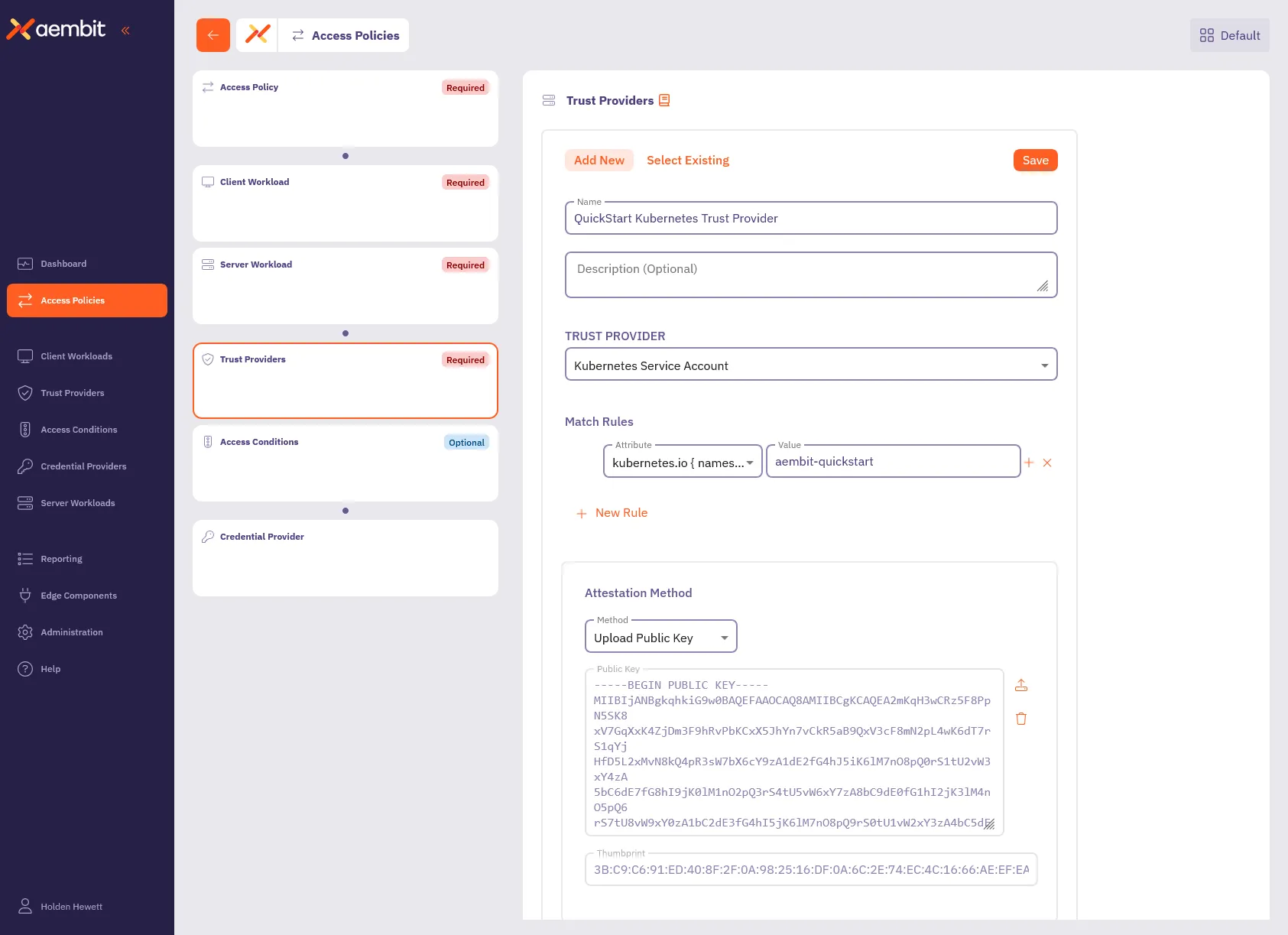 7. Click **Save** to add the Trust Provider to the policy. By associating this Trust Provider with an Access Policy, Aembit validates workload identities based on the rules you defined. For example, Aembit automatically authenticates Kubernetes service accounts running in the `aembit-quickstart` namespace and denies accounts from all other namespaces. This makes sure that only workloads within that namespace can access your sensitive resources. Aembit supports a wide variety of Trust Providers tailored for different environments: * [Kubernetes Service Account](/user-guide/access-policies/trust-providers/kubernetes-service-account-trust-provider) * [AWS roles](/user-guide/access-policies/trust-providers/aws-role-trust-provider) * [Azure Metadata Service](/user-guide/access-policies/trust-providers/azure-metadata-service-trust-provider) This flexibility allows you to seamlessly integrate Trust Providers that align with your existing infrastructure. For more details on Trust Providers, including advanced configurations and other types, see [Trust Provider Overview](/user-guide/access-policies/trust-providers/add-trust-provider) and related sub-pages. ## Configure Access Conditions [Section titled “Configure Access Conditions”](#configure-access-conditions) Access Conditions allow you to define specific rules to control when and how Aembit issues credentials to Server Workloads. Access Conditions strengthen security by making sure Aembit grants access only when the Access Conditions aligns with your organization’s policies. 1. Click the **Access Conditions** card in the left panel. 2. Configure the Access Condition: * **Display Name** - `QuickStart Time Condition` (or another user-friendly name) * **Integration** - `Aembit Time Condition` 3. In the **Conditions** section, select the appropriate timezone for your condition. 4. Click the **+** icon next to each day you want to include in your Time Condition configuration, such as Monday from 8 AM to 5 PM. 5. Click **Save** to add the Access Condition to the policy. 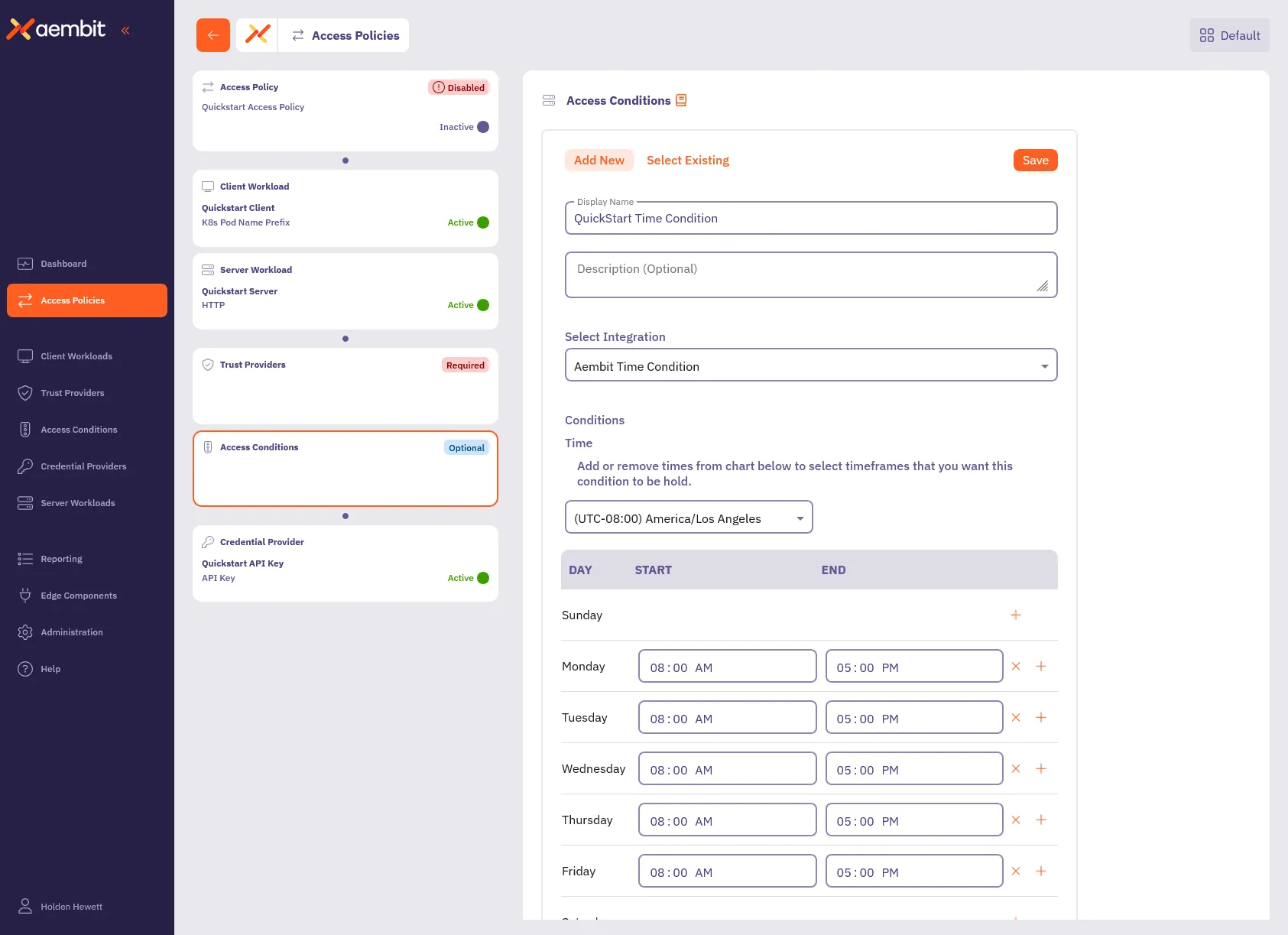 6. Click **Save Policy** in the header bar to save all changes. With this configuration, Aembit grants access to the workloads you specified only during the days and timeframes you defined. If the conditional access check fails, Aembit denies access, and an displays an error message on the client workload. Aembit logs this action and detailed information about the failure, including the `accessConditions` field with an `Unauthorized` result, which you can find in the associated logs. In the next section, [Reporting](#reporting), you’ll see how to review these logs. Aembit also supports other types of Conditional Access configurations, such as [GeoIP restrictions](/user-guide/access-policies/access-conditions/aembit-geoip) and integrations with third-party vendors such as [CrowdStrike](/user-guide/access-policies/access-conditions/crowdstrike). These options allow you to build comprehensive and flexible access policies suited to your organization’s needs. For more details on Access Conditions, see [Access Conditions Overview](/user-guide/access-policies/access-conditions/) and explore related sub-pages to configure additional types. ## Reporting [Section titled “Reporting”](#reporting) Reporting is crucial for maintaining security and operational efficiency. It provides a clear view of access attempts, policy evaluations, and credential usage, enabling you to identify potential issues and maintain compliance. To access the Reporting Dashboard, in your Aembit Tenant, select **Reporting** from the left sidebar menu. By default, you’ll see the **Access Authorization Events** page, where you can review event details related to workload access attempts. In the top ribbon menu, there are three key reporting categories: * **Access Authorization Events** - View event logs for all access attempts. Each event details its evaluation stages, showing which Access Policies Aembit applied, whether they succeeded, and the reason for any failures. * **Audit Logs** - Track system changes, such as user actions, configuration updates, or policy changes. * **Workload Events** - Monitor events generated from the traffic between Client Workloads and Server Workloads. These events provide detailed information about all requests and responses, helping you analyze workload interactions comprehensively. 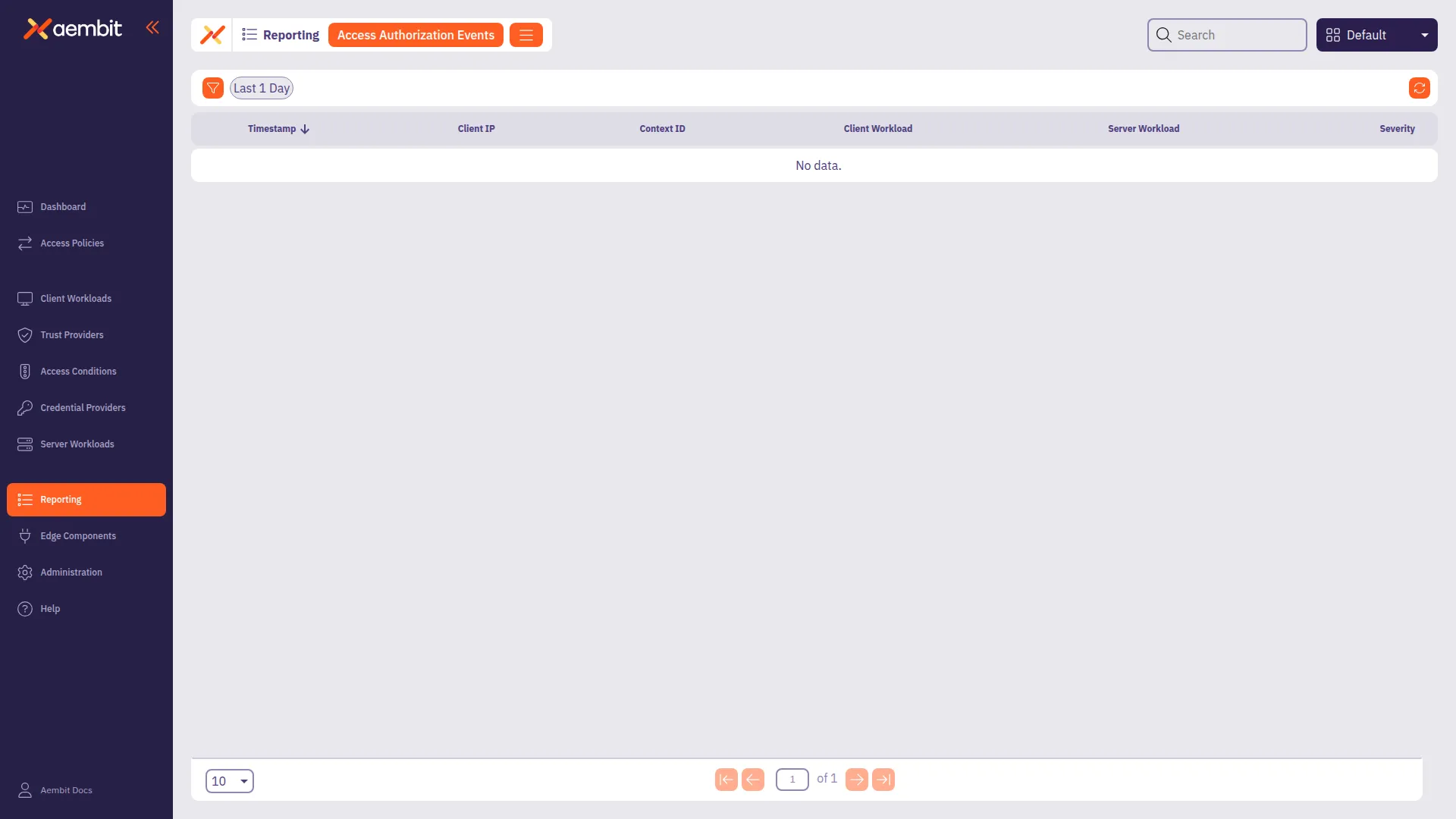 You also have filters available to you to narrow down your view by **Timespan**, **Severity**, and **Event Type**. These filters help you analyze events more efficiently, focusing on specific time periods or issues that require your attention. For now, you’ll look at **Access Authorization Events**. As they provide essential insight into how Aembit evaluates access requests. ### Access Authorization Events [Section titled “Access Authorization Events”](#access-authorization-events) Whenever a Client Workload**Client Workload**: Client Workloads represent software applications, scripts, or automated processes that initiate access requests to Server Workloads, operating autonomously without direct user interaction.[Learn more](/get-started/concepts/client-workloads) attempts to access a Server Workload**Server Workload**: Server Workloads represent target services, APIs, databases, or applications that receive and respond to access requests from Client Workloads.[Learn more](/get-started/concepts/server-workloads), Aembit generates Access Authorization Events. These events capture access attempts, log how Aembit evaluated access, and display the outcome (granted or denied). The process has three stages: * **Access Request** - Captures initial request details, including source, target, and transport protocol. * **Access Authorization** - Evaluates the request against Access Policies, detailing results from Trust Providers, Access Conditions, and Credential Providers**Credential Provider**: Credential Providers obtain the specific access credentials—such as API keys, OAuth tokens, or temporary cloud credentials—that Client Workloads need to authenticate to Server Workloads.[Learn more](/get-started/concepts/credential-providers). * **Access Credential** - Shows how Aembit retrieved and injected credentials, or explains any failure reasons. To review these stages, follow these steps: 1. **Filter by Request** - In the filtering options, locate the **Event Type** and select **Request**. Then, click an event in the list to inspect it. 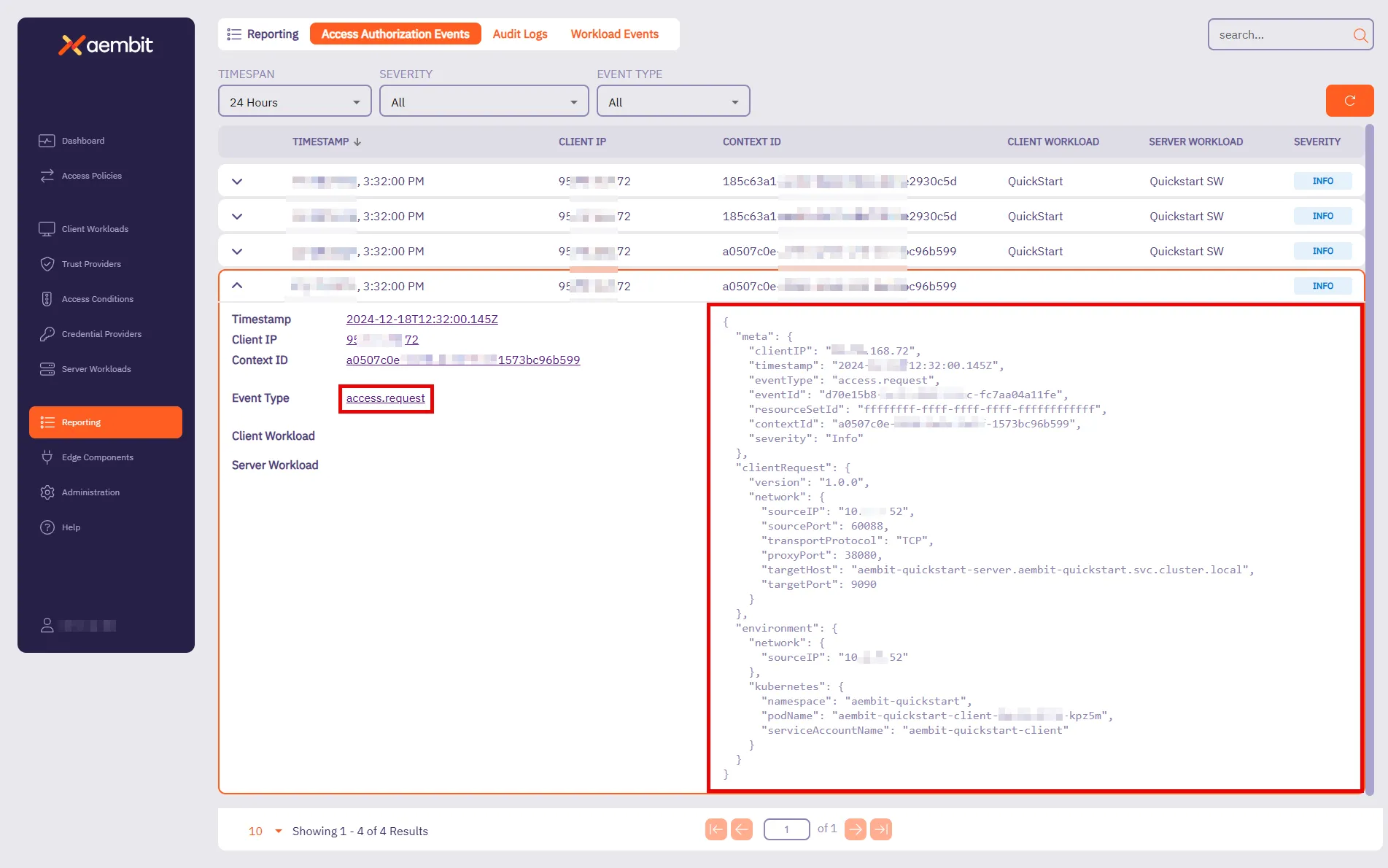 This event provides key details about the connection attempt. It shows when the request happened, where it’s coming from, and which workload made the request. For the quickstart, you should see: * **Target Host** - `aembit-quickstart-server.aembit-quickstart.svc.cluster.local` * **Service Account** - `aembit-quickstart-client` Both should match what you configured in the Access Policy. 2. Filter by **Authorization** - Change the **Event Type** filter to **Authorization** and select an event from the list. 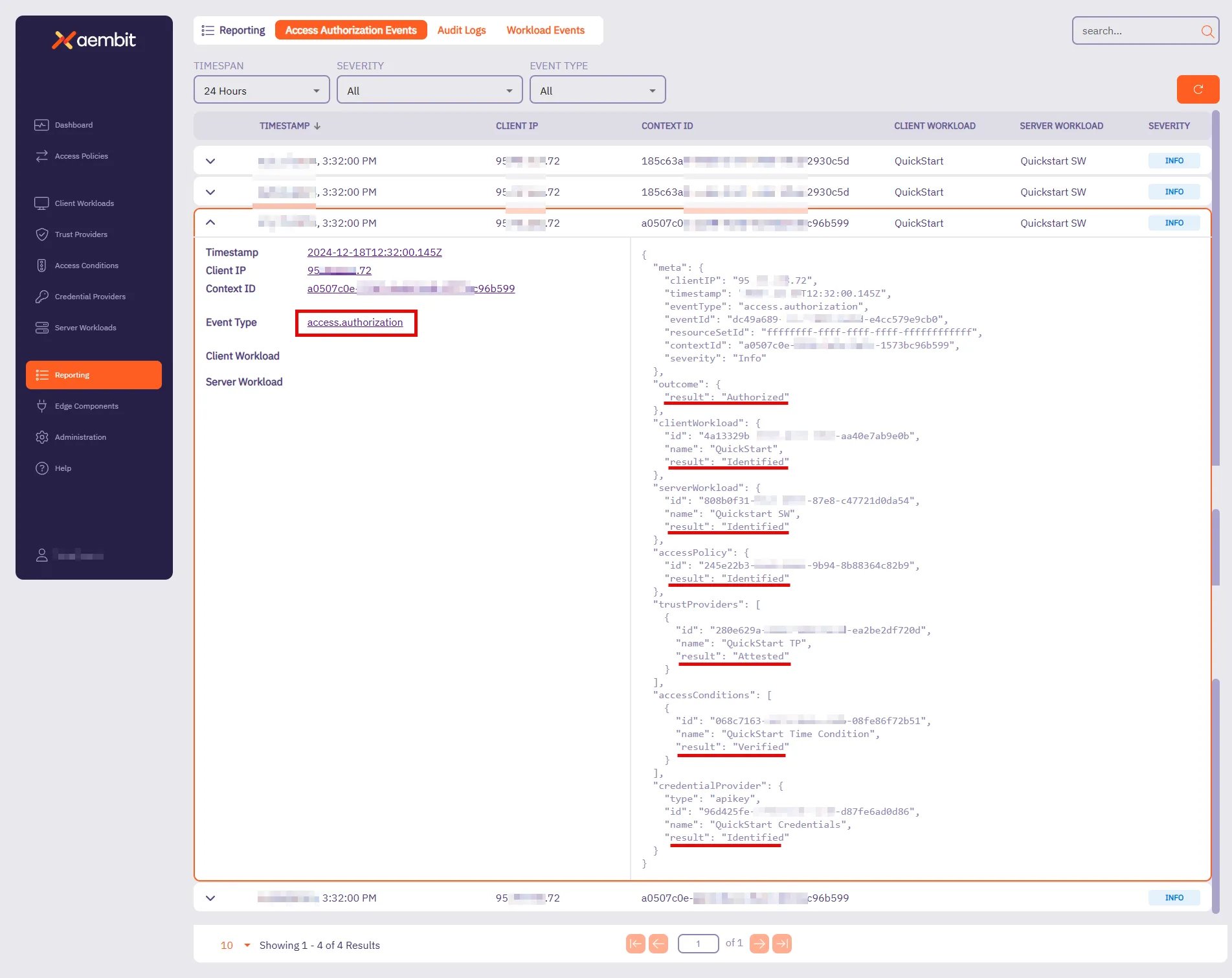 This event shows how Aembit evaluated access against the Access Policy. It displays the result (**Authorized** or **Unauthorized**) and highlights key components that Aembit checked. For the quickstart sandbox environment, you’ll see that Aembit successfully: * Identified the Client Workload, Server Workload, and Access Policy. * Attested the Trust Provider. * Verified the Access Condition. * Identified the Credential Provider. When Aembit successfully identifies and verifies these components, Aembit grants access to that Client Workload. 3. **Filter by Credential** - Change the **Event Type** filter to **Credential** and select an event from the list. 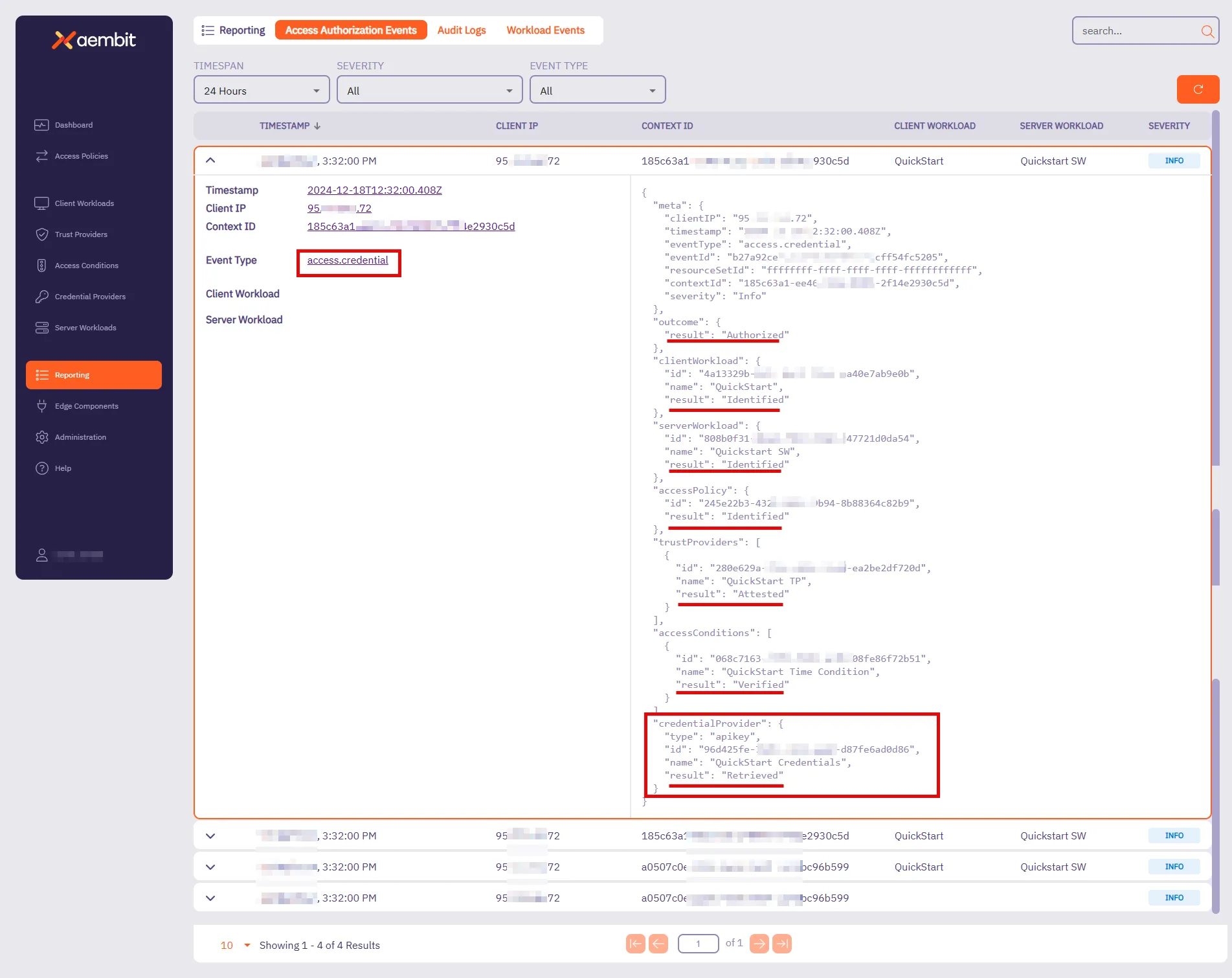 This event tracks how Aembit retrieves credentials to enable access. It shows whether Aembit was successful in retrieving the credential and which Credential Provider Aembit used. For the quickstart sandbox environment, you’ll see that Aembit successfully: * Identified the Client Workload, Server Workload, and Access Policy. * Retrieved the Credential Provider, verifying that the Client Workload had the required credentials for secure access. At this stage, everything is in place—the request was successfully authorized, credentials were securely retrieved, and the Client Workload can now access the Server Workload. For more detailed insights into Access Credential Events and other reports, visit the [Reporting](/user-guide/audit-report/) page. These pages provide further guidance on using filters, understanding event data, and troubleshooting potential issues. For your next steps, you can either try configuring Aembit with your real client workloads or explore additional possibilities to tailor it to your needs. In both cases, see the following resources: * **Server Workload Cookbook** - Offers ready-to-use recipes for popular APIs and services. Explore guides such as [Salesforce REST](/user-guide/access-policies/server-workloads/guides/salesforce-rest) and [GitHub REST](/user-guide/access-policies/server-workloads/guides/github-rest) to learn how to authorize secure access to these resources. * **Exploring Deployment Models** - Aembit supports diverse deployment environments beyond Kubernetes. For detailed examples and guidance, visit the [Support Matrix](/reference/support-matrix) and explore related sub-pages to learn about configuring deployments for specific environments like [Virtual Machines](/user-guide/deploy-install/virtual-machine/), [AWS Lambda Containers](/user-guide/deploy-install/serverless/aws-lambda-container), and more. Check out these guides and more to optimize your workloads with confidence! ## Next steps [Section titled “Next steps”](#next-steps) * [Core concepts](/get-started/concepts/) - Understand Aembit’s core concepts and how they work together. * [Aembit User Guide](/user-guide/) - Dive deeper into Aembit’s features and capabilities. * [Aembit API Guide](/api-guide/) - Access detailed technical documentation.
# Quickstart: Aembit core setup
> Aembit's quickstart core guide - practical experience automating and securing access between workloads
Aembit is a cloud-native, non-human identity and access management platform that provides secure, seamless access management for workloads across diverse environments. It simplifies how organizations control and authorize access between client and Server Workloads**Server Workload**: Server Workloads represent target services, APIs, databases, or applications that receive and respond to access requests from Client Workloads.[Learn more](/get-started/concepts/server-workloads), ensuring that only the right workloads can access critical resources at the right time. Aembit shifts the focus away from long-term credential management by enabling automated, secure access management for workloads connecting to services. By concentrating on managing access rather than secrets, Aembit provides a flexible and security-first approach to non-human identity across a wide range of infrastructures. ## In this guide [Section titled “In this guide”](#in-this-guide) This quickstart guide provides a practical introduction to Aembit’s capabilities. Here’s what you’ll do: 1. Set up a sandbox environment with pre-configured client and Server Workloads using Docker Desktop with Kubernetes. 2. Deploy workloads and configure a secure Access Policy between the client and server. 3. Gain practical experience managing automated, secure access between workloads. **Estimated Time to Complete** - \~15 minutes (if prerequisites are already installed). By completing this quickstart guide, you’ll have practical experience creating an example of Aembit’s capabilities—ensuring quick results as you implement access management in a real-world environment. Once you are comfortable with these foundational steps, Aembit offers the flexibility to manage access for more complex and scalable workloads across a range of infrastructure setups. ## Before you begin [Section titled “Before you begin”](#before-you-begin) Before starting Aembit’s quickstart guide, you must complete the following prerequisites: 1. [Sign up with Aembit](#sign-up-with-aembit) and you can access your Aembit Tenant**Aembit Tenant**: Aembit Tenants serve as isolated, dedicated environments within Aembit that provide complete separation of administrative domains and security configurations.[Learn more](/get-started/concepts/administration) at `https://.aembit.io`. 2. [Install Docker Desktop and enable Kubernetes](#install-docker-desktop-and-enable-kubernetes). 3. [Install Helm](#install-helm). ### Sign up with Aembit [Section titled “Sign up with Aembit”](#sign-up-with-aembit) Visit the [Sign Up page](https://useast2.aembit.io/signup) to create an account and set up your tenant for accessing the platform. A Tenant in Aembit is your organization’s dedicated workspace within the platform. It isolates your workloads, Access Policies**Access Policy**: Access Policies define, enforce, and audit access between Client and Server Workloads by cryptographically verifying workload identity and contextual factors rather than relying on static secrets.[Learn more](/get-started/concepts/access-policies), and configurations, enabling you to manage your environment securely and efficiently. Your Aembit Tenant ID is a unique identifier for your workspace, which you must use to access your Aembit Tenant at `https://.aembit.io`. Look for a welcome email from Aembit. It may take a few minutes; check your Junk or Spam folders if you don’t see it. ### Install Docker Desktop and enable Kubernetes [Section titled “Install Docker Desktop and enable Kubernetes”](#install-docker-desktop-and-enable-kubernetes) Docker Desktop includes Docker Engine and Kubernetes, making it easier to manage your containerized applications. 1. Download and install Docker Desktop from the [official Docker website](https://docs.docker.com/get-started/get-docker/) for your operating system. Once installed, open Docker Desktop. 2. Enable Kubernetes by going to **Settings -> Kubernetes** in Docker Desktop and toggling the **Enable Kubernetes** switch to the **On** position. 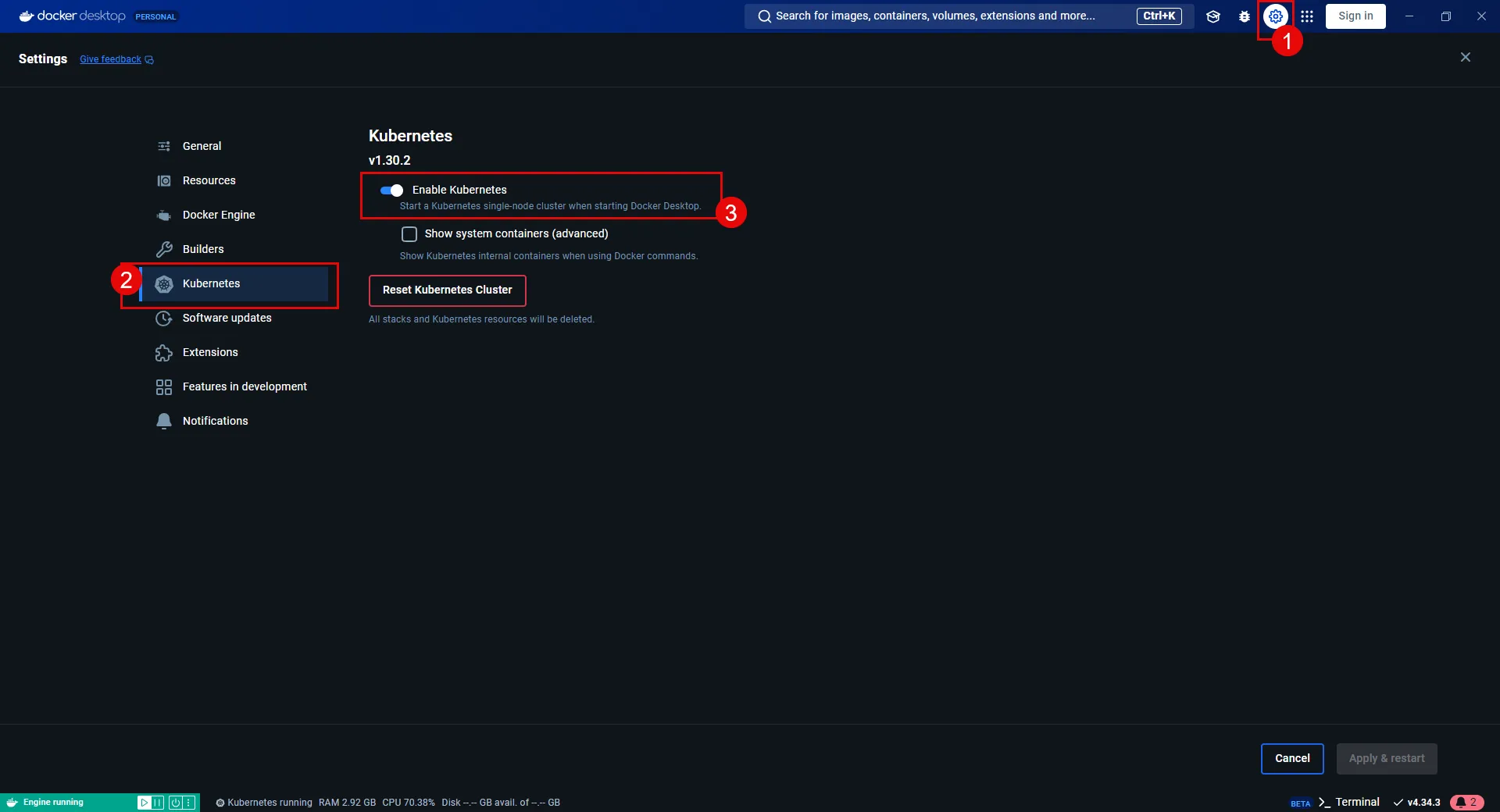 ### Install Helm [Section titled “Install Helm”](#install-helm) Helm deploys the pre-configured sandbox client and Server Workloads for this quickstart guide. A basic understanding of [Helm commands](https://helm.sh/docs/helm/) is helpful for deploying the sandbox workloads. Select one of the following tabs for your operating system to install Helm: * Windows 1. Download the [latest Helm version](https://github.com/helm/helm/releases) for Windows. 2. Run the installer and follow the on-screen instructions. 3. Once installed, open a Command Prompt or PowerShell terminal and verify the installation by running: ```cmd helm version ``` **Expected Output:** ```cmd version.BuildInfo{Version:"v3.x.x", GitCommit:"xxxxxxxxxxxxxxxxxxxxxxxxxxxxxxx", GitTreeState:"clean", GoVersion:"go1.x.x"} ``` * macOS 1. Use Homebrew to install Helm: ```shell brew install helm ``` 2. Verify the installation: ```shell helm version ``` **Expected Output:** ```shell version.BuildInfo{Version:"v3.x.x", GitCommit:"xxxxxxxxxxxxxxxxxxxxxxxxxxxxxxx", GitTreeState:"clean", GoVersion:"go1.x.x"} ``` * Linux 1. Download and install the latest Helm binary: ```shell curl -fsSL -o get_helm.sh "https://raw.githubusercontent.com/helm/helm/main/scripts/get-helm-3" chmod 700 get_helm.sh ./get_helm.sh ``` 2. Verify the installation: ```shell helm version ``` **Expected Output:** ```shell version.BuildInfo{Version:"v3.x.x", GitCommit:"xxxxxxxxxxxxxxxxxxxxxxxxxxxxxxx", GitTreeState:"clean", GoVersion:"go1.x.x"} ``` With these prerequisites complete, you are ready to deploy the sandbox workloads and configure secure access between workloads. ## Deploying workloads [Section titled “Deploying workloads”](#deploying-workloads) Make sure that your environment is ready for deployment by verifying the following: * [Docker Desktop installed and Kubernetes enabled](#install-docker-desktop-and-enable-kubernetes). * [Helm installed and configured correctly](#install-helm). With these steps in place, you are ready to deploy the workloads. ### Install applications [Section titled “Install applications”](#install-applications) 1. From your terminal, add the Aembit Helm chart repo by running: ```shell helm repo add aembit https://helm.aembit.io ``` 2. Deploy both the client and Server Workloads: ```shell helm install aembit-quickstart aembit/quickstart \ -n aembit-quickstart \ --create-namespace ``` ### Verify deployments [Section titled “Verify deployments”](#verify-deployments) After deploying the applications, verify that everything is running correctly using the following commands: 1. Check the Helm release status: ```shell helm status aembit-quickstart -n aembit-quickstart ``` **Expected Output:** ```shell NAME: aembit-quickstart LAST DEPLOYED: Wed Jan 01 10:00:00 2025 NAMESPACE: aembit-quickstart STATUS: deployed REVISION: 1 TEST SUITE: None ``` 2. List all resources in the namespace: ```shell kubectl get all -n aembit-quickstart ``` **Expected Output:** ```shell NAME READY STATUS RESTARTS AGE pod/aembit-quickstart-client-abcdef 1/1 Running 0 1m pod/aembit-quickstart-server-abcdef 1/1 Running 0 1m NAME TYPE CLUSTER-IP EXTERNAL-IP PORT(S) AGE service/aembit-quickstart-client NodePort 10.109.109.55 8080:30080/TCP 1m service/aembit-quickstart-server NodePort 10.109.104.236 9090:30090/TCP 1m ``` These outputs help you confirm that you’ve deployed the workloads and services correctly and are functioning as expected. ### Interacting with the applications [Section titled “Interacting with the applications”](#interacting-with-the-applications) In this section, you are going to interact with the pre-configured applications. This interaction demonstrates that the Client Workload can connect to the Server Workload but lacks the credentials to authenticate to it. 1. With the client and Server Workloads running, open the [**Client Workload**](http://localhost:30080) 2. Click **Get Data**. **you’ll receive a failure response** since you haven’t deployed Aembit Edge, nor has Aembit injected the necessary credentials for the Client Workload to access the Server Workload yet. 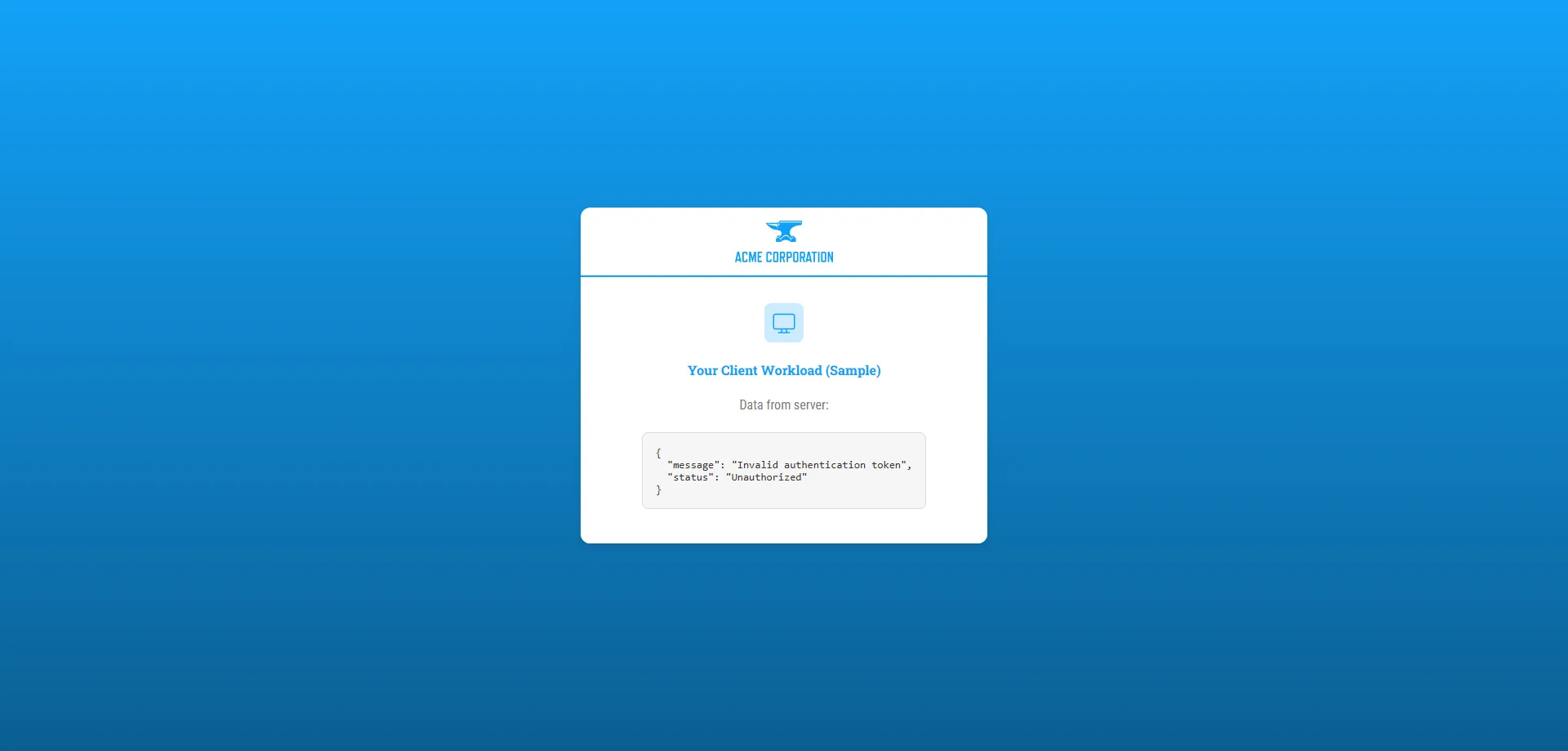 In the next sections, you’ll deploy Aembit Edge. Making it so that Aembit automatically acquires and injects the credential on behalf of the Client Workload so it can then access the Server Workload. ## Deploying Aembit Edge [Section titled “Deploying Aembit Edge”](#deploying-aembit-edge) With your workloads deployed, it’s time to integrate Aembit Edge into your system. Aembit Edge**Aembit Edge**: Aembit Edge represents components deployed within your operational environments that enforce Access Policies by intercepting traffic, verifying identities, and injecting credentials just-in-time.[Learn more](/get-started/concepts/aembit-edge) consists of components that customers install within their environment. These components form the core of Aembit’s Workload IAM functionality. Proceed with deploying Aembit Edge into your environment. ### Create a new Agent Controller [Section titled “Create a new Agent Controller”](#create-a-new-agent-controller) The Agent Controller is a helper component that facilitates the registration of other Aembit Edge Components. 1. In your Aembit Tenant, go to **Edge Components** from the left sidebar menu. 2. From the top ribbon menu, select **Deploy Aembit Edge**. 3. Select **Kubernetes** from the list of **Environments**. 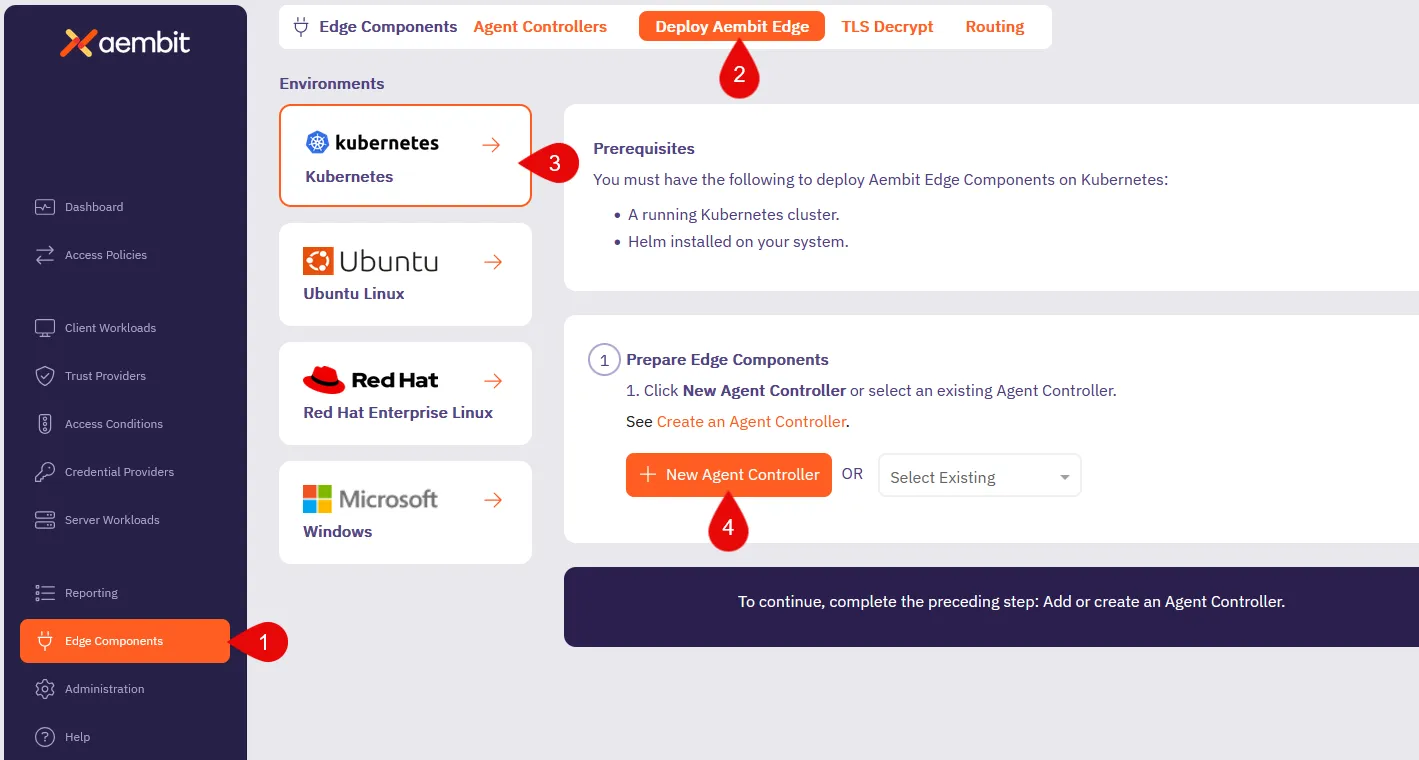 4. In the **Prepare Edge Components** section, click to **New Agent Controller**. you’ll see the Agent Controller setup page displayed. 5. Enter a name, such as `Quickstart Agent Controller` (or another user-friendly name). 6. Add an optional description for the controller. 7. For now, ignore the Trust Provider**Trust Provider**: Trust Providers validate Client Workload identities through workload attestation, verifying identity claims from the workload's runtime environment rather than relying on pre-shared secrets.[Learn more](/get-started/concepts/trust-providers) section, as you don’t need it for this quickstart guide. 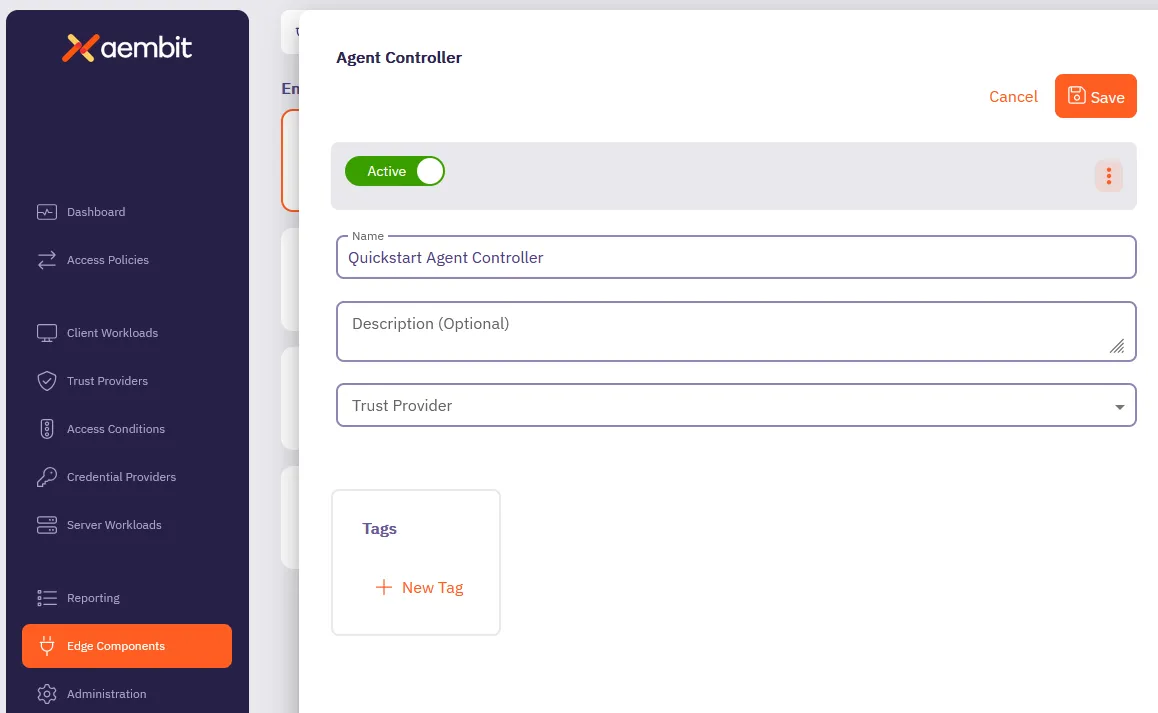 8. Click **Save**. Once saved, your newly created Agent Controller auto-selects from the list of available Agent Controllers. This reveals the **Install Aembit Edge Helm Chart** section. ### Deploy the Aembit Edge [Section titled “Deploy the Aembit Edge”](#deploy-the-aembit-edge) As part of Aembit Edge, the Agent Proxy is automatically injected within the Client Workload pod. It manages workload identity and securely injects credentials for communication with Server Workloads. 1. In the **Install Aembit Edge Helm Chart** section, make sure that you select the Agent Controller you just created in the dropdown menu. 2. In the **New Agent Controller** section, click **Generate Code** to generate a Device Code. The Device Code is a temporary one-time-use code, valid for 15 minutes, that you use during installation to authenticate the Agent Controller with your Tenant. Make sure you complete the next steps quickly before the code expires. 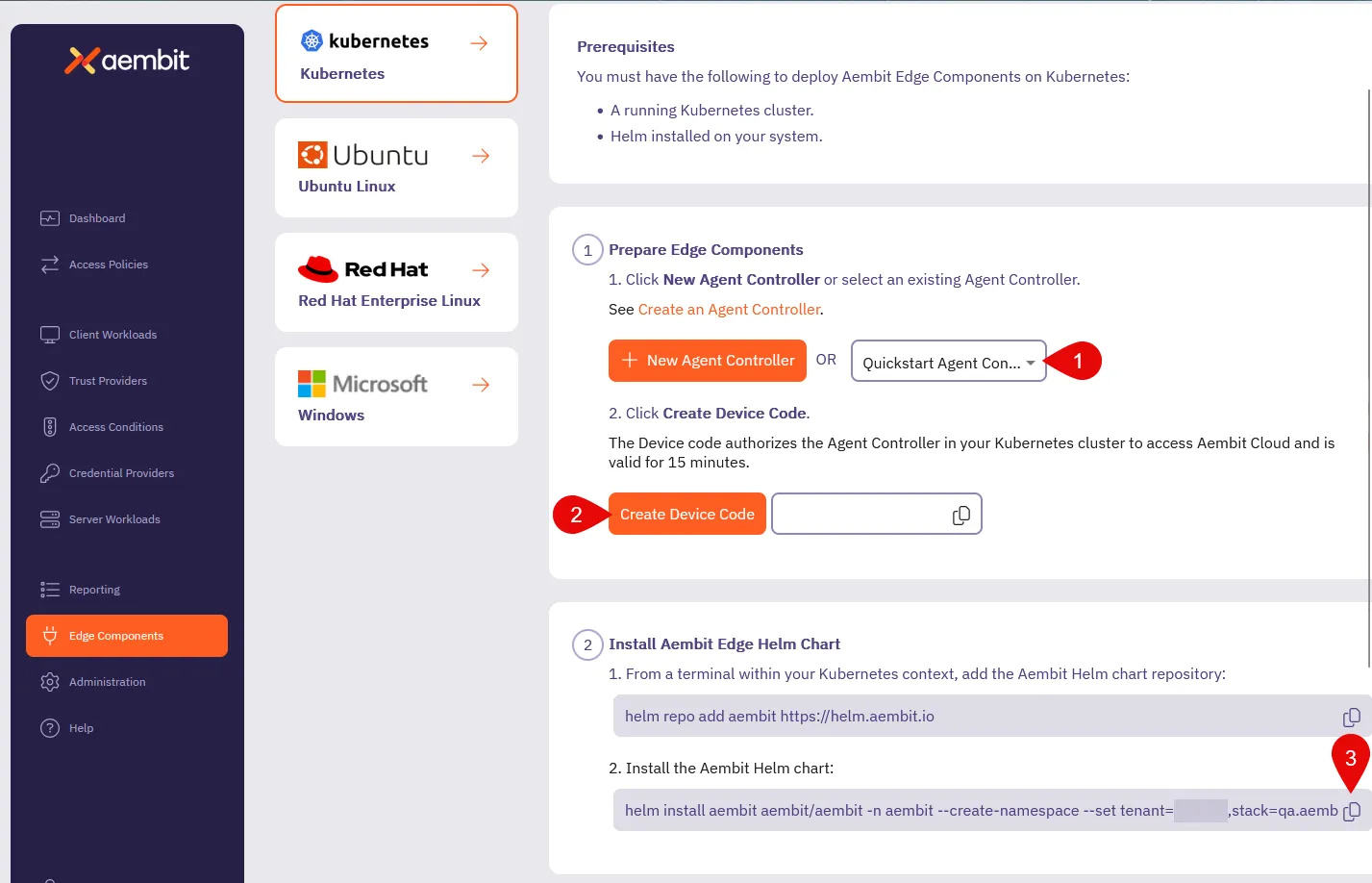 3. Since you already [installed the Aembit Helm repo](#install-applications), go ahead and install the Aembit Helm chart. *From your terminal*, run the following command, making sure to replace: * `` with your tenant ID (Find this in the Aembit website URL: `.aembit.io`) * `` with the code you generated in the Aembit web UI ```shell helm install aembit aembit/aembit \ --create-namespace \ -n aembit \ --set tenant=,agentController.deviceCode= ``` Aembit Edge is now deployed in your Kubernetes cluster! 4. Check the current state of quickstart Client pod to confirm it is running without the Agent Proxy container. The **`READY`** column for the `pod/aembit-quickstart-client-abcdef` should display **`1/1`**, indicating only the Client Workload container is running. ```shell kubectl get all -n aembit-quickstart ``` **Expected Output:** ```shell NAME READY STATUS RESTARTS AGE pod/aembit-quickstart-client-abcdef 1/1 Running 0 1m pod/aembit-quickstart-server-abcdef 1/1 Running 0 1m ``` 5. Restart the quickstart Client pod to include the Agent Proxy in the deployment: ```shell kubectl delete pods -l app=aembit-quickstart-client -n aembit-quickstart --grace-period=0 --force ``` 6. After the pod restarts, verify that the `aembit-quickstart-client` pod now includes two containers: the Client Workload container and the Agent Proxy container. After the pod restarts, check its state again. **`READY`** column for the `aembit-quickstart-client` pod should now display **`2/2`**, indicating that both the Client Workload container and the Agent Proxy container are running successfully. ```shell kubectl get all -n aembit-quickstart ``` **Expected Output:** ```shell NAME READY STATUS RESTARTS AGE pod/aembit-quickstart-client-abcdef 2/2 Running 0 1m pod/aembit-quickstart-server-abcdef 1/1 Running 0 1m ``` This step confirms that Aembit has injected Agent Proxy within the Client pod, enabling Aembit to securely manage credentials for communication between Client and Server Workloads. ## Configuring an Access Policy**Access Policy**: Access Policies define, enforce, and audit access between Client and Server Workloads by cryptographically verifying workload identity and contextual factors rather than relying on static secrets.[Learn more](/get-started/concepts/access-policies) [Section titled “Configuring an ”](#configuring-an) Access Policies define the conditions for granting Client Workloads access to Server Workloads. Aembit evaluates access by: 1. Verifying if the Client and Server Workloads match the Access Policy. 2. A Trust Provider authenticates the Client Workload’s identity. 3. The Access Policy meets all Access Conditions. In this quickstart guide, you have omitted configuring a Trust Provider to simplify your first walkthrough. However, Trust Providers are a critical component in securing all production deployments. They enable Aembit to authenticate workloads without provisioning long-lived credentials or secrets, making sure that Aembit authenticates and authorizes only workloads it trusts. Once authorized, Aembit delivers the necessary credentials to Agent Proxy, which it then uses to authenticate the Client workload to the Server Workload. 1. From your Aembit Tenant, click **Access Policies** in the left sidebar menu. 2. Click **+ New** to open the Access Policy Builder. 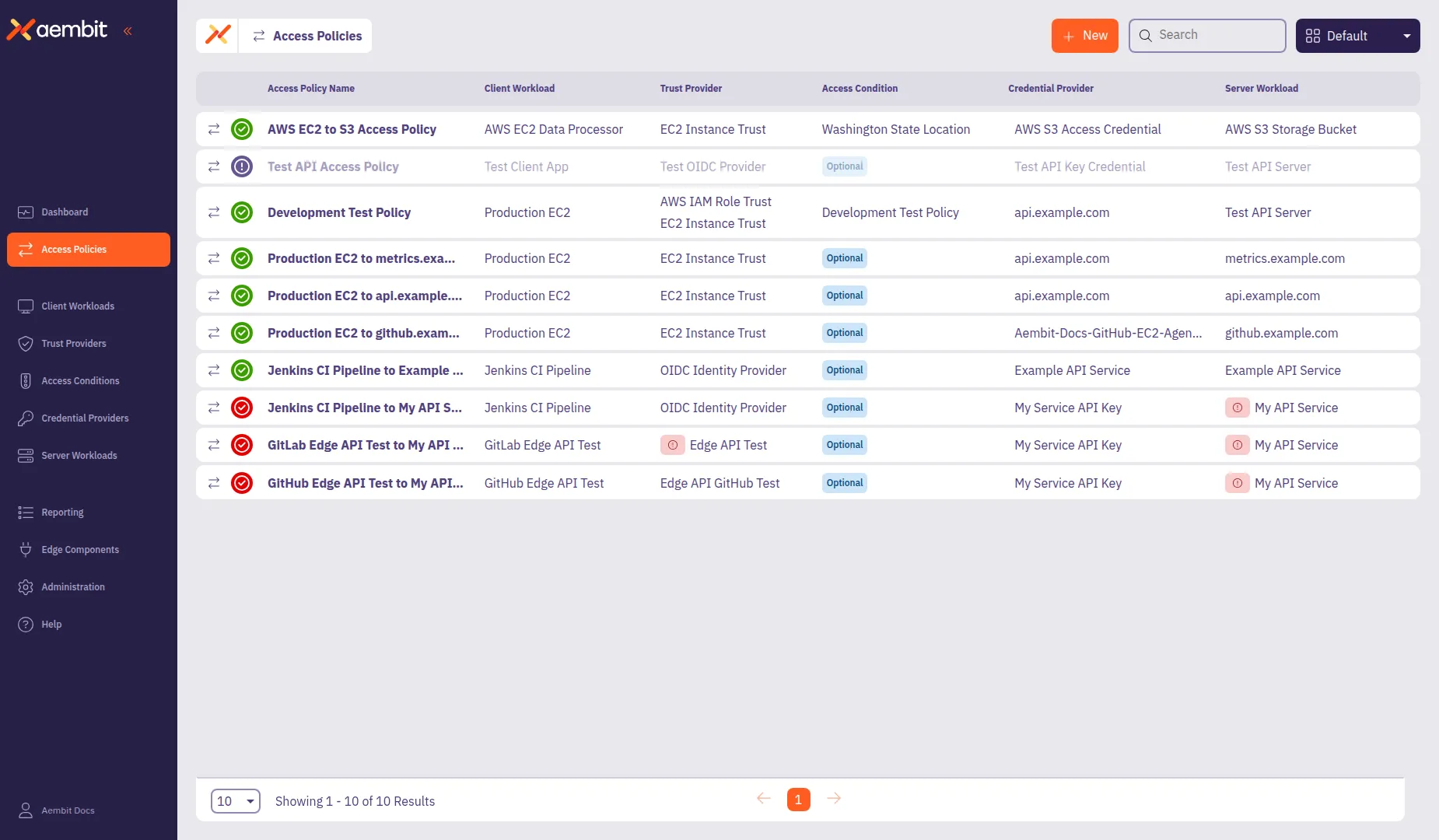 The Access Policy Builder displays component cards in the left panel. The **Access Policy** card is selected by default. ### Name the Access Policy [Section titled “Name the Access Policy”](#name-the-access-policy) Before configuring the policy components, name your Access Policy. You must provide a name before you can save the policy. 1. In the **Access Policy Name** field, enter `Quickstart Policy` (or another descriptive name). 2. (Optional) Add a description to help identify the policy’s purpose. 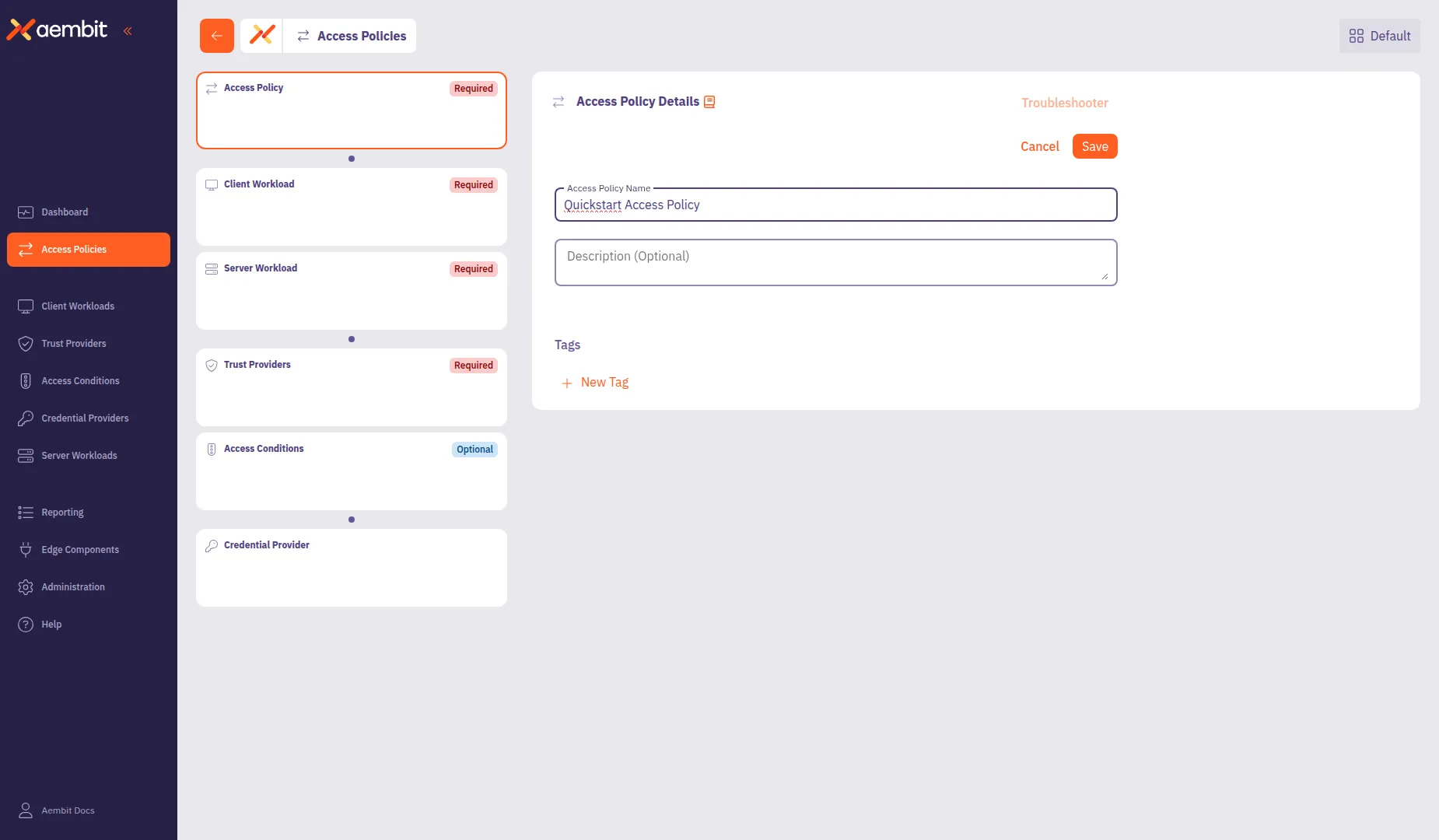 3. Click **Save** to add these details to the policy. ### Configure a Client Workload [Section titled “Configure a Client Workload”](#configure-a-client-workload) Client Workloads**Client Workload**: Client Workloads represent software applications, scripts, or automated processes that initiate access requests to Server Workloads, operating autonomously without direct user interaction.[Learn more](/get-started/concepts/client-workloads) are software applications that access services provided by Server Workloads. These could be custom apps, CI/CD pipelines, or scripts running without user intervention. 1. Click the **Client Workload** card in the left panel. 2. Configure the Client Workload: * **Name** - `Quickstart Client` (or another user-friendly name) * **Client Identification** - `Kubernetes Pod Name Prefix` * **Value** - `aembit-quickstart-client` 3. Click **Save** to add the Client Workload to the policy. 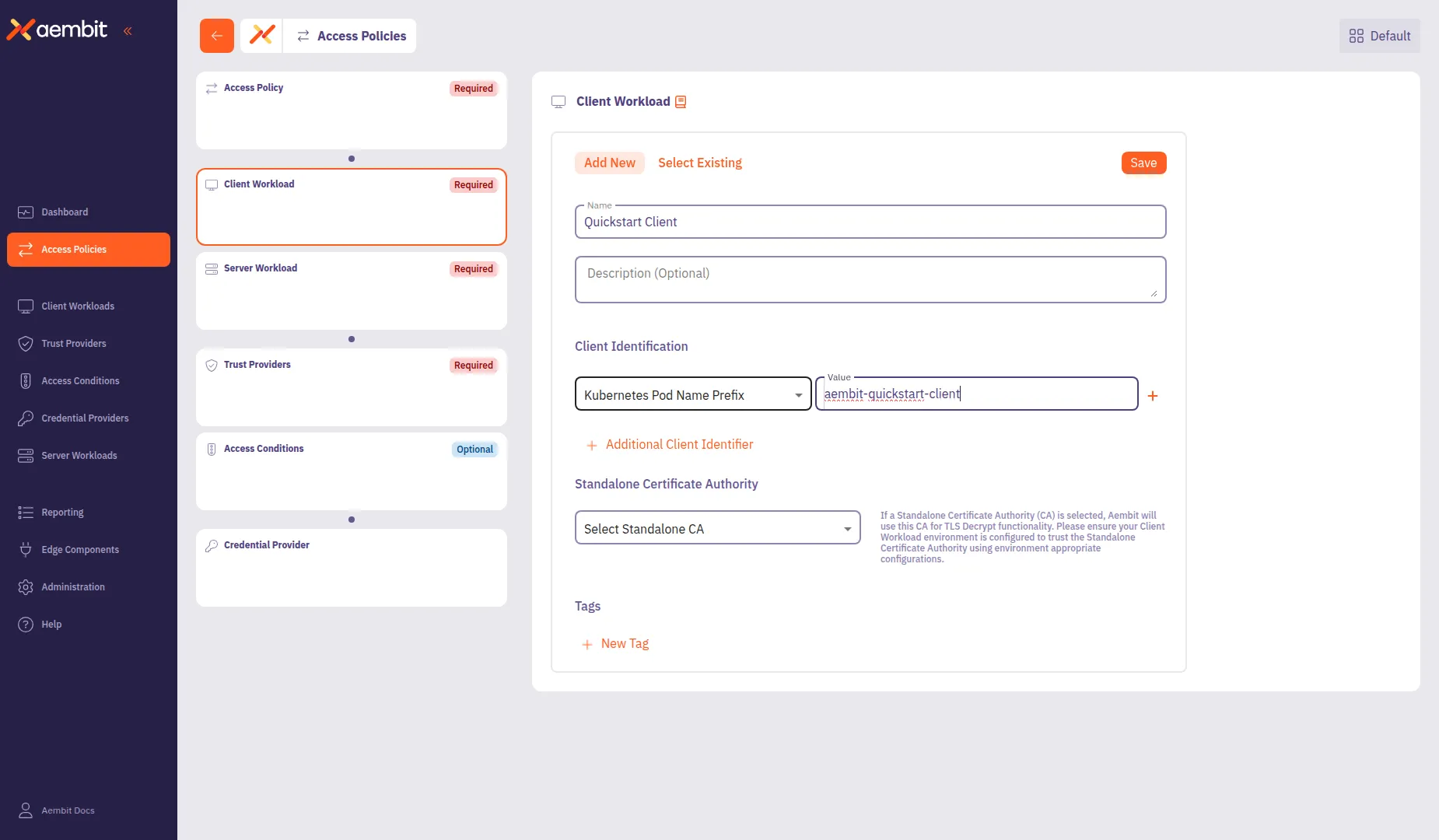 ### Configure a Server Workload [Section titled “Configure a Server Workload”](#configure-a-server-workload) [Server Workloads](/user-guide/access-policies/server-workloads/guides/) serve requests from Client Workloads and can include APIs, gateways, databases, and more. The configuration settings define the Service Endpoint and Authentication methods, specifying the networking details and Aembit authenticates requests. 1. Click the **Server Workload** card in the left panel. 2. Configure the Server Workload: * **Name** - `Quickstart Server` (or another user-friendly name) * **Host** - `aembit-quickstart-server.aembit-quickstart.svc.cluster.local` * **Application Protocol** - `HTTP` * **Transport Protocol** - `TCP` * **Port** - `9090` * **Forward to Port** - `9090` * **Authentication Method** - `HTTP Authentication` * **Authentication Scheme** - `Bearer` 3. Click **Save** to add the Server Workload to the policy. 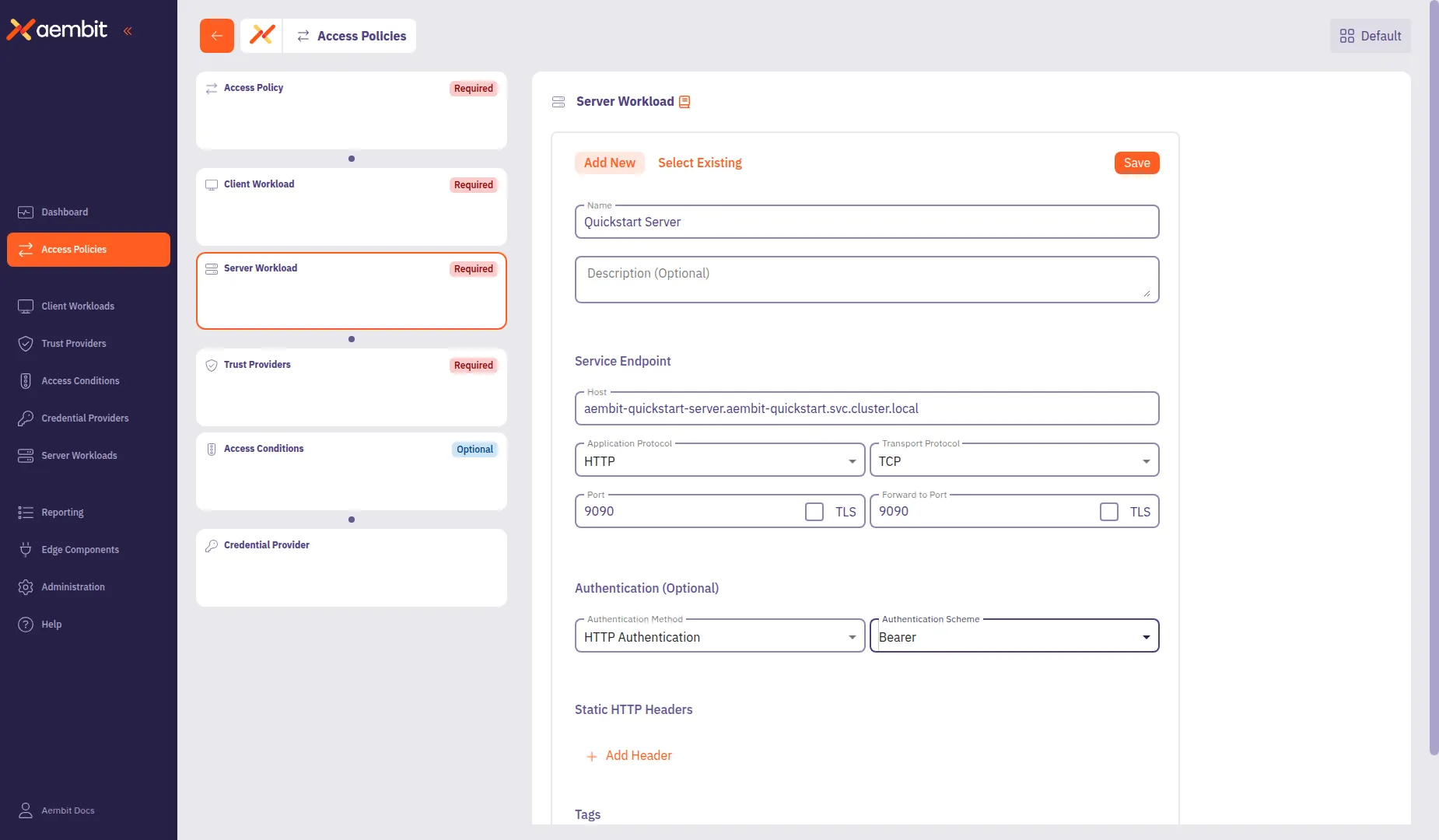 ### Configuring a Credential Provider [Section titled “Configuring a Credential Provider”](#configuring-a-credential-provider) Credential Providers**Credential Provider**: Credential Providers obtain the specific access credentials—such as API keys, OAuth tokens, or temporary cloud credentials—that Client Workloads need to authenticate to Server Workloads.[Learn more](/get-started/concepts/credential-providers) supply the access credentials, such as OAuth tokens or API keys, that allow Client Workloads to authenticate with Server Workloads. Aembit can also request and manage tokens from third-party services. 1. From your web browser, go to the [sandbox Server Workload](http://localhost:30090). 2. Click **Generate API Key**. This generates a unique API key you’ll use in later in this section. Generating more than one key Avoid clicking the button multiple times, as only one API key (the last generated) remains active at a time. Copy the API key immediately after creating it, as you need it in the next step. 3. Copy the API key.  4. Click the **Credential Provider** card in the left panel. 5. Configure the Credential Provider: * **Name** - `Quickstart API Key` (or another user-friendly name) * **Credential Type** - `API Key` * **API Key** - Paste the API key you generated from the Server Workload 6. Click **Save** to add the Credential Provider to the policy. 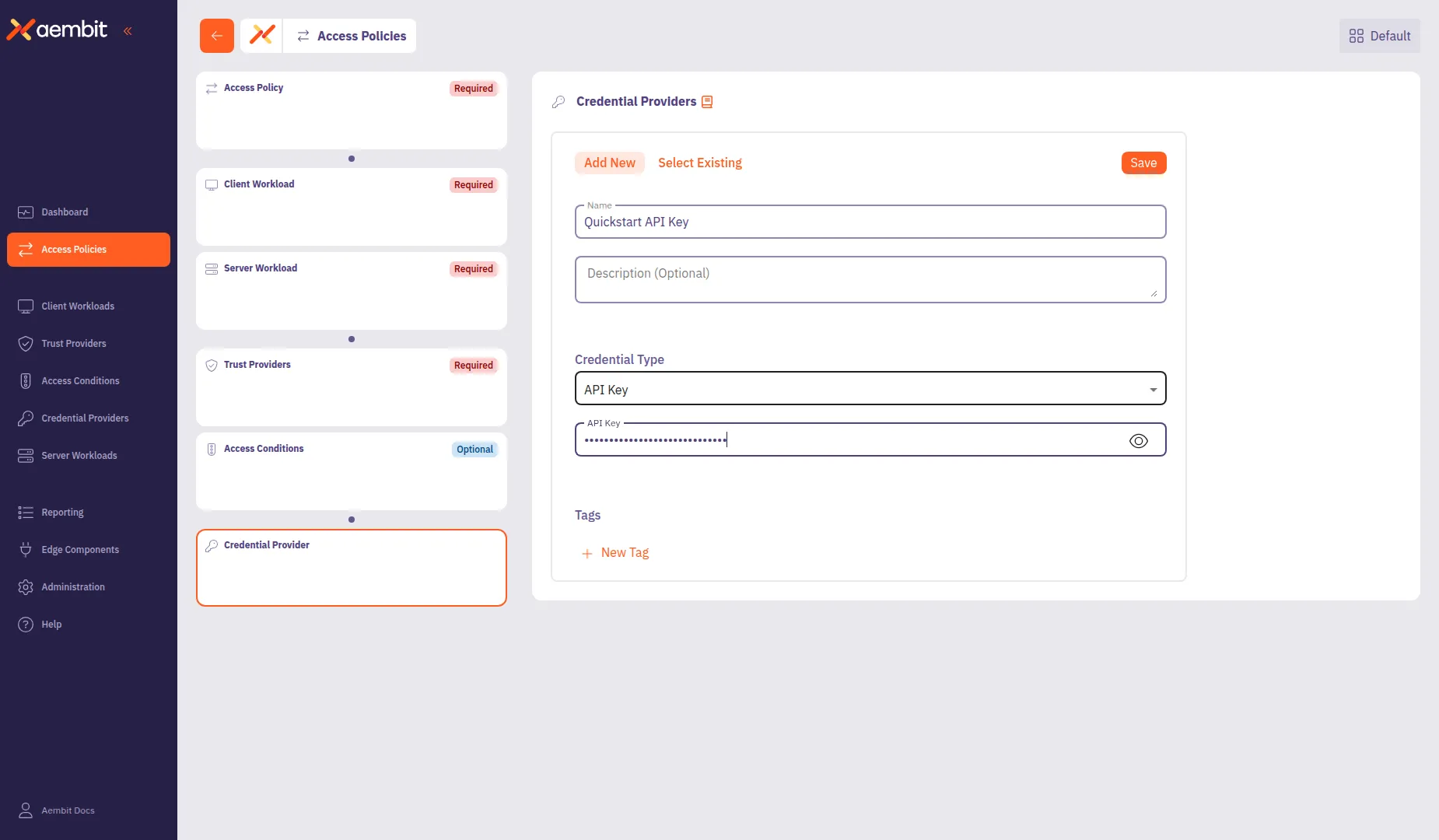 ### Finalizing the Access Policy [Section titled “Finalizing the Access Policy”](#finalizing-the-access-policy) Once you have configured all components, click **Save Policy** in the header bar. To activate the policy, enable the **Active** toggle. ## Testing the Access Policy [Section titled “Testing the Access Policy”](#testing-the-access-policy) To test your newly configured Access Policy, go to the [sandbox Client Workload](http://localhost:30080) and click **Get Data**. Since you activated the Access Policy and Aembit Edge installed the necessary credential into the request, you should see a successful response.  Congratulations! You’ve created a Access Policy that’s securing access between workloads! With just a few steps, you have deployed workloads, configured an Access Policy, and successfully authenticated requests—all without the complexity of manual credential management. This quickstart guide is just the foundation of all the features that Aembit has to offer. It supports powerful capabilities for scaling, securing, and managing workload identity across many environments, providing security and efficiency as your needs grow. #### Troubleshoot [Section titled “Troubleshoot”](#troubleshoot) If you encounter any issues or don’t see a successful response, the Aembit Web UI has a useful **Troubleshooter** that can help you identify potential problems: 1. Go to **Access Policies** and select the Access Policy you created for this quickstart guide. 2. In the left sidebar, select the **Access Policy** card to view the policy details. 3. Click **Troubleshoot** in the top corner. The **Troubleshoot** link is only visible when you have the Access Policy card selected in the left sidebar. This brings up the Troubleshooter with your Access Policy’s Client and Server Workloads already populated. 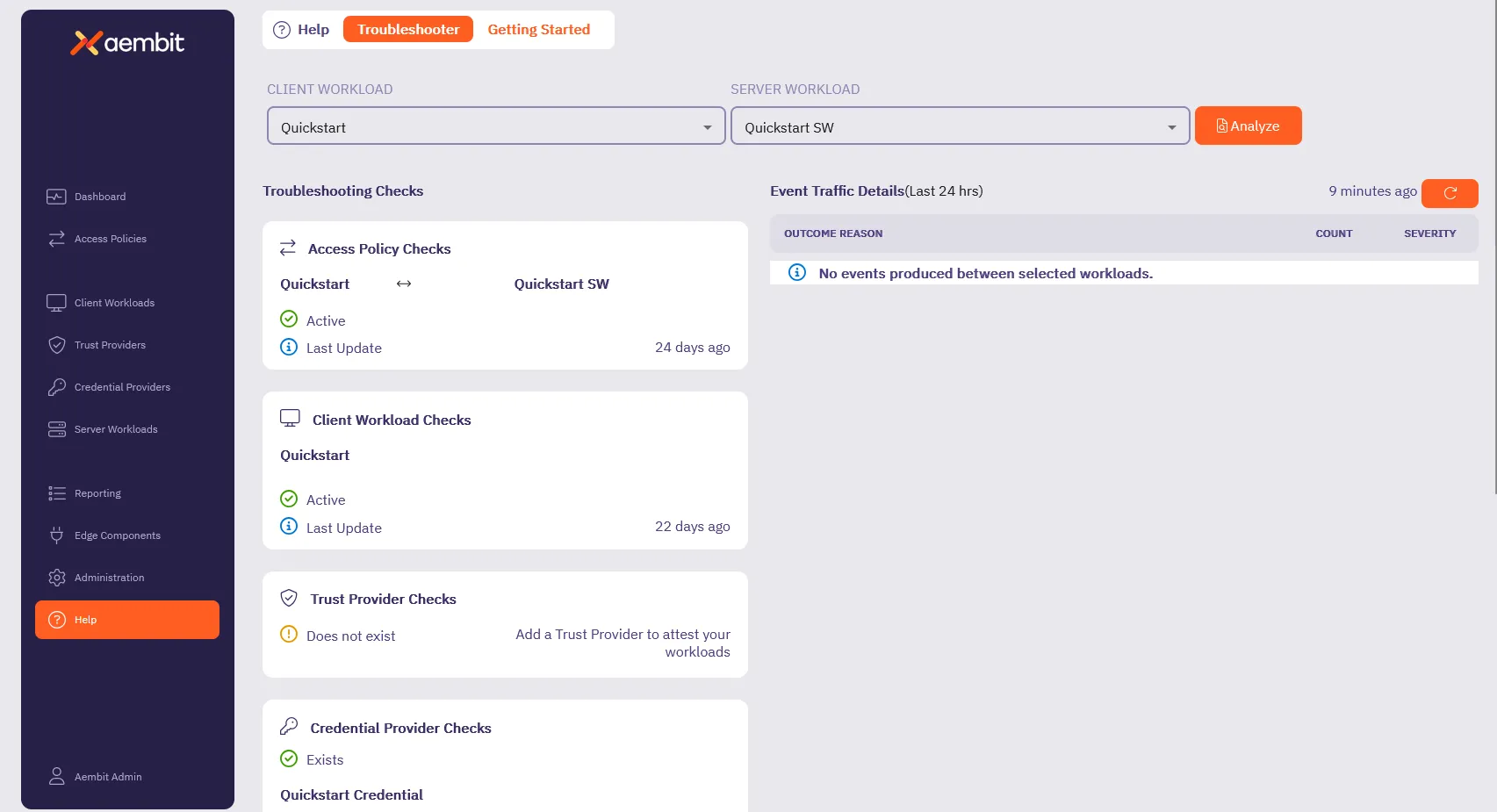 4. Inspect and make sure that the **Access Policy Checks**, **Client Workload Checks**, **Credential Provider Checks** and **Server Workload Checks** are **Active** (they have green checks). 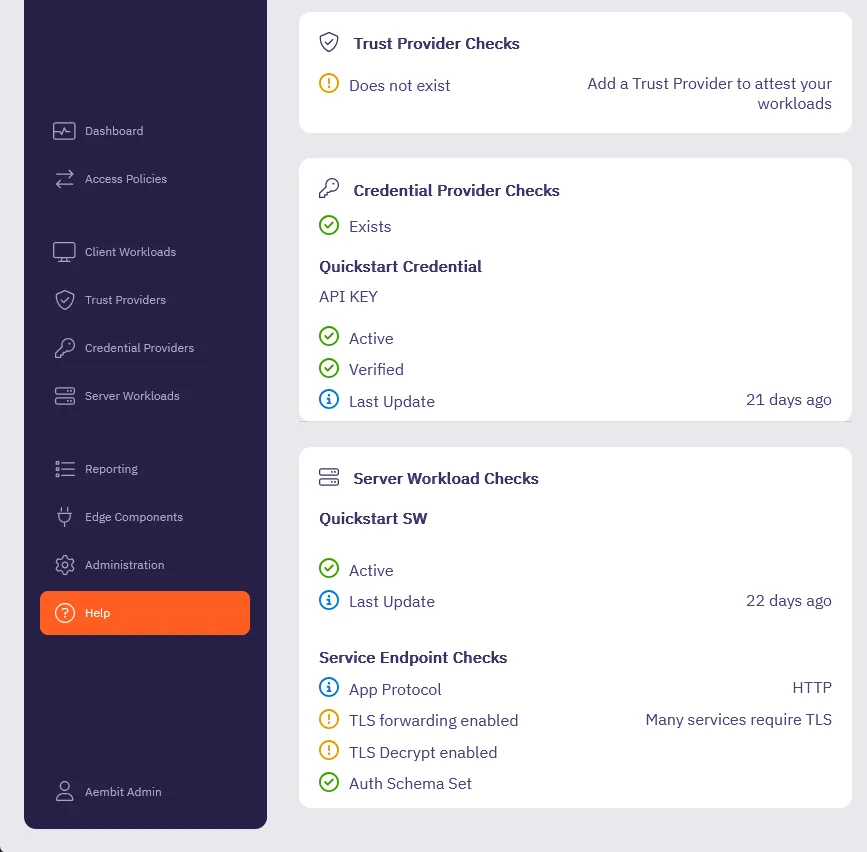 5. For any sections that aren’t Active, go back to the respective section in the quickstart guide and double check your configurations. Also, make sure all the [Prerequisites](#before-you-begin) are complete. The Troubleshooter helps diagnose potential issues with your configuration. For more details, visit the [Troubleshooter Tool](/user-guide/troubleshooting/tenant-configuration) page. Still need help? Please [submit a support request](https://aembit.io/support/) to Aembit’s support team. ## What’s next? [Section titled “What’s next?”](#whats-next) Now that you’ve completed the basics, it’s time to explore additional features and capabilities to get the most out of Aembit. See [Quickstart: Add an Access Policy to the core setup](/get-started/quickstart/quickstart-access-policy) to learn how to: * **Configure Trust Providers** to enhance workload identity verification and strengthen access control. * **Set Up Access Conditions** to enforce time-based, geo-based, or custom rules for workload access. * **Navigate Reporting Tools** to review access events, track policy usage, and analyze workload behavior. Following the *Quickstart: Access Policy enhancements* page helps you expand beyond the core Aembit setup, guiding you toward features that enhance security, visibility, and scalability.
# Aembit security posture
> Description of ow Aembit approaches, implements, and maintains security
This section covers Aembit’s approach to security, providing information about the security architecture, compliance, and threat modeling.
# Aembit software architecture
> Explanation and illustration of Aembit's software architecture
# Security compliance
> Overview of Aembit's security posture and compliance
# Aembit in your threat model
> How and where Aembit fits into your threat model
# Sign up for an Aembit Tenant
> How to sign up for an Aembit Tenant directly through Aembit or cloud providers
## Signup options [Section titled “Signup options”](#signup-options) Aembit provides multiple ways for you to sign up for your own Aembit Tenant**Aembit Tenant**: Aembit Tenants serve as isolated, dedicated environments within Aembit that provide complete separation of administrative domains and security configurations.[Learn more](/get-started/concepts/administration) to start securing your workloads with Aembit. Aembit Tenants are where you manage your Access Policies**Access Policy**: Access Policies define, enforce, and audit access between Client and Server Workloads by cryptographically verifying workload identity and contextual factors rather than relying on static secrets.[Learn more](/get-started/concepts/access-policies), ### Direct [Section titled “Direct”](#direct)  [Aembit Client ID ](https://useast2.aembit.io/signup)Sign up directly with Aembit → ### Cloud providers [Section titled “Cloud providers”](#cloud-providers)  [AWS Marketplace ](https://aws.amazon.com/marketplace/pp/prodview-uubndvyt7slgu)Sign up through AWS Marketplace →  [Azure Marketplace ](https://azuremarketplace.microsoft.com/en-us/marketplace/apps/aembitinc1743804383861.aembit_starter)Sign up through Azure Marketplace → ## Pricing plans [Section titled “Pricing plans”](#pricing-plans) Sign up or upgrade anytime. Use Aembit to manage access between your workloads and sensitive services on-prem, in the cloud, and SaaS. The following table details the available plans and their pricing structure, what each plan includes, and guidance on when to upgrade your plan: | Plan | What’s included | When to upgrade | | ------------------- | ------------------------------------------------------------------------------------------------------------------------------------------------------------------------------------------------------------------------------------------------------------------------------------------------------------------------------------------ | -------------------------------------------------------------------------------------------------------------- | | Starter (Free) | 10 Client Workloads**Client Workload**: Client Workloads represent software applications, scripts, or automated processes that initiate access requests to Server Workloads, operating autonomously without direct user interaction.[Learn more](/get-started/concepts/client-workloads) 24 hours of event log retention Community support | You need more workloads. You need multi-tenancy. You want live Aembit support. | | Teams (monthly) | 10 Client Workloads included Grow to 500 Workloads 3 [Resource Sets](/get-started/concepts/administration#resource-sets) 24 hours of event log retention Live support during Business Hours | You need to support more than 500 workloads. You have custom event log retention needs. You need 24x7 support. | | Enterprise (custom) | Unlimited Workloads Unlimited Access Policies Custom event log retention Conditional access 24x7 support | You can adjust resources when you need. You can add private networking. | For details about pricing, see the [Aembit Pricing page](https://aembit.io/pricing/) on the official Aembit website.
# Aembit tutorials overview
> Learn about how to configure, deploy, and scale Aembit
This section provides tutorials to help you learn how to deploy, configure, and scale Aembit in different environments. These tutorials offer step-by-step guidance for common implementation scenarios. The following tutorials are available: * [Kubernetes Tutorial](/get-started/tutorials/tutorial-k8s) - Learn how to deploy and configure Aembit in Kubernetes environments * [Terraform Tutorial](/get-started/tutorials/tutorial-terraform) - Learn how to automate Aembit configuration using Terraform * [Virtual Machines Tutorial](/get-started/tutorials/tutorial-vms) - Learn how to deploy and configure Aembit on virtual machines
# Tutorial - Deploying on Kubernetes
> Tutorial explaining how to deploy Aembit Edge Components on Kubernetes
# Tutorial - Scaling with the Aembit Terraform provider
> Tutorial explaining how to scale Aembit with the Aembit Terraform provider
# Tutorial - Deploying on virtual machines
> Tutorial explaining how to deploy Aembit Edge Components on virtual machines
# Aembit use cases
> This page describes common use cases for Aembit
This section covers common use cases for Aembit, demonstrating how Workload Identity and Access Management can be applied in various scenarios.
# Using Aembit in CI/CD environments
> How Aembit secures NHI access in CI/CD environments
# Using Aembit to manage credentials
> How Aembit enables you to centrally manage and control credentials in your environments
# Using Aembit to secure your microservices
> How Aembit secures NHI access between microservices
# Using Aembit in multicloud environments
> How Aembit secures NHI access in multicloud environments
# Using Aembit to secure third-party access
> How Aembit secures third-party access to your environment
# AI Guide
> Aembit's AI and MCP ecosystem documentation
The AI Guide provides documentation for Aembit’s AI integrations, including the Model Context Protocol (MCP) ecosystem. ## MCP ecosystem [Section titled “MCP ecosystem”](#mcp-ecosystem) Aembit provides different components for securing AI agent communications using the Model Context Protocol: * **[MCP Authorization Server](/ai-guide/mcp/authorization-server/)** - OAuth 2.1 authorization for MCP clients * **MCP Identity Gateway** - (Coming soon) * **MCP Server** - (Coming soon)
# MCP overview
> Overview of Aembit's Model Context Protocol (MCP) components
Aembit provides the following components for securing AI agent communications using the Model Context Protocol (MCP): ## Components [Section titled “Components”](#components) | Component | Description | Status | | ----------------------------------------------------------- | ---------------------------------------------- | --------- | | [Authorization Server](/ai-guide/mcp/authorization-server/) | OAuth 2.1 authorization server for MCP clients | Available |
# MCP Authorization Server
> Secure OAuth 2.1 authorization for Model Context Protocol (MCP) clients and servers using Aembit Access Policies.
Aembit’s MCP**Model Context Protocol**: A standard protocol for AI agent and server interactions that defines how AI assistants communicate with external tools and data sources.[Learn more(opens in new tab)](https://modelcontextprotocol.io/) Authorization Server secures MCP workloads using OAuth 2.1 authorization flows. It implements the authorization functionality defined in the [MCP specification](https://modelcontextprotocol.io/specification/2025-06-18/basic). AI agents and MCP clients authenticate and receive access tokens governed by Aembit Access Policies**Access Policy**: Access Policies define, enforce, and audit access between Client and Server Workloads by cryptographically verifying workload identity and contextual factors rather than relying on static secrets.[Learn more](/get-started/concepts/access-policies). ## What it does [Section titled “What it does”](#what-it-does) * **Handles OAuth for MCP** - Implements the OAuth 2.1 authorization code flow from the MCP specification so you don’t have to build it yourself * **Works with existing MCP clients** - Supports Dynamic Client Registration**Dynamic Client Registration**: An OAuth mechanism that allows MCP clients to register with the Authorization Server at runtime without pre-configuration, receiving unique credentials for subsequent authorization requests.[Learn more](/ai-guide/mcp/authorization-server/concepts-mcp-auth-server/#client-registration), so tools like Gemini CLI and Claude Desktop can connect without pre-configuration * **Uses your existing identity provider** - Integrates with OIDC and SAML providers (Okta, Azure AD, Google) for user authentication * **Adds access control** - Apply Aembit Access Policies**Access Policy**: Access Policies define, enforce, and audit access between Client and Server Workloads by cryptographically verifying workload identity and contextual factors rather than relying on static secrets.[Learn more](/get-started/concepts/access-policies) to restrict who can access which MCP servers, with optional time and location conditions * **Runs in Aembit Cloud** - Available in v1.27+ with no additional agents to deploy ## When to use it [Section titled “When to use it”](#when-to-use-it) Use Aembit’s MCP Authorization Server when you need to: * Secure MCP-compliant workloads or AI agents using OAuth 2.1 flows * Apply fine-grained access control, including geo/time-based conditions and integration with OIDC identity providers * Enable dynamic client registration and seamless integration with MCP clients like Claude Desktop and Gemini CLI, or use MCP Jam for testing and debugging your authorization flows ## How it works [Section titled “How it works”](#how-it-works) Aembit’s MCP Authorization Server processes requests through these steps: 1. **Client registration** - MCP clients register with the MCP Authorization Server using a redirect URI as their identifier, via dynamic client registration 2. **Authorization request** - Clients initiate OAuth 2.1 flows, redirecting users for authentication through their configured identity provider 3. **Policy evaluation** - Aembit evaluates Access Policies, including trust provider attestation and access conditions 4. **Token issuance** - On successful authorization, the server issues access tokens for use with MCP servers using the OIDC ID Token Credential Provider 5. **Token validation** - MCP servers validate tokens using standard [OIDC](https://openid.net/specs/openid-connect-core-1_0.html)/JWKS**JWKS**: JSON Web Key Set - A set of cryptographic keys published at a well-known endpoint, used to verify the signatures of JSON Web Tokens (JWTs) issued by an authorization server.[Learn more](/ai-guide/mcp/authorization-server/reference-mcp-auth-server/) mechanisms. Aembit lets you configure the audience, issuer, subject claims, and token lifetime For an architecture diagram showing these components, see [MCP Authorization Server architecture](/ai-guide/mcp/authorization-server/concepts-mcp-auth-server/#mcp-authorization-server-architecture). ## Current authentication support [Section titled “Current authentication support”](#current-authentication-support) Aembit’s MCP Authorization Server supports **human/user authentication** through OIDC and SAML Identity Providers. Users authenticate through their browser using their identity provider (IdP) such as Azure AD, Okta, or Google. | Authentication type | Description | Supported? | | ------------------- | ------------------------------------------------------------------------------- | ---------- | | Human/user | Users authenticate via OIDC or SAML Identity Providers (Azure AD, Okta, Google) | ✅ | | Non-human workload | Service accounts, AWS IAM roles, Azure Managed Identity | ❌ | ### Choosing between OIDC and SAML [Section titled “Choosing between OIDC and SAML”](#choosing-between-oidc-and-saml) Aembit’s MCP Authorization Server supports both OIDC and SAML identity providers. Both require a Credential Provider to generate access tokens, but they differ in Trust Provider support: | Protocol | Trust Provider | Credential Provider | | -------- | ---------------------------- | ------------------- | | OIDC | OIDC ID Token Trust Provider | Required | | SAML | Not available | Required | * **OIDC**: Use the OIDC ID Token Trust Provider in your Access Policy to validate identity tokens. A Credential Provider generates the access token. * **SAML**: A Credential Provider generates the access token. Trust Provider validation isn’t available for SAML identity providers (a SAML Trust Provider doesn’t exist yet). Both protocols require an identity provider configured in your Aembit tenant under **Administration > Identity Providers**. If you configure multiple identity providers for your tenant, users select their IdP during the authentication flow. ## In this section [Section titled “In this section”](#in-this-section) * [MCP Authorization Server concepts](/ai-guide/mcp/authorization-server/concepts-mcp-auth-server/) - URL configuration, token handling, and Access Policy components * [Set up the MCP Authorization Server](/ai-guide/mcp/authorization-server/setup-mcp-auth-server/) - Configure Access Policies and deploy the service * [MCP Authorization Server reference](/ai-guide/mcp/authorization-server/reference-mcp-auth-server/) - Configuration options, endpoints, and error codes * [Troubleshoot the MCP Authorization Server](/ai-guide/mcp/authorization-server/troubleshooting-mcp-auth-server/) - Common errors and solutions
# MCP Authorization Server concepts
> Conceptual deep-dive of Aembit's MCP Authorization Server including access control, client authentication, token handling, and URL configuration.
This page covers the key concepts you need to understand when working with the Aembit Model Context Protocol (MCP) Authorization Server. For setup instructions, see [Set up the MCP Authorization Server](/ai-guide/mcp/authorization-server/setup-mcp-auth-server/). ## Access control [Section titled “Access control”](#access-control) Aembit’s MCP Authorization Server uses Aembit Access Policies**Access Policy**: Access Policies define, enforce, and audit access between Client and Server Workloads by cryptographically verifying workload identity and contextual factors rather than relying on static secrets.[Learn more](/get-started/concepts/access-policies) to control access. An Access Policy connects these components to answer key questions during authorization: * **Client Workload**Client Workload**: Client Workloads represent software applications, scripts, or automated processes that initiate access requests to Server Workloads, operating autonomously without direct user interaction.[Learn more](/get-started/concepts/client-workloads)** - Identifies which MCP client is requesting access. For MCP, the redirect URI from Dynamic Client Registration serves as the client identifier. This enables granular policies per client application (such as Gemini CLI or MCP Jam). * **Server Workload**Server Workload**: Server Workloads represent target services, APIs, databases, or applications that receive and respond to access requests from Client Workloads.[Learn more](/get-started/concepts/server-workloads)** - Identifies which MCP server the client wants to access. The Server Workload configuration (host, port, path) must align with your MCP server’s URL and the `resource` parameter. See [URL configuration alignment](#url-configuration-alignment) for details. * **Trust Provider**Trust Provider**: Trust Providers validate Client Workload identities through workload attestation, verifying identity claims from the workload's runtime environment rather than relying on pre-shared secrets.[Learn more](/get-started/concepts/trust-providers)** - Validates user identity during the authorization flow. For MCP with human authentication, the OIDC ID Token Trust Provider matches claims (issuer, audience, subject) from your identity provider to verify the user. * **Access Conditions**Access Condition**: Access Conditions add dynamic, context-aware constraints to authorization by evaluating circumstances like time, location, or security posture to determine whether to grant access.[Learn more](/get-started/concepts/access-conditions)** - Adds context-based restrictions such as time-of-day or geolocation. For geolocation conditions, both the MCP client’s IP and the user’s browser IP must satisfy the restriction. * **Credential Provider**Credential Provider**: Credential Providers obtain the specific access credentials—such as API keys, OAuth tokens, or temporary cloud credentials—that Client Workloads need to authenticate to Server Workloads.[Learn more](/get-started/concepts/credential-providers)** - Generates the access token that the MCP client uses to authenticate with the MCP server. The token includes an audience claim matching the Server Workload and uses the configured signing algorithm (ES256 (default) or RSA). For step-by-step configuration, see [Set up the MCP Authorization Server](/ai-guide/mcp/authorization-server/setup-mcp-auth-server/). ## MCP Authorization Server architecture [Section titled “MCP Authorization Server architecture”](#mcp-authorization-server-architecture) This diagram shows how Aembit’s MCP Authorization Server fits into the MCP ecosystem. Aembit sits between MCP clients and MCP servers, applying Access Policy controls to human authentication flows. The authorization flow differs depending on which identity provider protocol you use. Select your protocol: * OIDC  ### How OIDC authorization works [Section titled “How OIDC authorization works”](#how-oidc-authorization-works) 1. **Initiate command** - The user runs a command in their MCP client (like Gemini CLI) 2. **Register and request auth** - The MCP client registers with Aembit and requests authorization 3. **Redirect to IdP** - Aembit redirects the user’s browser to the OIDC identity provider 4. **Authenticate** - The user signs in with their corporate credentials 5. **Return ID token** - The identity provider returns an OIDC ID token to Aembit’s Trust Provider 6. **Verify** - The Trust Provider validates the ID token claims (issuer, audience, subject) 7. **Check** - Access Conditions check contextual factors (time, location) 8. **Issue access token** - The Credential Provider generates a JWT access token 9. **Access with bearer token** - The MCP client uses the token to access the protected MCP server * SAML  ### How SAML authorization works [Section titled “How SAML authorization works”](#how-saml-authorization-works) 1. **Initiate command** - The user runs a command in their MCP client (like Gemini CLI) 2. **Register and request auth** - The MCP client registers with Aembit and requests authorization 3. **Redirect to IdP** - Aembit redirects the user’s browser to the SAML identity provider 4. **Authenticate** - The user signs in with their corporate credentials 5. **Return SAML assertion** - The identity provider returns a SAML assertion to Aembit 6. **Check** - Access Conditions check contextual factors (time, location) 7. **Issue access token** - The Credential Provider generates a JWT access token 8. **Access with bearer token** - The MCP client uses the token to access the protected MCP server For guidance on choosing between OIDC and SAML, see [MCP Authorization Server overview](/ai-guide/mcp/authorization-server/#choosing-between-oidc-and-saml). ## Client authentication [Section titled “Client authentication”](#client-authentication) Aembit’s MCP Authorization Server supports Dynamic Client Registration (DCR)**Dynamic Client Registration**: An OAuth mechanism that allows MCP clients to register with the Authorization Server at runtime without pre-configuration, receiving unique credentials for subsequent authorization requests.[Learn more](/ai-guide/mcp/authorization-server/concepts-mcp-auth-server/#client-registration) for MCP client registration. This section covers how clients register and how redirect URIs identify them. ### Client registration [Section titled “Client registration”](#client-registration) With Dynamic Client Registration (DCR), MCP clients register themselves at runtime by sending a registration request to the `/register` endpoint. The Authorization Server returns a unique `client_id` for subsequent authorization requests. For detailed DCR mechanics, see the [MCP authorization specification](https://modelcontextprotocol.io/specification/2025-06-18/basic/authorization#2-3-2-dynamic-client-registration-dcr). ### Redirect URIs [Section titled “Redirect URIs”](#redirect-uris) In OAuth 2.1, a redirect URI is the callback URL where the Authorization Server sends users after they authenticate. When an MCP client registers through Dynamic Client Registration, it provides its redirect URI, which tells the Authorization Server where to send the authorization code after successful authentication. For details on the OAuth 2.1 redirect flow, see [RFC 6749](https://datatracker.ietf.org/doc/html/rfc6749#section-3.1.2). #### Redirect URIs as Client Workload identifiers [Section titled “Redirect URIs as Client Workload identifiers”](#redirect-uris-as-client-workload-identifiers) In Aembit Access Policies, the redirect URI serves a dual purpose. It’s both the OAuth callback URL and the identifier for your Client Workload. This enables granular access policies based on which MCP clients are requesting access. For example, if Gemini CLI registers with `http://localhost:4747/auth/callback`, you would configure a Client Workload with the Redirect URI identifier type set to this value. This ensures only authorized MCP clients can obtain access tokens for your protected MCP servers. #### Common redirect URI patterns [Section titled “Common redirect URI patterns”](#common-redirect-uri-patterns) Different MCP clients use different redirect URI formats depending on whether they run locally or remotely. **Local development:** | MCP client | Redirect URI | | ---------- | -------------------------------------- | | MCP Jam | `http://localhost:6274/oauth/callback` | | Gemini CLI | `http://localhost:7777/oauth/callback` | **Remote or cloud-hosted:** | MCP client | Redirect URI | | -------------- | --------------------------------------------- | | Claude Desktop | `https://claude.ai/api/mcp/auth_callback` | | Custom web app | `https://your-app.example.com/oauth/callback` |
# MCP server environment variables (for Aembit MCP Authorization Server)
> Reference for environment variables to configure MCP servers to use the Aembit MCP Authorization Server
These environment variables configure your MCP server (resource server), so it can use the Aembit MCP Authorization Server. Use these environment variables to configure your MCP server and **not** the Aembit-hosted MCP Authorization Server. ## MCP server environment variables [Section titled “MCP server environment variables”](#mcp-server-environment-variables) The following environment variables configure your MCP server to work with the Aembit MCP Authorization Server. ### `MCP_SERVER_HOST` [Section titled “MCP\_SERVER\_HOST”](#mcp_server_host) Default - `0.0.0.0` The network interface address your MCP server binds to. *Example*:\ `0.0.0.0` *** ### `MCP_SERVER_PORT` [Section titled “MCP\_SERVER\_PORT”](#mcp_server_port) Default - `8000` The port your MCP server listens on. *Example*:\ `8000` *** ### `MCP_SERVER_URL` Required [Section titled “MCP\_SERVER\_URL ”](#mcp_server_url) Default - not set The public URL of your MCP server. OAuth callbacks and token audience validation use this URL. It must match the URL that MCP clients use to connect to your server and the Server Workload configuration in Aembit. See [URL configuration alignment](/ai-guide/mcp/authorization-server/concepts-mcp-auth-server/#url-configuration-alignment) for details on ensuring your URLs match correctly. *Example*:\ `http://localhost:8000` *** ### `AEMBIT_MCP_AUTH_SERVER` Required [Section titled “AEMBIT\_MCP\_AUTH\_SERVER ”](#aembit_mcp_auth_server) Default - not set The URL of the Aembit MCP Authorization Server for your tenant. This URL uses the `.mcp.` subdomain. You can find this URL in the **Aembit MCP Authorization Server URL** field when you configure a Server Workload with the MCP application protocol. *Example*:\ `https://abc123.mcp.useast2.aembit.io` *** ### `AEMBIT_ISSUER` Required [Section titled “AEMBIT\_ISSUER ”](#aembit_issuer) Default - not set The token issuer URL used during JWT verification. This URL uses the `.id.` subdomain, **not** the `.mcp.` subdomain. Caution The issuer URL must use the `.id.` subdomain (for example, `abc123.id.useast2.aembit.io`). Using the `.mcp.` subdomain causes token verification to fail. See [Tenant URL patterns](/ai-guide/mcp/authorization-server/reference-mcp-auth-server/#tenant-url-patterns) for details on Aembit subdomain usage. *Example*:\ `https://abc123.id.useast2.aembit.io` *** ### `AEMBIT_JWKS_URI` Required [Section titled “AEMBIT\_JWKS\_URI ”](#aembit_jwks_uri) Default - not set The JSON Web Key Set (JWKS) endpoint for token signature verification. Your MCP server uses this endpoint to retrieve the public keys needed to validate access tokens issued by the Aembit MCP Authorization Server. *Example*:\ `https://abc123.mcp.useast2.aembit.io/.well-known/openid-configuration/jwks` ## Related resources [Section titled “Related resources”](#related-resources) For an example of how to use these environment variables in a Python MCP server, see [Test with a demo MCP server](/ai-guide/mcp/authorization-server/setup-mcp-auth-server/#test-with-a-demo-mcp-server) in the setup guide. * [MCP Authorization Server reference](/ai-guide/mcp/authorization-server/reference-mcp-auth-server/) * [Set up the MCP Authorization Server](/ai-guide/mcp/authorization-server/setup-mcp-auth-server/) * [Tenant URL patterns](/ai-guide/mcp/authorization-server/reference-mcp-auth-server/#tenant-url-patterns)
# MCP Authorization Server reference
> Configuration options, endpoints, and error codes for the Aembit MCP Authorization Server.
This reference documents the configuration options, endpoints, and error codes for the Aembit Model Context Protocol (MCP) Authorization Server. ## Configuration concepts [Section titled “Configuration concepts”](#configuration-concepts) MCP servers require specific configuration to work with Aembit’s MCP Authorization Server. Most settings are standard OAuth concepts from the MCP specification—the exact field names vary by MCP server implementation. | Concept | Purpose | Aembit value | Required by | | ---------------------------- | ------------------------------------------------------ | ------------------------------------------------------------------------------- | ----------- | | **Authorization Server URL** | Where MCP clients discover OAuth endpoints | `https://[tenant].mcp.[region].aembit.io` | MCP spec | | **Resource Server URL** | Identifies your MCP server for token audience matching | Your MCP server’s public URL | MCP spec | | **JWKS Endpoint** | Public keys used for token signature verification | `https://[tenant].mcp.[region].aembit.io/.well-known/openid-configuration/jwks` | RFC 8414 | | **Token Issuer** | OIDC issuer URL of token validation | `https://[tenant].id.[region].aembit.io` (note: `.id.` subdomain) | RFC 8414 | | **Token Audience** | Expected audience claim in issued tokens | Must match your Credential Provider configuration | RFC 8707 | | **Signing Algorithm** | Algorithm for token signatures | `ES256` (default) or RSA | Aembit | ### MCP server configuration [Section titled “MCP server configuration”](#mcp-server-configuration) MCP servers must specify their Authorization Server so unauthenticated clients know where to authenticate. The configuration method varies by implementation. **Example (generic JSON configuration):** ```json { "authorization_servers": ["https://[tenant].mcp.[region].aembit.io"], "resource_url": "http://localhost:8000", "token_issuer": "https://[tenant].id.[region].aembit.io", "token_audience": "http://localhost:8000" } ``` For environment variable-based configuration, see the [MCP server environment variables reference](/ai-guide/mcp/authorization-server/env-vars-mcp-auth-server/). ### MCP client configuration [Section titled “MCP client configuration”](#mcp-client-configuration) MCP clients like Gemini CLI discover authorization servers dynamically. Configure the MCP server endpoint in the client configuration: ```json { "mcpServers": { "TestMCPServer": { "httpUrl": "http://localhost:8000/mcp" } } } ``` The client handles all discovery and registration steps automatically when it encounters a 401 response from the MCP server. ## Tenant URL patterns [Section titled “Tenant URL patterns”](#tenant-url-patterns) Aembit uses different subdomains for different services. When configuring your MCP server, use the correct subdomain for each service. | Service | URL pattern | Example | | --------------- | ------------------------------------------------------------------------------- | ---------------------------------------------------------------------------- | | MCP Auth Server | `https://[tenant].mcp.[region].aembit.io` | `https://abc123.mcp.useast2.aembit.io` | | Token Issuer | `https://[tenant].id.[region].aembit.io` | `https://abc123.id.useast2.aembit.io` | | JWKS | `https://[tenant].mcp.[region].aembit.io/.well-known/openid-configuration/jwks` | `https://abc123.mcp.useast2.aembit.io/.well-known/openid-configuration/jwks` | Replace `[tenant]` with your Aembit tenant ID and `[region]` with your deployment region (for example, `useast2`). Token issuer subdomain The token issuer uses the `.id.` subdomain, not `.mcp.`. Ensure your MCP server’s `issuer` configuration uses the correct subdomain. ## Endpoints [Section titled “Endpoints”](#endpoints) | Endpoint | Method | Description | | ---------------------------------------------- | ------ | --------------------------------------------------------- | | `/.well-known/openid-configuration` | GET | OIDC discovery metadata document | | `` | GET | JWKS public keys, as advertised in the discovery document | | `` | POST | Dynamic Client Registration (DCR) | | `` (e.g. `/authorize`) | GET | OAuth 2.1 authorization endpoint | | `` (e.g. `/token`) | POST | OAuth 2.1 token endpoint | All endpoints except `/.well-known/openid-configuration` are discovered via the metadata document and must not be hard-coded; the preceding examples (`/authorize`, `/token`) illustrate typical paths only. ### Endpoint response examples [Section titled “Endpoint response examples”](#endpoint-response-examples) #### OAuth authorization server metadata [Section titled “OAuth authorization server metadata”](#oauth-authorization-server-metadata) ```http GET /.well-known/oauth-authorization-server ``` Response: ```json { "issuer": "https://[tenant].mcp.[region].aembit.io", "authorization_endpoint": "https://[tenant].mcp.[region].aembit.io/connect/authorize", "token_endpoint": "https://[tenant].mcp.[region].aembit.io/connect/token", "jwks_uri": "https://[tenant].mcp.[region].aembit.io/.well-known/openid-configuration/jwks", "registration_endpoint": "https://[tenant].mcp.[region].aembit.io/register", "scopes_supported": ["openid", "profile", "email"], "response_types_supported": ["code", "token", "id_token", "id_token token", "code id_token", "code token", "code id_token token"], "response_modes_supported": ["form_post", "query", "fragment"], "grant_types_supported": ["authorization_code"], "code_challenge_methods_supported": ["plain", "S256"] } ``` #### Protected resource metadata [Section titled “Protected resource metadata”](#protected-resource-metadata) ```http GET ``` Response: ```json { "resource": "http://your-mcp-server:8000/mcp", "authorization_servers": ["https://[tenant].mcp.[region].aembit.io"] } ``` ## HTTP headers [Section titled “HTTP headers”](#http-headers) The MCP authorization flow uses these headers: ### Response headers [Section titled “Response headers”](#response-headers) | Header | Description | | ------------------ | --------------------------------------------------------------------------------------------- | | `WWW-Authenticate` | Returned with 401 responses, contains `resource_metadata_url` pointing to MCP server metadata | Example 401 response header: ```text WWW-Authenticate: Bearer resource_metadata_url="http://localhost:8000/mcp" ``` ### Request headers [Section titled “Request headers”](#request-headers) | Header | Description | | --------------- | ------------------------------------------------------ | | `Authorization` | Bearer token for authenticated requests to MCP servers | Example authenticated request: ```text Authorization: Bearer ``` ## Error codes [Section titled “Error codes”](#error-codes) The following table contains common HTTP status codes returned by the MCP Authorization Server (this isn’t an exhaustive list): | Code | Description | | ---- | ----------------------------------------------------------------- | | 400 | Invalid request (malformed parameters or missing required fields) | | 401 | Unauthorized (authentication failed) | | 403 | Forbidden (Access Policy mismatch) | | 404 | Not found (endpoint or resource doesn’t exist) | | 429 | Too many requests (rate limit exceeded) | | 500 | Internal server error | ## Supported identity providers [Section titled “Supported identity providers”](#supported-identity-providers) * OpenID Connect (OIDC) providers with multi-factor authentication support * SAML 2.0 Identity Providers For guidance on choosing between OIDC and SAML, see [MCP Authorization Server overview](/ai-guide/mcp/authorization-server/#choosing-between-oidc-and-saml). ## Supported workload types [Section titled “Supported workload types”](#supported-workload-types) ### Client Workloads [Section titled “Client Workloads”](#client-workloads) Client Workloads**Client Workload**: Client Workloads represent software applications, scripts, or automated processes that initiate access requests to Server Workloads, operating autonomously without direct user interaction.[Learn more](/get-started/concepts/client-workloads) use the Redirect URI identifier type. Aembit’s MCP Authorization Server supports dynamic client registration, allowing clients to register at runtime. ### Server Workloads [Section titled “Server Workloads”](#server-workloads) Server Workloads**Server Workload**: Server Workloads represent target services, APIs, databases, or applications that receive and respond to access requests from Client Workloads.[Learn more](/get-started/concepts/server-workloads) use the MCP application protocol. ## Supported Trust Provider types [Section titled “Supported Trust Provider types”](#supported-trust-provider-types) * OIDC ID Token Trust Provider**Trust Provider**: Trust Providers validate Client Workload identities through workload attestation, verifying identity claims from the workload's runtime environment rather than relying on pre-shared secrets.[Learn more](/get-started/concepts/trust-providers) SAML Trust Provider support isn’t available yet. When using a SAML identity provider, Aembit skips Trust Provider validation, but a Credential Provider is still required to generate access tokens. ## Dynamic client registration (DCR) support [Section titled “Dynamic client registration (DCR) support”](#dynamic-client-registration-dcr-support) Aembit’s MCP Authorization Server supports Dynamic Client Registration (DCR) as defined in RFC 7591, allowing MCP clients to register automatically without pre-configuration. ### Client registration requirements [Section titled “Client registration requirements”](#client-registration-requirements) When implementing DCR in your MCP client: | Requirement | Value | | -------------------------------------- | ------------------------------- | | **Grant Type** | `authorization_code` (required) | | **Response Type** | `code` (required) | | **Authentication Method** | `private_key_jwt` (recommended) | | **Proof Key for Code Exchange (PKCE)** | Required per MCP specification | ### Registration behavior [Section titled “Registration behavior”](#registration-behavior) * **Automatic registration**: Clients can self-register on first connection * **Standards compliance**: Follows RFC 7591 Dynamic Client Registration specification * **Unique credentials**: Each client receives a unique `client_id` * **Redirect URI matching**: Exact match required (port ignored for localhost per MCP spec) ### Implementation notes [Section titled “Implementation notes”](#implementation-notes) Ensure your MCP client library supports DCR. The client must: 1. Discover the `registration_endpoint` from the OAuth/OIDC metadata document (exposed at `/.well-known/openid-configuration`) 2. Send a POST request with `redirect_uris`, `grant_types`, and `response_types` 3. Store the returned `client_id` for subsequent requests 4. Include PKCE (`code_challenge` and `code_challenge_method`) in authorization requests ## Access token information [Section titled “Access token information”](#access-token-information) Aembit’s MCP Authorization Server issues standard OAuth 2.1 JWT access tokens for use with MCP resource servers. ### Token validation for resource servers [Section titled “Token validation for resource servers”](#token-validation-for-resource-servers) MCP resource servers validate access tokens using standard OAuth practices: | Validation Step | Description | | -------------------------- | -------------------------------------------------------------------------- | | **Signature verification** | Verify using the Authorization Server’s public key from JWKS endpoint | | **Issuer (`iss`)** | Confirm matches your expected Authorization Server (uses `.id.` subdomain) | | **Audience (`aud`)** | Confirm matches your resource server URL | | **Expiration (`exp`)** | Confirm token hasn’t expired | | **Scope** | Confirm token includes required scopes for the request | ### Standard claims [Section titled “Standard claims”](#standard-claims) Tokens issued by the MCP Authorization Server include these standard claims: | Claim | Description | | ------- | -------------------------------------------------------- | | `iss` | Token issuer - your Aembit tenant’s `.id.` subdomain | | `aud` | Intended audience - your MCP resource server URL | | `sub` | Authenticated user identifier from the identity provider | | `scope` | Authorized scopes for the request | | `exp` | Token expiration timestamp | | `iat` | Token issuance timestamp | ### JWKS endpoint [Section titled “JWKS endpoint”](#jwks-endpoint) Token validation keys are available at: ```text https://[tenant].mcp.[region].aembit.io/.well-known/openid-configuration/jwks ``` Resource servers should cache JWKS responses and refresh periodically per standard OAuth practices. Resource servers should obtain this from the `jwks_uri` field in the discovery document. ## Token and policy behavior [Section titled “Token and policy behavior”](#token-and-policy-behavior) ### Token validation [Section titled “Token validation”](#token-validation) MCP servers validate tokens using these configurable claims: * `aud` (audience) * `iss` (issuer) * `sub` (subject) Token lifetime is configurable on the MCP server side. ### Token algorithm [Section titled “Token algorithm”](#token-algorithm) Aembit supports two signing algorithms for access tokens: * **ES256** - ECDSA with P-256 and SHA-256 * **RSA** - RSA signatures Configure your MCP server’s JWT verifier to match the algorithm in your Credential Provider settings: ```python token_verifier = JWTVerifier( # ... other configuration algorithm="ES256", # or "RS256" if using RSA ) ``` ### Access Policy matching [Section titled “Access Policy matching”](#access-policy-matching) For local IP addresses (such as `localhost` or `127.0.0.1`) in redirect URIs, the MCP Authorization Server ignores the port during Access Policy**Access Policy**: Access Policies define, enforce, and audit access between Client and Server Workloads by cryptographically verifying workload identity and contextual factors rather than relying on static secrets.[Learn more](/get-started/concepts/access-policies) matching. This behavior follows the MCP specification. ### User experience [Section titled “User experience”](#user-experience) Typically, you’ll see an IdP selection screen (if you configure multiple IdPs) and, in error cases, an error screen. The rest of the flow is automatic from the MCP client’s perspective. All other steps occur automatically. For details on the user experience and IdP selection with multiple identity providers, see [MCP Authorization Server overview](/ai-guide/mcp/authorization-server/#current-authentication-support). ### API protection [Section titled “API protection”](#api-protection) The access token issued by the MCP Authorization Server protects all API requests to the MCP server. ## Observability [Section titled “Observability”](#observability) Aembit’s MCP Authorization Server uses the same observability and audit pipeline as the rest of Aembit Cloud. It doesn’t expose a separate logging API or custom metrics surface. MCP-related activity appears in existing Aembit observability features as: * **Workload Events** - show authentication and authorization activity for MCP client and server workloads. * **Access Policy evaluations** - including Access Condition failures that block MCP requests. * **Credential Provider usage** - token issuance and validation behavior associated with MCP flows. You can view and export this data using Aembit’s standard tools: * **[Admin Dashboard](/user-guide/administration/admin-dashboard/)** - for interactive inspection and high-level trends. * **[Log Streams](/user-guide/administration/log-streams/)** - for exporting detailed event and audit data to external systems (for example, SIEM or object storage). Aembit records and surfaces MCP Authorization Server traffic like other Aembit workload activity. ## Related resources [Section titled “Related resources”](#related-resources) * [MCP specification (version 2025-06-18)](https://modelcontextprotocol.io/specification/2025-06-18/basic) * [MCP Authorization Server overview](/ai-guide/mcp/authorization-server/) * [Set up the MCP Authorization Server](/ai-guide/mcp/authorization-server/setup-mcp-auth-server/)
# Set up the MCP Authorization Server
> How to configure Access Policies and register MCP clients for the Aembit MCP Authorization Server.
Model Context Protocol (MCP), like many other AI-related technologies, is still novel when it comes to security best practices. This page explains how to configure the Aembit MCP**Model Context Protocol**: A standard protocol for AI agent and server interactions that defines how AI assistants communicate with external tools and data sources.[Learn more(opens in new tab)](https://modelcontextprotocol.io/) Authorization Server. ## Prerequisites [Section titled “Prerequisites”](#prerequisites) Before you begin, ensure you have: * An Aembit Tenant**Aembit Tenant**: Aembit Tenants serve as isolated, dedicated environments within Aembit that provide complete separation of administrative domains and security configurations.[Learn more](/get-started/concepts/administration) with admin access * At least one identity provider configured in **Administration > Identity Providers**: * [OIDC 1.0](/user-guide/administration/identity-providers/create-idp-oidc/) - Requires an [OIDC ID Token Trust Provider](/user-guide/access-policies/trust-providers/oidc-id-token-trust-provider) and a [Credential Provider](/user-guide/access-policies/credential-providers/) * [SAML 2.0](/user-guide/administration/identity-providers/create-idp-saml/) - Requires a [Credential Provider](/user-guide/access-policies/credential-providers/) (Trust Provider validation not available) * An MCP server**MCP Server**: A server that implements the Model Context Protocol to provide tools, resources, or data to AI agents and MCP clients.[Learn more](/user-guide/ai/mcp-auth-server/about-mcp-auth-server/) (cloud, on-premises, or local demo) * An MCP client**MCP Client**: An application (such as Claude Desktop, Claude Code, or Gemini CLI) that connects to MCP servers to access tools and resources on behalf of users.[Learn more](/user-guide/ai/mcp-auth-server/setup-mcp-auth-server/) (for example, [MCP Jam](https://www.mcpjam.com/) or Gemini CLI) For details on the differences between OIDC and SAML flows, see [Choosing between OIDC and SAML](/ai-guide/mcp/authorization-server/#choosing-between-oidc-and-saml). ## Configure an Access Policy [Section titled “Configure an Access Policy”](#configure-an-access-policy) Configure your Access Policy**Access Policy**: Access Policies define, enforce, and audit access between Client and Server Workloads by cryptographically verifying workload identity and contextual factors rather than relying on static secrets.[Learn more](/get-started/concepts/access-policies) with these components: ### Create a Client Workload [Section titled “Create a Client Workload”](#create-a-client-workload) Create a Client Workload**Client Workload**: Client Workloads represent software applications, scripts, or automated processes that initiate access requests to Server Workloads, operating autonomously without direct user interaction.[Learn more](/get-started/concepts/client-workloads) to represent the MCP clients that will request access to your MCP servers. For MCP, use the **Redirect URI** identifier type - this allows MCP clients to register dynamically at runtime through [Dynamic Client Registration](/ai-guide/mcp/authorization-server/reference-mcp-auth-server/#dynamic-client-registration-dcr-support). For details on how redirect URIs work in MCP, see [Redirect URIs](/ai-guide/mcp/authorization-server/concepts-mcp-auth-server/#redirect-uris). For general Client Workload configuration guidance, see [Client Workloads](/user-guide/access-policies/client-workloads/). 1. Log into your Aembit Tenant. 2. Go to **Client Workloads** in the left sidebar. 3. Click **+ New** to open the Client Workload form. 4. Enter the **Name** and optional **Description** for your MCP client. 5. Under **Client Identification**, select **Redirect URI** from the dropdown. 6. In the **Value** field, enter the redirect URI that your MCP client uses for OAuth callbacks. Each MCP client uses a specific redirect URI for OAuth callbacks. Enter the redirect URI for your client: * Local host **Local development:** | MCP client | Redirect URI | | ---------- | -------------------------------------- | | MCP Jam | `http://localhost:6274/oauth/callback` | | Gemini CLI | `http://localhost:7777/oauth/callback` | * Remote/cloud **Remote or cloud-hosted:** | MCP client | Redirect URI | | -------------- | --------------------------------------------- | | Claude Desktop | `https://claude.ai/api/mcp/auth_callback` | | Custom web app | `https://your-app.example.com/oauth/callback` | 7. Click **Save** to create the Client Workload. ### Create a Server Workload [Section titled “Create a Server Workload”](#create-a-server-workload) Create a Server Workload**Server Workload**: Server Workloads represent target services, APIs, databases, or applications that receive and respond to access requests from Client Workloads.[Learn more](/get-started/concepts/server-workloads) to represent the MCP server you want to protect. The configuration must match the URL that MCP clients connect to and your MCP server’s resource server URL. The specific configuration name varies by implementation (for example, FastMCP uses `resource_server_url`). For general Server Workload configuration guidance, see [Server Workloads](/user-guide/access-policies/server-workloads/). 1. In Aembit, go to **Server Workloads** in the left sidebar. 2. Click **+ New** to open the Server Workload form. 3. Enter the **Name** and optional **Description** for your MCP server. 4. In the **Host** field, enter the hostname where your MCP server runs (for example, `mcp.acme-corp.example.com`). 5. From the **Application Protocol** dropdown, select **MCP**. 6. In the **Port** field, enter the port your MCP server listens on (for example, `443` for HTTPS). 7. (Optional) In the **URL Path** field, enter the path if your MCP server uses one (for example, `/mcp`). When you select **MCP** as the application protocol, Aembit automatically configures HTTP Authentication with the Bearer scheme. The **Aembit MCP Authorization Server URL** field displays the auto-generated authorization server URL that MCP clients use for OAuth discovery. URL alignment The Host, Port, and URL Path must match exactly with: * The URL your MCP clients connect to * The resource server URL in your MCP server configuration (for example, `resource_server_url` in FastMCP) See [URL configuration alignment](/ai-guide/mcp/authorization-server/concepts-mcp-auth-server/#url-configuration-alignment) for details. 8. Click **Save** to create the Server Workload. ### Create a Trust Provider [Section titled “Create a Trust Provider”](#create-a-trust-provider) Create a Trust Provider**Trust Provider**: Trust Providers validate Client Workload identities through workload attestation, verifying identity claims from the workload's runtime environment rather than relying on pre-shared secrets.[Learn more](/get-started/concepts/trust-providers) to validate user identity during the MCP authorization flow. The Trust Provider verifies that incoming identity tokens match your expected claims. For detailed configuration including advanced claim matching, see [OIDC ID Token Trust Provider](/user-guide/access-policies/trust-providers/oidc-id-token-trust-provider). 1. In Aembit, go to **Trust Providers** in the left sidebar. 2. Click **+ New** to open the Trust Provider form. 3. Enter the **Name** and optional **Description** for your Trust Provider. 4. From the **Trust Provider** dropdown, select **OIDC ID Token**. 5. Configure the **Attestation Method**: * **Method** - Select `OIDC Discovery` (recommended for standard OIDC providers). * **OIDC Endpoint** - Enter your identity provider’s discovery URL, for example: `https://login.microsoftonline.com/{tenant}/v2.0`. 6. Configure **Match Rules** to validate identity token claims: * **Audience (`aud`)** - The intended recipient of the token. Set this to your Aembit identity provider client ID. This ensures your MCP server only accepts tokens issued for your application. * **Issuer (`iss`)** - (Optional) The identity provider URL that issued the token. * **Subject (`sub`)** - (Optional) The user identifier pattern to match. Avoid wildcards You can use `*` as a wildcard to allow any value, but Aembit doesn’t recommend this approach. Wildcards weaken your security posture by allowing tokens from unintended sources. Always specify explicit values when possible, especially for the `aud` (audience) claim. 7. Click **Save**. Aembit displays your new Trust Provider in the list of Trust Providers. ### Configure Access Conditions (optional) [Section titled “Configure Access Conditions (optional)”](#configure-access-conditions-optional) Optionally configure Access Conditions**Access Condition**: Access Conditions add dynamic, context-aware constraints to authorization by evaluating circumstances like time, location, or security posture to determine whether to grant access.[Learn more](/get-started/concepts/access-conditions) to add additional security requirements such as time-based restrictions or geolocation-based access control. For details, see [Access Conditions](/user-guide/access-policies/access-conditions/). ### Create a Credential Provider [Section titled “Create a Credential Provider”](#create-a-credential-provider) For OIDC identity providers, create an OIDC ID Token Credential Provider**Credential Provider**: Credential Providers obtain the specific access credentials—such as API keys, OAuth tokens, or temporary cloud credentials—that Client Workloads need to authenticate to Server Workloads.[Learn more](/get-started/concepts/credential-providers). This configures how Aembit issues tokens that MCP servers use to authenticate requests. For detailed Credential Provider configuration guidance, see [Create an OIDC ID Token Credential Provider](/user-guide/access-policies/credential-providers/oidc-id-token). 1. In Aembit, go to **Credential Providers** in the left sidebar. 2. Click **+ New** to open the Credential Provider form. 3. Enter the **Name** and optional **Description** for your Credential Provider. 4. Under **Credential Type**, select **OIDC ID Token**. 5. Configure the following fields: * **Subject** - Select `Dynamic` or `Literal`. Use Dynamic to extract the subject from the incoming identity token. For details, see [Dynamic Claims](/user-guide/access-policies/credential-providers/advanced-options/dynamic-claims-oidc). * **Audience** - Your MCP server’s base URL (for example, `https://mcp.acme-corp.example.com`). Must match the [token audience](/ai-guide/mcp/authorization-server/concepts-mcp-auth-server/#token-audience) your server expects. * **Lifetime** - Token validity in seconds, for example `3600` (1 hour). Adjust based on security requirements. * **Signing Algorithm Type** - Select `ES256` (default) or RSA. Aembit auto-generates the **Issuer** field based on your tenant configuration. 6. (Optional) Add **Custom Claims** if your MCP server requires additional token claims. 7. Click **Save** to create the Credential Provider. ## Use MCP clients [Section titled “Use MCP clients”](#use-mcp-clients) After configuring your Access Policy, connect an MCP client to your protected MCP server. The following clients support OAuth 2.1 with Dynamic Client Registration, which allows them to automatically discover and authenticate with the Aembit MCP Authorization Server. Select your MCP client to see configuration instructions: * MCP Jam [MCPJam Inspector](https://www.mcpjam.com/) is an MCP client that provides visual testing and debugging for your MCP servers. It includes an OAuth debugger that displays each step of the authentication flow. This helps troubleshoot issues that are otherwise invisible due to redirects. To start the MCPJam Inspector: ```shell npx @mcpjam/inspector@latest ``` The inspector launches in your browser at `http://127.0.0.1:6274`. **Local development configuration:** | Field | Value | | -------------- | ---------------------------- | | **Transport** | Streamable HTTP | | **Server URL** | `http://localhost:8000/mcp` | | **Auth** | OAuth 2.1 with Dynamic (DCR) | **Remote server configuration:** | Field | Value | | -------------- | ------------------------------------- | | **Transport** | Streamable HTTP | | **Server URL** | `https://your-server.example.com/mcp` | | **Auth** | OAuth 2.1 with Dynamic (DCR) | When running the inspector in Docker and connecting to a host machine server, use `http://host.docker.internal:PORT` instead of `http://localhost:PORT`. The debugger displays each step of the authorization flow: 1. Initial MCP request (401 response) 2. Metadata retrieval 3. Dynamic client registration 4. Authorization request 5. Token exchange 6. Authenticated MCP request MCPJam Inspector supports Standard Input/Output (STDIO), Server-Sent Events (SSE), and streamable HTTP connections, with OAuth 2.1 and bearer token authentication. **Network considerations:** MCPJam uses a backend proxy server to fetch OAuth metadata. If your MCP server has restricted network access, you may need to allow MCPJam’s proxy IP ranges. See [MCPJam backend proxy error](/ai-guide/mcp/authorization-server/troubleshooting-mcp-auth-server/#mcpjam-backend-proxy-error) for details. * Gemini CLI Gemini CLI supports automatic discovery and registration with the MCP Authorization Server. **Key details:** * Supports OAuth 2.0 authentication for remote MCP servers * Automatic OAuth discovery for servers that support it * Manages tokens automatically after initial authentication **Authentication commands:** * `/mcp auth` - List servers requiring authentication * `/mcp auth serverName` - Authenticate with a specific server Add your MCP server to the Gemini CLI [settings.json](https://geminicli.com/docs/tools/mcp-server/) file: | Scope | File path | | ------------- | ------------------------- | | User (global) | `~/.gemini/settings.json` | | Project | `.gemini/settings.json` | Add the `mcpServers` configuration: ```json { "mcpServers": { "TestMCPServer": { "httpUrl": "http://localhost:8000/mcp" } } } ``` The CLI handles OAuth discovery and registration automatically when it encounters a 401 response from the MCP server. * Claude Desktop Claude Desktop supports MCP servers through **Settings > Connectors**. **Key details:** * Supports OAuth 2.1 with Dynamic Client Registration (DCR) * OAuth callback URL: `https://claude.ai/api/mcp/auth_callback` * Available on Pro, Max, Team, and Enterprise plans **Configuration:** 1. Navigate to **Settings > Connectors** 2. Add your MCP server URL (for example, `http://localhost:8000/mcp`) 3. Optionally configure OAuth `client_id` and `client_secret` in **Advanced settings** 4. Complete OAuth authentication when prompted For more information, see [Building Custom Connectors via Remote MCP Servers](https://support.claude.com/en/articles/11503834-building-custom-connectors-via-remote-mcp-servers). * Claude Code Claude Code supports MCP servers through the CLI or configuration files. **Key details:** * Supports OAuth 2.0 for MCP servers * Supports Dynamic Client Registration (DCR) * Uses `/mcp` command to manage authentication * Automatic token storage and refresh **Add via CLI:** ```shell claude mcp add --transport http test-mcp-server http://localhost:8000/mcp ``` **Add via `.mcp.json`:** ```json { "mcpServers": { "TestMCPServer": { "url": "http://localhost:8000/mcp" } } } ``` | Scope | File path | | --------------------- | --------------------------- | | Project (team-shared) | `.mcp.json` at project root | | User | `claude mcp add` command | To authenticate, run `/mcp` within Claude Code and select **Authenticate**. For more information, see [Claude Code MCP Documentation](https://code.claude.com/docs/en/mcp). If you encounter authentication errors, see [Troubleshoot the MCP Authorization Server](/ai-guide/mcp/authorization-server/troubleshooting-mcp-auth-server/). ## MCP server requirements [Section titled “MCP server requirements”](#mcp-server-requirements) To work with Aembit’s MCP Authorization Server, your MCP server needs certain configuration settings. Most of these are standard OAuth concepts from the MCP specification—the exact field names vary by MCP server implementation. | Concept | Purpose | Aembit value | Required by | | ---------------------------- | ------------------------------------------------- | ------------------------------------------------------------------------------- | ----------- | | **Authorization Server URL** | Where MCP clients discover OAuth endpoints | `https://[tenant].mcp.[region].aembit.io` | MCP spec | | **Token Issuer** | OIDC issuer URL of token validation | `https://[tenant].id.[region].aembit.io` | RFC 8414 | | **JWKS URI** | Public keys used for token signature verification | `https://[tenant].mcp.[region].aembit.io/.well-known/openid-configuration/jwks` | RFC 8414 | | **Token Audience** | Must match your Credential Provider configuration | Your MCP server’s public URL | RFC 8707 | | **Token Algorithm** | Signing algorithm for access tokens | `ES256` (default) or RSA | Aembit | Consult your MCP server’s documentation for how to configure these settings. For a complete reference, see [Configuration concepts](/ai-guide/mcp/authorization-server/reference-mcp-auth-server/#configuration-concepts). Issuer subdomain When configuring your MCP server’s token verification, the `issuer` must use the `.id.` subdomain (for example, `abc123.id.useast2.aembit.io`), **not** the `.mcp.` subdomain. See [Tenant URL patterns](/ai-guide/mcp/authorization-server/reference-mcp-auth-server/#tenant-url-patterns) for details. ## Test with a demo MCP server [Section titled “Test with a demo MCP server”](#test-with-a-demo-mcp-server) If you don’t have an existing MCP server, you can use this [FastMCP](https://gofastmcp.com/) demo server to test your Aembit configuration. This example shows one way to configure the settings from the preceding table—your production MCP server may use different field names or configuration methods. Replace the placeholder values with your Aembit tenant details, then run with `python server.py`. * server.py ```python from fastmcp import FastMCP from fastmcp.server.auth import RemoteAuthProvider from fastmcp.server.auth.providers.jwt import JWTVerifier from pydantic import AnyHttpUrl import json # Replace [your-tenant-id] and [region] with your Aembit tenant details. # Find these values in the Server Workload form after selecting MCP protocol. cfg = { "host": "0.0.0.0", "port": 8000, "mcp_server_url": "http://localhost:8000", # Authorization server uses .mcp. subdomain "auth_server": "https://[your-tenant-id].mcp.[region].aembit.io", # Token issuer uses .id. subdomain (NOT .mcp.) "issuer": "https://[your-tenant-id].id.[region].aembit.io", "jwks_uri": "https://[your-tenant-id].mcp.[region].aembit.io/.well-known/openid-configuration/jwks", } # Configure JWT verification against Aembit's JWKS endpoint token_verifier = JWTVerifier( jwks_uri=cfg["jwks_uri"], issuer=cfg["issuer"], audience=cfg["mcp_server_url"], # Audience must match server URL algorithm="ES256", # Or "RS256" if using RSA in your Credential Provider ) # Configure OAuth 2.1 discovery - returns 401 with auth server URL auth = RemoteAuthProvider( token_verifier=token_verifier, authorization_servers=[AnyHttpUrl(cfg["auth_server"])], base_url=cfg["mcp_server_url"], ) # Initialize server with authentication mcp = FastMCP( "Aembit Test MCP Server", host=cfg["host"], port=cfg["port"], auth=auth, ) @mcp.tool() def get_server_status() -> str: """Get server status - confirms authentication succeeded.""" return json.dumps({ "server": "Aembit Test MCP Server", "status": "running", "authenticated": True, "message": "Successfully authenticated via Aembit!" }) if __name__ == "__main__": print(f"Starting server on {cfg['mcp_server_url']}/mcp") mcp.run(transport="streamable-http") ``` * requirements.txt ```text fastmcp>=2.11.0 httpx uvicorn pyjwt[crypto] pydantic ``` **Key configuration notes:** * The `issuer` uses the `.id.` subdomain (for example, `abc123.id.useast2.aembit.io`), not `.mcp.` * The `algorithm` must match your Credential Provider setting—ES256 (default) or RSA (see [Token algorithm](/ai-guide/mcp/authorization-server/reference-mcp-auth-server/#token-algorithm)) * The `audience` must match your server’s public URL exactly For URL configuration details, see [URL configuration alignment](/ai-guide/mcp/authorization-server/concepts-mcp-auth-server/#url-configuration-alignment). ## Troubleshooting [Section titled “Troubleshooting”](#troubleshooting) For common errors and solutions, see [Troubleshoot the MCP Authorization Server](/ai-guide/mcp/authorization-server/troubleshooting-mcp-auth-server/). ## Next steps [Section titled “Next steps”](#next-steps) * Review the [MCP Authorization Server reference](/ai-guide/mcp/authorization-server/reference-mcp-auth-server/) for configuration options and endpoints * Learn more about [Access Policies](/user-guide/access-policies/)
# Troubleshoot the MCP Authorization Server
> Common errors and solutions when configuring the Aembit MCP Authorization Server.
This guide covers common errors you may encounter when setting up or using the Aembit Model Context Protocol (MCP) Authorization Server. ## Quick reference [Section titled “Quick reference”](#quick-reference) | Error | Jump to | | ----------------------------------- | ----------------------------------------------------------------------------------- | | `redirect_uri mismatch` | [Redirect URI mismatch](#redirect-uri-mismatch) | | `Protected resource does not match` | [Resource URL mismatch](#resource-url-mismatch) | | `No Identity Providers Available` | [No identity providers available](#no-identity-providers-available) | | `scope is required` | [Missing scope parameter](#missing-scope-parameter) | | `Backend debug proxy error` | [MCPJam backend proxy error](#mcpjam-backend-proxy-error) | | `invalid_client_metadata` | [Client registration failures](#client-registration-failures) | | `code_verifier doesn't match` | [Proof Key for Code Exchange (PKCE) validation failures](#pkce-validation-failures) | | `No matching Access Policy found` | [Access Policy not found](#access-policy-not-found) | | `Token exchange failed` | [Token exchange failures](#token-exchange-failures) | | `JWT signature verification failed` | [Key authentication failures](#key-authentication-failures) | | `Required SAML attribute not found` | [SAML attribute mapping errors](#saml-attribute-mapping-errors) | | `Failed to parse SAML metadata` | [SAML metadata errors](#saml-metadata-errors) | ## URL mismatch errors [Section titled “URL mismatch errors”](#url-mismatch-errors) URL mismatches are among the most common configuration issues. Three URLs must align for the MCP authorization flow to succeed. ### Redirect URI mismatch [Section titled “Redirect URI mismatch”](#redirect-uri-mismatch) **Error:** ```text Error: redirect_uri mismatch ``` **Cause:** The redirect URI registered in your Aembit Client Workload**Client Workload**: Client Workloads represent software applications, scripts, or automated processes that initiate access requests to Server Workloads, operating autonomously without direct user interaction.[Learn more](/get-started/concepts/client-workloads) doesn’t match the callback URL your MCP client uses. **Resolution:** 1. Check your Client Workload configuration in Aembit 2. Verify the redirect URI matches your MCP client’s callback URL exactly 3. For local development, ensure you’re consistent with `localhost` vs `127.0.0.1` ### Resource URL mismatch [Section titled “Resource URL mismatch”](#resource-url-mismatch) **Error:** ```text Error: Protected resource http://server-a:8080/mcp does not match expected http://server-b:8080/mcp (or origin) ``` **Cause:** The URL your MCP client connects to doesn’t match the resource server URL configured in your MCP server. **Resolution:** 1. Check your MCP server’s resource server URL configuration 2. Ensure your MCP client connects to the exact same URL 3. See [URL configuration alignment](/ai-guide/mcp/authorization-server/concepts-mcp-auth-server/#url-configuration-alignment) for details ## No identity providers available [Section titled “No identity providers available”](#no-identity-providers-available) **Error:** ```text No Identity Providers Available ``` **Cause:** The Access Policy's**Access Policy**: Access Policies define, enforce, and audit access between Client and Server Workloads by cryptographically verifying workload identity and contextual factors rather than relying on static secrets.[Learn more](/get-started/concepts/access-policies) Trust Provider**Trust Provider**: Trust Providers validate Client Workload identities through workload attestation, verifying identity claims from the workload's runtime environment rather than relying on pre-shared secrets.[Learn more](/get-started/concepts/trust-providers) doesn’t have an associated identity provider configured. **Resolution:** 1. Verify your Access Policy includes a Trust Provider 2. Ensure the Trust Provider is an OIDC ID Token Trust Provider 3. Confirm the Trust Provider has an identity provider (IdP) linked to it 4. Check that the IdP is correctly configured with your OIDC provider (Azure AD, Okta, Google, etc.) ## Missing scope parameter [Section titled “Missing scope parameter”](#missing-scope-parameter) **Error:** ```json {"StatusCode":400,"Error":"scope is required","Custom":{}} ``` **Cause:** The MCP client didn’t send a `scope` parameter during the OAuth flow. This typically indicates a Trust Provider configuration issue. **Resolution:** 1. Verify you configured a Trust Provider and added it to your Access Policy 2. Check that you correctly configured the Trust Provider for OIDC ID Token authentication 3. Ensure the Trust Provider’s IdP settings match your identity provider ## MCPJam backend proxy error [Section titled “MCPJam backend proxy error”](#mcpjam-backend-proxy-error) **Error:** ```text Backend debug proxy error: 500 Internal Server Error ``` **Cause:** MCPJam uses a backend proxy server to fetch OAuth metadata. If your MCP server’s firewall only allows specific IP addresses, your firewall blocks MCPJam’s proxy servers. **Resolution:** 1. Open your firewall to allow MCPJam’s proxy IP ranges 2. Or use a different MCP client that performs OAuth entirely in the browser ## Dynamic client registration issues [Section titled “Dynamic client registration issues”](#dynamic-client-registration-issues) ### Client registration failures [Section titled “Client registration failures”](#client-registration-failures) **Error:** ```text Error: invalid_client_metadata ``` **Cause:** The MCP client’s registration request is missing required fields or contains invalid values. **Resolution:** 1. Verify your Dynamic Client Registration (DCR) request includes `authorization_code` in `grant_types` 2. Verify your DCR request includes `code` in `response_types` 3. Check that `redirect_uris` contains valid, correctly formatted URLs 4. Ensure redirect URIs match exactly with your Client Workload configuration ### PKCE validation failures [Section titled “PKCE validation failures”](#pkce-validation-failures) **Error:** ```text Error: invalid_grant - code_verifier doesn't match code_challenge ``` **Cause:** The PKCE code verifier doesn’t match the code challenge sent during authorization. **Resolution:** 1. Verify your client generates a proper `code_challenge` from the `code_verifier` 2. Ensure `code_challenge_method` is set to `S256` 3. Check for URL encoding issues in code values 4. Confirm the same `code_verifier` is used throughout the flow ## Policy evaluation errors [Section titled “Policy evaluation errors”](#policy-evaluation-errors) ### Access Policy not found [Section titled “Access Policy not found”](#access-policy-not-found) **Error:** ```text Error: No matching Access Policy found ``` **Cause:** No Access Policy matches the combination of Client Workload (redirect URI) and Server Workload for this request. **Resolution:** 1. Verify you have an Access Policy that connects your Client Workload to your Server Workload 2. Check that the redirect URI in your Client Workload matches the MCP client’s registered redirect URI 3. Confirm the Server Workload’s host, port, and path match your MCP server configuration 4. Ensure the Access Policy is active (not turned off) ### Token exchange failures [Section titled “Token exchange failures”](#token-exchange-failures) **Error:** ```text Error: Token exchange failed ``` **Cause:** The client failed to exchange the authorization code for an access token. **Resolution:** 1. Verify the authorization code hasn’t expired (codes are short-lived) 2. Check that the `code_verifier` matches the `code_challenge` from the authorization request 3. Confirm the redirect URI in the token request matches the one used in authorization 4. Review the Credential Provider configuration for your Access Policy ## Identity provider issues [Section titled “Identity provider issues”](#identity-provider-issues) ### Key authentication failures [Section titled “Key authentication failures”](#key-authentication-failures) **Error:** ```text Error: invalid_client - JWT signature verification failed ``` **Cause:** Public/private key mismatch between your identity provider and Aembit configuration. **Resolution:** 1. Verify the public key uploaded to your IdP matches the private key configured in Aembit 2. Check the key format (PEM or JWKS) 3. Ensure the key ID (`kid`) matches between systems 4. Test the key pair independently using a JWT library ### SAML attribute mapping errors [Section titled “SAML attribute mapping errors”](#saml-attribute-mapping-errors) **Error:** ```text Error: Required SAML attribute not found ``` **Cause:** Your SAML Identity Provider isn’t returning the required user attributes in the SAML assertion. **Resolution:** 1. Verify your SAML Trust Provider configuration includes the correct attribute mappings 2. Check your IdP’s attribute release policy to ensure it sends required attributes 3. Confirm the attribute names match between your IdP configuration and Aembit Trust Provider 4. Test the SAML assertion using your IdP’s testing tools to verify attribute contents ### SAML metadata errors [Section titled “SAML metadata errors”](#saml-metadata-errors) **Error:** ```text Error: Failed to parse SAML metadata ``` **Cause:** The SAML metadata URL is inaccessible or the metadata format is invalid. **Resolution:** 1. Verify the metadata URL is accessible from Aembit’s servers 2. Check that the metadata XML is valid and well-formed 3. If using a metadata file, ensure you exported it correctly from your IdP 4. Verify your IdP’s signing certificate hasn’t expired ## Related resources [Section titled “Related resources”](#related-resources) * [MCP Authorization Server overview](/ai-guide/mcp/authorization-server/) * [Set up the MCP Authorization Server](/ai-guide/mcp/authorization-server/setup-mcp-auth-server/) * [MCP Authorization Server reference](/ai-guide/mcp/authorization-server/reference-mcp-auth-server/)
# MCP Identity Gateway
> Identity federation for MCP clients
Documentation for the Model Context Protocol (MCP) Identity Gateway is coming soon.
# Aembit MCP Server
> Aembit's MCP server implementation
Documentation for the Aembit Model Context Protocol (MCP) Server is coming soon.
# Prompt Library
> Curated prompts for Aembit MCP integrations
The Prompt Library provides curated prompts for working with Aembit’s Model Context Protocol (MCP) integrations. Coming soon.
# Aembit APIs
> Overview Aembit's APIs
Aembit has two RESTful APIs for interacting with Aembit and its components: * [Aembit Cloud API](/api-guide/cloud/) - enables you to manage your Aembit resources such as Client and Server Workloads, Credential and Trust Providers, Access Conditions, Access Policies, and all administration capabilities programmatically. * [Aembit Edge API](/api-guide/edge/) - enables your cloud-native applications to retrieve credentials dynamically without deploying additional infrastructure.
# Aembit glossary
> Terms and phrases related to Aembit and NHI access and identities
### Access Control [Section titled “Access Control”](#access-control) Security concepts The practice of regulating access to resources or systems based on permissions and authorization policies. Secrets managers implement access control mechanisms to restrict who can view, modify, or retrieve stored secrets, ensuring that only authorized users or applications have access ### API (Application Programming Interface) [Section titled “API (Application Programming Interface)”](#api-application-programming-interface) IT concepts A set of rules and protocols that allows different software applications to communicate with each other. Secrets managers often provide APIs for programmatically accessing and managing secrets, enabling seamless integration with existing workflows and automation tools. ### API Gateway [Section titled “API Gateway”](#api-gateway) IT concepts A server that acts as an intermediary between clients and backend services, providing features such as authentication, authorization, rate limiting, logging, and monitoring. API gateways help enforce security policies and simplify API management. ### API Key [Section titled “API Key”](#api-key) Identity types A unique identifier used to authenticate and authorize access to an API. API keys are commonly issued to developers or applications and included in API requests as a parameter or header. ### Attestation [Section titled “Attestation”](#attestation) IAM concepts The process of formally verifying or confirming the accuracy, authenticity, or compliance of a statement, document, or assertion. In the context of identity and access management (IAM) or cybersecurity, attestation typically involves validating the integrity and validity of various elements such as user identities, access permissions, configurations, or system states. ### Attribute Assertion [Section titled “Attribute Assertion”](#attribute-assertion) IAM concepts Information about a user’s identity or attributes provided by an identity provider to a service provider during the authentication process. Attribute assertions include details such as user ID, email address, roles, or group memberships, which are used to make access control decisions. ### Authentication [Section titled “Authentication”](#authentication) IAM concepts The process of verifying the identity of a user, machine, or application attempting to access a system or resource. Authentication mechanisms may include passwords, biometrics, cryptographic keys, or other factors. ### Authorization [Section titled “Authorization”](#authorization) IAM concepts The process of determining whether a user, machine, or application has permission to access a resource or perform a specific action. Authorization mechanisms enforce access control policies based on predefined rules or roles. ### Backup and Recovery [Section titled “Backup and Recovery”](#backup-and-recovery) IT concepts The process of creating and maintaining backups of password manager data to prevent data loss in case of device failure, accidental deletion, or other unforeseen events. Backup and recovery mechanisms help ensure data availability and integrity. ### Bearer Token [Section titled “Bearer Token”](#bearer-token) Identity types An access token used by non-human clients to authenticate and access protected resources or APIs. Bearer tokens are typically included in API requests as a header and provide temporary authorization without requiring additional authentication mechanisms. ### Bot Identity [Section titled “Bot Identity”](#bot-identity) Identity types An identity assigned to a software robot or bot, typically used to automate tasks or interactions with systems, applications, or APIs. Bot identities may have specific permissions and access rights tailored to their intended tasks. ### Browser Extension [Section titled “Browser Extension”](#browser-extension) IT concepts A software component that extends the functionality of a web browser by adding features or capabilities. Password managers often provide browser extensions to automatically fill login forms, generate strong passwords, and facilitate secure authentication on websites. ### Client Credentials [Section titled “Client Credentials”](#client-credentials) Identity types Credentials used by non-human clients, such as applications or services, to authenticate and access protected resources or APIs. Client credentials typically consist of a client ID and client secret or other authentication tokens. ### CORS (Cross-Origin Resource Sharing) [Section titled “CORS (Cross-Origin Resource Sharing)”](#cors-cross-origin-resource-sharing) NHI security threats A security mechanism that allows web browsers to request resources from a different origin domain. CORS policies, defined by HTTP headers, control which cross-origin requests are allowed and prevent unauthorized access to sensitive data. ### Conditional Access [Section titled “Conditional Access”](#conditional-access) Security concepts Conditional Access enables extra layers of security by allowing access to be granted based on specific conditions such as time of day, location, device type, or security posture. For example, access might be restricted based on the security posture of a device or workload, such as whether it meets certain criteria defined by an integration with security tools like CrowdStrike. ### Credential Harvesting [Section titled “Credential Harvesting”](#credential-harvesting) NHI security threats A technique used by attackers to collect or steal credentials such as passwords, API keys, or access tokens. This can be done through phishing, malware, exposed secrets, or other attack vectors. In workload IAM, credential harvesting poses a major risk, as compromised non-human identities can be used for unauthorized access and lateral movement. ### Credential Provider [Section titled “Credential Provider”](#credential-provider) IAM concepts A Credential Provider is responsible for securely issuing and managing short-lived credentials for workloads. This approach minimizes the risks associated with long-lived credentials and ensures that access to resources is granted only when needed, based on workload identity. Credential Provider can also store long-lived credentials such as API keys. ### Daemon Identity [Section titled “Daemon Identity”](#daemon-identity) Identity types An identity associated with a background process or service running on a computer system, often used for system maintenance, monitoring, or other administrative tasks. Daemon identities may have limited access rights to ensure system security. ### Digital Certificate [Section titled “Digital Certificate”](#digital-certificate) Identity types A digital document used to certify the authenticity of a machine or entity, typically issued by a trusted certificate authority (CA). ### Dynamic Secrets [Section titled “Dynamic Secrets”](#dynamic-secrets) IAM concepts Temporary credentials or keys generated on-demand by secrets managers in response to authentication requests. Dynamic secrets have a limited lifespan and are automatically revoked or rotated after use, reducing the risk of exposure if compromised. ### Encryption [Section titled “Encryption”](#encryption) Security concepts The process of encoding data in such a way that only authorized parties can access and decrypt it. Password managers and vaults use encryption to protect stored passwords and sensitive information, ensuring confidentiality and data security. ### Federated Identity [Section titled “Federated Identity”](#federated-identity) IAM concepts A mechanism that enables users to access multiple systems or services using a single set of credentials, typically managed by an identity provider (IdP). Federated identity allows for seamless authentication and authorization across different domains or organizations. ### Governance [Section titled “Governance”](#governance) IAM concepts In identity and access management, governance refers to the processes and policies used to manage identities, ensure compliance with regulations, and maintain control over user access and privileges. In workload management, it refers to the strategic oversight of system workloads and resources. ### Granularity [Section titled “Granularity”](#granularity) Security concepts Refers to the level of detail in access control. Granular access control policies allow organizations to define fine-grained permissions for users and machines, such as who can access specific workloads or data sets. ### Group Policy [Section titled “Group Policy”](#group-policy) IAM concepts A feature used in IAM systems, especially in Active Directory environments, to manage and configure the settings of user and machine identities across an organization. ### Hashing [Section titled “Hashing”](#hashing) Security concepts In identity management, hashing is used to store and verify credentials like passwords by converting them into a fixed-size string of characters. Hashing algorithms also play a role in managing machine identities securely. ### High Availability (HA) [Section titled “High Availability (HA)”](#high-availability-ha) IT concepts A system design approach and associated service implementation that ensures a certain degree of operational continuity during a given time period. In workload management, HA ensures that critical workloads have minimal downtime, while IAM systems ensure users or machines have continuous access to systems. ### Identity and Access Management (IAM) [Section titled “Identity and Access Management (IAM)”](#identity-and-access-management-iam) IAM concepts A framework for managing and controlling access to resources, systems, and data based on the identities of users, machines, or services. ### Identity Broker [Section titled “Identity Broker”](#identity-broker) IAM concepts An intermediary service or component that facilitates federated authentication and authorization between identity providers and service providers. Identity brokers translate authentication protocols, handle identity mapping, and enforce access control policies across federated systems. ### Identity Federation [Section titled “Identity Federation”](#identity-federation) Identity types The process of establishing trust relationships between identity providers and service providers to enable federated identity management. Identity federation allows users to access resources across different domains or organizations using a single set of credentials. ### Identity Governance and Administration (IGA) [Section titled “Identity Governance and Administration (IGA)”](#identity-governance-and-administration-iga) IAM concepts IGA is the framework and processes used to ensure that the right individuals and machines have the appropriate access to technology resources. It integrates identity lifecycle management (provisioning, deprovisioning) with governance processes (e.g., auditing, role management, policy enforcement) to ensure compliance, security, and efficiency in managing identities. ### Identity Mapping [Section titled “Identity Mapping”](#identity-mapping) IAM concepts The process of correlating user identities across different identity domains or systems. Identity mapping ensures that users are consistently identified and authenticated, regardless of the authentication mechanism or system used. ### Identity Provider (IdP) [Section titled “Identity Provider (IdP)”](#identity-provider-idp) IT concepts A trusted entity responsible for authenticating users and issuing identity tokens or assertions that can be used to access federated services. IdPs manage user identities and credentials, often through techniques like SAML, OAuth, or OpenID Connect. ### Integration [Section titled “Integration”](#integration) IT concepts The process of connecting secrets managers with other systems, applications, or cloud services to automate the retrieval and use of secrets. Secrets managers often provide integrations with popular development frameworks, deployment tools, and cloud platforms to streamline secret management. ### JWT (JSON Web Token) [Section titled “JWT (JSON Web Token)”](#jwt-json-web-token) Identity types A compact, URL-safe means of representing claims to be transferred between two parties, commonly used for secure authentication and authorization in distributed systems. ### Kerberoasting [Section titled “Kerberoasting”](#kerberoasting) NHI security threats Kerberoasting is a post-compromise attack that exploits Kerberos authentication in Active Directory. Attackers use a low-privilege account to request service tickets for accounts with Service Principal Names (SPNs), extract the encrypted ticket data, and attempt to crack the hash offline to obtain plaintext credentials. This technique is commonly used to escalate privileges in Windows environments. ### Key Rotation [Section titled “Key Rotation”](#key-rotation) IAM concepts The process of regularly changing cryptographic keys or credentials to mitigate the risk of unauthorized access and improve security. Secrets managers often automate key rotation to ensure that secrets are regularly updated without disrupting applications or services. ### Least Privilege [Section titled “Least Privilege”](#least-privilege) IAM concepts The principle of providing users, machines, or services with only the minimum level of access necessary to perform their tasks, reducing the risk of unauthorized access and potential security breaches. ### Machine Identity [Section titled “Machine Identity”](#machine-identity) Identity types A unique identifier assigned to a machine or device, typically consisting of cryptographic keys, certificates, or other credentials used for authentication and authorization. ### Machine Learning Identity [Section titled “Machine Learning Identity”](#machine-learning-identity) Identity types An identity associated with a machine learning model or algorithm, used to authenticate and authorize access to data, resources, or computational resources. Machine learning identities enable secure and controlled access to sensitive information and computational resources. ### Machine-to-Machine (M2M) Communication [Section titled “Machine-to-Machine (M2M) Communication”](#machine-to-machine-m2m-communication) IAM concepts Communication between non-human entities, such as machines, devices, or applications, without direct human intervention. M2M communication often relies on secure authentication and authorization mechanisms to ensure data privacy and integrity. ### Master Password [Section titled “Master Password”](#master-password) Identity types A single, strong password used to encrypt and unlock the contents of a password manager or vault. The master password is typically the primary means of authentication and access control for the password manager, so it should be complex and carefully guarded. ### Multi-factor Authentication (MFA) [Section titled “Multi-factor Authentication (MFA)”](#multi-factor-authentication-mfa) Security concepts An authentication method that requires users to provide multiple forms of verification, such as passwords, biometrics, or tokens, to access sensitive resources. Some secrets managers support MFA to enhance security when accessing stored secrets. ### No-code Auth [Section titled “No-code Auth”](#no-code-auth) IAM concepts Ability to allow developers to implement authentication and access controls without needing to write any code for managing secrets or credentials. This simplifies secure access to services by eliminating manual secrets management and enabling centralized access management using identity-based policies. ### Non-human Identity [Section titled “Non-human Identity”](#non-human-identity) Identity types A non-human identity refers to digital identities assigned to machines, applications, services, or other automated processes rather than individual users. These identities allow machines to authenticate and access resources securely, as in microservices or cloud applications. ### OAuth (Open Authorization) [Section titled “OAuth (Open Authorization)”](#oauth-open-authorization) IAM concepts An open standard for authorization that allows third-party applications to access resources on behalf of a user or service, often used to manage workload identity and access to APIs. ### OAuth 2.0 [Section titled “OAuth 2.0”](#oauth-20) IAM concepts An authorization framework that enables secure access to resources over HTTP. OAuth 2.0 defines different authorization flows, including authorization code flow, implicit flow, client credentials flow, and resource owner password credentials flow, to accommodate various use cases. ### OpenID Connect [Section titled “OpenID Connect”](#openid-connect) IAM concepts An identity layer built on top of OAuth 2.0 that provides authentication services for web and mobile applications. OpenID Connect allows clients to verify the identity of end-users based on the authentication performed by an authorization server, providing user information as JWTs. It also enables federated identity management by allowing clients to verify user identity based on tokens issued by an identity provider. ### Over-provisioned Account [Section titled “Over-provisioned Account”](#over-provisioned-account) NHI security threats An over-provisioned account has more access privileges than necessary for its role or function. This creates a security risk, as the excess privileges could be exploited by attackers or lead to unintentional access to sensitive systems. ### Password Generator [Section titled “Password Generator”](#password-generator) IAM concepts A tool provided by password managers to create strong, randomized passwords that are difficult to guess or crack. Password generators typically allow users to specify criteria such as length, character types, and special symbols to customize generated passwords. ### Password Manager [Section titled “Password Manager”](#password-manager) IAM concepts A software tool or service designed to securely store, manage, and retrieve passwords and other sensitive information, such as usernames, credit card numbers, and notes. Password managers often encrypt data using strong cryptographic algorithms to protect against unauthorized access. ### Posture Assessment [Section titled “Posture Assessment”](#posture-assessment) Security concepts A posture assessment evaluates the security status or “posture” of an organization’s IT environment. In IAM, it assesses how secure the current configuration of identities, access controls, and policies are, ensuring they adhere to best practices and regulatory requirements. ### Proxy [Section titled “Proxy”](#proxy) IT concepts A proxy is an intermediary that routes requests between a client and a server, often used for security, logging, or anonymization. In IAM, proxies can be used to handle authentication, monitor access, or enforce security policies by intercepting requests before they reach the target service. ### Proxyless [Section titled “Proxyless”](#proxyless) IT concepts In IAM, proxyless refers to an architecture where a client interacts directly with a service or resource without an intermediary (proxy). This can be mean access cloud services using an application programming interface (API). ### Quota [Section titled “Quota”](#quota) IT concepts In IAM and workload management, a quota refers to the predefined limits set on resources that a user, machine, or application can access. For instance, quotas may restrict the number of API calls, storage usage, or the number of machines a user can provision within a cloud environment. ### RBAC (Role-Based Access Control) [Section titled “RBAC (Role-Based Access Control)”](#rbac-role-based-access-control) Security concepts A method of access control where permissions are assigned to roles, and users or entities are assigned to those roles. Password managers may implement RBAC to enforce fine-grained access control and restrict access to sensitive features or data. ### Robotic Process Automation (RPA) Identity [Section titled “Robotic Process Automation (RPA) Identity”](#robotic-process-automation-rpa-identity) Identity types An identity assigned to a software robot or bot used for automating repetitive tasks or workflows. RPA identities enable secure authentication and access control for robotic process automation solutions. ### Role-Based Access Control (RBAC) [Section titled “Role-Based Access Control (RBAC)”](#role-based-access-control-rbac) Identity types A method of access control where permissions are assigned to roles, and users or entities are assigned to those roles, simplifying administration and ensuring consistent access management. ### Rogue Workload [Section titled “Rogue Workload”](#rogue-workload) NHI security threats A rogue workload is an unauthorized or unmanaged workload that operates outside the governance or security policies of an organization. These workloads pose security risks, as they may lack proper identity, access controls, or monitoring, and could expose sensitive resources to threats. ### SAML (Security Assertion Markup Language) [Section titled “SAML (Security Assertion Markup Language)”](#saml-security-assertion-markup-language) IAM concepts An XML-based standard for exchanging authentication and authorization data between identity providers and service providers. SAML enables single sign-on (SSO) and federated identity management across different systems or domains. ### Secret [Section titled “Secret”](#secret) Security concepts Any sensitive piece of information that should be protected from unauthorized access, including passwords, cryptographic keys, tokens, and other credentials used to authenticate users or access resources. ### Secret Rotation [Section titled “Secret Rotation”](#secret-rotation) IAM concepts The process of periodically updating secrets to mitigate the risk of unauthorized access or misuse. Secret rotation is essential for maintaining security hygiene and compliance with industry standards and regulations. ### Secrets Manager [Section titled “Secrets Manager”](#secrets-manager) IAM concepts A centralized service or tool used to securely store, manage, and distribute sensitive information, such as passwords, API keys, cryptographic keys, and other credentials. Secrets managers help organizations improve security by reducing the risk of unauthorized access and data breaches. ### Secret Versioning [Section titled “Secret Versioning”](#secret-versioning) IAM concepts The practice of maintaining multiple versions of secrets to facilitate rollback, auditing, and compliance requirements. Secrets managers often support versioning to track changes over time and ensure that previous versions of secrets remain accessible when needed. ### Service Account [Section titled “Service Account”](#service-account) Identity types An identity used by applications or services to authenticate and authorize their interactions with other services, resources, or APIs. Service accounts are often used in automated processes and workflows. ### Service Identity [Section titled “Service Identity”](#service-identity) Identity types A unique identifier assigned to a service or application workload, typically associated with access control policies and permissions within a computing environment. Service identities enable secure communication and interaction between different components of a system. ### Service Provider (SP) [Section titled “Service Provider (SP)”](#service-provider-sp) IAM concepts A system, application, or service that relies on an identity provider for authentication and authorization. Service providers accept identity tokens or assertions from the IdP to grant access to their resources or functionalities. ### Service-to-Service Authentication [Section titled “Service-to-Service Authentication”](#service-to-service-authentication) Security concepts Authentication mechanism used between services or applications to establish trust and securely exchange information without human involvement. Service-to-service authentication often relies on cryptographic protocols, such as OAuth 2.0, to authenticate and authorize interactions. ### SSH Key [Section titled “SSH Key”](#ssh-key) Identity types Secure Shell (SSH) keys are cryptographic keys used for secure remote access to machines or systems, providing authentication and encryption for communication. ### Single Sign-On (SSO) [Section titled “Single Sign-On (SSO)”](#single-sign-on-sso) IAM concepts A mechanism that allows users to authenticate once and gain access to multiple systems or services without needing to re-authenticate. SSO enhances user experience and productivity while reducing the burden of managing multiple sets of credentials. ### Syncing [Section titled “Syncing”](#syncing) IT concepts The process of synchronizing data between multiple devices or platforms to ensure consistency and accessibility. Password managers often support syncing to enable users to access their passwords and sensitive information across different devices and environments. ### Secretless [Section titled “Secretless”](#secretless) IAM concepts A secretless architecture refers to systems where applications and services authenticate and communicate without the need to manage secrets directly (e.g., passwords, tokens, or API keys). Instead, they rely on dynamically generated, just-in-time mechanisms for identity or access. ### Security Token Service (STS) [Section titled “Security Token Service (STS)”](#security-token-service-sts) IAM concepts STS (such as AWS Security Token Service) is a cloud service that provides temporary, limited-privilege credentials for authenticated users or workloads. These tokens allow access to resources for a specific duration, reducing the need for long-term credentials and improving security. ### Service Account Token [Section titled “Service Account Token”](#service-account-token) Identity types A service account token is a credential used by service accounts (non-human identities) to authenticate with systems and services. These tokens are often used by applications or services running in environments like Kubernetes to access resources without human interaction. ### Software Development Life Cycle (SDLC) [Section titled “Software Development Life Cycle (SDLC)”](#software-development-life-cycle-sdlc) IT concepts SDLC is a structured process for developing software, consisting of phases such as planning, designing, coding, testing, deploying, and maintaining. In IAM, the SDLC is critical for ensuring that identity and access controls are built securely into software products throughout their development. ### Software Development Kit (SDK) [Section titled “Software Development Kit (SDK)”](#software-development-kit-sdk) IT concepts An SDK is a set of tools, libraries, and documentation that enables developers to build software applications for specific platforms or services. In IAM, SDKs are often provided by IAM solutions or cloud providers to allow seamless integration of identity and access management functionality into applications. ### SPIFFE (Secure Production Identity Framework for Everyone) [Section titled “SPIFFE (Secure Production Identity Framework for Everyone)”](#spiffe-secure-production-identity-framework-for-everyone) IAM concepts SPIFFE is an open-source framework for providing secure, cryptographic identities to services and workloads in dynamic, distributed systems like microservices. It defines standards for identity creation, verification, and lifecycle management across different cloud and infrastructure environments. ### SPIRE (SPIFFE Runtime Environment) [Section titled “SPIRE (SPIFFE Runtime Environment)”](#spire-spiffe-runtime-environment) IAM concepts SPIRE is the production-grade implementation of the SPIFFE specification. It is a system that manages, issues, and verifies SPIFFE identities across distributed systems, ensuring workloads are properly authenticated within microservices environments. ### TLS (Transport Layer Security) [Section titled “TLS (Transport Layer Security)”](#tls-transport-layer-security) Security concepts A cryptographic protocol that provides secure communication over a computer network. TLS is commonly used to encrypt API traffic and protect sensitive information from eavesdropping and tampering. ### TLS/SSL Certificate [Section titled “TLS/SSL Certificate”](#tlsssl-certificate) Identity types Transport Layer Security (TLS) or Secure Sockets Layer (SSL) certificates provide secure communication over a network by encrypting data transmitted between machines, often used in web servers, APIs, and other network services. ### Token [Section titled “Token”](#token) Identity types A piece of data used for authentication or authorization, typically issued by an identity provider or authentication service. Tokens may include access tokens, refresh tokens, session tokens, or JWTs, depending on the authentication mechanism and protocol used. ### Token Forging [Section titled “Token Forging”](#token-forging) NHI security threats A technique where attackers create or manipulate authentication tokens to gain unauthorized access to systems or services. By forging tokens, attackers can impersonate legitimate non-human identities, bypass authentication controls, and escalate privileges within an environment. Proper validation, short token lifespans, and cryptographic integrity checks help mitigate this risk. ### Trust Relationship [Section titled “Trust Relationship”](#trust-relationship) Security concepts A mutual agreement or configuration between identity providers and service providers that establishes trust and enables federated identity management. Trust relationships define the rules and protocols for exchanging identity tokens, assertions, and attributes securely. ### Two-Factor Authentication (2FA) [Section titled “Two-Factor Authentication (2FA)”](#two-factor-authentication-2fa) Security concepts An authentication method that requires users to provide two forms of verification to access an account or system. Password managers and vaults often support 2FA to enhance security by requiring an additional factor, such as a code from a mobile app or a hardware token. ### Trust Provider [Section titled “Trust Provider”](#trust-provider) IAM concepts A Trust Provider is a component that verifies the identity of workloads (applications, services) using cryptographically verifiable methods, such as certificates. Trust Providers are used to ensure that only verified and trusted workloads can access sensitive resources or other services. ### Universal Identity and Access Management (IAM) [Section titled “Universal Identity and Access Management (IAM)”](#universal-identity-and-access-management-iam) Identity types Universal IAM refers to a unified approach to identity and access management that spans multiple environments, platforms, and services. This can also unify user and non-human identities. It enables organizations to manage identities and access controls consistently across on-premises, cloud, and hybrid environments, providing seamless identity lifecycle management and access governance. ### Vault [Section titled “Vault”](#vault) Identity types A secure repository or container used to store and manage sensitive information, such as passwords, cryptographic keys, certificates, and API tokens. Vaults employ encryption and access control mechanisms to safeguard stored data from unauthorized access or disclosure. ### Workload [Section titled “Workload”](#workload) Identity types A specific task, application, or process running on a machine or within a computing environment, often associated with cloud-based or distributed systems. ### Workload Identity Federation (WIF) [Section titled “Workload Identity Federation (WIF)”](#workload-identity-federation-wif) Identity types Workload Identity Federation allows workloads running in one environment (e.g., on-premises or a third-party cloud) to authenticate and access resources in another environment (e.g., public cloud) without managing long-term credentials. It typically leverages federated trust models like OIDC (OpenID Connect) for secure authentication. ### X.509 [Section titled “X.509”](#x509) Identity types X.509 is a standard defining the format of public key certificates. These certificates are used in cryptographic systems (like SSL/TLS) to securely verify identities through a trusted certificate authority (CA), commonly used in IAM for machine and workload identity verification. ### X.509 Certificate [Section titled “X.509 Certificate”](#x509-certificate) Identity types An X.509 certificate is a digital certificate that uses the X.509 standard to authenticate the identity of machines, applications, or users. It contains a public key, identity information, and is signed by a trusted certificate authority (CA), making it critical for secure communication in networks. ### YAML Ain’t Markup Language (YAML) [Section titled “YAML Ain’t Markup Language (YAML)”](#yaml-aint-markup-language-yaml) Identity types YAML is a human-readable data serialization format used to define configuration data, often in DevOps and cloud environments. In IAM and workload management, YAML is frequently used in configuration files for systems like Kubernetes, where identity and access policies are defined for workloads. Formerly known as Yet Another Markup Language. ### Zero Trust [Section titled “Zero Trust”](#zero-trust) Security concepts A security framework that assumes no entity, either inside or outside the network, should be automatically trusted. It mandates continuous verification of the security status of identities, devices, and network traffic before granting access to resources.
# Aembit LLM resources
> Resources for LLMs to learn about Aembit
Aembit supports the [llms.txt](https://llmstxt.org/) convention for Large Language Models (LLM) to learn about Aembit. This standard provides a way for LLMs to understand the capabilities and features of Aembit, as well as how to interact with it. ## Main documentation [Section titled “Main documentation”](#main-documentation) Core Aembit documentation including [Get Started Guide](/get-started/), [User Guide](/user-guide/), [CLI Guide](/cli-guide), and [support information](/support-overview). * [llms.txt](/llms.txt) - List of available files and directories in the main Aembit docs. * [llms-small.txt](/llms-small.txt) - Condensed main documentation, suitable for LLMs with limited context length. * [llms-full.txt](/llms-full.txt) - Complete main documentation for Aembit. ## Aembit Cloud API [Section titled “Aembit Cloud API”](#aembit-cloud-api) Complete API reference for the Aembit Cloud API, separated into focused resources for efficient token usage. * [api-cloud-full.txt](/_llms-txt/api-cloud-full.txt) - Complete Cloud API reference including endpoints and schemas. * [api-cloud-endpoints.txt](/_llms-txt/api-cloud-endpoints.txt) - Cloud API endpoints reference only. * [api-cloud-schemas.txt](/_llms-txt/api-cloud-schemas.txt) - Cloud API schemas reference only. ## Aembit Edge API [Section titled “Aembit Edge API”](#aembit-edge-api) Complete API reference for the Aembit Edge API, separated into focused resources for efficient token usage. * [api-edge-full.txt](/_llms-txt/api-edge-full.txt) - Complete Edge API reference including endpoints and schemas. * [api-edge-endpoints.txt](/_llms-txt/api-edge-endpoints.txt) - Edge API endpoints reference only. * [api-edge-schemas.txt](/_llms-txt/api-edge-schemas.txt) - Edge API schemas reference only.
# Aembit reference documentation
> Reference documentation for Aembit features and functionality
This section provides technical reference documentation for Aembit, including supported versions, environment variables, and configuration options. The following pages are available in the reference section: * [Edge Component Supported Versions](/reference/edge-components/edge-component-supported-versions) * [Support Matrix](/reference/support-matrix) ### Edge Components Reference [Section titled “Edge Components Reference”](#edge-components-reference) * [Agent Log Level Reference](/reference/edge-components/agent-log-level-reference) * [Edge Component Environment Variables](/reference/edge-components/edge-component-env-vars) * [Helm Chart Configuration Options](/reference/edge-components/helm-chart-config-options)
# Edge Component log levels
> A reference page of all available Edge Component AEMBIT_LOG_LEVEL log levels
Aembit’s Edge Component’s such as Agent Controller and Agent Proxy have multiple log levels that you can set using the `AEMBIT_LOG_LEVEL` environment variable. Keep in mind that Agent Controller and Agent Proxy have slightly different values. See the tables in the following sections for the available log levels and their descriptions: * [Agent Controller](#agent-controller-log-levels) * [Agent Proxy](#agent-proxy-log-levels) To change your Agent Controller’s and Agent Proxy’s log levels, see [Changing log levels](/user-guide/deploy-install/advanced-options/changing-agent-log-levels). ## Agent Controller log levels [Section titled “Agent Controller log levels”](#agent-controller-log-levels) The following table contains the *Agent Controller* log levels and their descriptions for when setting the `AEMBIT_LOG_LEVEL` environment variable: | Log level | Description | | ---------------- | ---------------------------------------------------------------------------------------------------------------------------------------------------------------------------------------- | | `fatal` | System is unusable. Critical failures requiring immediate attention, often leading to Agent Controller shutdown. | | `error` | Function-level failures that impact operations but don’t crash Agent Controller. These indicate significant problems that need attention but allow Agent Controller to continue running. | | `warning` **\*** | Potentially harmful situations that don’t disrupt core functionality. These highlight issues that could become problems but aren’t blocking operations. \*Default value | | `information` | Normal operational messages highlighting key events. These track expected Agent Controller behavior and state changes. | | `debug` | Detailed information useful during development. These messages expose internal Agent Controller state and control flow. | | `verbose` | Most granular logging, showing all possible detail. These capture every minor operation and state change within Agent Controller. | ## Agent Proxy log levels [Section titled “Agent Proxy log levels”](#agent-proxy-log-levels) The following table contains the *Agent Proxy* log levels and their descriptions for when setting the `AEMBIT_LOG_LEVEL` environment variable: | Log level | Description | | ------------- | -------------------------------------------------------------------------------------------------------------------------------------------------------------------------------------- | | `error` | Function-level failures that impact operations but don’t crash the Agent Proxy. These indicate significant problems that need attention but allow the Agent Proxy to continue running. | | `warn` | Potentially harmful situations that don’t disrupt core functionality. These highlight issues that could become problems but aren’t blocking operations. | | `info` **\*** | Normal operational messages highlighting significant events in the Agent Proxy’s lifecycle. These track expected Agent Proxy behavior and state changes. \*Default value | | `debug` | Detailed information useful during development and troubleshooting. These messages expose internal Agent Proxy state and control flow. | | `trace` | Most granular logging level showing step-by-step execution flow. These capture every minor operation and state change within the Agent Proxy. | | `off` | Disables all logging output. Aembit records no messages regardless of their severity level. |
# Edge Component environment variables reference
> Reference for environment variables of Edge Components categorized by deployment type
The following sections list and describe the environment variables available for Edge Components: * [Agent Controller](#agent-controller-environment-variables) * [Agent Proxy](#agent-proxy-environment-variables) * [Agent Injector](#agent-injector-environment-variables) * [Aembit CLI](#aembit-cli-environment-variables) ## Agent Controller environment variables [Section titled “Agent Controller environment variables”](#agent-controller-environment-variables) Here is a list of all available environment variables for configuring the Agent Controller installer: ### `AEMBIT_AGENT_CONTROLLER_ID` Required [Section titled “AEMBIT\_AGENT\_CONTROLLER\_ID ”](#aembit_agent_controller_id) Default - not set OS-All Required if not using `AEMBIT_DEVICE_CODE`. The Agent Controller ID, available in your tenant’s administrative console for each Agent Controller. This ID is utilized for Trust Provider**Trust Provider**: Trust Providers validate Client Workload identities through workload attestation, verifying identity claims from the workload's runtime environment rather than relying on pre-shared secrets.[Learn more](/get-started/concepts/trust-providers) registration. You must provide either this or the `AEMBIT_DEVICE_CODE` environment variable. *Example*:\ `01234567-89ab-cdef-0123-456789abcdef` *** ### `AEMBIT_DEVICE_CODE` Required [Section titled “AEMBIT\_DEVICE\_CODE ”](#aembit_device_code) Default - not set OS-All Required if not using `AEMBIT_AGENT_CONTROLLER_ID`. The device code for the Agent Controller, which can be generated in your tenant’s administrative console and is used for code-based registration. You must provide either this or the `AEMBIT_AGENT_CONTROLLER_ID` environment variable. *Example*:\ `123456` *** ### `AEMBIT_TENANT_ID` Required [Section titled “AEMBIT\_TENANT\_ID ”](#aembit_tenant_id) Default - not set OS-All The Aembit Tenant**Aembit Tenant**: Aembit Tenants serve as isolated, dedicated environments within Aembit that provide complete separation of administrative domains and security configurations.[Learn more](/get-started/concepts/administration) ID that the Agent Controller will register with. *Example*:\ `123abc` *** ### `AEMBIT_HTTP_PORT_DISABLED` [Section titled “AEMBIT\_HTTP\_PORT\_DISABLED”](#aembit_http_port_disabled) Default - `false` OS-All When `true`, disables HTTP support in Agent Controller, allowing communication exclusively over HTTPS. When `false`, HTTP is enabled. HTTP traffic uses port 5000 for virtual machine installations and port 80 for container-based deployments. *Example*:\ `true` *** ### `AEMBIT_KERBEROS_ATTESTATION_ENABLED` [Section titled “AEMBIT\_KERBEROS\_ATTESTATION\_ENABLED”](#aembit_kerberos_attestation_enabled) Default - not set OS-All When `true`, enables Kerberos-based attestation. **For Linux:** You must set `KRB5_KTNAME` with the Agent Controller keytab file path. If Kerberos is installed, `KRB5_KTNAME` defaults to `/etc/krb5.keytab`. **For Windows:** Kerberos information is inherited from the user the Agent Controller runs as. *Example*:\ `true` *** ### `AEMBIT_LOG_LEVEL` [Section titled “AEMBIT\_LOG\_LEVEL”](#aembit_log_level) Default - `information` OS-All Set the Agent Controller log level. The supported levels include `fatal`, `error`, `warning`, `information`, `debug`, `verbose`. The log level value is case insensitive. See [Log level reference](/reference/edge-components/agent-log-level-reference#agent-controller-log-levels) for details. *Example*:\ `verbose` *** ### `AEMBIT_MANAGED_TLS_HOSTNAME` [Section titled “AEMBIT\_MANAGED\_TLS\_HOSTNAME”](#aembit_managed_tls_hostname) Default - not set OS-All The hostname Agent Proxy uses to connect to the Agent Controller. If set, Aembit uses its own PKI for [Agent Controller TLS](/user-guide/deploy-install/advanced-options/agent-controller/configure-aembit-pki-agent-controller-tls). This is mutually exclusive with `TLS_PEM_PATH` and `TLS_KEY_PATH`. *Example*:\ `aembit-agent-controller.example.com` *** ### `AEMBIT_METRICS_ENABLED` [Section titled “AEMBIT\_METRICS\_ENABLED”](#aembit_metrics_enabled) Default - `true` OS-All Enable Prometheus metrics. This is enabled by default. *Example*:\ `true` *** ### `AEMBIT_STACK_DOMAIN` [Section titled “AEMBIT\_STACK\_DOMAIN”](#aembit_stack_domain) Default - `useast2.aembit.io` OS-All The cloud stack to connect to. **Do not set this value unless directed by your Aembit representative.** *** ### `SERVICE_LOGON_ACCOUNT` [Section titled “SERVICE\_LOGON\_ACCOUNT”](#service_logon_account) Default - not set OS-Windows When set, this runs the Agent Controller as a different user which is useful for High Availability deployments. The name you provide must be the fully qualified sAMAccount name. *Example*:\ `myDomain\MyServiceAccount$` *** ### `TLS_PEM_PATH` [Section titled “TLS\_PEM\_PATH”](#tls_pem_path) Default - not set OS-All The path to your TLS certificate file. Allows you to specify your own TLS key and certificate to use with [Agent Controller TLS](/user-guide/deploy-install/advanced-options/agent-controller/configure-aembit-pki-agent-controller-tls). This must be used along side `TLS_KEY_PATH` and is mutually exclusive with `AEMBIT_MANAGED_TLS_HOSTNAME`. *Example*:\ `C:\aembit.crt`, `/etc/ssl/certs/aembit.crt` *** ### `TLS_KEY_PATH` [Section titled “TLS\_KEY\_PATH”](#tls_key_path) Default - not set OS-All The path to your TLS private key file. Allows you to specify your own TLS key and certificate to use with [Agent Controller TLS](/user-guide/deploy-install/advanced-options/agent-controller/configure-aembit-pki-agent-controller-tls). This must be used along side `TLS_PEM_PATH` and is mutually exclusive with `AEMBIT_MANAGED_TLS_HOSTNAME`. *Example*:\ `C:\aembit.key`, `/etc/ssl/private/.aembit.key` ## Agent Proxy environment variables [Section titled “Agent Proxy environment variables”](#agent-proxy-environment-variables) Here is a list of all available environment variables for configuring the Agent Proxy installer: ### `AEMBIT_AGENT_CONTROLLER` Required [Section titled “AEMBIT\_AGENT\_CONTROLLER ”](#aembit_agent_controller) Default - not set OS-All The location (scheme, host, and port) of the Agent Controller that the Agent Proxy should use. *Example*:\ `http://agentcontroller.local:5000` *** ### `AEMBIT_AWS_MAX_BUFFERED_PAYLOAD_BYTES` [Section titled “AEMBIT\_AWS\_MAX\_BUFFERED\_PAYLOAD\_BYTES”](#aembit_aws_max_buffered_payload_bytes) Default - `52428800` (50 MiB) OS-All The maximum size in bytes that Agent Proxy buffers when processing AWS S3 uploads with streaming signed payloads. Increase this value to allow larger file uploads, but be aware that higher values consume more memory per concurrent upload. For details on this limitation, see [Streaming signature buffer limit](/user-guide/access-policies/credential-providers/aws-sigv4#streaming-signature-buffer-limit). *Example*:\ `26214400` (25 MiB) *** ### `AEMBIT_CLIENT_WORKLOAD_PROCESS_IDENTIFICATION_ENABLED` [Section titled “AEMBIT\_CLIENT\_WORKLOAD\_PROCESS\_IDENTIFICATION\_ENABLED”](#aembit_client_workload_process_identification_enabled) Default - `false` OS-Linux Enable [Process Name](/user-guide/access-policies/client-workloads/identification/process-name) Client Workload**Client Workload**: Client Workloads represent software applications, scripts, or automated processes that initiate access requests to Server Workloads, operating autonomously without direct user interaction.[Learn more](/get-started/concepts/client-workloads) identification. *Example*:\ `false` *** ### `AEMBIT_DEBUG_MAX_CAPTURED_PACKETS_PER_DEVICE` [Section titled “AEMBIT\_DEBUG\_MAX\_CAPTURED\_PACKETS\_PER\_DEVICE”](#aembit_debug_max_captured_packets_per_device) Default - not set OS-Linux The maximum number of network packets that Agent Proxy monitors per IPv4 network device. *Example*:\ `2000` *** ### `AEMBIT_DOCKER_CONTAINER_CIDR` [Section titled “AEMBIT\_DOCKER\_CONTAINER\_CIDR”](#aembit_docker_container_cidr) Default - not set OS-Linux Supports Client Workloads running in Docker Compose on a Virtual Machine. This environment variable specifies the Docker Compose network CIDR that Agent Proxy handles. *Example*:\ `100.64.0.0/10` *** ### `AEMBIT_HTTP_IDLE_TIMEOUT_SECS` [Section titled “AEMBIT\_HTTP\_IDLE\_TIMEOUT\_SECS”](#aembit_http_idle_timeout_secs) Default - `3600` OS-All Specifies the idle timeout, in seconds, for HTTP/1.1 connections handled by the Agent Proxy. The Agent Proxy closes the connection if it does not receive data within the duration set by the environment variable. *Example*:\ `900` *** ### `AEMBIT_HTTP_SERVER_PORT` [Section titled “AEMBIT\_HTTP\_SERVER\_PORT”](#aembit_http_server_port) Default - `8000` OS-All Specifies the port the Agent Proxy uses to manage HTTP traffic directed to it via the `http_proxy` and `https_proxy` environment variables. If this port conflicts with any Client Workload ports, it can be overridden with this environment variable. *Example*:\ `8080` *** ### `AEMBIT_KERBEROS_ATTESTATION_ENABLED` [Section titled “AEMBIT\_KERBEROS\_ATTESTATION\_ENABLED”](#aembit_kerberos_attestation_enabled-1) Default - not set OS-Linux Enable Kerberos-based attestation. This value isn’t set by default. To enable it, set this value to true. *Example*:\ `true` *** ### `AEMBIT_LOG` (deprecated) / `AEMBIT_LOG_LEVEL` [Section titled “AEMBIT\_LOG (deprecated) / AEMBIT\_LOG\_LEVEL”](#aembit_log-deprecated--aembit_log_level) Default - `info` OS-All Set the Agent Proxy log level. The supported levels include `error`, `warn`, `info`, `debug`, `trace`, `off`. The log level value is case insensitive. See [Log level reference](/reference/edge-components/agent-log-level-reference#agent-proxy-log-levels) for details. *Example*:\ `debug` *** ### `AEMBIT_METRICS_ENABLED` [Section titled “AEMBIT\_METRICS\_ENABLED”](#aembit_metrics_enabled-1) Default - `true` OS-All Enable Prometheus metrics. By default, this is set to `true`. *Example*:\ `true` *** ### `AEMBIT_METRICS_PORT` [Section titled “AEMBIT\_METRICS\_PORT”](#aembit_metrics_port) Default - `9099` OS-All The port where Prometheus metrics are exposed. *Example*:\ `9099` *** ### `AEMBIT_PASS_THROUGH_TRAFFIC_BEFORE_REGISTRATION` [Section titled “AEMBIT\_PASS\_THROUGH\_TRAFFIC\_BEFORE\_REGISTRATION”](#aembit_pass_through_traffic_before_registration) Default - `true` OS-All When set to true, Agent Proxy operates in Passthrough mode, allowing connections to proceed without credential injection until Aembit Cloud**Aembit Cloud**: Aembit Cloud serves as both the central control plane and management plane, making authorization decisions, evaluating policies, coordinating credential issuance, and providing administrative interfaces for configuration.[Learn more](/get-started/concepts/aembit-cloud) registration completes. When set to false, incoming Client Workloads will be unable to connect until after registration completes. On Kubernetes this has the effect of [delaying pod startup](/user-guide/deploy-install/kubernetes/kubernetes#delaying-pod-startup-until-agent-proxy-has-registered). *Example*:\ `false` *** ### `AEMBIT_POST_START_MAX_WAIT_SEC` Kubernetes only [Section titled “AEMBIT\_POST\_START\_MAX\_WAIT\_SEC ”](#aembit_post_start_max_wait_sec) Default - `60` OS-All The maximum number of seconds you permit the Agent Proxy postStart lifecycle hook to run before failing Client Workload pod deployment. See [Delaying pod startup until the Agent Proxy has registered](/user-guide/deploy-install/kubernetes/kubernetes#delaying-pod-startup-until-agent-proxy-has-registered). *Example*:\ `100` *** ### `AEMBIT_PRIVILEGED_KEYTAB` [Section titled “AEMBIT\_PRIVILEGED\_KEYTAB”](#aembit_privileged_keytab) Default - `false` OS-Linux Set the configuration flag to enable the Agent Proxy to access a Kerberos principal located in a keytab file, which is restricted to root-only read permissions. Mandatory if `AEMBIT_KERBEROS_ATTESTATION_ENABLED` is enabled. *Example*:\ `true` *** ### `AEMBIT_RESOURCE_SET_ID` [Section titled “AEMBIT\_RESOURCE\_SET\_ID”](#aembit_resource_set_id) Default - not set OS-All Associates Agent Proxy with a specific [Resource Set](/user-guide/administration/resource-sets/). *Example*:\ `de48ebc2-3587-4cc6-823b-46434991e896` *** ### `AEMBIT_SIGTERM_STRATEGY` [Section titled “AEMBIT\_SIGTERM\_STRATEGY”](#aembit_sigterm_strategy) Default - `immediate` OS-Linux The strategy used by Agent Proxy to handle the `SIGTERM` signal. Supported values are `immediate`, which exits immediately, and `sigkill`, which ignores the `SIGTERM` signal and waits for a `SIGKILL`. For details on configuring the `AEMBIT_SIGTERM_STRATEGY` environment variable and termination strategies, see [Agent Proxy Termination Strategy](/user-guide/deploy-install/advanced-options/agent-proxy/agent-proxy-termination-strategy). *Example*:\ `sigkill` *** ### `AEMBIT_STEERING_ALLOWED_HOSTS` [Section titled “AEMBIT\_STEERING\_ALLOWED\_HOSTS”](#aembit_steering_allowed_hosts) Default - not set OS-Linux A list of comma-separated hostnames for which Agent Proxy should proxy traffic. *Example*:\ `graph.microsoft.com,google.com` *** ### `CLIENT_WORKLOAD_ID` [Section titled “CLIENT\_WORKLOAD\_ID”](#client_workload_id) Default - not set OS-All Associate Agent Proxy with the specified Client Workload Id. Aembit uses this in conjunction with [Aembit Client Id](/user-guide/access-policies/client-workloads/identification/aembit-client-id) configuration. *Example*:\ `7e75e718-7634-480b-9f7b-a07bb5a4f11d` ## Agent Injector environment variables [Section titled “Agent Injector environment variables”](#agent-injector-environment-variables) ### `AEMBIT_LOG` (deprecated) / `AEMBIT_LOG_LEVEL` [Section titled “AEMBIT\_LOG (deprecated) / AEMBIT\_LOG\_LEVEL”](#aembit_log-deprecated--aembit_log_level-1) Default - `info` OS-All Set the Agent Injector log level. The supported levels include `error`, `warn`, `info` (default value), `debug`, `trace`, and `off`. See [Log level reference](/reference/edge-components/agent-log-level-reference) for details. *Example*:\ `warn` ## Aembit CLI environment variables [Section titled “Aembit CLI environment variables”](#aembit-cli-environment-variables) Here is a list of all available environment variables for configuring the [Aembit CLI](/cli-guide/): ### `AEMBIT_CLIENT_ID` Required [Section titled “AEMBIT\_CLIENT\_ID ”](#aembit_client_id) Default - not set OS-All This value represents the Edge SDK Client ID from your Aembit Trust Provider. Aembit automatically generates the Edge SDK Client ID when you configure a Trust Provider in your Aembit Tenant UI. To retrieve your Edge SDK Client ID, see [Find your Edge SDK Client ID](/user-guide/access-policies/trust-providers/get-edge-sdk-client-id). *Example*:\ `aembit:useast2:a12bc3:identity:github_idtoken:63ab7be6-9785-4a14-be1c-2acf0253070b` *** ### `AEMBIT_LOG_LEVEL` [Section titled “AEMBIT\_LOG\_LEVEL”](#aembit_log_level-1) Default - `warn` OS-All The log level to use for the Aembit CLI. This controls the verbosity of the output from the CLI. The supported levels include `off`, `trace`, `debug`, `info`, `warn`, `error`. *Example*:\ `debug` *** ### `AEMBIT_RESOURCE_SET_ID` [Section titled “AEMBIT\_RESOURCE\_SET\_ID”](#aembit_resource_set_id-1) Default - not set OS-All The [Resource Set](/user-guide/administration/resource-sets/) to authenticate against and within which the Access Policy**Access Policy**: Access Policies define, enforce, and audit access between Client and Server Workloads by cryptographically verifying workload identity and contextual factors rather than relying on static secrets.[Learn more](/get-started/concepts/access-policies) matching happens. This is useful for when you want to use a specific Resource Set for your credentials. You can find the Resource Set ID in your Aembit Tenant UI under the Resource Sets section. *Example*:\ `78bg7be6-9301-hj14-d51c-2acf02530y67`
# Edge Component Supported Versions
> Supported versions and release dates for Aembit Edge Components and packages
Aembit Edge Components and packages are frequently updated with feature enhancements, bug fixes, and additional functionality. The compatibility matrices shown on this page list the supported versions for: [**Aembit Edge Components**](#supported-edge-components-versions) * [Agent Proxy](#agent-proxy) * [Agent Controller](#agent-controller) * [Agent Injector](#agent-injector) * [Init sidecar container](#init-sidecar-container) [**Aembit packages**](#supported-package-versions) * [ECS Terraform](#ecs-terraform) * [Helm chart](#helm-chart) * [Lambda Extension](#lambda-extension) * [Lambda Layer](#lambda-layer) * [Virtual appliance](#virtual-appliance) ## Supported Edge Components versions [Section titled “Supported Edge Components versions”](#supported-edge-components-versions) The following matrices list the Agent Proxy, Agent Controller, Agent Injector, and Init Sidecar Container Edge Component versions that Aembit supports along with their release dates. ### Agent Proxy [Section titled “Agent Proxy”](#agent-proxy) | Agent Proxy Version | Release Date | Platforms | Notes | | ------------------- | ------------ | ----------------------------- | ------------------------------------------------------------------------------------------------- | | 1.28.4063 | 1/16/2026 | Linux (amd64) Windows (amd64) | | | 1.27.3865 | 12/4/2025 | Linux (amd64) Windows (amd64) | Support multiple AWS STS Credential Providers in a single Access Policy via Access Key ID mapping | | 1.26.3639 | 10/21/2025 | Linux (amd64) Windows (amd64) | | | 1.25.3600 | 10/2/2025 | Linux (amd64) Windows (amd64) | Apply a security fix to the container base-images | | 1.25.3494 | 8/22/2025 | Linux (amd64) Windows (amd64) | | ### Agent Controller [Section titled “Agent Controller”](#agent-controller) | Agent Controller Version | Release Date | Platforms | Notes | | ------------------------ | ------------ | ----------------------------- | ---------------------------------------- | | 1.27.2906 | 11/25/2025 | Linux (amd64) Windows (amd64) | Apply bug fixes and logging improvements | | 1.25.2622 | 9/9/2025 | Linux (amd64) Windows (amd64) | | | 1.24.2485 | 7/29/2025 | Linux (amd64) Windows (amd64) | | | 1.23.2263 | 6/11/2025 | Linux (amd64) Windows (amd64) | | | 1.23.2160 | 6/2/2025 | Linux (amd64) Windows (amd64) | | ### Agent Injector [Section titled “Agent Injector”](#agent-injector) | Agent Injector Version | Release Date | Notes | | ---------------------- | ------------ | ------------------------------------------------- | | 1.26.353 | 10/21/2025 | | | 1.25.329 | 10/2/2025 | Apply a security fix to the container base-images | | 1.23.295 | 5/30/2025 | | | 1.18.259 | 10/23/2024 | | | 1.17.234 | 10/8/2024 | | ### Init sidecar container [Section titled “Init sidecar container”](#init-sidecar-container) | Init sidecar container Version | Release Date | Notes | | ------------------------------ | ------------ | ------------------------------------------------- | | 1.25.130 | 10/2/2025 | Apply a security fix to the container base-images | | 1.25.127 | 8/22/2025 | | | 1.18.92 | 1/14/2025 | | | 1.14.86 | 5/30/2024 | | | 1.13.77 | 4/19/2024 | | ## Supported package versions [Section titled “Supported package versions”](#supported-package-versions) The following matrices list the ECS Terraform, Helm chart, Lambda Layer, Lambda Extension, and Virtual Appliance package versions that Aembit supports along with their release dates. ### ECS Terraform [Section titled “ECS Terraform”](#ecs-terraform) | ECS Terraform Version | Release Date | Notes | | --------------------- | ------------ | ------------------------------------------------------------------------------------------------- | | 1.28.0 | 1/16/2026 | | | 1.27.1 | 12/4/2025 | Support multiple AWS STS Credential Providers in a single Access Policy via Access Key ID mapping | | 1.27.0 | 11/25/2025 | Apply bug fixes and logging improvements | | 1.26.1 | 10/21/2025 | | | 1.26.0 | 10/2/2025 | Apply a security fix to the container base-images | ### Helm chart [Section titled “Helm chart”](#helm-chart) | Helm chart Version | Release Date | Notes | | ------------------ | ------------ | ------------------------------------------------------------------------------------------------- | | 1.28.507 | 1/16/2026 | | | 1.27.505 | 12/4/2025 | Support multiple AWS STS Credential Providers in a single Access Policy via Access Key ID mapping | | 1.27.503 | 11/25/2025 | Apply bug fixes and logging improvements | | 1.26.500 | 10/21/2025 | | | 1.26.498 | 10/2/2025 | Apply a security fix to the container base-images | ### Lambda Extension [Section titled “Lambda Extension”](#lambda-extension) | Lambda Extension Version | Release Date | Notes | | ------------------------ | ------------ | ------------------------------------------------------------------------------------------------- | | 1.28.151 | 1/16/2026 | | | 1.27.147 | 12/4/2025 | Support multiple AWS STS Credential Providers in a single Access Policy via Access Key ID mapping | | 1.26.143 | 10/21/2025 | | | 1.26.139 | 10/2/2025 | Apply a security fix to the container base-images | | 1.25.132 | 9/2/2025 | | ### Lambda Layer [Section titled “Lambda Layer”](#lambda-layer) | Lambda Layer Version | Release Date | Notes | | -------------------- | ------------ | ------------------------------------------------------------------------------------------------- | | 1.28.151 | 1/16/2026 | | | 1.27.147 | 12/4/2025 | Support multiple AWS STS Credential Providers in a single Access Policy via Access Key ID mapping | | 1.26.143 | 10/21/2025 | | | 1.26.139 | 10/2/2025 | Apply a security fix to the container base-images | | 1.25.132 | 9/2/2025 | | ### Virtual appliance [Section titled “Virtual appliance”](#virtual-appliance) | Virtual appliance Version | Release Date | | ------------------------- | ------------ | | 1.18.64 | 11/14/2024 |
# Edge Component Helm chart configuration options reference
> Reference for Helm chart configuration options when deploying Aembit to Kubernetes
The Aembit Helm Chart includes configuration options that control the behavior of Aembit Edge Components (Agent Controller, Agent Proxy, and Agent Injector). In order to deploy those components, the chart deploys additional Kubernetes resources, such as a Service Account and a webhook. The chart also allows you to specify ad-hoc annotations to each of these resources. * [Behavior configuration](#edge-component-behavior-configuration) * [Resource annotations](#edge-component-resource-annotations) ## Edge component behavior configuration [Section titled “Edge component behavior configuration”](#edge-component-behavior-configuration) ### `tenant` Required [Section titled “tenant ”](#tenant) Default - not set The Aembit Tenant ID that Edge Components use. *Example*:\ `123abc` *** ### `agentController.deviceCode` Required [Section titled “agentController.deviceCode ”](#agentcontrollerdevicecode) Default - not set Required if not using `agentController.id`. Aembit uses device codes for code-based registration of Agent Controllers, which you can generate in your tenant’s Aembit admin console. You must provide either this or the `agentController.id` value. *Example*:\ `123456` *** ### `agentController.id` Required [Section titled “agentController.id ”](#agentcontrollerid) Default - not set Required if not using `agentController.deviceCode`. Aembit uses this unique ID for attestation-based registration of Agent Controllers, which you can find in the Aembit admin console. You must provide either this or the `agentController.deviceCode` value. *Example*:\ `01234567-89ab-cdef-0123-456789abcdef` *** ### `agentController.tls.secretName` [Section titled “agentController.tls.secretName”](#agentcontrollertlssecretname) Default - not set The name of a [Kubernetes TLS secret](https://kubernetes.io/docs/reference/kubectl/generated/kubectl_create/kubectl_create_secret_tls/) containing a private key and certificate used for Agent Controller TLS. *Example*:\ `aembit_ac_tls` *** ### `agentInjector.filters.namespaces` [Section titled “agentInjector.filters.namespaces”](#agentinjectorfiltersnamespaces) Default - not set This configuration specifies the Kubernetes namespaces where the Agent Project will be injected as a sidecar into Client Workloads. *Example*:\ `{namespace1, namespace2}` *** ### `agentInjector.env` [Section titled “agentInjector.env”](#agentinjectorenv) Default - not set This allows you to specify a list of environment variables for the Agent Injector. You can pass it to Helm using the `-f ` option (to pass a values file) or directly via `--set "agentInjector.env.AEMBIT_SOME_ENV=some_value"`. *Example*:\ `AEMBIT_SOME_ENV=some_value` *** ### `agentProxy.trustedCertificates` [Section titled “agentProxy.trustedCertificates”](#agentproxytrustedcertificates) Default - not set A base64 encoded list of PEM-encoded certificates that the Agent Proxy trusts. For more information, please refer to [Trusting Private CA](/user-guide/deploy-install/advanced-options/trusting-private-cas). If you set the `agentProxy.trustedCertificatesVolumeName` parameter, it overrides this option. *Example*:\ `L1S2L3S4L5C6R7U8D9F0I1C2A3T4E5` *** ### `agentProxy.trustedCertificatesVolumeName` [Section titled “agentProxy.trustedCertificatesVolumeName”](#agentproxytrustedcertificatesvolumename) Default - not set Replaces the trusted CA certificates in the Agent Proxy container with the certificates from a volume. This is useful for deployments that don’t permit privilege escalation or that have a read-only filesystem. Since this replaces all existing trusted CA certificates in the container you must provide all certificates necessary to connect to your Server Workloads. When defining a ConfigMap with your certificate bundle, your key name must be `ca-certificates.crt`. Example ConfigMap ```yaml ca-certificates.crt: | -----BEGIN CERTIFICATE----- MIIFmzCCBSGgAwIBAgIQCtiTuvposLf7ekBPBuyvmjAKBggqhkjOPQQDAzBZMQsw ... ``` This option overrides `agentProxy.trustedCertificates`. *Example*:\ `my-volume` *** ### `agentProxy.env` [Section titled “agentProxy.env”](#agentproxyenv) Default - not set This allows you to specify a list of environment variables for the Agent Proxy. You can pass it to Helm using the `-f ` option (to pass a values file) or directly via `--set "agentProxy.env.AEMBIT_SOME_ENV=some_value"`. *Example*:\ `AEMBIT_SOME_ENV=some_value` ## Edge component resource annotations [Section titled “Edge component resource annotations”](#edge-component-resource-annotations) The following options accept any annotation names and values that Kubernetes accepts. The values specified with `--set` use the period (`.`) character to separate nested names. Most [Kubernetes annotations](https://kubernetes.io/docs/concepts/overview/working-with-objects/annotations/) use DNS namespace prefixes and thus also include period characters. Be sure to escape the periods in your annotation names using a backslash (`\`) character. Alternatively, specify these in a YAML file with the `-f ` option. No escaping is necessary in this file. *** ### `agentController.deploymentAnnotations` [Section titled “agentController.deploymentAnnotations”](#agentcontrollerdeploymentannotations) Default - not set This affects the annotations applied to the `Deployment` resource for the Agent Controller. *Example*:\ `--set "agentController.deploymentAnnotations.example\.com/custom-name=custom-value"` *** ### `agentController.podAnnotations` [Section titled “agentController.podAnnotations”](#agentcontrollerpodannotations) Default - not set This affects the annotations applied to the `Pod` resource for the Agent Controller. *Example*:\ `--set "agentController.podAnnotations.example\.com/custom-name=custom-value"` *** ### `agentController.serviceAnnotations` [Section titled “agentController.serviceAnnotations”](#agentcontrollerserviceannotations) Default - not set This affects the annotations applied to the `Service` resource for the Agent Controller. *Example*:\ `--set "agentController.serviceAnnotations.example\.com/custom-name=custom-value"` *** ### `agentInjector.deploymentAnnotations` [Section titled “agentInjector.deploymentAnnotations”](#agentinjectordeploymentannotations) Default - not set This affects the annotations applied to the `Deployment` resource for the Agent Injector. *Example*:\ `--set "agentInjector.deploymentAnnotations.example\.com/custom-name=custom-value"` *** ### `agentInjector.podAnnotations` [Section titled “agentInjector.podAnnotations”](#agentinjectorpodannotations) Default - not set This affects the annotations applied to the `Pod` resource for the Agent Injector. *Example*:\ `--set "agentInjector.podAnnotations.example\.com/custom-name=custom-value"` *** ### `agentInjector.serviceAnnotations` [Section titled “agentInjector.serviceAnnotations”](#agentinjectorserviceannotations) Default - not set This affects the annotations applied to the `Service` resource for the Agent Injector. *Example*:\ `--set "agentInjector.serviceAnnotations.example\.com/custom-name=custom-value"` *** ### `agentInjector.tlsSecretAnnotations` [Section titled “agentInjector.tlsSecretAnnotations”](#agentinjectortlssecretannotations) Default - not set This affects the annotations applied to the `Secret` resource that stores the generated TLS certificate. The Agent Injector uses this certificate to secure communication with the admission control webhook. *Example*:\ `--set "agentInjector.tlsSecretAnnotations.example\.com/custom-name=custom-value"` *** ### `agentInjector.webhookAnnotations` [Section titled “agentInjector.webhookAnnotations”](#agentinjectorwebhookannotations) Default - not set This affects the annotations applied to the `MutatingWebhookConfiguration` resource for the Agent Injector. A common use is to set the [`cert-manager.io/inject-ca-from` annotation](https://cert-manager.io/docs/concepts/ca-injector/) to have cert-manager configure the `caBundle` property of this admission control webhook. *Example*:\ `--set "agentInjector.webhookAnnotations.example\.com/custom-name=custom-value"` *** ### `agentProxy.runAsRestricted` [Section titled “agentProxy.runAsRestricted”](#agentproxyrunasrestricted) Default - not set Set this to `true` to make the Agent Proxy container definition drop all its privileges, making it compatible with the OpenShift `restricted-v2` [`SecurityContextConstraint`](https://www.redhat.com/en/blog/managing-sccs-in-openshift) or the standard `restricted` [security standard](https://kubernetes.io/docs/concepts/security/pod-security-standards/). *** ### `serviceAccount.openshift.scc` [Section titled “serviceAccount.openshift.scc”](#serviceaccountopenshiftscc) Default - not set The Helm chart deploys a `ServiceAccount`. The `Deployment` resources for both the Agent Controller and Agent Injector rely on this service account. Set this to the name of the `SecurityContextConstraint` (SCC) that you want this service account to use.
# Support matrix
> Supported features for each deployment type
The matrices on this page detail the compatible deployment types for [application protocols](#application-protocols) and Aembit features such as [Client Workload Identifiers](#client-workload-identifiers), [Agent Controller Trust Providers](#agent-controller-trust-providers), [Agent Proxy Trust Providers](#agent-proxy-trust-providers), [Conditional Access](#conditional-access) and the [operating systems for VMs](#supported-operating-systems-for-vms) that Aembit supports. Also, the [CLI Support](#cli-support) section includes what operating systems and Access Policy features that the Aembit CLI supports. Aembit Edge supports multiple types of deployments: * Kubernetes * AWS Elastic Container Service (ECS) Fargate * Virtual Machines (Linux, Windows, Docker-compose) * AWS Lambda (function, container) * Virtual Appliance (VMware) ## Key [Section titled “Key”](#key) | Icon | Meaning | | ---- | -------------- | | ✅ | Supported | | ❌ | Not supported | | ⚪️ | Not applicable | ## Application protocols [Section titled “Application protocols”](#application-protocols) | Application Protocols | Kubernetes | AWS EKS Fargate | AWS ECS Fargate | Virtual Machine (Linux) | Virtual Machine (Windows) | Virtual Appliance | Docker-compose on VMs | AWS Lambda | | ------------------------------- | ---------- | --------------- | --------------- | ----------------------- | ------------------------- | ----------------- | --------------------- | ---------- | | HTTP 1.1 | ✅ | ✅ | ✅ | ✅ | ✅ | ✅ | ✅ | ✅ | | Postgres 3.0 | ✅ | ❌ | ❌ | ✅ | ❌ | ❌ | ✅ | ❌ | | MySQL 10 | ✅ | ❌ | ❌ | ✅ | ❌ | ❌ | ✅ | ❌ | | Redis RESP2 | ✅ | ❌ | ❌ | ✅ | ❌ | ❌ | ✅ | ❌ | | Redis RESP3 | ✅ | ❌ | ❌ | ✅ | ❌ | ❌ | ✅ | ❌ | | Snowflake SDK (HTTP-based) | ✅ | ✅ | ✅ | ✅ | ✅ | ✅ | ✅ | ✅ | | Snowflake REST API (HTTP-based) | ✅ | ✅ | ✅ | ✅ | ✅ | ✅ | ✅ | ✅ | | Amazon Redshift 3.0 | ✅ | ❌ | ❌ | ✅ | ❌ | ❌ | ✅ | ❌ | ## Client Workload Identifiers [Section titled “Client Workload Identifiers”](#client-workload-identifiers) | Client Workload Identifiers | Kubernetes | AWS EKS Fargate | AWS ECS Fargate | Virtual Machine (Linux) | Virtual Machine (Windows) | Virtual Appliance | Docker-compose on VMs | AWS Lambda | | --------------------------- | ---------- | --------------- | --------------- | ----------------------- | ------------------------- | ----------------- | --------------------- | ---------- | | Aembit Client ID | ✅ | ✅ | ✅ | ✅ | ✅ | ❌ | ✅ | ✅ | | AWS Account ID | ❌ | ❌ | ❌ | ✅\* | ✅\* | ❌ | ✅\* | ❌ | | AWS EC2 Instance ID | ❌ | ⚪️ | ⚪️ | ✅\* | ✅\* | ❌ | ✅\* | ❌ | | AWS ECS Task Family | ⚪️ | ⚪️ | ✅ | ⚪️ | ⚪️ | ⚪️ | ⚪️ | ⚪️ | | AWS Region | ❌ | ❌ | ❌ | ✅\* | ✅\* | ❌ | ✅\* | ❌ | | AWS Subscription ID | ❌ | ❌ | ❌ | ✅\* | ✅\* | ❌ | ✅\* | ❌ | | AWS VM ID | ❌ | ❌ | ❌ | ✅\* | ✅\* | ❌ | ✅\* | ⚪️ | | Hostname | ❌ | ❌ | ❌ | ✅ | ✅ | ❌ | ✅ | ❌ | | Kubernetes Pod name | ✅ | ✅ | ⚪️ | ⚪️ | ⚪️ | ⚪️ | ⚪️ | ⚪️ | | Kubernetes Pod name prefix | ✅ | ✅ | ⚪️ | ⚪️ | ⚪️ | ⚪️ | ⚪️ | ⚪️ | | Process Name \*\* | ❌ | ❌ | ❌ | ✅ | ❌ | ❌ | ❌ | ❌ | | Process Path \*\* | ❌ | ❌ | ❌ | ✅ | ❌ | ❌ | ❌ | ❌ | | Process User Name \*\* | ❌ | ❌ | ❌ | ✅ | ❌ | ❌ | ❌ | ❌ | | Source IP | ✅ | ✅ | ✅ | ✅ | ✅ | ✅ | ✅ | ❌ | | AWS Lambda ARN | ⚪️ | ⚪️ | ⚪️ | ⚪️ | ⚪️ | ⚪️ | ⚪️ | ✅ | > \* *These Client Workload identifiers are available for their respective cloud platforms only*.\ > \*\* *Before using the Process Name, Process Path, and Process User Name identifiers, you must enable them in Agent Proxy first.* *See [Process name](/user-guide/access-policies/client-workloads/identification/process-name), [Process path](/user-guide/access-policies/client-workloads/identification/process-path), and [Process user name](/user-guide/access-policies/client-workloads/identification/process-user-name) for details* ## Agent Controller Trust Providers [Section titled “Agent Controller Trust Providers”](#agent-controller-trust-providers) | Trust Providers | Kubernetes | AWS EKS Fargate | AWS ECS Fargate | Virtual Machine | Virtual Appliance | Docker-compose on VMs | AWS Lambda | | -------------------------- | ---------- | --------------- | --------------- | --------------- | ----------------- | --------------------- | ---------- | | AWS Role | ❌ | ❌ | ✅ | ❌ | ❌ | ⚪️ | ⚪️ | | AWS Metadata Service | ✅\* | ❌ | ❌ | ✅\* | ❌ | ⚪️ | ⚪️ | | Azure Metadata Service | ✅\* | ⚪️ | ⚪️ | ✅\* | ❌ | ⚪️ | ⚪️ | | GCP Identity Token | ✅\* | ⚪️ | ⚪️ | ✅\* | ❌ | ⚪️ | ⚪️ | | Kubernetes Service Account | ✅ | ✅ | ⚪️ | ⚪️ | ⚪️ | ⚪️ | ⚪️ | | Kerberos | ⚪️ | ⚪️ | ⚪️ | ⚪️ | ⚪️ | ⚪️ | ⚪️ | > \* *Aembit tailors the Trust Providers available in Kubernetes and VM environments specifically for their respective cloud platforms*. ## Agent Proxy Trust Providers [Section titled “Agent Proxy Trust Providers”](#agent-proxy-trust-providers) | Trust Providers | Kubernetes | AWS EKS Fargate | AWS ECS Fargate | Virtual Machine (Linux) | Virtual Machine (Windows) | Virtual Appliance | Docker-compose on VMs | AWS Lambda | | -------------------------- | ---------- | --------------- | --------------- | ----------------------- | ------------------------- | ----------------- | --------------------- | ---------- | | AWS Role | ❌ | ❌ | ✅ | ✅\*\* | ✅\*\* | ❌ | ❌ | ✅ | | AWS Metadata Service | ✅\* | ❌ | ❌ | ✅\* | ✅\* | ❌ | ✅\* | ❌ | | Azure Metadata Service | ✅\* | ⚪️ | ⚪️ | ✅\* | ✅\* | ❌ | ✅\* | ⚪️ | | GCP Identity Token | ⚪️ | ⚪️ | ⚪️ | ❌ | ❌ | ❌ | ❌ | ⚪️ | | Kubernetes Service Account | ✅ | ✅ | ⚪️ | ⚪️ | ⚪️ | ⚪️ | ⚪️ | ⚪️ | | Kerberos | ❌ | ❌ | ❌ | ✅ | ✅ | ❌ | ✅ | ⚪️ | > \* *Aembit tailors the Trust Providers available in Kubernetes and VM environments specifically for their respective cloud platforms*.\ > \*\* *The AWS Role Trust Provider supports only EC2 instances with an attached IAM role*. ## Conditional Access [Section titled “Conditional Access”](#conditional-access) | Access Conditions | Kubernetes | AWS EKS Fargate | AWS ECS Fargate | Virtual Machine (Linux) | Virtual Machine (Windows) | Virtual Appliance | Docker-compose on VMs | AWS Lambda | | ----------------- | ---------- | --------------- | --------------- | ----------------------- | ------------------------- | ----------------- | --------------------- | ---------- | | CrowdStrike | ❌ | ❌ | ❌ | ✅ | ✅ | ❌ | ✅ | ❌ | | Wiz | ✅ | ✅ | ❌ | ❌ | ❌ | ❌ | ❌ | ✅ | | Time | ✅ | ✅ | ✅ | ✅ | ✅ | ✅ | ✅ | ✅ | | GeoIP | ✅ | ✅ | ✅ | ✅ | ✅ | ✅ | ✅ | ✅ | ## Supported operating systems for VMs [Section titled “Supported operating systems for VMs”](#supported-operating-systems-for-vms) The following sections contain the operating system versions that Aembit Agent Proxy and Agent controller supports on VMs ### Linux distributions [Section titled “Linux distributions”](#linux-distributions) | Linux Distribution | Version | | ------------------ | ------- | | Ubuntu | 20.04 | | Ubuntu | 22.04 | | Red Hat | 8.6 | | Red Hat | 8.9 | | Red Hat | 9.3 | ### Windows editions [Section titled “Windows editions”](#windows-editions) | Windows Edition | Version | | --------------- | ------- | | Windows Server | 2019 | | Windows Server | 2022 | ## CLI support [Section titled “CLI support”](#cli-support) ### CLI operating system support [Section titled “CLI operating system support”](#cli-operating-system-support) You can use the Aembit CLI with the following operating system versions: #### Linux distributions [Section titled “Linux distributions”](#linux-distributions-1) | Linux Distribution | Version | | ------------------ | ------- | | Ubuntu | 22.04 | | Red Hat | 9.3 | #### Windows editions [Section titled “Windows editions”](#windows-editions-1) | Windows Edition | Version | | --------------- | ------- | | Windows | 10 | | Windows Server | 2019 | | Windows Server | 2022 | ### CLI CI/CD runner support [Section titled “CLI CI/CD runner support”](#cli-cicd-runner-support) The Aembit CLI is compatible with the following CI/CD runners: #### GitHub-hosted runners [Section titled “GitHub-hosted runners”](#github-hosted-runners) For more information, see [GitHub runners documentation](https://docs.github.com/en/actions/using-github-hosted-runners/about-github-hosted-runners). | GitHub Runner | | ---------------- | | `ubuntu-latest` | | `windows-latest` | #### GitLab-hosted runners [Section titled “GitLab-hosted runners”](#gitlab-hosted-runners) For more information, see [GitLab runners documentation](https://docs.gitlab.com/runner/). | GitLab Runner | | --------------------------- | | `saas-linux-small-amd64` | | `saas-linux-medium-amd64` | | `saas-linux-large-amd64` | | `saas-linux-small-arm64` | | `saas-linux-medium-arm64` | | `saas-linux-large-arm64` | | `saas-windows-medium-amd64` | ### CLI deployment model support [Section titled “CLI deployment model support”](#cli-deployment-model-support) The Aembit CLI supports the following deployment models: * [GitHub Actions](/user-guide/deploy-install/ci-cd/github/github-edge-cli) * [GitLab Jobs](/user-guide/deploy-install/ci-cd/gitlab/gitlab-jobs-cli) * [Jenkins Pipelines](/user-guide/deploy-install/ci-cd/jenkins-pipelines) * Environments that provide OIDC tokens. See [OIDC ID Token Trust Provider](/user-guide/access-policies/trust-providers/oidc-id-token-trust-provider) for more info. ### CLI Client Workload Identifiers [Section titled “CLI Client Workload Identifiers”](#cli-client-workload-identifiers) The Aembit CLI supports the following Client Workload Identifiers: * [Aembit Client ID](/user-guide/access-policies/client-workloads/identification/aembit-client-id) ### CLI Trust Providers [Section titled “CLI Trust Providers”](#cli-trust-providers) The Aembit CLI supports the following Trust Providers: * [GitHub Trust Provider](/user-guide/access-policies/trust-providers/github-trust-provider) * [GitLab Trust Provider](/user-guide/access-policies/trust-providers/gitlab-trust-provider) * [OIDC ID Token Trust Provider](/user-guide/access-policies/trust-providers/oidc-id-token-trust-provider) ### CLI Access Conditions [Section titled “CLI Access Conditions”](#cli-access-conditions) The Aembit CLI supports the following Access Conditions: * [GeoIP](/user-guide/access-policies/access-conditions/aembit-geoip) * [Time](/user-guide/access-policies/access-conditions/aembit-time-condition) * [CrowdStrike](/user-guide/access-policies/access-conditions/crowdstrike)
# Getting support for Aembit
> Overview of Aembit's support process
Aembit is committed to providing you with the best possible support for Aembit. This page outlines the resources available to help you get the most out of Aembit’s platform. ## Service status [Section titled “Service status”](#service-status) You can check the current status of all Aembit services on the status page. This page provides information on system uptime and any ongoing incidents. * [Aembit Status Page](https://status.aembit.io/) ## Knowledge base [Section titled “Knowledge base”](#knowledge-base) Aembit’s Knowledge Base is your first stop for help. It’s full of articles, guides, and answers to frequently asked questions. * [Aembit Knowledge Base](https://support.aembit.io/hc/en-us) ## Submitting a support request [Section titled “Submitting a support request”](#submitting-a-support-request) If you can’t find what you’re looking for in the Knowledge Base, you can submit a support request to Aembit’s Support team. * [Submit a Support Request](https://support.aembit.io/hc/en-us/articles/25007312326932-How-To-Submit-a-Support-Request) ## Support plans [Section titled “Support plans”](#support-plans) Aembit offer a range of support plans to meet the needs of Aembit’s diverse user community. You can find more details about what’s included in each plan on the pricing page. * \*\* - Community support is available to all users on Aembit’s Free plan. * \*\* - Enjoy live support during business hours with Aembit’s Teams plan. * \*\* - For Aembit’s enterprise customers, Aembit offer 24x7 live support. For more details on Aembit’s plans, please see [Pricing plans](/get-started/signup-options#pricing-plans).
# Aembit User Guide Overview
> How to set up and use Aembit
Welcome to the Aembit User Guide! Use this guide to help you understand, deploy, and manage Aembit’s Workload Identity and Access Management Platform. This guide contains the following main sections, each focusing on different aspects of Aembit’s functionality and configuration. ## Deploy and install [Section titled “Deploy and install”](#deploy-and-install) This section covers how to deploy Aembit Edge Components in different environments and configurations. It provides detailed instructions for setting up Aembit in different infrastructure contexts. This section includes topics covering: * [Kubernetes Deployment](/user-guide/deploy-install/kubernetes/kubernetes/) * [Virtual Machine Deployment](/user-guide/deploy-install/virtual-machine/) * [Serverless Deployment](/user-guide/deploy-install/serverless/) * [Virtual Appliance Deployment](/user-guide/deploy-install/virtual-appliances/) ## Access Policies [Section titled “Access Policies”](#access-policies) This section details how to configure and manage access policies, which are the core components that define and enforce workload access controls. You’ll learn how to create and manage the different elements that make up effective access policies. This section includes topics covering: * [Client Workloads](/user-guide/access-policies/client-workloads/) * [Server Workloads](/user-guide/access-policies/server-workloads/guides/) * [Trust Providers](/user-guide/access-policies/trust-providers/) * [Credential Providers](/user-guide/access-policies/credential-providers/) * [Access Conditions](/user-guide/access-policies/access-conditions/) ## Administration [Section titled “Administration”](#administration) This section focuses on managing your Aembit Tenant and its administration features. It covers tasks related to user management, roles, and other administrative functions to help you maintain your Aembit environment. This section includes topics covering: * [Admin Dashboard](/user-guide/administration/admin-dashboard/) * [Users Management](/user-guide/administration/users/) * [Roles](/user-guide/administration/roles/) * [Resource Sets](/user-guide/administration/resource-sets/) * [Sign-On Policy](/user-guide/administration/sign-on-policy/) * [Identity Providers](/user-guide/administration/identity-providers/) * [Log Streams](/user-guide/administration/log-streams/) ## Audit and report [Section titled “Audit and report”](#audit-and-report) This section covers the reporting and auditing capabilities of Aembit. It helps you understand how to monitor access events and activities within your Aembit environment for security and compliance purposes. This section includes topics covering: * [Access Authorization Events](/user-guide/audit-report/access-authorization-events/) * [Audit Logs](/user-guide/audit-report/audit-logs/) ## Reference [Section titled “Reference”](#reference) This section provides technical reference materials such as environment variables, configuration options, and compatibility information. It serves as a quick reference guide for specific technical details about Aembit components. This section includes topics covering: * [Edge Component Supported Versions](/reference/edge-components/edge-component-supported-versions/) * [Edge Component Log Level Reference](/reference/edge-components/agent-log-level-reference/) * [Edge Component Environment Variables Reference](/reference/edge-components/edge-component-env-vars/) * [Edge Component Helm Chart Configuration Options Reference](/reference/edge-components/helm-chart-config-options/) * [Support Matrix](/reference/support-matrix/) ## Troubleshooting and support [Section titled “Troubleshooting and support”](#troubleshooting-and-support) The Troubleshooting and Support section provides practical guidance for resolving common issues and accessing help when needed because even well-designed systems occasionally encounter problems that require diagnosis and resolution. This section serves as your resource for maintaining operational continuity with Aembit. This section includes topics covering: * [Troubleshooting](/user-guide/troubleshooting/) * [Agent Controller Health](/user-guide/troubleshooting/agent-controller-health) * [Agent Proxy Debug Network Tracing](/user-guide/troubleshooting/agent-proxy-debug-network-tracing/) * [Tenant Health Check](/user-guide/troubleshooting/tenant-health-check/)
# Access Policies
> What Aembit Access Policies are and how they work
This section covers Access Policies in Aembit, which are the central component that define which Client Workloads can access which Server Workloads under what conditions, and with what credentials. The following pages provide information about Access Policies and their components: * [Client Workloads](/user-guide/access-policies/client-workloads/) * [Server Workloads](/user-guide/access-policies/server-workloads/) * [Trust Providers](/user-guide/access-policies/trust-providers/) * [Credential Providers](/user-guide/access-policies/credential-providers/) * [Access Conditions](/user-guide/access-policies/access-conditions/) * [Advanced Options](/user-guide/access-policies/advanced-options/)
# Access Conditions
> This document provides a high-level description of Access Conditions
Access Conditions are rules and conditions that evaluate an Access Policy and determine whether a Client Workload should receive access to a Server Workload. Whenever the system receives a request for access to an Access Policy and/or Credential, these Access Conditions validate and verify the request. If validation passes, the system grants the request; however, if validation fails, the system denies the request. For an Access Condition to validate and verify a request, administrators must already establish an existing integration and create an Access Policy. ## Available Access Conditions [Section titled “Available Access Conditions”](#available-access-conditions) * [Geo-IP-based Conditions](/user-guide/access-policies/access-conditions/aembit-geoip) - Control access based on geographic location using IP address geolocation. * [Time-based Conditions](/user-guide/access-policies/access-conditions/aembit-time-condition) - Enforce access restrictions based on time of day, day of week, or specific date ranges. * [CrowdStrike Conditions](/user-guide/access-policies/access-conditions/crowdstrike) - Integrate with CrowdStrike to evaluate the security posture of Client Workloads and enforce access based on threat intelligence. * [Wiz Conditions](/user-guide/access-policies/access-conditions/wiz) - Leverage Wiz security posture assessments to ensure Client Workloads meet compliance and security requirements. ## Available security tool integrations [Section titled “Available security tool integrations”](#available-security-tool-integrations) * [CrowdStrike](/user-guide/access-policies/access-conditions/integrations/crowdstrike/) - Integrates with CrowdStrike to evaluate endpoint security posture. * [Wiz](/user-guide/access-policies/access-conditions/integrations/wiz/) - Integrates with Wiz to assess cloud security posture.
# Access Conditions for GeoIP Restriction
> This document provides a description on how to setup and configure an Access Condition for a GeoIP Restriction.
# You may configure an Access Condition to enable GeoIP restrictions. This can be useful if you would like to only grant access to Client Workloads from specific locations. A GeoIP restriction ensures any request received from a locale that is not already specified will be blocked. For example, if you would like to allow requests from a specific country or region, you may simply add an Access Condition for that region or area. ## Creating a GeoIP Access Condition [Section titled “Creating a GeoIP Access Condition”](#creating-a-geoip-access-condition) To create a GeoIP Restriction Access Condition, perform the steps listed below. 1. Log into your Aembit Tenant using your login credentials. 2. When your credentials have been authenticated and you are logged into your tenant, you are directed to the main dashboard page. Click on **Access Conditions** in the left sidebar. You will see a list of existing Access Conditions. 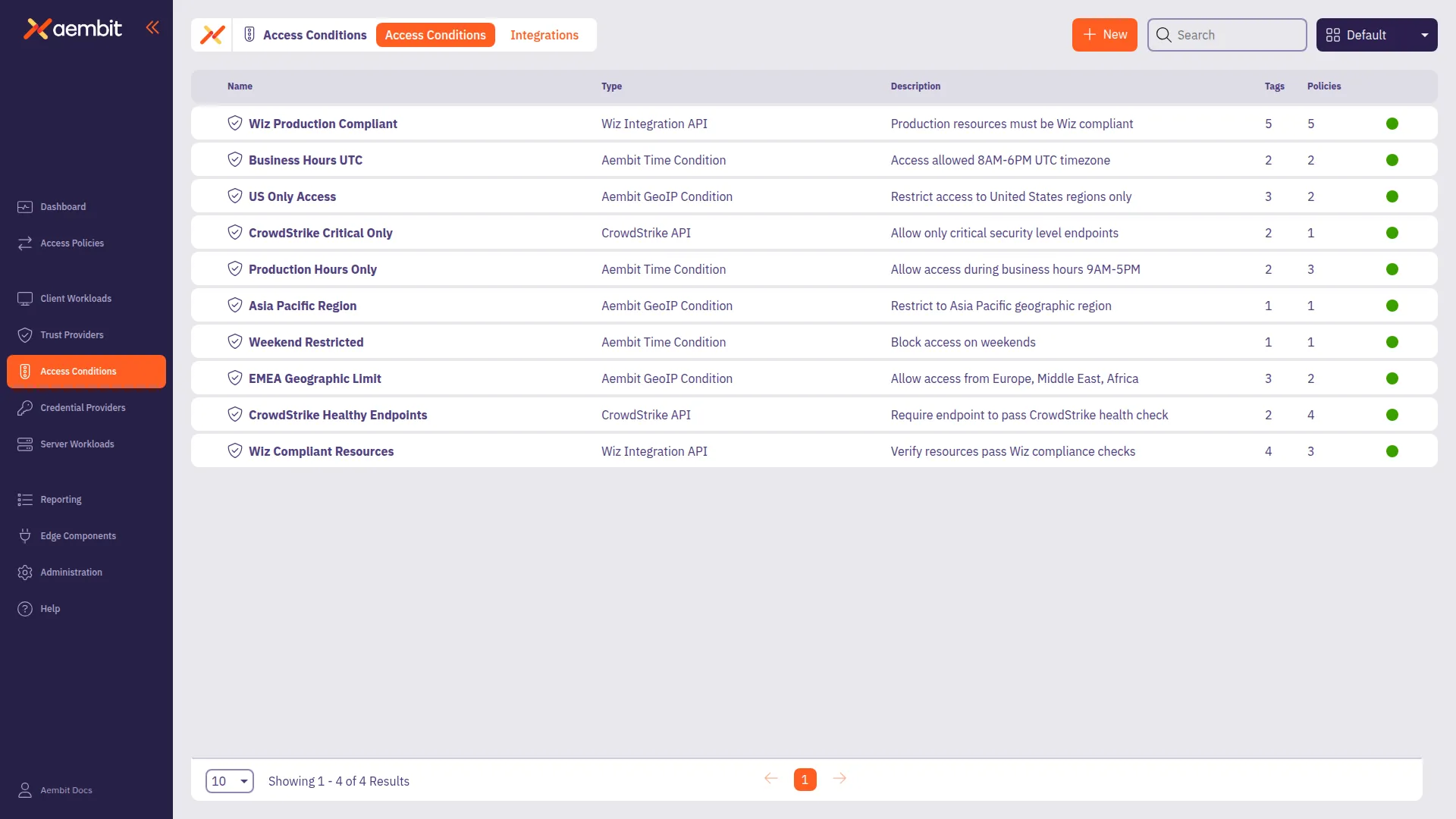 3. Click on the **New Access Condition** button. An Access Condition dialog window appears. 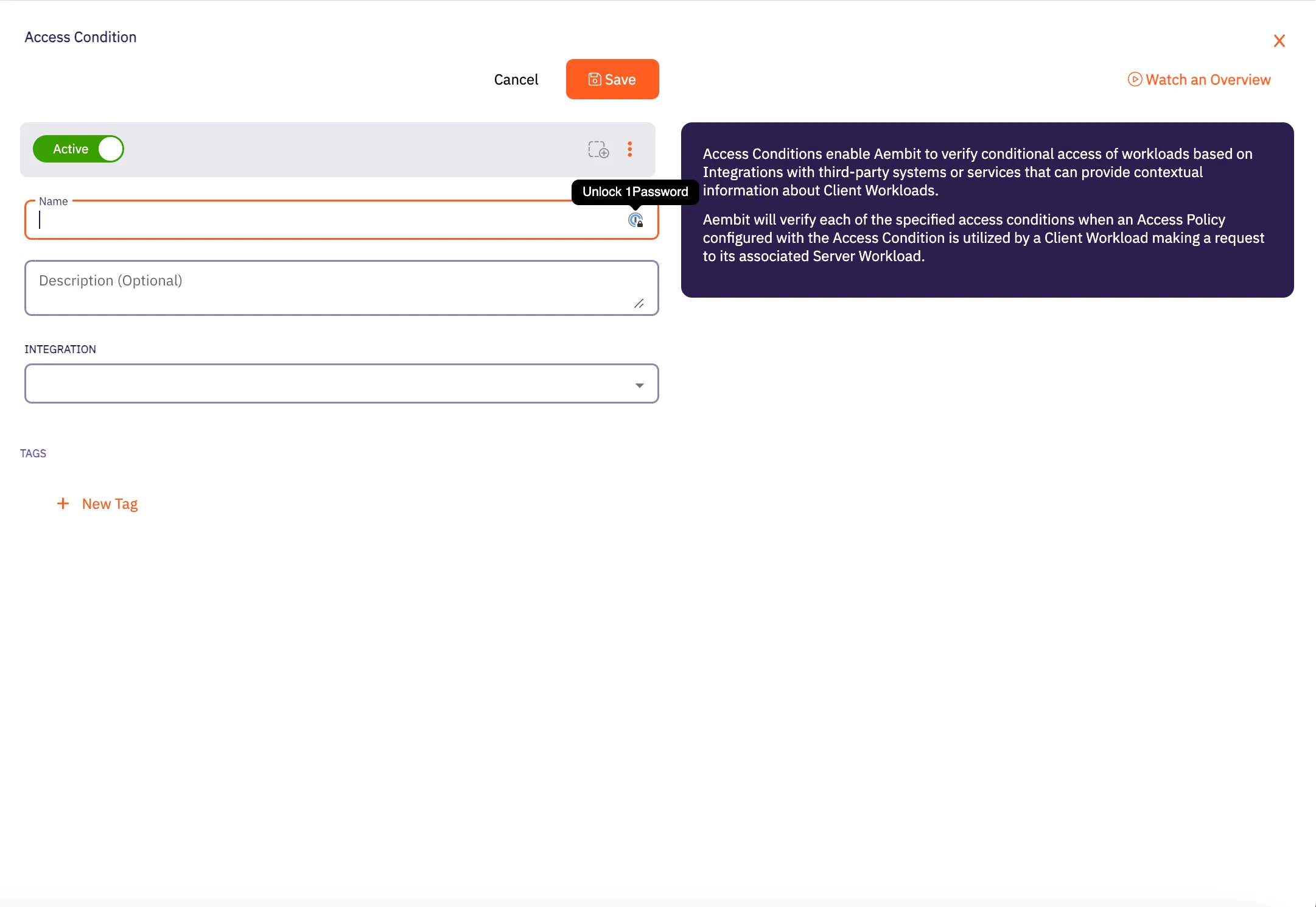 4. In the Access Condition dialog window, enter information in the following fields: * **Name** - Name of the Access Condition. * **Description** - An optional text description of the Access Condition. * **Integration** - A drop-down menu that enables you to select the type of integration you would like to create. Select **Aembit GeoIP Condition** from the drop-down menu. 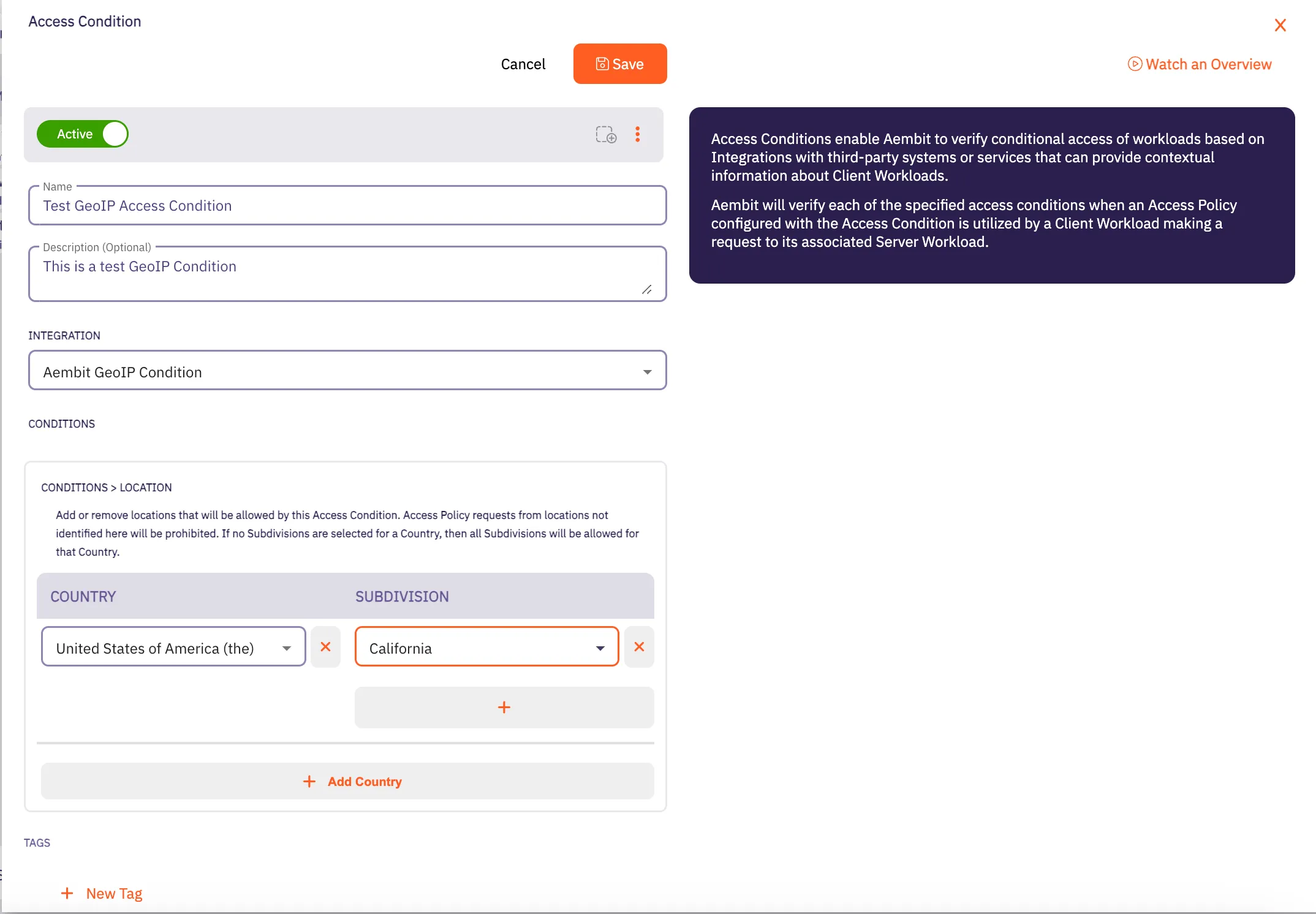 5. In the Conditions -> Location section, click on the **Country** drop-down menu to select the country you would like to use for your Access Condition. 6. After selecting a **Country** from the drop-down menu, you will see an expanded drop-down menu where you may select a **Subdivision** you want to use for that country. A Subdivision may be a region, state, province, or other territory that you would like to use for further Access Condition scoping. 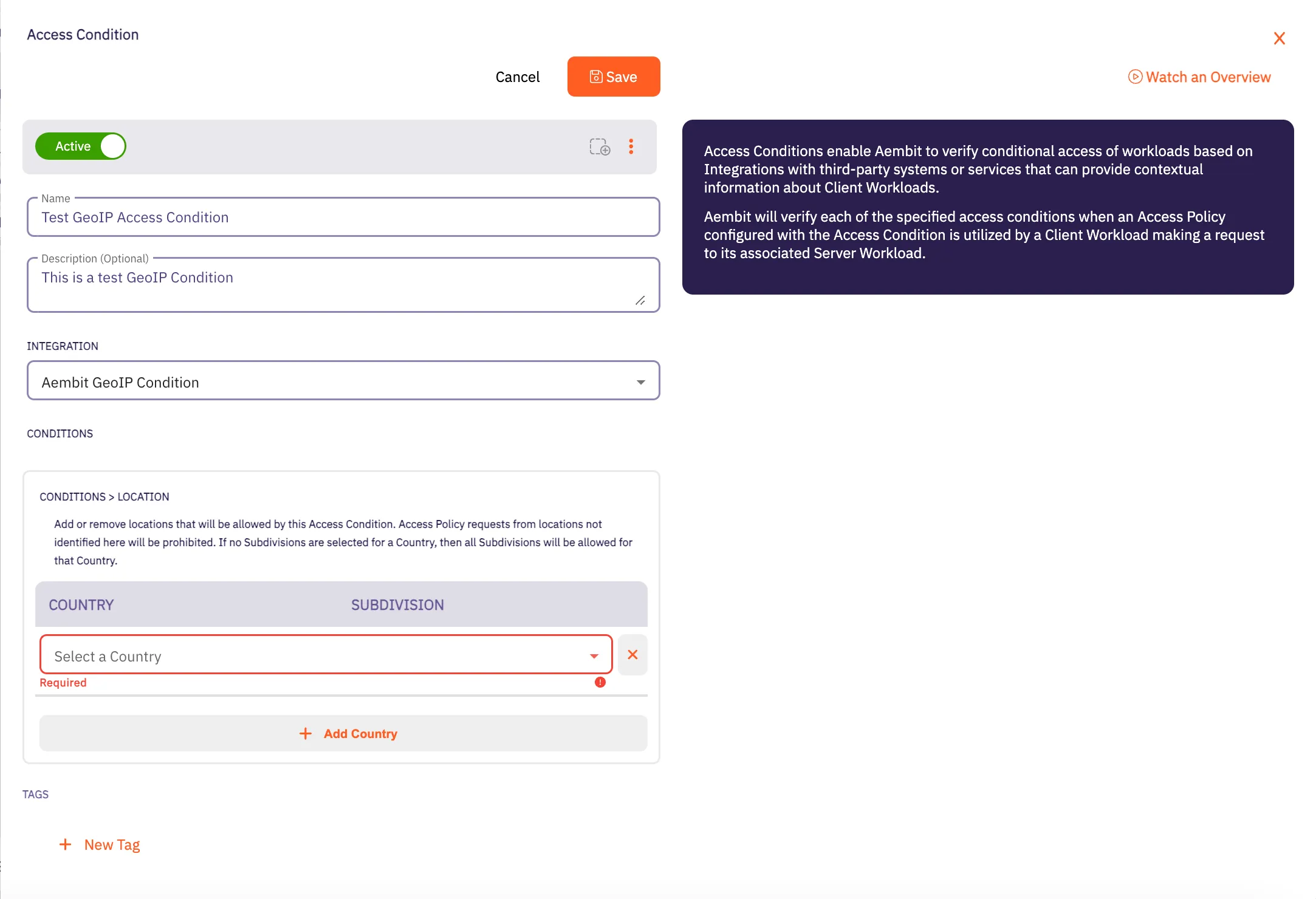 7. Click **Save**. Your new Aembit GeoIP Access Condition now appears on the main Access Conditions page. 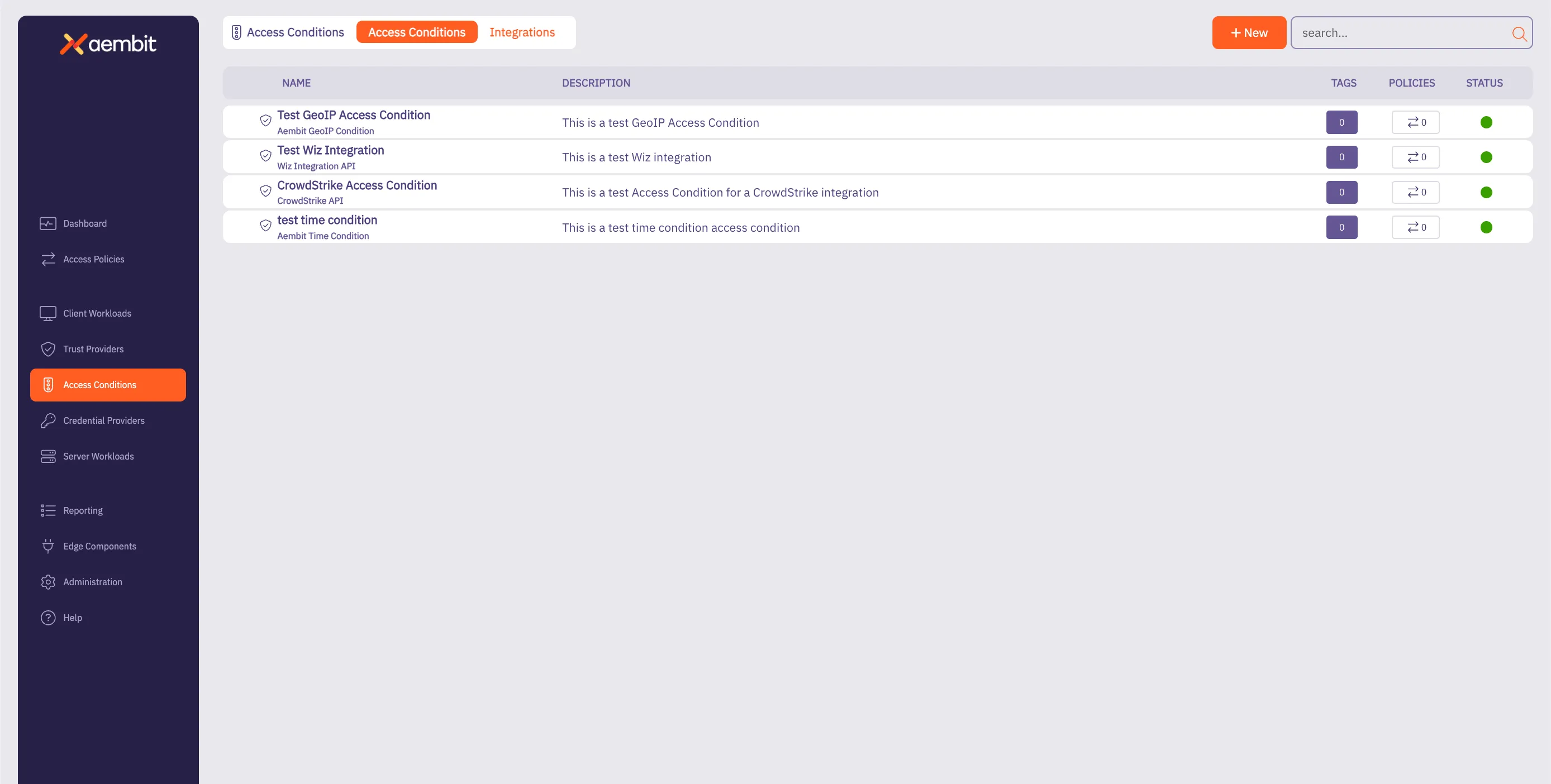 ## GeoIP Accuracy Limitations and Best Practices for Cloud Data Centers [Section titled “GeoIP Accuracy Limitations and Best Practices for Cloud Data Centers”](#geoip-accuracy-limitations-and-best-practices-for-cloud-data-centers) When configuring GeoIP-based access conditions, it is important to know the limitations in geolocation accuracy, especially for workloads hosted in cloud data centers such as AWS, Azure, Google Cloud, and others. Due to the dynamic and shared nature of cloud infrastructure, geolocation services often provide lower confidence levels for specific subdivisions (e.g., states, provinces) or cities for cloud-based IP addresses. As a result, Aembit recommends customers limit GeoIP conditions to the country level for workloads in cloud data centers. This approach ensures more reliable geolocation data while still providing geographic-based access control. Using subdivisions or cities for cloud-hosted workloads can result in access failures if the geolocation confidence falls below acceptable thresholds.
# Aembit Time Condition
> This page describes how to create an Access Condition for a specific Time Condition.
## Introduction [Section titled “Introduction”](#introduction) One type of Access Condition you may create in your Aembit Tenant is a Time Condition. This is especially useful if you would like to only grant access to Client Workloads during specific periods of time (days/hours). The section below describes the required steps to setup and configure a Time Condition Access Condition. ## Creating a Time Condition Access Condition [Section titled “Creating a Time Condition Access Condition”](#creating-a-time-condition-access-condition) To create a Time Condition Access Condition, perform the steps below. 1. Log into your Aembit Tenant using your login credentials. 2. When your credentials have been authenticated and you are logged into your tenant, you are directed to the main dashboard page. Click on **Access Conditions** in the left sidebar. You will see a list of existing Access Conditions (in this example, no Access Conditions have been created) 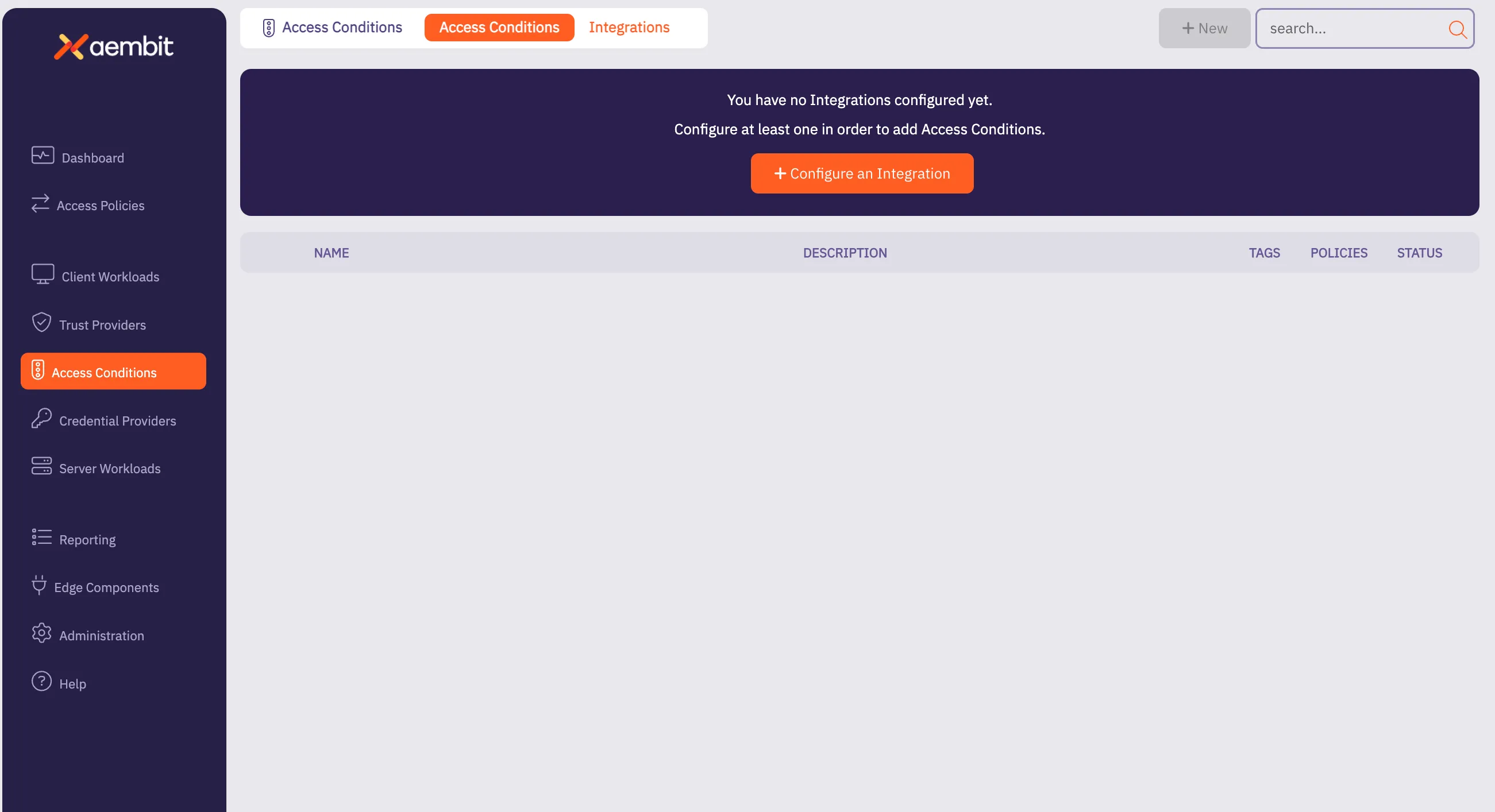 3. Click on the **New Access Condition** button. An Access Condition dialog window appears. 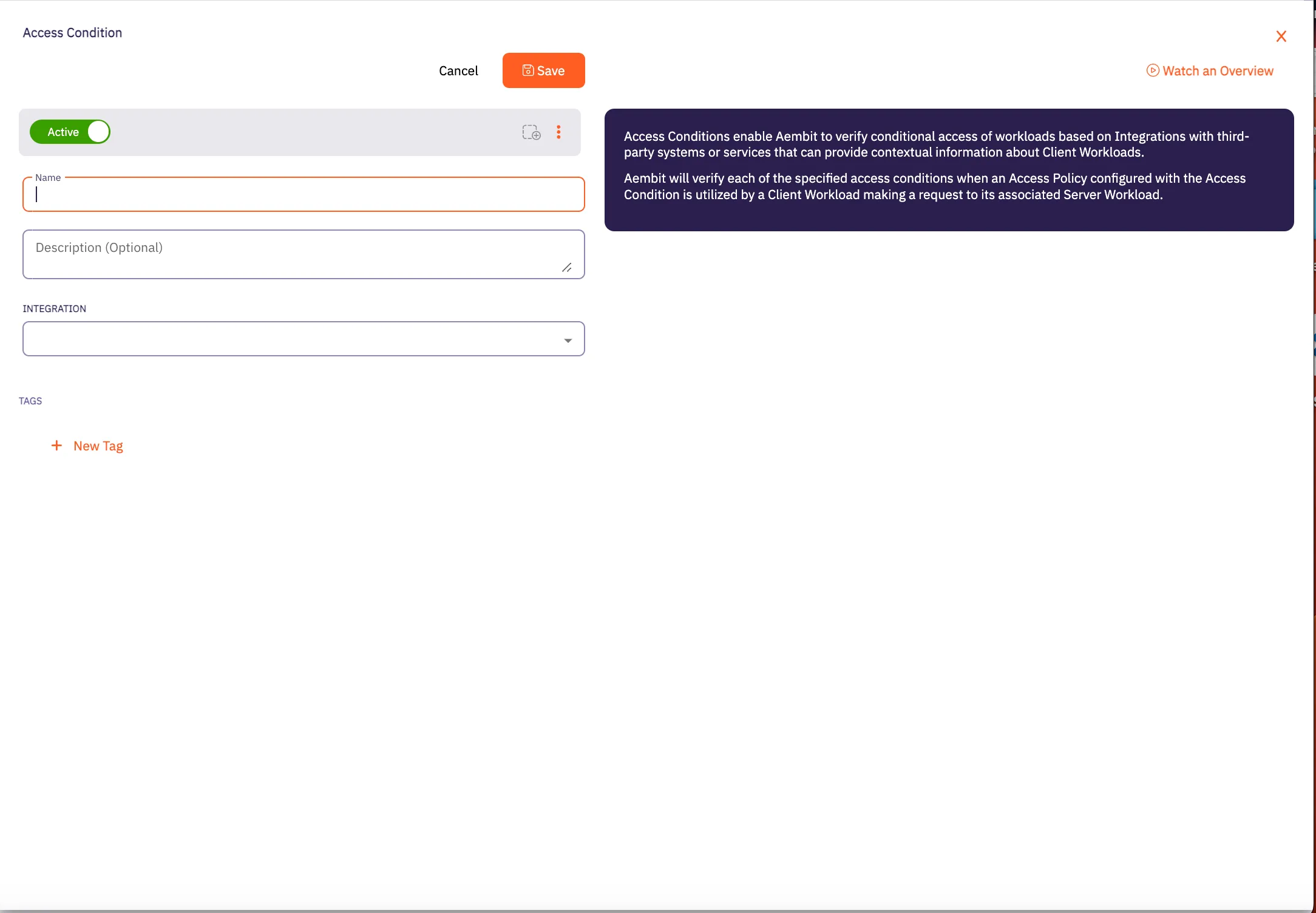 4. In the Access Condition dialog window, enter information in the following fields: * **Name** - Name of the Access Condition. * **Description** - An optional text description of the Access Condition. * **Integration** - A drop-down menu that enables you to select the type of integration you would like to create. Select **Aembit Time Condition** from the drop-down menu. 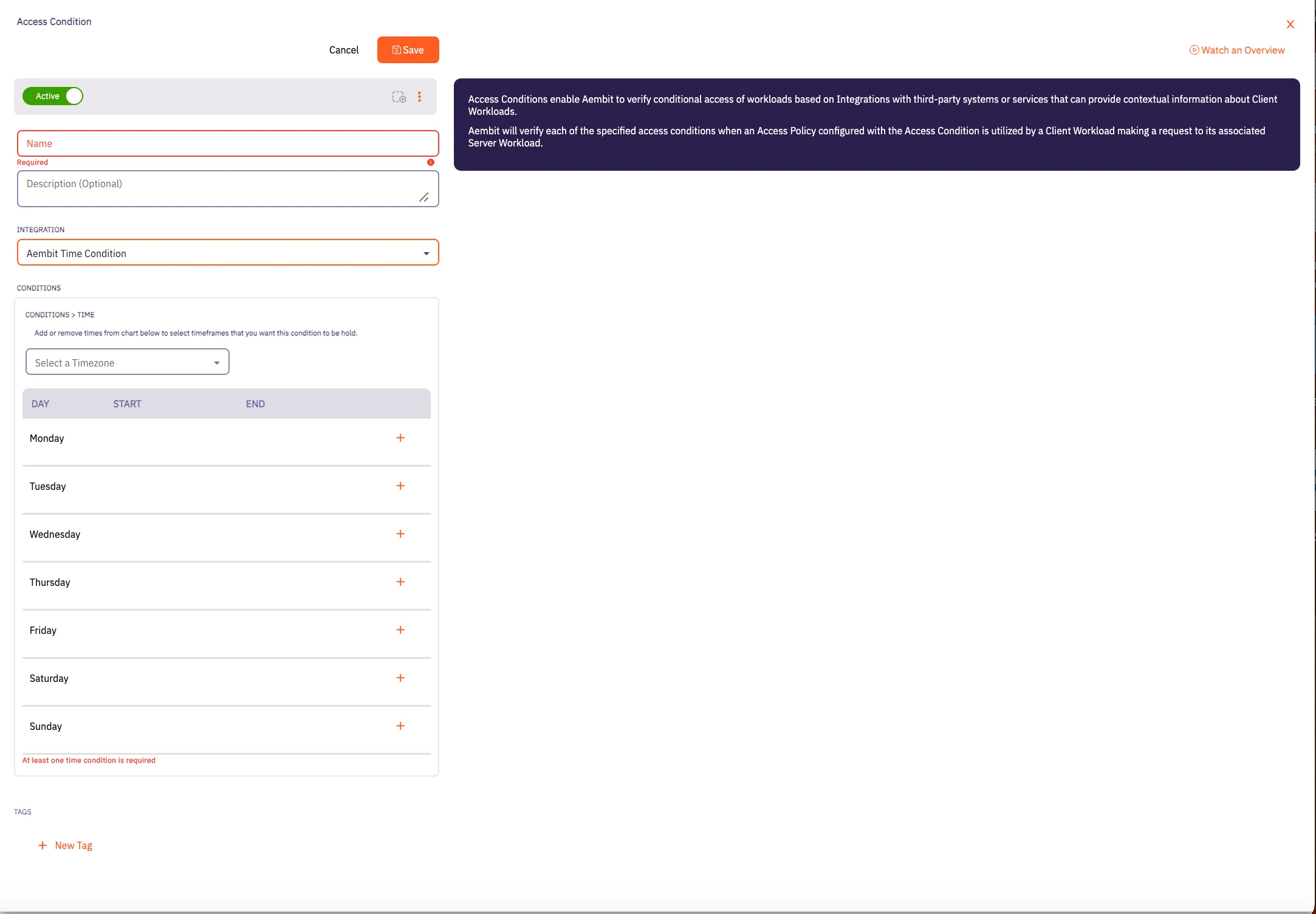 5. In the Conditions section, click on the **Timezone** drop-down menu to select the timezone you would like to use for your Access Condition. 6. Click on the **+** icon next to each day you would like to use in your Time Condition configuration. 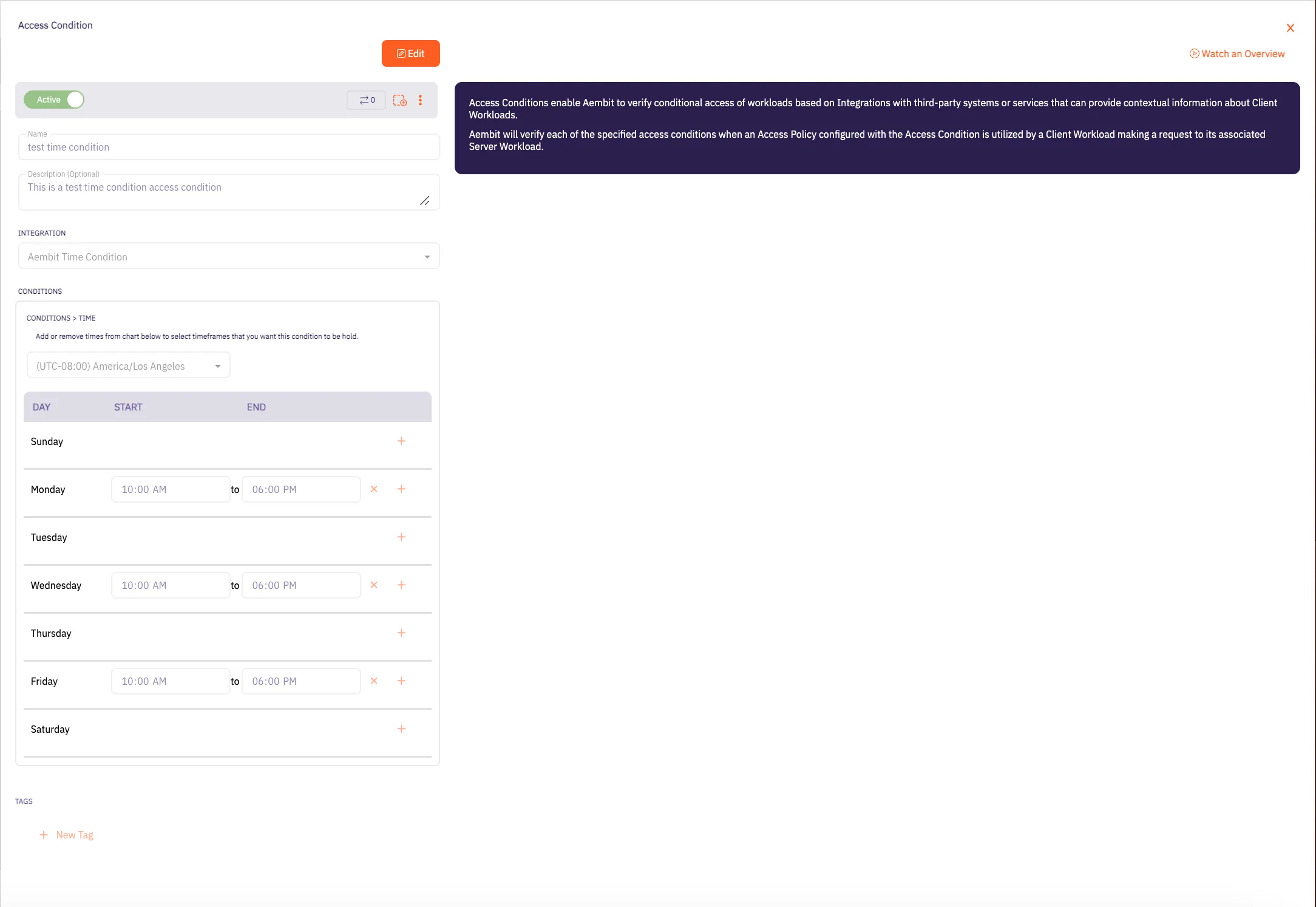 7. Click **Save**. Your new Aembit Time Condition Access Condition now appears on the main Access Conditions page. 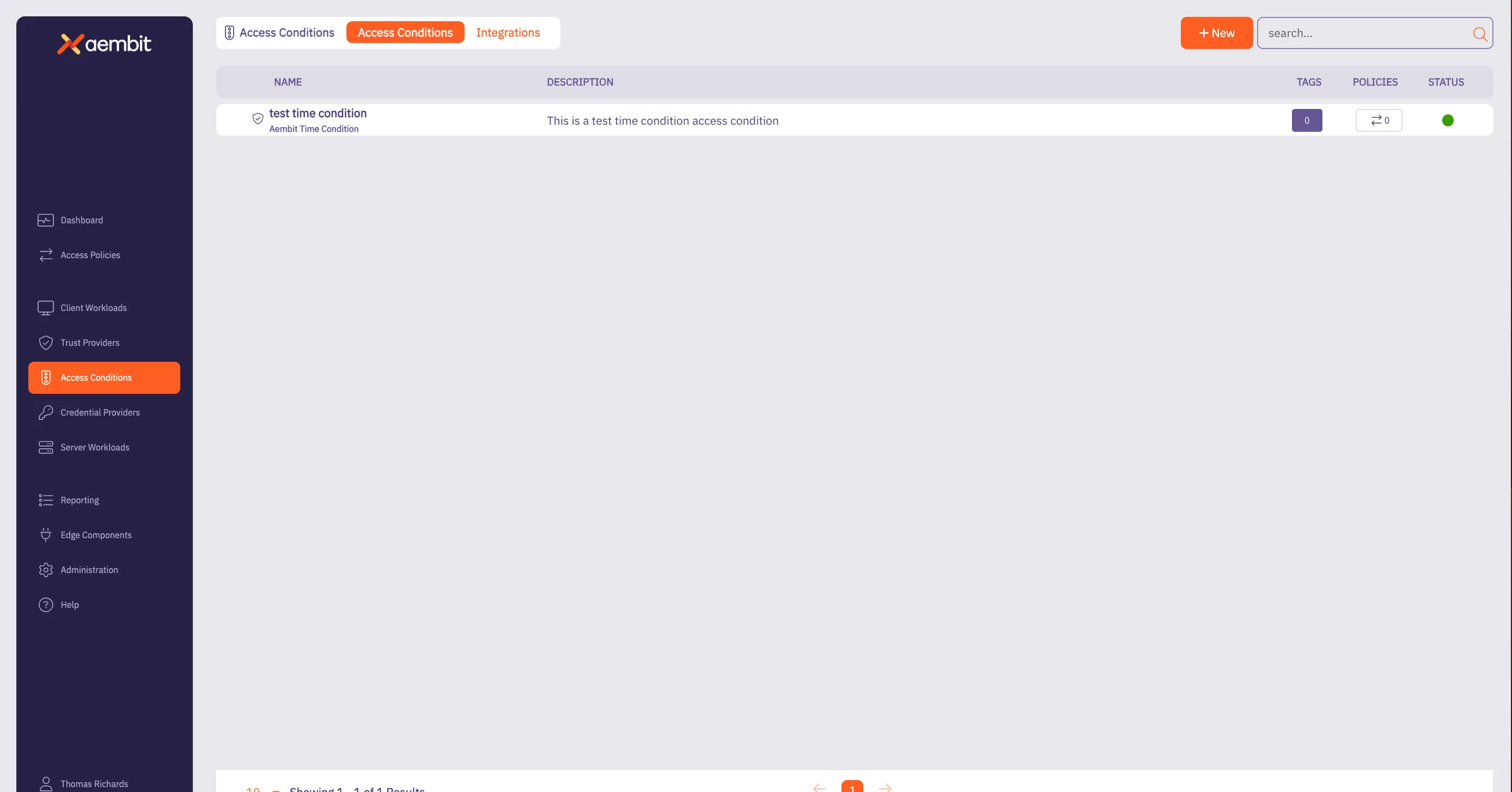
# Create Access Conditions for CrowdStrike
> How to create an Access Condition for a CrowdStrike integration
CrowdStrike Access Conditions enable you to restrict access to Client Workloads based on the CrowdStrike Agent’s reported state. This includes conditions such as whether the Agent is in Reduced Functionality Mode, whether the Hostname matches the expected value, or whether the Serial Number matches the expected value. You must have an existing [CrowdStrike Integration](/user-guide/access-policies/access-conditions/integrations/crowdstrike) to create an Access Condition for CrowdStrike. To create an Access Condition for a CrowdStrike integration, follow these steps: 1. Log into your Aembit Tenant. 2. Go to **Access Conditions** in the left sidebar. 3. Click **+ New**, revealing the **Access Condition** pop out menu. 4. Enter a **Name** and optional **Description** for the Access Condition. 5. In the **Integration** section, select the CrowdStrike integration you want to use for this Access Condition. If you don’t have an existing CrowdStrike integration, you must create one first. See [CrowdStrike Integration](/user-guide/access-policies/access-conditions/integrations/crowdstrike) for more info. 6. In the **Conditions** section, toggle the Access Conditions you would like Aembit to use to restrict access to Client Workloads in your CrowdStrike environment. You can pick from the following options: * **Restrict Reduced Functionality Mode** - This toggle ensures the CrowdStrike Agent reports if the Crowdstrike Agent on the Host isn’t in Reduced Functionality Mode. * **Hostname** - This toggle ensures the CrowdStrike Agent reported HostName matches the Aembit Agent Proxy retrieved HostName. * **Serial Number** - This toggle ensures the CrowdStrike Agent Host Serial Number matches the Aembit Agent Proxy retrieved Host Serial Number. * **MAC Address** - This toggle ensures the CrowdStrike Agent Host MAC Address matches the Aembit Agent Proxy retrieved Host MAC Address. * **Local IP Address** - This toggle ensures the CrowdStrike Agent Host Local IP Address matches the Aembit Agent Proxy retrieved Host Local IP Address. 7. In the **Time** section, enter the number of `hours`, `days`, or `weeks` that you would like to use to restrict Client Workloads that were **Last Seen** before the specified time span. For example, if you enter `2` `hours`, Aembit restricts access to Client Workloads that were last seen more than 2 hours ago. Once complete, the form should look similar to the following: 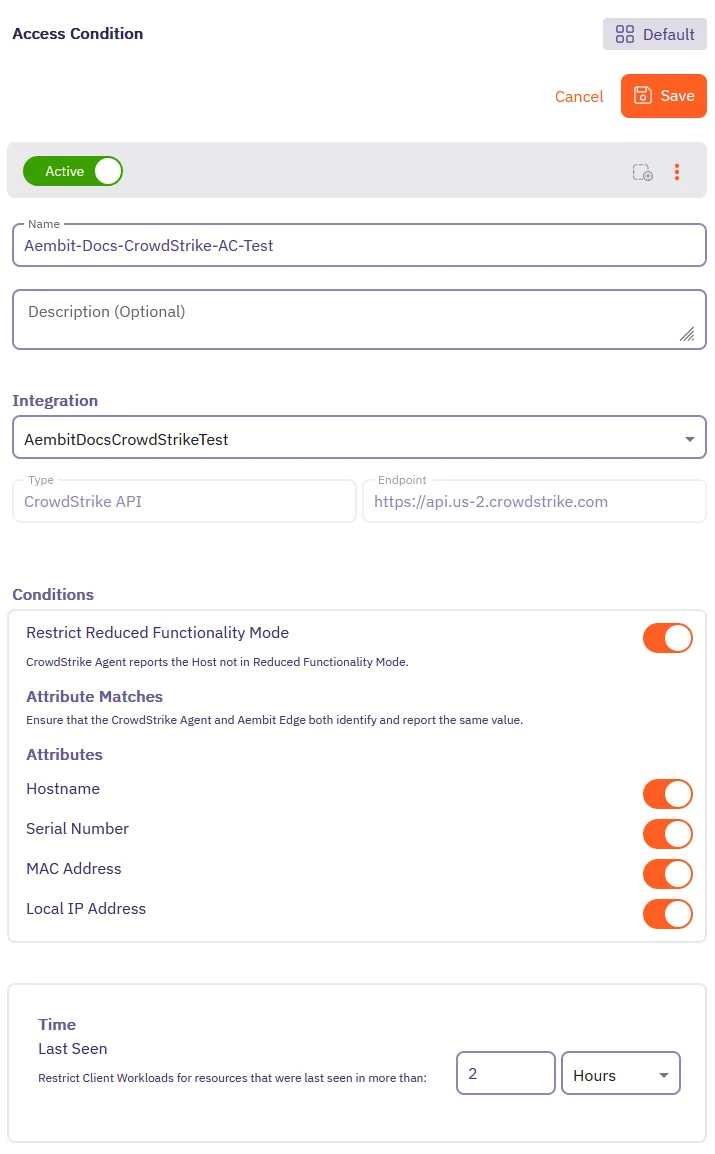 8. Click **Save**. Aembit displays the new Access Condition for the CrowdStrike integration in the list of Access Conditions.
# Access Condition integrations overview
> Overview of Access Condition integrations and how they work
This section covers Access Condition integrations, which allow Aembit to leverage external security platforms to enhance access decisions based on security context. Access Condition integrations allow you to use security information from third-party platforms when evaluating access requests. This enables you to make more informed access decisions based on security posture, compliance status, and other contextual factors. The following Access Condition integrations are available: * [CrowdStrike Integration](/user-guide/access-policies/access-conditions/integrations/crowdstrike) - Use security information from CrowdStrike to inform access decisions * [Wiz Integration](/user-guide/access-policies/access-conditions/integrations/wiz) - Use security information from Wiz to inform access decisions
# CrowdStrike Integration
> This page describes how to integrate CrowdStrike with Aembit.
# CrowdStrike is a cybersecurity platform that provides cloud workload and endpoint security, threat intelligence, and cyberattack response services to businesses and enterprises. While Aembit provides workload identity and access management, integrating with a 3rd party service, such as CrowdStrike, enables businesses to prevent Server Workload access from Client Workloads that do not meet an expected state. If the Client Workload environment is not in this state, workload access will not be authorized. ## CrowdStrike Falcon Sensor [Section titled “CrowdStrike Falcon Sensor”](#crowdstrike-falcon-sensor) The CrowdStrike Falcon Sensor is a lightweight, real-time, threat intelligence application installed on client endpoints that reviews processes and programs to detect suspicious activity or anomalies. To integrate CrowdStrike Falcon with Aembit Cloud, you will need to: * create a new API key * create a new CrowdStrike integration ### Create a new CrowdStrike OAuth2 API Client [Section titled “Create a new CrowdStrike OAuth2 API Client”](#create-a-new-crowdstrike-oauth2-api-client) To create a new CrowdStrike OAuth2 API Client: 1. Generate an API key from the CrowdStrike website (for example `https://falcon.us-2.crowdstrike.com/api-clients-and-keys/clients` ). Note that URLs may change over time, therefore, you should always use the latest URLs listed on the CrowdStrike site. 2. In the Create API Client dialog, enter the following information: * Name * Description (optional) 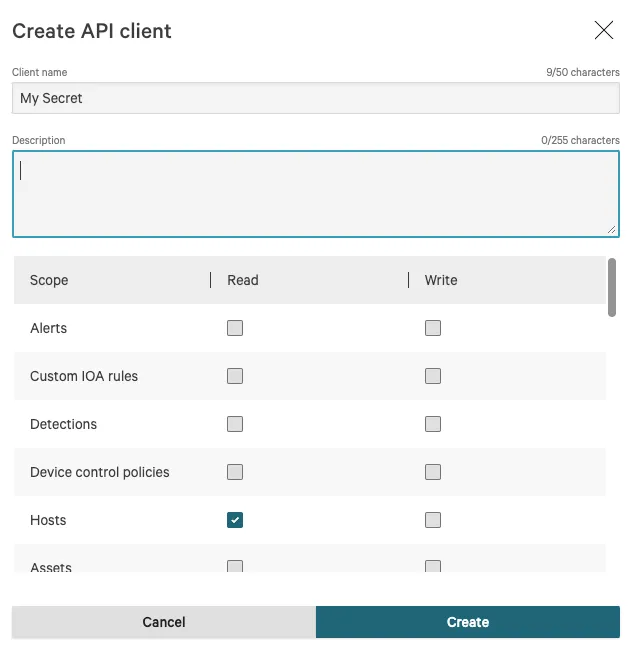 3. Click on the **Hosts** checkbox in the Read column to enable the Hosts -> Read permission. 4. Click the **Create** button to generate your new API client. 5. You will see a dialog appear with the following information: * Client ID * Secret * Base URL 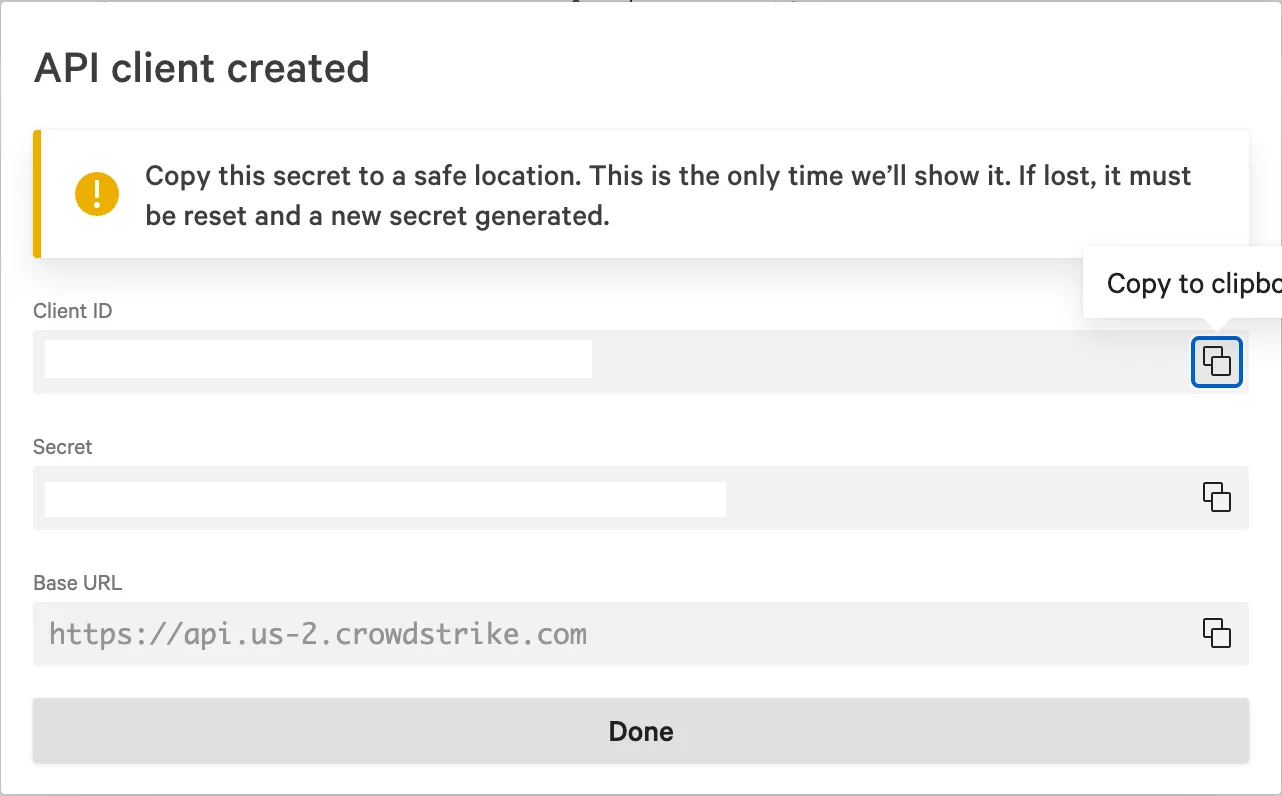 6. Once you have copied the API client information, click **Done** to close the dialog. Now that you have created your new API client, you will need to add this information to your Aembit Tenant by following the steps described below. ### Create a new CrowdStrike -> Aembit integration [Section titled “Create a new CrowdStrike -> Aembit integration”](#create-a-new-crowdstrike---aembit-integration) To integrate CrowdStrike with your Aembit Tenant: 1. Sign into your Aembit Tenant. 2. Click on the **Access Conditions** page in the left sidebar. You should see a list of existing Access Conditions. In this example, there are no existing access conditions.  3. Click on the **Create an Integration** button. The main Integrations page is displayed. 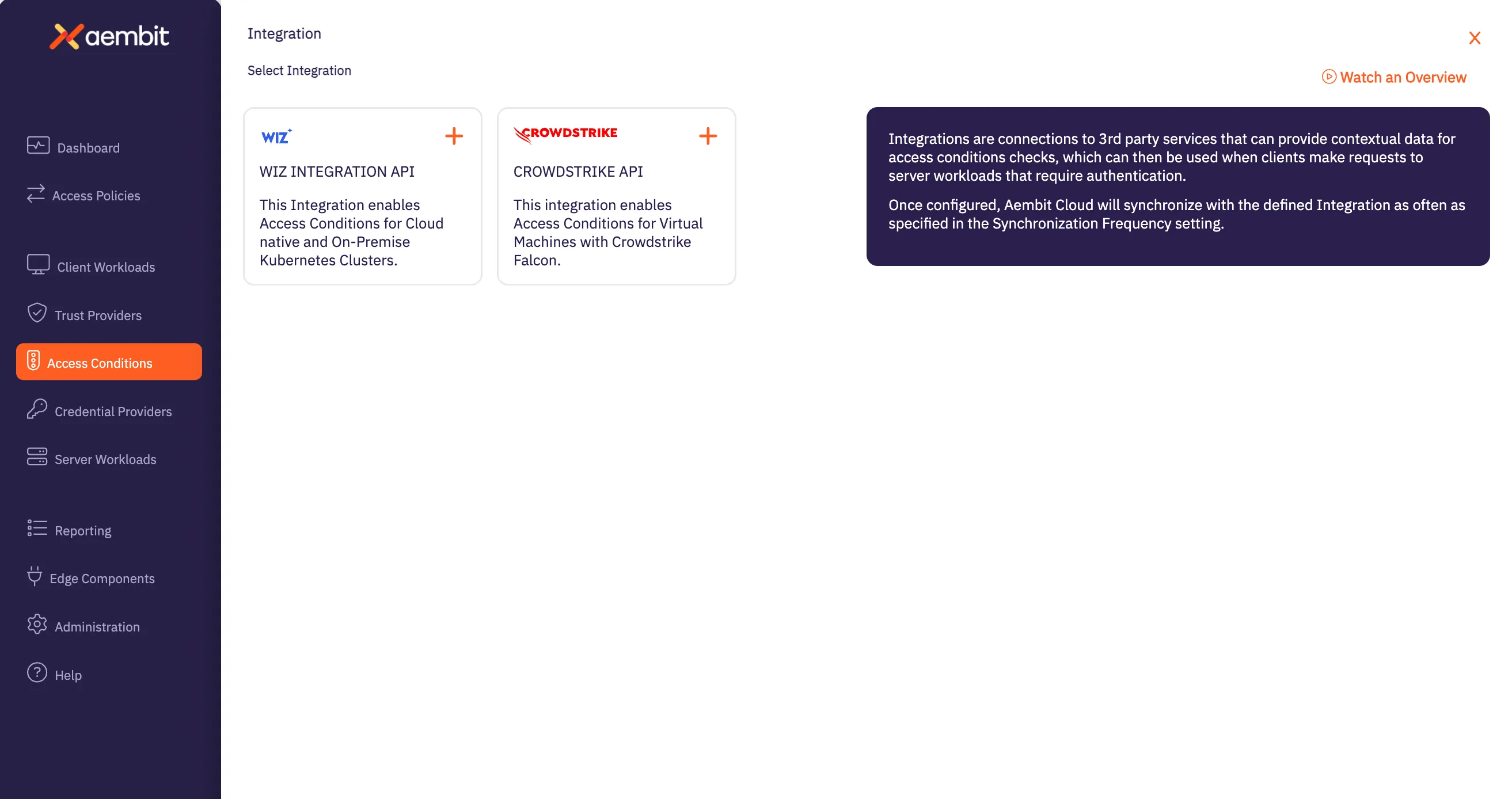 4. Select the **CrowdStrike** Integration tile. 5. On the Aembit Integrations page, configure your CrowdStrike Integration by entering the values you just copied in the fields below. * **Name** - The name of the Integration you want to create. * **Description (optional)** - An optional text description for the Integration. * **Endpoint** - The *Base URL* value taken from the values you copied when generating your CrowdStrike API key. * **Oauth Token Configuration information** - * **Token Endpoint** - The endpoint for your token. The value entered should be: *BaseURL + “/oauth2/token”* * **Client ID** - The *Client ID* value taken from the values you copied when generating your CrowdStrike API key. * **Client Secret** - The *Client Secret* value taken from the values you copied when generating your CrowdStrike API key. 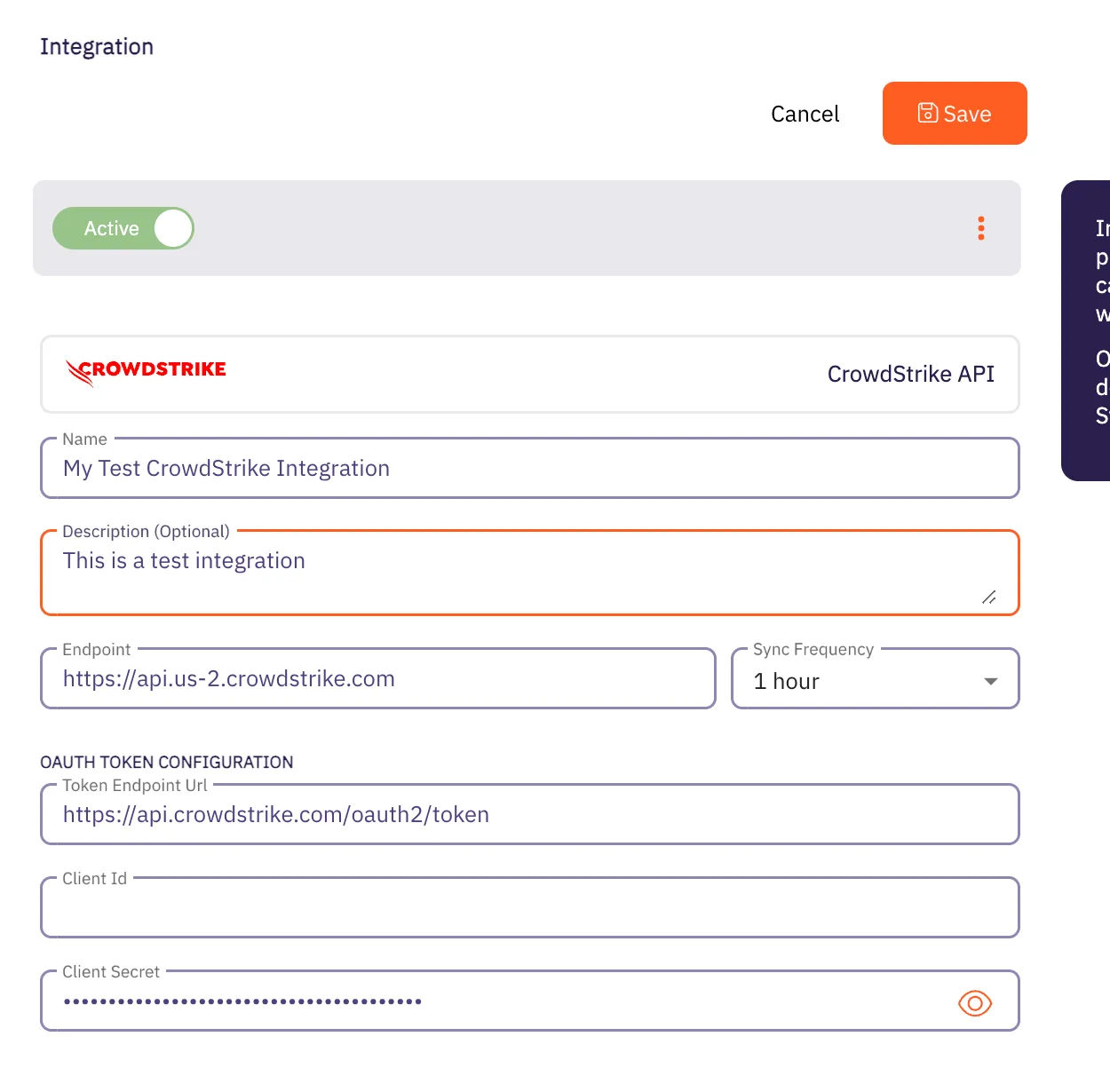 7. Click the **Save** button when finished. Your CrowdStrike Integration is saved and will then appear on the Integrations page.
# Wiz Integration
> This page describes how to integrate Wiz with Aembit.
# The Wiz Cloud Security Platform provides a security analysis service, including inventory enumeration and asset information for identification of customer assets and vulnerabilities. In particular, Wiz provides an Integration API which can be accessed via an OAuth2 Client Credentials Flow and can return an Inventory result set on demand, including Kubernetes Clusters, Deployments, and Vulnerabilities. ## Wiz Integration API [Section titled “Wiz Integration API”](#wiz-integration-api) To integrate Wiz with Aembit, you must already have a Wiz API client set up and configured. When setting up your Wiz API client, make sure you request the following information from your Wiz account representative (you will need this information later when integrating with Aembit): * OAuth2 Endpoint URL * Client ID * Client secret * Audience (this is required and the value is expected to be `wiz-api`) ## Kubernetes/Helm/Agent Proxy Configuration [Section titled “Kubernetes/Helm/Agent Proxy Configuration”](#kuberneteshelmagent-proxy-configuration) For the Wiz integration to work correctly, Aembit needs to receive a unique Provider ID that can be compared/matched against the Kubernetes Clusters returned by the Wiz Integration API. For example, in an AWS EKS Cluster, the output should look similar to the example below: `arn:aws:eks:region-code:111122223333:cluster/my-cluster` To use this sample value, update your Aembit Edge Helm Chart deployment with the following parameter values: * **name** - agentProxy.env.KUBERNETES\_PROVIDER\_ID * **value** - arn:aws:eks:region-code:111122223333:cluster/my-cluster These parameters instruct the Aembit Edge Components to configure the Agent Proxy containers with an environment variable named `KUBERNETES_PROVIDER_ID` with the value indicated. ### Create a new Wiz -> Aembit integration [Section titled “Create a new Wiz -> Aembit integration”](#create-a-new-wiz---aembit-integration) Once you have set up your Wiz API client and are ready to integrate Wiz with your Aembit Tenant, follow the steps listed below. 1. Sign into your Aembit Tenant. 2. Click on the **Access Conditions** page in the left sidebar. You should see a list of existing Access Conditions. In this example, there are no existing access conditions.  3. At the top of the page, in the *Access Conditions* tab, select **Integrations**, and then select **New**. An Integrations page appears showing the types of integrations you can create. Currently, there are two integration types available: Wiz or CrowdStrike.  4. Select the **Wiz Integration API** tile. You will see the *Wiz Integration* page. 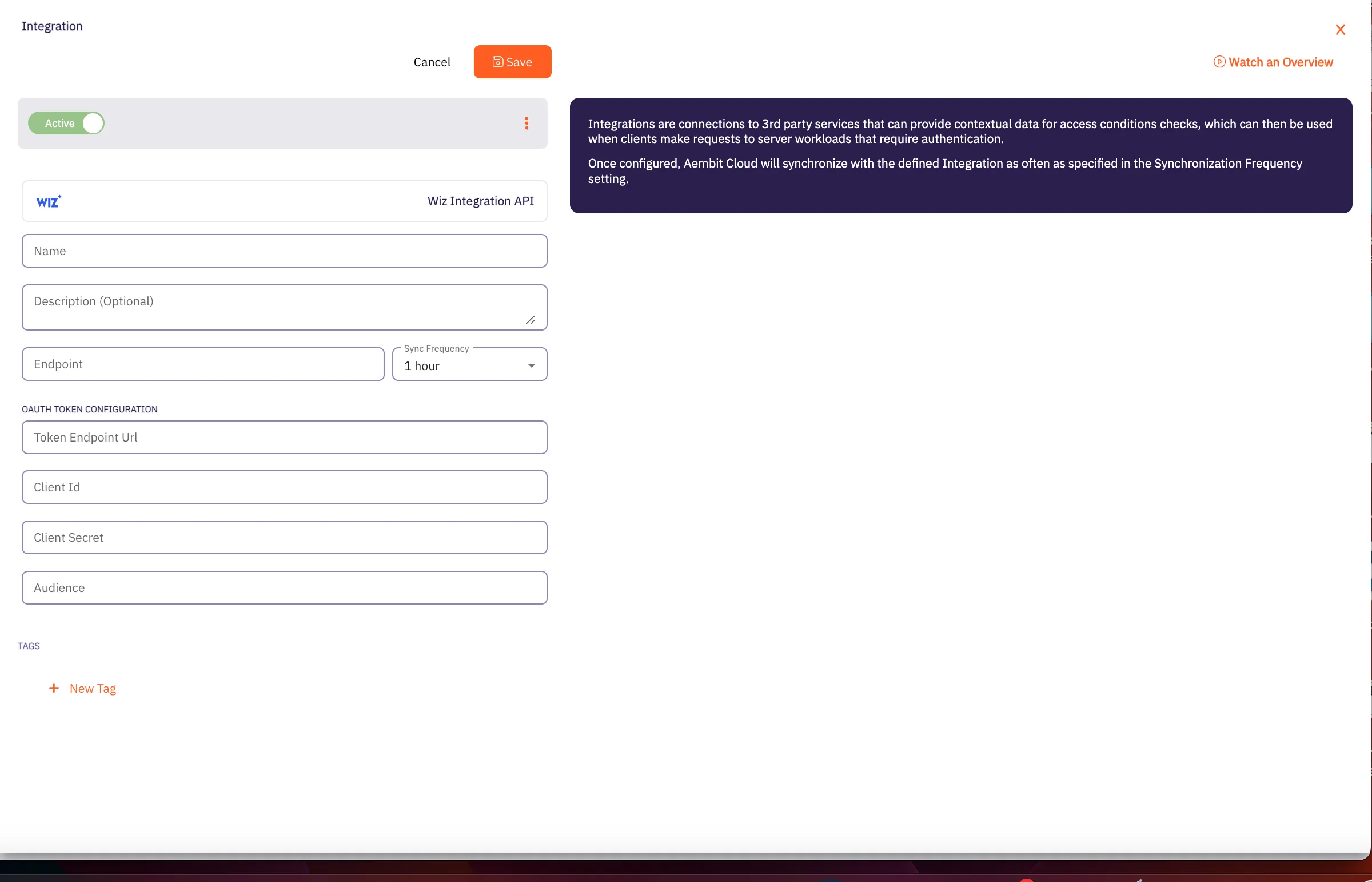 5. On this page, enter the following values from your Wiz API client (these are the values you saved earlier when creating your Wiz API client). * **Name** - The name of the Integration you want to create. * **Description (optional)** - An optional text description for the Integration. * **Endpoint** - The *Base URL* value taken from the values you copied when creating your Wiz API key. * **Sync Frequency** - The amount of time (interval) between synchronization attempts. This value can be between 5 minutes up to 1 hour. * **Oauth Token Configuration information** - * **Token Endpoint** - The endpoint for your token. * **Client ID** - The *Client ID* value. * **Client Secret** - The *Client Secret* value. * **Audience** - This value should be set to `wiz-api` as recommended by the Wiz Integration API documentation. 7. Click the **Save** button when finished. Your Integration is saved and will then appear on the Integrations page.
# Access Condition for Wiz
> This page describes how to create an Access Condition for a Wiz integration.
## Introduction [Section titled “Introduction”](#introduction) If you have an existing Wiz integration and would like to create an Access Condition for this integration, you may create this Access Condition using your Aembit Tenant. The section below describes the required steps to set up and configure an Access Condition for a Wiz integration. ## Creating an Access Condition for a Wiz Integration [Section titled “Creating an Access Condition for a Wiz Integration”](#creating-an-access-condition-for-a-wiz-integration) To create an Access Condition for a Wiz integration, perform the steps listed below. 1. Log into your Aembit Tenant using your login credentials. 2. When your credentials have been authenticated and you are logged into your tenant, you are directed to the main dashboard page. Click on **Access Conditions** in the left sidebar. You will see a list of existing Access Conditions (in this example, no Access Conditions have been created)  3. Click on the **New Access Condition** button. An Access Condition dialog window appears.  4. In the Access Condition dialog window, enter information in the following fields: * **Name** - Name of the Access Condition. * **Description** - An optional text description of the Access Condition. * **Integration** - A drop-down menu that enables you to select the type of integration you would like to create. Select your existing Wiz integration from the drop-down menu. 5. In the **Conditions** section, click on the **Container Cluster Connected** toggle if you want to block Client Workloads that Wiz reports are not container cluster connected. 6. In the **Conditions - Time** section, enter the duration of time you would like to use for restricting Client Workloads in Kubernetes Clusters that have not been seen recently.  7. When finished, Click **Save**. Your new Access Condition for the Wiz integration will appear on the main Access Conditions page. 
# Access Policy advanced options
> Advanced options for Aembit Access Policies
This section covers advanced options for Access Policies in Aembit, providing more sophisticated ways to configure and automate your access policies.
# Scaling Aembit with Terraform
> Information and guides about scaling Aembit with Terraform
# Configuration with Terraform
> How to use the Aembit Terraform Provider to configure Aembit Cloud resources
Aembit has released a Terraform Provider in the [Terraform Registry](https://registry.terraform.io/providers/Aembit/aembit/latest) that enables users to configure Aembit Cloud resources in an automated manner. ## Configuration [Section titled “Configuration”](#configuration) Configuring the Aembit Terraform provider requires two steps: 1. Create or update the Terraform configuration to include the Aembit provider. 2. Specify the Aembit provider authentication configuration. a. Aembit recommends using Aembit integrated authentication for dynamic retrieval of the Aembit API Access Token. This can be done by specifying the Aembit Edge SDK Client ID from an appropriately configured Aembit Trust Provider. b. For development and testing purposes, users can specify an Aembit Tenant ID and Token for short-term access. Additional details for how to perform each of these steps can be found in the [Provider Documentation](https://registry.terraform.io/providers/Aembit/aembit/latest/docs) section of the Aembit Terraform provider page. ## Resources and Data Sources [Section titled “Resources and Data Sources”](#resources-and-data-sources) The Aembit [Terraform Provider](https://registry.terraform.io/providers/Aembit/aembit/latest) enables users to create, update, import, and delete Aembit Cloud resources using terraform manually or via CI/CD workflows. For example, users can configure GitHub Actions or Terraform Workspaces to utilize the Aembit Terraform provider and manage Aembit Cloud resources on demand to best serve their Workload purposes. Detailed instructions for using the Aembit Terraform Provider can be found in the [Terraform Registry](https://registry.terraform.io/providers/Aembit/aembit/latest/docs).
# Client Workloads
> This document provides a high-level description of Client Workloads
This section covers Client Workloads in Aembit, which are the applications or services that need to access Server Workloads using credentials managed by Aembit. The following pages provide information about Client Workload identification methods: * [Aembit Client ID](/user-guide/access-policies/client-workloads/identification/aembit-client-id) * [AWS Lambda ARN](/user-guide/access-policies/client-workloads/identification/aws-lambda-arn) * [Multiple Client Workload IDs](/user-guide/access-policies/client-workloads/identification/client-workload-multiple-ids) * [GitHub ID Token Repository](/user-guide/access-policies/client-workloads/identification/github-id-token-repository) * [GitHub ID Token Subject](/user-guide/access-policies/client-workloads/identification/github-id-token-subject) * [GitLab ID Token Namespace Path](/user-guide/access-policies/client-workloads/identification/gitlab-id-token-namespace-path) * [GitLab ID Token Project Path](/user-guide/access-policies/client-workloads/identification/gitlab-id-token-project-path) * [GitLab ID Token Ref Path](/user-guide/access-policies/client-workloads/identification/gitlab-id-token-ref-path) * [GitLab ID Token Subject](/user-guide/access-policies/client-workloads/identification/gitlab-id-token-subject) * [Hostname](/user-guide/access-policies/client-workloads/identification/hostname) * [Kubernetes Pod Name Prefix](/user-guide/access-policies/client-workloads/identification/kubernetes-pod-name-prefix) * [Kubernetes Pod Name](/user-guide/access-policies/client-workloads/identification/kubernetes-pod-name) * [Process Name](/user-guide/access-policies/client-workloads/identification/process-name)
# Client Workload Identifiers overview
> This page provides a high-level description of Client Workload Identifiers in Aembit.
Client Workload identification is an initial step to recognize the specific software application, script, or automated process that initiates an access request to a Server Workload. This identification is critical because it’s a prerequisite for matching the request to the correct Access Policy and invoking the appropriate Trust Provider for identity attestation. Accurate identification is essential for enforcing the principle of least privilege and preventing misidentification which could lead to security vulnerabilities. Aembit addresses the need for accurate identification across diverse and heterogeneous environments by offering a variety of methods tailored to different deployment contexts. These methods leverage native identity constructs and environmental evidence available in those platforms. Examples of Aembit Client Workload identification methods include: * **Kubernetes** - Using the Pod Name Prefix, the exact Pod Name, or the Kubernetes Service Account under which the container runs. * **Cloud Platforms (AWS, Azure)** - Using Instance Metadata Attributes (like instance ID or tags), AWS IAM Role ARN, Azure Subscription ID, or Azure VM ID. * **CI/CD Systems (GitHub Actions, GitLab Jobs)** - Inspecting claims within ephemeral OpenID Connect (OIDC) tokens, such as repository name, subject, namespace path, or project path. * **Serverless Platforms (AWS Lambda)** - Using the unique AWS Lambda Function ARN. * **Virtual Machines (VMs)** - Identifying by Hostname, Process Name, or both. * **Aembit Native** - A unique Aembit Client ID that Aembit assigns for scenarios where other identifiers won’t work. Aembit supports [configuring multiple identifiers](/user-guide/access-policies/client-workloads/identification/client-workload-multiple-ids) for a single Client Workload definition, to increase its uniqueness when identifying your Client Workloads. ## Available Client Workload identification methods [Section titled “Available Client Workload identification methods”](#available-client-workload-identification-methods) Aembit supports a variety of identification methods for Client Workloads, allowing you to choose the most suitable one based on your deployment environment and requirements. Each method provides a unique way to identify workloads, making sure that Aembit applies your Policies accurately. These methods include identifiers based on cloud provider resources, Kubernetes configurations, and more. The choice of identifier can depend on the specific characteristics of your workloads and the environments in which they operate. The following sections are the different identification methods available: ### Generic Client Workload Identifiers [Section titled “Generic Client Workload Identifiers”](#generic-client-workload-identifiers)  [Aembit Client ID ](/user-guide/access-policies/client-workloads/identification/aembit-client-id)Identify workloads by their Aembit Client ID. →  [Hostname ](/user-guide/access-policies/client-workloads/identification/hostname)Identify workloads by their hostname. →  [Process Name ](/user-guide/access-policies/client-workloads/identification/process-name)Identify workloads by their process name. →  [Process Path ](/user-guide/access-policies/client-workloads/identification/process-path)Identify workloads by their executable path. →  [Process User Name ](/user-guide/access-policies/client-workloads/identification/process-user-name)Identify workloads by their process user name. →  [Source IP Address ](/user-guide/access-policies/client-workloads/identification/source-ip)Identify workloads by their source IP address. → ### AWS Client Workload Identifiers [Section titled “AWS Client Workload Identifiers”](#aws-client-workload-identifiers)  [AWS Account ID ](/user-guide/access-policies/client-workloads/identification/aws-account-id)Identify workloads by their AWS Account ID. →  [AWS EC2 Instance ID ](/user-guide/access-policies/client-workloads/identification/aws-ec2-instance-id)Identify workloads by their AWS EC2 Instance ID. →  [AWS ECS Task Family ](/user-guide/access-policies/client-workloads/identification/aws-ecs-task-family)Identify workloads by their AWS ECS Task Family. →  [AWS ECS Service Name ](/user-guide/access-policies/client-workloads/identification/aws-ecs-service-name)Identify workloads by their AWS ECS Service Name. →  [AWS Lambda ARN ](/user-guide/access-policies/client-workloads/identification/aws-lambda-arn)Identify workloads by their AWS Lambda ARN. →  [AWS Region ](/user-guide/access-policies/client-workloads/identification/aws-region)Identify workloads by their AWS Region. → ### Azure Client Workload Identifiers [Section titled “Azure Client Workload Identifiers”](#azure-client-workload-identifiers)  [Azure Subscription ID ](/user-guide/access-policies/client-workloads/identification/azure-subscription-id)Identify workloads by their Azure Subscription ID. →  [Azure VM ID ](/user-guide/access-policies/client-workloads/identification/azure-vm-id)Identify workloads by their Azure VM ID. → ### GCP Client Workload Identifiers [Section titled “GCP Client Workload Identifiers”](#gcp-client-workload-identifiers)  [GCP Identity Token ](/user-guide/access-policies/client-workloads/identification/gcp-identity-token)Identify workloads by their GCP Identity Token email. → ### GitHub Client Workload Identifiers [Section titled “GitHub Client Workload Identifiers”](#github-client-workload-identifiers)  [GitHub ID Token Repository ](/user-guide/access-policies/client-workloads/identification/github-id-token-repository)Identify workloads by their GitHub ID Token Repository. →  [GitHub ID Token Subject ](/user-guide/access-policies/client-workloads/identification/github-id-token-subject)Identify workloads by their GitHub ID Token Subject. → ### GitLab Client Workload Identifiers [Section titled “GitLab Client Workload Identifiers”](#gitlab-client-workload-identifiers)  [GitLab ID Token Namespace Path ](/user-guide/access-policies/client-workloads/identification/gitlab-id-token-namespace-path)Identify workloads by their GitLab ID Token Namespace Path. →  [GitLab ID Token Project Path ](/user-guide/access-policies/client-workloads/identification/gitlab-id-token-project-path)Identify workloads by their GitLab ID Token Project Path. →  [GitLab ID Token Ref Path ](/user-guide/access-policies/client-workloads/identification/gitlab-id-token-ref-path)Identify workloads by their GitLab ID Token Ref Path. →  [GitLab ID Token Subject ](/user-guide/access-policies/client-workloads/identification/gitlab-id-token-subject)Identify workloads by their GitLab ID Token Subject. → ### Kubernetes Client Workload Identifiers [Section titled “Kubernetes Client Workload Identifiers”](#kubernetes-client-workload-identifiers)  [Kubernetes Namespace ](/user-guide/access-policies/client-workloads/identification/kubernetes-namespace)Identify workloads by their Kubernetes Namespace. →  [Kubernetes Pod Name Prefix ](/user-guide/access-policies/client-workloads/identification/kubernetes-pod-name-prefix)Identify workloads by their Kubernetes Pod Name Prefix. →  [Kubernetes Pod Name ](/user-guide/access-policies/client-workloads/identification/kubernetes-pod-name)Identify workloads by their Kubernetes Pod Name. →  [Kubernetes Service Account Name ](/user-guide/access-policies/client-workloads/identification/kubernetes-service-account-name)Identify workloads by their Kubernetes Service Account Name. →  [Kubernetes Service Account UID ](/user-guide/access-policies/client-workloads/identification/kubernetes-service-account-name)Identify workloads by their Kubernetes Service Account UID. → ### Terraform Cloud [Section titled “Terraform Cloud”](#terraform-cloud)  [Terraform Cloud ID Token Organization ID ](/user-guide/access-policies/client-workloads/identification/terraform-cloud-id-token-organization-id)Identify workloads by Terraform Cloud ID Token Organization ID. →  [Terraform Cloud ID Token Project ID ](/user-guide/access-policies/client-workloads/identification/terraform-cloud-id-token-project-id)Identify workloads by Terraform Cloud ID Token Project ID. →  [Terraform Cloud ID Token Workspace ID ](/user-guide/access-policies/client-workloads/identification/terraform-cloud-id-token-workspace-id)Identify workloads by Terraform Cloud ID Token Workspace ID. →
# Aembit Client ID
> This document outlines the Aembit Client ID method for identifying Client Workloads.
# The Aembit Client ID method serves as a fallback for Client Workload identification when other suitable methods are unavailable. This method entails generating a unique ID by the Aembit Cloud, which is then provisioned to the Client Workload. ## Applicable Deployment Type [Section titled “Applicable Deployment Type”](#applicable-deployment-type) This method is suitable for Aembit Edge-based deployments. ## Configuration [Section titled “Configuration”](#configuration) ### Aembit Cloud [Section titled “Aembit Cloud”](#aembit-cloud) 1. Create a new Client Workload. 2. Choose “Aembit Client ID” for client identification. 3. Complete the remaining fields. 4. Copy the newly generated ID. 5. Save the Client Workload. 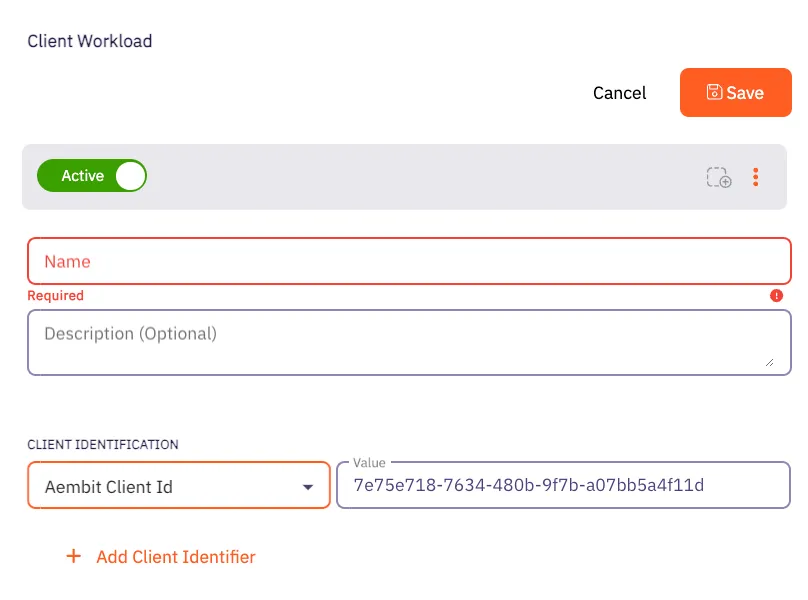 ### Client Workload [Section titled “Client Workload”](#client-workload) #### Virtual Machine Deployment [Section titled “Virtual Machine Deployment”](#virtual-machine-deployment) During Agent Proxy installation, specify the `CLIENT_WORKLOAD_ID` environment variable. ```shell CLIENT_WORKLOAD_ID= AEMBIT_TENANT_ID= AEMBIT_AGENT_CONTROLLER_ID= ./install ``` #### Kubernetes [Section titled “Kubernetes”](#kubernetes) Add the `aembit.io/agent-inject` annotation to your Client Workload. See the example below: ```yaml apiVersion: apps/v1 kind: Deployment metadata: name: example-app spec: replicas: 1 selector: matchLabels: app: example-app template: metadata: labels: app: example-app annotations: aembit.io/agent-inject: "enabled" aembit.io/client-id: "7e75e718-7634-480b-9f7b-a07bb5a4f11d" ```
# AWS Account ID
> How to identify AWS workloads using the AWS Account ID within Aembit
This page explains how to use the **AWS Account ID** identifier to uniquely identify workloads deployed on **AWS**. ## Understanding the AWS Account ID identifier [Section titled “Understanding the AWS Account ID identifier”](#understanding-the-aws-account-id-identifier) When you deploy applications to AWS, you use the account ID to isolate and group resources by ownership or environment. Each AWS Account owns the resources associated with it. For more info, see [“View AWS account identifiers](https://docs.aws.amazon.com/accounts/latest/reference/manage-acct-identifiers.html) in the AWS docs. ## Applicable deployment type [Section titled “Applicable deployment type”](#applicable-deployment-type) Aembit supports the AWS Account ID identification method for Edge-based deployments on [Virtual Machines](/user-guide/deploy-install/virtual-machine/) deployed to AWS. ## Create a Client Workload with an AWS Account ID identifier [Section titled “Create a Client Workload with an AWS Account ID identifier”](#create-a-client-workload-with-an-aws-account-id-identifier) To configure a Client Workload with an AWS Account ID identifier, follow these steps: 1. Log into your Aembit Tenant. 2. Click **Client Workloads** in the left nav pane. 3. Click **New**, revealing the **Client Workload** pop out menu. 4. Enter the **Name** and optional **Description** for the Client Workload. 5. Under **Client Identification**, select **AWS Account ID**. For **Value**, enter the 12-digit AWS Account ID *without spaces and dashes* where the workload is running. For example, if your AWS account ID is `1234-5678-9012`, then enter `123456789012` in the **Value** field. If you don’t know the AWS Account ID or how to find it, see [Find AWS Account ID](#find-aws-account-id). 6. Click **Save**. Aembit displays the new Client Workload on the **Client Workloads** page. ## Find AWS account id [Section titled “Find AWS account id”](#find-aws-account-id) To find your AWS Account ID in the AWS Console, follow these steps: 1. Open the [AWS Management Console](https://console.aws.amazon.com/). 2. Click the Account Menu that displays your AWS username in the top-right corner. 3. Click the **Copy Account ID** icon next to your 12-digit AWS Account ID. Use this value in your Aembit configuration, *remembering to enter it without spaces or dashes*.
# AWS EC2 Instance ID
> How to identify AWS workloads using the AWS EC2 Instance ID within Aembit
This page explains how to use the **AWS EC2 Instance ID** identifier to uniquely identify workloads deployed on **AWS**. ## Understanding the AWS EC2 instance ID identifier [Section titled “Understanding the AWS EC2 instance ID identifier”](#understanding-the-aws-ec2-instance-id-identifier) When you deploy applications to AWS, you often refer to specific virtual machine instances using their EC2 Instance IDs. AWS assigns a unique identifier to each EC2 instance when it launches. For more info, see [“What is Amazon EC2?”](https://docs.aws.amazon.com/AWSEC2/latest/UserGuide/Using_InstanceStraightToIdentifiers.html) in the AWS docs. ## Applicable deployment type [Section titled “Applicable deployment type”](#applicable-deployment-type) Aembit supports the AWS EC2 Instance ID identification method for Edge-based deployments on [Virtual Machines](/user-guide/deploy-install/virtual-machine/) deployed to AWS. ## Create a Client Workload with an AWS EC2 Instance ID identifier [Section titled “Create a Client Workload with an AWS EC2 Instance ID identifier”](#create-a-client-workload-with-an-aws-ec2-instance-id-identifier) To configure a Client Workload with an AWS EC2 Instance ID identifier, follow these steps: 1. Log into your Aembit Tenant. 2. Click **Client Workloads** in the left nav pane. 3. Click **New**, revealing the **Client Workload** pop out menu. 4. Enter the **Name** and optional **Description** for the Client Workload. 5. Under **Client Identification**, select **AWS EC2 Instance ID**. For **Value**, enter the EC2 Instance ID where the workload is running. For example, if your EC2 Instance ID is `i-0123456789abcdef0`, enter that in the **Value** field. If you don’t know the EC2 Instance ID or how to find it, see [Find EC2 Instance ID](#find-ec2-instance-id). 6. Click **Save**. Aembit displays the new Client Workload on the **Client Workloads** page. ## Find EC2 instance ID [Section titled “Find EC2 instance ID”](#find-ec2-instance-id) To find your EC2 Instance ID in the AWS Console, follow these steps: 1. **Open the AWS Console** Go to the [AWS Management Console](https://console.aws.amazon.com/). 2. **Navigate to the EC2 Dashboard** From the Services menu, choose **EC2**, then click **Instances**. 3. **Locate the Instance ID** You can find the EC2 Instance ID in the **Instance ID** column for each running instance. Use this value in your Aembit configuration.
# AWS ECS Service Name
> How to identify AWS ECS Fargate workloads using the ECS Service name within Aembit
This page explains how to use the **AWS ECS Service Name** to uniquely identify workloads deployed on **AWS ECS Fargate**. The service name is a key identifier for managing ECS workloads at the service level. ## Understanding the AWS ECS service name [Section titled “Understanding the AWS ECS service name”](#understanding-the-aws-ecs-service-name) When deploying applications to AWS ECS Fargate, the ECS Service Name provides a stable and descriptive identifier for running services. It represents a long-lived service managed by ECS and helps distinguish different applications or deployment environments. Refer to the [official AWS documentation](https://docs.aws.amazon.com/AmazonECS/latest/developerguide/what-is-amazon-ecs.html) for more information. ## Applicable deployment type [Section titled “Applicable deployment type”](#applicable-deployment-type) Aembit specifically supports ECS Service Name identification for Edge-based deployments on [AWS ECS Fargate](/user-guide/deploy-install/serverless/aws-ecs-fargate). ## Create a Client Workload with an AWS ECS service name [Section titled “Create a Client Workload with an AWS ECS service name”](#create-a-client-workload-with-an-aws-ecs-service-name) To configure a Client Workload using an ECS Service Name, follow these steps: 1. Log into your Aembit Tenant. 2. Click **Client Workloads** in the left nav pane. 3. Click **New**, revealing the **Client Workload** pop out menu. 4. Enter the **Name** and optional **Description** for the Client Workload. 5. Under **Client Identification**, select **AWS ECS Service Name**. For **Value**, enter the name of the ECS service you’ve configured in AWS. For example, if your service name is `prod-app-service`, enter `prod-app-service` in the **Value** field. If you don’t know your ECS Service Name or how to find it, see [Find ECS Service Name in AWS](#find-ecs-service-name-in-aws). 6. Click **Save**. Aembit displays the new Client Workload on the **Client Workloads** page. ## Find ECS service name in AWS [Section titled “Find ECS service name in AWS”](#find-ecs-service-name-in-aws) To find the ECS Service Name in the AWS Console, follow these steps: 1. **Open your AWS ECS Console** Open the AWS Management Console and go to the Elastic Container Service (ECS). 2. **Select your Cluster** In the ECS console, click **Clusters** and select the relevant ECS cluster. 3. **View Services** In the selected cluster, go to the **Services** tab. 4. **Locate the Service Name** The **Service Name** column under the Services tab lists the ECS Service Names. This is the string you’ll use in your Aembit configuration.
# AWS ECS Task Family
> How to identify AWS ECS Fargate workloads using the task family identifier within Aembit
This page explains how to use the **AWS ECS task family** identifier to uniquely identify workloads deployed on **AWS ECS Fargate**. The task family is a key identifier for defining and managing your ECS tasks. ## Understanding the AWS ECS task family identifier [Section titled “Understanding the AWS ECS task family identifier”](#understanding-the-aws-ecs-task-family-identifier) When deploying applications to AWS ECS Fargate, the task family provides a logical grouping and versioning mechanism. Each ECS task definition belongs to a specific task family. Refer to the [official AWS documentation](https://docs.aws.amazon.com/AWSCloudFormation/latest/UserGuide/aws-resource-ecs-taskdefinition.html?utm_source=chatgpt.com) for additional details. ## Applicable deployment type [Section titled “Applicable deployment type”](#applicable-deployment-type) Aembit specifically designed the ECS Task Family identification method for Edge-based deployments on [AWS ECS Fargate](/user-guide/deploy-install/serverless/aws-ecs-fargate). ## Create a Client Workload with an AWS ECS task family identifier [Section titled “Create a Client Workload with an AWS ECS task family identifier”](#create-a-client-workload-with-an-aws-ecs-task-family-identifier) To configure a Client Workload with an AWS ECS task family identifier, follow these steps: 1. Log into your Aembit Tenant. 2. Click **Client Workloads** in the left nav pane. 3. Click **New**, revealing the **Client Workload** pop out menu. 4. Enter the **Name** and optional **Description** for the Client Workload. 5. Under **Client Identification**, select **AWS ECS Task Family**. For **Value**, enter the task family name (without the revision) you have configured in AWS ECS. For example, if the task definition is `my-fargate-app:1` in the AWS ECS Console, enter `my-fargate-app` in the **Value** field. If you don’t know the task family name or how to find it, see [Find task family name in AWS ECS](#find-task-family-name-in-aws-ecs). 6. Click **Save**. Aembit displays the new Client Workload on the **Client Workloads** page. ## Find task family name in AWS ECS [Section titled “Find task family name in AWS ECS”](#find-task-family-name-in-aws-ecs) To find the task family name in the AWS ECS Console, follow these steps: 1. **Open your AWS ECS Console** Open the AWS Management Console and go to the Elastic Container Service (ECS). 2. **Find your Task Definition** In the ECS console, go to **Task Definitions** in the left menu. 3. **Locate the Task Family** The **Task definition** column displays the task family name. This is the string you’ll use in your Aembit configuration.
# AWS Lambda ARN
> How to identify Client Workloads using AWS Lambda ARN for AWS Lambda deployments
The AWS Lambda ARN Client Workload identification method is applicable only to AWS Lambda deployments. Aembit utilizes the native AWS identifier (Lambda ARN) to identify and distinguish Client Workloads. ## Applicable deployment type [Section titled “Applicable deployment type”](#applicable-deployment-type) This method is suitable for Aembit Edge-based deployments. ## Configuration [Section titled “Configuration”](#configuration) ### Aembit Cloud [Section titled “Aembit Cloud”](#aembit-cloud) 1. Create a new Client Workload. 2. Choose **AWS Lambda ARN** for client identification. 3. In the **Value** field, enter the AWS Lambda ARN. You must use the following format: `arn:aws:lambda:::function:` ### Using versions [Section titled “Using versions”](#using-versions) When working with AWS Lambda ARN, it’s crucial to understand the two types of ARNs: Qualified ARN and Unqualified ARN. Each serves a specific purpose, and understanding their differences is key. For detailed information, refer to the official [AWS Documentation](https://docs.aws.amazon.com/lambda/latest/dg/configuration-versions.html#versioning-versions-using). **Unqualified ARN** - Used for the latest version of a Lambda function. Example: `arn:aws:lambda:aws-region:acct-id:function:helloworld` **Qualified ARN** - Used for a specific version of a Lambda function or [aliases](https://docs.aws.amazon.com/lambda/latest/dg/configuration-aliases.html). Example: `arn:aws:lambda:aws-region:acct-id:function:helloworld:42` If you need to work with a Qualified ARN, you must create a Client Workload that uses a wildcard to handle multiple versions. For instance: `arn:aws:lambda:aws-region:acct-id:function:helloworld:*`. ### Finding the AWS Lambda ARN [Section titled “Finding the AWS Lambda ARN”](#finding-the-aws-lambda-arn) You can find the list of Lambda functions via the AWS CLI by executing: `aws lambda list-functions --region us-east-2` This command will return all the Lambda-related information, including the Lambda ARN, which is available under the `FunctionArn` field.
# AWS Region
> How to identify AWS workloads using the AWS Region within Aembit
This page explains how to use the **AWS Region** identifier to uniquely identify workloads deployed on **AWS**. ## Understanding the AWS Region identifier [Section titled “Understanding the AWS Region identifier”](#understanding-the-aws-region-identifier) When you deploy applications to AWS, you use the region to isolate and group resources by geographic location. Each AWS Region contains multiple availability zones and is useful for controlling latency and data residency. For more info, see [“Regions and Availability Zones”](https://aws.amazon.com/about-aws/global-infrastructure/regions_az/) in the AWS docs. ## Applicable deployment type [Section titled “Applicable deployment type”](#applicable-deployment-type) Aembit supports the AWS Region identification method for Edge-based deployments on [Virtual Machines](/user-guide/deploy-install/virtual-machine/) deployed to AWS. ## Create a Client Workload with an AWS Region identifier [Section titled “Create a Client Workload with an AWS Region identifier”](#create-a-client-workload-with-an-aws-region-identifier) To configure a Client Workload with an AWS Region identifier, follow these steps: 1. Log into your Aembit Tenant. 2. Click **Client Workloads** in the left nav pane. 3. Click **New**, revealing the **Client Workload** pop out menu. 4. Enter the **Name** and optional **Description** for the Client Workload. 5. Under **Client Identification**, select **AWS Region**. For **Value**, enter the AWS Region where the workload is running. For example, if your AWS Region is `us-west-2`, enter that in the **Value** field. If you don’t know the AWS Region or how to find it, see [Find AWS Region](#find-aws-region). 6. Click **Save**. Aembit displays the new Client Workload on the **Client Workloads** page. ## Find AWS region [Section titled “Find AWS region”](#find-aws-region) To find your AWS Region in the AWS Console, follow these steps: 1. Go to the [AWS Management Console](https://console.aws.amazon.com/). 2. Open the service (for example, EC2) that hosts your resource. 3. You’ll see the region in the top-right corner of the Console or in the resource’s details. Use this value in your Aembit configuration.
# Azure Subscription ID
> How to identify Azure workloads using the Azure Subscription ID within Aembit
This page explains how to use the **Azure Subscription ID** identifier to uniquely identify workloads deployed on **Azure**. ## Understanding the Azure Subscription ID identifier [Section titled “Understanding the Azure Subscription ID identifier”](#understanding-the-azure-subscription-id-identifier) When you deploy applications to Azure, you use the Subscription ID to isolate and group resources by ownership or environment. Each Azure Subscription owns the resources associated with it. For more info, see [“Get subscription and tenant IDs in the Azure portal”](https://learn.microsoft.com/en-us/azure/azure-portal/get-subscription-tenant-id) in the Microsoft docs. ## Applicable deployment type [Section titled “Applicable deployment type”](#applicable-deployment-type) Aembit supports the Azure Subscription ID identification method for Edge-based deployments on [Virtual Machines](/user-guide/deploy-install/virtual-machine/) deployed to Azure. ## Create a Client Workload with an Azure Subscription ID identifier [Section titled “Create a Client Workload with an Azure Subscription ID identifier”](#create-a-client-workload-with-an-azure-subscription-id-identifier) To configure a Client Workload with an Azure Subscription ID identifier, follow these steps: 1. Log into your Aembit Tenant. 2. Click **Client Workloads** in the left nav pane. 3. Click **New**, revealing the **Client Workload** pop out menu. 4. Enter the **Name** and optional **Description** for the Client Workload. 5. Under **Client Identification**, select **Azure Subscription ID**. For **Value**, enter the Azure Subscription ID where the workload is running. For example, if your Azure Subscription ID is `11111111-2222-3333-4444-555555555555`, enter that in the **Value** field. If you don’t know the Azure Subscription ID or how to find it, see [Find Azure Subscription ID](#find-azure-subscription-id). 6. Click **Save**. Aembit displays the new Client Workload on the **Client Workloads** page. ## Find Azure Subscription ID [Section titled “Find Azure Subscription ID”](#find-azure-subscription-id) To find your Azure Subscription ID in the Azure Portal, follow these steps: 1. Go to the [Azure Portal](https://portal.azure.com/). 2. Use the search bar to search for **Subscriptions**. 3. You can find the **Subscription ID** listed in the **Subscriptions** table. Use this value in your Aembit configuration.
# Azure VM ID
> How to identify Azure workloads using the Azure VM ID within Aembit
This page explains how to use the **Azure VM ID** identifier to uniquely identify workloads deployed on **Azure**. ## Understanding the Azure VM ID identifier [Section titled “Understanding the Azure VM ID identifier”](#understanding-the-azure-vm-id-identifier) When you deploy applications to Azure, you often identify specific virtual machine instances by their VM IDs. Azure assigns each virtual machine a unique identifier at creation. For more details, see the [“Understand names and instance IDs for Azure Virtual Machine Scale Set VMs](https://learn.microsoft.com/en-us/azure/virtual-machine-scale-sets/virtual-machine-scale-sets-instance-ids) in the Microsoft docs. ## Applicable deployment type [Section titled “Applicable deployment type”](#applicable-deployment-type) Aembit supports the Azure VM ID identification method for Edge-based deployments on [Virtual Machines](/user-guide/deploy-install/virtual-machine/) deployed to Azure. ## Create a Client Workload with an Azure VM ID identifier [Section titled “Create a Client Workload with an Azure VM ID identifier”](#create-a-client-workload-with-an-azure-vm-id-identifier) To configure a Client Workload with an Azure VM ID identifier, follow these steps: 1. Log into your Aembit Tenant. 2. Click **Client Workloads** in the left nav pane. 3. Click **New**, revealing the **Client Workload** pop out menu. 4. Enter the **Name** and optional **Description** for the Client Workload. 5. Under **Client Identification**, select **Azure VM ID**. For **Value**, enter the VM ID where the workload is running. For example, if your Azure VM ID is `12345678-1234-1234-1234-123456789abc`, enter that in the **Value** field. If you don’t know the Azure VM ID or how to find it, see [Find Azure VM ID](#find-azure-vm-id). 6. Click **Save**. Aembit displays the new Client Workload on the **Client Workloads** page. ## Find Azure VM ID [Section titled “Find Azure VM ID”](#find-azure-vm-id) Locate your Azure VM’s Resource group and VM name using either of the following methods: ### Azure Portal [Section titled “Azure Portal”](#azure-portal) 1. Go to the [Azure Portal](https://portal.azure.com/). 2. From the left menu or search bar, choose or search for **Virtual Machines**, then select your VM. 3. Copy the **Computer name** and **Resource group** from the Properties tab of the VM details page. Use these values in your Aembit configuration. ### Azure CLI [Section titled “Azure CLI”](#azure-cli) 1. Open your terminal or command prompt. 2. Use the following command to get the VM ID: ```plaintext az vm show --resource-group --name --query vmId --output tsv ``` Use these values in your Aembit configuration.
# Using multiple Client Workload identifiers
> How to use multiple Client Workload identifiers to increase uniqueness across Client Workloads
Aembit supports configuring multiple identifiers for a single Client Workload. Identifying Client Workloads using multiple identifiers allows you to create highly specific and granular identification criteria for workloads that reside in complex environments that span multiple clouds, networks, and Kubernetes clusters. By combining different identifiers, such as [Hostname](/user-guide/access-policies/client-workloads/identification/hostname) and [Process Name](/user-guide/access-policies/client-workloads/identification/process-name) on a Virtual Machine, you can uniquely pinpoint a specific application running on a particular machine. This enhanced uniqueness helps Aembit more accurately determine which workloads it must evaluate across complex environments where certain identifiers may be the same. For example, more generic identifiers like [AWS Account ID](/user-guide/access-policies/client-workloads/identification/aws-account-id) or [Azure Subscription ID](/user-guide/access-policies/client-workloads/identification/azure-subscription-id) may be the same for some of your resources. Using just one of these identifiers would likely cause Aembit to misidentify workloads your environment. Using multiple identifiers helps reduce the possibility of misidentification or overly permissive matching that might occur if you use only a single, non-unique identifier. This, in turn, strengthens your security posture. Aembit highly recommends that you leverage multiple identifiers where a single method might be ambiguous, to make sure Aembit can uniquely identify workloads and prevent misidentification. ## How multiple identifiers work [Section titled “How multiple identifiers work”](#how-multiple-identifiers-work) When you configure multiple identifiers for a *single* Client Workload, Aembit uses the conditional operators `AND` and `OR`. You can use one or the other or both at the same time. ### The `OR` condition [Section titled “The OR condition”](#the-or-condition) When Aembit uses the `OR` condition, it requires only one of the identifiers, providing you extra flexibility. You can have multiple `OR` condition groups for a single Client Workload. This means that Aembit must match *only one* of the identification methods you’ve configured on your Client Workload to the evidence it collected from your runtime environment. For example, combining a **AWS Account ID** identifier with a **Process Name** identifier for a Virtual Machine workload. In this scenario, Aembit would require *either* the AWS Account ID *or* the Process Name of the requesting Client Workload to match the values you’ve configured in the Client Workload definition for Aembit to consider that definition a match. ### The `AND` condition [Section titled “The AND condition”](#the-and-condition) When Aembit uses the `AND` condition, it requires both identifiers, providing you extra security. You can have multiple `AND` condition groups for a single Client Workload. This means that Aembit must match *all* the identification methods you’ve configured on your Client Workload to the evidence it collected from your runtime environment. For example, combining a **Hostname** identifier with a **Process Name** identifier for a Virtual Machine workload. In this scenario, Aembit would require *both* the Hostname *and* the Process Name of the requesting Client Workload to match the values you’ve configured in the Client Workload definition for Aembit to consider that definition a match. ### Both conditions [Section titled “Both conditions”](#both-conditions) When Aembit uses both the `OR` and the `AND` conditions together, you can create sophisticated identification logic that provides both *security and flexibility* for your Client Workload definitions. You can combine multiple `OR` and `AND` condition groups within a single Client Workload configuration. This allows you to define complex matching criteria where some identifiers must all be present (`AND` groups) while providing alternative identification paths (`OR` groups). You might use this when the same application runs in multiple environments, but you want both scenarios to access the same resources through a single Client Workload definition. For example, you have two separate AWS Accounts that deploy the same application in one AWS Region on multiple hosts that need to connect to the same resource. You’d configure a Client Workload with the following logic: (**AWS Account ID-1** `OR` **AWS Account ID-2**) `AND` (**AWS Region** `AND` **Hostname**) Which would look like the following screenshot when you configure it in your Aembit Tenant:  In this scenario, Aembit would consider the Client Workload definition a match when both: * Either **AWS Account ID-1** `OR` **AWS Account ID-2** match the configured values * Both the **AWS Region** `AND` **Hostname** match the configured values This approach enables you to accommodate different deployment scenarios while maintaining strong identity verification. ## Add additional identifiers to a Client Workload [Section titled “Add additional identifiers to a Client Workload”](#add-additional-identifiers-to-a-client-workload) To add additional identifiers to a Client Workload, follow these steps: 1. Create a new Client Workload or edit an existing one in your Aembit Tenant. 2. In the **Client Identification** section, click **+ Additional Client Identifier**. 3. Select the identifier type you want to add from the dropdown menu. 4. Enter the value for the identifier. 5. If you want to add another identifier, repeat steps 2-4. 6. Click **Save** to apply the changes to the Client Workload. Aembit displays the updated Client Workload with the new identifiers on the **Client Workloads** page.
# GCP Identity Token
> How to identify GCP workloads using the service account email from a GCP Identity Token in Aembit
This page explains how to use the **GCP Identity Token** identifier to uniquely identify workloads running on **Google Cloud Platform (GCP)** using a GCP Identity Token. ## Understanding the GCP identity token identifier [Section titled “Understanding the GCP identity token identifier”](#understanding-the-gcp-identity-token-identifier) When you run workloads as a GCP Function or Cloud Run job, the platform issues a [GCP Identity Token](https://cloud.google.com/docs/authentication/token-types#id) that includes an `email` claim. This email corresponds to the service account the workload runs under. For example, a service account might look like: `123456789012-compute@developer.gserviceaccount.com` Aembit identifies the workload using this email claim. Aembit supports this approach **only in the Edge CLI** at this time and isn’t available **for Edge Proxy**. ## Applicable deployment type [Section titled “Applicable deployment type”](#applicable-deployment-type) Aembit supports the GCP Identity Token identifier for Edge-based deployments running the Edge CLI on GCP Function or GCP Cloud Run job. ## Create a Client Workload with a GCP identity token identifier [Section titled “Create a Client Workload with a GCP identity token identifier”](#create-a-client-workload-with-a-gcp-identity-token-identifier) To configure a Client Workload using the GCP Identity Token identifier, follow these steps: 1. Log into your Aembit Tenant. 2. Click **Client Workloads** in the left nav pane. 3. Click **New**, revealing the **Client Workload** pop out menu. 4. Enter the **Name** and optional **Description** for the Client Workload. 5. Under **Client Identification**, select **GCP Identity Token**. For **Value**, enter the email associated with the GCP service account under which the workload runs. For example: `123456789012-compute@developer.gserviceaccount.com` 6. Click **Save**. Aembit displays the new Client Workload on the **Client Workloads** page. ## Find the service account email [Section titled “Find the service account email”](#find-the-service-account-email) The service account email identifies your workload and its format depends on the specific GCP service you’re using. Common patterns include: * **Cloud Functions (Gen 1):**\ `@appspot.gserviceaccount.com` * **Cloud Functions (Gen 2):**\ `@developer.gserviceaccount.com` * **Cloud Run Jobs:**\ `@developer.gserviceaccount.com` You can find both the **project ID** and **project number** in the GCP Console by going to **Cloud Overview** > **Dashboard**. They appear in the project info card at the top of the page. To view the actual service accounts and their associated emails, navigate to **IAM & Admin** > **Service Accounts** in the GCP Console.
# GitHub ID Token Repository
> This page describes how the GitHub ID Token Repository method identifies Client Workloads in Aembit.
This Client Workload identification method is specifically designed for [GitHub Action deployments](/user-guide/deploy-install/ci-cd/github/). **The GitHub ID Token Repository** identification method allows you to identify GitHub workflows based on their repository origin. Aembit achieves this using the **repository** claim within the OIDC token issued by GitHub Actions. ## Applicable Deployment Type [Section titled “Applicable Deployment Type”](#applicable-deployment-type) This method is suitable for GitHub-based CI/CD Workflow deployments. ## Configuration [Section titled “Configuration”](#configuration) ### Aembit Cloud [Section titled “Aembit Cloud”](#aembit-cloud) 1. Create a new Client Workload. 2. Choose **GitHub ID Token Repository** for client identification. 3. Identify the repository where your workflow is located. Copy this full repository name and use it in the **Value** field according to the format below. * **Format** - `{organization}/{repository}` for organization-owned repositories or `{account}/{repository}` for user-owned repositories. * **Example** - user123/another-project ### Finding the GitHub ID Token Repository: [Section titled “Finding the GitHub ID Token Repository:”](#finding-the-github-id-token-repository) * Navigate to your project on GitHub. * Locate the repository name displayed at the top left corner of the page, in the format mentioned above. 
# GitHub ID Token Subject
> This page describes how the GitHub ID Token Subject method identifies Client Workloads in Aembit.
This Client Workload identification method is specifically designed for [GitHub Action deployments](/user-guide/deploy-install/ci-cd/github/). **The GitHub ID Token Subject** identification method allows you to identify GitHub workflows based on their repository and triggering event. Aembit achieves this using the **subject** claim within the OIDC token issued by GitHub Actions. ## Applicable Deployment Type [Section titled “Applicable Deployment Type”](#applicable-deployment-type) This method is suitable for GitHub-based CI/CD Workflow deployments. ## Configuration [Section titled “Configuration”](#configuration) ### Aembit Cloud [Section titled “Aembit Cloud”](#aembit-cloud) 1. Create a new Client Workload. 2. Choose **GitHub ID Token Subject** for client identification. 3. Construct a subject manually using the format specified below and use it in the **Value** field. The GitHub ID Token Subject method provides advanced workflow identification capabilities by allowing you to identify Client Workloads based on repository origin, triggering events (like pull requests), branches, and more. The following example is for a pull request triggered workflow: * **Format** - repo:`{orgName}/{repoName}`:pull\_request * **Example** - repo:my-org/my-repo:pull\_request For more subject claims and examples, refer to the [GitHub OIDC Token Documentation](https://docs.github.com/en/actions/deployment/security-hardening-your-deployments/about-security-hardening-with-openid-connect#example-subject-claims). ### Finding the GitHub ID Token Subject: [Section titled “Finding the GitHub ID Token Subject:”](#finding-the-github-id-token-subject) You can reconstruct subject claim as follows: 1. Identify the repository: Navigate to your project on GitHub. Locate the repository name displayed at the top left corner of the page. 2. Determine filtering criteria: Choose the specific element you want to use for precise workflow selection: a deployment environment (e.g., “production”), a triggering event (e.g., “pull\_request” or “push”), or a specific branch or tag name. 3. Combine the information: Assemble the subject using the format: `repo:{organization}/{repository}:`. Alternatively, you can inspect the GitHub OIDC token to extract the **subject** claim. For further details, please contact Aembit.
# GitLab ID Token Namespace Path
> This page describes how the GitLab ID Token Namespace Path method identifies Client Workloads in Aembit.
# This Client Workload identification method is specifically designed for [GitLab Jobs deployments](/user-guide/deploy-install/ci-cd/gitlab/). **The GitLab ID Token Namespace Path** identification method allows you to identify GitLab jobs based on their project owner. Aembit utilizes the **namespace\_path** claim within the OIDC token issued by GitLab. ## Applicable Deployment Type [Section titled “Applicable Deployment Type”](#applicable-deployment-type) This method is suitable for GitLab-based CI/CD Workflow deployments. ## Configuration [Section titled “Configuration”](#configuration) ### Aembit Cloud [Section titled “Aembit Cloud”](#aembit-cloud) 1. Create a new Client Workload. 2. Choose **GitLab ID Token Namespace Path** for client identification. 3. Determine whether your workflow resides under a GitLab group or your user account. Copy the group name or username and use it in the **Value** field. * **Format** - The group or username * **Example** - my-group ### Finding the GitLab ID Token Namespace Path: [Section titled “Finding the GitLab ID Token Namespace Path:”](#finding-the-gitlab-id-token-namespace-path) * Navigate to **Projects** on GitLab. * If the project is group-owned, go to the **All** tab and locate your project. The Namespace Path is displayed before the slash (/) in the project name. * If the project is user-based, enter your GitLab username in the **Value** field. 
# GitLab ID Token Project Path
> This page describes how the GitLab ID Token Project Path method identifies Client Workloads in Aembit.
# This Client Workload identification method is specifically designed for [GitLab Jobs deployments](/user-guide/deploy-install/ci-cd/gitlab/). **The GitLab ID Token Project Path** identification method allows you to identify GitLab jobs based on their project location. Aembit utilizes the **project\_path** claim within the OIDC token issued by GitLab. ## Applicable Deployment Type [Section titled “Applicable Deployment Type”](#applicable-deployment-type) This method is suitable for GitLab-based CI/CD Workflow deployments. ## Configuration [Section titled “Configuration”](#configuration) ### Aembit Cloud [Section titled “Aembit Cloud”](#aembit-cloud) 1. Create a new Client Workload. 2. Choose **GitLab ID Token Project Path** for client identification. 3. Identify the project where your workflow is located. Copy the full project path and use it in the **Value** field according to the format below. * **Format** - `{group}/{project}` * **Example** - my-group/my-project ### Finding the GitLab ID Token Project Path: [Section titled “Finding the GitLab ID Token Project Path:”](#finding-the-gitlab-id-token-project-path) * Navigate to the **Projects** on GitLab and go to the **All** tab. Locate your project and copy the full displayed project path in the format specified above. 
# GitLab ID Token Ref Path
> This page describes how the GitLab ID Token Ref Path method identifies Client Workloads in Aembit.
# This Client Workload identification method is specifically designed for [GitLab Jobs deployments](/user-guide/deploy-install/ci-cd/gitlab/). **The GitLab ID Token Ref Path** identification method allows you to identify GitLab jobs based on the triggering branch or tag name. Aembit utilizes the **ref\_path** claim within the OIDC token issued by GitLab. Combine this method with additional Client Workload identification methods, such as project path for repository identification. ## Applicable Deployment Type [Section titled “Applicable Deployment Type”](#applicable-deployment-type) This method is suitable for GitLab-based CI/CD Workflow deployments. ## Configuration [Section titled “Configuration”](#configuration) ### Aembit Cloud [Section titled “Aembit Cloud”](#aembit-cloud) 1. Create a new Client Workload. 2. Choose **GitLab ID Token Ref Path** for client identification. 3. Construct a ref path manually using the format specified below and use it in the **Value** field. * **Format** - `refs/{type}/{name}`, where `{type}` can be either `heads` for branches or `tags` for tags, and `{name}` is the branch name or tag name used in the reference. * **Example** - refs/heads/feature-branch-1 ### Finding the GitLab ID Token Ref Path: [Section titled “Finding the GitLab ID Token Ref Path:”](#finding-the-gitlab-id-token-ref-path) You can reconstruct ref path claim as follows: 1. Determine ref type: Identify whether the workflow was triggered by a branch (then ref\_type is heads) or a tag (ref\_type is tags). 2. Get the ref: Find the specific branch name (e.g., main) or tag name (e.g., v1.1.5).Check your workflow configuration or, if accessible, the GitLab UI for triggering event details. 3. Combine the information: Assemble the ref path using the format: `refs/{type}/{name}`. Alternatively, you can inspect the GitLab OIDC token to extract the **ref\_path** claim. For further details, please contact Aembit.
# GitLab ID Token Subject
> This page describes how the GitLab ID Token Subject method identifies Client Workloads in Aembit.
# This Client Workload identification method is specifically designed for [GitLab Jobs deployments](/user-guide/deploy-install/ci-cd/gitlab/). **The GitLab ID Token Subject** identification method allows you to identify GitLab jobs based on their group, project, and triggering branch or tag. Aembit achieves this using the **subject** claim within the OIDC token issued by GitLab. Combine this method with additional Client Workload identification techniques, for project path and reference identification. ## Applicable Deployment Type [Section titled “Applicable Deployment Type”](#applicable-deployment-type) This method is suitable for GitLab-based CI/CD Workflow deployments. ## Configuration [Section titled “Configuration”](#configuration) ### Aembit Cloud [Section titled “Aembit Cloud”](#aembit-cloud) 1. Create a new Client Workload. 2. Choose **GitLab ID Token Subject** for client identification. 3. Construct a subject manually using the format specified below and use it in the **Value** field. * **Format** - `project_path:{group}/{project}:ref_type:{type}:ref:{branch_name}`, where `type` can be either `branch` (for a branch-triggered workflow) or `tag` (for a tag-triggered workflow). * **Example** - project\_path:my-group/my-project:ref\_type:branch:ref:feature-branch-1 ### Finding the GitLab ID Token Subject: [Section titled “Finding the GitLab ID Token Subject:”](#finding-the-gitlab-id-token-subject) You can reconstruct subject claim as follows: 1. Identify the project path: Navigate to the **Projects** on GitLab and go to the **All** tab. Locate your project and copy the full displayed project path (e.g., my-group/my-project). 2. Determine ref type: Identify whether the workflow was triggered by a branch (then ref\_type is branch) or a tag (ref\_type is tag). 3. Get the ref: Find the specific branch name (e.g., main) or tag name (e.g., v1.2.0). Check your workflow configuration or, if accessible, the GitLab UI for triggering event details. 4. Combine the information: Assemble the subject using the format: `project_path:{group}/{project}:ref_type:{type}:ref:{branch_name}`. Alternatively, you can inspect the GitLab OIDC token to extract the **subject** claim. For further details, please contact Aembit.
# Hostname
> This document describes how the Hostname method identifies Client Workloads in Aembit for Virtual Machine deployments.
# The Hostname Client Workload identification method is applicable to Virtual Machine deployments and utilizes the hostname of the machine (which can be retrieved by the hostname command) to identify and distinguish Client Workloads. ## Applicable Deployment Type [Section titled “Applicable Deployment Type”](#applicable-deployment-type) This method is suitable for Aembit Edge-based deployments. ## Configuration [Section titled “Configuration”](#configuration) ### Aembit Cloud [Section titled “Aembit Cloud”](#aembit-cloud) 1. Create a new Client Workload. 2. Choose **Hostname** for client identification. 3. In the **Value** field, enter the hostname of the virtual machine where the Client Workload is running. ### Finding the Hostname [Section titled “Finding the Hostname”](#finding-the-hostname) * Open a terminal on your Linux VM. * Use the `hostname -f` command to retrieve its hostname. Alternatively, you can often find the hostname in the Virtual Machine’s configuration settings or system information. ### Uniqueness [Section titled “Uniqueness”](#uniqueness) Ensure the hostname is unique within your organization to avoid unintentionally matching other Virtual Machines. If necessary, consider combining Hostname with other client identifiers. Please consult the [Client Workload multiple identifiers](/user-guide/access-policies/client-workloads/identification/client-workload-multiple-ids) documentation to enhance uniqueness.
# Kubernetes Namespace
> How to identify Kubernetes workloads using the Kubernetes Namespace within Aembit
This page explains how to use the **Kubernetes Namespace** identifier to uniquely identify workloads deployed on **Kubernetes**. ## Understanding the Kubernetes Namespace identifier [Section titled “Understanding the Kubernetes Namespace identifier”](#understanding-the-kubernetes-namespace-identifier) Namespaces in Kubernetes provide a way to divide cluster resources between multiple users or applications. They’re commonly used to group related workloads and manage resource allocation and access boundaries. Using a namespace as an identifier is useful when you want to manage Access Policies for all workloads within a specific namespace. ## Applicable deployment type [Section titled “Applicable deployment type”](#applicable-deployment-type) Aembit supports the Kubernetes Namespace identification method for Edge-based deployments on [Kubernetes](/user-guide/deploy-install/kubernetes/kubernetes/). ## Create a Client Workload with a Kubernetes Namespace identifier [Section titled “Create a Client Workload with a Kubernetes Namespace identifier”](#create-a-client-workload-with-a-kubernetes-namespace-identifier) To configure a Client Workload with a Kubernetes Namespace identifier, follow these steps: 1. Log into your Aembit Tenant. 2. Click **Client Workloads** in the left nav pane. 3. Click **New**, revealing the **Client Workload** pop out menu. 4. Enter the **Name** and optional **Description** for the Client Workload. 5. Under **Client Identification**, select **Kubernetes Namespace**. For **Value**, enter the name of the Kubernetes Namespace where the workload is running. For example, if your namespace is `backend-services`, enter that in the **Value** field. If you don’t know the namespace or how to find it, see [Find Kubernetes Namespace](#find-kubernetes-namespace). 6. Click **Save**. Aembit displays the new Client Workload on the **Client Workloads** page. ## Find Kubernetes namespace [Section titled “Find Kubernetes namespace”](#find-kubernetes-namespace) To find the Kubernetes Namespace of a workload, follow these steps: 1. Use the command: `kubectl get pods --all-namespaces`. 2. Locate the workload you want to identify in the output. 3. Note the value under the `NAMESPACE` column—this is the value to use in your Aembit configuration.
# Kubernetes Pod Name
> This document describes how the Kubernetes Pod Name Prefix method identifies Client Workloads in Aembit.
# In Kubernetes environments, each pod is assigned a unique name within its namespace. The Kubernetes Pod Name identification method allows you to target a specific individual pod by specifying its exact name. This is particularly useful for managing access for standalone pods that are not part of a deployment or for pods with unique names that need to be individually managed. ## Applicable Deployment Type [Section titled “Applicable Deployment Type”](#applicable-deployment-type) This method is suitable for Edge-based deployments. ## Configuration [Section titled “Configuration”](#configuration) ### Aembit Cloud [Section titled “Aembit Cloud”](#aembit-cloud) 1. Create a new Client Workload. 2. Choose **Kubernetes Pod Name** for client identification. 3. In the **Value** field, enter the desired pod name. #### Finding the Pod Name: [Section titled “Finding the Pod Name:”](#finding-the-pod-name) * Use the `kubectl get pods` command to list all pods in your cluster. * Identify the specific pod you want to target and note its exact name. * Use this exact name as the **Value** in the Client Workload configuration.
# Kubernetes Pod Name Prefix
> This document describes how the Kubernetes Pod Name Prefix method identifies Client Workloads in Aembit.
# In Kubernetes environments, pods are often dynamically created and assigned unique names. The Kubernetes Pod Name Prefix identification method allows you to target a group of pods belonging to the same deployment by specifying the common prefix of their names. This is particularly useful for managing access for deployments with multiple replicas or deployments that are frequently scaled up or down. ## Applicable Deployment Type [Section titled “Applicable Deployment Type”](#applicable-deployment-type) This method is suitable for Edge-based deployments. ## Configuration [Section titled “Configuration”](#configuration) ### Aembit Cloud [Section titled “Aembit Cloud”](#aembit-cloud) 1. Create a new Client Workload. 2. Choose **Kubernetes Pod Name Prefix** for client identification. 3. In the **Value** field, enter the desired pod name prefix. This is typically the name of your deployment. #### Finding the Pod Name Prefix: [Section titled “Finding the Pod Name Prefix:”](#finding-the-pod-name-prefix) * Use the `kubectl get pods` command to list all pods in your cluster. * Identify the pods belonging to your target deployment. Their names will share a common prefix. * Use this common prefix as the Value in the Client Workload configuration. #### Uniqueness [Section titled “Uniqueness”](#uniqueness) Ensure that the chosen prefix is unique enough to avoid unintentionally matching pods from other deployments. Please consult the [Client Workload multiple identifiers](/user-guide/access-policies/client-workloads/identification/client-workload-multiple-ids) documentation to enhance uniqueness.
# Kubernetes Service Account Name
> How to identify Kubernetes workloads using the Kubernetes Service Account Name within Aembit
This page explains how to use the **Kubernetes Service Account Name** identifier to uniquely identify workloads deployed on **Kubernetes**. ## Understanding the Kubernetes service account name identifier [Section titled “Understanding the Kubernetes service account name identifier”](#understanding-the-kubernetes-service-account-name-identifier) In Kubernetes, service accounts provide an identity for processes that run in a pod. You can assign each pod a service account, and the pod uses this account when it interacts with the Kubernetes API or other services. Using the **service account name** as an identifier is useful when you want to manage Access Policies tied to the identity of workloads, rather than their namespace or pod name. ## Applicable deployment type [Section titled “Applicable deployment type”](#applicable-deployment-type) Aembit supports the Kubernetes Service Account Name identification method for Edge-based deployments on [Kubernetes](/user-guide/deploy-install/kubernetes/kubernetes/). ## Create a Client Workload with a Kubernetes service account name identifier [Section titled “Create a Client Workload with a Kubernetes service account name identifier”](#create-a-client-workload-with-a-kubernetes-service-account-name-identifier) To configure a Client Workload with a Kubernetes Service Account Name identifier, follow these steps: 1. Log into your Aembit Tenant. 2. Click **Client Workloads** in the left nav pane. 3. Click **New**, revealing the **Client Workload** pop out menu. 4. Enter the **Name** and optional **Description** for the Client Workload. 5. Under **Client Identification**, select **Kubernetes Service Account Name**. For **Value**, enter the name of the Kubernetes Service Account used by the workload. For example, if your service account is `app-sa`, enter that in the **Value** field. If you don’t know the service account name or how to find it, see [Find Kubernetes Service Account Name](#find-kubernetes-service-account-name). 6. Click **Save**. Aembit displays the new Client Workload on the **Client Workloads** page. ## Find Kubernetes service account name [Section titled “Find Kubernetes service account name”](#find-kubernetes-service-account-name) To find the Kubernetes Service Account Name used by a workload, follow these steps: 1. Use the command: `kubectl get serviceaccount -n ` 2. Locate the service account associated with your workload in the output. 3. Use the value in the `NAME` column as the identifier in your Aembit configuration.
# Kubernetes Service Account UID
> How to identify Kubernetes workloads using the Kubernetes Service Account UID within Aembit
This page explains how to use the **Kubernetes Service Account UID** identifier to uniquely identify workloads deployed on **Kubernetes**. ## Understanding the Kubernetes service account UID identifier [Section titled “Understanding the Kubernetes service account UID identifier”](#understanding-the-kubernetes-service-account-uid-identifier) In Kubernetes, service accounts provide an identity for processes that run in a pod. You can assign each pod a service account, and the pod uses this account when it interacts with the Kubernetes API or other services. Using the **service account UID** as an identifier is useful when you want to manage Access Policies tied to the unique identity of workloads, rather than their namespace, pod name. ## Applicable deployment type [Section titled “Applicable deployment type”](#applicable-deployment-type) Aembit supports the Kubernetes Service Account UID identification method for Edge-based deployments on [Kubernetes](/user-guide/deploy-install/kubernetes/kubernetes/). ## Create a Client Workload with a Kubernetes service account UID identifier [Section titled “Create a Client Workload with a Kubernetes service account UID identifier”](#create-a-client-workload-with-a-kubernetes-service-account-uid-identifier) To configure a Client Workload with a Kubernetes Service Account UID identifier, follow these steps: 1. Log into your Aembit Tenant. 2. Click **Client Workloads** in the left nav pane. 3. Click **New**, revealing the **Client Workload** pop out menu. 4. Enter the **Name** and optional **Description** for the Client Workload. 5. Under **Client Identification**, select **Kubernetes Service Account UID**. For **Value**, enter the UID of the Kubernetes Service Account used by the workload. For example, if the UID is `abc12345-6789-def0-1234-56789abcdef0`, enter that in the **Value** field. If you don’t know the UID or how to find it, see [Find Kubernetes Service Account UID](#find-kubernetes-service-account-uid). 6. Click **Save**. Aembit displays the new Client Workload on the **Client Workloads** page. ## Find Kubernetes service account UID [Section titled “Find Kubernetes service account UID”](#find-kubernetes-service-account-uid) To find the Kubernetes Service Account UID used by a workload, follow these steps: 1. Use the command: `kubectl get serviceaccount -n ` to find the service account name. 2. Then run: `kubectl get serviceaccount -n -o yaml` 3. Locate the `metadata.uid` field in the output. Use this value as the identifier in your Aembit configuration.
# Process Name
> This document describes how the Process Name method identifies Client Workloads in Aembit for Virtual Machine deployments.
The Process Name Client Workload identification method is applicable to Virtual Machine deployments and utilizes the name of the process associated with the Client Workload to identify and distinguish it from other workloads. ## Applicable deployment type [Section titled “Applicable deployment type”](#applicable-deployment-type) This method is suitable for Aembit Edge-based deployments. ## Configuration [Section titled “Configuration”](#configuration) As of **Agent Proxy** version 1.23.3002, to use this method of client workload identification, you must set the `AEMBIT_CLIENT_WORKLOAD_PROCESS_IDENTIFICATION_ENABLED` to `true`. By default, its value is `false`. See [Edge Component environment variables reference](/reference/edge-components/edge-component-env-vars) for details. ### Aembit Cloud [Section titled “Aembit Cloud”](#aembit-cloud) 1. Create a new Client Workload. 2. Choose **Process Name** for client identification. 3. In the **Value** field, enter the exact name of the process that represents the Client Workload. ### Finding the process name [Section titled “Finding the process name”](#finding-the-process-name) * Open a terminal on your Linux VM. * Use system monitoring tools, or commands like `ps` or `top` on the virtual machine, to list running processes and identify the relevant process name. Alternatively, you can often find the process name in the Client Workload’s configuration files or documentation. ### Uniqueness [Section titled “Uniqueness”](#uniqueness) Process name identification is inherently not unique, as processes with the same name could exist on multiple virtual machines. To enhance uniqueness, consider combining Process Name with other client identifiers, such as Hostname. For more information on using multiple identifiers effectively, see [Client Workload multiple identifiers](/user-guide/access-policies/client-workloads/identification/client-workload-multiple-ids) documentation to enhance uniqueness.
# Process Path
> How to identify workloads on Virtual Machines using the Process Path within Aembit
This page explains how to use the **Process Path** identifier to identify workloads deployed on **Virtual Machines**. ## Understanding the process path identifier [Section titled “Understanding the process path identifier”](#understanding-the-process-path-identifier) The Process Path is the full filesystem path to the executable binary of a Client Workload process running on a Virtual Machine. This identifier is useful when multiple applications share the same process name but exist in different directories. For example, if you run multiple Java installations on the same machine, you can distinguish between them using their paths: * `/usr/lib/jvm/java-17-openjdk/bin/java` * `/usr/lib/jvm/java-11-openjdk/bin/java` ## Applicable deployment type [Section titled “Applicable deployment type”](#applicable-deployment-type) Aembit supports the Process Path identification method for Edge-based deployments on **Linux** [Virtual Machines](/user-guide/deploy-install/virtual-machine/). To use this method of client workload identification, you must set the `AEMBIT_CLIENT_WORKLOAD_PROCESS_IDENTIFICATION_ENABLED` environment variable to `true`. By default, its value is `false`. See [Edge Component environment variables reference](/reference/edge-components/edge-component-env-vars) for details. ## Create a Client Workload with a process path identifier [Section titled “Create a Client Workload with a process path identifier”](#create-a-client-workload-with-a-process-path-identifier) To configure a Client Workload with a Process Path identifier, follow these steps: 1. Log into your Aembit Tenant. 2. In the sidebar, click **Client Workloads**. 3. Click **+ New** to open the Client Workload editor panel. 4. Enter the **Name** and optional **Description** for the Client Workload. 5. Under **Client Identification**, select **Process Path**. For **Value**, enter the full path to the executable binary that represents the Client Workload. For example, if your application runs from `/opt/myapp/bin/myapp`, enter `/opt/myapp/bin/myapp` in the **Value** field. If you’re unsure how to find the path, see [Find the process path](#find-the-process-path). 6. Click **Save**. Aembit displays the new Client Workload on the **Client Workloads** page. ## Find the process path [Section titled “Find the process path”](#find-the-process-path) To find the executable path of a process on a Virtual Machine, follow these steps: 1. Open a terminal on your Virtual Machine. 2. Find the Process Identifier (PID) of your application: ```shell ps aux | grep ``` 3. Use `readlink` to get the full executable path: ```shell readlink -f /proc//exe ``` Replace `` with the actual process ID from the previous step. This command returns the full path to the executable binary. Use this value as the Process Path in your Aembit Client Workload configuration.
# Process User Name
> How to identify workloads on Virtual Machines using the Process User Name within Aembit
This page explains how to use the **Process User Name** identifier to identify workloads deployed on **Virtual Machines**. ## Understanding the process user name identifier [Section titled “Understanding the process user name identifier”](#understanding-the-process-user-name-identifier) The Process User Name is the name of the system user under which the Client Workload process runs on a Virtual Machine.\ This can help distinguish workloads based on ownership or context when multiple processes are running on the same VM. This method is especially useful when workloads run under unique system users or user accounts. ## Applicable deployment type [Section titled “Applicable deployment type”](#applicable-deployment-type) Aembit supports the Process User Name identification method for Edge-based deployments on **Linux** [Virtual Machines](/user-guide/deploy-install/virtual-machine/). ## Create a Client Workload with a process user name identifier [Section titled “Create a Client Workload with a process user name identifier”](#create-a-client-workload-with-a-process-user-name-identifier) To configure a Client Workload with a Process User Name identifier, follow these steps: 1. Log into your Aembit Tenant. 2. Click **Client Workloads** in the left nav pane. 3. Click **New**, revealing the **Client Workload** pop out menu. 4. Enter the **Name** and optional **Description** for the Client Workload. 5. Under **Client Identification**, select **Process User Name**. For **Value**, enter the exact user name under which the workload process runs on the Virtual Machine. For example, if your process runs under the user `service-user`, enter `service-user` in the **Value** field. If you’re unsure how to find the user name, see [Find the process user name](#find-the-process-user-name). 6. Click **Save**. Aembit displays the new Client Workload on the **Client Workloads** page. ## Find the process user name [Section titled “Find the process user name”](#find-the-process-user-name) To find the user name associated with a process on a Virtual Machine, follow these steps: 1. Open a terminal on your Virtual Machine. 2. Use a process monitoring command, such as: ```shell ps aux | grep ``` 3. Look at the `USER` column in the output to find the user running the process. This is the value to use as the Process User Name in your Aembit Client Workload configuration.
# Source IP Address
> How to identify client workloads using Source IP address within Aembit
This page explains how to use the **Source IP Address** identifier to uniquely identify client workloads in Aembit. ## Understanding the source IP address identifier [Section titled “Understanding the source IP address identifier”](#understanding-the-source-ip-address-identifier) The Source IP Address refers to the IP address from which a client workload initiates a connection. This approach is only suitable in environments where workloads have stable private IP addresses. For example, administrators can assign static IPs or control dynamic assignment using mechanisms like DHCP reservations or IP pools. In such setups, the Source IP Address can serve as a reliable and straightforward identifier for client workloads. This method is especially useful in environments where other identifiers (such as cloud metadata) are unavailable or hard to access. Note that Source IP Address-based identification is only as consistent as the network topology and IP management practices. ## Applicable deployment types [Section titled “Applicable deployment types”](#applicable-deployment-types) Aembit supports Source IP Address-based identification for multiple deployment scenarios, including: * Edge deployments in private data centers * Virtual Machines or containers running on IaaS providers (AWS, Azure, GCP) * Hybrid or on-premise workloads with stable internal IP addressing ## Create a client workload with a source IP address identifier [Section titled “Create a client workload with a source IP address identifier”](#create-a-client-workload-with-a-source-ip-address-identifier) To configure a Client Workload using the Source IP Address identifier, follow these steps: 1. Log into your Aembit Tenant. 2. Click **Client Workloads** in the left nav pane. 3. Click **New**, revealing the **Client Workload** pop out menu. 4. Enter the **Name** and optional **Description** for the Client Workload. 5. Under **Client Identification**, select **Source IP Address**. For **Value**, enter the **private IP address** that the Client Workload uses to initiate outbound connections. Example: `10.0.42.17` 6. Click **Save**. Aembit displays the new Client Workload on the **Client Workloads** page. ## Finding the source IP address [Section titled “Finding the source IP address”](#finding-the-source-ip-address) To identify the Source IP Address of a workload, use the IP address assigned to its primary network interface. On virtual machines, this is typically the IP associated with `eth0`, `ensX`, or a similar interface. This IP should match the one used by the workload when initiating outbound connections through the Aembit Edge Proxy.
# Terraform Cloud Organization ID
> How to identify Terraform Cloud Workloads using the organization ID from a Terraform Cloud Identity Token in Aembit
This page explains how to use the **Terraform Cloud ID Token Organization ID** identifier to uniquely identify Terraform workloads running on **Terraform Cloud (TFC)** using a Terraform Cloud ID Token. ## Understanding the Terraform Cloud ID token organization ID [Section titled “Understanding the Terraform Cloud ID token organization ID”](#understanding-the-terraform-cloud-id-token-organization-id) When Terraform Cloud executes runs, it can issue an [OIDC-compliant identity token](https://developer.hashicorp.com/terraform/enterprise/workspaces/dynamic-provider-credentials/workload-identity-tokens) that includes an `terraform_organization_id` claim. This value uniquely identifies the Terraform Cloud organization under which the workload runs. Aembit uses this value to associate a Terraform run with a specific Client Workload. For example, an organization ID might look like: `org-GRNbCjYNpBB6NEH9` ## Applicable deployment type [Section titled “Applicable deployment type”](#applicable-deployment-type) Aembit supports this identifier only when you use the [Aembit Terraform provider](https://registry.terraform.io/providers/Aembit/aembit/latest). ## Create a Client Workload with a Terraform Cloud ID Token identifier [Section titled “Create a Client Workload with a Terraform Cloud ID Token identifier”](#create-a-client-workload-with-a-terraform-cloud-id-token-identifier) To configure a Client Workload using the Terraform Cloud ID Token identifier, follow these steps: 1. Log into your Aembit Tenant. 2. Click **Client Workloads** in the left nav pane. 3. Click **New**, revealing the **Client Workload** pop out menu. 4. Enter the **Name** and optional **Description** for the Client Workload. 5. Under **Client Identification**, select **Terraform Cloud ID Token Organization ID**. For **Value**, enter the Terraform Cloud Organization ID associated with the workload. For example: `org-GRNbCjYNpBB6NEH9` 6. Click **Save**. Aembit displays the new Client Workload on the **Client Workloads** page. ## Find Terraform cloud organization ID [Section titled “Find Terraform cloud organization ID”](#find-terraform-cloud-organization-id) 1. Log into [Terraform Cloud](https://app.terraform.io). 2. Choose your organization. 3. In the left navigation menu, click **Settings**. 4. Under **General Settings**, you’ll find the **Organization ID** at the top of the page.
# Terraform Cloud Project ID
> How to identify Terraform Cloud Workloads using the project ID from a Terraform Cloud Identity Token in Aembit
This page explains how to use the **Terraform Cloud ID Token Project ID** identifier to uniquely identify Terraform workloads running on **Terraform Cloud (TFC)** using a Terraform Cloud ID Token. ## Understanding the Terraform Cloud ID token project ID [Section titled “Understanding the Terraform Cloud ID token project ID”](#understanding-the-terraform-cloud-id-token-project-id) When Terraform Cloud executes runs, it can issue an [OIDC-compliant identity token](https://developer.hashicorp.com/terraform/enterprise/workspaces/dynamic-provider-credentials/workload-identity-tokens) that includes an `terraform_project_id` claim. This value uniquely identifies the Terraform Cloud project under which the workload runs. Aembit uses this value to associate a Terraform run with a specific Client Workload. For example, an project ID might look like: `prj-vegSA59s1XPwMr2t` ## Applicable deployment type [Section titled “Applicable deployment type”](#applicable-deployment-type) Aembit supports this identifier only when you use the [Aembit Terraform provider](https://registry.terraform.io/providers/Aembit/aembit/latest). ## Create a Client Workload with a Terraform Cloud ID Token identifier [Section titled “Create a Client Workload with a Terraform Cloud ID Token identifier”](#create-a-client-workload-with-a-terraform-cloud-id-token-identifier) To configure a Client Workload using the Terraform Cloud ID Token identifier, follow these steps: 1. Log into your Aembit Tenant. 2. Click **Client Workloads** in the left nav pane. 3. Click **New**, revealing the **Client Workload** pop out menu. 4. Enter the **Name** and optional **Description** for the Client Workload. 5. Under **Client Identification**, select **Terraform Cloud ID Token Project ID**. For **Value**, enter the Terraform Cloud Project ID associated with the workload. For example: `prj-vegSA59s1XPwMr2t` 6. Click **Save**. Aembit displays the new Client Workload on the **Client Workloads** page. ## Find Terraform cloud project ID [Section titled “Find Terraform cloud project ID”](#find-terraform-cloud-project-id) 1. Log into [Terraform Cloud](https://app.terraform.io). 2. Choose your organization. 3. In the left navigation menu, click **Projects**. 4. Choose your project. 5. The top of the page displays the **Project ID**, labeled as **ID**.
# Terraform Cloud Workspace ID
> How to identify Terraform Cloud Workloads using the workspace ID from a Terraform Cloud Identity Token in Aembit
This page explains how to use the **Terraform Cloud ID Token Workspace ID** identifier to uniquely identify Terraform workloads running on **Terraform Cloud (TFC)** using a Terraform Cloud ID Token. ## Understanding the Terraform Cloud ID token workspace ID [Section titled “Understanding the Terraform Cloud ID token workspace ID”](#understanding-the-terraform-cloud-id-token-workspace-id) When Terraform Cloud executes runs, it can issue an [OIDC-compliant identity token](https://developer.hashicorp.com/terraform/enterprise/workspaces/dynamic-provider-credentials/workload-identity-tokens) that includes an `terraform_workspace_id` claim. This value uniquely identifies the Terraform Cloud workspace under which the workload runs. Aembit uses this value to associate a Terraform run with a specific Client Workload. For example, an workspace ID might look like: `ws-mbsd5E3Ktt5Rg2Xm` ## Applicable deployment type [Section titled “Applicable deployment type”](#applicable-deployment-type) Aembit supports this identifier only when you use the [Aembit Terraform provider](https://registry.terraform.io/providers/Aembit/aembit/latest). ## Create a Client Workload with a Terraform Cloud ID Token identifier [Section titled “Create a Client Workload with a Terraform Cloud ID Token identifier”](#create-a-client-workload-with-a-terraform-cloud-id-token-identifier) To configure a Client Workload using the Terraform Cloud ID Token identifier, follow these steps: 1. Log into your Aembit Tenant. 2. Click **Client Workloads** in the left nav pane. 3. Click **New**, revealing the **Client Workload** pop out menu. 4. Enter the **Name** and optional **Description** for the Client Workload. 5. Under **Client Identification**, select **Terraform Cloud ID Token Workspace ID**. For **Value**, enter the Terraform Cloud Workspace ID associated with the workload. For example: `ws-mbsd5E3Ktt5Rg2Xm` 6. Click **Save**. Aembit displays the new Client Workload on the **Client Workloads** page. ## Find Terraform cloud workspace ID [Section titled “Find Terraform cloud workspace ID”](#find-terraform-cloud-workspace-id) 1. Log into [Terraform Cloud](https://app.terraform.io). 2. Choose your organization. 3. In the left navigation menu, click **Workspaces**. 4. Choose your workspace. 5. The top of the page displays the **Workspace ID**, labeled as **ID**.
# Create an Access Policy
> How to create an Access Policy using the Access Policy Builder interface
This guide walks you through creating an Access Policy**Access Policy**: Access Policies define, enforce, and audit access between Client and Server Workloads by cryptographically verifying workload identity and contextual factors rather than relying on static secrets.[Learn more](/get-started/concepts/access-policies) using the Access Policy Builder. The example creates an AWS cloud-native policy that allows EC2 instances in Washington State to access AWS S3 buckets. ## Prerequisites [Section titled “Prerequisites”](#prerequisites) * Access to the Aembit Admin UI * Appropriate permissions to create Access Policies and their components ## Open the Access Policy Builder [Section titled “Open the Access Policy Builder”](#open-the-access-policy-builder) 1. In the Aembit Admin UI, select **Access Policies** from the left sidebar.  2. Click **+ New** to open the Access Policy Builder. 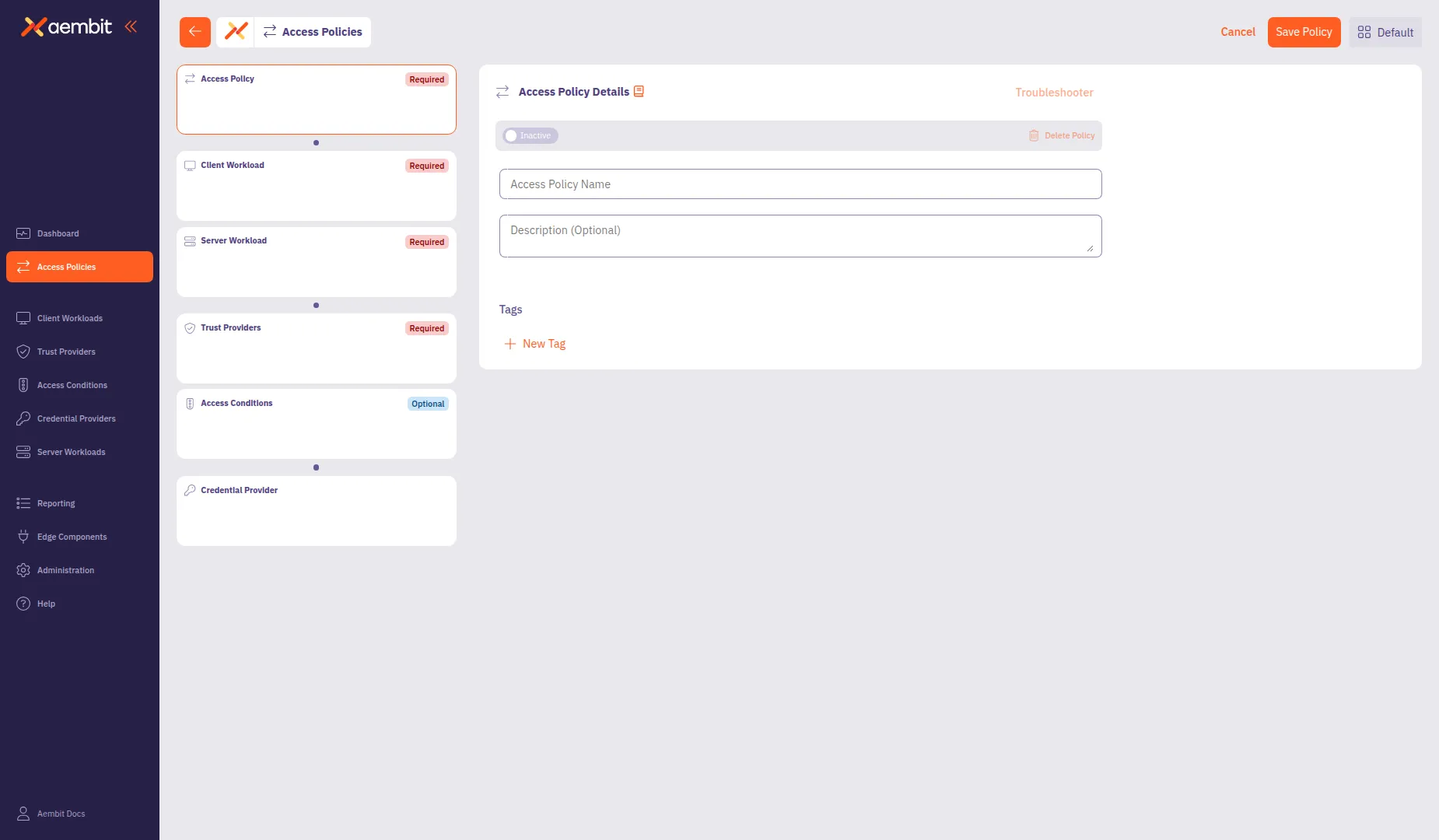 The Access Policy Builder displays a card-based navigation in the left panel with the following components: * **Access Policy** (Required) - Policy name and metadata * **Client Workload**Client Workload**: Client Workloads represent software applications, scripts, or automated processes that initiate access requests to Server Workloads, operating autonomously without direct user interaction.[Learn more](/get-started/concepts/client-workloads)** (Required) - The application requesting access * **Server Workload**Server Workload**: Server Workloads represent target services, APIs, databases, or applications that receive and respond to access requests from Client Workloads.[Learn more](/get-started/concepts/server-workloads)** (Required) - The service being accessed * **Trust Providers**Trust Provider**: Trust Providers validate Client Workload identities through workload attestation, verifying identity claims from the workload's runtime environment rather than relying on pre-shared secrets.[Learn more](/get-started/concepts/trust-providers)** (Recommended) - Identity verification method * **Access Conditions**Access Condition**: Access Conditions add dynamic, context-aware constraints to authorization by evaluating circumstances like time, location, or security posture to determine whether to grant access.[Learn more](/get-started/concepts/access-conditions)** (Recommended) - Additional access constraints * **Credential Provider**Credential Provider**: Credential Providers obtain the specific access credentials—such as API keys, OAuth tokens, or temporary cloud credentials—that Client Workloads need to authenticate to Server Workloads.[Learn more](/get-started/concepts/credential-providers)** (Optional) - How credentials are obtained Change the requirement of each Access Policy component based on your organization’s compliance needs, using [Global Policy Compliance](/user-guide/administration/global-policy/). ## Configure the Access Policy details [Section titled “Configure the Access Policy details”](#configure-the-access-policy-details) The Access Policy Details panel displays by default when you open the builder. 1. In the **Access Policy Name** field, enter a name for your Access Policy. 2. (Optional) In the **Description** field, add a description to help identify the policy’s purpose. 3. (Optional) In the **Tags** section, click **+ New Tag** to add tags for organization. 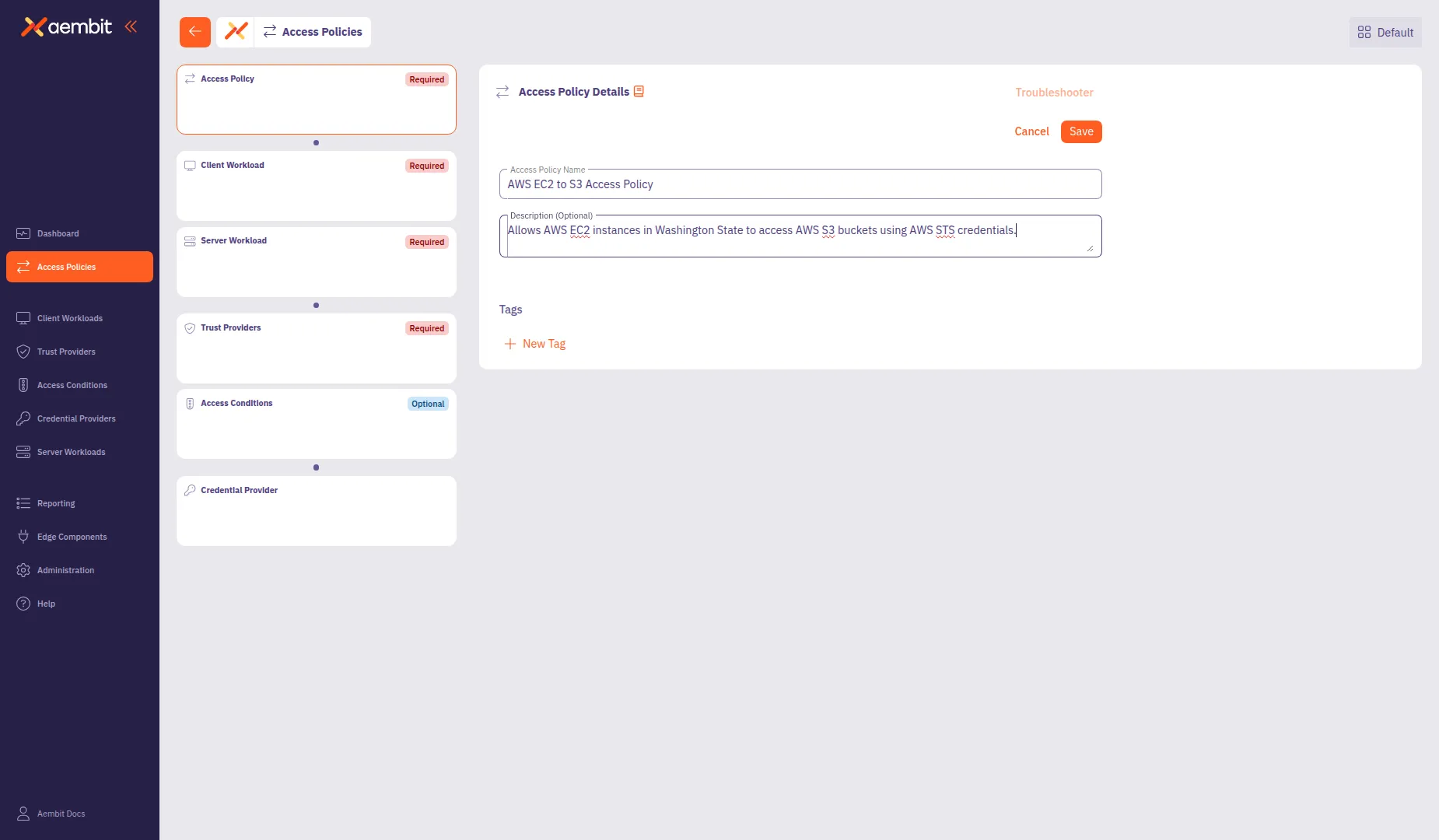 ## Add a Client Workload [Section titled “Add a Client Workload”](#add-a-client-workload) Click the **Client Workload** card in the left panel to configure the client application. Each component in the Access Policy Builder offers two options: * **Add New** - Create a new component directly within the builder. The component saves to your tenant and associates with this policy. * **Select Existing** - Choose from components you’ve already created. This lets you reuse components across multiple policies. For detailed information about Client Workload configuration options and identification types, see [Client Workloads](/user-guide/access-policies/client-workloads/). * Add New To create a new Client Workload: 1. Select the **Add New** tab if not already selected. 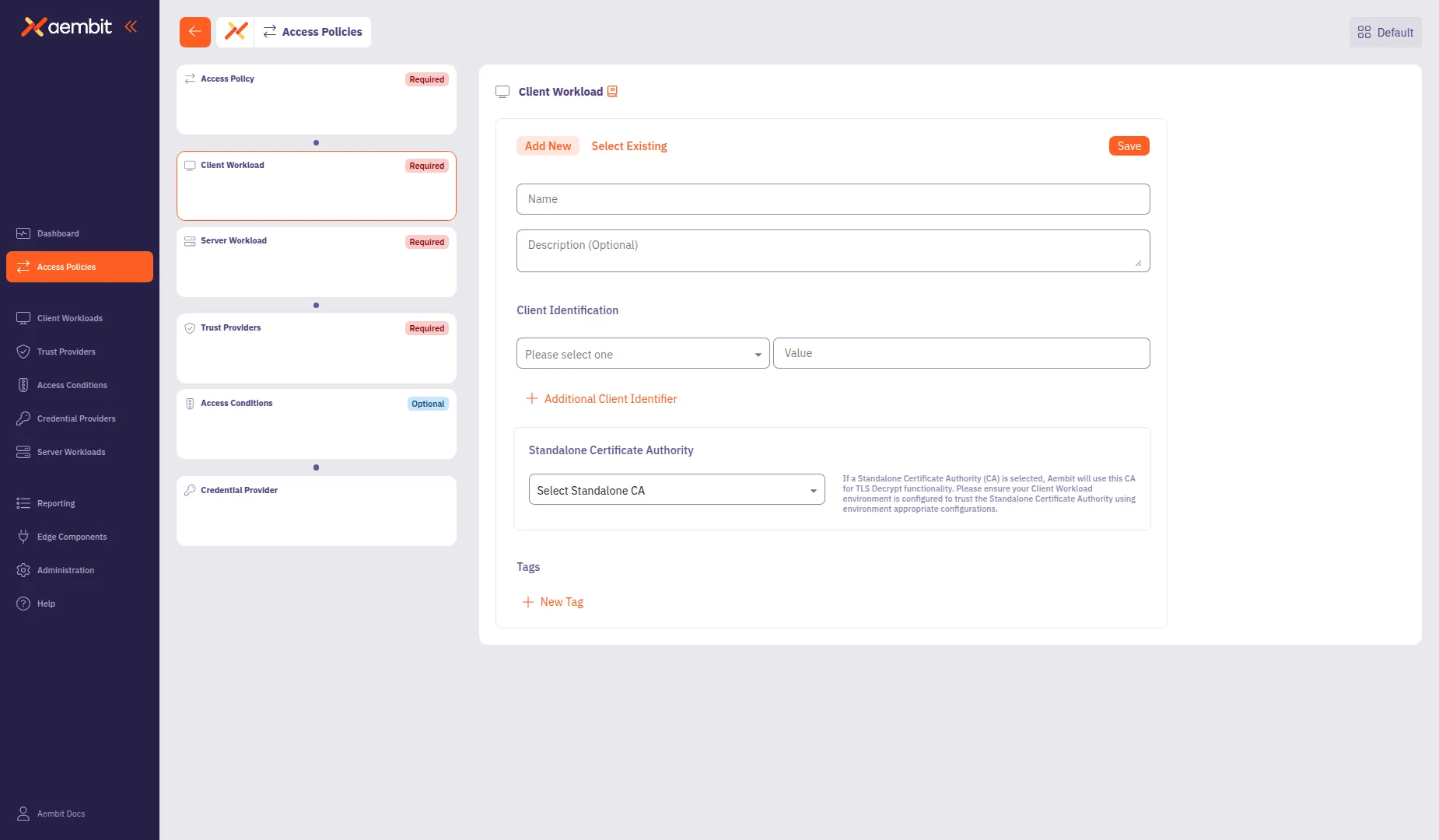 2. In the **Name** field, enter a name for the Client Workload. 3. (Optional) In the **Description** field, add context about the workload. 4. From the **Client Identification** dropdown, select an identification type. For AWS EC2 instances, select **AWS EC2 Instance Id**. 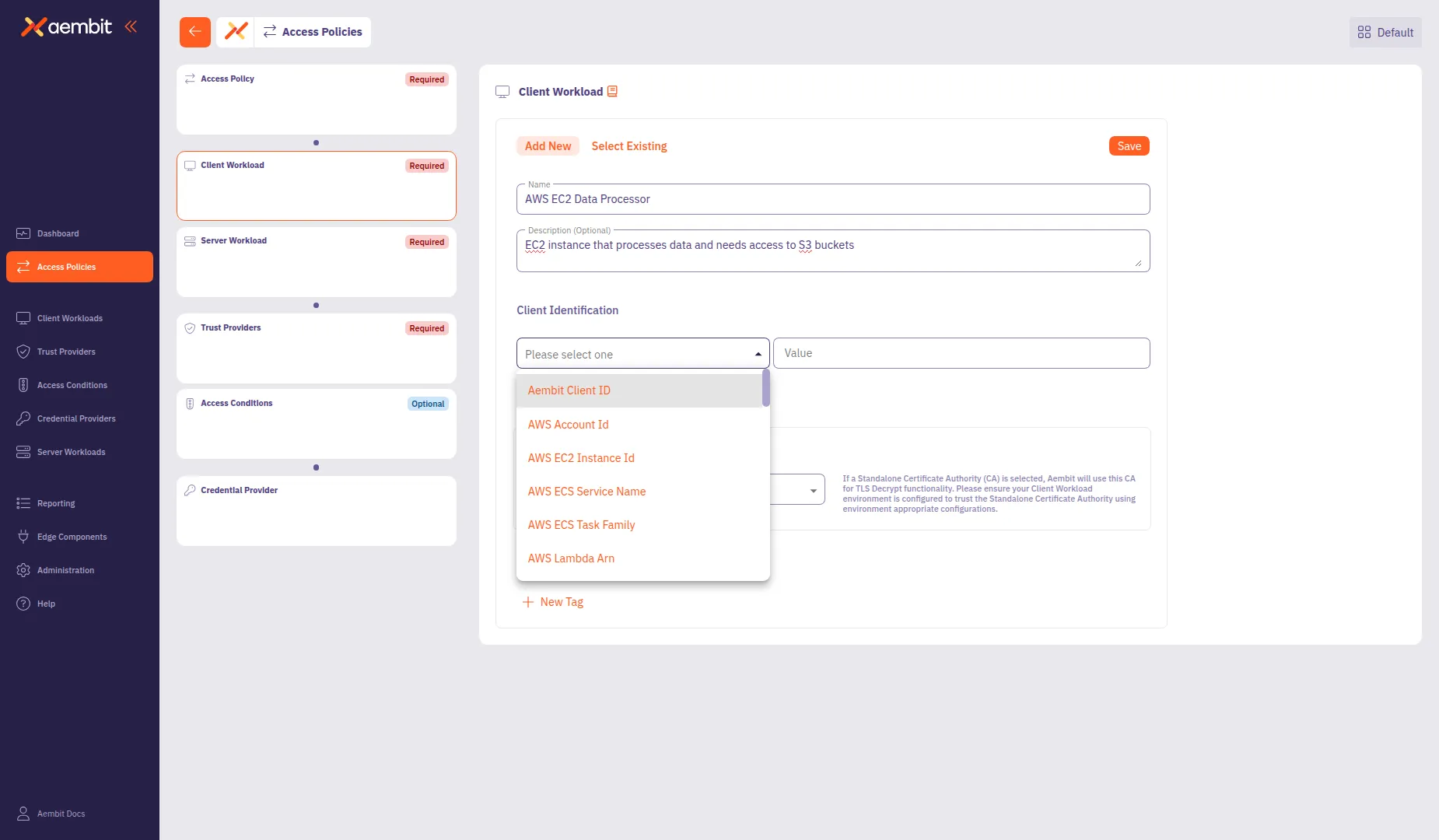 5. In the **Value** field, enter the identification value (for example, `i-0abc123def456789`). 6. (Optional) Click **+ Additional Client Identifier** to add more identifiers. 7. Click **Save** to add the Client Workload to the policy. 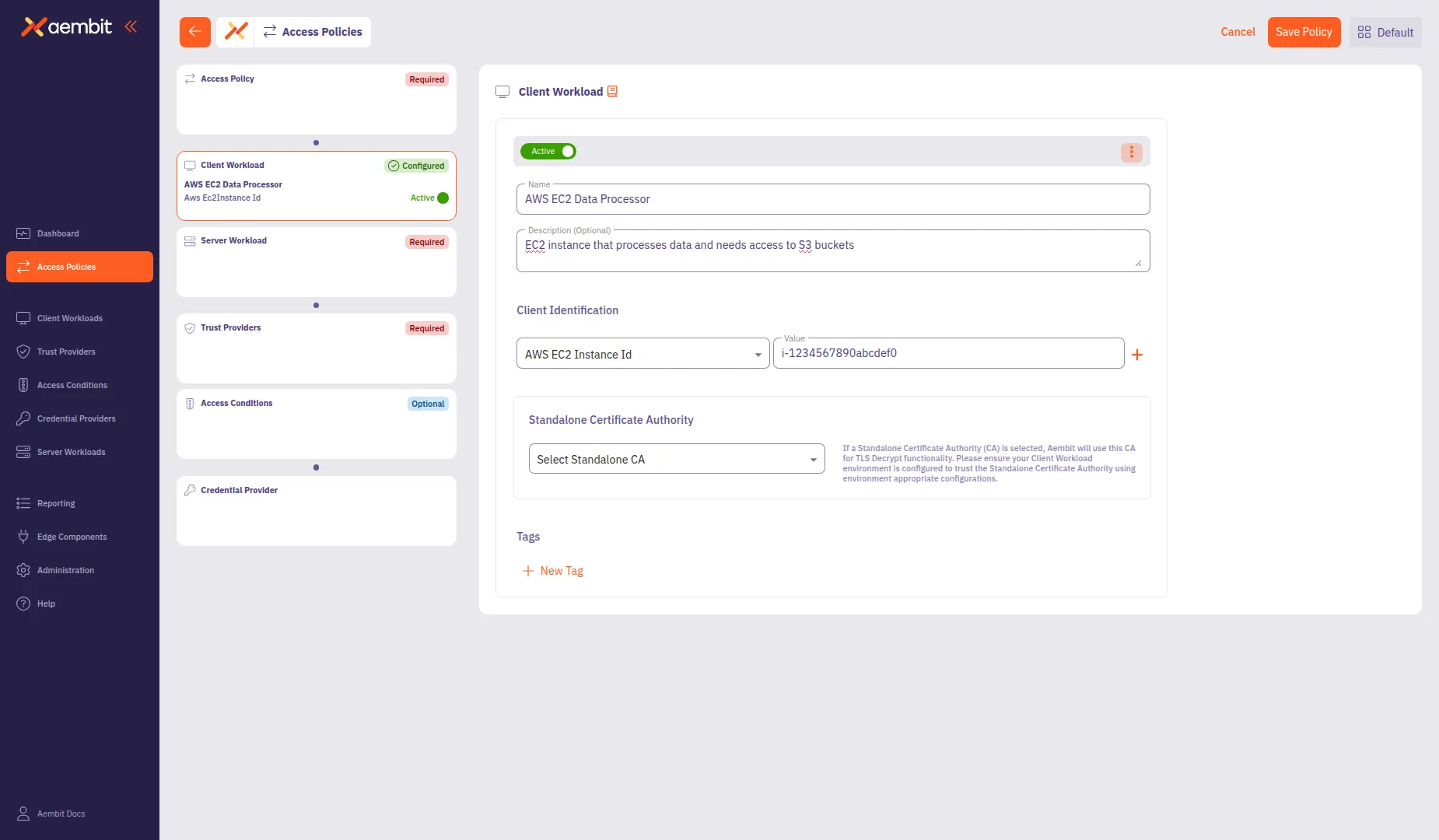 * Select Existing To use an existing Client Workload: 1. Select the **Select Existing** tab. 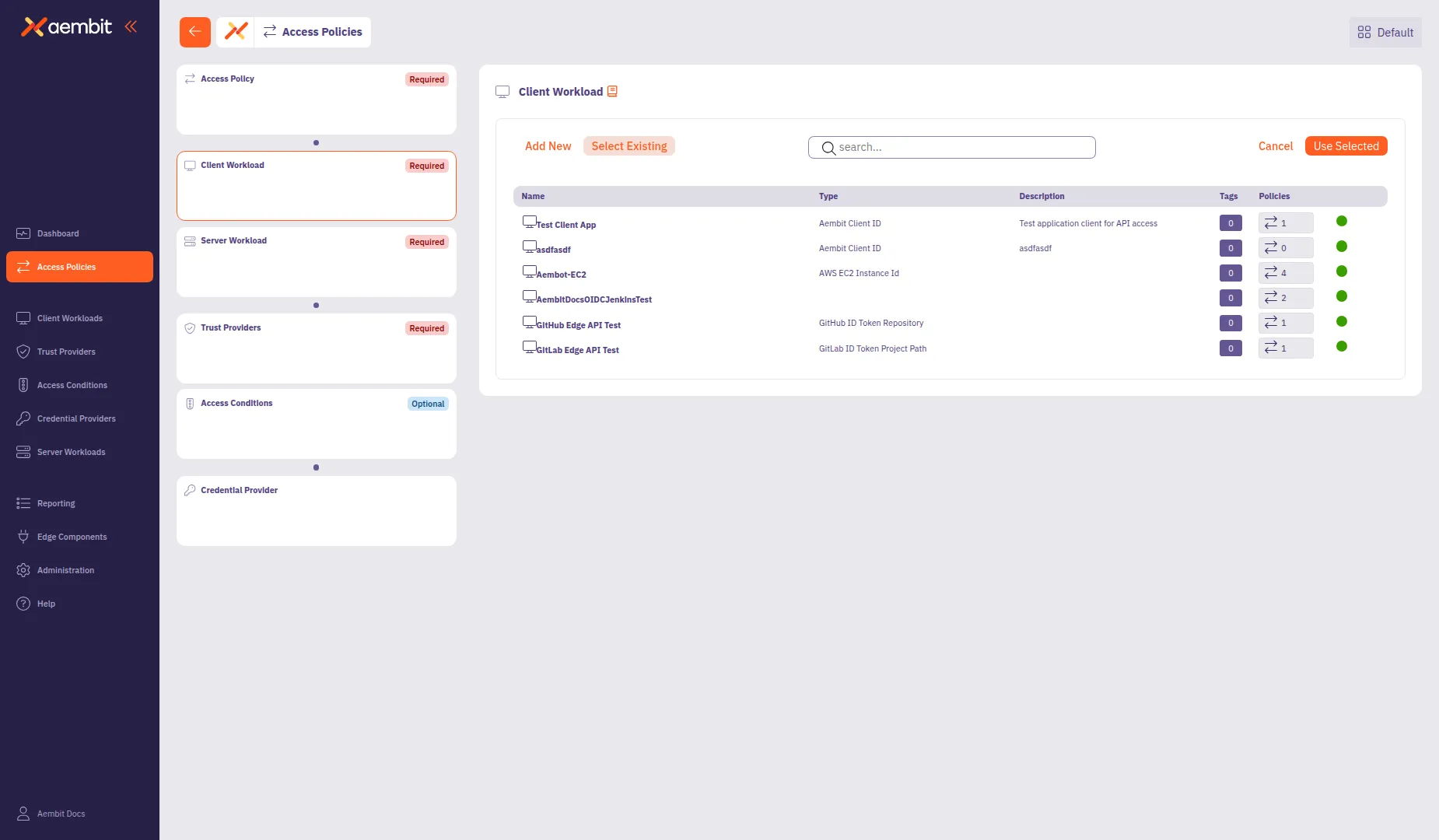 2. Use the search field to filter the list. 3. Click a row to select a Client Workload. The selected row highlights with an orange border. 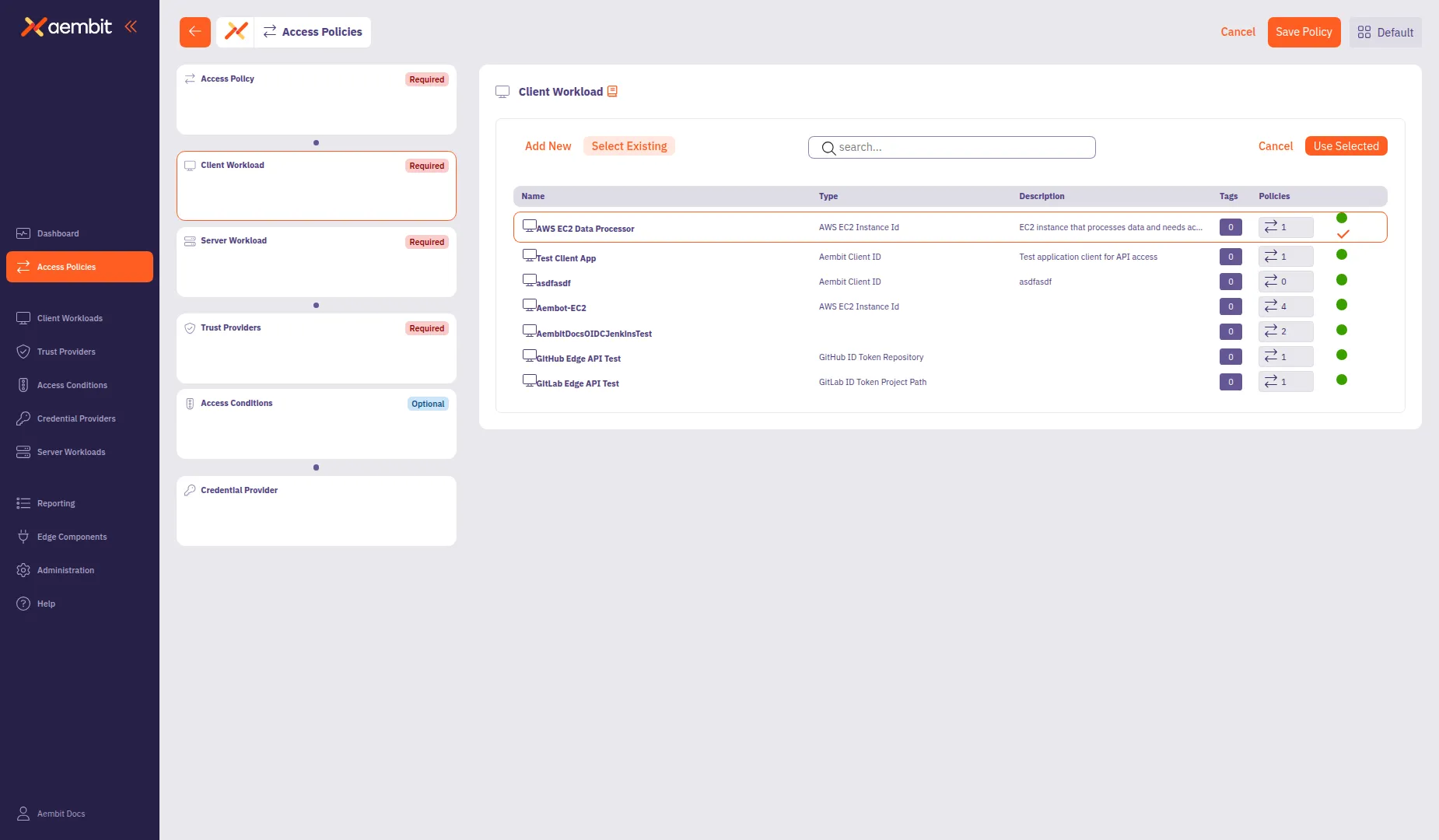 4. Click **Use Selected** to add it to the policy. ## Add a Server Workload [Section titled “Add a Server Workload”](#add-a-server-workload) Click the **Server Workload** card in the left panel to configure the target service. For detailed information about Server Workload configuration options, protocols, and authentication methods, see [Server Workloads](/user-guide/access-policies/server-workloads/). * Add New To create a new Server Workload: 1. Select the **Add New** tab if not already selected. 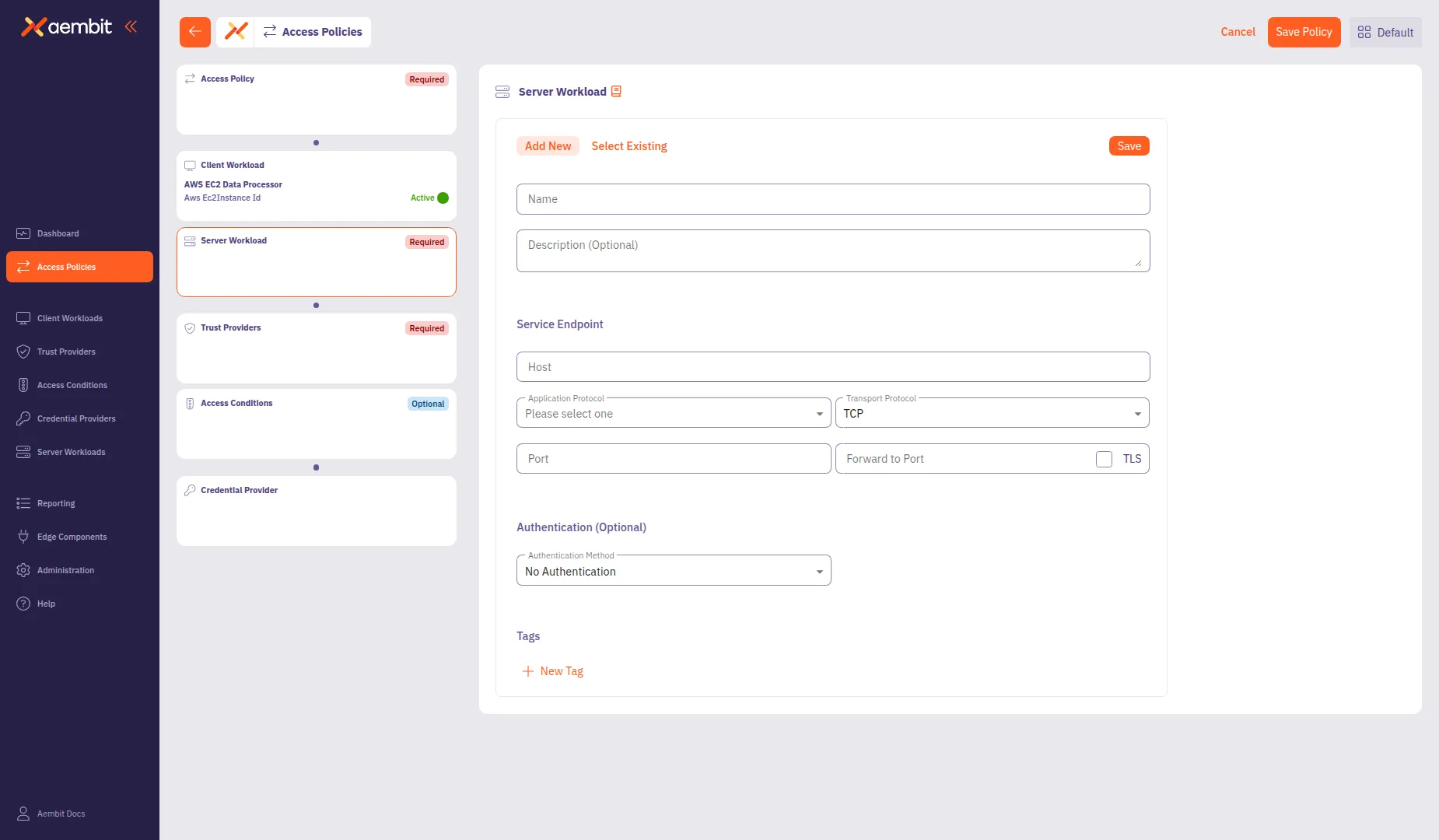 2. In the **Name** field, enter a name for the Server Workload (for example, `AWS S3 Storage Bucket`). 3. (Optional) In the **Description** field, add context about the workload. 4. In the **Service Endpoint** section, configure the connection details: * **Host**: Enter the service hostname (for example, `s3.us-west-2.amazonaws.com`). * **Application Protocol**: Select the protocol (for example, **HTTP**). * **Transport Protocol**: Select **TCP** (default). * **Port**: Enter the port number (for example, `443`). This field auto-populates based on the selected protocol. * **TLS**: Select this checkbox for secure connections. * **Forward to Port**: (Optional) Enter the destination port if different from the incoming port. 5. (Optional) From the **Authentication Method** dropdown, select an authentication method if the server requires it. 6. Click **Save** to add the Server Workload to the policy. 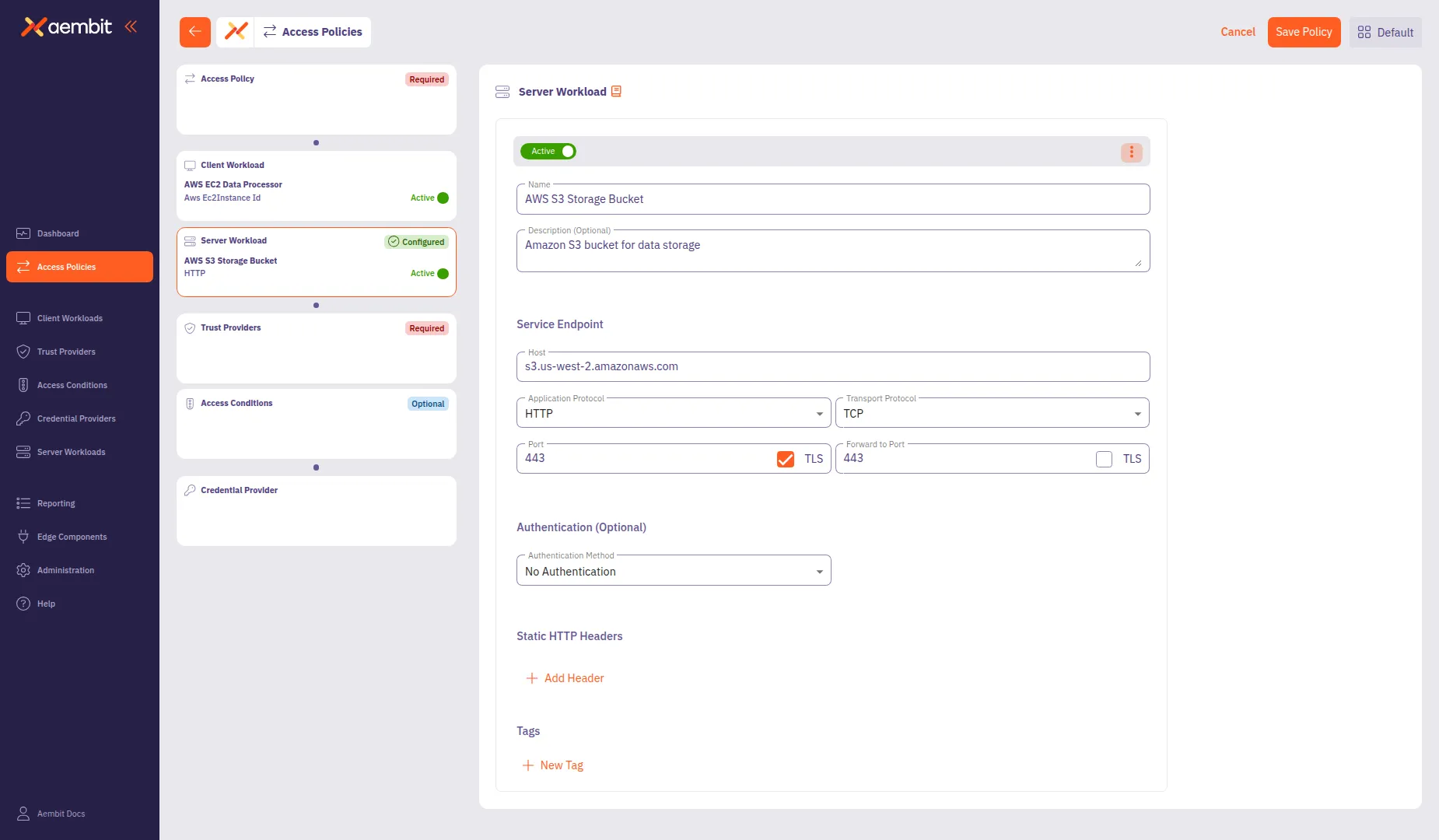 * Select Existing To use an existing Server Workload: 1. Select the **Select Existing** tab.  2. Use the search field to filter the list. 3. Click a row to select a Server Workload. The selected row highlights with an orange border.  4. Click **Use Selected** to add it to the policy. ## Add a Trust Provider [Section titled “Add a Trust Provider”](#add-a-trust-provider) Click the **Trust Providers** card in the left panel to configure identity verification. For detailed information about Trust Provider types and match rule configuration, see [Trust Providers](/user-guide/access-policies/trust-providers/). * Add New To create a new Trust Provider: 1. Select the **Add New** tab if not already selected.  2. In the **Name** field, enter a name for the Trust Provider. 3. (Optional) In the **Description** field, add context about the provider. 4. From the **Trust Provider** dropdown, select a provider type: * **AWS Metadata Service** - For AWS EC2 instance identity verification * **AWS Role** - For AWS Identity and Access Management (IAM) role-based trust * **Azure Metadata Service** - For Azure Virtual Machine (VM) identity * **GCP Identity Token** - For Google Cloud Platform (GCP) identity * **GitHub Action ID Token** - For GitHub Actions workflows * **GitLab Job ID Token** - For GitLab CI/CD pipelines * **Kubernetes Service Account** - For Kubernetes workload identity * **OIDC ID Token** - For generic OpenID Connect (OIDC) providers 5. Configure the type-specific settings. For most provider types, configure **Match Rules** to specify which identity claims to verify. 6. Click **Save** to add the Trust Provider to the policy.  To add multiple Trust Providers, click **+ Add Another** after saving the first one. This opens a menu where you can select **Add New** to create another provider or **Select Existing** to choose from existing providers. 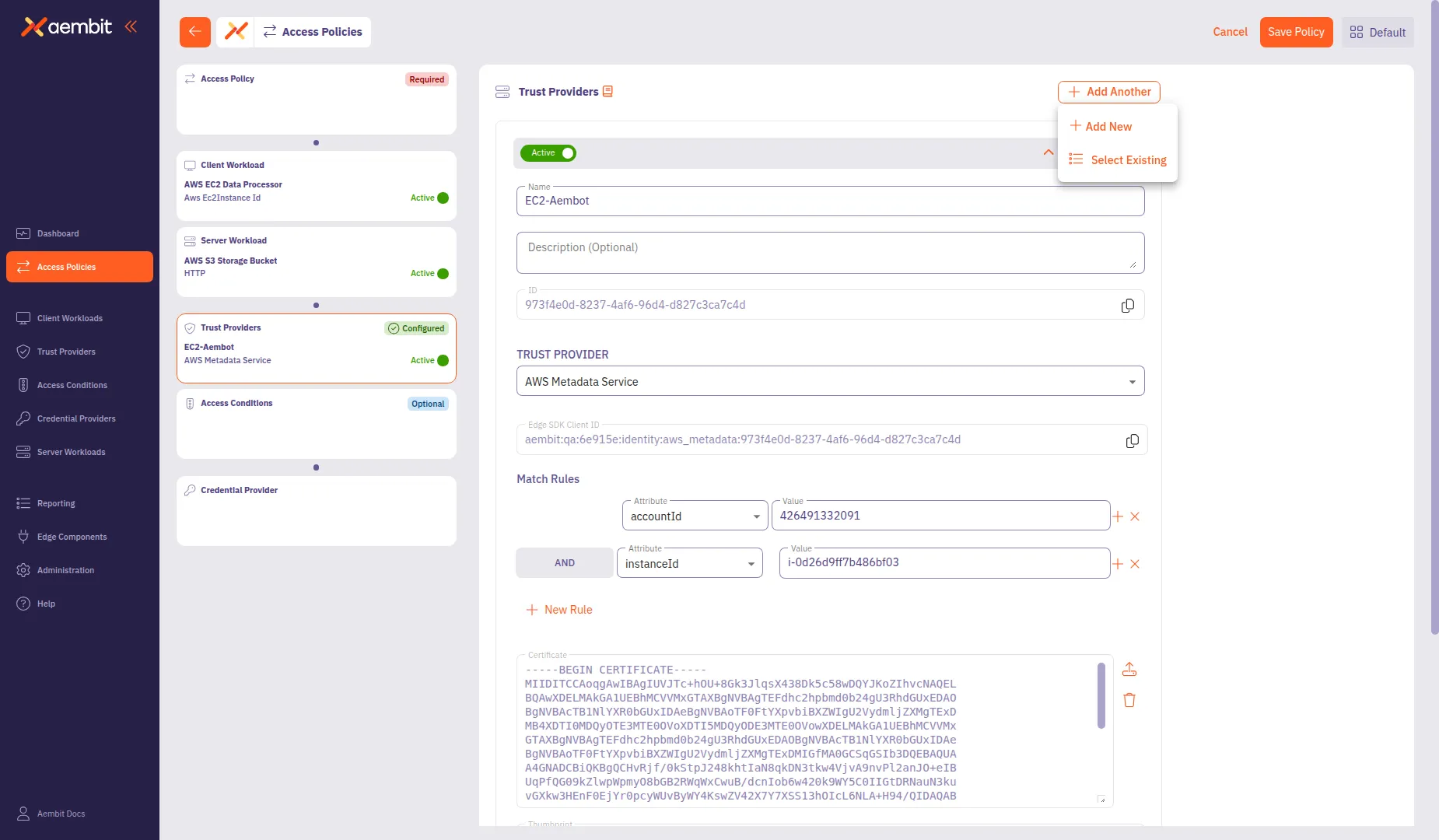 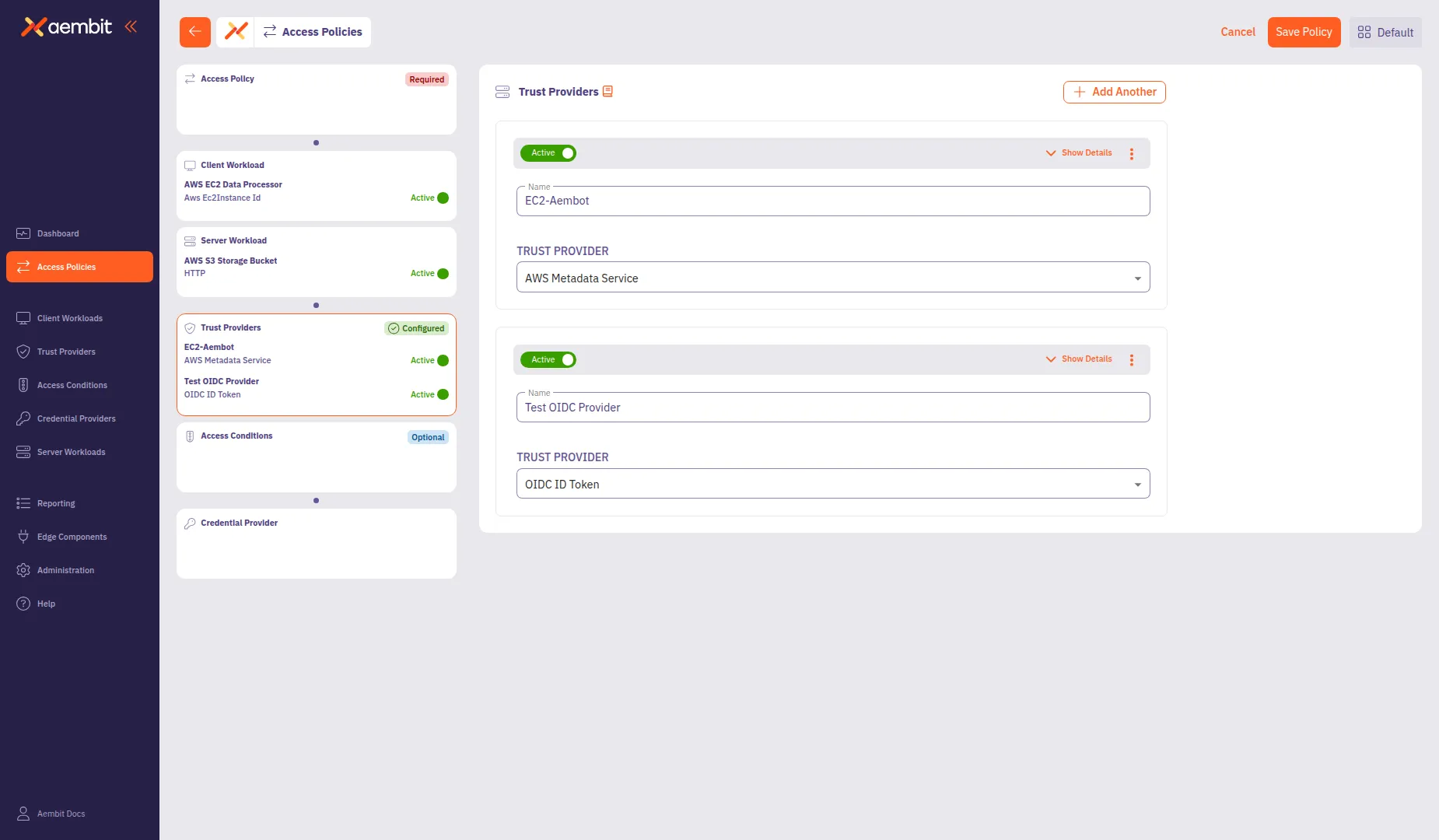 * Select Existing To use an existing Trust Provider: 1. Select the **Select Existing** tab. 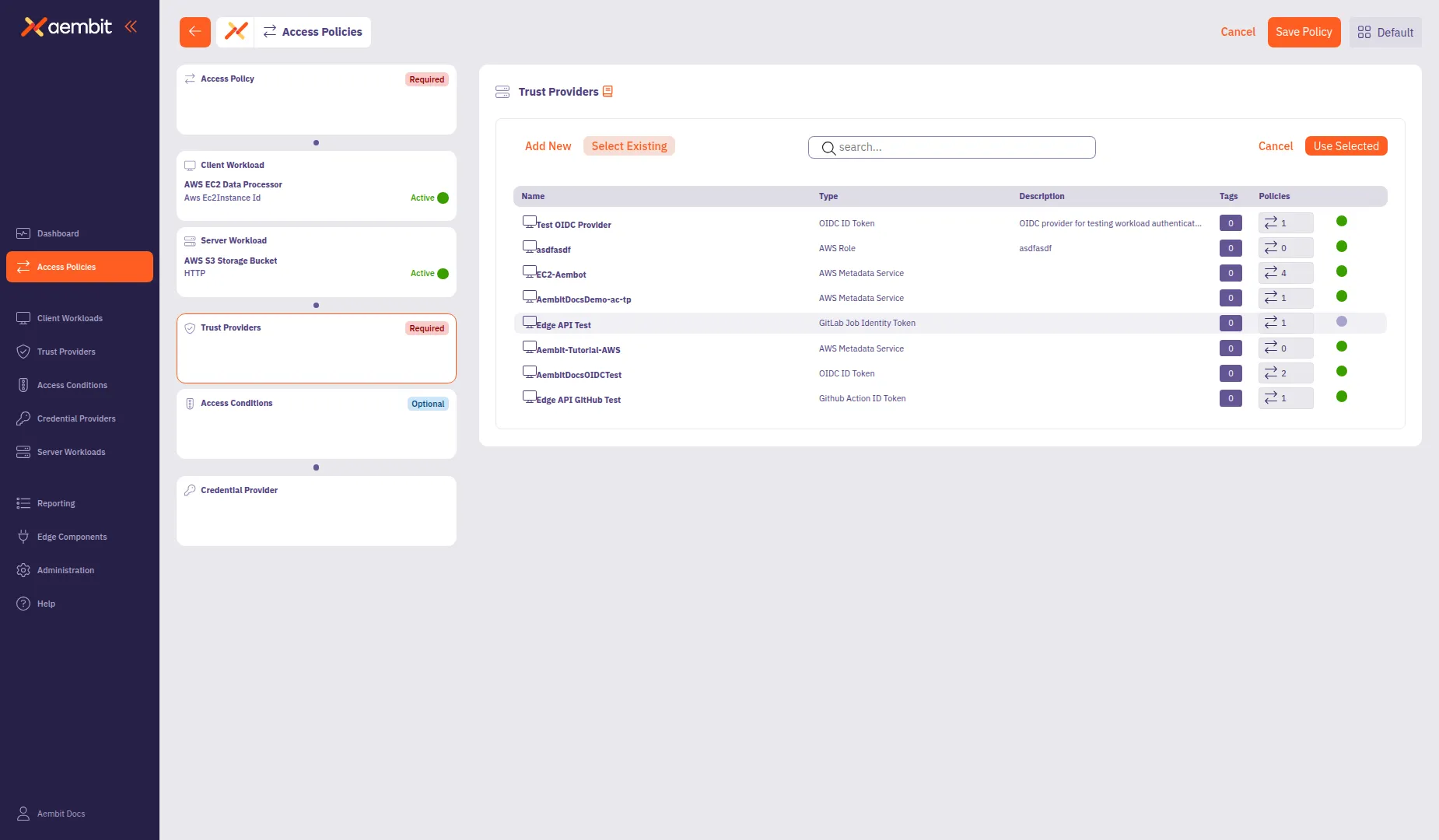 2. Use the search field to filter the list. 3. Click a row to select a Trust Provider. The selected row highlights with an orange border. 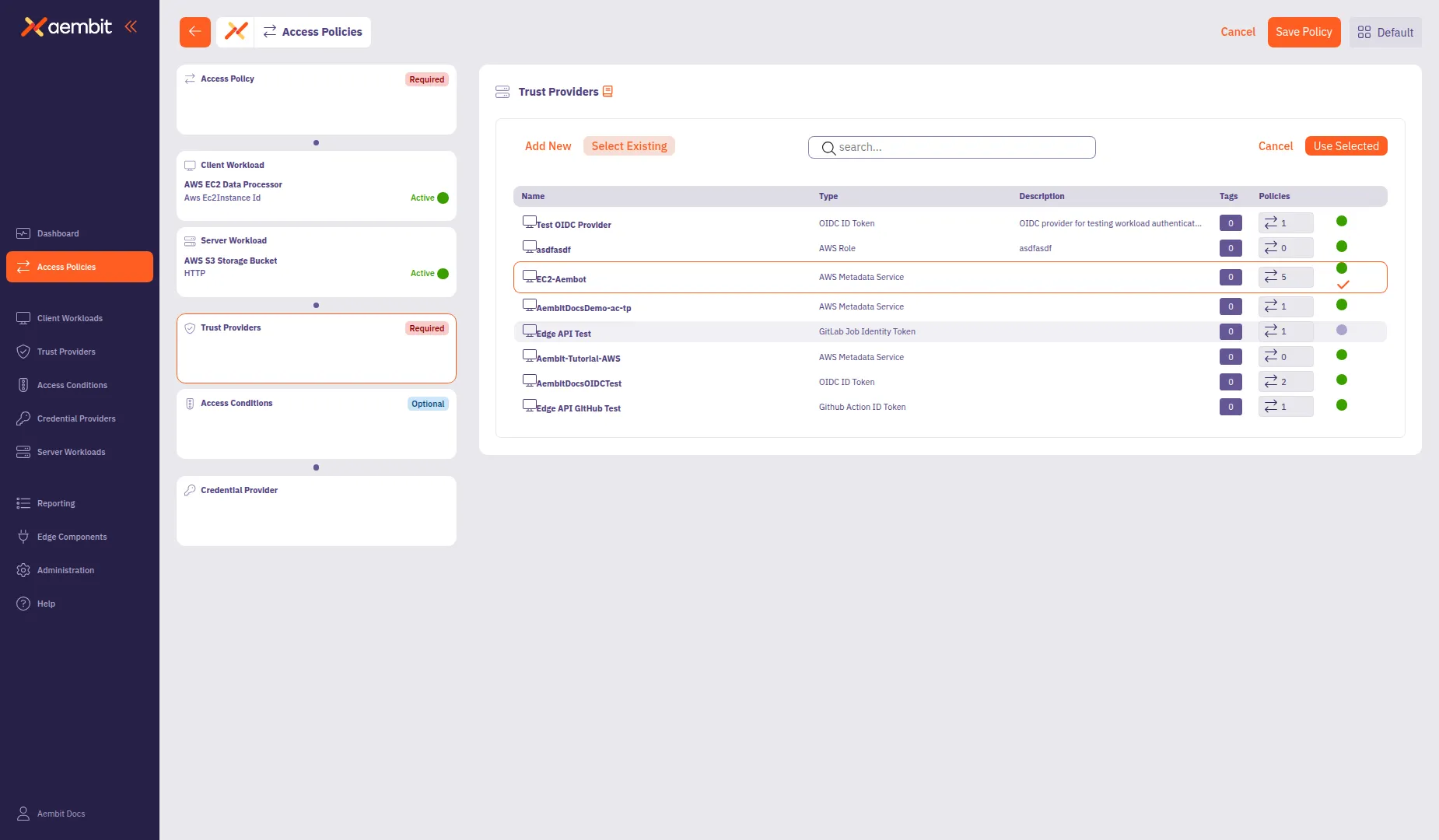 4. Click **Use Selected** to add it to the policy. ## Add Access Conditions (optional) [Section titled “Add Access Conditions (optional)”](#add-access-conditions-optional) Click the **Access Conditions** card in the left panel to add optional access constraints. Access Conditions provide additional security by restricting access based on factors like geographic location or time of day. For detailed information about Access Condition types and integration options, see [Access Conditions](/user-guide/access-policies/access-conditions/). * Add New To create a new Access Condition: 1. Select the **Add New** tab if not already selected. 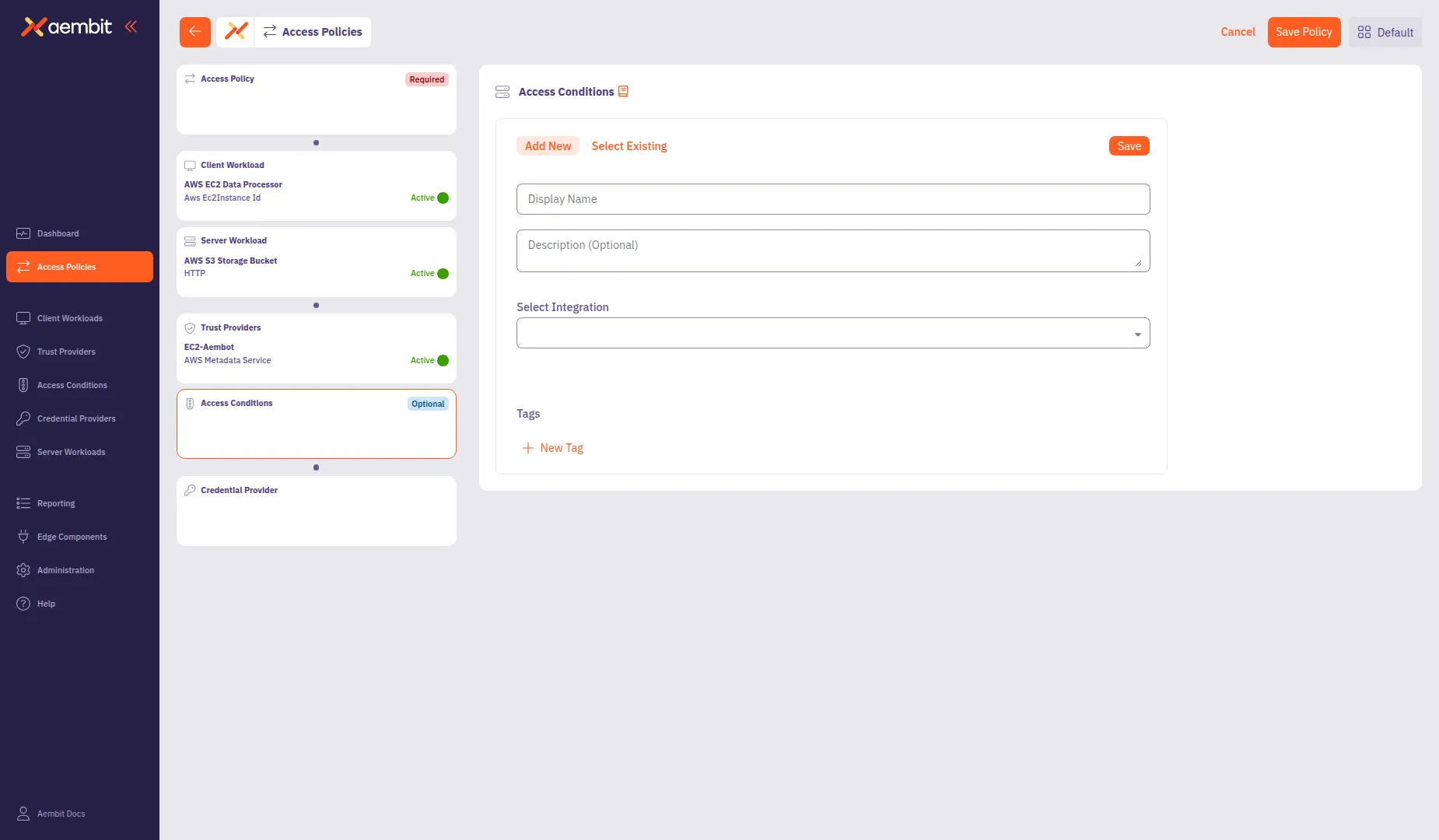 2. In the **Display Name** field, enter a name for the Access Condition (for example, `Washington State Location`). 3. (Optional) In the **Description** field, add context about the condition. 4. From the **Integration** dropdown, select a condition type: * **Aembit GeoIP Condition** - Restrict access based on geographic location * **Aembit Time Condition** - Restrict access based on time windows * Other third-party integrations as configured in your tenant 5. Configure the integration-specific settings. For GeoIP conditions: * Click **Add Country** to add a location rule. * From the **Country** dropdown, select a country (for example, `United States of America`). * (Optional) From the **Subdivision** dropdown, select a specific state or region (for example, `Washington`). 6. Click **Save** to add the Access Condition to the policy. 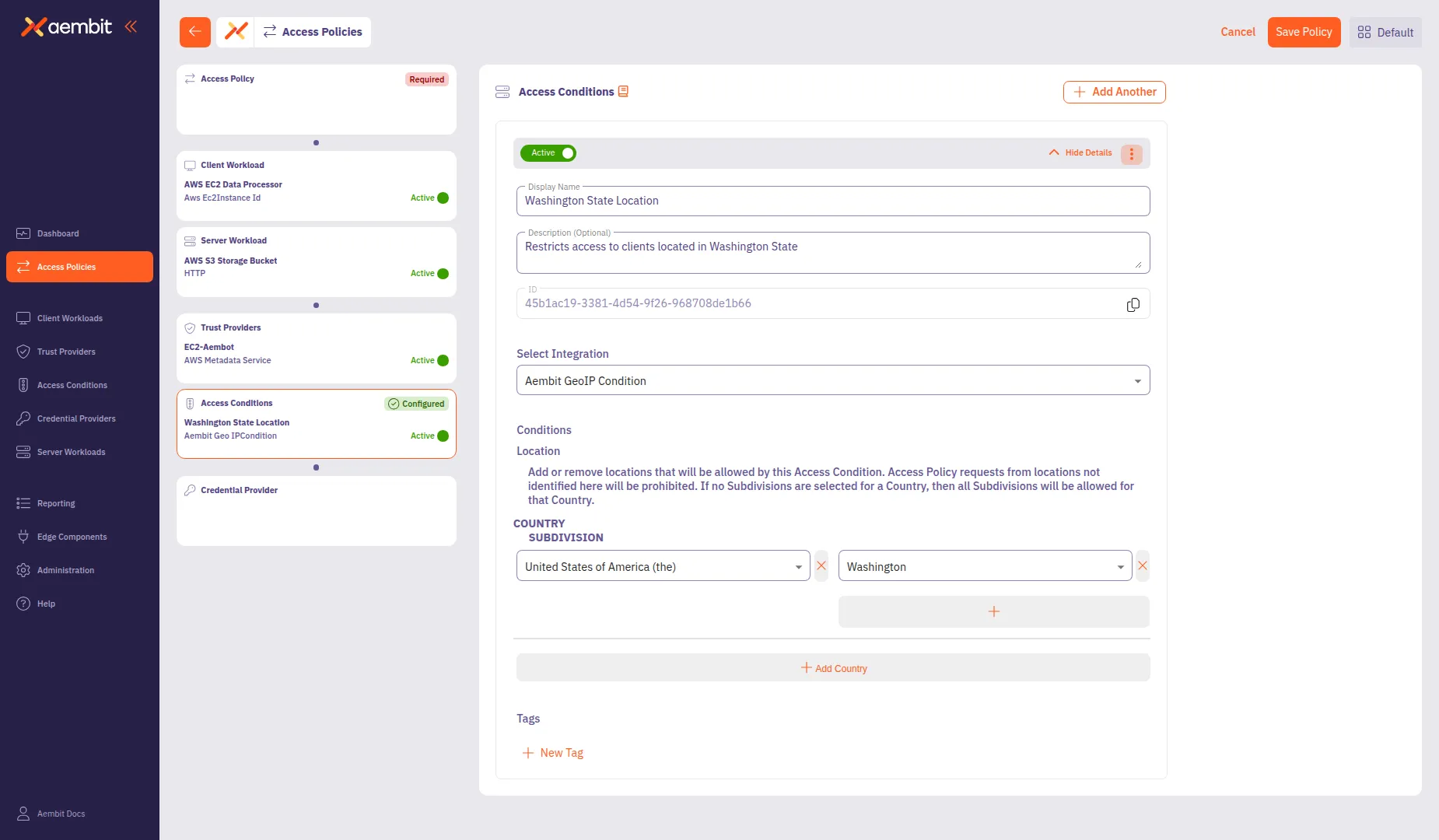 * Select Existing To use an existing Access Condition: 1. Select the **Select Existing** tab.  2. Use the search field to filter the list. 3. Click a row to select an Access Condition. The selected row highlights with an orange border.  4. Click **Use Selected** to add it to the policy. ## Add a Credential Provider [Section titled “Add a Credential Provider”](#add-a-credential-provider) Click the **Credential Provider** card in the left panel to configure how the policy obtains credentials for accessing the Server Workload. For detailed information about Credential Provider types and configuration options, see [Credential Providers](/user-guide/access-policies/credential-providers/). * Add New To create a new Credential Provider: 1. Select the **Add New** tab if not already selected. 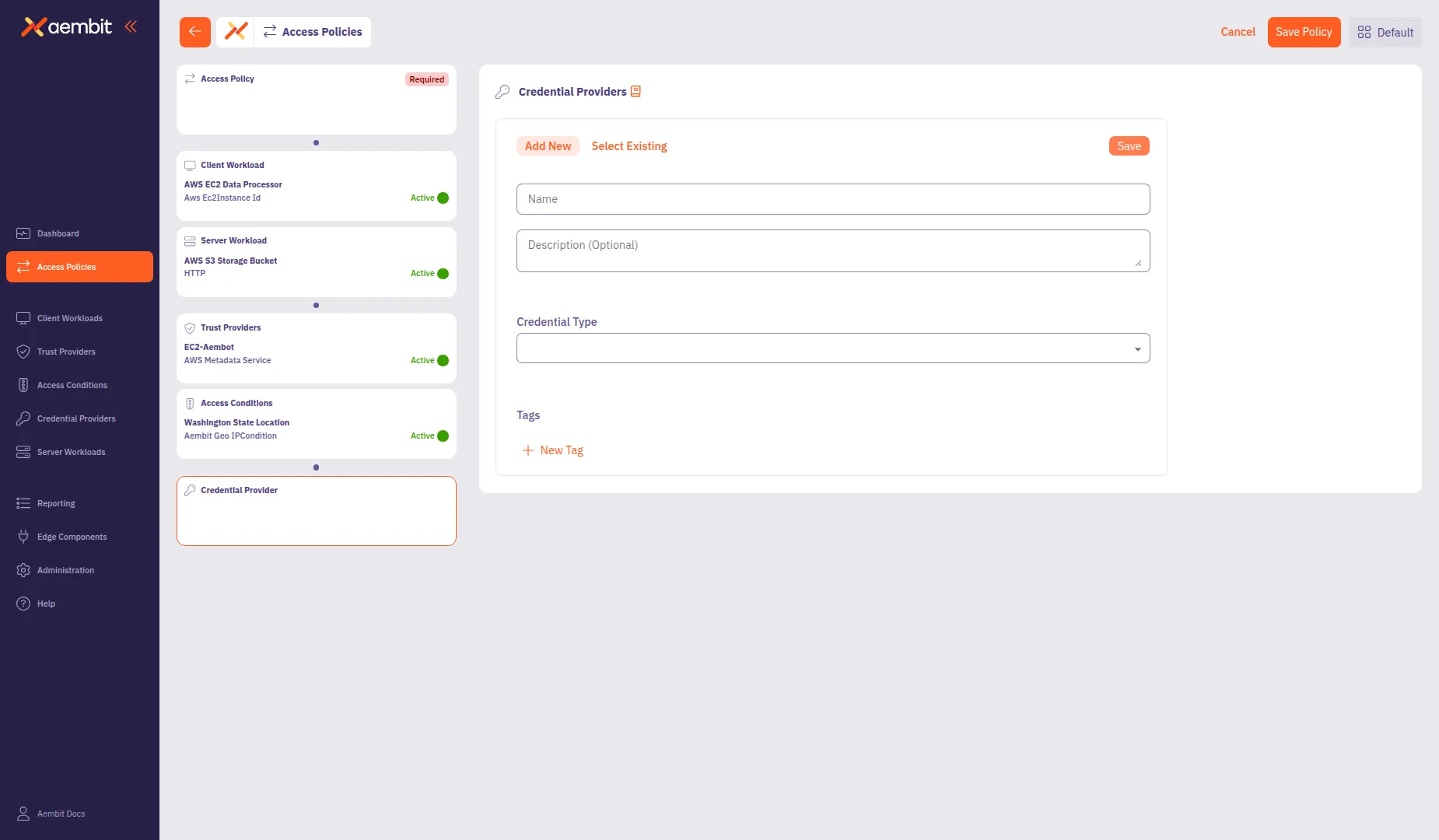 2. In the **Name** field, enter a name for the Credential Provider (for example, `AWS S3 Access Credential`). 3. (Optional) In the **Description** field, add context about the credential. 4. From the **Credential Type** dropdown, select a credential type: 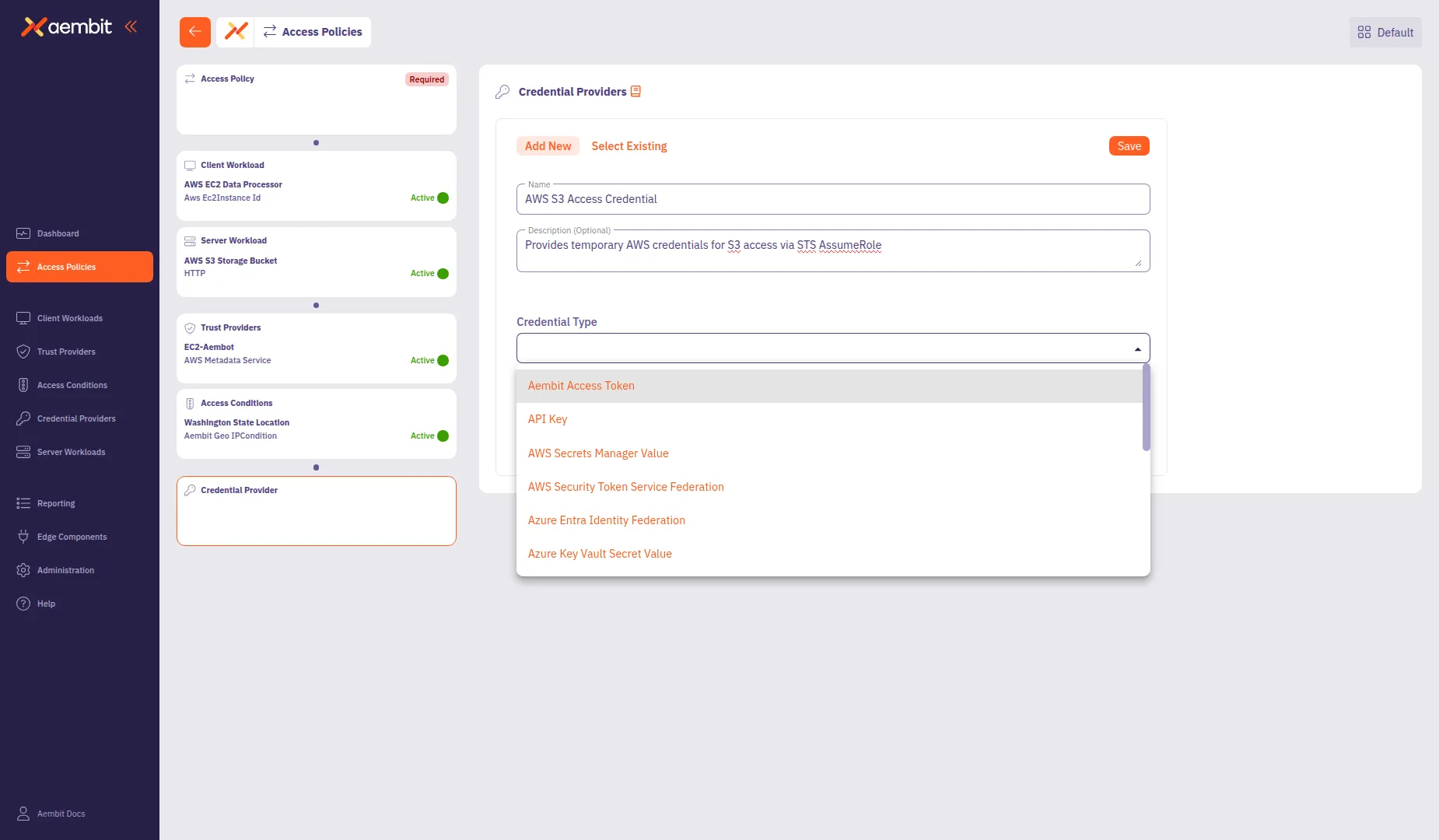 * **Aembit Access Token** - For Aembit-native authentication * **API Key** - For static API key credentials * **AWS Secrets Manager Value** - For credentials stored in AWS Secrets Manager * **AWS Security Token Service Federation** - For AWS STS AssumeRole credentials * **Azure Entra Identity Federation** - For Azure identity federation * **Azure Key Vault Secret Value** - For credentials stored in Azure Key Vault * **Google Workload Identity Federation** - For GCP identity federation * **OAuth 2.0 Client Credentials** - For OAuth client credentials flow 5. Configure the type-specific settings. For AWS Security Token Service Federation: * **OIDC Issuer URL**: Auto-populated with your tenant’s identity URL. * **AWS IAM Role Arn**: Enter the Amazon Resource Name (ARN) of the IAM role to assume (for example, `arn:aws:iam::123456789012:role/AembitS3AccessRole`). * **Aembit IdP Token Audience**: The Identity Provider (IdP) token audience, auto-populated with `sts.amazonaws.com`. * **Lifetime**: Set the credential lifetime in seconds (default: `3600`). 6. Click **Save** to add the Credential Provider to the policy. 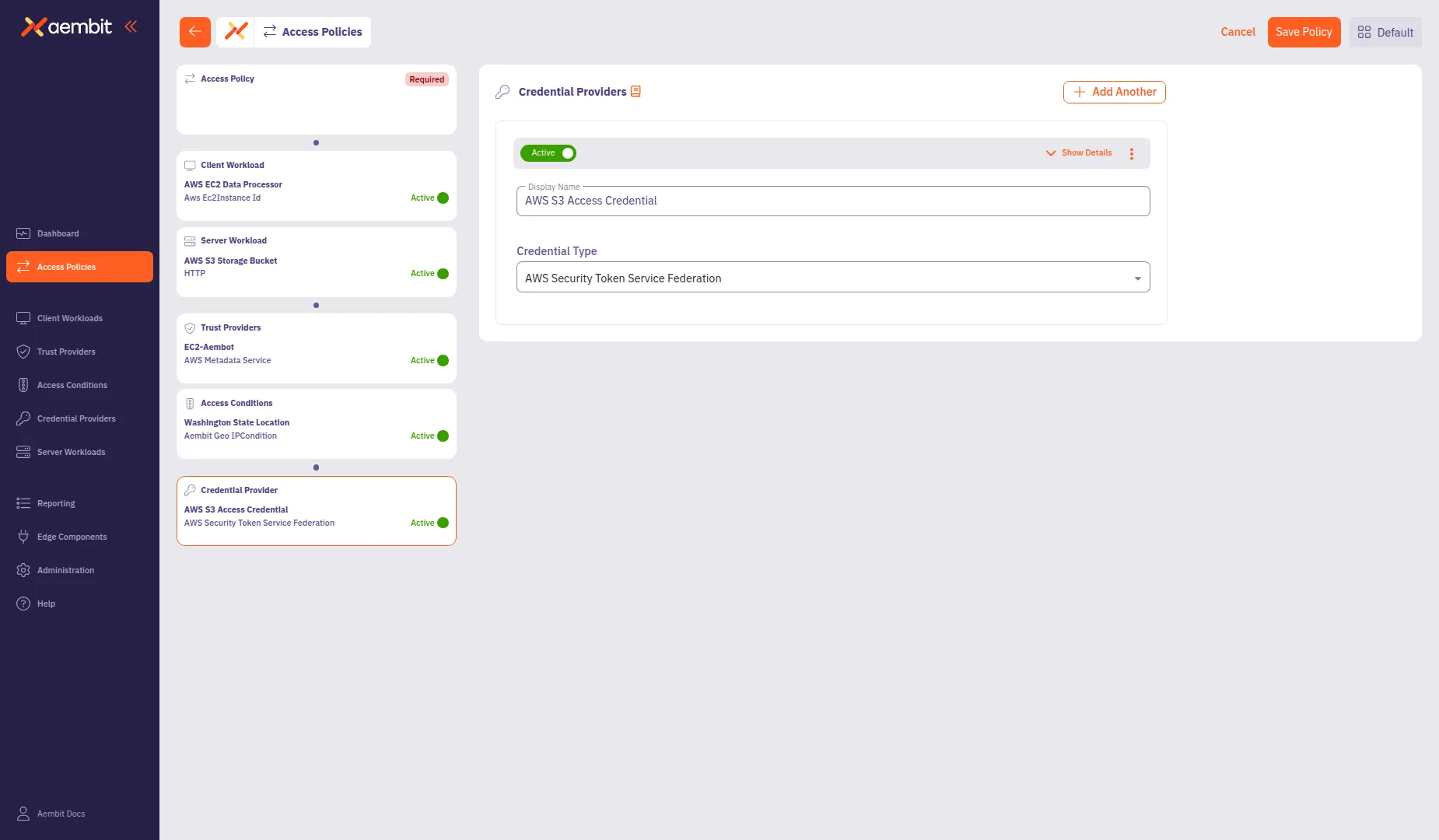 * Select Existing To use an existing Credential Provider: 1. Select the **Select Existing** tab. 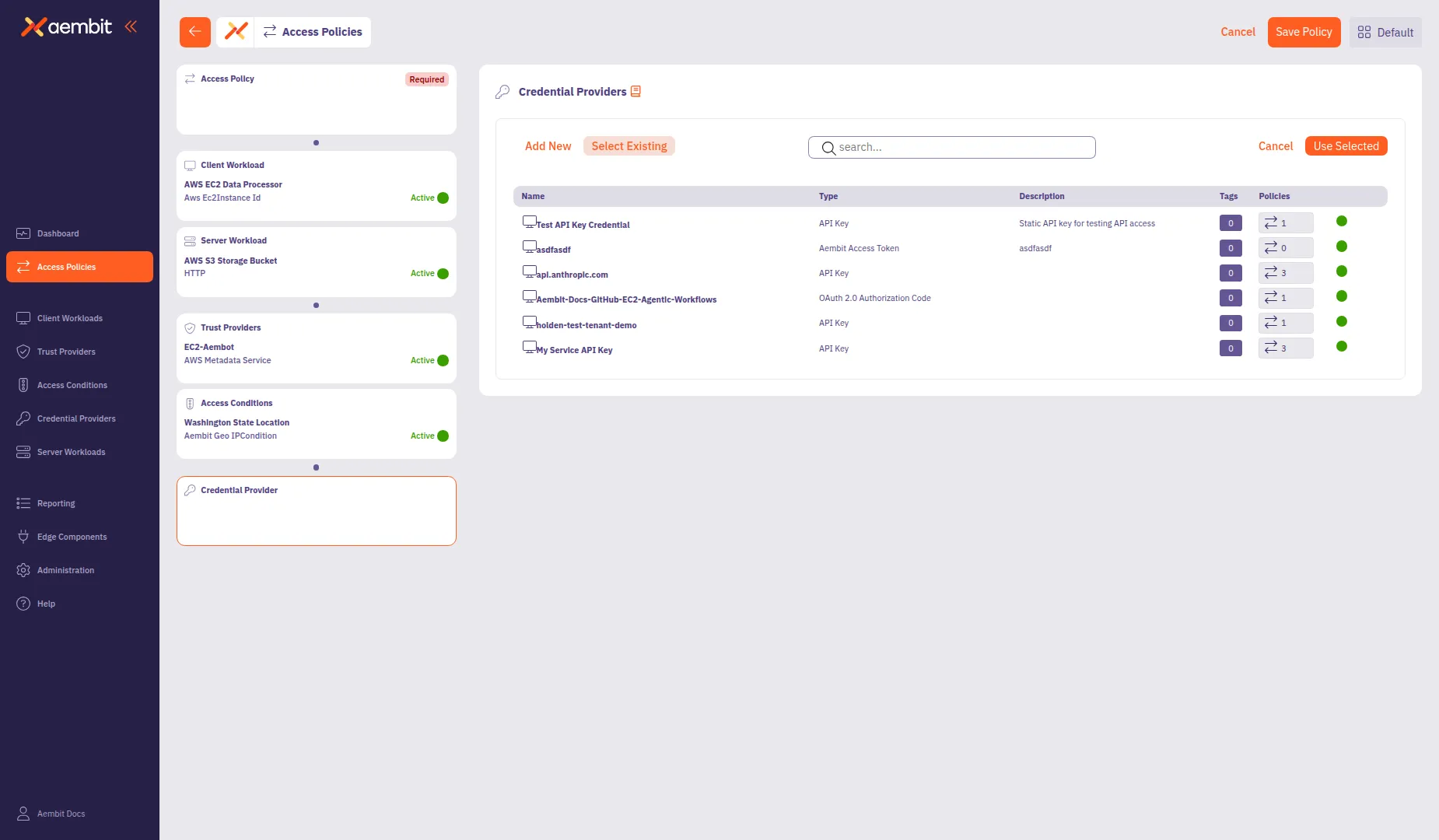 2. Use the search field to filter the list. 3. Click a row to select a Credential Provider. The selected row highlights with an orange border. 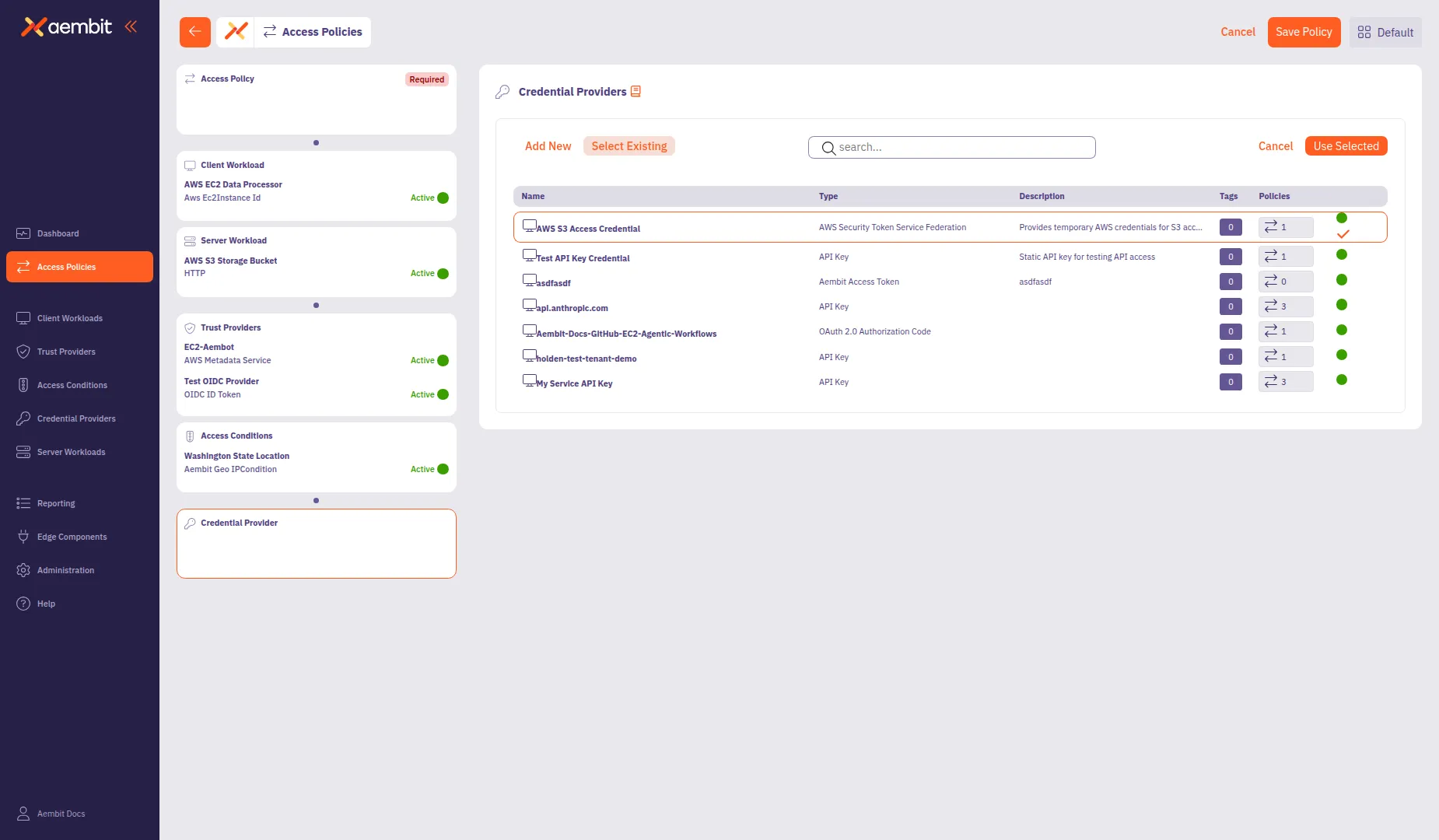 4. Click **Use Selected** to add it to the policy. ## Save the Access Policy [Section titled “Save the Access Policy”](#save-the-access-policy) After configuring all required components, you can save the Access Policy. 1. Review the left panel to verify all required components are configured. Hover over or select each compliance item card to see a green checkmark indicating the component is configured: * Access Policy (name configured) * Client Workload * Server Workload * Trust Providers * Credential Provider  2. Click **Save Policy** in the header bar to create the Access Policy. 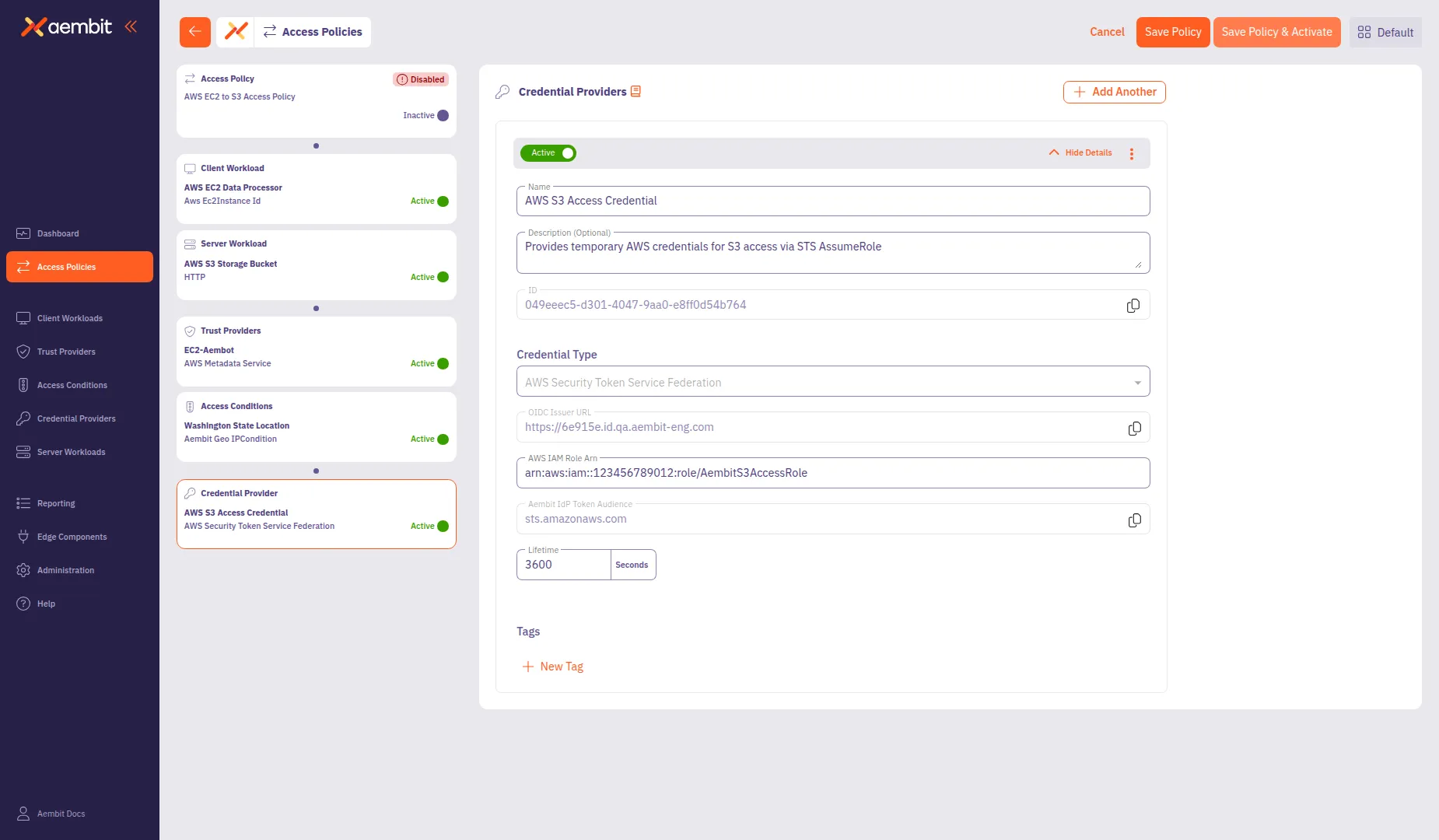 3. (Optional) To activate the policy immediately, enable the **Active** toggle. 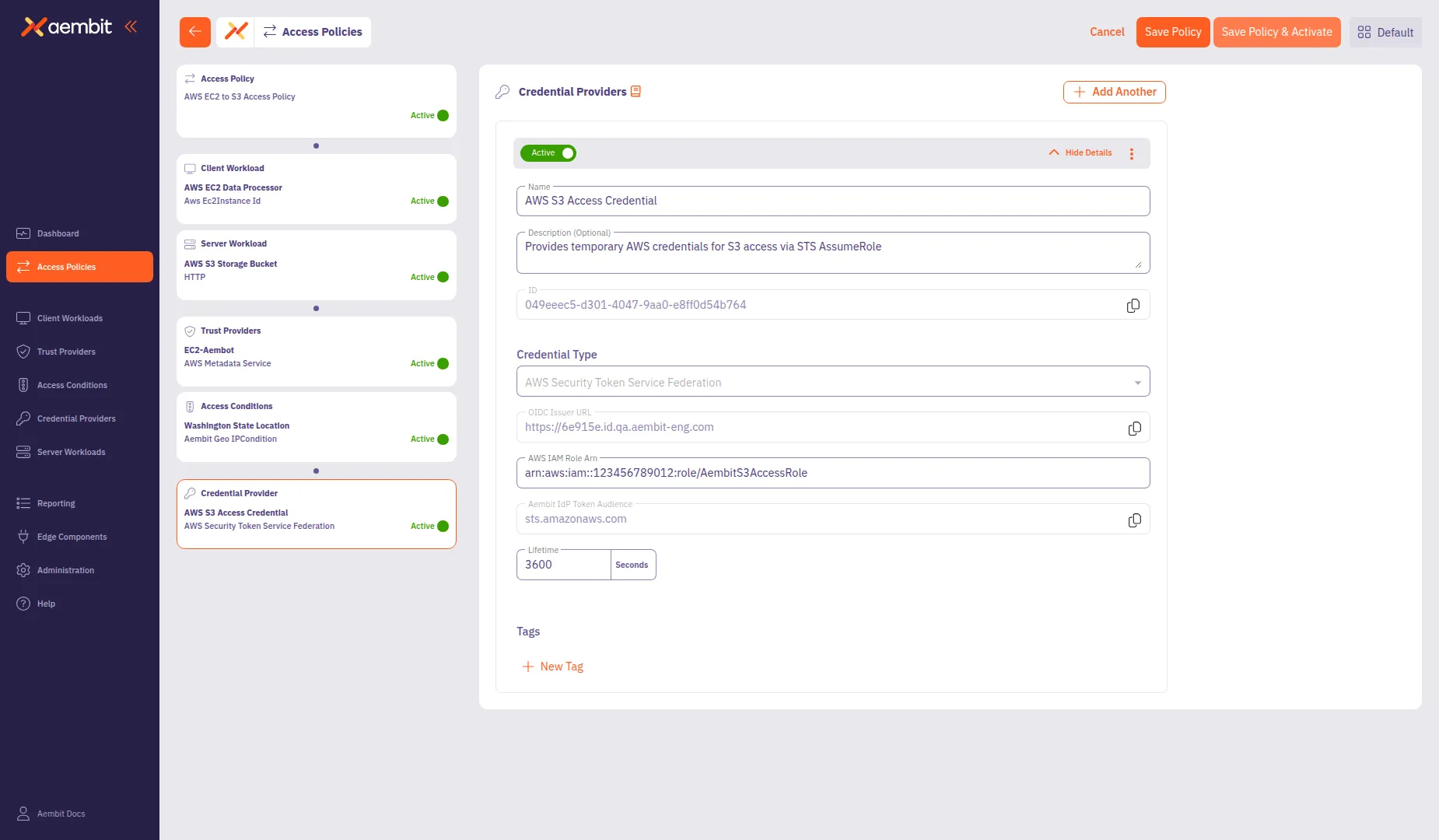 The Access Policy now governs access from the configured Client Workload to the Server Workload based on the Trust Provider verification, Access Conditions, and Credential Provider settings.
# Credential Providers
> This document provides a high-level description of Credential Providers
This section covers Credential Providers in Aembit, which you can use to provide access credentials to Client Workloads so they can access Server Workloads securely. The following pages provide information about different Credential Provider types and how to configure them: * [Aembit Access Token](/user-guide/access-policies/credential-providers/aembit-access-token) * [API Key](/user-guide/access-policies/credential-providers/api-key) * [AWS Secrets Manager](/user-guide/access-policies/credential-providers/aws-secrets-manager) * [AWS Security Token Service Federation](/user-guide/access-policies/credential-providers/aws-security-token-service-federation) * [AWS SigV4](/user-guide/access-policies/credential-providers/aws-sigv4) * [Azure Entra Workload Identity Federation](/user-guide/access-policies/credential-providers/azure-entra-workload-identity-federation) * [Azure Key Vault](/user-guide/access-policies/credential-providers/azure-key-vault) * [Google GCP Workload Identity Federation](/user-guide/access-policies/credential-providers/google-workload-identity-federation) * [JSON Web Token (JWT)](/user-guide/access-policies/credential-providers/json-web-token) * [JWT-SVID Token](/user-guide/access-policies/credential-providers/spiffe-jwt-svid) * [Managed GitLab Account](/user-guide/access-policies/credential-providers/managed-gitlab-account) * [OAuth 2.0 Authorization Code](/user-guide/access-policies/credential-providers/oauth-authorization-code) * [OAuth 2.0 Client Credentials](/user-guide/access-policies/credential-providers/oauth-client-credentials) * [OIDC ID Token](/user-guide/access-policies/credential-providers/oidc-id-token) * [Username Password](/user-guide/access-policies/credential-providers/username-password) * [Vault Client Token](/user-guide/access-policies/credential-providers/vault-client-token) ### About Credential Providers [Section titled “About Credential Providers”](#about-credential-providers) * [About JWT-SVID Tokens](/user-guide/access-policies/credential-providers/about-spiffe-jwt-svid) * [About OIDC ID Tokens](/user-guide/access-policies/credential-providers/about-oidc-id-token) ### Advanced options [Section titled “Advanced options”](#advanced-options) * [Private Network Access](/user-guide/access-policies/credential-providers/private-network-access) * [Multiple Credential Providers](/user-guide/access-policies/credential-providers/multiple-credential-providers) * [HashiCorp Vault Dynamic Claims](/user-guide/access-policies/credential-providers/advanced-options/dynamic-claims-vault) * [OIDC ID Token Dynamic Claims](/user-guide/access-policies/credential-providers/advanced-options/dynamic-claims-oidc) * [Multiple Credential Providers Terraform](/user-guide/access-policies/credential-providers/advanced-options/multiple-credential-providers-terraform) ### Integrations [Section titled “Integrations”](#integrations) * [About Credential Provider Integrations](/user-guide/access-policies/credential-providers/integrations) * [AWS IAM Role](/user-guide/access-policies/credential-providers/integrations/aws-iam-role) * [Azure Entra Federation](/user-guide/access-policies/credential-providers/integrations/azure-entra-federation) * [GitLab Dedicated Self-Managed](/user-guide/access-policies/credential-providers/integrations/gitlab-dedicated-self) * [GitLab Service Account](/user-guide/access-policies/credential-providers/integrations/gitlab)
# About the OIDC ID Token Credential Provider
> This page describes the OIDC ID Token Credential Provider and how it works
The OIDC ID Token Credential Provider enables secure identity token generation and exchange with third-party services. By leveraging Aembit’s custom Identity Provider (IdP) capabilities, the OIDC ID Token Credential Provider generates JWT-formatted tokens that you can use with different Workload Identity Federation (WIF) solutions. The Credential Provider supports: * Custom claims configuration * Flexible signing algorithms * Integration with identity brokers (AWS STS, GCP WIF, Azure WIF, Vault, etc.) See [Create an OIDC ID Token Credential Provider](/user-guide/access-policies/credential-providers/oidc-id-token) to create one. ## Common use cases [Section titled “Common use cases”](#common-use-cases) * **Cloud Provider Access** - Securely access to AWS, GCP, or Azure resources using their respective WIF solutions. * **Vault Integration** - Authenticate with HashiCorp Vault using OIDC tokens. * **Custom Service Authentication** - Integrate with any service that supports OIDC/JWT authentication. ## How the OIDC ID Token Credential Provider works [Section titled “How the OIDC ID Token Credential Provider works”](#how-the-oidc-id-token-credential-provider-works) 1. **Token Generation** - Aembit’s custom IdP generates JWT-formatted OIDC tokens and signs them using your Aembit Tenant-specific keys. 2. **Client identification** - Aembit identifies each IdP client configuration using an Aembit-specific Uniform Resource Name (URN) notation as its `client_id` (for example: `aembit:useast2:1ed42e:identity:oidc-idtoken:2821c459-5541-4a59-9add-d69d5b3ae3db`). Custom claims If you’re creating custom claims when configuring an OIDC ID Token Credential Provider, don’t use `client_id` as Aembit reserves the value to identify Client Workloads. 3. **Token Exchange** - The Credential Provider requests tokens from Aembit’s IdP and then exchanges these tokens with external identity brokers to obtain service-specific credentials for the workload. ## Configuration options [Section titled “Configuration options”](#configuration-options) The following sections detail the configuration options you have for the OIDC ID Token Credential Provider: ### Claims configuration [Section titled “Claims configuration”](#claims-configuration) Aembit’s IdP supports dynamic token generation with the following capabilities: * **Dynamic Claims** - You can specify Claims at token request time, eliminating the need for pre-configuration. Use the syntax `${expression}` to create dynamic values, such as `${oidc.identityToken.decode.payload.user_email}` to extract claims from incoming OIDC tokens. * **Client Identification** - Aembit identifies each IdP client (such as Aembit Cloud user, Agent Proxy, or Credential Provider-Workload association) using a unique `client_id` value. * **Token Customization** - Generated tokens follow configurations associated with the specified IdP client, including claims, scopes, and other parameters. * **OIDC Token Extraction** - Extract claims from OIDC tokens in credential data using the `.decode.payload` command in templates, for example: `${oidc.identityToken.decode.payload.user_login}`. See the list of [Common OIDC claims](#common-oidc-claims) for more info. #### Subject configuration options [Section titled “Subject configuration options”](#subject-configuration-options) The OIDC ID Token Credential Provider offers two methods for configuring the subject claim in OIDC ID tokens: * **Dynamic subject** - Aembit’s Credential Provider determines the subject value at runtime by evaluating runtime variables and the requesting workload’s identity. This allows Aembit to adapt to different callers, generating appropriate subject values for each. Use dynamic subjects when you need the token’s subject to accurately reflect the identity of the calling entity, or when different workloads should have different subjects in their tokens. * **Literal subject** - You provide a fixed, predefined string that Aembit uses as the subject claim in all tokens the OIDC ID Token Credential Provider issues. Use literal subjects when you’re integrating with a system that expects a specific, unchanging subject value, or when you want to abstract the actual identity of the calling entity. ### Signing configuration [Section titled “Signing configuration”](#signing-configuration) Aembit manages signing keys on a per-tenant basis and has the following characteristics: * uses the signature algorithm that you choose when setting up your IdP client; either **RS256** (default) or **ES256**. * maintains different sets of keys for each associated signing algorithm. * makes all keys available via the public JSON Web Key Set (JWKS) interface. ### Identity broker integration [Section titled “Identity broker integration”](#identity-broker-integration) The OIDC ID Token Credential Provider supports integration with different identity brokers through configurable options: * **Endpoint Configuration** - * You specify the HTTP/S endpoint URL * You configure custom headers as needed * **Request Formatting** - * Aembit formats request bodies as JSON (with XML support planned for future releases) * **Response Parsing** - * The Credential Provider parses JSON responses (with XML support planned for future releases) * You can configure cache lifetime management ## Implementation notes [Section titled “Implementation notes”](#implementation-notes) * You also have the option to [manage OIDC ID Token Credential Providers using Terraform](/user-guide/access-policies/credential-providers/oidc-id-token#terraform-configuration). * The Credential Provider builds on existing WIF Credential Provider capabilities. * Current JWKS endpoint implementation aligns with industry standards (AWS EKS, Google APIs, Okta, GitHub), which typically use RS256 algorithms. * Aembit recommends testing when using with identity brokers that may have specific algorithm requirements. ## Common OIDC claims [Section titled “Common OIDC claims”](#common-oidc-claims) The following table describes some common OIDC claims and how to configure them: | Claim | Description | Type | Configuration Examples | | ------------ | --------------------------------------------------- | --------------- | ------------------------------------------------------------------------------------------------------------------------------------------------------------ | | `iss` | **Issuer** - Identifies Aembit as the OIDC provider | Auto-generated | Aembit automatically generates this based on your Aembit Tenant, but you can customize it to match external system requirements. | | `sub` | **Subject** - Unique identifier for the workload | Dynamic/Literal | **Dynamic**: `${oidc.identityToken.decode.payload.user_login}` **Literal**: `fixed-subject-value` | | `aud` | **Audience** - Intended recipient of the token | Literal | Enter the URI or identifier of your target service (for example, `https://sts.amazonaws.com` for AWS, `https://www.googleapis.com/oauth2/v4/token` for GCP). | | `exp` | **Expiration** - When the token becomes invalid | Auto-generated | Set the **Lifetime** in seconds (for example, `3600` for 1 hour). | | `iat` | **Issued At** - Token creation time | Auto-generated | Automatically set by Aembit when the token upon issuance. | | `nbf` | **Not Before** - Token validity start time | Auto-generated | Automatically set by Aembit when the token upon issuance. | | `jti` | **JWT ID** - Unique token identifier | Auto-generated | Automatically generated by Aembit to prevent replay attacks. | | `email` | **Email** - User’s email address | Dynamic/Literal | **Dynamic**: `${oidc.identityToken.decode.payload.user_email}` **Literal**: `user@company.com` | | `groups` | **Groups** - User’s group memberships | Dynamic/Literal | **Dynamic**: `${oidc.identityToken.decode.payload.groups}` **Literal**: `developers,admins` | | `role` | **Role** - User’s role or permission level | Dynamic/Literal | **Dynamic**: `${oidc.identityToken.decode.payload.role}` **Literal**: `admin` | | `department` | **Department** - User’s organizational department | Dynamic/Literal | **Dynamic**: `${oidc.identityToken.decode.payload.department}` **Literal**: `engineering` | Using custom claims If you’re creating custom claims when configuring an OIDC ID Token Credential Provider, don’t use `client_id` as Aembit reserves the value to identify Client Workloads.
# About the JWT-SVID Token Credential Provider
> This page describes the JWT-SVID Token Credential Provider and how it works
The JSON Web Token-SPIFFE Verifiable Identity Document (JWT-SVID) Token Credential Provider enables secure identity token generation that complies with the [SPIFFE (Secure Production Identity Framework for Everyone)](https://spiffe.io) standard. This Credential Provider functions similarly to the [OIDC ID Token Credential Provider](/user-guide/access-policies/credential-providers/about-oidc-id-token), but enforces SPIFFE-specific requirements for the subject claim format. By leveraging Aembit’s Trust Provider attestation and credential management capabilities, the JWT-SVID Token Credential Provider generates JWT-formatted tokens that follow the [SPIFFE JWT-SVID specification](https://spiffe.io/docs/latest/keyless/). This allows Client Workloads to authenticate with SPIFFE-aware systems without running separate SPIRE infrastructure. The JWT-SVID Token Credential Provider supports: * SPIFFE-compliant subject format (must start with `spiffe://`) * Dynamic or literal SPIFFE ID configuration * Standard signing algorithms (RS256 and ES256) * Custom claims for enhanced identity context * JWKS endpoint for token verification * Automatic issuer URL generation based on tenant See [Create a JWT-SVID Token Credential Provider](/user-guide/access-policies/credential-providers/spiffe-jwt-svid) to create one. ## Common use cases [Section titled “Common use cases”](#common-use-cases) * **Service Mesh Authentication** - Securely authenticate workloads in SPIFFE-compliant service meshes like Istio, Consul, or Kuma. * **Zero Trust Architecture** - Implement Zero Trust identity standards for workload-to-workload communication. * **SPIFFE-Aware Systems** - Integrate with any system that validates SPIFFE JWT-SVIDs using standard SPIFFE libraries. * **Managed Identity** - Replace self-managed SPIRE deployments with Aembit’s managed identity issuance. ## How the JWT-SVID Token Credential Provider works [Section titled “How the JWT-SVID Token Credential Provider works”](#how-the-jwt-svid-token-credential-provider-works) 1. **Token Generation** - Aembit generates SPIFFE-compliant JWT-SVID tokens and signs them using your Aembit Tenant-specific keys. The tokens follow the SPIFFE JWT-SVID specification and include standard claims (`exp`, `iat`, `jti`) along with any configured custom claims. 2. **SPIFFE ID Configuration** - Aembit sets the subject claim using your configured SPIFFE ID: * **Literal** - Uses a fixed SPIFFE ID value that you provide (must start with `spiffe://`) * **Dynamic** - Derives the SPIFFE ID from workload attributes using variables The UI displays a warning if the subject doesn’t follow SPIFFE format requirements. 3. **Token Verification** - SPIFFE-aware downstream systems verify the JWT-SVID using Aembit’s JWKS endpoint, which publishes the public keys needed for signature validation. ## Configuration options [Section titled “Configuration options”](#configuration-options) The following sections detail the configuration options you have for the JWT-SVID Token Credential Provider: ### SPIFFE ID configuration [Section titled “SPIFFE ID configuration”](#spiffe-id-configuration) SPIFFE IDs uniquely identify workloads within a trust domain and follow this format: ```text spiffe:/// ``` Aembit supports multiple strategies for SPIFFE ID generation: * **Dynamic Generation** - Automatically derives SPIFFE IDs from existing workload attributes: * Kubernetes: `spiffe://your-domain/ns/${namespace}/sa/${serviceaccount}` * AWS: `spiffe://your-domain/aws/account/${account}/role/${role}` * Custom patterns using workload identity attributes * **Literal Configuration** - Set a fixed SPIFFE ID for specific use cases where dynamic generation isn’t suitable ### Issuer configuration [Section titled “Issuer configuration”](#issuer-configuration) The issuer URL identifies the entity that created and signed the JWT-SVID: * Automatically generated based on your Aembit tenant configuration * Follows the format: `https://.aembit.com` * Used by relying parties to verify the token’s origin ### Claims configuration [Section titled “Claims configuration”](#claims-configuration) Configure standard and custom claims in your JWT-SVIDs: **Standard SPIFFE claims (automatically managed):** * `sub` - SPIFFE ID of the workload * `iss` - Issuer URL automatically generated based on your tenant * `aud` - Audience claim (single string) * `exp` - Token expiration time * `iat` - Token issued at time * `jti` - Unique token identifier **Custom claims support:** * Add workload-specific metadata * Include environment context * Pass authorization attributes * Support for both literal and dynamic claim values For detailed syntax and examples of dynamic claims, see [Dynamic Claims for OIDC and JWT-SVID Tokens](/user-guide/access-policies/credential-providers/advanced-options/dynamic-claims-oidc). ### Signing configuration [Section titled “Signing configuration”](#signing-configuration) Aembit manages signing keys and algorithms according to SPIFFE standards: * **Algorithm support:** * **RS256** (RSASSA-PKCS1-v1\_5 using SHA-256) - Default, widely compatible * **ES256** (ECDSA using P-256 and SHA-256) - Recommended for SPIFFE-compliant systems * **Key management:** * Automatic key rotation * Separate keys per algorithm type * Published via standard JWKS endpoint ### JWKS endpoint [Section titled “JWKS endpoint”](#jwks-endpoint) Aembit exposes a public JWKS endpoint for JWT-SVID verification: * Standards-compliant formatting compatible with SPIFFE libraries * Includes all active public keys * Supports key rotation without service disruption * Available at: `https://.aembit.com/.well-known/jwks.json` ## Implementation notes [Section titled “Implementation notes”](#implementation-notes) * The Credential Provider generates SPIFFE-compliant JWT-SVID tokens without requiring separate SPIRE infrastructure. * Current implementation supports ES256 and RS256 signing algorithms as specified by the SPIFFE standard. * Aembit recommends testing JWT-SVID validation with SPIFFE SDK libraries before production deployment. ## Common SPIFFE JWT-SVID claims [Section titled “Common SPIFFE JWT-SVID claims”](#common-spiffe-jwt-svid-claims) The following table describes standard SPIFFE JWT-SVID claims and their configuration: | Claim | Description | Type | Configuration Examples | | ----------------- | ------------------------------------------------ | --------------- | --------------------------------------------------------------------------------------------------------------------------------- | | `sub` | **Subject** - SPIFFE ID of the workload | Dynamic/Literal | **Dynamic**: `spiffe://example.com/ns/${namespace}/sa/${serviceaccount}` **Literal**: `spiffe://example.com/workload/api-service` | | `iss` | **Issuer** - Trust domain-based issuer URL | Auto-generated | Automatically set based on trust domain configuration | | `aud` | **Audience** - Target system expecting the token | Literal | Single: `my-service.example.com` | | `exp` | **Expiration** - Token validity end time | Auto-generated | Set via **Lifetime** field in minutes (for example, `60` for `1` hour) | | `iat` | **Issued At** - Token creation timestamp | Auto-generated | Automatically set by Aembit upon token issuance | | `jti` | **JWT ID** - Unique token identifier | Auto-generated | Automatically generated to prevent replay attacks | | `namespace` | **Namespace** - Kubernetes namespace | Dynamic | `${oidc.identityToken.decode.payload.namespace}` | | `service_account` | **Service Account** - Kubernetes service account | Dynamic | `${oidc.identityToken.decode.payload.service_account}` | | `aws_account` | **AWS Account** - AWS account ID | Dynamic | `${aws.account}` | | `environment` | **Environment** - Deployment environment | Literal/Dynamic | **Literal**: `production` **Dynamic**: `${os.environment.ENV}` | For more information on using dynamic expressions in these claims, see [Dynamic Claims for OIDC and JWT-SVID Tokens](/user-guide/access-policies/credential-providers/advanced-options/dynamic-claims-oidc). ## Additional resources [Section titled “Additional resources”](#additional-resources) * [SPIFFE JWT-SVID Specification](https://spiffe.io/docs/latest/keyless/) * [How to Construct SPIFFE IDs](https://www.spirl.com/blog/how-to-construct-spiffe-ids) * [SPIFFE Standards Documentation](https://spiffe.io/docs/latest/spiffe-about/spiffe-concepts/)
# Advanced Credential Provider Options
> Overview of advanced configuration options for Aembit Credential Providers
This section covers advanced configuration options and features for Aembit Credential Providers. These features provide additional flexibility and functionality for specific use cases and environments. ## Dynamic claims [Section titled “Dynamic claims”](#dynamic-claims) Dynamic claims allow you to create personalized and context-aware credentials by extracting values from tokens or environment variables at runtime. ### OIDC ID Token dynamic claims [Section titled “OIDC ID Token dynamic claims”](#oidc-id-token-dynamic-claims) Configure dynamic claims for [OIDC ID Token Credential Providers](/user-guide/access-policies/credential-providers/oidc-id-token) to extract and use values from incoming OIDC tokens. * Extract claims from OIDC token payloads using `${oidc.identityToken.decode.payload.claim_name}` syntax * Access environment variables with `${os.environment.VARIABLE_NAME}` * Combine values to create custom claim formats [Learn more about OIDC Dynamic Claims](/user-guide/access-policies/credential-providers/advanced-options/dynamic-claims-oidc) ### Vault dynamic claims [Section titled “Vault dynamic claims”](#vault-dynamic-claims) Configure dynamic claims for [Vault Client Token Credential Providers](/user-guide/access-policies/credential-providers/vault-client-token) to create workload-specific credentials. * Collect information from Kubernetes ConfigMaps and environment variables * Support for Agent Proxy version 1.9.142 and later * Enable workloads to specify claim values outside the Aembit Tenant UI [Learn more about Vault Dynamic Claims](/user-guide/access-policies/credential-providers/advanced-options/dynamic-claims-vault) ## Multiple Credential Providers [Section titled “Multiple Credential Providers”](#multiple-credential-providers) Learn how to configure and manage multiple Credential Providers in Access Policies using the Aembit Cloud UI. [Configure Multiple Credential Providers](/user-guide/access-policies/credential-providers/multiple-credential-providers) ### Multiple Credential Providers with Terraform [Section titled “Multiple Credential Providers with Terraform”](#multiple-credential-providers-with-terraform) Automate the configuration of multiple Credential Providers using Terraform for infrastructure-as-code deployments. [Configure with Terraform](/user-guide/access-policies/credential-providers/advanced-options/multiple-credential-providers-terraform) ## Related docs [Section titled “Related docs”](#related-docs) * [Credential Providers Overview](/user-guide/access-policies/credential-providers/) * [OIDC ID Token Credential Provider](/user-guide/access-policies/credential-providers/oidc-id-token) * [Vault Client Token Credential Provider](/user-guide/access-policies/credential-providers/vault-client-token)
# Dynamic Claims for OIDC ID Token and JWT-SVID Token Credential Providers
> Learn how to use dynamic claims in OIDC ID Token and JWT-SVID Token Credential Providers to extract and use values from tokens
Dynamic claims in the [OIDC ID Token Credential Provider](/user-guide/access-policies/credential-providers/oidc-id-token) and [JWT-SVID Token Credential Provider](/user-guide/access-policies/credential-providers/spiffe-jwt-svid) allow you to extract and use claims from an OIDC token in the credential data. This feature creates personalized and context-aware credentials that reflect the workload’s identity and attributes from their original OIDC token. This functionality proves particularly useful in environments where OIDC tokens authenticate and authorize workloads, such as in cloud-native applications, CI/CD pipelines, or microservices architectures. ## How dynamic claims work [Section titled “How dynamic claims work”](#how-dynamic-claims-work) Dynamic claims operate with two main components: 1. **Template Definition** - Define dynamic values in Credential Provider configuration using expressions instead of static values 2. **Runtime Resolution** - Aembit collects the referenced information and replaces template variables with actual values The process follows these steps: 1. You configure template expressions in your OIDC ID Token or JWT-SVID Token Credential Provider 2. When a workload makes a credential request, Aembit receives the incoming OIDC token 3. Aembit extracts the specified claims from the token using your template expressions 4. Aembit inserts the extracted values into the generated credential ## Dynamic claims syntax [Section titled “Dynamic claims syntax”](#dynamic-claims-syntax) Both the OIDC ID Token and JWT-SVID Token Credential Providers support dynamic claims using this syntax: `${expression}` ### Basic syntax patterns [Section titled “Basic syntax patterns”](#basic-syntax-patterns) * **OIDC Token Claims**: `${oidc.identityToken.decode.payload.claim_name}` * **GitLab Token Claims**: `${gitlab.identityToken.decode.payload.claim_name}` * **GitHub Token Claims**: `${github.identityToken.decode.payload.claim_name}` * **Environment Variables**: `${os.environment.VARIABLE_NAME}` * **Combined Values**: `${oidc.identityToken.decode.payload.user_login}_suffix` ### Common expression examples [Section titled “Common expression examples”](#common-expression-examples) | Expression | Description | Example Result | | --------------------------------------------------------- | -------------------------------------- | ---------------------- | | `${oidc.identityToken.decode.payload.user_email}` | Extract workload email from OIDC token | `workload@company.com` | | `${oidc.identityToken.decode.payload.user_login}` | Extract workload login/username | `ci-workload` | | `${oidc.identityToken.decode.payload.groups}` | Extract workload groups | `developers,admins` | | `${gitlab.identityToken.decode.payload.project_path}` | Extract GitLab project path | `group/project` | | `${gitlab.identityToken.decode.payload.ref}` | Extract GitLab branch/tag reference | `main` | | `${gitlab.identityToken.decode.payload.job_id}` | Extract GitLab CI job ID | `123456789` | | `${github.identityToken.decode.payload.actor}` | Extract GitHub workflow actor | `octocat` | | `${github.identityToken.decode.payload.repository}` | Extract GitHub repository | `owner/repo` | | `${github.identityToken.decode.payload.workflow}` | Extract GitHub workflow name | `ci.yml` | | `${os.environment.K8S_POD_NAME}` | Environment variable | `my-app-pod-12345` | | `${oidc.identityToken.decode.payload.user_login}_dynamic` | Combined value | `ci-workload_dynamic` | ## Configuration examples [Section titled “Configuration examples”](#configuration-examples) ### OIDC ID Token Credential Provider [Section titled “OIDC ID Token Credential Provider”](#oidc-id-token-credential-provider) Configure dynamic claims in an [OIDC ID Token Credential Provider](/user-guide/access-policies/credential-providers/oidc-id-token) as follows: ### Subject field [Section titled “Subject field”](#subject-field) ```plaintext ${oidc.identityToken.decode.payload.user_login} ``` ### Custom claims [Section titled “Custom claims”](#custom-claims) * **Claim Name**: `workload_email` * **Value**: `${oidc.identityToken.decode.payload.user_email}_verified` * **Claim Name**: `dynamic_role` * **Value**: `${oidc.identityToken.decode.payload.role}` ### JWT-SVID Token Credential Provider [Section titled “JWT-SVID Token Credential Provider”](#jwt-svid-token-credential-provider) Configure dynamic claims in a [JWT-SVID Token Credential Provider](/user-guide/access-policies/credential-providers/spiffe-jwt-svid) for SPIFFE-compliant tokens: #### Subject field (SPIFFE ID) [Section titled “Subject field (SPIFFE ID)”](#subject-field-spiffe-id) ```plaintext spiffe://your-domain/ns/${oidc.identityToken.decode.payload.namespace}/sa/${oidc.identityToken.decode.payload.service_account} ``` #### Custom claims [Section titled “Custom claims”](#custom-claims-1) * **Claim Name**: `namespace` * **Value**: `${oidc.identityToken.decode.payload.namespace}` * **Claim Name**: `cluster` * **Value**: `${os.environment.CLUSTER_NAME}` ## Step-by-step example [Section titled “Step-by-step example”](#step-by-step-example) This example demonstrates extracting GitLab workload information from an OIDC token and using it in generated credentials. 1. **Create an OIDC ID Token Credential Provider** with dynamic claims: * **Subject**: `${oidc.identityToken.decode.payload.user_login}test_dynamic` * **Custom Claim**: `dynamic_claim1` = `${oidc.identityToken.decode.payload.user_email}_email` 2. **Create supporting Aembit components**: * Access Policy linking your workload to the credential provider * Client Workload representing your OIDC token source (for example, GitLab CI job) * Server Workload representing your target service 3. **Make a credential request** using your OIDC token 4. **Verify the result** - the generated credential contains: * **Subject**: `ci-workload_test_dynamic` (if `user_login` was `ci-workload`) * **dynamic\_claim1**: `ci.workload@company.com_email` (if `user_email` was `ci.workload@company.com`) ## Supported claim sources [Section titled “Supported claim sources”](#supported-claim-sources) The following sections describe the supported claim sources and how to use them in dynamic claims. ### OIDC token claims [Section titled “OIDC token claims”](#oidc-token-claims) Extract any claim from the incoming OIDC token’s payload: ```text ${oidc.identityToken.decode.payload.} ``` **Common GitLab CI OIDC claims** * `user_login` - GitLab username * `user_email` - Workload’s email address * `project_path` - Full project path * `ref` - Git branch or tag reference * `job_id` - CI job identifier **Common GitHub Actions OIDC claims** * `actor` - GitHub username who triggered the workflow * `repository` - Repository name in format `owner/repo` * `ref` - Git reference (branch/tag) * `workflow` - Workflow filename **Common Jenkins OIDC claims** * `sub` - Subject claim (by default, the URL of the Jenkins job) * `iss` - Jenkins instance issuer URL * `aud` - Audience claim (configurable) * \`Build number (included by default) * `Custom` claims - Jenkins allows administrators to configure additional claims through “Claim templates” using build variables such as: * `${JOB_NAME}` - Name of the Jenkins job * `${BUILD_NUMBER}` - Build number for the job run * `${NODE_NAME}` - Jenkins node where the job ran * `${BUILD_USER}` - Username that triggered the build (if available) * `${BRANCH_NAME}` - Git branch name (if applicable) * Any other Jenkins environment variables ### Environment variables [Section titled “Environment variables”](#environment-variables) Access environment variables from the execution context: ```shell ${os.environment.VARIABLE_NAME} ``` **Common examples:** * `${os.environment.K8S_POD_NAME}` - Kubernetes pod name * `${os.environment.CLIENT_WORKLOAD_ID}` - Aembit client workload identifier ## Best practices [Section titled “Best practices”](#best-practices) The following best practices help you use dynamic claims in both OIDC ID Token and JWT-SVID Token Credential Providers: ### Security considerations [Section titled “Security considerations”](#security-considerations) * **Validate input claims** - Ensure the OIDC token contains the expected claims before extraction * **Limit scope** - Only extract necessary claims to minimize exposure * **Review generated credentials** - Use tools like [jwt.io](https://jwt.io) to decode and verify generated tokens * **SPIFFE compliance** - For JWT-SVID tokens, ensure dynamic SPIFFE IDs follow the `spiffe://` format ### Template design [Section titled “Template design”](#template-design) * **Use descriptive names** - Make custom claim names clear and meaningful * **Combine thoughtfully** - When combining values, ensure the result remains valid for your target service * **Test thoroughly** - Verify dynamic claims work correctly with your specific OIDC token structure ### Troubleshooting [Section titled “Troubleshooting”](#troubleshooting) * **Missing claims** - If a referenced claim doesn’t exist in the source OIDC token, the expression may result in an empty value * **Token format** - Ensure your OIDC token follows proper formatting and contains the expected payload structure * **Permissions** - Verify your OIDC provider includes the necessary claims in the token ## Related docs [Section titled “Related docs”](#related-docs) * [Create an OIDC ID Token Credential Provider](/user-guide/access-policies/credential-providers/oidc-id-token) * [About the OIDC ID Token Credential Provider](/user-guide/access-policies/credential-providers/about-oidc-id-token) * [Create a JWT-SVID Token Credential Provider](/user-guide/access-policies/credential-providers/spiffe-jwt-svid) * [About the JWT-SVID Token Credential Provider](/user-guide/access-policies/credential-providers/about-spiffe-jwt-svid) * [Vault Dynamic Claims](/user-guide/access-policies/credential-providers/advanced-options/dynamic-claims-vault) (for Vault-specific dynamic claims)
# Vault Dynamic Claims
> Configure dynamic claims for Vault Client Token Credential Providers
Dynamic claims allow you to make Vault credential configuration dynamic in nature, enabling workloads to specify workload-specific claim values outside of the Aembit Tenant UI. When working with Vault Client Token Credential Providers for your Aembit Tenant, you have the option to enable the dynamic claims feature. With this feature, you can set either a subject claim, or a custom claim, with either literal strings or dynamic values. ## Minimum versions [Section titled “Minimum versions”](#minimum-versions) To use the dynamic claims feature, you must also update Agent Injector to the new minimum version/image so the `aembit.io/agent-configmap` annotation works as expected. ## Literal strings [Section titled “Literal strings”](#literal-strings) You can place literal strings verbatim into the target claim with no modification or adjustment necessary. ## Dynamic values [Section titled “Dynamic values”](#dynamic-values) Aembit Cloud communicates dynamic claim requests to Agent Proxy following these steps: 1. Aembit Cloud sends the template to Agent Proxy. 2. Agent Proxy collects all necessary information and then sends this information to Aembit Cloud. 3. Aembit Cloud replaces template variables with the values provided by Agent Proxy. The following sections describe how you can support Vault with Aembit dynamic claims. ## Configuring HashiCorp Vault Cloud [Section titled “Configuring HashiCorp Vault Cloud”](#configuring-hashicorp-vault-cloud) To enable dynamic claims, you must first configure your HashiCorp Vault instance, since dynamic claims are only applicable to Vault Client Token Credential Providers. Aembit supports dynamic claims for the Vault Client Token Credential Provider, you must also configure Vault to support a matching set of values. Vault OIDC roles, which Aembit uses to log into Vault as part of the Vault client token retrieval, support one or more of the following three bound types: * `bound_subject` * `bound_audiences` * generically bound claims For more detailed information on configuring Vault Cloud, see [Use JWT/OIDC authentication](https://developer.hashicorp.com/vault/docs/auth/jwt#configuration) HashiCorp Vault docs. ## Client Workload configuration [Section titled “Client Workload configuration”](#client-workload-configuration) If you need to use values from ConfigMap as dynamic claims, you need to configure the `aembit.io/agent-configmap` annotation for the Client Workload. For the latest release, you can add this new annotation to a deployment similar to the following code snippet: ```yaml rollingUpdate: maxSurge: 25% maxUnavailable: 25% type: RollingUpdate template: metadata: annotations: aembit.io/agent-configmap: '["agent-controller-config:device_code"]' aembit.io/agent-inject: enabled creationTimestamp: null labels: name: globex-portal spec: containers: - env: - name: AEMBIT_API_BASE_ADDRESS value: 'https://12ab3c.aembit.io/api/v1/' - name: AEMBIT_ACCESS_TOKEN ``` The Agent Proxy supports Kubernetes ConfigMaps and specific environment variables in dynamic claims. Aembit supports the following templates: * `k8s.configmap.*.*".`\ Make sure to specify the `CONFIGMAP` and `VALUE` (represented by ”*.*”). * `os.environment.*.*.`\ Make sure to specify `"K8S_POD_NAME"` (represented by *.*). * `os.environment.*.*`\ Make sure to specify `CLIENT_WORKLOAD_ID` (represented by ”*.*”). ## Client Workload Kubernetes annotations [Section titled “Client Workload Kubernetes annotations”](#client-workload-kubernetes-annotations) For the Client Workload to retrieve and configure ConfigMap, you must correctly annotate the Client Workload. For the latest release, you can add this new annotation to a deployment similar to the following code snippet: ```yaml rollingUpdate: maxSurge: 25% maxUnavailable: 25% type: RollingUpdate template: metadata: annotations: aembit.io/agent-configmap: '["agent-controller-config:device_code"]' aembit.io/agent-inject: enabled creationTimestamp: null labels: name: globex-portal spec: containers: - env: - name: AEMBIT_API_BASE_ADDRESS value: 'https://12ab3c.aembit.io/api/v1/' - name: AEMBIT_ACCESS_TOKEN ``` ## Confirm Aembit authentication to Vault [Section titled “Confirm Aembit authentication to Vault”](#confirm-aembit-authentication-to-vault) If the Client Workload is able to successfully connect to Vault, this confirms that Aembit authenticated to Vault with the configured and correctly injected dynamic claims.
# Configure multiple Credential Providers with Aembit's Terraform Provider
> How to configure multiple Credential Providers to map to an Aembit Terraform Provider
Aembit supports users who would like to use the Aembit Terraform Provider to manage their Aembit resources, while also supporting single and multiple Credential Providers per Access Policy. The Aembit Terraform Provider enables you to perform Create, Read, Update and Delete (CRUD) operations on these Aembit resources using Terraform directly, or via a CI/CD workflow. ## Configure an Access Policy with multiple Credential providers [Section titled “Configure an Access Policy with multiple Credential providers”](#configure-an-access-policy-with-multiple-credential-providers) To configure your Aembit Access Policies with multiple Credential Providers with the `AccountName` mapping type: 1. Go to your Terraform configuration file(s). 2. In your configuration file, locate the `resource "aembit_access_policy"` section(s). They should look like the example shown below. ```hcl resource "aembit_access_policy" "test_policy" { name = "TF First Policy" is_active = true client_workload = aembit_client_workload.first_client.id trust_providers = [ aembit_trust_provider.azure1.id, aembit_trust_provider.azure2.id ] access_conditions = [ aembit_access_condition.wiz.id ] credential_provider = aembit_credential_provider.<*resource_name*>.id, server_workload = aembit_server_workload.first_server.id } ``` In the preceding example, notice in the highlighted line for `credential_provider`. Because there is only one Credential Provider configured, this signifies that only one Credential Provider is currently configured for the Access Policy. 3. To add additional Credential Providers to your configuration, go to the `aembit_access_policy` resource in your Terraform configuration file that you want to update and locate the `credential_provider` line. 4. Change the `credential_provider` property to `credential_providers` so you may add multiple Credential Providers. 5. Add your Credential Providers to this section using the following format: ```hcl credential_providers = [{ credential_provider_id = aembit_credential_provider.<*resource1_name*>.id, mapping_type = "AccountName", account_name = "account_name_1" }, { credential_provider_id = aembit_credential_provider.<*resource2_name*>.id, mapping_type = "AccountName", account_name = "account_name_2" }, { credential_provider_id = aembit_credential_provider.<*resource3_name*>.id, mapping_type = "AccountName", account_name = "account_name_3" }] } ``` Where: * `credential_provider_id` - The Credential Provider ID. * `mapping_type` - The Credential Provider mapping type. * `account_name` - The account name to trigger on for using this Credential Provider if the `mapping_type` value is `AccountName`. 6. When you have finished adding all of your Credential Providers to the Aembit Terraform Provider configuration file, your `aembit_access_policy` resource section should look similar to the example shown below. ```hcl resource "aembit_access_policy" "multi_cp_second_policy" { is_active = true name = "TF Multi CP Second Policy" client_workload = aembit_client_workload.second_client.id credential_providers = [{ credential_provider_id = aembit_credential_provider.<*resource1_name*>.id, mapping_type = "AccountName", account_name = "account_name_1" }, { credential_provider_id = aembit_credential_provider..id, mapping_type = "AccountName", account_name = "account_name_2" }, { credential_provider_id = aembit_credential_provider..id, mapping_type = "AccountName", account_name = "account_name_3" }] server_workload = aembit_server_workload.first_server.id } ``` ### Multiple Credential Provider examples [Section titled “Multiple Credential Provider examples”](#multiple-credential-provider-examples) The following examples use `HttpHeader` and `HttpBody` Mapping Types to show multiple Credential Providers: #### HttpHeader Example [Section titled “HttpHeader Example”](#httpheader-example) ```hcl resource "aembit_access_policy" "multi_cp_httpheader" { is_active = true name = "TF Multi CP HTTP Header" client_workload = aembit_client_workload.first_client.id credential_providers = [{ credential_provider_id = aembit_credential_provider.<*resource1_name*>.id, mapping_type = "HttpHeader", header_name = "X-Sample-Header-name-1", header_value = "X-Sample-Header-value-1" }, { credential_provider_id = aembit_credential_provider.<*resource2_name*>.id, mapping_type = "HttpHeader", header_name = "X-Sample-Header-name-2", header_value = "X-Sample-Header-value-2" }] server_workload = aembit_server_workload.first_server.id } ``` Where: * `credential_provider_id` - The Credential Provider ID. * `mapping_type` - The Credential Provider mapping type. * `header_name` - The HTTP Header name for which a matching value will trigger this Credential Provider to be used. * `header_value` - The HTTP Header value for which a matching value will trigger this Credential Provider to be used. #### HttpBody Example [Section titled “HttpBody Example”](#httpbody-example) ```hcl resource "aembit_access_policy" "multi_cp_httpbody" { is_active = true name = "TF Multi CP HTTP Body" client_workload = aembit_client_workload.first_client.id credential_providers = [{ credential_provider_id = aembit_credential_provider.<*resource1_name*>.id, mapping_type = "HttpBody", httpbody_field_path = "x_sample_httpbody_field_path_1", httpbody_field_value = "x_sample_httpbody_field_value_1" }, { credential_provider_id = aembit_credential_provider.<*resource2_name*>.id, mapping_type = "HttpBody", httpbody_field_path = "x_sample_httpbody_field_path_2", httpbody_field_value = "x_sample_httpbody_field_value_2" }] server_workload = aembit_server_workload.first_server.id } ``` Where: * `credential_provider_id` - The Credential Provider ID. * `mapping_type` - The Credential Provider mapping type. * `httpbody_field_path` - The JSON path to a value that triggers this Credential Provider to be used. Note that the `HttpBody` mapping type requires JSON HTTP body content, and this parameter must be specified in JSON path notation. * `httpbody_field_value` - The JSON path to a value which triggers this Credential Provider to be used.
# Configure an Aembit Access Token Credential Provider
> How to create and use an Aembit Access Token Credential Provider
The Aembit Access Token Credential Provider generates access tokens for authenticating applications and services to the Aembit API. ## Create an Aembit Access Token Credential Provider [Section titled “Create an Aembit Access Token Credential Provider”](#create-an-aembit-access-token-credential-provider) To configure an Aembit Access Token Credential Provider, follow the steps described below. 1. Log into your Aembit Tenant. The main Dashboard page is displayed. 2. On the Dashboard page, select the **Credential Providers** tab in the left sidebar. You are directed to the Credential Providers page where you will see a list of existing Credential Providers.  3. Click **+ New** to open the Credential Providers dialog window. 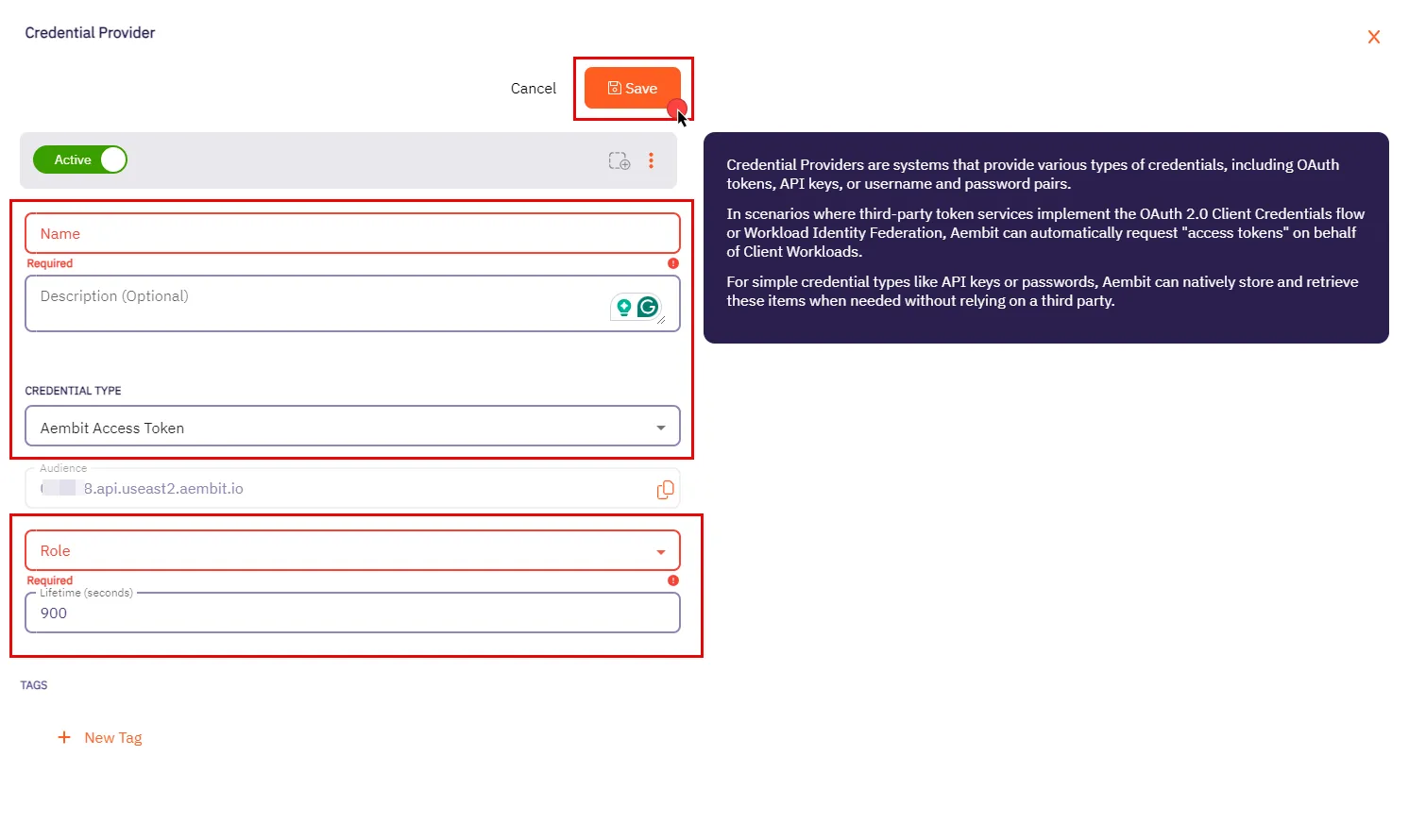 4. In the Credential Providers dialog window, enter the following information: * **Name** - Name of the Credential Provider. * **Description** - An optional text description of the Credential Provider. * **Credential Type** - A dropdown menu that enables you to configure the Credential Provider type. Select **Aembit Access Token**. * **Audience** - Auto-generated by Aembit, this is a specific endpoint used for authentication within the Aembit API. * **Role** - A dropdown menu allowing you to select the appropriate user role for access, such as Super Admin, Auditor, or New Role. Be sure to choose a role with the appropriate permissions that align with your Client Workload’s needs. We recommend following the least privilege principle, assigning the role with the minimum permissions required to perform the task. * **Lifetime** - The duration for which the generated access token remains valid. 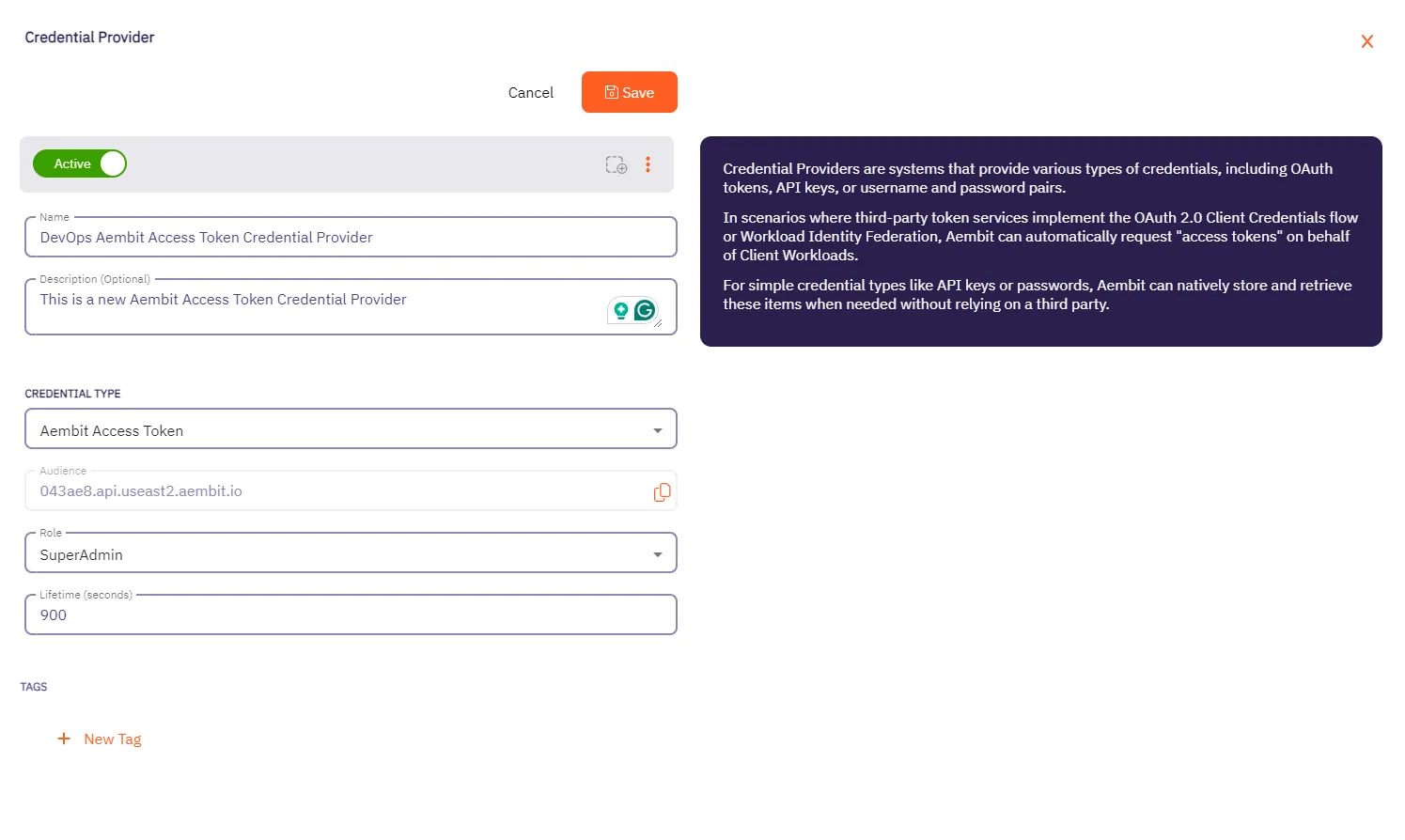 5. When you have finished entering information about your new Aembit Access Token Credential Provider, click **Save**. 6. You are directed back to the Credential Providers page where you will see your new Aembit Access Token Credential Provider. 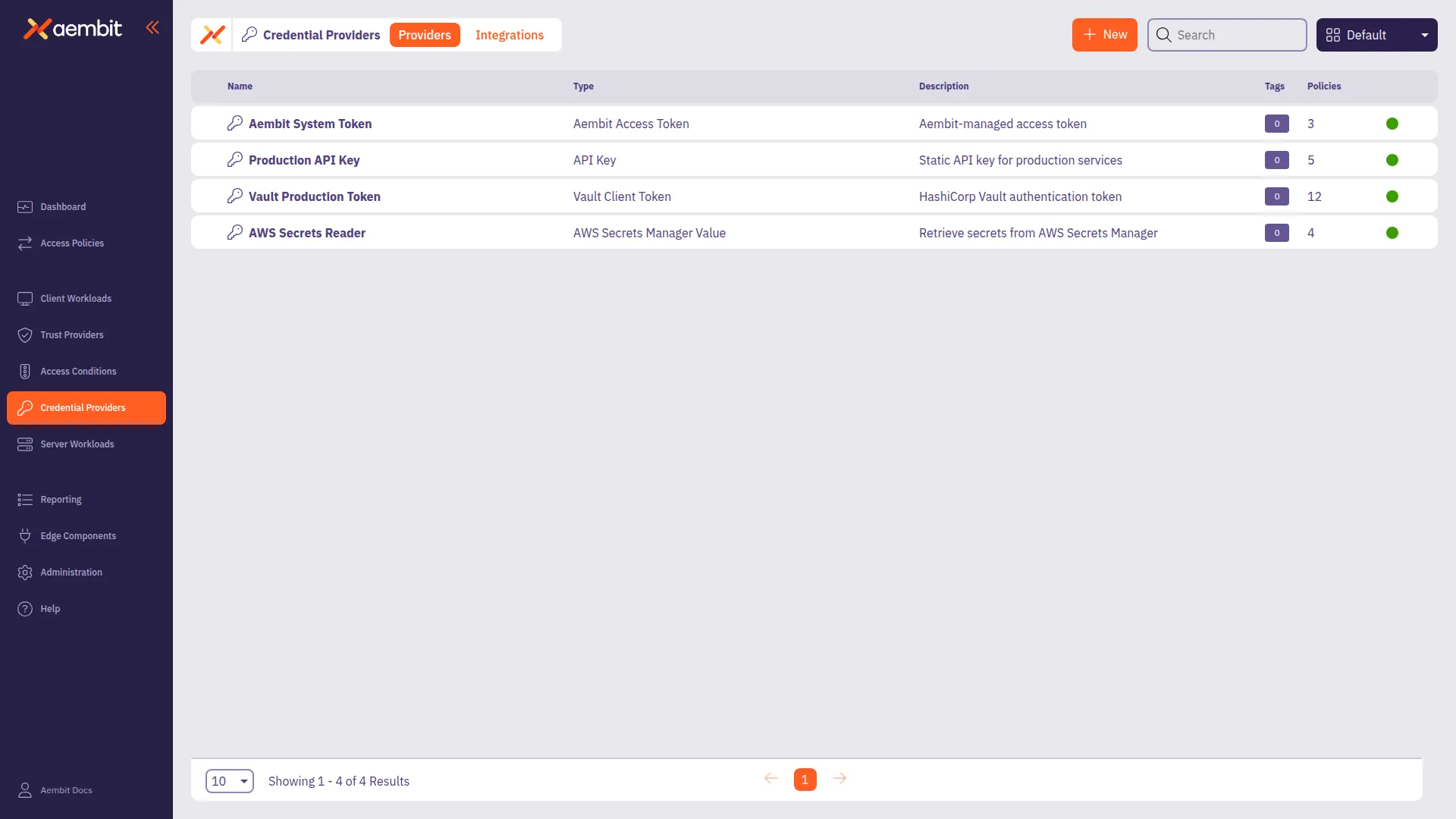
# Configure an API Key Credential Provider
> How to create and use an API Key Credential Provider
The Application Programming Interface (API) Key credential provider is designed for scenarios where authentication is accomplished using a static API Key. An API Key is a secret used by workloads to identify themselves when making calls to an API. This API key acts as a security mechanism for controlling access to APIs. ## Credential Provider configuration [Section titled “Credential Provider configuration”](#credential-provider-configuration) To configure an API Key Credential Provider, follow the steps outlined below. 1. Log into your Aembit Tenant. 2. Once you are logged into your tenant, select the **Credential Providers** tab in the left sidebar. You are directed to the Credential Providers page displaying a list of existing Credential Providers. In this example, there are no existing Credential Providers.  3. Click **+ New** to open the Credential Providers dialog window. 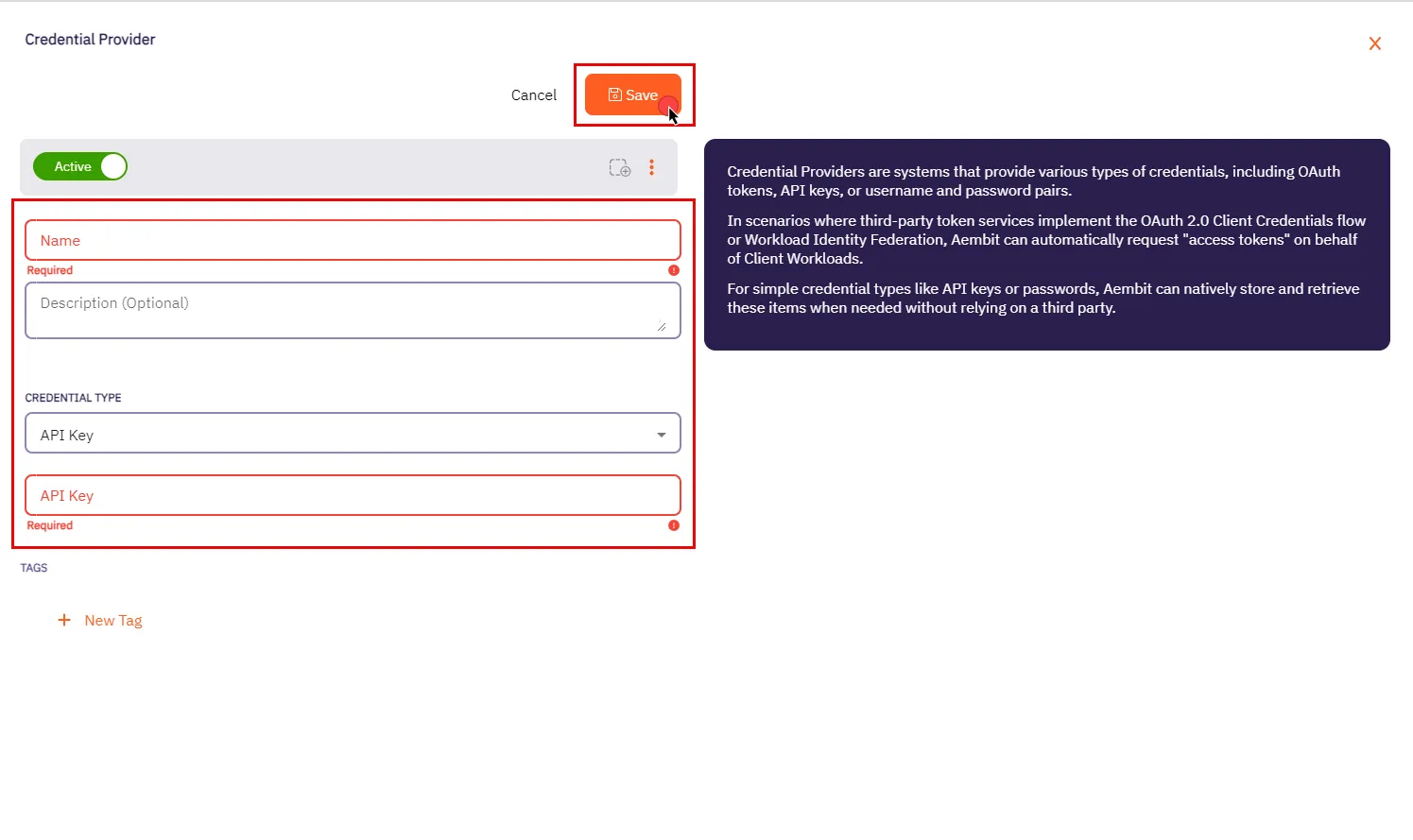 4. In the Credential Providers dialog window, enter the following information: * **Name** - Name of the Credential Provider. * **Description** - An optional text description of the Credential Provider. * **Credential Type** - A dropdown menu that enables you to configure the Credential Provider type. Select **API Key**. * **API Key** - The authentication key used to access the server workload. API keys are commonly generated by the system or service provider. 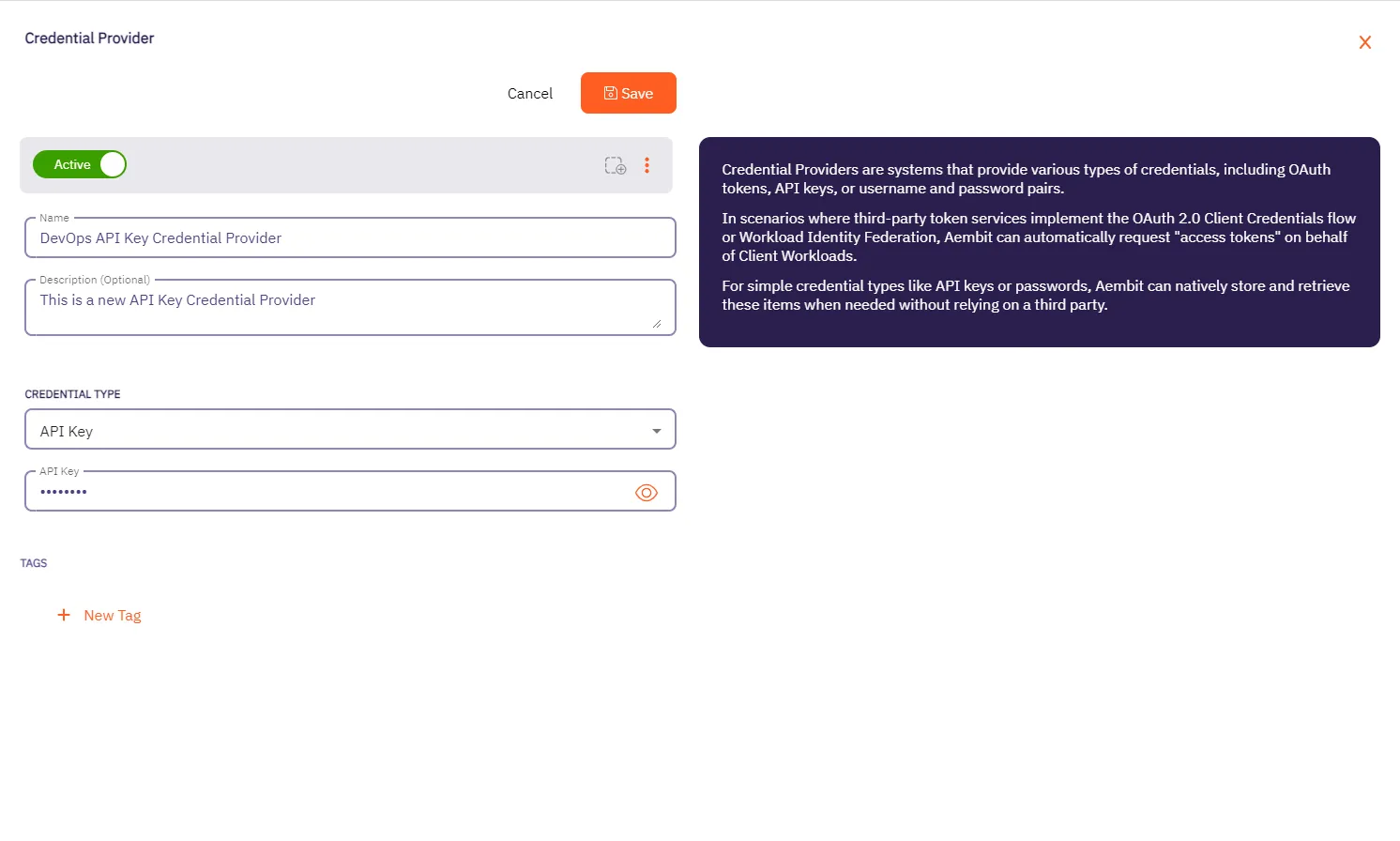 5. Click **Save** when finished. You will be directed back to the Credential Providers page, where you will see your newly created Credential Provider. 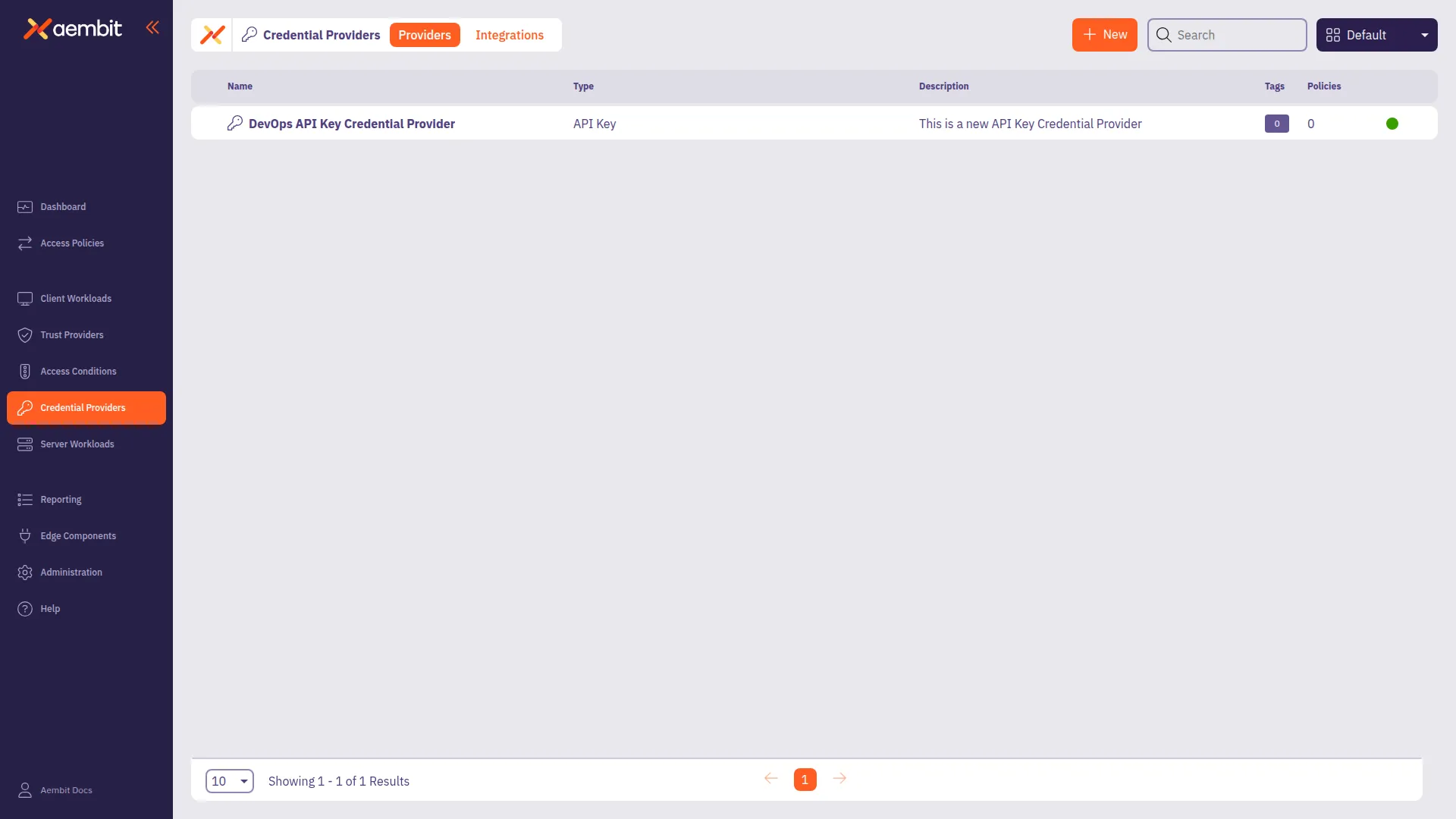
# Configure an AWS Secrets Manager Value Credential Provider
> How to add and use the AWS Secrets Manager Credential Provider with Server Workloads
The AWS Secrets Manager Credential Provider uses the [AWS Secrets Manager Credential Provider Integration](/user-guide/access-policies/credential-providers/integrations/aws-iam-role/) to retrieve secrets stored in AWS Secrets Manager. ## Prerequisites [Section titled “Prerequisites”](#prerequisites) You must have the following to create an AWS Secrets Manager Credential Provider: * A completed [AWS Secrets Manager Credential Provider Integration](/user-guide/access-policies/credential-providers/integrations/aws-iam-role/) * A [Compatible Server Workload](#compatible-server-workloads) that supports the AWS Secrets Manager Credential Provider * An AWS Secrets Manager secret that you want to use with this Credential Provider ### Compatible Server Workloads [Section titled “Compatible Server Workloads”](#compatible-server-workloads) This credential provider supports secrets stored in either plain text or JSON formats. **Plain Text Secrets:** Aembit retrieves the entire secret value and passes it as the credential. **JSON Secrets:** When using the JSON format, the **Credential Value Type** dropdown determines how the credential provider extracts values: * **Single:** Extracts one value from the JSON using a specified key * **Username/Password:** Extracts two values from the JSON using separate keys for username and password When you configure a Server Workload to use the AWS Secrets Manager Credential Provider, you must select the appropriate **Credential Type** based on the secret format. ### Accessing AWS Secrets Manager on private networks [Section titled “Accessing AWS Secrets Manager on private networks”](#accessing-aws-secrets-manager-on-private-networks) If your AWS Secrets Manager is only accessible from a private network (such as an AWS Virtual Private Cloud (VPC)), enable **Private Network Access** to retrieve secrets through your Aembit Edge component instead of Aembit Cloud. For details on when to use Private Network Access, how it works, and troubleshooting, see [Private Network Access for Credential Providers](/user-guide/access-policies/credential-providers/private-network-access/). Version requirement Private Network Access for AWS Secrets Manager requires Agent Proxy 1.25 or later. Use Agent Proxy 1.28.4063+ for full support, where your Edge component handles all AWS access for this Credential Provider. Username/Password limitation When you enable Private Network Access, the **Username/Password** Credential Value Type isn’t supported for **HTTP Basic Auth** server workloads. Database protocols (MySQL, PostgreSQL, Redis) work correctly with Private Network Access and Username/Password credentials. ## Credential Provider configuration [Section titled “Credential Provider configuration”](#credential-provider-configuration) To configure an AWS Secrets Manager Value Credential Provider, follow these steps: 1. Log into your Aembit Tenant. 2. Go to **Credential Providers** in the left sidebar. Aembit directs you to the Credential Providers page displaying a list of existing Credential Providers.  3. Click **+ New**. This opens the Credential Providers dialog window. 4. Enter a **Name** and optional **Description** for the Credential Provider. 5. For **Credential Type**, select **AWS Secrets Manager Value**. 6. For **Credential Provider Integration**, select the desired [AWS Secrets Manager Credential Provider Integration](/user-guide/access-policies/credential-providers/integrations/aws-iam-role/). If you select an integration with **Populate Secrets ARNs** turned on, the next field changes to a dropdown menu. 7. In the **AWS Secrets Manager Secret ARN** field, you have two options depending on the Credential Provider Integration: * Without **Populate Secrets ARNs** - Enter the Amazon Resource Name (ARN) of the AWS Secrets Manager secret that you want to use for this Credential Provider. * With **Populate Secrets ARNs** - Select or search for an existing secret from the dropdown list. Aembit populates this list with the secrets available in your AWS account that match the integration you selected. 8. For **Credential Value Type**, select the type of credential you want to retrieve from AWS Secrets Manager. The options are: * **Plain Text** - Retrieve the entire secret value as a single credential. * **Single Value** - Retrieve a single value from the JSON secret using a specified key. * **Username/Password** - Retrieve two values from the JSON secret using separate keys for username and password. See the [Compatible Server Workloads](#compatible-server-workloads) section for details on how each type interacts with Server Workloads. 9. Depending on the **Credential Value Type** you selected, additional fields may appear: * **Secret Key** - If you selected **Single Value**, enter the secret key to extract the value from the JSON secret. * **Username & Password Key** - If you selected **Username/Password**, enter the key for the username in the JSON secret. 10. Select **Private Network Access** if you have restricted your AWS Secrets Manager secret to only allow access from a private network (such as an AWS VPC) and you want to access it through Aembit Edge Components (Aembit CLI or Agent Proxy). Once completed, the form should look similar to the following screenshot: 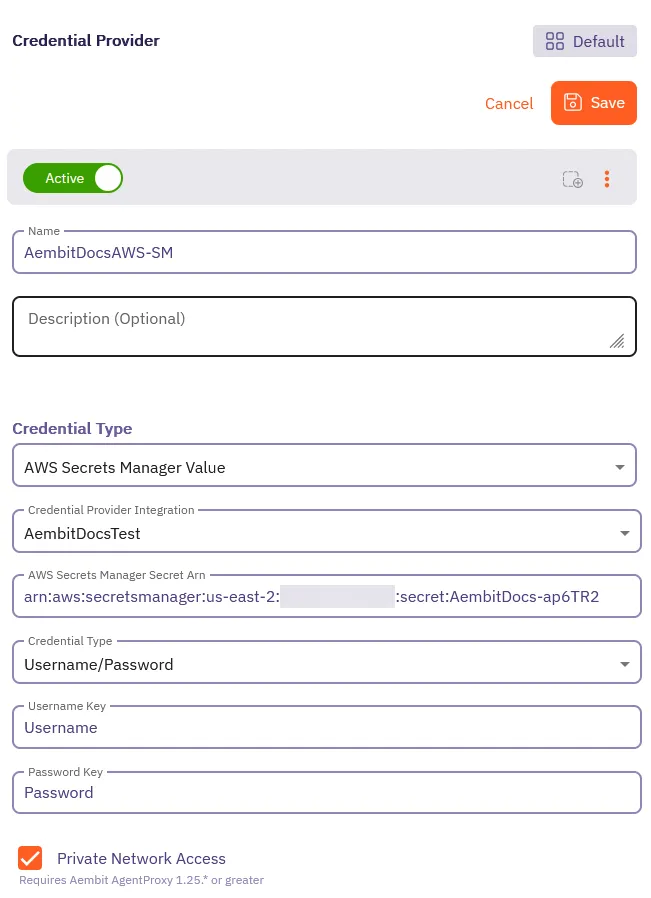 11. Click **Save**. Aembit creates the new AWS Secrets Manager Credential Provider and displays it in the list of Credential Providers. You can now use this Credential Provider with your Server Workloads.
# Configure an AWS STS Federation Credential Provider
> How to add and use the AWS Security Token Service (STS) Federation Credential Provider with Server Workloads
AWS offers the AWS Security Token Service (STS), a web service designed to facilitate the request of temporary, restricted-privilege credentials for users. Aembit’s Credential Provider**Credential Provider**: Credential Providers obtain the specific access credentials—such as API keys, OAuth tokens, or temporary cloud credentials—that Client Workloads need to authenticate to Server Workloads.[Learn more](/get-started/concepts/credential-providers) for AWS STS broadly supports AWS services that use the SigV4 and SigV4a authentication protocol depending if requests are for regional services or global/multi-region services respectively. See [How Aembit uses AWS SigV4 and SigV4a](/user-guide/access-policies/credential-providers/aws-sigv4) for information about SigV4/4a and how Aembit handles SigV4/4a requests. Pre-signed URLs Aembit doesn’t support AWS pre-signed URLs. For more information, see [Known limitations](/user-guide/access-policies/credential-providers/aws-sigv4#known-limitations). ## Prerequisites [Section titled “Prerequisites”](#prerequisites) Before configuring an AWS Security Token Service Federation Credential Provider in Aembit, ensure you have the following: * ([Multiple Credential Providers](/user-guide/access-policies/credential-providers/aws-security-token-service-multiple) only) Aembit Edge Component**Aembit Edge**: Aembit Edge represents components deployed within your operational environments that enforce Access Policies by intercepting traffic, verifying identities, and injecting credentials just-in-time.[Learn more](/get-started/concepts/aembit-edge) minimum versions: * Agent Proxy 1.27.3865 * Agent Controller 1.27.2906 * An active Aembit Tenant**Aembit Tenant**: Aembit Tenants serve as isolated, dedicated environments within Aembit that provide complete separation of administrative domains and security configurations.[Learn more](/get-started/concepts/administration) with appropriate permissions to create and manage Credential Providers. * An AWS account with permissions to create IAM roles and Identity Providers. * A Server Workload configured with **HTTP** Application Protocol and **AWS Signature v4** authentication method. See [AWS Cloud Server Workload](/user-guide/access-policies/server-workloads/guides/aws-cloud) for configuration details. ## Credential Provider configuration [Section titled “Credential Provider configuration”](#credential-provider-configuration) To configure an AWS Security Token Service Federation Credential Provider, follow these steps: 1. Log into your Aembit Tenant, and go to **Credential Providers**. Aembit directs you to the **Credential Providers** page displaying a list of existing Credential Providers. In this example, there are no existing Credential Providers.  2. Click **+ New**. This opens the Credential Providers dialog window. 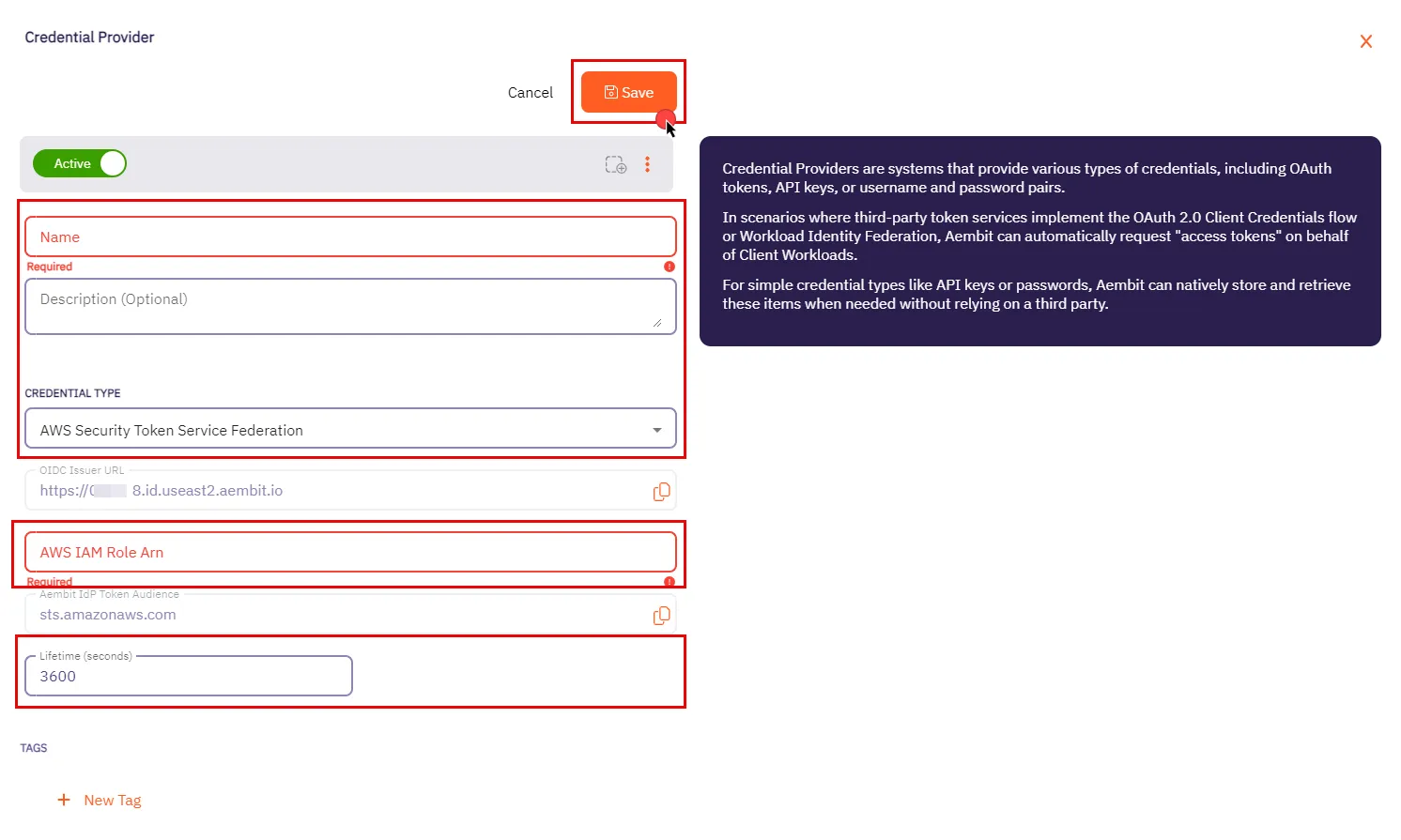 3. In the Credential Providers dialog window, enter the following information: * **Name** - Name of the Credential Provider. * **Description** - An optional text description of the Credential Provider. * **Credential Type** - A dropdown menu that enables you to configure the Credential Provider type. Select **AWS Security Token Service Federation**. * **OIDC Issuer URL** - OpenID Connect (OIDC) Issuer URL, auto-generated by Aembit, is a dedicated endpoint for OIDC authentication within AWS. * **AWS IAM Role Arn** - Enter your AWS IAM Role in ARN format, Aembit associates this ARN with the AWS STS credentials request. * **Aembit IdP Token Audience** - This read-only field specifies the `aud` (Audience) claim value which Aembit uses in the JWT Access Token when requesting credentials from AWS STS. * **Lifetime (seconds)** - Specify the duration for which AWS STS credentials remain valid, ranging from 900 seconds (15 minutes) to a maximum of 129,600 seconds (36 hours). 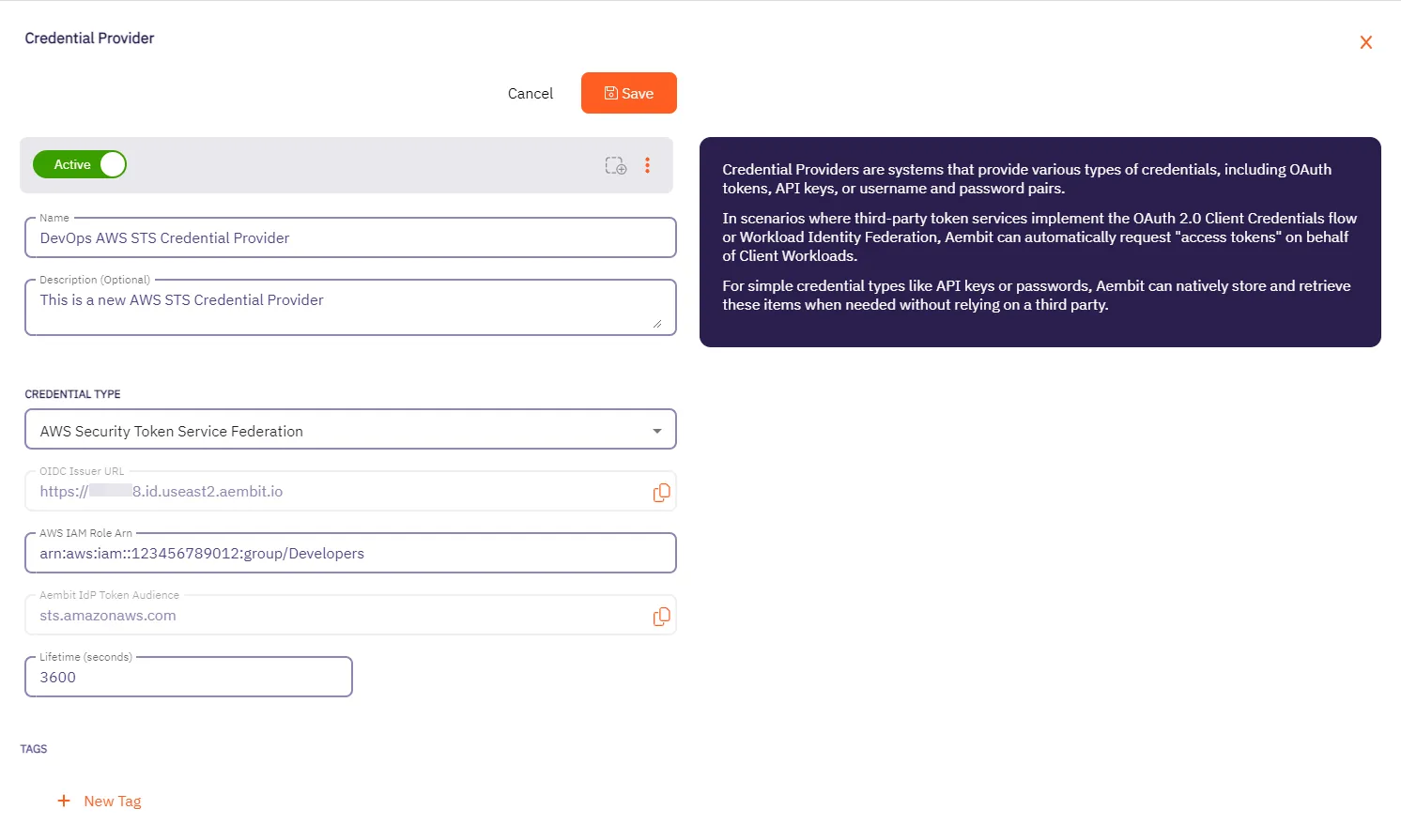 4. Click **Save** when finished. Aembit directs you back to the **Credential Providers** page, where you’ll see your newly created Credential Provider. 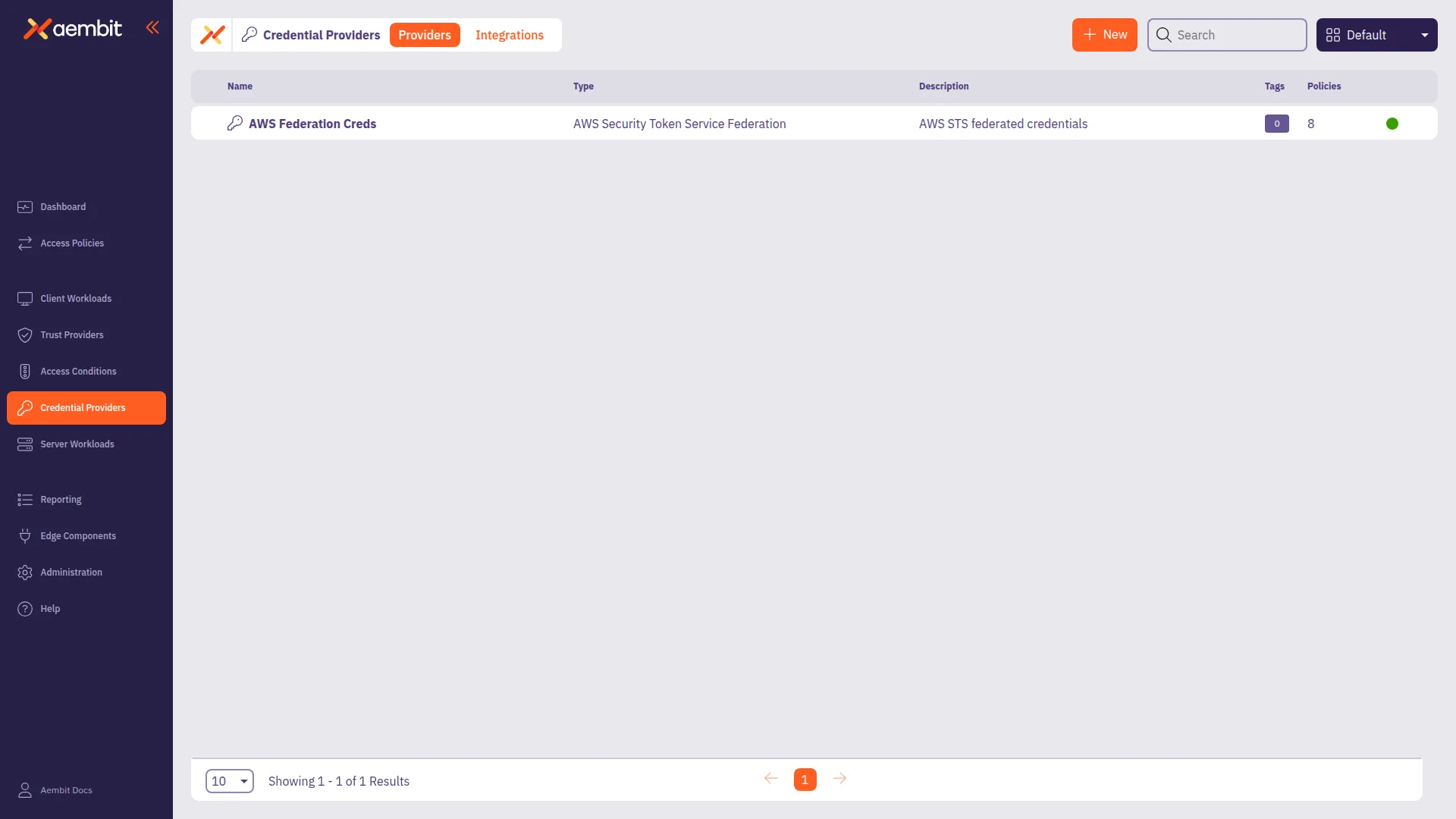 ## AWS Identity Provider configuration [Section titled “AWS Identity Provider configuration”](#aws-identity-provider-configuration) To use the AWS STS Credential Provider, you must configure the AWS Identity Provider and assign it with an IAM role: 1. Within the AWS Console, go to **IAM** > **Identity providers** and select **Add provider**. 2. On the Configure provider screen, complete the steps and fill out the values specified: * **Provider type** - Select **OpenID Connect**. * **Provider URL** - Paste in the **OIDC Issuer URL** from the Credential Provider fields. * Click **Get thumbprint** to configure the AWS Identity Provider trust relationship. * **Audience** - Paste in the **Aembit IdP Token Audience** from the Credential Provider fields. * Click **Add provider**. 3. Within the AWS Console, go to **IAM** > **Identity providers** and select the Identity Provider you just created. 4. Click **Assign role** and choose **Use an existing role**. ## Configure multiple AWS STS Credential Providers [Section titled “Configure multiple AWS STS Credential Providers”](#configure-multiple-aws-sts-credential-providers) To configure multiple AWS STS Credential Providers within a single Access Policy, follow these steps. Each Credential Provider must have a unique Access Key ID that your application uses as a selector. Access Key ID format Access Key ID selector values must use **uppercase characters only**. For example, use `AKIADUMMYFORROLEA` instead of `akiadummyforrolea`. 1. Create your first AWS STS Credential Provider by following the [Credential Provider configuration](#credential-provider-configuration) procedure. 2. Note the **Access Key ID selector** value for this Credential Provider. Your application uses this placeholder in requests intended for this Credential Provider. 3. Repeat the Credential Provider configuration steps to create additional AWS STS Credential Providers, each with: * A unique **Name** identifying its purpose (for example, `STS-S3-Access`, `STS-DynamoDB-Access`) * A different **AWS IAM Role ARN** for each Credential Provider * A unique **Access Key ID selector** for each Credential Provider 4. For each new AWS STS Credential Provider, configure the corresponding AWS Identity Provider by following the [AWS Identity Provider configuration](#aws-identity-provider-configuration) procedure. 5. Go to **Access Policies** and either create a new Access Policy or edit an existing one. 6. In the **Credential Providers** column, hover over the **+** icon and select **Existing**. 7. Add each AWS STS Credential Provider you created to the Access Policy. 8. Click **Save** or **Save & Activate** to save your Access Policy. ### Application configuration [Section titled “Application configuration”](#application-configuration) Configure your application to use the appropriate Access Key ID selector for each AWS service request. Agent Proxy extracts the Access Key ID from the AWS SigV4 Authorization header and routes the request to the matching Credential Provider. #### AWS CLI example [Section titled “AWS CLI example”](#aws-cli-example) To use the AWS CLI with multiple Credential Providers, set these environment variables: ```shell # Set to any non-empty value (required by AWS CLI, replaced by Aembit) export AWS_SECRET_ACCESS_KEY=placeholder # Set to the Access Key ID selector for the desired Credential Provider export AWS_ACCESS_KEY_ID=AKIADUMMYFORROLEA # Make AWS requests aws s3 ls ``` Change `AWS_ACCESS_KEY_ID` to switch between Credential Providers. For example: * `AKIADUMMYFORROLEA` → Uses Credential Provider configured for S3 access * `AKIADUMMYFORROLEB` → Uses Credential Provider configured for DynamoDB access ### Verify your configuration [Section titled “Verify your configuration”](#verify-your-configuration) To confirm your multiple AWS STS Credential Provider configuration works correctly: 1. Set the environment variables for one of your Credential Providers. 2. Run an AWS CLI command (for example, `aws s3 ls`). 3. Check the [access authorization events](/user-guide/audit-report/access-authorization-events) in your Aembit Tenant to confirm: * Aembit selected the correct Credential Provider * The `credentialProvider.name` field matches your expected Credential Provider 4. Change `AWS_ACCESS_KEY_ID` to a different selector and repeat to verify the second Credential Provider. ## Related topics [Section titled “Related topics”](#related-topics) * [Using multiple AWS STS Credential Providers](/user-guide/access-policies/credential-providers/aws-security-token-service-multiple) - Learn how Aembit routes requests to multiple AWS STS Credential Providers * [How Aembit uses AWS SigV4 and SigV4a](/user-guide/access-policies/credential-providers/aws-sigv4) - Learn about AWS request signing * [Credential Providers overview](/user-guide/access-policies/credential-providers) - Overview of all available Credential Provider types
# Using Multiple AWS STS Credential Providers in a Single Access Policy
> How to add and use multiple AWS Security Token Service (STS) Credential Providers to an Access Policy
This page explains how Aembit enables the use of multiple [AWS Security Token Service (STS) Credential Providers](/user-guide/access-policies/credential-providers/aws-security-token-service-federation) within a single Access Policy**Access Policy**: Access Policies define, enforce, and audit access between Client and Server Workloads by cryptographically verifying workload identity and contextual factors rather than relying on static secrets.[Learn more](/get-started/concepts/access-policies), allowing flexible and scalable access to AWS resources. Unlike when using [multiple JWT-based Credential Providers](/user-guide/access-policies/credential-providers/multiple-credential-providers) that use username or HTTP header mapping, AWS STS Credential Providers use **Access Key ID selectors** for Credential Provider matching. Each AWS STS Credential Provider that you configure in an Access Policy must have a unique **Access Key ID** that your application uses as a placeholder in requests. Pre-signed URLs Aembit doesn’t support AWS pre-signed URLs. For more information, see [Known limitations](/user-guide/access-policies/credential-providers/aws-sigv4#known-limitations). In complex AWS environments, applications often need to assume different IAM roles to access AWS services securely. Traditionally, this required creating separate access policies for each role, increasing operational overhead. Aembit supports configuring multiple AWS STS Credential Providers**Credential Provider**: Credential Providers obtain the specific access credentials—such as API keys, OAuth tokens, or temporary cloud credentials—that Client Workloads need to authenticate to Server Workloads.[Learn more](/get-started/concepts/credential-providers) within a single Access Policy. This enables a single Client Workload**Client Workload**: Client Workloads represent software applications, scripts, or automated processes that initiate access requests to Server Workloads, operating autonomously without direct user interaction.[Learn more](/get-started/concepts/client-workloads) identity to seamlessly access multiple AWS resources, each with its own IAM role, by selecting the appropriate Credential Provider based on the AWS Access Key ID. Edge Component minimum versions Using multiple AWS STS Credential Providers requires the following Aembit Edge Component minimum versions: * Agent Proxy 1.27.3865 * Agent Controller 1.27.2906 ## Benefits [Section titled “Benefits”](#benefits) * **Simplified Policy Management** - Manage multiple AWS roles within a single policy, reducing configuration complexity. * **Scalability** - Efficiently supports multiple Credential Providers (for example, 10+) per Access Policy. * **Seamless Application Experience** - Applications can access different AWS resources without code changes or multiple workload identities. ## How it works [Section titled “How it works”](#how-it-works) After you [configure multiple AWS STS Credential Providers](/user-guide/access-policies/credential-providers/aws-security-token-service-federation#configure-multiple-aws-sts-credential-providers) in an Access Policy (each with a unique Access Key ID selector), Aembit handles requests as follows: 1. **Request interception** - When an application makes an AWS request, the Agent Proxy intercepts it and extracts the Access Key ID from the [AWS SigV4 Authorization header](/user-guide/access-policies/credential-providers/aws-sigv4). 2. **Credential Provider matching** - The Agent Proxy sends the Access Key ID to Aembit Cloud, which matches it to the corresponding Credential Provider configured in the Access Policy. 3. **Credential issuance and injection** - Aembit Cloud assumes the IAM role via the selected Credential Provider and returns temporary AWS credentials. The Agent Proxy then injects or uses these credentials to fulfill the application’s request. ### Example scenario [Section titled “Example scenario”](#example-scenario) Suppose your application needs to: * Write logs to an S3 bucket (using `STS-RoleA`) * Read data from DynamoDB (using `STS-RoleB`) You can configure: * `STS-RoleA`: Assumes an IAM role for S3 access, mapped to selector `AKIADUMMYFORROLEA` * `STS-RoleB`: Assumes an IAM role for DynamoDB access, mapped to selector `AKIADUMMYFORROLEB` Your application uses the appropriate placeholder Access Key ID to select the desired Credential Provider for each request. ### High-level workflow [Section titled “High-level workflow”](#high-level-workflow) The following diagram shows how the Agent Proxy routes requests through Aembit Cloud to select the appropriate Credential Provider:  ## Access authorization events [Section titled “Access authorization events”](#access-authorization-events) The following are example [access authorization events](/user-guide/audit-report/access-authorization-events) with the Event Type `access.credential` showing the use of different AWS STS Credential Providers within an Access Policy when handling requests: Notice the differences between the two Credential Providers: * The `serverWorkload` name reflects different AWS resources (`S3 SW` vs `DynamoDB SW`) * The `accessPolicy` ID remains the same, indicating the same Access Policy governs both requests * The `credentialProvider` section shows different `id` and `name` values (`STS-RoleA` vs `STS-RoleB`) - S3 SW Credential Request ```json { "meta": { "clientIP": "18.111.222.123", "timestamp": "2025-11-25T11:58:58.989522Z", "eventType": "access.credential", "eventId": "521bf87e-91d8-4e9b-90c5-7a6d4d6118ce", "resourceSetId": "ffffffff-ffff-ffff-ffff-ffffffffffff", "contextId": "47fa4467-0712-4c1e-b44e-d4dbddc7844a", "severity": "Info" }, "outcome": { "result": "Authorized" }, "clientWorkload": { "id": "973fb193-828b-406e-a6be-b64db2c94fd6", "name": "Test Ubuntu STS CW", "result": "Identified" }, "serverWorkload": { "id": "f1ebd1d-ebf4-462d-8e45-a4eeea68e480", "name": "S3 SW", "result": "Identified" }, "accessPolicy": { "id": "da30b2f9-999a-40d2-94fe-6a0c50b837cf", "result": "Identified" }, "trustProviders": [], "accessConditions": [], "credentialProvider": { "type": "aws-sts-oidc", "id": "b8804a83-ab97-4dc6-8bc6-2cec9f33c2b5", "name": "STS-RoleA", "result": "Retrieved" } } ``` - DynamoDB SW Credential Request ```json { "meta": { "clientIP": "18.111.222.123", "timestamp": "2025-11-25T12:05:42.123456Z", "eventType": "access.credential", "eventId": "a1b2c3d4-5678-90ab-cdef-1234567890ab", "resourceSetId": "ffffffff-ffff-ffff-ffff-ffffffffffff", "contextId": "b2c3d4e5-6789-4f1e-9abc-1234567890cd", "severity": "Info" }, "outcome": { "result": "Authorized" }, "clientWorkload": { "id": "973fb193-828b-406e-a6be-b64db2c94fd6", "name": "Test Ubuntu STS CW", "result": "Identified" }, "serverWorkload": { "id": "f1ebd1d-ebf4-462d-8e45-a4eeea68e480", "name": "DynamoDB SW", "result": "Identified" }, "accessPolicy": { "id": "da30b2f9-999a-40d2-94fe-6a0c50b837cf", "result": "Identified" }, "trustProviders": [], "accessConditions": [], "credentialProvider": { "type": "aws-sts-oidc", "id": "c9905b21-1e2f-4b3c-9d7e-3f4e5a6b7c8d", "name": "STS-RoleB", "result": "Retrieved" } } ``` ### Key fields explained [Section titled “Key fields explained”](#key-fields-explained) * `meta`: General metadata about the event, including client IP, timestamp, event type, and unique IDs. * `outcome`: The result of the access attempt (for example, “Authorized”). * `clientWorkload/serverWorkload`: Identifiers and names for the Client Workload and Server Workload**Server Workload**: Server Workloads represent target services, APIs, databases, or applications that receive and respond to access requests from Client Workloads.[Learn more](/get-started/concepts/server-workloads) involved. * `accessPolicy`: The ID of the Access Policy that authorized the request. * `trustProviders`: Trust Providers**Trust Provider**: Trust Providers validate Client Workload identities through workload attestation, verifying identity claims from the workload's runtime environment rather than relying on pre-shared secrets.[Learn more](/get-started/concepts/trust-providers) used to verify the Client Workload identity. * `accessConditions`: Access Conditions**Access Condition**: Access Conditions add dynamic, context-aware constraints to authorization by evaluating circumstances like time, location, or security posture to determine whether to grant access.[Learn more](/get-started/concepts/access-conditions) evaluated for this request. * `credentialProvider`: Details about the Credential Provider used, including its type, unique ID, and name. ## Error handling [Section titled “Error handling”](#error-handling) The following rules apply when handling requests with multiple AWS STS Credential Providers: * If the Access Key ID in a request doesn’t match any configured Credential Provider, the request fails with a `403 Forbidden` error. * If Aembit can’t extract the Access Key ID (for example, a malformed request), credentials aren’t injected and the request fails. * Access Key ID selector values must use uppercase characters only. Lowercase selectors won’t match. ## Related topics [Section titled “Related topics”](#related-topics) * [Configure an AWS STS Federation Credential Provider](/user-guide/access-policies/credential-providers/aws-security-token-service-federation) - Set up a single AWS STS Credential Provider * [Configure multiple Credential Providers](/user-guide/access-policies/credential-providers/multiple-credential-providers) - Overview of multiple Credential Provider support * [How Aembit uses AWS SigV4 and SigV4a](/user-guide/access-policies/credential-providers/aws-sigv4) - Learn how Aembit’s AWS STS Credential Provider works with AWS request signing * [Credential Providers overview](/user-guide/access-policies/credential-providers) - Overview of all available Credential Provider types * [Access Policies](/user-guide/access-policies) - Learn about Aembit Access Policies and how they work * [Access Authorization Events](/user-guide/audit-report/access-authorization-events) - Review access authorization event information in the Reporting Dashboard * [AWS Cloud Server Workload](/user-guide/access-policies/server-workloads/guides/aws-cloud) - Configure Aembit to work with AWS Cloud as a Server Workload
# How Aembit uses AWS SigV4 and SigV4a
> How Aembit's Credential Provider for AWS STS works with the AWS SigV4 and Sigv4a request signing protocols
AWS Signature Version 4 (SigV4) and Signature Version 4a (SigV4a) are AWS request signing protocols. Aembit uses these protocols to sign HTTP requests from Client Workloads**Client Workload**: Client Workloads represent software applications, scripts, or automated processes that initiate access requests to Server Workloads, operating autonomously without direct user interaction.[Learn more](/get-started/concepts/client-workloads) to AWS services. Credentials come from Aembit’s [AWS STS Credential Provider](/user-guide/access-policies/credential-providers/aws-security-token-service-federation). During authentication, SigV4 ensures requests are authentic, unaltered in transit, and not replayed. ## SigV4 versions [Section titled “SigV4 versions”](#sigv4-versions) SigV4 has two versions: * [SigV4](https://docs.aws.amazon.com/general/latest/gr/signature-version-4.html) is AWS’s standard signing process. It requires that you specify the exact AWS region where you’re sending a request (such as `us-east-1`, `us-east-2`). AWS scopes the signing key and signature to that specific region. AWS requires a new signature if you send the same request to a service in a different region. For most requests to [AWS regional endpoints](https://docs.aws.amazon.com/general/latest/gr/rande.html#regional-endpoints), AWS uses SigV4. * [SigV4a](https://docs.aws.amazon.com/IAM/latest/UserGuide/reference_sigv.html#how-sigv4a-works) extends SigV4 to support multi-region AWS services. Use SigV4a when you route a request across multiple AWS regions. Instead of specifying a single region in the signature, SigV4a uses a region wildcard (\*), allowing the signature to be valid across all AWS regions. For requests to [AWS global service endpoints](https://docs.aws.amazon.com/general/latest/gr/rande.html#global-endpoints) or any service that supports cross-region requests, AWS requires SigV4a. ## SigV4 version selection [Section titled “SigV4 version selection”](#sigv4-version-selection) Aembit automatically determines whether to use SigV4 or SigV4a when a Client Workload uses an AWS STS Credential Provider to access AWS services. It works like this: * Aembit uses **SigV4** when a Server Workload's**Server Workload**: Server Workloads represent target services, APIs, databases, or applications that receive and respond to access requests from Client Workloads.[Learn more](/get-started/concepts/server-workloads) hostname includes a region (such as `us-east-1` or `us-east-2`), scoping the signature to only that region. * Aembit uses **SigV4a** when the Server Workload’s hostname doesn’t include a region (S3 Multi-Region Access Points or other global AWS services), which allows the signature to work across AWS regions. Aembit performs this selection automatically based on the hostname structure, following AWS’s standard endpoint formats. You don’t need to make configuration changes to benefit from this. Your existing AWS STS Credential Providers automatically gain support for SigV4a where applicable. ## Workload identity and service access separation in AWS [Section titled “Workload identity and service access separation in AWS”](#workload-identity-and-service-access-separation-in-aws) When working with Aembit Trust Providers**Trust Provider**: Trust Providers validate Client Workload identities through workload attestation, verifying identity claims from the workload's runtime environment rather than relying on pre-shared secrets.[Learn more](/get-started/concepts/trust-providers) and Credential Providers**Credential Provider**: Credential Providers obtain the specific access credentials—such as API keys, OAuth tokens, or temporary cloud credentials—that Client Workloads need to authenticate to Server Workloads.[Learn more](/get-started/concepts/credential-providers) in AWS environments, it’s important to understand the roles each of these play. Aembit uses Trust Providers to verify who a workload is, and Credential Providers to control what AWS services that workload can access. 1. Trust Providers (like the [AWS Role Trust Provider](/user-guide/access-policies/trust-providers/aws-role-trust-provider)) verify who a workload is by confirming the AWS environment it’s running in and the IAM Role it’s using. 2. Once Aembit verifies the workload’s identity, the [AWS STS Credential Provider](/user-guide/access-policies/credential-providers/aws-security-token-service-federation) retrieves temporary AWS credentials for the workload, tied to the IAM Role verified by the Trust Provider. 3. When the workload makes API requests to AWS services like S3, Lambda, or SQS, Aembit’s Agent Proxy automatically signs those requests using AWS SigV4 for regional services, or SigV4a for global or multi-region services. This clear separation makes sure that: * Only attested workloads receive AWS credentials. * Aembit secures all AWS service access using temporary credentials, eliminating the need for long-lived secrets. * Aembit automatically applies the correct SigV4 or SigV4a signing process based on the destination service and hostname. ## Choosing the right Credential Provider for AWS environments [Section titled “Choosing the right Credential Provider for AWS environments”](#choosing-the-right-credential-provider-for-aws-environments) Aembit offers two Credential Providers commonly used in AWS environments, each serving different purposes: * **[AWS STS Federation](/user-guide/access-policies/credential-providers/aws-security-token-service-federation/)** - Use this Credential Provider to access AWS services (S3, EC2, Lambda, DynamoDB, etc.). It generates temporary credentials and signs requests using SigV4/SigV4a, which the AWS API requires for secure authentication. * **[AWS Secrets Manager](/user-guide/access-policies/credential-providers/aws-secrets-manager/)** - Use this Credential Provider to retrieve secrets stored in AWS Secrets Manager for accessing non-AWS services. This includes databases (RDS PostgreSQL/MySQL, Redshift, ElastiCache Redis) and third-party APIs that use Bearer tokens, API keys, or username/password authentication. AWS Secrets Manager can store AWS access keys, but Aembit’s Credential Provider for Secrets Manager doesn’t support SigV4 signing. For AWS service access, always use AWS STS Federation. ## S3 upload support [Section titled “S3 upload support”](#s3-upload-support) Aembit’s Agent Proxy enables secure, transparent support for AWS S3 upload requests, addressing the unique signing and credential injection requirements of S3. S3 uploads are challenging because: * **Complex signing:** S3 requires signing the HTTP message body, and for large files, AWS uses “rolling signatures” that sign each chunk individually. * **Client-side signing:** Many AWS SDKs sign requests before they reach the proxy, so the proxy must detect and erase these signatures and re-sign the request with injected credentials. * **Streaming support:** The Agent Proxy must stream and sign large payloads. Aembit handles these challenges transparently: * The Agent Proxy detects the client’s signing method (using the `x-amz-content-sha256` header). * It erases any pre-existing client signatures and applies a valid SigV4 signature on the fly, including support for rolling signatures on chunked uploads. * Most cases don’t require special client-side configuration. Aembit supports all S3 signing methods, including unsigned payload modes, standard streaming signatures, rolling signatures with trailers, and ECDSA signatures. ## About request compression [Section titled “About request compression”](#about-request-compression) Agent Proxy doesn’t support streaming payload signing for S3 requests that use request compression. This limitation only affects deployments that have explicitly enabled request compression in their AWS SDK clients, which isn’t enabled by default. ### Workaround: turn off request compression [Section titled “Workaround: turn off request compression”](#workaround-turn-off-request-compression) To avoid this limitation, turn off request compression in your AWS SDK client. You can set the `AWS_DISABLE_REQUEST_COMPRESSION` environment variable, or configure it in code: * Environment variable ```shell export AWS_DISABLE_REQUEST_COMPRESSION=true ``` * Python (boto3) ```python from botocore.config import Config config = Config(disable_request_compression=True) client = boto3.client('s3', config=config) ``` * JavaScript ```javascript const client = new S3Client({ disableRequestCompression: true }); ``` * C# (.NET) ```csharp var s3Config = new AmazonS3Config { DisableRequestCompression = true }; var s3Client = new AmazonS3Client(s3Config); ``` * Java ```java S3ClientBuilder.standard().disableRequestCompression(true).build(); ``` * Go ```go cfg, _ := config.LoadDefaultConfig(context.TODO()) cfg.DisableRequestCompression = true ``` Alternatively, you can use `UNSIGNED-PAYLOAD` mode for single-chunk uploads or `STREAMING-UNSIGNED-PAYLOAD-TRAILER` for large uploads where payload integrity verification isn’t required. ## Known limitations [Section titled “Known limitations”](#known-limitations) Agent Proxy has the following limitations when processing S3 upload requests. Aembit is actively working to remove these limitations in upcoming releases. ### Pre-signed URLs [Section titled “Pre-signed URLs”](#pre-signed-urls) Aembit doesn’t support AWS pre-signed URLs. Pre-signed URLs include signing parameters in the URL query string rather than in HTTP headers, which is a different signing mechanism than the header-based SigV4/SigV4a signing that Aembit’s Agent Proxy handles. If your application requires pre-signed URLs for use cases like generating shareable S3 download links, you must generate those URLs using AWS credentials obtained outside of Aembit’s credential injection flow. ### Streaming signature buffer limit [Section titled “Streaming signature buffer limit”](#streaming-signature-buffer-limit) Agent Proxy buffers streaming signature requests up to a configurable maximum size (50 MiB by default). If a request exceeds this size, Agent Proxy converts the signing method to `STREAMING-UNSIGNED-PAYLOAD-TRAILER`, allowing the upload to proceed without payload signing. This behavior applies to requests using these `x-amz-content-sha256` header values: * `STREAMING-AWS4-HMAC-SHA256-PAYLOAD` * `STREAMING-AWS4-ECDSA-P256-SHA256-PAYLOAD` * `STREAMING-AWS4-HMAC-SHA256-PAYLOAD-TRAILER` * `STREAMING-AWS4-ECDSA-P256-SHA256-PAYLOAD-TRAILER` #### Configuring the buffer size [Section titled “Configuring the buffer size”](#configuring-the-buffer-size) You can adjust the buffer limit using the `AEMBIT_AWS_MAX_BUFFERED_PAYLOAD_BYTES` Agent Proxy environment variable. The default value is `52428800` (50 MiB). ```shell # Example: Increase limit to 100 MiB export AEMBIT_AWS_MAX_BUFFERED_PAYLOAD_BYTES=104857600 ``` Memory considerations Increasing this value allows larger signed uploads but consumes more memory per concurrent upload. Consider your workload’s concurrency patterns and available memory before increasing this limit. #### Preserving signed payloads for large uploads [Section titled “Preserving signed payloads for large uploads”](#preserving-signed-payloads-for-large-uploads) If your application requires signed payloads for uploads larger than the buffer limit, use multipart uploads. Agent Proxy signs each part individually, so multipart uploads have no size restrictions.
# Configure an Azure Entra WIF Credential Provider
> This page describes the Azure Entra Workload Identity Federation (WIF) Credential Provider and its usage with Server Workloads.
Aembit’s Credential Provider for Microsoft Azure Entra Workload Identity Federation (WIF) enables you to automatically obtain credentials through Aembit as a third-party federated Identity Provider (IdP). This allows you to securely authenticate with Azure Entra to access your Azure Entra registered applications and managed identities. For example, to assign API permissions or app roles to you registered applications or managed identities. You can configure the Azure Entra Credential Provider using the [Aembit web UI](#configure-a-credential-provider-for-azure-entra) or through the [Aembit Terraform provider](#configure-azure-entra-using-the-aembit-terraform-provider). ## Prerequisites [Section titled “Prerequisites”](#prerequisites) To configure an Azure Entra Credential Provider, you must have and do the following: * Ability to access and manage your Aembit Tenant. * Ability to access and manage either of the following: * [Microsoft Entra registered application](https://learn.microsoft.com/en-us/entra/identity-platform/quickstart-register-app) * [Microsoft Managed Identity](https://learn.microsoft.com/en-us/entra/identity/managed-identities-azure-resources/overview) * You request only one resource per Azure Entra Credential Provider * Terraform only: * You have Terraform installed. * You have the [Aembit Terraform Provider](https://registry.terraform.io/providers/Aembit/aembit/latest) configured. ## Configure a Credential Provider for Azure Entra [Section titled “Configure a Credential Provider for Azure Entra”](#configure-a-credential-provider-for-azure-entra) This section explains how to configure an Azure Entra Credential Provider in the Aembit web UI that requests a single Azure Entra resource. These steps assume you already have a Microsoft Entra registered application (see [Prerequisites](#prerequisites)). You must configure the Aembit Credential Provider at the same time as the Azure Entra registered application credential. ## Create a Credential Provider [Section titled “Create a Credential Provider”](#create-a-credential-provider) 1. Log in to your Aembit Tenant, and in the left sidebar menu, go to **Credential Providers**. 2. Click **+ New**, which reveals the **Credential Provider** page. 3. Enter a **Name** and optional **Description**. 4. In the **Credential Type** dropdown, select **Azure Entra Identity Federation**, revealing new fields. 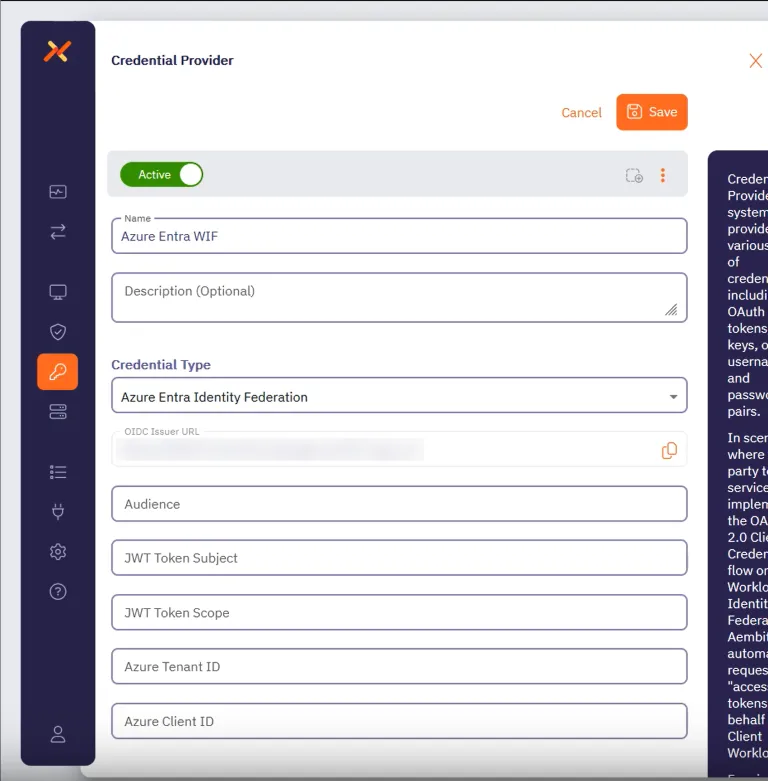 Before filling out these fields, you must add the credential for your Azure Entra registered application in the Azure Entra Portal first. Keep the Aembit web UI open while you work on the next section. ## Add a credential for your Azure Entra registered app [Section titled “Add a credential for your Azure Entra registered app”](#add-a-credential-for-your-azure-entra-registered-app) In the Azure Entra Portal, create a new credential for your registered application: 1. In your Azure Entra Portal, go to **App registrations** and select your registered application from the list. 2. Go to **Manage —> Certificates & secrets** and select the **Federated Credentials** tab. 3. Click **Add credential**, to reveal the **Add a credential** page and fill out the following sections (for quick reference, see the [mappings](#azure-entra-and-credential-provider-ui-value-mappings) section): 4. For **Connect your account** - * **Federated credential scenario** - Select **Other issuer** * **Issuer** - From the Aembit Credential Provider page, copy and paste the **OIDC Issuer URL** * **Type** - Select **Explicit subject identifier** * **Value** - Enter the desired value (this must match the **JWT Token Subject** value on the Aembit Credential Provider page) 5. For **Credential details** - * **Name** - Enter the desired name * **Audience** - Use the default value or optionally change it to the desired value (this must match the **Audience** value on the Aembit Credential Provider page) Your Aembit Credential Provider UI and Entra registered application credential should look similar to the following example: 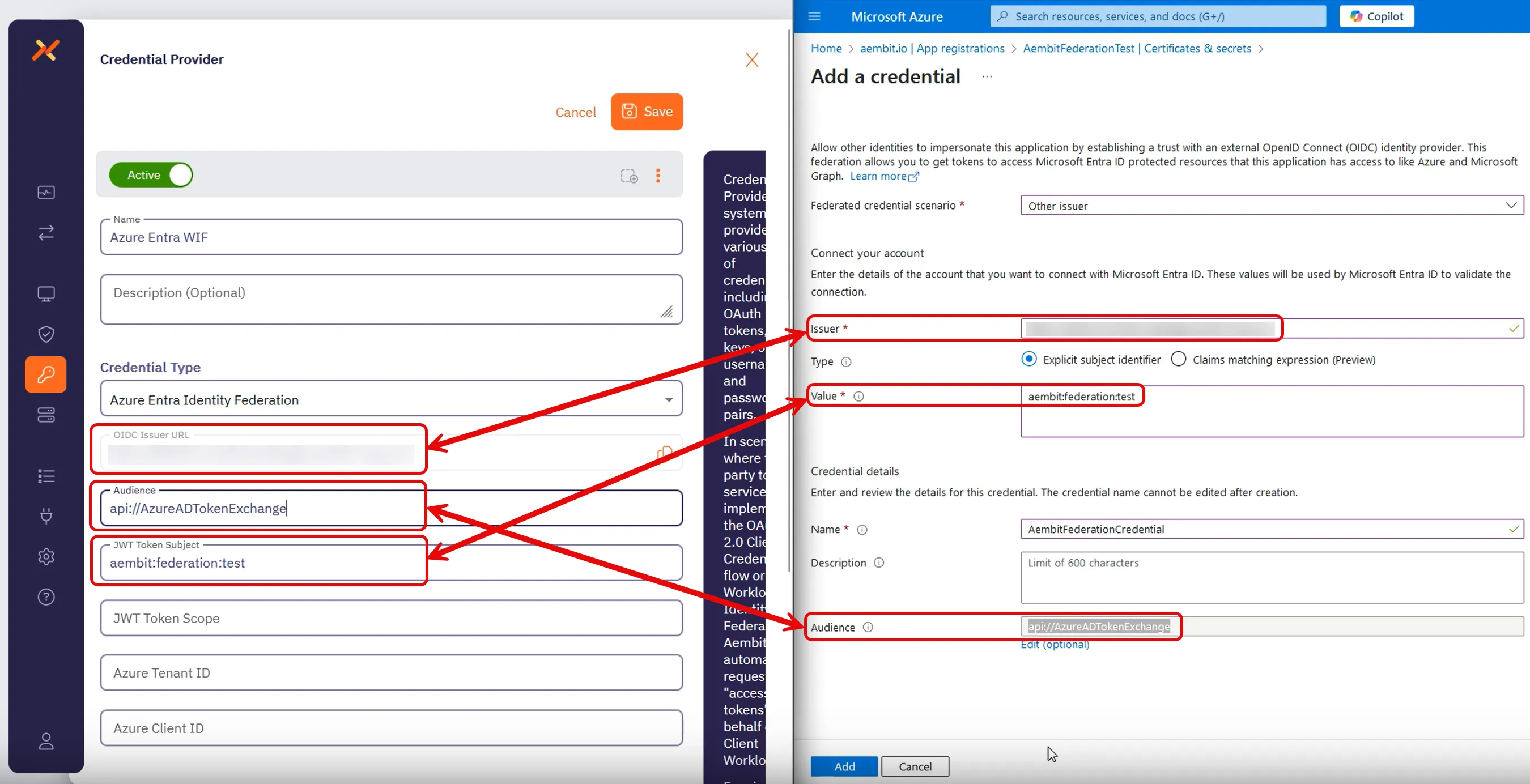 6. Click **Add** and your new credential shows up on the **Federated credentials** tab in Azure Entra. 7. While still on your registered application, go to the **Overview** section. Keep the Azure Entra Portal open to use it in the next section. ## Complete the Credential Provider in the Aembit web UI [Section titled “Complete the Credential Provider in the Aembit web UI”](#complete-the-credential-provider-in-the-aembit-web-ui) Go back to the Aembit web UI, and complete the **Credential Provider** page: 1. For **JWT Token Scope**, enter the scope of the resource you want to request. For example, for Microsoft Graph, use `https://graph.microsoft.com/.default`. 2. Use the info from your Azure Entra registered application’s **Overview** page to complete the remaining fields for the Aembit Credential Provider (for quick reference, see the [mappings](#azure-entra-and-credential-provider-ui-value-mappings) section): 1. **Azure Tenant ID** - copy and paste the **Directory (tenant) ID**. 2. **Azure Client ID** - copy and paste the **Application (client) ID**. 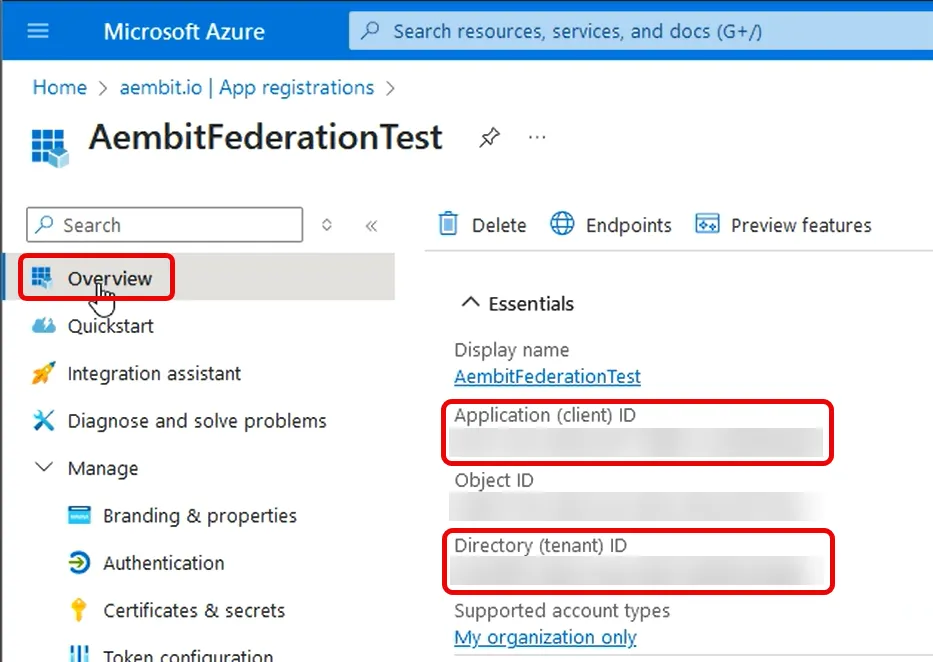 3. Click **Save**. Your Azure Entra Credential Provider now displays in your list of Credential Providers in the Aembit web UI. ## Verify the connection [Section titled “Verify the connection”](#verify-the-connection) To verify the connection between your Aembit Credential Provider and your Azure Entra registered application: 1. On the **Credential Providers** page, select the Credential Provider you just created. 2. Click **Verify**. After a few moments you should see a green banner display a “Verified Successfully” message. If you don’t receive a “Verified Successfully” message, go back through the values in your Credential Provider in the Aembit UI and the credential in your Azure Entra registered application to make sure they’re correct. You’re now ready to use your Credential Provider for Azure Entra Workload Identity Federation with your Server Workloads in an Aembit Access Policy! ## Configure Azure Entra using the Aembit Terraform provider [Section titled “Configure Azure Entra using the Aembit Terraform provider”](#configure-azure-entra-using-the-aembit-terraform-provider) To configure an Azure Entra Credential Provider using the [Aembit Terraform Provider](https://registry.terraform.io/providers/Aembit/aembit/latest), follow the steps in this section. 1. Follow the steps to [Add a credential for your Azure Entra registered app](#add-a-credential-for-your-azure-entra-registered-app). Leaving the **Issuer** blank and stopping before you add the new credential. Keep this page open as you’ll need some values from it. 2. Create a new Terraform configuration file (such as `azure-wif.tf`) with the following structure: ```hcl provider "aembit" { } resource "aembit_credential_provider" "azureEntra" { name = "" is_active = true azure_entra_workload_identity = { audience = "" subject = "" scope = "" azure_tenant = "" client_id = "" } } ``` 3. Apply the Terraform configuration: ```shell terraform apply ``` 4. After the Terraform apply completes successfully, the Aembit Terraform provider generates an OIDC Issuer URL as the value for `oidc_issuer`. Run the following command to obtain the value for `oidc_issuer`: ```shell terraform state show aembit_credential_provider.azureEntra ``` 5. Copy the URL from `oidc_issuer` and return to the Azure Portal’s **Add a credential** page. 6. Paste the URL from `oidc_issuer` into the **Issuer** field. 7. Click **Add** and your new credential shows up on the **Federated credentials** tab in Azure Entra. You’re now ready to use your Credential Provider for Azure Entra Workload Identity Federation with your Server Workloads in an Aembit Access Policy! ## Azure Entra and Credential Provider UI value mappings [Section titled “Azure Entra and Credential Provider UI value mappings”](#azure-entra-and-credential-provider-ui-value-mappings) The following table shows how the different value in Azure Entra from your registered application map to the required values to the Aembit Credential Provider web UI and Terraform provider: | Aembit Credential Provider value | Azure Entra credential value | Azure UI location | Terraform value | | -------------------------------- | ---------------------------- | ------------------------- | --------------- | | OIDC Issuer URL | Account Issuer | Registered app credential | Auto-populated | | Audience | Credential Audience | Registered app credential | `audience` | | JWT Token Subject | Account Value | Registered app credential | `subject` | | Azure Tenant ID | Directory (tenant) ID | Your app’s Overview | `azure_tenant` | | Azure Client ID | Application (client) ID | Your app’s Overview | `client_id` |
# Create an Azure Key Vault Credential Provider
> How to create and use the Azure Key Vault Credential Provider
The *Azure Key Vault Credential Provider* uses the [Azure Entra Federation Credential Provider Integration](/user-guide/access-policies/credential-providers/integrations/azure-entra-federation) to enable secure, policy-driven retrieval of static credentials stored in your Azure Key Vault. This includes API keys, usernames, and passwords. This integration allows you to leverage Aembit’s conditional access controls and centralized auditing for secrets managed in Azure, supporting both public and private network access scenarios. ## Supported credential types and workloads [Section titled “Supported credential types and workloads”](#supported-credential-types-and-workloads) | Credential Value Type | Supported Workloads & Protocols | | --------------------- | ----------------------------------------------------- | | Single Value | HTTP (Bearer, Header, Query Parameter) | | Username/Password | HTTP (Basic Auth), Redshift, PostgreSQL, MySQL, Redis | ## Prerequisites [Section titled “Prerequisites”](#prerequisites) You must have the following to create an Azure Key Vault Credential Provider: * Access to an Azure subscription with permissions to create and manage an Azure Key Vault instance with secrets and appropriate access policies or Role-Based Access Control (RBAC) roles assigned * A completed [Azure Entra Federation Credential Provider Integration](/user-guide/access-policies/credential-providers/integrations/azure-entra-federation) * An Azure Key Vault with secrets you want to manage via Aembit * Access to your Aembit Tenant with permissions to create Credential Providers and manage Access Policies * For Private Network Access: Aembit Agent Proxy v1.26+ deployed in your environment * Terraform only: * You have Terraform installed. * You have the [Aembit Terraform Provider](https://registry.terraform.io/providers/Aembit/aembit/latest) configured. ## Accessing Azure Key Vault on private networks [Section titled “Accessing Azure Key Vault on private networks”](#accessing-azure-key-vault-on-private-networks) For Key Vault instances on private networks (such as an Azure Virtual Network), enable **Private Network Access** during configuration to allow your colocated Agent Proxy to handle credential retrieval directly. For details on when to use Private Network Access, how it works, and troubleshooting, see [Private Network Access for Credential Providers](/user-guide/access-policies/credential-providers/private-network-access/). Version requirement Private Network Access for Azure Key Vault requires Agent Proxy 1.26 or later. ## Configure Azure Key Vault for Aembit [Section titled “Configure Azure Key Vault for Aembit”](#configure-azure-key-vault-for-aembit) To configure Azure Key Vault for Aembit, follow these steps: 1. Go to **Create a resource → Key Vault → Create** in the Azure portal. 2. Select your **Subscription** and **Resource Group**. 3. Enter a **Key Vault name** and select your **Region**. 4. Choose the **Permission Model** (Azure RBAC or Vault access policy). 5. Grant access to the federated app using one of the following methods: * Azure RBAC 1. Open the Key Vault and go to **Access control (IAM)**. 2. Click **Add role assignment**. 3. Select **Key Vault Secrets User**. 4. Click **Next**, then **Select members**. 5. Search for and select your federated app. 6. Click **Select**, then **Review + assign** twice. * Vault Access Policy 1. Open the Key Vault and go to **Access policies**. 2. Click **+ Create**. 3. Under **Secret permissions**, check **Get** and **List**. 4. Click **Next**, search for your federated app, and select it. 5. Click **Next** twice, then **Create**. 6. Add secrets to the Key Vault: 1. Go to **Objects → Secrets**. 2. Click **+ Generate/Import**. 3. Enter a name and value for the secret. 4. Click **Create**.\ For username/password, **you must** create two separate secrets. ## Create an Azure Key Vault Credential Provider [Section titled “Create an Azure Key Vault Credential Provider”](#create-an-azure-key-vault-credential-provider) To create an Azure Key Vault Credential Provider, follow these steps: 1. Log into your Aembit Tenant, and go to **Credential Providers** in the left sidebar. 2. (Optional) In the top right corner, select the [Resource Set](/user-guide/administration/resource-sets/) that you want this Credential Provider to reside. 3. Click **+ New**, which displays the Credential Provider pop out menu. 4. Enter a **Name** and optional **Description**. 5. Under **Credential Type**, select **Azure Key Vault Secret Value**, revealing more fields. 6. Fill out the remaining fields: * **Select CP Integration** - Select the Azure Entra Federation integration you’ve already configured. * **Credential Value Type** - Select the type of credential (Single Value or Username/Password). * **Secret Name** - Select or enter the name of the secret in Azure Key Vault. If you enabled **Fetch Secret Names** in the Azure Entra Federation integration, the secret names automatically load in a dropdown for easier selection. If **Fetch Secret Names** wasn’t enabled, manually enter the secret name. For Username/Password, enter two separate secret names (one for username, one for password). * **Private Network Access** - Enable this if your Key Vault exists in a private network or is only accessible from your Edge deployment. See [Accessing Azure Key Vault on private networks](#accessing-azure-key-vault-on-private-networks) for details. 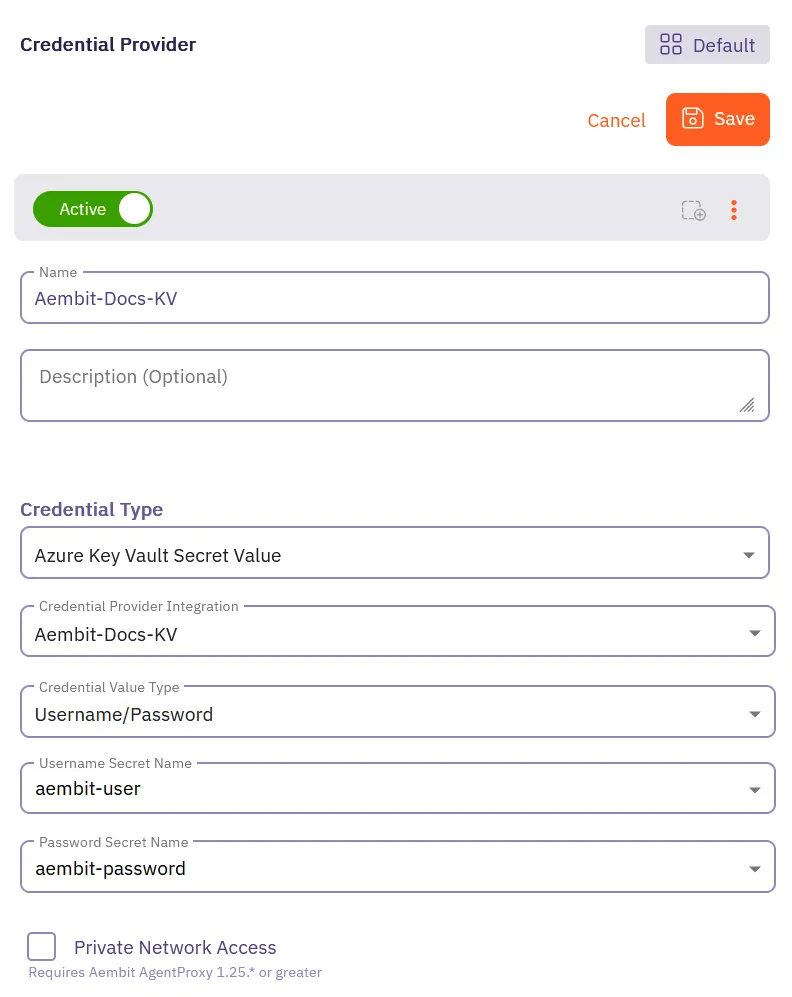 7. Click **Save**. Aembit displays the new Credential Provider in the list of Credential Providers. ## Configure Azure Key Vault CP using the Aembit Terraform provider [Section titled “Configure Azure Key Vault CP using the Aembit Terraform provider”](#configure-azure-key-vault-cp-using-the-aembit-terraform-provider) To configure an Azure Key Vault Credential Provider using the [Aembit Terraform Provider](https://registry.terraform.io/providers/Aembit/aembit/latest), follow the steps in this section. 1. Ensure you have completed the [Configure Azure Key Vault for Aembit](#configure-azure-key-vault-for-aembit) steps. 2. Ensure you have created an [Azure Entra Federation integration](/user-guide/access-policies/credential-providers/integrations/azure-entra-federation) and have its integration ID. You can obtain the integration ID by running: ```shell terraform state show aembit_credential_provider_integration.azure_entra_federation ``` 3. Create a new Terraform configuration file (such as `azure-kv-cp.tf`) based on your credential type: * Single Value ```hcl provider "aembit" { } resource "aembit_credential_provider" "azure_kv" { name = "" is_active = true azure_key_vault_value = { credential_provider_integration_id = "" secret_name_1 = "" private_network_access = false } } ``` * Username/Password ```hcl provider "aembit" { } resource "aembit_credential_provider" "azure_kv" { name = "" is_active = true azure_key_vault_value = { credential_provider_integration_id = "" secret_name_1 = "" secret_name_2 = "" private_network_access = false } } ``` 4. Apply the Terraform configuration: ```shell terraform apply ``` Your Azure Key Vault Credential Provider is now ready to use in your Access Policies! ## Troubleshooting [Section titled “Troubleshooting”](#troubleshooting) * **UI/Integration Errors:** If you encounter errors when creating the integration or credential provider (for example UI logout, 500 errors), verify Azure permissions and configuration details. * **Secret Not Found:** Ensure the secret name matches exactly and that the federated app has the correct permissions. * **Access Denied:** Double-check RBAC or access policy assignments in Azure Key Vault.
# Configure a Google GCP WIF Credential Provider
> How to create a Google GCP Workload Identity Federation (WIF) Credential Provider
Aembit offers the Google Workload Identity Federation (WIF) Credential Provider to integrate with Google GCP Services. This provider allows your Client Workloads to securely authenticate with GCP and obtain short-lived security tokens for accessing GCP services and resources. ## Credential Provider configuration [Section titled “Credential Provider configuration”](#credential-provider-configuration) To configure a Google Workload Identity Federation Credential Provider, follow the steps outlined below. 1. Log into your Aembit Tenant. 2. Once you are logged into your tenant, click on the **Credential Providers** tab in the left sidebar. You are directed to the Credential Providers page displaying a list of existing Credential Providers. In this example, there are no existing Credential Providers.  3. Click on the **New** button to open the Credential Providers dialog window. 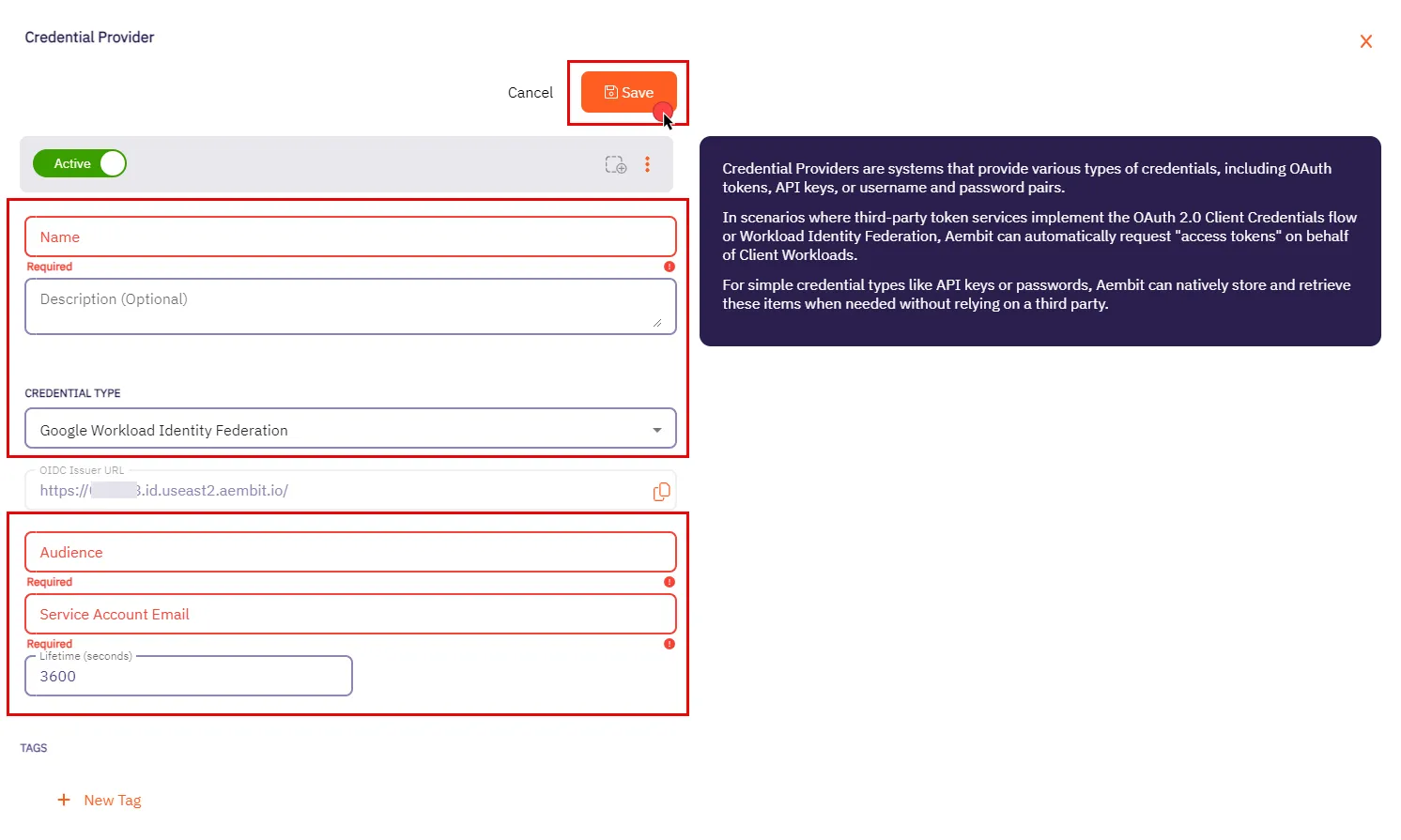 4. In the Credential Providers dialog window, enter the following information: * **Name** - Name of the Credential Provider. * **Description** - An optional text description of the Credential Provider. * **Credential Type** - A dropdown menu that enables you to configure the Credential Provider type. Select **Google Workload Identity Federation**. * **OIDC Issuer URL** - OpenID Connect (OIDC) Issuer URL, auto-generated by Aembit, is a dedicated endpoint for OIDC authentication with Google Cloud. * **Audience** - This field specifies the `aud` (Audience) claim that must be present in the OIDC token when requesting credentials from Google Cloud. The value should match either: * **Default** - Full canonical resource name of the Workload Identity Pool Provider (used if “Default audience” was chosen during setup). * **Allowed Audiences** - A value included in the configured allowed audiences list, if defined. Caution If the default audience was chosen during provider creation, provide the value previously copied from Google Cloud Console, **excluding** the http prefix (e.g., //iam.googleapis…). * **Service Account Email** - A Service Account represents a Google Cloud service identity, each service account has a unique email address (e.g., `service-account-name@project-id.iam.gserviceaccount.com`) that serves as its identifier. This email is used for granting permissions and enabling interactions with other services. * **Lifetime (seconds)** - Specify the duration for which credentials remain valid, to a maximum of 1 hour (3,600 seconds). 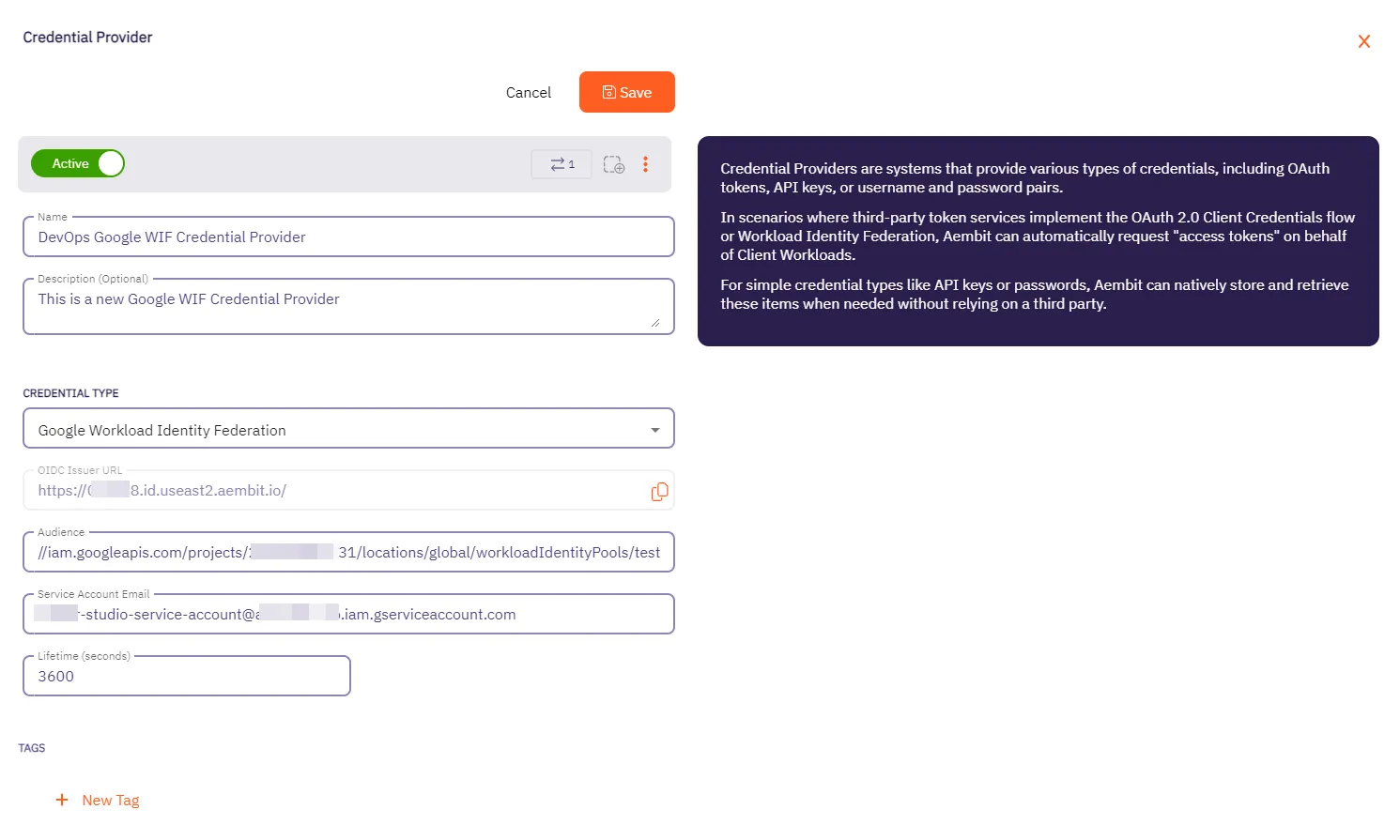 5. Click **Save** when finished. You will be directed back to the Credential Providers page, where you will see your newly created Credential Provider. 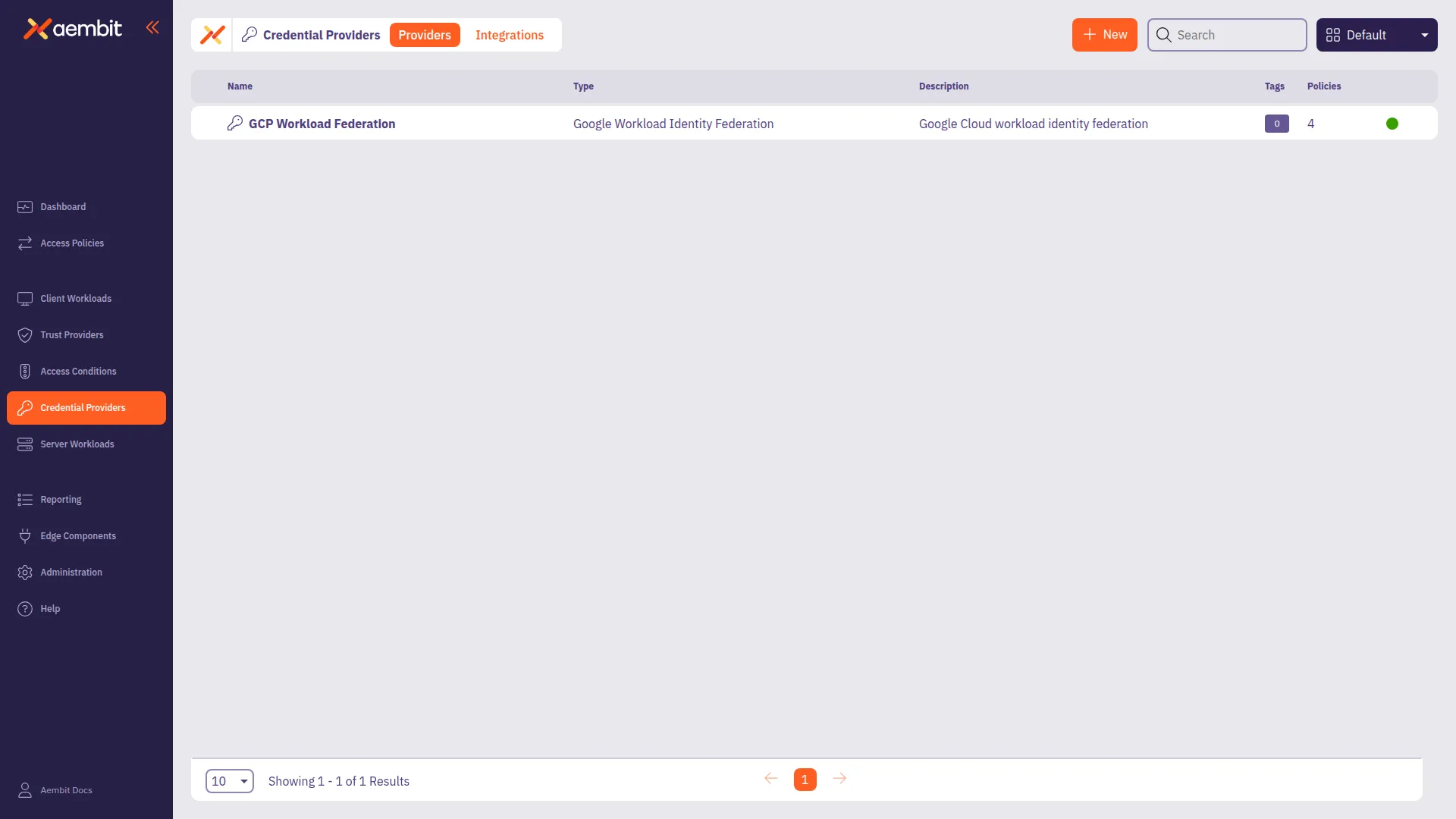
# Credential Provider integrations overview
> An overview of what Credential Provider integrations are and how they work
Aembit Credential Provider Integrations associate a third-party system (such as GitLab) with your Credential Providers to perform credential lifecycle management on your behalf. Credential Providers that use Credential Provider Integrations are responsible for maintaining an always-available credential value, which Aembit injects as part of an Access Policy. Aembit’s credential lifecycle management capabilities include creating, rotating, and deleting tokens. ## Configure Credential Provider Integrations [Section titled “Configure Credential Provider Integrations”](#configure-credential-provider-integrations)  [AWS IAM Role ](/user-guide/access-policies/credential-providers/integrations/aws-iam-role)Integrate with AWS IAM Roles Anywhere for credential management. →  [Azure Entra Federation ](/user-guide/access-policies/credential-providers/integrations/azure-entra-federation)Integrate with Azure Key Vault using Workload Identity Federation. →  [GitLab.com ](/user-guide/access-policies/credential-providers/integrations/gitlab)Integrate with GitLab.com for service account management. →  [GitLab Dedicated/Self-Managed ](/user-guide/access-policies/credential-providers/integrations/gitlab-dedicated-self)Integrate with GitLab Dedicated or Self-Managed instances. → ## How Credential Provider Integrations work [Section titled “How Credential Provider Integrations work”](#how-credential-provider-integrations-work) In general, Credential Provider Integrations use the following process: 1. When you initially create Credential Provider, Aembit creates the third-party account or credential or both and securely stores it in Aembit’s database. 2. Once 80% of the configured Credential Provider’s **Lifetime** expires, Aembit rotates the third-party credential and securely stores the updated credential in Aembit’s database. 3. When properly requested and authorized, Aembit provides the third-party credential from Aembit’s database to the associated Agent Proxy. If the injected credential fails, Agent Proxy continues to log the existing Workload Events to indicate the failure but doesn’t generate a notification or take explicit action. For example, if you delete a credential on your third-party system, then the Workload fails until Aembit successfully rotates the credential. 4. When you delete a Credential Provider, Aembit deletes the third-party account and credential. ### Azure Entra Federation integration [Section titled “Azure Entra Federation integration”](#azure-entra-federation-integration) The [Azure Entra Federation](/user-guide/access-policies/credential-providers/integrations/azure-entra-federation) integration enables Aembit to securely access Microsoft Azure resources—such as Azure Key Vault—on behalf of your workloads, without requiring long-lived secrets or static credentials. It leverages Azure’s Workload Identity Federation, allowing Aembit to authenticate using short-lived, federated tokens based on OpenID Connect (OIDC) standards. #### Process flow [Section titled “Process flow”](#process-flow) At a high level, the Azure Entra Federation Credential Provider Integration works like this: 1. You register an application in Azure Entra ID (formerly Azure Active Directory) and configure a federated credential that trusts tokens issued by Aembit. 2. In Aembit, you create an Azure Entra Federation integration, providing details from your Azure application and the OIDC issuer information from Aembit. 3. When a workload requests access to an Azure resource, Aembit generates an OIDC token and presents it to Azure. 4. Azure validates the token and issues a short-lived Azure access token scoped for the requested resource. 5. Aembit uses this token to access Azure resources (like Key Vault) and delivers the result securely to the requesting workload, governed by Aembit’s access policies. ### GitLab Service Account integration [Section titled “GitLab Service Account integration”](#gitlab-service-account-integration) This [GitLab Service Account](/user-guide/access-policies/credential-providers/integrations/gitlab) integration uses your GitLab administrator account to connect with your GitLab instance and control credential lifecycle management for each Managed GitLab Account Credential Provider. When creating a [Managed GitLab Account Credential Provider](/user-guide/access-policies/credential-providers/managed-gitlab-account), you scope it to only access specific GitLab Projects or GitLab Groups. Each provider creates an additional, separate GitLab service account that manages credentials on your behalf. This approach gives you fine-grained control over your GitLab workloads’ credential lifecycle management. #### GitLab subscriptions [Section titled “GitLab subscriptions”](#gitlab-subscriptions) Depending on the type of [GitLab plan](https://docs.gitlab.com/subscriptions/choosing_subscription/) you have, you have different choices of how to set up your GitLab Service Account integration. * For [GitLab.com plans](/user-guide/access-policies/credential-providers/integrations/gitlab), you must use `https://gitlab.com` when creating the integration. * For [GitLab Dedicated or Self-Managed plans](/user-guide/access-policies/credential-providers/integrations/gitlab-dedicated-self), you must use the URL of your GitLab dedicated or Self-Managed instance’s. See [GitLab’s plans](https://docs.gitlab.com/subscriptions/choosing_subscription/) for details about GitLab subscription types. GitLab plan differences The distinction between the different GitLab plans requires you to use different API calls when creating the GitLab Service Account integration. #### Process flow [Section titled “Process flow”](#process-flow-1) At a high level, the GitLab Service Account Credential Provider Integration works like this: 1. You initially connect Aembit to GitLab using your GitLab administrator account. 2. You create a Credential Provider with Managed GitLab Account integration. 3. Aembit creates a service account for each Credential Provider with your specified access scope. 4. Aembit securely stores credentials in its database. 5. Aembit automatically rotates credentials before expiration. 6. When requested and authorized, Aembit provides credentials to the Agent Proxy.
# Create a AWS IAM Role Integration for an AWS IAM Role
> How to create an AWS IAM Role Credential Provider Integration using an AWS IAM Role
Aembit uses the AWS IAM Role Credential Provider Integration to enable you to retrieve credentials using the AWS IAM Role you specify. This page details everything you need to create an AWS IAM Role Credential Provider Integration. This integration requires the use of an AWS IAM Role that has the necessary permissions to access the resources you want to manage with Aembit. ## Configure a AWS IAM Role integration [Section titled “Configure a AWS IAM Role integration”](#configure-a-aws-iam-role-integration) To create a AWS IAM Role integration, follow these steps: 1. Log into your Aembit Tenant, and go to **Credential Providers -> Integrations** in the left sidebar. 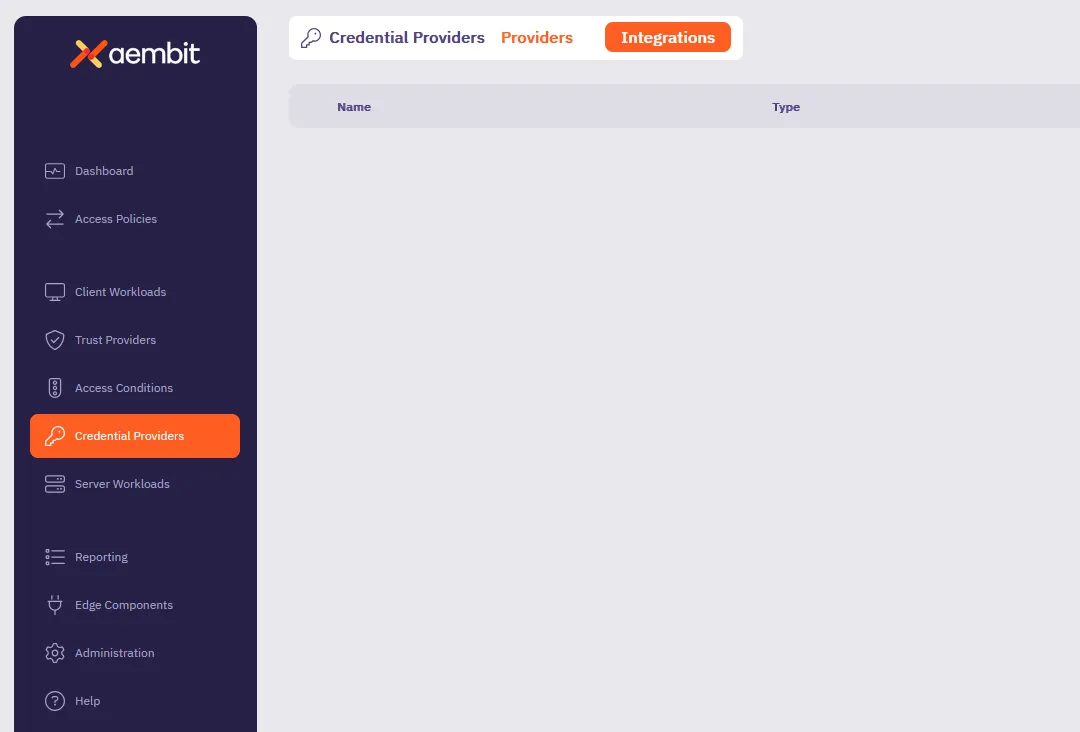 2. (Optional) In the top right corner, select the [Resource Set](/user-guide/administration/resource-sets/) that you want this Credential Provider Integration to reside. 3. Click **+ New**, which displays the **Integration** pop out menu. 4. Select **AWS IAM Role**. 5. Fill out the following fields on the **AWS IAM Role** form: * **Display Name** - Enter a unique name for this integration. * **Description** - (Optional) Enter a description. 6. In the **Configuration** section, enter the following information: * **AWS IAM Role ARN** - Enter the Amazon Resource Name (ARN) of the AWS IAM Role that you want to use for this integration. This role must have the necessary permissions to access the resources you want to manage with Aembit. * **Lifetime** - Specify the duration of the temporary AWS credentials which Aembit uses to access AWS resources (default: 3600 seconds). * **Populate Secret ARNs** - Enable this option to automatically populate the ARNs of the secrets accessible with the **AWS IAM Role ARN** you just entered in the **AWS Secrets Manager Secret Arn** field of Credential Providers that use this integration. The form should look similar to the following screenshot: 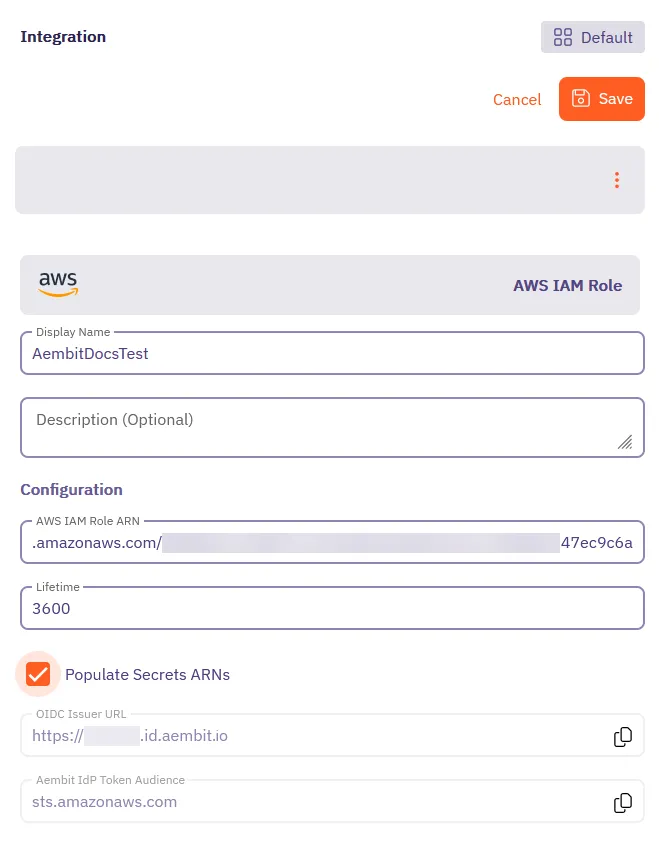 7. Click **Save**. Aembit displays the new integration in the list of Credential Provider Integrations. Once you’ve created the AWS IAM Role integration, Aembit displays it in the list of Credential Provider Integrations. You can tell that you’ve configured the integration correctly if you see a green **Ready** badge in the **Status** column, like the following screenshot: 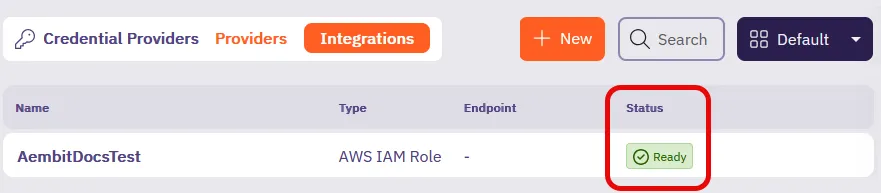 ## Next steps [Section titled “Next steps”](#next-steps) Now that you’ve created a AWS Secrets Manager Credential Provider Integration, create a [AWS Secrets Manager Value Credential Provider](/user-guide/access-policies/credential-providers/aws-secrets-manager) to use with your Server Workloads.
# Create an Azure Entra Federation Credential Provider Integration
> How to create a Azure Entra Federation Credential Provider Integration using Azure Key Vault
The Azure Entra Federation Credential Provider Integration allows you to create an [Azure Key Vault Credential Provider](/user-guide/access-policies/credential-providers/azure-key-vault). This enables the credential provider to retrieve secret values from Azure Key Vault without requiring long-lived secrets or static credentials. It leverages Azure’s Workload Identity Federation, allowing Aembit to authenticate using short-lived, federated tokens based on OpenID Connect (OIDC) standards. This page details everything you need to create an Azure Entra Federation Credential Provider Integration. See [How the Azure Entra Federation integration works](/user-guide/access-policies/credential-providers/integrations/#azure-entra-federation-integration) for more details. ## Prerequisites [Section titled “Prerequisites”](#prerequisites) To configure an Azure Entra Federation integration, you must have and do the following: * Ability to access and manage your Aembit Tenant. * Ability to access and manage a [Microsoft Entra registered application](https://learn.microsoft.com/en-us/entra/identity-platform/quickstart-register-app) * An Azure Key Vault with secrets you want to manage via Aembit. * Terraform only: * You have Terraform installed. * You have the [Aembit Terraform Provider](https://registry.terraform.io/providers/Aembit/aembit/latest) configured. ## Create an integration [Section titled “Create an integration”](#create-an-integration) This section explains how to configure an Azure Entra Federation integration in the Aembit web UI. These steps assume you already have a Microsoft Entra registered application (see [Prerequisites](#prerequisites)). You must configure the Aembit integration at the same time as the Azure Entra registered application credential. 1. Log into your Aembit Tenant, and in the left sidebar menu, go to **Credential Providers → Integrations**.  2. (Optional) In the top right corner, select the [Resource Set](/user-guide/administration/resource-sets/) that you want this Credential Provider Integration to reside. 3. Click **+ New**, which displays the **Integration** pop out menu. 4. Select **Azure Entra Federation**, and enter a **Display Name** and optional **Description**. 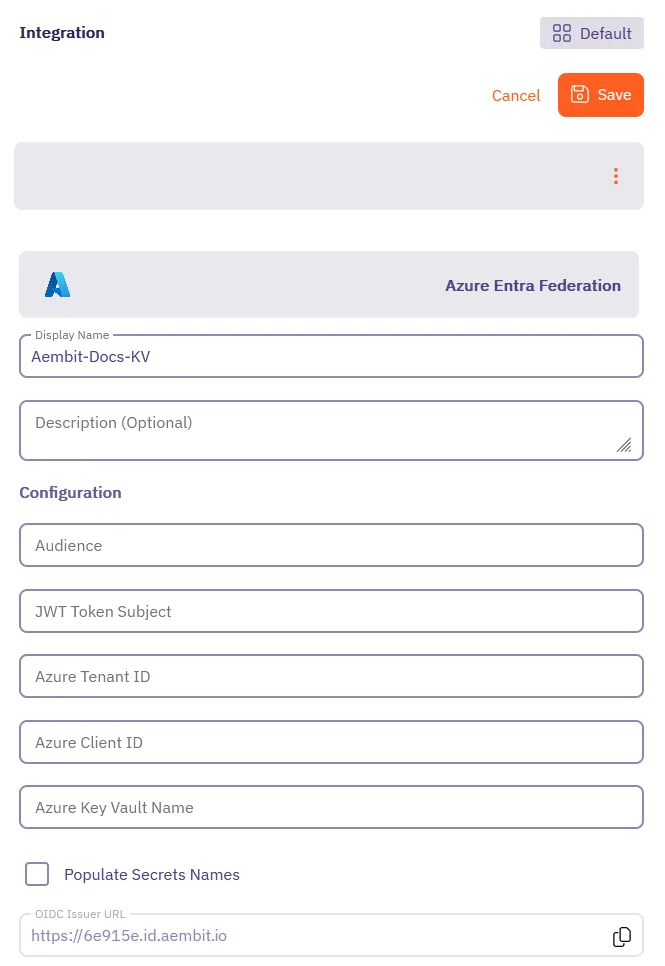 Before filling out these fields, you must add the credential for your Azure Entra registered application in the Azure Entra Portal first. Keep the Aembit web UI open while you work on the next section. ## Add a credential for your Azure Entra registered app [Section titled “Add a credential for your Azure Entra registered app”](#add-a-credential-for-your-azure-entra-registered-app) In the Azure Entra Portal, create a new credential for your registered application: 1. In your Azure Entra Portal, go to **App registrations** and select your registered application from the list. 2. Go to **Manage → Certificates & secrets** and select the **Federated Credentials** tab. 3. Click **Add credential**, to reveal the **Add a credential** page and fill out the following sections (for quick reference, see the [mappings](#azure-entra-and-integration-value-mappings) section): 4. For **Connect your account** - * **Federated credential scenario** - Select **Other issuer** * **Issuer** - From the Aembit Integration form, copy and paste the **OIDC Issuer URL** * **Type** - Select **Explicit subject identifier** * **Value** - Enter the desired value (this must match the **JWT Token Subject** value you enter on the Aembit Integration form) 5. For **Credential details** - * **Name** - Enter the desired name * **Audience** - Use the default value or optionally change it to the desired value (this must match the **Audience** value on the Aembit Integration form) Your Aembit Integration form and Entra registered application credential should look similar to the following example: 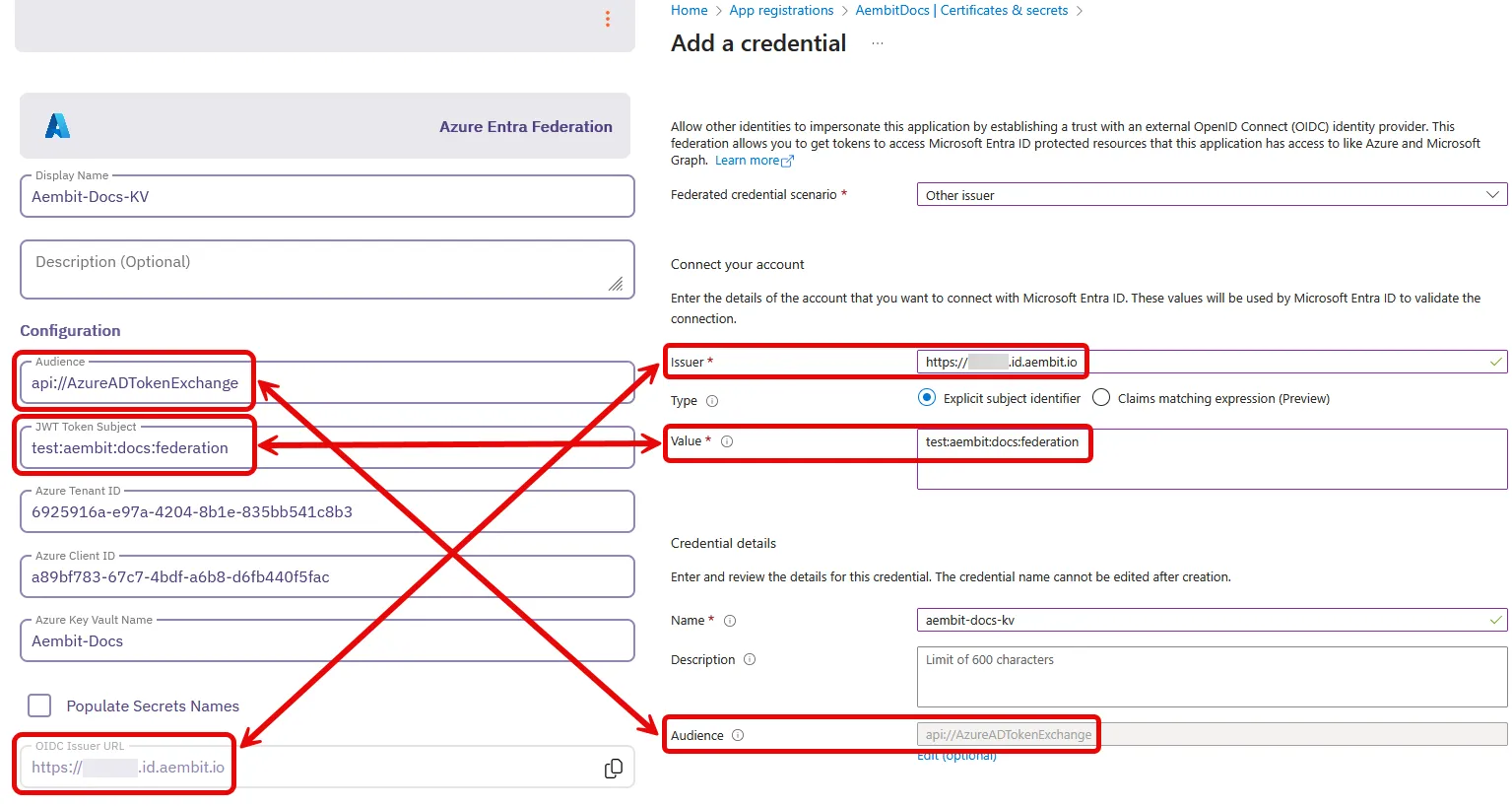 6. Click **Add** and your new credential shows up on the **Federated credentials** tab in Azure Entra. 7. While still on your registered application, go to the **Overview** section. Keep the Azure Entra Portal open to use it in the next section. ## Complete the integration in the Aembit web UI [Section titled “Complete the integration in the Aembit web UI”](#complete-the-integration-in-the-aembit-web-ui) Go back to the Aembit web UI, and complete the **Integration** form: 1. Use the info from your Azure Entra registered application’s **Overview** page to complete the following fields for the Aembit Integration (for quick reference, see the [mappings](#azure-entra-and-integration-value-mappings) section): 1. **Azure Tenant ID** - copy and paste the **Directory (tenant) ID**. 2. **Azure Client ID** - copy and paste the **Application (client) ID**.  2. For **Azure Key Vault Name**, enter the name of your Azure Key Vault. 3. (Optional) Enable **Fetch Secret Names** to load the secret names from the Azure Key Vault. When enabled, secret names automatically populate in a dropdown when setting up the Azure Key Vault Credential Provider, making it easier to select secrets. 4. Click **Save**. Your Azure Entra Federation integration now displays in your list of Credential Provider Integrations in the Aembit web UI. You’re now ready to use your Azure Entra Federation integration to create an [Azure Key Vault Credential Provider](/user-guide/access-policies/credential-providers/azure-key-vault)! ## Configure Azure Entra Federation using the Aembit Terraform provider [Section titled “Configure Azure Entra Federation using the Aembit Terraform provider”](#configure-azure-entra-federation-using-the-aembit-terraform-provider) To configure an Azure Entra Federation integration using the [Aembit Terraform Provider](https://registry.terraform.io/providers/Aembit/aembit/latest), follow the steps in this section. 1. Follow the steps to [Add a credential for your Azure Entra registered app](#add-a-credential-for-your-azure-entra-registered-app). Leaving the **Issuer** blank and stopping before you add the new credential. Keep this page open as you’ll need some values from it. 2. Create a new Terraform configuration file (such as `azure-entra-federation.tf`) with the following structure: ```hcl provider "aembit" { } resource "aembit_credential_provider_integration" "azure_entra_federation" { name = "" description = "" azure_entra_federation = { audience = "" subject = "" azure_tenant = "" client_id = "" key_vault_name = "" fetch_secret_names = true } } ``` 3. Apply the Terraform configuration: ```shell terraform apply ``` 4. After the Terraform apply completes successfully, the Aembit Terraform provider generates an OIDC Issuer URL as the value for `oidc_issuer_url`. Run the following command to obtain the value for `oidc_issuer_url`: ```shell terraform state show aembit_credential_provider_integration.azure_entra_federation ``` 5. Copy the URL from `oidc_issuer_url` and return to the Azure Portal’s **Add a credential** page. 6. Paste the URL from `oidc_issuer_url` into the **Issuer** field. 7. Click **Add** and your new credential shows up on the **Federated credentials** tab in Azure Entra. You’re now ready to use your Azure Entra Federation integration to create an [Azure Key Vault Credential Provider](/user-guide/access-policies/credential-providers/azure-key-vault)! ## Azure Entra and Integration value mappings [Section titled “Azure Entra and Integration value mappings”](#azure-entra-and-integration-value-mappings) The following table shows how the different values in Azure Entra from your registered application map to the required values in the Aembit Integration and Terraform provider: | Aembit Integration value | Azure Entra credential value | Azure UI location | Terraform value | | ------------------------ | ---------------------------- | ------------------------- | -------------------- | | OIDC Issuer URL | Account Issuer | Integration form | Auto-populated | | Audience | Credential Audience | Registered app credential | `audience` | | JWT Token Subject | Account Value | Registered app credential | `subject` | | Azure Tenant ID | Directory (tenant) ID | Your app’s Overview | `azure_tenant` | | Azure Client ID | Application (client) ID | Your app’s Overview | `client_id` | | Azure Key Vault Name | Key Vault name | Azure Key Vault resource | `key_vault_name` | | Fetch Secret Names | N/A | Integration form | `fetch_secret_names` | ## Additional resources [Section titled “Additional resources”](#additional-resources) * [Credential Provider Integrations overview](/user-guide/access-policies/credential-providers/integrations/)
# Create a GitLab Service Account Integration for a GitLab.com plan
> How to create a GitLab Service Account Credential Provider Integration using a GitLab.com plan
The GitLab Service Account Credential Provider Integration allows you to create a [Managed GitLab Account Credential Provider](/user-guide/access-policies/credential-providers/managed-gitlab-account), which provides credential lifecycle management and rotation capabilities for secure authentication between your GitLab instances and other Client Workloads. This page details everything you need to create a GitLab Service Account Credential Provider Integration. GitLab Free tier limitation Service accounts are only available for GitLab *Premium and Ultimate* subscription tiers. If you’re using a Free tier subscription, consider upgrading to a paid plan or using a [GitLab Dedicated or Self-Managed instance](/user-guide/access-policies/credential-providers/integrations/gitlab-dedicated-self) instead. This integration requires the use of two types of GitLab accounts: * **GitLab Administrator account** in a top-level-group with the `Owner` role. This administrator account performs the initial authorization for the Aembit Credential Provider Integration to start communicating with GitLab. * **GitLab Service Account** that the preceding GitLab Administrator account eventually creates. This service account performs credential lifecycle management for the Managed GitLab Account Credential Provider. See [How the GitLab Service Account integration works](/user-guide/access-policies/credential-providers/integrations/#gitlab-service-account-integration) for more details. ## Prerequisites [Section titled “Prerequisites”](#prerequisites) * `Owner` role access to [GitLab Admin area](https://docs.gitlab.com/administration/admin_area/) and [REST API](https://docs.gitlab.com/api/rest/) * A [GitLab Personal Access Token (PAT)](https://docs.gitlab.com/user/profile/personal_access_tokens/) for your [GitLab service account](https://docs.gitlab.com/user/profile/service_accounts/) with the `Owner` role as well as `api` and `self_rotate` [scopes](https://docs.gitlab.com/user/profile/personal_access_tokens/#personal-access-token-scopes) ## Configure a GitLab service account integration [Section titled “Configure a GitLab service account integration”](#configure-a-gitlab-service-account-integration) To create a GitLab service account integration, follow these steps: 1. Log into your Aembit Tenant, and go to **Credential Providers -> Integrations** in the left sidebar.  2. (Optional) In the top right corner, select the [Resource Set](/user-guide/administration/resource-sets/) that you want this Credential Provider Integration to reside. 3. Click **+ New**, which displays the **Integration** pop out menu. 4. Select **GitLab Service Account**, and enter a **Display Name** and optional **Description**. 5. Fill out the remaining fields: * **Token Endpoint URL** - Enter `https://gitlab.com`, indicating that you’re using a GitLab.com plan. See [GitLab subscriptions](/user-guide/access-policies/credential-providers/integrations/#gitlab-subscriptions) for more details. * **Top Level Group ID** - Enter the numeric ID of the top-level group that contains your GitLab service account.\ See GitLab’s [Find the Group ID](https://docs.gitlab.com/user/group/#find-the-group-id) for more details. GitLab Free tier limitation Service accounts are only available for GitLab *Premium and Ultimate* subscription tiers. If you’re using a Free tier subscription, consider upgrading to a paid plan or using a [GitLab Dedicated or Self-Managed instance](/user-guide/access-policies/credential-providers/integrations/gitlab-dedicated-self) instead. * **Personal Access Token** - Enter the Personal Access Token that’s associated with your GitLab Service Account. If you don’t already have a GitLab service account with a PAT, see [Create a GitLab service account and PAT](#create-a-gitlab-service-account-and-pat). The form should look similar to the following screenshot: 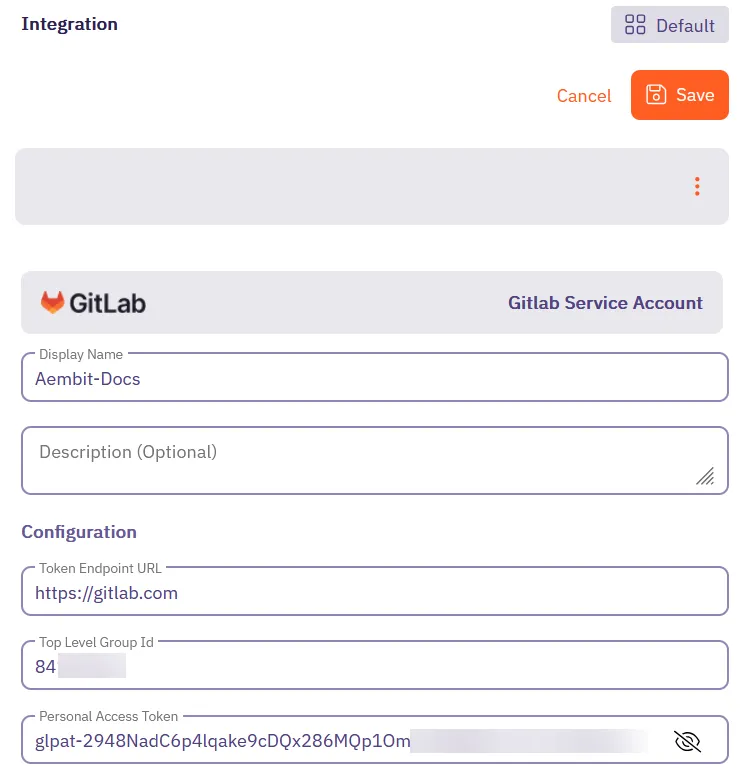 6. Click **Save**. Aembit displays the new integration in the list of Credential Provider Integrations. ## Create a GitLab service account and PAT [Section titled “Create a GitLab service account and PAT”](#create-a-gitlab-service-account-and-pat) The service account you use for the GitLab Service Account Credential Provider Integration must be in a top-level group with the `Owner` role to have access to GitLab APIs. GitLab Free tier limitation Service accounts are only available for GitLab *Premium and Ultimate* subscription tiers. If you’re using a Free tier subscription, consider upgrading to a paid plan or using a [GitLab Dedicated or Self-Managed instance](/user-guide/access-policies/credential-providers/integrations/gitlab-dedicated-self) instead. To create a GitLab service account and PAT, use either the GitLab UI or GitLab API: * GitLab UI 1. Follow GitLab’s documentation to [Create a Service Account using the GitLab UI](https://docs.gitlab.com/user/profile/service_accounts/?tab=Instance-wide+service+accounts#view-and-manage-service-accounts). 2. Follow GitLab’s documentation to [Create a Personal Access Token](https://docs.gitlab.com/user/profile/personal_access_tokens/#create-a-personal-access-token) for the service account you just created.\ **Ensure that you select the following scopes**: * `api` * `self_rotate` 3. **Copy the token value and store it** in a secure location as you won’t be able to view it again. 4. Use this token to [create the GitLab Service Account Credential Provider Integration](#configure-a-gitlab-service-account-integration) in your Aembit Tenant. * GitLab API You must perform the following steps using your GitLab Admin account that has `Owner` role access to a top-level group. You’ll also need your numerical top-level group ID. Follow GitLab’s documentation to [Find the Group ID](https://docs.gitlab.com/user/group/#find-the-group-id). 1. *From your terminal*, enter the following command to create the GitLab service account you want to associate with the integration. Make sure to replace: * `` with your GitLab Admin account’s Personal Access Token * `` with your top-level group ID See [Find the Group ID](https://docs.gitlab.com/user/group/#find-the-group-id) for more details * For `` and ``, enter values that follow your organization’s patterns ```shell curl --header "PRIVATE-TOKEN: " \ -X POST "https://gitlab.com/api/v4/groups//service_accounts" \ --data "name=" \ --data "username=" ``` If successful, the response should look similar to the following: ```shell {"id":12345678,"username":"my-service-account","name":"my-service-account","email":"mysa@example.com"} ``` The `id` is the user ID of the Service Account. Record this `id`, as you’ll need it in the next step. 2. Create a PAT for the GitLab service account you just created. Make sure to replace: * `` with your GitLab Admin account’s Personal Access Token * `` with your top-level group ID * `` with the `id` you recorded from the previous step * For ``, enter a value that follows your organization’s patterns ```shell curl --header "PRIVATE-TOKEN: " \ -X POST "https://gitlab.com/api/v4/groups//service_accounts//personal_access_tokens" \ --data "name=" \ --data "scopes[]=api" \ --data "scopes[]=self_rotate" ``` If successful, the response should look similar to the following: ```shell {"id":1234,"name":"","revoked":false,"created_at":"2025-03-21T20:18:23.333Z","description":null,"scopes":["api","self_rotate"],"user_id":,"last_used_at":null,"active":true,"expires_at":"2025-03-31","token":""} ``` Record the `token` value as you’ll need it in the final step. 3. Add the new service account you just created to your top-level group: Make sure to replace: * `` with your GitLab API access token * `` with your top-level group ID * `` with the `id` you recorded earlier ```shell curl --header "PRIVATE-TOKEN: " \ -X POST "https://gitlab.com/api/v4/groups//members" \ --data "user_id=" \ --data "access_level=50" ``` ## Additional resources [Section titled “Additional resources”](#additional-resources) * [Managed GitLab Account](/user-guide/access-policies/credential-providers/managed-gitlab-account) * [Credential Provider Integrations overview](/user-guide/access-policies/credential-providers/integrations/) * [GitLab Dedicated/Self-Managed integration](/user-guide/access-policies/credential-providers/integrations/gitlab-dedicated-self)
# Create a GitLab Service Account Integration for a Dedicated/Self-Managed instance
> How to create a GitLab Service Account Credential Provider Integration using a GitLab Dedicated or Self-Managed instance
The GitLab Service Account Credential Provider Integration allows you to create a [Managed GitLab Account Credential Provider](/user-guide/access-policies/credential-providers/managed-gitlab-account), which provides credential lifecycle management and rotation capabilities for secure authentication between your GitLab instances and other Client Workloads. This page details everything you need to create a GitLab Service Account Credential Provider Integration. This integration requires the use of two types of GitLab accounts: * **GitLab Administrator account**. This administrator account performs the initial authorization for the Aembit Credential Provider Integration to start communicating with GitLab. * **GitLab Service Account** that the preceding GitLab Administrator account eventually creates. This service account performs credential lifecycle management for the Managed GitLab Account Credential Provider. See [How the GitLab Service Account integration works](/user-guide/access-policies/credential-providers/integrations/#gitlab-service-account-integration) for more details. ## Prerequisites [Section titled “Prerequisites”](#prerequisites) * Administrator access to [GitLab Admin area](https://docs.gitlab.com/administration/admin_area/) and the GitLab [REST API](https://docs.gitlab.com/api/rest/) * A [GitLab Personal Access Token (PAT)](https://docs.gitlab.com/user/profile/personal_access_tokens/) for your [GitLab service account](https://docs.gitlab.com/user/profile/service_accounts/) with `api` and `self_rotate` [scopes](https://docs.gitlab.com/user/profile/personal_access_tokens/#personal-access-token-scopes) * The URL of your GitLab Dedicated or GitLab Self-Managed instance (see [GitLab’s plans](https://docs.gitlab.com/subscriptions/choosing_subscription/) for details)\ For example: `gitlab_tenant_name.gitlab-dedicated.com` or `https://gitlab.my-company.com` ## Configure a GitLab service account integration [Section titled “Configure a GitLab service account integration”](#configure-a-gitlab-service-account-integration) To create a GitLab service account integration, follow these steps: 1. Log into your Aembit Tenant, and go to **Credential Providers -> Integrations** in the left sidebar.  2. (Optional) In the top right corner, select the [Resource Set](/user-guide/administration/resource-sets/) that you want this Credential Provider Integration to reside. 3. Click **+ New**, which displays the **Integration** pop out menu. 4. Select **GitLab Service Account**, and enter a **Display Name** and optional **Description**. 5. Fill out the remaining fields: * **Token Endpoint URL** - Enter the URL of your GitLab Dedicated or GitLab Self-Managed instance. See [GitLab subscriptions](/user-guide/access-policies/credential-providers/integrations/#gitlab-subscriptions) for more details. * **Top Level Group ID** - n/a\ Aembit disables this field when using GitLab Dedicated or Self-Managed instance URLs. * **Personal Access Token** - Enter the GitLab Personal Access Token that’s associated with your instance-level Administrator service account that must have `api` and `self_rotate` scopes. If you don’t already have a GitLab service account with a PAT, see [Create a GitLab service account and PAT](#create-a-gitlab-service-account-and-pat). The form should look similar to the following screenshot: 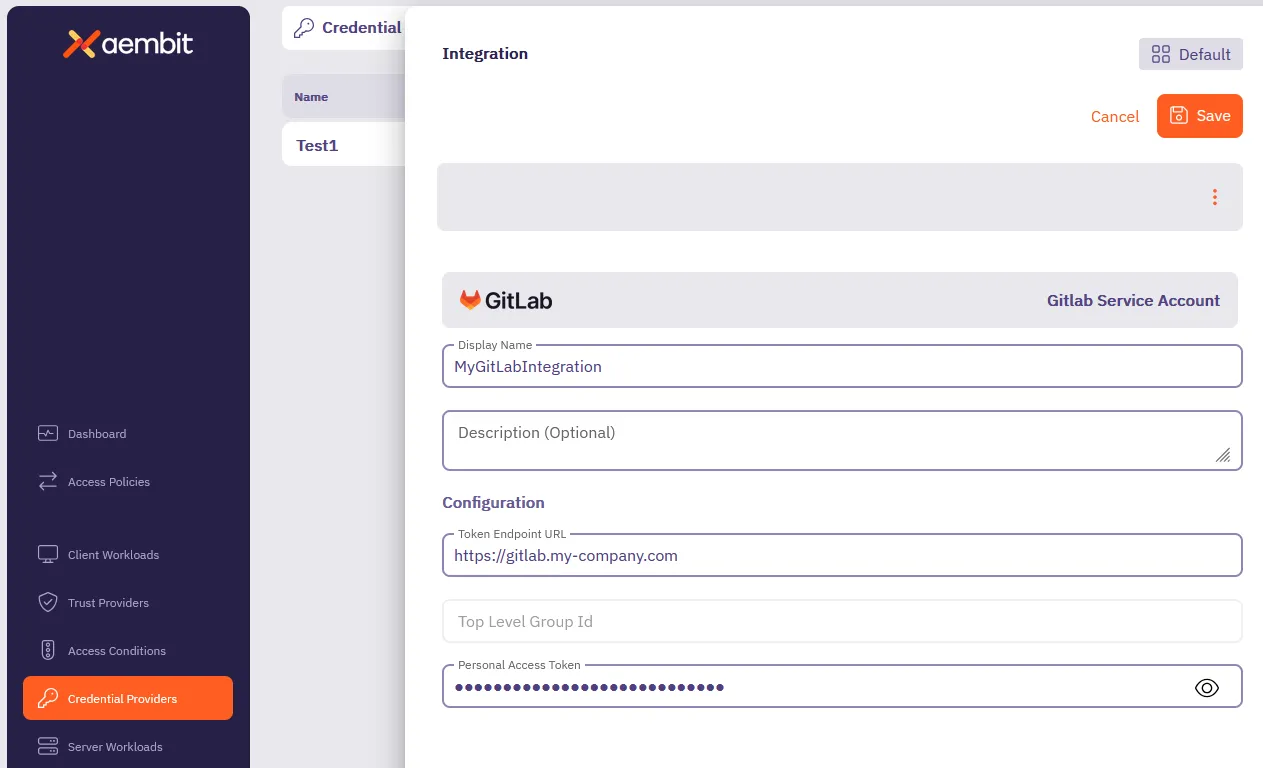 6. Click **Save**. Aembit displays the new integration in the list of Credential Provider Integrations. ## Create a GitLab service account PAT [Section titled “Create a GitLab service account PAT”](#create-a-gitlab-service-account-pat) To create a GitLab service account PAT, you must have *Administrator* access to your GitLab Admin area and GitLab APIs. This process has two main parts: 1. [Create a PAT for your GitLab Administrator account](#create-a-gitlab-administrator-account-pat) using the *GitLab UI*. 2. [Create a GitLab service account and PAT](#create-a-gitlab-service-account-and-pat) using either the *GitLab UI* or *GitLab API*. ### Create a GitLab Administrator account PAT [Section titled “Create a GitLab Administrator account PAT”](#create-a-gitlab-administrator-account-pat) To create a PAT for your GitLab Administrator account, follow these steps: 1. Log into your GitLab Admin area with an Administrator user account. 2. See [Create a personal access token](https://docs.gitlab.com/user/profile/personal_access_tokens/#create-a-personal-access-token) in the GitLab docs to create a PAT for your *Administrator user account* (not the service account). 3. Keep the GitLab Admin area UI open, as you need it in the next step. ### Create a GitLab service account and PAT [Section titled “Create a GitLab service account and PAT”](#create-a-gitlab-service-account-and-pat) To create a GitLab service account and PAT, use either the GitLab UI or GitLab API: * GitLab UI 1. Follow GitLab’s documentation to [Create a Service Account using the GitLab UI](https://docs.gitlab.com/user/profile/service_accounts/?tab=Instance-wide+service+accounts#create-a-service-account). 2. Follow GitLab’s documentation to [Create a Personal Access Token](https://docs.gitlab.com/user/profile/personal_access_tokens/#create-a-personal-access-token) for the service account you just created.\ **Ensure that you select the following scopes**: * `api` * `self_rotate` 3. **Copy the token value and store it** in a secure location as you won’t be able to view it again. 4. Use this token to [create the GitLab Service Account Credential Provider Integration](#configure-a-gitlab-service-account-integration) in your Aembit Tenant. * GitLab API You must perform the following steps using your GitLab Admin account that has Administrator access to your GitLab instance. 1. *From your terminal*, enter the following command to create the GitLab service account you want to associate with the integration. Make sure to replace `` with your GitLab Admin account’s Personal Access Token and `` with your GitLab instance URL. For `` and ``, enter values that follow your organization’s patterns. ```shell curl --header "PRIVATE-TOKEN: " \ -X POST "/api/v4/service_accounts" \ --data "name=" \ --data "username=" ``` If successful, the response should look similar to the following: ```shell {"id":12345678,"username":"my-service-account","name":"my-service-account","email":"mysa@example.com"} ``` The `id` is the user ID of the Service Account. Record this `id`, as you’ll need it in the next step. 2. Create a PAT for the GitLab service account you just created. Make sure to replace: * `` with your GitLab Admin account’s Personal Access Token * `` with your GitLab instance URL * `` with the `id` you recorded from the previous step * For ``, enter a value that follows your organization’s patterns ```shell curl --header "PRIVATE-TOKEN: " \ -X POST "/api/v4/users//personal_access_tokens" \ --data "scopes[]=api" \ --data "scopes[]=self_rotate" \ --data "name=" ``` If successful, the response should look similar to the following: ```shell {"id":1234,"name":"","revoked":false,"created_at":"2025-03-21T20:18:23.333Z","description":null,"scopes":["api","self_rotate"],"user_id":,"last_used_at":null,"active":true,"expires_at":"2025-03-31","token":""} ``` Record the `token` value as you’ll need it in the final step. 3. Use the token to [create the GitLab Service Account Credential Provider Integration](#configure-a-gitlab-service-account-integration) in your Aembit Tenant. ## Additional resources [Section titled “Additional resources”](#additional-resources) * [Managed GitLab Account](/user-guide/access-policies/credential-providers/managed-gitlab-account) * [Credential Provider Integrations overview](/user-guide/access-policies/credential-providers/integrations/) * [GitLab.com integration](/user-guide/access-policies/credential-providers/integrations/gitlab)
# Configure a JSON Web Token (JWT) Credential Provider
> How to create and use a JSON Web Token (JWT) Credential Provider
A JSON Web Token (JWT), defined by the open standard [RFC 7519](https://datatracker.ietf.org/doc/html/rfc7519), is a compact and self-contained method for securely transmitting information as a JSON object between parties. Aembit’s JWT Credential Provider**Credential Provider**: Credential Providers obtain the specific access credentials—such as API keys, OAuth tokens, or temporary cloud credentials—that Client Workloads need to authenticate to Server Workloads.[Learn more](/get-started/concepts/credential-providers) currently supports Snowflake Key Pair Authentication for connecting to Snowflake Server Workloads**Server Workload**: Server Workloads represent target services, APIs, databases, or applications that receive and respond to access requests from Client Workloads.[Learn more](/get-started/concepts/server-workloads). ## Prerequisites [Section titled “Prerequisites”](#prerequisites) Before configuring a JWT Credential Provider in Aembit, ensure you have the following: * An active Aembit Tenant**Aembit Tenant**: Aembit Tenants serve as isolated, dedicated environments within Aembit that provide complete separation of administrative domains and security configurations.[Learn more](/get-started/concepts/administration) with appropriate permissions to create and manage Credential Providers. * A Snowflake account with permissions to configure key pair authentication. ## Credential Provider configuration [Section titled “Credential Provider configuration”](#credential-provider-configuration) To configure a JSON Web Token (JWT) Credential Provider, follow these steps: 1. Log into your Aembit Tenant and go to **Credential Providers**. Aembit directs you to the **Credential Providers** page displaying a list of existing Credential Providers.  2. Click **+ New** to open the Credential Providers dialog window. 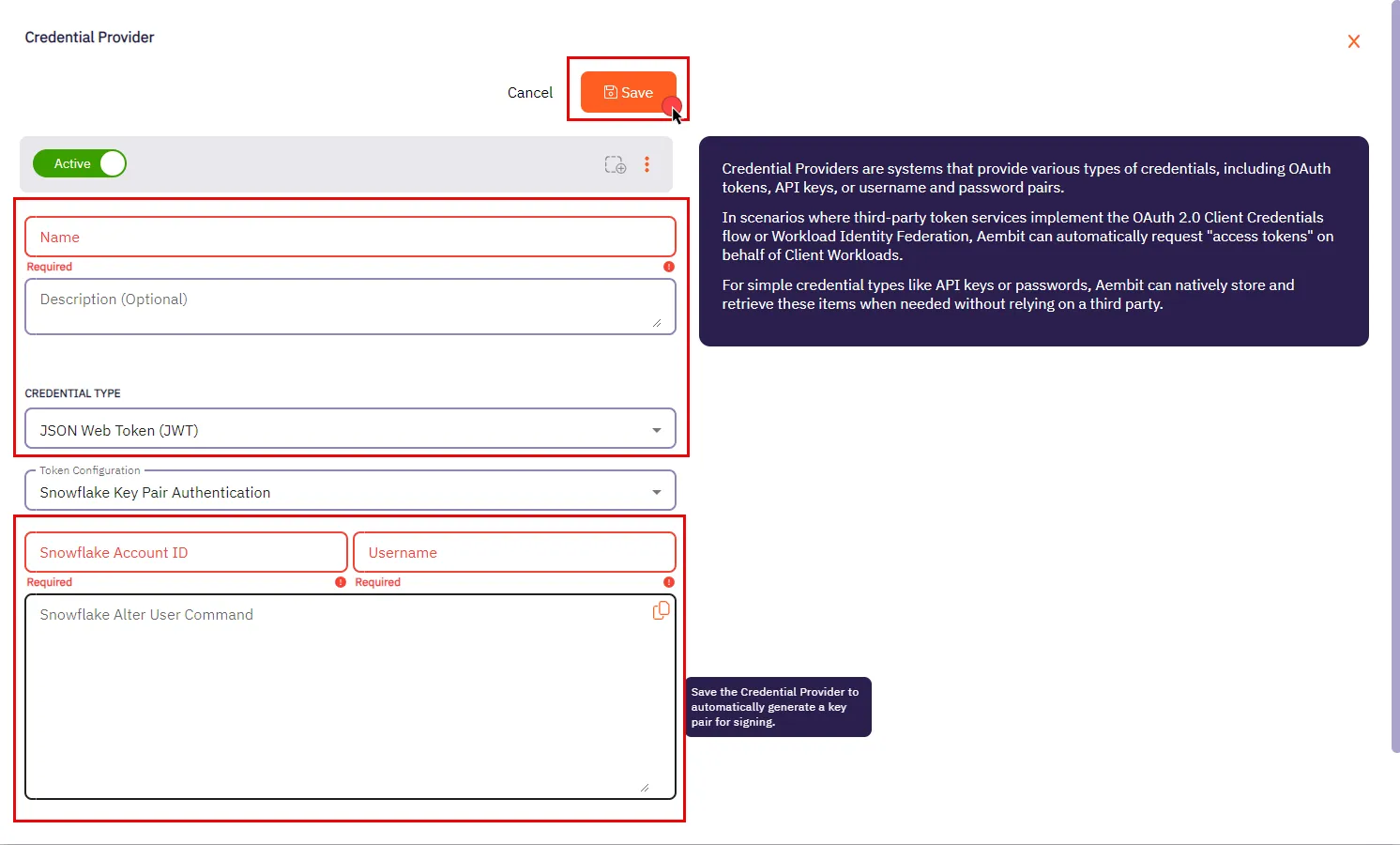 3. In the Credential Providers dialog window, enter the following information: * **Name** - Name of the Credential Provider. * **Description** - An optional text description of the Credential Provider. * **Credential Type** - Select **JSON Web Token (JWT)** from the dropdown menu. * **Token Configuration** - By default, this field is pre-selected as **Snowflake Key Pair Authentication** for connecting to Snowflake. * **Snowflake Account ID** - The Snowflake Locator, a unique identifier that distinguishes a Snowflake account within the organization. * **Username** - Your unique Snowflake username associated with the account. * **Snowflake Alter User Command** - After saving the Credential Provider, Aembit generates a SQL command in this field. This command incorporates a public key essential for establishing trust between your Snowflake account and the JWT tokens issued by Aembit. Execute this command on your Snowflake account using a Snowflake-compatible tool. 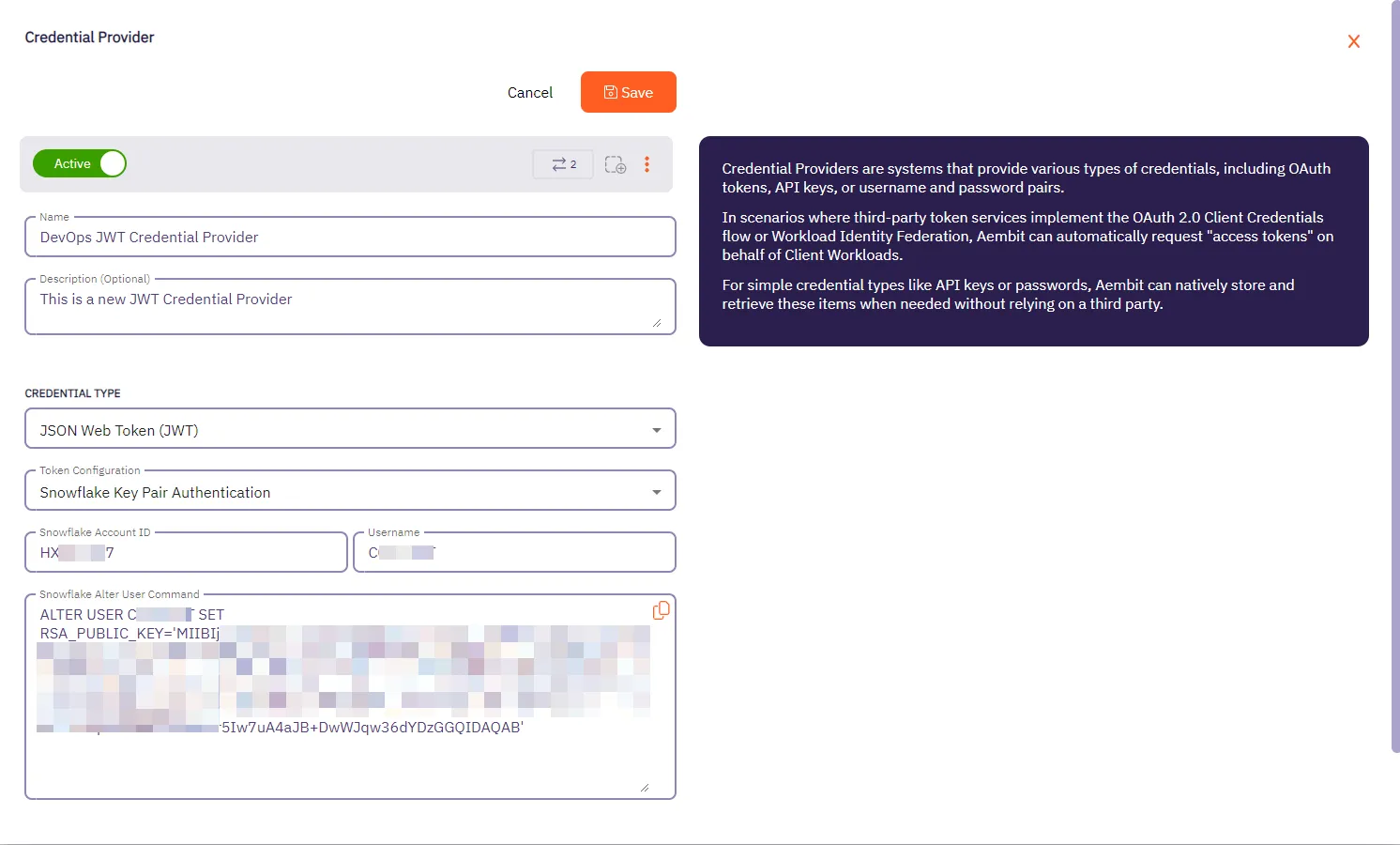 4. Click **Save** when finished. Aembit directs you back to the **Credential Providers** page, where you see your newly created Credential Provider.  ## Configure multiple JWT Credential Providers [Section titled “Configure multiple JWT Credential Providers”](#configure-multiple-jwt-credential-providers) To configure multiple JWT Credential Providers within a single Access Policy, follow these steps. Each Credential Provider must have a unique mapping value (username for Snowflake, or HTTP header/body value for HTTP workloads). ### Prerequisites [Section titled “Prerequisites”](#prerequisites-1) Before configuring multiple JWT Credential Providers, ensure you have: * An existing Access Policy with a Client Workload**Client Workload**: Client Workloads represent software applications, scripts, or automated processes that initiate access requests to Server Workloads, operating autonomously without direct user interaction.[Learn more](/get-started/concepts/client-workloads) and Server Workload configured * Server Workload Application Protocol set to **Snowflake** or **HTTP** * At least two JWT Credential Providers created (or ready to create) ### Add multiple JWT Credential Providers to an Access Policy [Section titled “Add multiple JWT Credential Providers to an Access Policy”](#add-multiple-jwt-credential-providers-to-an-access-policy) 1. Create your first JWT Credential Provider by following the [Credential Provider configuration](#credential-provider-configuration) procedure. 2. Note the mapping value for this Credential Provider (Snowflake username or the HTTP header/body value you plan to use). 3. Repeat the Credential Provider configuration steps to create additional JWT Credential Providers, each with a unique mapping value. 4. Go to **Access Policies** and either create a new Access Policy or edit an existing one. 5. In the **Credential Providers** column, hover over the **+** icon and select **Existing** to add your first JWT Credential Provider. 6. Repeat to add additional JWT Credential Providers to the Access Policy. Caution When you add additional Credential Providers to an Access Policy, you must also map each Credential Provider to ensure Aembit can route requests correctly. 7. After adding Credential Providers, you see a box in the Credential Providers column showing the total number of Credential Providers and an “unmapped” indicator. ### Map JWT Credential Providers [Section titled “Map JWT Credential Providers”](#map-jwt-credential-providers) After adding multiple JWT Credential Providers to an Access Policy, map each Credential Provider to its selector value. * Snowflake 1. On the Access Policy page, in the **Credential Providers** column, click the arrow to open the Credential Provider Mappings dialog window. 2. For each Credential Provider with a red ”!” icon (indicating no mapping), hover over the Credential Provider and click the down arrow to open the mapping menu. 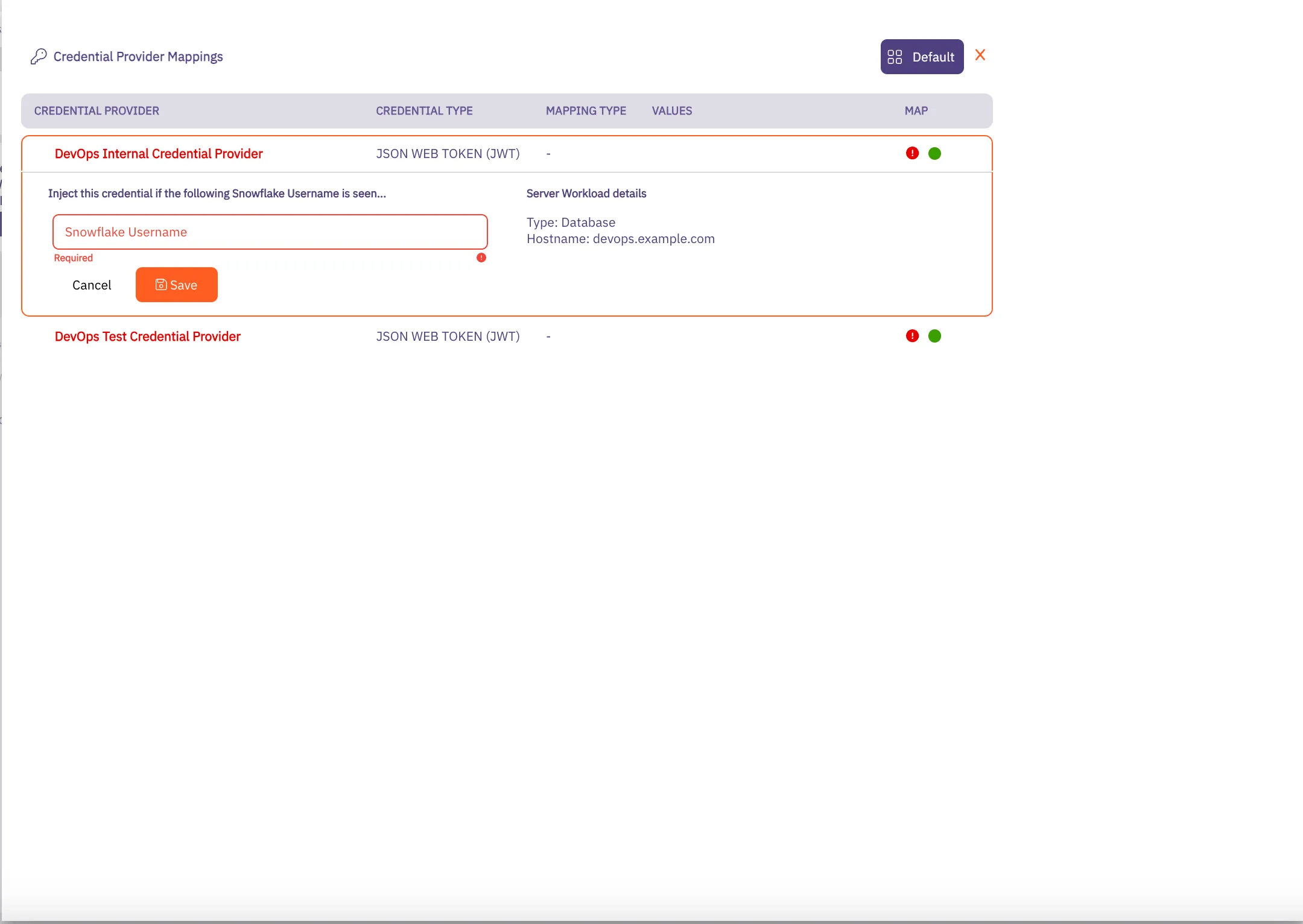 3. Add the Snowflake usernames that should use this Credential Provider. When a connection request arrives with this username, Aembit uses this Credential Provider for credential injection. 4. Click **Save** when you finish adding mapping values. The red ”!” icon changes to a green checkbox. 5. Repeat for each Credential Provider in the Access Policy. 6. When all Credential Providers show “All Mapped”, click **Save** or **Save & Activate** to save your Access Policy. * HTTP 1. On the Access Policy page, in the **Credential Providers** column, click the arrow to open the Credential Provider Mappings dialog window. 2. For each Credential Provider with a red ”!” icon (indicating no mapping), hover over the Credential Provider and click the down arrow to open the mapping menu. 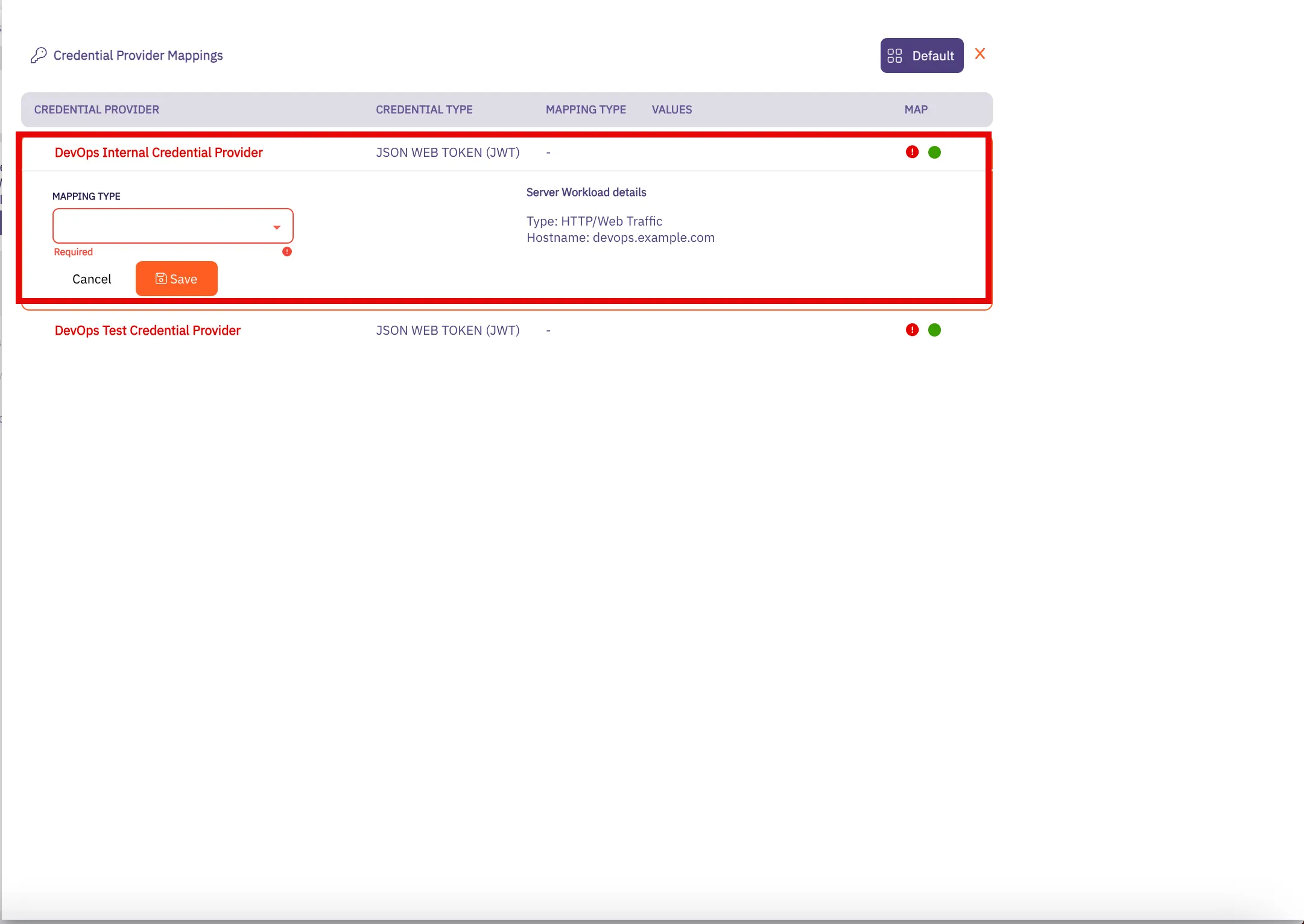 3. Select the mapping type (**HTTP Header** or **HTTP Body**) and add the values that should use this Credential Provider. When a request arrives with these values, Aembit uses this Credential Provider for credential injection. 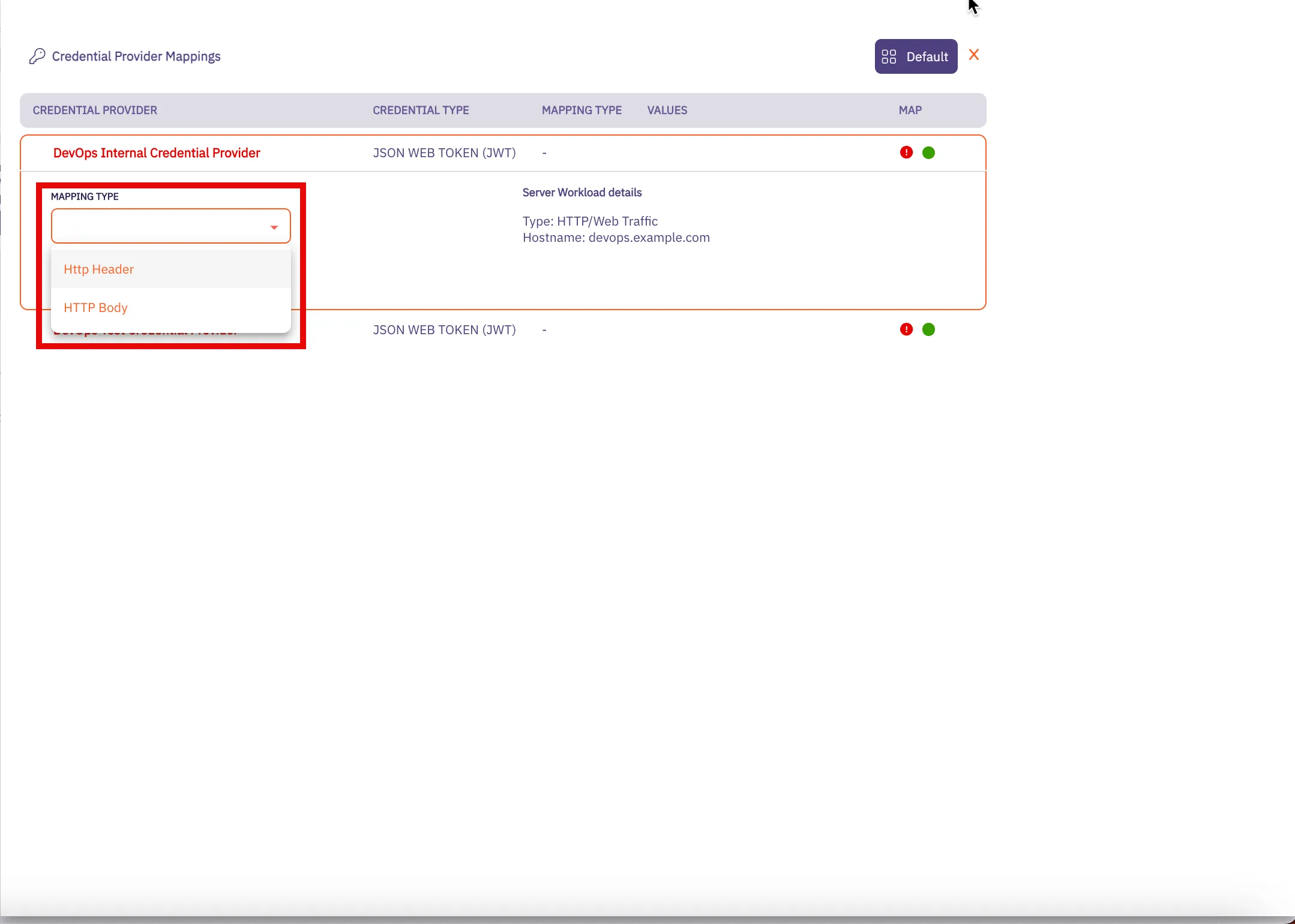 4. Click **Save** when you finish adding mapping values. The red ”!” icon changes to a green checkbox. 5. Repeat for each Credential Provider in the Access Policy. 6. When all Credential Providers show “All Mapped”, click **Save** or **Save & Activate** to save your Access Policy. ### Verify your configuration [Section titled “Verify your configuration”](#verify-your-configuration) To confirm your multiple JWT Credential Provider configuration works correctly: 1. Make a request using one of your mapped values (Snowflake username or HTTP header/body value). 2. Check the [access authorization events](/user-guide/audit-report/access-authorization-events) in your Aembit Tenant to confirm: * Aembit selected the correct Credential Provider * The `credentialProvider.name` field matches your expected Credential Provider 3. Make a request using a different mapped value and repeat to verify the second Credential Provider. ## Related topics [Section titled “Related topics”](#related-topics) * [Using multiple JWT Credential Providers](/user-guide/access-policies/credential-providers/json-web-token-multiple) - Learn how Aembit routes requests to multiple JWT Credential Providers * [Configure multiple Credential Providers](/user-guide/access-policies/credential-providers/multiple-credential-providers) - Overview of multiple Credential Provider support * [Snowflake Server Workload](/user-guide/access-policies/server-workloads/guides/snowflake) - Configure Aembit to work with Snowflake * [Credential Providers overview](/user-guide/access-policies/credential-providers) - Overview of all available Credential Provider types * [Access Policies](/user-guide/access-policies) - Learn about Aembit Access Policies and how they work * [Access Authorization Events](/user-guide/audit-report/access-authorization-events) - Review access authorization event information in the Reporting Dashboard
# Using Multiple JWT Credential Providers in a Single Access Policy
> How Aembit routes requests to multiple JWT Credential Providers based on username or HTTP values
This page explains how Aembit enables the use of multiple JSON Web Token (JWT) Credential Providers**Credential Provider**: Credential Providers obtain the specific access credentials—such as API keys, OAuth tokens, or temporary cloud credentials—that Client Workloads need to authenticate to Server Workloads.[Learn more](/get-started/concepts/credential-providers) within a single Access Policy**Access Policy**: Access Policies define, enforce, and audit access between Client and Server Workloads by cryptographically verifying workload identity and contextual factors rather than relying on static secrets.[Learn more](/get-started/concepts/access-policies), allowing flexible credential management for Snowflake and HTTP Server Workloads**Server Workload**: Server Workloads represent target services, APIs, databases, or applications that receive and respond to access requests from Client Workloads.[Learn more](/get-started/concepts/server-workloads). In environments where multiple users or services need different credentials to access the same Server Workload, configuring separate Access Policies for each credential creates unnecessary complexity. Aembit supports configuring multiple JWT Credential Providers within a single Access Policy, with each Credential Provider mapped to specific selector values. ## Benefits [Section titled “Benefits”](#benefits) * **Simplified policy management** - Manage multiple JWT credentials within a single Access Policy instead of creating separate policies for each user or service. * **Flexible mapping** - Map Credential Providers by Snowflake username or HTTP header/body values to match your application’s request patterns. * **Seamless application experience** - Applications can access resources with different credentials without code changes or multiple Client Workload**Client Workload**: Client Workloads represent software applications, scripts, or automated processes that initiate access requests to Server Workloads, operating autonomously without direct user interaction.[Learn more](/get-started/concepts/client-workloads) identities. ## How it works [Section titled “How it works”](#how-it-works) After you [configure multiple JWT Credential Providers](/user-guide/access-policies/credential-providers/json-web-token#configure-multiple-jwt-credential-providers) in an Access Policy (each with a unique mapping value), Aembit handles requests as follows: 1. **Request interception** - When an application makes a request, Agent Proxy intercepts it and extracts the mapping value (username for Snowflake, or HTTP header/body value for HTTP workloads). 2. **Credential Provider matching** - Aembit matches the extracted value to the corresponding Credential Provider configured in the Access Policy. 3. **Credential injection** - Aembit retrieves the JWT from the matched Credential Provider and injects it into the request. ## Mapping mechanisms [Section titled “Mapping mechanisms”](#mapping-mechanisms) JWT Credential Providers use different mapping mechanisms depending on the Server Workload type. ### Snowflake username mapping [Section titled “Snowflake username mapping”](#snowflake-username-mapping) For Snowflake Server Workloads, Aembit maps Credential Providers based on the **username** in the connection request. **Example scenario:** * User `analyst_a` needs credentials from `JWT-Provider-A` * User `analyst_b` needs credentials from `JWT-Provider-B` Configure each Credential Provider with its corresponding username mapping. When a connection request arrives with a specific username, Aembit automatically selects the matching Credential Provider. ### HTTP header or body mapping [Section titled “HTTP header or body mapping”](#http-header-or-body-mapping) For HTTP Server Workloads, Aembit maps Credential Providers based on values in **HTTP headers** or the **HTTP body**. **Example scenario:** * Requests with header `X-Service-ID: service-a` use `JWT-Provider-A` * Requests with header `X-Service-ID: service-b` use `JWT-Provider-B` Configure each Credential Provider with its corresponding header or body value mapping. When a request arrives with the specified value, Aembit automatically selects the matching Credential Provider. ## Error handling [Section titled “Error handling”](#error-handling) The following rules apply when handling requests with multiple JWT Credential Providers: * If the mapping value in a request doesn’t match any configured Credential Provider, Aembit denies the request. * If Aembit can’t extract the mapping value (for example, missing header), credentials aren’t injected and the request fails. * Each mapping value must be unique across all Credential Providers in the Access Policy. ## Related topics [Section titled “Related topics”](#related-topics) * [Configure a JWT Credential Provider](/user-guide/access-policies/credential-providers/json-web-token) - Set up JWT Credential Providers and configure multiple Credential Providers in an Access Policy * [Configure multiple Credential Providers](/user-guide/access-policies/credential-providers/multiple-credential-providers) - Overview of multiple Credential Provider support * [Credential Providers overview](/user-guide/access-policies/credential-providers) - Overview of all available Credential Provider types * [Snowflake Server Workload](/user-guide/access-policies/server-workloads/guides/snowflake) - Configure Aembit to work with Snowflake * [Access Policies](/user-guide/access-policies) - Learn about Aembit Access Policies and how they work * [Access Authorization Events](/user-guide/audit-report/access-authorization-events) - Review access authorization event information in the Reporting Dashboard
# Configure a Managed GitLab Account Credential Provider
> How to create and use a Managed GitLab Account Credential Provider
The Manage GitLab Account Credential Provider uses the [GitLab Service Account Credential Provider Integration](/user-guide/access-policies/credential-providers/integrations/#gitlab-service-account-integration) to allow you to manage the credential lifecycle of your GitLab service accounts. ## Prerequisites [Section titled “Prerequisites”](#prerequisites) You must have the following to create a Managed GitLab Account Credential Provider: * A completed [GitLab Service Account Credential Provider Integration](/user-guide/access-policies/credential-providers/integrations/gitlab) ## Create a Managed GitLab account Credential Provider [Section titled “Create a Managed GitLab account Credential Provider”](#create-a-managed-gitlab-account-credential-provider) To create a Managed GitLab Account Credential Provider, follow these steps: 1. Log into your Aembit Tenant, and go to **Credential Providers** in the left sidebar. 2. (Optional) In the top right corner, select the [Resource Set](/user-guide/administration/resource-sets/) that you want this Credential Provider to reside. 3. Click **+ New**, which displays the Credential Provider pop out menu. 4. Enter a **Name** and optional **Description**. 5. Under **Credential Type**, select **Managed GitLab Account**, revealing more fields. 6. Fill out the remaining fields: 1. **Select GitLab Integration** - Select a GitLab Service Account integration you’ve already configured. 2. **GitLab Group IDs or Paths** - Enter the [group ID](https://docs.gitlab.com/user/group/#access-a-group-by-using-the-group-id) or [group path](https://docs.gitlab.com/user/namespace/#determine-which-type-of-namespace-youre-in). If entering more than one, separate them with commas (for example: `parent-group/subgroup,34,56`). 3. **GitLab Project IDs or Paths** - Enter the [project ID](https://docs.gitlab.com/user/project/working_with_projects/#access-a-project-by-using-the-project-id) or project path. If entering more than one, separate them with commas (`my-project.345678,my-other-project`). 4. **Access Level** - Enter the [GitLab Access Level](https://docs.gitlab.com/api/access_requests/#valid-access-levels) you want your GitLab service account to have. 5. **Scope** - Enter the [GitLab Personal Access Token (PAT) Scopes](https://docs.gitlab.com/user/profile/personal_access_tokens/#personal-access-token-scopes) you want the GitLab service account to have. When entering more than one, separate them with spaces (for example: `api read_user k8s_proxy`). 6. **Lifetime** - Enter the number of days you want credentials to remain active. The form should look similar to the following screenshot: 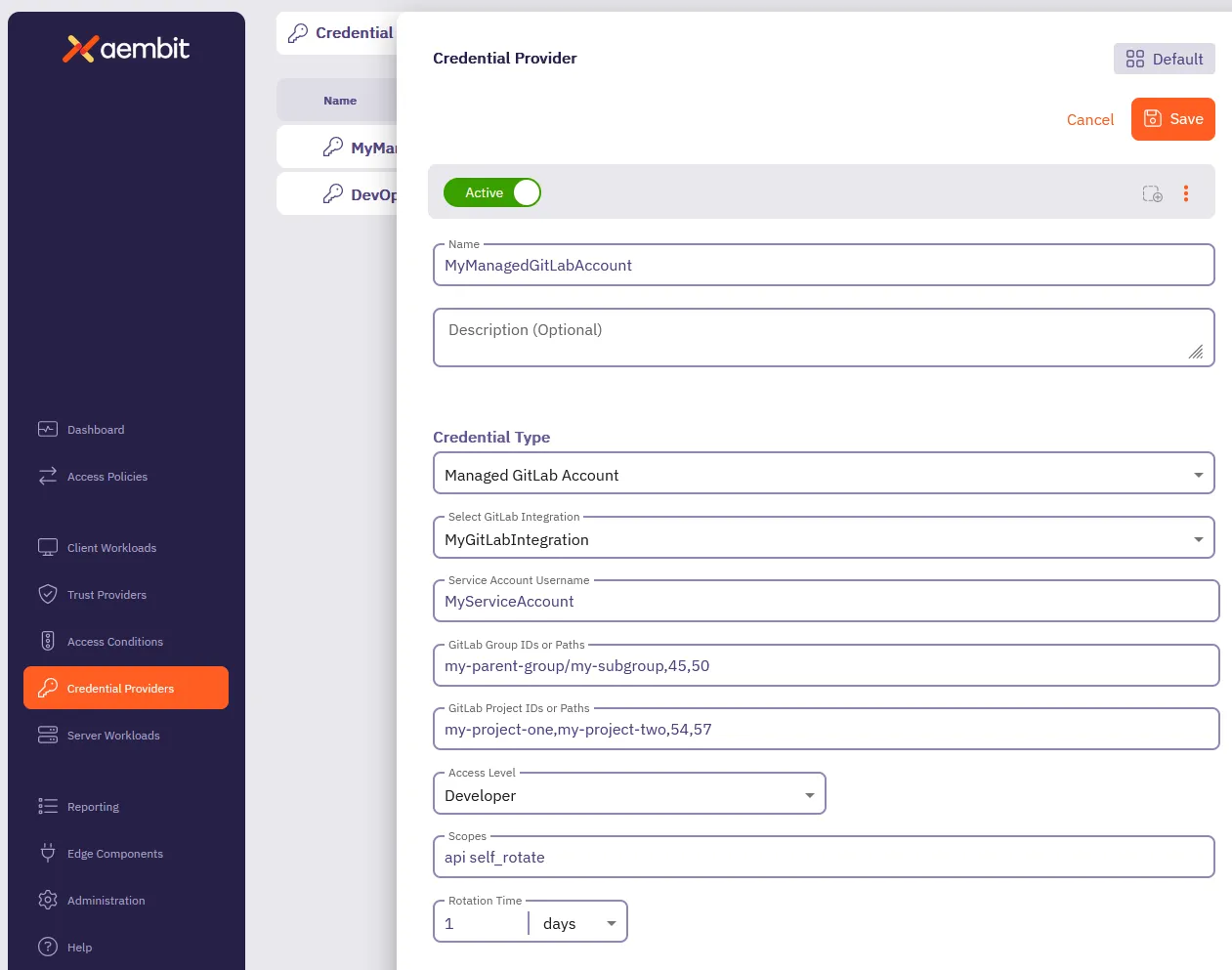 7. Click **Save**. Aembit displays the new Credential Provider in the list of Credential Providers. ## Verify the Credential Provider [Section titled “Verify the Credential Provider”](#verify-the-credential-provider) To verify that you successfully created the Managed GitLab Account Credential Provider and it’s communicating with GitLab: 1. In your Aembit Tenant, go to **Credential Providers**. 2. (Optional) In the top right corner, select the [Resource Set](/user-guide/administration/resource-sets/) that your Credential Provider resides. 3. Select your newly created Credential Provider. Scroll down to see all the details provided by GitLab for this Service Account. You should see something similar to the following screenshot: 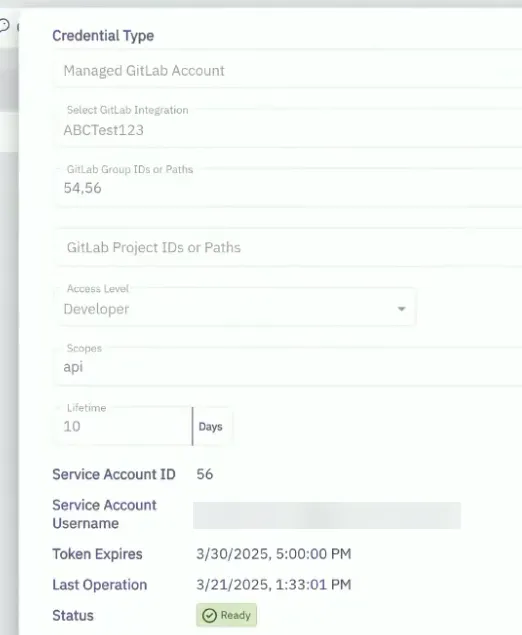 ### (Optional) Verify in the GitLab Admin area [Section titled “(Optional) Verify in the GitLab Admin area”](#optional-verify-in-the-gitlab-admin-area) To verify that the Managed GitLab Account Credential Provider successfully creates service account in GitLab: 1. Log into your *administrator* GitLab account associated with your GitLab Service Account integration. 2. Go to **Admin area -> Overview -> Users**. 3. Select the service account formatted like this: `Aembit__managed_service_account`. 4. On the **Account** tab, verify that the **Username** and **ID** match the values shown in the Credential Provider in the Aembit UI. Similar to the following screenshot: 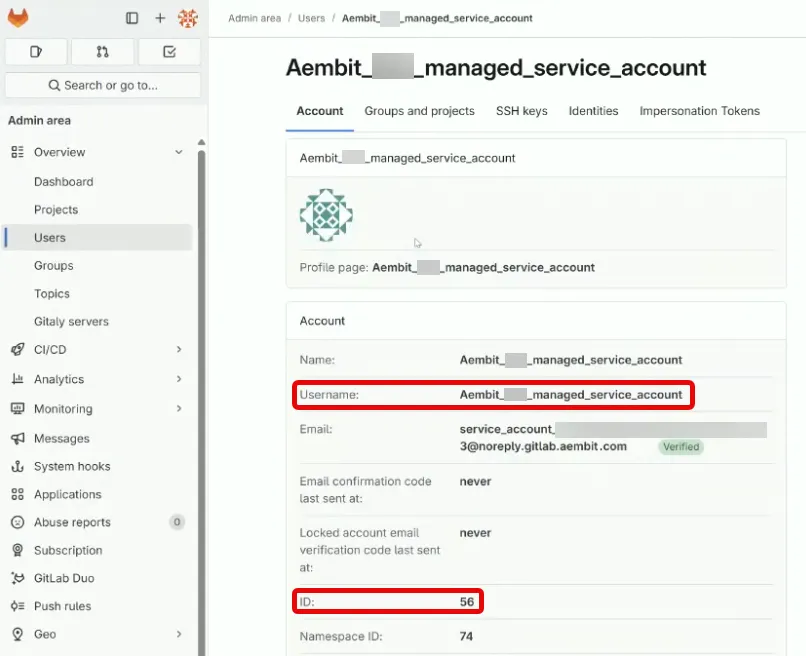 5. On the **Groups and projects** tab, verify that the groups, projects, and access levels match what you entered in the Managed GitLab Account form. GitLab displays these in a table showing Groups with their associated Projects and Access Levels. Similar to the following screenshot: 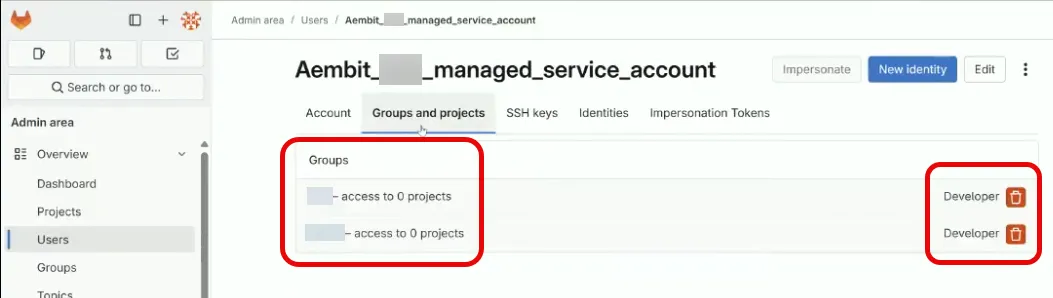
# Configure multiple Credential Providers
> Overview of configuring multiple Credential Providers in a single Access Policy
Some scenarios require multiple Credential Providers**Credential Provider**: Credential Providers obtain the specific access credentials—such as API keys, OAuth tokens, or temporary cloud credentials—that Client Workloads need to authenticate to Server Workloads.[Learn more](/get-started/concepts/credential-providers) in a single Access Policy**Access Policy**: Access Policies define, enforce, and audit access between Client and Server Workloads by cryptographically verifying workload identity and contextual factors rather than relying on static secrets.[Learn more](/get-started/concepts/access-policies). For example, you might need different credentials for different users accessing the same Server Workload**Server Workload**: Server Workloads represent target services, APIs, databases, or applications that receive and respond to access requests from Client Workloads.[Learn more](/get-started/concepts/server-workloads), or different IAM roles for accessing different AWS services. This page provides an overview of multiple Credential Provider support. For configuration procedures, see the type-specific documentation in the following sections. ## Supported Credential Provider types [Section titled “Supported Credential Provider types”](#supported-credential-provider-types) You can add multiple Credential Providers of the following types to a single Access Policy: | Type | Selector mechanism | | ------------------------------------------------------------------------------------------------------------------------------ | --------------------------------------------------------------- | | **[AWS STS Credential Providers (STS)](/user-guide/access-policies/credential-providers/aws-security-token-service-multiple)** | - Access Key ID | | **[JSON Web Token (JWT) Credential Providers](/user-guide/access-policies/credential-providers/json-web-token-multiple)** | - Username (Snowflake Server Workloads only) - HTTP header/body | ## How Credential Provider selection works [Section titled “How Credential Provider selection works”](#how-credential-provider-selection-works) When you configure multiple Credential Providers in an Access Policy, Aembit uses selector values to determine which Credential Provider handles each request. ### AWS STS Credential Providers [Section titled “AWS STS Credential Providers”](#aws-sts-credential-providers) AWS STS Credential Providers use **Access Key ID selectors**. Each Credential Provider in the Access Policy must have a unique Access Key ID that your application uses as a placeholder in requests. Agent Proxy extracts the Access Key ID from the AWS SigV4 Authorization header and routes the request to the matching Credential Provider. For configuration procedures, see [Configure an AWS STS Federation Credential Provider](/user-guide/access-policies/credential-providers/aws-security-token-service-federation#configure-multiple-aws-sts-credential-providers). ### JWT Credential Providers [Section titled “JWT Credential Providers”](#jwt-credential-providers) JWT Credential Providers use **username mapping** (for Snowflake) or **HTTP header/body mapping** (for HTTP workloads). Each Credential Provider must have a unique mapping value. When a request arrives, Aembit extracts the mapping value and routes the request to the matching Credential Provider. For configuration procedures, see [Configure a JWT Credential Provider](/user-guide/access-policies/credential-providers/json-web-token#configure-multiple-jwt-credential-providers). ## Benefits [Section titled “Benefits”](#benefits) * **Simplified policy management** - Manage multiple credentials within a single Access Policy instead of creating separate policies for each credential scenario. * **Scalability** - Efficiently supports multiple Credential Providers per Access Policy. * **Seamless application experience** - Applications can access different resources with different credentials without code changes or multiple Client Workload**Client Workload**: Client Workloads represent software applications, scripts, or automated processes that initiate access requests to Server Workloads, operating autonomously without direct user interaction.[Learn more](/get-started/concepts/client-workloads) identities. ## Related topics [Section titled “Related topics”](#related-topics) * [Using multiple AWS STS Credential Providers](/user-guide/access-policies/credential-providers/aws-security-token-service-multiple) - Learn how Aembit routes requests to multiple AWS STS Credential Providers * [Configure an AWS STS Federation Credential Provider](/user-guide/access-policies/credential-providers/aws-security-token-service-federation) - Configure single and multiple AWS STS Credential Providers * [Using multiple JWT Credential Providers](/user-guide/access-policies/credential-providers/json-web-token-multiple) - Learn how Aembit routes requests to multiple JWT Credential Providers * [Configure a JWT Credential Provider](/user-guide/access-policies/credential-providers/json-web-token) - Configure single and multiple JWT Credential Providers * [Credential Providers overview](/user-guide/access-policies/credential-providers) - Overview of all available Credential Provider types
# Configure OAuth 2.0 Authorization Code Credential Provider
> How to create and use an OAuth 2.0 Authorization Code Credential Provider
Many organizations require access to 3rd party SaaS services that have short-lived access tokens generated on demand for authentication to APIs that these 3rd party services provide. Some critical SaaS services that organizations may use, and need Credential Provider support, include: * Atlassian * GitLab * Slack * Google Workspace * PagerDuty Configuring an OAuth 2.0 Authorization Code Credential Provider requires a few steps, including: 1. Create and configure the Credential Provider. 2. Create and configure the 3rd party Application (examples provided in the Server Workload pages). 3. Authorize the Credential Provider to complete the integration. The sections below describe how you can configure an OAuth 2.0 Authorization Code Credential Provider. For detailed examples on configuring the 3rd party applications, please refer to the respective Server Workload pages, such as the [Atlassian](/user-guide/access-policies/server-workloads/guides/atlassian#oauth-20-authorization-code) example. ## Credential Provider configuration [Section titled “Credential Provider configuration”](#credential-provider-configuration) To configure an OAuth 2.0 Authorization Code Credential Provider, follow the steps outlined below. 1. Log into your Aembit Tenant. 2. Once you are logged into your tenant, click on the **Credential Providers** tab in the left sidebar. You are directed to the Credential Providers page displaying a list of existing Credential Providers. In this example, there are no existing Credential Providers.  3. Click on the **New** button to open the Credential Providers dialog window. 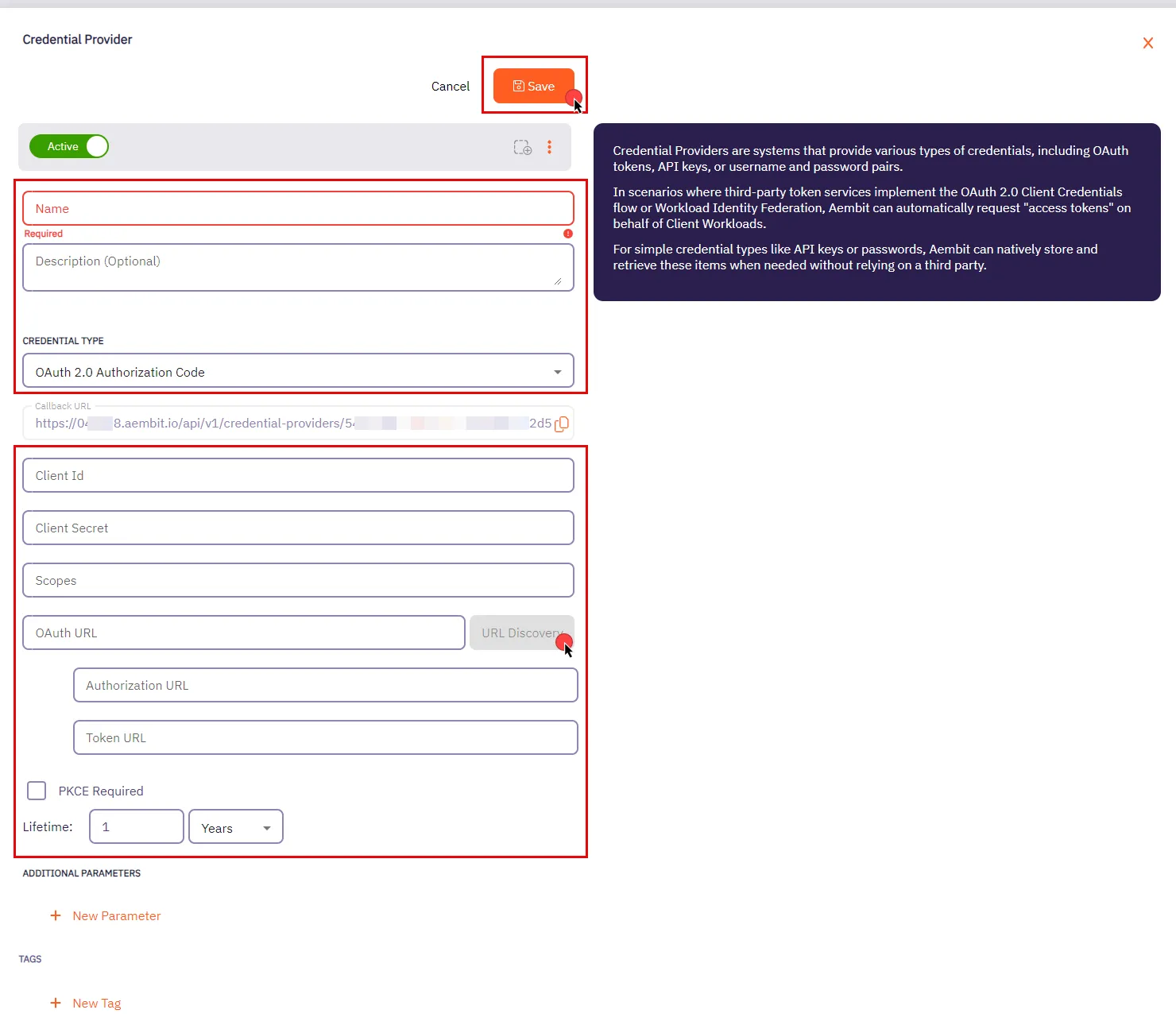 4. In the Credential Providers dialog window, enter the following information: * **Name** - Name of the Credential Provider. * **Description** - An optional text description of the Credential Provider. * **Credential Type** - A dropdown menu that enables you to configure the Credential Provider type. Select **OAuth 2.0 Authorization Code**. * **Callback URL** - An auto-generated Callback URL from Aembit Admin. * **Client ID** - The Client ID associated with the Credential Provider. * **Client Secret** - The Client Secret associated with the Credential Provider. * **Scopes** - The list of scopes for the Credential Provider. This should be a list of individual scopes separated by spaces. * **OAuth URL** - The base URL for all OAuth-related requests. Use the **URL Discovery** button next to this field to automatically populate the Authorization URL and Token URL if the correct OAuth URL is provided. * **Authorization URL** - The endpoint where user is redirected to authenticate and authorize access to your application. * **Token URL** - The URL where the authorization code is exchanged for an access token. * **PKCE Required** - Configure Aembit to use PKCE for the 3rd party OAuth integration (recommended). * **Lifetime** - The lifetime of the retrieved credential. Aembit uses this to send notification reminders to the user prior to the authorization expiring. 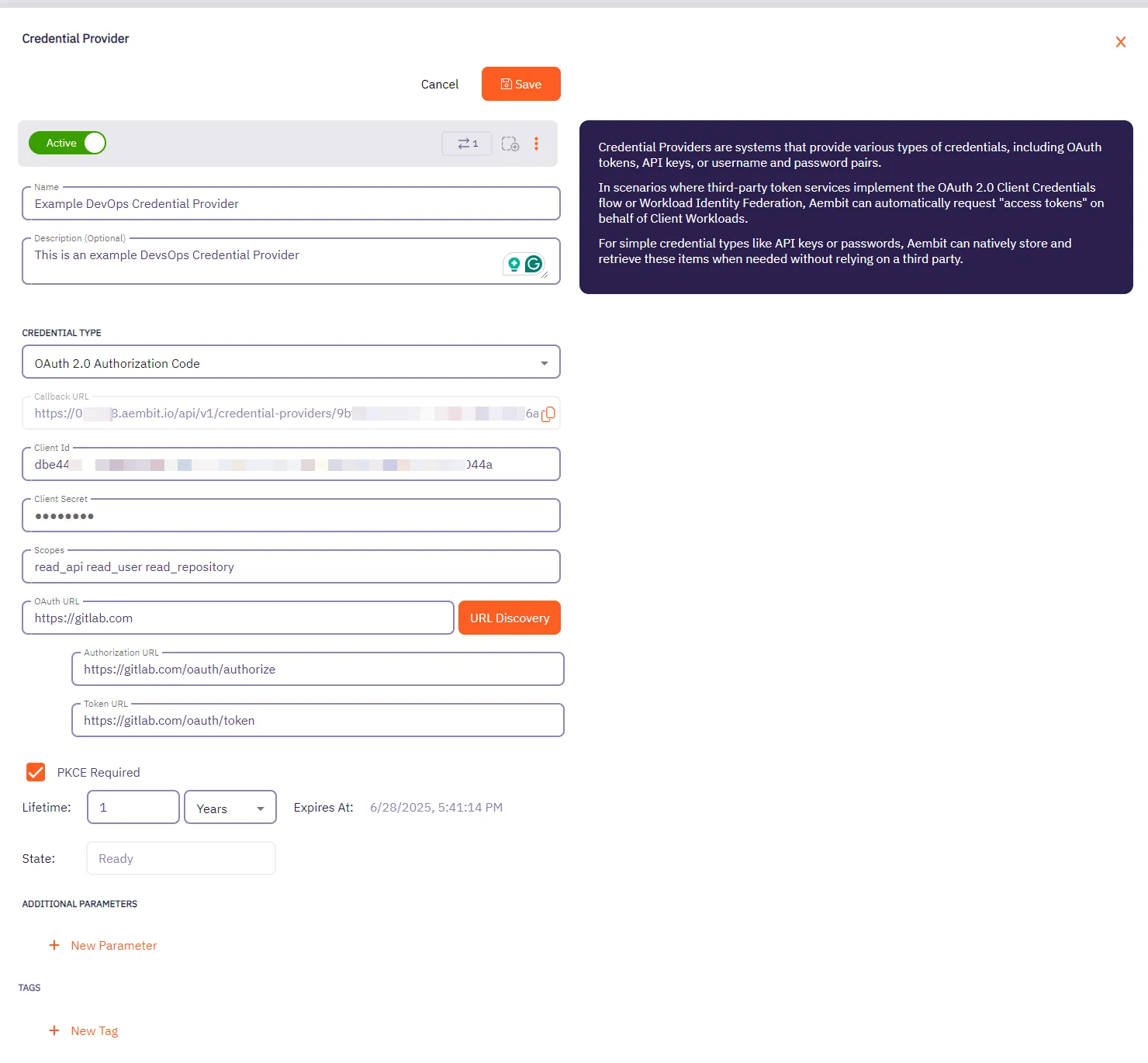 5. Click **Save** when finished. You will be directed back to the Credential Providers page, where you will see your newly created Credential Provider. 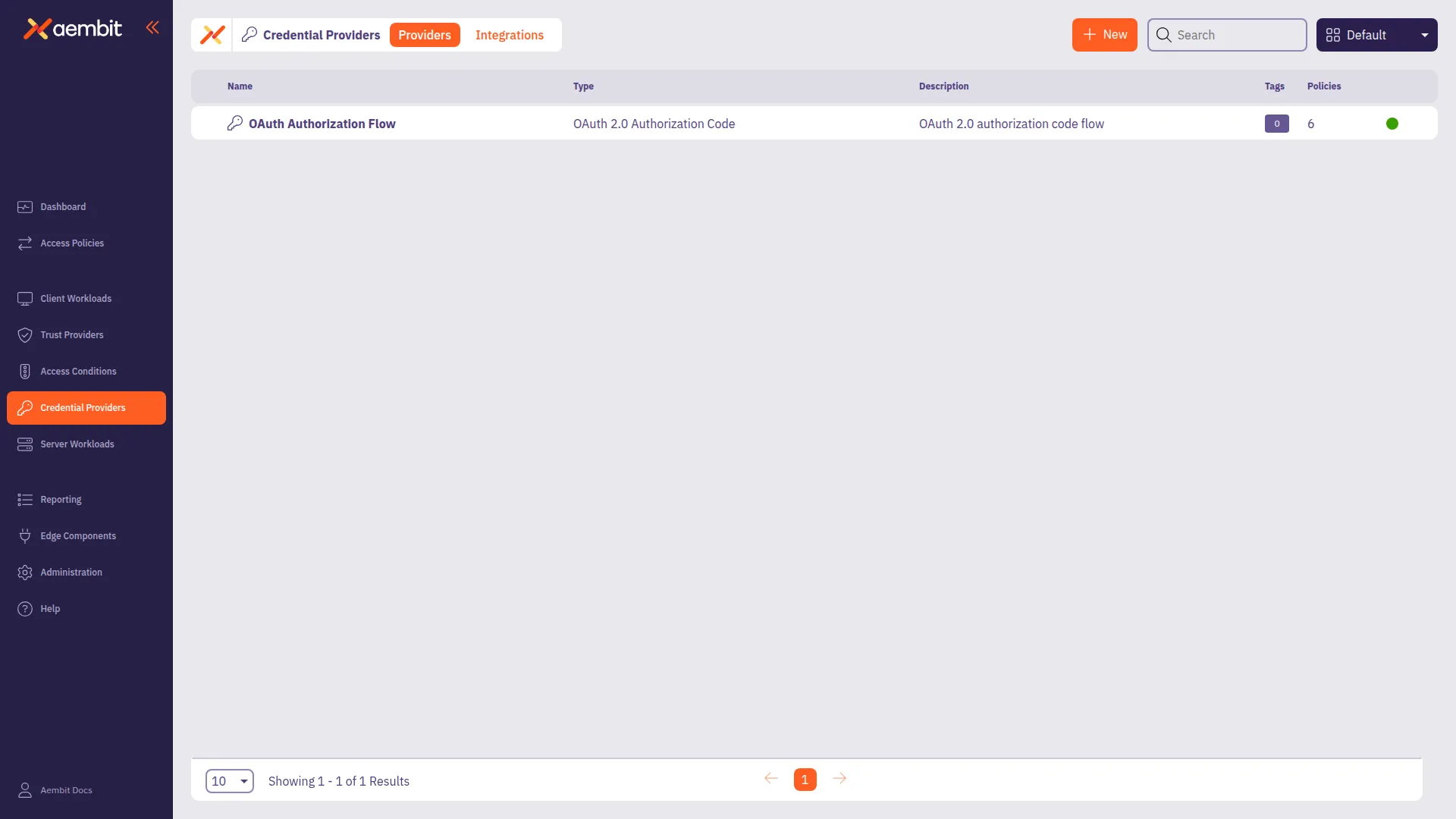
# Configure an OAuth 2.0 Client Credentials Credential Provider
> How to create and use an OAuth 2.0 Client Credentials Credential Provider
The OAuth 2.0 Client Credentials Flow, described in [OAuth 2.0 RFC 6749 (section 4.4)](https://datatracker.ietf.org/doc/html/rfc6749#section-4.4), is a method in which an application can obtain an access token by using its unique credentials such as client ID and client secret. This process is typically used when an application needs to authenticate itself, without requiring user input, to access protected resources. ## Credential Provider configuration [Section titled “Credential Provider configuration”](#credential-provider-configuration) To configure an OAuth 2.0 Client Credentials Credential Provider, follow the steps outlined below. 1. Log into your Aembit Tenant. 2. Once you are logged into your tenant, click on the **Credential Providers** tab in the left sidebar. You are directed to the Credential Providers page displaying a list of existing Credential Providers. In this example, there are no existing Credential Providers.  3. Click on the **New** button to open the Credential Providers dialog window. 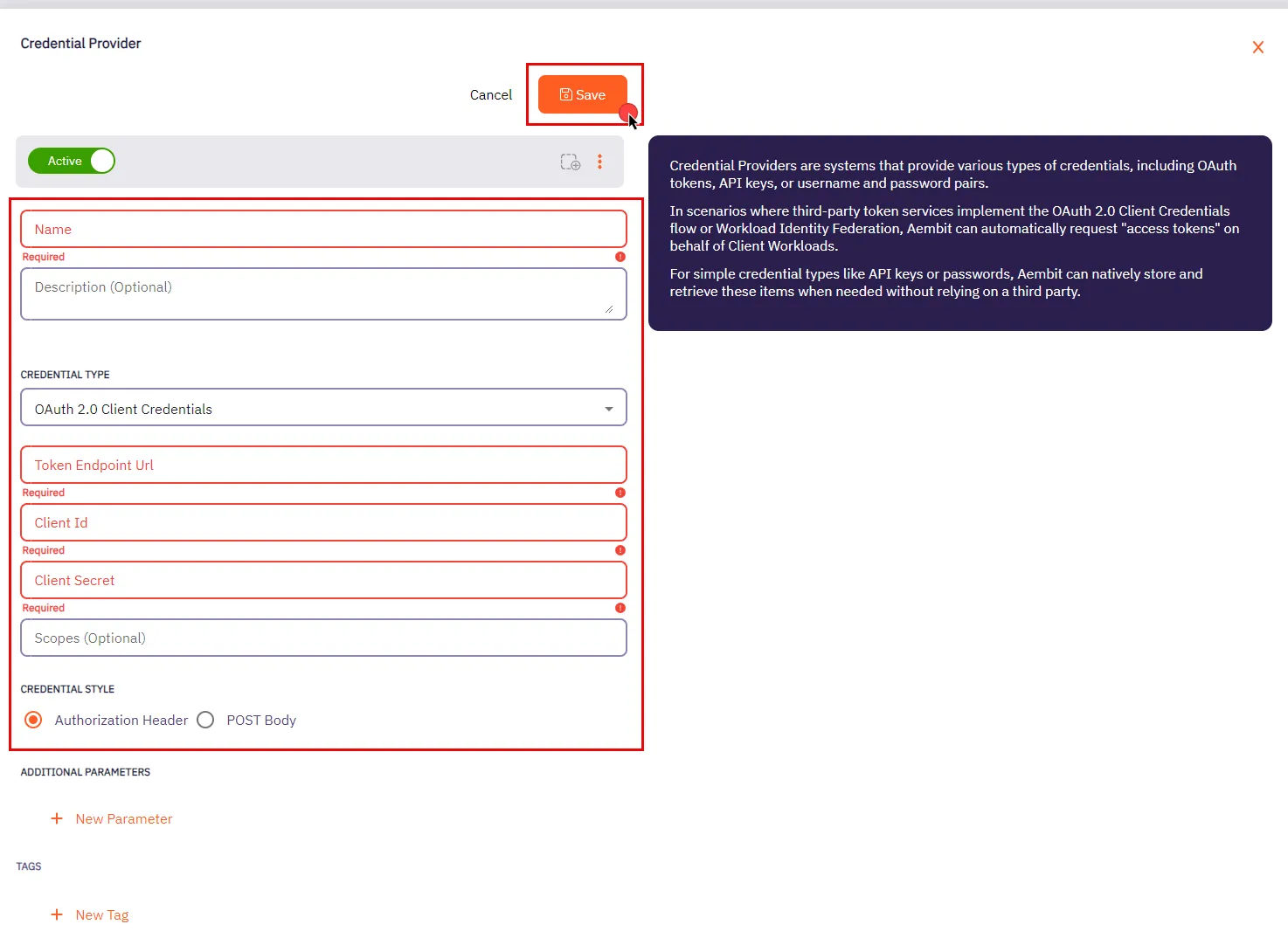 4. In the Credential Providers dialog window, enter the following information: * **Name** - Name of the Credential Provider. * **Description** - An optional text description of the Credential Provider. * **Credential Type** - A dropdown menu that enables you to configure the Credential Provider type. Select **OAuth 2.0 Client Credentials**. * **Token Endpoint Url** - The Token Endpoint URL is the designated location where an application can obtain an access token through the OAuth 2.0 Client Credentials Flow. * **Client Id** - The Client ID is a unique identifier assigned to your application upon registration. You can find your application’s Client ID in the respective section provided by the OAuth Server. * **Client Secret** - The Client Secret is a secret that is only known to the client (application) and the Authorization Server. It is used for secure authentication between the client and the Authorization Server. * **Scopes (optional)** - OAuth 2.0 allows clients to specify the level of access they require while seeking authorization. Typically, scopes are documented by the server to inform clients about the access required for specific actions. * **Credential Style** - A set of options that allows you to choose how the credentials are sent to the authorization server when requesting an access token. You can select one of the following options: * **Authorization Header** - The credentials are included in the request’s Authorization header as a Base64-encoded string. This is the most common and secure method. * **POST Body** - The credentials are sent in the body of the POST request as form parameters. This method is less common and may be required by certain servers that don’t support the Authorization header. Make sure to review your Server Workload documentation to determine what is considered the credential style in that specific context. 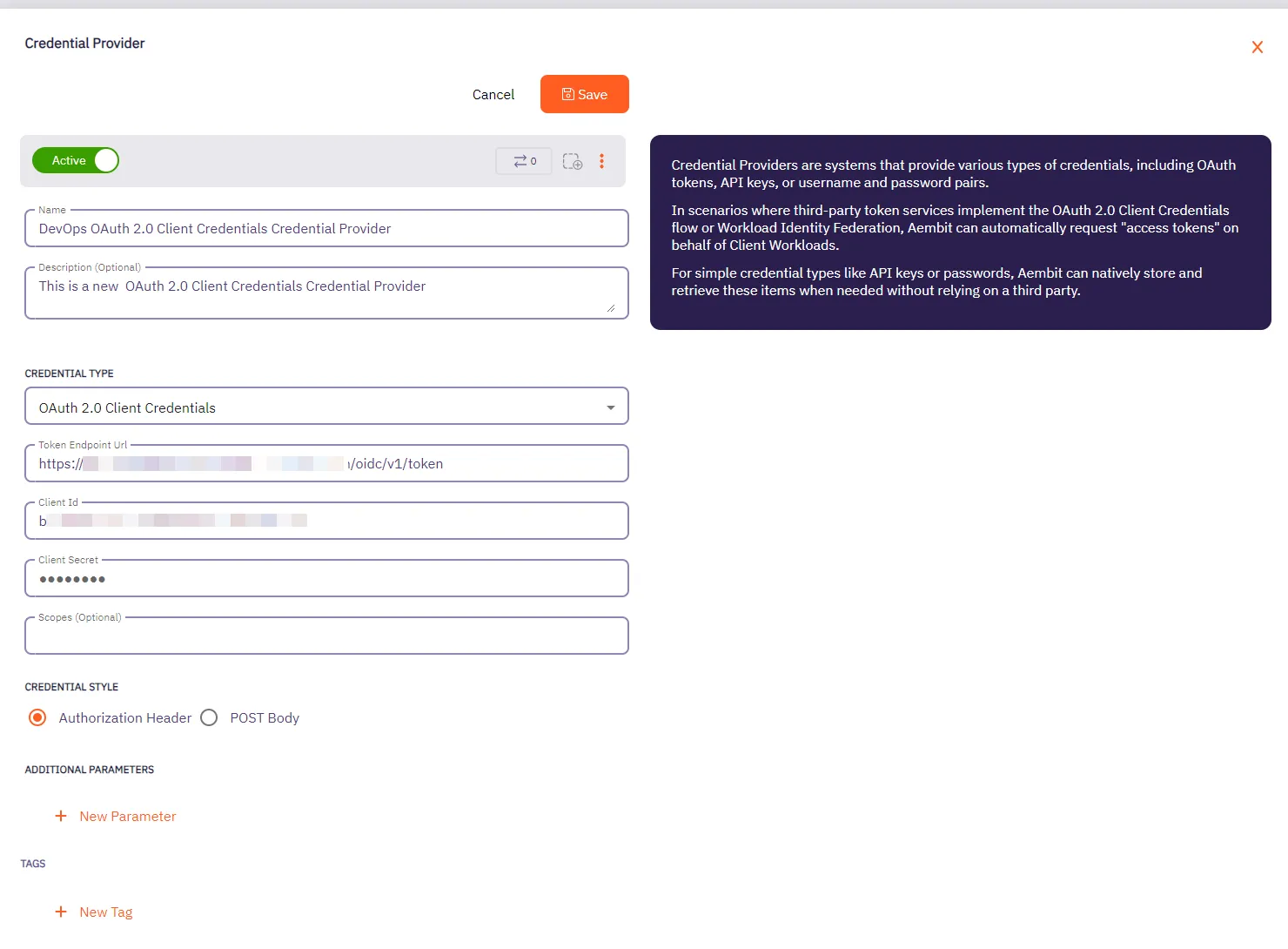 5. Click **Save** when finished. You will be directed back to the Credential Providers page, where you will see your newly created Credential Provider. 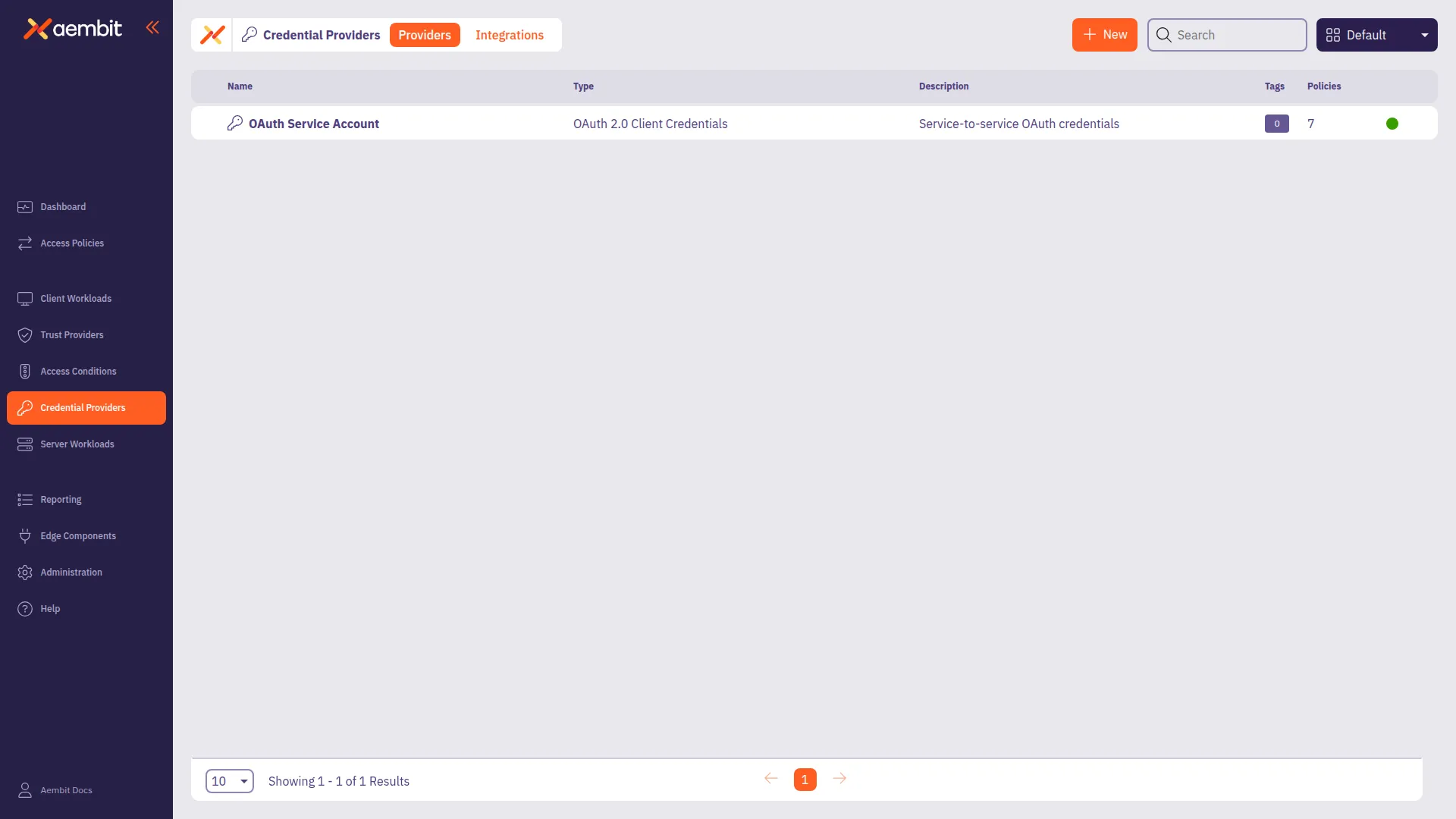
# Create an OIDC ID Token Credential Provider
> How to create an OIDC ID Token Credential Provider
The [OIDC ID Token Credential Provider](/user-guide/access-policies/credential-providers/about-oidc-id-token) enables secure identity token generation and exchange with third-party services. You can configure the following options for your OIDC ID Token Credential Provider: * custom claims configuration. * flexible signing algorithms (ES256 and RS256). * support for Workload Identity Federation (WIF) solutions such as AWS Security Token Service (STS), Google Cloud Platform (GCP) WIF, Azure WIF, Vault, and more. ## Create an OIDC ID Token Credential Provider [Section titled “Create an OIDC ID Token Credential Provider”](#create-an-oidc-id-token-credential-provider) To create an OIDC ID Token Credential Provider, follow these steps: 1. Log into your Aembit Tenant, and go to **Credential Providers** in the left sidebar. 2. (Optional) In the top right corner, select the [Resource Set](/user-guide/administration/resource-sets/) that you want this Credential Provider to reside. 3. Click **+ New**, which displays the Credential Provider pop out menu. 4. Enter a **Name** and optional **Description**. 5. Under **Credential Type**, select **OIDC ID Token**, revealing more fields. 6. Fill out the remaining fields: * **Subject** - Enter the unique identifier for the workload receiving the token. Choose how Aembit determines the subject claim in your OIDC tokens: * **Dynamic** - Aembit determines the subject at runtime based on the calling workload’s identity. You can use expressions like `${oidc.identityToken.decode.payload.user_login}` to extract values from incoming OIDC tokens. * **Literal** - Aembit uses a fixed value that as the subject for all tokens * **Issuer** - The issuer URL identifies who created and signed the token. This value should match what your relying party expects. Aembit automatically generates this value based on your tenant information. * **Lifetime** - Specify how long (in seconds) your OIDC tokens remain valid after issuance. Match your security requirements and target system expectations: * Shorter lifetimes (minutes to hours) increase security * Longer lifetimes reduce token refresh frequency * **Signing Algorithm Type** - Select the algorithm Aembit uses to sign your OIDC tokens: * **RSASSA-PKCS1-v1\_5 using SHA-256** (default) - RS256 Signature with SHA-256 (widely supported) * **ECDSA using P-256 and SHA-256** - ES256 signature with P-256 curve and SHA-256 * **Audience** - Enter the URI or identifier of the service or API that validates this token. This should match what your target identity broker or service expects. 7. (Optional) For **Custom Claims**, click **New Claim**. For a list of common custom claims, see [Common OIDC claims](/user-guide/access-policies/credential-providers/about-oidc-id-token#common-oidc-claims). Then fill out the following: 1. Enter **Claim Name** (for example: `groups`, `email`, `role`, `environment`). 2. For **Value** enter the value based on which type you choose: * **Literal** - Enter the exact string value to include in the token * **Dynamic** - Enter an expression using the syntax `${expression}` or extract claims from OIDC tokens For detailed information on dynamic claims syntax and examples, see [OIDC Dynamic Claims](/user-guide/access-policies/credential-providers/advanced-options/dynamic-claims-oidc). 8. (Optional) Repeat the preceding step for each additional Claim. 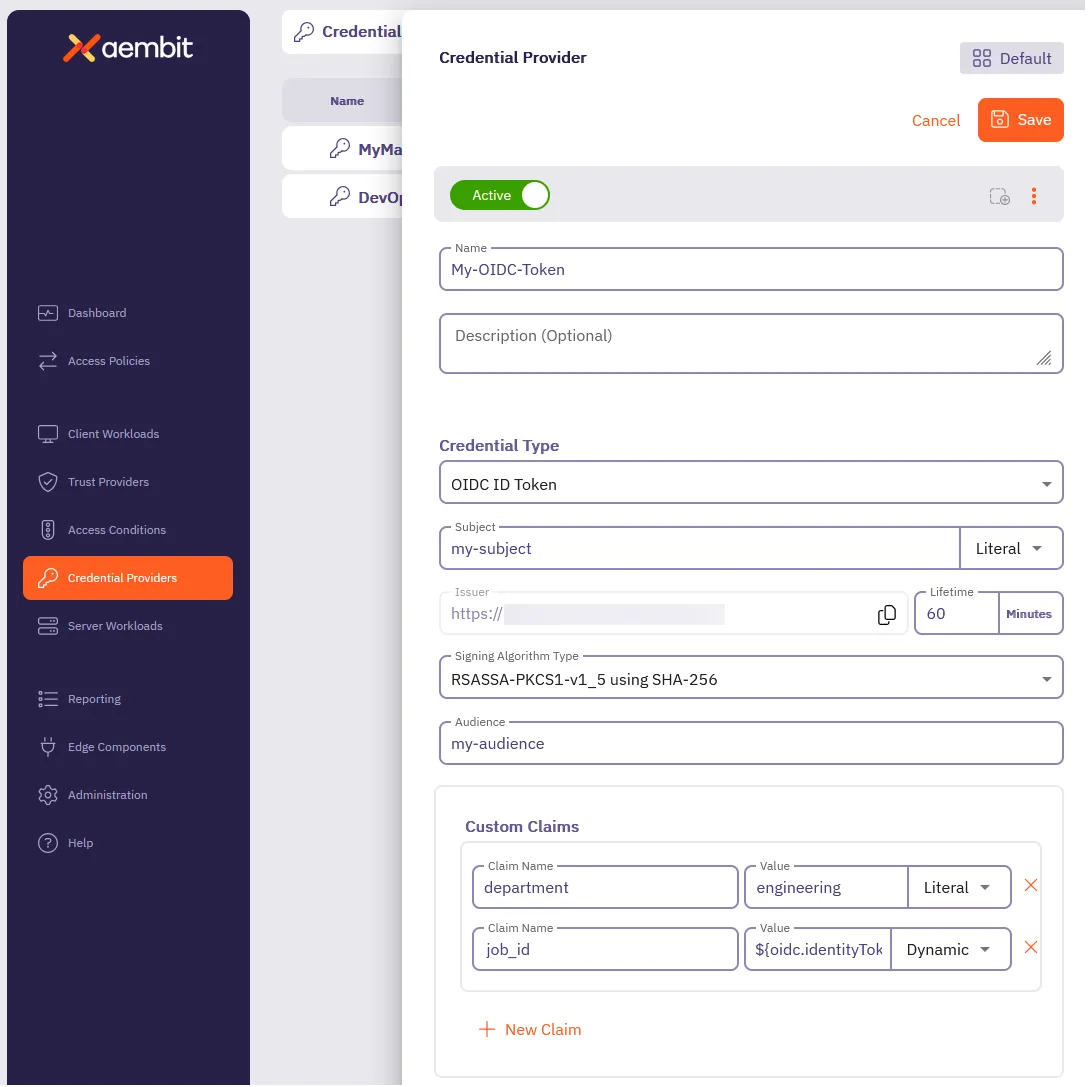 9. Click **Save**. ## Verify your OIDC ID Token Credential Provider [Section titled “Verify your OIDC ID Token Credential Provider”](#verify-your-oidc-id-token-credential-provider) To verify an OIDC ID Token is retrievable from the identity provider you configured, follow these steps: 1. In your Aembit Tenant, go to **Credential Providers** in the left sidebar menu. 2. Select the OIDC ID Token from the list of Credential Providers that you want to verify. This reveals the Credential Provider pop out menu. 3. Click **Verify** at the top. 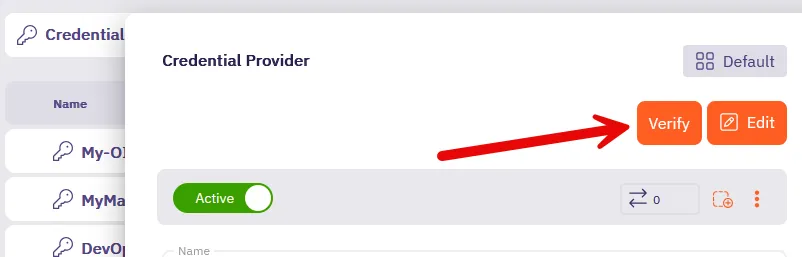 4. When successful, Aembit posts a green notification that says “**Verified successfully**.” If the verification isn’t successful, double check your configuration to make sure all the values are correct, then try again. ## Terraform configuration [Section titled “Terraform configuration”](#terraform-configuration) You can automate the creation and management of your OIDC ID Token Credential Provider using Terraform. The following is an example ```hcl resource "aembit_credential_provider" "" { name = "Example OIDC ID Token" is_active = true oidc_id_token = { subject = "example-subject" subject_type = "literal" # Options: "literal" or "dynamic" lifetime_in_minutes = 60 audience = "api.example.com" algorithm_type = "RS256" # Options: "RS256", "ES256" custom_claims = [ { key = "department" value = "engineering" value_type = "literal" }, { key = "role" value = "developer" value_type = "dynamic" } ] } tags = { environment = "production" team = "platform" } } ``` To create an OIDC ID Token Credential Provider with Terraform, follow these steps: 1. Create a Terraform file (for example, `oidc_provider.tf`) with your configuration 2. Initialize the Terraform environment: ```shell terraform init ``` 3. Review the planned changes: ```shell terraform plan ``` 4. Apply the configuration: ```shell terraform apply ``` 5. [Verify](#verify-your-oidc-id-token-credential-provider) the newly created Credential Provider in the Aembit Tenant UI.
# Private Network Access for Credential Providers
> How to use Private Network Access to retrieve credentials from secrets managers in private networks
Private Network Access (PNA) allows Aembit to retrieve credentials from secrets managers in your private network. This includes secrets managers accessible only within an AWS Virtual Private Cloud (VPC) or Azure Virtual Network. By default, Aembit Cloud connects directly to external secrets managers (like AWS Secrets Manager, Azure Key Vault, or HashiCorp Vault) to retrieve credentials on behalf of your workloads. However, if you restrict your secrets manager to a private network, Aembit Cloud can’t reach it. With PNA, credential retrieval happens through your Aembit Edge component (Aembit CLI or Agent Proxy) instead of Aembit Cloud. This allows you to keep your secrets manager in a private network while still using Aembit for workload identity and access management. ## When to use Private Network Access [Section titled “When to use Private Network Access”](#when-to-use-private-network-access) Enable PNA when: * Your secrets manager endpoint is only reachable from within a private network or VPC endpoint * You don’t want to maintain IP allowlists for Aembit Cloud in your cloud environment * You want all access to your secrets manager to originate from your own infrastructure ## How it works [Section titled “How it works”](#how-it-works) When you enable PNA for a Credential Provider: 1. **Aembit Cloud instructs your Edge component** to retrieve the credential using the integration you configured. 2. **The Edge component accesses the secrets manager** from your private network and reads the secret. 3. **Aembit receives the secret value** and injects it into your Server Workloads according to your Access Policies. Enabling PNA only affects *where* Aembit retrieves credentials from (Aembit Cloud vs your Edge component). It doesn’t change *how* Aembit delivers credentials to your Server Workloads—your Access Policies and Server Workload configuration still control those behaviors. ## Requirements [Section titled “Requirements”](#requirements) PNA requires: * An Aembit Edge component (Aembit CLI or Agent Proxy) running in your private network * Network connectivity from the Edge component to your secrets manager * The same integration and permissions you would use without PNA ### Agent Proxy version requirements [Section titled “Agent Proxy version requirements”](#agent-proxy-version-requirements) | Credential Provider | Minimum Version | Recommended Version | Notes | | ---------------------------- | ---------------- | ---------------------- | -------------------------------------------------------------------------------------------------------------------------------------------------------------------------------------------------------------------- | | HashiCorp Vault Client Token | Agent Proxy 1.20 | Agent Proxy 1.20+ | Initial and current PNA behavior are the same. When you enable PNA, all Vault access for this provider runs through your Edge component. | | AWS Secrets Manager Value | Agent Proxy 1.25 | Agent Proxy 1.28.4063+ | Agent Proxy 1.25 adds basic PNA support so your Edge component can retrieve secrets. Use Agent Proxy 1.28.4063+ for full PNA support, where your Edge component handles all AWS access for this Credential Provider. | | Azure Key Vault Value | Agent Proxy 1.26 | Agent Proxy 1.26+ | Private Network Access for Azure Key Vault requires Agent Proxy 1.26 or later. When you enable PNA, your Edge component handles all Key Vault access for this provider. | ## Supported Credential Providers [Section titled “Supported Credential Providers”](#supported-credential-providers) The following Credential Providers support PNA: | Credential Provider | PNA Support | Limitations | | ---------------------------------------------------------------------------------------------------- | ----------- | ---------------------------------------------------- | | [HashiCorp Vault Client Token](/user-guide/access-policies/credential-providers/vault-client-token/) | Supported | None | | [AWS Secrets Manager Value](/user-guide/access-policies/credential-providers/aws-secrets-manager/) | Supported | HTTP Basic Auth with Username/Password not supported | | [Azure Key Vault Value](/user-guide/access-policies/credential-providers/azure-key-vault/) | Supported | None | ## Troubleshooting [Section titled “Troubleshooting”](#troubleshooting) If credential retrieval fails with PNA enabled: * **Check network connectivity:** Confirm the host running the Aembit CLI or Agent Proxy can reach your secrets manager endpoint (check DNS resolution, firewall rules, and VPC peering/endpoints) * **Verify permissions:** Confirm the integration’s identity (IAM role, service principal, or Vault token) has permission to read the specified secret * **Check secret format:** Ensure the secret data format matches your selected Credential Value Type For provider-specific troubleshooting, see the individual Credential Provider documentation in the preceding section. ## Related topics [Section titled “Related topics”](#related-topics) * [AWS Secrets Manager Credential Provider](/user-guide/access-policies/credential-providers/aws-secrets-manager/) * [Azure Key Vault Credential Provider](/user-guide/access-policies/credential-providers/azure-key-vault/) * [HashiCorp Vault Client Token Credential Provider](/user-guide/access-policies/credential-providers/vault-client-token/)
# Create a JWT-SVID Token Credential Provider
> How to create a JWT-SVID Token Credential Provider
The [JWT-SVID Token Credential Provider](/user-guide/access-policies/credential-providers/about-spiffe-jwt-svid) enables secure identity token generation that complies with SPIFFE (Secure Production Identity Framework for Everyone) standards. This credential provider is similar to the [OIDC ID Token Credential Provider](/user-guide/access-policies/credential-providers/oidc-id-token), but enforces SPIFFE-specific formatting requirements for the subject claim. You can configure the following options for your JWT-SVID Token Credential Provider: * Subject (SPIFFE ID) configuration with literal or dynamic values. * Automatic issuer URL generation based on your tenant. * Audience configuration for target system validation. * Token lifetime settings (default 1 hour). * Signing algorithms (RS256 and ES256). * Custom claims for enhanced workload context. ## Create a JWT-SVID Token Credential Provider [Section titled “Create a JWT-SVID Token Credential Provider”](#create-a-jwt-svid-token-credential-provider) To create a JWT-SVID Token Credential Provider, follow these steps: 1. Log into your Aembit Tenant, and go to **Credential Providers** in the left sidebar. 2. (Optional) In the top right corner, select the [Resource Set](/user-guide/administration/resource-sets/) that you want this Credential Provider to reside. 3. Click **+ New**, which displays the Credential Provider pop out menu. 4. Enter a **Name** and optional **Description**. 5. Under **Credential Type**, select **JWT-SVID Token**, revealing more fields. 6. Fill out the remaining fields: * **Subject** - Enter the SPIFFE ID that you want as the subject claim in the JWT-SVID. Choose how to specify the subject: * **Literal** - Enter a fixed SPIFFE ID (for example, `spiffe://example.com/workload/api-service`) * **Dynamic** - Use variables to generate SPIFFE IDs at runtime. Use the syntax `${expression}` to create dynamic values. For example: * `spiffe://your-domain/ns/${namespace}/sa/${serviceaccount}` for Kubernetes * `spiffe://your-domain/aws/account/${account}/role/${role}` for AWS * **Issuer** - Aembit automatically generates this value based on your tenant information. The issuer URL identifies who created and signed the token. * **Audience** - Enter the identifiers that the receiving service expects in the `aud` claim. This can be a single string value (for example, `my-service.example.com`) The audience must match what your SPIFFE-aware target system expects for validation. * **Lifetime** - Specify how long (in minutes) your JWT-SVIDs remain valid after issuance. * Default: 15 minutes * Shorter lifetimes increase security * SPIFFE recommends tokens expire within 1 hour * **Algorithm Type** - Select the signing algorithm for your JWT-SVIDs: * **RSASSA-PKCS1-v1\_5 using SHA-256** (RS256) - Default, widely compatible * **ECDSA using P-256 and SHA-256** (ES256) - Recommended for SPIFFE-compliant systems 7. (Optional) For **Custom Claims**, click **+ New Claim**. Custom claims provide additional context about the workload identity. Common SPIFFE JWT-SVID custom claims include: * `namespace` - Kubernetes namespace * `service_account` - Kubernetes service account name * `aws_account` - AWS account ID * `environment` - Deployment environment (production, staging, etc.) * `region` - Geographic or cloud region * `cluster` - Kubernetes cluster name Then fill out the following: 1. Enter **Claim Name** (for example: `namespace`, `cluster`, `environment`). 2. For **Value** enter the value based on which type you choose: * **Literal** - Enter the exact string value to include in the token * **Dynamic** - Enter an expression using the syntax `${expression}` to extract values from workload identity For detailed information on dynamic claims syntax and examples, see [Dynamic Claims for OIDC and JWT-SVID Tokens](/user-guide/access-policies/credential-providers/advanced-options/dynamic-claims-oidc). 8. (Optional) Repeat the preceding step for each additional Claim. 9. Click **Save**. ## Verify your JWT-SVID Token Credential Provider [Section titled “Verify your JWT-SVID Token Credential Provider”](#verify-your-jwt-svid-token-credential-provider) To verify a JWT-SVID token is retrievable and formatted correctly, follow these steps: 1. In your Aembit Tenant, go to **Credential Providers** in the left sidebar. 2. Select the JWT-SVID Token from the list of Credential Providers that you want to verify. This reveals the Credential Provider pop out menu. 3. Click **Verify** at the top.  4. When successful, Aembit posts a green notification that says “**Verified successfully**”. The verification confirms: * Subject follows SPIFFE format (starts with `spiffe://`) * JWT header type set to “JWT” * Token includes the configured claims * Correct scope set for the credential provider * Token signing works with selected algorithm If the verification isn’t successful, double check your configuration to make sure all the values are correct, then try again. Common issues include: * Invalid SPIFFE ID format (must start with `spiffe://`) * Missing or invalid trust domain ## JWKS endpoint for verification [Section titled “JWKS endpoint for verification”](#jwks-endpoint-for-verification) SPIFFE-aware systems can verify JWT-SVIDs issued by Aembit using the public JWKS endpoint: ```shell https://.id.useast2.aembit.io/.well-known/openid-configuration/jwks ``` This endpoint provides: * Public keys for signature verification * Support for both ES256 and RS256 algorithms * Automatic key rotation management * Standards-compliant JWKS format ## Integration with SPIFFE-aware systems [Section titled “Integration with SPIFFE-aware systems”](#integration-with-spiffe-aware-systems) Once configured, your JWT-SVID Token Credential Provider can authenticate workloads to: * **Service Meshes** - Istio, Consul, Linkerd, and other SPIFFE-compliant service meshes * **SPIFFE Libraries** - Applications using SPIFFE SDK libraries for token validation * **Zero Trust Platforms** - Security platforms that validate SPIFFE identities * **Custom Services** - Any service configured to validate JWT-SVIDs against Aembit’s JWKS endpoint For more information about SPIFFE standards and implementation, see: * [SPIFFE JWT-SVID Specification](https://spiffe.io/docs/latest/keyless/) * [How to Construct SPIFFE IDs](https://www.spirl.com/blog/how-to-construct-spiffe-ids/)
# Configure a Username & Password Credential Provider
> How to create and use a Username & Password Credential Provider
The Username & Password credential provider is tailored for Server Workloads requiring username and password authentication, such as databases and Server Workloads utilizing HTTP Basic authentication. ## Credential Provider configuration [Section titled “Credential Provider configuration”](#credential-provider-configuration) To configure a Username & Password Credential Provider, follow the steps outlined below. 1. Log into your Aembit Tenant. 2. Once you are logged into your tenant, click on the **Credential Providers** tab in the left sidebar. You are directed to the Credential Providers page displaying a list of existing Credential Providers. In this example, there are no existing Credential Providers.  3. Click on the **New** button to open the Credential Providers dialog window. 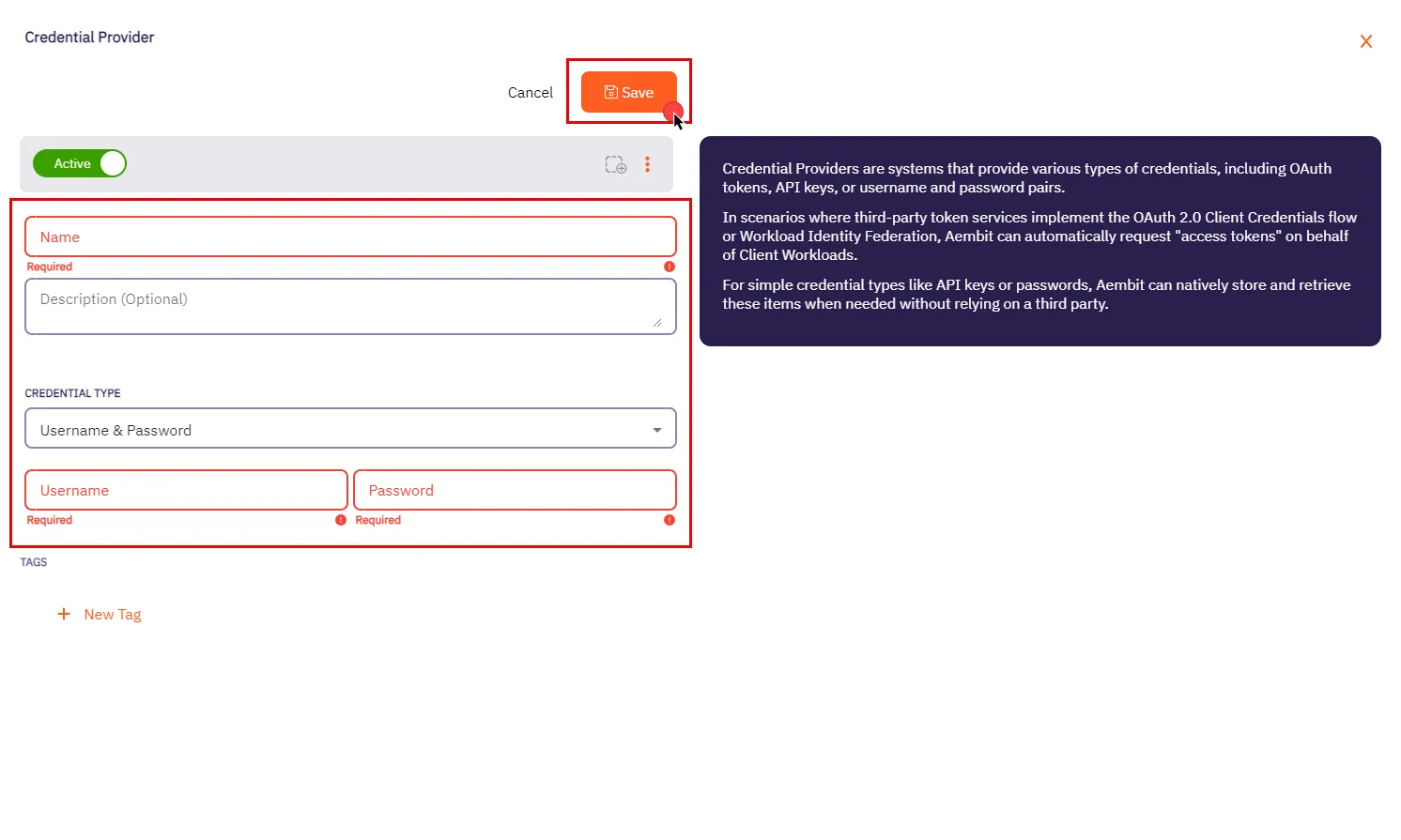 4. In the Credential Providers dialog window, enter the following information: * **Name** - Name of the Credential Provider. * **Description** - An optional text description of the Credential Provider. * **Credential Type** - A dropdown menu that enables you to configure the Credential Provider type. Select **Username & Password**. * **Username** - The username serves as the access credential associated with the account or system, allowing authentication for accessing the Server Workload. Depending on the context, the **Username** could take various forms: * **Email Address** - Use the full email address associated with the account. * **Master User** - In certain systems, this might be a master user account that has privileged access. * **Account Username** - This could be a specific username assigned to the account for authentication purposes. Please make sure to review your Server Workload documentation to determine what is considered a username in that specific context. * **Password** - The corresponding password for the provided username. Please refer to the specific Server Workload documentation for accurate configuration details. 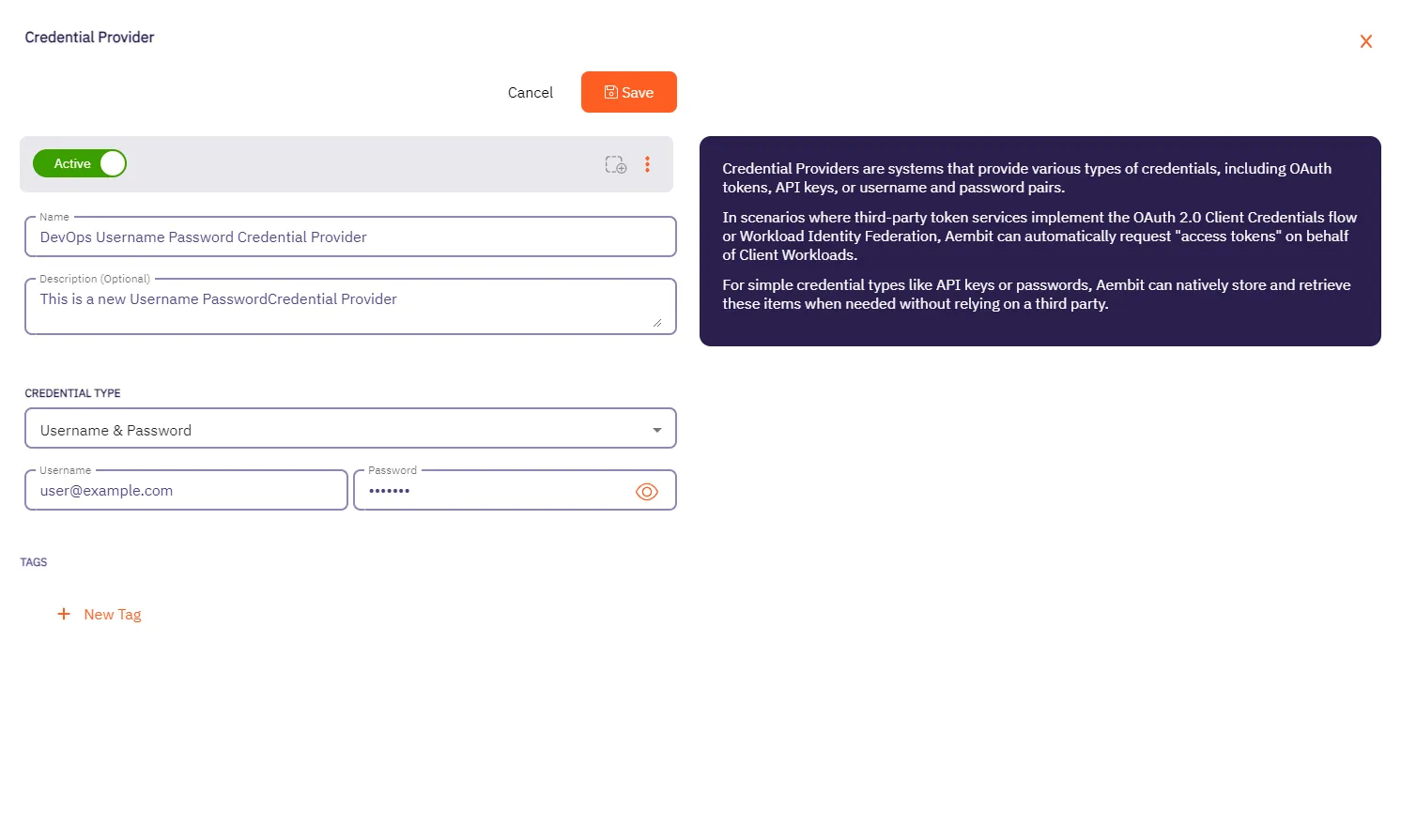 5. Click **Save** when finished. You will be directed back to the Credential Providers page, where you will see your newly created Credential Provider. 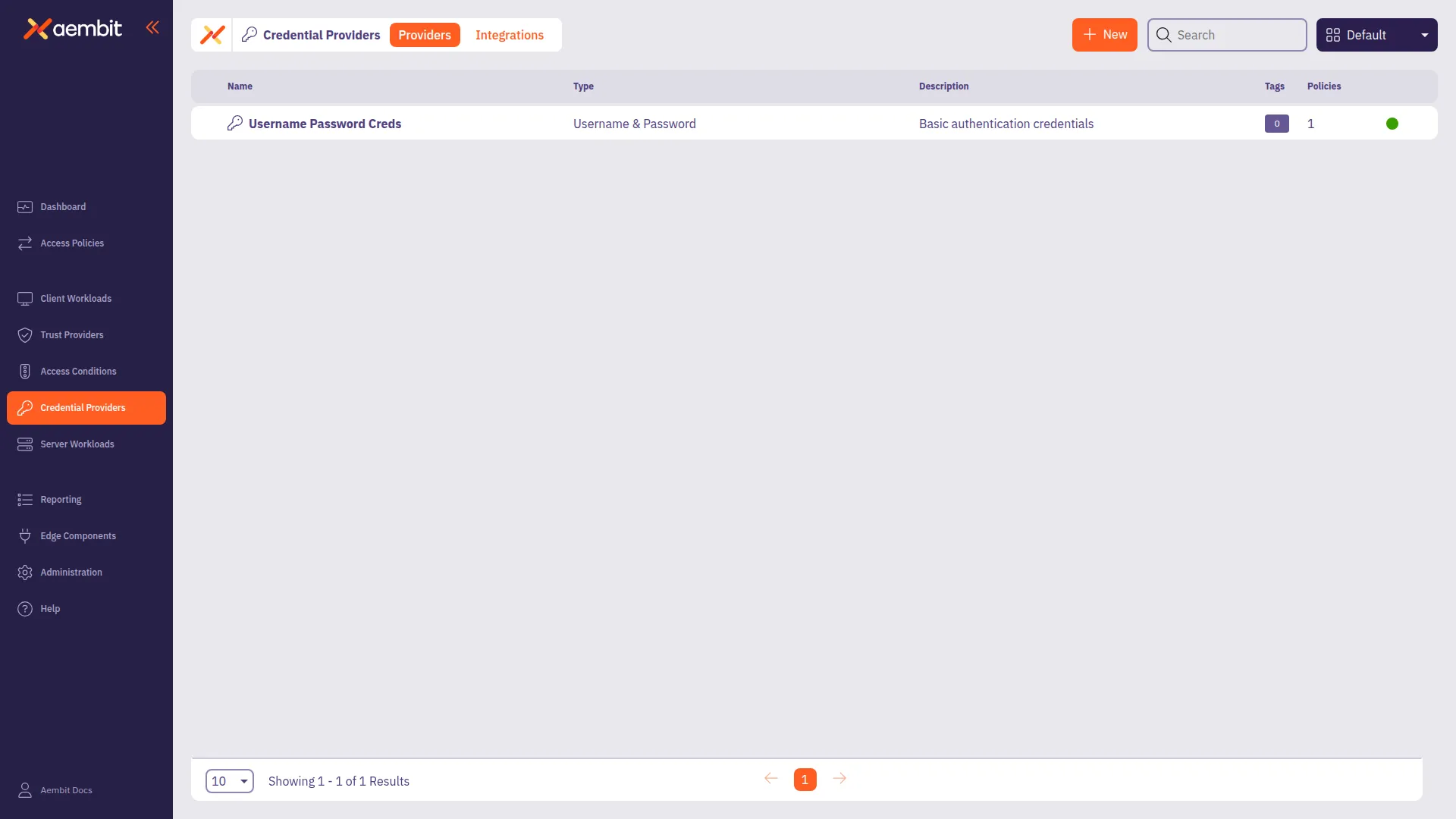
# Configure a HashiCorp Vault Client Token Credential Provider
> How to configure a Credential Provider for HashiCorp Vault Client Token
Aembit’s Credential Provider for HashiCorp Vault (or just Vault) enables you to integrate Aembit with your Vault services. This Credential Provider allows your Client Workloads to securely authenticate with Vault using OpenID Connect (OIDC) and obtain short-lived JSON Web Tokens (JWTs) for accessing Vault resources. * **OIDC Issuer URL** - OpenID Connect (OIDC) Issuer URL, auto-generated by Aembit, is a dedicated endpoint for OIDC authentication within HashiCorp Vault. ## Accessing Vault on private networks [Section titled “Accessing Vault on private networks”](#accessing-vault-on-private-networks) For Vault instances on private networks, enable **Private Network Access** during configuration to allow your colocated Agent Proxy to handle authentication directly. For details on when to use Private Network Access, how it works, and troubleshooting, see [Private Network Access for Credential Providers](/user-guide/access-policies/credential-providers/private-network-access/). Version requirement Private Network Access for HashiCorp Vault requires Agent Proxy 1.20 or later. ## Configure a Vault Credential Provider [Section titled “Configure a Vault Credential Provider”](#configure-a-vault-credential-provider) To configure a Vault Credential Provider, follow these steps: 1. Log in to your Aembit Tenant, and in the left sidebar menu, go to **Credential Providers**. 2. Click **+ New**, which reveals the **Credential Provider** page. 3. In the Credential Providers dialog window, enter the following information: 4. Enter a **Name** and optional **Description**. 5. In the **Credential Type** dropdown, select **Vault Client Token**, revealing new fields. 6. In the **JSON Web Token (JWT)** section, enter a Vault-compatible **Subject** value. If you [configured Vault Roles](/user-guide/access-policies/server-workloads/guides/hashicorp-vault#configure-vault-role) with `bound_subject`, the **Subject** value needs to match the `bound_subject` value exactly. 7. Define any **Custom Claims** you may have by clicking **+ New Claim**, and entering the **Claim Name** and **Value** for each custom claim you add. 8. Enter the remaining details in the **Vault Authentication** section: * **Host** - Hostname of your Vault Server. * **Port** - The port to access the Vault service. Optionally, you may check the **TLS** checkbox to require TLS connections to your Vault service. * **Authentication Path** - The path to your OIDC authentication configuration in the Vault service. * **Role** - The access credential associated with the Vault **Authentication Path**. * **Namespace** - The environment namespace of the Vault service. * **Forwarding Configuration** - Specify how Aembit should forward requests between Vault clusters or servers. This setting ensures Aembit’s request handling aligns with your Vault cluster’s forwarding configuration. See Vault configuration parameters for more details about request forwarding in Vault. For more info, see the [Vault configuration parameters](https://developer.hashicorp.com/vault/docs/configuration) in the official HashiCorp Vault docs. * **Private Network Access** - Enable this if your Vault exists in a private network or is only accessible from your Edge deployment. See [Accessing Vault on private networks](#accessing-vault-on-private-networks) for details. 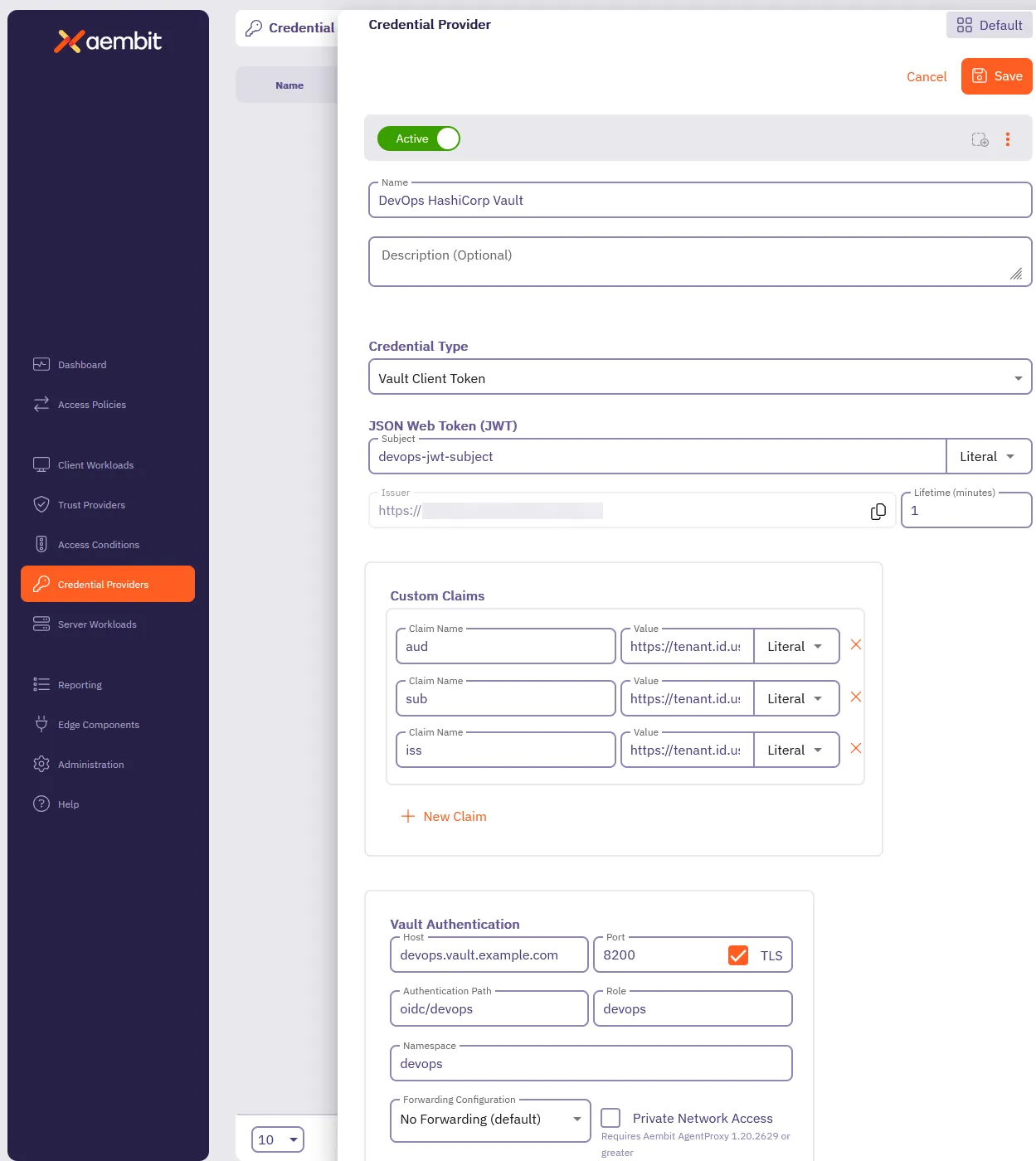 9. Click **Save**. Aembit displays your new Vault Credential Provider on the **Credential Providers** page.
# Server Workloads
> This document provides a high-level description of Server Workloads
## Using wildcard domains [Section titled “Using wildcard domains”](#using-wildcard-domains) In Aembit, wildcard domains simplify Server Workload configuration by allowing a single workload to handle requests across multiple services or regions. This is particularly useful for services with consistent domain structures like AWS’s `amazonaws.com`. For example, using the wildcard domain `*.amazonaws.com` for [AWS Cloud](/user-guide/access-policies/server-workloads/guides/aws-cloud) creates a reusable Server Workload that works across all AWS services and regions, eliminating the need to configure each one individually. For more granular control, you can specify exact hostnames like `kms.us-east-1.amazonaws.com` to limit the Server Workload to a specific service and region. ## Server Workloads by category [Section titled “Server Workloads by category”](#server-workloads-by-category) The following sections break down the Server Workloads by category. Choose from the following pages to learn more about each category and its respective Server Workloads. ### AI and machine learning [Section titled “AI and machine learning”](#ai-and-machine-learning) * [Claude](/user-guide/access-policies/server-workloads/guides/claude) * [Gemini](/user-guide/access-policies/server-workloads/guides/gemini) * [OpenAI](/user-guide/access-policies/server-workloads/guides/openai) ### CI/CD [Section titled “CI/CD”](#cicd) * [GitHub REST](/user-guide/access-policies/server-workloads/guides/github-rest) * [GitLab REST](/user-guide/access-policies/server-workloads/guides/gitlab-rest) * [SauceLabs](/user-guide/access-policies/server-workloads/guides/saucelabs) ### Cloud platforms and services [Section titled “Cloud platforms and services”](#cloud-platforms-and-services) * [Apigee](/user-guide/access-policies/server-workloads/guides/apigee) * [AWS Cloud](/user-guide/access-policies/server-workloads/guides/aws-cloud) * [Microsoft Graph](/user-guide/access-policies/server-workloads/guides/microsoft-graph) ### CRM [Section titled “CRM”](#crm) * [Salesforce REST](/user-guide/access-policies/server-workloads/guides/salesforce-rest) ### Data analytics [Section titled “Data analytics”](#data-analytics) * [AWS Redshift](/user-guide/access-policies/server-workloads/guides/aws-redshift) * [Databricks](/user-guide/access-policies/server-workloads/guides/databricks) * [GCP BigQuery](/user-guide/access-policies/server-workloads/guides/gcp-bigquery) * [Looker Studio](/user-guide/access-policies/server-workloads/guides/looker-studio) * [Snowflake](/user-guide/access-policies/server-workloads/guides/snowflake) ### Databases [Section titled “Databases”](#databases) * [AWS MySQL](/user-guide/access-policies/server-workloads/guides/aws-mysql) * [AWS PostgreSQL](/user-guide/access-policies/server-workloads/guides/aws-postgres) * [Local MySQL](/user-guide/access-policies/server-workloads/guides/local-mysql) * [Local PostgreSQL](/user-guide/access-policies/server-workloads/guides/local-postgres) * [Local Redis](/user-guide/access-policies/server-workloads/guides/local-redis) ### Financial services [Section titled “Financial services”](#financial-services) * [PayPal](/user-guide/access-policies/server-workloads/guides/paypal) * [Stripe](/user-guide/access-policies/server-workloads/guides/stripe) ### IT tooling [Section titled “IT tooling”](#it-tooling) * [PagerDuty](/user-guide/access-policies/server-workloads/guides/pagerduty) ### Productivity [Section titled “Productivity”](#productivity) * [Atlassian](/user-guide/access-policies/server-workloads/guides/atlassian) * [Box](/user-guide/access-policies/server-workloads/guides/box) * [Freshsales](/user-guide/access-policies/server-workloads/guides/freshsales) * [Google Drive](/user-guide/access-policies/server-workloads/guides/google-drive) * [Slack](/user-guide/access-policies/server-workloads/guides/slack) ### Security [Section titled “Security”](#security) * [Aembit](/user-guide/access-policies/server-workloads/guides/aembit) * [Beyond Identity](/user-guide/access-policies/server-workloads/guides/beyond-identity) * [GitGuardian](/user-guide/access-policies/server-workloads/guides/gitguardian) * [HashiCorp Vault](/user-guide/access-policies/server-workloads/guides/hashicorp-vault) * [KMS](/user-guide/access-policies/server-workloads/guides/kms) * [Okta](/user-guide/access-policies/server-workloads/guides/okta) * [Snyk](/user-guide/access-policies/server-workloads/guides/snyk)
# Server Workload architecture patterns
> Understanding how different authentication methods work with Aembit Server Workloads
This page explains how Aembit handles different authentication methods when connecting Client Workloads**Client Workload**: Client Workloads represent software applications, scripts, or automated processes that initiate access requests to Server Workloads, operating autonomously without direct user interaction.[Learn more](/get-started/concepts/client-workloads) to Server Workloads**Server Workload**: Server Workloads represent target services, APIs, databases, or applications that receive and respond to access requests from Client Workloads.[Learn more](/get-started/concepts/server-workloads). Understanding these patterns helps you choose the right configuration for your integration and troubleshoot issues. ## How server workloads work [Section titled “How server workloads work”](#how-server-workloads-work) All Server Workload integrations follow the same basic flow, regardless of authentication method:  **Data flow** 1. **Access Request** - Client Workload initiates a request to access the target service (Server Workload) 2. **Policy Lookup** - Aembit Edge**Aembit Edge**: Aembit Edge represents components deployed within your operational environments that enforce Access Policies by intercepting traffic, verifying identities, and injecting credentials just-in-time.[Learn more](/get-started/concepts/aembit-edge) intercepts the request and queries Aembit Cloud**Aembit Cloud**: Aembit Cloud serves as both the central control plane and management plane, making authorization decisions, evaluating policies, coordinating credential issuance, and providing administrative interfaces for configuration.[Learn more](/get-started/concepts/aembit-cloud) for the Access Policy**Access Policy**: Access Policies define, enforce, and audit access between Client and Server Workloads by cryptographically verifying workload identity and contextual factors rather than relying on static secrets.[Learn more](/get-started/concepts/access-policies) and Credential Provider**Credential Provider**: Credential Providers obtain the specific access credentials—such as API keys, OAuth tokens, or temporary cloud credentials—that Client Workloads need to authenticate to Server Workloads.[Learn more](/get-started/concepts/credential-providers) configuration 3. **Credentials** - Aembit Cloud returns the appropriate credentials based on the Credential Provider configuration 4. **Authenticated Request** - Aembit Edge injects credentials into the request and forwards it to the Server Workload 5. **Response** - The Server Workload processes the authenticated request and returns a response 6. **Response Passthrough** - Aembit Edge forwards the response back to the Client Workload transparently **Network requirements** * **Outbound HTTPS (port 443)** from your environment to: * Target Server Workload (varies by service) * **No inbound ports** required for Aembit integration * **DNS resolution** must work for target service domains **Component placement** * **Aembit Edge (Agent Proxy)**: Runs on the same server as your Client Workload, or as a sidecar container in Kubernetes * **Client Workload**: Runs in your environment (on-premises, cloud VM, container, serverless function) * **Aembit Cloud**: Hosted service, no infrastructure required * **Server Workload**: Target service (cloud, on-premises, or third-party SaaS) ## Authentication method variations [Section titled “Authentication method variations”](#authentication-method-variations) While the basic flow remains the same, different authentication methods inject credentials into requests differently. ### OAuth flow [Section titled “OAuth flow”](#oauth-flow) **Applies to** - [Entra ID](/user-guide/access-policies/server-workloads/guides/entra-id), Salesforce, GitHub (OAuth mode), Okta (OAuth mode) OAuth-based Server Workloads use the OAuth 2.0 protocol to obtain access tokens. Aembit intercepts OAuth token requests and replaces static client secrets with dynamically generated JWT-SVID**JWT-SVID**: A SPIFFE Verifiable Identity Document in JWT format. JWT-SVIDs are cryptographically signed, short-lived tokens that prove workload identity and enable secure authentication without static credentials.[Learn more](/user-guide/access-policies/credential-providers/about-spiffe-jwt-svid) credentials.  **Flow details** - * **Credential type**: JWT-SVID (JSON Web Token - Secure Verifiable Identity Document) or `client_assertion` * **Injection point**: OAuth token request body - replaces `client_secret` parameter with dynamic JWT-SVID * **Data flow**: 1. Client requests OAuth access token using placeholder credential (for example, `'placeholder-client-secret'`) 2. Aembit intercepts the token request and removes the placeholder 3. Aembit generates a short-lived JWT-SVID signed with cryptographic material 4. Agent Proxy injects the JWT-SVID as `client_assertion` in the token request 5. OAuth provider validates the JWT-SVID signature 6. OAuth provider returns access token to the client 7. Client uses the access token to authenticate API calls to protected resources **Special considerations** - * **PKCE support**: Some OAuth providers require Proof Key for Code Exchange (PKCE). Aembit supports PKCE when configured in the Credential Provider. * **Token refresh**: OAuth SDKs automatically handle token refresh when access tokens expire. Aembit generates a new JWT-SVID for each token refresh request. * **Scope selection**: The scopes configured in the Server Workload determine which API permissions the access token grants. See individual guide for scope selection guidance. * **Token lifetime**: JWT-SVIDs are valid for 5 minutes by default. Access tokens from OAuth providers typically last 1 hour but vary by provider. **Credential lifecycle** - OAuth credentials have two lifetimes to consider: * **JWT-SVID lifetime**: 5 minutes (Aembit-generated, used only for token requests) * **Access token lifetime**: 1 hour typical (provider-issued, used for API calls) When an access token expires, the OAuth SDK automatically requests a new token, triggering Aembit to generate a fresh JWT-SVID. ### API key flow [Section titled “API key flow”](#api-key-flow) **Applies to** - Okta, Claude, OpenAI, GitHub (API Key mode), Stripe, Box API Key-based Server Workloads inject a static API key into HTTP headers. Aembit retrieves the key from a Credential Provider and injects it transparently.  **Flow details** - * **Credential type**: API key string * **Injection point**: HTTP `Authorization` header or custom header (for example, `X-API-Key`) * **Data flow**: 1. Client makes an API request (no API key in code) 2. Aembit intercepts the request 3. Credential Provider retrieves the API key (from secure storage or vault) 4. Agent Proxy injects the key into the appropriate HTTP header 5. API service validates the key and processes the request 6. API service returns response to the client **Special considerations** - * **Header format variations**: Different services use different header formats: * **Bearer token**: `Authorization: Bearer sk-abc123` (OpenAI, Anthropic) * **Single Sign-On Web Services (SSWS) format**: `Authorization: SSWS 00abc123` (Okta) * **Custom header**: `X-API-Key: abc123` (some APIs) * **API key rotation**: When rotating API keys in the service, update the Credential Provider in Aembit. No application code changes required. * **Rate limiting**: Some services rate-limit by API key. Monitor usage to avoid hitting limits. * **Key lifetime**: API keys are typically long-lived (months to years). Rotate per security best practices. **Credential lifecycle** - Unlike OAuth, API keys are static and long-lived: * **Storage**: Stored securely in Aembit Credential Provider * **Rotation**: Manual - update the key in both the service and Aembit Credential Provider * **Expiration**: Varies by service (some never expire, others expire after 1-2 years) ### Database credential injection [Section titled “Database credential injection”](#database-credential-injection) **Applies to** - MySQL, PostgreSQL, Redis, Snowflake, Google BigQuery Database workloads inject dynamic credentials into database connection strings or authentication commands.  **Flow details** - * **Credential type**: Username/password pair or connection string * **Injection point**: Database connection parameters (replaces username and password fields) * **Data flow**: 1. Client opens database connection using placeholder credentials 2. Aembit intercepts the connection request 3. Credential Provider generates or retrieves dynamic database credentials 4. Agent Proxy modifies connection parameters with real credentials 5. Database validates credentials and establishes connection 6. Connection is ready for queries **Special considerations** - * **Connection pooling**: Aembit works with connection pooling. When the pool creates new connections, Aembit injects credentials. * **TLS/SSL requirements**: Many databases require TLS encryption. Configure TLS Decrypt in Aembit to intercept encrypted database connections. * **Credential lifetime vs. connection lifetime**: Database credentials may outlive individual connections. Aembit handles credential rotation without disrupting active connections. * **Protocol-specific handling**: Different database protocols require different credential injection methods: * **MySQL/Postgres**: Username/password in connection parameters * **Redis**: Authentication (AUTH) command interception **Credential lifecycle** - Database credentials can be static or dynamic: * **Static credentials**: Stored in Credential Provider, manually rotated * **Dynamic credentials** (for example, AWS RDS IAM auth): Generated per connection, expire after 15 minutes (typical) ### Cloud provider signatures [Section titled “Cloud provider signatures”](#cloud-provider-signatures) **Applies to** - AWS (SigV4), Google Cloud Platform, Azure Cloud provider workloads use cryptographic request signatures instead of traditional credentials. **Flow details** - * **Credential type**: Temporary credentials (access key, secret key, session token) * **Injection point**: Request signature calculation (replaces AWS Access Key ID and Secret Access Key) * **Data flow**: 1. Client makes cloud API request 2. Aembit intercepts the request 3. Credential Provider assumes an IAM role or generates temporary credentials 4. Agent Proxy signs the request using temporary credentials (SigV4 signature) 5. Cloud provider validates the signature 6. Cloud provider returns API response **Special considerations** - * **IAM role trust relationships**: The IAM role must trust Aembit’s identity provider * **Session duration limits**: AWS temporary credentials expire after 15 minutes to 12 hours (configurable) * **Multi-region considerations**: Signatures are region-specific. Configure Credential Provider for the correct region. * **Service-specific signing**: Different AWS services may require different signing algorithms **Credential lifecycle** - * **Temporary credential lifetime**: 15 minutes to 12 hours (AWS default: 1 hour) * **Automatic refresh**: Aembit automatically obtains fresh credentials before expiration * **No manual rotation**: Credentials are ephemeral and rotated automatically ### Token-based authentication [Section titled “Token-based authentication”](#token-based-authentication) **Applies to** - HashiCorp Vault, Kubernetes Service Accounts Token-based workloads use bearer tokens for authentication. **Flow details** - * **Credential type**: Bearer token (for example, Vault token, Kubernetes service account token) * **Injection point**: HTTP `Authorization: Bearer ` header or X-Vault-Token header * **Data flow**: 1. Client makes API request 2. Aembit intercepts the request 3. Credential Provider retrieves or generates a token 4. Agent Proxy injects the token into the request header 5. Service validates the token and processes the request **Special considerations** - * **Token TTL management**: Tokens have time-to-live (TTL) limits. Aembit handles token renewal automatically. * **Policy-based access control**: Policies in the target service define token permissions (for example, Vault policies) * **Token renewal**: Some services (like Vault) support token renewal. Aembit can renew tokens before expiration. * **Bidirectional dependencies**: Services like Vault may require OIDC configuration in both Vault and Aembit. See service-specific guides for setup order. **Credential lifecycle** - * **Token lifetime**: Varies by service (Vault default: 32 days, configurable) * **Renewal**: Automatic before expiration (when supported) * **Revocation**: You can revoke tokens centrally in the target service ## Choosing the right pattern [Section titled “Choosing the right pattern”](#choosing-the-right-pattern) When configuring a new Server Workload, identify which authentication method the target service uses: | If the service uses… | Use this pattern | Example services | | ------------------------------------------------------ | --------------------------------------------------------------- | ------------------------------------------ | | **OAuth 2.0** (client credentials, authorization code) | [OAuth Flow](#oauth-flow) | Entra ID, Salesforce, GitHub (OAuth Apps) | | **API Keys** in headers | [API Key Flow](#api-key-flow) | Okta, Claude, OpenAI, Stripe | | **Database credentials** (username/password) | [Database Credential Injection](#database-credential-injection) | MySQL, Postgres, Redis, Snowflake | | **AWS signatures** (SigV4) or GCP/Azure equivalents | [Cloud Provider Signatures](#cloud-provider-signatures) | AWS services, GCP services, Azure services | | **Bearer tokens** or service-specific tokens | [Token-Based Authentication](#token-based-authentication) | HashiCorp Vault, Kubernetes | See individual [Server Workload guides](/user-guide/access-policies/server-workloads/guides/) for detailed configuration steps for each service. ## Related resources [Section titled “Related resources”](#related-resources) * **[Developer Integration Guide](/user-guide/access-policies/server-workloads/developer-integration)** - SDK code examples and testing patterns * **[Troubleshooting Guide](/user-guide/access-policies/server-workloads/troubleshooting)** - Common issues and solutions * **[Server Workload Guides](/user-guide/access-policies/server-workloads/guides/)** - Service-specific configuration guides * **[Understanding Server Workloads](/get-started/concepts/server-workloads)** - Conceptual overview
# Authentication methods and schemes
> This document describes the configuration of Authentication Methods and Schemes for Server workloads.
Aembit offers a variety of authentication methods and schemes to secure access to Server Workloads. These configurations define how Credential Providers inject credentials into application protocols. This page details the supported authentication methods and helps you choose the right one for your needs. ## Authentication methods and schemes [Section titled “Authentication methods and schemes”](#authentication-methods-and-schemes) When you configure access between Client Workloads and Server Workloads, two key elements dictate how Aembit injects credentials into a request: * **Authentication Method** - Specifies the general type of authentication in use—for example, HTTP authentication or a database-specific protocol. * **Authentication Scheme** - Defines the specific implementation of the method. For example, the `Bearer` scheme for HTTP authentication specifies how the credential appears in the HTTP headers. These elements work together to determine how the Client Workload authenticates to the Server Workload. Additionally, some combinations of authentication methods and schemes may require extra configuration, such as specifying the name of the HTTP header that carries the credential. Aembit supports combinations of methods and schemes to meet diverse protocol and workload requirements. ## Credential requirements [Section titled “Credential requirements”](#credential-requirements) Most authentication methods rely on a single credential that a Credential Provider generates, ensuring broad compatibility. However, some methods use two-part credentials (for example: a username and password), which restricts them to Credential Providers that supply such data. Additionally, some authentication schemes depend on specific Credential Providers. While you may use them with others, they typically target a particular provider. ## Choosing the right method and scheme [Section titled “Choosing the right method and scheme”](#choosing-the-right-method-and-scheme) Selecting the appropriate method and scheme is essential to ensure the Client Workload can successfully authenticate to the Server Workload. Consider the following: * **Server Workload Requirements** - What methods does the Server Workload support? * **Security Considerations** - What level of security do you need? * **Credential Provider Capabilities** - Which providers can generate the required credentials? Aembit includes method/scheme recommendations for common Server Workloads in Server Workload guides. If your Server Workload doesn’t appear in those guides, use the following guidance to choose and configure an appropriate method and scheme. ## Supported authentication methods and schemes [Section titled “Supported authentication methods and schemes”](#supported-authentication-methods-and-schemes) The following table lists all supported combinations of authentication methods and schemes, along with their compatible application protocols and credential providers: | Auth Method | Auth Scheme | Application Protocols | Credential Provider | Description | Specification | | ------------------------ | ---------------- | --------------------------------------- | ------------------- | --------------------------------------------------------------------------------------------------------------------- | ----------------------------------------------------------------------------------------------------------------------------- | | HTTP Authentication | Basic | HTTP | Username & Password | Encodes `username:password` in Base64 and sends it in the HTTP `Authorization` header. | [The ‘Basic’ HTTP Authentication Scheme](https://datatracker.ietf.org/doc/html/rfc7617) | | HTTP Authentication | Bearer | HTTP | Any single-value | Sends a `Bearer` token in the HTTP `Authorization` header. | [Bearer Token Usage](https://datatracker.ietf.org/doc/html/rfc9700) | | HTTP Authentication | Header | HTTP | Any single-value | Injects credentials into a user-defined HTTP header as part of HTTP authentication flow. | n/a | | HTTP Authentication | AWS Signature v4 | HTTP | AWS STS Federation | Signs the HTTP request using AWS Signature v4. | [Create a signed AWS API request](https://docs.aws.amazon.com/IAM/latest/UserGuide/reference_sigv-create-signed-request.html) | | API Key | Header | HTTP | Any single-value | Injects API key credentials into a user-defined HTTP header for API-based authentication. | n/a | | API Key | Query parameter | HTTP | Any single-value | Injects credentials into a user-defined HTTP query parameter. | n/a | | Password Authentication | Password | MySQL, Postgres, Amazon Redshift, Redis | Username & Password | Injects credentials according to protocol-specific requirements. Applies only to protocols with a single auth method. | n/a | | JWT Token Authentication | Snowflake JWT | Snowflake | JWT | Modifies the body of an HTTP request to `/session/v1/login-request`, injecting `USERNAME` and `TOKEN`. | n/a |
# Credential lifecycle management
> How Aembit manages credential generation, rotation, and security for Server Workloads
Aembit dynamically generates short-lived credentials for each request to a Server Workload, eliminating manual credential rotation and reducing the risk window if an attacker compromises credentials. This page explains how credential lifecycle management works across all Server Workload types. ## How credential rotation works [Section titled “How credential rotation works”](#how-credential-rotation-works) Aembit generates credentials on-demand rather than storing long-lived secrets: * **Credential lifespan**: JWT-SVIDs are valid for 5 minutes by default * **Automatic rotation**: New credentials generated for each token request (typically every 1 hour when access tokens expire) * **No manual intervention**: Applications continue running without code changes or restarts * **Zero downtime rotation**: Transition from old to new credentials is seamless ### Credential generation flow [Section titled “Credential generation flow”](#credential-generation-flow) 1. Your application requests access to a protected resource (for example, an OAuth token or API call) 2. Aembit generates a new credential (JWT-SVID or other type) signed with current cryptographic material 3. The target service validates the credential and issues an access token or grants access 4. Your application receives the response and continues operating 5. Process repeats when the access token expires or the application makes a new request  ## Token expiration comparison [Section titled “Token expiration comparison”](#token-expiration-comparison) The following table compares credential lifetimes and rotation methods: | Credential Type | Typical Lifetime | Rotation Method | Downtime During Rotation | | -------------------------------------- | ---------------- | ------------------------------------------- | ------------------------ | | **Static client secret** (traditional) | 1-2 years | Manual (update code/config and restart app) | Yes (during restart) | | **Aembit JWT-SVID** | 5 minutes | Automatic (generated per request) | No (seamless transition) | | **OAuth access token** | 1 hour | Automatic (app requests new token) | No (handled by SDK) | The 5-minute JWT-SVID lifespan limits the window of compromise. Even if an attacker intercepts a JWT-SVID, it expires before the attacker can reuse it for future requests. ## Credential compromise response [Section titled “Credential compromise response”](#credential-compromise-response) If you suspect a credential compromise (for example, unauthorized API access detected), follow these steps: ### 1. Immediate action: Disable the Server Workload [Section titled “1. Immediate action: Disable the Server Workload”](#1-immediate-action-disable-the-server-workload) Revoke the Server Workload in the Aembit console to stop credential generation immediately: 1. Navigate to **Workloads** > **Server Workloads** 2. Select the affected workload 3. Click **Disable** Disabling the Server Workload stops all new credential generation immediately. Existing tokens remain valid until they expire (typically within 5 minutes for JWT-SVIDs, 1 hour for OAuth access tokens). ### 2. Investigate: Review audit logs [Section titled “2. Investigate: Review audit logs”](#2-investigate-review-audit-logs) Identify the scope of the compromise by reviewing logs in both Aembit and the target service: **Aembit logs** - * Navigate to **Activity** > **Audit Logs** * Filter by Server Workload name * Look for: Unusual access patterns, unexpected IP addresses, off-hours activity **Target service logs (example: Entra ID)** - * Navigate to **Azure Active Directory** > **Sign-in logs** * Filter by Application (client) ID * Look for: Failed authentications, unusual locations, unexpected user agents ### 3. Remediate: Address the root cause [Section titled “3. Remediate: Address the root cause”](#3-remediate-address-the-root-cause) Based on your investigation findings: * **If isolated to Aembit**: Re-enable the Server Workload after confirming you eliminated the threat * **If target service credentials compromised**: Rotate or regenerate credentials in the target service (for example, delete and recreate an Entra ID application registration) * **If broader compromise**: Follow your organization’s incident response procedures ### 4. Prevent recurrence: Review security posture [Section titled “4. Prevent recurrence: Review security posture”](#4-prevent-recurrence-review-security-posture) After remediation, strengthen your security configuration: * Verify least-privilege permissions on the Server Workload * Enable conditional access policies in the target service (if supported) * Configure IP address restrictions where applicable * Review [Access Conditions](/user-guide/access-policies/access-conditions/) in Aembit to add time-based or location-based restrictions ## Audit logging [Section titled “Audit logging”](#audit-logging) Aembit logs all credential generation events for compliance and security monitoring. **What Aembit logs** - * Timestamp of credential generation * Server Workload name * Client Workload identity * Credential type issued * Success or failure status **Where to view logs** - * Aembit Tenant: **Reporting** > **Audit Logs** * For detailed event information, see [Audit Logs](/user-guide/audit-report/audit-logs/) **Log retention** - * Default: 90 days * Configurable up to 1 year for compliance requirements **SIEM integration** - Export logs to your Security Information and Event Management (SIEM) system using Aembit’s log stream integration. See [Log Streams](/user-guide/administration/log-streams/) for configuration details. ## Monitoring recommendations [Section titled “Monitoring recommendations”](#monitoring-recommendations) Configure alerts in your monitoring system for the following conditions: | Alert Condition | Recommended Threshold | Indicates | | ------------------------------------- | ------------------------------------ | ----------------------------------------- | | Failed credential requests | >5 failures in 10 minutes | Authentication misconfiguration or attack | | Access from unexpected locations | Any non-allowlisted region | Potential credential theft | | Access outside business hours | Any off-hours access (if applicable) | Unauthorized access attempt | | Server Workload configuration changes | Any change | Potential privilege escalation | | Credential generation rate spike | >200% of baseline | Credential stuffing attack | For access authorization event details, see [Access Authorization Events](/user-guide/audit-report/access-authorization-events/). ## Related resources [Section titled “Related resources”](#related-resources) * [Server Workloads overview](/user-guide/access-policies/server-workloads/) * [Access Conditions](/user-guide/access-policies/access-conditions/) * [Audit Logs](/user-guide/audit-report/audit-logs/) * [Log Streams](/user-guide/administration/log-streams/)
# Developer Integration with Server Workloads
> SDK integration patterns, placeholder credentials, and testing procedures for Server Workload integrations
This guide shows developers how to integrate their application code with Aembit Server Workloads**Server Workload**: Server Workloads represent target services, APIs, databases, or applications that receive and respond to access requests from Client Workloads.[Learn more](/get-started/concepts/server-workloads). **No application code changes required** - Aembit intercepts authentication requests transparently. However, you need to understand how to initialize SDKs and test your integration. ## Understanding placeholder credentials [Section titled “Understanding placeholder credentials”](#understanding-placeholder-credentials) When using SDKs or libraries to connect to services, many require credentials during initialization even though Aembit provides the actual credentials at runtime. ### What are placeholder credentials? [Section titled “What are placeholder credentials?”](#what-are-placeholder-credentials) A **placeholder credential** is a placeholder value used only for SDK initialization. The Aembit Agent Proxy intercepts authentication requests and replaces placeholder values with real, dynamically generated credentials before they reach the target service. **The placeholder value never leaves your environment.** **Examples of valid placeholders** - * `'placeholder-client-secret'` * `'aembit-managed'` * `'dummy-value-12345'` * Any non-empty string that satisfies SDK validation ### Why use placeholders? [Section titled “Why use placeholders?”](#why-use-placeholders) SDKs validate that required credential fields are present during initialization. Without placeholders, SDKs throw errors like: ```plaintext ValueError: client_secret is required ``` Placeholders satisfy SDK validation while allowing Aembit to manage the actual credentials securely. ## Integration pattern [Section titled “Integration pattern”](#integration-pattern) Most authentication libraries follow this pattern. Here’s a generic example showing before and after Aembit: ### Before Aembit (managing secrets manually) [Section titled “Before Aembit (managing secrets manually)”](#before-aembit-managing-secrets-manually) ```python import os import requests # Secret loaded from environment variable or secret manager client_secret = os.environ.get('CLIENT_SECRET') # ← Security risk: secret in env # Make OAuth token request token_response = requests.post( 'https://oauth-provider.com/token', data={ 'grant_type': 'client_credentials', 'client_id': 'your-app-id', 'client_secret': client_secret, # ← Real secret sent 'scope': 'api.read api.write' } ) access_token = token_response.json()['access_token'] # Use access token for API calls api_response = requests.get( 'https://api.example.com/resource', headers={'Authorization': f'Bearer {access_token}'} ) ``` **Problems with this approach** - * Secret stored in environment variable (risk of leakage) * Manual rotation required (downtime, code changes) * Secret visible in logs if request fails * No centralized credential management ### With Aembit (no secret management required) [Section titled “With Aembit (no secret management required)”](#with-aembit-no-secret-management-required) ```python import requests # Use placeholder credential - Aembit replaces this at runtime client_secret = 'placeholder-client-secret' # ← Aembit intercepts and replaces # Same OAuth token request - Aembit handles credentials token_response = requests.post( 'https://oauth-provider.com/token', data={ 'grant_type': 'client_credentials', 'client_id': 'your-app-id', 'client_secret': client_secret, # ← Placeholder never reaches OAuth provider 'scope': 'api.read api.write' } ) access_token = token_response.json()['access_token'] # ← You get a valid token # Use access token for API calls (unchanged) api_response = requests.get( 'https://api.example.com/resource', headers={'Authorization': f'Bearer {access_token}'} ) ``` **Key changes** - * ✅ No environment variables or secret managers needed * ✅ No secret rotation logic in application code * ✅ Placeholder credential never reaches the target service (Aembit intercepts) * ✅ Centralized credential management in Aembit ## Service-specific SDK resources [Section titled “Service-specific SDK resources”](#service-specific-sdk-resources) When integrating with your specific service, use these resources for SDK-specific guidance: ### OAuth-based services [Section titled “OAuth-based services”](#oauth-based-services) **Entra ID (Microsoft Identity Platform)** * [Entra ID Server Workload guide](/user-guide/access-policies/server-workloads/guides/entra-id) - Aembit configuration * [Microsoft Authentication Library (MSAL) Python documentation](https://learn.microsoft.com/en-us/entra/msal/python/) - Official Python SDK * [Microsoft Authentication Library (MSAL) Node.js documentation](https://learn.microsoft.com/en-us/entra/msal/node/) - Official Node.js SDK **Salesforce** * [Salesforce Server Workload guide](/user-guide/access-policies/server-workloads/guides/salesforce-rest) - Aembit configuration * [simple-salesforce library](https://github.com/simple-salesforce/simple-salesforce) - Python SDK * [JSforce documentation](https://jsforce.github.io/) - Node.js SDK **GitHub** * [GitHub Server Workload guide](/user-guide/access-policies/server-workloads/guides/github-rest) - Aembit configuration (OAuth mode) * [Octokit documentation](https://github.com/octokit) - Official SDK (multiple languages) ### API key services [Section titled “API key services”](#api-key-services) **Okta** * [Okta Server Workload guide](/user-guide/access-policies/server-workloads/guides/okta) - Aembit configuration * [Okta Python SDK](https://github.com/okta/okta-sdk-python) - Official Python SDK * [Okta Node.js SDK](https://github.com/okta/okta-sdk-nodejs) - Official Node.js SDK **Claude (Anthropic)** * [Claude Server Workload guide](/user-guide/access-policies/server-workloads/guides/claude) - Aembit configuration * [Anthropic Python SDK](https://github.com/anthropics/anthropic-sdk-python) - Official Python SDK * [Anthropic TypeScript SDK](https://github.com/anthropics/anthropic-sdk-typescript) - Official TypeScript SDK **OpenAI** * [OpenAI Server Workload guide](/user-guide/access-policies/server-workloads/guides/openai) - Aembit configuration * [OpenAI Python library](https://github.com/openai/openai-python) - Official Python SDK * [OpenAI Node.js library](https://github.com/openai/openai-node) - Official Node.js SDK ### Database services [Section titled “Database services”](#database-services) **MySQL** * [AWS MySQL guide](/user-guide/access-policies/server-workloads/guides/aws-mysql) - Aembit configuration for RDS * [Local MySQL guide](/user-guide/access-policies/server-workloads/guides/local-mysql) - Aembit configuration for local/on-prem * [mysql-connector-python](https://dev.mysql.com/doc/connector-python/en/) - Official Python driver * [mysql2](https://github.com/sidorares/node-mysql2) - Node.js driver **PostgreSQL** * [AWS Postgres guide](/user-guide/access-policies/server-workloads/guides/aws-postgres) - Aembit configuration for RDS * [Local Postgres guide](/user-guide/access-policies/server-workloads/guides/local-postgres) - Aembit configuration for local/on-prem * [psycopg3](https://www.psycopg.org/psycopg3/) - Official Python driver * [node-postgres (pg)](https://node-postgres.com/) - Node.js driver ### Cloud provider services [Section titled “Cloud provider services”](#cloud-provider-services) **AWS** * [AWS Cloud guide](/user-guide/access-policies/server-workloads/guides/aws-cloud) - Aembit configuration for AWS APIs * [Boto3](https://boto3.amazonaws.com/v1/documentation/api/latest/index.html) - Official Python SDK for AWS * [AWS SDK for JavaScript](https://docs.aws.amazon.com/AWSJavaScriptSDK/v3/latest/) - Official Node.js SDK **Important** For S3 uploads, Aembit Agent Proxy doesn’t support all AWS signing methods out of the box. - Configure your SDK to use “Unsigned Payload” mode or similar options as documented in the [Support Matrix](/reference/support-matrix). ## Testing your integration [Section titled “Testing your integration”](#testing-your-integration) After deploying your application with Aembit integration, follow these steps to verify everything works correctly. ### Step 1: Verify Aembit intercepts requests [Section titled “Step 1: Verify Aembit intercepts requests”](#step-1-verify-aembit-intercepts-requests) When debugging runtime credential flow (what developers care about during integration testing), you must check the Agent Proxy logs. The Agent Controller logs don’t show the actual credential interception events that verify your application integration is working. Check Aembit Agent Proxy logs for successful credential injection: **Linux (systemd)** - ```shell # Monitor logs for credential-related events sudo journalctl --namespace aembit_agent_proxy | grep -i "credential" # For time-bounded logs: sudo journalctl --namespace aembit_agent_proxy --since "YYYY-MM-DD HH:MM:SS" --until "YYYY-MM-DD HH:MM:SS" ``` **Docker/Kubernetes** - ```shell # Find the Agent Proxy pod name kubectl get pods -n | grep agent-proxy # View Agent Proxy logs (standalone deployment) kubectl logs -n -f # Example (standalone): kubectl logs aembit-agent-proxy-5d8f7b9c4-xk8mh -n aembit -f # If using sidecar injection (Agent Proxy runs as container in application pod): kubectl logs -n -c aembit-agent-proxy -f ``` **Expected output** - Look for log entries referencing credential requests, credential injection, or authentication events. Log lines may reference GetCredentials, credential injection, or authentication. ### Step 2: Verify application receives valid credentials [Section titled “Step 2: Verify application receives valid credentials”](#step-2-verify-application-receives-valid-credentials) Add debug logging to your application to confirm credential flow: **Python example** - ```python import logging logging.basicConfig(level=logging.INFO) logger = logging.getLogger(__name__) # Attempt authentication result = client.authenticate() # Verify response contains access token or credentials if 'access_token' in result: logger.info("✓ Successfully received access token from service") logger.info(f"Token expires in {result.get('expires_in')} seconds") else: logger.error("✗ Token acquisition failed") logger.error(f"Error: {result.get('error')}") logger.error(f"Description: {result.get('error_description')}") ``` **Expected output** - * ✅ “Successfully received access token” (OAuth services) * ✅ API response with status code 200-299 (API key services) * ✅ Database connection established (database services) ### Step 3: Verify application can access protected resources [Section titled “Step 3: Verify application can access protected resources”](#step-3-verify-application-can-access-protected-resources) Test authentication to your target API or service: **OAuth services** - ```python import requests # Use the acquired token to call protected API headers = {'Authorization': f'Bearer {access_token}'} response = requests.get('https://api.example.com/resource', headers=headers) if response.status_code == 200: print("✓ Successfully authenticated to protected resource") print(f"Response: {response.json()}") else: print(f"✗ Authentication failed: HTTP {response.status_code}") print(f"Error: {response.text}") ``` **Database services** - ```python import mysql.connector # Test database query try: connection = mysql.connector.connect( host='database.example.com', user='placeholder-username', # Aembit replaces password='placeholder-password', # Aembit replaces database='mydb' ) cursor = connection.cursor() cursor.execute("SELECT 1") result = cursor.fetchone() print("✓ Database query successful") cursor.close() connection.close() except Exception as e: print(f"✗ Database connection failed: {e}") ``` **Expected results** - * ✅ Aembit logs show request interception * ✅ Application receives valid credentials (access token, API response, database connection) * ✅ API calls with credentials succeed (HTTP 200-299) * ✅ No 401 Unauthorized or 403 Forbidden errors ## Local development [Section titled “Local development”](#local-development) For local development, you have two options to get credentials from Aembit: ### Option 1: Aembit CLI credential injection [Section titled “Option 1: Aembit CLI credential injection”](#option-1-aembit-cli-credential-injection) Use the Aembit CLI to retrieve credentials and inject them into environment variables. This is useful for local development without running the full Agent infrastructure. ```shell # Get credentials and export to environment variable export MY_API_KEY=$(aembit credentials get \ --server-workload-host api.example.com \ --server-workload-port 443 \ --edge-sdk-client-id YOUR_CLIENT_ID) # Run your application with the credential python my_app.py ``` See [Getting credentials with Aembit CLI](/cli-guide/usage/get-credentials/) for detailed setup instructions. ### Option 2: Run Aembit Agent Proxy locally [Section titled “Option 2: Run Aembit Agent Proxy locally”](#option-2-run-aembit-agent-proxy-locally) Install and run both Aembit Agent Controller and Agent Proxy on your development machine for end-to-end credential injection that matches production behavior. **Setup** - 1. Install Agent Controller and Agent Proxy: See [Agent Controller installation guide](/user-guide/deploy-install/about-agent-controller/) 2. Configure Agent Proxy to point to the correct environment 3. Configure local Server Workload in Aembit Tenant 4. Run application locally - Agent Proxy intercepts traffic just like production See [About Agent Controller](/user-guide/deploy-install/about-agent-controller/) for installation details ## Common integration patterns [Section titled “Common integration patterns”](#common-integration-patterns) The following sections show common integration patterns for different authentication methods. ### Pattern 1: OAuth SDK initialization [Section titled “Pattern 1: OAuth SDK initialization”](#pattern-1-oauth-sdk-initialization) Most OAuth SDKs follow this initialization pattern: ```python from some_oauth_library import OAuthClient # Initialize with placeholder client = OAuthClient( client_id='your-client-id', client_secret='placeholder-client-secret', # ← Aembit replaces token_url='https://oauth-provider.com/token' ) # Acquire token - Aembit intercepts this request token = client.get_access_token(scopes=['api.read']) # Use token for API calls api_client.call_api(access_token=token) ``` **Key points** - * Placeholder in `client_secret` parameter * SDK handles token request automatically * Aembit intercepts `POST /token` request * SDK receives valid access token ### Pattern 2: API key in headers [Section titled “Pattern 2: API key in headers”](#pattern-2-api-key-in-headers) API key libraries typically set headers: ```python import requests # Aembit injects API key into Authorization header automatically # Application code doesn't include the key at all response = requests.get( 'https://api.example.com/resource', # No Authorization header needed - Aembit adds it ) ``` **Key points** - * No API key in application code * Aembit injects header transparently * Application sees normal API responses ### Pattern 3: Database connection [Section titled “Pattern 3: Database connection”](#pattern-3-database-connection) Database drivers use connection parameters: ```python import psycopg # Placeholders in connection string connection = psycopg.connect( "host=database.example.com " "port=5432 " "dbname=mydb " "user=placeholder-username " # ← Aembit replaces "password=placeholder-password" # ← Aembit replaces ) # Use connection normally cursor = connection.cursor() cursor.execute("SELECT * FROM users") ``` **Key points** - * Placeholders in `user` and `password` parameters * Aembit intercepts connection request * Driver receives valid connection ## Troubleshooting integration issues [Section titled “Troubleshooting integration issues”](#troubleshooting-integration-issues) **Understanding component roles** - * **Agent Proxy**: Handles runtime traffic interception and credential injection. Check Agent Proxy logs for credential-related issues. * **Agent Controller**: Handles registration, policy sync, and orchestration. Check Agent Controller logs for registration or policy sync issues. **Problem: SDK throws “invalid credentials” error** **Solution** - * Verify Agent Proxy is running: `systemctl status aembit_agent_proxy` (Linux) * Check Agent Proxy logs for interception activity * Check the associated Access Policy is active and that you have configured it correctly * Ensure placeholder credential matches expected format * See [Troubleshooting Guide](/user-guide/access-policies/server-workloads/troubleshooting) for common issues **Problem: Placeholder credential appears in service logs** **Solution** - * Verify you set `HTTP_PROXY` environment variables (for proxy-based interception) * Check [TLS Decrypt](/user-guide/deploy-install/advanced-options/tls-decrypt/) configuration (required for HTTPS services) * Verify Agent Proxy is intercepting traffic (check logs) **Problem: Application works locally but fails in deployed environment** **Solution** - * Ensure `CLIENT_SECRET` environment variable isn’t set in deployed environment (should use placeholder) * Check network connectivity from deployed environment to Aembit Cloud * Verify Agent Proxy and Agent Controller are running in your deployed environment ## Related resources [Section titled “Related resources”](#related-resources) * **[Architecture Patterns](/user-guide/access-policies/server-workloads/architecture-patterns)** - How different authentication methods work * **[Troubleshooting Guide](/user-guide/access-policies/server-workloads/troubleshooting)** - Common issues and solutions * **[Server Workload Guides](/user-guide/access-policies/server-workloads/guides/)** - Service-specific configuration * **[Agent Controller](/user-guide/deploy-install/about-agent-controller/)** - Understanding the Agent Controller
# Server Workloads
> This document provides a high-level description of Server Workloads
## Server Workloads by category [Section titled “Server Workloads by category”](#server-workloads-by-category) The following sections break down the Server Workloads by category. Click on the links below to learn more about each category and its respective Server Workloads. ### AI and machine learning [Section titled “AI and machine learning”](#ai-and-machine-learning) * [Claude](/user-guide/access-policies/server-workloads/guides/claude) * [Gemini](/user-guide/access-policies/server-workloads/guides/gemini) * [OpenAI](/user-guide/access-policies/server-workloads/guides/openai) ### CI/CD [Section titled “CI/CD”](#cicd) * [GitHub REST](/user-guide/access-policies/server-workloads/guides/github-rest) * [GitLab REST](/user-guide/access-policies/server-workloads/guides/gitlab-rest) * [SauceLabs](/user-guide/access-policies/server-workloads/guides/saucelabs) ### Cloud platforms and services [Section titled “Cloud platforms and services”](#cloud-platforms-and-services) * [Apigee](/user-guide/access-policies/server-workloads/guides/apigee) * [Microsoft Graph](/user-guide/access-policies/server-workloads/guides/microsoft-graph) ### CRM [Section titled “CRM”](#crm) * [Salesforce REST](/user-guide/access-policies/server-workloads/guides/salesforce-rest) ### Data analytics [Section titled “Data analytics”](#data-analytics) * [AWS Redshift](/user-guide/access-policies/server-workloads/guides/aws-redshift) * [Databricks](/user-guide/access-policies/server-workloads/guides/databricks) * [GCP BigQuery](/user-guide/access-policies/server-workloads/guides/gcp-bigquery) * [Looker Studio](/user-guide/access-policies/server-workloads/guides/looker-studio) * [Snowflake](/user-guide/access-policies/server-workloads/guides/snowflake) ### Databases [Section titled “Databases”](#databases) * [AWS MySQL](/user-guide/access-policies/server-workloads/guides/aws-mysql) * [AWS PostgreSQL](/user-guide/access-policies/server-workloads/guides/aws-postgres) * [Local MySQL](/user-guide/access-policies/server-workloads/guides/local-mysql) * [Local PostgreSQL](/user-guide/access-policies/server-workloads/guides/local-postgres) * [Local Redis](/user-guide/access-policies/server-workloads/guides/local-redis) ### Financial services [Section titled “Financial services”](#financial-services) * [PayPal](/user-guide/access-policies/server-workloads/guides/paypal) * [Stripe](/user-guide/access-policies/server-workloads/guides/stripe) ### IT tooling [Section titled “IT tooling”](#it-tooling) * [PagerDuty](/user-guide/access-policies/server-workloads/guides/pagerduty) ### Productivity [Section titled “Productivity”](#productivity) * [Atlassian](/user-guide/access-policies/server-workloads/guides/atlassian) * [Box](/user-guide/access-policies/server-workloads/guides/box) * [Freshsales](/user-guide/access-policies/server-workloads/guides/freshsales) * [Google Drive](/user-guide/access-policies/server-workloads/guides/google-drive) * [Slack](/user-guide/access-policies/server-workloads/guides/slack) ### Security [Section titled “Security”](#security) * [Aembit](/user-guide/access-policies/server-workloads/guides/aembit) * [Beyond Identity](/user-guide/access-policies/server-workloads/guides/beyond-identity) * [GitGuardian](/user-guide/access-policies/server-workloads/guides/gitguardian) * [HashiCorp Vault](/user-guide/access-policies/server-workloads/guides/hashicorp-vault) * [KMS](/user-guide/access-policies/server-workloads/guides/kms) * [Okta](/user-guide/access-policies/server-workloads/guides/okta) * [Snyk](/user-guide/access-policies/server-workloads/guides/snyk)
# Aembit API
> This page describes how to configure Aembit to enable a Client Workload to authenticate and interact with the Aembit API.
[Aembit](https://aembit.io/) is a Workload Identity and Access Management (IAM) Platform for managing access between workloads—Workload IAM. The Aembit API enables Client Workloads, such as CI/CD tools, to authenticate and interact with Aembit without relying on long-lived secrets. This secret-less authentication is achieved through workload attestation via a Trust Provider. By configuring Client Workloads with the appropriate trust and credential components, Aembit ensures secure, role-based access to your tenant’s API resources. On this page you can find the Aembit configuration required to work with the Aembit service as a Server Workload using the REST API. ## Credential Provider configuration [Section titled “Credential Provider configuration”](#credential-provider-configuration) 1. Create a new Credential Provider. * **Name** - Choose a user-friendly name. * **Credential Type** - [Aembit Access Token](/user-guide/access-policies/credential-providers/aembit-access-token) * **Audience** - Auto-generated by Aembit, this is a tenant specific server hostname used for authentication and connectivity with the Aembit API. Copy this value for use in the configuration that follows. * **Role** - Choose a role with the appropriate permissions that align with your Client Workload’s needs. We recommend following the principle of least privilege, assigning the minimum necessary permissions for the task. If needed, you can [create new customer roles](/user-guide/administration/roles/add-roles). * **Lifetime** - Specify the duration for which the generated access token remains valid. ## Server Workload configuration [Section titled “Server Workload configuration”](#server-workload-configuration) 1. Create a new Server Workload. * **Name** - Choose a user-friendly name. 2. Configure the service endpoint: * **Host** - Enter the previously copied audience value. * **Application Protocol** - HTTP * **Port** - 443 with TLS * **Forward to Port** - 443 with TLS * **Authentication method** - HTTP Authentication * **Authentication scheme** - Bearer ## Access Policy [Section titled “Access Policy”](#access-policy) This page covers the configuration of the Server Workload and Credential Provider, which are tailored to different types of Server Workloads. To complete the setup, you will need to create an access policy for a Client Workload to access the Aembit Server Workload and associate it with the Credential Provider, Trust Provider, and any optional Access Conditions. ## Client Workload configuration [Section titled “Client Workload configuration”](#client-workload-configuration) Aembit now handles the credentials required to access the Aembit API as a Server Workload, eliminating the need for you to manage them directly. You can safely remove any previously used credentials from the Client Workload. ## Required features [Section titled “Required features”](#required-features) * The [TLS Decrypt](/user-guide/deploy-install/advanced-options/tls-decrypt/configure-tls-decrypt) feature is required if the Client Workload uses the Agent Proxy to access the Aembit API.
# Apigee
> This page describes how to configure Aembit to work with the Apigee Server Workload.
# [Google Apigee](https://cloud.google.com/apigee?hl=en) is a full lifecycle API management platform that enables organizations to design, secure, deploy, monitor, and scale APIs. With its comprehensive set of features and scalable architecture, Google Apigee empowers developers to build efficient, reliable, and secure APIs that drive business growth. Below you can find the Aembit configuration required to work with the Google Apigee service as a Server Workload using the REST APIs. Aembit supports multiple authentication/authorization methods for Apigee. This page describes scenarios where the Credential Provider is configured for Apigee via: * [OAuth 2.0 Authorization Code (3LO)](/user-guide/access-policies/server-workloads/guides/apigee#oauth-20-authorization-code) * [API Key](/user-guide/access-policies/server-workloads/guides/apigee#api-key) ## OAuth 2.0 Authorization Code [Section titled “OAuth 2.0 Authorization Code”](#oauth-20-authorization-code) ### Server Workload Configuration [Section titled “Server Workload Configuration”](#server-workload-configuration) 1. Create a new Server Workload. * **Name** - Choose a user-friendly name. 2. Configure the Service endpoint: * **Host** - `apigee.googleapis.com` * **Application Protocol** - HTTP * **Port** - 443 with TLS * **Forward to Port** - 443 with TLS * **Authentication method** - HTTP Authentication * **Authentication scheme** - Bearer ### Credential Provider Configuration [Section titled “Credential Provider Configuration”](#credential-provider-configuration) 1. Sign in to the Google Cloud Console and navigate to the [Credentials](https://console.cloud.google.com/apis/credentials) page. Ensure you are working within a GCP project for which you have authorization. 2. On the **Credentials** dashboard, click **Create Credentials** located in the top left corner and select the **OAuth client ID** option. 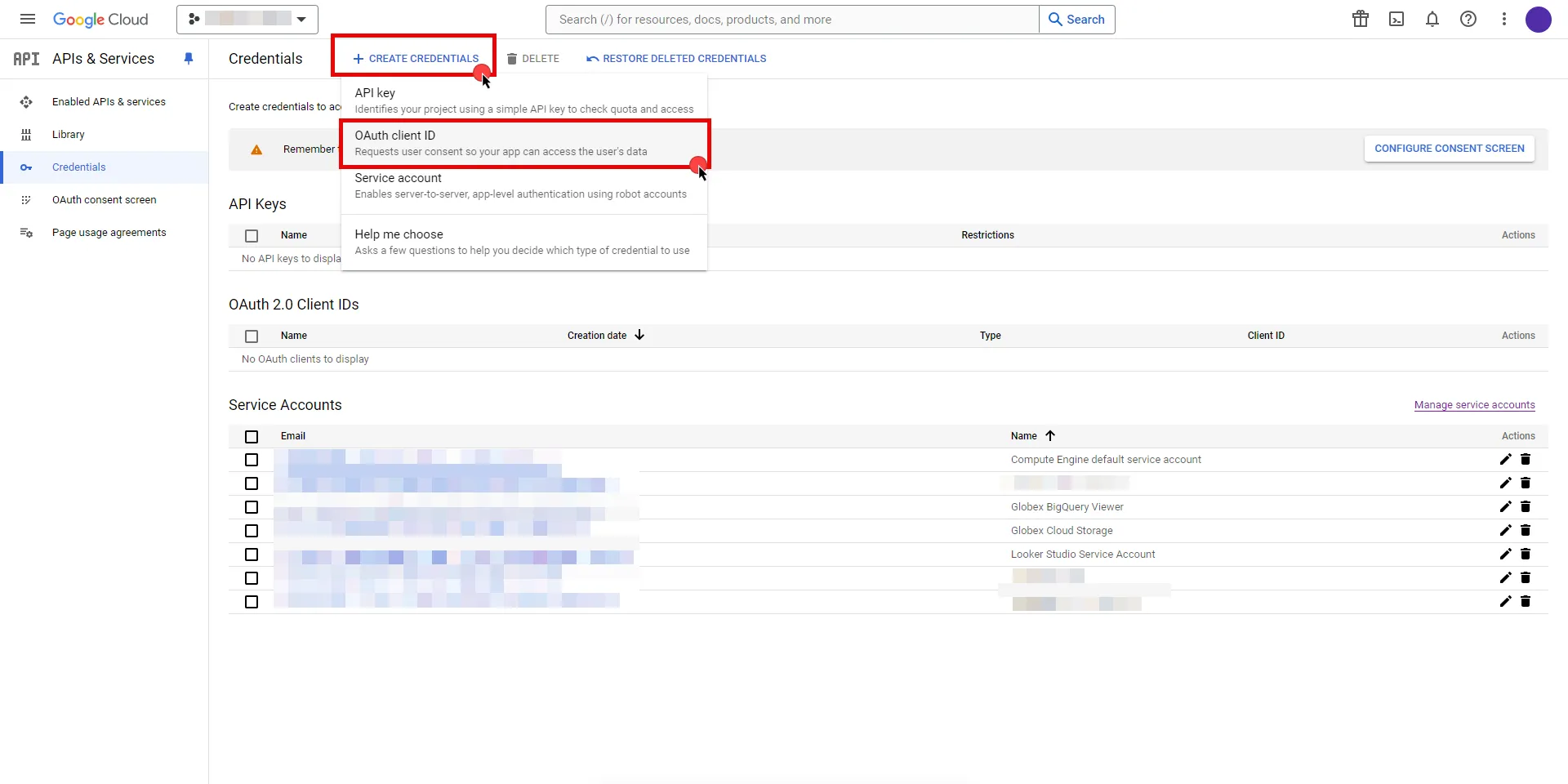 3. If there is no configured Consent Screen for your project, you will see a **Configure Consent Screen** button on the directed page. Click the button to continue. 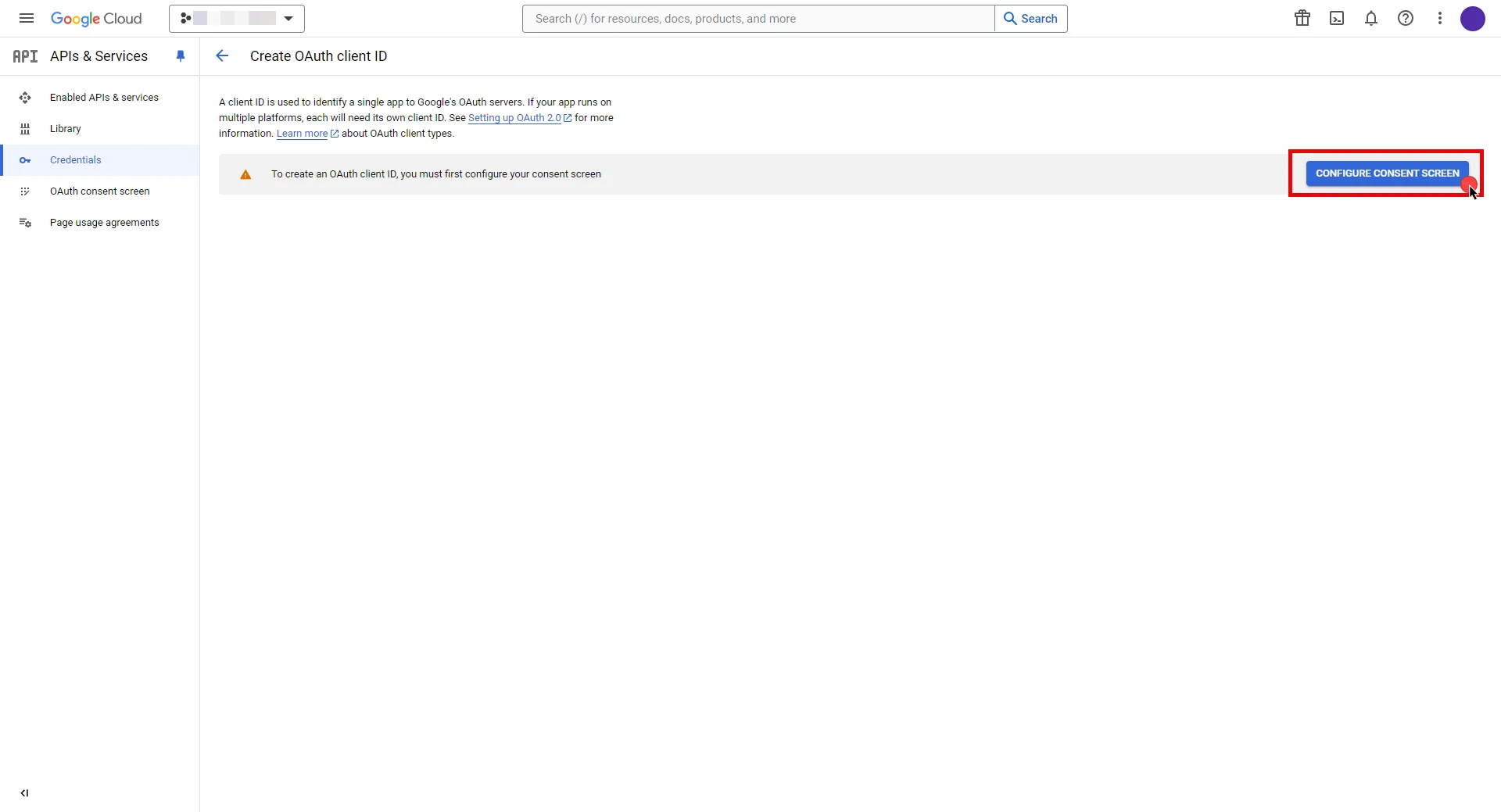 4. Choose **User Type** and click **Create**. * Provide a name for your app. * Choose a user support email from the dropdown menu. * App logo and app domain fields are optional. * Enter at least one email for the Developer contact information field. * Click **Save and Continue**. * You may skip the Scopes step by clicking **Save and Continue** once again. * In the **Summary** step, review the details of your app and click **Back to Dashboard**. 5. Navigate back to [Credentials](hhttps://console.cloud.google.com/apis/credentials) page, click **Create Credentials**, and select the **OAuth client ID** option again. * Choose **Web Application** for Application Type. * Provide a name for your web client. * Switch to the Aembit UI to create a new Credential Provider, selecting the OAuth 2.0 Authorization Code credential type. After setting up the Credential Provider, copy the auto-generated **Callback URL**. * Return to Google Cloud Console and paste the copied URL into the **Authorized redirect URIs** field. * Click **Create**. 6. A pop-up window will appear. Copy both the **Client ID** and the **Client Secret**. Store them for later use in the tenant configuration. 7. Edit the existing Credential Provider created in the previous steps. * **Name** - Choose a user-friendly name. * **Credential Type** - [OAuth 2.0 Authorization Code](/user-guide/access-policies/credential-providers/oauth-authorization-code) * **Callback URL (Read-Only)** - An auto-generated Callback URL from Aembit Admin. * **Client Id** - Provide the Client ID copied from Google. * **Client Secret** - Provide the Secret copied from Google. * **Scopes** - Enter the scopes you will use for Apigee (e.g. `https://www.googleapis.com/auth/cloud-platform`) A full list of GCP Scopes can be found at [OAuth 2.0 Scopes for Google APIs](https://developers.google.com/identity/protocols/oauth2/scopes). * **OAuth URL** - `https://accounts.google.com` Click on **URL Discovery** to populate the Authorization and Token URL fields, which can be left as populated. * **PKCE Required** - Off * **Lifetime** - 1 year (A Google Cloud Platform project with an OAuth consent screen configured for an external user type and a publishing status of Testing is issued a refresh token expiring in 7 days).\ Google does not specify a refresh token lifetime for the internal user type selected version; this value is recommended by Aembit. For more information, refer to the [official Google documentation](https://developers.google.com/identity/protocols/oauth2#expiration). 8. Click **Save** to save your changes on the Credential Provider. 9. In Aembit UI, click the **Authorize** button. You will be directed to a page where you can choose your Google account first. Then click **Allow** to complete the OAuth 2.0 Authorization Code flow. You will see a success page and will be redirected to Aembit automatically. You can also verify your flow is complete by checking the **State** value in the Credential Provider. After completion, it should be in a **Ready** state. 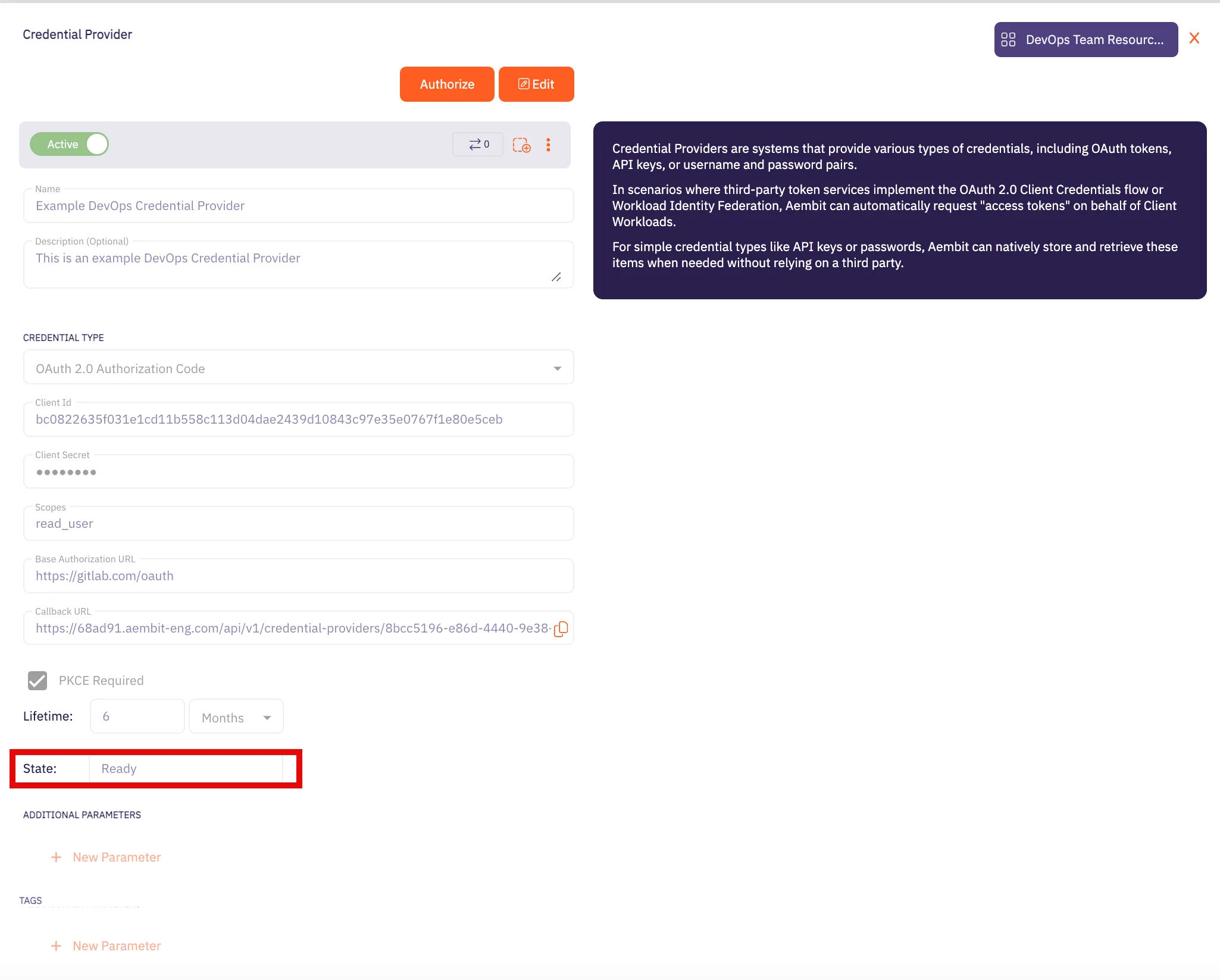 Caution Once the set lifetime ends, the retrieved credential will expire and no longer be active. Aembit will notify you before this happens. Please ensure you reauthorize your credential before it expires. ## API Key [Section titled “API Key”](#api-key) ### Create Apigee API Proxy [Section titled “Create Apigee API Proxy”](#create-apigee-api-proxy) 1. Navigate to the [Apigee UI in Cloud console](https://console.cloud.google.com/apigee) and sign in with your Google Cloud account. 2. In the left sidebar, select **API Proxies** under the Proxy development section. 3. On the **API Proxies** dashboard, click **Create** in the top left corner. 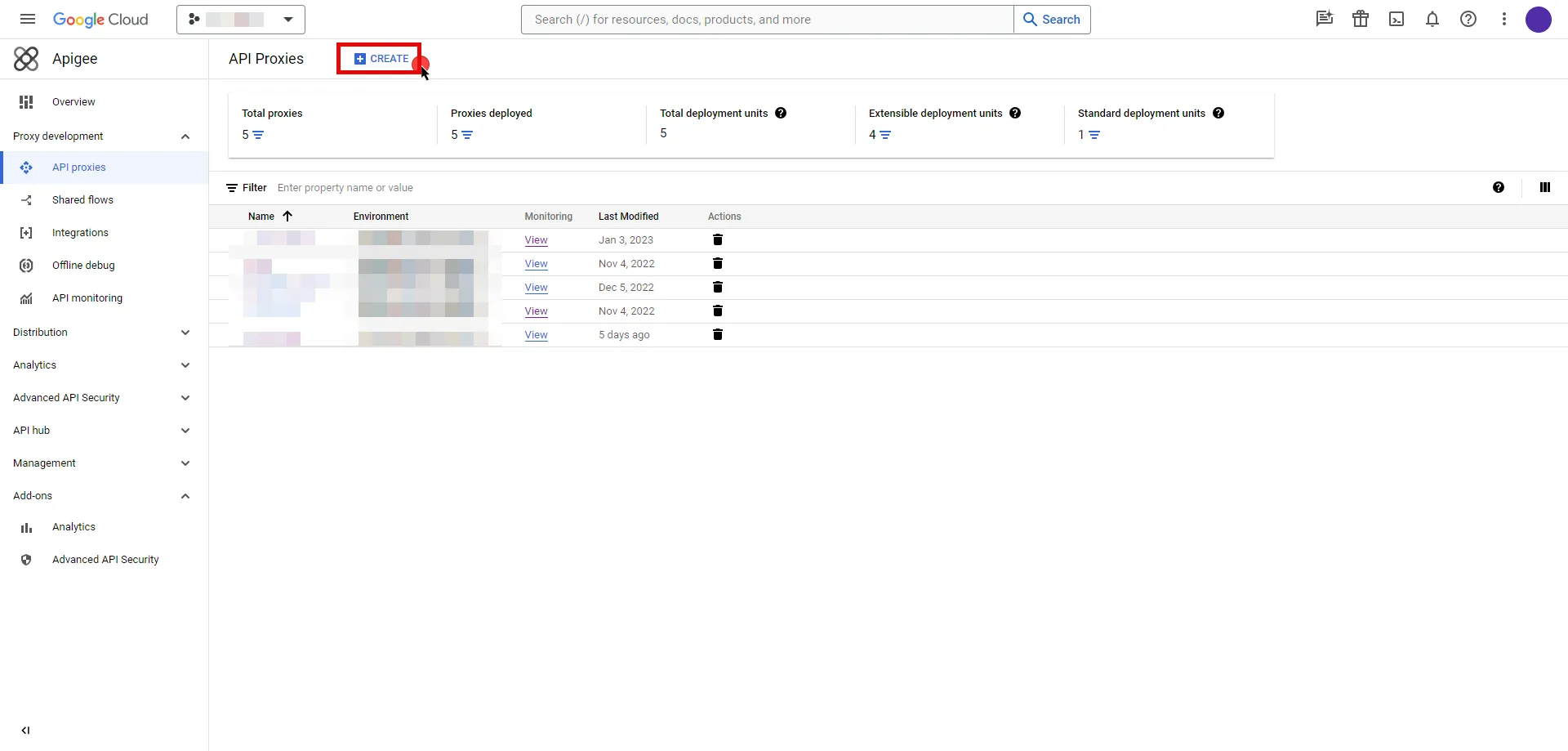 4. You will be prompted to choose a proxy type; keep the default **Reverse proxy** option and provide the any other required information. 5. Once you have configured your proxy, deploy it to make the API proxy active. ### Server Workload Configuration [Section titled “Server Workload Configuration”](#server-workload-configuration-1) To locate the environment group hostname for your proxy in the Apigee UI, follow these steps: * Navigate to the [Apigee UI](https://apigee.google.com/) and sign in with your Google Cloud account. * In the Apigee UI, go to **Management > Environments > Groups**. * Identify the row displaying the environment where your proxy is deployed. * Copy the endpoint for later use in the tenant configuration. 1. Create a new Server Workload. * **Name** - Choose a user-friendly name. 2. Configure the service endpoint: * **Host** - `.com` (Provide the endpoint copied from Apigee UI) * **Application Protocol** - HTTP * **Port** - 443 with TLS * **Forward to Port** - 443 with TLS * **Authentication method** - API Key * **Authentication scheme** - Query Parameter * **Query Parameter** - apikey ### Credential Provider Configuration [Section titled “Credential Provider Configuration”](#credential-provider-configuration-1) 1. Navigate to the [Apigee UI in Cloud console](https://console.cloud.google.com/apigee) and sign in with your Google Cloud account. 2. In the left sidebar, select **Apps** to access a list of your applications. 3. Click on the name of the app to view its details. 4. Within the **Credentials** section, click the icon to **Copy to clipboard** next to **Key** and securely store the key for later use in the tenant configuration. 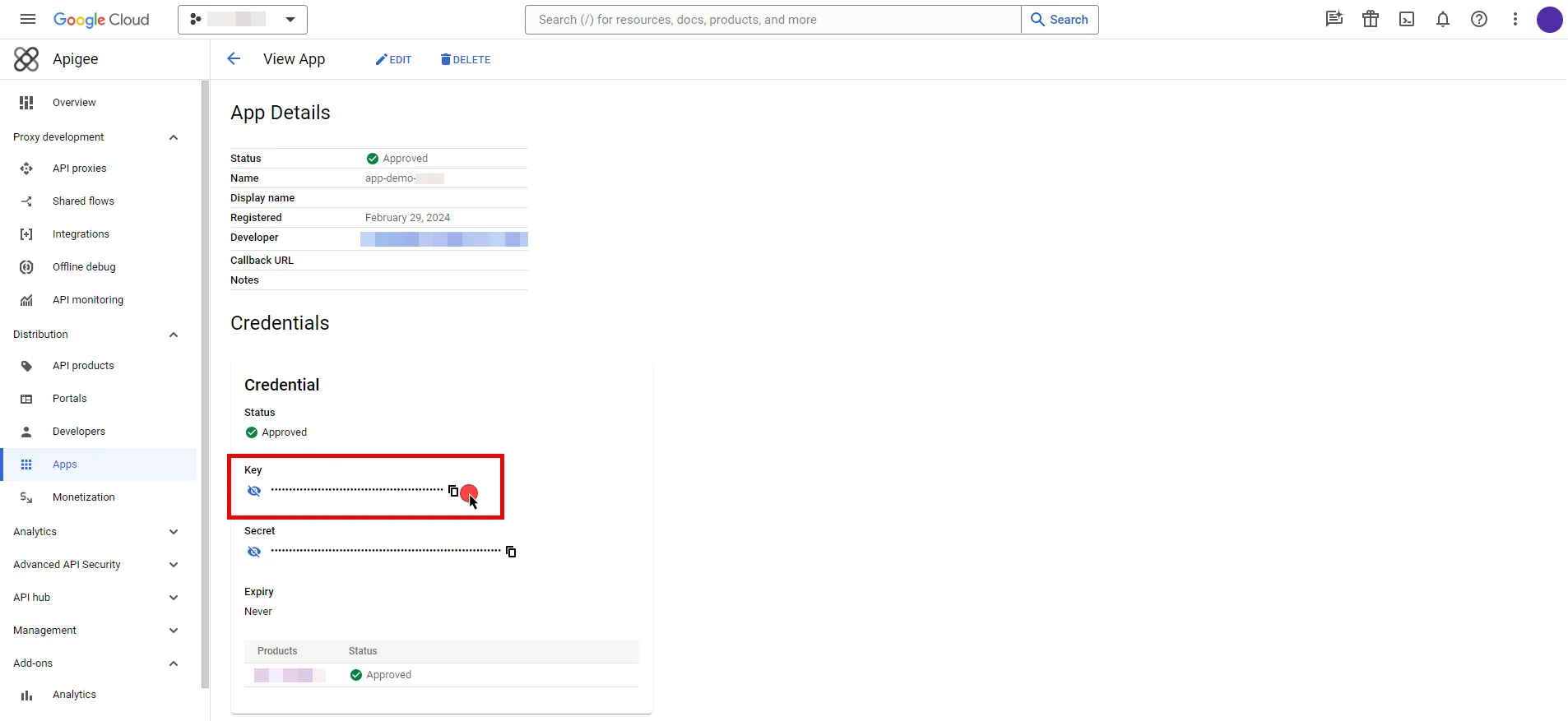 5. Create a new Credential Provider. * **Name** - Choose a user-friendly name. * **Credential Type** - [API Key](/user-guide/access-policies/credential-providers/api-key) * **API Key** - Provide the key copied from Google Cloud Apigee console. ## Client Workload Configuration [Section titled “Client Workload Configuration”](#client-workload-configuration) Aembit now handles the credentials required to access the Server Workload, eliminating the need for you to manage them directly. You can safely remove any previously used credentials from the Client Workload. If you access the Server Workload through an SDK or library, it is possible that the SDK/library may still require credentials to be present for initialization purposes. In this scenario, you can provide placeholder credentials. Aembit will overwrite these placeholder credentials with the appropriate ones during the access process. ## Access Policy [Section titled “Access Policy”](#access-policy) * Create an Access Policy for a Client Workload to access the Apigee Server Workload. Assign the newly created Credential Provider to this Access Policy. ## Required Features [Section titled “Required Features”](#required-features) * You will need to configure the [TLS Decrypt](/user-guide/deploy-install/advanced-options/tls-decrypt/configure-tls-decrypt) feature to work with the Apigee Server Workload.
# Atlassian
> This page describes how to configure Aembit to work with the Atlassian Server Workload.
# [Atlassian](https://www.atlassian.com/) is a cloud-based service offering that facilitates collaborative work and project management for teams by providing a suite of tools, which include: * Jira for project tracking * Confluence for document collaboration * Bitbucket for version control; and * other integrated applications Below you can find the Aembit configuration required to work with the Atlassian Cloud service as a Server Workload using the Atlassian REST APIs. Aembit supports multiple authentication/authorization methods for Atlassian. This page describes scenarios where the Credential Provider is configured for Atlassian via: * [OAuth 2.0 Authorization Code (3LO)](/user-guide/access-policies/server-workloads/guides/atlassian#oauth-20-authorization-code) * [API Key](/user-guide/access-policies/server-workloads/guides/atlassian#api-key) ## OAuth 2.0 Authorization Code [Section titled “OAuth 2.0 Authorization Code”](#oauth-20-authorization-code) ### Server Workload Configuration [Section titled “Server Workload Configuration”](#server-workload-configuration) 1. Create a new Server Workload. * **Name** - Choose a user-friendly name. 2. Configure the service endpoint: * **Host** - `.atlassian.net` * **Application Protocol** - HTTP * **Port** - 443 with TLS * **Forward to Port** - 443 with TLS * **Authentication method** - HTTP Authentication * **Authentication scheme** - Bearer ### Credential Provider Configuration [Section titled “Credential Provider Configuration”](#credential-provider-configuration) 1. Log into to the [Atlassian Developer Console](https://developer.atlassian.com/console/myapps/). 2. Click on **Create** and select the **OAuth 2.0 integration** option. 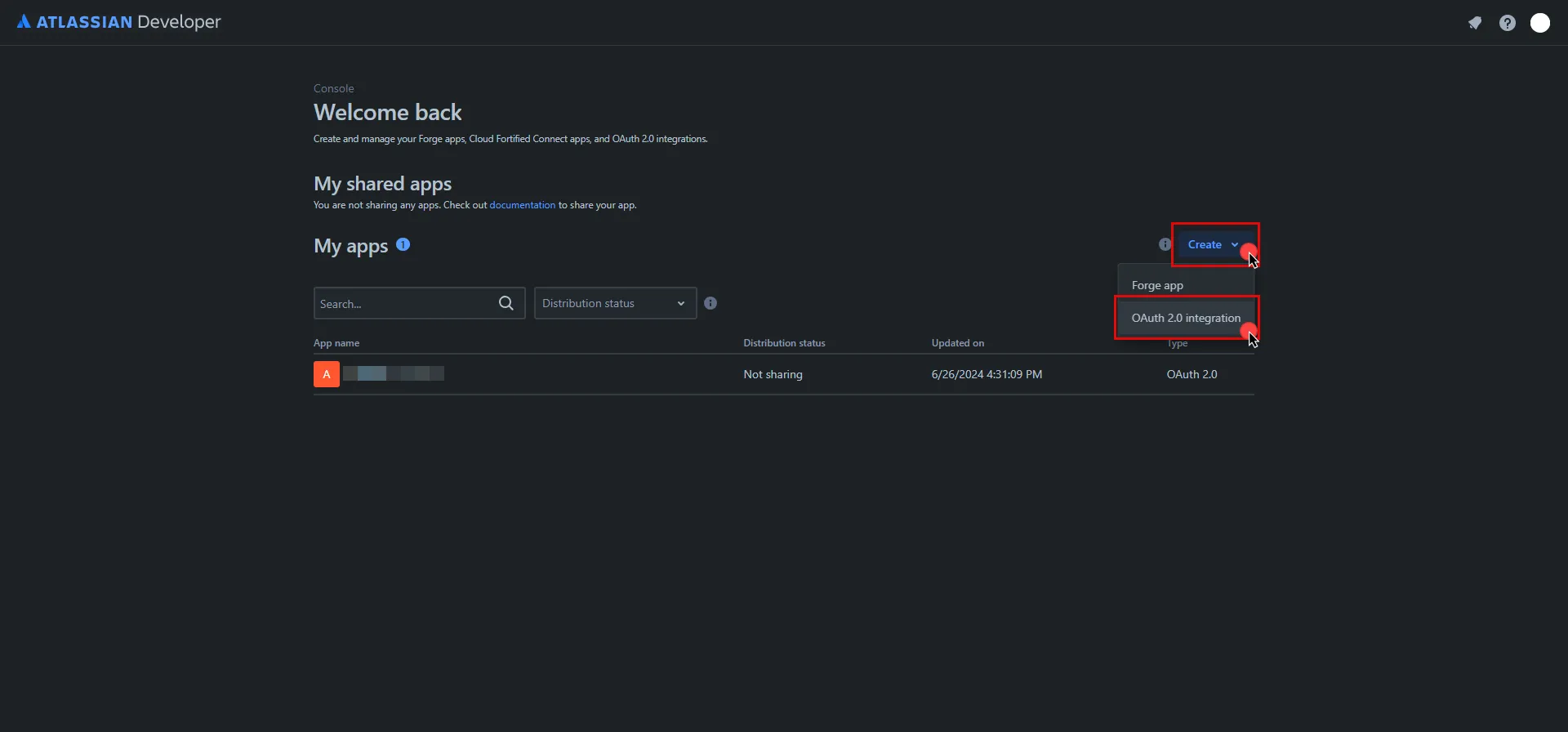 3. Provide a name for your app, check the agreement box, and click **Create** . 4. In the left pane, select **Authorization**, and then click **Add** under the Action column. 5. Switch to the Aembit UI to create a new Credential Provider, selecting the OAuth 2.0 Authorization Code credential type. After setting up the Credential Provider, copy the auto-generated **Callback URL**. 6. Return to Atlassian and paste the copied URL into the **Callback URL** field. 7. In the left pane, select **Permissions**, and then click **Add** under the Action column of the API that best suits your project needs. After clicking **Add**, it will change to **Configure**; click **Configure** to edit. 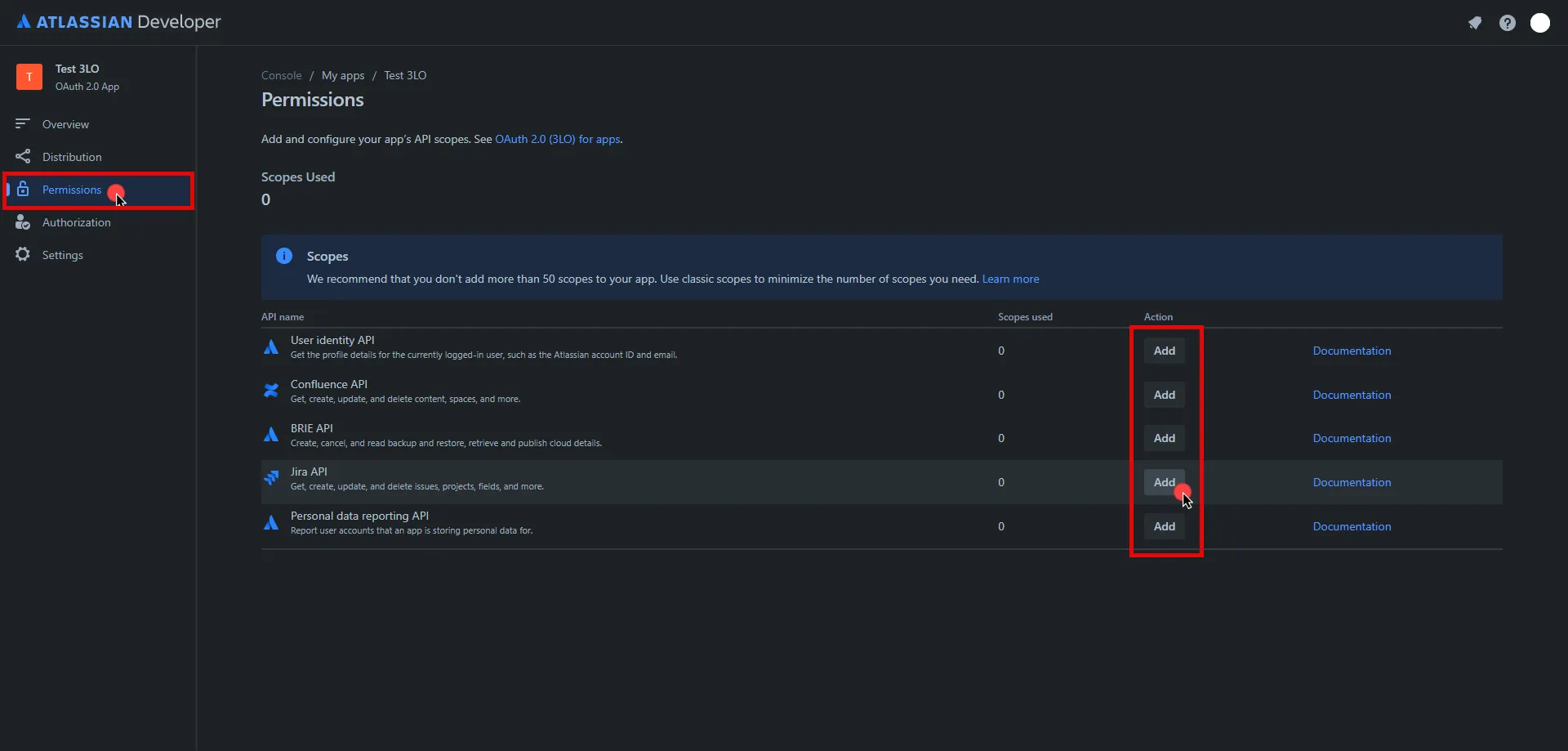 8. On the redirected page, click **Edit Scopes**, add the necessary scopes for your application, and then click **Save** Copy the **Code** version of all selected scopes and save this information for future use. 9. In the left pane, select **Settings**, scroll down to the **Authentication details**, and copy both the **Client ID** and the **Secret**. Store them for later use in the tenant configuration. 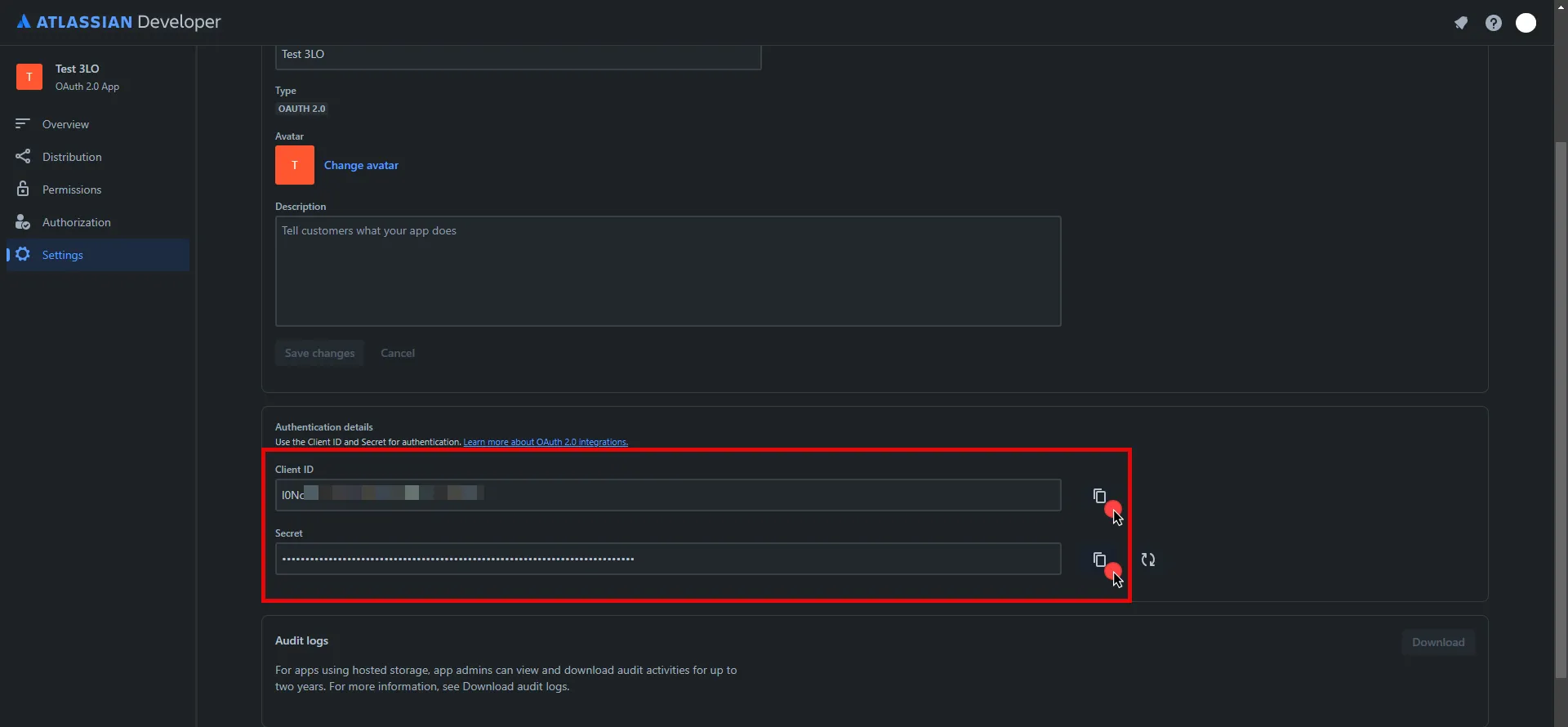 10. Edit the existing Credential Provider created in the previous steps. * **Name** - Choose a user-friendly name. * **Credential Type** - [OAuth 2.0 Authorization Code](/user-guide/access-policies/credential-providers/oauth-authorization-code) * **Callback URL (Read-Only)** - An auto-generated Callback URL from Aembit Admin. * **Client Id** - Provide the Client ID copied from Atlassian. * **Client Secret** - Provide the Secret copied from Atlassian. * **Scopes** - Enter the scopes you use, space delimited. Must include the `offline_access` scope required for the refresh token (e.g. `offline_access read:jira-work read:servicedesk-request`) * **OAuth URL** - `https://auth.atlassian.com` Click on **URL Discovery** to populate the Authorization and Token URL fields, which can be left as populated. * **PKCE Required** - Off (PKCE is not supported by Atlassian, so leave this field unchecked). * **Lifetime** - 1 year (Absolute expiry time according to Atlassian)\ For more information on rotating the refresh token, please refer to the [official Atlassian documentation](https://developer.atlassian.com/cloud/jira/platform/oauth-2-3lo-apps/#use-a-refresh-token-to-get-another-access-token-and-refresh-token-pair). 11. Click **Save** to save your changes on the Credential Provider. 12. In Aembit UI, click the **Authorize** button. You are be directed to a page where you can review the access request. Click **Accept** to complete the OAuth 2.0 Authorization Code flow. You should see a success page and be redirected to Aembit automatically. You can also verify that your flow is complete by checking the **State** value in the Credential Provider. After completion, it should be in a **Ready** state.  Caution Once the set lifetime ends, the retrieved credential will expire and no longer be active. Aembit will notify you before this happens. Please ensure you reauthorize your credential before it expires. ## API Key [Section titled “API Key”](#api-key) ### Server Workload Configuration [Section titled “Server Workload Configuration”](#server-workload-configuration-1) 1. Create a new Server Workload. * **Name** - Choose a user-friendly name. 2. Configure the service endpoint: * **Host** - `.atlassian.net` * **Application Protocol** - HTTP * **Port** - 443 with TLS * **Forward to Port** - 443 with TLS * **Authentication method** - HTTP Authentication * **Authentication scheme** - Basic ### Credential Provider Configuration [Section titled “Credential Provider Configuration”](#credential-provider-configuration-1) 1. Sign into your Atlassian account. 2. Navigate to the [Atlassian account - API Tokens](https://id.atlassian.com/manage-profile/security/api-tokens) page. 3. Click on **Create API token**. 4. In the dialog that appears, enter a memorable and concise label for your token, and then click **Create**.  5. Click **Copy to clipboard** and securely store the token for later use in the configuration on the tenant. For more information on how to store your API token, please refer to the [official Atlassian documentation](https://support.atlassian.com/atlassian-account/docs/manage-api-tokens-for-your-atlassian-account/). 6. Create a new Credential Provider. * **Name** - Choose a user-friendly name. * **Credential Type** - [Username & Password](/user-guide/access-policies/credential-providers/username-password) * **Username** - Your email address for the Atlassian account used to create the token. * **Password** - Provide the token copied from Atlassian. ## Client Workload Configuration [Section titled “Client Workload Configuration”](#client-workload-configuration) Aembit now handles the credentials required to access the Server Workload, eliminating the need for you to manage them directly. You can safely remove any previously used credentials from the Client Workload. If you access the Server Workload through an SDK or library, it is possible that the SDK/library may still require credentials to be present for initialization purposes. In this scenario, you can provide placeholder credentials. Aembit will overwrite these placeholder credentials with the appropriate ones during the access process. ## Access Policy [Section titled “Access Policy”](#access-policy) * Create an Access Policy for a Client Workload to access the Atlassian Server Workload. Assign the newly created Credential Provider to this Access Policy. ## Required Features [Section titled “Required Features”](#required-features) * You will need to configure the [TLS Decrypt](/user-guide/deploy-install/advanced-options/tls-decrypt/configure-tls-decrypt) feature to work with the Atlassian Server Workload.
# Create an AWS Server Workload
> How to configure Aembit to work with AWS Cloud services using STS federation and SigV4 authentication
This guide walks you through creating a Server Workload**Server Workload**: Server Workloads represent target services, APIs, databases, or applications that receive and respond to access requests from Client Workloads.[Learn more](/get-started/concepts/server-workloads) in Aembit to securely access AWS services without storing static AWS credentials. **Use this Server Workload** to enable your applications to authenticate to AWS services such as S3, Lambda, EC2, DynamoDB, SQS, and other AWS API endpoints. Aembit authenticates to AWS using the [AWS Security Token Service (STS)](/user-guide/access-policies/credential-providers/aws-security-token-service-federation/) Credential Provider**Credential Provider**: Credential Providers obtain the specific access credentials—such as API keys, OAuth tokens, or temporary cloud credentials—that Client Workloads need to authenticate to Server Workloads.[Learn more](/get-started/concepts/credential-providers) with [SigV4 and SigV4a](/user-guide/access-policies/credential-providers/aws-sigv4) request signing. ## Prerequisites [Section titled “Prerequisites”](#prerequisites) Before you begin, ensure you have the following: **Account access** * Access to your Aembit Tenant**Aembit Tenant**: Aembit Tenants serve as isolated, dedicated environments within Aembit that provide complete separation of administrative domains and security configurations.[Learn more](/get-started/concepts/administration) (role: Workload Administrator or higher) * Access to AWS Console with permissions to create IAM Roles and Identity Providers **Infrastructure** * Aembit Edge**Aembit Edge**: Aembit Edge represents components deployed within your operational environments that enforce Access Policies by intercepting traffic, verifying identities, and injecting credentials just-in-time.[Learn more](/get-started/concepts/aembit-edge) Components deployed in your environment: * Agent Proxy installed * For VMs: [Linux](/user-guide/deploy-install/virtual-machine/linux/agent-proxy-install-linux/) or [Windows](/user-guide/deploy-install/virtual-machine/windows/agent-proxy-install-windows/) installation * For Kubernetes: [Kubernetes deployment](/user-guide/deploy-install/kubernetes/) * [TLS Decrypt](/user-guide/deploy-install/advanced-options/tls-decrypt/configure-tls-decrypt/) configured on your Agent Proxy. AWS API requests require TLS Decrypt because Agent Proxy must inspect HTTPS traffic to inject SigV4 signatures. TLS decryption occurs only on the Agent Proxy running alongside your workload. * Network connectivity from your workload to AWS service endpoints (outbound HTTPS to `*.amazonaws.com`) **AWS configuration** * An IAM Role configured in AWS with the necessary permissions to access the desired AWS services ## How Aembit authenticates to AWS [Section titled “How Aembit authenticates to AWS”](#how-aembit-authenticates-to-aws) Aembit uses AWS STS federation to obtain temporary credentials, then signs requests using AWS SigV4 or SigV4a.  Aembit automatically selects the appropriate signing protocol: * **SigV4** for regional AWS services (when the hostname includes a region like `us-east-1`) * **SigV4a** for global or multi-region services (when the hostname doesn’t include a region) For details on how Aembit handles AWS request signing, see [How Aembit uses AWS SigV4 and SigV4a](/user-guide/access-policies/credential-providers/aws-sigv4). ## Server Workload configuration [Section titled “Server Workload configuration”](#server-workload-configuration) Select the tab for the AWS service you want to configure: * Generic Use this configuration for most AWS services that follow the standard regional endpoint pattern, such as Lambda, SQS, DynamoDB, and Key Management Service (KMS). 1. Log in to your Aembit Tenant. 2. Go to **Server Workloads**, and click **+ New**. 3. Configure the following fields: * **Name**: Enter a descriptive name (for example, `aws-generic`) * **Host**: `*.amazonaws.com` * **Application Protocol**: HTTP * **Port**: `443` * **Forward to Port**: `443` with TLS enabled * **Authentication method**: HTTP Authentication * **Authentication scheme**: AWS Signature v4 4. Click **Save**. * S3 Use this configuration for Amazon S3. Known limitations **File upload size:** For S3 requests with streaming signed payloads, the Agent Proxy limits uploads to 50 MiB by default. You can adjust this limit using the [`AEMBIT_AWS_MAX_BUFFERED_PAYLOAD_BYTES`](/reference/edge-components/edge-component-env-vars/#aembit_aws_max_buffered_payload_bytes) environment variable. **Request compression:** The Agent Proxy doesn’t support streaming payload signing when the HTTP request body uses content encodings. If you have request compression enabled, turn it off by setting `AWS_DISABLE_REQUEST_COMPRESSION=true`. For all limitations and workarounds, see [Known limitations](/user-guide/access-policies/credential-providers/aws-sigv4#known-limitations). Amazon S3 uses a unique endpoint pattern where bucket names appear as subdomains. 1. Log in to your Aembit Tenant. 2. Go to **Server Workloads**, and click **+ New**. 3. Configure the following fields: * **Name**: Enter a descriptive name (for example, `aws-s3`) * **Host**: Choose one of the following options: | Host Value | Scope | | ----------------------------------------- | -------------------------------------------------------------------------------------------- | | `*.s3..amazonaws.com` | All S3 buckets in a specific region (for example, `*.s3.us-east-1.amazonaws.com`) | | `.s3..amazonaws.com` | A specific bucket in a specific region (for example, `my-bucket.s3.us-east-1.amazonaws.com`) | * **Application Protocol**: HTTP * **Port**: `443` * **Forward to Port**: `443` with TLS enabled * **Authentication method**: HTTP Authentication * **Authentication scheme**: AWS Signature v4 4. Click **Save**. * EC2 Use this configuration for Amazon EC2 (Elastic Compute Cloud). 1. Log in to your Aembit Tenant. 2. Go to **Server Workloads**, and click **+ New**. 3. Configure the following fields: * **Name**: Enter a descriptive name (for example, `aws-ec2`) * **Host**: Choose one of the following options: | Host Value | Scope | | ---------------------------- | --------------------------------------------------------------------- | | `ec2..amazonaws.com` | EC2 in a specific region (for example, `ec2.us-west-2.amazonaws.com`) | | `ec2.*.amazonaws.com` | EC2 in any region (wildcard) | * **Application Protocol**: HTTP * **Port**: `443` * **Forward to Port**: `443` with TLS enabled * **Authentication method**: HTTP Authentication * **Authentication scheme**: AWS Signature v4 4. Click **Save**. ## Credential Provider configuration [Section titled “Credential Provider configuration”](#credential-provider-configuration) 1. Create an AWS IAM Role in AWS with the necessary permissions to access the desired AWS services. Then, create an AWS IAM Role Integration in your Aembit Tenant. See [Create an AWS IAM Role Integration](/user-guide/access-policies/credential-providers/integrations/aws-iam-role). 2. Create an AWS Security Token Service (STS) Credential Provider. See [Configure an AWS STS Federation Credential Provider](/user-guide/access-policies/credential-providers/aws-security-token-service-federation). ## Access Policy configuration [Section titled “Access Policy configuration”](#access-policy-configuration) Create an Access Policy**Access Policy**: Access Policies define, enforce, and audit access between Client and Server Workloads by cryptographically verifying workload identity and contextual factors rather than relying on static secrets.[Learn more](/get-started/concepts/access-policies) linking your Client Workload**Client Workload**: Client Workloads represent software applications, scripts, or automated processes that initiate access requests to Server Workloads, operating autonomously without direct user interaction.[Learn more](/get-started/concepts/client-workloads), the AWS STS Credential Provider, and the Server Workload. See [Access Policies](/user-guide/access-policies/) for details. ## Client Workload configuration [Section titled “Client Workload configuration”](#client-workload-configuration) Aembit handles the credentials required to access AWS services, eliminating the need for you to manage them directly. Remove any previously used AWS credentials (access keys, secret keys) from your Client Workload. If you access AWS through an SDK or library, the SDK may still require credentials to be present for initialization purposes. In this scenario, provide placeholder credentials. Aembit replaces these placeholder credentials with real temporary credentials during the access request. For more information, see [Understanding placeholder credentials](/user-guide/access-policies/server-workloads/developer-integration/#understanding-placeholder-credentials). ```shell # Placeholder credentials for SDK initialization export AWS_ACCESS_KEY_ID=placeholder export AWS_SECRET_ACCESS_KEY=placeholder ``` If you’re using the [AWS CLI](https://aws.amazon.com/cli/), set the `AWS_CA_BUNDLE` environment variable to point to your Aembit Tenant Root CA certificate: ```shell export AWS_CA_BUNDLE=/path/to/aembit-root-ca.pem ``` ## Test the integration [Section titled “Test the integration”](#test-the-integration) After completing the full configuration (Server Workload, Credential Provider, Client Workload, and Access Policy), verify access using the AWS CLI. * Generic (KMS example) ```shell # Verify credentials are working aws sts get-caller-identity # List KMS keys aws kms list-keys # Describe a specific key aws kms describe-key --key-id ``` * S3 ```shell # Verify credentials are working aws sts get-caller-identity # List all S3 buckets aws s3 ls # List contents of a specific bucket aws s3 ls s3:// # Download a file from S3 aws s3 cp s3:/// ./ # Upload a file to S3 aws s3 cp ./local-file.txt s3:/// ``` * EC2 ```shell # Verify credentials are working aws sts get-caller-identity # List all EC2 instances aws ec2 describe-instances # List instances with specific filters aws ec2 describe-instances --filters "Name=instance-state-name,Values=running" # Describe available regions aws ec2 describe-regions ``` ## Common configuration [Section titled “Common configuration”](#common-configuration) ### IAM permissions [Section titled “IAM permissions”](#iam-permissions) AWS IAM policies require different Resource ARN formats depending on the operation: | Operation Type | Resource ARN Format | Example | | ----------------------------------- | ---------------------------- | -------------------------- | | Bucket-level (ListBucket) | `arn:aws:s3:::bucket-name` | `arn:aws:s3:::my-bucket` | | Object-level (GetObject, PutObject) | `arn:aws:s3:::bucket-name/*` | `arn:aws:s3:::my-bucket/*` | For more on AWS IAM policies, see [Policies and permissions in Amazon S3](https://docs.aws.amazon.com/AmazonS3/latest/userguide/access-policy-language-overview.html). ### Regional endpoints [Section titled “Regional endpoints”](#regional-endpoints) AWS services use different endpoint patterns: | Service Type | Endpoint Pattern | Example | | ------------------- | -------------------------------- | -------------------------------------- | | Regional services | `service.region.amazonaws.com` | `kms.us-east-1.amazonaws.com` | | Global services | `service.amazonaws.com` | `iam.amazonaws.com` | | S3 (virtual-hosted) | `bucket.s3.region.amazonaws.com` | `my-bucket.s3.us-east-1.amazonaws.com` | For the complete list of AWS service endpoints, see [AWS service endpoints](https://docs.aws.amazon.com/general/latest/gr/rande.html). ### Credential lifecycle [Section titled “Credential lifecycle”](#credential-lifecycle) Aembit dynamically generates short-lived AWS STS credentials, eliminating manual credential rotation. For details on credential rotation, compromise response, and audit logging, see [Credential Lifecycle Management](/user-guide/access-policies/server-workloads/credential-lifecycle/). ## Troubleshooting [Section titled “Troubleshooting”](#troubleshooting) For common issues like Agent Proxy connectivity, network problems, or TLS configuration, see the [Troubleshooting Guide](/user-guide/access-policies/server-workloads/troubleshooting/). ### AWS-specific issues [Section titled “AWS-specific issues”](#aws-specific-issues) **AccessDenied errors** - If you receive `AccessDenied` errors when accessing AWS services: 1. Verify your IAM Role has the correct permissions for the operation 2. Check that bucket-level and object-level permissions use the correct ARN format 3. Confirm the IAM Role trust policy allows the Aembit OIDC provider **Signature mismatch errors** - If you receive signature mismatch errors: 1. Verify you configured [TLS Decrypt](/user-guide/deploy-install/advanced-options/tls-decrypt/configure-tls-decrypt/) 2. Check the `AWS_CA_BUNDLE` environment variable points to the Aembit Root CA certificate 3. If using request compression, turn it off with `AWS_DISABLE_REQUEST_COMPRESSION=true` ## Cleanup [Section titled “Cleanup”](#cleanup) ## Related resources [Section titled “Related resources”](#related-resources) * [How Aembit uses AWS SigV4 and SigV4a](/user-guide/access-policies/credential-providers/aws-sigv4) - Understanding AWS request signing * [AWS STS Credential Provider](/user-guide/access-policies/credential-providers/aws-security-token-service-federation/) - Detailed Credential Provider setup * [AWS IAM Role Integration](/user-guide/access-policies/credential-providers/integrations/aws-iam-role) - IAM Role configuration * [Credential Lifecycle Management](/user-guide/access-policies/server-workloads/credential-lifecycle/) - How Aembit manages credential rotation and security * [Developer Integration](/user-guide/access-policies/server-workloads/developer-integration/) - SDK integration and placeholder credentials * [TLS Decrypt Configuration](/user-guide/deploy-install/advanced-options/tls-decrypt/configure-tls-decrypt/) - HTTPS interception setup
# Amazon RDS for MySQL
> This page describes how to configure Aembit to work with the Amazon RDS for MySQL Server Workload.
# [Amazon RDS for MySQL](https://aws.amazon.com/rds/mysql/) is a robust and fully managed relational database service provided by Amazon Web Services, specifically tailored to streamline the deployment, administration, and scalability of MySQL databases in the cloud. Below you can find the Aembit configuration required to work with AWS RDS for MySQL as a Server Workload using MySQL-compatible CLI, application, or a library. ## Prerequisites [Section titled “Prerequisites”](#prerequisites) Before proceeding with the configuration, ensure you have an AWS tenant (or [sign up](https://portal.aws.amazon.com/billing/signup#/start/email) for one) and an Amazon RDS for MySQL database. If you have not created a database before, you can follow the steps in the next section. For more information on creating an Amazon RDS DB instance, please refer to the [official Amazon documentation](https://docs.aws.amazon.com/AmazonRDS/latest/UserGuide/CHAP_Tutorials.WebServerDB.CreateDBInstance.html). ### Create Amazon RDS MySQL Database [Section titled “Create Amazon RDS MySQL Database”](#create-amazon-rds-mysql-database) 1. Sign in to the AWS Management Console and navigate to the [Amazon RDS console](https://console.aws.amazon.com/rds/). 2. In the left sidebar, select **Databases**, and then click **Create Database** in the top right corner.  3. Configure the database according to your preferences. Below are key choices: * Under **Engine options**, choose **MySQL** for the engine type. * Under **Engine options**, select a version from the **8.0.x** series. * Under **Settings**, enter a name for the **DB cluster identifier**; this will be used in the endpoint. * In **Settings**, expand the **Credentials Settings** section. Use the **Master username** and **master password** as Credential Provider details. You can either auto-generate a password or type your own. Save this information for future use. - In **Connectivity**, find the **Publicly Accessible** option and set it to **Yes**. :warning: Setting the **Publicly Accessible** option to **Yes** is done here purely for demonstration purposes. In normal circumstances, it is recommended to keep the RDS instance not publicly accessible for enhanced security. * In **Connectivity**, ensure the **VPC security group (firewall)** configuration is in place to allow client workload/agent proxy communication. * In **Connectivity**, expand the **Additional Configuration** section and verify the **Database Port** is set to 3306. * In **Database authentication**, select **Password authentication**. * In **Additional configuration**, specify an **Initial database name**. 4. After making all of your selections, click **Create Database**. ## Server Workload Configuration [Section titled “Server Workload Configuration”](#server-workload-configuration) To retrieve the connection information for a DB instance in the AWS Management Console: 1. Sign in to the AWS Management Console and navigate to the [Amazon RDS console](https://console.aws.amazon.com/rds/). 2. In the left sidebar, select **Databases** to view a list of your DB instances. 3. Click on the name of the DB instance to view its details. 4. Navigate to the **Connectivity & security** tab and copy the endpoint. 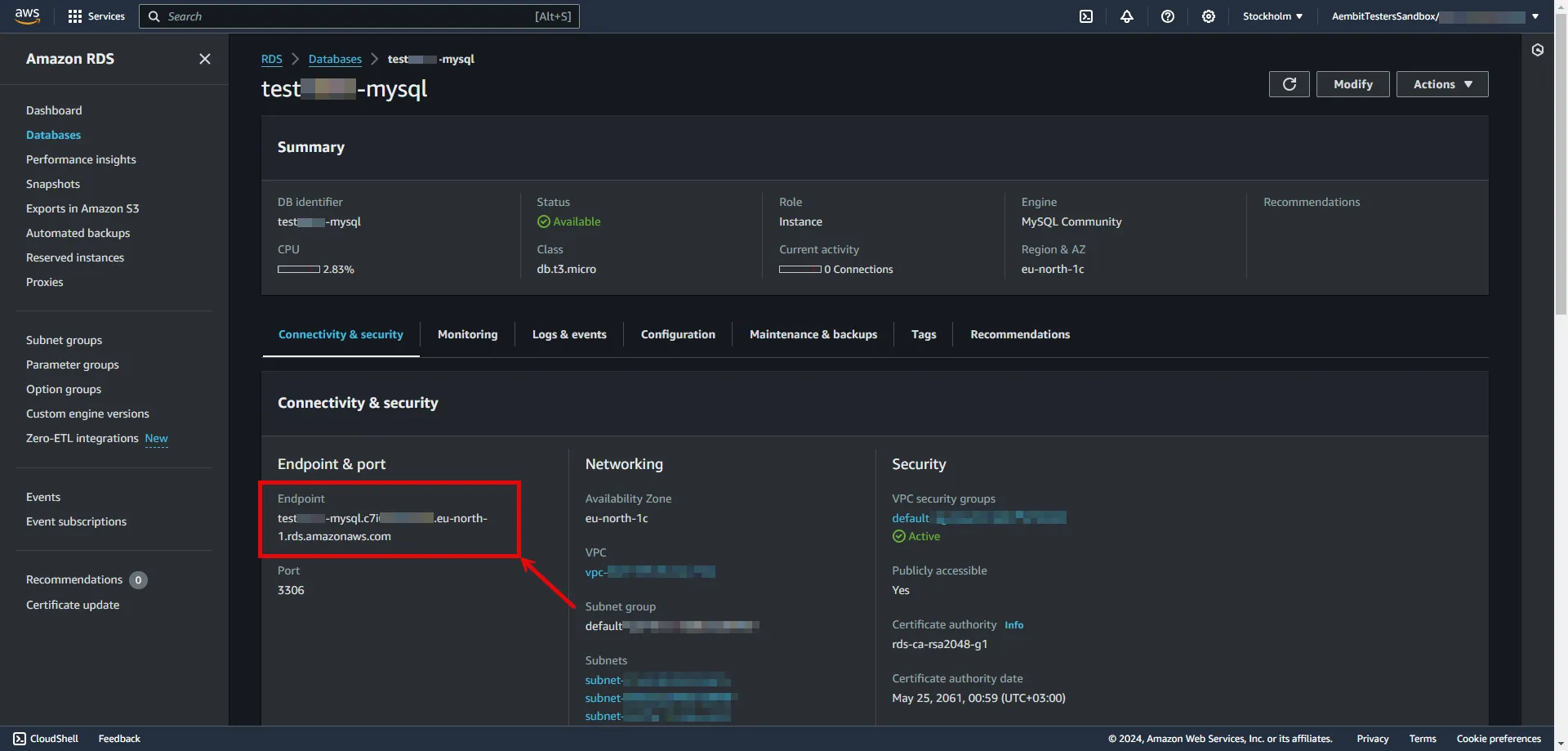 5. Create a new Server Workload. * **Name** - Choose a user-friendly name. 6. Configure the service endpoint: * **Host** - `...rds.amazonaws.com` (Provide the endpoint copied from AWS) * **Application Protocol** - MySQL * **Port** - 3306 * **Forward to Port** - 3306 with TLS * **Forward TLS Verification** - Full * **Authentication method** - Password Authentication * **Authentication scheme** - Password ## Credential Provider Configuration [Section titled “Credential Provider Configuration”](#credential-provider-configuration) 1. Create a new Credential Provider. * **Name** - Choose a user-friendly name. * **Credential Type** - [Username & Password](/user-guide/access-policies/credential-providers/username-password) * **Username** - Provide login ID for the master user of your DB cluster. * **Password** - Provide the Master password of your DB cluster. ## Client Workload Configuration [Section titled “Client Workload Configuration”](#client-workload-configuration) Aembit now handles the credentials required to access the Server Workload, eliminating the need for you to manage them directly. You can safely remove any previously used credentials from the Client Workload. If you access the Server Workload through an SDK or library, it is possible that the SDK/library may still require credentials to be present for initialization purposes. In this scenario, you can provide placeholder credentials. Aembit will overwrite these placeholder credentials with the appropriate ones during the access process. ## Access Policy [Section titled “Access Policy”](#access-policy) * Create an access policy for a Client Workload to access the Amazon RDS for MySQL Server Workload and assign the newly created Credential Provider to it.
# Amazon RDS for PostgreSQL
> This page describes how to configure Aembit to work with the Amazon RDS for PostgreSQL Server Workload.
# [Amazon RDS for PostgreSQL](https://aws.amazon.com/rds/postgresql) is a fully managed relational database service provided by Amazon Web Services, offering a scalable and efficient solution for deploying, managing, and scaling PostgreSQL databases in the cloud. Below you can find the Aembit configuration required to work with AWS RDS for PostgreSQL as a Server Workload using PostgreSQL-compatible CLI, application, or a library. ## Prerequisites [Section titled “Prerequisites”](#prerequisites) Before proceeding with the configuration, ensure you have an AWS tenant (or [sign up](https://portal.aws.amazon.com/billing/signup#/start/email) for one) and an Amazon RDS for PostgreSQL database. If you have not created a database before, you can follow the steps in the next section. For more information on creating an Amazon RDS DB instance, please refer to the [official Amazon documentation](https://docs.aws.amazon.com/AmazonRDS/latest/UserGuide/CHAP_Tutorials.WebServerDB.CreateDBInstance.html). ### Create Amazon RDS PostgreSQL Database [Section titled “Create Amazon RDS PostgreSQL Database”](#create-amazon-rds-postgresql-database) 1. Sign in to the AWS Management Console and navigate to the [Amazon RDS console](https://console.aws.amazon.com/rds/). 2. In the left sidebar, select **Databases**, and then click **Create Database** in the top right corner.  3. Configure the database according to your preferences. Below are key choices: * Under **Engine options**, choose **PostgreSQL** for the engine type. * Under **Engine options**, select a version **16** or from the **15** series. * Under **Settings**, enter a name for the **DB cluster identifier**; this will be used in the endpoint. * In **Settings**, expand the **Credentials Settings** section. Use the **Master username** and **master password** as Credential Provider details. You can either auto-generate a password or type your own. Save this information for future use. - In **Connectivity**, find the **Publicly Accessible** option and set it to **Yes**. :warning: Setting the **Publicly Accessible** option to **Yes** is done here purely for demonstration purposes. In normal circumstances, it is recommended to keep the RDS instance not publicly accessible for enhanced security. * In **Connectivity**, ensure the **VPC security group (firewall)** configuration is in place to allow client workload/agent proxy communication. * In **Connectivity**, expand the **Additional Configuration** section and verify the **Database Port** is set to 5432. * In **Database authentication**, select **Password authentication**. * In **Additional configuration**, specify an **Initial database name**. 4. After making all of your selections, click **Create Database**. ## Server Workload Configuration [Section titled “Server Workload Configuration”](#server-workload-configuration) To retrieve the connection information for a DB instance in the AWS Management Console: 1. Sign in to the AWS Management Console and navigate to the [Amazon RDS console](https://console.aws.amazon.com/rds/). 2. In the left sidebar, select **Databases** to view a list of your DB instances. 3. Click on the name of the DB instance to view its details. 4. Navigate to the **Connectivity & security** tab and copy the endpoint. 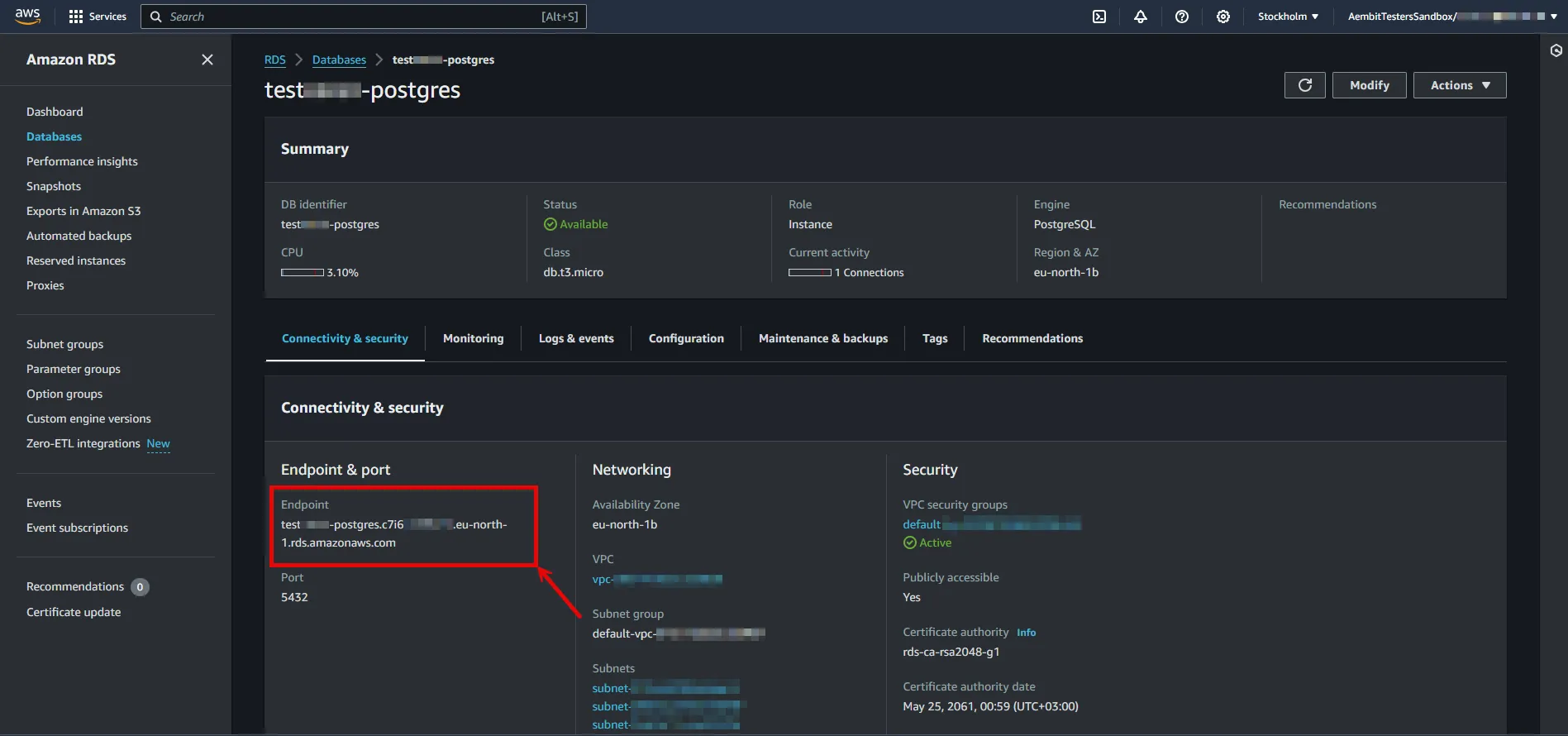 5. Create a new Server Workload. * **Name** - Choose a user-friendly name. 6. Configure the service endpoint: * **Host** - `...rds.amazonaws.com` (Provide the endpoint copied from AWS) * **Application Protocol** - Postgres * **Port** - 5432 * **Forward to Port** - 5432 with TLS * **Forward TLS Verification** - Full * **Authentication method** - Password Authentication * **Authentication scheme** - Password ## Credential Provider Configuration [Section titled “Credential Provider Configuration”](#credential-provider-configuration) 1. Create a new Credential Provider. * **Name** - Choose a user-friendly name. * **Credential Type** - [Username & Password](/user-guide/access-policies/credential-providers/username-password) * **Username** - Provide login ID for the master user of your DB cluster. * **Password** - Provide the Master password of your DB cluster. ## Client Workload Configuration [Section titled “Client Workload Configuration”](#client-workload-configuration) Aembit now handles the credentials required to access the Server Workload, eliminating the need for you to manage them directly. You can safely remove any previously used credentials from the Client Workload. If you access the Server Workload through an SDK or library, it is possible that the SDK/library may still require credentials to be present for initialization purposes. In this scenario, you can provide placeholder credentials. Aembit will overwrite these placeholder credentials with the appropriate ones during the access process. ## Access Policy [Section titled “Access Policy”](#access-policy) * Create an access policy for a Client Workload to access the Amazon RDS for PostgreSQL Server Workload and assign the newly created Credential Provider to it.
# Amazon Redshift
> This page describes how to configure Aembit to work with the Amazon Redshift Server Workload.
# [Amazon Redshift](https://aws.amazon.com/redshift/) is a high-performance, fully managed cloud data warehouse designed for rapid query execution and storage of petabyte-scale datasets. This high-performance solution combines speed and scalability, making it ideal for businesses seeking efficient and flexible analytics capabilities in the cloud. Below you can find the Aembit configuration required to work with Amazon Redshift as a Server Workload using the AWS or SQL-compatible CLI, application, or a library. ## Prerequisites [Section titled “Prerequisites”](#prerequisites) Before proceeding with the configuration, ensure you have an AWS tenant (or [sign up](https://portal.aws.amazon.com/billing/signup#/start/email) for one) and an Amazon Redshift managed cluster. If you have not created a cluster before, you can follow the steps in the next section. For more information on creating Amazon Redshift resources, please refer to the [official Amazon documentation](https://docs.aws.amazon.com/redshift/latest/mgmt/overview.html). ### Create a cluster with Amazon Redshift [Section titled “Create a cluster with Amazon Redshift”](#create-a-cluster-with-amazon-redshift) 1. Sign in to the AWS Management Console and navigate to the [Amazon Redshift console](https://console.aws.amazon.com/redshiftv2) and choose **Clusters** in the navigation pane. 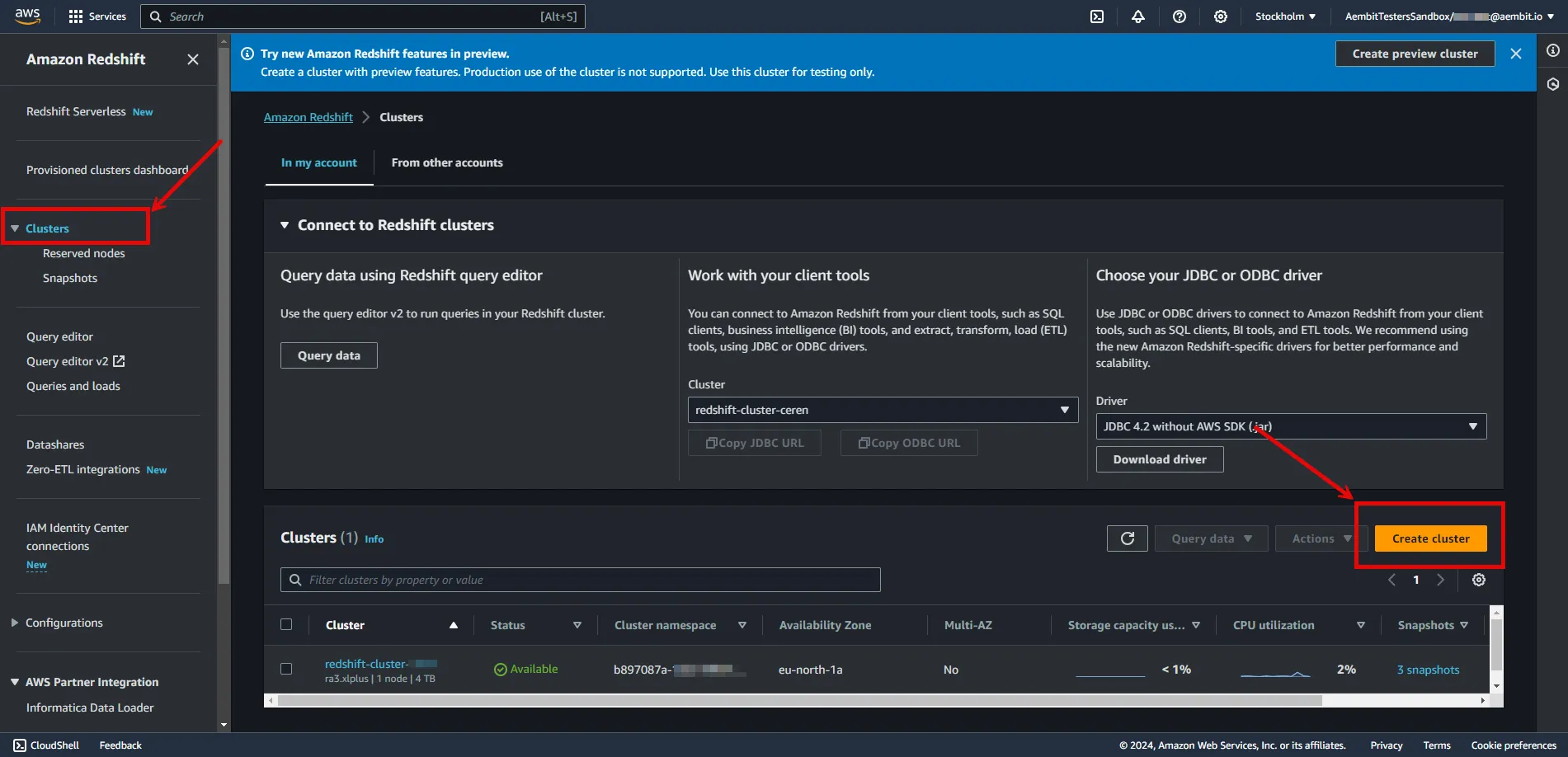 2. Click on **Create Cluster** and configure the cluster according to your preferences. Below are key choices: * Under **Cluster configuration**, enter a name for the **cluster identifier**; this will be used in the endpoint. * In **Database configurations**, set an **Admin user name**, and either auto-generate or provide an **Admin password**. Save this information for future use. - In **Additional configuration**, you may turn off **Use defaults** and customize settings further. - In **Network and security**, find the **Publicly Accessible** option and check the box for **Turn on Publicly accessible**. :warning: Setting the **Publicly Accessible** option to **Yes** is done here purely for demonstration purposes. In normal circumstances, it is recommended to keep the instances not publicly accessible for enhanced security. * In **Network and security**, ensure the **VPC security group (firewall)** configuration is in place to allow Client Workload/Agent Proxy communication. * In **Database configurations**, specify a **Database name** and verify the **Database Port** is set to 5439. 3. After making all of your selections, click **Create cluster**. ## Server Workload Configuration [Section titled “Server Workload Configuration”](#server-workload-configuration) To retrieve the connection information for a cluster in the Amazon Redshift Console: 1. Sign in to the AWS Management Console and navigate to the [Amazon Redshift console](https://console.aws.amazon.com/redshiftv2). 2. In the left sidebar, select **Clusters** to view your clusters. 3. Click on the name of the cluster to view details. 4. In **General Information** copy the endpoint (excluding port and database name). 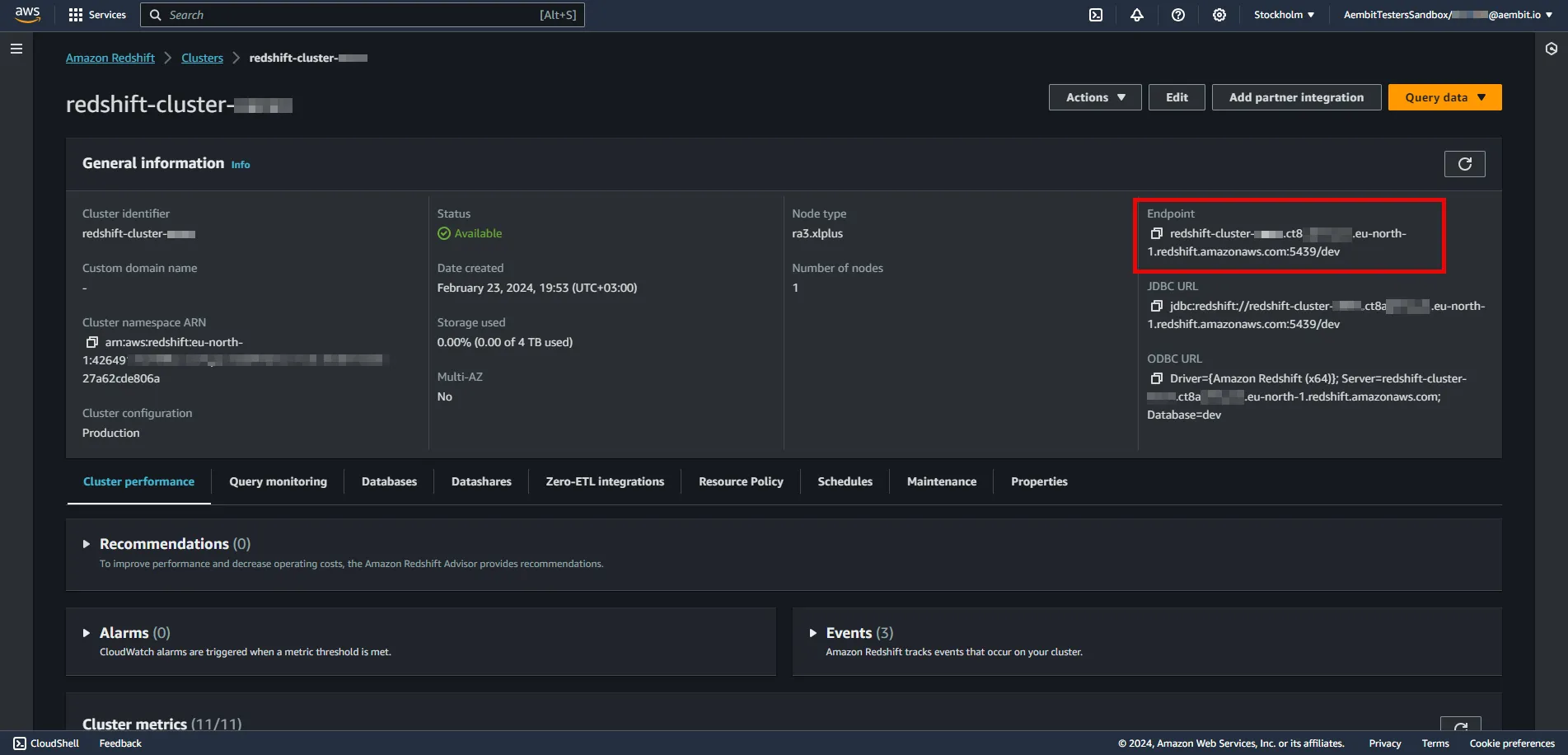 5. Create a new Server Workload. * **Name** - Choose a user-friendly name. 6. Configure the service endpoint: * **Host** - `...redshift.amazonaws.com` (Provide the endpoint copied from AWS) * **Application Protocol** - Redshift * **Port** - 5439 * **Forward to Port** - 5439 * **Authentication method** - Password Authentication * **Authentication scheme** - Password ## Credential Provider Configuration [Section titled “Credential Provider Configuration”](#credential-provider-configuration) 1. Create a new Credential Provider. * **Name** - Choose a user-friendly name. * **Credential Type** - [Username & Password](/user-guide/access-policies/credential-providers/username-password) * **Username** - Provide login ID for the admin user of your cluster. * **Password** - Provide the admin password of your cluster. ## Client Workload Configuration [Section titled “Client Workload Configuration”](#client-workload-configuration) Aembit now handles the credentials required to access the Server Workload, eliminating the need for you to manage them directly. You can safely remove any previously used credentials from the Client Workload. If you access the Server Workload through an SDK or library, it is possible that the SDK/library may still require credentials to be present for initialization purposes. In this scenario, you can provide placeholder credentials. Aembit will overwrite these placeholder credentials with the appropriate ones during the access process. ## Access Policy [Section titled “Access Policy”](#access-policy) * Create an access policy for a Client Workload to access the Amazon RDS for MySQL Server Workload and assign the newly created Credential Provider to it.
# Beyond Identity
> This page describes how to configure Aembit to work with the Beyond Identity Server Workload.
# [Beyond Identity](https://www.beyondidentity.com/) is a passwordless authentication service designed to bolster security measures for various applications and platforms. The Beyond Identity API serves as a developer-friendly interface, enabling seamless integration of advanced cryptographic techniques to eliminate reliance on traditional passwords. Below you can find the Aembit configuration required to work with the Beyond Identity service as a Server Workload using the Beyond Identity API. ## Prerequisites [Section titled “Prerequisites”](#prerequisites) Before proceeding with the configuration, ensure you have the following: * Beyond Identity tenant. * An app configured in your Beyond Identity tenant. This can either be a custom application you set up or the built-in **Beyond Identity Management API app**. If you have not configured an app yet, follow the steps outlined in the next section or refer to the [official Beyond Identity documentation](https://developer.beyondidentity.com/docs/add-an-application) for more detailed instructions. ### Add new app in Beyond Identity [Section titled “Add new app in Beyond Identity”](#add-new-app-in-beyond-identity) 1. Log in to the [Beyond Identity Admin Console](https://console-us.beyondidentity.com/login). 2. Navigate to the left pane, select **Apps**, and then click on **Add an application** from the top-right corner. 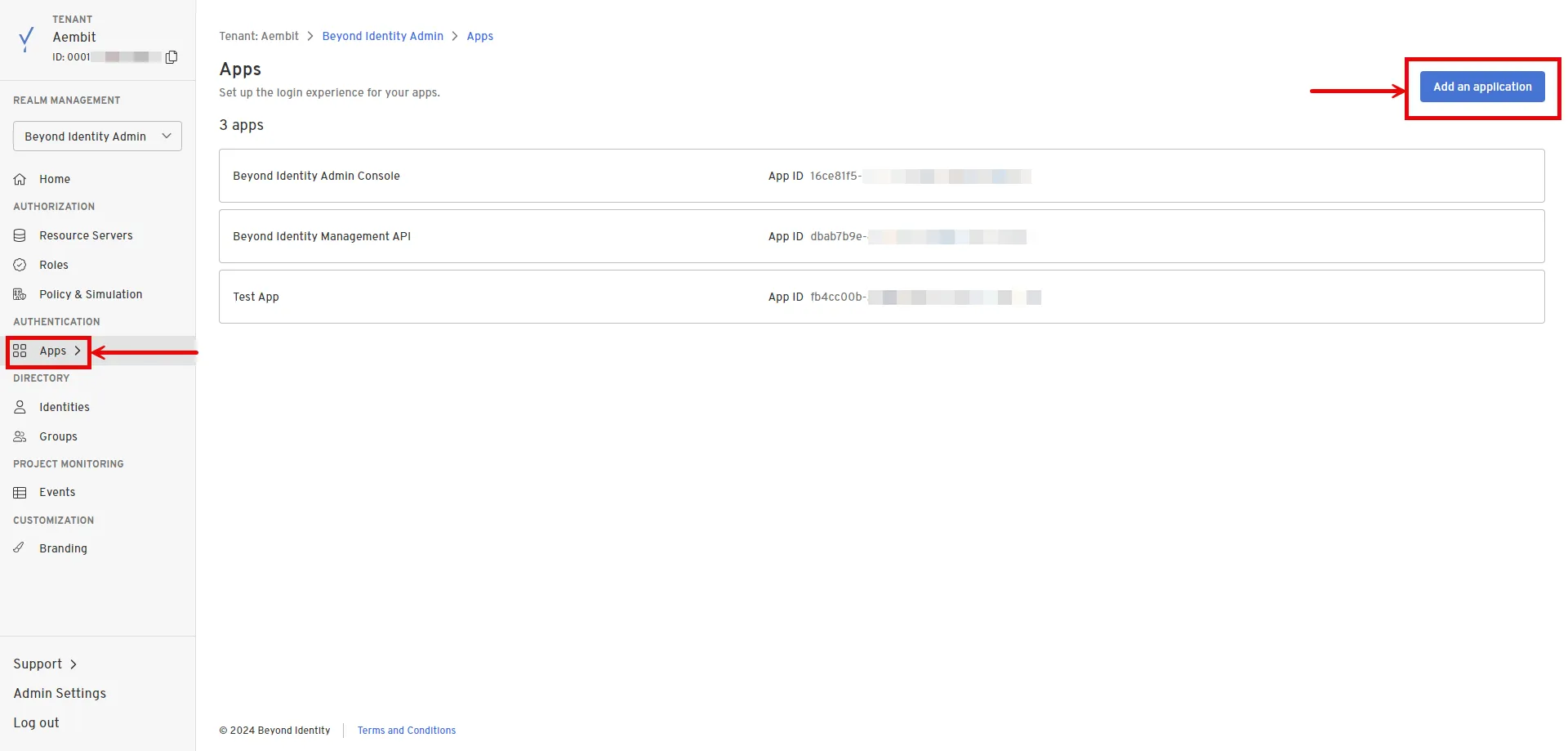 3. Configure the app based on your preferences. Below are key choices: * Enter a name for the **Display Name**. * Choose **OAuth2** for the Protocol under **Client Configuration**. * Choose **Confidential** for the Client Type. * Choose **Disabled** for the PKCE. * Choose **Client Secret Basic** for the Token Endpoint Auth Method. * Select **Client Credentials** for the Grant Type. * Optionally, choose the scopes you intend to use in the **Token Configuration** section under **Allowed Scopes**. 4. After making your selections, click **Submit** to save the new app. ## Server Workload Configuration [Section titled “Server Workload Configuration”](#server-workload-configuration) 1. Create a new Server Workload. * **Name** - Choose a user-friendly name. 2. Configure the service endpoint: * **Host** - `api-us.beyondidentity.com` * **Application Protocol** - HTTP * **Port** - 443 with TLS * **Forward to Port** - 443 with TLS * **Authentication method** - HTTP Authentication * **Authentication scheme** - Bearer ## Credential Provider Configuration [Section titled “Credential Provider Configuration”](#credential-provider-configuration) 1. Log in to the [Beyond Identity Admin Console](https://console-us.beyondidentity.com/login). 2. Navigate to the left pane and select **Apps** to access a list of your applications within your realm. 3. Choose your pre-configured application or use the default **Beyond Identity Management API** app. 4. In the External Protocol tab, copy the **Token Endpoint**. From the Client Configuration section, also copy both the **Client ID** and **Client Secret**. Keep these details stored for later use in the tenant configuration. 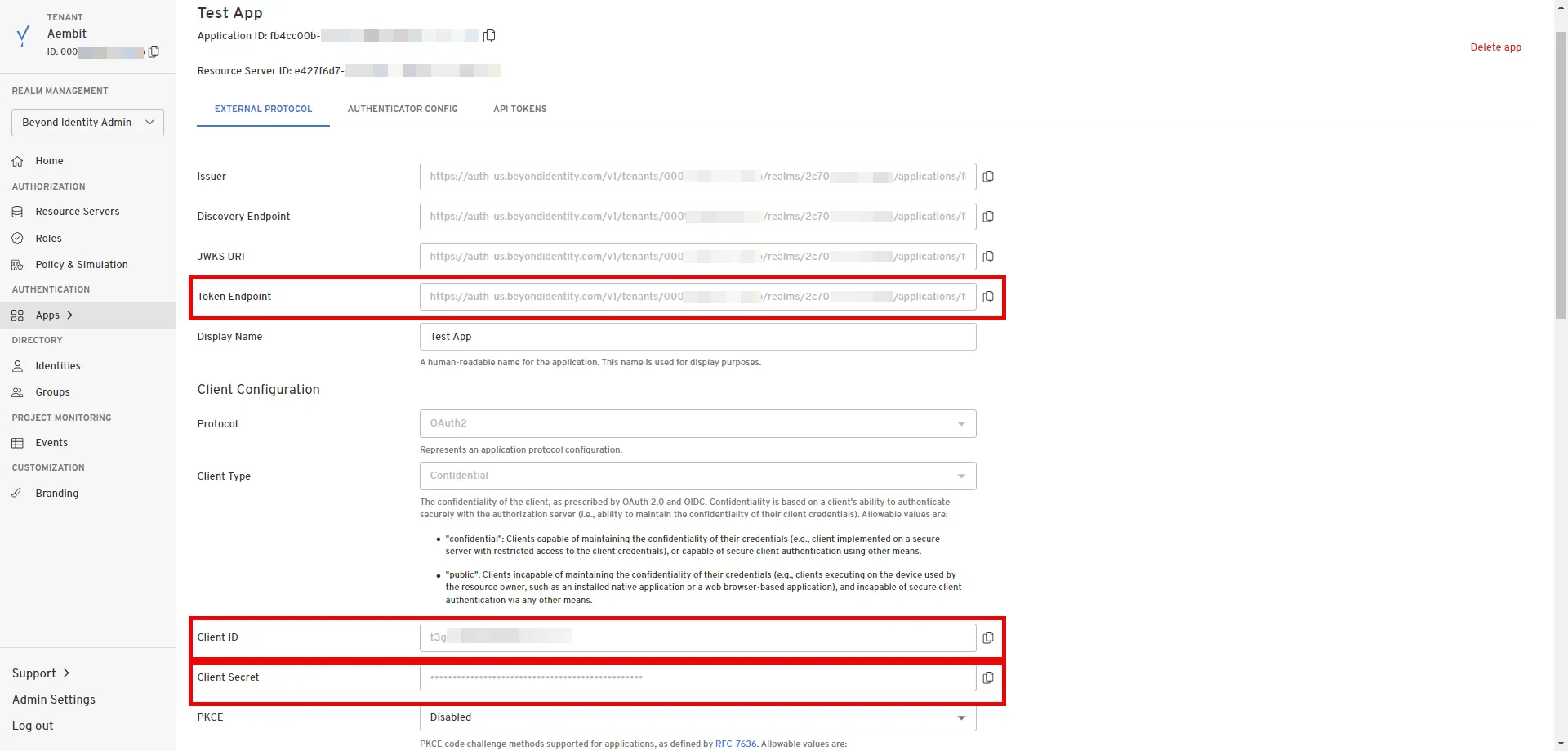 5. Create a new Credential Provider. * **Name** - Choose a user-friendly name. * **Credential Type** - [OAuth 2.0 Client Credentials](/user-guide/access-policies/credential-providers/oauth-client-credentials) * **Token endpoint** - Provide the token endpoint copied from Beyond Identity. * **Client ID** - Provide the client ID copied from Beyond Identity. * **Client Secret** - Provide the client secret copied from Beyond Identity. * **Scopes** - Enter the scopes you use, space delimited. (You can find scopes in the App details, Token Configuration section under **Allowed Scopes**) ## Client Workload Configuration [Section titled “Client Workload Configuration”](#client-workload-configuration) Aembit now handles the credentials required to access the Server Workload, eliminating the need for you to manage them directly. You can safely remove any previously used credentials from the Client Workload. If you access the Server Workload through an SDK or library, it is possible that the SDK/library may still require credentials to be present for initialization purposes. In this scenario, you can provide placeholder credentials. Aembit will overwrite these placeholder credentials with the appropriate ones during the access process. ## Access Policy [Section titled “Access Policy”](#access-policy) * Create an Access Policy for a Client Workload to access the Beyond Identity Server Workload. Assign the newly created Credential Provider to this Access Policy. ## Required Features [Section titled “Required Features”](#required-features) * You will need to configure the [TLS Decrypt](/user-guide/deploy-install/advanced-options/tls-decrypt/configure-tls-decrypt) feature to work with the Beyond Identity Server Workload.
# Box
> This page describes how to configure Aembit to work with the Box Server Workload.
# [Box](https://www.box.com/en-gb/home) is a cloud content management and file sharing service designed to help businesses securely store, manage, and share files online. The Box API provides developers with tools to integrate Box’s content management features into their own applications, enabling efficient collaboration and secure file handling. Below you can find the Aembit configuration required to work with the Box service as a Server Workload using the Box API. ## Prerequisites [Section titled “Prerequisites”](#prerequisites) Before proceeding with the configuration, ensure you have the following: * Box tenant. * A custom authorized application using Server Authentication in the Box tenant. If you have not created an app yet, follow the steps outlined in the next section or refer to the [official Box Developer documentation](https://developer.box.com/guides/authentication/client-credentials/) for more detailed instructions. * 2FA enabled on your Box tenant to view and copy the application’s client secret. ### Create New App In Box [Section titled “Create New App In Box”](#create-new-app-in-box) 1. Log in to the [Box Developer Console](https://app.box.com/developers/console). 2. Navigate to the left pane, select **My Apps**, and then click on **Create New App** in the top-right corner.  3. Choose **Custom App**. A pop-up window will appear. Fill in the name and optional description field, choose the purpose, and then click **Next** to proceed. 4. Select **Server Authentication (Client Credentials Grant)** as the authentication method and click **Create App**. 5. Before the application can be used, a Box Admin must authorize it within the Box Admin Console. Navigate to the **Authorization** tab and click **Review and Submit** to send the request. A pop-up window will appear. Fill in the description field and click **Submit** to send. After your admin [authorizes the app](/user-guide/access-policies/server-workloads/guides/box#authorize-app-as-an-admin), the Authorization Status and Enablement Status should both be green. 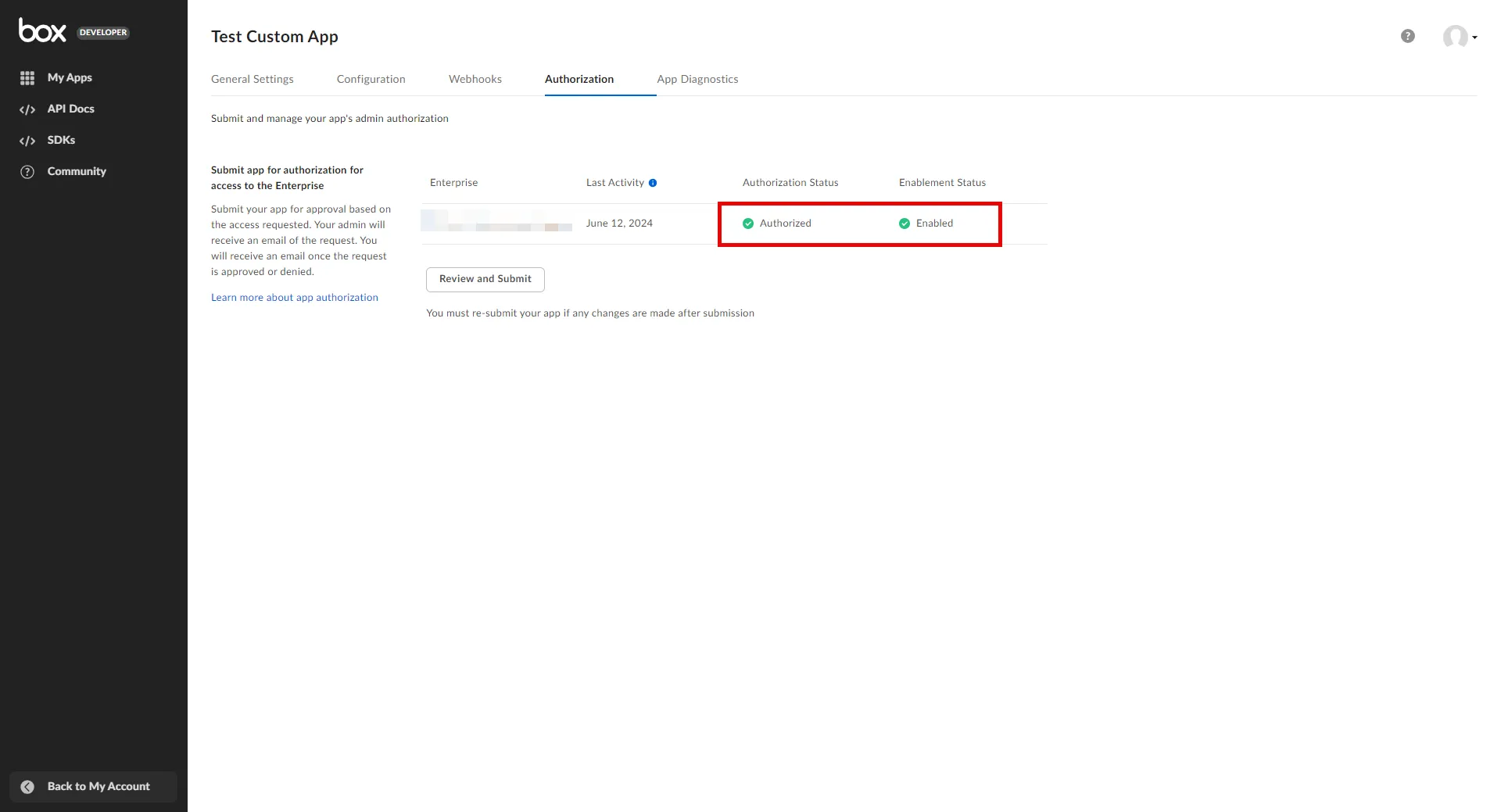 6. Go back to the **Configuration** tab and scroll down to the **Application Scopes** section. Choose the scopes that best suit your project needs and click **Save Changes** in the top-right corner. ### Authorize App As an Admin [Section titled “Authorize App As an Admin”](#authorize-app-as-an-admin) 1. Navigate to the [Admin Console](https://app.box.com/master). 2. In the left panel, click on **Apps**, and then in the right panel, click on **Custom Apps Manager** in the ribbon list to view a list of your Server Authentication Apps. 3. Click the 3-dot-icon of the app that requires authorization. 4. Choose **Authorize App** from the drop-down menu. 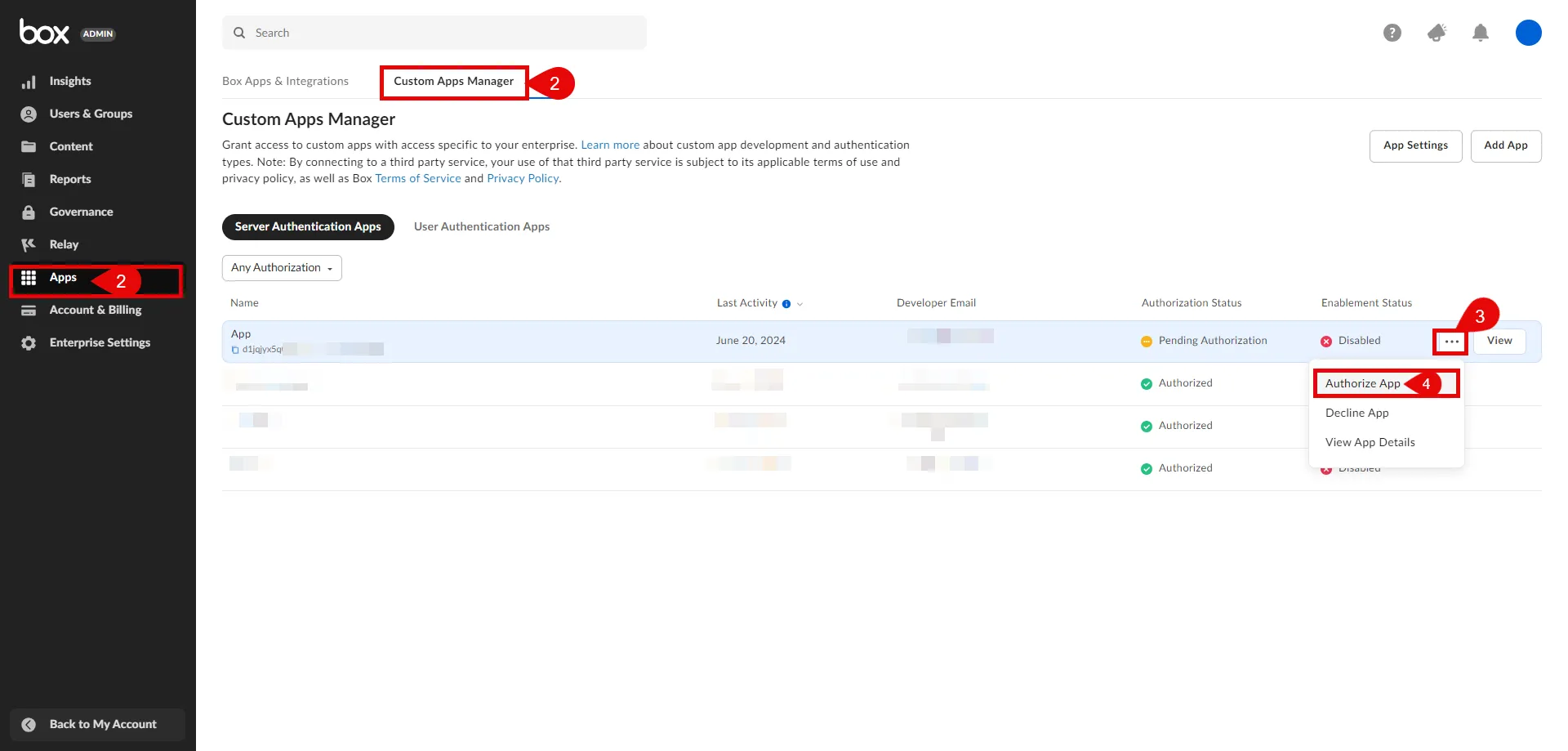 5. A pop-up window will appear. Click **Authorize** to proceed. ## Server Workload Configuration [Section titled “Server Workload Configuration”](#server-workload-configuration) 1. Create a new Server Workload. * **Name** - Choose a user-friendly name. 2. Configure the service endpoint: * **Host** - `api.box.com` * **Application Protocol** - HTTP * **Port** - 443 with TLS * **Forward to Port** - 443 with TLS * **Authentication method** - HTTP Authentication * **Authentication scheme** - Bearer ## Credential Provider Configuration [Section titled “Credential Provider Configuration”](#credential-provider-configuration) 1. Log in to the [Box Developer Console](https://app.box.com/developers/console). 2. Navigate to the left pane, select **My Apps**, and then click on the name of the app to view details. 3. In the General Settings tab, copy the **Enterprise ID**. 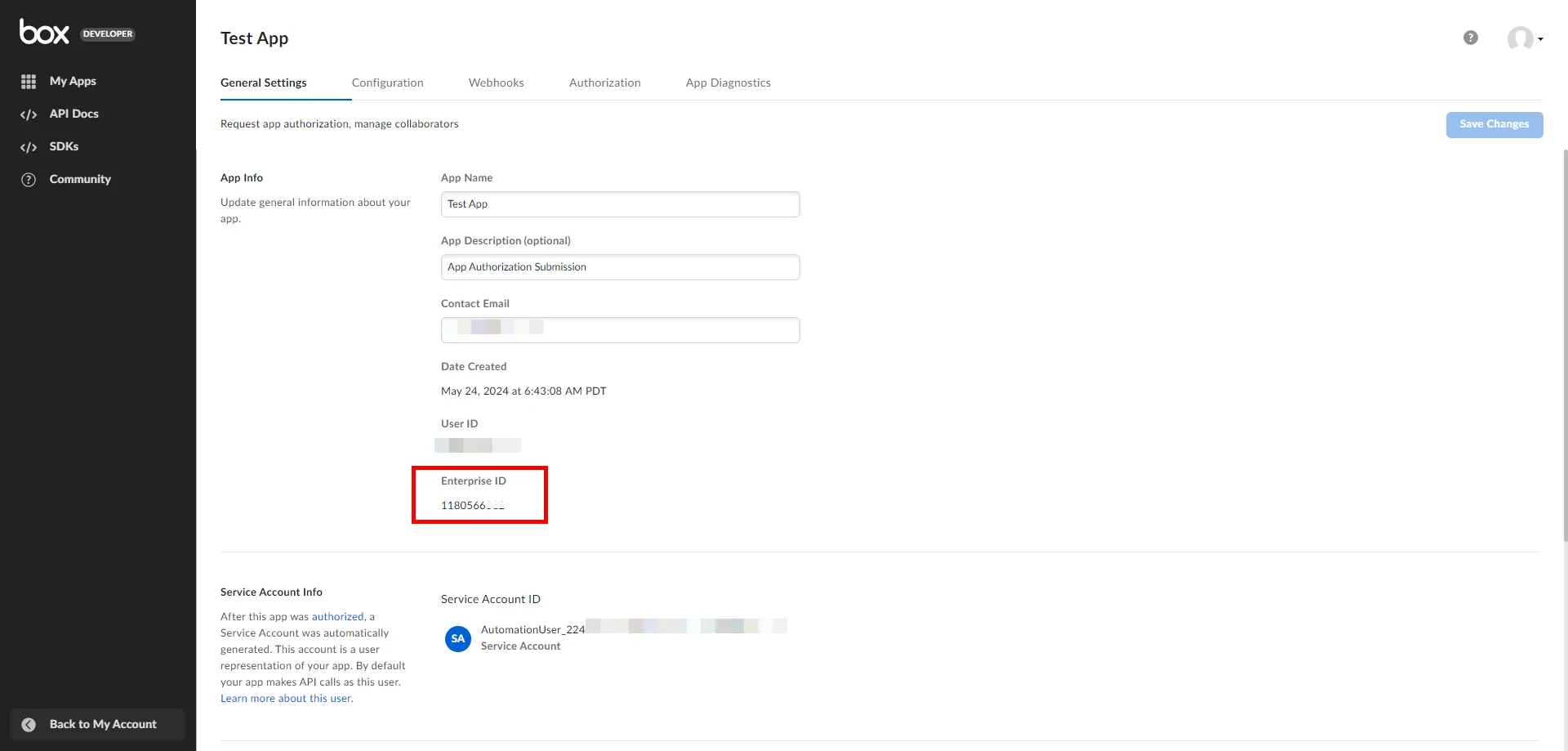 4. In the Configuration tab, scroll down to the **OAuth 2.0 Credentials** section. Click **Fetch Client Secret** and then copy both the **Client ID** and **Client Secret**. Keep these details stored for later use in the tenant configuration. 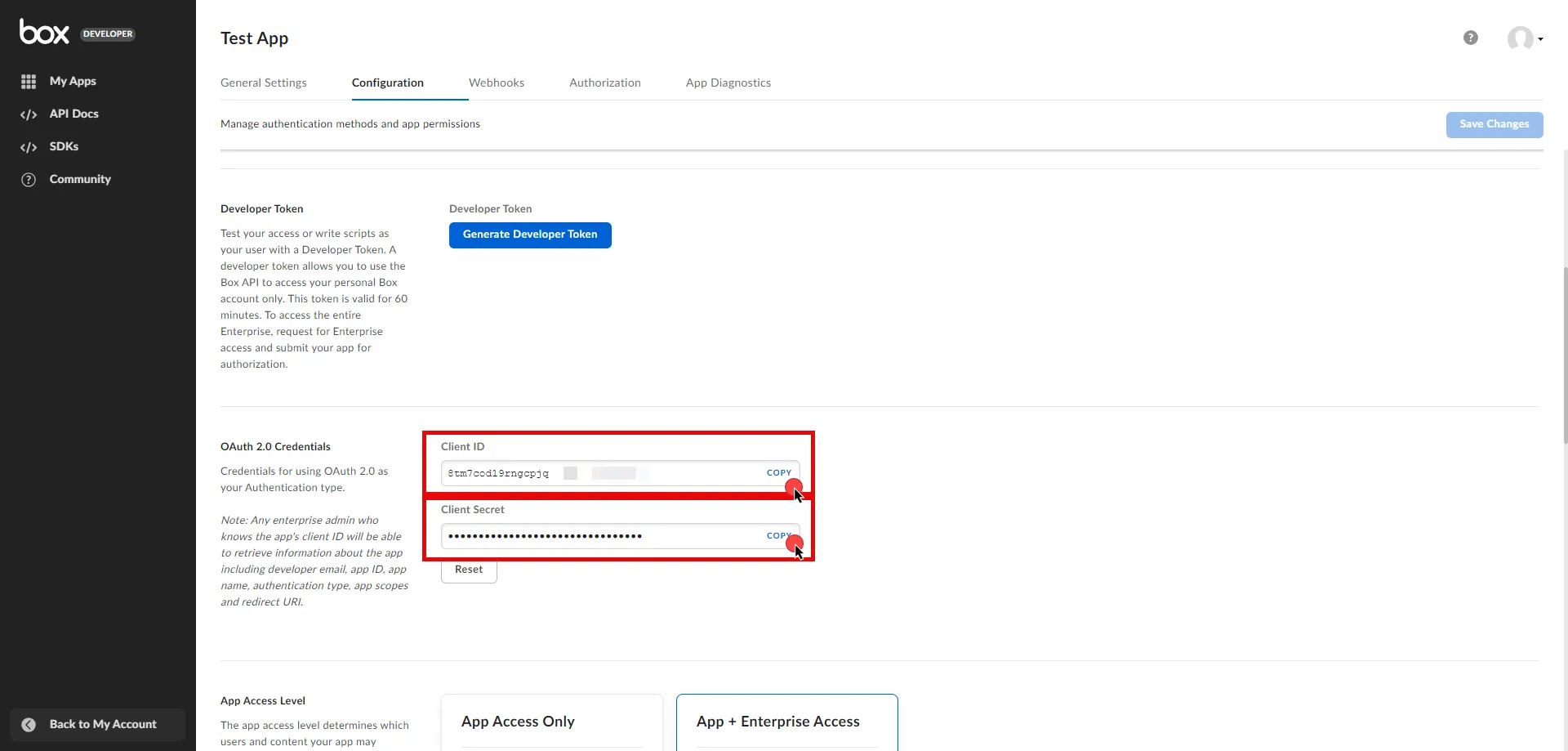 5. Create a new Credential Provider. * **Name** - Choose a user-friendly name. * **Credential Type** - [OAuth 2.0 Client Credentials](/user-guide/access-policies/credential-providers/oauth-client-credentials) * **Token endpoint** - `https://api.box.com/oauth2/token` * **Client ID** - Provide the client ID copied from Box. * **Client Secret** - Provide the client secret copied from Box. * **Scopes** - You can leave this field **empty**, as Box will default to your selected scopes on the Developer Console, or specify the scopes, such as `root_readonly`. For more detailed information for scopes, you can refer to the [official Box Developer documentation](https://developer.box.com/guides/api-calls/permissions-and-errors/scopes/#scopes-oauth-2-authorization). * **Credential Style** - POST Body **Additional Parameters** * **Name** - box\_subject\_type * **Value** - enterprise * **Name** - box\_subject\_id * **Value** - Provide the enterprise ID copied from Box. ## Client Workload Configuration [Section titled “Client Workload Configuration”](#client-workload-configuration) Aembit now handles the credentials required to access the Server Workload, eliminating the need for you to manage them directly. You can safely remove any previously used credentials from the Client Workload. If you access the Server Workload through an SDK or library, it is possible that the SDK/library may still require credentials to be present for initialization purposes. In this scenario, you can provide placeholder credentials. Aembit will overwrite these placeholder credentials with the appropriate ones during the access process. ## Access Policy [Section titled “Access Policy”](#access-policy) * Create an Access Policy for a Client Workload to access the Box Server Workload. Assign the newly created Credential Provider to this Access Policy. ## Required Features [Section titled “Required Features”](#required-features) * You will need to configure the [TLS Decrypt](/user-guide/deploy-install/advanced-options/tls-decrypt/configure-tls-decrypt) feature to work with the Box Server Workload.
# Claude
> This page describes how to configure Aembit to work with the Claude Server Workload.
# [Claude](https://www.anthropic.com/api) is an artificial intelligence platform from Anthropic that allows developers to embed advanced language models into their applications. It supports tasks like natural language understanding and conversation generation, enhancing software functionality and user experience. Below you can find the Aembit configuration required to work with the Claude service as a Server Workload using the Claude API and Anthropic’s Client SDKs. ## Prerequisites [Section titled “Prerequisites”](#prerequisites) Before proceeding with the configuration, ensure you have an Anthropic account and API key. If you have not already generated a key, follow the instructions below. For more details about Claude API, refer to the [official Claude API documentation](https://docs.anthropic.com/en/api/getting-started). ### Create API Key [Section titled “Create API Key”](#create-api-key) 1. Sign in to your Anthropic account. 2. Navigate to the [API Keys](https://console.anthropic.com/settings/keys) page by clicking the **Get API Keys** button from the dashboard menu. 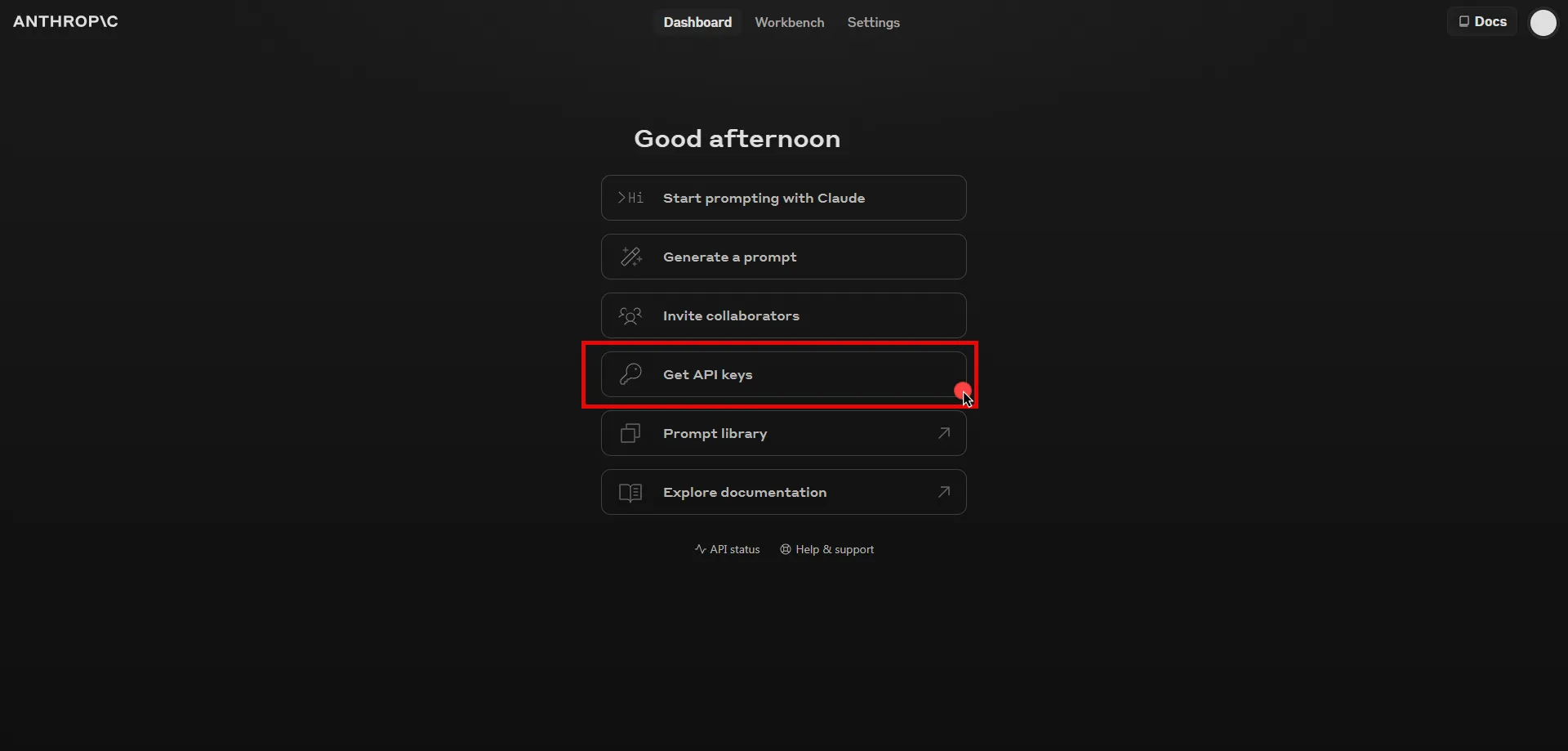 3. Click the **Create key** button in the top right corner of the page. 4. A pop-up window will appear. Fill in the name field, then click **Create Key** to proceed. 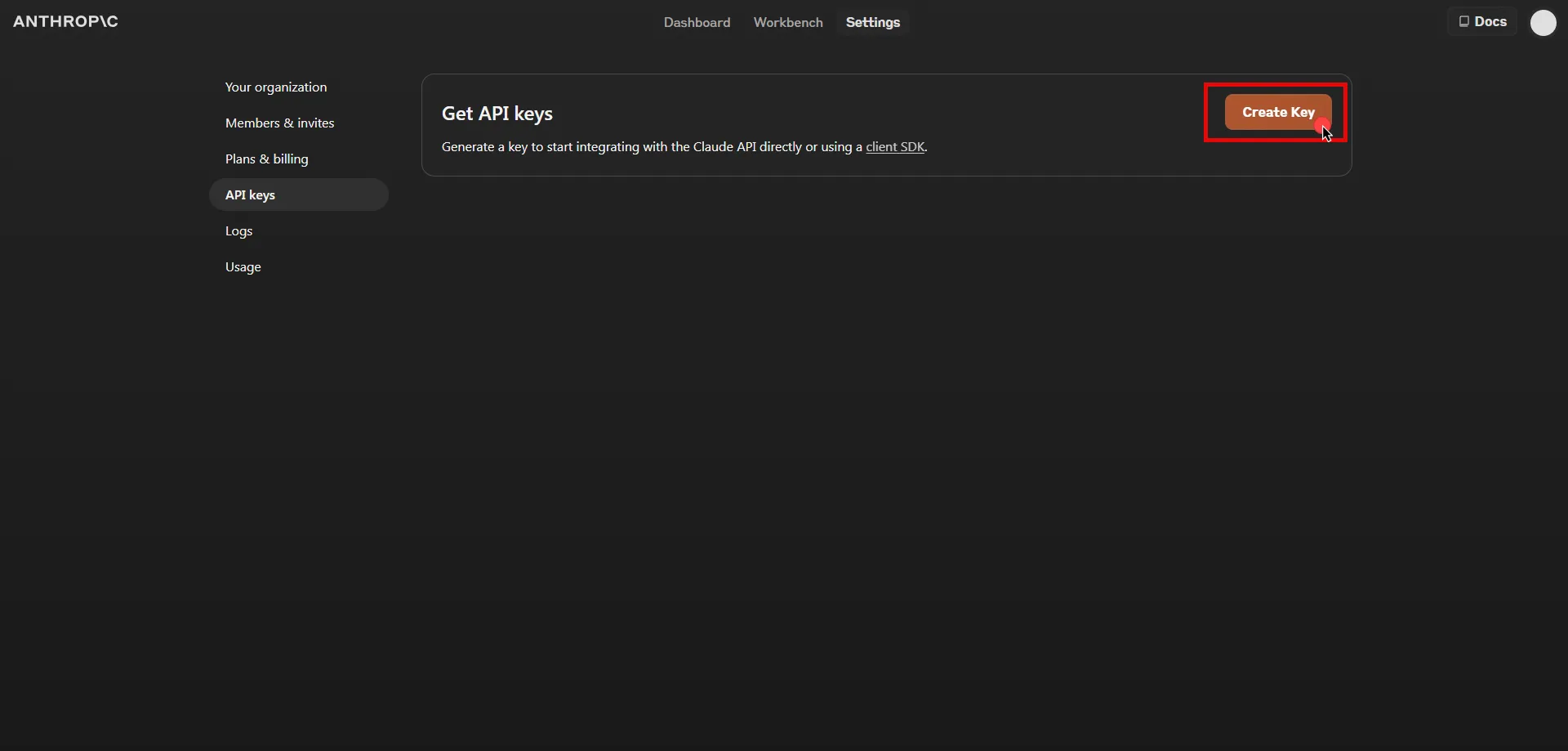 5. Click **Copy** and securely store the key for later use in the configuration on the tenant. 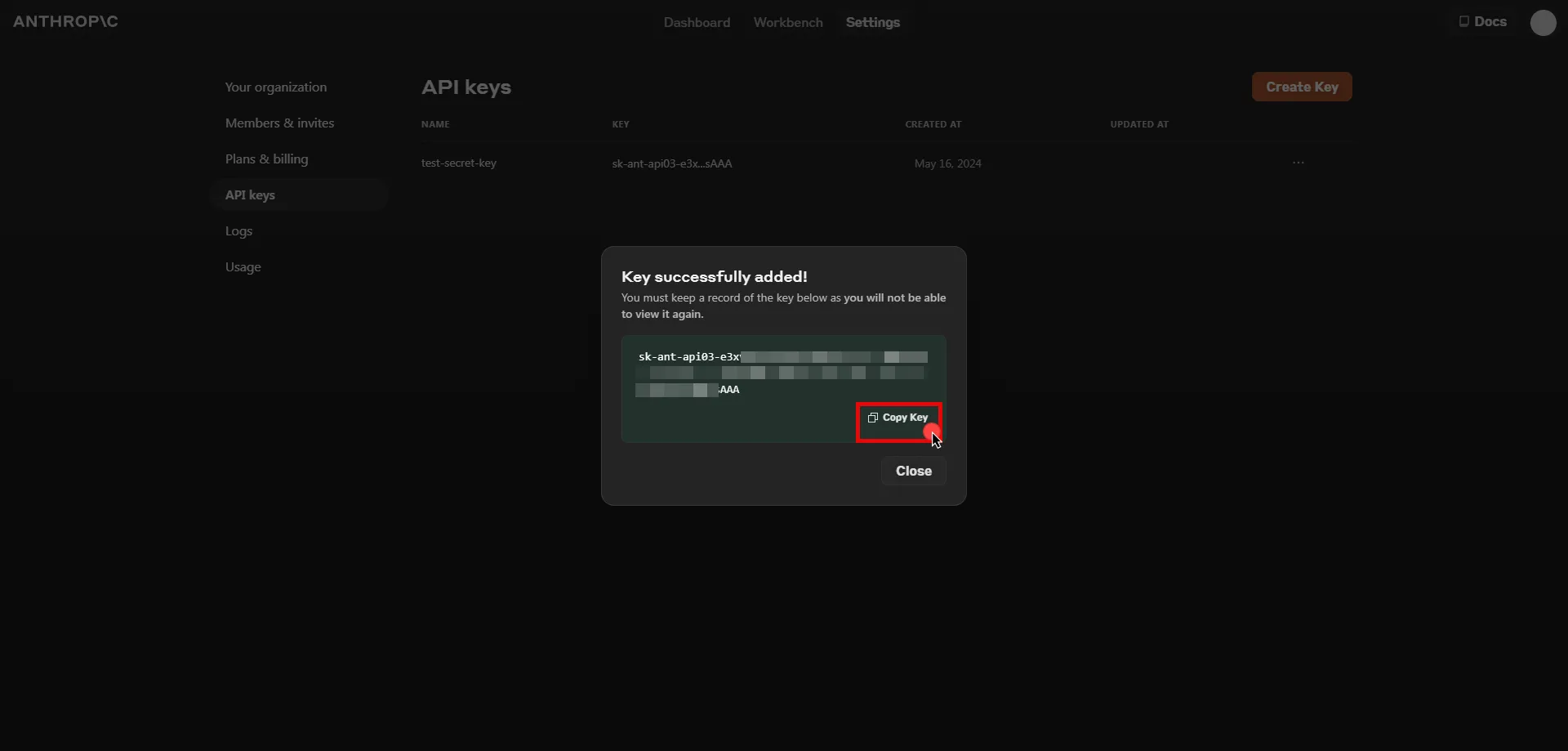 ## Server Workload Configuration [Section titled “Server Workload Configuration”](#server-workload-configuration) 1. Create a new Server Workload. * **Name** - Choose a user-friendly name. 2. Configure the service endpoint: * **Host** - `api.anthropic.com` * **Application Protocol** - HTTP * **Port** - 443 with TLS * **Forward to Port** - 443 with TLS * **Authentication method** - HTTP Authentication * **Authentication scheme** - Header * **Header** - x-api-key ## Credential Provider Configuration [Section titled “Credential Provider Configuration”](#credential-provider-configuration) 1. Create a new Credential Provider. * **Name** - Choose a user-friendly name. * **Credential Type** - [API Key](/user-guide/access-policies/credential-providers/api-key) * **API Key** - Paste the key copied from Anthropic Console. ## Client Workload Configuration [Section titled “Client Workload Configuration”](#client-workload-configuration) Aembit now handles the credentials required to access the Server Workload, eliminating the need for you to manage them directly. You can safely remove any previously used credentials from the Client Workload. If you access the Server Workload through an SDK or library, it is possible that the SDK/library may still require credentials to be present for initialization purposes. In this scenario, you can provide placeholder credentials. Aembit will overwrite these placeholder credentials with the appropriate ones during the access process. ## Access Policy [Section titled “Access Policy”](#access-policy) * Create an Access Policy for a Client Workload to access the Claude API Server Workload. Assign the newly created Credential Provider to this Access Policy. ## Required Features [Section titled “Required Features”](#required-features) * You will need to configure the [TLS Decrypt](/user-guide/deploy-install/advanced-options/tls-decrypt/configure-tls-decrypt) feature to work with the Claude API Server Workload.
# Databricks
> This page describes how to configure Aembit to work with the Databricks Server Workload.
# [Databricks](https://www.databricks.com/) is a unified data analytics platform built on Apache Spark, designed for scalable big data processing and machine learning. It provides tools for data engineering, data science, and analytics, enabling efficient handling of complex data workloads. Below you can find the Aembit configuration required to work with the Databricks service as a Server Workload using the Databricks REST API. Aembit supports multiple authentication/authorization methods for Databricks. This page describes scenarios where the Credential Provider is configured for Databricks via: * [OAuth 2.0 Authorization Code (3LO)](/user-guide/access-policies/server-workloads/guides/databricks#oauth-20-authorization-code) * [OAuth 2.0 Client Credentials](/user-guide/access-policies/server-workloads/guides/databricks#oauth-20-client-credentials) * [API Key](/user-guide/access-policies/server-workloads/guides/databricks#api-key) ## Create a Workspace in Databricks [Section titled “Create a Workspace in Databricks”](#create-a-workspace-in-databricks) 1. Sign in to the [Databricks Console](https://accounts.cloud.databricks.com/) and navigate to the **Workspaces** page. 2. Click **Create workspace** located in the top right corner, select the **Quickstart** option, and then click **Next**. 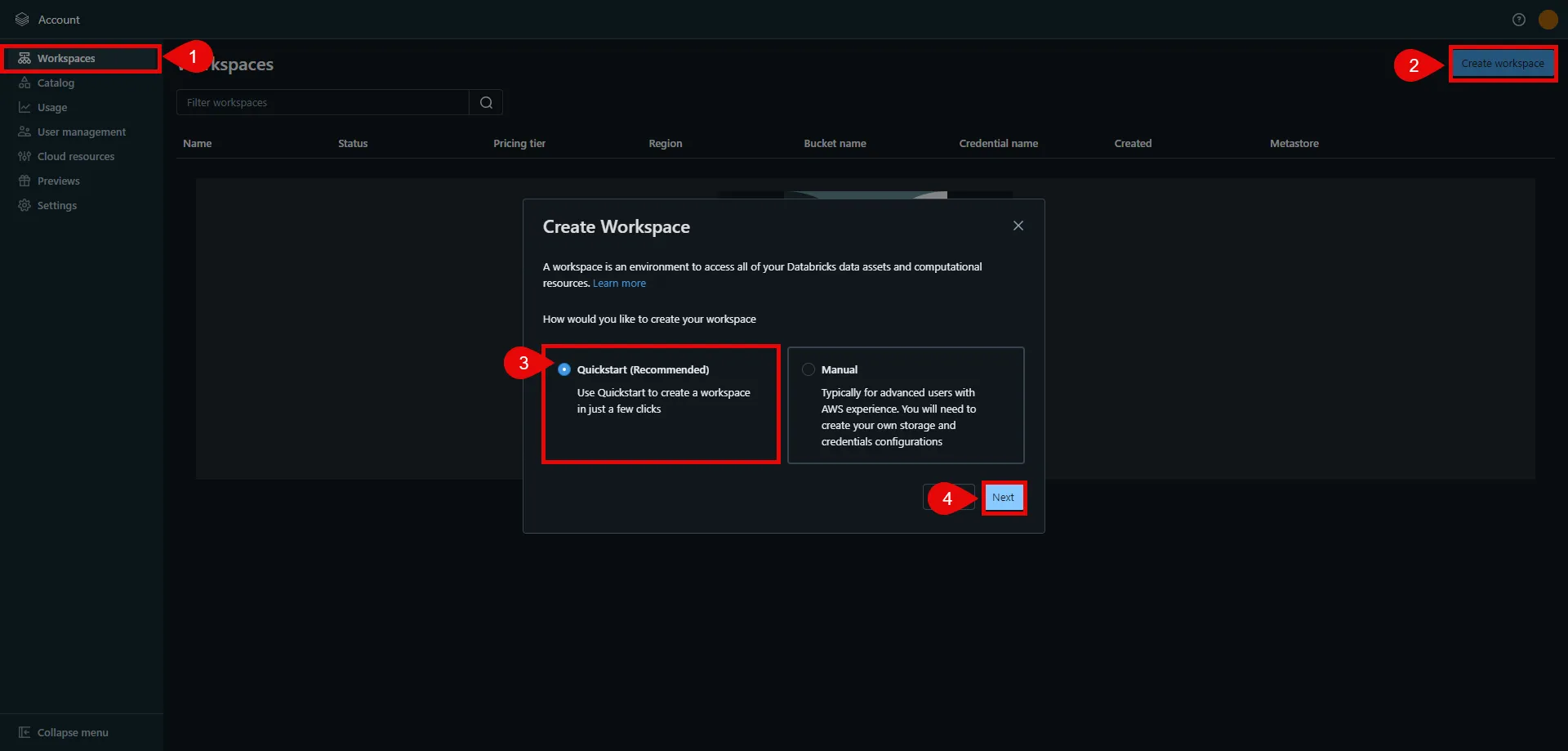 3. In the next step, provide a name for your workspace, choose the AWS region, and then click **Start Quickstart**. This redirects you to the AWS Console. 4. In the AWS Console, you may change the pre-generated stack name if desired. Scroll down, check the acknowledgment box, and then click **Create stack**. The stack creation process may take some time. Once the creation is successfully completed, you receive a confirmation email from Databricks. You can then switch back to the Databricks console. If you do not see your workspace in the list, please refresh the page. 5. Click on the name of the workspace to view details. In the URL field, copy the part after the prefix (e.g., `abc12345` in `https://abc12345.cloud.databricks.com`). This is your Databricks instance name, and is used in future steps. 6. Click **Open Workspace** located in the top right corner to proceed with the next steps in the workspace setup. 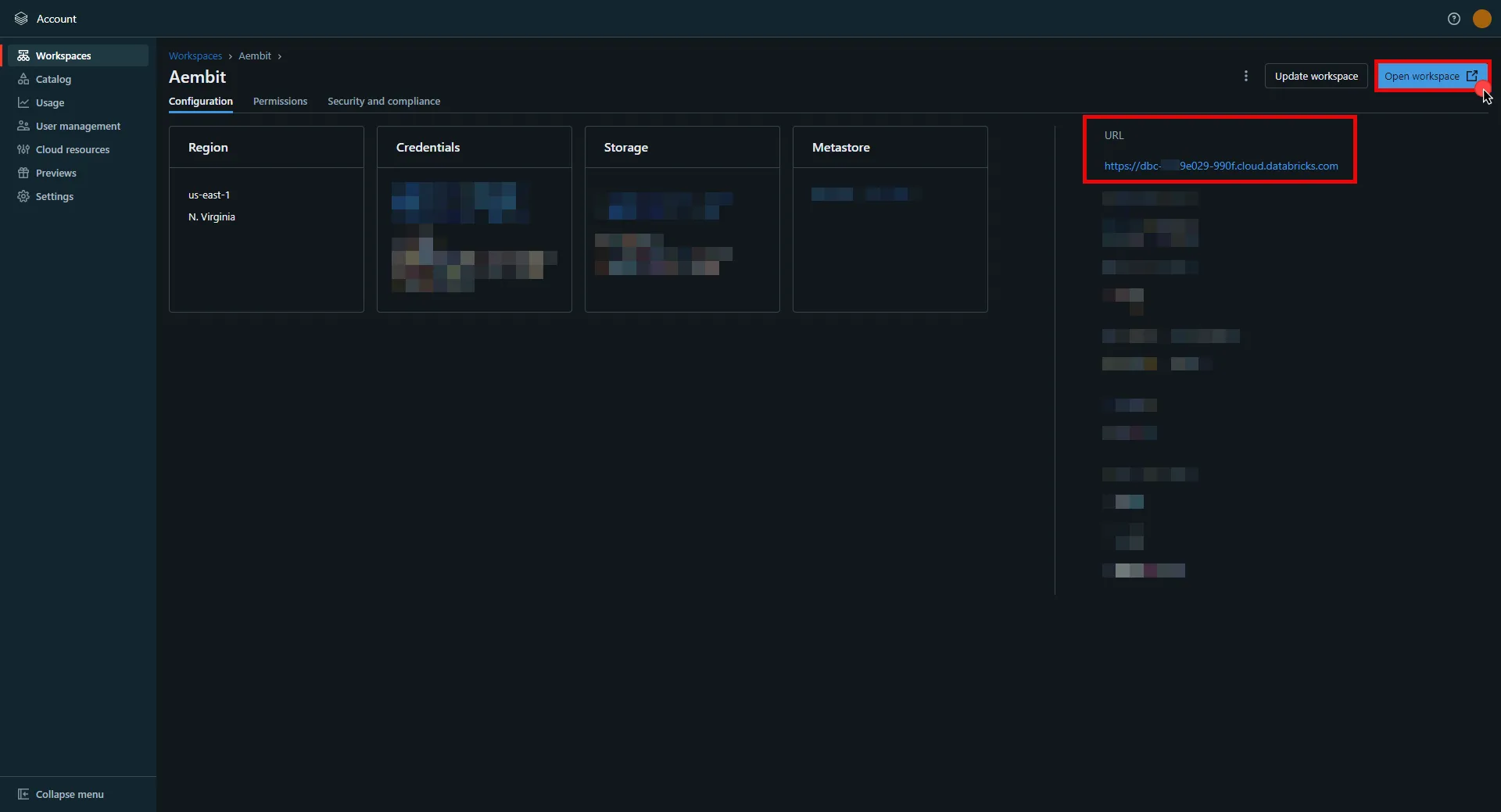 ## OAuth 2.0 Authorization Code [Section titled “OAuth 2.0 Authorization Code”](#oauth-20-authorization-code) ### Server Workload Configuration [Section titled “Server Workload Configuration”](#server-workload-configuration) 1. Create a new Server Workload. * **Name** - Choose a user-friendly name. 2. Configure the service endpoint: * **Host** - `.cloud.databricks.com` (Use the Databricks instance name copied in step 5 of the workspace creation process) * **Application Protocol** - HTTP * **Port** - 443 with TLS * **Forward to Port** - 443 with TLS * **Authentication method** - HTTP Authentication * **Authentication scheme** - Bearer ### Credential Provider Configuration [Section titled “Credential Provider Configuration”](#credential-provider-configuration) 1. In your Databricks account console, select **Settings** from the left-hand menu. 2. Navigate to the **App Connections** section in the top menu. 3. Click the **Add Connection** button in the top right corner. 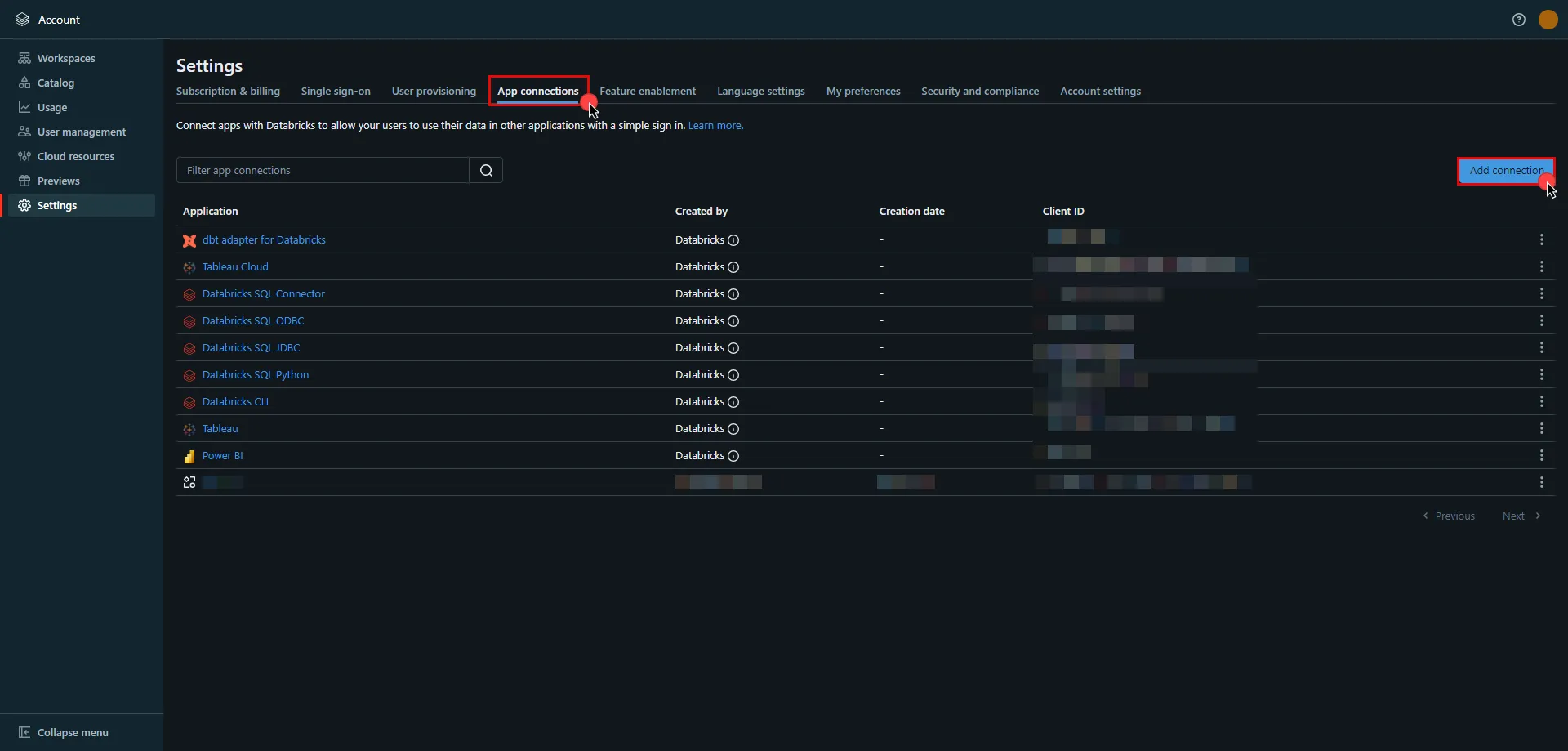 4. Enter the **name** of your app. 5. Switch to the Aembit UI to create a new Credential Provider, selecting the OAuth 2.0 Authorization Code credential type. After setting up the Credential Provider, copy the auto-generated **Callback URL**. 6. Return to Databricks and paste the copied **Callback URL** into the **Redirect URLs** field. 7. Select the scopes for your application based on your specific needs. 8) Once all selections are made, click **Add**. 9) A pop-up window appears. Copy both the **Client ID** and **Client Secret**, and securely store these details for later use in your tenant configuration. 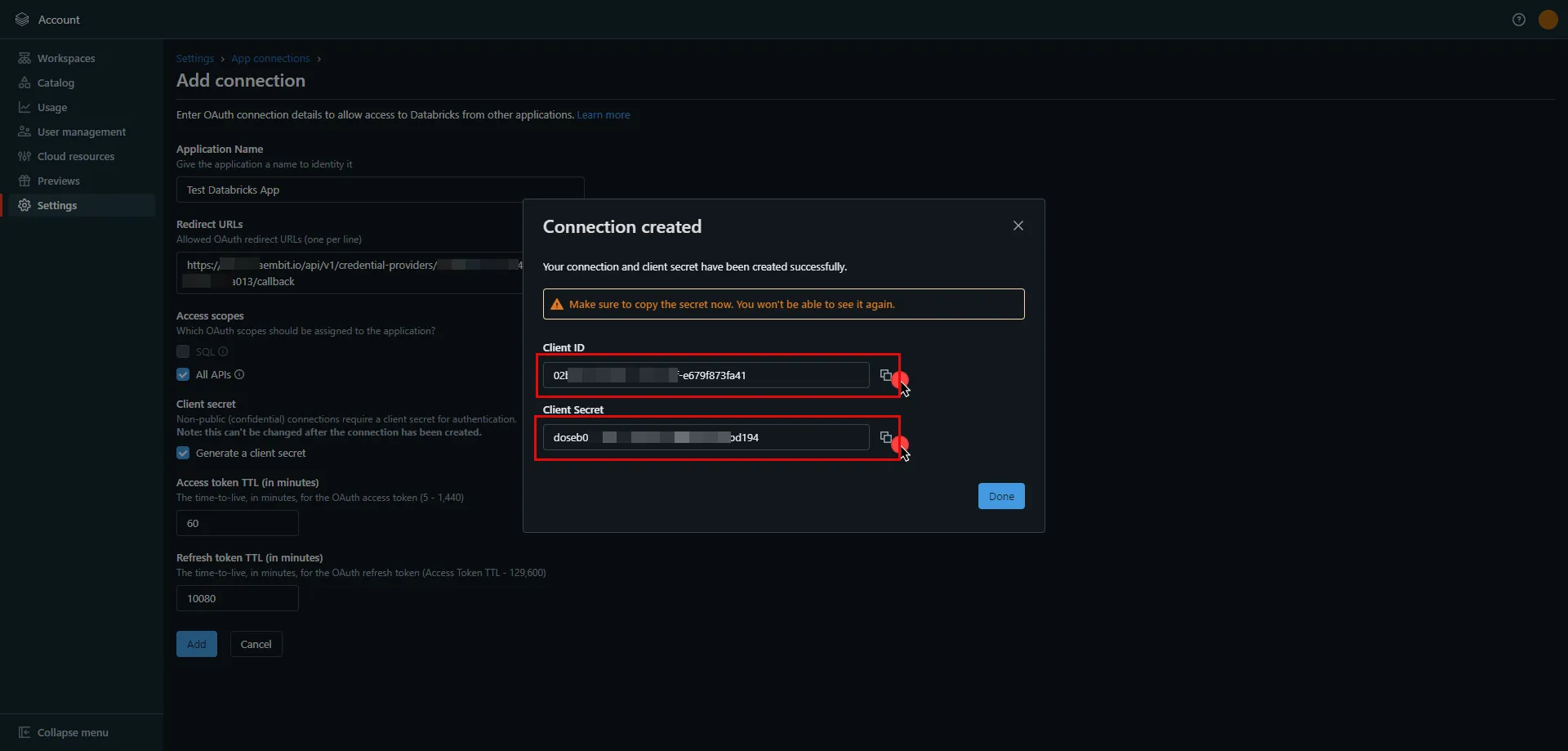 10. Edit the existing Credential Provider created in the previous steps. * **Name** - Choose a user-friendly name. * **Credential Type** - [OAuth 2.0 Authorization Code](/user-guide/access-policies/credential-providers/oauth-authorization-code) * **Callback URL (Read-Only)** - An auto-generated Callback URL from Aembit Admin. * **Client Id** - Provide the client ID copied from Databricks. * **Client Secret** - Provide the client secret copied from Databricks. * **Scopes** - `all-apis offline_access` or `sql offline_access`, depending on your scope selection in the Databricks UI. For more details on scopes and custom OAuth applications, please refer to the [official Databricks documentation](https://docs.databricks.com/en/integrations/enable-disable-oauth.html#enable-custom-app-ui). * **OAuth URL** - * For a **workspace-level** OAuth URL, use: `https:///oidc` (Use the Databricks instance name copied in step 5 of the workspace creation process) * For an **account-level** OAuth URL, use: `https://accounts.cloud.databricks.com/oidc/accounts/` * In your Databricks account, click on your username in the upper right corner, and in the dropdown menu,copy the part next to Account ID and use it in the previous link. 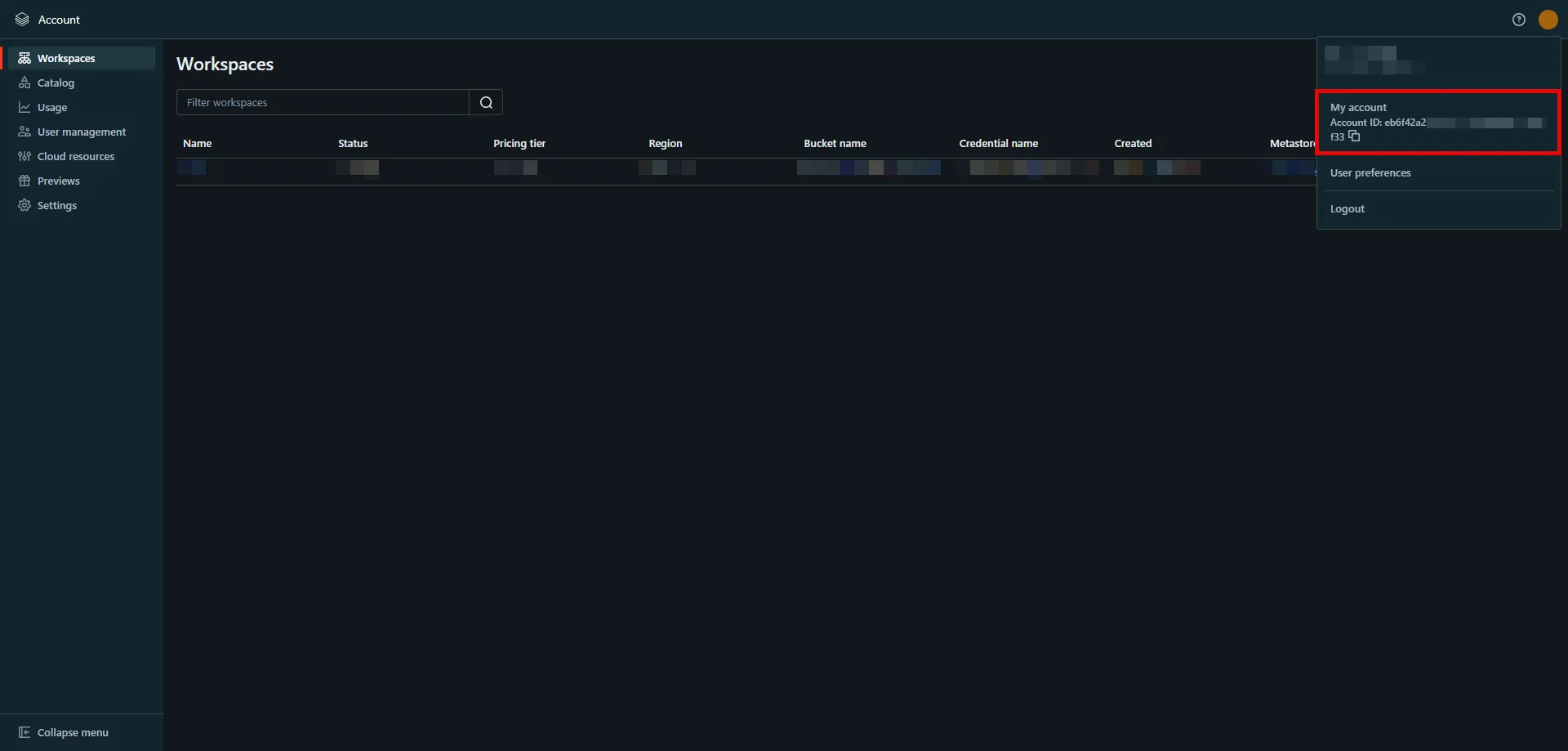 Click on **URL Discovery** to populate the Authorization and Token URL fields, which can be left as populated. * **PKCE Required** - On * **Lifetime** - 1 year (Databricks does not specify a refresh token lifetime; this value is recommended by Aembit.) 11. Click **Save** to save your changes on the Credential Provider. 12. In the Aembit UI, click the **Authorize** button. You are directed to a page where you can review the access request. Click **Authorize** to complete the OAuth 2.0 Authorization Code flow. You should see a success page and then be redirected to Aembit automatically. You can also verify your flow is complete by checking the **State** value in the Credential Provider. After completion, it should be **Ready**.  Caution Once the set lifetime ends, the retrieved credential expires and will not work anymore. Aembit will notify you before this happens. Please ensure you reauthorize the credential before it expires. ## OAuth 2.0 Client Credentials [Section titled “OAuth 2.0 Client Credentials”](#oauth-20-client-credentials) ### Server Workload Configuration [Section titled “Server Workload Configuration”](#server-workload-configuration-1) 1. Create a new Server Workload. * **Name** - Choose a user-friendly name. 2. Configure the service endpoint: * **Host** - `.cloud.databricks.com` (Use the Databricks instance name copied in step 5 of the workspace creation process) * **Application Protocol** - HTTP * **Port** - 443 with TLS * **Forward to Port** - 443 with TLS * **Authentication method** - HTTP Authentication * **Authentication scheme** - Bearer ### Credential Provider Configuration [Section titled “Credential Provider Configuration”](#credential-provider-configuration-1) 1. In your Databricks workspace, click your username in the top right corner, and select **Settings** from the dropdown menu. 2. In the left-hand menu, navigate to **Identity and access**. 3. Next to **Service principals**, click **Manage**. 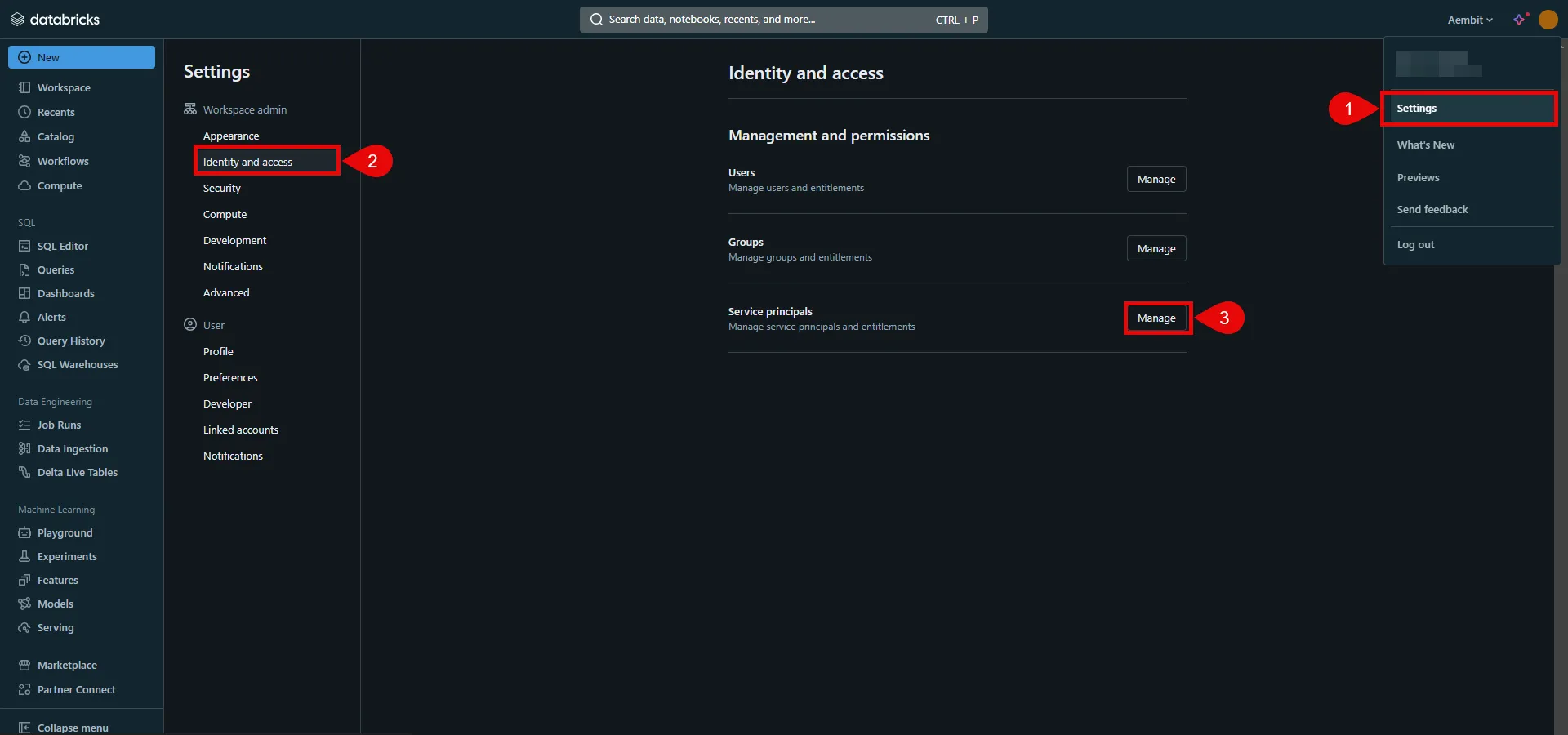 4. Click the **Add service principal** button. 5. If you do not already have a service principal, click **Add New**; otherwise, select the desired service principal from the list and click **Add**. 6. Click on the name of the service principal to view its details. 7. Navigate to the **Permissions** tab and click the **Grant access** button. 8. In the pop-up window, select the User, Group, or Service Principal and assign their role, then click **Save**. 9. Navigate to the **Secrets** tab and click the **Generate secret** button. 10. A pop-up window appears. Copy both the **Client ID** and **Client Secret**, and store these details securely for later use in the tenant configuration. 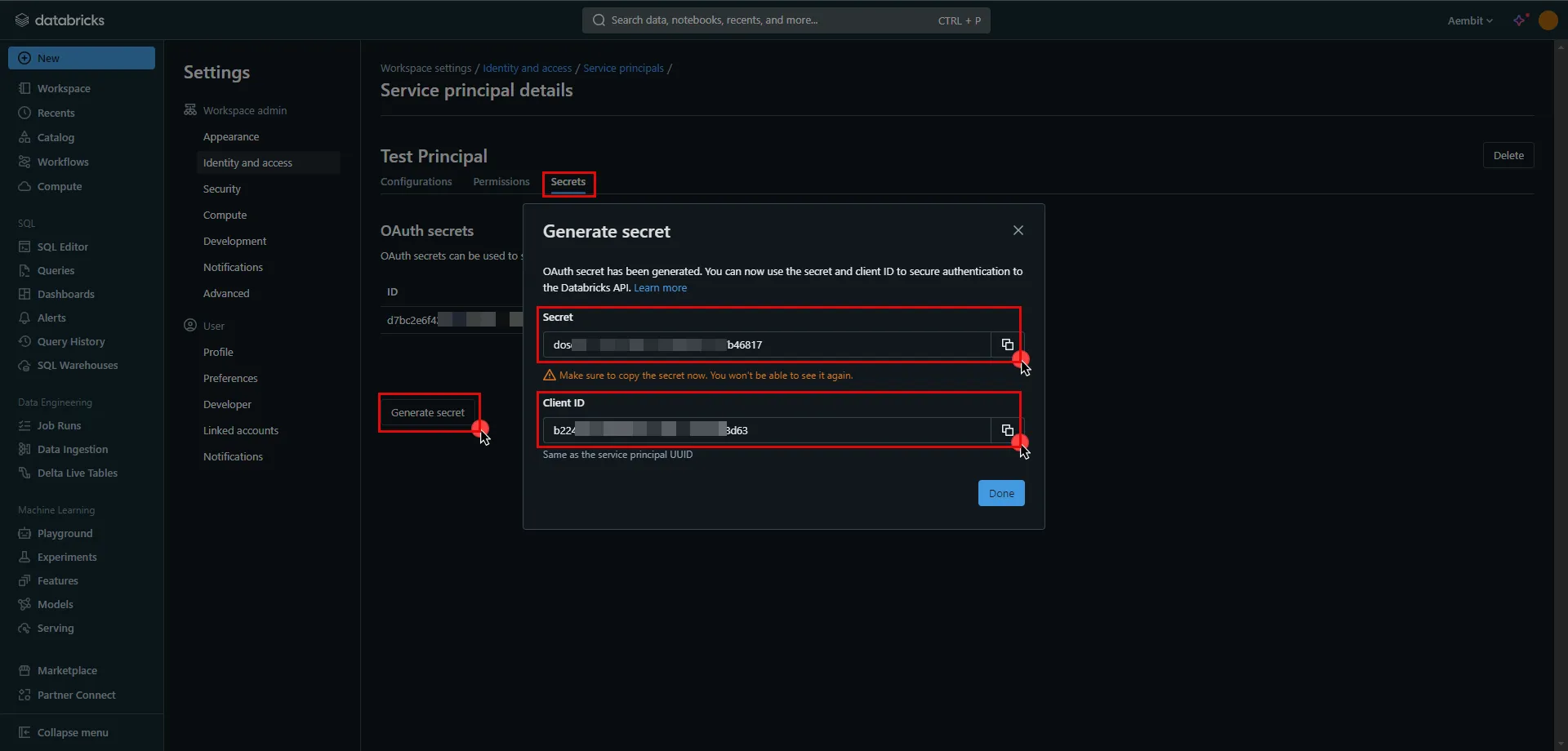 11. Create a new Credential Provider. * **Name** - Choose a user-friendly name. * **Credential Type** - [OAuth 2.0 Client Credentials](/user-guide/access-policies/credential-providers/oauth-client-credentials) * **Token endpoint** - * For a **workspace-level** endpoint URL, use: `https:///oidc/v1/token` (Use the Databricks instance name copied in step 5 of the workspace creation process) * For an **account-level** endpoint URL, use: `https://accounts.cloud.databricks.com/oidc/accounts//v1/token` * In your Databricks account, click on your username in the upper right corner, and in the dropdown menu,copy the part next to Account ID and use it in the previous link.  - **Client ID** - Provide the client ID copied from Databricks. - **Client Secret** - Provide the client secret copied from Databricks. - **Scopes** - `all-apis` - **Credential Style** - Authorization Header ## API Key [Section titled “API Key”](#api-key) ### Server Workload Configuration [Section titled “Server Workload Configuration”](#server-workload-configuration-2) 1. Create a new Server Workload. * **Name** - Choose a user-friendly name. 2. Configure the service endpoint: * **Host** - `.cloud.databricks.com` (Use the Databricks instance name copied in step 5 of the workspace creation process) * **Application Protocol** - HTTP * **Port** - 443 with TLS * **Forward to Port** - 443 with TLS * **Authentication method** - HTTP Authentication * **Authentication scheme** - Bearer ### Credential Provider Configuration [Section titled “Credential Provider Configuration”](#credential-provider-configuration-2) 1. In your Databricks workspace, click on your username in the top right corner, and select **Settings** from the dropdown menu. 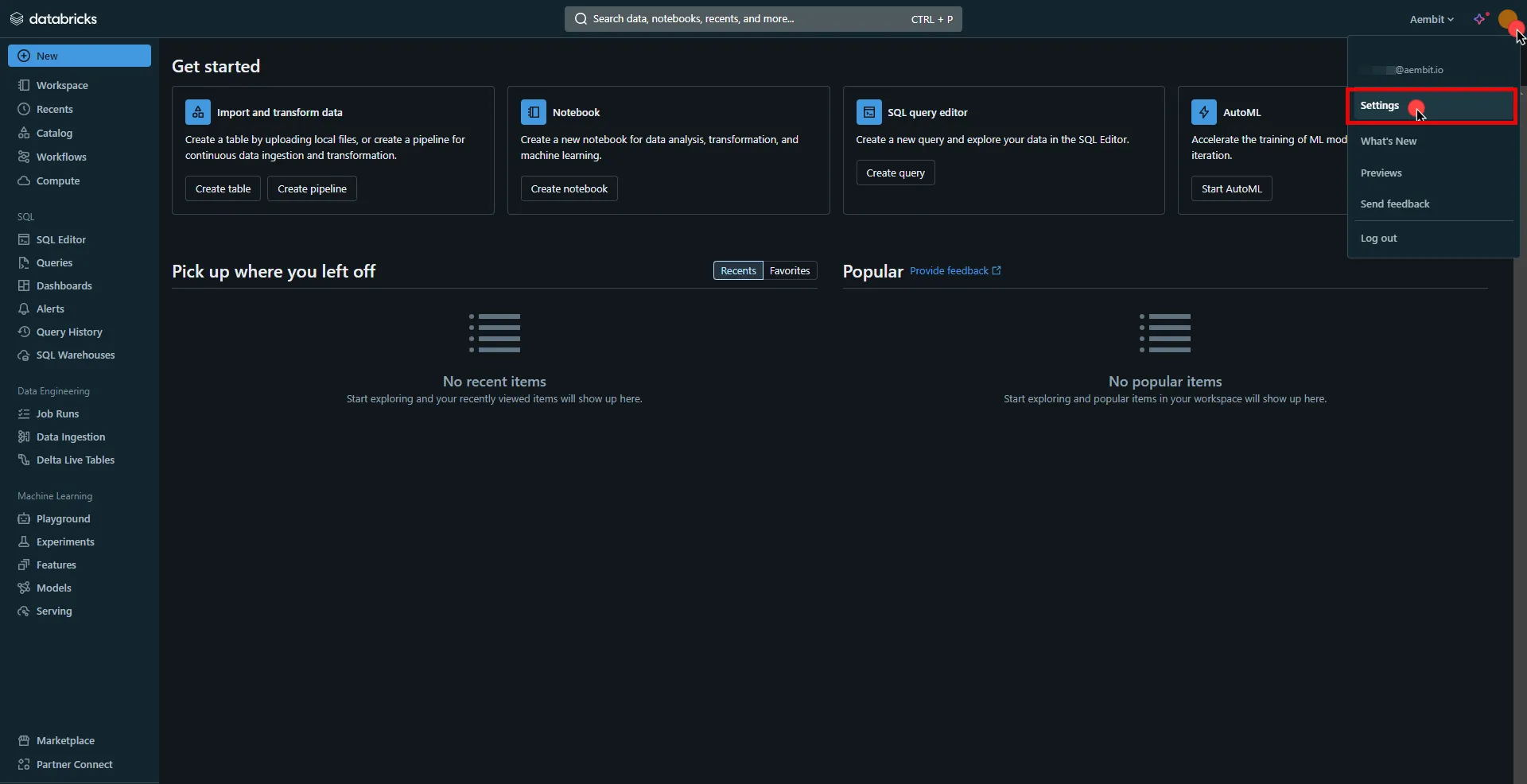 2. In the left-hand menu, navigate to the **Developer** section. 3. Next to **Access tokens**, click **Manage**. 4. Click the **Generate new token** button. 5. Optionally, provide a comment and set a lifetime for your token, then click **Generate**. 6. Click **Copy to clipboard** and securely store the token for later use in the configuration on the tenant. 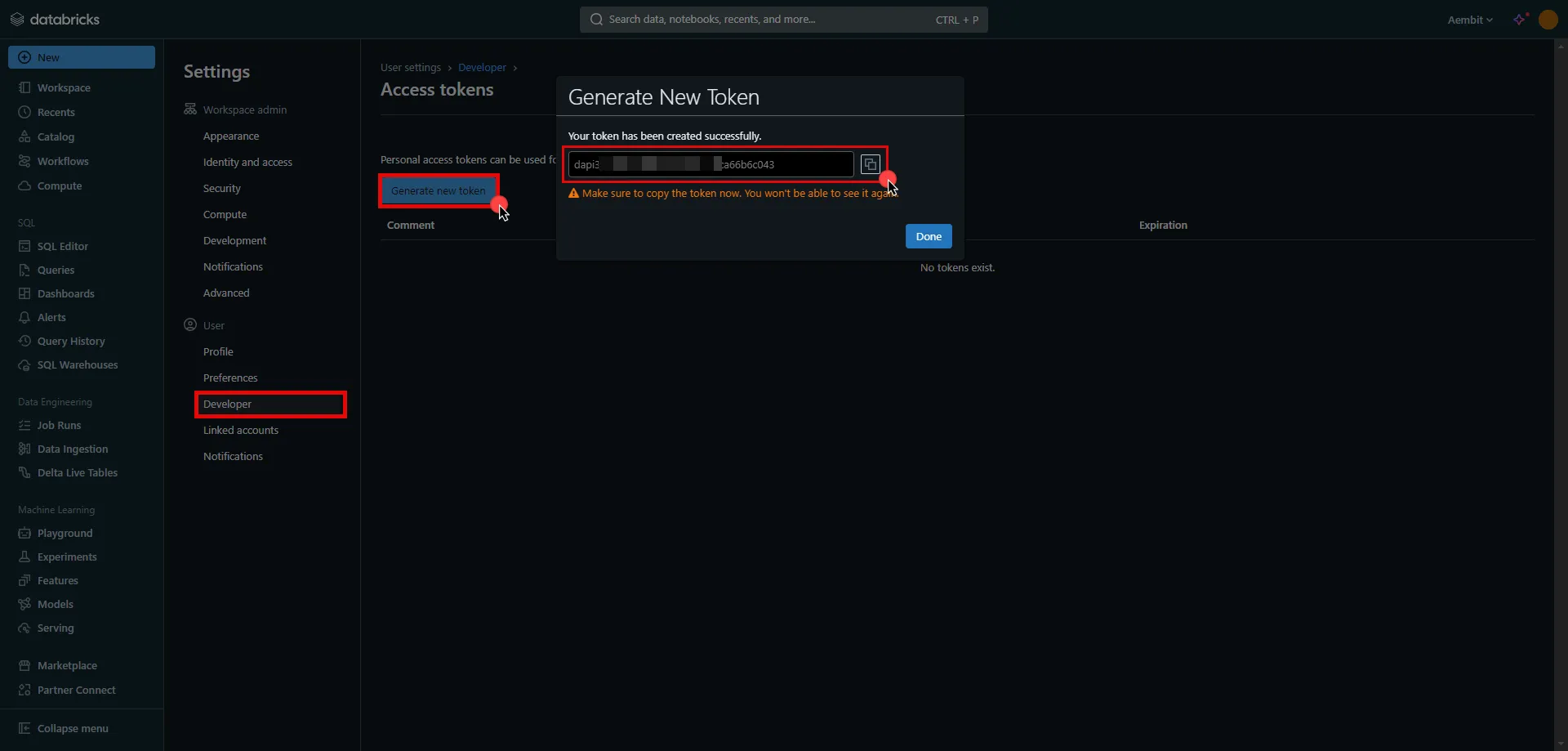 7. Create a new Credential Provider. * **Name** - Choose a user-friendly name. * **Credential Type** - [API Key](/user-guide/access-policies/credential-providers/api-key) * **API Key** - Paste the token copied from Databricks. ## Client Workload Configuration [Section titled “Client Workload Configuration”](#client-workload-configuration) Aembit now handles the credentials required to access the Server Workload, eliminating the need for you to manage them directly. You can safely remove any previously used credentials from the Client Workload. If you access the Server Workload through an SDK or library, it is possible that the SDK/library may still require credentials to be present for initialization purposes. In this scenario, you can provide placeholder credentials. Aembit will overwrite these placeholder credentials with the appropriate ones during the access process. ## Access Policy [Section titled “Access Policy”](#access-policy) * Create an Access Policy for a Client Workload to access the Databricks Server Workload. Assign the newly created Credential Provider to this Access Policy. ## Required Features [Section titled “Required Features”](#required-features) * You will need to configure the [TLS Decrypt](/user-guide/deploy-install/advanced-options/tls-decrypt/configure-tls-decrypt) feature to work with the Databricks Server Workload.
# Create an Entra ID Server Workload
> How to configure an Entra ID Server Workload in Aembit using Azure Entra Workload Identity Federation or JWT-SVID Token authentication
This guide walks you through creating a Server Workload**Server Workload**: Server Workloads represent target services, APIs, databases, or applications that receive and respond to access requests from Client Workloads.[Learn more](/get-started/concepts/server-workloads) in Aembit to securely obtain OAuth tokens from Microsoft Entra ID (formerly Azure Active Directory) without storing static client secrets. **Use this Server Workload** to enable your applications to authenticate to Entra ID-protected resources such as Microsoft Graph API, Azure services, or custom APIs secured by Entra ID. Aembit supports two authentication approaches for Entra ID: * **[Azure Entra Workload Identity Federation (WIF)](#azure-entra-workload-identity-federation)** - Aembit directly handles the token exchange with Entra ID * **[OAuth interception](#oauth-interception)** - For existing applications that already make OAuth requests (zero code changes required). Choose between JWT-SVID Token or OIDC ID Token credential providers. ## Prerequisites [Section titled “Prerequisites”](#prerequisites) Before you begin, ensure you have the following: **Account access** - * Access to your Aembit Tenant**Aembit Tenant**: Aembit Tenants serve as isolated, dedicated environments within Aembit that provide complete separation of administrative domains and security configurations.[Learn more](/get-started/concepts/administration) (role: Workload Administrator or higher) * Access to Azure Portal with permissions to create Entra ID app registrations and federated credentials **Infrastructure** - * Aembit Edge**Aembit Edge**: Aembit Edge represents components deployed within your operational environments that enforce Access Policies by intercepting traffic, verifying identities, and injecting credentials just-in-time.[Learn more](/get-started/concepts/aembit-edge) Components deployed in your environment: * Agent Proxy installed * For VMs: [Linux](/user-guide/deploy-install/virtual-machine/linux/agent-proxy-install-linux/) or [Windows](/user-guide/deploy-install/virtual-machine/windows/agent-proxy-install-windows/) installation * For Kubernetes: [Kubernetes deployment](/user-guide/deploy-install/kubernetes/) * [TLS Decrypt](/user-guide/deploy-install/advanced-options/tls-decrypt/configure-tls-decrypt/) configured on your Agent Proxy. Both authentication approaches require TLS Decrypt because the Agent Proxy must inspect HTTPS traffic to inject credentials. TLS decryption occurs only on the Agent Proxy running alongside your workload. * Network connectivity from your server to Entra ID endpoints (outbound HTTPS to `login.microsoftonline.com`) ## Choose your authentication approach [Section titled “Choose your authentication approach”](#choose-your-authentication-approach) Aembit provides two approaches for authenticating to Entra ID. The OAuth interception approach supports two credential provider types (JWT-SVID Token and OIDC ID Token). | Aspect | Azure Entra WIF CP | JWT-SVID Token | OIDC ID Token | | ---------------------------- | ------------------------------------------------------------------------------------------------------------- | ----------------------------------------------------------------------------------- | -------------------------------------------------------------------------------- | | **Best for** | New integrations, direct Aembit management | Existing OAuth flows, zero code changes | OIDC-based authentication | | **Complexity** | Higher-level abstraction | Lower-level, more flexible | Lower-level, OIDC standard | | **Scope configuration** | In Credential Provider | In application request | In application request | | **Code changes required** | May require SDK/config changes | None (intercepts existing requests) | None (intercepts existing requests) | | **Credential Provider type** | [Azure Entra WIF](/user-guide/access-policies/credential-providers/azure-entra-workload-identity-federation/) | [JWT-SVID Token](/user-guide/access-policies/credential-providers/spiffe-jwt-svid/) | [OIDC ID Token](/user-guide/access-policies/credential-providers/oidc-id-token/) | **Choose Azure Entra WIF** when: * You’re building a new integration from scratch * You want Aembit to manage the complete token exchange * You can configure your application to use Aembit’s credential flow **Choose OAuth interception** (JWT-SVID Token or OIDC ID Token) when: * Your application already makes OAuth token requests to Entra ID * You need zero-code-change deployment * You want Aembit to intercept and secure existing OAuth flows Use **JWT-SVID Token** if you want SPIFFE-compliant tokens, or **OIDC ID Token** if you prefer standard OpenID Connect tokens or want consistency across multiple cloud providers. ## Azure Entra workload identity federation [Section titled “Azure Entra workload identity federation”](#azure-entra-workload-identity-federation) This approach uses the Azure Entra Workload Identity Federation (WIF) Credential Provider**Credential Provider**: Credential Providers obtain the specific access credentials—such as API keys, OAuth tokens, or temporary cloud credentials—that Client Workloads need to authenticate to Server Workloads.[Learn more](/get-started/concepts/credential-providers) to directly obtain tokens from Entra ID. Aembit handles the complete token exchange, including federated credential validation.  ### Step 1: Configure the Credential Provider [Section titled “Step 1: Configure the Credential Provider”](#step-1-configure-the-credential-provider) Follow the complete setup guide for the Azure Entra WIF Credential Provider: **[Configure an Azure Entra WIF Credential Provider](/user-guide/access-policies/credential-providers/azure-entra-workload-identity-federation/)** This guide covers: * Creating the Credential Provider in Aembit * Adding a federated credential in your Entra ID app registration * Configuring the OIDC issuer, audience, and subject mapping * Verifying the connection ### Step 2: Create the Server Workload [Section titled “Step 2: Create the Server Workload”](#step-2-create-the-server-workload) 1. Log in to your Aembit Tenant. 2. Go to **Server Workloads**, and click **+ New**. 3. Configure the following fields: * **Name**: Enter a descriptive name (for example, `entra-id-graph-api`) * **Host**: Enter the target API hostname (for example, `graph.microsoft.com` for Microsoft Graph) * **Application Protocol**: Select **HTTP** * **Port**: `443` * **Forward to Port**: `443` with TLS enabled * **Authentication method**: Select **HTTP Authentication** * **Authentication scheme**: Select **Bearer** 4. Click **Save**. ### Step 3: Create an Access Policy [Section titled “Step 3: Create an Access Policy”](#step-3-create-an-access-policy) Create an Access Policy**Access Policy**: Access Policies define, enforce, and audit access between Client and Server Workloads by cryptographically verifying workload identity and contextual factors rather than relying on static secrets.[Learn more](/get-started/concepts/access-policies) linking your Client Workload**Client Workload**: Client Workloads represent software applications, scripts, or automated processes that initiate access requests to Server Workloads, operating autonomously without direct user interaction.[Learn more](/get-started/concepts/client-workloads), the Azure Entra WIF Credential Provider, and the Server Workload. See [Access Policies](/user-guide/access-policies/) for details. ## OAuth interception [Section titled “OAuth interception”](#oauth-interception) This approach intercepts existing OAuth token requests from your application and replaces static credentials with dynamically generated tokens. Your application continues making standard OAuth requests without code changes. Choose your credential provider type in Step 2: * **JWT-SVID Token** - Uses JWT-SVID**JWT-SVID**: A SPIFFE Verifiable Identity Document in JWT format. JWT-SVIDs are cryptographically signed, short-lived tokens that prove workload identity and enable secure authentication without static credentials.[Learn more](/user-guide/access-policies/credential-providers/about-spiffe-jwt-svid) tokens based on the SPIFFE**SPIFFE**: Secure Production Identity Framework For Everyone (SPIFFE) is an open standard for workload identity that provides cryptographically verifiable identities to services without relying on shared secrets.[Learn more(opens in new tab)](https://spiffe.io/docs/latest/spiffe-about/overview/) standard * **OIDC ID Token** - Uses standard OpenID Connect tokens  ### Step 1: Register your application in Entra ID [Section titled “Step 1: Register your application in Entra ID”](#step-1-register-your-application-in-entra-id) 1. Log in to the Azure Portal and go to **Microsoft Entra ID** -> **App registrations**. 2. Click **New registration** or select an existing application. 3. Note the following values from the **Overview** tab (you’ll need these for Step 3): * **Application (client) ID** * **Directory (tenant) ID** 4. Assign API permissions required by your workload in **API permissions**. 5. Go to **Certificates & secrets** -> **Federated credentials** tab. 6. Click **Add credential** and configure the federated identity credential: | Field | Value | | --------------------------------- | ----------------------------------------------------------------------------------------------- | | **Federated credential scenario** | Other issuer | | **Issuer** | Leave this tab open - you’ll get this from Aembit in Step 2 | | **Subject identifier type** | Explicit subject identifier | | **Subject** | Enter the Subject value you planned (for example, `spiffe://your-domain/workload/entra-client`) | | **Audience** | `api://AzureADTokenExchange` | Keep Azure Portal open Don’t click **Add** yet. You need the **OIDC Issuer URL** from Aembit (Step 2) to complete the **Issuer** field. Keep this browser tab open and proceed to Step 2. ### Step 2: Create the Credential Provider [Section titled “Step 2: Create the Credential Provider”](#step-2-create-the-credential-provider) * JWT-SVID Token 1. Open a new browser tab and log in to your Aembit Tenant. 2. Go to **Credential Providers** and click **+ New**. 3. Configure the following fields: | Field | Value | | ------------------- | ------------------------------------------------------------------------------------------------------- | | **Name** | Descriptive name (for example, `entra-id-jwt-svid`) | | **Credential Type** | JWT-SVID Token | | **Subject** | The same Subject value you entered in Azure (for example, `spiffe://your-domain/workload/entra-client`) | | **Audience** | `api://AzureADTokenExchange` | | **Lifetime** | 15 minutes (recommended) | Shorter token lifetimes reduce the window for credential theft if an attacker steals a token. However, shorter lifetimes increase token refresh frequency, adding minor operational overhead. See [Credential Lifecycle](/user-guide/access-policies/server-workloads/credential-lifecycle/) for guidance on choosing lifetimes based on your security requirements. 4. Click **Save**. After saving, copy the **OIDC Issuer URL** displayed on the Credential Provider details page. 5. Return to the Azure Portal tab you left open in Step 1. 6. Paste the OIDC Issuer URL into the **Issuer** field of your federated credential. 7. Click **Add** to complete the federated credential setup in Azure Portal. For detailed configuration options, see [Create a JWT-SVID Token Credential Provider](/user-guide/access-policies/credential-providers/spiffe-jwt-svid/). * OIDC ID Token 1. Open a new browser tab and log in to your Aembit Tenant. 2. Go to **Credential Providers** and click **+ New**. 3. Configure the following fields: | Field | Value | | ------------------- | ------------------------------------------------------------------------------------------------------- | | **Name** | Descriptive name (for example, `entra-id-oidc`) | | **Credential Type** | OIDC ID Token | | **Subject** | The same Subject value you entered in Azure (for example, `spiffe://your-domain/workload/entra-client`) | | **Audience** | `api://AzureADTokenExchange` | | **Lifetime** | 15 minutes (recommended) | Shorter token lifetimes reduce the window for credential theft if an attacker steals a token. However, shorter lifetimes increase token refresh frequency, adding minor operational overhead. See [Credential Lifecycle](/user-guide/access-policies/server-workloads/credential-lifecycle/) for guidance on choosing lifetimes based on your security requirements. 4. Click **Save**. After saving, copy the **OIDC Issuer URL** displayed on the Credential Provider details page. 5. Return to the Azure Portal tab you left open in Step 1. 6. Paste the OIDC Issuer URL into the **Issuer** field of your federated credential. 7. Click **Add** to complete the federated credential setup in Azure Portal. For detailed configuration options, see [Create an OIDC ID Token Credential Provider](/user-guide/access-policies/credential-providers/oidc-id-token/). ### Step 3: Create the Server Workload [Section titled “Step 3: Create the Server Workload”](#step-3-create-the-server-workload) Use the **Directory (tenant) ID** you noted from Azure in Step 1. 1. Go to **Server Workloads**, and click **+ New**. 2. Configure the following fields: | Field | Value | | ------------------------ | --------------------------------------------------------------------------------------------------------------------------------------------------------------- | | **Name** | Descriptive name (for example, `entra-id-token-endpoint`) | | **Host** | `login.microsoftonline.com` | | **Application Protocol** | OAuth | | **Port** | `443` | | **Forward to Port** | `443` with TLS enabled | | **URL Path** | `/{tenant-id}/oauth2/v2.0/token` - Replace `{tenant-id}` with your actual Directory ID (for example, `/12345678-abcd-1234-efgh-123456789abc/oauth2/v2.0/token`) | | **Authentication** | OAuth Client Authentication (POST Body Form URL Encoded) | 3. Click **Save**. ### Step 4: Create an Access Policy [Section titled “Step 4: Create an Access Policy”](#step-4-create-an-access-policy) Create an Access Policy linking your Client Workload, the JWT-SVID Token Credential Provider, and the Server Workload. See [Access Policies](/user-guide/access-policies/) for details. ### Step 5: Test the integration [Section titled “Step 5: Test the integration”](#step-5-test-the-integration) Your application continues making standard OAuth requests. Aembit intercepts the request and replaces the `client_secret` with a `client_assertion` JWT-SVID. **Test with curl** - /user-guide/deploy-install/advanced-options/agent-proxy/explicit-steering ```shell # Set proxy environment variables export HTTP_PROXY=http://localhost:8080 export HTTPS_PROXY=http://localhost:8080 # Request OAuth token (replace placeholders with your values) curl -X POST "https://login.microsoftonline.com/{tenant-id}/oauth2/v2.0/token" \ -H "Content-Type: application/x-www-form-urlencoded" \ -d "grant_type=client_credentials" \ -d "client_id={client-id}" \ -d "client_secret=placeholder-value" \ -d "scope=https://graph.microsoft.com/.default" ``` **Expected response** - ```json { "token_type": "Bearer", "expires_in": 3599, "access_token": "eyJ0eXAiOiJKV1QiLCJhbGciOiJS..." } ``` ### Using Microsoft authentication libraries [Section titled “Using Microsoft authentication libraries”](#using-microsoft-authentication-libraries) If your application uses Azure.Identity or Microsoft Authentication Library (MSAL) SDK, configure it to use client credentials with a placeholder secret. The Agent Proxy intercepts token requests from these SDKs and injects real credentials. For SDK-specific code examples and official documentation links, see [Service-specific SDK resources](/user-guide/access-policies/server-workloads/developer-integration/#service-specific-sdk-resources). ## Common configuration [Section titled “Common configuration”](#common-configuration) ### Azure API scopes [Section titled “Azure API scopes”](#azure-api-scopes) The scope determines which API permissions your application can access: | Azure API | Scope | | ---------------------- | --------------------------------------- | | Microsoft Graph | `https://graph.microsoft.com/.default` | | Azure Resource Manager | `https://management.azure.com/.default` | | Azure Key Vault | `https://vault.azure.net/.default` | | Azure Storage | `https://storage.azure.com/.default` | | Custom API | `api://{Application-ID}/.default` | ### Credential lifecycle [Section titled “Credential lifecycle”](#credential-lifecycle) Aembit dynamically generates short-lived credentials, eliminating manual rotation. For details on credential rotation, compromise response, and audit logging, see [Credential Lifecycle Management](/user-guide/access-policies/server-workloads/credential-lifecycle/). ## Troubleshooting [Section titled “Troubleshooting”](#troubleshooting) For common issues like Agent Proxy connectivity, network problems, or TLS configuration, see the [Troubleshooting Guide](/user-guide/access-policies/server-workloads/troubleshooting/). ### Debugging token exchange issues [Section titled “Debugging token exchange issues”](#debugging-token-exchange-issues) When token exchange fails, check the Agent Proxy logs to see what credentials Aembit is injecting. **Linux (systemd):** ```shell # Monitor Agent Proxy logs for credential events sudo journalctl --namespace aembit_agent_proxy | grep -i "credential" # View recent logs with timestamps sudo journalctl --namespace aembit_agent_proxy --since "5 minutes ago" ``` **Docker/Kubernetes:** ```shell # Find the Agent Proxy pod kubectl get pods -n | grep agent-proxy # View Agent Proxy logs (standalone deployment) kubectl logs -n -f # If using sidecar injection kubectl logs -n -c aembit-agent-proxy -f ``` **What to look for:** * **Successful token exchange**: Look for log entries referencing credential injection or `GetCredentials` calls * **Failed token exchange**: Look for error messages about missing policies, invalid credentials, or network failures To enable more detailed logging, see [Changing Agent log levels](/user-guide/deploy-install/advanced-options/changing-agent-log-levels/). This section covers Entra ID-specific issues: ### Application with identifier wasn’t found [Section titled “Application with identifier wasn’t found”](#application-with-identifier-wasnt-found) **Symptom** Error message `AADSTS700016: Application with identifier '{client-id}' wasn't found` - **Cause** The Application (client) ID in your Server Workload or Credential Provider doesn’t match an Entra ID app - registration. **Solution** - 1. Verify the Application (client) ID in Azure Portal: **Microsoft Entra ID** -> **App registrations** -> **Overview** 2. Update the Client ID in your Aembit Server Workload or Credential Provider configuration 3. Ensure the app registration exists in the correct Azure tenant ### Authorization failed or permission errors [Section titled “Authorization failed or permission errors”](#authorization-failed-or-permission-errors) **Symptom** Token request succeeds but your application receives 401 Unauthorized or 403 Forbidden errors. - **Diagnosis** - * Check Entra ID sign-in logs: **Microsoft Entra ID** -> **Sign-in logs** -> Filter by Client ID * Verify API permissions: **App registrations** -> Your app -> **API permissions** **Solution** - * Add missing API permissions in Entra ID * Click **Grant administrator consent** if permissions require it * Verify the scope in your request matches configured permissions ### Token retrieval fails [Section titled “Token retrieval fails”](#token-retrieval-fails) **Symptom** OAuth token request returns an error or times out. - **Diagnosis** - ```shell # Test network connectivity to Entra ID curl -I "https://login.microsoftonline.com" # Test through Agent Proxy # Only required for explicit steering: /user-guide/deploy-install/advanced-options/agent-proxy/explicit-steering export HTTPS_PROXY=http://localhost:8080 curl -I "https://login.microsoftonline.com" ``` **Solution** - * Verify firewall rules allow outbound HTTPS to `login.microsoftonline.com` * Confirm you configured [TLS Decrypt](/user-guide/deploy-install/advanced-options/tls-decrypt/configure-tls-decrypt/) * Check Agent Proxy logs for errors ### Federated credential validation fails [Section titled “Federated credential validation fails”](#federated-credential-validation-fails) **Symptom** Error message `AADSTS70021: No matching federated identity record found` - **Cause** The OIDC issuer, subject, or audience in the Entra ID federated credential doesn’t match the Aembit - Credential Provider configuration. **Solution** - 1. In Aembit, note the exact values for: * **OIDC Issuer URL** * **Subject** * **Audience** (should be `api://AzureADTokenExchange`) 2. In Azure Portal, verify the federated credential matches exactly: * **Microsoft Entra ID** -> **App registrations** -> Your app -> **Certificates & secrets** -> **Federated credentials** 3. Update any mismatched values ## Cleanup [Section titled “Cleanup”](#cleanup) ## Related resources [Section titled “Related resources”](#related-resources) * [Credential Lifecycle Management](/user-guide/access-policies/server-workloads/credential-lifecycle/) - How Aembit manages credential rotation and security * [Azure Entra WIF Credential Provider](/user-guide/access-policies/credential-providers/azure-entra-workload-identity-federation/) - Detailed Credential Provider setup * [JWT-SVID Token Credential Provider](/user-guide/access-policies/credential-providers/spiffe-jwt-svid/) - JWT-SVID configuration options * [Developer Integration](/user-guide/access-policies/server-workloads/developer-integration/) - SDK integration and placeholder credentials * [Architecture Patterns](/user-guide/access-policies/server-workloads/architecture-patterns/) - Understanding OAuth flow and trust boundaries * [TLS Decrypt Configuration](/user-guide/deploy-install/advanced-options/tls-decrypt/configure-tls-decrypt/) - HTTPS interception setup
# Freshsales
> This page describes how to configure Aembit to work with the Freshsales Server Workload.
# [Freshsales](https://www.freshworks.com/crm/sales/) is a customer relationship management platform that helps businesses manage their sales processes. It offers features like lead tracking, email integration, and sales analytics to streamline workflows and improve customer interactions. Below you can find the Aembit configuration required to work with the Freshsales service as a Server Workload using the REST API. ## Prerequisites [Section titled “Prerequisites”](#prerequisites) Before proceeding with the configuration, you will need to have a Freshsales or Freshsales Suite tenant (or [sign up](https://www.freshworks.com/crm/signup/) for one). ## Server Workload Configuration [Section titled “Server Workload Configuration”](#server-workload-configuration) 1. Create a new Server Workload. * **Name** - Choose a user-friendly name. 2. Configure the service endpoint: * **Host** - `.myfreshworks.com` * **Application Protocol** - HTTP * **Port** - 443 with TLS * **Forward to Port** - 443 with TLS * **Authentication method** - HTTP Authentication * **Authentication scheme** - Header * **Header** - Authorization ## Credential Provider Configuration [Section titled “Credential Provider Configuration”](#credential-provider-configuration) 1. Sign into your Freshsales account. 2. In the upper-right corner of the page, click your profile photo, then click **Settings**. 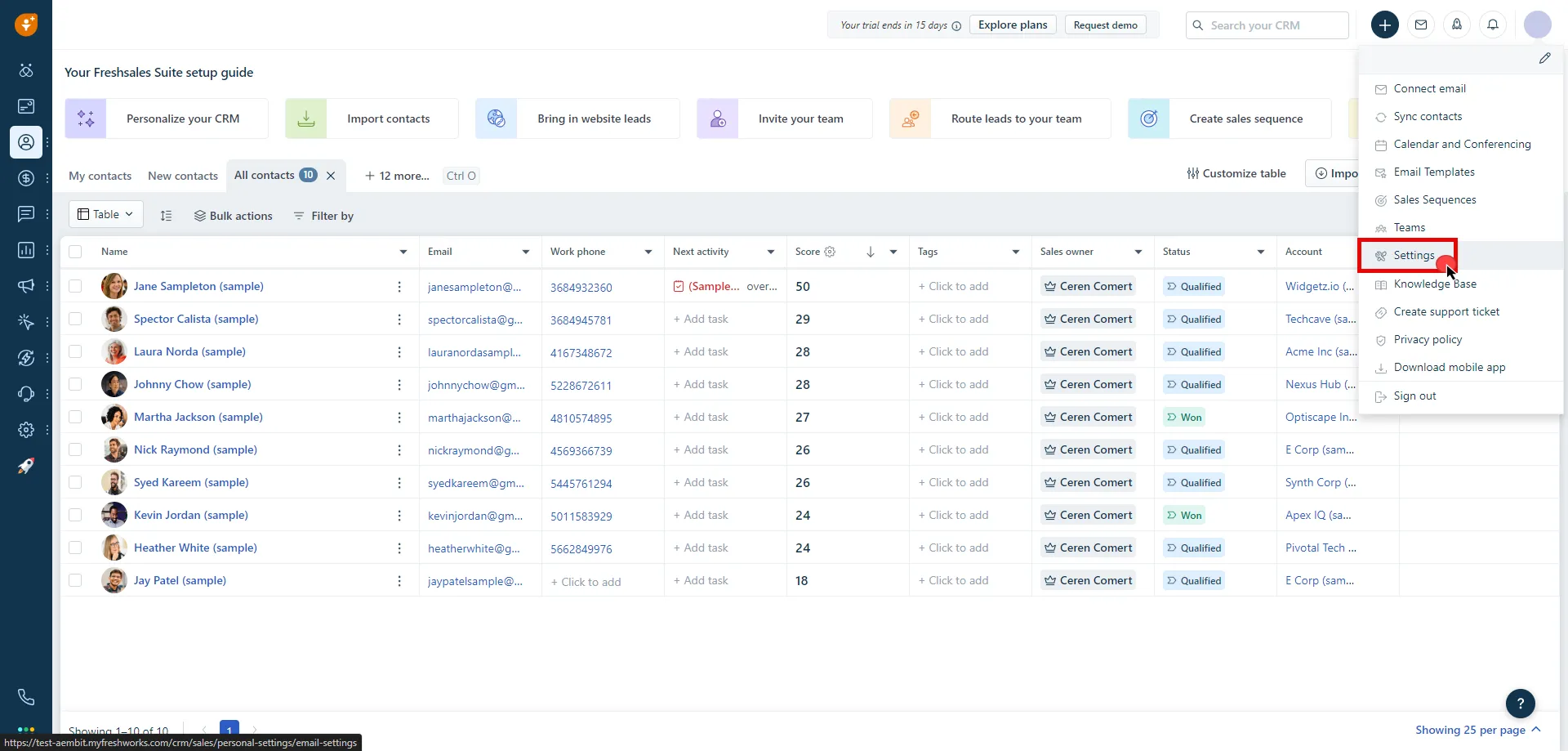 3. Click on the **API Settings** tab. 4. Click **Copy** and securely store the API key for later use in the configuration on the tenant. 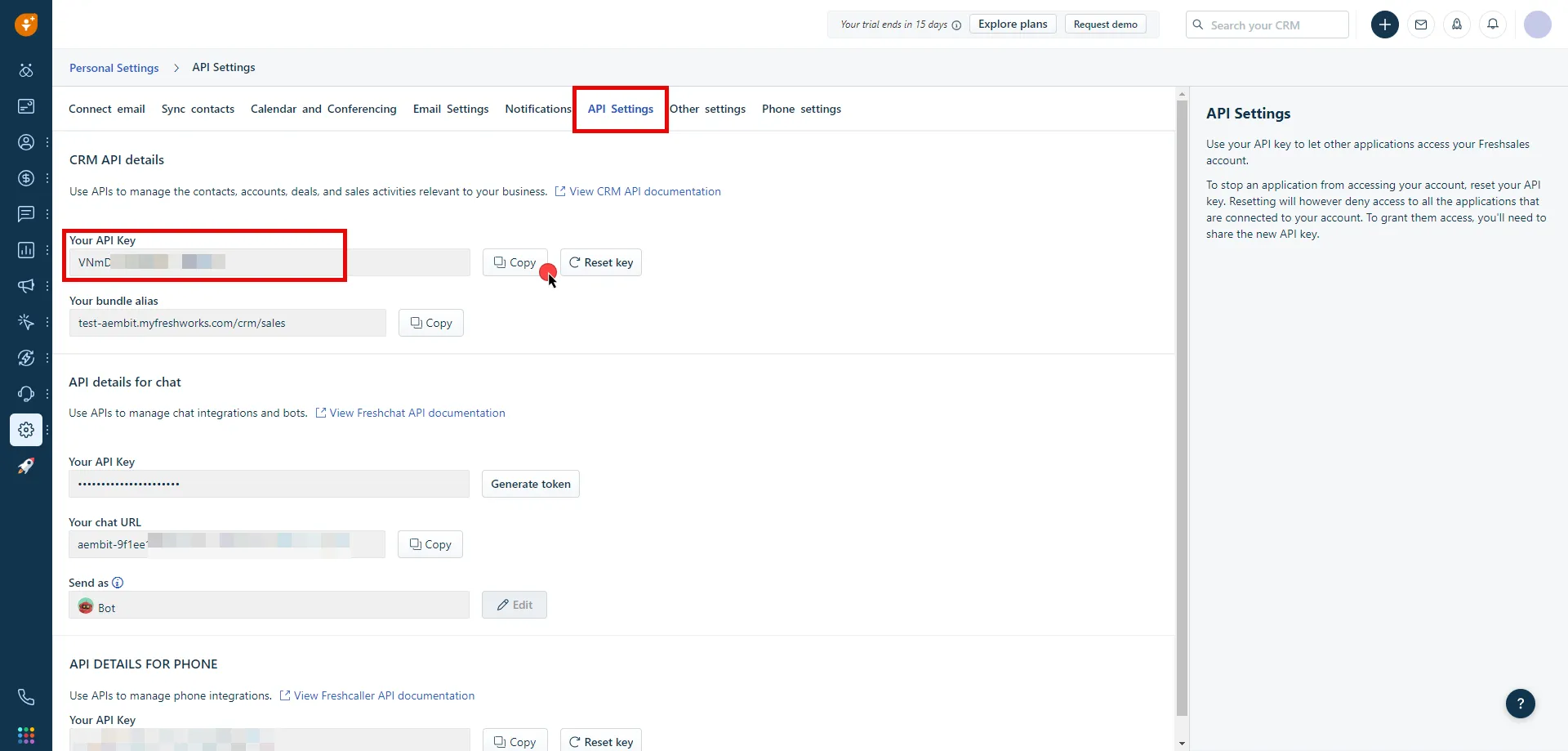 5. Create a new Credential Provider. * **Name** - Choose a user-friendly name. * **Credential Type** - [API Key](/user-guide/access-policies/credential-providers/api-key) * **API Key** - Provide the key copied from Freshsales. ## Client Workload Configuration [Section titled “Client Workload Configuration”](#client-workload-configuration) Aembit now handles the credentials required to access the Server Workload, eliminating the need for you to manage them directly. You can safely remove any previously used credentials from the Client Workload. If you access the Server Workload through an SDK or library, it is possible that the SDK/library may still require credentials to be present for initialization purposes. In this scenario, you can provide placeholder credentials. Aembit will overwrite these placeholder credentials with the appropriate ones during the access process. ## Access Policy [Section titled “Access Policy”](#access-policy) * Create an access policy for a Client Workload to access the Freshsales Server Workload and assign the newly created Credential Provider to it. ## Required Features [Section titled “Required Features”](#required-features) * You will need to configure the [TLS Decrypt](/user-guide/deploy-install/advanced-options/tls-decrypt/configure-tls-decrypt) feature to work with the Freshsales Server Workload.
# GCP BigQuery
> This page describes how to configure Aembit to work with the GCP BigQuery Server Workload.
# [Google BigQuery](https://cloud.google.com/bigquery?hl=en), part of Google Cloud Platform, is a data warehousing solution designed for storing, querying, and analyzing large datasets. It offers scalability, SQL-based querying, and integrations with other GCP services and third-party tools. Below you can find the Aembit configuration required to work with the GCP BigQuery service as a Server Workload using the BigQuery REST API. Aembit supports multiple authentication/authorization methods for BigQuery. This page describes scenarios where the Credential Provider is configured for BigQuery via: * [OAuth 2.0 Authorization Code (3LO)](/user-guide/access-policies/server-workloads/guides/gcp-bigquery#oauth-20-authorization-code) * [Google Workload Identity Federation](/user-guide/access-policies/server-workloads/guides/gcp-bigquery#google-workload-identity-federation) ## OAuth 2.0 Authorization Code [Section titled “OAuth 2.0 Authorization Code”](#oauth-20-authorization-code) ### Server Workload Configuration [Section titled “Server Workload Configuration”](#server-workload-configuration) 1. Create a new Server Workload. * **Name** - Choose a user-friendly name. 2. Configure the Service endpoint: * **Host** - `bigquery.googleapis.com` * **Application Protocol** - HTTP * **Port** - 443 with TLS * **Forward to Port** - 443 with TLS * **Authentication method** - HTTP Authentication * **Authentication scheme** - Bearer ### Credential Provider Configuration [Section titled “Credential Provider Configuration”](#credential-provider-configuration) 1. Sign in to the Google Cloud Console and navigate to the [Credentials](hhttps://console.cloud.google.com/apis/credentials) page. Ensure that you are working within a GCP project for which you have authorization. 2. On the **Credentials** dashboard, click **Create Credentials** located in the top left corner and select the **OAuth client ID** option.  3. If there is no configured Consent Screen for your project, you will see a **Configure Consent Screen** button on the directed page. Click the button to continue.  4. Choose **User Type** and click **Create**. * Provide a name for your app. * Choose a user support email from the dropdown menu. * App logo and app domain fields are optional. * Enter at least one email for the Developer contact information field. * Click **Save and Continue**. * You may skip the Scopes step by clicking **Save and Continue** once again. * In the **Summary** step, review the details of your app and click **Back to Dashboard**. 5. Navigate back to [Credentials](hhttps://console.cloud.google.com/apis/credentials) page, click **Create Credentials**, and select the **OAuth client ID** option again. * Choose **Web Application** for Application Type. * Provide a name for your web client. * Switch to the Aembit UI to create a new Credential Provider, selecting the OAuth 2.0 Authorization Code credential type. After setting up the Credential Provider, copy the auto-generated **Callback URL**. * Return to Google Cloud Console and paste the copied URL into the **Authorized redirect URIs** field. * Click **Create**. 6. A pop-up window will appear. Copy both the **Client ID** and the **Client Secret**. Store them for later use in the tenant configuration. 7. Edit the existing Credential Provider created in the previous steps. * **Name** - Choose a user-friendly name. * **Credential Type** - [OAuth 2.0 Authorization Code](/user-guide/access-policies/credential-providers/oauth-authorization-code) * **Callback URL (Read-Only)** - An auto-generated Callback URL from Aembit Admin. * **Client Id** - Provide the Client ID copied from Google. * **Client Secret** - Provide the Secret copied from Google. * **Scopes** - Enter the scopes you will use for BigQuery (e.g. `https://www.googleapis.com/auth/bigquery`) A full list of GCP Scopes can be found at [OAuth 2.0 Scopes for Google APIs](https://developers.google.com/identity/protocols/oauth2/scopes). * **OAuth URL** - `https://accounts.google.com` Click on **URL Discovery** to populate the Authorization and Token URL fields, which can be left as populated. * **PKCE Required** - Off * **Lifetime** - 1 year (A Google Cloud Platform project with an OAuth consent screen configured for an external user type and a publishing status of Testing is issued a refresh token expiring in 7 days).\ Google does not specify a refresh token lifetime for the internal user type selected version; this value is recommended by Aembit. For more information, refer to the [official Google documentation](https://developers.google.com/identity/protocols/oauth2#expiration). 8. Click **Save** to save your changes on the Credential Provider. 9. In Aembit UI, click the **Authorize** button. You will be directed to a page where you can choose your Google account first. Then click **Allow** to complete the OAuth 2.0 Authorization Code flow. You will see a success page and will be redirected to Aembit automatically. You can also verify your flow is complete by checking the **State** value in the Credential Provider. After completion, it should be in a **Ready** state.  Caution Once the set lifetime ends, the retrieved credential will expire and no longer be active. Aembit will notify you before this happens. Please ensure you reauthorize your credential before it expires. ## Google Workload Identity Federation [Section titled “Google Workload Identity Federation”](#google-workload-identity-federation) ### Server Workload Configuration [Section titled “Server Workload Configuration”](#server-workload-configuration-1) 1. Create a new Server Workload. * **Name** - Choose a user-friendly name. 2. Configure the Service endpoint: * **Host** - `bigquery.googleapis.com` * **Application Protocol** - HTTP * **Port** - 443 with TLS * **Forward to Port** - 443 with TLS * **Authentication method** - HTTP Authentication * **Authentication scheme** - Bearer ### Credential Provider Configuration [Section titled “Credential Provider Configuration”](#credential-provider-configuration-1) 1. Sign in to the Google Cloud Console and navigate to [Service Accounts](https://console.cloud.google.com/iam-admin/serviceaccounts). Ensure that you are working within a GCP project for which you have authorization. 2. On the **Service Accounts** dashboard, click **Create Service Account** located in the top left corner. 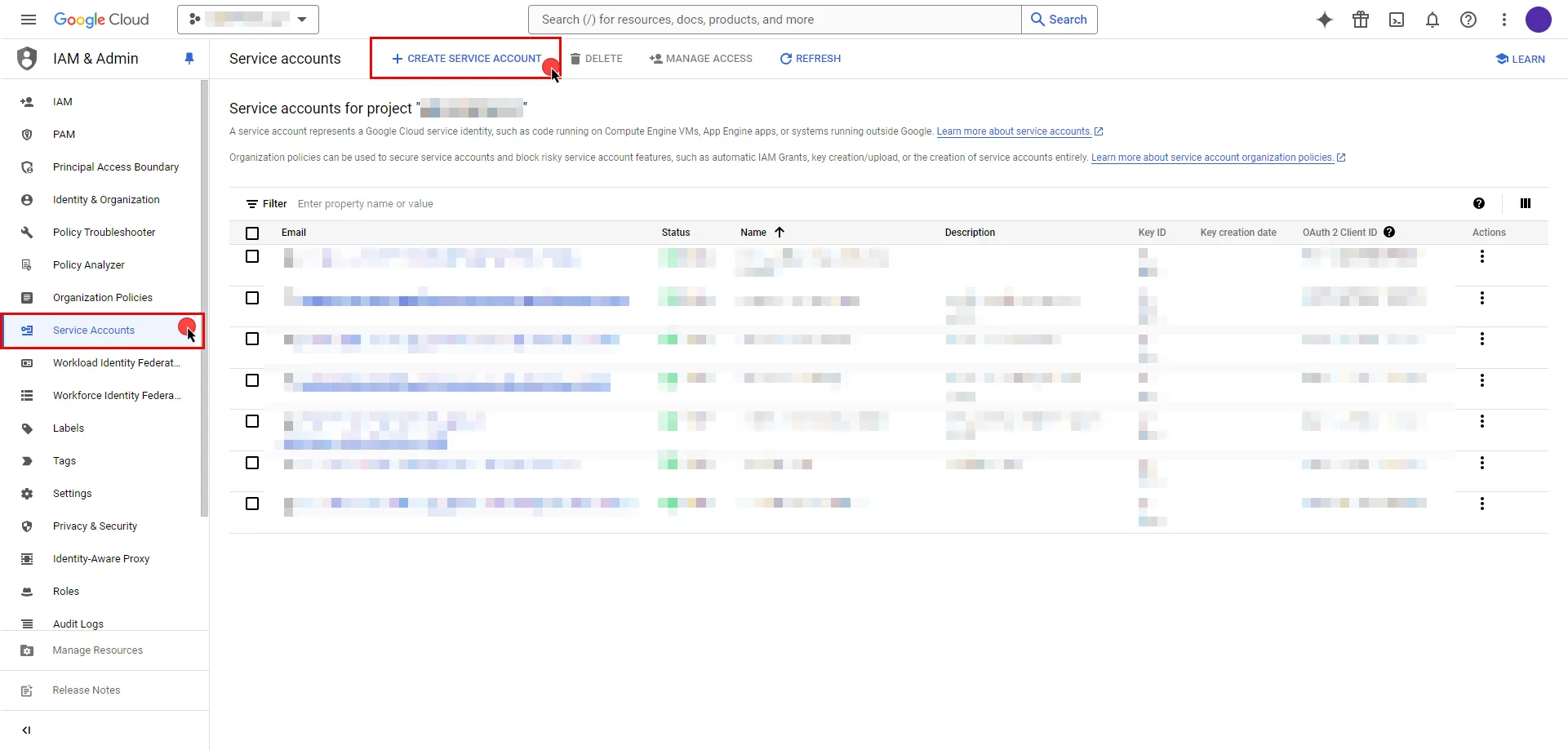 ```plaintext - Provide a name for your service account. The ID will be generated based on the account name, but you have the option to edit it. The description field is optional. - Click the icon next to **Email address** to copy it and store the address for later. - Click **Done**. ``` 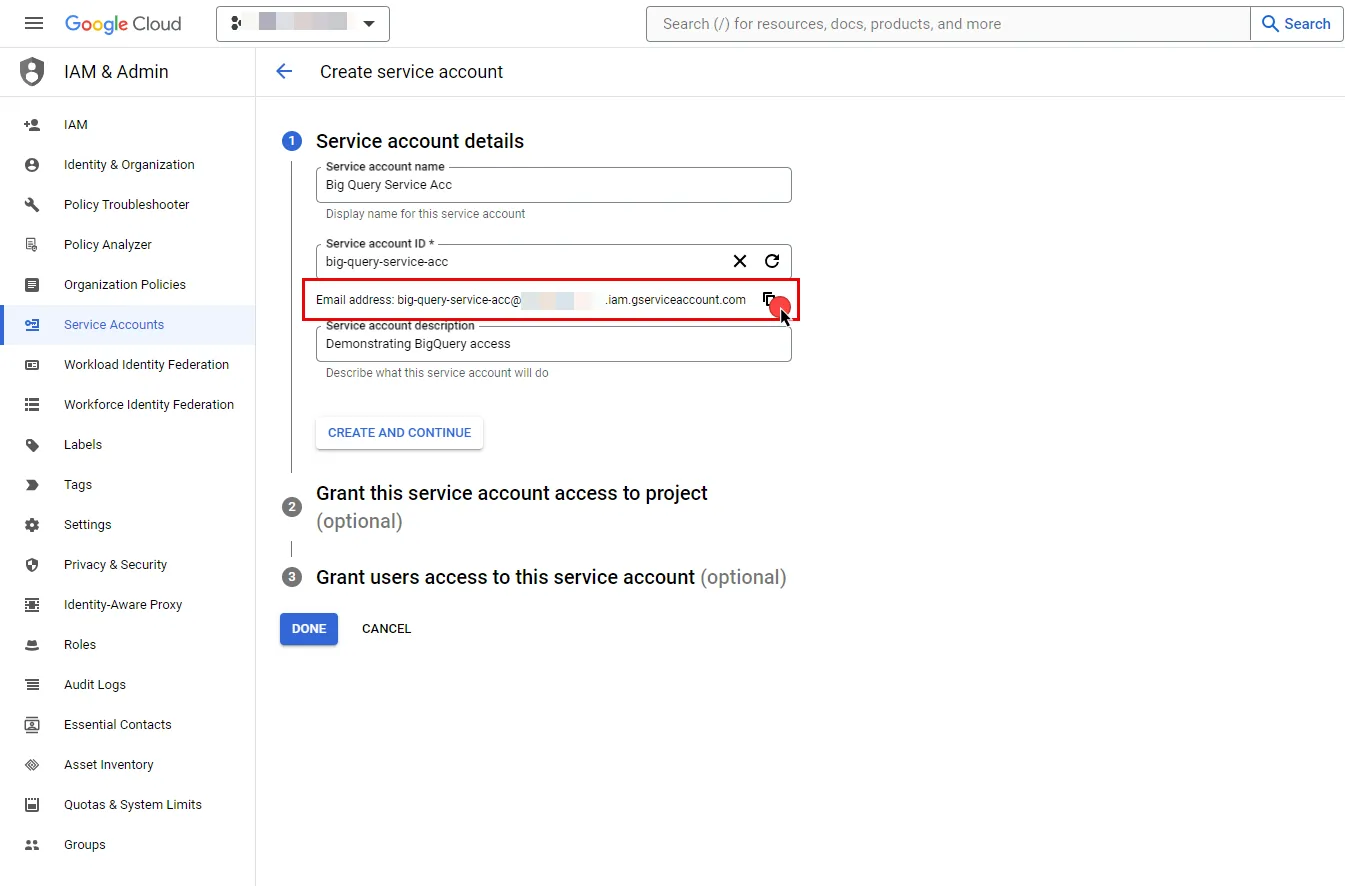 3. In the left sidebar, select **IAM** to access a list of permissions for your project. 4. Click the **Grant Access** button in the ribbon list in the middle of the page. 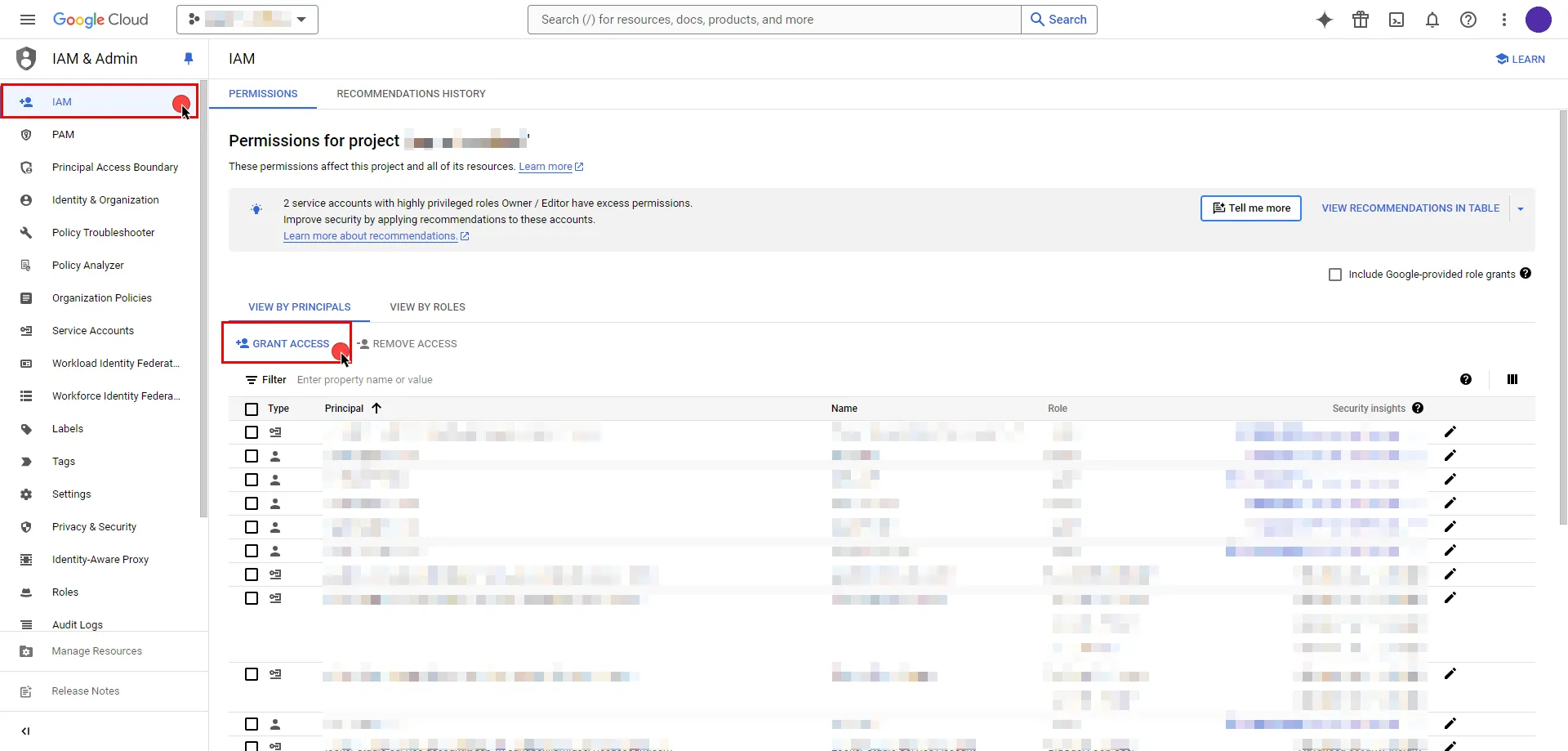 5. In the opened dialog, click **New Principals**, start typing your service account name, and select from the search results. 6. Assign roles to your service account by clicking the dropdown icon, selecting the GCP role that best suits your project needs, and then click **Save**. 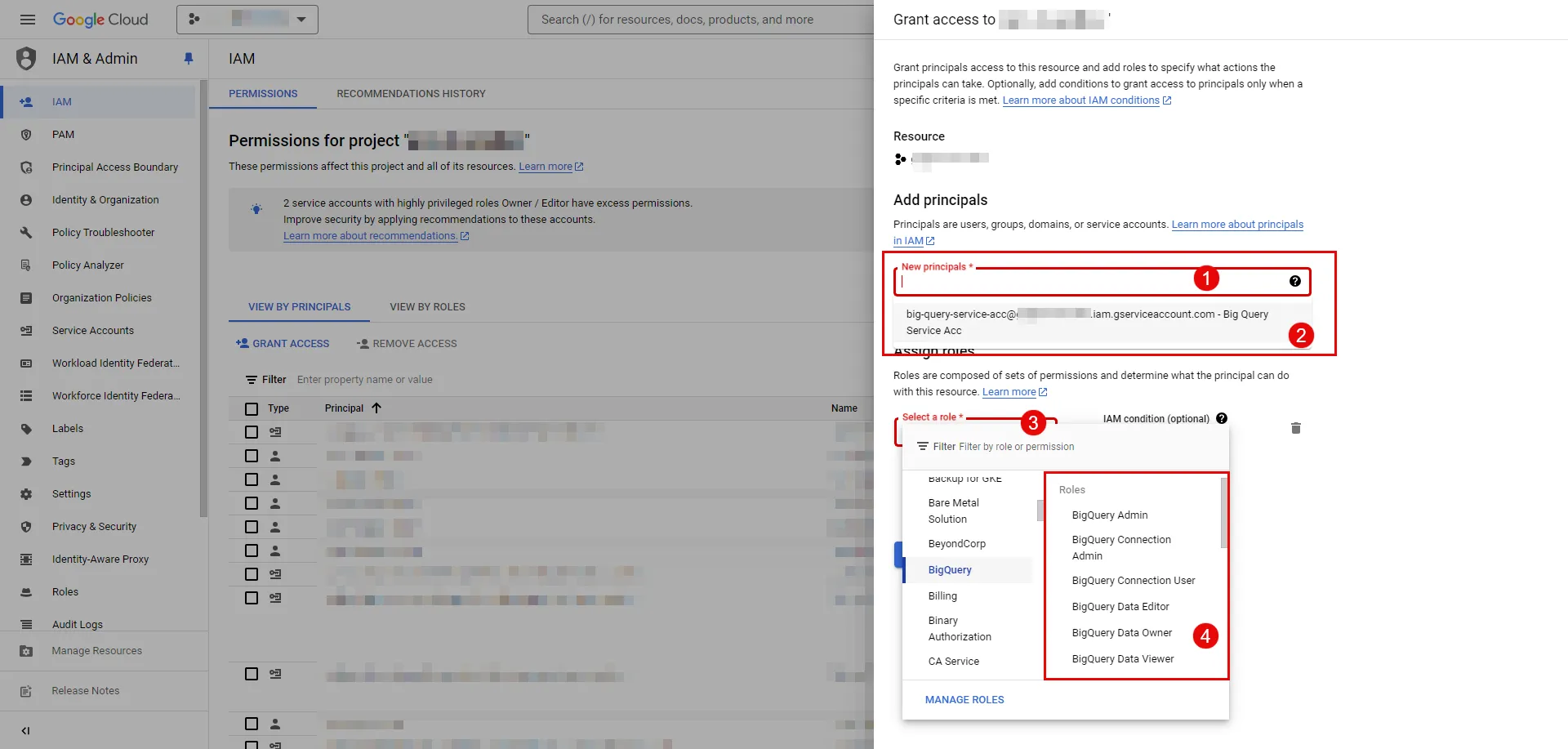 7. In the left sidebar, select [Workload Identity Federation](https://console.cloud.google.com/iam-admin/workload-identity-pools). If this is your first time on this page, click **Get Started**; otherwise, click **Create Pool**. 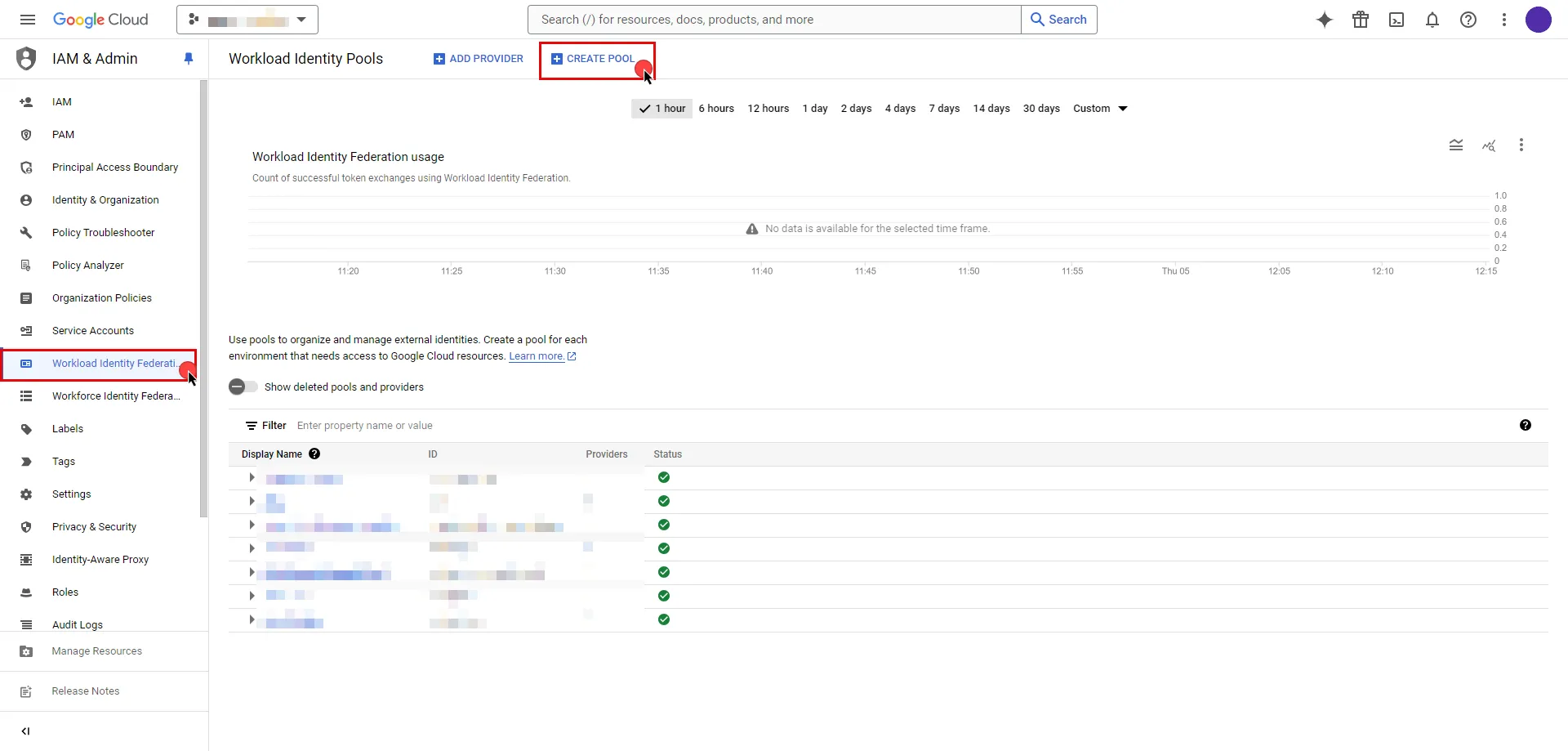 ```plaintext - Specify a name for your identity pool. The ID will be generated based on the pool name, but you can edit it if needed. The description field is optional; proceed by clicking **Continue**. - Next, add a provider to the pool. Select **OpenID Connect (OIDC)** as the provider option and specify a name for your provider. Again, the ID will be auto-generated, but you can edit it. - For the **Issuer(URL)** field, switch to the Aembit UI to create a new Credential Provider, selecting the Google Workload Identity Federation credential type. After setting up the Credential Provider, copy the auto-generated **Issuer URL**, then paste it into the field. - If you choose to leave the Audiences option set to Default audience, click the **Copy to clipboard icon**next to the auto-generated value and store the address for later use in the tenant configuration, then proceed by clicking **Continue**.  - Specify the provider attribute of **assertion.tenant** in OIDC 1 and click **Save**. ``` 8\. To access resources, pool identities must be granted access to a service account. Within the GCP workload identity pool you just created, click the **Grant Access** button located in the top ribbon list. ```plaintext - In the opened dialog, choose **Grant access using Service Account impersonation** option. - Then, choose the **Service Account** that you created from the dropdown menu. - For **Attribute name**, choose **subject** from dropdown menu. - For **Attribute value**, provide your Aembit Tenant ID. You can find your tenant ID from the URL you use. For example, if the URL is `https://xyz.aembit.io`, then `xyz` is your tenant ID. - Proceed with clicking to **Save**.  ``` 9\. Edit the existing Credential Provider created in the previous steps. * **Name** - Choose a user-friendly name. * **Credential Type** - [Google Workload Identity Federation](/user-guide/access-policies/credential-providers/google-workload-identity-federation) * **OIDC Issuer URL (Read-Only)** - An auto-generated OpenID Connect (OIDC) Issuer URL from Aembit Admin. * **Audience** - Provide the audience value for the provider. The value should match either: **Default** - Full canonical resource name of the Workload Identity Pool Provider (used if “Default audience” was chosen during setup). **Allowed Audiences** - A value included in the configured allowed audiences list, if defined. * **Service Account Email** - Provide the service account email that was previously copied from Google Cloud Console during service account creation. (e.g., `service-account-name@project-id.iam.gserviceaccount.com`) * **Lifetime** - Specify the duration for which the credentials will remain valid. Caution If the default audience was chosen during provider creation, provide the value previously copied from Google Cloud Console, the part **after** the prefix (e.g., //iam.googleapis…). ## Client Workload Configuration [Section titled “Client Workload Configuration”](#client-workload-configuration) Aembit now handles the credentials required to access the Server Workload, eliminating the need for you to manage them directly. You can safely remove any previously used credentials from the Client Workload. If you access the Server Workload through an SDK or library, it is possible that the SDK/library may still require credentials to be present for initialization purposes. In this scenario, you can provide placeholder credentials. Aembit will overwrite these placeholder credentials with the appropriate ones during the access process. ## Access Policy [Section titled “Access Policy”](#access-policy) * Create an Access Policy for a Client Workload to access the GCP BigQuery Server Workload. Assign the newly created Credential Provider to this Access Policy. ## Required Features [Section titled “Required Features”](#required-features) * You will need to configure the [TLS Decrypt](/user-guide/deploy-install/advanced-options/tls-decrypt/configure-tls-decrypt) feature to work with the GCP BigQuery Server Workload.
# Gemini (Google)
> This page describes how to configure Aembit to work with the Gemini Server Workload
# [Gemini](https://ai.google.dev/) is an AI platform that allows developers to integrate multimodal capabilities into their applications, including text, images, audio, and video processing. It supports tasks such as natural language processing, content generation, and data analysis. Below you can find the Aembit configuration required to work with the Google Gemini service as a Server Workload using the REST API. ## Prerequisites [Section titled “Prerequisites”](#prerequisites) Before proceeding with the configuration, ensure you have a Google account and an API key. If you have not already created a key, follow the instructions below. For more details about the Gemini API, refer to the [official Gemini API documentation](https://ai.google.dev/gemini-api/docs/api-key). ### Create API Key [Section titled “Create API Key”](#create-api-key) 1. Navigate to the [API Keys](https://aistudio.google.com/app/apikey) page and sign in to your Google account. 2. Click the **Create API key** button in the middle of the page.  3. Click the **Got it** button on the Safety Setting Reminder pop-up window. 4. If you do not already have a project in Google Cloud, click **Create API key in new project**. Otherwise, select from your projects and click **Create API key in existing project**.  5. Click **Copy** and securely store the key for later use in your tenant configuration.  ## Server Workload Configuration [Section titled “Server Workload Configuration”](#server-workload-configuration) 1. Create a new Server Workload. * **Name** - Choose a user-friendly name. 2. Configure the service endpoint: * **Host** - `generativelanguage.googleapis.com` * **Application Protocol** - HTTP * **Port** - 443 with TLS * **Forward to Port** - 443 with TLS * **Authentication method** - HTTP Authentication * **Authentication scheme** - Header * **Header** - x-goog-api-key ## Credential Provider Configuration [Section titled “Credential Provider Configuration”](#credential-provider-configuration) 1. Create a new Credential Provider. * **Name** - Choose a user-friendly name. * **Credential Type** - [API Key](/user-guide/access-policies/credential-providers/api-key) * **API Key** - Paste the key copied from Google AI Studio. ## Client Workload Configuration [Section titled “Client Workload Configuration”](#client-workload-configuration) Aembit now handles the credentials required to access the Server Workload, eliminating the need for you to manage them directly. You can safely remove any previously used credentials from the Client Workload. If you access the Server Workload through an SDK or library, it is possible that the SDK/library may still require credentials to be present for initialization purposes. In this scenario, you can provide placeholder credentials. Aembit will overwrite these placeholder credentials with the appropriate ones during the access process. ## Access Policy [Section titled “Access Policy”](#access-policy) * Create an Access Policy for a Client Workload to access the Gemini Server Workload. Assign the newly created Credential Provider to this Access Policy. ## Required Features [Section titled “Required Features”](#required-features) * You will need to configure the [TLS Decrypt](/user-guide/deploy-install/advanced-options/tls-decrypt/configure-tls-decrypt) feature to work with the Gemini Server Workload.
# GitGuardian
> This page describes how to configure Aembit to work with the GitGuardian Server Workload.
# [GitGuardian](https://www.gitguardian.com/) is a cybersecurity platform dedicated to safeguarding sensitive information within source code repositories. It specializes in identifying and protecting against potential data leaks, ensuring that organizations maintain the confidentiality of their critical data. Below you can find the Aembit configuration required to work with the GitGuardian service as a Server Workload using the GitGuardian API. ## Prerequisites [Section titled “Prerequisites”](#prerequisites) Before proceeding with the configuration, you will need to have a GitGuardian tenant (or [sign up](https://dashboard.gitguardian.com/auth/signup) for one). ## Server Workload Configuration [Section titled “Server Workload Configuration”](#server-workload-configuration) 1. Create a new Server Workload. * **Name** - Choose a user-friendly name. 2. Configure the service endpoint: * **Host** - `api.gitguardian.com` * **Application Protocol** - HTTP * **Port** - 443 with TLS * **Forward to Port** - 443 with TLS * **Authentication method** - API Key * **Authentication scheme** - Header * **Header** - Authorization ## Credential Provider Configuration [Section titled “Credential Provider Configuration”](#credential-provider-configuration) 1. Navigate to the [GitGuardian Dashboard](https://dashboard.gitguardian.com/) and sign in with your account. 2. On the left sidebar, choose **API** and then go to **Personal access tokens** in the second left pane to access details. 3. Click on **Create Token** in the top right corner. 4. Provide a name, choose an expiration time, select scopes based on your preferences, and then click **Create token** at the bottom of the modal.  5. Make sure to copy your new personal access token at this stage, as it will not be visible again. For more information on authentication, please refer to the [official GitGuardian API documentation](https://api.gitguardian.com/docs#section/Authentication). 6. Create a new Credential Provider. * **Name** - Choose a user-friendly name. * **Credential Type** - [API Key](/user-guide/access-policies/credential-providers/api-key) * **API Key** - Provide the key copied from GitGuardian and use the format `Token api-key`, replacing `api-key` with your API key. ## Client Workload Configuration [Section titled “Client Workload Configuration”](#client-workload-configuration) Aembit now handles the credentials required to access the Server Workload, eliminating the need for you to manage them directly. You can safely remove any previously used credentials from the Client Workload. If you access the Server Workload through an SDK or library, it is possible that the SDK/library may still require credentials to be present for initialization purposes. In this scenario, you can provide placeholder credentials. Aembit will overwrite these placeholder credentials with the appropriate ones during the access process. ## Access Policy [Section titled “Access Policy”](#access-policy) * Create an access policy for a Client Workload to access the GitGuardian Server Workload and assign the newly created Credential Provider to it. ## Required Features [Section titled “Required Features”](#required-features) * You will need to configure the [TLS Decrypt](/user-guide/deploy-install/advanced-options/tls-decrypt/configure-tls-decrypt) feature to work with the GitGuardian Server Workload.
# GitHub REST
> This page describes how to configure Aembit to work with the GitHub REST API Server Workload.
# [GitHub](https://github.com/) is a cloud-based platform for code hosting and version control using Git. Its REST API enables programmatic interaction with GitHub’s features, allowing for custom tool development and automation. Below you can find the Aembit configuration required to work with the GitHub service as a Server Workload using the GitHub REST API. Aembit supports multiple authentication/authorization methods for GitHub. This page describes scenarios where the Credential Provider is configured for GitHub via: * [OAuth 2.0 Authorization Code (3LO)](#oauth-20-authorization-code) * [API Key](/user-guide/access-policies/server-workloads/guides/github-rest#api-key) ## OAuth 2.0 Authorization Code [Section titled “OAuth 2.0 Authorization Code”](#oauth-20-authorization-code) ### Server Workload Configuration [Section titled “Server Workload Configuration”](#server-workload-configuration) 1. Create a new Server Workload. * **Name** - Choose a user-friendly name. 2. Configure the service endpoint: * **Host** - `api.github.com` * **Application Protocol** - HTTP * **Port** - 443 with TLS * **Forward to Port** - 443 with TLS * **Authentication method** - HTTP Authentication * **Authentication scheme** - Bearer ### Credential Provider Configuration [Section titled “Credential Provider Configuration”](#credential-provider-configuration) 1. Sign in to your GitHub account. 2. In the upper-right corner of any page, click your profile photo, then click **Settings**. 3. Navigate to **Developer settings** in the left-hand menu, and choose **Github Apps**. 4. On the right side, click on the **New GitHub App** button.  5. Provide a name for your app, and optionally type a description of your app. 6. For the **Homepage URL**, enter the full URL of your Aembit Tenant (e.g., `https://xyz.aembit.io`,). 7. Switch to the Aembit UI to create a new Credential Provider, selecting the OAuth 2.0 Authorization Code credential type. After setting up the Credential Provider, copy the auto-generated **Callback URL**. 8. Return to GitHub and under **Callback URL**, paste the copied URL. 9. Check the **Request user authorization** box and uncheck the **webhook**. 10. Under the **Permissions** section, expand the drop-down menus and select the permissions (scopes) for your application depending on your needs. 11. Choose the installation area for this app, then click on **Create Github App**. 12. Copy the **Client ID**, then click **Generate a new client secret**, and copy the **Client Secret**. Securely store the token for later use in the configuration on the tenant. 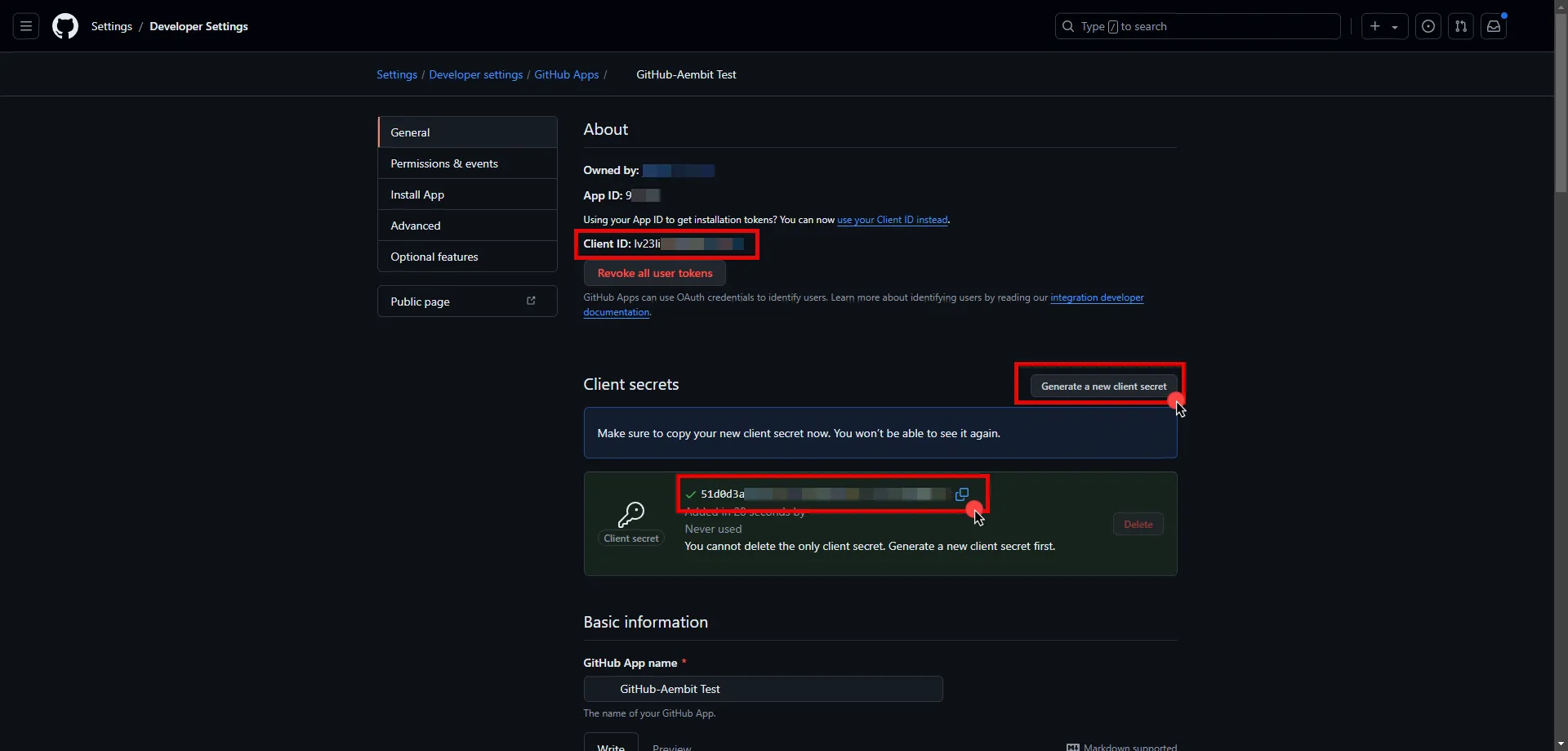 13. Edit the existing Credential Provider created in the previous steps. * **Name** - Choose a user-friendly name. * **Credential Type** - [OAuth 2.0 Authorization Code](/user-guide/access-policies/credential-providers/oauth-authorization-code) * **Callback URL (Read-Only)** - An auto-generated Callback URL from Aembit Admin. * **Client Id** - Provide the Client ID copied from GitHub. * **Client Secret** - Provide the Secret copied from GitHub. * **Scopes** - You can leave this field empty by entering a single whitespace, as GitHub will default to your selected scopes for the app. * **OAuth URL** - `https://github.com` * **Authorization URL** - `https://github.com/login/oauth/authorize` * **Token URL** - `https://github.com/login/oauth/access_token` * **PKCE Required** - Off (PKCE is not supported by Github, so leave this field unchecked). * **Lifetime** - 6 Months 14. Click **Save** to save your changes on the Credential Provider. 15. In the Aembit UI, click the **Authorize** button. You are be directed to a page where you can review the access request. Click **Authorize** to complete the OAuth 2.0 Authorization Code flow. You should see a success page and be redirected to Aembit automatically. You can also verify your flow is complete by checking the **State** value in the Credential Provider. After completion, it should be in a **Ready** state.  Caution Once the set lifetime ends, the retrieved credential will expire and no longer be active. Aembit will notify you before this happens. Please ensure you reauthorize your credential before it expires. ## API Key [Section titled “API Key”](#api-key) ### Server Workload Configuration [Section titled “Server Workload Configuration”](#server-workload-configuration-1) 1. Create a new Server Workload. * **Name** - Choose a user-friendly name. 2. Configure the service endpoint: * **Host** - `api.github.com` * **Application Protocol** - HTTP * **Port** - 443 with TLS * **Forward to Port** - 443 with TLS * **Authentication method** - HTTP Authentication * **Authentication scheme** - Bearer ### Credential Provider Configuration [Section titled “Credential Provider Configuration”](#credential-provider-configuration-1) 1. Sign in to your GitHub account. 2. In the upper-right corner of any page, click your profile photo, then click **Settings**. 3. Navigate to **Developer settings** in the left-hand menu. 4. Under **Personal access tokens**, choose **Fine-grained tokens**. 5. On the right side, click on the **Generate new token** button. 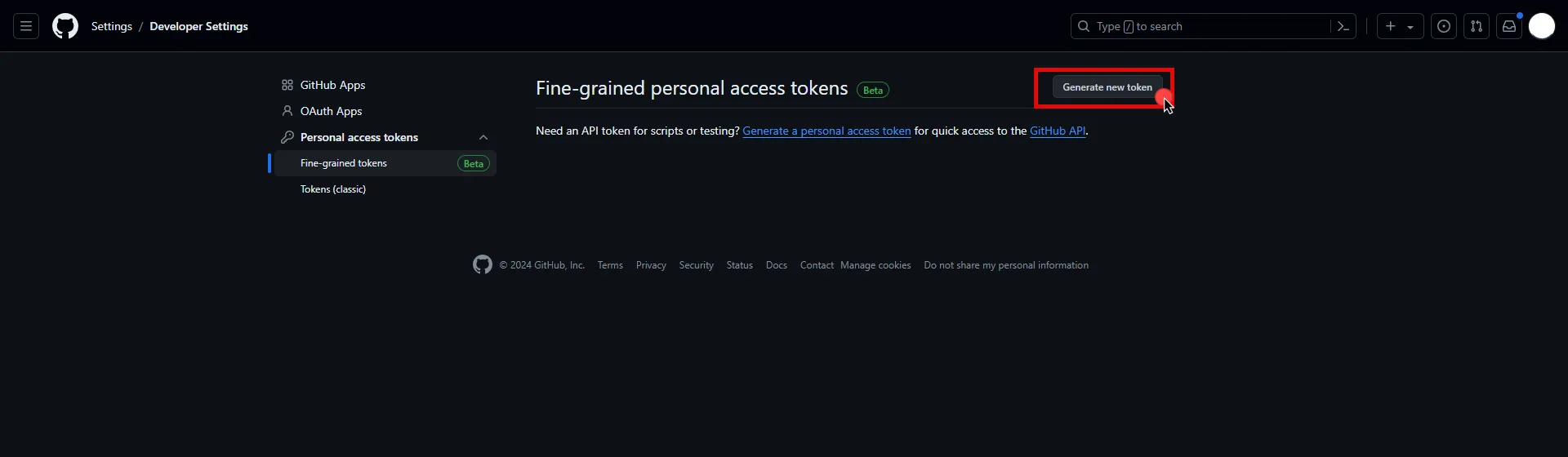 6. Provide a name, expiration date, and description for your token. Choose the resource owner and repository access type. 7. Under the **Permissions** section, expand the drop-down menu and select the permissions (scopes) for your application depending on your needs. 8. After making all of your selections, click on **Generate Token**. 9. Click **Copy to clipboard** and securely store the token for later use in the configuration on the tenant. 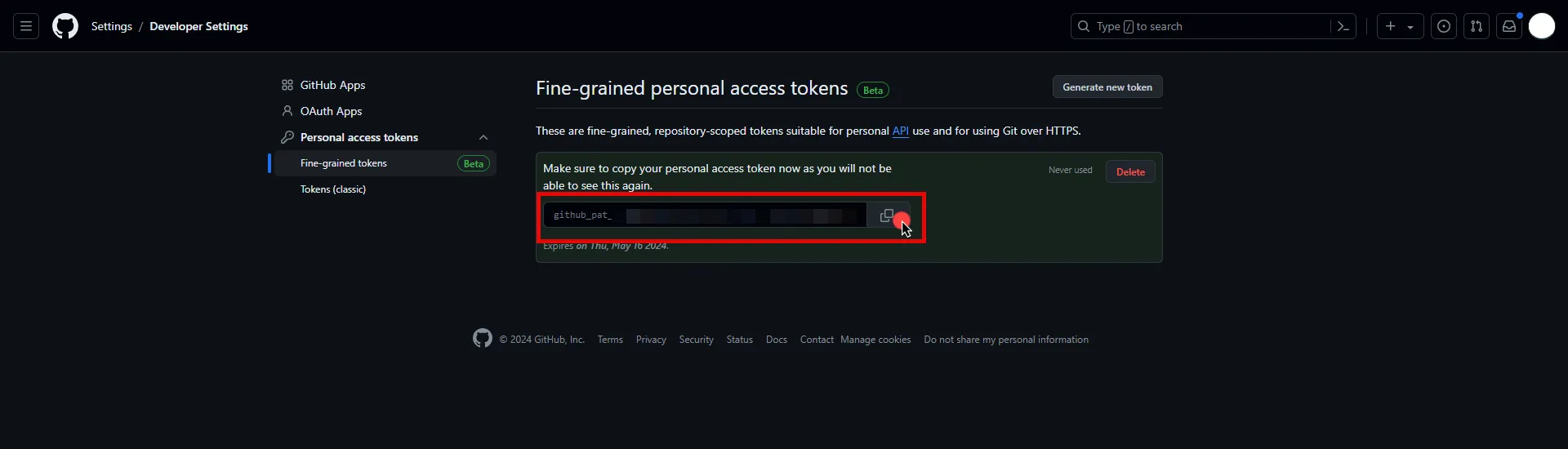 10. Create a new Credential Provider. * **Name** - Choose a user-friendly name. * **Credential Type** - [API Key](/user-guide/access-policies/credential-providers/api-key) * **API Key** - Paste the token copied from GitHub. ## Client Workload Configuration [Section titled “Client Workload Configuration”](#client-workload-configuration) Aembit now handles the credentials required to access the Server Workload, eliminating the need for you to manage them directly. You can safely remove any previously used credentials from the Client Workload. If you access the Server Workload through an SDK or library, it is possible that the SDK/library may still require credentials to be present for initialization purposes. In this scenario, you can provide placeholder credentials. Aembit will overwrite these placeholder credentials with the appropriate ones during the access process. ## Access Policy [Section titled “Access Policy”](#access-policy) * Create an Access Policy for a Client Workload to access the GitHub REST API Server Workload. Assign the newly created Credential Provider to this Access Policy. ## Required Features [Section titled “Required Features”](#required-features) * You will need to configure the [TLS Decrypt](/user-guide/deploy-install/advanced-options/tls-decrypt/configure-tls-decrypt) feature to work with the GitHub REST API Server Workload.
# GitLab REST
> This page describes how to configure Aembit to work with the GitLab REST API Server Workload.
# [GitLab](https://gitlab.com/) is a cloud-based DevOps lifecycle tool that provides a Git repository manager with features like CI/CD, issue tracking, and more. Its REST API allows for programmatic access to these features, enabling the development of custom tools and automation. Below you can find the Aembit configuration required to work with the GitLab service as a Server Workload using the GitLab REST API. ## Server Workload Configuration [Section titled “Server Workload Configuration”](#server-workload-configuration) 1. Create a new Server Workload. * **Name** - Choose a user-friendly name. 2. Configure the service endpoint: * **Host** - `gitlab.com` * **Application Protocol** - HTTP * **Port** - 443 with TLS * **Forward to Port** - 443 with TLS * **Authentication method** - HTTP Authentication * **Authentication scheme** - Bearer ## Credential Provider Configuration [Section titled “Credential Provider Configuration”](#credential-provider-configuration) 1. Sign in to your GitLab account. 2. In the upper-left corner of any page, click your profile photo, then click **Edit Profile**. 3. Navigate to **Applications** in the left-hand menu. 4. On the right side, click on the **Add new application** button. 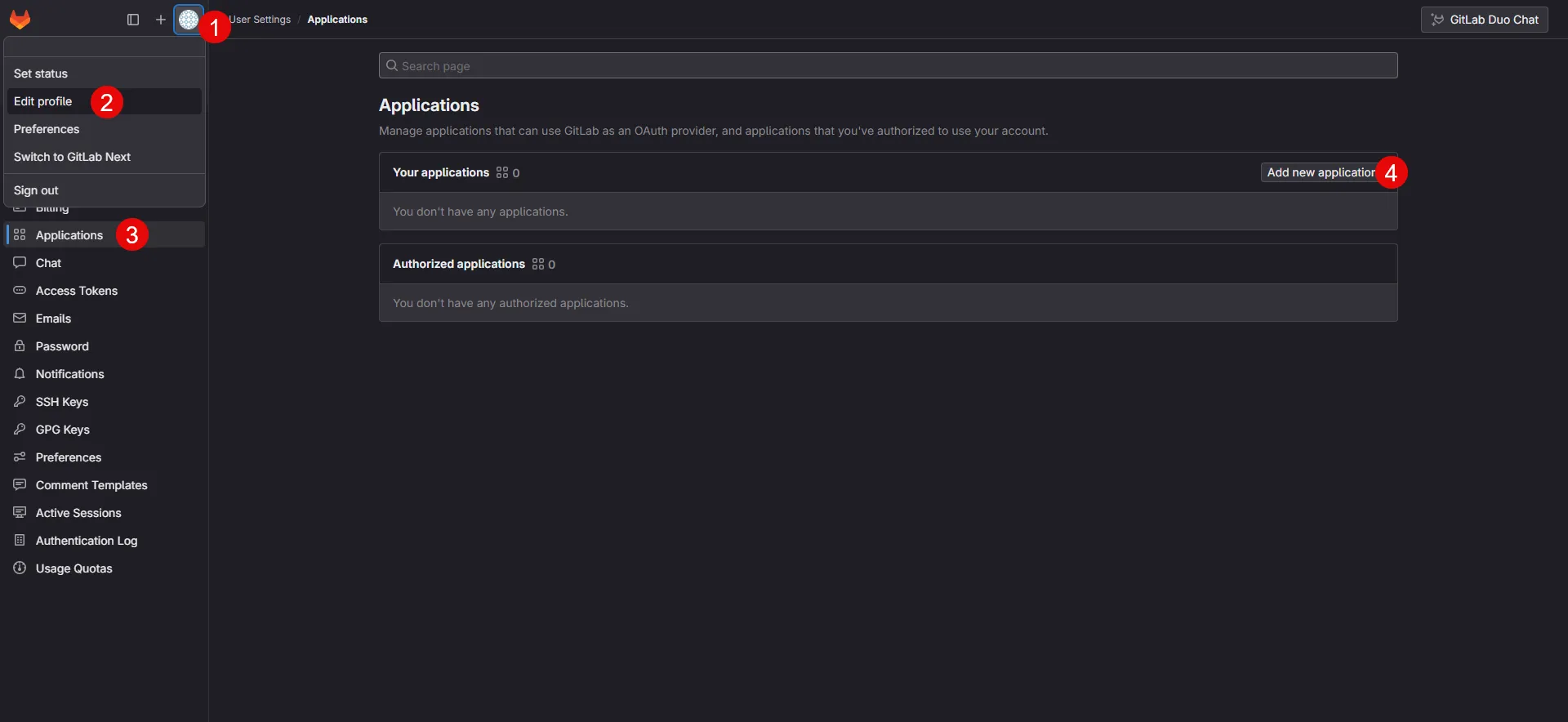 5. Provide a name for your app. 6. Switch to the Aembit UI to create a new Credential Provider, selecting the OAuth 2.0 Authorization Code credential type. After setting up the Credential Provider, copy the auto-generated **Callback URL**. 7. Return to GitLab and paste the copied URL into the **Redirect URI** field. 8. Check the **Confidential** box, and select the scopes for your application depending on your needs. 9. After making all of your selections, click on **Save application**. 10. On the directed page, copy the **Application ID**, **Secret** and **Scopes**, and store them for later use in the tenant configuration.  11. Edit the existing Credential Provider created in the previous steps. * **Name** - Choose a user-friendly name. * **Credential Type** - [OAuth 2.0 Authorization Code](/user-guide/access-policies/credential-providers/oauth-authorization-code) * **Callback URL (Read-Only)** - An auto-generated Callback URL from Aembit Admin. * **Client Id** - Provide the Application ID copied from GitLab. * **Client Secret** - Provide the Secret copied from GitLab. * **Scopes** - Enter the scopes you use, space-delimited (e.g. `read_api read_user read_repository`). * **OAuth URL** - `https://gitlab.com` Click on **URL Discovery** to populate the Authorization and Token URL fields, which can be left as populated. * **PKCE Required** - On * **Lifetime** - 1 year (GitLab does not specify a refresh token lifetime; this value is recommended by Aembit.) 12. Click **Save** to save your changes on the Credential Provider. 13. In Aembit UI, click the **Authorize** button. You are directed to a page where you can review the access request. Click **Authorize** to complete the OAuth 2.0 Authorization Code flow. You should see a success page and be redirected to Aembit automatically. You can also verify your flow is complete by checking the **State** value in the Credential Provider. After completion, it should be in a **Ready** state.  Caution Once the set lifetime ends, the retrieved credential will expire and no longer be active. Aembit will notify you before this happens. Please ensure you reauthorize your credential before it expires. ## Client Workload Configuration [Section titled “Client Workload Configuration”](#client-workload-configuration) Aembit now handles the credentials required to access the Server Workload, eliminating the need for you to manage them directly. You can safely remove any previously used credentials from the Client Workload. If you access the Server Workload through an SDK or library, it is possible that the SDK/library may still require credentials to be present for initialization purposes. In this scenario, you can provide placeholder credentials. Aembit will overwrite these placeholder credentials with the appropriate ones during the access process. ## Access Policy [Section titled “Access Policy”](#access-policy) * Create an Access Policy for a Client Workload to access the GitLab REST API Server Workload. Assign the newly created Credential Provider to this Access Policy. ## Required Features [Section titled “Required Features”](#required-features) * You will need to configure the [TLS Decrypt](/user-guide/deploy-install/advanced-options/tls-decrypt/configure-tls-decrypt) feature to work with the GitLab REST API Server Workload.
# Google Drive
> This page describes how to configure Aembit to work with the Google Drive Server Workload.
# [Google Drive](https://www.google.com/drive/), part of Google Workspace, is a cloud-based storage solution designed for storing, sharing, and collaborating on files. Below you can find the Aembit configuration required to work with the Google Drive service as a Server Workload using the Google Drive API. ### Server Workload Configuration [Section titled “Server Workload Configuration”](#server-workload-configuration) 1. Create a new Server Workload. * **Name** - Choose a user-friendly name. 2. Configure the Service endpoint: * **Host** - `www.googleapis.com` * **Application Protocol** - HTTP * **Port** - 443 with TLS * **Forward to Port** - 443 with TLS * **Authentication method** - HTTP Authentication * **Authentication scheme** - Bearer ### Credential Provider Configuration [Section titled “Credential Provider Configuration”](#credential-provider-configuration) 1. Sign in to the Google Cloud Console and navigate to the [Credentials](hhttps://console.cloud.google.com/apis/credentials) page. Ensure you are working within a GCP project for which you have authorization. 2. On the **Credentials** dashboard, click **Create Credentials** located in the top left corner and select the **OAuth client ID** option.  3. If there is no configured Consent Screen for your project, you see a **Configure Consent Screen** button on the directed page. Click the button to continue.  4. Choose **User Type** and click **Create**. * Provide a name for your app. * Choose a user support email from the dropdown menu. * App logo and app domain fields are optional. * Enter at least one email for the Developer contact information field. * Click **Save and Continue**. * You may skip the Scopes step by clicking **Save and Continue** once again. * In the **Summary** step, review the details of your app and click **Back to Dashboard**. 5. Navigate back to [Credentials](hhttps://console.cloud.google.com/apis/credentials) page, click **Create Credentials**, and select the **OAuth client ID** option again. * Choose **Web Application** for Application Type. * Provide a name for your web client. * Switch to the Aembit UI to create a new Credential Provider, selecting the OAuth 2.0 Authorization Code credential type. After setting up the Credential Provider, copy the auto-generated **Callback URL**. * Return to Google Cloud Console and paste the copied URL into the **Authorized redirect URIs** field. * Click **Create**. 6. A pop-up window appears. Copy both the **Client ID** and the **Client Secret**. Store them for later use in the tenant configuration. 7. Edit the existing Credential Provider created in the previous steps. * **Name** - Choose a user-friendly name. * **Credential Type** - [OAuth 2.0 Authorization Code](/user-guide/access-policies/credential-providers/oauth-authorization-code) * **Callback URL (Read-Only)** - An auto-generated Callback URL from Aembit Admin. * **Client Id** - Provide the Client ID copied from Google. * **Client Secret** - Provide the Secret copied from Google. * **Scopes** - Enter the scopes you will use for Google Drive. (e.g. `https://www.googleapis.com/auth/drive`) A full list of GCP Scopes can be found at [OAuth 2.0 Scopes for Google APIs](https://developers.google.com/identity/protocols/oauth2/scopes#drive). * **OAuth URL** - `https://accounts.google.com` Click on **URL Discovery** to populate the Authorization and Token URL fields, which can be left as populated. * **PKCE Required** - Off * **Lifetime** - 1 year (This value is recommended by Aembit. For more information, please refer to the [official Google documentation](https://developers.google.com/identity/protocols/oauth2#expiration).) 8. Click **Save** to save your changes on the Credential Provider. 9. In Aembit UI, click the **Authorize** button. You are directed to a page where you can choose your Google account first. Then click **Allow** to complete the OAuth 2.0 Authorization Code flow. You should see a success page and be redirected to Aembit automatically. You can also verify your flow is complete by checking the **State** value in the Credential Provider. After completion, it should be in a **Ready** state.  Caution Once the set lifetime ends, the retrieved credential expires and no longer be active. Aembit notifies you before this happens. Please ensure you reauthorize your credential before it expires. ## Client Workload Configuration [Section titled “Client Workload Configuration”](#client-workload-configuration) Aembit now handles the credentials required to access the Server Workload, eliminating the need for you to manage them directly. You can safely remove any previously used credentials from the Client Workload. If you access the Server Workload through an SDK or library, it is possible that the SDK/library may still require credentials to be present for initialization purposes. In this scenario, you can provide placeholder credentials. Aembit will overwrite these placeholder credentials with the appropriate ones during the access process. ## Access Policy [Section titled “Access Policy”](#access-policy) * Create an Access Policy for a Client Workload to access the Google Drive Server Workload. Assign the newly created Credential Provider to this Access Policy. ## Required Features [Section titled “Required Features”](#required-features) * You will need to configure the [TLS Decrypt](/user-guide/deploy-install/advanced-options/tls-decrypt/configure-tls-decrypt) feature to work with the Google Drive Server Workload.
# HashiCorp Vault
> This page describes how to configure Aembit to work with the HashiCorp Vault Server Workload.
# [HashiCorp Vault](https://www.vaultproject.io/) is a secrets management platform designed to secure, store, and control access to sensitive data and cryptographic keys. Below you can find the Aembit configuration required to work with the HashiCorp Vault service as a Server Workload using the a Vault CLI, or HTTP API. ## Prerequisites [Section titled “Prerequisites”](#prerequisites) Before proceeding with the configuration, ensure you have the following: * Vault Cluster (self-hosted or HCP tenant). * An OIDC authentication method enabled in your Vault cluster. If you have not already set this up, follow the steps outlined in the next section or refer to the [official HashiCorp Vault documentation](https://developer.hashicorp.com/vault/tutorials/auth-methods/oidc-auth) for more detailed instructions. ### Configure Vault [Section titled “Configure Vault”](#configure-vault) 1. Log in to your Vault cluster. 2. In the left pane, select **Authentication methods**, and then click on **Enable new method** from the top-right corner. 3. Choose the **OIDC** radio-button and click **Next**. 4. Choose a name for the **Path**. The `oidc/` format is the Hashicorp recommended format. Then click on **Enable Method**. 5. In the Configuration page, configure the OIDC according to your preferences. Below are key choices: * For the **OIDC discovery URL** field, navigate to Aembit UI, create a new Credential Provider, choose **Vault Client Token**, and copy the auto-generated Issuer URL. Paste it into Vault’s **OIDC discovery URL** field. Make sure not to include a slash at the end of the URL. * If you do not set a **Default Role** for the Vault Authentication method, make sure to include a role name for configuration in the Aembit Credential Provider. 6. After making all your configurations, click **Save**. ### Configure Vault Role [Section titled “Configure Vault Role”](#configure-vault-role) After completing the configuration on Vault, creating a Vault Role for the associated Vault Authentication Method is essential. To do this, navigate to the Vault CLI shell icon (>\_) to open a command shell, and within the terminal, execute the following command: ```shell $ vault write auth/$AUTH_PATH/role/$ROLE_NAME \ bound_audiences="$AEMBIT_ISSUER" \ user_claim="$USER_CLAIM" \ token_policies="$POLICY_VALUE" \ role_type="jwt" ``` :warning: Before running the command, ensure you have replaced the variables (e.g. `$AUTH_PATH`, `$ROLE_NAME`, etc.) with your desired values and `$AEMBIT_ISSUER` with the Issuer URL copied from the Aembit Credential Provider. ## Credential Provider Configuration [Section titled “Credential Provider Configuration”](#credential-provider-configuration) 1. Create a new Credential Provider. * **Name** - Choose a user-friendly name. * **Credential Type** - [Vault Client Token](/user-guide/access-policies/credential-providers/vault-client-token) JSON WEB TOKEN (JWT) * **Subject** - Test (In this example, ‘Test’ is used as a value, but this field can accept any Vault-compatible subject value.) * **Issuer (Read-Only)** - An auto-generated OpenID Connect (OIDC) Issuer URL from Aembit Edge, used during Vault method configuration. CUSTOM CLAIMS * **Claim Name** - vault\_user * **Value** - empty (In this example, ‘empty’ is used as a value, but this field can accept any string input.) VAULT AUTHENTICATION * **Host** - Hostname of your Vault Cluster (e.g. `vault-cluster-public-vault-xyz.abc.hashicorp.cloud`) * **Port** - 8200 with TLS is recommended. Please use the configuration which matches your Vault cluster. * **Authentication Path** - Provide the path name of your OIDC Authentication method (e.g. oidc/path). * **Role** - If you did not set the **Default Role** previously, a role name must be provided here; otherwise optional. * **Namespace** - Provide the **namespace** used in Vault. You can find it at the bottom left corner of the page. (optional) * **Forwarding Configuration** - No Forwarding (default) ### Configuration-Specific Fields [Section titled “Configuration-Specific Fields”](#configuration-specific-fields) Depending on your Vault Role configuration, ensure that the Credential Provider includes the following values: * **Subject** - If using a `bound_subject` configuration for your Vault Role, this value must match that configuration. CUSTOM CLAIMS * **Claim Name** - aud * **Value** - This value should match the configuration in your Vault role’s `bound_audiences` setting. ## Server Workload configuration [Section titled “Server Workload configuration”](#server-workload-configuration) 1. Create a new Server Workload. * **Name** - Choose a user-friendly name. 2. Configure the Service endpoint: * **Host** - Hostname of your Vault Cluster (e.g. `vault-cluster-public-vault-xyz.abc.hashicorp.cloud`) * **Application Protocol** - HTTP * **Port** - 8200 with TLS is recommended. Please use the configuration which matches your Vault cluster. * **Forward to Port** - 8200 with TLS is recommended. Please use the configuration which matches your Vault cluster. * **Authentication method** - HTTP Authentication * **Authentication scheme** - Header * **Header** - X-Vault-Token ## Client Workload Configuration [Section titled “Client Workload Configuration”](#client-workload-configuration) Aembit now handles the credentials required to access the Server Workload, eliminating the need for you to manage them directly. You can safely remove any previously used credentials from the Client Workload. If you access the Server Workload through an SDK or library, it is possible that the SDK/library may still require credentials to be present for initialization purposes. In this scenario, you can provide placeholder credentials. Aembit will overwrite these placeholder credentials with the appropriate ones during the access process. ## Access Policy [Section titled “Access Policy”](#access-policy) * Create an access policy for a Client Workload to access the HashiCorp Vault Server Workload and assign the newly created Credential Provider to it. ## Required Features [Section titled “Required Features”](#required-features) * You will need to configure the [TLS Decrypt](/user-guide/deploy-install/advanced-options/tls-decrypt/configure-tls-decrypt) feature to work with the HashiCorp Vault Server Workload.
# AWS Key Management Service (KMS)
> This page describes how to configure Aembit to work with the AWS KMS server workload.
# [Amazon Key Management Service](https://aws.amazon.com/kms/) is a service that enables you to create and control the encryption keys used to secure your data. This service integrates seamlessly with other AWS services, allowing you to easily encrypt and decrypt data, manage access to keys, and audit key usage. Below you can find the Aembit configuration required to work with AWS KMS as a Server Workload using the AWS CLI, AWS SDK, or other HTTP-based client. ## Prerequisites [Section titled “Prerequisites”](#prerequisites) * You will need an AWS IAM role configured to access AWS KMS resources. ## Server Workload Configuration [Section titled “Server Workload Configuration”](#server-workload-configuration) 1. Create a new Server Workload. * **Name** - Choose a user-friendly name. 2. Configure the service endpoint: * **Host** - `kms.us-east-1.amazonaws.com` (substitute **us-east-1** with your preferred region) * **Application Protocol** - HTTP * **Port** - 443 with TLS * **Forward to Port** - 443 with TLS * **Authentication method** - HTTP Authentication * **Authentication scheme** - AWS Signature v4 ## Credential Provider Configuration [Section titled “Credential Provider Configuration”](#credential-provider-configuration) 1. Create a new Credential Provider. * **Name** - Choose a user-friendly name. * **Credential Type** - [AWS Security Token Service Federation](/user-guide/access-policies/credential-providers/aws-security-token-service-federation) * **OIDC Issuer URL** - Copy and securely store for later use in AWS Identity Provider configuration. * **AWS IAM Role Arn** - Provide the IAM Role Arn. * **Aembit IdP Token Audience** - Copy and securely store for later use in AWS Identity Provider configuration. 2. Create an AWS IAM Role to access KMS and trust Aembit. * Within the AWS Console, go to **IAM** > **Identity providers** and select **Add provider**. * On the Configure provider screen, complete the steps and fill out the values specified: * **Provider type** - Select **OpenID Connect** * **Provider URL** - Paste in the **OIDC Issuer URL** from the previous steps. * Click **Get thumbprint** to configure the AWS Identity Provider trust relationship. * **Audience** - Paste in the **Aembit IdP Token Audience** from the previous steps. * Click **Add provider**. * Within the AWS Console, go to **IAM** > **Identity providers** and select the Identity Provider you just created. * Click the **Assign role** button and choose **Use an existing role**. ## Client Workload Configuration [Section titled “Client Workload Configuration”](#client-workload-configuration) Aembit now handles the credentials required to access the Server Workload, eliminating the need for you to manage them directly. You can safely remove any previously used credentials from the Client Workload. If you access the Server Workload through an SDK or library, it is possible that the SDK/library may still require credentials to be present for initialization purposes. In this scenario, you can provide placeholder credentials. Aembit will overwrite these placeholder credentials with the appropriate ones during the access process. ## Access Policy [Section titled “Access Policy”](#access-policy) * Create an access policy for a Client Workload to access the KMS Server Workload and assign the newly created Credential Provider to it. ## Required Features [Section titled “Required Features”](#required-features) * You will need to configure the [TLS Decrypt](/user-guide/deploy-install/advanced-options/tls-decrypt/configure-tls-decrypt) feature to work with the KMS Server Workload. * If you are using [AWS CLI](https://aws.amazon.com/cli/) to access KMS, you will need to set the environment variable `AWS_CA_BUNDLE` to point to the above certificate.
# Local MySQL
> This page describes how to configure Aembit to work with the local MySQL Server Workload.
# [MySQL](https://www.mysql.com/) is a powerful and widely-used open-source relational database management system, commonly used for local development environments and applications of various scales, while providing a intense foundation for efficient data storage, retrieval, and management. Below you can find the Aembit configuration required to work with MySQL as a Server Workload using the MySQL-compatible CLI, application, or a library. ## Prerequisites [Section titled “Prerequisites”](#prerequisites) Before proceeding with the configuration, ensure you have access to a Kubernetes cluster. Modify the example YAML file according to your specific configurations, and then deploy it to your Kubernetes cluster. ### Example MySQL Yaml File [Section titled “Example MySQL Yaml File”](#example-mysql-yaml-file) ```yaml apiVersion: apps/v1 kind: Deployment metadata: name: mysql spec: selector: matchLabels: app: mysql strategy: type: Recreate template: metadata: labels: app: mysql spec: containers: - image: mysql:5.7.44 name: mysql args: ["--ssl=0"] env: - name: MYSQL_ROOT_PASSWORD value: "" - name: MYSQL_DATABASE value: ports: - containerPort: 3306 name: mysql --- # Service apiVersion: v1 kind: Service metadata: name: mysql annotations: spec: type: NodePort ports: - name: mysql port: 3306 targetPort: 3306 selector: app: mysql ``` :warning: Before running the command, ensure you have replaced the master password and database name in the configuration file with your desired values. Use the following command to deploy this file to your Kubernetes cluster. `kubectl apply -f ./mysql.yaml` ## Server Workload Configuration [Section titled “Server Workload Configuration”](#server-workload-configuration) 1. Create a new Server Workload. * **Name** - Choose a user-friendly name. 2. Configure the service endpoint: * **Host** - `mysql.default.svc.cluster.local` * **Application Protocol** - MySQL * **Port** - 3306 * **Forward to Port** - 3306 * **Authentication method** - Password Authentication * **Authentication scheme** - Password ## Credential Provider Configuration [Section titled “Credential Provider Configuration”](#credential-provider-configuration) 1. Create a new Credential Provider. * **Name** - Choose a user-friendly name. * **Credential Type** - [Username & Password](/user-guide/access-policies/credential-providers/username-password) * **Username** - Provide the database login ID for the MySQL master user. * **Password** - Provide the master password associated with the MySQL database credentials. ## Client Workload Configuration [Section titled “Client Workload Configuration”](#client-workload-configuration) Aembit now handles the credentials required to access the Server Workload, eliminating the need for you to manage them directly. You can safely remove any previously used credentials from the Client Workload. If you access the Server Workload through an SDK or library, it is possible that the SDK/library may still require credentials to be present for initialization purposes. In this scenario, you can provide placeholder credentials. Aembit will overwrite these placeholder credentials with the appropriate ones during the access process. ## Access Policy [Section titled “Access Policy”](#access-policy) * Create an access policy for a Client Workload to access the MySQL Server Workload and assign the newly created Credential Provider to it.
# Local PostgreSQL
> This page describes how to configure Aembit to work with the local PostgreSQL Server Workload.
# [PostgreSQL](https://www.postgresql.org/) stands out as a dynamic and versatile relational database service, delivering scalability and efficiency. This solution facilitates the effortless deployment, administration, and scaling of PostgreSQL databases in diverse cloud settings. Below you can find the Aembit configuration required to work with PostgreSQL as a Server Workload using PostgreSQL-compatible CLI, application, or a library. ## Prerequisites [Section titled “Prerequisites”](#prerequisites) Before proceeding with the configuration, ensure you have access to a Kubernetes cluster. Modify the example YAML file according to your specific configurations, and then deploy it to your Kubernetes cluster. ### Example Postgres Yaml File [Section titled “Example Postgres Yaml File”](#example-postgres-yaml-file) ```yaml apiVersion: apps/v1 kind: Deployment metadata: name: postgresql spec: selector: matchLabels: app: postgresql strategy: type: Recreate template: metadata: labels: app: postgresql spec: containers: - image: postgres:16.0 name: postgresql env: - name: POSTGRES_DB value: - name: POSTGRES_USER value: - name: POSTGRES_PASSWORD value: "" ports: - containerPort: 5432 name: postgresql --- # Service apiVersion: v1 kind: Service metadata: name: postgresql annotations: spec: type: NodePort ports: - name: postgresql port: 5432 targetPort: 5432 selector: app: postgresql ``` :warning: Before running the command, ensure you have replaced the master user name, master password and database name in the configuration file with your desired values. Use the following command to deploy this file to your Kubernetes cluster. `kubectl apply -f ./postgres.yaml` ## Server Workload Configuration [Section titled “Server Workload Configuration”](#server-workload-configuration) 1. Create a new Server Workload. * **Name** - Choose a user-friendly name. 2. Configure the service endpoint: * **Host** - `postgres.default.svc.cluster.local` * **Application Protocol** - Postgres * **Port** - 5432 * **Forward to Port** - 5432 * **Authentication method** - Password Authentication * **Authentication scheme** - Password ## Credential Provider Configuration [Section titled “Credential Provider Configuration”](#credential-provider-configuration) 1. Create a new Credential Provider. * **Name** - Choose a user-friendly name. * **Credential Type** - [Username & Password](/user-guide/access-policies/credential-providers/username-password) * **Username** - Provide the database login ID for the PostgreSQL master user. * **Password** - Provide the master password associated with the PostgreSQL database credentials. ## Client Workload Configuration [Section titled “Client Workload Configuration”](#client-workload-configuration) Aembit now handles the credentials required to access the Server Workload, eliminating the need for you to manage them directly. You can safely remove any previously used credentials from the Client Workload. If you access the Server Workload through an SDK or library, it is possible that the SDK/library may still require credentials to be present for initialization purposes. In this scenario, you can provide placeholder credentials. Aembit will overwrite these placeholder credentials with the appropriate ones during the access process. ## Access Policy [Section titled “Access Policy”](#access-policy) * Create an access policy for a Client Workload to access the MySQL Server Workload and assign the newly created Credential Provider to it.
# Local Redis
> This page describes how to configure Aembit to work with the local Redis Server Workload.
# [Redis](https://redis.io/), known as an advanced key-value store, offers a fast and efficient solution for managing data in-memory. Redis’ speed and simplicity make it the preferred choice for applications requiring rapid access to cached information, real-time analytics, and message brokering. Redis supports a variety of data structures, including strings, hashes, lists, sets, and more, allowing users to model and manipulate data based on their specific requirements. Below you can find the Aembit configuration required to work with Redis as a Server Workload using the Redis-compatible CLI, application, or a library. ## Prerequisites [Section titled “Prerequisites”](#prerequisites) Before proceeding with the configuration, ensure you have access to a Kubernetes cluster. Modify the example YAML file according to your specific configurations, and then deploy it to your Kubernetes cluster. ### Example Redis Yaml File [Section titled “Example Redis Yaml File”](#example-redis-yaml-file) ```yaml apiVersion: apps/v1 kind: Deployment metadata: name: redis spec: replicas: 1 selector: matchLabels: app: redis strategy: type: Recreate template: metadata: labels: app: redis spec: containers: - name: redis image: redis imagePullPolicy: Always ports: - containerPort: 6379 name: redis env: - name: MASTER value: "true" - name: REDIS_USER value: "" - name: REDIS_PASSWORD value: "" --- # Service apiVersion: v1 kind: Service metadata: name: redis spec: type: NodePort selector: app: redis ports: - port: 6379 targetPort: 6379 ``` :warning: Before running the command, ensure you have replaced the master user name and master password in the configuration file with your desired values. Use the following command to deploy this file to your Kubernetes cluster. `kubectl apply -f ./redis.yaml` ## Server Workload Configuration [Section titled “Server Workload Configuration”](#server-workload-configuration) 1. Create a new Server Workload. * **Name** - Choose a user-friendly name. 2. Configure the service endpoint: * **Host** - `redis.default.svc.cluster.local` * **Application Protocol** - Redis * **Port** - 6379 * **Forward to Port** - 6379 * **Authentication method** - Password Authentication * **Authentication scheme** - Password ## Credential Provider Configuration [Section titled “Credential Provider Configuration”](#credential-provider-configuration) 1. Create a new Credential Provider. * **Name** - Choose a user-friendly name. * **Credential Type** - [Username & Password](/user-guide/access-policies/credential-providers/username-password) * **Username** - Provide the login ID for the Redis master user. * **Password** - Provide the master password associated with the Redis credentials. ## Client Workload Configuration [Section titled “Client Workload Configuration”](#client-workload-configuration) Aembit now handles the credentials required to access the Server Workload, eliminating the need for you to manage them directly. You can safely remove any previously used credentials from the Client Workload. If you access the Server Workload through an SDK or library, it is possible that the SDK/library may still require credentials to be present for initialization purposes. In this scenario, you can provide placeholder credentials. Aembit will overwrite these placeholder credentials with the appropriate ones during the access process. ## Access Policy [Section titled “Access Policy”](#access-policy) * Create an access policy for a Client Workload to access the Redis Server Workload and assign the newly created Credential Provider to it.
# Looker Studio
> This page describes how to configure Aembit to work with the Looker Studio Server Workload.
# [Looker Studio](https://lookerstudio.google.com/), part of Google Cloud Platform, is a data visualization tool designed for creating and managing reports and dashboards. It enables users to connect to various data sources, transforming raw data into interactive visual insights. Below you can find the Aembit configuration required to work with the Looker Studio service as a Server Workload using the Looker Studio API. ## Server Workload Configuration [Section titled “Server Workload Configuration”](#server-workload-configuration) 1. Create a new Server Workload. * **Name** - Choose a user-friendly name. 2. Configure the Service endpoint: * **Host** - `datastudio.googleapis.com` * **Application Protocol** - HTTP * **Port** - 443 with TLS * **Forward to Port** - 443 with TLS * **Authentication method** - HTTP Authentication * **Authentication scheme** - Bearer ## Credential Provider Configuration [Section titled “Credential Provider Configuration”](#credential-provider-configuration) 1. Sign in to the Google Cloud Console and navigate to the [Credentials](hhttps://console.cloud.google.com/apis/credentials) page. Ensure you are working within a GCP project for which you have authorization. 2. On the **Credentials** dashboard, click **Create Credentials** located in the top left corner and select the **OAuth client ID** option.  3. If there is no configured Consent Screen for your project, you will see a **Configure Consent Screen** button on the directed page. Click the button to continue.  4. Choose **User Type** and click **Create**. * Provide a name for your app. * Choose a user support email from the dropdown menu. * App logo and app domain fields are optional. * Enter at least one email for the Developer contact information field. * Click **Save and Continue**. * You may skip the Scopes step by clicking **Save and Continue** once again. * In the **Summary** step, review the details of your app and click **Back to Dashboard**. 5. Navigate back to [Credentials](hhttps://console.cloud.google.com/apis/credentials) page, click **Create Credentials**, and select the **OAuth client ID** option again. * Choose **Web Application** for Application Type. * Provide a name for your web client. * Switch to the Aembit UI to create a new Credential Provider, selecting the OAuth 2.0 Authorization Code credential type. After setting up the Credential Provider, copy the auto-generated **Callback URL**. * Return to Google Cloud Console and paste the copied URL into the **Authorized redirect URIs** field. * Click **Create**. 6. A pop-up window will appear. Copy both the **Client ID** and the **Client Secret**. Store them for later use in the tenant configuration. 7. Edit the existing Credential Provider created in the previous steps. * **Name** - Choose a user-friendly name. * **Credential Type** - [OAuth 2.0 Authorization Code](/user-guide/access-policies/credential-providers/oauth-authorization-code) * **Callback URL (Read-Only)** - An auto-generated Callback URL from Aembit Admin. * **Client Id** - Provide the Client ID copied from Google. * **Client Secret** - Provide the Secret copied from Google. * **Scopes** - Enter the scopes you will use for Looker Studio (e.g. `https://www.googleapis.com/auth/datastudio`) Detailed information about scopes can be found at [official Looker Studio documentation](https://developers.google.com/looker-studio/integrate/api#authorize-app). * **OAuth URL** - `https://accounts.google.com` Click on **URL Discovery** to populate the Authorization and Token URL fields, which can be left as populated. * **PKCE Required** - Off * **Lifetime** - 1 year (This value is recommended by Aembit. For more information, please refer to the [official Google documentation](https://developers.google.com/identity/protocols/oauth2#expiration).) 8. Click **Save** to save your changes on the Credential Provider. 9. In the Aembit UI, click the **Authorize** button. You are directed to a page where you can review the access request. Click **Authorize** to complete the OAuth 2.0 Authorization Code flow. You should see a success page and then be redirected to Aembit automatically. You can also verify your flow is complete by checking the **State** value in the Credential Provider. After completion, it should be **Ready**.  Caution Once the set lifetime ends, the retrieved credential expires and will not work anymore. Aembit will notify you before this happens. Please ensure you reauthorize the credential before it expires. ## Client Workload Configuration [Section titled “Client Workload Configuration”](#client-workload-configuration) Aembit now handles the credentials required to access the Server Workload, eliminating the need for you to manage them directly. You can safely remove any previously used credentials from the Client Workload. If you access the Server Workload through an SDK or library, it is possible that the SDK/library may still require credentials to be present for initialization purposes. In this scenario, you can provide placeholder credentials. Aembit will overwrite these placeholder credentials with the appropriate ones during the access process. ## Access Policy [Section titled “Access Policy”](#access-policy) * Create an Access Policy for a Client Workload to access the Looker Studio Server Workload. Assign the newly created Credential Provider to this Access Policy. ## Required Features [Section titled “Required Features”](#required-features) * You will need to configure the [TLS Decrypt](/user-guide/deploy-install/advanced-options/tls-decrypt/configure-tls-decrypt) feature to work with the Looker Studio Server Workload.
# Microsoft Graph
> This page describes how to configure Aembit to work with the Microsoft Graph Server Workload.
# [Microsoft Graph API](https://developer.microsoft.com/en-us/graph) is a comprehensive cloud-based service that empowers developers to build applications that integrate seamlessly with Microsoft 365. This service serves as a unified endpoint to access various Microsoft 365 services and data, offering a range of functionalities for communication, collaboration, and productivity. Below you can find the Aembit configuration required to work with the Microsoft service as a Server Workload using the Microsoft Graph REST API. ## Prerequisites [Section titled “Prerequisites”](#prerequisites) Before proceeding with the configuration, ensure you have the following: * Microsoft Azure tenant. * A registered and consent-granted application on Microsoft Entra ID (previously Azure Active Directory). If you haven’t set up an app yet, follow the steps in the next section. ### Microsoft Entra ID (Azure Active Directory) App Registration [Section titled “Microsoft Entra ID (Azure Active Directory) App Registration”](#microsoft-entra-id-azure-active-directory-app-registration) 1. Log in to the [Microsoft Azure Portal](https://portal.azure.com/#home). 2. Navigate to **Microsoft Entra ID** (Azure Active Directory). 3. On the left panel, click on **App registrations**, and then from the right part, click on **New registration** in the ribbon list. 4. Choose a user-friendly name, select the **Accounts in this organizational directory only** option, and then click **Register**. Your application is now registered with Microsoft Entra ID (Azure Active Directory). 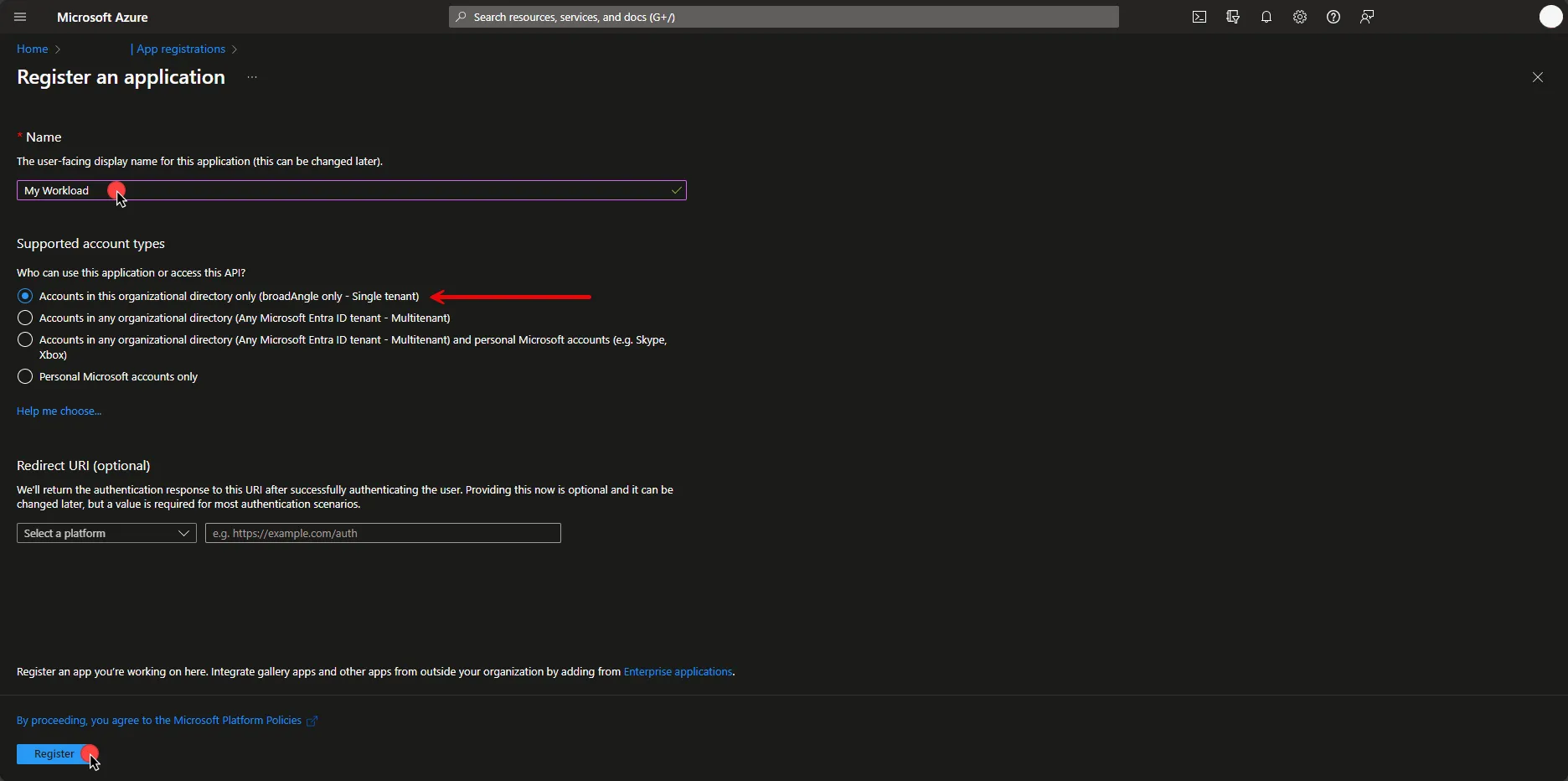 5. To set API Permissions, on the left panel, click on **API Permissions**, and then on the right part, click on **Add a permission**. In the opened dialog, click on **Microsoft Graph** and then click **Application permissions**. 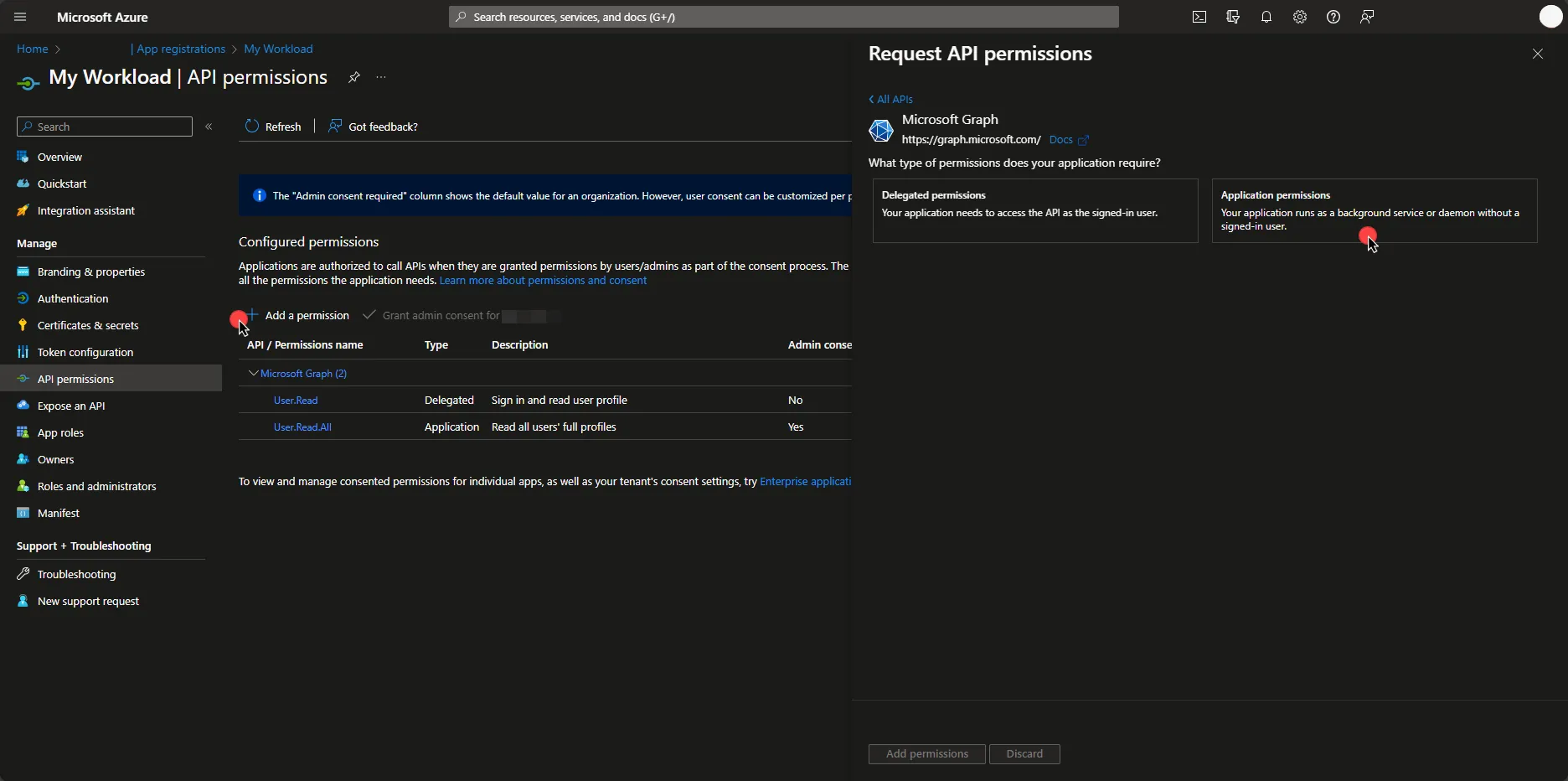 6. Select the permissions your workload needs. Since there are many permissions to choose from, it may help to search for the ones you want. Then, click on **Add permissions**. 7. Under Configured Permissions, click on **Grant admin consent for…**, and then click **Yes**. 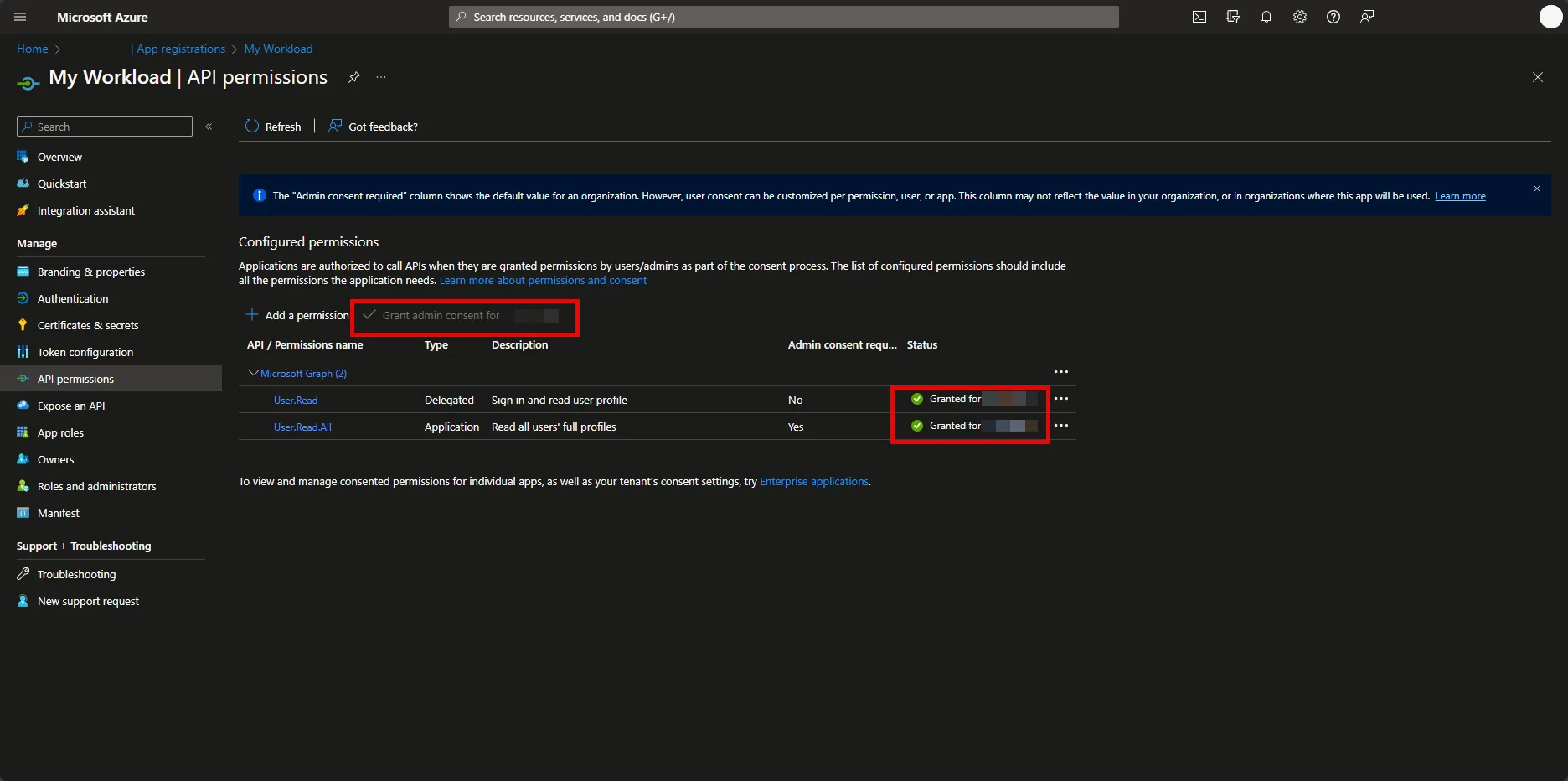 Before an app accesses your organization’s data, you need to grant specific permissions. The level of access depends on the permissions. In Microsoft Entra ID (Azure Active Directory), Application Administrator, Cloud Application Administrator, and Global Administrator are [built-in roles](https://learn.microsoft.com/en-us/entra/identity/role-based-access-control/permissions-reference) with the ability to manage admin consent request policies. If the button is disabled for you, please contact your Administrator. Note that only users with the appropriate privileges can perform this step. For more information on granting tenant-wide admin consent, refer to the [official Microsoft article](https://learn.microsoft.com/en-us/entra/identity/enterprise-apps/grant-admin-consent?pivots=portal). ## Server Workload Configuration [Section titled “Server Workload Configuration”](#server-workload-configuration) 1. Create a new Server Workload. * **Name** - Choose a user-friendly name. 2. Configure the service endpoint: * **Host** - `graph.microsoft.com` * **Application Protocol** - HTTP * **Port** - 80 * **Forward to Port** - 443 with TLS * **Authentication method** - HTTP Authentication * **Authentication scheme** - Bearer ## Credential Provider Configuration [Section titled “Credential Provider Configuration”](#credential-provider-configuration) 1. Log in to the [Microsoft Azure Portal](https://portal.azure.com/#home). 2. Navigate to **Microsoft Entra ID** (Azure Active Directory) and on the left panel click on **App registrations**. 3. Select your application. 4. In the Overview section, copy both the **Application (client) ID** and the **Directory (tenant) ID**. Store them for later use in the tenant configuration. 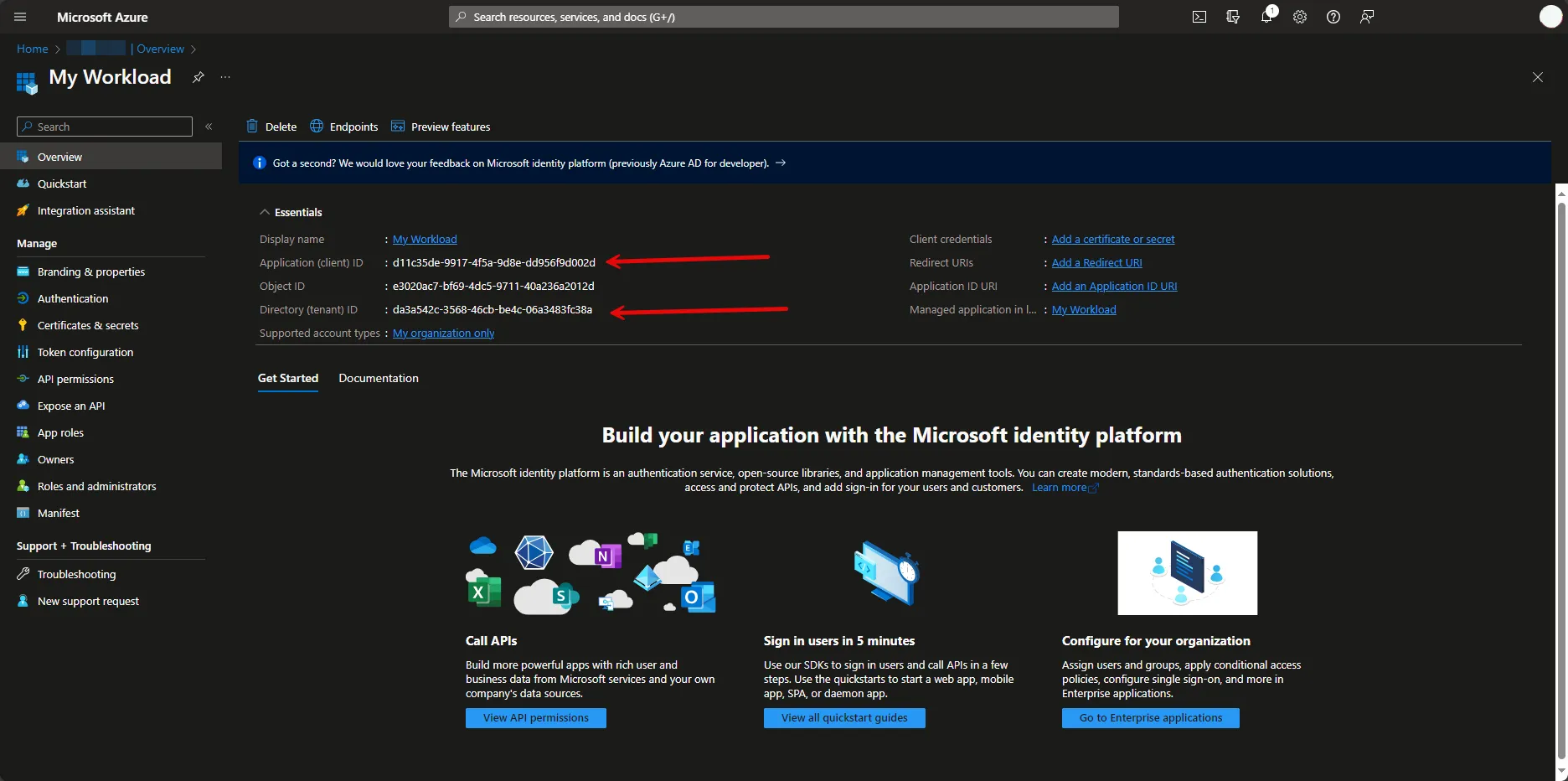 5. Under Manage, navigate to **Certificates & secrets**. In the Client Secrets tab, if there is no existing secret, please create a new secret and make sure to save it immediately after creation. If there is an existing one, please provide the stored secret in the following steps. 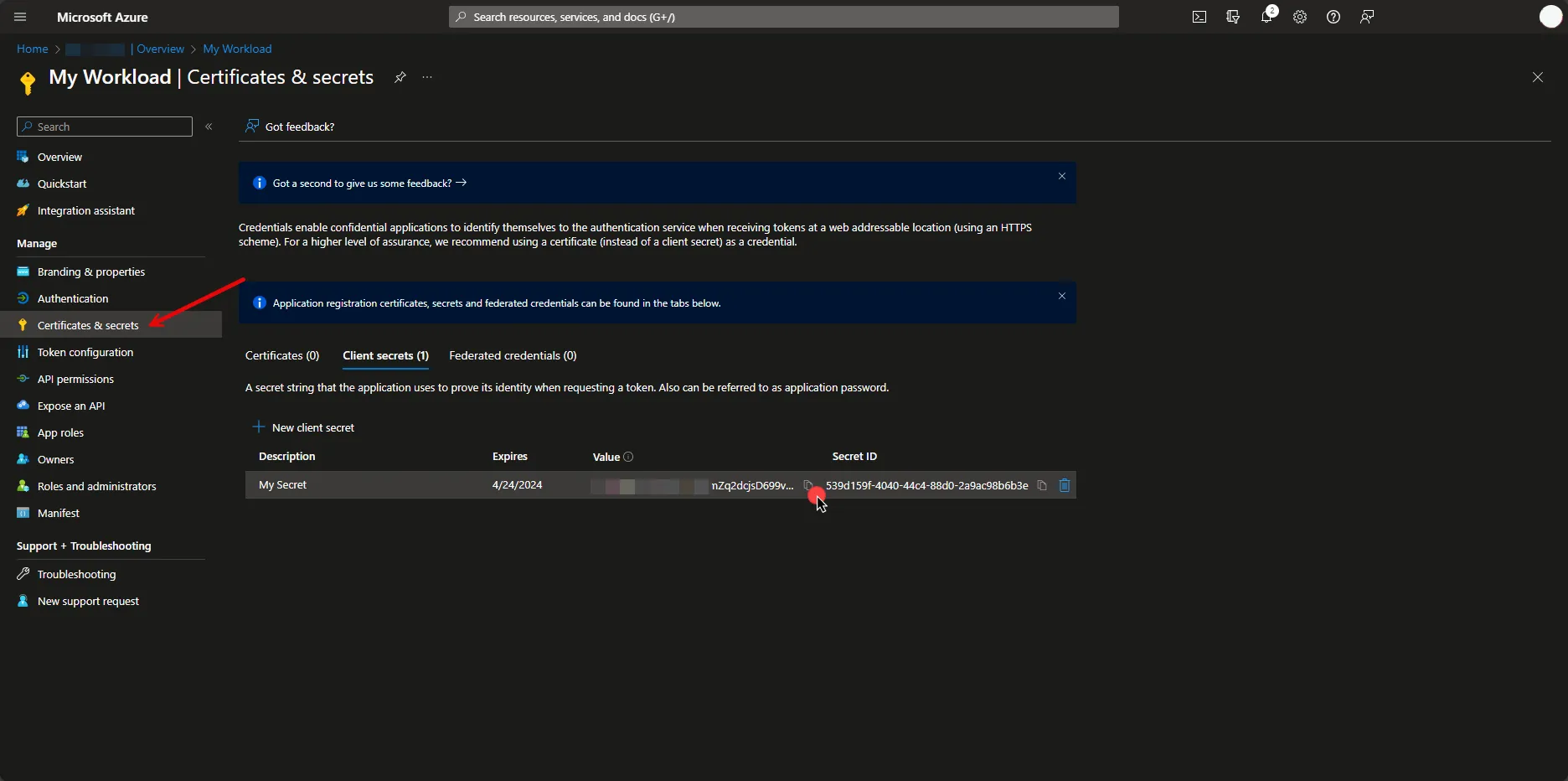 6. Create a new Credential Provider. * **Name** - Choose a user-friendly name. * **Credential Type** - [OAuth 2.0 Client Credentials](/user-guide/access-policies/credential-providers/oauth-client-credentials) * **Token endpoint** - https\://login.microsoftonline.com/**Your-Tenant-Id**/oauth2/v2.0/token * **Client ID** - Provide the client ID copied from Azure. * **Client Secret** - Provide the client secret copied from Azure. * **Scopes** - ## Client Workload Configuration [Section titled “Client Workload Configuration”](#client-workload-configuration) Aembit now handles the credentials required to access the Server Workload, eliminating the need for you to manage them directly. You can safely remove any previously used credentials from the Client Workload. If you access the Server Workload through an SDK or library, it is possible that the SDK/library may still require credentials to be present for initialization purposes. In this scenario, you can provide placeholder credentials. Aembit will overwrite these placeholder credentials with the appropriate ones during the access process. ## Access Policy [Section titled “Access Policy”](#access-policy) * Create an Access Policy for a Client Workload to access the Microsoft Server Workload. Assign the newly created Credential Provider to this Access Policy.
# Okta
> This page describes how to configure Aembit to work with the Okta Server Workload.
# [Okta](https://www.okta.com/) is a cloud-based Identity and Access Management (IAM) platform that offers tools for user authentication, access control, and security, helping streamline identity management and improve user experiences across applications and devices. Below you can find the Aembit configuration required to work with the Okta Workforce Identity Cloud service as a Server Workload using the Core Okta API. ## Prerequisites [Section titled “Prerequisites”](#prerequisites) Before proceeding with the configuration, you must have an Okta Workforce Identity Cloud organization (tenant). ## Server Workload Configuration [Section titled “Server Workload Configuration”](#server-workload-configuration) To retrieve the connection information in the Okta Admin Console: * Click on your username in the upper-right corner of the Admin Console. The domain appears in the dropdown menu; copy the domain. 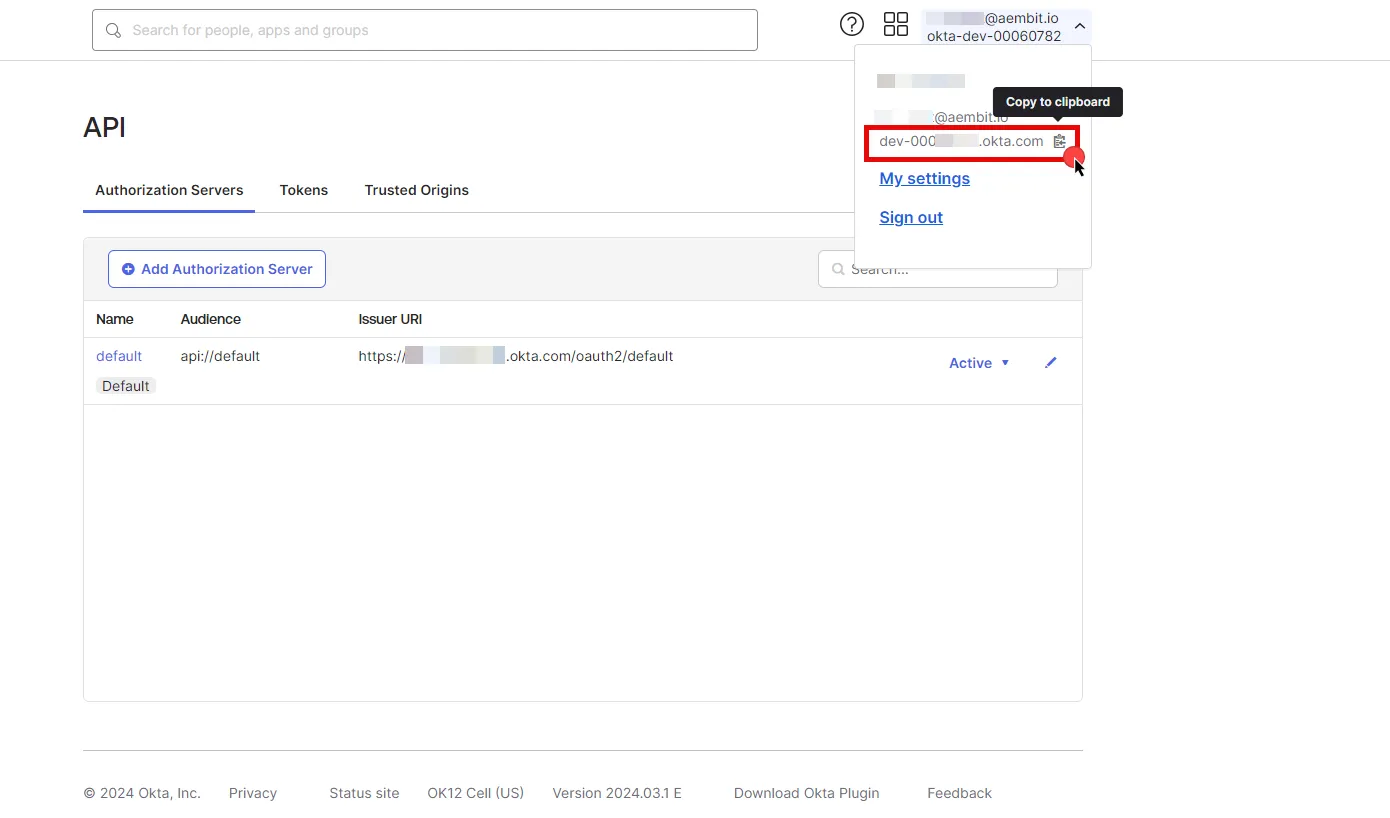 1. Create a new Server Workload. * **Name** - Choose a user-friendly name. 2. Configure the service endpoint: * **Host** - `.okta.com` (Provide the domain copied from Okta) * **Application Protocol** - HTTP * **Port** - 443 with TLS * **Forward to Port** - 443 with TLS * **Authentication method** - API Key * **Authentication scheme** - Header * **Header** - Authorization ## Credential Provider Configuration [Section titled “Credential Provider Configuration”](#credential-provider-configuration) 1. Sign in to your Okta organization as a user with administrator privileges. 2. In the left sidebar, select **Security**, then click on **API**. 3. Navigate to the **Tokens** tab in the ribbon list. 4. Click **Create Token**, name your token, and then click **Create Token**. 5. Click the **Copy to Clipboard icon** to securely store the token for later use in the tenant configuration. For detailed information on API tokens, please refer to the [official Okta documentation](https://developer.okta.com/docs/guides/create-an-api-token/main/). 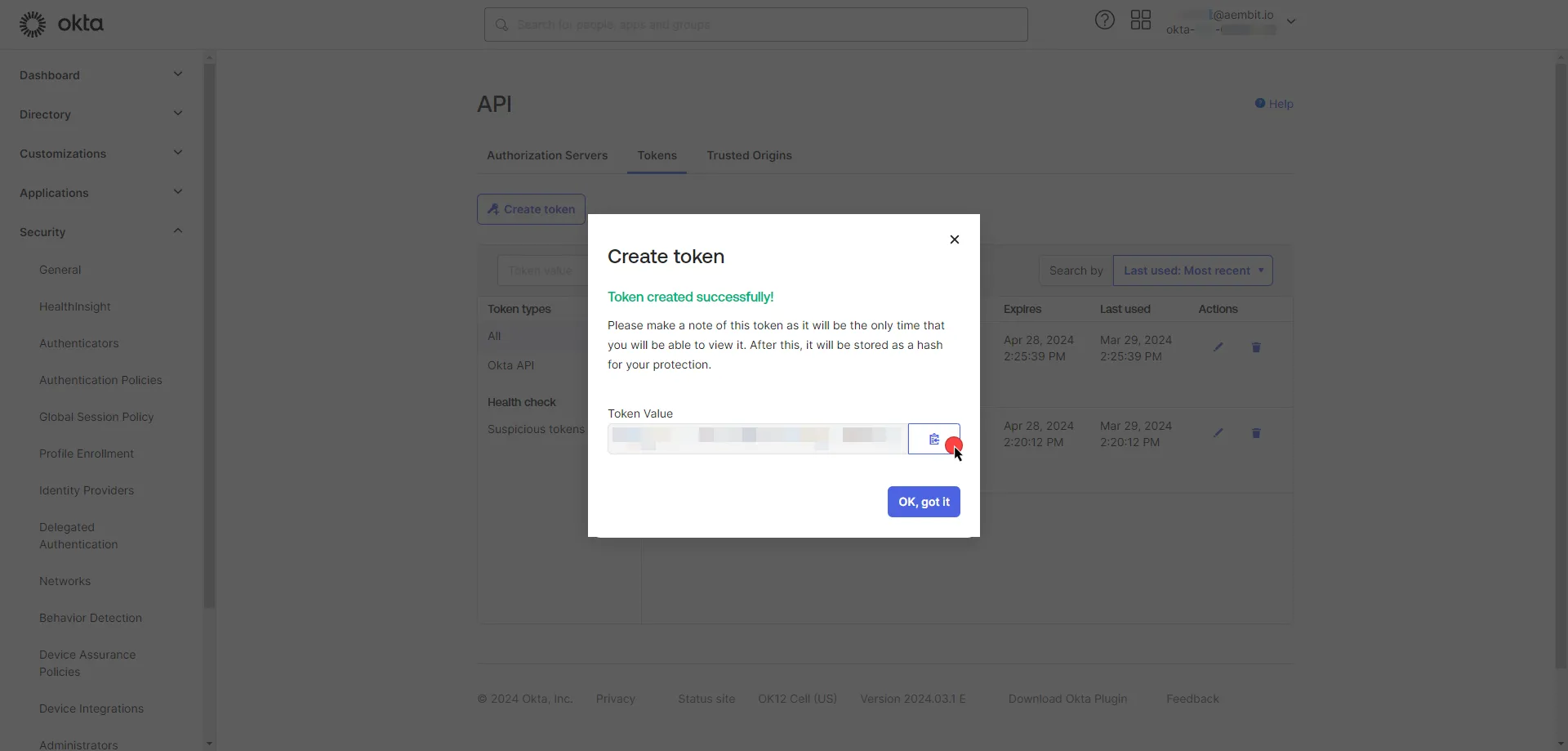 6. Create a new Credential Provider. * **Name** - Choose a user-friendly name. * **Credential Type** - [API Key](/user-guide/access-policies/credential-providers/api-key) * **API Key** - Provide the key copied from Okta and use the format `SSWS api-token`, replacing `api-token` with your API token. ## Client Workload Configuration [Section titled “Client Workload Configuration”](#client-workload-configuration) Aembit now handles the credentials required to access the Server Workload, eliminating the need for you to manage them directly. You can safely remove any previously used credentials from the Client Workload. If you access the Server Workload through an SDK or library, it is possible the SDK/library may still require credentials to be present for initialization purposes. In this scenario, you can provide placeholder credentials. Aembit will overwrite these placeholder credentials with the appropriate ones during the access process. ## Access Policy [Section titled “Access Policy”](#access-policy) * Create an Access Policy for a Client Workload to access the Okta Server Workload. Assign the newly created Credential Provider to this Access Policy. ## Required Features [Section titled “Required Features”](#required-features) * You will need to configure the [TLS Decrypt](/user-guide/deploy-install/advanced-options/tls-decrypt/configure-tls-decrypt) feature to work with the Okta Server Workload.
# ChatGPT (OpenAI)
> This page describes how to configure Aembit to work with the OpenAI Server Workload
[OpenAI](https://platform.openai.com/) is a artificial intelligence platform that allows developers to integrate advanced language models into their applications. It supports diverse tasks such as text completion, summarization, and sentiment analysis, enhancing software functionality and user experience. Below you can find the Aembit configuration required to work with the OpenAI service as a Server Workload using the OpenAI API. ## Prerequisites [Section titled “Prerequisites”](#prerequisites) Before proceeding with the configuration, ensure you have an OpenAI account and API key. If you have not already generated a key, follow the instructions below. For more details on API key authentication, refer to the [official OpenAI API documentation](https://platform.openai.com/docs/api-reference/api-keys). ### Create Project API Key [Section titled “Create Project API Key”](#create-project-api-key) 1. Sign in to your OpenAI account. 2. Navigate to the [API Keys](https://platform.openai.com/api-keys) page from the left menu. 3. Click on **Create new secret key** button in the middle of the page. 4. A pop-up window will appear. Choose the owner and project (if not multiple, the default project is selected). Then, fill in either the optional name field or service account ID, depending on the owner selection. * If the owner is selected as **You**, under the **Permissions** section, select the permissions (scopes) for your application according to your needs. * Click on **Create secret key** to proceed. 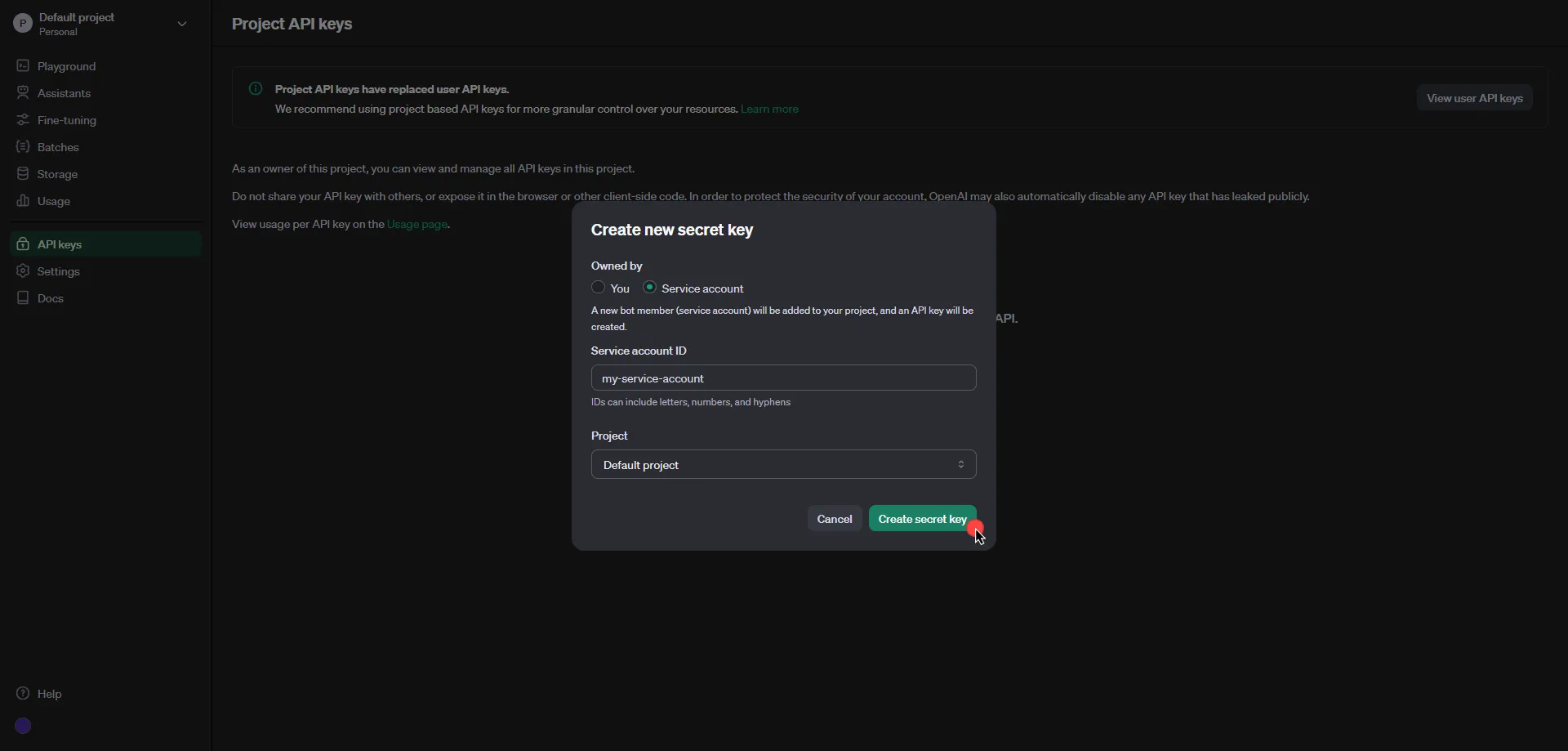 5. Click **Copy** and securely store the key for later use in the configuration on the tenant. 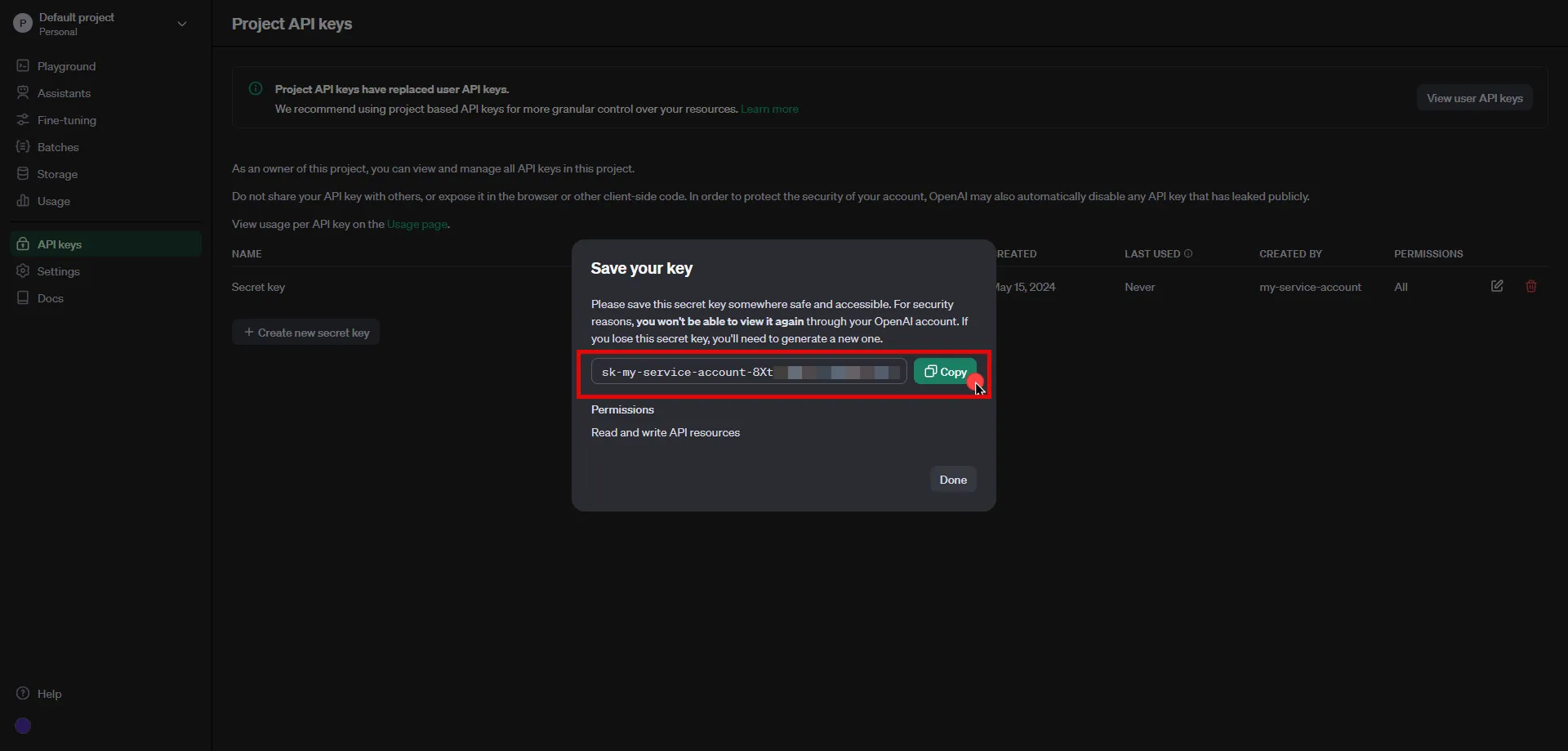 ## Server Workload Configuration [Section titled “Server Workload Configuration”](#server-workload-configuration) 1. Create a new Server Workload. * **Name** - Choose a user-friendly name. 2. Configure the service endpoint: * **Host** - `api.openai.com` * **Application Protocol** - HTTP * **Port** - 443 with TLS * **Forward to Port** - 443 with TLS * **Authentication method** - HTTP Authentication * **Authentication scheme** - Bearer ## Credential Provider Configuration [Section titled “Credential Provider Configuration”](#credential-provider-configuration) 1. Create a new Credential Provider. * **Name** - Choose a user-friendly name. * **Credential Type** - [API Key](/user-guide/access-policies/credential-providers/api-key) * **API Key** - Paste the key copied from OpenAI Platform. ## Client Workload Configuration [Section titled “Client Workload Configuration”](#client-workload-configuration) Aembit now handles the credentials required to access the Server Workload, eliminating the need for you to manage them directly. You can safely remove any previously used credentials from the Client Workload. If you access the Server Workload through an SDK or library, it is possible that the SDK/library may still require credentials to be present for initialization purposes. In this scenario, you can provide placeholder credentials. Aembit will overwrite these placeholder credentials with the appropriate ones during the access process. ## Access Policy [Section titled “Access Policy”](#access-policy) * Create an Access Policy for a Client Workload to access the OpenAI Server Workload. Assign the newly created Credential Provider to this Access Policy. ## Required Features [Section titled “Required Features”](#required-features) * You will need to configure the [TLS Decrypt](/user-guide/deploy-install/advanced-options/tls-decrypt/configure-tls-decrypt) feature to work with the OpenAI API Server Workload.
# PagerDuty
> This page describes how to configure Aembit to work with the PagerDuty Server Workload.
# [PagerDuty](https://www.pagerduty.com/) is a digital operations management platform that helps businesses improve their incident response process. It allows teams to centralize their monitoring tools and manage incidents in real-time, reducing downtime and improving service reliability. Below you can find the Aembit configuration required to work with the PagerDuty service as a Server Workload using the PagerDuty API. Aembit supports multiple authentication/authorization methods for PagerDuty. This page describes scenarios where the Credential Provider is configured for PagerDuty via: * [OAuth 2.0 Authorization Code (3LO)](/user-guide/access-policies/server-workloads/guides/pagerduty#oauth-20-authorization-code) * [OAuth 2.0 Client Credentials](/user-guide/access-policies/server-workloads/guides/pagerduty#oauth-20-client-credentials) ## OAuth 2.0 Authorization Code [Section titled “OAuth 2.0 Authorization Code”](#oauth-20-authorization-code) ### Server Workload Configuration [Section titled “Server Workload Configuration”](#server-workload-configuration) 1. Create a new Server Workload. * **Name** - Choose a user-friendly name. 2. Configure the service endpoint: * **Host** - `api.pagerduty.com` * **Application Protocol** - HTTP * **Port** - 443 with TLS * **Forward to Port** - 443 with TLS * **Authentication method** - HTTP Authentication * **Authentication scheme** - Bearer ### Credential Provider Configuration [Section titled “Credential Provider Configuration”](#credential-provider-configuration) 1. Log in to your [PagerDuty account](https://identity.pagerduty.com/global/authn/authentication/PagerDutyGlobalLogin/enter_email). 2. Navigate to the top menu, select **Integrations**, and then click on **App Registration**. 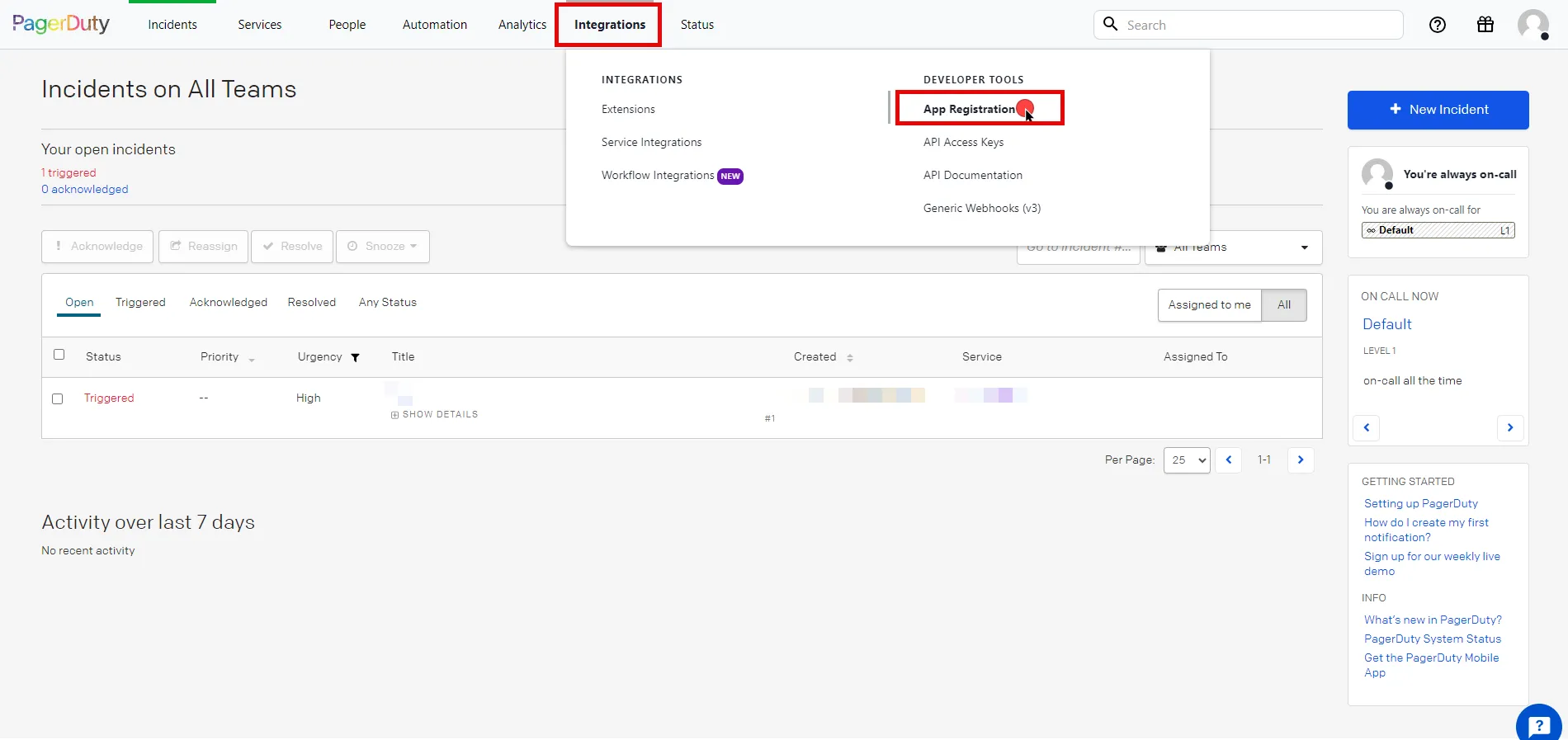 3. Click the **New App** button in the top right corner of the page. 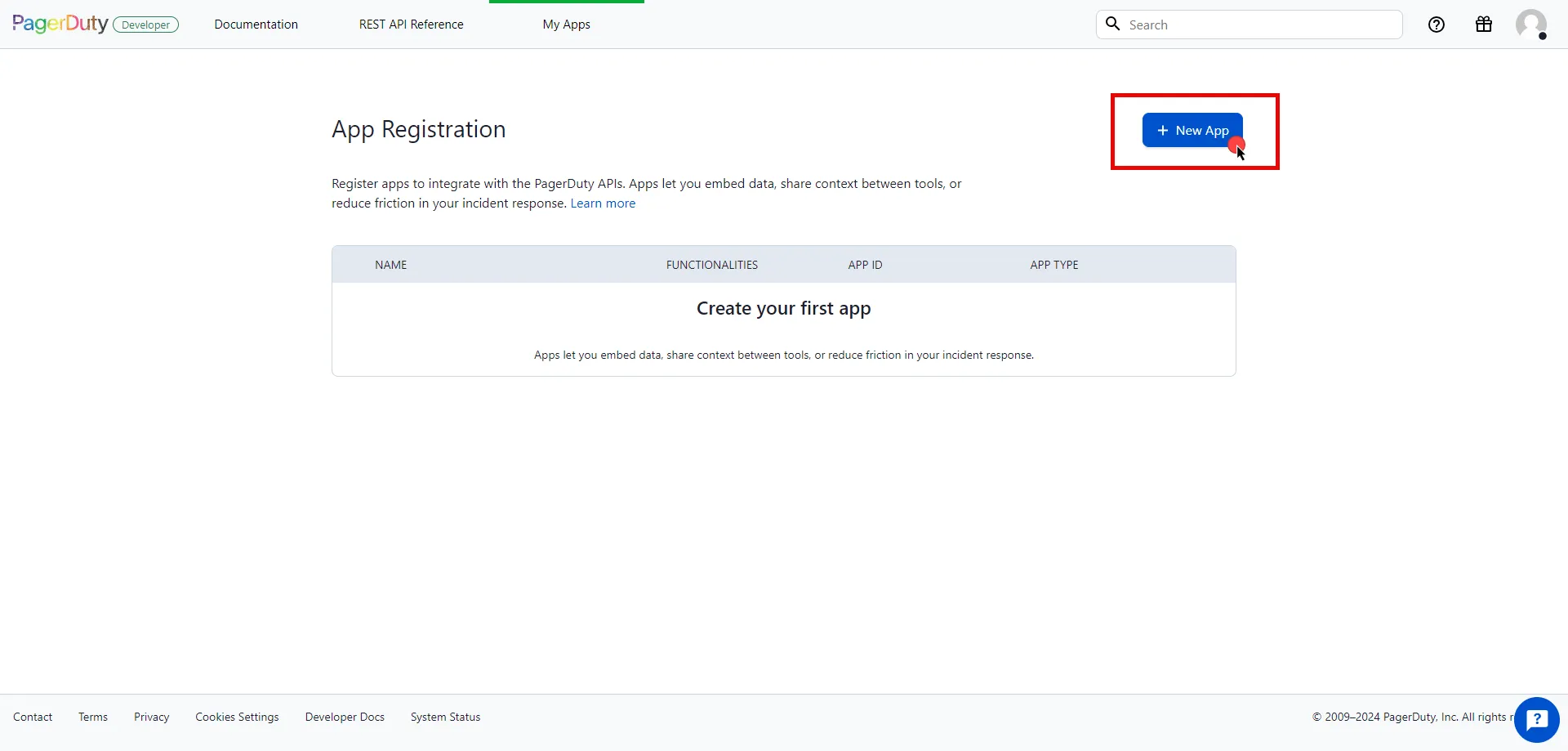 4. Fill in the name and description fields, choose **OAuth 2.0**, and then click **Next** to proceed. 5. Select **Scoped OAuth** as the authorization method. 6. Switch to the Aembit UI to create a new Credential Provider, selecting the OAuth 2.0 Authorization Code credential type. After setting up the Credential Provider, copy the auto-generated **Callback URL**. 7. Return to PagerDuty and click to **Add Redirect URL** and paste the copied **Callback URL** into the field. 8. Choose the permissions (scopes) for your application based on your needs. 9. Before registering your app, scroll down and click **Copy to clipboard** to store your selected permission scopes for later use in the tenant configuration. 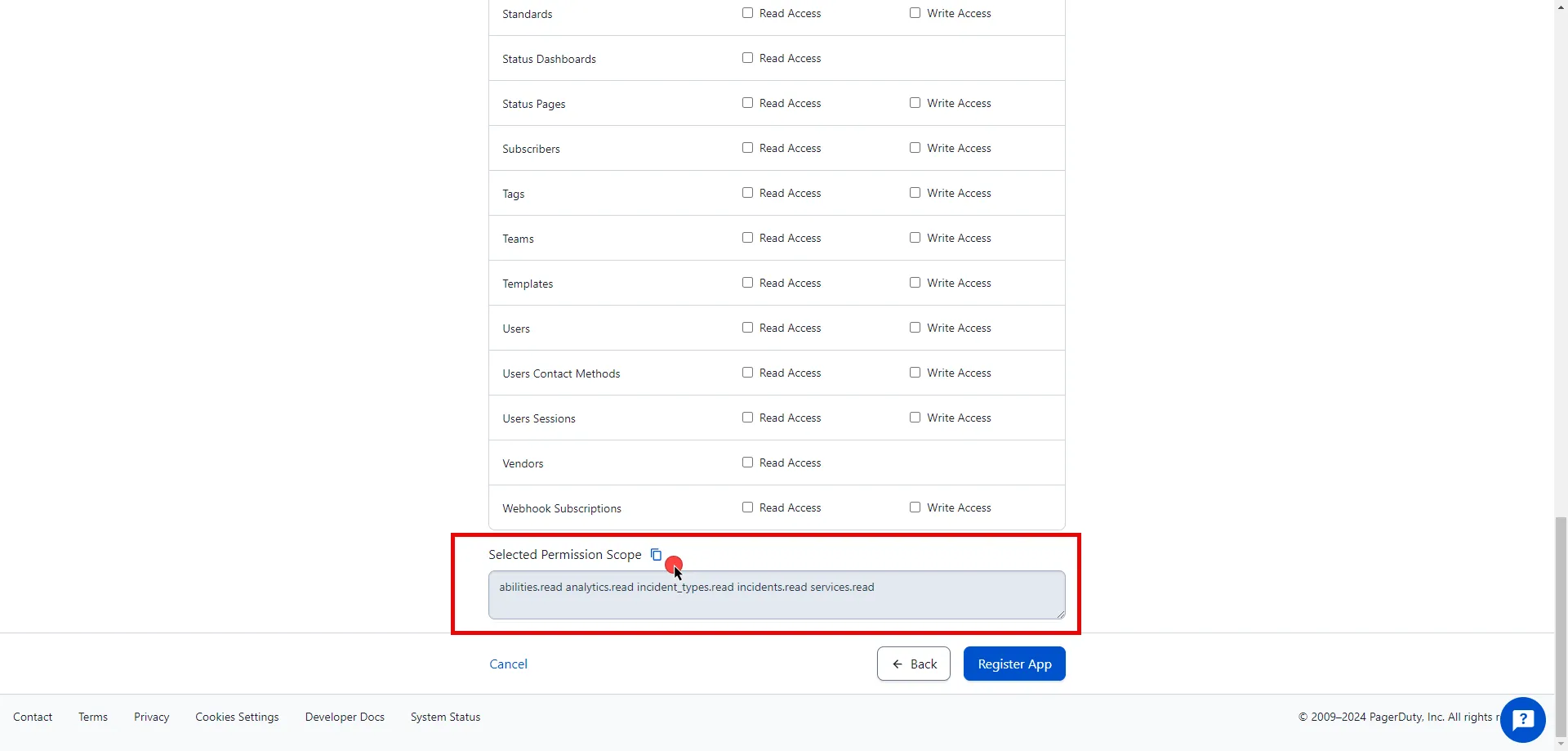 10. After making all of your selections, click on **Register App**. 11. A pop-up window appears. Copy both the Client ID and Client Secret, and store these details securely for later use in the tenant configuration. 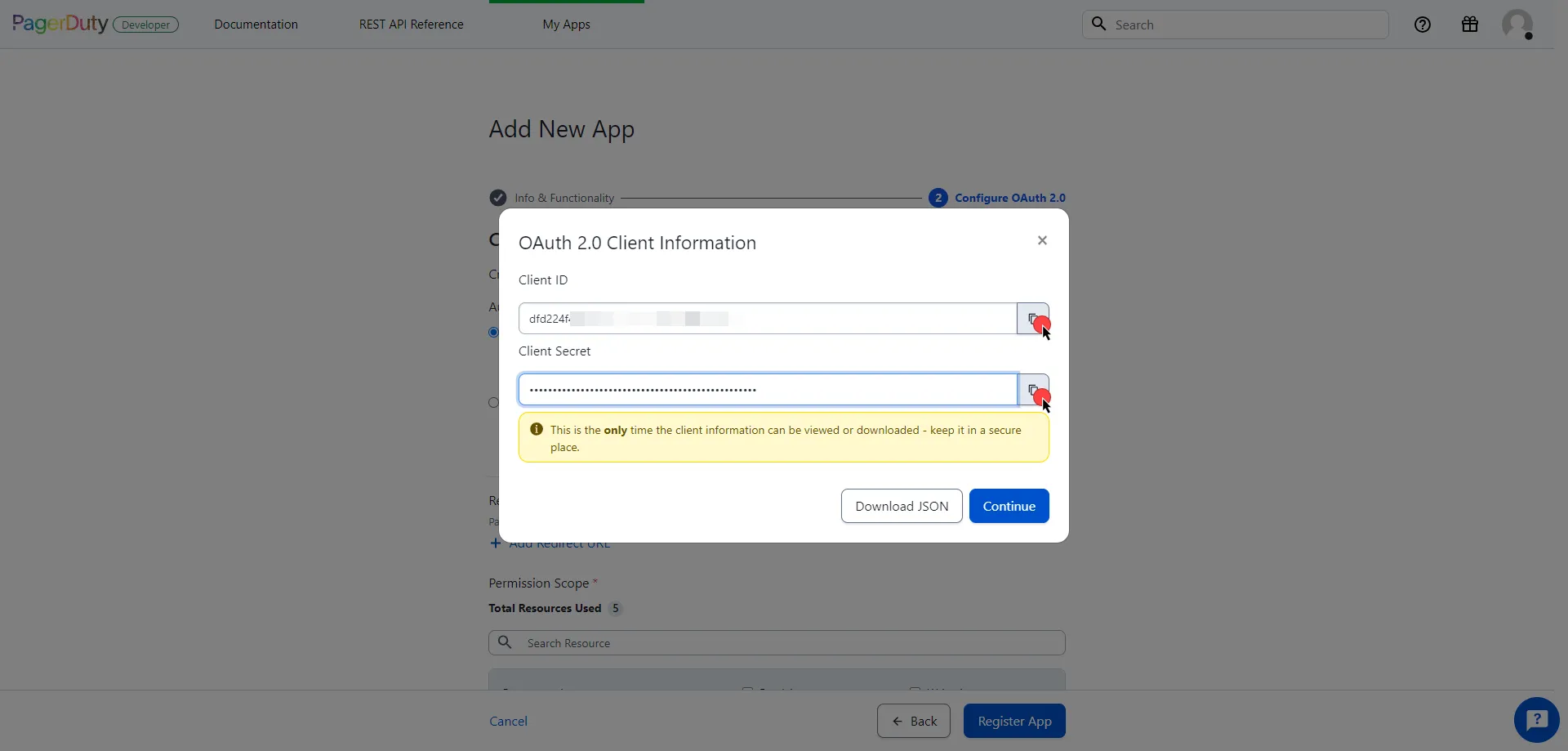 12. Edit the existing Credential Provider created in the previous steps. * **Name** - Choose a user-friendly name. * **Credential Type** - [OAuth 2.0 Authorization Code](/user-guide/access-policies/credential-providers/oauth-authorization-code) * **Callback URL (Read-Only)** - An auto-generated Callback URL from Aembit Admin. * **Client Id** - Provide the client ID copied from PagerDuty. * **Client Secret** - Provide the client secret copied from PagerDuty. * **Scopes** - Enter the scopes you use, space delimited. (e.g. `incidents.read abilities.read`). * **OAuth URL** - `https://identity.pagerduty.com/global/oauth/anonymous/.well-known/openid-configuration` Click on **URL Discovery** to populate the Authorization and Token URL fields. These fields need to be updated to the following values: * **Authorization URL** - `https://identity.pagerduty.com/oauth/authorize` * **Token URL** - `https://identity.pagerduty.com/oauth/token` * **PKCE Required** - On * **Lifetime** - 1 year (PagerDuty does not specify a refresh token lifetime; this value is recommended by Aembit.) 13. Click **Save** to save your changes on the Credential Provider. 14. In Aembit UI, click the **Authorize** button. You are then directed to a page where you can review the access request. Click **Accept** to complete the OAuth 2.0 Authorization Code flow. You should see a success page and be redirected to Aembit automatically. You can also verify that your flow is complete by checking the **State** value in the Credential Provider. After completion, it should be in a **Ready** state.  Caution Once the set lifetime ends, the retrieved credential expires and no longer be active. Aembit will notify you before this happens. Please ensure you reauthorize your credential before it expires. ## OAuth 2.0 Client Credentials [Section titled “OAuth 2.0 Client Credentials”](#oauth-20-client-credentials) ### Server Workload Configuration [Section titled “Server Workload Configuration”](#server-workload-configuration-1) 1. Create a new Server Workload. * **Name** - Choose a user-friendly name. 2. Configure the service endpoint: * **Host** - `api.pagerduty.com` * **Application Protocol** - HTTP * **Port** - 443 with TLS * **Forward to Port** - 443 with TLS * **Authentication method** - HTTP Authentication * **Authentication scheme** - Bearer ### Credential Provider Configuration [Section titled “Credential Provider Configuration”](#credential-provider-configuration-1) 1. Log in to your [PagerDuty account](https://identity.pagerduty.com/global/authn/authentication/PagerDutyGlobalLogin/enter_email). 2. Navigate to the top menu, select **Integrations**, and then click on **App Registration**.  3. Click the **New App** button in the top right corner of the page.  4. Fill in the name and description fields, choose **OAuth 2.0**, and then click **Next** to proceed. 5. Select **Scoped OAuth** as the authorization method and choose the permissions (scopes) for your application based on your needs. 6. Before registering your app, scroll down and click **Copy to clipboard** to store your selected permission scopes for later use in the tenant configuration.  7. After making all of your selections, click on **Register App**. 8. A pop-up window appears. Copy both the Client ID and Client Secret, and store these details securely for later use in the tenant configuration.  9. Create a new Credential Provider. * **Name** - Choose a user-friendly name. * **Credential Type** - [OAuth 2.0 Client Credentials](/user-guide/access-policies/credential-providers/oauth-client-credentials) * **Token endpoint** - `https://identity.pagerduty.com/oauth/token` * **Client ID** - Provide the client ID copied from PagerDuty. * **Client Secret** - Provide the client secret copied from PagerDuty. * **Scopes** - Enter the scopes you use, space delimited. Must include the `as_account-` scope that identifies the PagerDuty account, using the format `{REGION}.{SUBDOMAIN}` (e.g. `as_account-us.dev-aembit incidents.read abilities.read`). For more detailed information, you can refer to the [official PagerDuty Developer Documentation](https://developer.pagerduty.com/docs/e518101fde5f3-obtaining-an-app-o-auth-token). * **Credential Style** - POST Body ## Client Workload Configuration [Section titled “Client Workload Configuration”](#client-workload-configuration) Aembit now handles the credentials required to access the Server Workload, eliminating the need for you to manage them directly. You can safely remove any previously used credentials from the Client Workload. If you access the Server Workload through an SDK or library, it is possible that the SDK/library may still require credentials to be present for initialization purposes. In this scenario, you can provide placeholder credentials. Aembit will overwrite these placeholder credentials with the appropriate ones during the access process. ## Access Policy [Section titled “Access Policy”](#access-policy) * Create an Access Policy for a Client Workload to access the PagerDuty Server Workload. Assign the newly created Credential Provider to this Access Policy. ## Required Features [Section titled “Required Features”](#required-features) * You will need to configure the [TLS Decrypt](/user-guide/deploy-install/advanced-options/tls-decrypt/configure-tls-decrypt) feature to work with the PagerDuty Server Workload.
# PayPal
> This page describes how to configure Aembit to work with the PayPal Server Workload.
# [PayPal](https://www.paypal.com/) is an online payment platform that allows individuals and businesses to send and receive payments securely. PayPal supports various payment methods, including credit cards, debit cards, and bank transfers. Below you can find the Aembit configuration required to work with the PayPal service as a Server Workload using the PayPal REST API. ## Prerequisites [Section titled “Prerequisites”](#prerequisites) Before proceeding with the configuration, you will need to have a PayPal Developer tenant (or [sign up](https://www.paypal.com/signin) for one). ## Server Workload Configuration [Section titled “Server Workload Configuration”](#server-workload-configuration) 1. Create a new Server Workload. * **Name** - Choose a user-friendly name. 2. Configure the service endpoint: * **Host** - `api-m.sandbox.paypal.com` (Sandbox) or `api-m.paypal.com` (Live) * **Application Protocol** - HTTP * **Port** - 443 with TLS * **Forward to Port** - 443 with TLS * **Authentication method** - HTTP Authentication * **Authentication scheme** - Bearer ## Credential Provider Configuration [Section titled “Credential Provider Configuration”](#credential-provider-configuration) 1. Log into the [PayPal Developer Dashboard](https://developer.paypal.com/dashboard/) using your PayPal account credentials. 2. Navigate to the [Apps & Credentials](https://developer.paypal.com/dashboard/applications/) page from the top menu. 3. Ensure you are in the correct mode (Sandbox mode for test data or Live mode for production data). 4. Locate the **Default Application** under the REST API apps list. 5. Click the copy buttons next to the **Client ID** and **Client Secret** values to copy them. Store these details securely for later use in the tenant configuration. 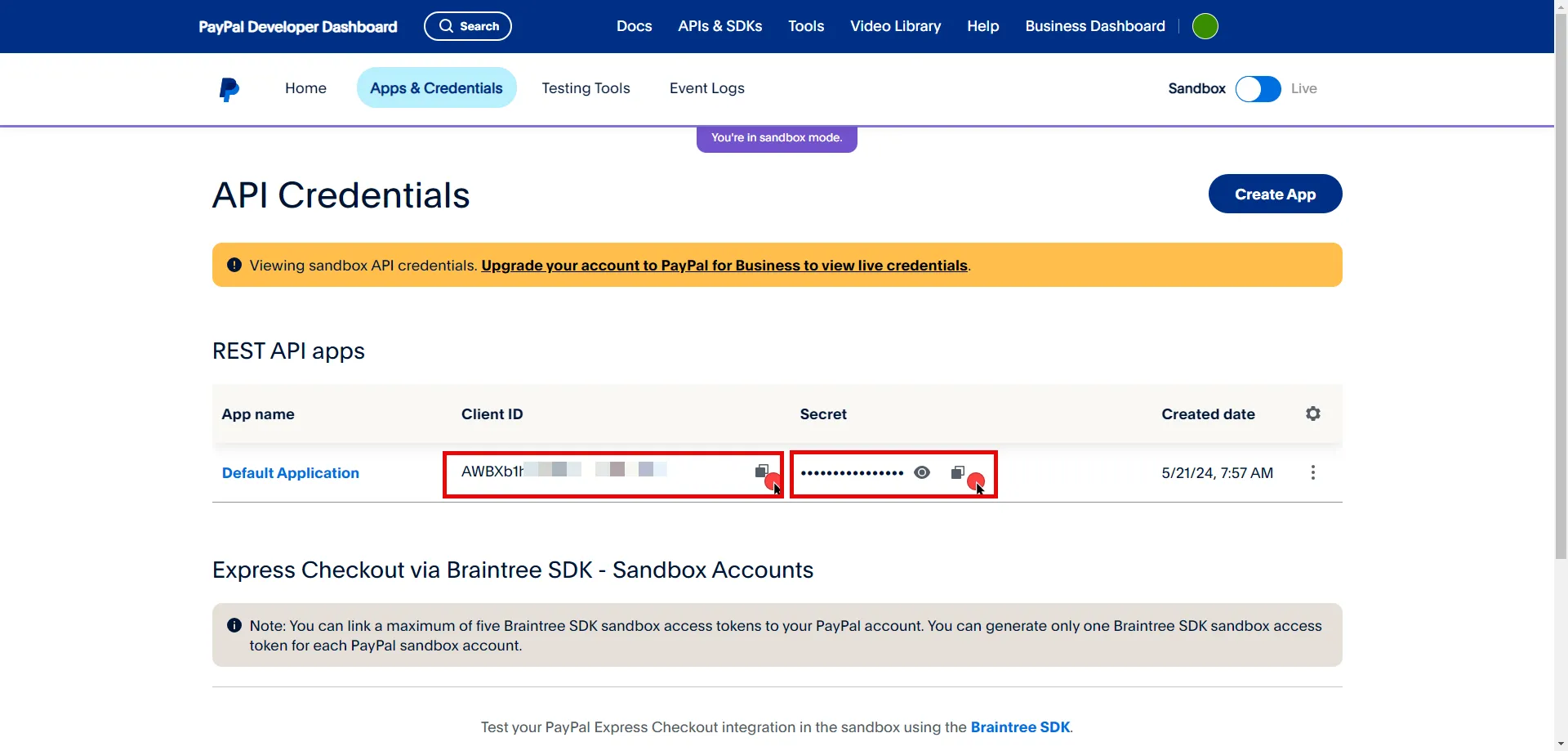 6. Create a new Credential Provider. * **Name** - Choose a user-friendly name. * **Credential Type** - [OAuth 2.0 Client Credentials](/user-guide/access-policies/credential-providers/oauth-client-credentials) * **Token endpoint** - `https://api-m.sandbox.paypal.com/v1/oauth2/token` (Sandbox) or `https://api-m.paypal.com/v1/oauth2/token` (Live) * **Client ID** - Provide the client ID copied from PayPal. * **Client Secret** - Provide the client secret copied from PayPal. * **Scopes** - You can leave this field **empty**, as PayPal will default to the necessary scopes, or specify the required scopes based on your needs, such as `https://uri.paypal.com/services/invoicing`. For more detailed information, you can refer to the [official PayPal Developer Documentation](https://developer.paypal.com/api/rest/authentication/). ## Client Workload Configuration [Section titled “Client Workload Configuration”](#client-workload-configuration) Aembit now handles the credentials required to access the Server Workload, eliminating the need for you to manage them directly. You can safely remove any previously used credentials from the Client Workload. If you access the Server Workload through an SDK or library, it is possible that the SDK/library may still require credentials to be present for initialization purposes. In this scenario, you can provide placeholder credentials. Aembit will overwrite these placeholder credentials with the appropriate ones during the access process. ## Access Policy [Section titled “Access Policy”](#access-policy) * Create an access policy for a Client Workload to access the PayPal Server Workload and assign the newly created Credential Provider to it. ## Required Features [Section titled “Required Features”](#required-features) * You will need to configure the [TLS Decrypt](/user-guide/deploy-install/advanced-options/tls-decrypt/configure-tls-decrypt) feature to work with the PayPal Server Workload.
# Salesforce REST
> How to configure Aembit to work with the Salesforce REST Server Workload
[Salesforce](https://www.salesforce.com/) is a cloud-based platform that helps businesses manage customer relationships, sales, and services. It supports integration with tools and offers customization to fit different business needs. You can find the Aembit configuration required to work with the Salesforce service as a Server Workload using the Salesforce apps and APIs. Aembit supports multiple authentication and authorization methods for Salesforce. This page describes scenarios where you configure the Credential Provider for Salesforce via: * [OAuth 2.0 Authorization Code (3LO)](#oauth-20-authorization-code) * [OAuth 2.0 Client Credentials](#oauth-20-client-credentials) ## OAuth 2.0 authorization code [Section titled “OAuth 2.0 authorization code”](#oauth-20-authorization-code) ### Server Workload configuration [Section titled “Server Workload configuration”](#server-workload-configuration) To retrieve connection information in Salesforce: 1. In the upper-right corner of any page, click your profile photo. The endpoint appears in the dropdown menu under your username. Copy the endpoint. 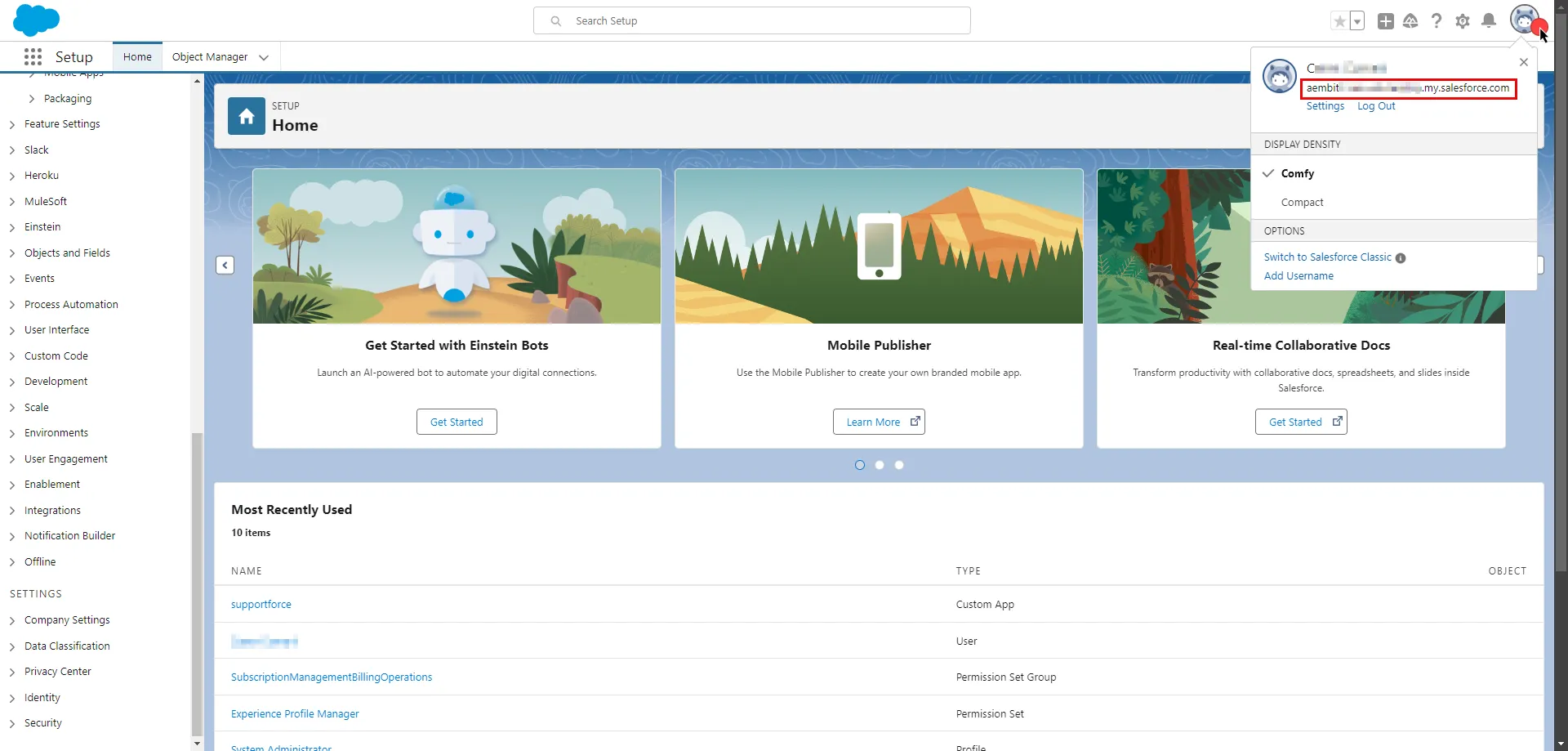 2. Create a new Server Workload. * **Name** - Choose a user-friendly name. 3. Configure the service endpoint: * **Host** - `.my.salesforce.com` (Provide the endpoint copied from Salesforce) * **Application Protocol** - HTTP * **Port** - 443 * **Forward to Port** - 443 with TLS * **Authentication method** - HTTP Authentication * **Authentication scheme** - Bearer ### Salesforce app configuration [Section titled “Salesforce app configuration”](#salesforce-app-configuration) 1. Log in to your [Salesforce account](https://login.salesforce.com/). 2. In the upper-right corner of any page, click the cog icon and then click **Setup**. 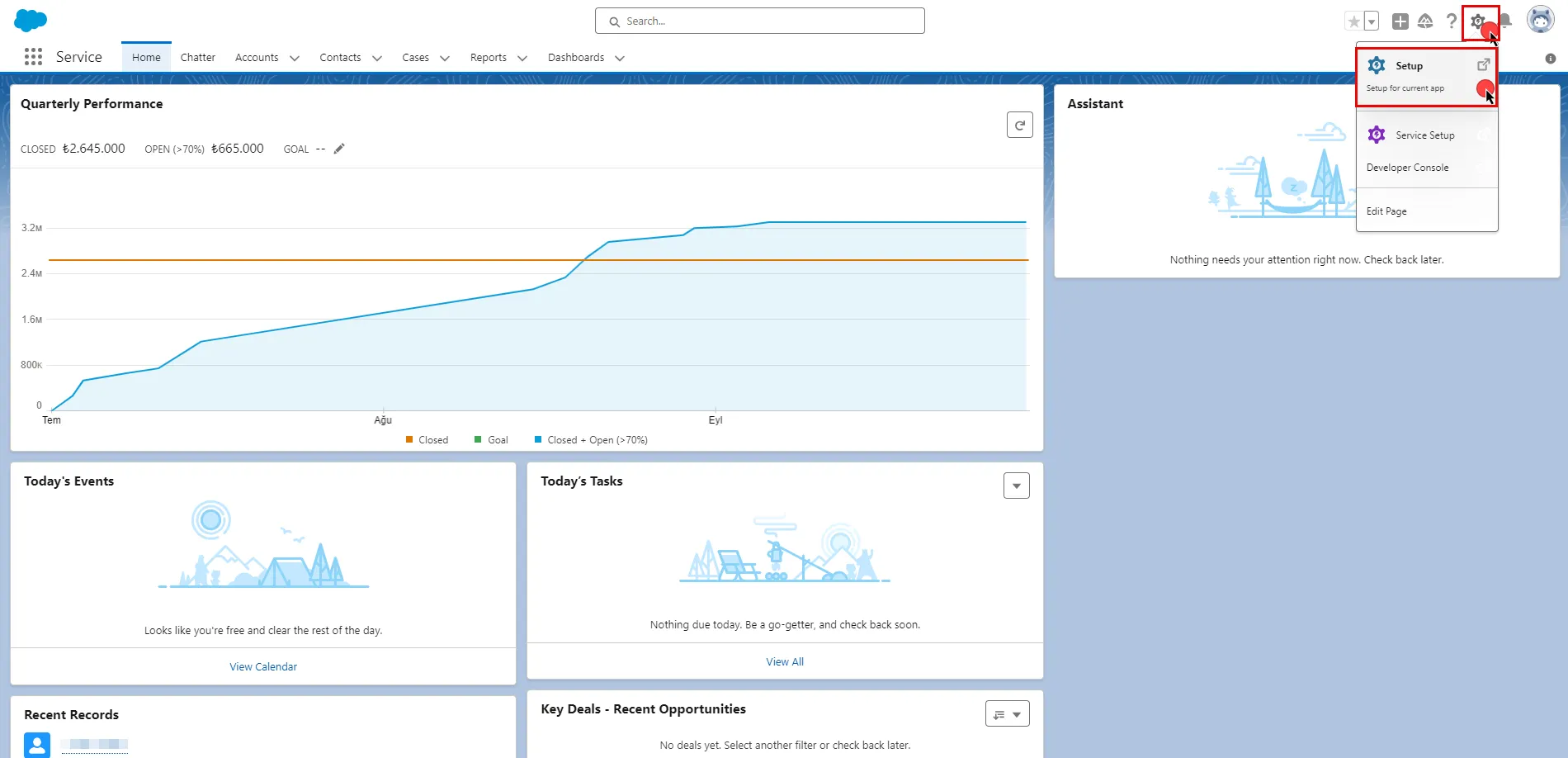 3. In the search box at the top of the Setup page, type **App Manager** and select it from the search results. 4. In the top-right corner of the page, click **New External Client App**. 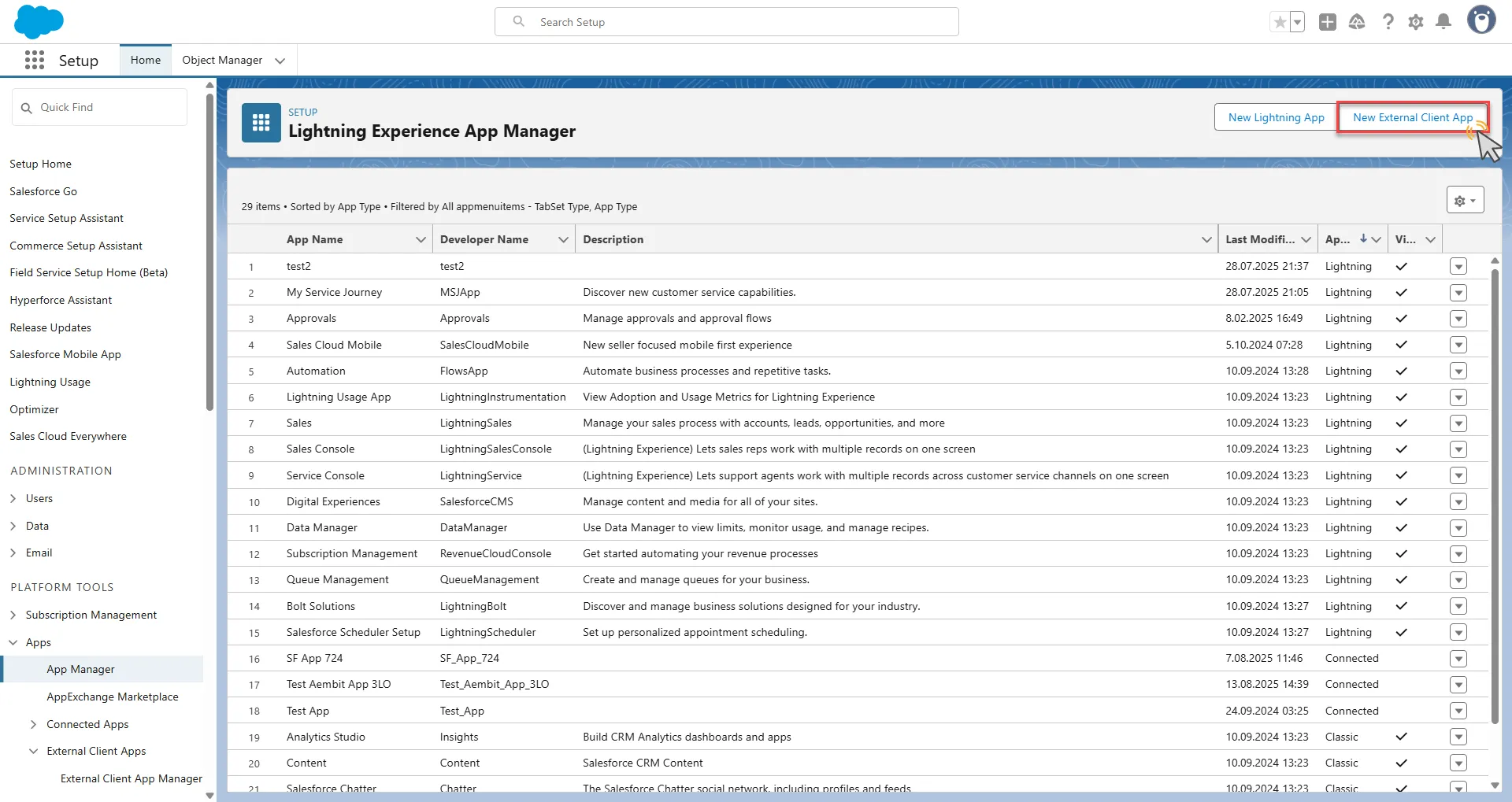 5. Configure the app based on your preferences. Below are key choices: * Provide a name for your connected app. The API Name auto-generates based on the app name, but you can edit it if needed. * Enter a valid email address in the **Contact Email** field. * Scroll down and expand the **API (Enable OAuth Settings)** section. * Check the **Enable OAuth** box. * Switch to the Aembit UI to create a new Credential Provider, selecting the **OAuth 2.0 Authorization Code** credential type. * After setting up the Credential Provider, copy the auto-generated **Callback URL**. * Return to Salesforce and paste the copied URL into the **Callback URL** field. * Select the necessary **OAuth Scopes** for your application based on your needs. * Under the **Security** section, check the **Require secret for Web Server Flow** box. * Check the **Require secret for Refresh Token Flow** box. * Check the **Require Proof Key for Code Exchange (PKCE) Extension for Supported Authorization Flows** box. * At the bottom of the page, click **Create** to complete the app creation process. 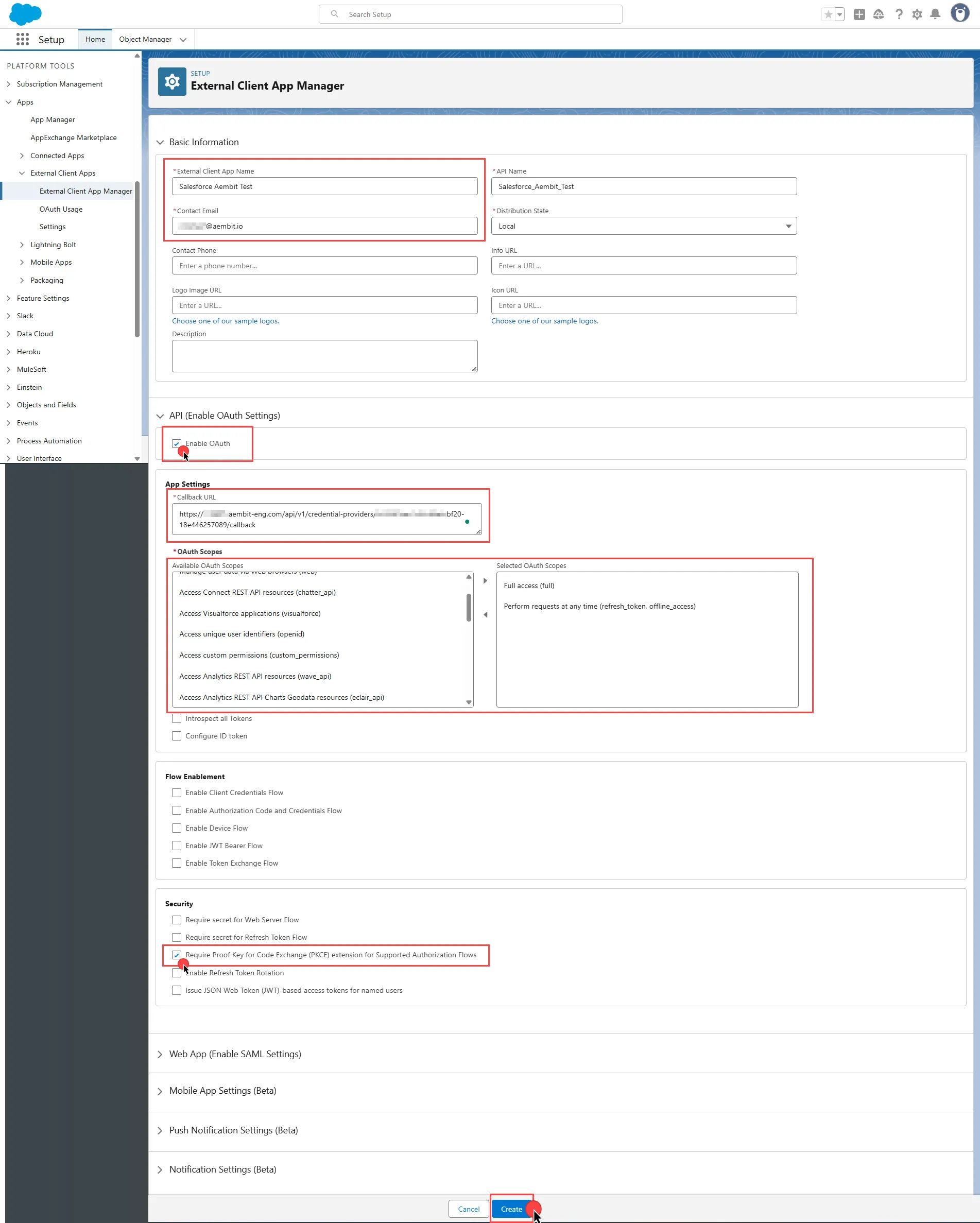 For detailed information on the OAuth 2.0 Web Server Flow on Salesforce, see the [official Salesforce documentation](https://help.salesforce.com/s/articleView?id=xcloud.remoteaccess_oauth_web_server_flow.htm\&type=5). ### Credential Provider configuration [Section titled “Credential Provider configuration”](#credential-provider-configuration) 1. Log in to your [Salesforce account](https://login.salesforce.com/). 2. In the upper-right corner of any page, click the cog icon and then click **Setup**.  3. On the left-side menu, scroll down and find **External Client Apps** under Platform Tools. 4. Expand it and click **External Client App Manager** under it. 5. Find your app from the list and click the icon at the end of the row. Select **Edit Settings** from the dropdown menu. 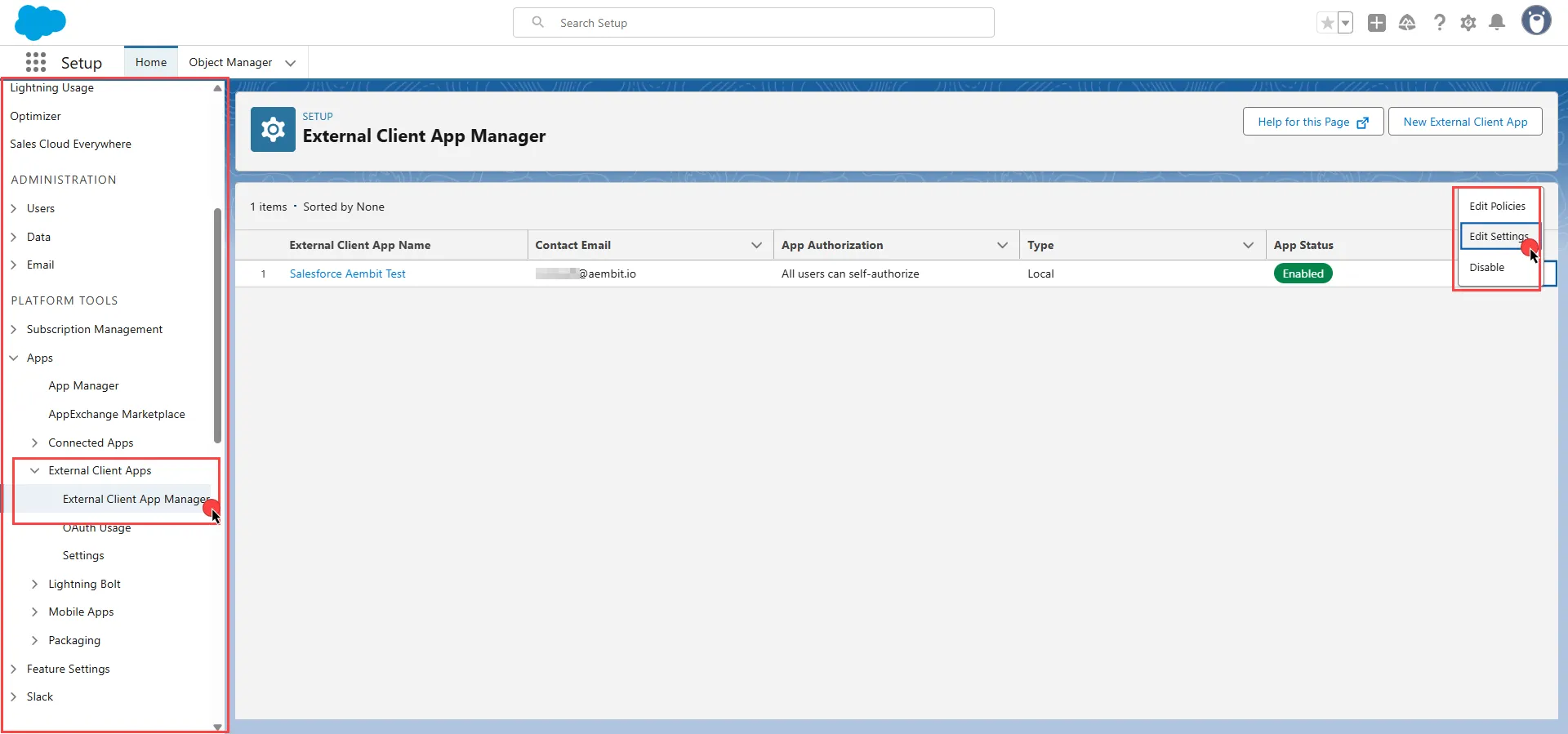 6. Scroll down and expand the **OAuth Settings** section. 7. Click the **Consumer Key and Secret**. Salesforce asks you to verify your identity. 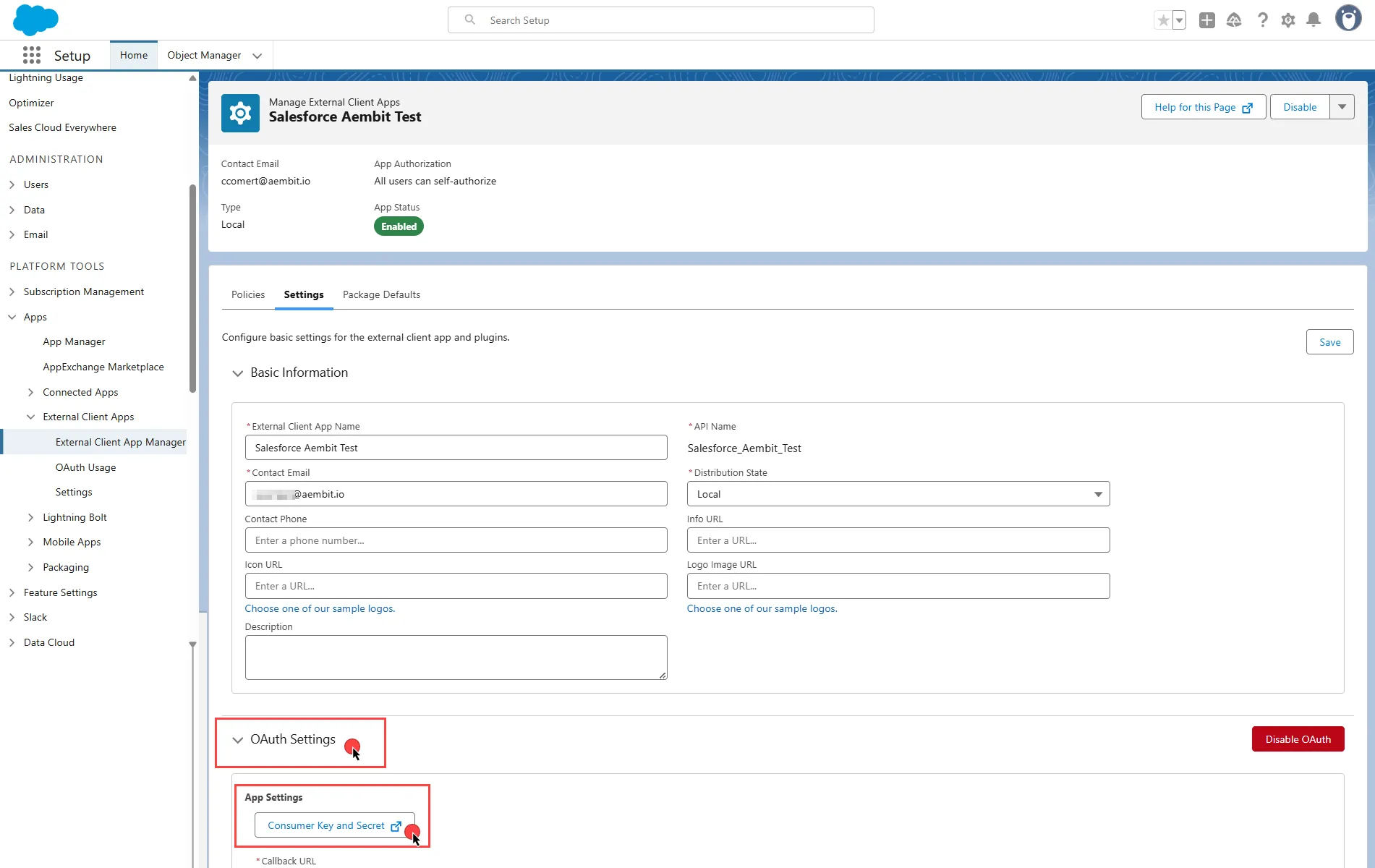 8. After verifying your identity, on the opened page, copy both the **Consumer Key** and **Consumer Secret**. Store these details securely for later use in the tenant configuration. 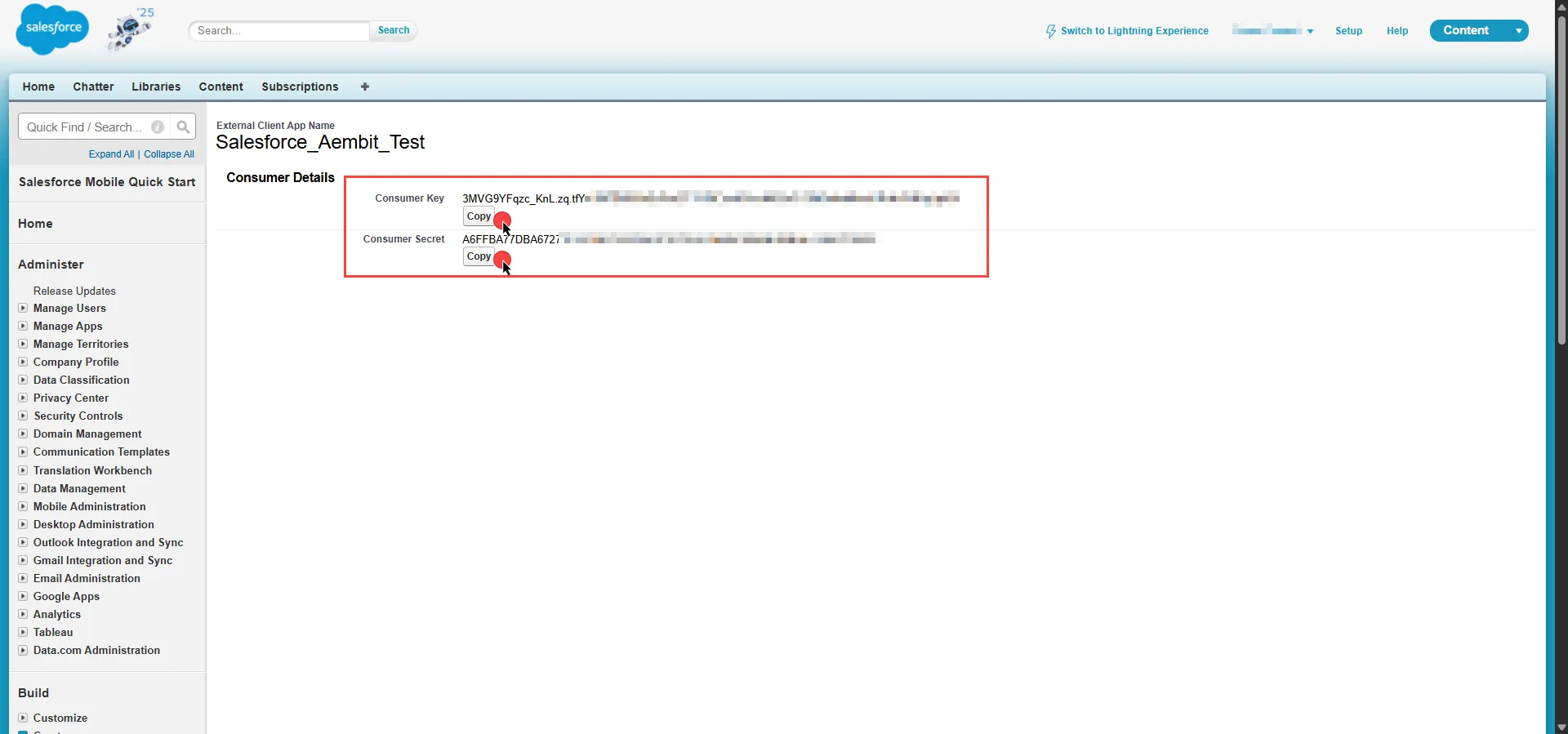 9. Create a new Credential Provider. * **Name** - Choose a user-friendly name. * **Credential Type** - [OAuth 2.0 Authorization Code](/user-guide/access-policies/credential-providers/oauth-authorization-code) * **Callback URL (Read-Only)** - An auto-generated Callback URL from Aembit Admin. * **Client ID** - Provide the Consumer Key copied from Salesforce. * **Client Secret** - Provide the Consumer Secret copied from Salesforce. * **Scopes** - You can leave this field empty, as Salesforce defaults to your selected scopes for the app. * **OAuth URL** - `https://.my.salesforce.com/` Click **URL Discovery** to populate the Authorization and Token URL fields, which you can leave as populated. * **PKCE Required** - On * **Lifetime** - 1 year (Salesforce doesn’t specify a refresh token lifetime. Aembit recommends this value.) 10. Click **Save** to save your changes on the Credential Provider. 11. In the Aembit UI, click **Authorize**. Aembit directs you to a page where you can review the access request. Click **Accept** to complete the OAuth 2.0 Authorization Code flow. You should see a success page and Aembit redirects you automatically. You can also verify that your flow is complete by checking the **State** value in the Credential Provider. After completion, it should be in a **Ready** state.  Caution Once the set lifetime ends, the retrieved credential expires and is no longer active. Aembit notifies you before this happens. Ensure you reauthorize your credential before it expires. ## OAuth 2.0 client credentials [Section titled “OAuth 2.0 client credentials”](#oauth-20-client-credentials) ### Server Workload configuration [Section titled “Server Workload configuration”](#server-workload-configuration-1) To retrieve connection information in Salesforce: 1. In the upper-right corner of any page, click your profile photo. The endpoint appears in the dropdown menu under your username. Copy the endpoint.  2. Create a new Server Workload. * **Name** - Choose a user-friendly name. 3. Configure the service endpoint: * **Host** - `.my.salesforce.com` (Provide the endpoint copied from Salesforce) * **Application Protocol** - HTTP * **Port** - 443 * **Forward to Port** - 443 with TLS * **Authentication method** - HTTP Authentication * **Authentication scheme** - Bearer ### Salesforce app configuration [Section titled “Salesforce app configuration”](#salesforce-app-configuration-1) 1. Log in to your [Salesforce account](https://login.salesforce.com/). 2. In the upper-right corner of any page, click the cog icon and then click **Setup**.  3. In the search box at the top of the Setup page, type **App Manager** and select it from the search results. 4. In the top-right corner of the page, click **New External Client App**.  5. Configure the app based on your preferences. Below are key choices: * Provide a name for your connected app. The API Name auto-generates based on the app name, but you can edit it if needed. * Enter a valid email address in the **Contact Email** field. * Scroll down and expand the **API (Enable OAuth Settings)** section. * Check the **Enable OAuth** box. * Enter a placeholder URL such as `https://aembit.io` in the Callback URL field to pass the required check. (This field isn’t used for the Client Credentials Flow.) * Select the necessary **OAuth Scopes** for your application based on your needs. * Check the **Enable Client Credentials Flow** box. When the pop-up window appears, click **OK** to proceed. * Clear the **Proof Key for Code Exchange**, **Require Secret for Web Server Flow**, and **Require Secret for Refresh Token Flow** boxes. * At the bottom of the page, click **Create** to complete the app creation process. 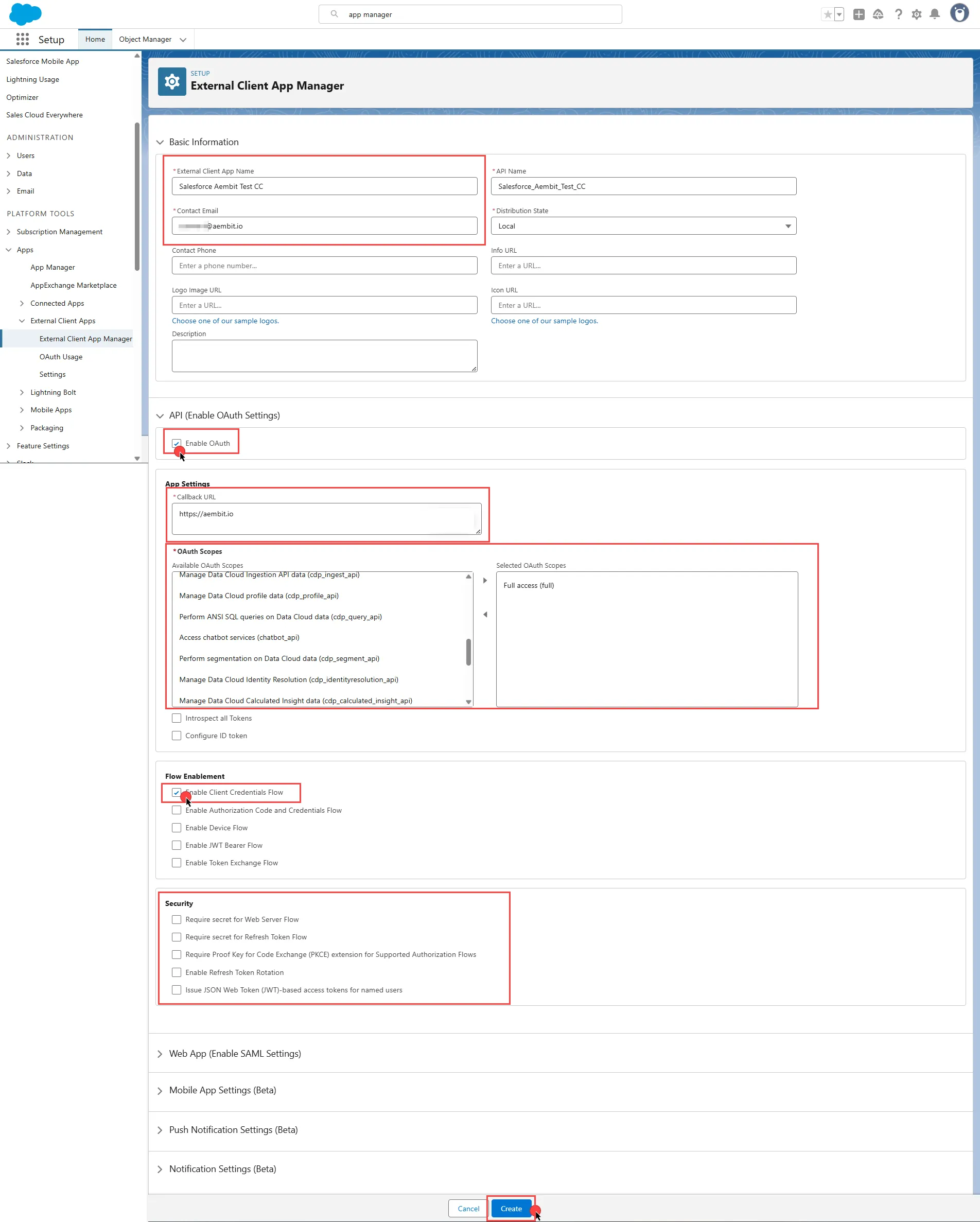 6. On the detail page of your newly created app, click **Edit**. 7. Expand the **OAuth Policies** section. 8. Under the **OAuth Flows and External Client App Enhancements** section, check **Enable Client Credentials Flow**. 9. Enter the email address of the user you want to designate into the **Run As** field. 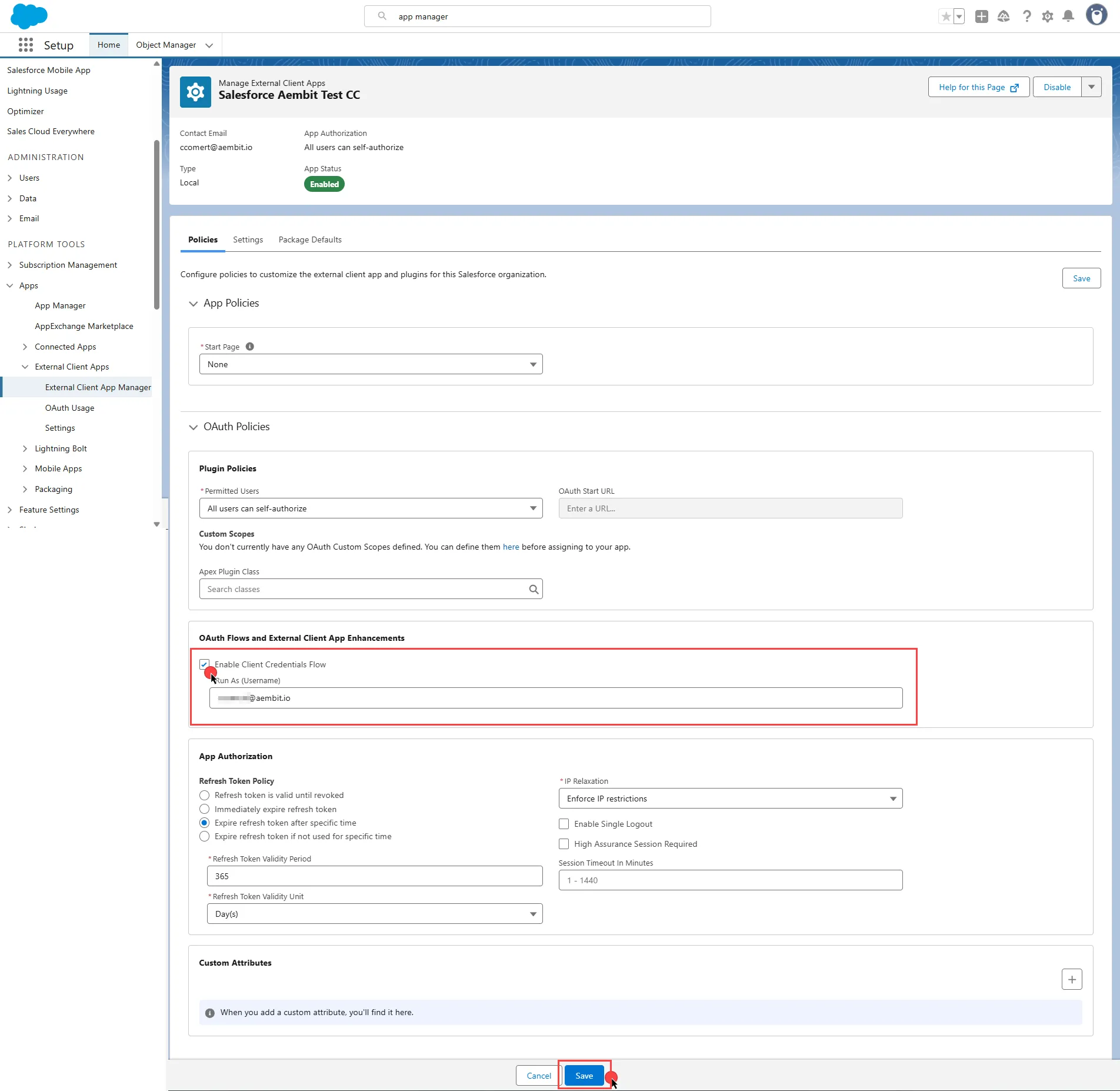 For detailed information on the OAuth 2.0 Client Credentials Flow on Salesforce, see the [official Salesforce documentation](https://help.salesforce.com/s/articleView?id=sf.remoteaccess_oauth_client_credentials_flow.htm\&type=5). ### Credential Provider configuration [Section titled “Credential Provider configuration”](#credential-provider-configuration-1) 1. Log in to your [Salesforce account](https://login.salesforce.com/). 2. In the upper-right corner of any page, click the cog icon and then click **Setup**.  3. On the left-side menu, scroll down and find **External Client Apps** under Platform Tools. 4. Expand it and click **External Client App Manager** under it. 5. Find your app from the list and click the icon at the end of the row. Select **Edit Settings** from the dropdown menu.  6. Scroll down and expand the **OAuth Settings** section. 7. Click the **Consumer Key and Secret**. Salesforce asks you to verify your identity.  8. After verifying your identity, on the opened page, copy both the **Consumer Key** and **Consumer Secret**. Store these details securely for later use in the tenant configuration.  9. Create a new Credential Provider. * **Name** - Choose a user-friendly name. * **Credential Type** - [OAuth 2.0 Client Credentials](/user-guide/access-policies/credential-providers/oauth-client-credentials) * **Token endpoint** - `https://.my.salesforce.com/services/oauth2/token` * **Client ID** - Provide the Consumer Key copied from Salesforce. * **Client Secret** - Provide the Consumer Secret copied from Salesforce. * **Scopes** - You can leave this field empty, as Salesforce defaults to your selected scopes for the app. * **Credential Style** - Authorization Header ## Client workload configuration [Section titled “Client workload configuration”](#client-workload-configuration) Aembit now handles the credentials required to access the Server Workload, eliminating the need for you to manage them directly. You can remove any previously used credentials from the Client Workload. If you access the Server Workload through SDK or library, the SDK or library may still require credentials to be present for initialization purposes. In this scenario, you can provide placeholder credentials. Aembit overwrites these placeholder credentials with the appropriate ones during the access process. ## Access Policy [Section titled “Access Policy”](#access-policy) Create an Access Policy for a Client Workload to access the Salesforce Server Workload. Assign the newly created Credential Provider to this Access Policy.
# Sauce Labs
> This page describes how to configure Aembit to work with the Sauce Labs Server Workload.
# [Sauce Labs](https://saucelabs.com/) is a comprehensive cloud-based testing platform designed to facilitate the automation and execution of web and mobile application tests. It supports a wide range of browsers, operating systems, and devices, ensuring thorough and efficient testing processes. Below you can find the Aembit configuration required to work with the Sauce Labs as a Server Workload using the Sauce REST APIs. ## Server Workload Configuration [Section titled “Server Workload Configuration”](#server-workload-configuration) 1. Create a new Server Workload. * **Name** - Choose a user-friendly name. 2. Configure the service endpoint: * **Host** - Use the appropriate endpoint for your data center: * `api.us-west-1.saucelabs.com` for US West * `api.us-east-4.saucelabs.com` for US East * `api.eu-central-1.saucelabs.com` for Europe * **Application Protocol** - HTTP * **Port** - 443 with TLS * **Forward to Port** - 443 with TLS * **Authentication method** - HTTP Authentication * **Authentication scheme** - Basic ## Credential Provider Configuration [Section titled “Credential Provider Configuration”](#credential-provider-configuration) 1. Sign into your Sauce Labs account. 2. In the upper-right corner of any page, click the user icon and select **User Settings**. 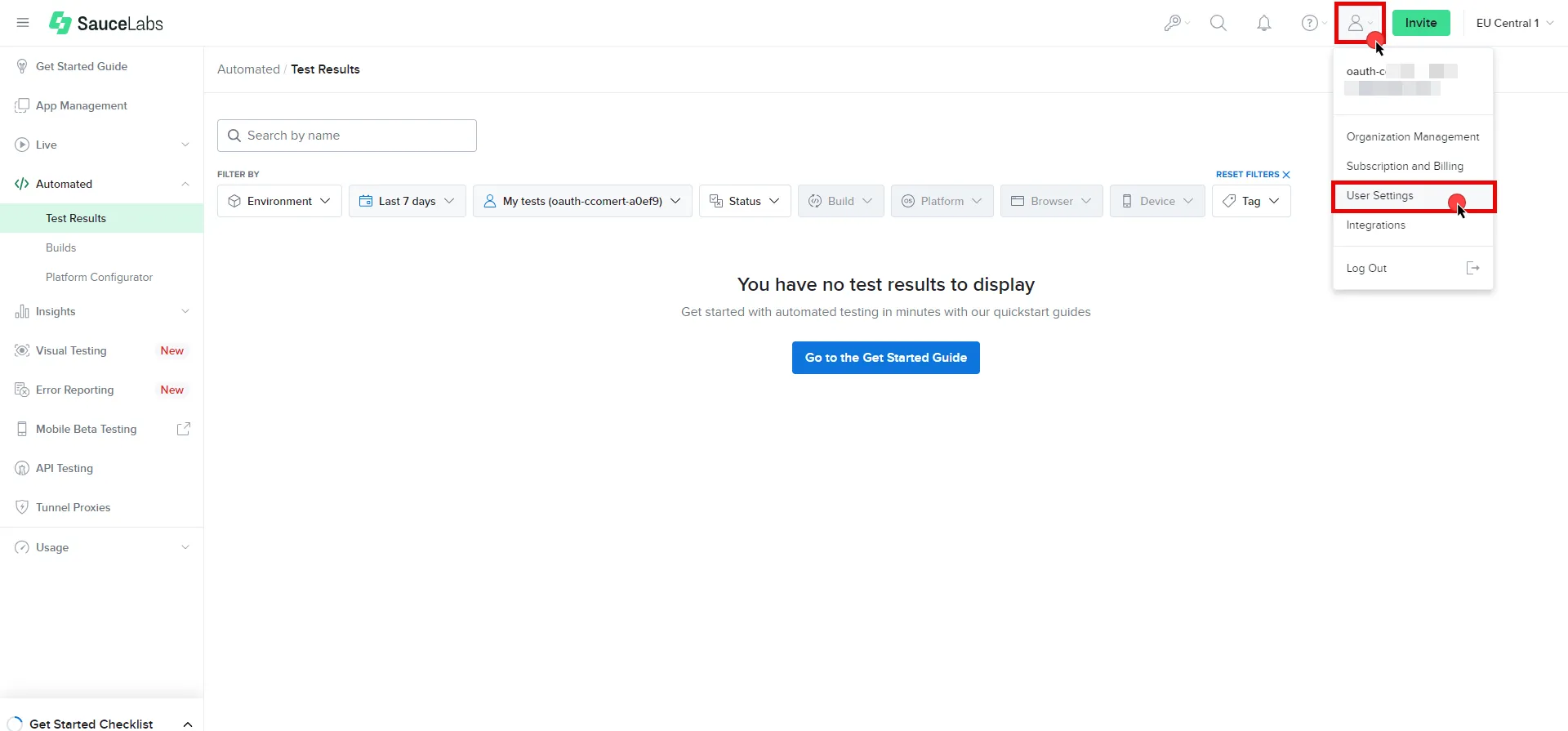 3. Under User Information, copy the **User Name**. Scroll down the page and under the Access Key section, click **Copy to clipboard** to copy the **Access Key**. Securely store both values for later use in the tenant configuration. For more information on authentication, please refer to the [official Sauce Labs documentation](https://docs.saucelabs.com/dev/api/#authentication). 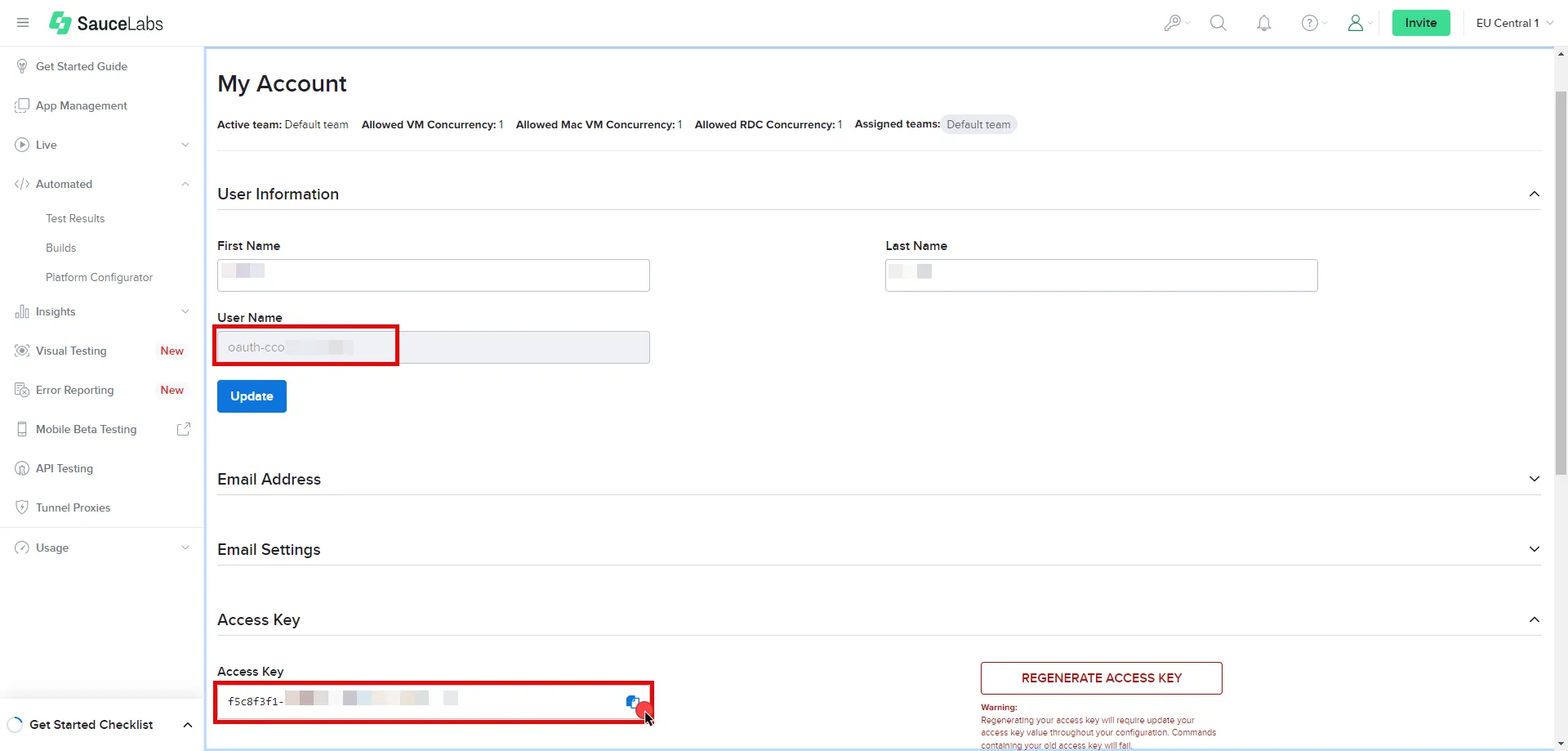 4. Create a new Credential Provider. * **Name** - Choose a user-friendly name. * **Credential Type** - [Username & Password](/user-guide/access-policies/credential-providers/username-password) * **Username** - Provide the User Name copied from Sauce Labs. * **Password** - Provide the Access Key copied from Sauce Labs. ## Client Workload Configuration [Section titled “Client Workload Configuration”](#client-workload-configuration) Aembit now handles the credentials required to access the Server Workload, eliminating the need for you to manage them directly. You can safely remove any previously used credentials from the Client Workload. If you access the Server Workload through an SDK or library, it is possible that the SDK/library may still require credentials to be present for initialization purposes. In this scenario, you can provide placeholder credentials. Aembit will overwrite these placeholder credentials with the appropriate ones during the access process. ## Access Policy [Section titled “Access Policy”](#access-policy) * Create an Access Policy for a Client Workload to access the Sauce Labs Server Workload. Assign the newly created Credential Provider to this Access Policy. ## Required Features [Section titled “Required Features”](#required-features) * You will need to configure the [TLS Decrypt](/user-guide/deploy-install/advanced-options/tls-decrypt/configure-tls-decrypt) feature to work with the Sauce Labs Server Workload.
# Slack
> This page describes how to configure Aembit to work with the Slack Server Workload.
# [Slack](https://slack.com/) is a cloud-based collaboration platform designed to enhance communication and teamwork within organizations. Slack offers channels for structured discussions, direct messaging, and efficient file sharing. With support for diverse app integrations, Slack serves as a centralized hub for streamlined workflows and improved team collaboration. Below you can find the Aembit configuration required to work with the Slack service as a Server Workload using the Slack apps and APIs. Aembit supports multiple authentication/authorization methods for Slack. This page describes scenarios where the Credential Provider is configured for Slack via: * [OAuth 2.0 Authorization Code (3LO)](/user-guide/access-policies/server-workloads/guides/slack#oauth-20-authorization-code) * [API Key](/user-guide/access-policies/server-workloads/guides/slack#api-key) ## OAuth 2.0 Authorization Code [Section titled “OAuth 2.0 Authorization Code”](#oauth-20-authorization-code) ### Server Workload Configuration [Section titled “Server Workload Configuration”](#server-workload-configuration) 1. Create a new Server Workload. * **Name** - Choose a user-friendly name. 2. Configure the service endpoint: * **Host** - `slack.com` * **Application Protocol** - HTTP * **Port** - 443 with TLS * **Forward to Port** - 443 with TLS * **Authentication method** - HTTP Authentication * **Authentication scheme** - Bearer ### Credential Provider Configuration [Section titled “Credential Provider Configuration”](#credential-provider-configuration) 1. Sign in to your Slack account. 2. Navigate to the [Slack - Your Apps](https://api.slack.com/apps) page. 3. Click on **Create an App**.  4. In the dialog that appears, choose **From Scratch**. Enter an App Name and select a workspace to develop your app in. 5. Click **Create** to proceed. 6. After the app is created, navigate to your app’s main page. Scroll down to the **App Credentials** section, and copy both the **Client ID** and the **Client Secret**. Store them for later use in the tenant configuration. 7. Scroll up to the **Add features and functionality** section, and click **Permissions**. 8. Switch to the Aembit UI to create a new Credential Provider, selecting the OAuth 2.0 Authorization Code credential type. After setting up the Credential Provider, copy the auto-generated **Callback URL**. 9. Return to Slack, under **Redirect URLs**, click **Add New Redirect URL**, paste in the URL, click **Add**, and then click **Save URLs**. 10. In the **Scopes** section, under the **Bot Token Scopes**, click **Add an OAuth Scope** to add the necessary scopes for your application. 11. Scroll up to the **Advanced token security via token rotation** section, and click **Opt In**. 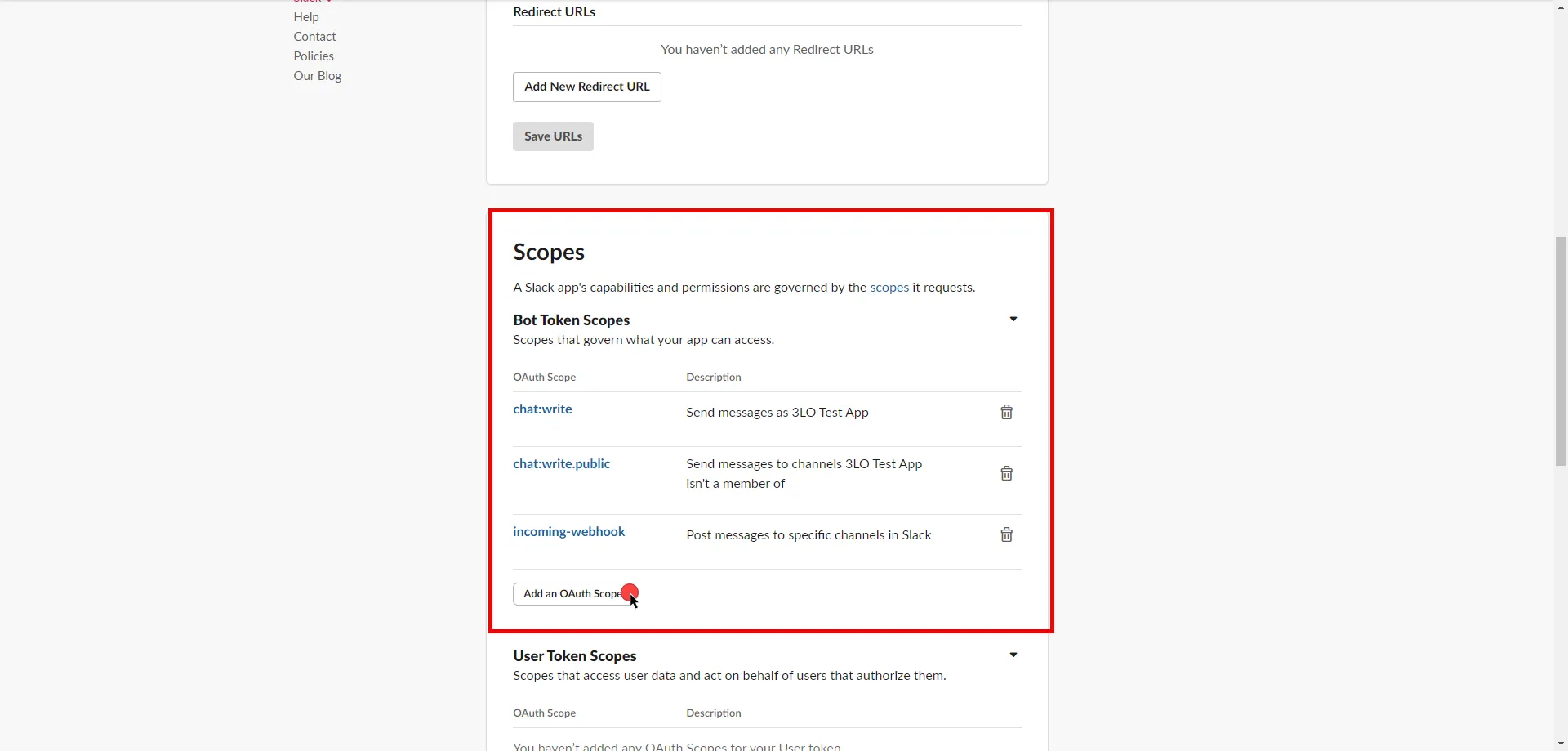 12. Edit the existing Credential Provider created in the previous steps. * **Name** - Choose a user-friendly name. * **Credential Type** - [OAuth 2.0 Authorization Code](/user-guide/access-policies/credential-providers/oauth-authorization-code) * **Callback URL (Read-Only)** - An auto-generated Callback URL from Aembit Admin. * **Client Id** - Provide the Client ID copied from Slack. * **Client Secret** - Provide the Secret copied from Slack. * **Scopes** - Enter the scopes you use, space delimited. A full list of Slack Scopes can be found in the [official Slack documentation](https://api.slack.com/scopes?filter=granular_bot). * **OAuth URL** - `https://slack.com` Click on **URL Discovery** to populate the Authorization and Token URL fields. These fields will need to be updated to the following values: * **Authorization URL** - `https://slack.com/oauth/v2/authorize` * **Token URL** - `https://slack.com/api/oauth.v2.access` * **PKCE Required** - Off (PKCE is not supported by Slack, so leave this field unchecked). * **Lifetime** - 1 year (Slack does not specify a refresh token lifetime; this value is recommended by Aembit.) 13. Click **Save** to save your changes on the Credential Provider. 14. In Aembit UI, click the **Authorize** button. You will be directed to a page where you can review the access request. Click **Allow** to complete the OAuth 2.0 Authorization Code flow. You will see a success page and will be redirected to Aembit automatically. You can also verify your flow is complete by checking the **State** value in the Credential Provider. After completion, it should be in a **Ready** state.  Caution Once the set lifetime ends, the retrieved credential will expire and no longer be active. Aembit will notify you before this happens. Please ensure you reauthorize your credential before it expires. ## API Key [Section titled “API Key”](#api-key) ### Server Workload Configuration [Section titled “Server Workload Configuration”](#server-workload-configuration-1) 1. Create a new Server Workload. * **Name** - Choose a user-friendly name. 2. Configure the service endpoint: * **Host** - `slack.com` * **Application Protocol** - HTTP * **Port** - 443 with TLS * **Forward to Port** - 443 with TLS * **Authentication method** - HTTP Authentication * **Authentication scheme** - Bearer ### Credential Provider Configuration [Section titled “Credential Provider Configuration”](#credential-provider-configuration-1) 1. Sign in to your Slack account. 2. Navigate to the [Slack - Your Apps](https://api.slack.com/apps) page. 3. Click on **Create an App**.  4. In the dialog that appears, choose either **From Scratch** or **From App Manifest**. 5. Depending on your selection, enter an App Name and select a workspace to develop your app in. 6. Click **Create** to proceed. 7. After the app is created, navigate to your app’s main page. Select and customize the necessary tools for your app under the **Add features and functionality** section. 8. Proceed to the installation section and click **Install to Workspace**. You will be redirected to a page where you can choose a channel for your app’s functionalities. After choosing, click **Allow**. 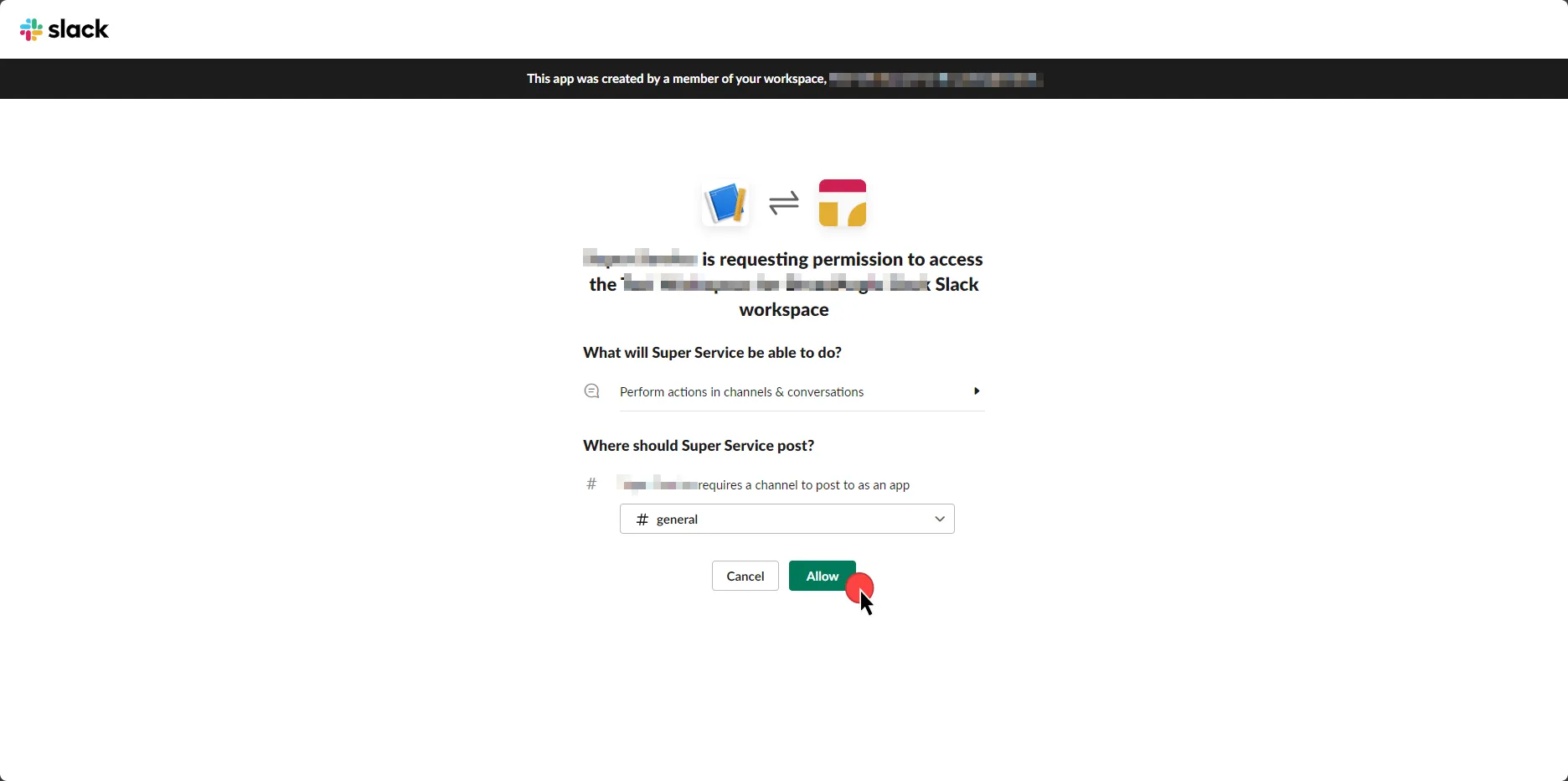 9. Select the **OAuth & Permissions** link from the left menu. 10. Click **Copy** to securely store the token for later use in the tenant configuration. For detailed information on OAuth tokens, please refer to the [official Slack documentation](https://api.slack.com/authentication/oauth-v2). 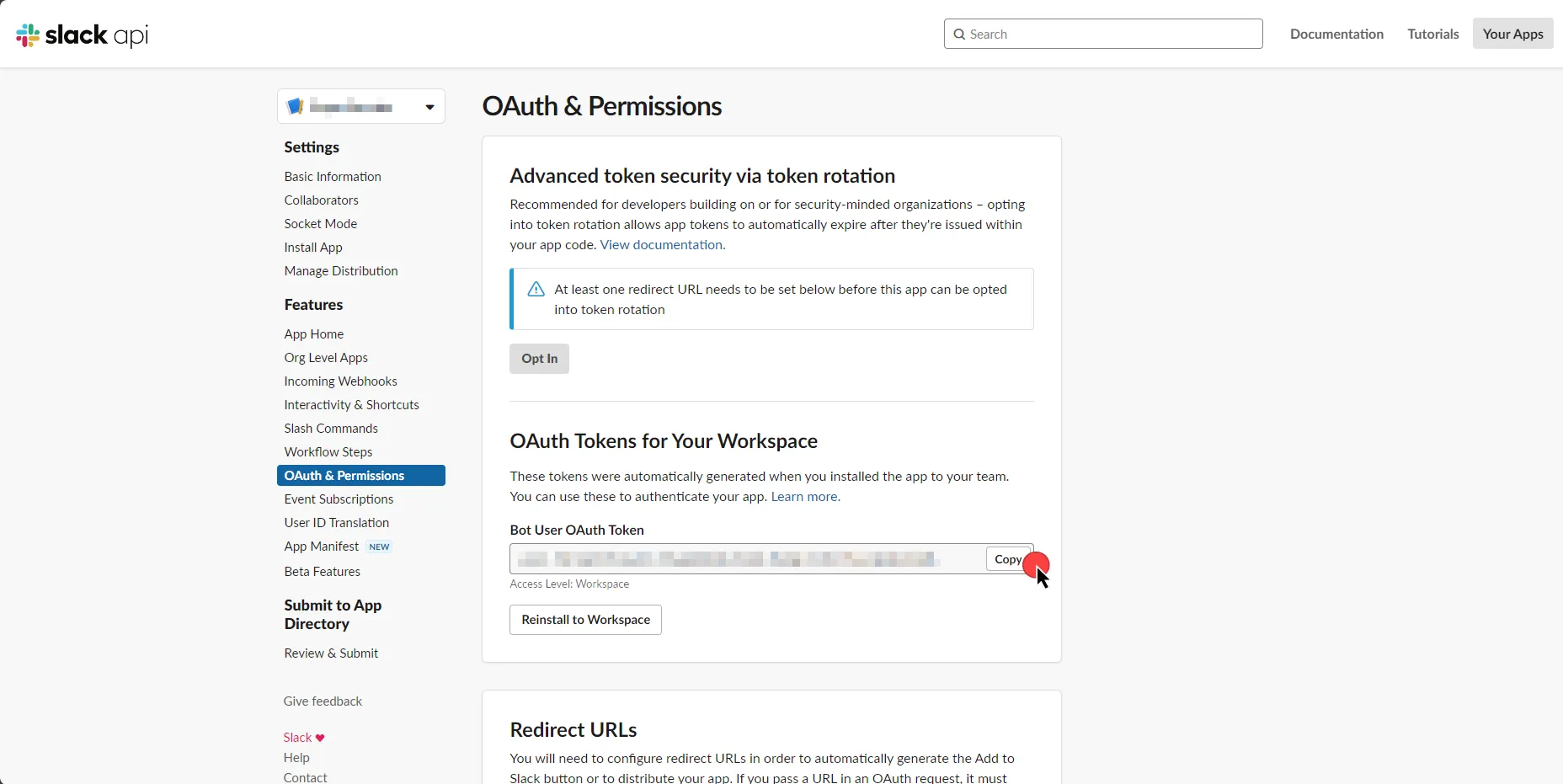 11. Create a new Credential Provider. * **Name** - Choose a user-friendly name. * **Credential Type** - [API Key](/user-guide/access-policies/credential-providers/api-key) * **API Key** - Paste the token copied from Slack. ## Client Workload Configuration [Section titled “Client Workload Configuration”](#client-workload-configuration) Aembit now handles the credentials required to access the Server Workload, eliminating the need for you to manage them directly. You can safely remove any previously used credentials from the Client Workload. If you access the Server Workload through an SDK or library, it is possible that the SDK/library may still require credentials to be present for initialization purposes. In this scenario, you can provide placeholder credentials. Aembit will overwrite these placeholder credentials with the appropriate ones during the access process. ## Access Policy [Section titled “Access Policy”](#access-policy) * Create an Access Policy for a Client Workload to access the Slack Server Workload. Assign the newly created Credential Provider to this Access Policy. ## Required Features [Section titled “Required Features”](#required-features) * You will need to configure the [TLS Decrypt](/user-guide/deploy-install/advanced-options/tls-decrypt/configure-tls-decrypt) feature to work with the Slack Server Workload.
# Snowflake
> This page describes how to configure Aembit to work with the Snowflake Server Workload.
# [Snowflake](https://www.snowflake.com/) is a cloud-based data platform that revolutionizes the way organizations handle and analyze data. Snowflake’s architecture allows for seamless and scalable data storage and processing, making it a powerful solution for modern data analytics and warehousing needs. In the sections below, you can find the required Aembit configuration needed to work with the Snowflake service as a Server Workload. This page describes scenarios where the Client Workload accesses Snowflake via: * the [Snowflake Driver/Connector](/user-guide/access-policies/server-workloads/guides/snowflake#snowflake-via-driverconnector) embedded in Client Workload. * the [Snowflake SQL Rest API](/user-guide/access-policies/server-workloads/guides/snowflake#snowflake-sql-rest-api). ## Prerequisites [Section titled “Prerequisites”](#prerequisites) Before proceeding with the configuration, you must have a Snowflake tenant (or [sign up](https://signup.snowflake.com/) for one). ## Snowflake via Driver/Connector [Section titled “Snowflake via Driver/Connector”](#snowflake-via-driverconnector) This section of the guide is tailored to scenarios where the Client Workload interacts with Snowflake through the [Snowflake Driver/Connector](https://docs.snowflake.com/en/developer-guide/drivers) embedded in the Client Workload. ### Snowflake key-pair authentication [Section titled “Snowflake key-pair authentication”](#snowflake-key-pair-authentication) Snowflake key-pair authentication, when applied to workloads, involves using a public-private key pair for secure, automated authentication. Aembit generates and securely stores a private key, while the corresponding public key is registered with Snowflake. This setup allows Aembit to authenticate with Snowflake, leveraging the robust security of asymmetric encryption, without relying on conventional user-based passwords. For more information on key-pair authentication and key-pair rotation, please refer to the [official Snowflake documentation](https://docs.snowflake.com/en/user-guide/key-pair-auth#configuring-key-pair-rotation). #### Server Workload Configuration [Section titled “Server Workload Configuration”](#server-workload-configuration) 1. Create a new Server Workload. * **Name** - Choose a user-friendly name. 2. Configure the service endpoint: * **Host** - `-.snowflakecomputing.com` * **Application Protocol** - Snowflake * **Port** - 443 with TLS * **Forward to Port** - 443 with TLS * **Authentication method** - JWT Token Authentication * **Authentication scheme** - Snowflake JWT #### Credential provider configuration [Section titled “Credential provider configuration”](#credential-provider-configuration) 1. Sign into your Snowflake account. 2. Click in the bottom left corner and copy the Locator value for use in the Aembit Snowflake Account ID field. 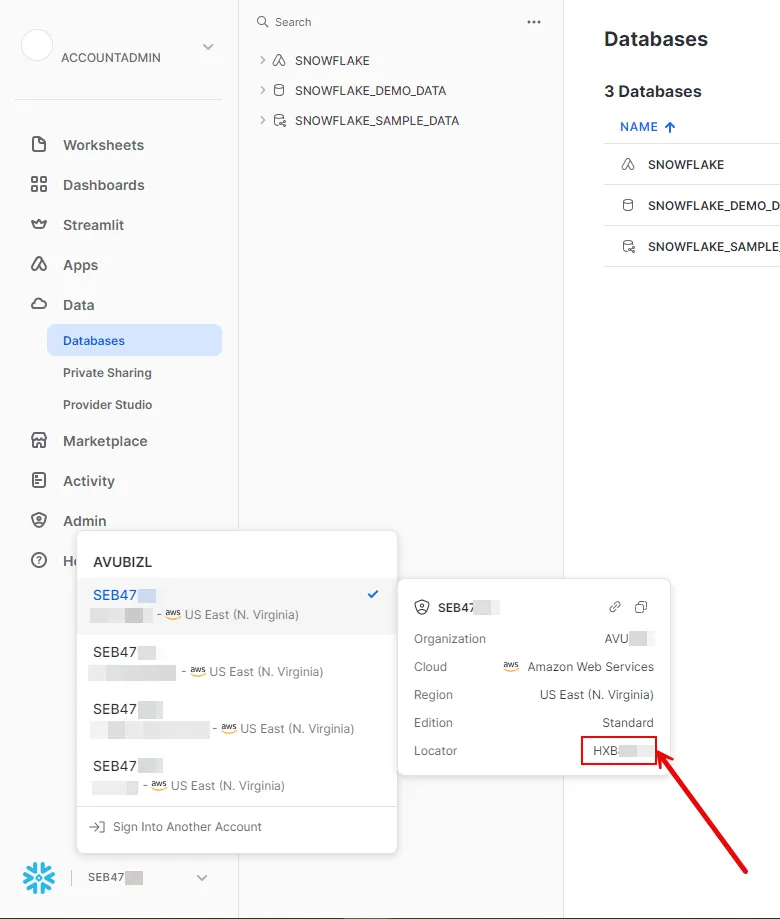 3. Create a new Credential Provider. * **Name** - Choose a user-friendly name. * **Credential Type** - [JSON Web Token (JWT)](/user-guide/access-policies/credential-providers/json-web-token) * **Token Configuration** - Snowflake Key Pair Authentication * **Snowflake Account ID** - Your Snowflake Locator value that you copied from the previous step. * **Username** - Your username for the Snowflake account. 4. Click **Save**. 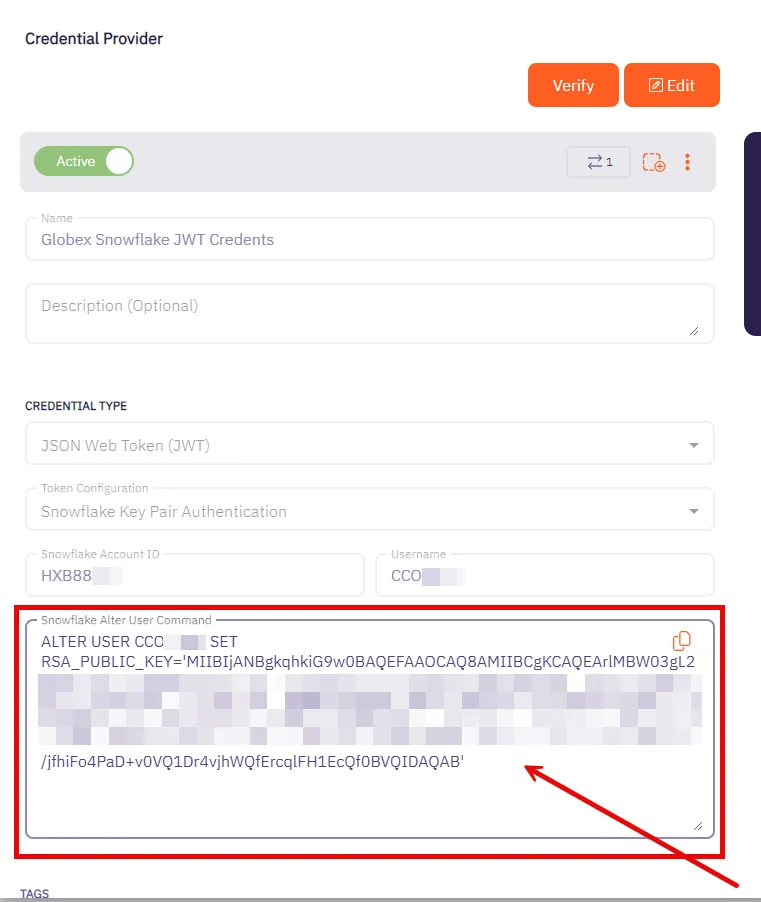 5. After saving the Credential Provider, view the newly created provider and copy the provided SQL command. This command needs to be executed against your Snowflake account. You can use any tool of your choice that supports Snowflake to execute this command. ### Snowflake username/password authentication [Section titled “Snowflake username/password authentication”](#snowflake-usernamepassword-authentication) Username/password authentication in Snowflake involves using a traditional credential-based approach for access control. Users or workloads are assigned a unique username and a corresponding password. When accessing Snowflake, the username and password are used to verify identity. Username/password authentication in Snowflake is considered less secure than key pair authentication and is typically used when key pair methods are not feasible. #### Server Workload Configuration [Section titled “Server Workload Configuration”](#server-workload-configuration-1) 1. Create a new Server Workload. * Name: Choose a user-friendly name. 2. Configure the service endpoint: * **Host** - `-.snowflakecomputing.com` * **Application Protocol** - Snowflake * **Port** - 443 with TLS * **Forward to Port** - 443 with TLS * **Authentication method** - Password Authentication * **Authentication scheme** - Password #### Credential Provider Configuration [Section titled “Credential Provider Configuration”](#credential-provider-configuration-1) 1. Create a new Credential Provider. * **Name** - Choose a user-friendly name. * **Credential Type** - [Username & Password](/user-guide/access-policies/credential-providers/username-password) * **Username** - Your username for the Snowflake account. * **Password** - Your password for the account. ## Snowflake SQL REST API [Section titled “Snowflake SQL REST API”](#snowflake-sql-rest-api) This section focuses on scenarios where the Client Workload interacts with Snowflake through the [Snowflake SQL REST API](https://docs.snowflake.com/en/developer-guide/sql-api/). The Snowflake SQL REST API offers a flexible REST API for accessing and modifying data within a Snowflake database. ### Server Workload Configuration [Section titled “Server Workload Configuration”](#server-workload-configuration-2) 1. Create a new Server Workload. * **Name** - Choose a user-friendly name. 2. Configure the service endpoint: * **Host** - `-.snowflakecomputing.com` * **Application Protocol** - HTTP * **Port** - 443 with TLS * **Forward to Port** - 443 with TLS * **Authentication method** - HTTP Authentication * **Authentication scheme** - Bearer **Static HTTP Headers** * **Key** - X-Snowflake-Authorization-Token-Type * **Value** - KEYPAIR\_JWT ### Credential provider configuration [Section titled “Credential provider configuration”](#credential-provider-configuration-2) 1. Sign into your Snowflake account. 2. Click in the bottom left corner and copy the Locator value for use in the Aembit Snowflake Account ID field.  3. Create a new Credential Provider. * **Name** - Choose a user-friendly name. * **Credential Type** - [JSON Web Token (JWT)](/user-guide/access-policies/credential-providers/json-web-token) * **Token Configuration** - Snowflake Key Pair Authentication * **Snowflake Account ID** - Your Snowflake Locator value that you copied from the previous step. * **Username** - Your username for the Snowflake account. 4. Click **Save**.  5. After saving the Credential Provider, view the newly created provider and copy the provided SQL command. This command needs to be executed against your Snowflake account. You can use any tool of your choice that supports Snowflake to execute this command. ## Client Workload Configuration [Section titled “Client Workload Configuration”](#client-workload-configuration) Aembit now handles the credentials required to access the Server Workload, eliminating the need for you to manage them directly. You can safely remove any previously used credentials from the Client Workload. If you access the Server Workload through an SDK or library, it is possible that the SDK/library may still require credentials to be present for initialization purposes. In this scenario, you can provide placeholder credentials. Aembit will overwrite these placeholder credentials with the appropriate ones during the access process. ## Access Policy [Section titled “Access Policy”](#access-policy) * Create an Access Policy for a Client Workload to access the Snowflake Server Workload. Assign the newly created Credential Provider to this Access Policy. ## Required Features [Section titled “Required Features”](#required-features) * You will need to configure the [TLS Decrypt](/user-guide/deploy-install/advanced-options/tls-decrypt/configure-tls-decrypt) feature to work with the Snowflake Server Workload. Caution As of Snowflake SDK 2.1.0, proxy settings must be explicitly specified within the connection string. In prior versions, the SDK automatically utilized proxy configurations based on environment variables such as `http_proxy` or `https_proxy`. For instance, if you are deploying the SDK within an ECS environment, it is essential to include the following parameters in your connection string: ```shell USEPROXY=true;PROXYHOST=localhost;PROXYPORT=8000 ```
# Snyk
> This page describes how to configure Aembit to work with the Snyk Server Workload.
# [Snyk](https://snyk.io/) is a security platform designed to help organizations find and fix vulnerabilities in their code, dependencies, containers, and infrastructure as code. It integrates into development workflows to maintain security throughout the software development lifecycle. Below you can find the Aembit configuration required to work with the Snyk service as a Server Workload using the Snyk API. ## Server Workload Configuration [Section titled “Server Workload Configuration”](#server-workload-configuration) 1. Create a new Server Workload. * **Name** - Choose a user-friendly name. 2. Configure the service endpoint: * **Host** - `api.snyk.io` * **Application Protocol** - HTTP * **Port** - 443 with TLS * **Forward to Port** - 443 with TLS * **Authentication method** - HTTP Authentication * **Authentication scheme** - Bearer ## Credential Provider Configuration [Section titled “Credential Provider Configuration”](#credential-provider-configuration) 1. Sign in to your Snyk account. 2. In the lower-left corner of any page, click your profile name, then click **Account Settings**. 3. On the **General** page, click to reveal your **Key**. 4. Copy the **Key** and securely store it for later use in the app creation process using the Snyk API. 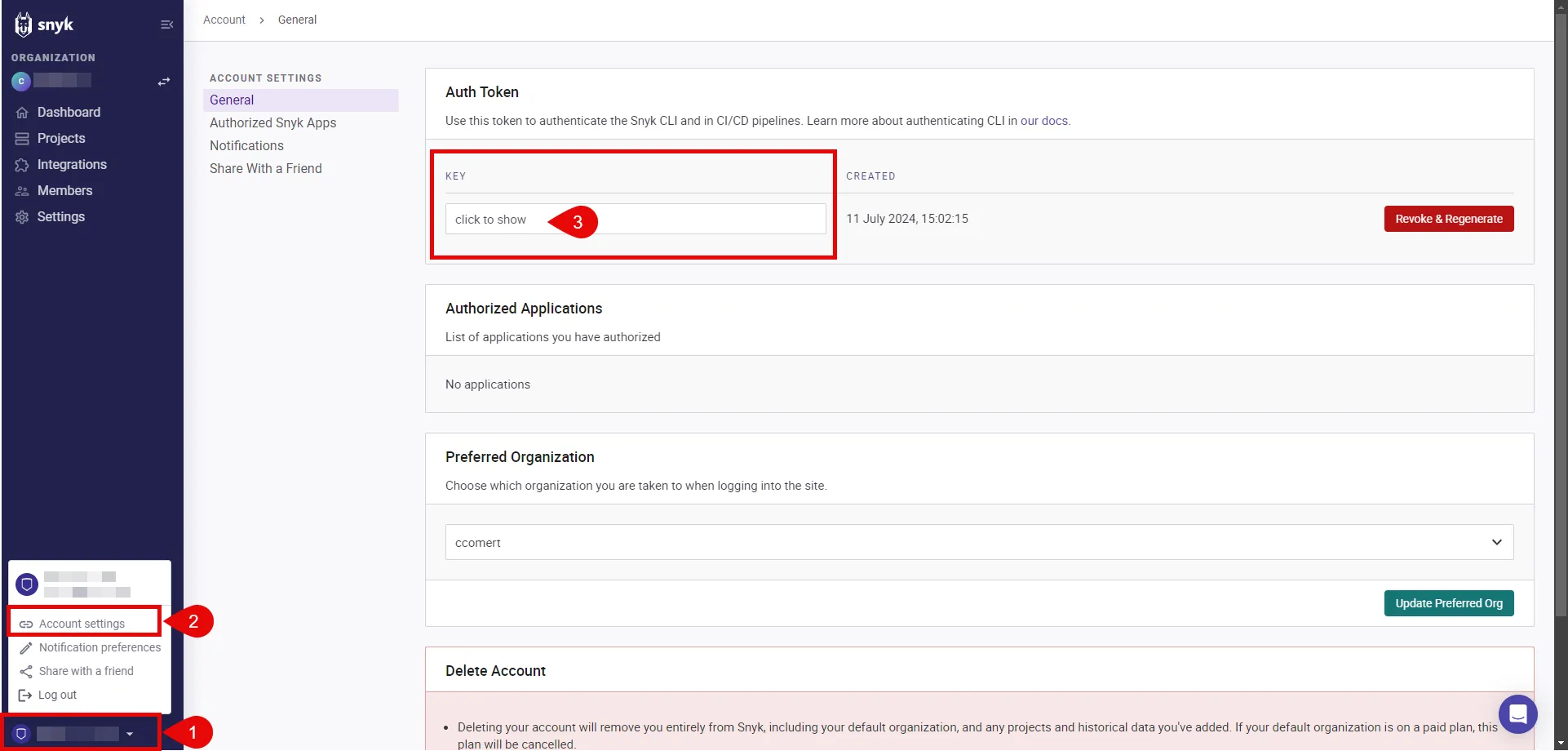 5. Navigate to **Settings** in the left-hand menu, and choose **General**. 6. Copy the **Organization ID** and securely store it for later use in the app creation process using the Snyk API.  7. Switch to the Aembit UI to create a new Credential Provider, selecting the OAuth 2.0 Authorization Code credential type. After setting it up, copy the auto-generated **Callback URL**. 8. Create a Snyk App: To create a Snyk App, execute the following `curl` command. Make sure to replace the placeholders with the appropriate values: * REPLACE\_WITH\_API\_TOKEN: This is the token you retrieved in Step 4. * REPLACE\_WITH\_APP\_NAME: Provide a friendly name for your app that will perform OAuth with Snyk, such as “Aembit.” * REPLACE\_WITH\_CALLBACK\_URL: Use the callback URL obtained in the previous step. * REPLACE\_WITH\_SCOPES: Add the necessary scopes for your app. It is crucial to include the `org.read` scope, which is required for the refresh token. For a comprehensive list of available scopes, refer to the [official Snyk documentation](https://docs.snyk.io/snyk-api/snyk-apps/scopes-to-request). * REPLACE\_WITH\_YOUR\_ORGID: This is the organization ID you retrieved in Step 6. ```shell curl -X POST -H "Content-Type: application/vnd.api+json" \ -H "Authorization: token " \ -d '{"data": { "attributes": {"name": "", "redirect_uris": [""], "scopes": [""], "context": "user"}, "type": "app"}}' \ "https://api.snyk.io/rest/orgs//apps/creations?version=2024-01-04" ``` The response includes important configuration details, such as the **clientId** and **clientSecret**, which are essential for completing the authorizing of your Snyk App. 9. Edit the existing Credential Provider created in the previous steps. * **Name** - Choose a user-friendly name. * **Credential Type** - [OAuth 2.0 Authorization Code](/user-guide/access-policies/credential-providers/oauth-authorization-code) * **Callback URL (Read-Only)** - An auto-generated Callback URL from Aembit Admin. * **Client Id** - Provide the `clientId` from the response of the `curl` command. * **Client Secret** - Provide the `clientSecret` from the response of the `curl` command. * **Scopes** - Enter the scopes you use, space delimited. (e.g. `org.read org.project.read org.project.snapshot.read`) * **OAuth URL** - `https://snyk.io/` * **Authorization URL** - `https://app.snyk.io/oauth2/authorize` * **Token URL** - `https://api.snyk.io/oauth2/token` * **PKCE Required** - On * **Lifetime** - 1 year (Snyk does not specify a refresh token lifetime; this value is recommended by Aembit.) 10. Click **Save** to save your changes on the Credential Provider. 11. In the Aembit UI, click the **Authorize** button. You are directed to a page where you can review the access request. Click **Authorize** to complete the OAuth 2.0 Authorization Code flow. You should see a success page and then be redirected to Aembit automatically. You can also verify your flow is complete by checking the **State** value in the Credential Provider. After completion, it should be **Ready**.  Caution Once the set lifetime ends, the retrieved credential will expire and will not work anymore. Aembit will notify you before this happens. Please ensure you reauthorize the credential before it expires. ## Client Workload Configuration [Section titled “Client Workload Configuration”](#client-workload-configuration) Aembit now handles the credentials required to access the Server Workload, eliminating the need for you to manage them directly. You can safely remove any previously used credentials from the Client Workload. If you access the Server Workload through an SDK or library, it is possible that the SDK/library may still require credentials to be present for initialization purposes. In this scenario, you can provide placeholder credentials. Aembit will overwrite these placeholder credentials with the appropriate ones during the access process. ## Access Policy [Section titled “Access Policy”](#access-policy) * Create an access policy for a Client Workload to access the Snyk Server Workload and assign the newly created Credential Provider to it. ## Required Features [Section titled “Required Features”](#required-features) * You will need to configure the [TLS Decrypt](/user-guide/deploy-install/advanced-options/tls-decrypt/configure-tls-decrypt) feature to work with the Snyk Server Workload.
# Stripe
> This page describes how to configure Aembit to work with the Stripe Server Workload.
# [Stripe](https://stripe.com/) is a digital payment processing service that allows businesses to accept and process payments online. Stripe supports various payment methods, including credit cards, and provides tools for managing subscriptions and recurring payments. Below you can find the Aembit configuration required to work with the Stripe service as a Server Workload using the Stripe SDK or other HTTP-based client. ## Prerequisites [Section titled “Prerequisites”](#prerequisites) Before proceeding with the configuration, you will need to have a Stripe tenant (or [sign up](https://dashboard.stripe.com/register) for one). ## Server Workload Configuration [Section titled “Server Workload Configuration”](#server-workload-configuration) 1. Create a new Server Workload. * **Name** - Choose a user-friendly name. 2. Configure the service endpoint: * **Host** - `api.stripe.com` * **Application Protocol** - HTTP * **Port** - 443 with TLS * **Forward to Port** - 443 with TLS * **Authentication method** - HTTP Authentication * **Authentication scheme** - Bearer ## Credential Provider Configuration [Section titled “Credential Provider Configuration”](#credential-provider-configuration) 1. Sign into your Stripe account. 2. Go to the Developers section. 3. Click on the API keys tab. 4. Ensure you are in the correct mode (Test mode for Stripe test data or Live mode for live production data).  5. You can either reveal and copy the Standard keys’ secret key or, for additional security, create and copy a Restricted key. Please read more about this in the [official Stripe documentation](https://stripe.com/docs/keys). 6. Create a new Credential Provider. * **Name** - Choose a user-friendly name. * **Credential Type** - [API Key](/user-guide/access-policies/credential-providers/api-key) * **API Key** - Provide the key copied from Stripe. ## Client Workload Configuration [Section titled “Client Workload Configuration”](#client-workload-configuration) Aembit now handles the credentials required to access the Server Workload, eliminating the need for you to manage them directly. You can safely remove any previously used credentials from the Client Workload. If you access the Server Workload through an SDK or library, it is possible that the SDK/library may still require credentials to be present for initialization purposes. In this scenario, you can provide placeholder credentials. Aembit will overwrite these placeholder credentials with the appropriate ones during the access process. ## Access Policy [Section titled “Access Policy”](#access-policy) * Create an access policy for a Client Workload to access the Stripe Server Workload and assign the newly created Credential Provider to it. ## Required Features [Section titled “Required Features”](#required-features) * You will need to configure the [TLS Decrypt](/user-guide/deploy-install/advanced-options/tls-decrypt/configure-tls-decrypt) feature to work with the Stripe Server Workload.
# Enable TLS on a Server Workload
> How to enable TLS on a Server Workload
To enable TLS on traffic to your Server Workloads, do the following: 1. Log into your Aembit Tenant. 2. In the left sidebar menu, go to **Server Workloads**. 3. Create a new Server Workload or select an existing Server Workload from the list and click **Edit**. 4. Under **Service Endpoint** in the **Port** field, check the **TLS** checkbox. 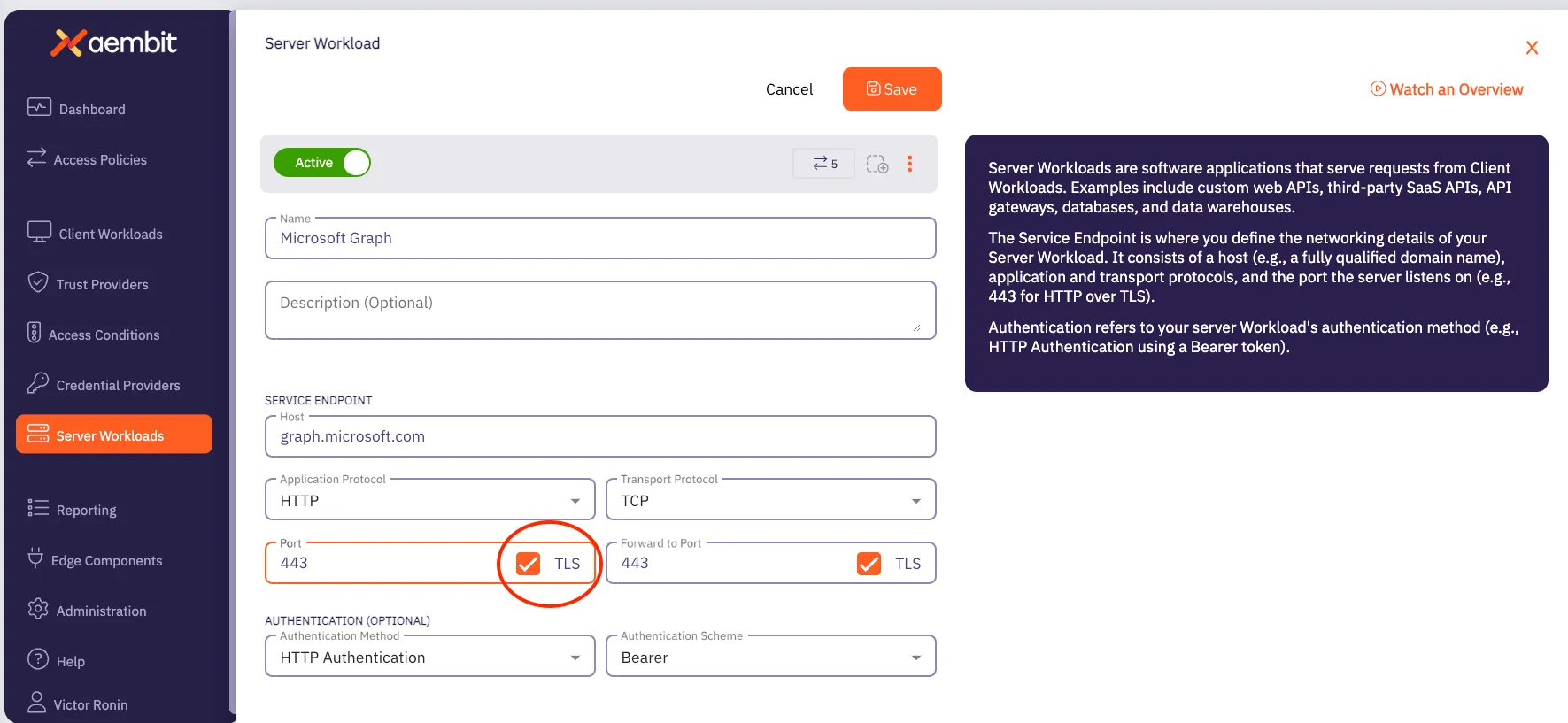 5. Click **Save**.
# Troubleshooting Server Workloads
> Diagnose and resolve common Server Workload integration issues
This guide helps you diagnose and resolve common issues when working with Server Workloads**Server Workload**: Server Workloads represent target services, APIs, databases, or applications that receive and respond to access requests from Client Workloads.[Learn more](/get-started/concepts/server-workloads). **Structure** - Each issue follows a Symptom → Diagnosis → Solution → Verification pattern to guide you through systematic troubleshooting. ## Universal issues [Section titled “Universal issues”](#universal-issues) These issues can affect any Server Workload integration, regardless of authentication method. ### Agent Controller not running or disconnected [Section titled “Agent Controller not running or disconnected”](#agent-controller-not-running-or-disconnected) **Symptom** - * Requests timeout or bypass Aembit entirely * Application uses placeholder credentials without replacement * No activity in Aembit logs **Diagnosis** - Check Agent Controller service status: **Linux (systemd)** - ```shell systemctl status aembit-agent-controller # Should show "active (running)" ``` **Windows** - ```powershell Get-Service "Aembit Agent Controller" # Should show Status: Running ``` **Docker/Kubernetes** - ```shell kubectl get pods -n aembit-system # Agent Controller pod should show STATUS: Running ``` Verify Agent Controller status in Aembit console: 1. Navigate to **Edge Components** > **Agent Controllers** 2. Find your Agent Controller 3. Check **Status**: Should show “Connected” (green indicator) **Solution** - If Agent Controller has stopped: ```shell # Linux sudo systemctl start aembit-agent-controller # Windows (PowerShell as Administrator) Start-Service "Aembit Agent Controller" # Kubernetes kubectl rollout restart deployment/aembit-agent-controller -n aembit-system ``` If connection status shows “Disconnected”: * Check Agent Controller logs for registration or connectivity errors * Verify the Agent Controller status in the Aembit console * Check network connectivity to the target service endpoint **Verification** - Retry your application’s request. It should succeed. Check Agent Proxy logs for credential injection: ```shell # Linux sudo journalctl --namespace aembit_agent_proxy -f # Look for: # "Request intercepted for server_workload=your-workload-name" # "Credentials injected successfully" ``` *** ### Network connectivity issues [Section titled “Network connectivity issues”](#network-connectivity-issues) **Symptom** - * Agent Proxy or application can’t reach target service or Aembit Cloud**Aembit Cloud**: Aembit Cloud serves as both the central control plane and management plane, making authorization decisions, evaluating policies, coordinating credential issuance, and providing administrative interfaces for configuration.[Learn more](/get-started/concepts/aembit-cloud) * Timeouts when attempting authentication * DNS resolution failures **Diagnosis** - Test connectivity to target service (example for Entra ID): ```shell curl -I "https://login.microsoftonline.com" # Should return HTTP 200 or 400 (confirms endpoint is reachable) ``` Check DNS resolution for target service: ```shell nslookup login.microsoftonline.com # Example for Entra ID # Should resolve to Microsoft IP addresses ``` Check firewall rules: * Verify firewall allows outbound HTTPS (port 443) to target service domain * Check network security groups (cloud environments) * Check corporate firewall rules (on-premises) **Solution** - Configure firewall to allow outbound HTTPS traffic: * Add target service domains (for example, `*.microsoftonline.com` for Entra ID, `api.github.com` for GitHub) If using a corporate HTTP proxy: ```shell # Set proxy environment variables for Agent Controller export HTTP_PROXY=http://proxy.company.com:8080 export HTTPS_PROXY=http://proxy.company.com:8080 # Restart Agent Controller to apply sudo systemctl restart aembit-agent-controller ``` If DNS resolution fails: * Verify DNS server configuration in `/etc/resolv.conf` (Linux) * Add custom DNS servers if needed * Check that corporate DNS can resolve public domains **Verification** - Retry the curl command to the target service. It should succeed: ```shell curl -I "https://target-service.com" # HTTP 200 or 400 (reachable) ``` Then retry the authentication request from your application. *** ### Agent Proxy not intercepting traffic [Section titled “Agent Proxy not intercepting traffic”](#agent-proxy-not-intercepting-traffic) **Symptom** - * Application makes requests but continues using placeholder credentials * Aembit logs show no activity * Requests reach target service with placeholder values (visible in service logs) **Diagnosis** - Verify Agent Controller configuration for traffic interception: ```shell # View Agent Controller configuration cat /etc/aembit/agent-controller/config.yaml # Linux # Or: C:\Program Files\Aembit\Agent Controller\config.yaml # Windows # Verify Server Workload is listed in configuration ``` Check Agent Proxy logs for interception activity: ```shell # Linux - view real-time logs sudo journalctl --namespace aembit_agent_proxy -f # Linux - search for credential-related entries sudo journalctl --namespace aembit_agent_proxy | grep -i "intercept\|credential" # Look for log entries like: # "Request intercepted for server_workload=your-workload-name" # "Credentials injected successfully" ``` **Common causes and solutions** - **1. Agent Controller using outdated configuration** **Fix** - Restart Agent Controller to reload configuration: ```shell sudo systemctl restart aembit-agent-controller # Linux # Or restart service in Windows Services ``` **2. Application not routing traffic through Agent Proxy** **Diagnosis** - Check application’s HTTP proxy environment variables: ```shell echo $HTTP_PROXY echo $HTTPS_PROXY # Should point to Agent Proxy (typically http://localhost:8080) ``` **Fix** - Set proxy environment variables before starting application: ```shell export HTTP_PROXY=http://localhost:8080 export HTTPS_PROXY=http://localhost:8080 your-application-start-command ``` **3. Application using system trust store but Aembit CA not installed** **Symptom** - SSL certificate verification errors in application logs **Diagnosis** - Check if Aembit CA certificate is in system trust store: ```shell # Linux ls /etc/pki/ca-trust/source/anchors/ | grep -i aembit # macOS security find-certificate -c "Aembit" /Library/Keychains/System.keychain ``` **Fix** - Install Aembit CA certificate. See [TLS Decrypt configuration](/user-guide/deploy-install/advanced-options/tls-decrypt/configure-tls-decrypt) for detailed instructions. **Verification** - After applying fixes, verify Agent Proxy intercepts requests: ```shell # Monitor Agent Proxy logs while running your application sudo journalctl --namespace aembit_agent_proxy -f # Linux # Trigger authentication request from your application # (Run your app or call token acquisition method) # Expected log output: # "Request intercepted for server_workload=your-workload-name" # "Credentials injected successfully" # "Response returned to application" ``` If you see these log entries, Agent Proxy is correctly intercepting requests. *** ### TLS Decrypt configuration issues [Section titled “TLS Decrypt configuration issues”](#tls-decrypt-configuration-issues) **Symptom** - * SSL certificate verification errors in application logs * `SSLError: certificate verify failed` * `CERT_UNTRUSTED` errors **Diagnosis** - Determine if your Server Workload requires TLS Decrypt: * Most Server Workloads require TLS Decrypt for intercepting HTTPS traffic * Not required for plain HTTP traffic Verify TLS Decrypt configuration in Aembit console: 1. Navigate to **Deploy & Install** > **Advanced Options** > **TLS Decrypt** 2. Verify you enabled TLS Decrypt for your Agent Controller 3. Verify Aembit generated the CA certificate Verify you installed the CA certificate on your system: ```shell # Linux - check system trust store ls /etc/pki/ca-trust/source/anchors/ | grep -i aembit # Or: ls /usr/local/share/ca-certificates/ | grep -i aembit # macOS - check keychain security find-certificate -c "Aembit" /Library/Keychains/System.keychain # Windows - check certificate store certutil -store Root | findstr Aembit ``` **Solution** - **Step 1** - Enable TLS Decrypt in Aembit console (if not already enabled): 1. Navigate to **Deploy & Install** > **Advanced Options** > **TLS Decrypt** 2. Click **Enable TLS Decrypt** 3. Download the generated CA certificate **Step 2** - Install CA certificate on your system: **Linux (CentOS/Red Hat Enterprise Linux)** - ```shell # Copy CA certificate to trust store sudo cp aembit-ca.crt /etc/pki/ca-trust/source/anchors/ # Update trust store sudo update-ca-trust ``` **Linux (Ubuntu/Debian)** - ```shell # Copy CA certificate to trust store sudo cp aembit-ca.crt /usr/local/share/ca-certificates/ # Update trust store sudo update-ca-certificates ``` **macOS** - ```shell # Add to system keychain sudo security add-trusted-cert -d -r trustRoot \ -k /Library/Keychains/System.keychain aembit-ca.crt ``` **Windows (PowerShell as Administrator)** - ```powershell # Import to Trusted Root Certification Authorities Import-Certificate -FilePath "aembit-ca.crt" -CertStoreLocation Cert:\LocalMachine\Root ``` **Step 3** - Restart application to use updated trust store. **Verification** - Retry the request that was failing with SSL errors. It should now succeed without certificate verification errors. Check application logs - no more `SSLError` or `CERT_UNTRUSTED` messages. *** ## OAuth-specific issues [Section titled “OAuth-specific issues”](#oauth-specific-issues) These issues apply to Server Workloads using OAuth authentication (Entra ID, Salesforce, GitHub OAuth, etc.). ### OAuth token request fails [Section titled “OAuth token request fails”](#oauth-token-request-fails) **Applies to** - Entra ID, Salesforce, GitHub (OAuth mode), Okta (OAuth mode) **Symptom** - * Token endpoint returns HTTP 400 Bad Request * Token endpoint returns HTTP 401 Unauthorized * Application logs show “invalid\_client” or “unauthorized\_client” errors **Diagnosis** - Check token endpoint configuration in Server Workload: 1. Navigate to **Workloads** > **Server Workloads** in Aembit console 2. Select your Server Workload 3. Verify **Token Endpoint** URL is correct: * Entra ID: `https://login.microsoftonline.com/{tenant}/oauth2/v2.0/token` * Salesforce: `https://{instance}.my.salesforce.com/services/oauth2/token` * GitHub: `https://github.com/login/oauth/access_token` Check Credential Provider**Credential Provider**: Credential Providers obtain the specific access credentials—such as API keys, OAuth tokens, or temporary cloud credentials—that Client Workloads need to authenticate to Server Workloads.[Learn more](/get-started/concepts/credential-providers) configuration: 1. Navigate to **Access Policies** > **Credential Providers** 2. Select the Credential Provider used by your Access Policy**Access Policy**: Access Policies define, enforce, and audit access between Client and Server Workloads by cryptographically verifying workload identity and contextual factors rather than relying on static secrets.[Learn more](/get-started/concepts/access-policies) 3. Verify **Client ID** matches the application registration in the OAuth provider 4. For Authorization Code flow, verify **Client Secret** is current Check Agent Proxy logs for specific error: ```shell sudo journalctl --namespace aembit_agent_proxy | grep -i "token\|oauth\|error" # Look for errors like: # "Token request failed: invalid_client" # "OAuth provider returned 401" ``` **Solution** - If token endpoint URL is incorrect: 1. Update Server Workload configuration with correct URL 2. Save changes 3. Restart Agent Controller: `sudo systemctl restart aembit-agent-controller` If Client ID or Secret is incorrect: 1. Verify credentials in OAuth provider (for example, Entra ID App Registration) 2. Update Credential Provider with correct values 3. Save changes 4. Test integration If using Entra ID and getting “invalid\_client”: * Verify the application registration exists and isn’t deleted * Check that the Directory (tenant) ID in token endpoint matches your Entra ID tenant * Verify you granted API permissions (see [Permission or Scope Errors](#permission-or-scope-errors)) **Verification** - Retry the token request. It should return HTTP 200 with an `access_token` in the response: ```shell # Check application logs for successful token acquisition # Expected: "Successfully received access token" # Response should contain: access_token, expires_in, token_type ``` *** ### Permission or scope errors [Section titled “Permission or scope errors”](#permission-or-scope-errors) **Applies to** - Entra ID, Salesforce, GitHub (OAuth mode) **Symptom** - * Token request succeeds (HTTP 200) * But API calls return HTTP 403 Forbidden * Error messages like “insufficient\_permissions” or “access\_denied” **Diagnosis** - Check granted scopes vs. required scopes: **Entra ID** - 1. Log in to Azure Portal 2. Navigate to **Azure Active Directory** > **App registrations** 3. Select your application 4. Click **API permissions** 5. Review granted permissions - verify the list includes all required permissions 6. Check **Status** column - should show green checkmark (administrator consent granted) **Salesforce** - 1. Log in to Salesforce 2. Navigate to **Setup** > **Apps** > **App Manager** 3. Find your connected app 4. Click **View** → **Manage Consumer Details** 5. Review **Selected OAuth Scopes** **GitHub** - 1. Log in to GitHub 2. Navigate to **Settings** > **Developer settings** > **GitHub Apps** 3. Select your app 4. Review **Permissions** section 5. Verify you selected the required permissions Check scope configuration in Aembit Server Workload: 1. Navigate to **Workloads** > **Server Workloads** 2. Select your Server Workload 3. Verify **Scopes** field contains the required scopes 4. Compare with API documentation for required scopes **Solution** - If permissions are missing in OAuth provider: 1. Add required permissions in the OAuth provider (Azure Portal, Salesforce, GitHub) 2. For Entra ID: Click **Grant administrator consent** after adding permissions 3. Test the integration again If scopes are incorrect in Server Workload: 1. Update **Scopes** field in Server Workload configuration 2. Save changes 3. Restart Agent Controller to reload configuration 4. Retry the request If using Entra ID `.default` scope: * Verify the target API application defines the permissions your app needs * If permissions are recently added, wait 5-10 minutes for Azure AD to propagate changes * Consider using specific scopes instead of `.default` for better visibility **Verification** - Retry authentication to the protected resource: ```shell # API call should now return HTTP 200-299 (success) # No more 403 Forbidden errors ``` Check OAuth provider logs (if available): * **Entra ID**: **Azure Active Directory** > **Sign-in logs** → Filter by Application ID → Verify successful sign-ins (Status: Success) * **GitHub**: Check app installation logs * **Salesforce**: **Setup** > **Event Monitoring** → Check API events *** ### API key issues [Section titled “API key issues”](#api-key-issues) These issues apply to Server Workloads using API Key authentication (Okta, Claude, OpenAI, etc.). ### Invalid API key errors [Section titled “Invalid API key errors”](#invalid-api-key-errors) **Applies to** - Okta, Claude, OpenAI, GitHub (API Key mode), Stripe, Box **Symptom** - * API returns HTTP 401 Unauthorized * Error messages like “Invalid API key” or “Authentication failed” * Application logs show authentication errors **Diagnosis** - Verify API key in Credential Provider is current and valid: 1. Navigate to **Access Policies** > **Credential Providers** in Aembit console 2. Select the Credential Provider used by your Access Policy 3. Review the API key value (Aembit may mask this value) Check if the target service expired or revoked the API key: **Okta** - 1. Log in to Okta Admin Console 2. Navigate to **Security** > **API** > **Tokens** 3. Verify your token appears in the list with Status “Active” 4. Check expiration date **OpenAI/Claude** - 1. Log in to provider dashboard 2. Navigate to API keys section 3. Verify key is active (not revoked) **GitHub** - 1. Navigate to **Settings** > **Developer settings** > **Personal access tokens** 2. Verify token is active and has required scopes Check Agent Proxy logs for specific error: ```shell sudo journalctl --namespace aembit_agent_proxy | grep -i "api.key\|401\|unauthorized" # Look for errors like: # "API request returned 401 Unauthorized" # "Invalid API key format" ``` **Solution** - If the API key expired or the service revoked it: 1. Generate a new API key in the target service (Okta, OpenAI, GitHub, etc.) 2. Copy the new API key 3. Update Credential Provider in Aembit console with new key 4. Save changes 5. Test the integration If API key format is incorrect: * **Okta**: Ensure format uses Single Sign-On Web Services (SSWS) like `SSWS {token}` (note the space after SSWS) * **OpenAI**: Ensure format is `sk-...` (starts with `sk-`) * **Claude**: Ensure format is `sk-ant-...` (starts with `sk-ant-`) * **GitHub**: Ensure format is `ghp_...` (classic) or `github_pat_...` (fine-grained) If header injection isn’t working: 1. Verify **Authentication Scheme** in Server Workload configuration: * Bearer: `Authorization: Bearer {api_key}` * Header: Custom header name like `X-API-Key: {api_key}` 2. Check **Header** field matches what the service expects 3. Verify you set **Authentication Method** to “API Key” or “HTTP Authentication” **Verification** - Retry the API request. It should return HTTP 200-299 (success): ```shell # Check application logs for successful API call # Expected: HTTP 200 response with valid data # No more 401 Unauthorized errors ``` Test with curl (for debugging): ```shell # This won't go through Aembit, but verifies the API key itself works curl -H "Authorization: Bearer YOUR_API_KEY" https://api.service.com/endpoint # Should return valid response ``` *** ## Database connection issues [Section titled “Database connection issues”](#database-connection-issues) These issues apply to Server Workloads using database authentication (MySQL, Postgres, Redis, etc.). ### Connection refused or timeout [Section titled “Connection refused or timeout”](#connection-refused-or-timeout) **Applies to** - MySQL, PostgreSQL, Redis, Snowflake **Symptom** - * Database connection fails with timeout * `Connection refused` errors * Can’t establish connection to database server **Diagnosis** - Check database server is running and accessible: **For cloud databases (AWS RDS, GCP Cloud SQL)** - ```shell # Test network connectivity nc -zv database.example.com 3306 # MySQL nc -zv database.example.com 5432 # PostgreSQL nc -zv database.example.com 6379 # Redis # Should show: Connection to database.example.com port XXXX succeeded ``` **For local databases** - ```shell # Check if database service is running systemctl status mysql # MySQL systemctl status postgresql # PostgreSQL systemctl status redis # Redis ``` Check firewall and security group rules: **AWS RDS** - 1. Navigate to RDS console 2. Select your database instance 3. Click **Connectivity & security** tab 4. Review **Security groups** - verify the rules allow your application’s IP or security group 5. Verify **Publicly accessible** setting matches your network topology **GCP Cloud SQL** - 1. Navigate to Cloud SQL console 2. Select your instance 3. Click **Connections** tab 4. Verify **Authorized networks** includes your application’s IP range **On-premises** - ```shell # Check firewall rules (Linux) sudo iptables -L | grep 3306 # MySQL sudo iptables -L | grep 5432 # PostgreSQL ``` Check Server Workload configuration: 1. Navigate to **Workloads** > **Server Workloads** in Aembit console 2. Verify **Host** matches database server hostname or IP 3. Verify **Port** is correct (3306 for MySQL, 5432 for Postgres, 6379 for Redis) **Solution** - If database service isn’t running: ```shell # Start database service sudo systemctl start mysql # MySQL sudo systemctl start postgresql # PostgreSQL sudo systemctl start redis # Redis ``` If security group blocks connection: 1. Add inbound rule allowing traffic from application’s IP or security group 2. For AWS RDS: Add rule for TCP port 3306 (MySQL) or 5432 (Postgres) or 6379 (Redis) 3. For on-premises: Update firewall rules to allow traffic If using private network: * Verify you configured Virtual Private Network (VPN) or Virtual Private Cloud (VPC) peering * Check route tables allow traffic between application and database subnets * Test connectivity from application server: `telnet database.example.com 3306` **Verification** - Retry the database connection from your application. It should succeed: ```shell # Test with database client mysql -h database.example.com -u username -p # MySQL (will prompt for password) psql -h database.example.com -U username # PostgreSQL # Connection should establish without timeout ``` Then verify application can connect through Aembit. *** ### Authentication failed [Section titled “Authentication failed”](#authentication-failed) **Applies to** - MySQL, PostgreSQL, Snowflake **Symptom** - * Connection reaches database but login fails * `Access denied for user` errors (MySQL) * `password authentication failed` errors (PostgreSQL) * Database connection timeout after authentication attempt **Diagnosis** - Check Credential Provider configuration in Aembit: 1. Navigate to **Access Policies** > **Credential Providers** 2. Select the Credential Provider for your database 3. Verify **Username** matches database user 4. Verify **Password** is correct 5. For AWS RDS with IAM authentication, verify IAM role and token generation Check database user permissions: **MySQL** - ```sql -- Connect as database admin mysql -u root -p -- Check if user exists SELECT User, Host FROM mysql.user WHERE User='your_username'; -- Check user permissions SHOW GRANTS FOR 'your_username'@'%'; ``` **PostgreSQL** - ```sql -- Connect as database admin psql -U postgres -- Check if user exists \du your_username -- Check database access \l -- Verify user has CONNECT privilege SELECT datname, datacl FROM pg_database WHERE datname='your_database'; ``` Check authentication method in database configuration: **MySQL** (`/etc/mysql/mysql.conf.d/mysqld.cnf`): ```ini # Verify authentication plugin default_authentication_plugin=mysql_native_password # or caching_sha2_password ``` **PostgreSQL** (`/var/lib/pgsql/data/pg_hba.conf`): ```plaintext # Verify connection allowed for your user # Example: host all your_username 0.0.0.0/0 md5 ``` **Solution** - If username or password is incorrect in Credential Provider: 1. Verify credentials by testing direct connection to database 2. Update Credential Provider with correct credentials 3. Save changes 4. Retry connection through Aembit If database user doesn’t exist: **MySQL** - ```sql -- Create user CREATE USER 'your_username'@'%' IDENTIFIED BY 'your_password'; -- Grant permissions GRANT ALL PRIVILEGES ON your_database.* TO 'your_username'@'%'; FLUSH PRIVILEGES; ``` **PostgreSQL** - ```sql -- Create user CREATE USER your_username WITH PASSWORD 'your_password'; -- Grant permissions GRANT ALL PRIVILEGES ON DATABASE your_database TO your_username; ``` If using AWS RDS IAM authentication: 1. Verify IAM policy allows `rds-db:connect` action 2. Verify you created the database user with IAM authentication: ```sql CREATE USER your_username IDENTIFIED WITH AWSAuthenticationPlugin AS 'RDS'; ``` 3. Verify you configured the Credential Provider for IAM authentication **Verification** - Retry database connection. It should succeed: ```shell # Application logs should show successful connection # Expected: "Database connection established" # No more "Access denied" or "authentication failed" errors ``` Test query execution: ```python cursor.execute("SELECT 1") result = cursor.fetchone() print(result) # Should print: (1,) ``` *** ## Next steps [Section titled “Next steps”](#next-steps) If you’re still experiencing issues after following these troubleshooting steps: 1. **Check service-specific guides**: See [Server Workload Guides](/user-guide/access-policies/server-workloads/guides/) for service-specific troubleshooting 2. **Review architecture**: See [Architecture Patterns](/user-guide/access-policies/server-workloads/architecture-patterns) to understand expected data flow 3. **Contact support**: Provide Agent Controller logs and specific error messages for faster resolution *** ## Related resources [Section titled “Related resources”](#related-resources) * **[Architecture Patterns](/user-guide/access-policies/server-workloads/architecture-patterns)** - Understanding data flow for each authentication method * **[Developer Integration Guide](/user-guide/access-policies/server-workloads/developer-integration)** - SDK integration and testing * **[Server Workload Guides](/user-guide/access-policies/server-workloads/guides/)** - Service-specific configuration * **[TLS Decrypt Configuration](/user-guide/deploy-install/advanced-options/tls-decrypt/configure-tls-decrypt)** - Detailed TLS setup * **[Agent Controller](/user-guide/deploy-install/about-agent-controller/)** - Understanding the Agent Controller
# Trust Providers
> This document provides a high-level description of Trust Providers
This section covers Trust Providers in Aembit, which Aembit uses to verify the identity of Client Workloads based on their infrastructure or identity context. To configure a new Trust Provider, follow the [Add a Trust Provider](/user-guide/access-policies/trust-providers/add-trust-provider) page and then review the appropriate Trust Provider details page from the following list: * [AWS Metadata Service](/user-guide/access-policies/trust-providers/aws-metadata-service-trust-provider) * [AWS Role](/user-guide/access-policies/trust-providers/aws-role-trust-provider) * [Azure Metadata Service](/user-guide/access-policies/trust-providers/azure-metadata-service-trust-provider) * [GCP Identity Token](/user-guide/access-policies/trust-providers/gcp-identity-token-trust-provider) * [GitHub](/user-guide/access-policies/trust-providers/github-trust-provider) * [GitLab](/user-guide/access-policies/trust-providers/gitlab-trust-provider) * [Kerberos](/user-guide/access-policies/trust-providers/kerberos-trust-provider) * [Kubernetes Service Account](/user-guide/access-policies/trust-providers/kubernetes-service-account-trust-provider) * [OIDC ID Token](/user-guide/access-policies/trust-providers/oidc-id-token-trust-provider) * [Terraform Cloud Identity Token](/user-guide/access-policies/trust-providers/terraform-cloud-identity-token-trust-provider)
# How to add a Trust Provider
> How to configure a Trust Provider for Client Workload identity attestation
Trust Providers enable Aembit to authenticate without provisioning credentials or other secrets. Trust Providers are third-party systems or services that can attest identities with identity documents, tokens, or other cryptographically signed evidence. Client Workload identity attestation is a core functionality to ensure only trusted Client Workloads can access the Server Workloads. ## Configure Trust Provider [Section titled “Configure Trust Provider”](#configure-trust-provider) If you are getting started with Aembit, configuring trust providers is optional; however, it is critical to secure all production deployments. 1. Click the **Trust Providers** tab. 2. Click **+ New** to create a new Trust Provider. 3. Give the Trust Provider a name and optional description. 4. Choose the appropriate Trust Provider type based on your Client Workloads’ environment. 5. Follow the instructions for the Trust Provider based on your selection. * [AWS Role Trust Provider](/user-guide/access-policies/trust-providers/aws-role-trust-provider) * [AWS Metadata Service Trust Provider](/user-guide/access-policies/trust-providers/aws-metadata-service-trust-provider) * [Azure Metadata Service trust provider](/user-guide/access-policies/trust-providers/azure-metadata-service-trust-provider) * [Kerberos trust provider](/user-guide/access-policies/trust-providers/kerberos-trust-provider) * [Kubernetes Service account trust provider](/user-guide/access-policies/trust-providers/kerberos-trust-provider) 6. Configure one or more **match rules** (specific to your Trust Provider type). 7) Click **Save**. ## Client Workload Identity Attestation [Section titled “Client Workload Identity Attestation”](#client-workload-identity-attestation) You must associate one or more Trust Providers with the existing Access Policy for Aembit to use Client Workload identity attestation. 1. Select an existing **Access Policy** to open the Access Policy Builder. 2. Click the **Trust Providers** card in the left panel. 3. Select the **Add New** tab to create a new Trust Provider, or select the **Select Existing** tab to choose from existing Trust Providers. 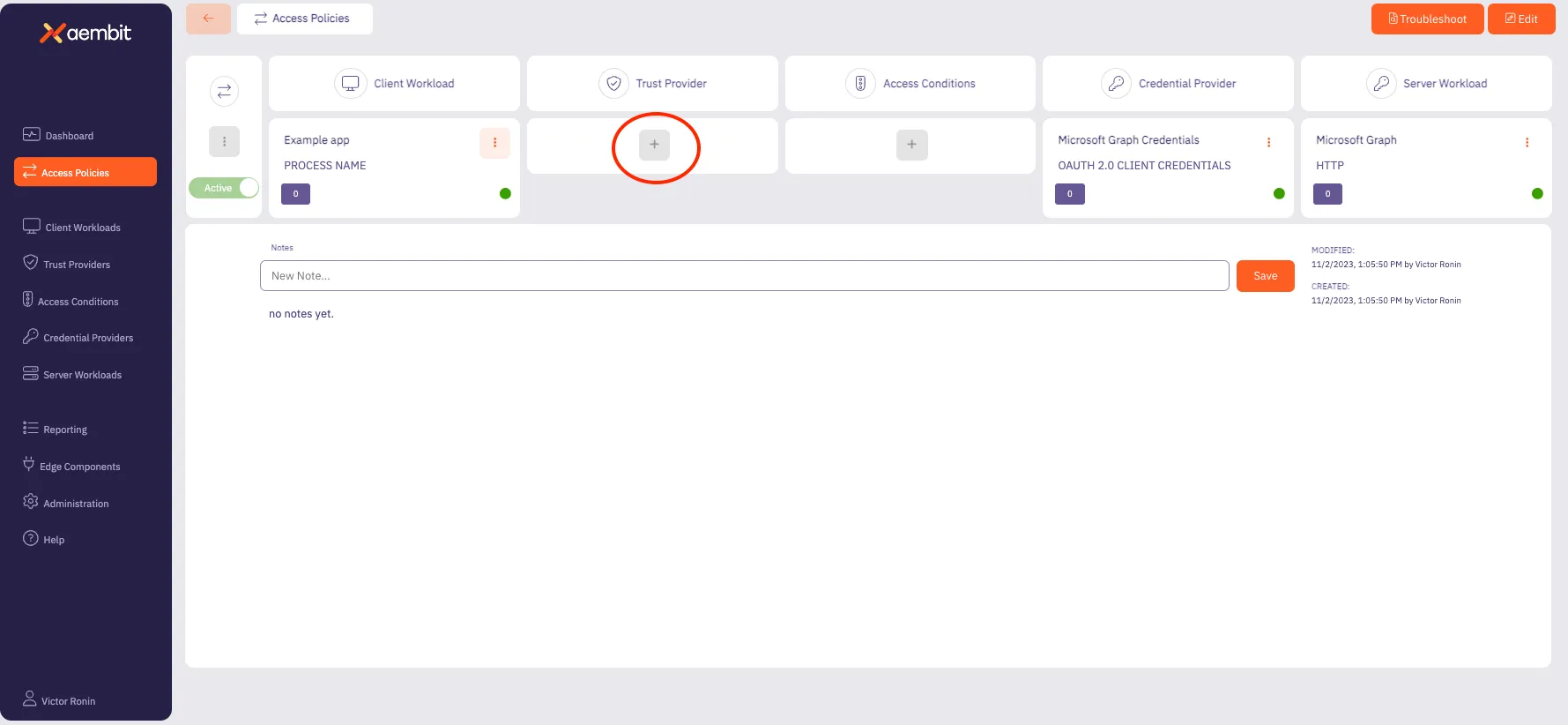 ## Agent Controller Identity Attestation [Section titled “Agent Controller Identity Attestation”](#agent-controller-identity-attestation) You must associate a Trust Provider with Agent Controller in order for Aembit to use Agent Controller for identity attestation. 1. Click the **Edge Components** tab. 2. Select one of the existing **Agent Controllers**. 3. Click **Edit**. 4. Choose from the dropdown one of the existing **Trust Providers**. 
# AWS Metadata Service trust provider
> This page describes the steps required to configure an AWS Metadata Service Trust Provider.
# The AWS Metadata Service Trust Provider supports attestation of Client Workloads and Agent Controller identities in [AWS](https://aws.amazon.com/) environments (running either directly on EC2 instances or on managed [AWS EKS](https://aws.amazon.com/eks/)). The AWS Metadata Service Trust Provider relies on the [AWS Metadata Service](https://docs.aws.amazon.com/AWSEC2/latest/UserGuide/ec2-instance-metadata.html) for instance identity document. ## Match rules [Section titled “Match rules”](#match-rules) The following match rules are available for this Trust Provider type: * accountId * architecture * availabilityZone * billingProducts * imageId * instanceId * instanceType * kernelId * marketplaceProductCodes * pendingTime * privateIP * region * version Please refer to the [AWS documentation](https://docs.aws.amazon.com/AWSEC2/latest/UserGuide/instance-identity-documents.html) for a detailed description of match rule fields available in the identity document. ## Additional configurations [Section titled “Additional configurations”](#additional-configurations) Aembit requires one of AWS’s public certificates to verify the identity document signature. Please download the certificate from the [AWS public certificate page](https://docs.aws.amazon.com/es_en/AWSEC2/latest/UserGuide/regions-certs.html) for the region where your Client Workloads are located. Please use certificates under the RSA tabs on the AWS documentation page and paste the appropriate certificate into **Certificate** field on the **Trust Provider** page.
# AWS Role Trust Provider
> This page describes the steps needed to configure the AWS Role Trust Provider.
# The AWS Role Trust Provider supports attestation within the AWS environment. Aembit Edge Components can currently be deployed in several AWS services that support AWS Role Trust Provider attestation: * EC2 instances with an attached IAM role * AWS Role instances * ECS Fargate containers * Lambda containers ## Match rules [Section titled “Match rules”](#match-rules) The following match rules are available for this Trust Provider type: * `accountId` * `assumedRole` * `roleArn` * `username` For a description of the match rule fields available in the AWS Role Trust Provider, please refer to the [AWS documentation](https://docs.aws.amazon.com/STS/latest/APIReference/API_GetCallerIdentity.html). ## AWS Role support [Section titled “AWS Role support”](#aws-role-support) Aembit supports AWS Role-Based Trust Providers by enabling you to create a new Trust Provider using the Aembit Tenant UI. Follow the steps below to create the AWS Role Trust Provider. 1. On the Trust Providers page, click on the **New** button to open the Trust Providers dialog window. 2. In the dialog window, enter the following information: * **Name** - The name of the Trust Provider * **Description** - An optional text description for the Trust Provider * **Trust Provider** - A drop-down menu that lists the different Trust Provider types 3. Select **AWS Role** from the Trust Provider drop-down menu. 4. Click on the **Match Rules** link to open an instance of the Match Rules drop-down menu. * If you use the `roleARN` value, make sure it is in the following format: `arn:aws:sts:::assumed-role//` * If you use the `username` value, make sure it is in the following format: `:` 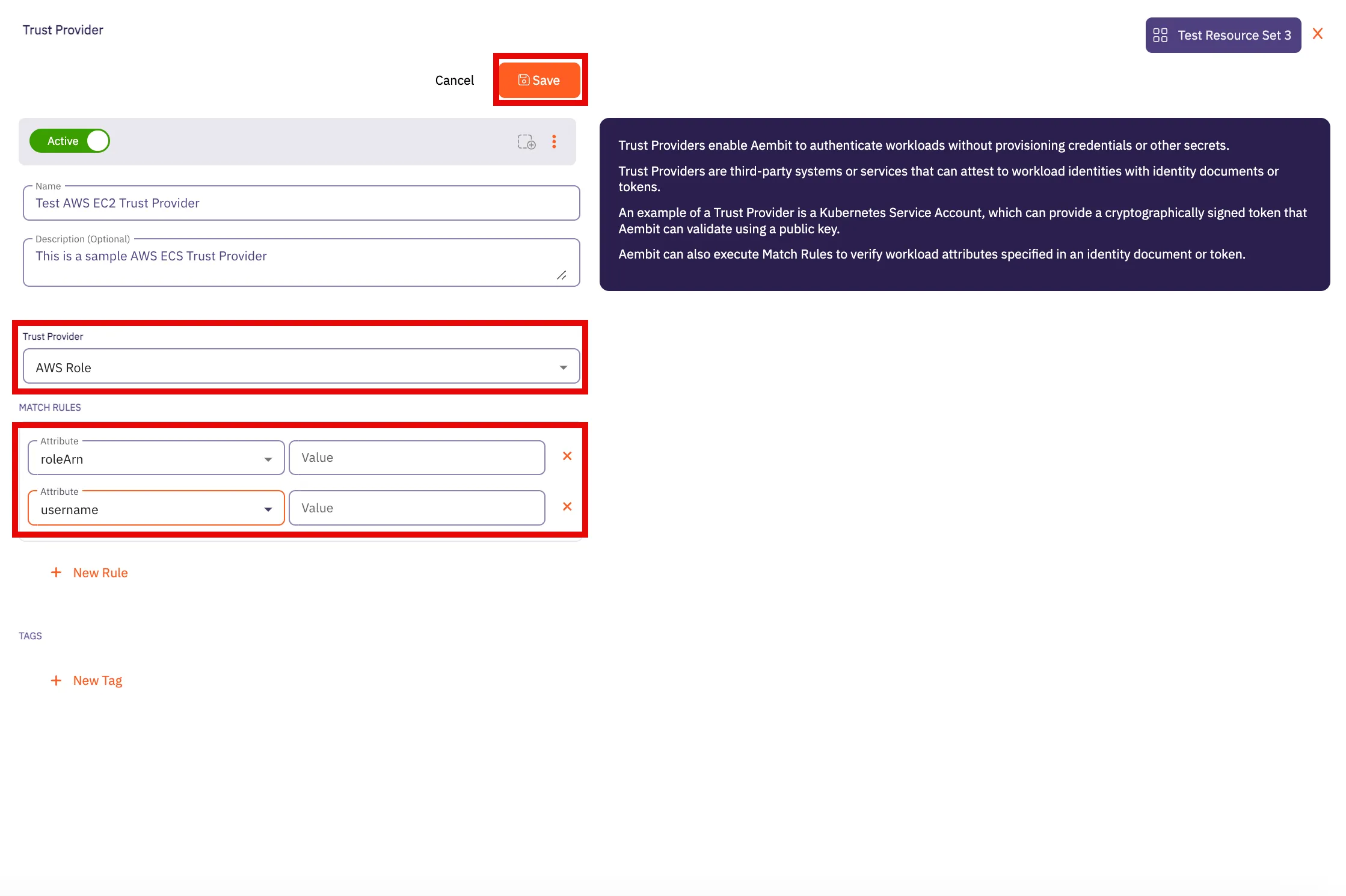 5. Click **Save** when finished. Your new EC2 Trust Provider will appear on the main Trust Providers page. ## ECS Fargate container support [Section titled “ECS Fargate container support”](#ecs-fargate-container-support) You must assign an AWS IAM role with `AmazonECSTaskExecutionRolePolicy` permission to your ECS tasks. 1. Check the existence of AWS IAM ecsTaskExecutionRole. Please refer to the [AWS documentation](https://docs.aws.amazon.com/AmazonECS/latest/developerguide/task_execution_IAM_role.html#procedure_check_execution_role) for more information. 2. Create AWS IAM `ecsTaskExecutionRole` if this is missing. Please refer to the [AWS documentation](https://docs.aws.amazon.com/AmazonECS/latest/developerguide/task_execution_IAM_role.html#create-task-execution-role) for more information. 3. Retrieve the ARN of `ecsTaskExecutionRole` role. This should look like `arn:aws:iam:::role/ecsTaskExecutionRole` 4. Assign this role in your ECS task definition by setting the task role and task execute role fields. 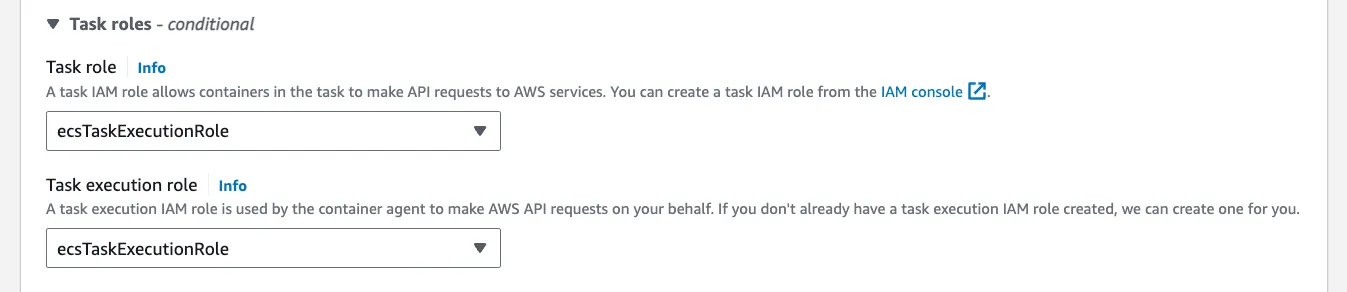 ## Lambda support [Section titled “Lambda support”](#lambda-support) If you are using this Trust Provider for attestation of workloads running in a Lambda environment, you may use the following match rules: * `accountId` * `roleArn` The Lambda **roleArn** is structured as follows: ```shell arn:aws:sts:::assumed-role// ```
# Azure Metadata Service trust provider
> This page describes the steps required to configure the Azure Metadata Service Trust Provider.
# The Azure Metadata Service Trust Provider supports attestation of Client Workloads and Agent Controller identities in an [Azure](https://azure.microsoft.com/) environment. The Azure Metadata Service Trust Provider relies on the [Azure Metadata Service](https://learn.microsoft.com/en-us/azure/virtual-machines/instance-metadata-service?tabs=linux) for instance identity document. ## Match rules [Section titled “Match rules”](#match-rules) The following match rules are available for this Trust Provider type: * sku * subscriptionId * vmId Please refer to the [Azure documentation](https://learn.microsoft.com/en-us/azure/virtual-machines/instance-metadata-service?tabs=linux#attested-data) for a detailed description of match rule fields available in the identity document.
# GCP Identity Token Trust Provider
> This page describes the steps required to configure the GCP Identity Token Trust Provider.
# The GCP Identity Token Trust Provider verifies the identities of workloads running within Google Cloud Platform (GCP) by validating identity tokens issued by GCP. These tokens carry metadata, such as the email associated with the service account or user executing the operation, ensuring secure and authenticated access to GCP resources. ## Match rules [Section titled “Match rules”](#match-rules) The following match rule is available for this Trust Provider type: | Data | Description | Example | | ----- | --------------------------------------------------------- | ------------------ | | email | The email associated with the GCP service account or user | | For additional information about GCP Identity Tokens, please refer to [Google Cloud Identity](https://cloud.google.com/docs/authentication/get-id-token) technical documentation.
# Find your Edge SDK Client ID
> How to find your Edge SDK Client ID
To find your Edge SDK Client ID, follow these steps: 1. Log in to your Aembit Tenant. 2. Go to the **Trust Providers** section in the left sidebar. 3. Select the Trust Provider you want to use for Edge API authentication. 4. In the **TRUST PROVIDER** section, find the **Edge SDK Client ID** field. 5. Copy the Edge SDK Client ID to use in your authentication requests. 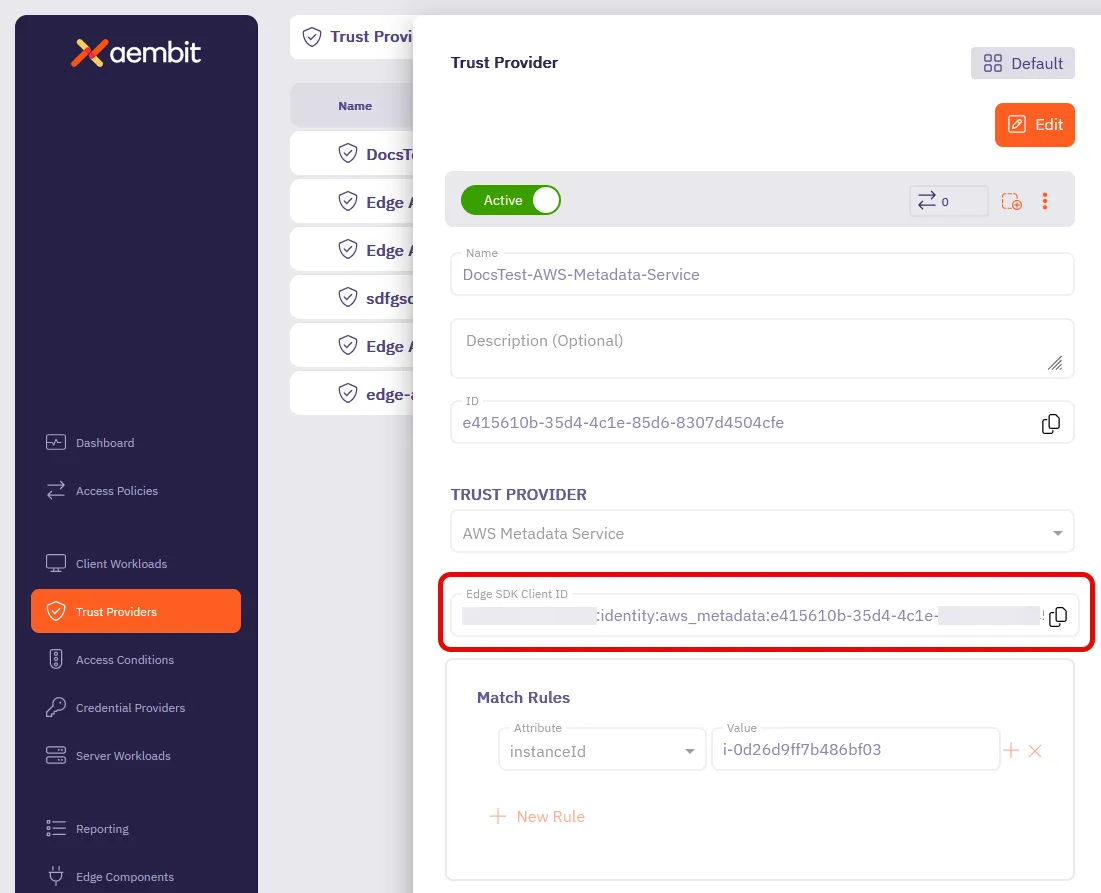
# GitHub Trust Provider
> This page outlines the steps required to configure the GitHub Trust Provider.
The GitHub Trust Provider supports attestation of Client Workloads identities in a [GitHub Actions](https://github.com/features/actions) environment. Enterprise Support Aembit supports GitHub Cloud but doesn’t support self-hosted GitHub Enterprise Server instances. The GitHub Trust Provider relies on OIDC (OpenID Connect) tokens issued by GitHub. These tokens contain verifiable information about the workflow, its origin, and the triggering actor. ## Match rules [Section titled “Match rules”](#match-rules) The following match rules are available for this Trust Provider type: | Data | Description | Example | | ---------- | ----------------------------------------------------------------------------------------------------------------------------------------------------------------------------------------------------------------------------------------------------------------------------------------------------------------------------------------------------------------------------------- | ------------------------------------------------------- | | actor | The GitHub account name that initiated the workflow run | user123 | | repository | The repository where the workflow is running. It can be in the format `{organization}/{repository}` for organization-owned repositories or `{account}/{repository}` for user-owned repositories. For additional information about [Repository Ownership](https://docs.github.com/en/repositories/creating-and-managing-repositories/about-repositories#about-repository-ownership). | * MyOrganization/test-project * user123/another-project | | workflow | The name of the GitHub Action workflow. For additional information about [Workflows](https://docs.github.com/en/actions/using-workflows/about-workflows). | build-and-test | For additional information about GitHub ID Token claims, please refer to [GitHub OIDC Token Documentation](https://docs.github.com/en/actions/deployment/security-hardening-your-deployments/about-security-hardening-with-openid-connect#understanding-the-oidc-token).
# Gitlab Trust Provider
> This page outlines the steps required to configure the Gitlab Trust Provider.
The Gitlab Trust Provider supports attestation of Client Workloads identities in a [Gitlab Jobs](https://docs.gitlab.com/ee/ci/jobs/) environment. Enterprise Support Aembit supports GitLab Cloud but doesn’t support self-hosted GitLab instances. The GitLab Trust Provider relies OIDC (OpenID Connect) tokens issued by GitLab. These tokens contain verifiable information about the job, its origin within the project, and the associated pipeline. ## Match rules [Section titled “Match rules”](#match-rules) The following match rules are available for this Trust Provider type: | Data | Description | Example | | --------------- | --------------------------------------------------------------------------------------------------------------------------------------------------------------------------------------------------------------------------------------------------------------------- | -------------------------------------------------------------------------------------------------------------------------------------- | | namespace\_path | The group or user namespace (by path) where the repository resides. | my-group | | project\_path | The repository from where the workflow is running, using the format `{group}/{project}` | my-group/my-project | | ref\_path | The fully qualified reference (branch or tag) that triggered the job. ([Introduced](https://gitlab.com/gitlab-org/gitlab/-/merge_requests/119075) in GitLab 16.0.) | * refs/heads/feature-branch-1 * refs/tags/v1.2.0 | | subject | The repository and Git reference from where the workflow is running. The format is `project_path:{group}/{project}:ref_type:{type}:ref:{branch_name}`, where `type` can be either `branch` (for a branch-triggered workflow) or `tag` (for a tag-triggered workflow). | - project\_path:my-group/my-project:ref\_type:branch:ref:feature-branch-1 - project\_path:my-group/my-project:ref\_type:tag:ref:v2.0.1 | For additional information about GitLab ID Token claims, please refer to [GitLab Token Payload](https://docs.gitlab.com/ee/ci/secrets/id_token_authentication.html#token-payload).
# Kerberos Trust Provider
> How to configure a Kerberos Trust Provider
The Kerberos Trust Provider enables the attestation of Client Workloads running on virtual machines (VMs) joined to Active Directory (AD). This attestation method is specifically designed for on-premise deployments where alternative attestation methods, such as AWS or Azure metadata service Trust Providers, aren’t available. This Trust Provider is unique because it relies on attestation provided by an Aembit component, rather than attestation from a third-party system. In this scenario, the Aembit Agent Controller acts as the attesting system. It authenticates a client (specifically, Agent Proxy) via Kerberos and attests to the client’s identity. The client’s identity information is then signed by the Aembit Agent Controller and validated by Aembit Cloud as part of the access policy evaluation process. ## Prerequisites [Section titled “Prerequisites”](#prerequisites) Many prerequisites are necessary, particularly regarding domain users and principals. This page outlines Aembit’s current recommendations for a secure and scalable deployment. Kerberos based attestation is available only for [Virtual Machine Deployments](/user-guide/deploy-install/virtual-machine/). ### Join your Edge Components to AD domain [Section titled “Join your Edge Components to AD domain”](#join-your-edge-components-to-ad-domain) * You must join Agent Controller VMs to AD before you install Agent Controller on them. * You must join Client Workload VMs to AD before installing Agent Proxy. ### Domain users and service principals [Section titled “Domain users and service principals”](#domain-users-and-service-principals) * You must create a user in AD named `aembit_ac` for Agent Controllers. This user doesn’t need any specific permissions in AD. * You must create a service principal for the Agent Controller under the `aembit_ac` AD user. * For testing purposes, create a service principal `HTTP/`. * For production purposes, see [High Availability](#high-availability). * Agent Controllers on Windows Server in high availability (HA) configurations, must set the `SERVICE_LOGON_ACCOUNT` environment variable to an AD user in [Down-Level Logon Name format](https://learn.microsoft.com/en-us/windows/win32/secauthn/user-name-formats#down-level-logon-name) (for example: `SERVICE_LOGON_ACCOUNT=\$`). ### Network access [Section titled “Network access”](#network-access) * Agent Controller VMs don’t need access to the Domain Controller. * Client Workload VMs must have access to the Domain Controller to acquire tickets. ### Keytabs [Section titled “Keytabs”](#keytabs) * Agent Controller * Agent Controller Linux VMs require a keytab file for the Agent Controller AD user. * You can place the keytab file on the VM before or after the Agent Controller installation. * The Agent Controller Linux user must have read/write permissions on the keytab file (`aembit_agent_controller`). If you place a keytab file before you install the Agent Controller, Aembit recommends creating a Linux group `aembit` and a Linux user `aembit_agent_controller`, and making this file accessible by this Linux user/group. * If your organization has mandatory AD password rotation, make sure you have a configuration in place for keytab renewal. See [Agent Controller keytab rotation](#agent-controller-keytab-rotation-for-high-availability-deployment) for more information. * Agent Proxy * The Agent Proxy on the Client Workload machine uses the host keytab file. * The Agent Proxy uses the [sAMAccountName](https://learn.microsoft.com/en-us/windows/win32/ad/naming-propertes#samaccountname) principal from the host keytab. * The host keytab can have Linux root:root ownership. ## Kerberos Trust Provider match rules [Section titled “Kerberos Trust Provider match rules”](#kerberos-trust-provider-match-rules) The Kerberos Trust Provider supports the following match rules: * Principal * Realm/Domain * Source IP :::warning Important When matching on Principal or Realm/Domain, see [Kerberos Principal formatting](#kerberos-principal-formatting) for guidance. ::: | Data | Description | Example | | --------- | ------------------------------------------------------ | ------------------------------ | | Principal | The Agent Proxy’s VM principal | `IP-172-31-35-14$@EXAMPLE.COM` | | Realm | The realm of the Client Workload VM principal | `EXAMPLE.COM` | | Domain | The NetBIOS domain of the Client Workload VM principal | `example` | | Source IP | The Network Source IP address of the Client request | `192.168.1.100` | ### Associated Agent Controllers [Section titled “Associated Agent Controllers”](#associated-agent-controllers) During the configuration of the Kerberos Trust Provider, you must specify the list of Agent Controllers responsible for providing attestation. Aembit trusts only the attestation information signed by specified Agent Controllers by a Kerberos Trust Provider entry. ### Kerberos Principal formatting [Section titled “Kerberos Principal formatting”](#kerberos-principal-formatting) Aembit supports Agent Controller on Windows VMs to improve management of the Aembit Edge Components. This is especially true for [Agent Controller high availability configurations](/user-guide/deploy-install/advanced-options/agent-controller/agent-controller-high-availability) that use Windows [Group Managed Service Accounts (gMSA)](https://learn.microsoft.com/en-us/windows-server/identity/ad-ds/manage/group-managed-service-accounts/group-managed-service-accounts/group-managed-service-accounts-overview) to manage multiple Agent Controllers. The challenge is that Windows and Linux systems treat AD differently, in that Linux treats it purely as Kerberos and Windows treats it natively like AD. This results in different naming and formatting for the Kerberos Principal value that Aembit uses in Kerberos tokens which it exchanges for AD authentication. The following table details all the combinations you can encounter based on the OS installed on Agent Controller and Agent Proxy: | OS combination | Principal format | | ------------------------------------------------------ | ----------------------------------------- | | **Linux** Agent Controller + **Linux** Agent Proxy | `@` | | **Linux** Agent Controller + **Windows** Agent Proxy | `@` | | **Windows** Agent Controller + **Linux** Agent Proxy | `\` | | **Windows** Agent Controller + **Windows** Agent Proxy | `\` | As part of the Kerberos Trust Provider attestation process and to address this challenge, Aembit Cloud automatically parses the attested Kerberos Principal value and *verifies either the realm or the domain* from the value for you. ## Enable Kerberos attestation [Section titled “Enable Kerberos attestation”](#enable-kerberos-attestation) By default, Aembit disables Kerberos attestation on both Agent Controller and Agent Proxy. Follow the applicable sections to enable Kerberos attestation on Aembit Edge Components: ### Agent Controller on Windows Server [Section titled “Agent Controller on Windows Server”](#agent-controller-on-windows-server) To enable Kerberos attestation for [Agent Controller on a Windows Server VM](/user-guide/deploy-install/virtual-machine/windows/agent-controller-install-windows), you must set the following environment variables: ```shell AEMBIT_KERBEROS_ATTESTATION_ENABLED=true SERVICE_LOGON_ACCOUNT=\$ ``` ### Agent Controller on Linux [Section titled “Agent Controller on Linux”](#agent-controller-on-linux) To enable Kerberos attestation for [Agent Controller on a Linux VM](/user-guide/deploy-install/virtual-machine/linux/agent-controller-install-linux), you must set the following environment variables: ```shell AEMBIT_KERBEROS_ATTESTATION_ENABLED=true KRB5_KTNAME= ``` ### Agent Proxy [Section titled “Agent Proxy”](#agent-proxy) Similarly, the Agent Proxy installer requires the following environment variable (in addition to the standard variables provided during [installation](/user-guide/deploy-install/virtual-machine/linux/agent-proxy-install-linux)): ```shell AEMBIT_KERBEROS_ATTESTATION_ENABLED=true AEMBIT_PRIVILEGED_KEYTAB=true ``` ## TLS [Section titled “TLS”](#tls) The contents of the communication between Agent Proxy and Agent Controller is sensitive. In a production deployment, you may configure Agent Controller TLS to secure communication between these two components using either a Customer’s PKI or Aembit’s PKI. Please see the following pages for more information on using a PKI in your configuration: * [Configure a Customer’s PKI Agent Controller TLS](/user-guide/deploy-install/advanced-options/agent-controller/configure-customer-pki-agent-controller-tls) * [Configure Aembit’s PKI Agent Controller TLS](/user-guide/deploy-install/advanced-options/agent-controller/configure-aembit-pki-agent-controller-tls) ## High availability [Section titled “High availability”](#high-availability) Given the critical role of attestation in evaluating an Access Policy, Aembit strongly encourages configuring multiple Agent Controllers in a high availability architecture. To learn how, see [Agent Controller High Availability](/user-guide/deploy-install/advanced-options/agent-controller/agent-controller-high-availability). The following are the additional steps you must perform for Kerberos attestation to work in a highly available configuration: * You don’t need to join the load balancer to your domain. * You must create a service principal `HTTP/` under the Aembit Agent Controller Active Directory user. * You don’t need to create principals for individual Agent Controller VMs. * You must place the keytab for the Agent Controller AD user (including the load-balancer service principal) on all Agent Controller VMs. * If you operate multiple Agent Controller clusters running behind one or more load balancers, you must add each load balancer FQDN as the service principal under Agent Controller AD account. ## Agent Controller keytab rotation for high availability deployment [Section titled “Agent Controller keytab rotation for high availability deployment”](#agent-controller-keytab-rotation-for-high-availability-deployment) Standard best practice recommends the periodic rotation of all keytabs. Considering that Aembit shares the keytab representing an Agent Controller’s identity across multiple Agent Controller machines, the common method of keytab rotation on Linux (using SSSD) isn’t feasible. Your organization must have a centrally orchestrated keytab rotation, where the Agent Controller AD user keytab is rotated centrally and then pushed to all Agent Controller Virtual Machines. Note that the entity performing the keytab rotation needs the appropriate permissions in AD to change the Agent Controller password during new-keytab creation.
# Kubernetes Service Account trust provider
> This page describes the steps required to configure the Kubernetes Service Account Trust Provider.
# The Kubernetes Service Account Trust Provider supports attestation of Client Workloads and Agent Controller identities in a Kubernetes environment (either self-hosted or managed by cloud providers - [AWS EKS](https://aws.amazon.com/eks/), [Azure AKS](https://azure.microsoft.com/en-us/products/kubernetes-service), [GCP GKE](https://cloud.google.com/kubernetes-engine?hl=en)). ## Match rules [Section titled “Match rules”](#match-rules) The following match rules are available for this Trust Provider type: * iss * kubernetes.io { namespace } * kubernetes.io { pod { name } } * kubernetes.io { serviceaccount { name } } * sub | Data | Description | Example | | ----------------------------------------- | ----------------------------- | ---------------------------------------------- | | iss | Kubernetes Cluster Issuer URL | | | kubernetes.io { namespace } | Pod namespace | default | | kubernetes.io { pod { name } } | Pod name | example-app | | kubernetes.io { serviceaccount { name } } | Service Account name | default | | sub | Service Account token subject | system:serviceaccount:default:default | ## Additional configurations [Section titled “Additional configurations”](#additional-configurations) Aembit requires a Kubernetes cluster public key to validate the Service Account token used by this trusted provider. The majority of cloud providers expose an OIDC endpoint that enables automatic retrieval of the Kubernetes cluster public key. ### AWS EKS [Section titled “AWS EKS”](#aws-eks) * Ensure your AWS CLI is installed, configured, and authenticated. * Execute the following command: ```shell aws eks describe-cluster --name \ --query "cluster.identity.oidc.issuer" --output text ``` * Paste the response in **OIDC Endpoint** field. ### GCP GKE [Section titled “GCP GKE”](#gcp-gke) * Ensure your GCP CLI is installed, configured, and authenticated. * Execute the following command: ```shell gcloud container clusters describe \ --region=\ --format="value(selfLink)" ``` * Paste the response in **OIDC Endpoint** field. ## Azure AKS [Section titled “Azure AKS”](#azure-aks) * Ensure your Azure CLI is installed, configured, and authenticated. * Execute the following command: ```shell az aks show --resource-group \ --name \ --query "oidcIssuerProfile.issuerUrl" -o tsv ``` * Paste the response in **OIDC Endpoint** field.
# OIDC ID Token Trust Provider
> How to configure an OIDC ID Token Trust Provider
The OIDC ID Token Trust Provider is Aembit’s solution for authenticating workloads using standard OIDC ID tokens. It validates incoming tokens against specific issuer, audience, and subject claims, giving you maximum flexibility to integrate with virtually any OIDC-compliant identity provider for secure, token-based workload access. ## Benefits [Section titled “Benefits”](#benefits) By supporting the open OIDC standard, Aembit provides you with maximum flexibility and the following benefits: **Support for Any OIDC Provider** - Connect to any identity provider compliant with the OIDC standard. **Reduced Static Credentials** - Replace static credentials with short-lived OIDC tokens for more workloads. **Standardized Integration** - Avoid custom development for new tools that support OIDC. **Simplified Operations** - Apply a single authentication pattern for all OIDC-enabled workloads. ## Match rules [Section titled “Match rules”](#match-rules) The following table describes the match rules available for the OIDC ID Token Trust Provider: | Rule\Claim | Description | | ---------------- | ---------------------------------------------------------------------------------------------------------------------------------------------------------------------------------------------------------------------------------------------------- | | Audience (`aud`) | Identifies who the token is **for**. It specifies the intended recipient, ensuring a token created for one purpose isn’t misused for another. This helps prevent token replay attacks. *Example*: `aembit-prod-api-access` | | Issuer (`iss`) | Identifies who **issued** the token. It’s the URL of the identity provider system (such as Okta, GitLab, Jenkins) that you are trusting. This verifies the token came from the correct source. *Example*: `https://identity-provider.my-company.com` | | Subject (`sub`) | Identifies **what or who** the token is about. It’s a unique, case-sensitive string that represents the specific principal (a workload, service, or service account) Aembit is to authenticate. *Example*: `workload-id-98765` or `user-id-xyz-123` | ## Attestation methods [Section titled “Attestation methods”](#attestation-methods) The following table describes the attestation methods available for the OIDC ID Token Trust Provider: | Attestation Method | Description | | ------------------ | ------------------------------------------------------------------------------------------------------------------------------------------------------------------------------------------------------------------------------------------------------------------------------------------------------------------------------------------------------------------------------- | | OIDC Discovery | Aembit uses this address to automatically find the provider’s configuration and locate its public keys. Use this for standard OIDC providers where you want to simplify configuration to a single URL. You must enter the main URL of the identity provider (like `https://gitlab.com`). | | Symmetric Key | A single shared secret key. Your OIDC provider uses this key to sign tokens, and Aembit uses the same key to validate them. Symmetric algorithms like HS256 use this method. Use this attestation method for closed systems or legacy services where using a shared secret is preferred over public key cryptography. You must enter a shared secret key that’s Base64 encoded. | | Upload JWKS | This is a static, point-in-time snapshot of your provider’s JSON Web Key Set (JWKS), which contains their public signing keys. Use this for any provider that exposes a public JWKS endpoint. This is what enables automatic key rotation for you. You must paste the entire JSON content of the provider’s JWKS into this field. | | Upload Public Key | Your provider’s public key file (such as `.pem` or `.cer`). Use this for providers in private or air-gapped networks that don’t expose a public JWKS endpoint. You must paste the text content of a single public key, typically in PEM format. The Thumbprint is a unique, short identifier for that key that Aembit automatically calculates and displays for verification. | ## How the OIDC ID Token Trust Provider works [Section titled “How the OIDC ID Token Trust Provider works”](#how-the-oidc-id-token-trust-provider-works) The authentication process involves a clear sequence of actions performed by your workload and by Aembit. 1. First, your workload requests an OIDC ID token from its identity provider (such as GitLab, Jenkins). The workload then presents this token to Aembit to prove its identity. 2. Next, Aembit validates the token’s signature. Using the configured Attestation Method, Aembit retrieves the provider’s public key and verifies that the signature is authentic. If the signature is invalid, Aembit rejects the request. 3. If the signature is valid, Aembit then validates the token’s claims. Aembit compares the issuer, audience, and subject claims within the token against the Match Rules you configured. 4. If the signature and all claims are valid, Aembit authenticates the workload and applies the relevant access policies. If any check fails, Aembit denies the request.
# Terraform Cloud Identity Token Trust Provider
> This page describes the steps required to configure the Terraform Cloud Identity Token Trust Provider.
# The Terraform Cloud Identity Token Trust Provider verifies the identities of Client Workloads within Terraform Cloud using identity tokens. These tokens include metadata such as organization, project, and workspace details, ensuring secure and authenticated access to resources. ## Match rules [Section titled “Match rules”](#match-rules) The following match rules are available for this Trust Provider type: | Data | Description | Example | | --------------------------- | ------------------------------------------------------------------------------------- | ------------------- | | terraform\_organization\_id | The Terraform organization that is executing the run. | org-abcdefghijklmno | | terraform\_project\_id | The specific project within the Terraform organization that is running the operation. | prj-abcdefghijklmno | | terraform\_workspace\_id | The ID associated with the Terraform workspace where the run is being conducted. | ws-abcdefghijklmno | For additional information about Terraform Cloud Identity Token, please refer to [Terraform Workload Identity](https://developer.hashicorp.com/terraform/cloud-docs/workspaces/dynamic-provider-credentials/workload-identity-tokens).
# Administering Aembit
> This page describes steps for troubleshooting authentication issues from Client Workloads to Server Workloads
This section covers the administration features of Aembit, which allow you to manage your Aembit Tenant, users, roles, resource sets, and other administrative functions. The following pages provide information about administration features in Aembit: * [Admin Dashboard](/user-guide/administration/admin-dashboard) * [Users](/user-guide/administration/users) * [Roles](/user-guide/administration/roles) * [Resource Sets](/user-guide/administration/resource-sets) * [Sign-On Policy](/user-guide/administration/sign-on-policy) * [Identity Providers](/user-guide/administration/identity-providers) * [Log Streams](/user-guide/administration/log-streams) * [Discovery](/user-guide/administration/discovery)
# Admin dashboard overview
> This page describes the different views and dashboards on the Aembit Admin Dashboard
When logging into your Aembit Tenant, you are immediately shown the Admin dashboard, which displays detailed workload and operational information. Whether you want to see the number of Client Workloads requesting access to Server Workloads over the last 24 hours, or view the number of credentials requests recorded over a 24-hour period for a specific usage type, the Admin Dashboard provides you quick access to these views so you can glean insight into your Aembit environment’s performance. ## The Admin Dashboard [Section titled “The Admin Dashboard”](#the-admin-dashboard) To view the Admin Dashboard. 1. Log into your Aembit Tenant with your user credentials. 2. Once you are logged in, you are directed to the Admin Dashboard, where you see data displayed in various panels. 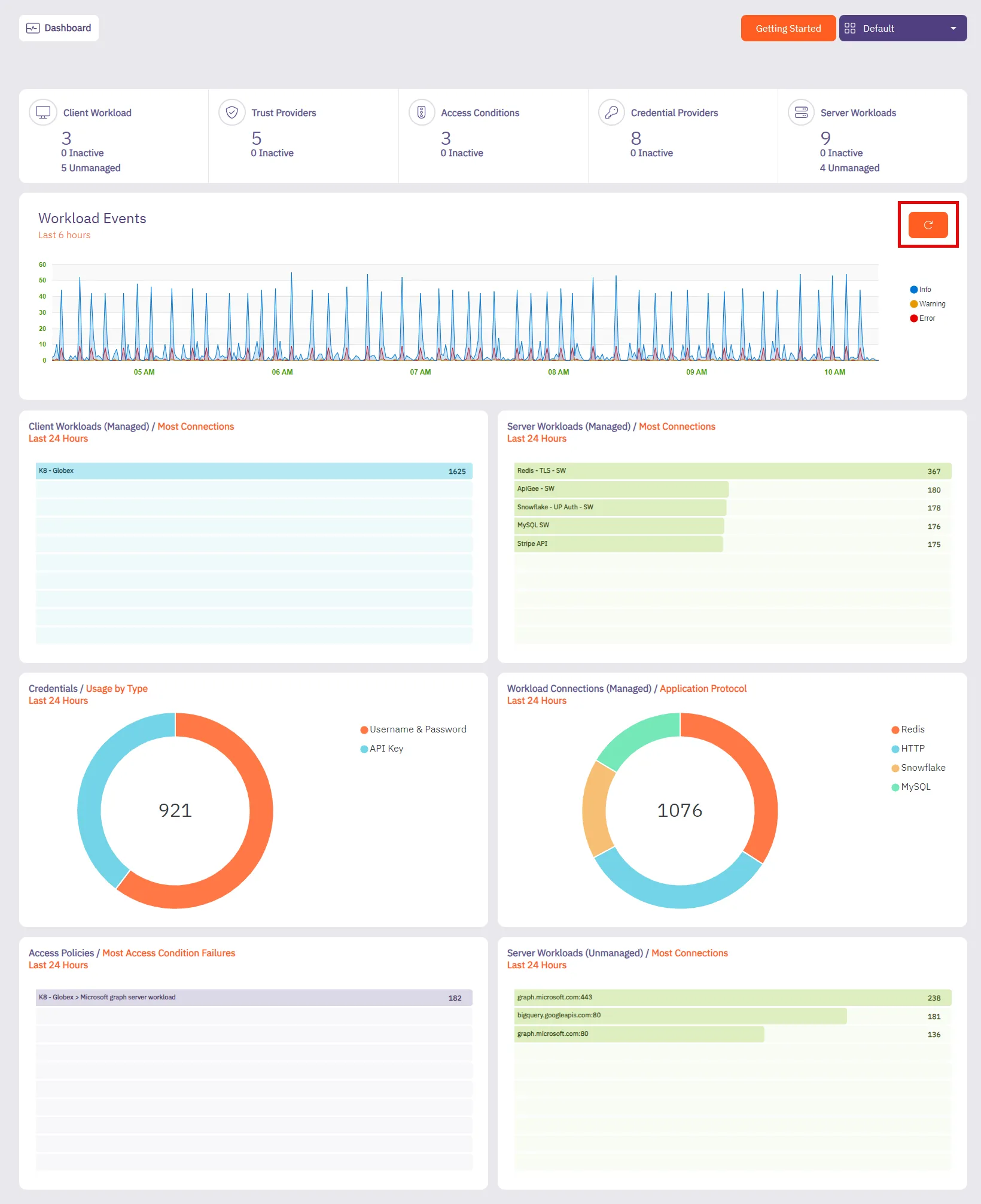 You should see the following tiles: * Summary * Workload Events * Client Workloads (Managed) * Server Workloads (Managed) * Credentials (Usage By Type) * Workload Connections (Managed) * Access Conditions (Most Access Conditions Failures) ### Summary + Workload Events [Section titled “Summary + Workload Events”](#summary--workload-events) #### Summary [Section titled “Summary”](#summary) The **Summary** panel displays the number of configured workloads and entities in your Aembit environment, including the number of entities that are currently inactive. * Client Workloads * Trust Providers * Access Conditions * Credential Providers * Server Workloads 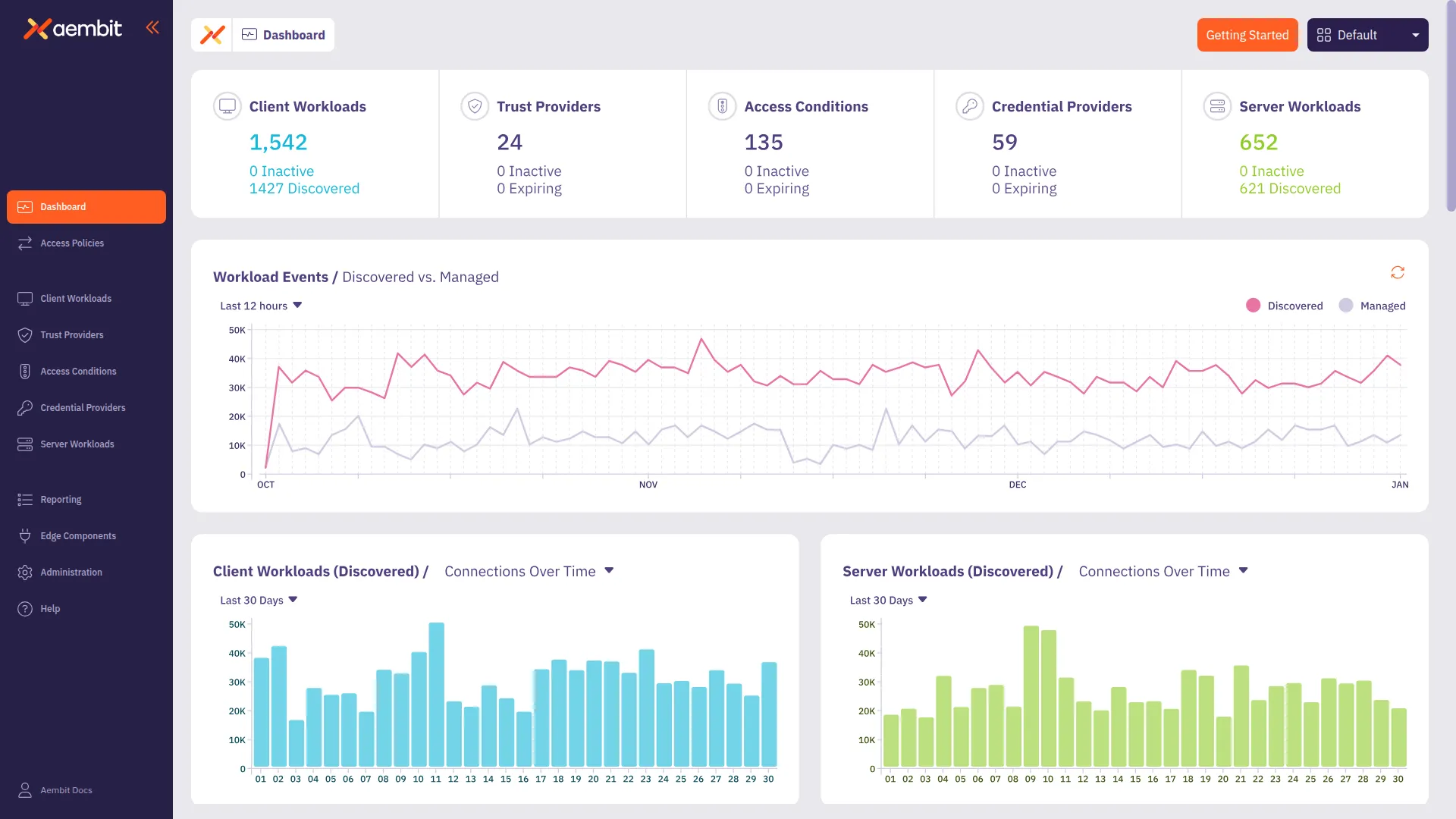 :::note When you click on one of these panels, the **Summary** tab opens the dashboard page for that resource with a list of existing configurations. ::: #### Workload Events [Section titled “Workload Events”](#workload-events) The **Workload Events** panel displays the number of Workload Events recorded over the last 6 hours. This historical data can be very useful in measuring how many workload events occurred over a set period of time. With this data, you can optimize your Aembit environment; this includes the workload event severity so users can quickly identify connectivity issues.  If you select the **Refresh** button, you can refresh the results to view newly received events, enabling you to view the latest event records and make any necessary changes if needed to ensure your Aembit environment is operating efficiently. ### Client Workloads (Managed) [Section titled “Client Workloads (Managed)”](#client-workloads-managed) The **Client Workloads (Managed)** panel displays the number of managed Client Workloads that attempted to access Server Workloads over the last 24 hours, sorted from top to bottom based on the number of Client Workload connections. This information can be helpful in determining which Client Workloads are accessing Server Workloads in your Aembit environment and identifying the most active Client Workloads. 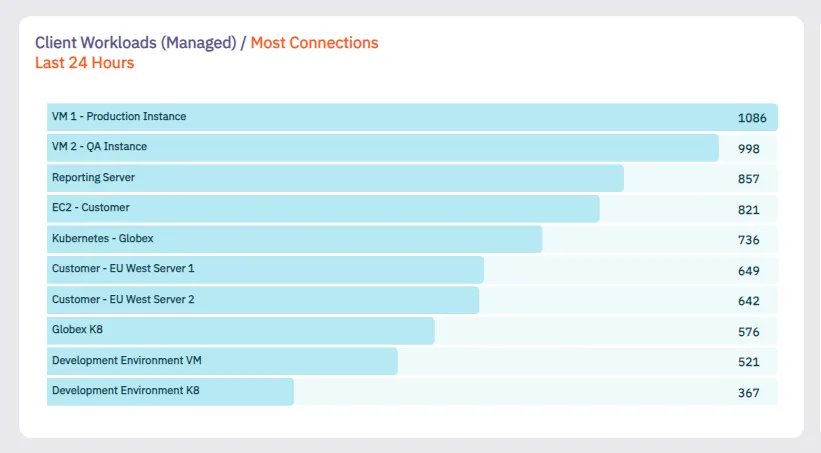 ### Server Workloads (Managed) [Section titled “Server Workloads (Managed)”](#server-workloads-managed) The **Server Workloads (Managed)** panel displays the number of managed Server Workload connections that were recorded over the last 24 hours, sorted from top to bottom based on the number of requests received for the Server Workload. This information can be helpful in determining which Server Workloads are being accessed in your Aembit environment and identifying the most active Server Workloads. 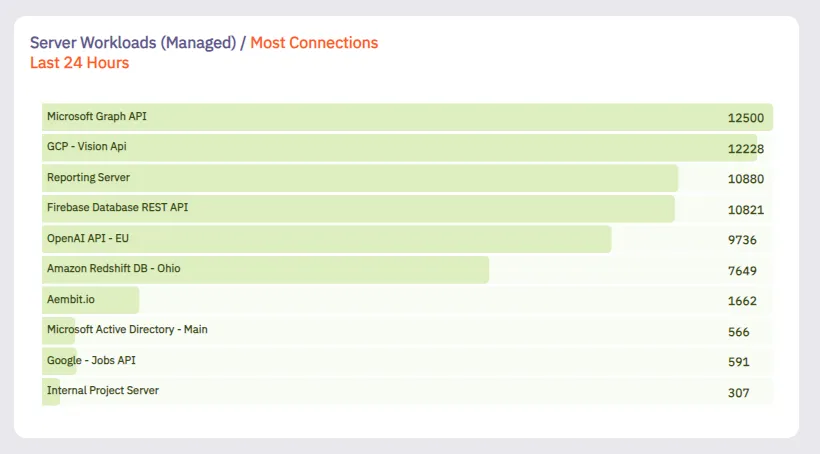 ### Credential (Usage By Type) [Section titled “Credential (Usage By Type)”](#credential-usage-by-type) The **Credential (Usage By Type)** panel displays a pie chart showing the total number of credential types that were issued in the past 24 hours. This information can be helpful in determining which credential types are most frequently being used. Aembit encourages the use of short-lived credentials wherever possible. By identifying the usage level of different credential types, this chart can be helpful when transitioning from long-lived to short-lived credentials. 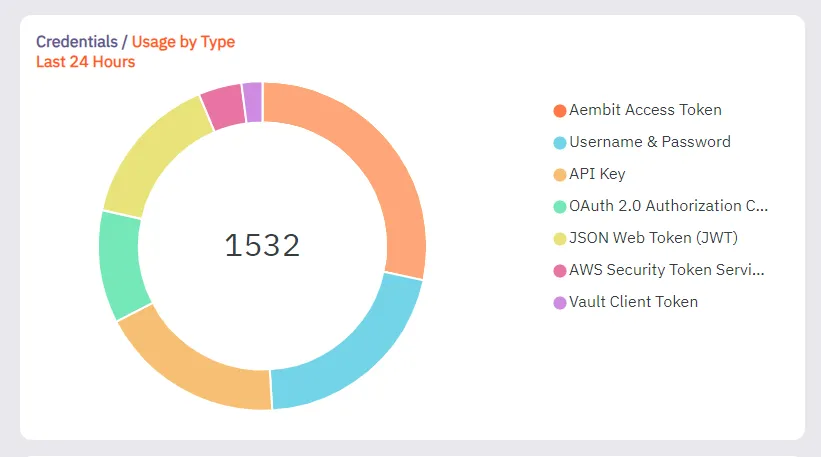 ### Workload Connections (Managed) / Application Protocol [Section titled “Workload Connections (Managed) / Application Protocol”](#workload-connections-managed--application-protocol) The **Workload Connections** panel displays the number of managed Workload Connections that were recorded over the last 24 hours, sorted from top to bottom based on the type of application protocol used in the request. 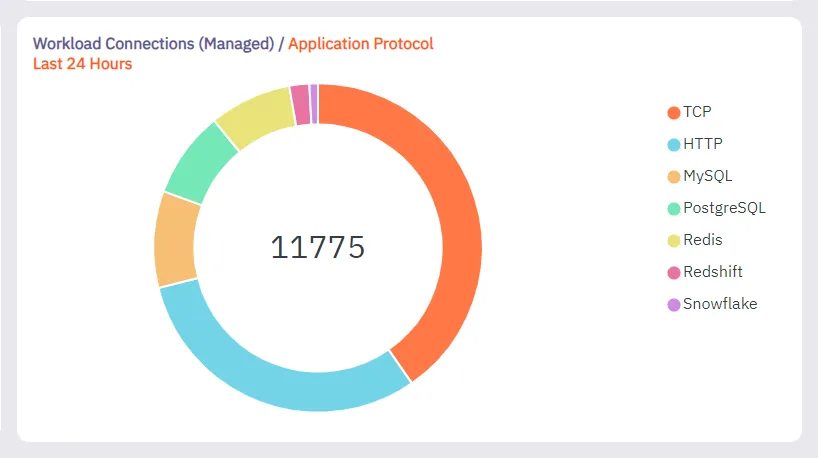 ### Access Policies (Most Access Condition Failures) [Section titled “Access Policies (Most Access Condition Failures)”](#access-policies-most-access-condition-failures) The **Access Policies (Most Access Condition Failures)** panel displays the number of Access Condition failures based on Access Policies. In this chart, you can see that Aembit was able to identify Client Workloads and Server Workloads on Access Policies, but the Access Condition fails and these workloads can therefore not be attested, enabling you to identify how many attestations are failing because of Access Conditions. In the example shown below, notice that for the VM1 - Production Instance, the most Access Condition failures occurred for Microsoft Graph API and Redshift DB - Ohio. 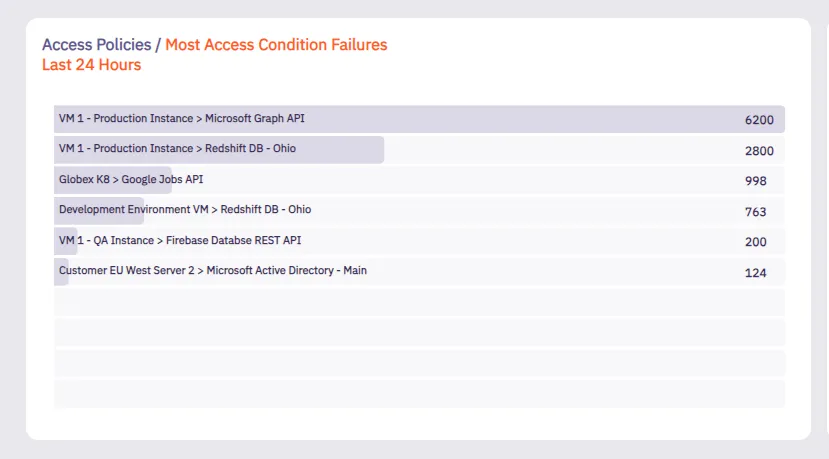
# Discovery overview
**Discovery** serves as the central control board for managing integrations related to the [Discovery](/user-guide/discovery/) process. Once you’ve contacted Aembit to enable Discovery in your Aembit Tenant, you can configure an integration to find workloads in your environment. Once you configure an integration, Aembit uses it to discover workloads. After discovering your workloads, Aembit displays them in either the **Client Workload** or **Server Workload** tab as **Discovered**. For detailed instructions on managing discovered workloads, refer to [Interacting with Discovered Workloads](/user-guide/discovery/managing-discovered-workloads). ## Using the discovery tab [Section titled “Using the discovery tab”](#using-the-discovery-tab) On the **Discovery tab** page, the **New** option appears in the top-right corner. Clicking **New** allows you to create and configure new integrations. 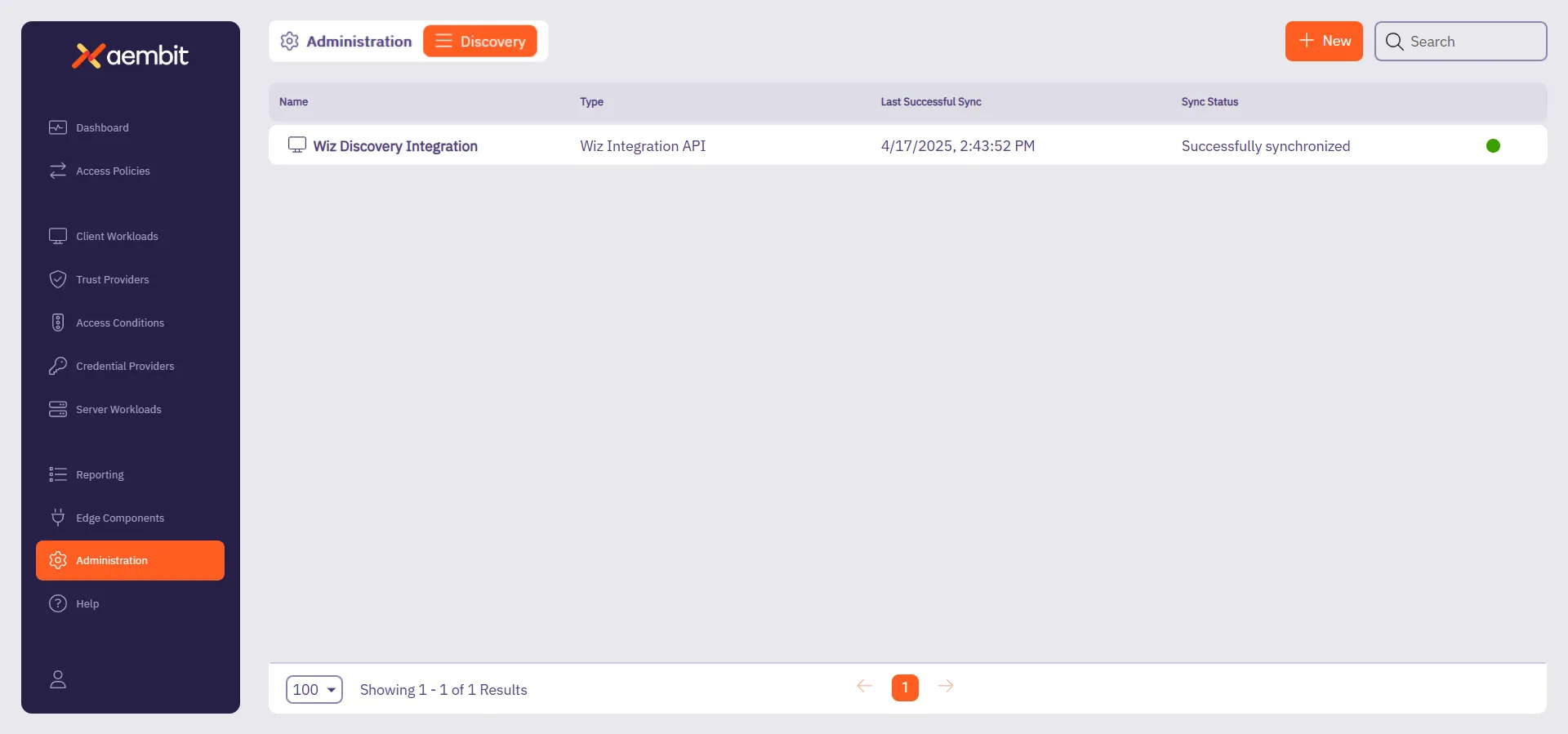 Following that, Aembit displays the **Integrations** list which lists existing integrations in a table. Each row in the table shows key details such as: * **Name** - The name of the integration. * **Type** - The type of integration. * **Last Successful Sync** - The date and time of the last successful synchronization. * **Sync Status** - Indicates the synchronization status. To interact with an integration, you can either: * Hover over the row in the **Integrations List**, where a three-dotted icon appear on the right end of the row. Clicking this icon opens a menu where you can: * **View details** - See more information about the integration. * **Edit** - Modify the integration’s configuration. * **Delete** - Remove the integration. * **Change active status** - Activate or deactivate the integration. * Or, you can click directly on the integration row, which opens a **details page** where they can view, edit, or delete the integration. Additionally, you can hover over the **Name** column to see the **ID** of the integration, which they can copy for reference. ## Related resources [Section titled “Related resources”](#related-resources) For more information about Discovery, see the following related pages: * [Discovery Overview](/user-guide/discovery/) - Learn about the Discovery feature in Aembit * [Managing Discovered Workloads](/user-guide/discovery/managing-discovered-workloads) - Learn how to work with discovered workloads * [Discovery Sources](/user-guide/discovery/sources/) - Learn about the different Discovery Sources available in Aembit
# Create a Wiz Discovery Integration
> How to create a Wiz Discovery Integration
This page describes how to create a new Wiz integration for [Discovery](/user-guide/discovery/). ## Prerequisites [Section titled “Prerequisites”](#prerequisites) Before you begin, you must have access to the following: * **Wiz Account** - You should have a **Wiz account**. ## Set up a service account in Wiz [Section titled “Set up a service account in Wiz”](#set-up-a-service-account-in-wiz) 1. Sign in to your **Wiz account**. 2. Go to **Settings -> Integrations**. 3. Click **+ Add Integration** in the top-right corner. 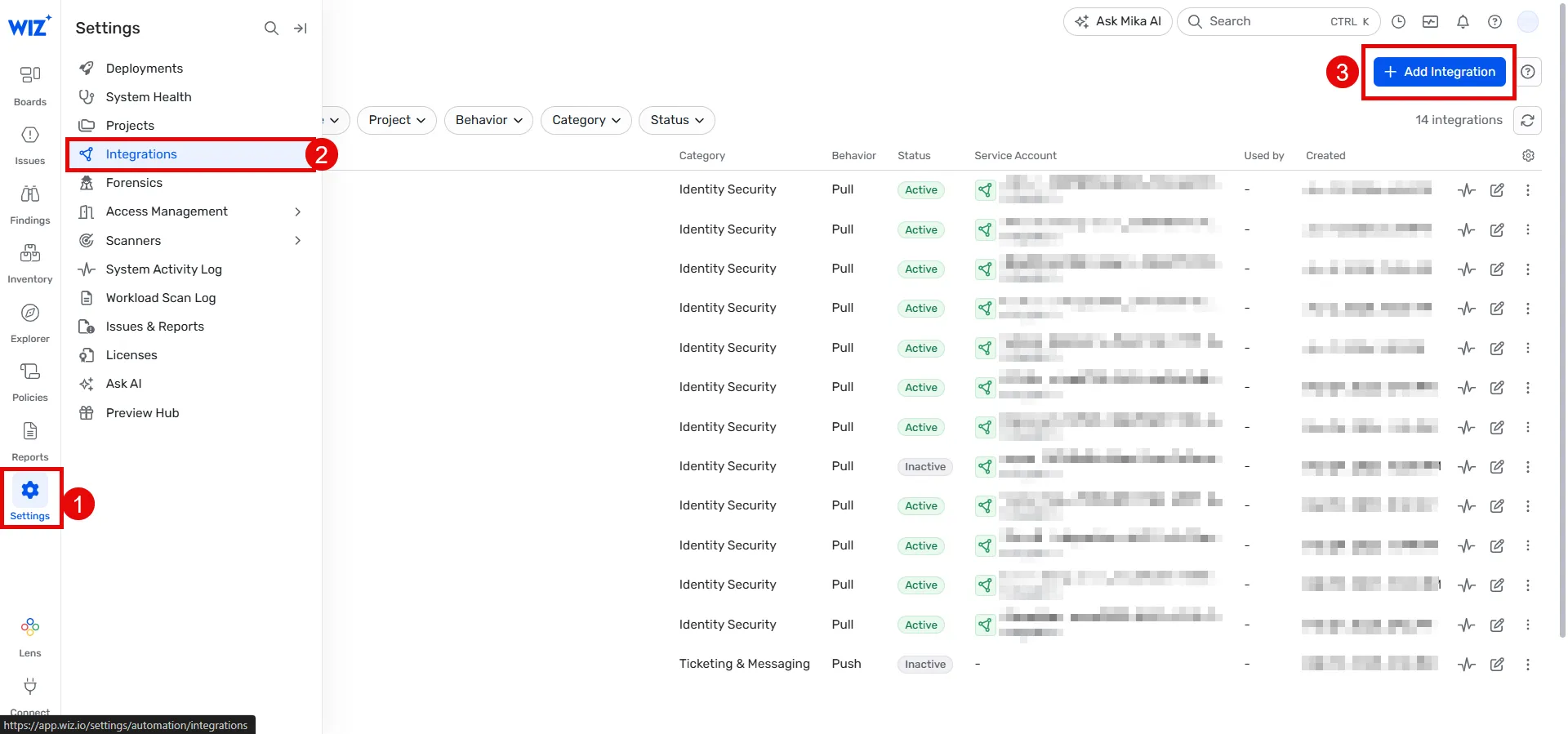 1. Search for **Aembit** and click the **Aembit integration**. 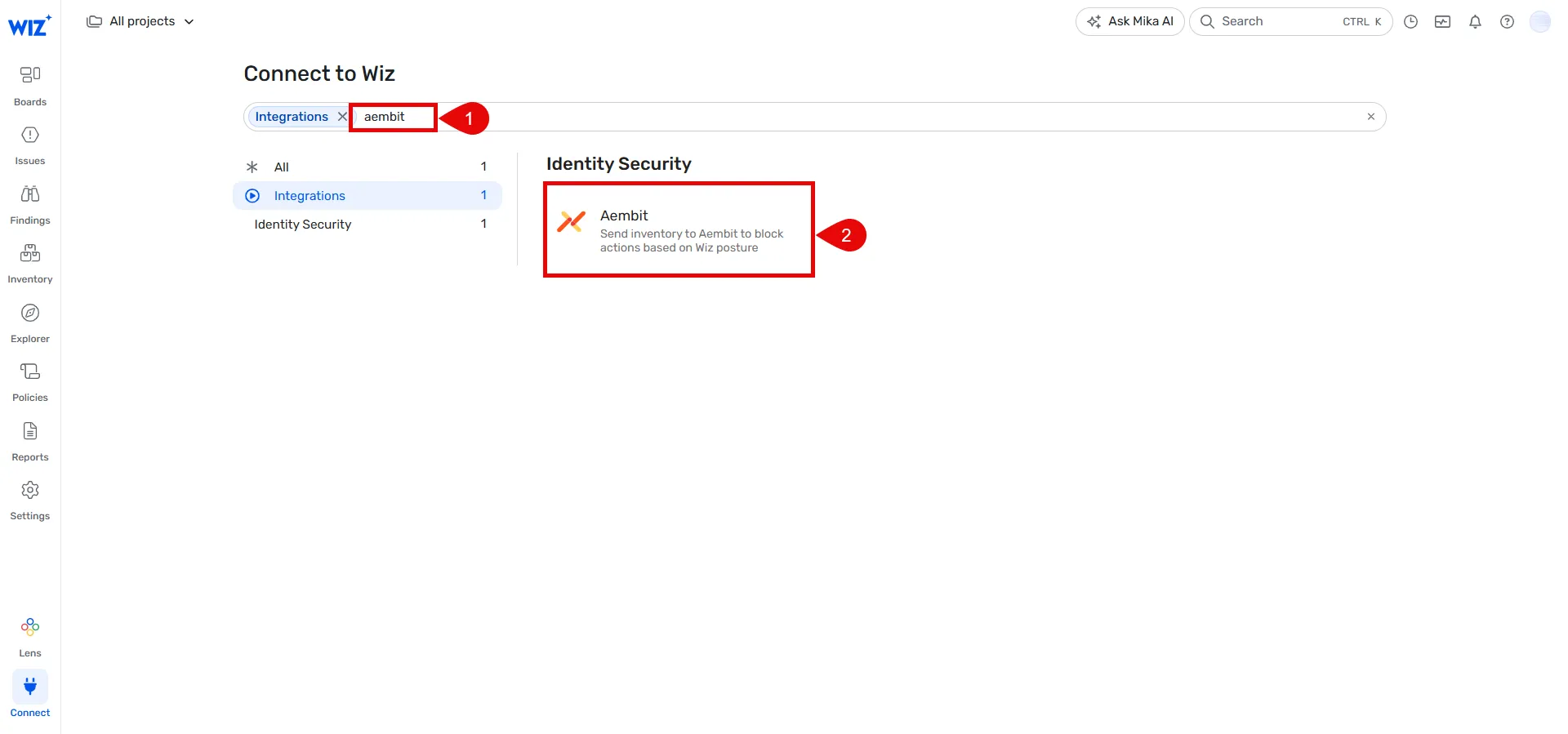 1. Provide a name for your integration (for example, **Aembit Discovery integration**). 2. Click **Add integration** at the bottom bar. 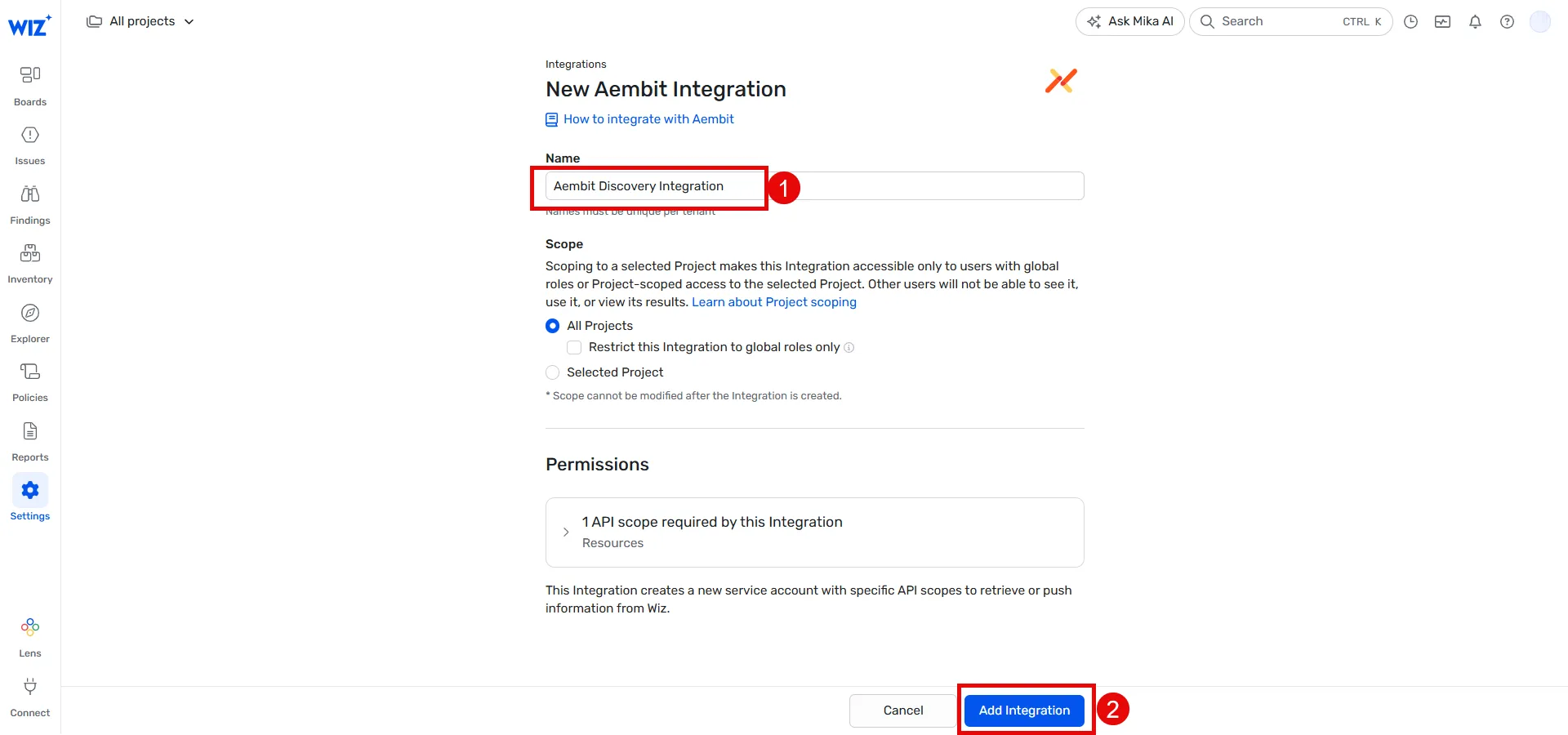 1. Open a new browser window or **copy** the following details from Wiz, as you’ll need them in the [next section](#configure-wiz-discovery): * **API Endpoint URL** * **Token URL** * **Client ID** * **Client Secret** 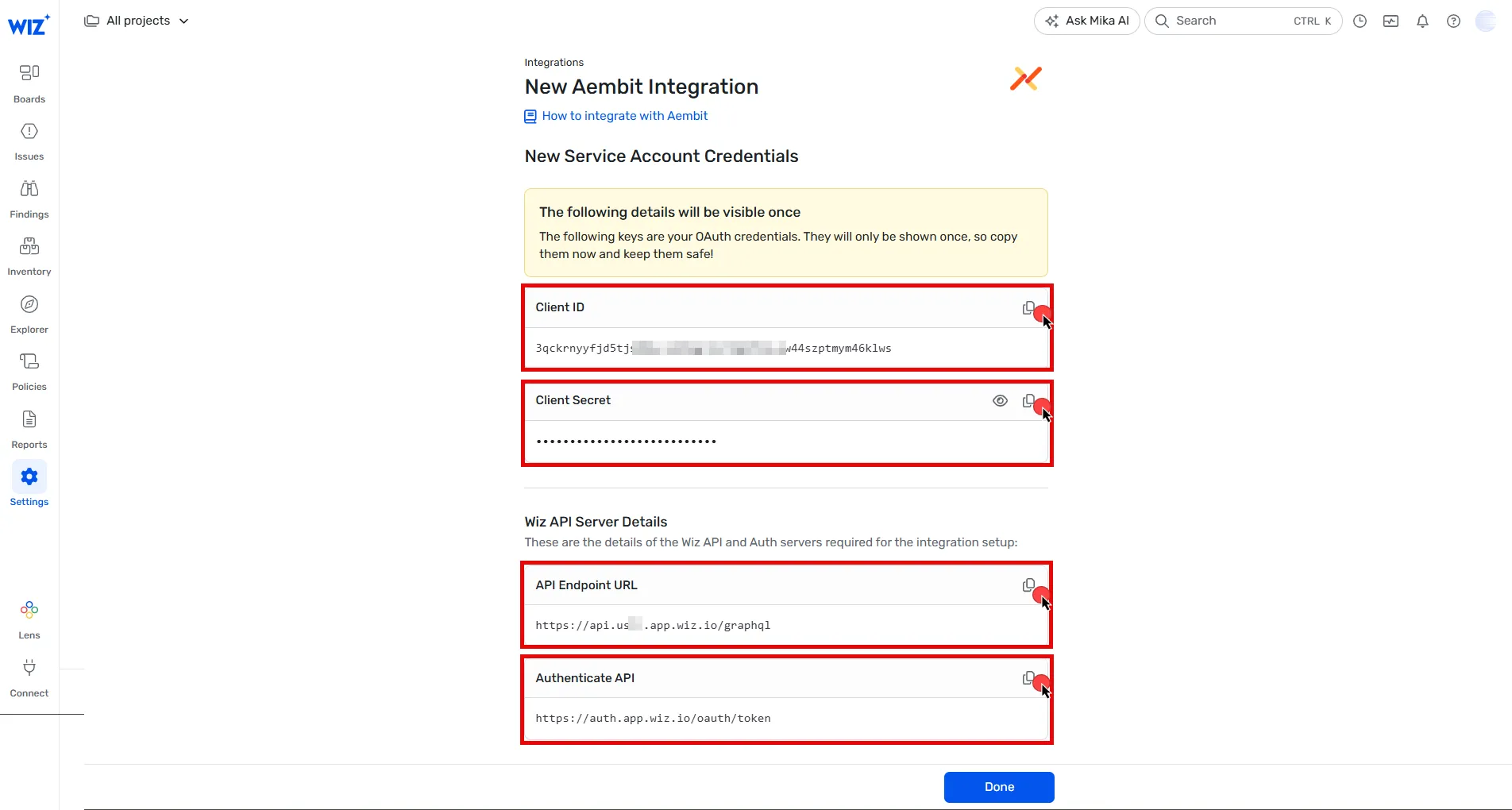 ## Configure Wiz Discovery [Section titled “Configure Wiz Discovery”](#configure-wiz-discovery) Follow these steps to configure the Wiz integration in your Aembit Tenant: 1. Log into your Aembit Tenant. 2. Click **Administration** in the left sidebar. 3. At the top, select **Administration ☰ Discovery** 4. Click **+ New**. 5. Select **Wiz integration** from the available options. 6. Using the details from the final step in the [previous section](#set-up-a-service-account-in-wiz), fill in the integration details: * **Name** - The name of the Integration. For example, **Wiz Discovery**. * **Description** - An optional text description for the Integration. * **Endpoint** - Paste the **API Endpoint URL** you copied earlier. * **Sync Frequency** - Choose the sync frequency from dropdown menu. * **OAuth Token Endpoint** - Paste the **Token URL** from the previous step. * **Client ID** - Paste the **Client ID** you copied earlier. * **Client Secret** - Paste the **Client Secret** you copied earlier. * **Audience** - Enter `wiz-api`. 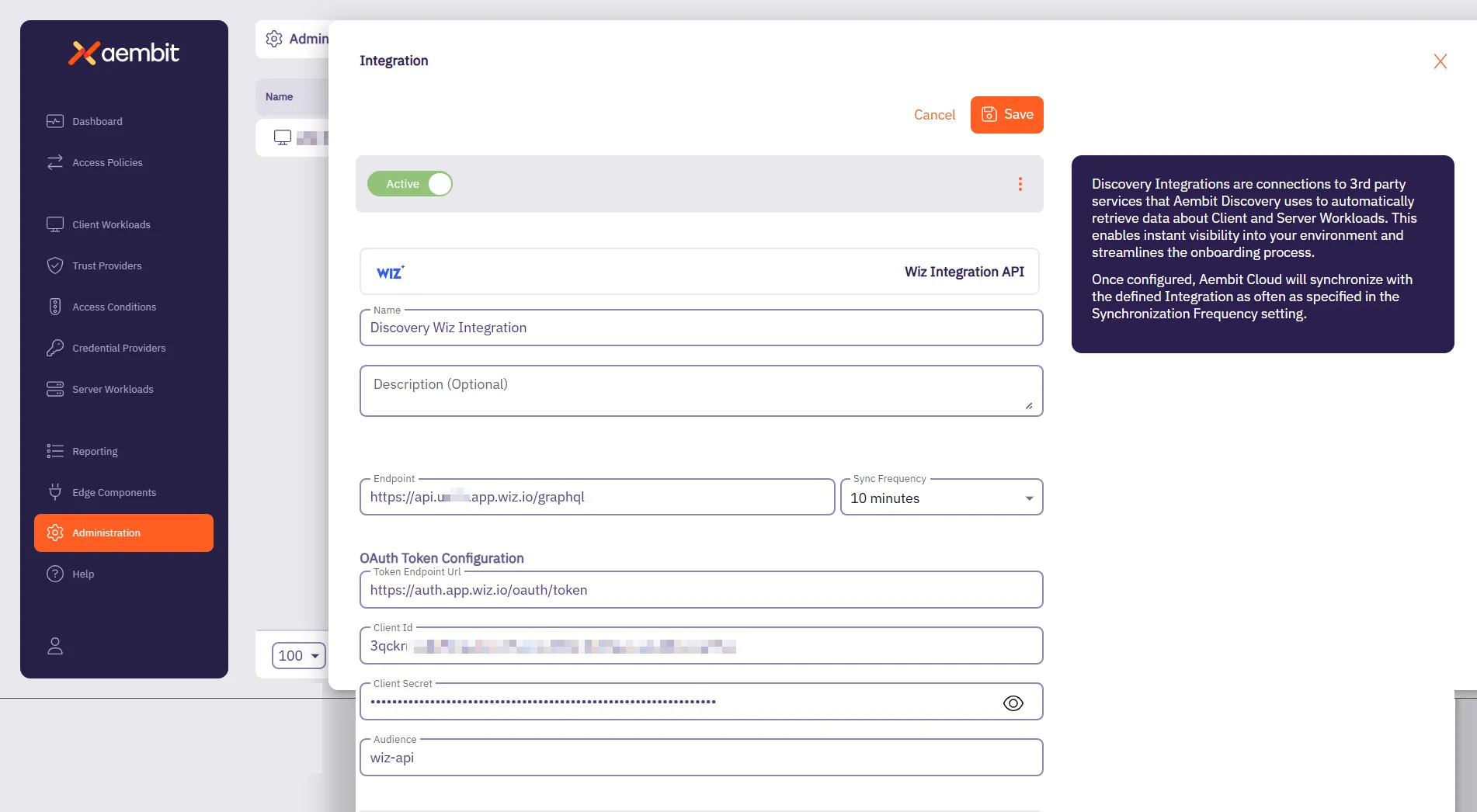 7. Click **Save**.
# Global Policy Compliance Overview
> What is Aembit Global Policy Compliance and how it works
Aembit’s Global Policy Compliance is a security enforcement feature that allows administrators to establish organization-wide security standards for Access Policies and Agent Controllers. Global Policy Compliance ensures consistent security practices across your Aembit environment and prevents the creation of policies that might inadvertently expose resources. ## What Global Policy Compliance does [Section titled “What Global Policy Compliance does”](#what-global-policy-compliance-does) Global Policy Compliance provides centralized control over the following Aembit administration components: ### Access Policies [Section titled “Access Policies”](#access-policies) * **Trust Provider Requirements** - Ensures all Access Policies include proper identity verification * **Access Condition Requirements** - Enforces contextual access rules across all policies ### Agent Controllers [Section titled “Agent Controllers”](#agent-controllers) * **Trust Provider Requirements** - Ensures proper identity verification for all Agent Controllers * **TLS Hostname Requirements** - Enforces secure communication standards ## How Global Policy Compliance works [Section titled “How Global Policy Compliance works”](#how-global-policy-compliance-works) You can [configure Global Policy Compliance](/user-guide/administration/global-policy/manage-global-policy) to either require, recommend, or not enforce that Aembit components such as Access Policies have certain configurations. For example, you can set Global Policy Compliance to enforce that all Access Policies have a Trust Provider configured. 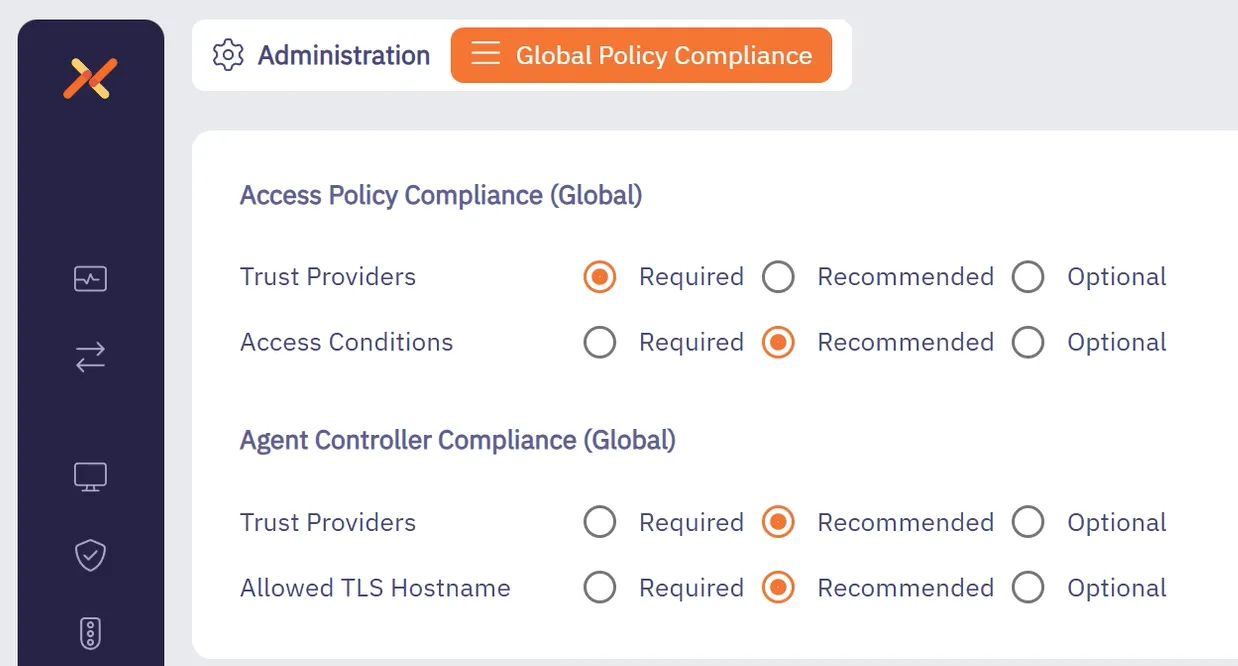 Global Policy Compliance operates on a three-tier enforcement model: 1. **Required** - Strictest setting - prevents creation or modification of non-compliant policies 2. **Recommended** (Default) - Flags non-compliant policies but allows their creation after confirmation 3. **Optional** - No enforcement - allows creation of policies without the specified security elements Caution Whenever you set a Global Policy Compliance setting to **Required**, Aembit prevents the creation or modification of Access Policies or Agent Controllers that don’t meet the specified requirements. Enabling Global Policy Compliance settings to **Required** won’t deactivate existing Access Policies or Agent Controllers that don’t meet the requirements. However, you won’t be able to modify or save them until they become compliant. ## Global Policy Compliance status icons [Section titled “Global Policy Compliance status icons”](#global-policy-compliance-status-icons) Aembit visually identifies non-compliant Access Policies through color-coded status icons and labels: * **Red** indicators for required but missing elements * **Yellow** indicators for recommended but missing elements * **Green** indicators for compliant Access Policies * **Gray** indicators for disabled or not active Access Policies ## Review and audit compliance [Section titled “Review and audit compliance”](#review-and-audit-compliance) You can review and audit the compliance status of all Access Policies and Agent Controllers in your Aembit Tenant through the [Global Policy Compliance report dashboard](/user-guide/audit-report/global-policy). ## Benefits [Section titled “Benefits”](#benefits) * Ensures consistent security standards across your organization * Prevents accidental creation of insecure Access Policies * Provides visibility into policy compliance through visual indicators * Supports role-based access control for compliance settings management ## Use cases [Section titled “Use cases”](#use-cases) Aembit’s Global Policy Compliance feature applies to many different use cases, such as the following: * **Enterprise security compliance** - Security administrators in large enterprises can enforce that all Access Policies include proper identity verification through Trust Providers, ensuring consistent security practices across multiple teams and Resource Sets. * **Regulated industries** - Organizations in healthcare, finance, and other regulated industries can use Global Policy Compliance to maintain audit-ready Access Policies that consistently implement required security controls. * **DevOps security** - DevOps teams can implement secure-by-default practices by requiring Access Conditions on all policies, preventing deployment of resources with inadequate access controls. * **Service providers** - Managed Service Providers (MSP) and SaaS providers can enforce strict TLS hostname requirements for Agent Controllers, ensuring secure communication standards across client environments. ## Additional resources [Section titled “Additional resources”](#additional-resources) -[Managing Policy Compliance](/user-guide/administration/global-policy/manage-global-policy)
# Managing Global Policy Compliance
> How to configure Aembit's Global Policy Compliance
This topic details how you can manage Global Policy Compliance in your Aembit Tenant. ## Permission requirements [Section titled “Permission requirements”](#permission-requirements) To configure Global Policy Compliance settings, your users must have the **Global Policy Compliance** permission with write access. You can set this permission in the [Users page](/user-guide/administration/users/) to any of the following: * **No Access** - Can’t view or modify settings * **Read-Only** - Can view settings but not modify them * **Read/Write** - Can view and modify settings ## Configure Global Policy Compliance settings [Section titled “Configure Global Policy Compliance settings”](#configure-global-policy-compliance-settings) 1. Log into your Aembit Tenant. 2. Go to **Administration** in the left sidebar menu. 3. At the top, select **Administration ☰ Global Policy Compliance**. Aembit displays the following options:  The Global Policy Compliance page contains the settings that you can enforce specific security controls. For each setting, you can select from the following enforcement levels: * **Required** - Prevents creation/modification of non-compliant policies * **Recommended** - Displays warnings but allows creation after confirmation * **Optional** - No enforcement applied ### Access Policy settings [Section titled “Access Policy settings”](#access-policy-settings) You can configure the following Access Policy enforcement levels: * **Trust Provider Requirement** - Set to Required, Recommended, or Optional * **Access Condition Requirement** - Set to Required, Recommended, or Optional ### Agent Controller settings [Section titled “Agent Controller settings”](#agent-controller-settings) You can configure the following Agent Controller enforcement levels: * **Trust Provider Requirement** - Set to Required, Recommended, or Optional * **TLS Hostname Requirement** - Set to Required, Recommended, or Optional ## Identify non-compliant Access Policies [Section titled “Identify non-compliant Access Policies”](#identify-non-compliant-access-policies) After configuring your [Global Policy Compliance settings](#configure-global-policy-compliance-settings): 1. Go to **Access Policies** in the left sidebar menu to view compliance status. 2. Look for the [color-coded status icons](/user-guide/administration/global-policy/#global-policy-compliance-status-icons) in the first column. The status icons indicate whether an Access Policy is compliant with your compliance policy settings. 3. Hover over icons to view specific compliance information or select an Access Policy to see more details about it. Alternatively, you can review the compliance status of all Access Policies in your Aembit Tenant through the [Global Policy Compliance report dashboard](/user-guide/audit-report/global-policy). ## Edit non-compliant Access Policies [Section titled “Edit non-compliant Access Policies”](#edit-non-compliant-access-policies) When editing Access Policies under Global Policy Compliance: 1. Log into your Aembit Tenant and go to **Access Policies** in the left sidebar menu. 2. Select the Access Policy you want to view. 3. In the **Notes** section, Aembit displays **Compliance** information. 4. When saving a policy: * If missing required elements, you can’t save until addressed * If missing recommended elements, you’re prompted with a confirmation dialog Aembit prevents you from saving your changes when you haven’t configured the elements your compliance policy *requires*. For *recommended* elements that you haven’t configured, Aembit warns you that saving the policy as-is isn’t recommended. 5. To save your Access Policy, you must have no required elements not configured.
# Identity Providers overview
> Description of what Identity Providers are and how they work in the Aembit UI
This page explains how Identity Providers work with Aembit and when to use them. * **Ready to set up SSO?** See [Creating SAML 2.0 Identity Providers](/user-guide/administration/identity-providers/create-idp-saml) or [Creating OIDC 1.0 Identity Providers](/user-guide/administration/identity-providers/create-idp-oidc) * **Need to configure automatic user creation?** See [Automatic User Creation](/user-guide/administration/identity-providers/automatic-user-creation) * **Just exploring?** Keep reading to understand the concepts The Identity Providers feature allows you to offer alternate authentication methods when users sign in to your Aembit tenant. The default authentication method is to use an email and password with the option to [enable and require MFA](/user-guide/administration/sign-on-policy/#require-multi-factor-authentication-for-native-sign-in). Requiring your users to remember and manually enter a username and password every time they sign in to your Aembit tenant is tedious, error-prone, and insecure long-term. To improve user experience and security, set up Single Sign-On (SSO). Integrate an external Identity Provider (IdP) such as Okta, Google, or Microsoft Entra ID. Aembit supports both SAML 2.0 and OIDC 1.0 protocols for SSO authentication. To enforce the exclusive use of SSO and prevent your users from authenticating with their username and password, enable [Require Single Sign On](/user-guide/administration/sign-on-policy/#require-single-sign-on). ## SSO overview [Section titled “SSO overview”](#sso-overview) SAML 2.0 (Security Assertion Markup Language) is an open standard for cross-domain Single Sign-On (SSO). SSO allows a user to authenticate in one system—the [Identity Provider](#saml-identity-provider)—and gain access to a different system. The [Service Provider](#service-provider) accepts proof of authentication from the IdP. ### SAML Identity Provider [Section titled “SAML Identity Provider”](#saml-identity-provider) The SAML Identity Provider (IdP) enables SSO user authentication where Aembit acts as the Service Provider. Common SAML Identity Providers include Okta, Google, Microsoft Entra ID, and many others. ### Service Provider [Section titled “Service Provider”](#service-provider) The Service Provider takes this information and implicitly trusts the information given and provides access to the service or resource. The Aembit Service Provider is an example of a resource that accepts external Identity Provider data. ## Aembit SSO authentication process [Section titled “Aembit SSO authentication process”](#aembit-sso-authentication-process) The following occurs during the SSO authentication process on your Aembit Tenant: 1. A user selects the option to authenticate through an IdP on the Aembit Tenant login page. 2. Aembit redirects the user to the IdP’s log in page. 3. The IdP prompts the user to authenticate. 4. If the IdP authentication is successful, the IdP redirects the user back to your Aembit Tenant. 5. Aembit logs the user in through the successful SSO authentication. The following diagram shows the SSO authentication flow:  ## About automatic user creation [Section titled “About automatic user creation”](#about-automatic-user-creation) When you enable the automatic user creation feature, Aembit automatically generates new user accounts on your behalf when your users go through the [SSO authenticate process](#aembit-sso-authentication-process). This automation not only saves time and resources by reducing or eliminating the manual effort needed to manage user accounts but also minimizes errors associated with manual account management. Also, this feature provides granular control of what user roles Aembit assigns to new users it creates. The automatic user creation feature works by extracting certain SAML attributes in the SAML response from the IdP after successful authentication with that IdP. It’s important to know, however, that not all IdPs configure their SAML attributes the same way. Different IdPs use distinct attribute names to pass user group claim information. To alleviate these inconsistencies, Aembit allows you to map your IdP’s SAML attributes to the user roles available in your Aembit Tenant. See [Configure automatic user creation](/user-guide/administration/identity-providers/automatic-user-creation) for details. ### How automatic user creation works [Section titled “How automatic user creation works”](#how-automatic-user-creation-works) During the SSO authentication process, when Aembit verifies the authentication response, if no user account exists for that user, Aembit initiates the automatic user creation process. Aembit requires an email address to uniquely identify users of your Aembit Tenant. If it can, Aembit populates the first and last name of the users it automatically creates. If not, Aembit sets the first and last name to the user’s email address. Aembit extracts user information from authentication response claims including email, name, and group membership. For technical details about specific claim requirements and attribute names, see [Configure automatic user creation](/user-guide/administration/identity-providers/automatic-user-creation). ## Complete setup checklist [Section titled “Complete setup checklist”](#complete-setup-checklist) Setting up SSO requires configuration in two places: 1. **Configure Aembit in your IdP** - Add Aembit as an application in your Identity Provider. See your IdP’s documentation for instructions. 2. **Configure your IdP in Aembit** - Add your IdP to Aembit: * For SAML 2.0: See [Creating SAML 2.0 Identity Providers](/user-guide/administration/identity-providers/create-idp-saml) * For OIDC 1.0: See [Creating OIDC 1.0 Identity Providers](/user-guide/administration/identity-providers/create-idp-oidc) 3. **(Optional) Configure automatic user creation** - See [Automatic User Creation](/user-guide/administration/identity-providers/automatic-user-creation) 4. **Test SSO with a test user before enforcing it** - Verify SSO works before enabling “Require Single Sign On” ## Additional resources [Section titled “Additional resources”](#additional-resources) The following pages provide more information about working with Identity Providers: * [Creating SAML 2.0 Identity Providers](/user-guide/administration/identity-providers/create-idp-saml) - Set up SAML 2.0 SSO in your Aembit Tenant * [Creating OIDC 1.0 Identity Providers](/user-guide/administration/identity-providers/create-idp-oidc) - Set up OIDC 1.0 SSO in your Aembit Tenant * [Automatic User Creation](/user-guide/administration/identity-providers/automatic-user-creation) - Configure automatic user creation with Identity Providers
# How to configure Single Sign On automatic user creation
> How to configure SSO automatic user creation through an identity provider
[Automatic user creation](/user-guide/administration/identity-providers/#about-automatic-user-creation) automatically generates new user accounts on your behalf when your users go through the SSO authenticate process. This feature provides granular control of what user roles Aembit assigns to new users it creates. For more details, see [how automatic user creation works](/user-guide/administration/identity-providers/#how-automatic-user-creation-works). ## Technical: SAML attribute requirements [Section titled “Technical: SAML attribute requirements”](#technical-saml-attribute-requirements) For SAML 2.0 Identity Providers, Aembit looks for the presence of the following claim elements in the SAML response to create new user accounts: * A `NameID` element containing the user’s email address. If the `NameID` element isn’t present or the value isn’t a valid email address, Aembit searches for the `http://schemas.xmlsoap.org/ws/2005/05/identity/claims/emailaddress` claim instead. If Aembit finds neither, the automatic user creation process stops. * Both `http://schemas.xmlsoap.org/ws/2005/05/identity/claims/givenname` and `http://schemas.xmlsoap.org/ws/2005/05/identity/claims/surname` to populate a user’s first and last names, respectively. Otherwise, Aembit populates a user’s first and last names with their email address. * An `AttributeStatement` element with at least one `Attribute` child element with an attribute value matching the configuration data entered on the **Mapping** tab of the **Identity Provider** page. This match is necessary to determine which roles Aembit assigns to the new user account. If Aembit doesn’t find a matching attribute value, Aembit won’t create the new user account. ## Prerequisites [Section titled “Prerequisites”](#prerequisites) To enable automatic user creation in your Aembit Tenant, you must have the following: * A Teams or Enterprise subscription plan. * Your Identity Provider’s (IdP) SAML group claim information attribute names and values. ## Common IdP attribute names [Section titled “Common IdP attribute names”](#common-idp-attribute-names) Different Identity Providers use different attribute names for group claims. The following table lists common SAML attribute names for groups: | Identity Provider | SAML Attribute Name for Groups | | ----------------- | ---------------------------------------------------------------- | | Okta | `groups` | | Azure AD / Entra | `http://schemas.microsoft.com/ws/2008/06/identity/claims/groups` | | Google Workspace | `groups` | | OneLogin | `memberOf` | Your IdP may use different names. Check your IdP’s SAML configuration or documentation for the correct attribute names. ## Map IdP SAML attributes to Aembit user roles [Section titled “Map IdP SAML attributes to Aembit user roles”](#map-idp-saml-attributes-to-aembit-user-roles) To map the group information sent from your Identity Provider to the roles available in your tenant, follow these steps: 1. Log into your Aembit Tenant. 2. Click **Administration** in the left sidebar. 3. At the top, select **Administration ☰ Identity Providers**. Aembit displays the **Identity Providers** page with a list of existing Identity Providers. 4. [Create a new Identity Provider](/user-guide/administration/identity-providers/create-idp-saml) or edit an existing one, and then select the **Mappings** tab. 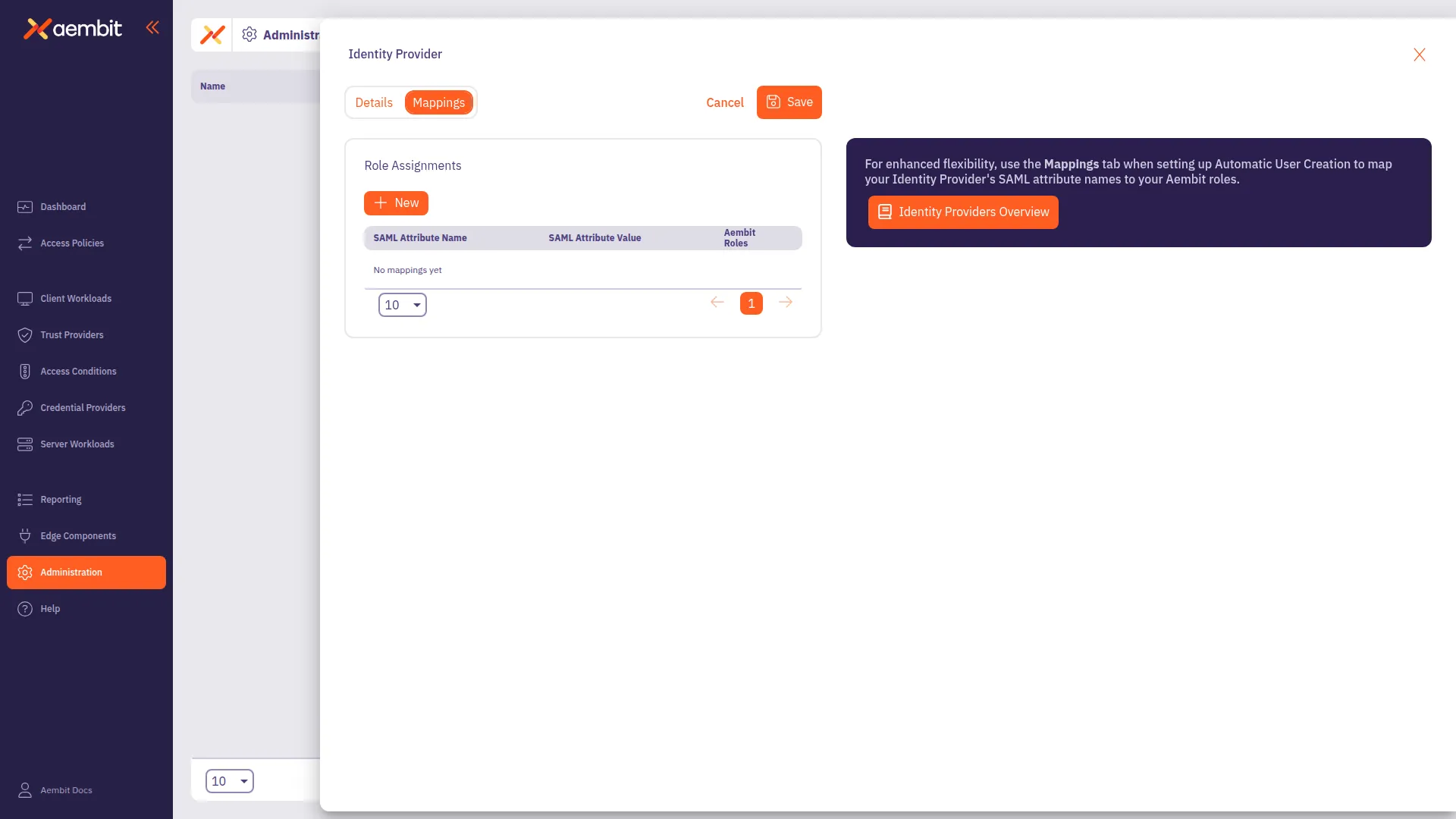 5. Click **Edit** if not already in edit mode. 6. Click **+ New**, which adds a new row to the table **Role Assignments** table. 7. In the **SAML Attribute Name** column, use the dropdown to select an existing attribute name or click ”+” to add a new one. Make sure the values correspond to the groups defined in your Identity Provider. 8. In the **SAML Attribute Value** column, use the dropdown to select an existing attribute value or click ”+” to add a new one. Make sure the values correspond to the groups defined in your Identity Provider. 9. In the **Aembit Roles** column, use the dropdown to select one or more Aembit roles.  10. If needed, repeat the previous four steps. 11. Click **Save**. ## Examples: Mapping attributes to Aembit roles [Section titled “Examples: Mapping attributes to Aembit roles”](#examples-mapping-attributes-to-aembit-roles) The following examples show how to map Identity Provider attributes to Aembit roles for both SAML and OIDC protocols. ### SAML attribute mapping example [Section titled “SAML attribute mapping example”](#saml-attribute-mapping-example) For SAML Identity Providers like Azure AD, group claims use specific attribute names: **First mapping:** * **SAML Attribute Name**: `http://schemas.microsoft.com/ws/2008/06/identity/claims/groups` * **SAML Attribute Value**: `AembitAdmins` * **Aembit Roles**: Administrator **Second mapping:** * **SAML Attribute Name**: `http://schemas.microsoft.com/ws/2008/06/identity/claims/groups` * **SAML Attribute Value**: `AembitViewers` * **Aembit Roles**: Viewer This configuration means: Users in the “AembitAdmins” group in Azure AD are automatically created with Administrator role in Aembit. Users in the “AembitViewers” group are automatically created with Viewer role. ### OIDC attribute mapping example [Section titled “OIDC attribute mapping example”](#oidc-attribute-mapping-example) For OIDC Identity Providers like Azure AD with OIDC, attribute names differ from SAML: **First mapping:** * **OIDC Claim Name**: `groups` * **OIDC Claim Value**: `AembitAdmins` * **Aembit Roles**: Administrator **Second mapping:** * **OIDC Claim Name**: `groups` * **OIDC Claim Value**: `AembitViewers` * **Aembit Roles**: Viewer ## Understanding automatic user creation [Section titled “Understanding automatic user creation”](#understanding-automatic-user-creation) When users authenticate through SSO, the following scenarios can occur: * **User exists in Aembit already**: SSO works and the user logs in. Aembit doesn’t create a new user. * **User exists in IdP but not Aembit (auto-creation `on`)**: Aembit creates a new user with roles based on the configured mappings. * **User exists in IdP but not Aembit (auto-creation `off`)**: Login fails. The user can’t access Aembit. * **User’s IdP groups don’t match any mappings**: User creation fails. The user can’t log in. You must configure mappings for the user’s groups. * **User has multiple matching groups**: User gets all corresponding Aembit roles. For example, if a user is in both “AembitAdmins” and “AembitViewers” groups, they receive both Administrator and Viewer roles.
# How to create an OIDC 1.0 Identity Provider
> How to create an OIDC 1.0 Identity Provider for Single Sign-On
Configuring an OIDC 1.0 (OpenID Connect) Identity Provider (IdP) allows you to offer alternate authentication methods for how users sign in to your Aembit Tenant. For example, Single Sign-On (SSO) instead of the default authentication method of an email and password. When you configure an OIDC-capable IdP in your Aembit Tenant, Aembit provides a redirect URL that you must configure in your third-party IdP. ## Before you start [Section titled “Before you start”](#before-you-start) Before you configure an OIDC 1.0 Identity Provider, ensure: * You have administrator access to both your Aembit Tenant and your Identity Provider. * You have registered Aembit as an OIDC application in your Identity Provider and have the necessary credentials (such as Client ID and, if applicable, Client Secret) available. * You have your Identity Provider’s base URL (also called the issuer URL or OIDC discovery endpoint). * You have your OIDC application’s Client ID from your Identity Provider. * You have a Teams or Enterprise subscription plan. The Identity Providers feature isn’t available on the Professional plan. ## Configure an OIDC 1.0 Identity Provider [Section titled “Configure an OIDC 1.0 Identity Provider”](#configure-an-oidc-10-identity-provider) To configure an OIDC 1.0 IdP to work with Aembit, follow these steps: 1. Log into your Aembit Tenant. 2. Click **Administration** in the left sidebar. 3. At the top, select **Administration ☰ Identity Providers**. Aembit displays the **Identity Providers** page with a list of existing Identity Providers. 4. Click **+ New**, revealing the **Identity Provider** pop out menu. 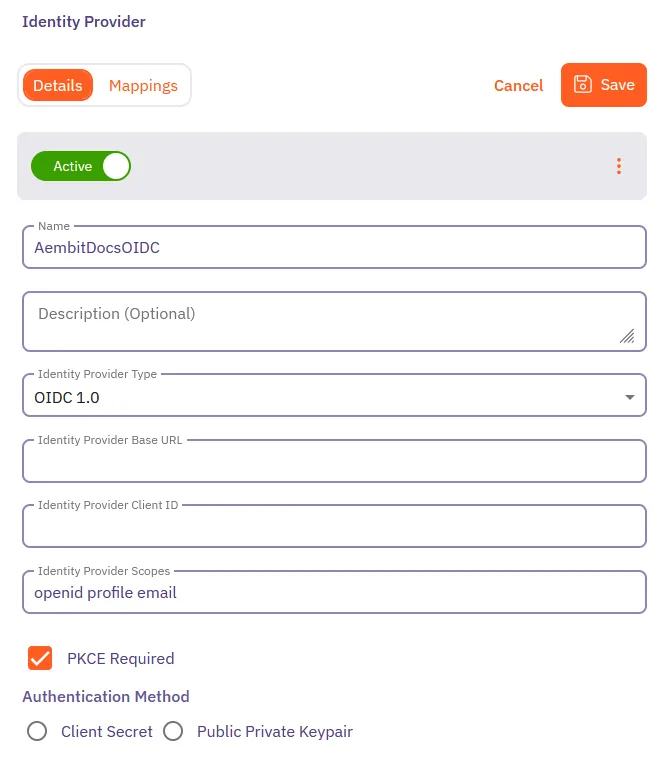 5. On the **Details** tab, fill out the following fields: * **Name** - The name of the OIDC Identity Provider (for example, Okta OIDC or Azure OIDC). * **Description** - A description of the OIDC Identity Provider (this is optional). * **Identity Provider Type** - Select **OIDC 1.0** from the dropdown. * **Identity Provider Base URL** - The OIDC base URL of your Identity Provider. This is typically the issuer URL or OIDC discovery endpoint. See [Provider-specific examples](#provider-specific-examples) for guidance on finding this URL of your IdP. * **Identity Provider Client ID** - The Client ID from your OIDC application in your Identity Provider. * **Identity Provider Scopes** - The OIDC scopes required for authentication. Aembit provides a default set of required scopes: `openid profile email`. You can add additional scopes, such as `groups`, if your IdP supports them and you want to enable automatic user creation based on group membership. See [Configure automatic user creation](/user-guide/administration/identity-providers/automatic-user-creation) for more information. * **PKCE Required** - Enable this checkbox to require Proof Key for Code Exchange (PKCE), an additional security layer for OAuth 2.0 flows. Aembit recommends leaving this enabled for enhanced security. * **Authentication Method** - Choose between **Client Secret** and **Public Private Keypair**: * **Client Secret**: If you select this option, you’ll need to enter the client secret from your OIDC application in the **Identity Provider Client Secret** field. * **Public Private Keypair**: If you select this option, Aembit provides a JWKS URL that you must configure in your IdP. Ensure your IdP can access this URL over the internet for key validation. This allows secure communication using JWT signing without requiring a client secret. 6. After entering the Identity Provider details, Aembit displays a **Redirect URL**. Copy this URL and configure it in your third-party IdP as the redirect URI or callback URL of your OIDC application. 7. Optionally, in the **Mappings** tab of the **Identity Provider** page you may specify mapping information between group claims configured in your IdP and user roles available in your tenant. Adding this information enables automatic user creation based on the information in the OIDC ID token sent by your IdP. See [Configure automatic user creation](/user-guide/administration/identity-providers/automatic-user-creation) for more information. 8. Click **Save**. Aembit displays the newly created OIDC IdP on the **Identity Provider** page. Now, when users log in to your Aembit Tenant, the login UI displays the available OIDC SSO option. ## Provider-specific examples [Section titled “Provider-specific examples”](#provider-specific-examples) * Okta Follow these steps to configure Okta as an OIDC 1.0 Identity Provider for Aembit. 1. In Okta, create a new OIDC application or select an existing one. 2. Copy the **Client ID** from the application’s settings. 3. For the **Identity Provider Base URL**, use your Okta domain in this format: `https://your-domain.okta.com` 4. If using **Public Private Keypair**: * In Okta, go to your application’s **General Settings**. * Set **Client authentication** to **Public key / Private key**. * Enable **Require Proof Key for Code Exchange (PKCE)**. * Configure the JWKS URL option and paste the JWKS URL provided by Aembit. 5. If using **Client Secret**: * Copy the client secret from your Okta application. * Paste it into the **Identity Provider Client Secret** field in Aembit. 6. In Okta, add the Aembit Redirect URL to your application’s **Sign-in redirect URIs**. 7. Save your configuration in both Okta and Aembit. * Azure AD Follow these steps to configure Azure AD (Microsoft Entra ID) as an OIDC 1.0 Identity Provider for Aembit. 1. In Azure Portal, go to **App registrations** and register a new application (or select an existing one). 2. Copy the **Application (client) ID**. 3. For the **Identity Provider Base URL**, go to **Endpoints** in your Azure application. Copy the portion of the URL that contains your tenant ID. The format is: `https://login.microsoftonline.com/{tenant-id}/v2.0` 4. If using **Public Private Keypair**: * Azure AD supports JWT bearer authentication. * Configure the JWKS URL from Aembit in your Azure application settings. 5. If using **Client Secret**: * Go to **Certificates & secrets** in your Azure application. * Click **New client secret**. * Copy the secret value and paste it into the **Identity Provider Client Secret** field in Aembit. 6. In Azure, go to your application’s **Authentication** settings. 7. Under **Platform configurations**, add a **Web** platform if not already present. 8. Add the Aembit Redirect URL to the **Redirect URIs**. 9. Click **Configure** to save. 10. Save your configuration in Aembit. ## Testing your OIDC SSO setup [Section titled “Testing your OIDC SSO setup”](#testing-your-oidc-sso-setup) Before enabling “Require Single Sign On” for your entire organization, test your OIDC SSO configuration: 1. Open an incognito or private browser window. 2. Go to your Aembit Tenant login page. 3. Click your new OIDC SSO option (for example, “Okta OIDC” or “Azure OIDC”). 4. Verify you’re redirected to your IdP’s login page. 5. Log in using your IdP credentials. 6. Verify you’re redirected back to Aembit and successfully logged in. 7. Don’t enable “Require Single Sign On” in your Sign-On Policy until you have successfully tested SSO login with at least one user. Caution Don’t enable “Require Single Sign On” in your [Sign-On Policy](/user-guide/administration/sign-on-policy/) until you’ve successfully tested SSO login with at least one user. Otherwise, Aembit may lock out users who encounter issues. ## Troubleshooting [Section titled “Troubleshooting”](#troubleshooting) The following sections describe common issues you may encounter when setting up OIDC SSO and how to resolve them. ### SSO button doesn’t appear on login page [Section titled “SSO button doesn’t appear on login page”](#sso-button-doesnt-appear-on-login-page) **Solution**: Wait a few moments and refresh the page. If the button still doesn’t appear, verify that you clicked **Save** in the Identity Provider configuration. ### Error after IdP login [Section titled “Error after IdP login”](#error-after-idp-login) **Solution**: Verify that the Redirect URL in your IdP exactly matches the Redirect URL provided by Aembit. ### Can’t complete OIDC setup [Section titled “Can’t complete OIDC setup”](#cant-complete-oidc-setup) **Solution**: Ensure you have a Teams or Enterprise subscription plan. The Identity Providers feature isn’t available on the Professional plan. Contact Aembit by completing the [Contact Us form](https://aembit.io/contact/) to upgrade your plan. ### Authentication fails with PKCE error [Section titled “Authentication fails with PKCE error”](#authentication-fails-with-pkce-error) **Solution**: Ensure that you enable PKCE in both Aembit (PKCE Required checkbox) and your IdP’s OIDC application settings. ### Invalid or expired tokens [Section titled “Invalid or expired tokens”](#invalid-or-expired-tokens) **Solution**: If using Public Private Keypair authentication, verify that your IdP can access the JWKS URL provided by Aembit. Check for any firewall or network restrictions that might block this URL. ## See also [Section titled “See also”](#see-also) * [Identity Providers overview](/user-guide/administration/identity-providers/) - Understand how Identity Providers work with Aembit * [Automatic User Creation](/user-guide/administration/identity-providers/automatic-user-creation) - Configure automatic user creation with Identity Providers * [Sign-On Policy](/user-guide/administration/sign-on-policy/) - Configure Sign-On policies including SSO requirements
# How to create a SAML 2.0 Identity Provider
> How to create a SAML (Security Assertion Markup Language) 2.0 Identity Provider for single sign-on (SSO)
Configuring a SAML 2.0 Identity Provider (IdP) allows you to offer alternate authentication methods for how users sign in to your Aembit Tenant. For example, Single Sign-On (SSO) instead of the default authentication method of an email and password. When you configure a SAML-capable IdP in your Aembit Tenant, you must enter either your IdP SAML **Metadata URL** or **Metadata XML** information. After you provide this information, Aembit displays the **Aembit SP Entity ID** and **Aembit SSO URL** that you’ll need to configure in your external Identity Provider. ## Before you start [Section titled “Before you start”](#before-you-start) Before you configure a SAML 2.0 Identity Provider, ensure: * You have administrator access to both your Aembit Tenant and your Identity Provider. * You have completed IdP setup first by adding Aembit as a SAML application in your Identity Provider. You’ll need to provide the following Aembit values to your IdP (these appear after you enter metadata): * **Entity ID**: Aembit’s unique identifier for SAML authentication * **SSO URL**: The URL where your IdP sends SAML responses * You have your Identity Provider’s metadata URL or XML file ready. * You have a Teams or Enterprise subscription plan. The Identity Providers feature isn’t available on the Professional plan. ## Configure a SAML 2.0 Identity Provider [Section titled “Configure a SAML 2.0 Identity Provider”](#configure-a-saml-20-identity-provider) To configure a SAML 2.0 IdP to work with Aembit, follow these steps: 1. Log into your Aembit Tenant. 2. Click **Administration** in the left sidebar. 3. At the top, select **Administration ☰ Identity Providers**. Aembit displays the **Identity Providers** page with a list of existing Identity Providers. 4. Click **+ New**, revealing the **Identity Provider** pop out menu. 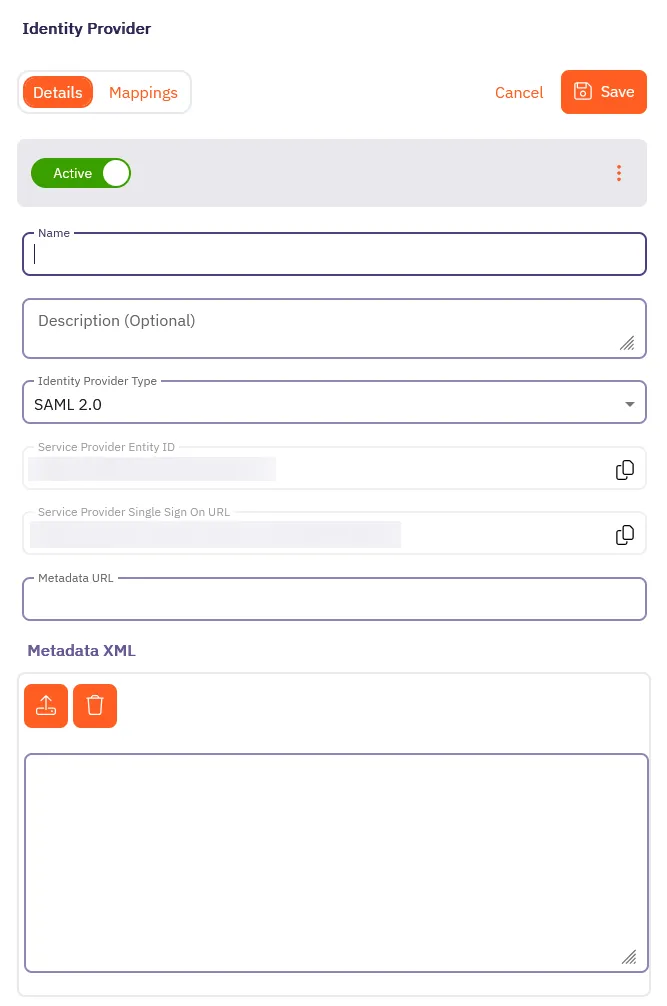 5. On the **Details** tab, fill out the following fields: * **Name** - The name of the SAML Identity Provider (for example, Okta SSO). * **Description** - A description of the SAML Identity Provider (this is optional). * **Identity Provider Type** - Select **SAML 2.0** from the dropdown. * Depending on your Identity Provider, either enter the Metadata URL in the **Metadata URL** field or use the **Metadata XML** field to upload an XML file with the Identity Provider Metadata information: * **Metadata URL** - The URL where Aembit can retrieve SAML metadata for a specific SAML-capable Identity Provider. * **Metadata XML** - Some Identity Providers may not provide a publicly accessible Metadata URL. In these cases, Identity Provider configuration may have an option to download the metadata information in XML form. 6. Optionally, in the **Mappings** tab of the **Identity Provider** page you may specify mapping information between group claims configured in your Identity Provider and user roles available in your tenant. Adding this information enables automatic user creation based on the information in SAML response messages sent by your Identity Provider. See [Configure automatic user creation](/user-guide/administration/identity-providers/automatic-user-creation#map-idp-saml-attributes-to-aembit-user-roles) for more information. 7. Click **Save**. Aembit displays the newly created SAML IdP listed on the **Identity Provider** page. Now, when your users log in to your Aembit Tenant, the login UI displays the available SAML SSO options similar to the following screenshot:  ## Testing your SAML SSO setup [Section titled “Testing your SAML SSO setup”](#testing-your-saml-sso-setup) Before enabling “Require Single Sign On” for your entire organization, test your SAML SSO configuration: 1. Open an incognito or private browser window. 2. Go to your Aembit Tenant login page. 3. Click your new SSO option (for example, “Okta SSO”). 4. Verify you’re redirected to your Identity Provider’s login page. 5. Log in using your IdP credentials. 6. Verify you’re redirected back to Aembit and successfully logged in. Caution Don’t enable “Require Single Sign On” in your [Sign-On Policy](/user-guide/administration/sign-on-policy/) until you’ve successfully tested SSO login with at least one user. Otherwise, issues may lock out users. ## Troubleshooting [Section titled “Troubleshooting”](#troubleshooting) The following sections describe common issues you may encounter when setting up SAML SSO and how to resolve them. ### SSO button doesn’t appear on login page [Section titled “SSO button doesn’t appear on login page”](#sso-button-doesnt-appear-on-login-page) **Solution**: Wait a few moments and refresh the page. If the button still doesn’t appear, verify that you clicked **Save** in the Identity Provider configuration. ### Error after IdP login [Section titled “Error after IdP login”](#error-after-idp-login) **Solution**: Verify that the Entity ID and SSO URL in your Identity Provider match what Aembit displays. Check both values as even small differences cause authentication to fail. ### Can’t complete SAML setup [Section titled “Can’t complete SAML setup”](#cant-complete-saml-setup) **Solution**: Ensure you have a Teams or Enterprise subscription plan. The Identity Providers feature isn’t available on the Professional plan. Contact Aembit by completing the [Contact Us form](https://aembit.io/contact/) to upgrade your plan. ### IdP certificate rotation causes SSO to stop working [Section titled “IdP certificate rotation causes SSO to stop working”](#idp-certificate-rotation-causes-sso-to-stop-working) **Solution**: If you’re using Metadata XML, you’ll need to manually update it when your IdP certificate rotates. Consider switching to Metadata URL if your IdP supports it for automatic certificate updates. ## See also [Section titled “See also”](#see-also) * [Identity Providers overview](/user-guide/administration/identity-providers/) - Understand how Identity Providers work with Aembit * [Automatic User Creation](/user-guide/administration/identity-providers/automatic-user-creation) - Configure automatic user creation with Identity Providers * [Sign-On Policy](/user-guide/administration/sign-on-policy/) - Configure single sign-on policies including SSO requirements
# Log Stream overview
> Description of what Log Streams are and how to capture and archive log information
The Log Streams feature enables you to set up a process to forward audit logs, workload events, and access authorization events from your Aembit Tenant to an AWS S3 or GCP Cloud Storage Bucket. This in turn enables you to perform more detailed data analysis and processing outside of your Aembit Tenant. The following pages provide information about configuring Log Streams for different cloud storage services: * [AWS S3](/user-guide/administration/log-streams/aws-s3) - Configure Log Streams to send logs to AWS S3 buckets * [CrowdStrike Next-Gen SIEM](/user-guide/administration/log-streams/crowdstrike-siem) - Configure Log Streams to send logs to CrowdStrike Next-Gen SIEM. * [GCS Bucket](/user-guide/administration/log-streams/gcs-bucket) - Configure Log Streams to send logs to Google Cloud Storage buckets * [Splunk SIEM](/user-guide/administration/log-streams/splunk-siem) - Configure Log Streams to send logs to Splunk SIEM
# Create a AWS S3 Log Stream
> This page describes how to create a new Log Stream to an AWS S3 Bucket
To create a new Log Stream to an AWS S3 Bucket, follow these steps: 1. Log into your Aembit Tenant. 2. Click **Administration** in the left sidebar. 3. At the top, select **Administration ☰ Log Streams**. Aembit displays the **Log Streams** page with a list of existing Log Streams. 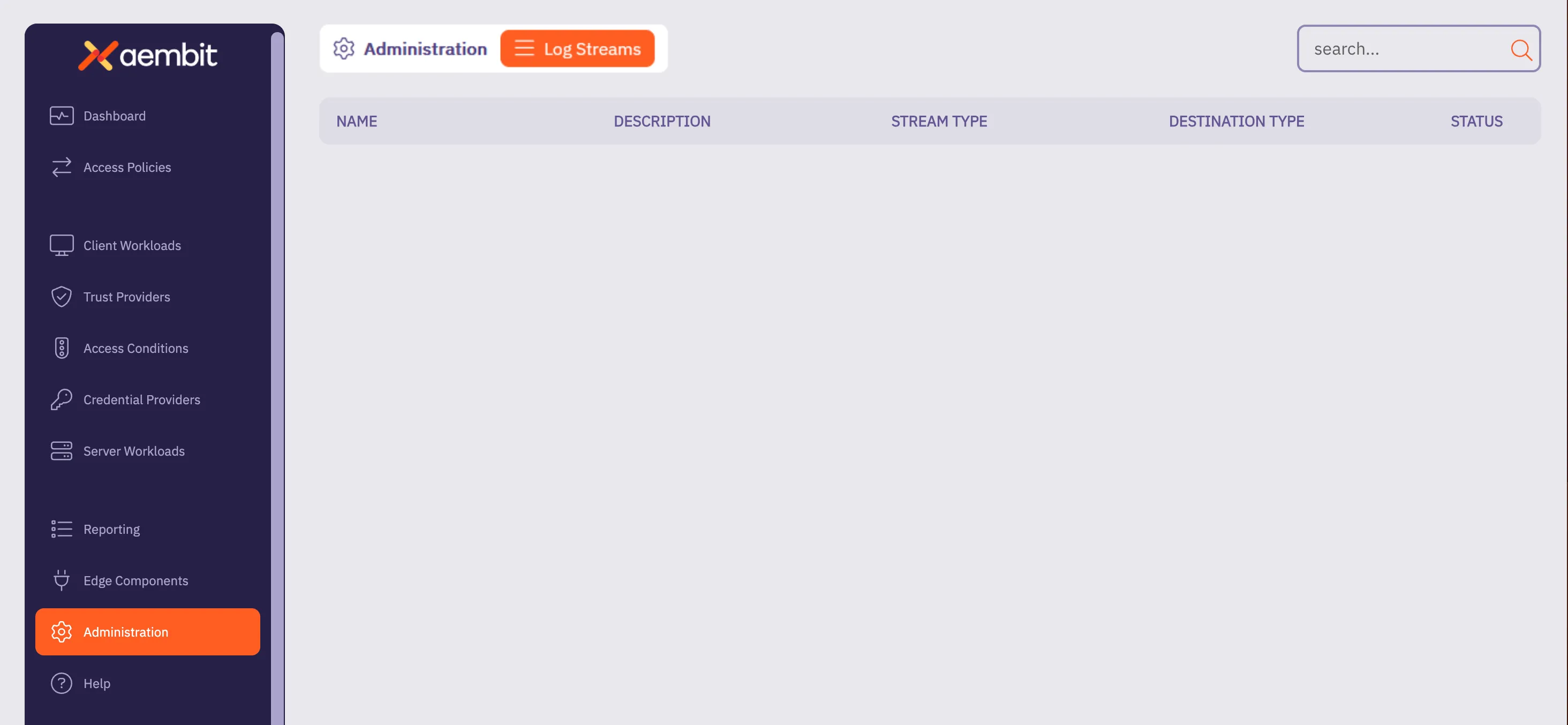 4. Click **+ New**, which displays the Log Streams pop out menu. 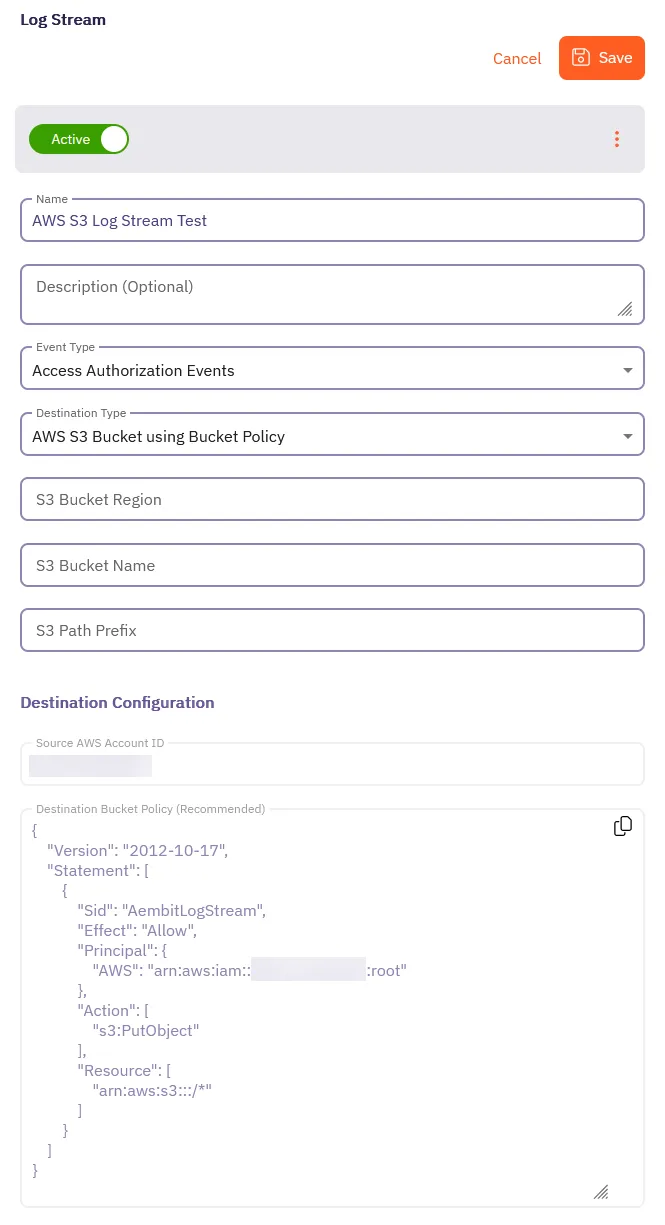 5. Fill out the following fields: * **Name** - The name of the new Log Stream you want to create. * **Description** - A text description for the new Log Stream. * **Event Type** - Select the type of event you want to stream to your AWS S3 Bucket. Choose from: `Access Authorization Events`, `Audit Logs`, and `Workload Events` 6. Select **AWS S3 using Bucket Policy** as the **Destination Type**. For more detailed information on how to create an AWS S3 Bucket, please refer to the [Amazon AWS S3](https://docs.aws.amazon.com/AmazonS3/latest/userguide/creating-bucket.html) technical documentation. 7. Fill out the revealed fields: * **S3 Bucket Region** - Enter the AWS region where your S3 bucket is located. * **S3 Bucket Name** - Enter the name of your S3 bucket. * **S3 Path Prefix** - Enter the path prefix for your S3 bucket. 8. Apply the contents of the **Destination Bucket Policy (Recommended)** field to your destination AWS S3 Bucket. 9. Click **Save**. Aembit displays the **Log Stream** on the **Log Streams** page.
# How to stream Aembit events to CrowdStrike Next-Gen SIEM
> How to create a new a Log Stream for CrowdStrike Next-Gen SIEM
Aembit’s Log Stream to CrowdStrike Next-Gen Security Information and Event Management (SIEM) feature enables rapid streaming of Aembit Edge event logs and audit logs directly to CrowdStrike. This integration uses the HTTP Event Collector (HEC) protocol to deliver comprehensive security data, enhancing threat detection capabilities, improving incident management, and streamlining compliance monitoring for your organization. ## Prerequisites [Section titled “Prerequisites”](#prerequisites) Before you can stream Aembit events to CrowdStrike Next-Gen SIEM, you must have an HTTP Event Collector (HEC) set up in your CrowdStrike environment with the following attributes: * A **Data Connection** with the following: * **Connector Name** - `HEC / HTTP Event Connector` * **Data Source** - * **Data Type** - JSON Once you’ve created the Data Connection, click the \*\*Generate Use your HEC **Connector name** and **API key** values in the CrowdStrike Next-Gen SIEM Log Stream configuration in your Aembit Tenant. To configure an **HEC/HTTP Event Data Connector** in CrowdStrike, see the [HTTP Event Collector Guide](https://falcon.us-2.crowdstrike.com/documentation/page/bdded008/hec-http-event-connector-guide) in CrowdStrike’s official docs. ## Create a CrowdStrike Next-Gen SIEM Log Stream [Section titled “Create a CrowdStrike Next-Gen SIEM Log Stream”](#create-a-crowdstrike-next-gen-siem-log-stream) 1. Log into your Aembit Tenant. 2. Click **Administration** in the left sidebar. 3. At the top, select **Administration ☰ Log Streams**. Aembit displays the **Log Streams** page with a list of existing Log Streams. 4. Click **+ New**, which displays the Log Streams pop out menu. 5. Fill out the following fields: * **Name** - Enter a name for the Log Stream. * **Description** - Enter an optional description for the Log Stream. * **Event Type** - Select the type of event you want to stream to your CrowdStrike Next-Gen SIEM. Choose from: `Access Authorization Events`, `Audit Logs`, and `Workload Events` 6. Select **CrowdStrike Next-Gen SIEM using Http Event Collector** as the **Destination Type**. 7. Fill out the revealed fields: * **CrowdStrike Host/Port** - Enter the hostname or IP address and port of your CrowdStrike host. Make sure to **exclude the protocol** and **include the port number**. For example: `2c87fd0df4c44ec69e06bc7f2d754faa.ingest.us-2.crowdstrike.com:443` * (Optional) Check **TLS** to enable TLS communication between your CrowdStrike host and Aembit. * (Optional) **TLS Verification** - Select the desired option to enable TLS verification. * **API Key** - Enter the **API Key** from your CrowdStrike HEC. * **Source Name** - Enter the **Connector Name** from your CrowdStrike HEC. 8. Click **Save**. Aembit displays the **Log Stream** on the **Log Streams** page. Once you save your Log Stream, you can view its details by selecting it in the list of Log Streams to see something similar to the following screenshot: 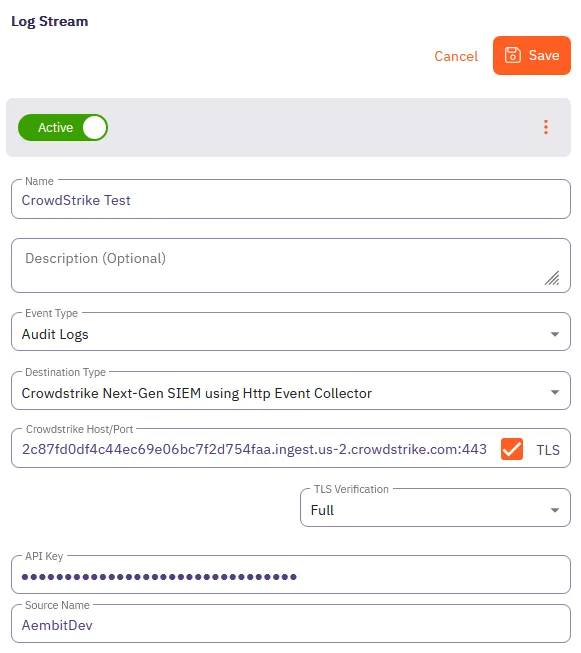 ## Monitor logs in CrowdStrike SIEM [Section titled “Monitor logs in CrowdStrike SIEM”](#monitor-logs-in-crowdstrike-siem) After configuration, you can view logs that Aembit generates from the event type you selected in the CrowdStrike Next-Gen SIEM UI by doing the following: 1. Log into your CrowdStrike Next-Gen SIEM. 2. Go to **Data connections**. 3. In the list of **Connections**, select **Show events** from the **Actions** menu for the connection you created in the prerequisites section. CrowdStrike displays the **Search** page pre-populated your connections details with a list of events in the **Results** pane. You should see results similar to the following on all logs that Aembit streams to CrowdStrike Next-Gen SIEM: ```text #repo: 3pi_auto_raptor_174204601818S #repo.cid: 599f927991a44b3Gae1b7fcf0acd2911 #type: json @dataConnectionID: 6qb4ef044ccc646bfb0c38617cc3f1ee7 @id: vpQ8NosDWpukc2HZ4ELXv9G9_2_3_1742066422 @ingestTimestamp: 1742066500390 @rowString: {"timestamp":"2025-03-15T19:20:22.183751Z","source":"http.AembitDev","tenant":"3qb5d","meta":{"clientIP":"34.232.129.136","timestamp":"2025- 03-15T00:00:21.183751Z","eventType":"access.request","eventId":"d34d67b8-e22b-436e-bf35-489fe8089e56","resourceSetId":"ffffffff-ffff-ffff-ffff-ffffffffffff","contex tId":"9fae3f4c-f16a-452a-99c5-ea095fc2a8bc","severity":"Info","clientRequest":{"version":"1.0.0","network":{"sourceIP":"127.0.0.1","sourcePort":46717,"transpor tProtocol":"TCP"},"environment":{"dembit.clientId":"f86ef924-363636-4be2-b992-b313c54968e"},"network":{"sourceIP":"127.0.0.1"},"dembit":{"clientId":"f86ef924-363 6-4be2-a992-b313c54968e"}}} @source: PlotFormEvents @sourcetype: json @timestamp: 1742066422183 @timestamp.nanos: 751000 @timezone: Z clientRequest.network.proxyPort: 0 clientRequest.network.sourceIP: 127.0.0.1 clientRequest.network.sourcePort: 46717 clientRequest.network.targetHost: igm.googleapis.com clientRequest.network.targetPort: 443 clientRequest.network.transportProtocol: TCP clientRequest.version: 1.0.0 environment.dembit.clientId: f86ef924-3636-4be2-a992-b313c54968e environment.network.sourceIP: 127.0.0.1 meta.clientIP: 256.256.256.256 meta.contextId: 9fae3f4c-f16a-452a-99c5-ea095fc2a4ert meta.eventId: d34d67b8-e22b-436e-bf35-489fe802a4e54 meta.eventType: access.request meta.resourceSetId: ffffffff-ffff-ffff-ffff-ffffffffffff meta.severity: Info meta.timestamp: 2025-03-15T00:00:21.183751Z source: http.AembitDev ``` ## Failure notifications [Section titled “Failure notifications”](#failure-notifications) If your Aembit account has write privileges for Log Streams, Aembit automatically sends you and email notification when Log Stream transactions consistently fail.
# Create a Google Cloud Storage Bucket Log Stream
> This page describes how to create a new Log Stream to an Google Cloud Storage (GCS) Bucket
## Prerequisites [Section titled “Prerequisites”](#prerequisites) Before creating a new Google Cloud Storage (GCS) Bucket Log Stream, make sure you have set up and configured: * [Google Cloud Storage Bucket](https://cloud.google.com/storage/docs/creating-buckets) * [IAM Service Account](https://cloud.google.com/iam/docs/service-accounts-create) * [Workload Identity Federation](https://cloud.google.com/iam/docs/workload-identity-federation-with-other-providers) ## Create a new Google Cloud Storage Bucket Log Stream [Section titled “Create a new Google Cloud Storage Bucket Log Stream”](#create-a-new-google-cloud-storage-bucket-log-stream) To create a new Log Stream for a Google Cloud Storage (GCS) Bucket, follow these steps: 1. Log into your Aembit Tenant. 2. Click **Administration** in the left sidebar. 3. At the top, select **Administration ☰ Log Streams**. Aembit displays the **Log Streams** page with a list of existing Log Streams.  4. Click **+ New**, which displays the Log Streams pop out menu. 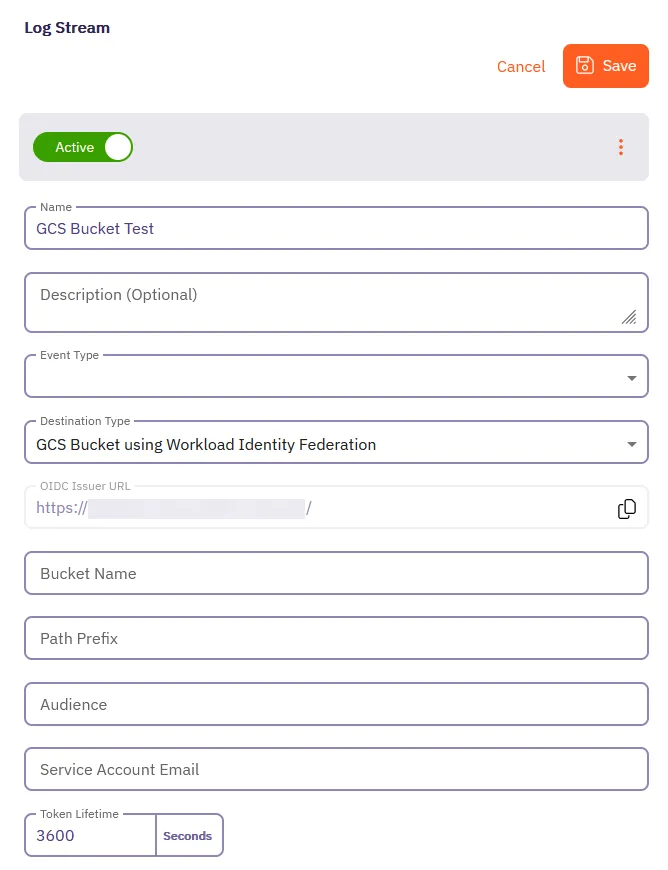 5. Fill out the following fields: * **Name** - The name of the new Log Stream you want to create. * **Description** - A text description for the new Log Stream. * **Event Type** - Select the type of event you want to stream to your GCS Bucket. Choose from: `Access Authorization Events`, `Audit Logs`, and `Workload Events` 6. Select **GCS Bucket using Workload Identity Federation** as the **Destination Type**. 7. Fill out the revealed fields: 8. Add your information for the Google Cloud Storage Bucket in the following fields: * **Bucket Name** - Name of the bucket. * **Audience** - The value from the **Provider Details** in your GCS Bucket Console. Aembit matches any audience value you specific for the provider, and can be either the default audience or a custom value. * **Service Account Email** - The email address of the Service Account (set at the time of Service Account creation). * **Token Lifetime** - The amount of time that the token will remain active. 9. Click **Save**. Aembit displays the **Log Stream** on the **Log Streams** page. 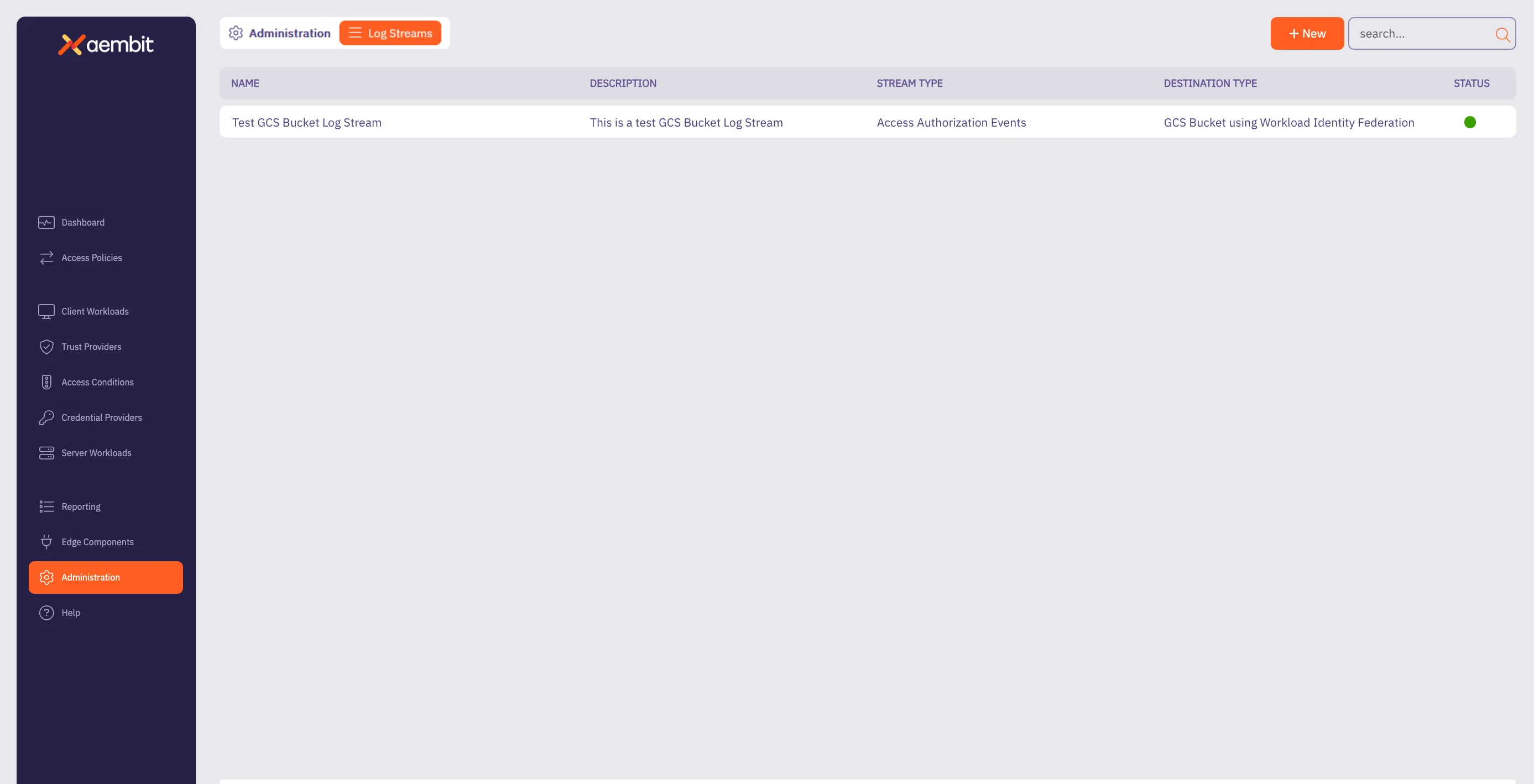
# How to stream Aembit events to Splunk SIEM
> How to create a new a Log Stream for Splunk SIEM
Aembit’s Log Stream to Splunk Security Information and Event Management (SIEM) feature enables rapid streaming of Aembit Edge event logs and audit logs directly to Splunk. This integration uses the HTTP Event Collector (HEC) protocol to deliver comprehensive security data, enhancing threat detection capabilities, improving incident management, and streamlining compliance monitoring for your organization. ## Prerequisites [Section titled “Prerequisites”](#prerequisites) Before you can stream Aembit events to Splunk SIEM, you must have an HTTP Event Collector (HEC) set up in your Splunk environment with the following attributes: * **Source Type** - **Miscellaneous -> `generic_single_line`**. * **Default Index** - **`Default`**. Use your HEC’s **Source Name** and **Token Value** in your Splunk SIEM Log Stream configuration. To configure an HEC in Splunk, see [Set up and use HTTP Event Collector in Splunk Web](https://docs.splunk.com/Documentation/SplunkCloud/latest/Data/UsetheHTTPEventCollector) in Splunk’s official docs. ## Create a Splunk SIEM Log Stream [Section titled “Create a Splunk SIEM Log Stream”](#create-a-splunk-siem-log-stream) 1. Log into your Aembit Tenant. 2. Click **Administration** in the left sidebar. 3. At the top, select **Administration ☰ Log Streams**. Aembit displays the **Log Streams** page with a list of existing Log Streams.  4. Click **+ New**, which displays the Log Streams pop out menu. 5. Fill out the following fields: * **Name** - Enter a name for the Log Stream * **Description** - Enter an optional description for the Log Stream * **Event Type** - Select the type of event you want to stream to your Splunk SIEM. Choose from: `Access Authorization Events`, `Audit Logs`, and `Workload Events` 6. Select **Splunk SIEM using Http Event Collector (HEC)** as the **Destination Type**. 7. Fill out the revealed fields: * **Splunk Host/Port** - Enter the hostname or IP address and port of your Splunk host. * (Optional) Check **TLS** to enable TLS communication between your Splunk host and Aembit. * (Optional) **TLS Verification** - Select the desired option to enable TLS verification. * **Authentication Token** - Enter the **Token Value** from your Splunk HEC. * **Source Name** - Enter the Source Name from your Splunk HEC. 8. Click **Save**. Aembit displays the **Log Stream** on the **Log Streams** page. Once you save your Log Stream, you can view its details by selecting it in the list of Log Streams to see something similar to the following screenshot: 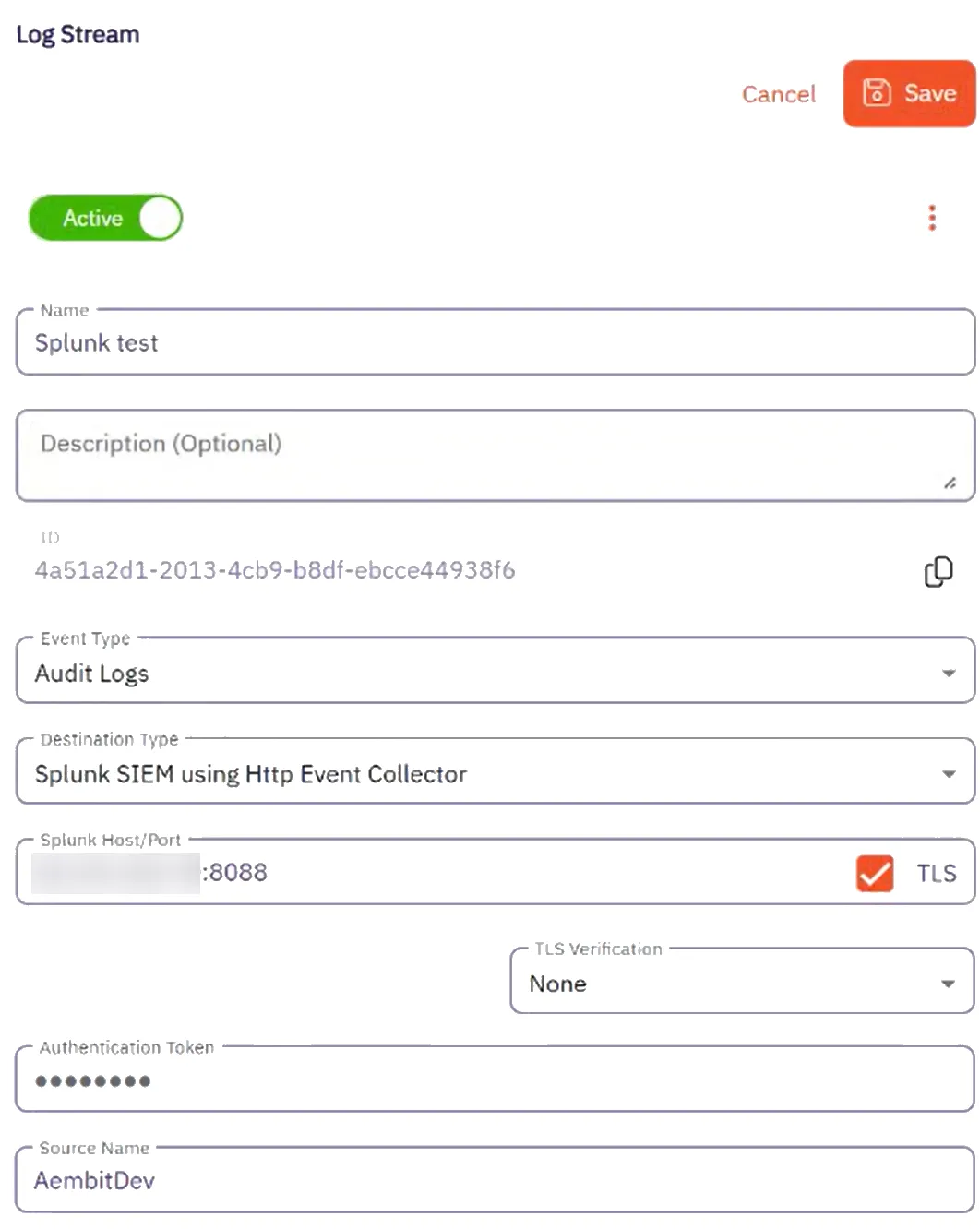 ## Monitor logs in Splunk SIEM [Section titled “Monitor logs in Splunk SIEM”](#monitor-logs-in-splunk-siem) After configuration, you can search and view logs that Aembit generates from the event type you selected in Splunk’s Search and Reporting page using the following search phrase: ```shell source= ``` You should see results similar to the following screenshot: 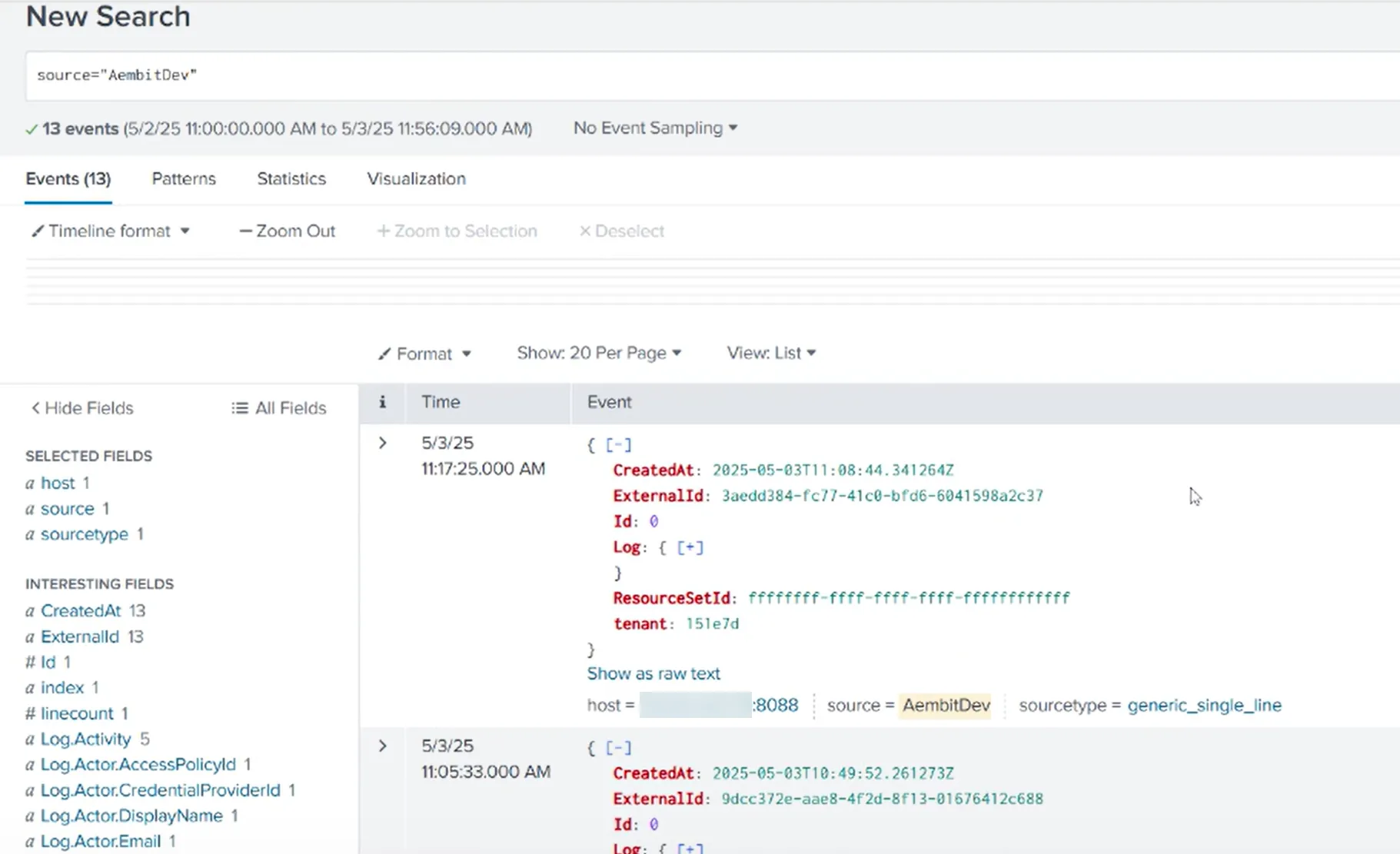 ## Failure notifications [Section titled “Failure notifications”](#failure-notifications) If your Aembit account has write privileges for Log Streams, Aembit automatically sends you an email notification when Log Stream transactions consistently fail.
# Resource Sets overview
> Description of what Resource Sets are and how they work
In complex environments, managing access to sensitive resources requires granular control. Aembit’s Resource Sets are an advanced feature that extends Aembit’s existing Role-Based Access Control (RBAC) capabilities, providing fine-grained permissions and roles within your Aembit Tenant. This feature enables you to define and manage logical and isolated sets of resources. Resources include things such as Client Workloads, Server Workloads, deployed Agent Proxy instances and their associated operational events such as Audit Logs, Access Authorization, and Workload Events. Each Resource Set acts as a mini-environment or sub-tenant, enabling segmentation of security boundaries to best secure your environment. This segmentation allows roles to be specifically tailored for your Resource Sets, thereby ensuring that users and workloads have access limited to the resources necessary for their designated tasks. Therefore, this approach not only enhances security by adhering to the principle of least privilege (PoLP) but also supports complex operational and organizational configurations. ### Configuration [Section titled “Configuration”](#configuration) Resource Sets primarily govern Access Policies and their associated entities. The following list contains all available Access Policy entities: * Client Workloads * Trust Providers * Access Conditions * Integrations * Credential Providers * Server Workloads The resources you configure can then operate independently of similar or identical resources in other Resource Sets, enabling numerous configuration and control options. To ensure this separation, Aembit administrators can configure user assigned roles associated to specific Resource Sets and assign users to these roles. This logical association enables support for numerous advanced permission sets as best suited for your organization’s security needs. Aembit generates Audit Logs for all configuration updates, separates them out into their respective Resource Sets, and ensures they’re only visible to those users with the appropriate permissions. ### Deployment [Section titled “Deployment”](#deployment) You can specify a Resource Set association when deploying an Aembit Agent Proxy or using the Aembit Agent. This enables all operational activity to execute within the bounds of that Resource Set. ### Reporting [Section titled “Reporting”](#reporting) Aembit segments its comprehensive event logging, which includes Audit Logs, Access Authorization, and Workload Events, into the associated Resource Set. Aembit restricts access to these events only to authorized users. This separation ensures that event data is logically isolated but also subject to stringent access controls, restricting visibility to authorized users within each specific Resource Set. Resource Sets empower you to enforce the principle of least privilege. PoLP makes sure that your users can only view configuration details and operational results for the environments and workloads under their direct responsibility. Moreover, this approach facilitates compliance by providing clear audit trails within defined security boundaries, and it simplifies troubleshooting by limiting the scope of event analysis to relevant resource contexts. ## About Resource Set Roles and Permissions [Section titled “About Resource Set Roles and Permissions”](#about-resource-set-roles-and-permissions) While a Resource Set is a collection of individual resources grouped together, within that same Resource Set, you will also need to assign users a specific role, and permissions for that role. When configuring Resource Sets, consider the following: * Roles should be assigned to users based on their responsibilities for managing the Resource Set. When thinking of roles and role assignments, consider the role assignment from a resource-first perspective. * Permissions should be granted for each Role to ensure the user can perform their required tasks. Permissions in a role work with the Resource Set association to enable access to specific Resource Set entities as configured. ## Additional resources [Section titled “Additional resources”](#additional-resources) The following pages provide more information about working with Resource Sets: * [Creating Resource Sets](/user-guide/administration/resource-sets/create-resource-set) - Learn how to create Resource Sets * [Adding Resources to Resource Sets](/user-guide/administration/resource-sets/adding-resources-to-resource-set) - Add resources to your Resource Sets * [Assign Roles](/user-guide/administration/resource-sets/assign-roles) - Assign roles to your Resource Sets * [Deploying Resource Sets](/user-guide/administration/resource-sets/deploy-resource-set) - Deploy your Resource Sets
# How to add a resource to a Resource Set
> How to add resources to a Resource Set
To add resources to a Resource Set, perform the following steps: 1. Log into your Aembit Tenant. 2. Click **Dashboard** in the left sidebar.  3. In the top right corner, select the Resource Set you would like to use to add new resources. In this example, *DevOps Team Resource Set* is selected. 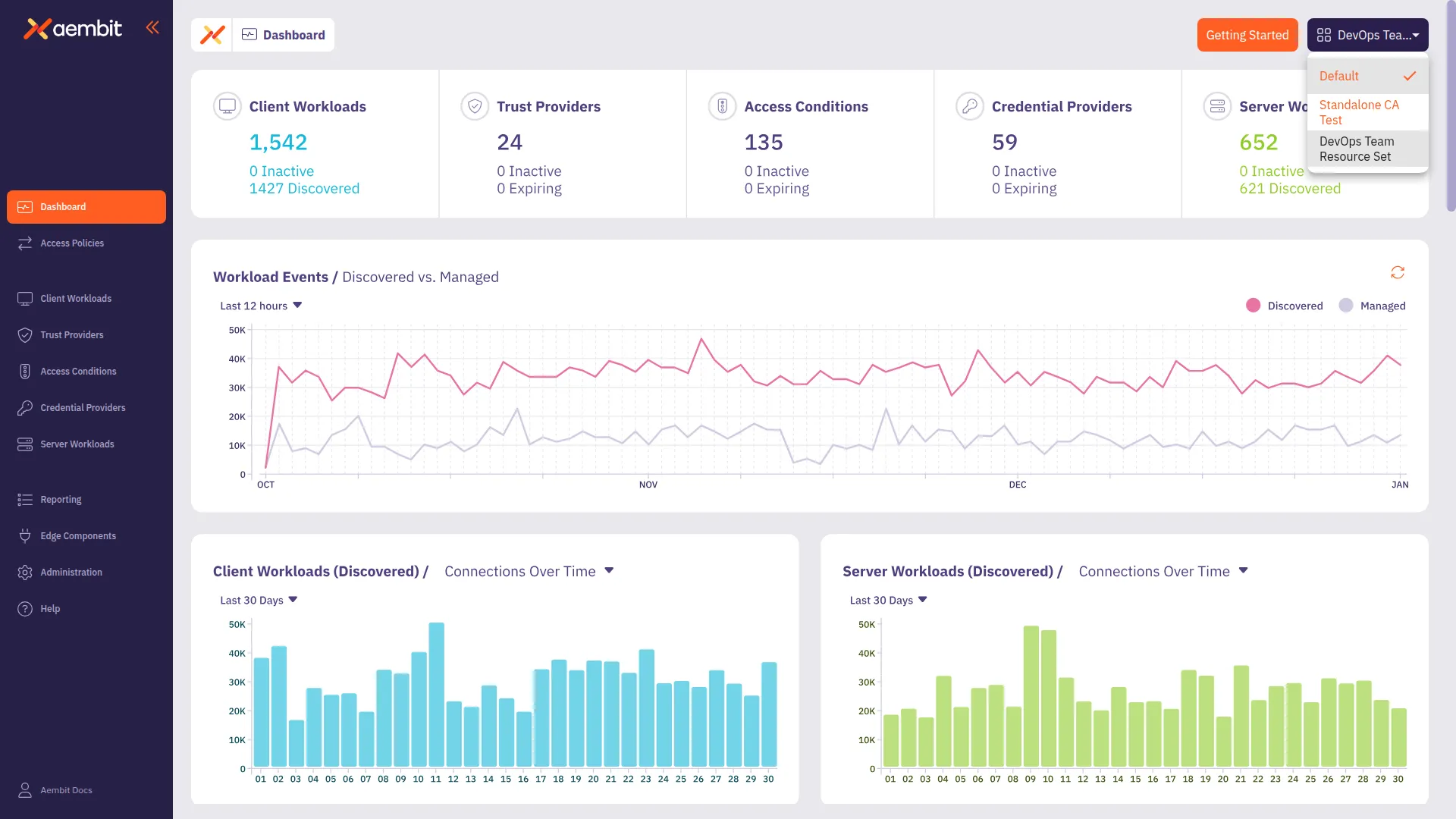 4. To select the type of resource you would like to create, either click on the tile at the bottom of the page for that resource; or click on the tab in the left sidebar. In this example, to select the **Client Workload** resource has been selected. 5. The Client Workload Dialog window will then appear. Notice in the top-right corner of the window that there is a label that designates that this resource will be included in the *DevOps Team Resource Set*. 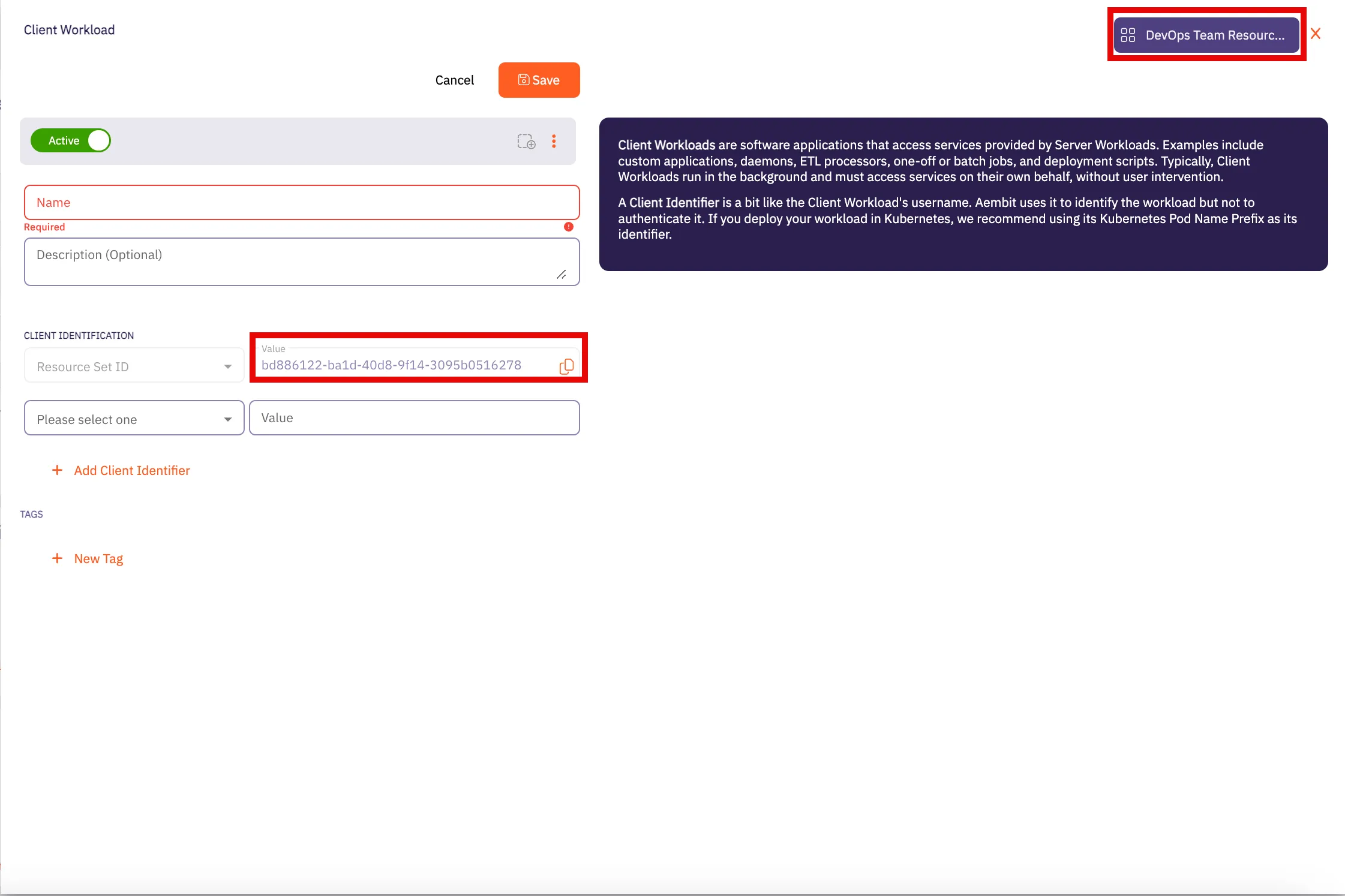 6. Enter all information required for adding the new Client Workload to the *DevOps Team Resource Set* in this dialog window. Click **Save** when finished. 7. Repeat these steps for any other resources you would like to add to the Resource Set. ## Additional resources [Section titled “Additional resources”](#additional-resources) * [Create a Resource Set](/user-guide/administration/resource-sets/create-resource-set) * [Assign roles to a Resource Set](/user-guide/administration/resource-sets/assign-roles)
# How to assign roles to a Resource Set
> How to assign roles for a Resource Set
To assign roles within a Resource Set, perform the following steps: 1. Log into your Aembit Tenant. 2. Click **Administration** in the left sidebar. 3. At the top, select **Administration ☰ Resource Sets**. Aembit displays the **Resource Sets** page with a list of existing Resource Sets. 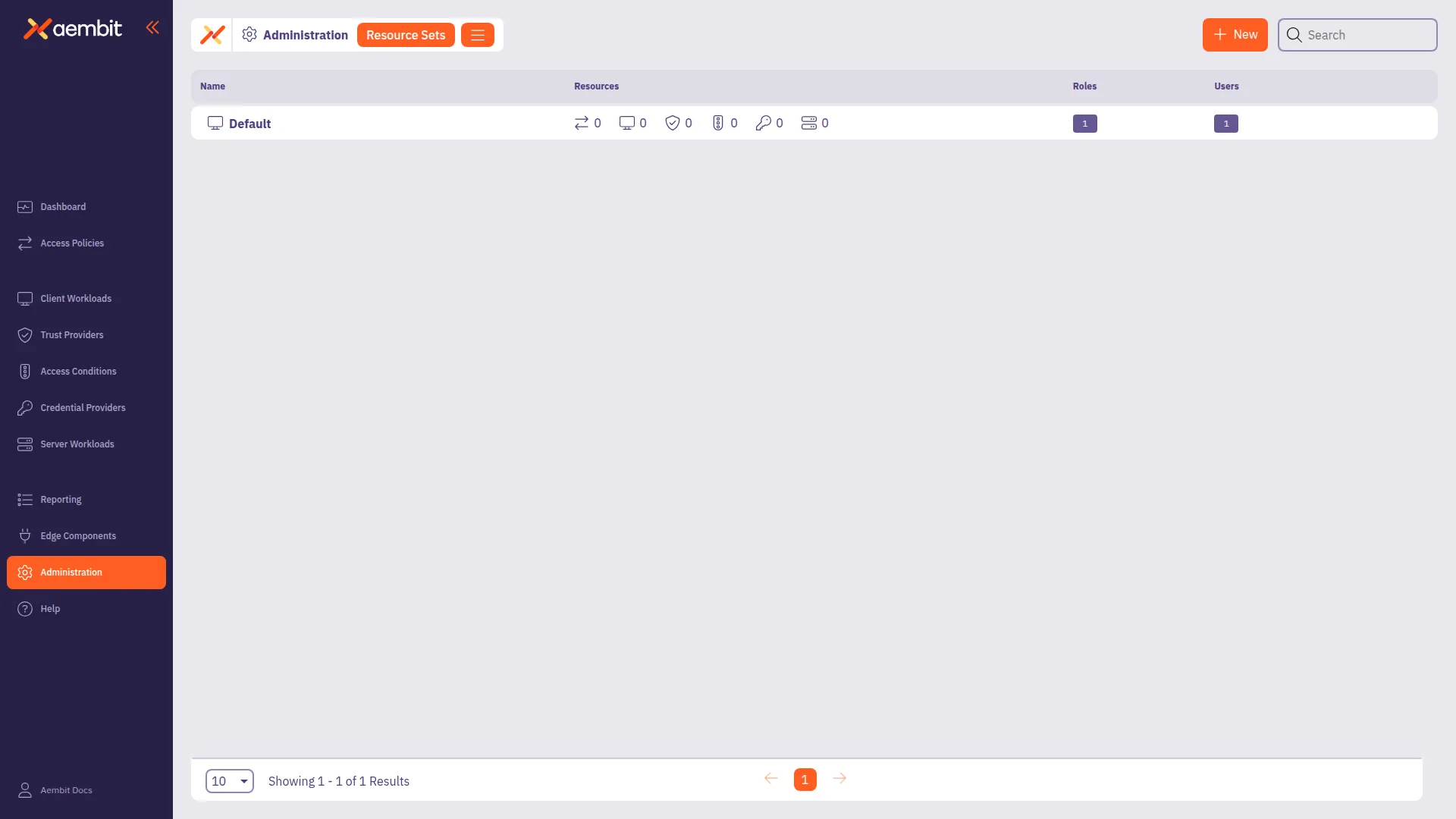 4. Click **+ New**, revealing the Resource Sets pop out menu. 5. Select the **Roles** tab. Follow the applicable step to either add a new role or select from existing roles: * Add New Role 1. Click the **Add New** tab. 2. Check **Create New Admin** for the new role. 3. Enter a **Display Name** for the new role. 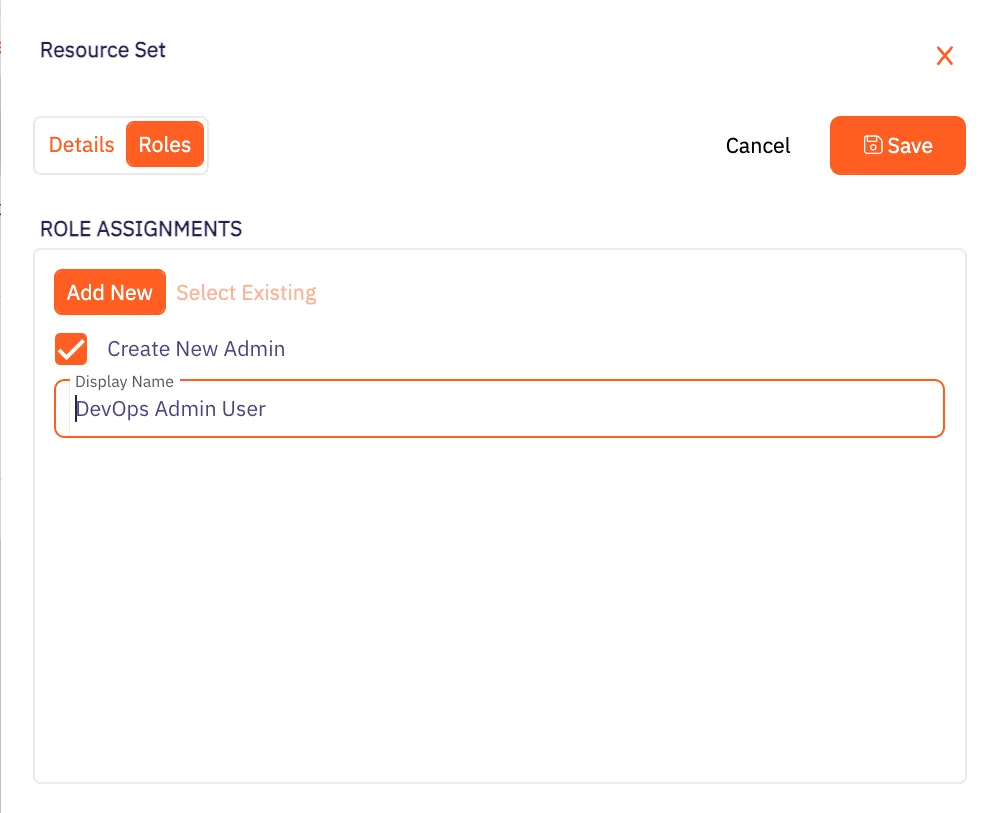 * Select Existing Role 1. Click the **Select Existing** tab. 2. Select the roles you want to use from the drop-down menu. 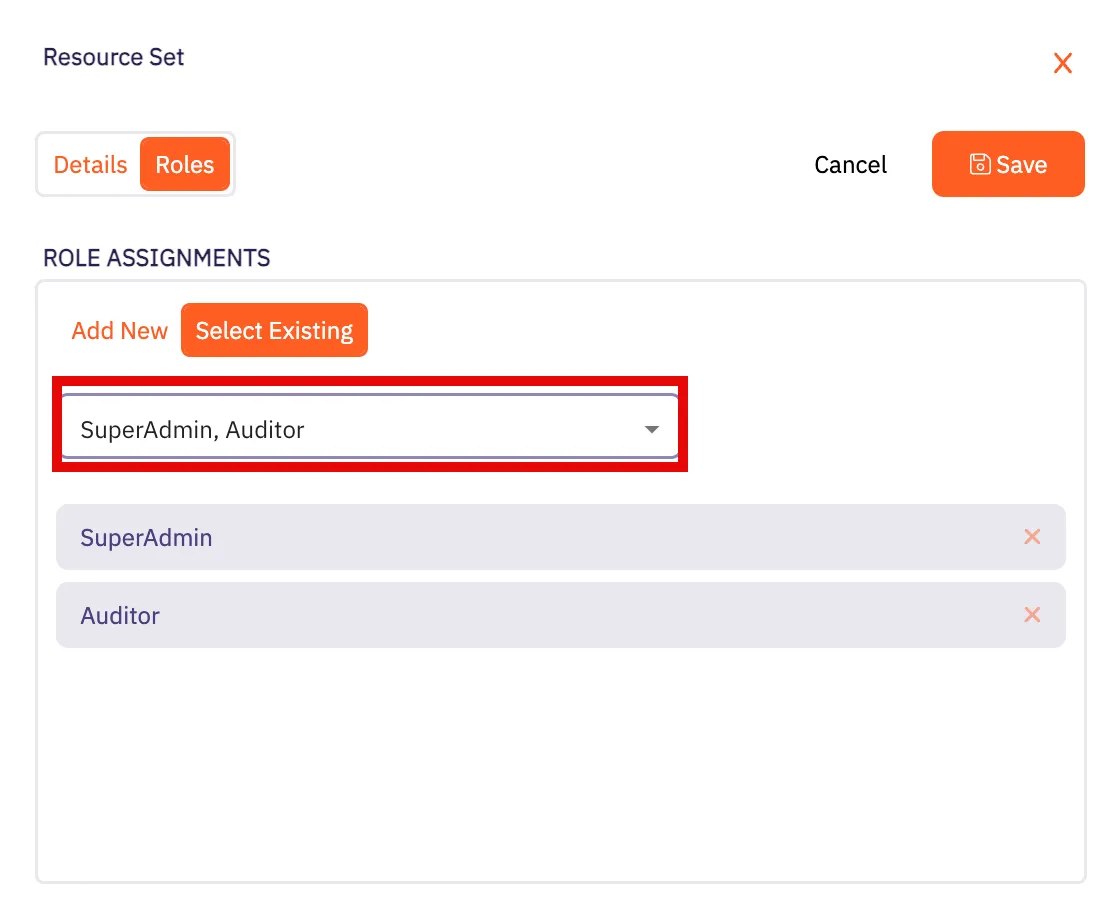 6. Click **Save**. Aembit displays the Resource Set on the **Resource Sets** page. 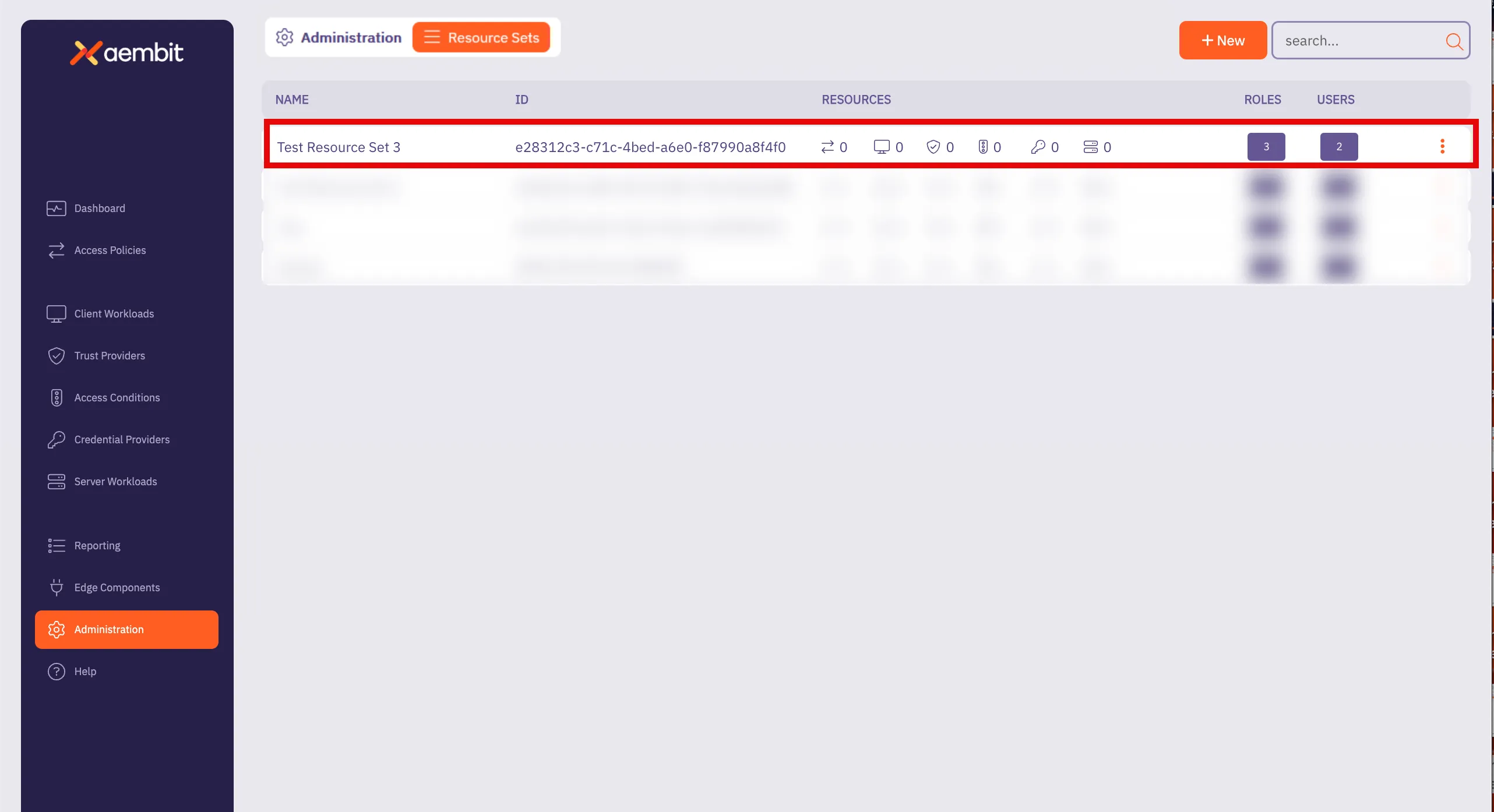
# How to create a Resource Set
> How to create a Resource Set
To create a Resource Set in your Aembit Tenant, perform the following steps: 1. Log into your Aembit Tenant. 2. Click **Administration** in the left sidebar. 3. At the top, select **Administration ☰ Resource Sets**. Aembit displays the **Resource Sets** page with a list of existing Resource Sets.  4. Click **+ New**, revealing the **Resource Sets** pop out menu. 5. Select the **Details** tab. 6. Fill out the following fields: * **Name** - The name of the Resource Set. * **Description** - An optional text description for the Resource Set.  7. Click **Save**. Aembit displays the Resource Set on the **Resource Sets** page. 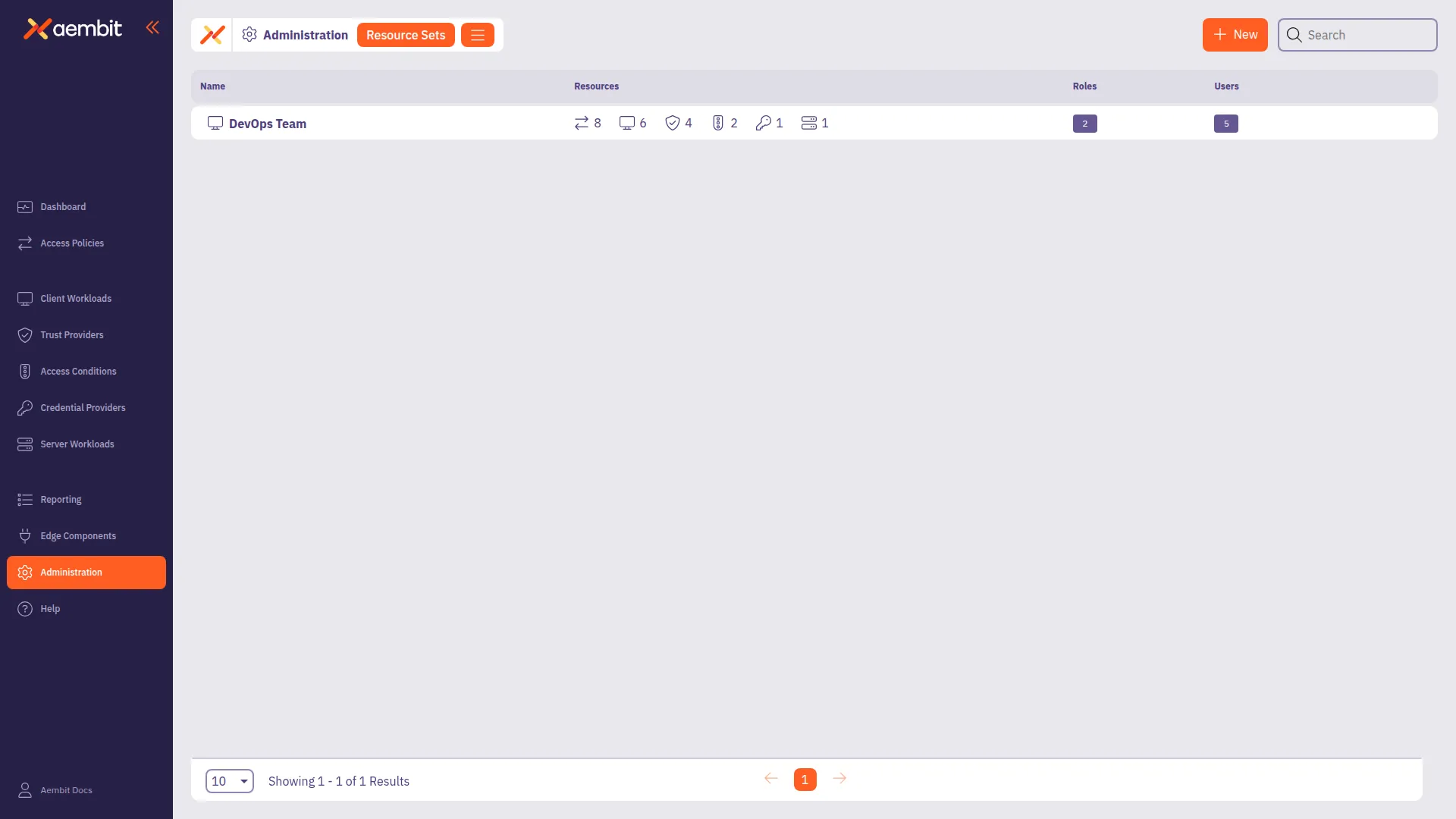
# How to deploy a Resource Set
> How to deploy a Resource Set
Once a Resource Set has been created, and roles and responsibilities have been assigned, the Agent Proxy component needs to be configured and deployed to work with the specific [`AEMBIT_RESOURCE_SET_ID` Agent Proxy environment variable](/reference/edge-components/edge-component-env-vars#agent-proxy-environment-variables). All Aembit deployment mechanisms are supported, including: * Kubernetes * Terraform ECS Module * Agent Proxy VM Installer * AWS Lambda ### Kubernetes deployment [Section titled “Kubernetes deployment”](#kubernetes-deployment) To deploy a Resource Set using Kubernetes, you need to add the `aembit.io/resource-set-id` annotation to your Client Workload deployments. For more information on how to deploy Resource Sets using Kubernetes, please see the [Kubernetes Deployment](/user-guide/deploy-install/kubernetes/kubernetes) page. ### Terraform ECS module deployment [Section titled “Terraform ECS module deployment”](#terraform-ecs-module-deployment) To deploy a Resource Set using the Terraform ECS Module, you need to provide the `AEMBIT_RESOURCE_SET_ID` environment variable in the Client Workload ECS Task. For more detailed information on how to deploy a Resource Set using the Terraform ECS Module, please see the [Terraform Configuration](/user-guide/access-policies/advanced-options/terraform/terraform-configuration#resources-and-data-sources) page. ### Agent Proxy VM installer deployment [Section titled “Agent Proxy VM installer deployment”](#agent-proxy-vm-installer-deployment) To deploy a Resource Set using the Agent Proxy Virtual Machine Installer, you need to specify the `AEMBIT_RESOURCE_SET_ID` environment variable during the Agent Proxy installation. For more information on how to deploy a Resource Set using the Agent Proxy Virtual Machine Installer, please see the [Virtual Machine Installation](/user-guide/deploy-install/virtual-machine/) page. ### AWS Lambda deployment [Section titled “AWS Lambda deployment”](#aws-lambda-deployment) To deploy a Resource Set using an AWS Lambda Container, you need to specify the `AEMBIT_RESOURCE_SET_ID` environment variable to your Client Workload. For more information on AWS Lambda deployment environments, see the [AWS Lambda function](/user-guide/deploy-install/serverless/aws-lambda-function) and [AWS Lambda container](/user-guide/deploy-install/serverless/aws-lambda-container) pages.
# Roles overview
> Description of Aembit roles and how they work
When working in your Aembit environment, you may find it necessary to assign specific roles and permissions for groups so they only have access to certain resources that they are required to manage in order to perform their tasks. By creating roles and assigning permissions to that role, you can enhance your overall security profile by ensuring each role, with its assigned permissions, only has the access required. Your Aembit Tenant enables you to create new roles within your organization, assign Resource Sets for a role, and set permissions for the role. The following pages provide more information about managing roles in your Aembit Tenant: * [Adding Roles](/user-guide/administration/roles/add-roles) - Learn how to add roles to your Aembit Tenant
# How to add a new role
> How to create a new Role in your Aembit Tenant
To add a role to your Aembit Tenant, perform the following steps: 1. Log into your Aembit Tenant. 2. Click **Administration** in the left sidebar. 3. At the top, select **Administration ☰ Roles**. Aembit displays the **Roles** page with a list of existing roles. 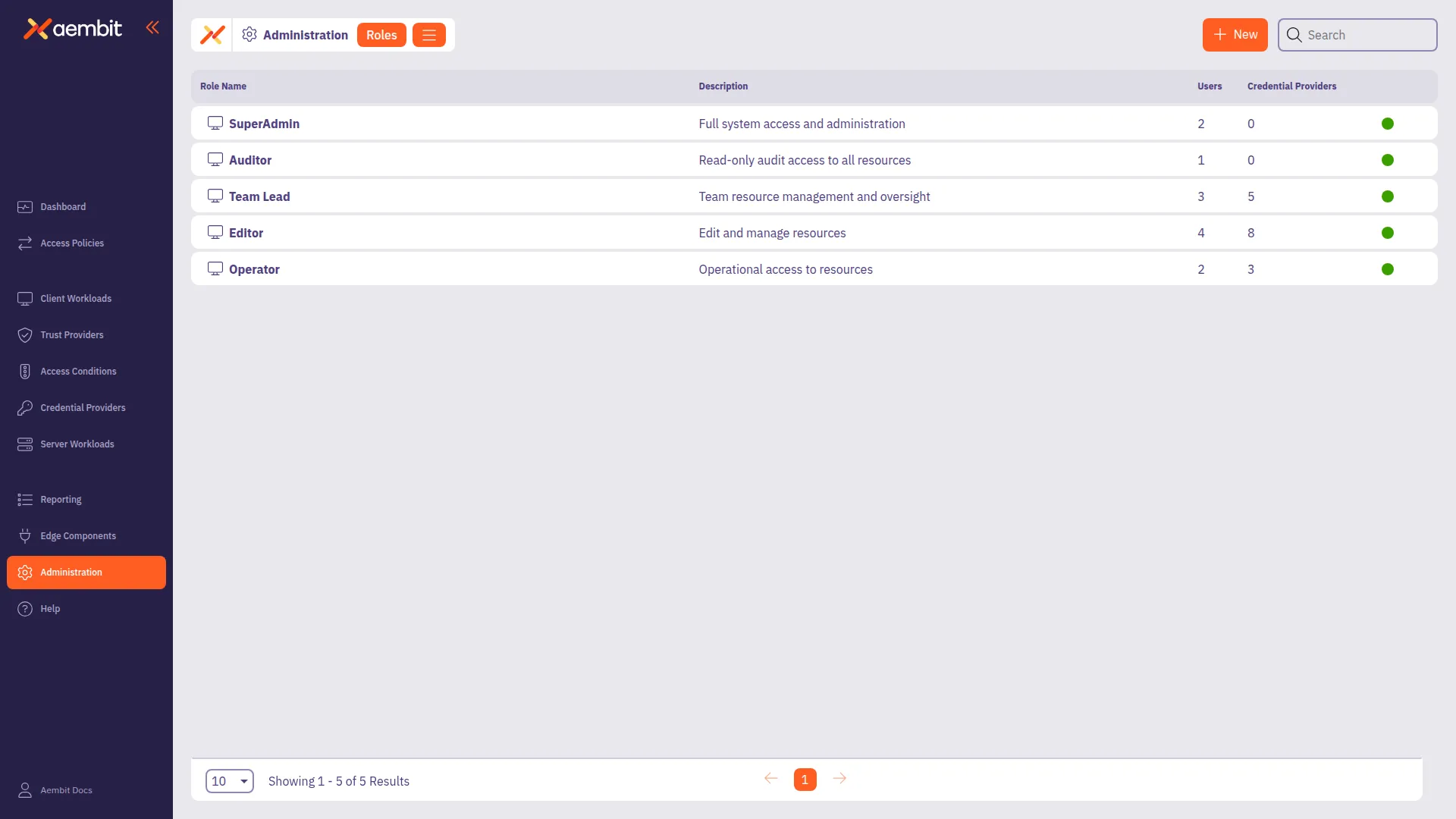 4. Click **+ New**, revealing the **Roles** pop out menu. 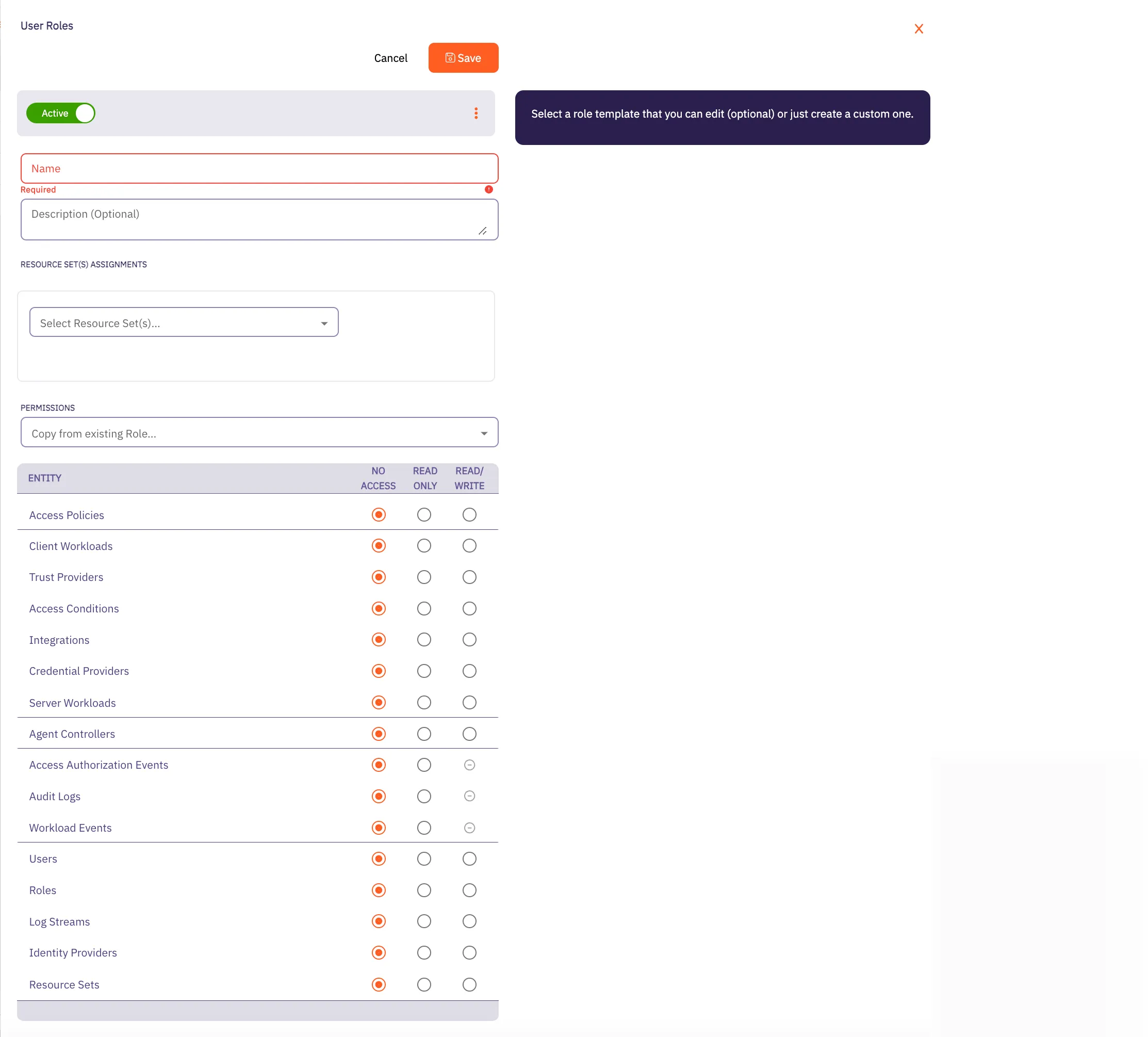 5. Fill out the following fields: * **Name** - The name of the Role. * **Description** - An optional text description of the Role. * **Resource Set Assignment(s)** - A drop-down menu that enables you to assign existing Resource Sets to the Role. * **Permissions** - Select an existing permission set based on the type of Role you would like to create. By selecting from this list, the radio buttons in the Permissions section Aembit auto-fills with the default permissions for that role. In the following example using the **SuperAdmin** role, Aembit has auto-filled the default permissions for that role: 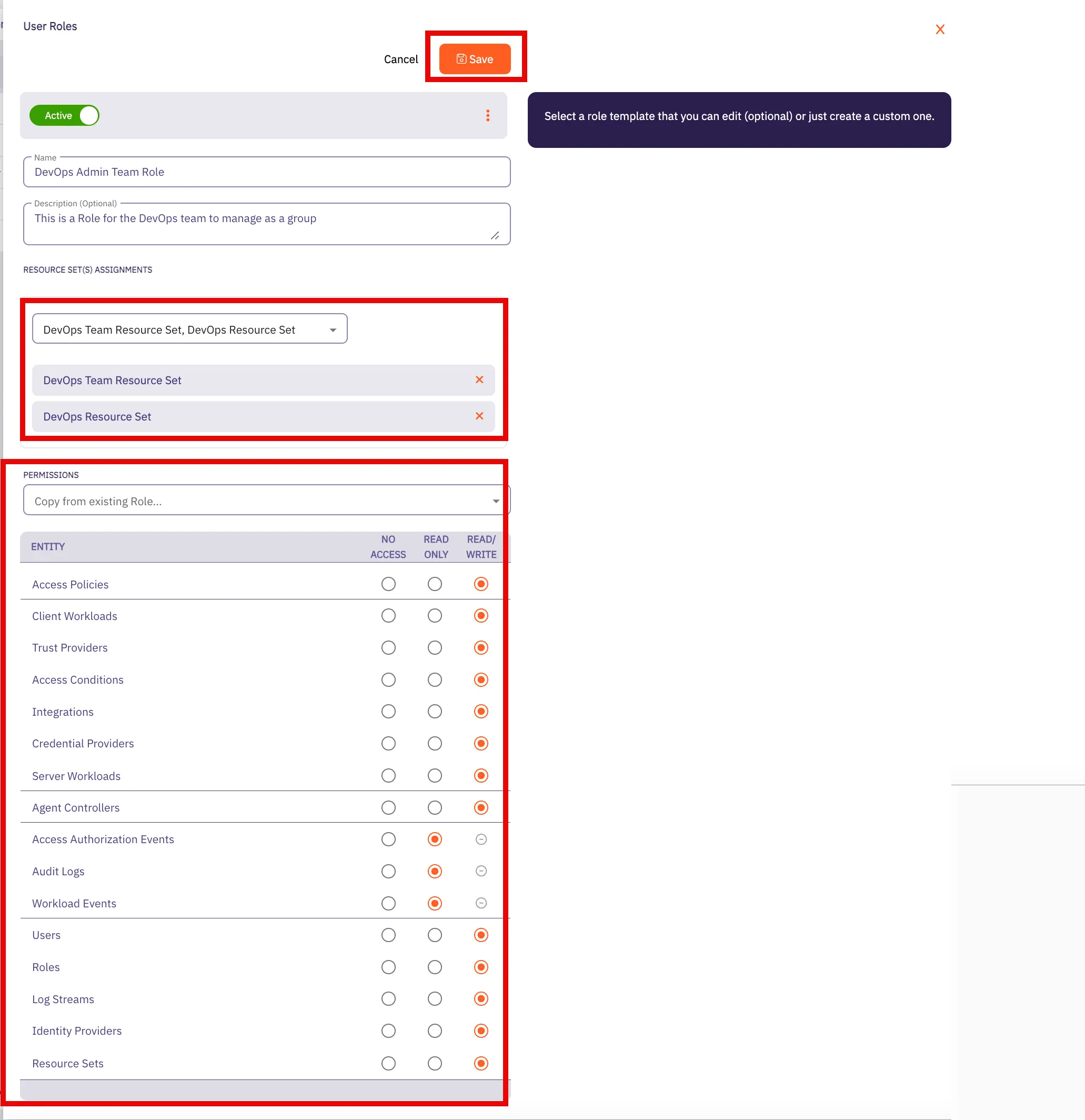 6. Click **Save**. Aembit displays the role on the **Roles** page. 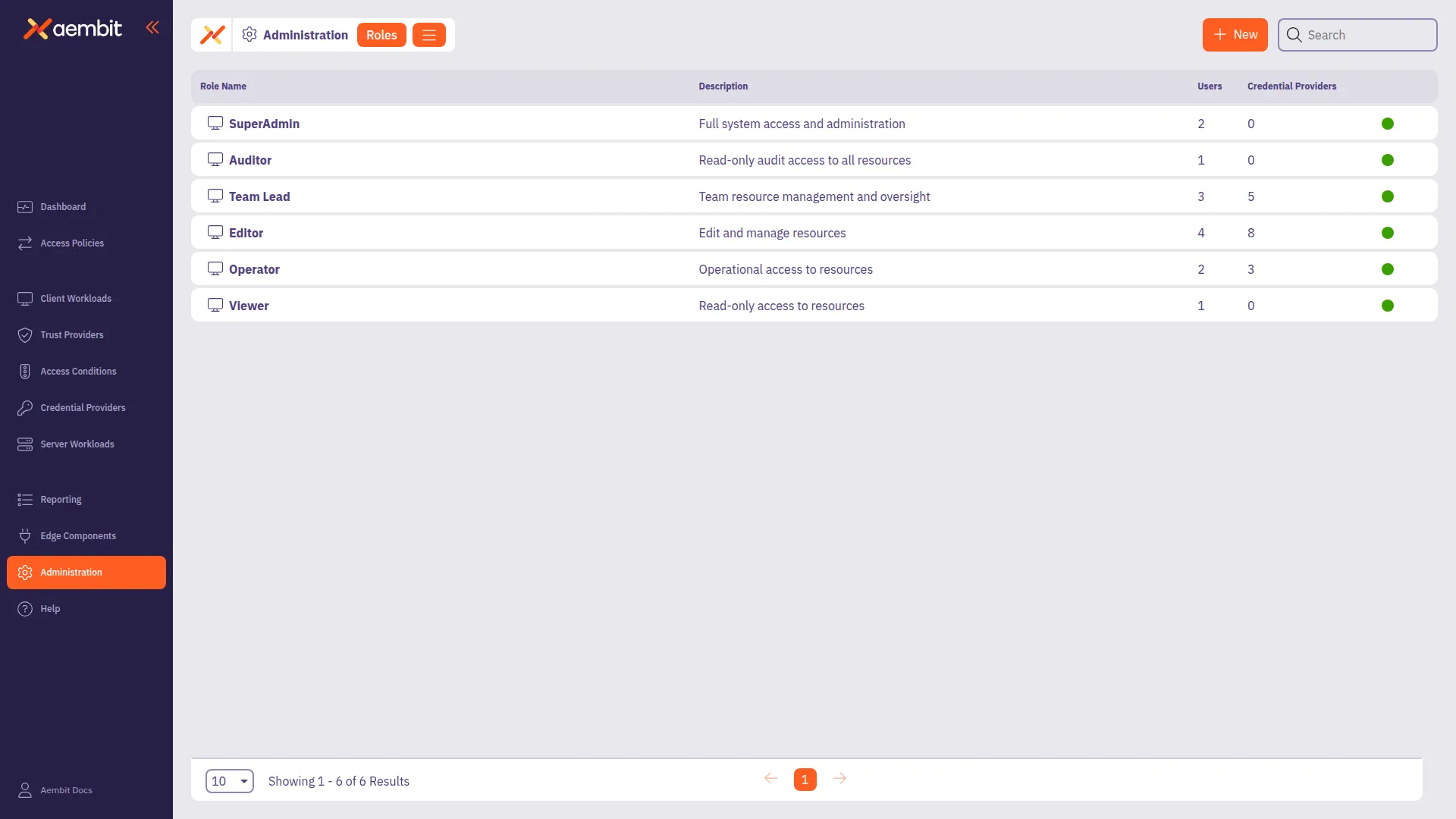
# Sign-On Policy overview
> Description of what Sign-On Policies are and how they work
Use the Sign-On Policy page to control how users log in to your Aembit Tenant. The settings in this page allow you to customize the login experience and security level according to the organization’s needs. The Sign-On Policy page offers two key options to enhance security and streamline the authentication process: ## Require Single Sign-On [Section titled “Require Single Sign-On”](#require-single-sign-on) The following are requirements for using Single Sign-On (SSO): This option mandates that users authenticate through a Single Sign-On provider. This not only simplifies the login process but also enhances security by centralizing authentication management. When you turn on the require SSO option, your users with the system Super Admin role can always use the native sign-in option (username and password). ## Require multi-factor authentication for native sign-in [Section titled “Require multi-factor authentication for native sign-in”](#require-multi-factor-authentication-for-native-sign-in) This option enforces the use of multi-factor authentication (MFA) for users logging in directly through Aembit’s native sign-in method. When enabled, users must provide an MFA code, as well as their password. This markedly increases security by adding an extra layer of protection against unauthorized access. Aembit provides users a 24-hour grace period once you require users to authenticate with MFA. The grace period resets for any users that update their accounts (for example: due to a password reset or account unlocking activity). After this period, Aembit locks accounts without MFA configured. ## Required permissions [Section titled “Required permissions”](#required-permissions) Access to the policy settings on this page requires the **Sign-On Policy** permission.
# Users overview
> This page provides a high-level description of users
When you are working in your Aembit environment, you may find it necessary to add new users to your organization’s Aembit Tenant so they can be added to groups, manage resources, and be assigned certain roles within your organization. In your Aembit Tenant, adding a user entails creating a new user in the tenant UI, and then assigning specific roles for that user. Once the user has been added and a role has been assigned, that user can then manage resources. The following pages provide more information about managing users in your Aembit Tenant: * [Adding Users](/user-guide/administration/users/add-user) - Learn how to add users to your Aembit Tenant
# How to add a user
> How to add a user to your Aembit Tenant
To add a user to your Aembit Tenant, perform the following steps: 1. Log into your Aembit Tenant. 2. Click **Administration** in the left sidebar. 3. At the top, select **Administration ☰ Users**. Aembit displays the **Users** page with a list of existing users.  4. Click **+ New**, revealing the **Users** pop out menu. 5. Fill out the following fields: * **First Name** - First name of the user **Last Name** - Last name of the user * **Email** - The email address associated with the user * **Country Code (optional)** - The country code associated with the user * **Phone Number (optional)** - The phone number associated with the user. * **Role Assignments** - Select the specific role assignments for the user from a list of available roles. 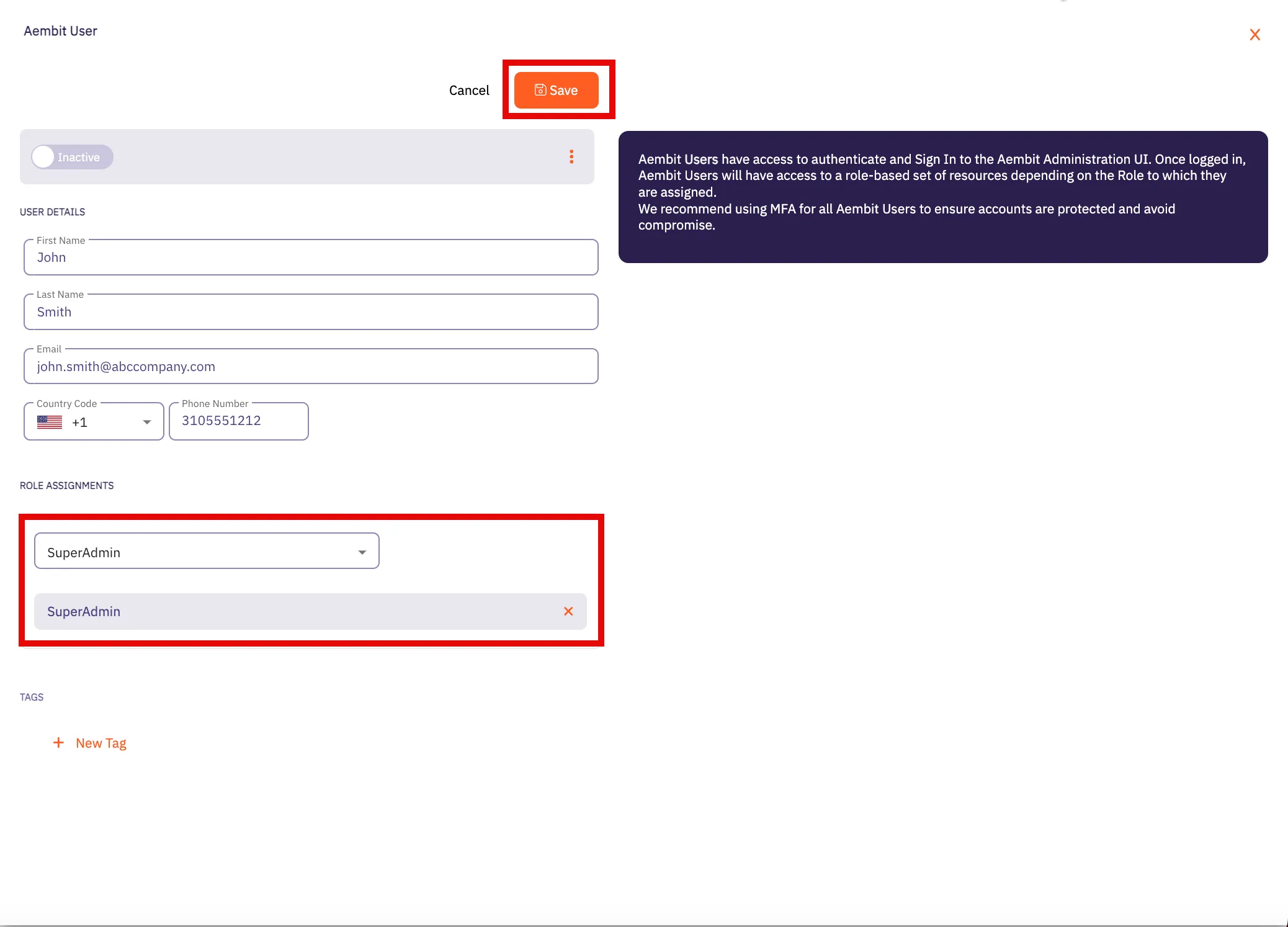 6. Click **Save**. Aembit displays the new user on the **Users** page. 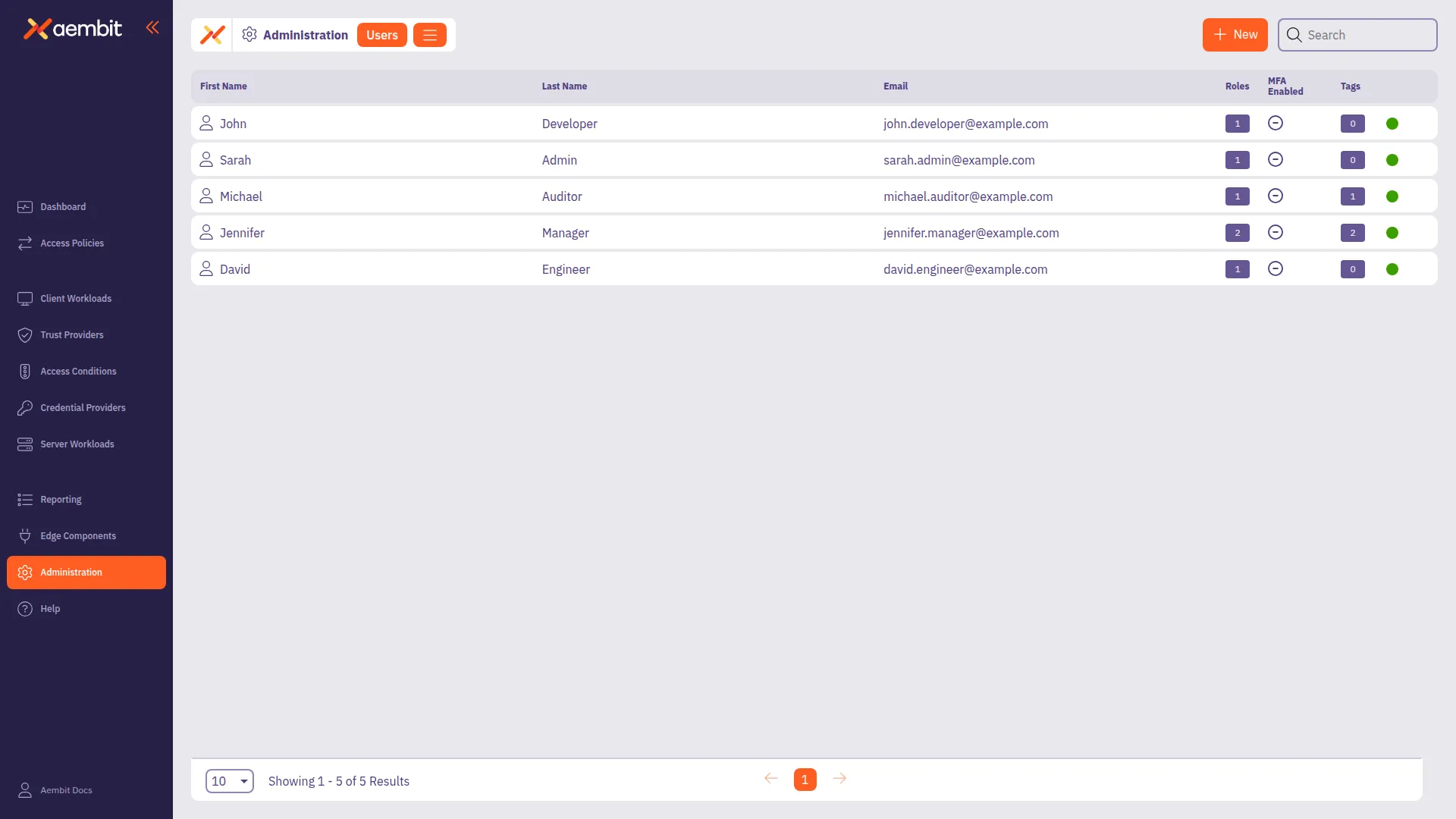
# Audit and report on Workload activity
> This document provides a high-level conceptual overview of auditing and reporting workload activity
Your Aembit Tenant includes three different reporting tools that allow you to review detailed event information. These tools provide insights into your Aembit environment, enabling you to review historical event data and remediate any issues that may arise. This content is useful for reviewing the number of credential requests recorded over a specific period or diving deep into audit logs to troubleshoot errors. The Aembit Tenant includes the following views in the Reporting Dashboard: * [Access Authorization Events](#access-authorization-events) * [Audit Logs](#audit-logs) * [Workload Events](#workload-events) * [Global Policy Compliance](#global-policy-compliance) ## Access Authorization Events [Section titled “Access Authorization Events”](#access-authorization-events) Aembit generates Access Authorization events when Edge Components request access to Aembit-managed Server Workloads. These events detail the evaluation of requests against Access Policies, including the request, evaluation steps, and the outcome (granted or denied). The three event types are: Access Request, Access Authorization, and Access Credential. These logs are essential for diagnosing access-related issues and detecting potential security threats.  [More on Access Authorization Events ](/user-guide/audit-report/access-authorization-events/)Learn how to review Access Authorization event information in the Reporting dashboard. → ## Audit logs [Section titled “Audit logs”](#audit-logs) Audit logs capture detailed information about configuration and administrative activities within your Aembit Tenant. You can filter these logs by timespan, category, and severity to focus on specific events or time frames. The logs include timestamps, actors, categories, activities, targets, and results, that help you identify relevant events. This information, combined with client-specific details like IP address, browser, and operating system, provide you valuable context for troubleshooting and maintaining a comprehensive audit trail. This detailed logging also helps you identify the source of issues and understand the context of events within your Aembit environment.  [More on Audit Logs ](/user-guide/audit-report/audit-logs/)Learn how to review Audit Log information in the Reporting dashboard. → ## Workload Events [Section titled “Workload Events”](#workload-events) Workload events enable a detailed view of network activities proxied by Aembit’s Agent Proxy. These events capture granular data related to the communication and interactions of workloads within your environment. By logging these activities, you gain insights into network traffic patterns, potential security anomalies, and the overall behavior of their workloads. This level of visibility is crucial for monitoring performance, troubleshooting network-related issues, and ensuring the secure operation of applications relying on Agent Proxy. The logged information typically includes details such as source and destination, timestamps, protocols, and any relevant metadata associated with the proxied network traffic.  [More on Workload Events ](/user-guide/audit-report/workload-events/)Learn how to review Workload event information in the Reporting dashboard. → ## Global Policy Compliance [Section titled “Global Policy Compliance”](#global-policy-compliance) Use the Global Policy Compliance view to review the compliance status of your Aembit Tenant’s global policies. It enables you to identify any compliance issues and take necessary actions to ensure that your workloads are aligned with your security and operational standards.  [More on Global Policy Compliance ](/user-guide/audit-report/global-policy/)Learn how to review Global Policy Compliance information in the Reporting dashboard. →
# Access Authorization Events
> This page describes how users can review access authorization event information in Aembit Reporting.
An access authorization event is an event that Aembit generates that occurs whenever an Edge Component requests access to a Server Workload. When Aembit receives an access request, the generated events include detailed information, providing a granular view of the processing steps to evaluate the request against an existing Access Policy. Once Aembit Cloud processes the request and the evaluation is complete, a result is generated that specifies if access is granted or denied (success or failure). Having the ability to view information about these access authorization events enables you to not only troubleshoot issues, but also have a historical records of these events. You may also use these logs to perform threat detection analysis to ensure malicious actors and workloads don’t gain access to your resources. ## Event types [Section titled “Event types”](#event-types) The three different types of access authorization events that you may view in the Aembit Reporting dashboard include: * Access Request * Access Authorization * Access Credential ## Access Request events [Section titled “Access Request events”](#access-request-events) An `access.request` event captures the request and associated metadata. An example of an `access.request` event type is shown below. ```json { "meta": { "clientIP": "1.2.3.4", "timestamp": "2024-09-14T20:29:11.0689334Z", "eventType": "access.request", "eventId": "5b788a92-accd-49a1-851f-171f7c20d355", "resourceSetId": "ffffffff-ffff-ffff-ffff-ffffffffffff", "contextId": "4e876ace-d1b0-4095-ac22-f9c0fb7e676a", "severity": "Info" }, "clientRequest": { "version": "1.0.0", "network": { "sourceIP": "10.0.0.15", "sourcePort": 53134, "transportProtocol": "TCP", "proxyPort": 8080, "targetHost": "server.domain.com", "targetPort": 80 } } } ``` ## Access Authorization events [Section titled “Access Authorization events”](#access-authorization-events) In an `access.authorization` event, you can view detailed information about the steps Aembit Cloud Control Plane undertakes to evaluate an Access Policy. Information shown in an access authorization event includes event metadata, the outcome of the evaluation, and details about the identified Client Workload, Server Workload, Access Policy, Trust Providers, Access Conditions and Credential Provider. The following example shows the type of data you should expect to see in an access authorization event. ```json { "meta": { "clientIP": "1.2.3.4", "timestamp": "2024-09-14T20:29:11.0689334Z", "eventType": "access.authorization", "eventId": "5b788a92-accd-49a1-851f-171f7c20d355", "resourceSetId": "ffffffff-ffff-ffff-ffff-ffffffffffff", "contextId": "4e876ace-d1b0-4095-ac22-f9c0fb7e676a", "severity": "Info" }, "outcome": { "result": "Unauthorized", "reason": "Attestation failed" }, "clientWorkload": { "id": "7c466803-9dd4-4388-9e45-420c57a0432c", "name": "Test Client", "result": "Identified", }, "serverWorkload": { "id": "49183921-55ab-4856-a8fc-a032af695e0d", "name": "Test Server", "result": "Identified", }, "accessPolicy": { "id": "dd987f8c-34fb-43e2-9d43-89d862e6b7ec", "name": "Test Access Policy", "result": "Identified", } "trustProviders": [{ "id": "24462228-14c1-41a4-8b23-9be789b48452", "name": "Kerberos", "result": "Attested" },{ "id": "c0bd6c06-71ce-4a87-b03c-4c64cb311896", "name": "AWS Production", "result": "Unauthorized", "reason": "InvalidSignature" },{ "id": "5f0c2962-2af4-4b5f-97c0-9046b37198a9", "name": "Kubernetes", "result": "Unauthorized", "reason": "MatchRuleFailed", "attribute": "serviceNameUID", "expectedValue": "foo", "actualValue": "bar", }], "accessConditions": [], "credentialProvider": { "id": "bb7927f8-060c-4486-9a5e-bcbe1efc53d6", "name": "Production PostgreSQL", "result": "Identified", "maxAge": 60, } } ``` ### Authorization Failure [Section titled “Authorization Failure”](#authorization-failure) If an authorization request fails during the check, a `reason` property value is returned in either the `trustProviders` and/or `accessConditions` elements notifying you that a failure has occurred, and providing a reason for the failure. By providing you a reason for the failure, you can then use this information to diagnose and troubleshoot the issue. There are several different types of `reason` values that can be returned with a failure. Some of these values include: * **NoDataFound** - Attestation didn’t succeed because the necessary data wasn’t available. * **InvalidSignature** - The cryptographic verification check failed. * **MatchRuleFailed** - The match rules for the Trust Provider weren’t satisfied. * **ConditionFailed** - The Access Condition check failed. In the example shown above, notice that the `Trust Providers` check failed. For the Trust Provider ID `5f0c2962-2af4-4b5f-97c0-9046b37198a9` here for this example, the reasons specified in the JSON response are: * `MatchRuleFailed` With this information, you can determine that not only did Trust Provider fail the `AWS Production` cryptographic check, but the check was also unable to match the Trust Provider to an existing match attribute for that Trust Provider (the check was looking for `ServiceNameUID` with the expected value `foo`). Now that you know why the failure occurred, you can troubleshoot the issue. ### Access Credential [Section titled “Access Credential”](#access-credential) The `access.credential` event type shows the result of the Edge Controller retrieval attempt of the required credential when requested. If the request was successful, the Edge Controller acquires credentials for the Server Workload via the Credential Provider and the event will specify the result as `Retrieved`. The example below shows what you should expect to see in an `access.credential` event. ```json { "meta": { "clientIP": "1.2.3.4", "timestamp": "2024-09-14T20:29:11.0689334Z", "eventType": "access.credential", "eventId": "5b788a92-accd-49a1-851f-171f7c20d355", "resourceSetId": "ffffffff-ffff-ffff-ffff-ffffffffffff", "contextId": "4e876ace-d1b0-4095-ac22-f9c0fb7e676a", "severity": "Info" }, "outcome": { "result": "Authorized", }, "clientWorkload": { "id": "7c466803-9dd4-4388-9e45-420c57a0432c", "name": "Test Client", "result": "Identified", }, "serverWorkload": { "id": "49183921-55ab-4856-a8fc-a032af695e0d", "name": "Test Server", "result": "Identified" }, "accessPolicy": { "id": "dd987f8c-34fb-43e2-9d43-89d862e6b7ec", "name": "Test Access Policy", "result": "Identified" } "trustProviders": [{ "id": "49183921-55ab-4856-a8fc-a032af695e0d", "name": "Kerberos", "result": "Attested" }], "accessConditions": [], "credentialProvider": { "id": "bb7927f8-060c-4486-9a5e-bcbe1efc53d6", "name": "Production PostgreSQL", "result": "Retrieved", "maxAge": 60, } } ``` ### Credential Failure [Section titled “Credential Failure”](#credential-failure) If an credential request fails during the check, a `reason` property value is returned with the `credentialProvider` entity notifying you that a failure has occurred, and providing you a reason for the failure. By providing you a reason for the failure, you can then use this information to diagnose and troubleshoot the issue. There may be several reasons why credential request fails. Some of these reasons may be: * **Token expired** - The requested token has expired. * **Request failed with BadRequest** - There was a communication error with the credential provider. Note: This will include the encountered HTTP status code. * **Aembit Internal Error** - There was an internal Aembit error during the credential retrieval. * **Unknown error** - An unexpected error occurred during credential retrieval and is being investigated by Aembit support. With this information, you can determine the reason for the failure and then troubleshoot the issue. ## Retrieving Access Authorization Event data [Section titled “Retrieving Access Authorization Event data”](#retrieving-access-authorization-event-data) To retrieve detailed information about access authorization events, perform the steps described below. 1. Log into your Aembit Tenant. 2. Once you are logged in, click on the **Reporting** link in the left sidebar. You are directed to the Reporting Dashboard page.  You will see two dropdown menus at the top of the page that enable you to filter and sort the results displayed: * **Timespan** - The period of time you would like to have event data displayed. * **Severity** - The level of importance of the event. 3. Select the period of time you would like to view by clicking on the **Timespan** dropdown menu. Options are: * 1 hour, 3 hours, 6 hours, 12 hours, or 24 hours. 4. Select the severity level of the results you would like to view by clicking on the **Severity** dropdown menu. Options are: * Error, Warning, Info, or All 5. Once you have selected your filtering options, the table displays access authorization event information based on these selections. ### Viewing Access Authorization event data [Section titled “Viewing Access Authorization event data”](#viewing-access-authorization-event-data) When you select an access authorization event from the dashboard, you can expand the view to display detailed data for that event. Depending on the event type, different data is displayed. The sections below show example of the type of data that may be displayed with an event. ### Access authorization event example [Section titled “Access authorization event example”](#access-authorization-event-example) If you would like to review detailed information about an access authorization event, click on the event. This expands the view for that event, revealing both a summary of the event with quick links to each entity, and detailed JSON output, including event metadata. Depending on the type of access authorization event, the information presented in the expanded view will be specific to that event type. For example, if you review an example below shows an event where Trust Provider attestation failed. #### Trust Provider attestation failure example [Section titled “Trust Provider attestation failure example”](#trust-provider-attestation-failure-example) In the following example, you can see detailed information about an access authorization event that shows a failure because the Trust Provider couldn’t be attested. 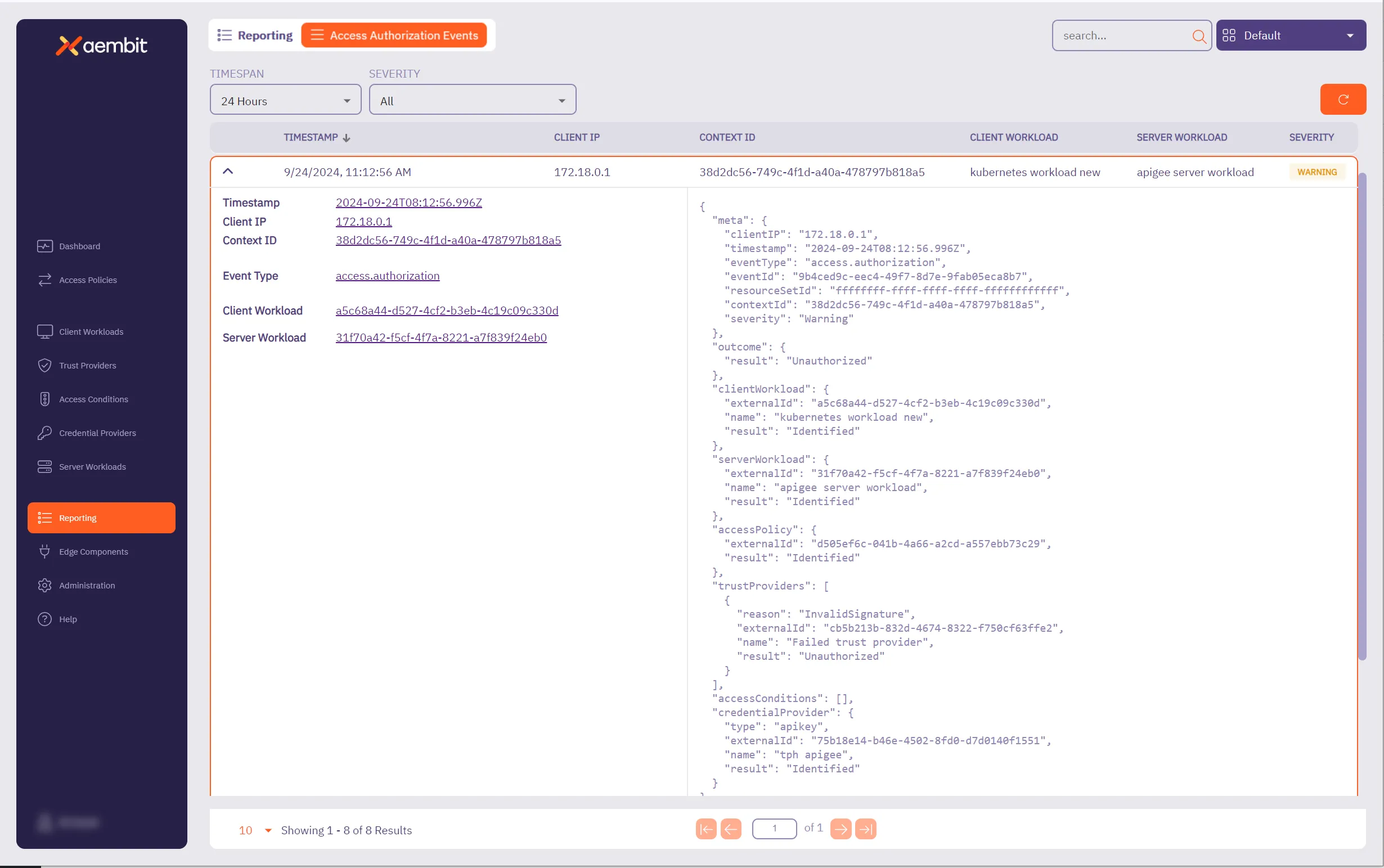 In the left side of the information panel, you see the following information displayed: * **Timestamp** - The time when the event was recorded. * **Client IP** - The client IP address that made the access authorization request. This will typically be a network egress IP from your edge environment. * **Context ID** - ID used to associate the relevant access authorization events together. * **Event Type** - The type of event that was recorded. * **Client Workload** - The identified Client Workload ID. * **Server Workload** - The identified Server Workload ID. In the right side of the information panel, you see the more granular, detailed information displayed about each of these entities, including: * **Meta** - Metadata associated with the event. * Information includes `clientIP`, `timestamp`, `eventType`, `contextId`, `directiveId`, and `severity`. * **Outcome** - The result of the access authorization request. * Options are `Authorized`, `Unauthorized`, or `Error`. * **Client Workload** - The Client Workload used in the access authorization request. * Detailed information includes `id`, `name`, `result`, and `matches`. Note that the `matches` value is optional, and is only rendered if multiple Client Workloads are matched. * **Server Workload** - The Server Workload used in the access authorization request. * Detailed information about the Server Workload includes `id`, `name`, `result`, and `matches`. * Note that the `matches` value is optional, and is only rendered if multiple Server Workloads are matched. * **Access Policy** - The Access Policy used to evaluate the access authorization request. * Information includes `id`, `name`, `result`, and `matches`. * **Trust Providers** - The Trust Providers assigned to the Access Policy at the time of evaluation. * Information in the JSON response includes `id`, `name`, `result`, `attribute`, `expectedValue`, and `actualValue`. * The `reason`, `attribute`, `expectedValue` and `actualValue` fields are all optional; however, in the case of Trust Provider attestation failure, you will see the `reason` field populated. * If a `reason` value is returned, refer to the [Authorization Failure](#authorization-failure) section on this page for more information. * **Access Conditions** - The Access Conditions assigned to the Access Policy at the time of evaluation. * Information in the JSON response includes `id`, `name`, `result`, `attribute`, `expectedValue`, and `actualValue`. * The `reason`, `attribute`, `expectedValue` and `actualValue` fields will only be returned if there is a failure, and the reason for the failure is `ConditionFailed`. * **Credential Provider** - The Credential Provider used in the access authorization request. * Detailed information includes `id,` `name`, `result`, and `maxAge` values. * If a failure occurs during credential retrieval, then a `reason` value will also be included.
# How to review Audit Logs
> How to review Audit Log information in the Reporting Dashboard
Your Aembit Tenant includes the ability for you to review detailed audit log information so you can troubleshoot any issues encountered in your environment. Having this data readily available can assist you in diagnosing any issues that may arise, while also providing you with detailed information about these events. ## Retrieving audit log data [Section titled “Retrieving audit log data”](#retrieving-audit-log-data) To retrieve event information from audit logs, perform the following steps: 1. Log into your Aembit Tenant. 2. Click **Reporting** in the left sidebar. 3. At the top, select **Reporting ☰ Audit Logs**. Aembit displays the **Audit Logs** page with a list of existing Audit Logs. 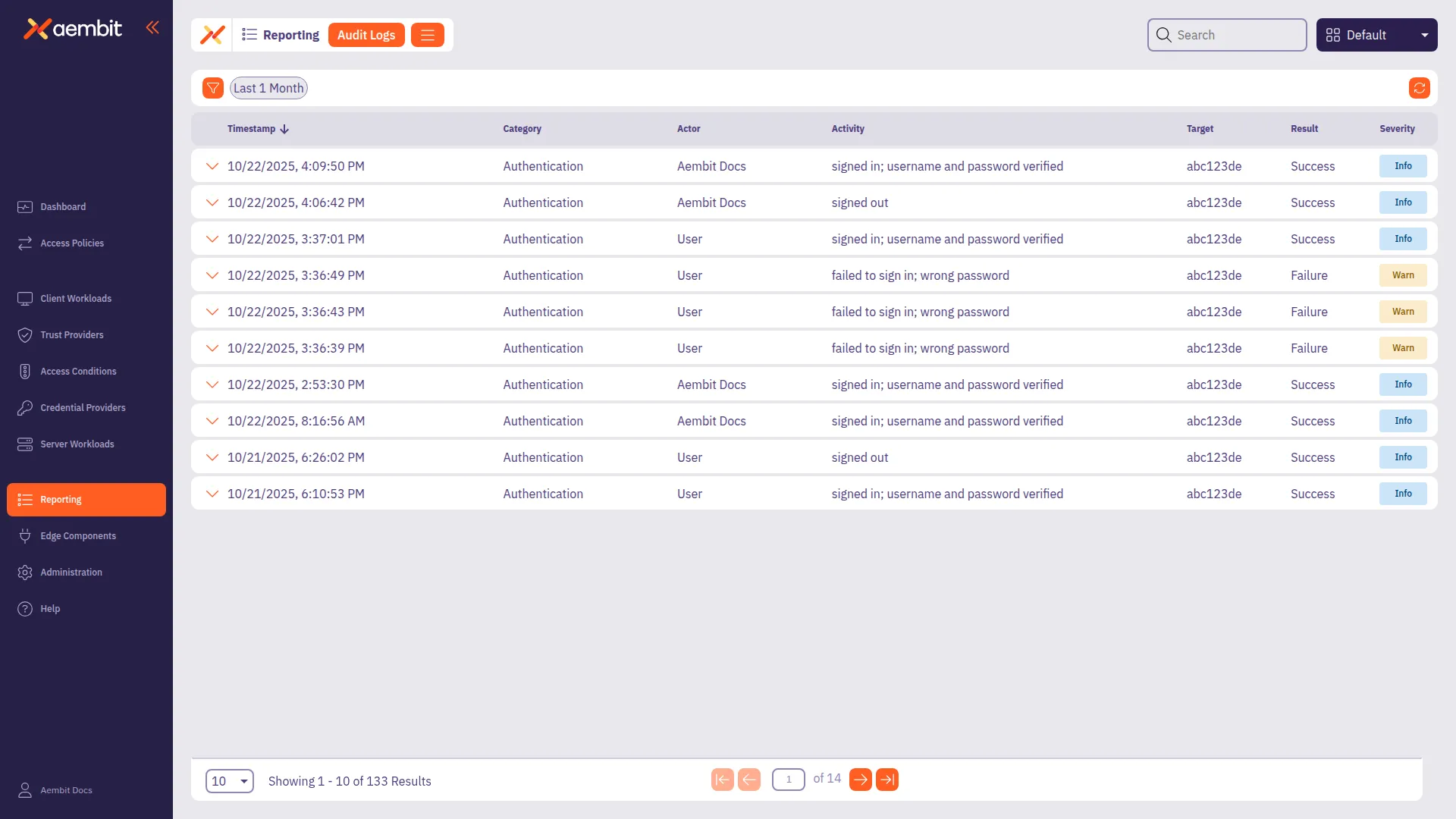 4. By default Aembit displays all logs. You can filter the results to your liking using the following: * **Timespan** - The period of time you would like to have audit logs data displayed. Default - **30 Days** Options - `1 Day`, `15 Days`, `30 Days`, `3 Months`, `6 Months`, `1 Year`, or `All` * **Category** - The type of event information you want displayed. Default - **All** Options - `AccessConditions`, `AccessPolicies`, `AgentControllers`, `Agents`, `Authentication`, `CredentialProvider`, `CredentialProviderIntegrations`, `DiscoveryIntegration`, `GlobalPolicyCompliance`, `IdentityProviders`, `Integrations`, `LogStreams`, `PkiSettings`, `ResourceSets`, `Roles`, `Routing`, `SignOnPolicies`, `StandaloneCertificateAuthorities`, `Tenant`, `TrustProvider`, `Users`, `Workloads`. * **Severity** - The level of importance of the event. Default - **All** Options - `Alert`, `Warn`, `Info` 5. Once you have selected your filtering options, Aembit displays the audit log information based on your selections in the table. ### Audit logs reporting example [Section titled “Audit logs reporting example”](#audit-logs-reporting-example) If you would like to review detailed audit log information for an event, select the event. This expands the window for that event, enabling you to see both a summary of the event (on the left side of the information panel), and detailed JSON output (on the right side of the information panel). The following example shows audit log information for an event where Trust Provider attestation failed. 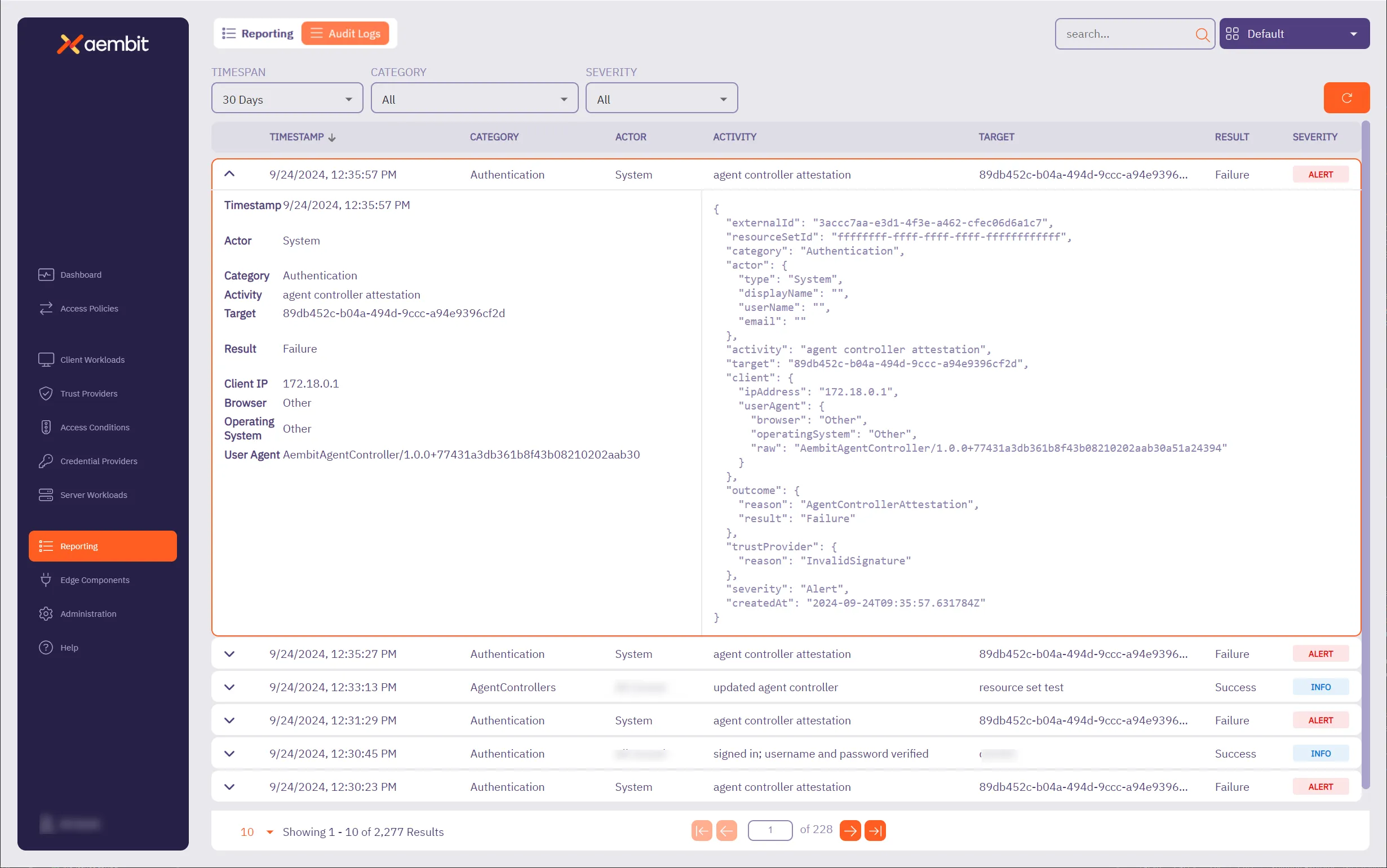 In the left side of the information panel, you see a summary of the event information displayed, including: * **Timestamp** - The time the event was recorded. * **Actor** - The entity responsible for the request. * **Category** - The category of the event. * **Activity** - The type of request being made. * **Target** - The identifier of the entity that you are running the activity against. For example, if you are editing a Credential Provider, the target is the name of the Credential Provider. * **Result** - The result of the event. * **Client IP** - The IP address of the user or workload that executed the action that is recorded by the audit log. * **Browser** - The browser used by the client. * **Operating System** - The operating system used by the client. * **User Agent** - The User-Agent HTTP header included in the API request that generated the audit log activity. In the right side of the information panel, you see the more granular, detailed information, including: * **ExternalID** - The external ID of the audit log. * **Resource Set ID** - The Resource Set ID of the entity affected by the audit log generating activity. * **Category** - The category of the event in the audit log. * **Actor** - The entity responsible for the request. * **Activity** - The type of request being made. * **Target** - The target entity of the action represented by the audit log record. * **Client** - The metadata for the Client (e.g. browser) environment. * **Outcome** - The verdict of the request. * **Trust Provider** - The Trust Provider used in the request. Note that this value is only applicable for Trust Provider attestation based authentication (e.g. Agent Controller attested authentication or Proxyless authentication). * **Severity** - The severity of the event. * **Created At** - The time the request was made.
# How to review Global Policy Compliance
> How to review Global Policy Compliance information in the Reporting dashboard
Global Policy Compliance is a feature in Aembit that allows you to enforce security standards across your Aembit environment. It ensures that Access Policies and Agent Controllers adhere to specific security requirements, such as Trust Provider configurations and TLS hostname settings. This helps maintain consistent security practices and prevents the creation of policies that could expose resources unintentionally. On the Global Policy Compliance page, you can review the compliance status of your Aembit Tenant’s global policies. ## About Global Policy Compliance status [Section titled “About Global Policy Compliance status”](#about-global-policy-compliance-status) Aembit uses color-coded status icons and labels to indicate the compliance status of Access Policies in relation to Global Policy Compliance: * **Red** - a required element is missing from the Access Policy. * **Yellow** - a recommended element is missing from the Access Policy. * **Green** - the Access Policy is compliant with Global Policy Compliance requirements. * **Gray** - the Access Policy is disabled or not active. When you edit an Access Policy, Aembit displays the current compliance status and prevents you from saving non-compliant Access Policies based on your configured enforcement level. This ensures that all policies meet the required security standards before they can be saved or activated. ## Reviewing Global Policy Compliance data [Section titled “Reviewing Global Policy Compliance data”](#reviewing-global-policy-compliance-data) To review Global Policy compliance data, perform the following steps: 1. Log into your Aembit Tenant. 2. Click **Reporting** in the left sidebar. 3. At the top, select **Reporting ☰ Global Policy Compliance**. Aembit displays the **Global Policy Compliance** page with a list of existing Access Policies and their **Compliance Status**. 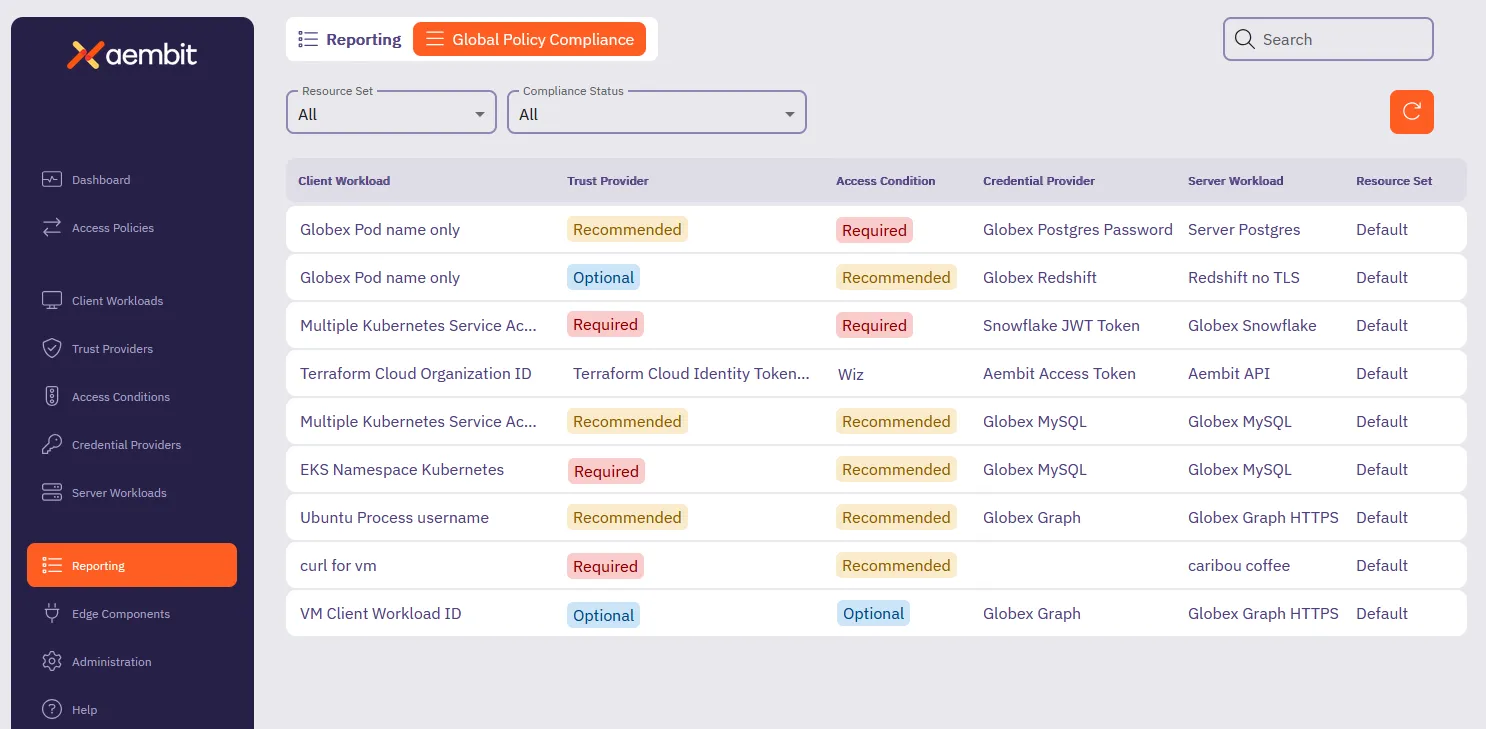 4. By default Aembit displays all Access Policies. You can filter the results to your liking using the following: * **Resource Set** - A dynamic list of Resource Sets in your Aembit Tenant. You can select a specific Resource Set to filter the Access Policies the report dashboard displays. Default - **All** Options - all Resource Sets in your Aembit Tenant. * **Compliance Status** - The status of the Access Policies in relation to Global Policy Compliance. You can select a specific compliance status to filter the Access Policies the report dashboard displays. Default - **All** Options - `Compliant`, `Missing Required`, `Missing Recommended`, 5. Once you have selected your filtering options, Aembit displays the Access Policies based on your filter selections in the table.
# How to review Workload events
> How to review Workload event information in the Reporting dashboard
# Install and Deploy Aembit Edge
> This document provides a high-level conceptual overview of how Aembit Edge handles Workload connections
Aembit manages the identities of and access from workloads (typically, software applications) to services. Aembit provides Aembit Edge, software components deployed in your environment that intermediate connections between workloads, gather assessment data from your operating environment, inject credentials into requests, and log interactions between Client Workloads and services. For each deployment type, this page describes the multiple connections and protocols used to enable Aembit in support of your workloads. ## Aembit Edge - data plane [Section titled “Aembit Edge - data plane”](#aembit-edge---data-plane) Aembit Edge Components include: * Aembit Agent Proxy * Aembit Agent Controller * Aembit Agent Injector (Kubernetes Only) * Aembit Agent Sidecar Init (Kubernetes Only) Before diving into these components, it’s important to understand the fundamentals of workload communication and Aembit’s role in the process. At its most basic level, a Client Workload communicates with a Server Workload using a transport protocol, such as TCP, utilizing a set of IP addresses and ports to exchange data. Aembit is generally based on a Proxy model and will intercept the network communication between Client and Server Workloads, authenticating the connection as configured by an Aembit Access Policy. ## Deployment [Section titled “Deployment”](#deployment) To achieve these capabilities, the Aembit Architecture depends on deploying Agent Controller instances, which Agent Proxy instances can then leverage to bootstrap secure communication with the Aembit Cloud. From a network/protocol perspective, that deployment is achieved by the following steps: 1. Deploy Agent Controller with Device Code or Agent Controller ID. * Device Code: Authenticates and registers with the Aembit Cloud using the time-bound and single-use Device Code created for a specific Agent Controller. * Agent Controller ID: Authenticates and registers with the Aembit Cloud using the TrustProvider with the associated Agent Controller. 2. Deploy Agent Proxy configured to communicate with an Agent Controller. * Agent Proxy registers with the Agent Controller and Aembit Cloud. * Optional: You can configure Agent Controller with a TLS Certificate to enable and enforce HTTPS communication. ### Virtual machine [Section titled “Virtual machine”](#virtual-machine)  ### Kubernetes [Section titled “Kubernetes”](#kubernetes)  ### AWS ECS Fargate [Section titled “AWS ECS Fargate”](#aws-ecs-fargate)  ## Workload communication [Section titled “Workload communication”](#workload-communication) After the Aembit Edge is deployed and registered, we can now begin identifying workloads and managing access for the configured policies. 1. Client Workloads connect to Server Workloads - the Agent Proxy handles both DNS and application traffic. 1. **DNS** - DNS requests and responses are read to route application traffic. 2. **Application Traffic** - Uses the configured Access Policy and Credentials from the Aembit Cloud for authorized injection. 
# About the Aembit Agent Controller
> Understanding the Agent Controller's role as a critical Edge component that facilitates secure registration and communication between Agent Proxies and Aembit Cloud
Aembit’s **Agent Controller** is a critical [Aembit Edge](/get-started/concepts/aembit-edge) component that serves as the registration broker for other Edge Components within your operational environments. It acts as the trusted intermediary that enables Agent Proxies to securely register with Aembit Cloud and obtain the credentials needed for [Access Policy](/get-started/concepts/access-policies) enforcement. Agent Controller simplifies the deployment and management of Aembit Edge by centralizing the registration process and providing a secure communication channel between your distributed Edge components and Aembit Cloud. ## Deployment options [Section titled “Deployment options”](#deployment-options) Agent Controller supports deployment across diverse computing environments to meet your infrastructure requirements: ### Virtual machines [Section titled “Virtual machines”](#virtual-machines) Deploy Agent Controller on dedicated virtual machines using native installers:  [Linux virtual machines ](/user-guide/deploy-install/virtual-machine/linux/)Ubuntu and Red Hat Enterprise Linux →  [Windows virtual machines ](/user-guide/deploy-install/virtual-machine/windows/)Windows Server → ### Container environments [Section titled “Container environments”](#container-environments) Deploy Agent Controller within containerized environments:  [Kubernetes clusters ](/user-guide/deploy-install/kubernetes/)Deployed via Helm charts with automatic configuration →  [AWS ECS Fargate ](/user-guide/deploy-install/serverless/aws-ecs-fargate)Container-based deployment using Terraform modules → ### Specialized deployments [Section titled “Specialized deployments”](#specialized-deployments) Support for specialized deployment scenarios:  [AWS Lambda deployments ](/user-guide/deploy-install/serverless/aws-lambda-function)Supports Edge component deployment in AWS Lambda →  [High availability configurations ](/user-guide/deploy-install/advanced-options/agent-controller/agent-controller-high-availability)Multiple instances with load balancing for production resilience → ### Deployments without Agent Controller [Section titled “Deployments without Agent Controller”](#deployments-without-agent-controller) In some deployment models, like [Aemibt CLI](/cli-guide/usage) for CI/CD and when your applications use the Aembit API directly, you may not need an Agent Controller, reducing operational complexity. For more details, see [Aembit Edge on CI/CD services](/user-guide/deploy-install/ci-cd/). ## Key responsibilities [Section titled “Key responsibilities”](#key-responsibilities) Agent Controller performs multiple critical functions within the Aembit Edge architecture: * **Controller Self-Registration** - The Agent Controller manages its own registration and attestation with Aembit Cloud to establish a foundational trust relationship for the environment it represents. * **Token Provisioning** - Once registered, Agent Controller provides authentication tokens to Agent Proxies. The controller handles local token distribution, while Aembit Cloud centralizes the actual token management. * **Trust establishment** - Establishes and maintains trust relationships between your environment and Aembit Cloud. Validates identity evidence from Trust Providers to ensure only authorized components can participate in the Aembit ecosystem. * **Secure communication** - Manages TLS communication between Agent Proxies and itself, providing encrypted channels for sensitive registration and authentication data. ## How Agent Controller works [Section titled “How Agent Controller works”](#how-agent-controller-works) Agent Controller operates as part of the broader Aembit Edge registration and credential injection workflow: ### During registration [Section titled “During registration”](#during-registration) Agent Controller supports the following registration methods, each with its own workflow: * Trust Provider-based Agent Controller uses [Trust Providers](/get-started/concepts/trust-providers) which automate identity attestation through cloud provider metadata services or other trusted systems in your environment. Ideal for production and high-availability deployments. 1. **Agent Controller attestation** - Agent Controller retrieves an attestation document from its local environment. Trust Providers exist in Aembit Cloud and can verify that Agent Controller has provided an attestation document that matches the Trust Provider configured for that Agent Controller. 2. **Agent Controller registration** - Using the attestation, Agent Controller obtains an access token from Aembit Cloud and completes its secure registration 3. **Agent Proxy token flow** - Agent Proxies request tokens from Agent Controller which obtains them from Aembit Cloud on their behalf 4. **Agent Proxy registration** - Using the token provided by Agent Controller, Agent Proxies register with Aembit Cloud and establish their secure connection 5. **Health reporting** - Agent Controller periodically sends health reports to Aembit Cloud  * Device Code-based Device Codes are temporary one-time-use codes, valid for 15 minutes, that you use during installation to authenticate the Agent Controller with your Aembit Tenant. 1. **Device code flow** - Agent Controller requests a device code from Aembit Cloud and polls for an access token 2. **Agent Controller registration** - Using the access token, Agent Controller completes its secure registration with Aembit Cloud 3. **Agent Proxy token flow** - Agent Proxies request tokens from Agent Controller, which obtains them from Aembit Cloud on their behalf 4. **Agent Proxy registration** - Using the token provided by Agent Controller, Agent Proxies register with Aembit Cloud and establish their secure connection 5. **Health reporting** - Agent Controller periodically sends health reports to Aembit Cloud  ### During operation [Section titled “During operation”](#during-operation) Once registered, Agent Controller plays a continuous, active role in your Aembit Edge deployment. Its main operational responsibilities include: 1. **Token Management and Refresh** * **Proxy Token Requests** - Agent Proxies periodically request new access tokens from Agent Controller. This ensures that Agent Proxies always have valid credentials to interact with Aembit Cloud. * **Token Refresh** - Agent Controller securely stores refresh tokens and uses them to obtain new access tokens from Aembit Cloud as needed, without requiring re-registration. 2. **Health Reporting** * **Periodic Health Checks** - Agent Controller sends a health report to Aembit Cloud every minute over a secure connection. This report includes status, version, and uptime, enabling monitoring in your Aembit Tenant UI. * **Status Updates** - The Aembit Tenant UI displays the current health of each Agent Controller, including connection status and last reported uptime. 3. **TLS Certificate Reporting** * **Certificate Status** - If you enable TLS, Agent Controller reports its certificate status to Aembit Cloud. The Aembit Tenant UI displays certificate health, including expiration warnings. 4. **Metrics and Observability** * **Metrics** - Agent Controller provides Prometheus-compatible metrics, allowing integration with monitoring tools for timely observability of operational health, request rates, and resource usage.  ## Monitoring and health [Section titled “Monitoring and health”](#monitoring-and-health) Agent Controller provides robust monitoring and health reporting features to help you maintain operational visibility and ensure reliability in your Edge deployments. ### Where to find Agent Controller logs [Section titled “Where to find Agent Controller logs”](#where-to-find-agent-controller-logs) Agent Controller logs are essential for monitoring its operation and troubleshooting issues. The log file locations vary based on the operating system: * Linux On VM deployments the logs should be available with the command: ```shell journalctl -n aembit_agent_controller ``` This is the primary location for all Agent Controller service activity logs on Linux. * Windows Agent Controller writes logs to: ```plaintext C:\ProgramData\Aembit\AgentController\Logs ``` This is the primary location for all Agent Controller service activity logs on Windows. Logs aren’t removed on uninstall. ### What `ReportHealth` logs look like [Section titled “What ReportHealth logs look like”](#what-reporthealth-logs-look-like) When Agent Controller sends a health report to Aembit Cloud, you’ll see log entries like: **On Success**: ```plaintext Cloud Health Reporting Service sent the Health Report to the Cloud successfully. ``` **On Failure**: ```plaintext Error while getting Report Health from gRPC ``` ### Health reporting [Section titled “Health reporting”](#health-reporting) **Automatic Health Checks** - Agent Controller sends a health report to Aembit Cloud every minute over a secure connection. This report includes the controller’s status, version, and uptime. **Status Indicators in your Aembit Tenant UI** * **Healthy** - Displayed as a green dot in the Aembit Tenant UI if Agent Controller sends a healthy status to Aembit Cloud within the last 90 seconds. * **Disconnected** - If Agent Controller reports no healthy status within 90 seconds, a disconnected icon appears. * **Last Reported Uptime** - Hovering over the status icon shows the last reported uptime for the Agent Controller. **Health States** * **Healthy** - Registered and connected to Aembit Cloud. * **Registered** - Registered but not fully healthy (for example, waiting for additional attestation). * **Unregistered** - Not registered with device code or trust provider. * **RegisteredAndNotConnected** - Registered, but the connection to Aembit Cloud is down. 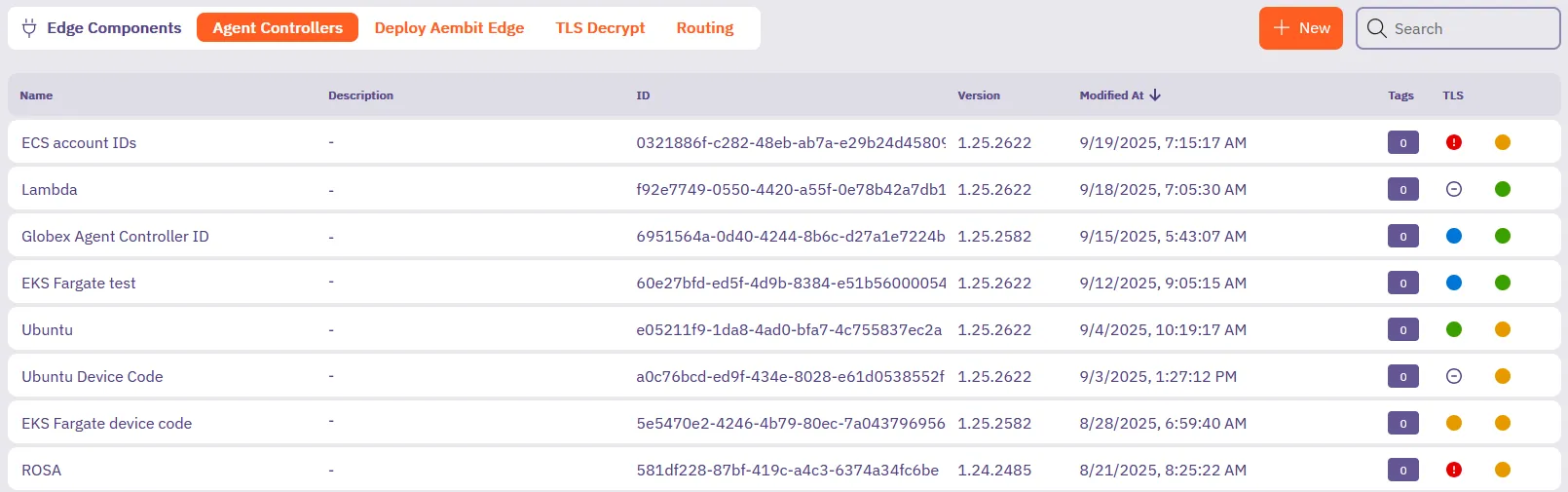 ### TLS status [Section titled “TLS status”](#tls-status) The **TLS** column in the Agent Controller list provides an at-a-glance view of each controller’s TLS certificate status for Agent Controller communication with Agent Proxies. This helps identify expiring or misconfigured certificates. The **TLS** status uses color-coded icons (and sometimes tooltips) to show the health of the Agent Controller’s TLS certificate: * **Green**: More than 30 days until certificate expiration. * **Yellow**: Certificate expires within 30 days. * **Red**: Certificate expires within 7 days or is already expired. * **Blue**: (For Aembit-managed TLS) Indicates the certificate is valid, managed by Aembit, and automatically rotates them. * **Grey/Not configured**: TLS isn’t configured for this Agent Controller. ### Metrics and observability [Section titled “Metrics and observability”](#metrics-and-observability) Agent Controller exposes operational metrics to help you monitor performance and health: * **Key metrics tracked** include: * Request rates (for example, token issuance, registration) * Latency and error rates * Resource utilization (CPU, memory) * Active connections and uptime * **Prometheus-compatible metrics** - Agent Controller provides operational metrics in Prometheus format. This enables integration with observability platforms for rapid monitoring and alerting.\ See [Aembit Edge Prometheus-compatible metrics](/user-guide/deploy-install/advanced-options/aembit-edge-prometheus-compatible-metrics/) for details. ## High availability considerations [Section titled “High availability considerations”](#high-availability-considerations) For production deployments, configure Agent Controller in a [high availability setup](/user-guide/deploy-install/advanced-options/agent-controller/agent-controller-high-availability): * **Redundancy** - Multiple Agent Controller instances remove single points of failure. * **Load Balancing** - TCP load balancers distribute traffic across healthy instances. * **Health Monitoring** - Automated health checks detect failures and trigger remediation. * **TLS Management** - Proper certificate configuration for load-balanced environments. ## Security features and best practices [Section titled “Security features and best practices”](#security-features-and-best-practices) Agent Controller incorporates multiple security mechanisms: ### TLS encryption [Section titled “TLS encryption”](#tls-encryption) Agent Controller supports both Aembit-managed and customer-managed PKI for securing communication between itself and Agent Proxies: * [Aembit PKI configuration](/user-guide/deploy-install/advanced-options/agent-controller/configure-aembit-pki-agent-controller-tls) - Default option for ease of use managed by Aembit * [Customer PKI configuration](/user-guide/deploy-install/advanced-options/agent-controller/configure-customer-pki-agent-controller-tls) - For organizations with existing PKI infrastructure ### Identity validation [Section titled “Identity validation”](#identity-validation) Agent Controller may use Trust Providers to authenticate itself with Aembit Cloud, enabling it to provide tokens for the deployment. Agent Controller supports a limited set of Trust Providers for authentication: * AWS IAM Roles and EC2 Instance Identity * Azure Managed Identity * Google Cloud Service Accounts See the Aembit Support Matrix [Agent Controller Trust Providers](/reference/support-matrix) section for details. ## Integration with the Aembit ecosystem [Section titled “Integration with the Aembit ecosystem”](#integration-with-the-aembit-ecosystem) Agent Controller is a core part of the Aembit Edge architecture, acting as the bridge between distributed Edge components and the Aembit Cloud control plane. It enables secure registration, policy retrieval, and health monitoring across your environment. ### Related topics [Section titled “Related topics”](#related-topics) * **[About TLS Decrypt](/user-guide/deploy-install/advanced-options/tls-decrypt/)** - Learn how Agent Proxy performs TLS decryption with Agent Controller support * **[Agent Proxy installation](/user-guide/deploy-install/virtual-machine/linux/agent-proxy-install-linux)** - Install the component that performs TLS decryption * **[Trust Providers](/get-started/concepts/trust-providers)** - Identity attestation for secure registration * **[Aembit Edge](/get-started/concepts/aembit-edge)** - Overview of Aembit’s Edge architecture * **[Aembit Cloud](/get-started/concepts/aembit-cloud)** - Overview of Aembit’s Cloud control plane
# About the Aembit Agent Proxy
> About the Aembit Agent Proxy and how it works
# About Colocating Aembit Edge Components
> Considerations and best practices if colocating Aembit Edge Components
Deploying Aembit’s Edge Components is all about balancing security, scalability, and operational simplicity. Ideally, the Agent Controller and Agent Proxy should run on separate machines. However, in some situations—perhaps for a test environment or because of infrastructure limitations—you may have no choice but to colocate them. If that’s the case, understanding the risks and following best practices can help you minimize issues. ## Why Aembit recommends separating Edge Components [Section titled “Why Aembit recommends separating Edge Components”](#why-aembit-recommends-separating-edge-components) Keeping Agent Controller and Agent Proxy on separate machines is the best way to make sure they remain resilient and secure. Colocating Edge Components introduces a single point of failure, which can disrupt both traffic interception (Proxy) and trust anchor services (Controller) at the same time. Security is another major concern. Agent Controller and Agent Proxy serve distinct roles, and combining them on one machine increases the potential impact of a compromise. If an attacker breaches the host, they gain access to both components, expanding their reach. Colocation also limits your ability to scale efficiently. The Agent Proxy may require more CPU or memory during high traffic periods, and colocating it with the Agent Controller makes it harder to allocate additional resources where needed. Lastly, colocation can complicate your network design. The Agent Proxy must sit in a position to intercept workload traffic, while the Agent Controller belongs in a more secure, isolated network segment. Finding a placement that serves both roles effectively can be challenging. ## When colocation might be the right choice [Section titled “When colocation might be the right choice”](#when-colocation-might-be-the-right-choice) While Aembit recommends separate deployments, there may be times when colocation is your only option. In smaller test environments, proof-of-concept setups, or resource-constrained scenarios, colocating the Agent Controller and Proxy may be acceptable. When this happens, taking steps to mitigate risk is essential. ## Best Practices for colocating Edge Components [Section titled “Best Practices for colocating Edge Components”](#best-practices-for-colocating-edge-components) If you must colocate, follow these guidelines to reduce risk and maintain performance: * **Harden the host machine** - Apply stricter security controls, such as enhanced monitoring, restricted access, and regular audits. * **Allocate sufficient resources** - Ensure the host has enough CPU, memory, and network bandwidth to support both components without performance degradation. * **Plan for recovery** - Develop clear recovery procedures to minimize downtime if the colocated host fails. * **Carefully design your network** - Ensure the Agent Proxy can intercept workload traffic while maintaining secure access to the Agent Controller’s trust anchor services. ## Making the best decision for your environment [Section titled “Making the best decision for your environment”](#making-the-best-decision-for-your-environment) Colocating Aembit’s Edge Components should be a last resort, not a first choice. When separation isn’t possible, understanding the risks and applying best practices can help you maintain a secure and stable deployment. By taking these steps, you can make sure your environment remains resilient, even in less-than-ideal circumstances.
# Advanced deployment options
> Advanced deployment options for Aembit deployments
This section covers advanced deployment options for Aembit Edge Components, providing more sophisticated configuration capabilities for your Aembit deployment. The following pages provide information about advanced deployment options: * [Aembit Edge Prometheus-Compatible Metrics](/user-guide/deploy-install/advanced-options/aembit-edge-prometheus-compatible-metrics) * [Changing Agent Log Levels](/user-guide/deploy-install/advanced-options/changing-agent-log-levels) * [Trusting Private CAs](/user-guide/deploy-install/advanced-options/trusting-private-cas) ### TLS Decrypt [Section titled “TLS Decrypt”](#tls-decrypt) * [About TLS Decrypt](/user-guide/deploy-install/advanced-options/tls-decrypt) - Overview of the TLS Decrypt feature * [About TLS Decrypt Standalone CA](/user-guide/deploy-install/advanced-options/tls-decrypt/about-tls-decrypt-standalone-ca) * [Configure TLS Decrypt](/user-guide/deploy-install/advanced-options/tls-decrypt/configure-tls-decrypt) * [Configure TLS Decrypt Standalone CA](/user-guide/deploy-install/advanced-options/tls-decrypt/configure-tls-decrypt-standalone-ca)
# Aembit Edge Prometheus-compatible metrics
> How to view Aembit Edge Prometheus-compatible metrics
Many organizations rely on and use various data collection and visualization tools to monitor components in their environment. This information provides users with the ability to quickly be alerted to any potential issues that may arise, and troubleshoot those issues. Aembit Edge Components expose various Prometheus-compatible metrics so you have greater visibility into each of these components (Agent Controller, Agent Proxy, Agent Injector). ## Prometheus configuration [Section titled “Prometheus configuration”](#prometheus-configuration) Aembit exposes Prometheus-compatible metrics in several different deployment models, including Kubernetes and Virtual Machines. The installation and configuration steps for both of these deployment models are described below, but please note that you may select any observability tool you wish, as long as it can to scrape Prometheus-capable metrics. ### Configuring Prometheus (Kubernetes) [Section titled “Configuring Prometheus (Kubernetes)”](#configuring-prometheus-kubernetes) These steps described below show an example of how you can configure a “vanilla” Prometheus instance in a Kubernetes cluster. Depending on your own Kubernetes cluster configuration, you may need to perform a different set of steps to configure Prometheus for your cluster. 1. Open a terminal window in your environment and run the command shown below. `kubectl edit configmap prometheus-server` 2. Edit the `prometheus.yaml` configuration file by adding the following code snippet before the `kubernetes-pods` section: ```shell - honor_labels: true job_name: kubernetes-pods-aembit kubernetes_sd_configs: - role: pod relabel_configs: - action: keep regex: true source_labels: - __meta_kubernetes_pod_annotation_aembit_io_metrics_scrape - action: replace regex: (.+) source_labels: - __meta_kubernetes_pod_annotation_aembit_io_metrics_path target_label: __metrics_path__ - action: replace regex: (\d+);(([A-Fa-f0-9]{1,4}::?){1,7}[A-Fa-f0-9]{1,4}) replacement: "[$2]:$1" source_labels: - __meta_kubernetes_pod_annotation_aembit_io_metrics_port - __meta_kubernetes_pod_ip target_label: __address__ - action: replace regex: (\d+);((([0-9]+?)(\.|$)){4}) replacement: $2:$1 source_labels: - __meta_kubernetes_pod_annotation_aembit_io_metrics_port - __meta_kubernetes_pod_ip target_label: __address__ - action: labelmap regex: __meta_kubernetes_pod_label_(.+) - action: replace source_labels: - __meta_kubernetes_namespace target_label: namespace - action: replace source_labels: - __meta_kubernetes_pod_name target_label: pod - action: drop regex: Pending|Succeeded|Failed|Completed source_labels: - __meta_kubernetes_pod_phase - action: replace source_labels: - __meta_kubernetes_pod_node_name target_label: node ``` The example code block shown above allows for the automatic detection of Aembit annotations so Prometheus can automatically scrape Agent Proxy metrics. 3. Save your changes in the `prometheus.yaml` configuration file. #### Kubernetes Annotations [Section titled “Kubernetes Annotations”](#kubernetes-annotations) Agent Controller and Agent Proxy come with standard Prometheus annotations, enabling Prometheus to automatically discover and scrape metrics from these Aembit Edge Components. Since the Agent Proxy runs as part of the Client Workload, which may already expose Prometheus metrics and have its own annotations, a new set of annotations was introduced. These annotations can be added to Client Workload pods without conflicting with existing annotations. The following annotations have been introduced, which are automatically added to the Client Workload where the Agent Proxy is injected: * `aembit.io/metrics-scrape` - Default value is `true`. * `aembit.io/metrics-path` - Default value is `/metrics`. * `aembit.io/metrics-port` - Default value is `9099`. This is a default metrics port used by Agent Proxy to expose metrics. You may override these annotations, `aembit.io/metrics-port` to adjust metrics port on Agent Proxy. #### Helm Variables [Section titled “Helm Variables”](#helm-variables) The following Helm variables control whether metrics are enabled or disabled: * agentController.metrics.enabled * agentInjector.metrics.enabled * agentProxy.metrics.enabled ### Configuring Prometheus (Virtual Machine) [Section titled “Configuring Prometheus (Virtual Machine)”](#configuring-prometheus-virtual-machine) You need to configure which Virtual Machines you want to scrape for metrics and data by editing the `/etc/prometheus/prometheus.yml` YAML file and replacing `example.vm.local:port` with the Agent Controller and Agent Proxy VM hostname, and port number on which the metrics servers are listening. For Agent Controller, set the port number to **9090**. For Agent Proxy, set the port number to **9099**. ```yaml scrape_configs: - job_name: 'vm-monitoring' static_configs: - targets: ['example.vm.local:'] ``` #### Virtual Machine Environment Variables [Section titled “Virtual Machine Environment Variables”](#virtual-machine-environment-variables) These environment variables can be passed to the Agent Controller installer to manage the metrics functionality. * **AEMBIT\_METRICS\_ENABLED** - enabled for both Agent Controller and Agent Proxy * **AEMBIT\_METRICS\_PORT** - available only for Agent Proxy ## Aembit Edge Prometheus Metrics [Section titled “Aembit Edge Prometheus Metrics”](#aembit-edge-prometheus-metrics) Aembit Edge Components expose Prometheus-compatible metrics that can be viewed using an observability tool that is capable of scraping these types of metrics. The sections below list the various Prometheus-compatible metrics that Aembit Edge Components expose, along with the labels you can use to filter results and drill down into specific data. ### Agent Proxy Metrics [Section titled “Agent Proxy Metrics”](#agent-proxy-metrics) The Agent Proxy Prometheus-compatible metrics listed below may be viewed in a dashboard. * `aembit_agent_proxy_incoming_connections_total` - The total number of incoming connections (connections established from a Client Workload to the Agent Proxy). * labels: * `application_protocol`: `http`, `snowflake`, `postgres`, `redshift`, `mysql`, `redis`, `unspecified` * `resource_set_id` (optional): `` * `client_workload_id` (optional): `` * `server_workload_id` (optional): `` * `aembit_agent_proxy_active_incoming_connections` - The number of active incoming connection (connections established from a Client Workload to the Agent Proxy). * labels: * `application_protocol`: `http`, `snowflake`, `postgres`, `redshift`, `mysql`, `redis`, `unspecified` * `resource_set_id` (optional): `` * `client_workload_id` (optional): `` * `server_workload_id` (optional): `` * `aembit_agent_proxy_credentials_injections_total` - The total number of credentials injected by Agent Proxy. * labels: * `application_protocol`: `http`, `snowflake`, `postgres`, `redshift`, `mysql`, `redis`, `unspecified` * success: `success`, `failure`. * `aembit_agent_proxy_token_expiration_unix_timestamp` - The expiration timestamp for Aembit Agent Proxy Token (to access Aembit Cloud). * `aembit_agent_proxy_aembit_cloud_connection_status` - The current connection status between Agent Proxy and Aembit Cloud. If the connection is up, the result is “1” (Connected). If the status is down, the result is “0” (Disconnected). * `aembit_agent_proxy_credentials_cached_entries_total` - The total number of unexpired credentials currently cached by Agent Proxy. * labels: * `resource_set_id` (optional): `` * `aembit_agent_proxy_directives_cached_entries_total` - The total number of unexpired directives currently cached by Agent Proxy. * labels: * `resource_set_id` (optional): `` * `version` - The Agent Proxy version. * labels: * component: `aembit_agent_proxy` * version: `version: ` * `process_cpu_second_total` - The Amount of CPU seconds used by the Agent Proxy. This value could be more than the wall clock time if Agent Proxy used more than one core. This metric is useful in conjunction with `machine_cpu_cores` to calculate CPU % usage. * labels: * component: `aembit_agent_proxy` * hostname: `hostname: ` * `machine_cpu_cores` - The number of CPU cores available to Agent Proxy. * labels: * component: `aembit_agent_proxy` * hostname: `hostname: ` * `process_memory_usage_bytes` - The amount of memory (in bytes) used by Agent Proxy. * labels: * component: `aembit_agent_proxy` * hostname: `hostname: ` ### Agent Controller Metrics [Section titled “Agent Controller Metrics”](#agent-controller-metrics) The Agent Controller Prometheus-compatible metrics listed below may be viewed in a dashboard. * `aembit_agent_controller_token_expiration_unix_timestamp` - The expiration timestamp for Aembit Agent Controller Token (to access Aembit Cloud). * `aembit_agent_controller_access_token_requests_total` - The number of Agent Controller requests to get access token (for Agent Controller use). * label * Result: `success`, `failure` * `Agent_Controller_Id`: `` * `aembit_agent_controller_proxy_token_requests_total` - The number of Agent Proxy requests received by the Agent Controller to get access token. * labels * Result: success, `failure` * `Agent_Controller_Id` (optional): `` * `aembit_agent_controller_registration_status` - The Agent Controller registration status. Status can be either: `0` (Not Registered) or `1` (Registered). * labels * `Agent_Controller_Id` (optional): `` * `version` - The Agent Controller version. * labels * component: `aembit_agent_controller` * version: `` ### Agent Injector metrics [Section titled “Agent Injector metrics”](#agent-injector-metrics) The Agent Injector Prometheus-compatible metrics listed below may be viewed in a dashboard. * `aembit_injector_pods_seen_total` - The number of pods proceeded by the Agent Injector. * `aembit_injector_pods_injection_total` - The number of pods into which Aembit Edge Components were injected. * label * `success`: “success” or “failure”
# Agent Controller High Availability
> How to install and configure Agent Controllers in a high availability configuration
The Agent Controller is a critical Aembit Edge Component that facilitates Agent Proxy registration. Ensuring the continuous availability of the Agent Controller is vital for the uninterrupted operation of Agent Proxies. As a result, for any production deployment, it’s essential to install and configure the Agent Controller in a high availability configuration. [Three key principles](https://en.wikipedia.org/wiki/High_availability#Principles) must be addressed to achieve high availability for the Agent Controller: * Elimination of single points of failure * Ensuring reliable crossover * Failure detection ## Remove single points of failure [Section titled “Remove single points of failure”](#remove-single-points-of-failure) Having one Agent Controller instance can be a single point of failure. To mitigate this, multiple Agent Controller instances should be operational within an environment, providing redundancy and eliminating this risk. To deploy multiple instances, repeat the [Agent Controller installation procedure](/user-guide/deploy-install/virtual-machine/). Trust Provider-based registration of the Agent Controller simplifies launching multiple instances, as it removes the need to generate a new device code for each instance. When employing this method, you can use the same Agent Controller ID while installing additional instances for the same logical Agent Controller. If you opt for the device code registration method, you must create a separate Agent Controller entry for each deployed instance in your tenant. ## Ensure reliable crossover [Section titled “Ensure reliable crossover”](#ensure-reliable-crossover) For effective traffic routing to multiple Agent Controller instances, use a load balancer. It’s critical that the load balancer itself is configured for high availability to avoid becoming a single point of failure. To accommodate the technical requirement of load balancing HTTPS (encrypted) traffic between Agent Proxies and Agent Controllers, a TCP load balancer (Layer 4) is necessary. Choose a TCP load balancer that aligns with your company’s preferences and standards. ## Failure detection [Section titled “Failure detection”](#failure-detection) Monitoring of both Agent Controllers and load balancers is necessary to quickly detect any failures. Establish a manual or automated procedure for failure remediation upon detection. The health status of an Agent Controller can be checked through an `HTTP GET` request to the /health endpoint on port 80. A healthy Agent Controller will return an HTTP Response code of `200`. ## Transport Layer Security (TLS) [Section titled “Transport Layer Security (TLS)”](#transport-layer-security-tls) When Transport Layer Security (TLS) is configured on Agent Controllers behind a load balancer, it is crucial for the certificates on these Agent Controllers to include the domain names associated with the load balancer. This ensures that SSL/TLS termination at the Agent Controllers presents a certificate valid for the domain names clients use to connect. ### Agent Controller health endpoint Swagger documentation [Section titled “Agent Controller health endpoint Swagger documentation”](#agent-controller-health-endpoint-swagger-documentation) ```yaml openapi: 3.0.0 info: title: Agent Controller Health Check API version: 1.0.0 paths: /health: get: summary: Agent Controller Health Check Endpoint description: Returns the health status of the Agent Controller. responses: '200': description: Healthy - the Agent Controller is functioning properly. content: application/json: schema: type: object properties: status: type: string example: "Healthy" version: type: string example: "1.9.696" gitSHA: type: string example: "b16139605d32ce60db0a5682de8ee3b579c6e885" host: type: string example: "hostname" '401': description: Unhealthy - the Agent Controller is not registered yet or can't register. content: application/json: schema: type: object properties: status: type: string example: "Unregistered" version: type: string example: "1.9.696" gitSHA: type: string example: "b16139605d32ce60db0a5682de8ee3b579c6e885" host: type: string example: "hostname" ```
# Configure Agent Controller TLS with Aembit's PKI
> How to configure Agent Controller TLS with Aembit's PKI in Kubernetes environments and Virtual Machine deployments
Using Aembit’s PKI for Agent Controller TLS certificates enables you to have secure Agent-Proxy-to-Agent-Controller communication in Kubernetes environments and on Virtual Machine deployments. ## Configure Agent Controller TLS with Aembit’s PKI in Kubernetes [Section titled “Configure Agent Controller TLS with Aembit’s PKI in Kubernetes”](#configure-agent-controller-tls-with-aembits-pki-in-kubernetes) If you have a Kubernetes deployment and would like to use Aembit’s PKI, there are two configuration options. ### Automatic TLS configuration [Section titled “Automatic TLS configuration”](#automatic-tls-configuration) If you *aren’t already* using a custom PKI, install the latest Aembit Helm Chart. By default, Agent Controllers are automatically configured to accept TLS communication from Agent Proxy. ### Preserve existing custom configuration [Section titled “Preserve existing custom configuration”](#preserve-existing-custom-configuration) If you have already configured custom PKI-based Agent Controller TLS, no additional steps are necessary, as Aembit preserves your configuration. ## Configure Aembit’s PKI-based Agent Controller for VM deployments [Section titled “Configure Aembit’s PKI-based Agent Controller for VM deployments”](#configure-aembits-pki-based-agent-controller-for-vm-deployments) If you are using a Virtual Machine, Agent Controller won’t know which hostname Agent Proxy should use to communicate with Agent Controller. This requires you to manually configure Agent Controller to enable TLS communication between Agent Proxy and Agent Controller. ### Aembit Tenant configuration [Section titled “Aembit Tenant configuration”](#aembit-tenant-configuration) 1. Log into your Aembit Tenant, and go to **Edge Components -> Agent Controllers**. 2. Select or create a new Agent Controller. 3. In **Allowed TLS Hostname (Optional)**, enter the FQDN (Ex: `my-subdomain.my-domain.com`), subdomain, or wildcard domain (Ex: `*.example.com`) to use for the Aembit Managed TLS certificate. 4. Click **Save**. ### Manual configuration [Section titled “Manual configuration”](#manual-configuration) If you haven’t already configured Aembit’s PKI, perform the these steps: 1. Install Agent Controller on your Virtual Machine, and set the `AEMBIT_MANAGED_TLS_HOSTNAME` environment variable to the hostname that Agent Proxy uses to communicate with Agent Controller. When set, Agent Controller retrieves the certificate for the hostname from Aembit Cloud, enabling TLS communication between Agent Proxy and Agent Controller. 2. Configure Agent Proxy’s Virtual Machines to trust the Aembit Tenant Root Certificate Authority (CA). ## Confirming TLS status [Section titled “Confirming TLS status”](#confirming-tls-status) When you have configured Agent Controller TLS, you can verify the status of Agent Controller TLS by performing the following steps: 1. Log into your Aembit Tenant. 2. Click on the **Edge Components** link in the left sidebar. Aembit displays the **Edge Components** dashboard. 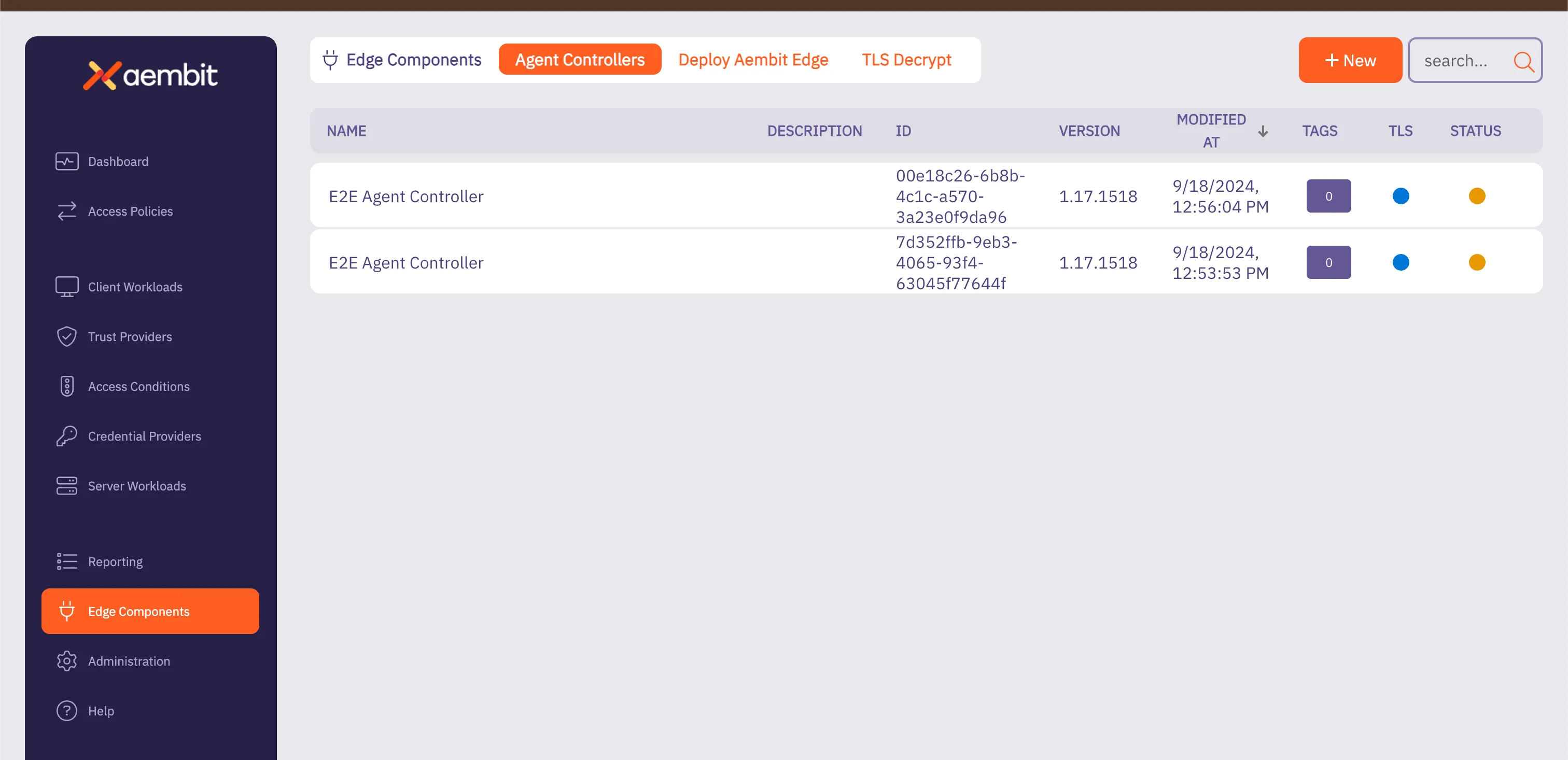 3. Aembit displays the **Agent Controllers** tab. You should see a list of your configured Agent Controllers. 4. Verify TLS is active by confirming color status button in the TLS column for the Agent Controller. ## Agent Controller TLS support matrix [Section titled “Agent Controller TLS support matrix”](#agent-controller-tls-support-matrix) The following table lists the different Agent Controller TLS deployment models, denoting whether the configuration process is manual or automatic. | Agent Controller Deployment Model | Customer Based PKI | Aembit Based PKI | | --------------------------------- | ------------------ | ---------------- | | Kubernetes | Manual | Automatic | | Virtual Machine | Manual | Manual | | ECS | Not Supported | Automatic | ## Automatic TLS certificate rotation [Section titled “Automatic TLS certificate rotation”](#automatic-tls-certificate-rotation) Aembit-managed certificates are automatically rotated by the Agent Controller, with no manual steps or extra configuration required.
# Configure a custom PKI-based Agent Controller TLS
> How to configure a custom PKI-based Agent Controller TLS in Kubernetes and Virtual Machine deployments
Aembit provides the ability for you to use your own PKI-based TLS for secure Agent Proxy to Agent Controller communication in Kubernetes environments, and on Virtual Machine deployments. ## Prerequisites [Section titled “Prerequisites”](#prerequisites) * Access to a Certificate Authority such as HashiCorp Vault or Microsoft Active Directory Certification Authority. * A TLS PEM Certificate and Key file pair you’ve configured for the hostname of the Agent Controller. * On Kubernetes, the hostname must be `aembit-agent-controller..svc.cluster.local` where `` is the namespace where you installed the Aembit Helm chart. * On Virtual Machines, the hostname is going to depend on your network and DNS configuration. Please use the FQDN or PQDN hostname which Agent Proxy instances use to access the Agent Controller. * The TLS PEM Certificate file should contain both the Agent Controller certificate and chain to the Root CA. * Self-signed certificates aren’t supported by the Agent Proxy for Agent Controller TLS communication. ## Kubernetes environment configuration [Section titled “Kubernetes environment configuration”](#kubernetes-environment-configuration) The Aembit Agent Controller requires that the TLS certificate and key be available in a [Kubernetes TLS Secret](https://kubernetes.io/docs/reference/kubectl/generated/kubectl_create/kubectl_create_secret_tls/). Therefore, there are 2 steps to completing this configuration. 1. Create a Kubernetes TLS Secret using the `kubectl create secret tls` command or similar method. For example: ```shell kubectl create secret tls NAME --cert=path/to/cert/file --key=path/to/key/file ``` 2. In the Aembit Helm chart installation file, set the `agentController.tls.secretName` value equal to the name of the secret created in step #1. If you don’t have your own CA, you may consider [Kubernetes cert-manager](https://github.com/cert-manager/cert-manager) to create and maintain certificates and keys in your Kubernetes environment. ## Virtual machine environment configuration [Section titled “Virtual machine environment configuration”](#virtual-machine-environment-configuration) When installing the Agent Controller on a Virtual Machine, there are two installation parameters that must be specified: * `TLS_PEM_PATH` * `TLS_KEY_PATH` For example, the Agent Controller installation command line could be specified like: ```shell sudo TLS_PEM_PATH=/path/to/tls.crt TLS_KEY_PATH=/path/to/tls.key AEMBIT_TENANT_ID=tenant AEMBIT_AGENT_CONTROLLER_ID=aaaaaaaa-bbbb-cccc-dddd-eeeeeeeeeeee ./install ``` ## Rotating custom PKI Agent Controller TLS certificates [Section titled “Rotating custom PKI Agent Controller TLS certificates”](#rotating-custom-pki-agent-controller-tls-certificates) Regular certificate rotation is essential to ensure that certificates remain valid and only expire when you expect them to. By routinely updating certificates before their expiration, you prevent service disruptions and maintain secure communication. In the Aembit environment, Agent Controller stores TLS certificate and key files in the `/opt/aembit/edge/agent_controller` directory. ### Update TLS certificate [Section titled “Update TLS certificate”](#update-tls-certificate) To update your TLS certificate and key, perform these steps: 1. Replace the existing TLS certificate and key files in the `/opt/aembit/edge/agent_controller` directory with the new key files provided by the customer. 2. Ensure the ownership of these new files matches the original permissions (`user: aembit_agent_controller, group aembit`). ```shell sudo chown aembit_agent_controller:aembit /opt/aembit/edge/agent_controller/tls.crt sudo chown aembit_agent_controller:aembit /opt/aembit/edge/agent_controller/tls.key ``` 3. Verify the file permissions match the original settings. ```shell $: /opt/aembit/edge/agent_controller# ls -l -r-------- 1 aembit_agent_controller aembit ....... tls.crt -r-------- 1 aembit_agent_controller aembit ....... tls.key ``` 4. After you have replaced the files and adjusted the permissions, restart the Agent Controller service to apply these changes. ```shell sudo systemctl restart aembit_agent_controller ``` 5. You can verify that TLS certificate/key was successfully rotated by checking for the following log message: ```shell $: journalctl --namespace aembit_agent_controller | grep "Tls certificate sync background process" [INF] (Aembit.AgentController.Business.Services.BackgroundServices.TlsSyncUpService) ``` * If you’ve configured TLS successfully, you’ll see the following message: ```shell Tls certificate sync background process is active. ``` * If TLS isn’t configured successfully, you’ll’ see the following message displayed: ```shell Tls certificate sync background process will not run because Tls is not enabled. ```
# How to create an Agent Controller
The Agent Controller is a helper component that facilitates the registration of other Aembit Edge Components. This page details how to create a new Agent Controller in your Aembit Tenant. ## Create an Agent Controller [Section titled “Create an Agent Controller”](#create-an-agent-controller) To create an Agent Controller in your Aembit Tenant, follow these steps: 1. Log into your Aembit Tenant, and go to **Edge Components -> Agent Controllers**. 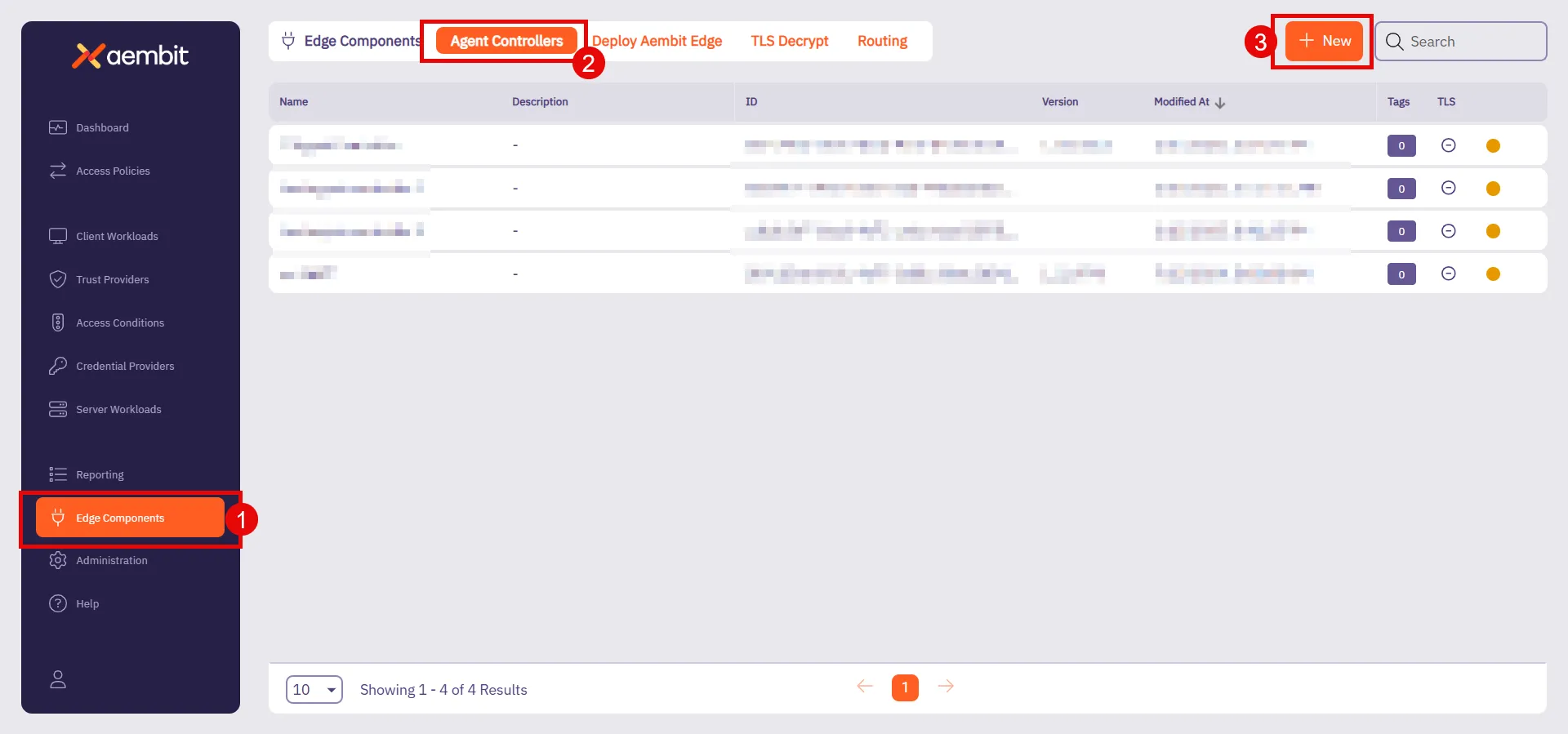 2. Click **+ New**, which displays the **Agent Controller** pop out menu. 3. Fill out the following fields: * **Name** - Choose a user-friendly name for your controller. * **Description (optional)** - Add a brief description to help identify its purpose. * **Trust Provider** - Select an existing Trust Provider from the dropdown menu. If you don’t have a Trust Provider set up, refer to [Add Trust Provider](/user-guide/access-policies/trust-providers/add-trust-provider) to create one. * **Allowed TLS Hostname (Optional)** - Enter the FQDN (Ex: `my-subdomain.my-domain.com`), subdomain, or wildcard domain (Ex: `*.example.com`) to include in the [Aembit Managed TLS](/user-guide/deploy-install/advanced-options/agent-controller/configure-aembit-pki-agent-controller-tls) certificate. This restricts the certificate to only be valid when Agent Proxies attempt to access Agent Controller using this specific domain name. The allowed TLS hostname is unique to each Agent Controller that you configure it on. 4. Click **Save**. Once you save it, your newly created Agent Controller appears in the list of available Agent Controllers.
# How to shutdown Agent Proxy using HTTP
> How to shut down the Agent Proxy using HTTP
## Introduction [Section titled “Introduction”](#introduction) In certain scenarios, it may be necessary to manually shut down the Agent Proxy when the main container has exited but the sidecar process continues running. This situation commonly occurs with Kubernetes jobs, where the main container exits upon job completion. Terminating the entire job in this case might appear as a cancelled job. To avoid that, Aembit provides a way to gracefully stop the sidecar, allowing the job to complete cleanly. ## Agent Proxy Shutdown [Section titled “Agent Proxy Shutdown”](#agent-proxy-shutdown) The Agent Proxy can be shut down by sending an HTTP `POST` request to its `/quit` endpoint. ### Example Command [Section titled “Example Command”](#example-command) An example command using `curl`: ```shell curl -X POST localhost:/quit ``` When the Agent Proxy is properly configured to receive this request, it will flush any remaining events to the backend before exiting gracefully. ## Configuration Flags [Section titled “Configuration Flags”](#configuration-flags) The behavior of the Agent Proxy can be controlled through specific environment variables outlined below: `AEMBIT_ENABLE_HTTP_SHUTDOWN` Environment Variable This variable controls whether the Agent Proxy supports the `/quit` endpoint. * **Default Value** - `false` * **Accepted Values** - `false` or `true` `AEMBIT_SERVICE_PORT` Environment Variable This variable specifies the port on which the Agent Proxy responds to the diagnostic and configuration endpoint `/quit`. * **Default Value** - `51234` * **Accepted Values** - an integer number in the range 1 to 65535 (inclusive) ### Accessibility and Security Considerations [Section titled “Accessibility and Security Considerations”](#accessibility-and-security-considerations) Caution The `/quit` handler should only be enabled in fully trusted environments. When enabled, any application with network access to `127.0.0.1` can send a request to shut down the Agent Proxy. ## Recommended Environments [Section titled “Recommended Environments”](#recommended-environments)
# Agent Proxy termination strategy
> Learn about Agent Proxy's termination strategies across different environments and how to configure the AEMBIT_SIGTERM_STRATEGY variable
Agent Proxy must be able to serve Client Workload traffic throughout the entire lifecycle of the Client Workload. When both the Client Workload and Agent Proxy receive a termination signal (`SIGTERM`), the Agent Proxy attempts to continue operating and serving traffic until the Client Workload exits. Agent Proxy runs in distinct environments, such as Virtual Machines, Kubernetes, and ECS Fargate, where workload lifecycles can differ. To handle these variations, Agent Proxy uses different termination strategies. ## Configuration [Section titled “Configuration”](#configuration) You can configure the termination strategy by setting the `AEMBIT_SIGTERM_STRATEGY` environment variable. The supported values are: * `immediate` – Exits immediately upon receiving `SIGTERM`. * `sigkill` – Ignores the `SIGTERM` signal and waits for a `SIGKILL`. ## Default termination strategies [Section titled “Default termination strategies”](#default-termination-strategies) The following table lists the default termination strategy for each environment. You can override the default behavior using the `AEMBIT_SIGTERM_STRATEGY` environment variable. | Environment | Default Termination Strategy | | ------------------------- | ---------------------------- | | AWS ECS Fargate | `sigkill` | | AWS Lambda function | `immediate` | | AWS Lambda container | `immediate` | | Docker-compose on VMs | `sigkill` | | Kubernetes | `sigkill` | | Virtual Machine (Linux) | `immediate` | | Virtual Machine (Windows) | N/A | | Virtual Appliance | `immediate` |
# AWS Relational Database Service (RDS) Certificates
> How to install AWS RDS Certificate to Agent Proxy to make it trust the AWS RDS Certificate
To install all the possible CA Certificates for AWS RDS databases, follow the instructions and use the following commands: 1. Transition to a root session so you have root access. ```shell sudo su ``` 2. Run the following commands to download the CA certificate bundle from AWS, split it into a set of `.crt` files, and then update the local trust store with all these files. ```shell apt update ; apt install -y ca-certificates curl rm -f /tmp/global-bundle.pem curl "https://truststore.pki.rds.amazonaws.com/global/global-bundle.pem" -o /tmp/global-bundle.pem csplit -s -z -f /usr/local/share/ca-certificates/aws-rds /tmp/global-bundle.pem '/-----BEGIN CERTIFICATE-----/' '{*}' for file in /usr/local/share/ca-certificates/aws-rds*; do mv -- "$file" "${file%}.crt"; done update-ca-certificates ``` 3. After running this command, you should see the following output: ```shell Updating certificates in /etc/ssl/certs... 118 added, 0 removed; done. ``` 4. Ensure you exit your root session. ```shell exit ```
# How to configure explicit steering
> How to use the Explicit Steering feature to direct specific traffic to the Agent Proxy
The Explicit Steering feature enables you to route and direct specific traffic in a Kubernetes deployment to the Agent Proxy. ## Configure Explicit Steering [Section titled “Configure Explicit Steering”](#configure-explicit-steering) To configure explicit steering in your Kubernetes cluster, simply follow the steps described on the [Kubernetes Deployment](/user-guide/deploy-install/kubernetes/kubernetes) page in the Aembit Technical Documentation and set the `aembit.io/steering-mode` annotation to `explicit`. This sets the steering mode to `explicit`. Once you have set the steering mode to `explicit`, each Client Workload that wants to use Aembit will need to be configured to use Agent Proxy as its HTTP proxy. The default port used for explicit steering is `8000`. In the case, it conflicts with a port that the Client Workload uses. The explicit port number may be overridden via the `AEMBIT_HTTP_SERVER_PORT` environment variable. The following section provides several examples of how Agent Proxy is used as an HTTP proxy. ## Examples [Section titled “Examples”](#examples) The section below shows several different Client Workload examples using different applications with Agent Proxy as an HTTP proxy. ### Example Client Workload using `curl` with `-x` to specify an HTTP proxy [Section titled “Example Client Workload using curl with -x to specify an HTTP proxy”](#example-client-workload-using-curl-with--x-to-specify-an-http-proxy) ```sh curl -x localhost:8000 myserverworkload ``` ### Example Client Workload using HashiCorp Vault CLI (Vault CLI implicitly uses VAULT\_HTTP\_PROXY) [Section titled “Example Client Workload using HashiCorp Vault CLI (Vault CLI implicitly uses VAULT\_HTTP\_PROXY)”](#example-client-workload-using-hashicorp-vault-cli-vault-cli-implicitly-uses-vault_http_proxy) ```shell export VAULT_HTTP_PROXY="http://localhost:8000" vault token lookup ``` ### Example Client Workload written in Go (Go’s HTTP client implicitly uses HTTPS\_PROXY) [Section titled “Example Client Workload written in Go (Go’s HTTP client implicitly uses HTTPS\_PROXY)”](#example-client-workload-written-in-go-gos-http-client-implicitly-uses-https_proxy) ```shell export HTTPS_PROXY=localhost:8000 ./run_go_app [...] ``` ### Example Client Workload written in Java applications [Section titled “Example Client Workload written in Java applications”](#example-client-workload-written-in-java-applications) ```java java ... -Dhttp.proxyHost=localhost -Dhttp.proxyPort=8000 -Dhttps.proxyHost=localhost -Dhttps.proxyPort=8000 -Dhttp.nonProxyHosts=*.cluster.local|*.svc ... ``` Caution Java, unlike other programming languages (Python, Node.js) doesn’t respect proxy configurations via environment variables set at the OS-level. Java applications require the `proxyHost` and `proxyPort` properties as [documented](https://docs.oracle.com/javase/6/docs/technotes/guides/net/proxies.html).
# Selective Transparent Steering
> This page describes the selective transparent steering feature.
Selective transparent steering allows users to control egress traffic by specifying which destinations should be directed to the Agent Proxy. By default, all egress traffic from a host with Agent Proxy installed is proxied. The selective transparent steering feature introduces the ability to restrict this proxied traffic to a specific list of hostnames. When this feature is enabled, only egress traffic to the user-specified hostnames will be proxied. This allows more precise control over which destinations’ traffic is managed by the Agent Proxy. ### Usage [Section titled “Usage”](#usage) Selective transparent steering is **off** by default. To enable this feature, add the environment variable `AEMBIT_STEERING_ALLOWED_HOSTS` when installing Agent Proxy. The variable’s value should be a comma-separated list of hostnames for which traffic should be proxied. ```shell AEMBIT_STEERING_ALLOWED_HOSTS=graph.microsoft.com,vault.mydomain [...] ./install ```
# About traffic steering methods
> How different traffic steering methods and how to configure them for various deployment models
Traffic steering is the process of directing network traffic from Client Workloads to an Agent Proxy, which inspects and modifies this traffic. Selecting the appropriate steering method depends on factors such as the deployment model, protocol compatibility, and the level of control required over traffic management. Certain deployment models offer flexibility, allowing you to select the steering method that best suits your needs. In other cases, the deployment model dictates the steering method. ## Conceptual overview [Section titled “Conceptual overview”](#conceptual-overview) Traffic steering methods determine how network traffic from Client Workloads reaches the Agent Proxy. Three primary methods exist: * **Transparent Steering** - Automatically redirects all TCP traffic without client configuration. * **Selective Transparent Steering** - Automatically redirects TCP traffic only for specified hostnames without client configuration. * **Explicit Steering** - Requires explicit client-side configuration to route traffic. ## Method comparison and protocol support [Section titled “Method comparison and protocol support”](#method-comparison-and-protocol-support) | Deployment Model | Transparent Steering | Selective Transparent Steering | Explicit Steering | | --------------------------------------- | -------------------- | ------------------------------ | ----------------- | | Kubernetes (K8S) | ✅ (default) | ❌ | ✅ | | Virtual Machines (VM) | ✅ (default) | ✅ | ❌ | | Elastic Container Service (ECS) Fargate | ❌ | ❌ | ✅ (default) | | AWS Lambda Extension | ❌ | ❌ | ✅ (default) | | Virtual Appliance | ❌ | ❌ | ✅ (default) | **Protocol Support** - * **Transparent Steering** - All supported protocols. * **Selective Transparent Steering** - All supported protocols. * **Explicit Steering** - HTTP-based protocols only. ## Technical details and configuration [Section titled “Technical details and configuration”](#technical-details-and-configuration) ### Transparent steering [Section titled “Transparent steering”](#transparent-steering) Transparent Steering automatically redirects all TCP traffic using `iptables` without requiring any client-side awareness. It’s straightforward, minimizing configuration overhead. Transparent Steering is the default method for Kubernetes(K8S) and Virtual Machine (VM) deployments and doesn’t require additional configuration. ### Selective transparent steering [Section titled “Selective transparent steering”](#selective-transparent-steering) Selective Transparent Steering redirects TCP traffic only for specified hostnames, providing precise control without explicit client configuration. * Turned off by default. * Available exclusively for virtual machines. * Enable this by setting the environment variable `AEMBIT_STEERING_ALLOWED_HOSTS` during installation: ```shell AEMBIT_STEERING_ALLOWED_HOSTS=graph.microsoft.com,vault.mydomain [...] ./install ``` For further information, see the [Agent Proxy Virtual Machine Installation Guide](/user-guide/deploy-install/virtual-machine/linux/agent-proxy-install-linux). ### Explicit steering [Section titled “Explicit steering”](#explicit-steering) Explicit steering directs Client Workloads traffic based on specific configurations. It’s the default steering method for Elastic Container Service (ECS) Fargate, AWS Lambda Extensions, and virtual appliances deployment models. Explicit Steering is also an optional configuration for Kubernetes deployments. In Kubernetes, enable explicit steering by setting the `aembit.io/steering-mode` annotation on a Client Workload: ```yaml aembit.io/steering-mode: explicit ``` For Kubernetes-specific installation details and annotation configurations, refer to the [Kubernetes Installation Guide](/user-guide/deploy-install/kubernetes/kubernetes). #### Explicit steering port configuration [Section titled “Explicit steering port configuration”](#explicit-steering-port-configuration) Agent Proxy listens on port `8000` for traffic sent using explicit steering. If this conflicts with an existing application port, override it using the `AEMBIT_HTTP_SERVER_PORT` environment variable. #### Explicit steering examples [Section titled “Explicit steering examples”](#explicit-steering-examples) Many ways exist to configure Client Workloads to use explicit steering. Common methods include setting environment variables such as `HTTP_PROXY` or `HTTPS_PROXY`. However, specific applications might provide their own explicit configuration methods to route traffic via a proxy. The following are examples: * **Go applications** - * Using the `HTTPS_PROXY` environment variable, widely recognized by many HTTP libraries: ```shell export HTTPS_PROXY=localhost:8000 ./run_go_app [...] ``` * **Using `curl` command** - * Explicitly specifying proxy configuration via a command-line argument: ```shell curl -x localhost:8000 myserverworkload ``` * **HashiCorp Vault CLI** - * Configuring the HashiCorp Vault-specific environment variable to route traffic via the proxy: ```shell export VAULT_HTTP_PROXY="http://localhost:8000" vault token lookup ``` * **Java/JVM-based applications** - * Configuring the JVM-specific defined values to route traffic via the proxy: ```java java ... -Dhttp.proxyHost=localhost -Dhttp.proxyPort=8000 -Dhttps.proxyHost=localhost -Dhttps.proxyPort=8000 -Dhttp.nonProxyHosts=*.cluster.local|*.svc ... ```
# How to change Edge Component log levels
> How to change the log levels of Aembit's Edge Components
Sometimes, you’ll want to use a different value than an Agent Controller’s or Agent Proxy’s default value for logging. For example, when troubleshooting a problem with your agent or when trying out a new feature. The following sections detail how to change the log level of your: * [Agent Controller](#change-agent-controller-log-level) * [Agent Proxy](#change-agent-proxy-log-level) See [Log level reference](/reference/edge-components/agent-log-level-reference) for complete details about each agent’s log levels. ## Change Agent Controller log level [Section titled “Change Agent Controller log level”](#change-agent-controller-log-level) Use the following tabs to set change your Agent Controller’s log level using the `AEMBIT_LOG_LEVEL` environment variable: * Virtual Machine 1. Log into your Agent Controller. 2. Open the Aembit Agent Controller service at `/etc/systemd/system/aembit_agent_controller.service`. You may have to open this as root using `sudo`. 3. Under `[Service]`, update or add `Environment=AEMBIT_LOG_LEVEL=`, and set the log level you want. For example: /etc/systemd/system/aembit\_agent\_controller.service ```txt [Service] ... User=aembit_agent_controller Restart=always Environment=AEMBIT_TENANT_ID=abc123 Environment=AEMBIT_DEVICE_CODE= Environment=AEMBIT_AGENT_CONTROLLER_ID=A12345 Environment=ASPNETCORE_URLS=http://+:5000,http://+:9090 Environment=AEMBIT_LOG_LEVEL= StandardOutput=journal StandardError=journal ... ``` 4. Reload the Aembit Agent Controller config: ```shell systemctl daemon-reload ``` 5. Restart the Aembit Agent Controller service: ```shell systemctl restart aembit_agent_controller.service ``` ## Change Agent Proxy log level [Section titled “Change Agent Proxy log level”](#change-agent-proxy-log-level) Use the following tabs to set change your Agent Proxy’s log level using the `AEMBIT_LOG_LEVEL` environment variable: * Virtual Machine 1. Log into your Agent Proxy. 2. Open the Aembit Agent Proxy service at `/etc/systemd/system/aembit_agent_proxy.service`. You may have to open this as root using `sudo`. 3. Under `[Service]`, update or add `Environment=AEMBIT_LOG_LEVEL=`, and set the log level you want. For example: ```txt [Service] ... User=aembit_agent_proxy Restart=always StandardOutput=journal StandardError=journal TimeoutStopSec=20 Nice=-20 LimitNOFILE=65535 Environment=AEMBIT_SIGTERM_STRATEGY=immediate Environment=AEMBIT_AGENT_CONTROLLER=https://my-proxy-service:5000 Environment=AEMBIT_DOCKER_CONTAINER_CIDR= Environment=CLIENT_WORKLOAD_ID= Environment=AEMBIT_AGENT_PROXY_DEPLOYMENT_MODEL=vm Environment=AEMBIT_SERVICE_PORT=51234 // highlight-next-line Environment=AEMBIT_LOG_LEVEL= ... ``` 4. Reload the Aembit Agent Proxy config: ```shell systemctl daemon-reload ``` 5. Restart the Aembit Agent Proxy service: ```shell systemctl restart aembit_agent_proxy.service ```
# About TLS Decrypt
> Overview of how TLS Decrypt works
TLS Decrypt allows the Aembit Agent Proxy to decrypt and manage encrypted traffic between your Client and Server Workloads, enabling Workload IAM functionality. To configure TLS Decrypt, see [Configure TLS Decrypt](/user-guide/deploy-install/advanced-options/tls-decrypt/configure-tls-decrypt). One of the most important aspects of TLS decryption is the way in which you manage keys and certificates. Aembit has implemented the following set of security measures to make sure TLS decryption is secure in your Aembit environment: * Aembit stores private keys for certificates used in TLS decryption in the Agent Proxy memory only, which never persists. * The private key that Aembit uses for the TLS Decrypt CA is securely stored and kept in Aembit Cloud. * The default lifetime for a TLS decryption certificate is 1 day. * TLS certificates are only generated for the target host. Wildcards are explicitly **not** used. * The certificate hostname can only match the hostnames that are in your Server Workloads. * A certificate is only issued if the certificate meets the requirements of the Access Policy, which includes Client Workload and Server Workload identification, Trust Provider attestation, successful validation of conditional access checks. * Each Aembit Tenant has a unique Root CA, making sure TLS decryption certificates issued by one tenant aren’t trusted by Client Workloads configured to trust the Root CA of a different tenant. Caution Since Aembit issues each tenant its own Root CA, Aembit recommends setting up separate tenants for environments with distinct security boundaries. By configuring separate tenants, each environment remains securely isolated. This prevents potential risks where an actor uses a certificate issued in one environment (with lower safeguards) to attack another environment with stricter safeguards. ## Example workflow [Section titled “Example workflow”](#example-workflow) When a Client Workload first attempts to establish a connection to a Server Workload, Agent Proxy intercepts the connection, generates a key pair and Certificate Signing Request (CSR), and then requests a certificate for TLS decryption from Aembit Cloud. This certificate is then cached and reused for subsequent connections until a [configurable percentage of its lifetime](/user-guide/deploy-install/advanced-options/tls-decrypt/configure-tls-decrypt#change-your-leaf-certificate-lifetime) has elapsed, optimizing performance while maintaining security. Once Aembit Cloud evaluates the request and authorizes the Client Workload to access the Server Workload, Aembit Cloud issues a certificate the Agent Proxy can use to decrypt TLS and permit the Client Workload to access the Server Workload. ## Decryption scope [Section titled “Decryption scope”](#decryption-scope) Aembit Agent Proxy only decrypts connections when it evaluates and matches the associated Access Policy, and the Server Workload for this Access Policy has the TLS Decrypt flag enabled. Because of these restrictions, the Agent Proxy only decrypts the connection when it: * Identifies the Client Workload * Identifies the Server Workload * Finds the associated Access Policy * Attests the Client Workload * Conditional Access checks pass * Server Workload has the TLS flag enabled If any of these conditions aren’t met, Aembit leaves the connection intact and doesn’t decrypt it. ## Standalone CA for TLS Decrypt [Section titled “Standalone CA for TLS Decrypt”](#standalone-ca-for-tls-decrypt) Instead of using your Aembit Tenant’s CA, you have the option to define and use your own Standalone CA. See [About Standalone CA for TLS Decrypt](/user-guide/deploy-install/advanced-options/tls-decrypt/configure-tls-decrypt-standalone-ca) to learn more. To set up a Standalone CA, see [How to configure a Standalone CA](/user-guide/deploy-install/advanced-options/tls-decrypt/configure-tls-decrypt-standalone-ca).
# About Standalone CA for TLS Decrypt
> How to configure TLS Decrypt with a Standalone CA
Standalone Certificate Authorities (CAs) function as dedicated, isolated entities that grant you more granular control over managing [TLS Decrypt](/user-guide/deploy-install/advanced-options/tls-decrypt/). With Standalone CAs, you can create, assign, and manage unique CAs what are independent from Aembit’s default CAs to precisely manage TLS traffic. You can assign Standalone CAs to specific resources (such as Client Workloads or [Resource Sets](/user-guide/administration/resource-sets/)) rather than tying those resources to your Aembit configuration at the Tenant-level. To set up a Standalone CA, see [How to configure Standalone CA for TLS Decrypt](/user-guide/deploy-install/advanced-options/tls-decrypt/configure-tls-decrypt-standalone-ca). ## Important terminology [Section titled “Important terminology”](#important-terminology) **Trust model** - A set of rules and configurations that define which CAs are trusted within a given context. In the context of Aembit’s TLS Decrypt feature, a trust model determines whether Aembit uses a Tenant-level CA, a Standalone CA, or both to validate TLS certificates. **Trust boundary** - The defined scope within which a CA is trusted. By assigning a Standalone CA to a Resource Set, you create a distinct trust boundary that isolates that Resource Set’s workloads from other environments. ## How Standalone CAs work [Section titled “How Standalone CAs work”](#how-standalone-cas-work) Standalone CAs provide a decentralized approach to certificate management by allowing individual resources to define their own trusted CAs rather than relying on a single Tenant-wide CA. After you create and assign a Standalone CA to a Resource Set, it establishes a distinct trust boundary, making sure that workloads in separate Resource Sets operate independently. This isolation makes it so different Resource Sets don’t rely on the same root certificate. It also reduces the risk of unintended certificate exposure by limiting each CA’s visibility and application to its defined scope. Additionally, assigning a Standalone CA directly to a Client Workload overrides any Resource Set or Tenant-level CA, providing a way to enforce unique trust requirements for workloads that require separate security controls. If you don’t assign a Standalone CA to a Client Workload or its associated Resource Set, Aembit automatically falls back to the Tenant-level CA. This fallback makes sure workloads can still establish trusted TLS connections even if no Standalone CA is explicitly configured, maintaining continuity in certificate management. ## Standalone CA assignment [Section titled “Standalone CA assignment”](#standalone-ca-assignment) You have two options when assigning a Standalone CA: * **Assign to a Resource Set** - Assigning a Standalone CA to a Resource Set isolates its trust model and establishes a shared trust boundary for all workloads within that set. This makes sure that only workloads within that Resource Set rely on the selected CA. * **Assign to a Client Workload** - By explicitly assigning a Standalone CA to a Client Workload, you can override the Tenant-level CA or Standalone CA set at the Resource Set-level. This assignment takes precedence over the Resource Set’s CA, giving you have fine-grained control over TLS decryption behavior on individual Client Workloads. This layered structure allows you to establish both broad certificate policies via Resource Sets and targeted overrides for specific Client Workloads. ## How Aembit chooses which CA to use [Section titled “How Aembit chooses which CA to use”](#how-aembit-chooses-which-ca-to-use) Aembit resolves certificate authorities during the TLS Decrypt process from most to least restrictive: 1. **Client Workload Level** - Aembit first checks for a Standalone CA assigned directly to the requesting Client Workload. 2. **Resource Set Level** - If Aembit doesn’t find a workload-specific CA, it checks for a CA assigned to the workload’s Resource Set. 3. **Tenant Level** - If you’ve not assigned a Standalone CA at either level, Aembit defaults to using the Tenant-level CA. This hierarchical approach allows targeted overrides for specific workloads while preserving the broader certificate structure across your infrastructure. ## Best practices for Standalone CAs [Section titled “Best practices for Standalone CAs”](#best-practices-for-standalone-cas) * **Use Standalone CAs for Critical Resources** - For sensitive services requiring stricter control, Standalone CAs improve isolation and minimize certificate sprawl. * **Define Clear Certificate Lifetimes** - Setting appropriate expiration periods reduces exposure to outdated certificates. * **Audit and Monitor CA Usage** - Periodically review CA associations to maintain secure and predictable TLS decryption behavior. * **Keep organization consistent** - Consistency matters for predictable TLS decryption behavior, so align Standalone CA assignments with your infrastructure’s organizational structure. * **Simplify where you can** - While scoping CAs narrowly can reduce exposure, consolidating similar workloads under a shared Resource Set can simplify certificate management. ## Scoping Standalone CAs too tightly [Section titled “Scoping Standalone CAs too tightly”](#scoping-standalone-cas-too-tightly) While tightly scoped Standalone CAs improve security and isolation, they can increase operational complexity. Managing multiple narrowly scoped CAs requires careful tracking of certificate rotations and renewals. Frequent resource movement across environments may lead to mismatched CA associations, disrupting communication. Additionally, troubleshooting becomes more complex when multiple isolated trust boundaries exist. Balance security with operational efficiency when defining CA scopes. ## Standalone CA behavior [Section titled “Standalone CA behavior”](#standalone-ca-behavior) When managing Standalone CAs, it’s crucial to understand how Resource Sets influence their behavior. Resource Sets define the scope within which a Standalone CA is trusted, which directly impacts both certificate visibility and Client Workload associations. ### In Resource Sets [Section titled “In Resource Sets”](#in-resource-sets) * **Consider trust boundary establishment** - Assigning a Standalone CA to a Resource Set creates a distinct trust boundary, with all Client Workloads in that Resource Set inheriting the assigned CA unless overridden. * **Plan for certificate isolation** - Maintain unique Standalone CAs for different Resource Sets to prevent certificate trust from extending across unrelated workloads. * **Beware of resource portability risks** - Moving workloads between Resource Sets may break certificate trust unless the new Resource Set shares the same Standalone CA or you reconfigure it. ### In Client Workloads [Section titled “In Client Workloads”](#in-client-workloads) * **Use targeted overrides strategically** - Assign a Standalone CA directly to a Client Workload to override the Resource Set’s CA only when workloads have distinct security requirements. * **Watch for inconsistent trust models** - Carefully coordinate workload-level CA assignments to avoid creating fragmented trust models and certificate mismatches. * **Remember the tenant-level fallback** - If you don’t assign a Standalone CA to either the Resource Set or Client Workload, Aembit defaults to using the Tenant-level CA. By thoughtfully aligning Standalone CA assignments with your Resource Sets and workload structure, you can achieve stronger security without adding unnecessary complexity. ## Additional resources [Section titled “Additional resources”](#additional-resources) * [About TLS Decrypt](/user-guide/deploy-install/advanced-options/tls-decrypt/) * [Configure a Standalone CA](/user-guide/deploy-install/advanced-options/tls-decrypt/configure-tls-decrypt-standalone-ca)
# Configure TLS Decrypt
> How to configure TLS Decrypt when using HTTPS or Redis over TLS
When your Client Workload uses Transport Layer Security (TLS) (such as HTTPS or Redis with TLS) to communicate with the Server Workload, you must enable [TLS Decrypt](/user-guide/deploy-install/advanced-options/tls-decrypt/) in your Aembit Tenant. TLS Decrypt allows the Aembit Agent Proxy to decrypt and manage encrypted traffic between your Client and Server Workloads, enabling Workload IAM functionality. To configure TLS Decrypt, you must configure your Client Workloads to trust your Aembit Tenant Root Certificate Authorities (CAs) so they can establish TLS connections with your Server Workload. To do this, you must: * [Get your Aembit Tenant Root CA](#get-your-aembit-tenant-root-ca). * [Add the root CA to the root store](#add-your-aembit-tenant-root-ca-to-a-trusted-root-store) on your Client Workloads. * You also have the option to [change your Leaf Certificate Lifetime](#change-your-leaf-certificate-lifetime) (default 1 day). ## Prerequisites [Section titled “Prerequisites”](#prerequisites) To configure TLS Decrypt, you must have the following: * A Server Workload with TLS enabled (see [Enable Server Workload TLS](/user-guide/access-policies/server-workloads/server-workload-enable-tls)). * Your Aembit Tenant Root CA. * TLS version 1.2+ on your Client and Server Workloads (Agent Proxy requirement). ## Get your Aembit Tenant Root CA [Section titled “Get your Aembit Tenant Root CA”](#get-your-aembit-tenant-root-ca) To get your Aembit Tenant Root CA, perform the following steps: 1. Log in to your Aembit Tenant. 2. In the left sidebar menu, go to **Edge Components**. 3. In the top ribbon menu, click **TLS Decrypt**. 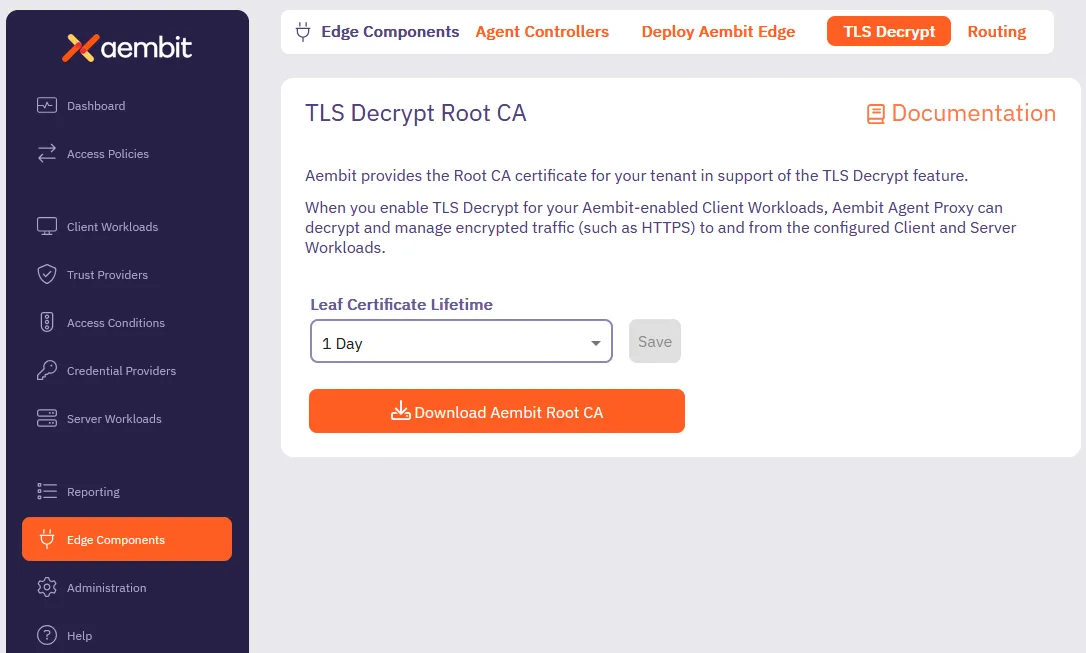 4. Click Download your Aembit Tenant Root CA certificate. Alternatively, you may download the Aembit Tenant Root CA directly by using to the following URL, making sure to replace `` with your actual Aembit Tenant ID: ```shell https://.aembit.io/api/v1/root-ca ``` ## Add your Aembit Tenant Root CA to a trusted root store [Section titled “Add your Aembit Tenant Root CA to a trusted root store”](#add-your-aembit-tenant-root-ca-to-a-trusted-root-store) Different operating systems and application frameworks have different methods for adding root certificates to their associated root store. Most Client Workloads use the system root store. This isn’t always the case, however, so make sure to consult your operating system’s documentation. You must install your Aembit Tenant Root CA on your Client Workload container or Virtual Machine (VM). Install your Aembit Tenant Root CA either during workload build/provisioning time, or at runtime, as long as the Client Workload processes trust the Aembit Tenant Root CA. Select a tab for your operating system, distribution, and specific application to see the steps to adding your Aembit Tenant Root CA to your root store: * Debian/Ubuntu-based container For Debian/Ubuntu Linux, you must include the Aembit Tenant Root CA in your Client Workload container image: 1. [Get your Aembit Tenant Root CA](#get-your-aembit-tenant-root-ca) and save it to `/.crt`. 2. Run the following commands to include the root CA in your `Dockerfile`: ```dockerfile RUN apt-get update && apt-get install -y ca-certificates COPY /.crt /usr/local/share/ca-certificates RUN update-ca-certificates ``` * Debian/Ubuntu-based VM ```shell sudo apt-get update && sudo apt-get install -y ca-certificates sudo wget https://.aembit.io/api/v1/root-ca \ -O /usr/local/share/ca-certificates/.crt sudo update-ca-certificates ``` * Red Hat VM ```shell sudo yum update -y && sudo yum install -y ca-certificates sudo wget https://.aembit.io/api/v1/root-ca \ -O /etc/pki/ca-trust/source/anchors/.crt sudo update-ca-trust ``` * Windows Server VM ```powershell Invoke-WebRequest ` -Uri https://.aembit.io/api/v1/root-ca ` -Outfile .cer Import-Certificate ` -FilePath .cer ` -CertStoreLocation Cert:\LocalMachine\Root ``` * Node.js-based Client Workload Node.js uses its own certificate store, distinct from the system’s certificate store (such as `/etc/ssl/certs/ca-certificates.crt` on Ubuntu/Debian and `/etc/pki/tls/certs/` on RedHat), to manage and validate trusted root CAs. To include additional trusted root certificates, use the environment variable [NODE\_EXTRA\_CA\_CERTS](https://nodejs.org/api/cli.html#node_extra_ca_certsfile): 1. [Get your Aembit Tenant Root CA](#get-your-aembit-tenant-root-ca). 2. Set the `NODE_EXTRA_CA_CERTS` environment variable accordingly. * Python-based Client Workload For Python-based applications, [get your Aembit Tenant Root CA](#get-your-aembit-tenant-root-ca), then follow the section that applies to you: #### Using the Python `requests` library [Section titled “Using the Python requests library”](#using-the-python-requests-library) Configure the environment variable `REQUESTS_CA_BUNDLE` to point to a bundle of trusted certificates, including the Aembit Tenant Root CA. For more details, refer to the [requests advanced user guide](https://requests.readthedocs.io/en/latest/user/advanced/). #### Using the Python `httpx` package [Section titled “Using the Python httpx package”](#using-the-python-httpx-package) Configure the environment variable `SSL_CERT_FILE` to include the Aembit Tenant Root CA. For additional information, see [PEP 476](https://peps.python.org/pep-0476/). * Other Please contact Aembit support if you need instructions for a different distribution or trust root store location. ## Change your leaf certificate lifetime [Section titled “Change your leaf certificate lifetime”](#change-your-leaf-certificate-lifetime) The default lifetime of leaf certificates for your Aembit Tenant Root CA is **1 day**. To change this value, follow these steps: 1. Log in to your Aembit Tenant. 2. In the left sidebar menu, go to **Edge Components**. 3. In the top ribbon menu, click **TLS Decrypt**. 4. Under **Leaf Certificate Lifetime**, select the desired value (`1 hour`, `1 day`, or `1 week`) from the dropdown menu. 5. Click **Save**. 6. (Optional) To apply the changes to existing leaf certificates, you must either: * Restart the associated Agent Proxy. See [Verifying your leaf certificate lifetime](#verifying-your-leaf-certificate-lifetime). * Wait for existing certificates to expire. ### Verifying your leaf certificate lifetime [Section titled “Verifying your leaf certificate lifetime”](#verifying-your-leaf-certificate-lifetime) [After changing your leaf certificate lifetime](#change-your-leaf-certificate-lifetime), verify the changes by viewing the details of the cert through the following commands: 1. After changing the leaf certificate lifetime, log in to the Agent Proxy associated with the leaf certificate lifetime you updated. 2. Restart the Agent Proxy. 3. Run the following command to create a test TLS connection from the Agent Proxy to a Server Workload. The hostname must be in a Server Workload associated with the Access Policy for that Agent Proxy. ```shell openssl s_client -connect : ``` 4. Inspect the output and look for the `Server certificate` section. Copy the contents of the certificate (highlighted in the following example): ```txt Server certificate -----BEGIN CERTIFICATE----- MjUwMjA1MjI1MDIxWhcNMzUwMjAzMjI1MDIxWjBrMSUwIwYDVQQDDBxBZW1iaXQg ... ... omitted for brevity ... 0ApHb7jB+YkL59eG9WOdCUqjQjBAA= -----END CERTIFICATE----- subject-CN - my.service.com ``` 5. View and inspect the detailed contents of the certificate by echoing the certificate you just copied into the `openssl x509 -text` command: ```shell echo "" | openssl x509 -text ``` You should see output similar to the following: ```shell Certificate: Data: Version: 3 (0x2) Serial Number: 1234567890 (0x12345fe4) Signature Algorithm: ecdsa-with-SHA384 Issuer: CN = Aembit Tenant 1a2b3c Issuing CA, O = Aembit Inc, C = US, emailAddress = support@aembit.io Validity Not Before: Feb 10 13:25:42 2025 GMT Not After : Feb 11 13:30:42 2025 GMT Subject: CN = my.service.com ... ... omitted for brevity ... ``` Notice that the highlighted `Validity` section has the new lifetime representing the leaf certificate lifetime you selected. Aembit intentionally adds five minutes to the `Not Before` time to account for clock skew between different systems.
# How to configure a Standalone CA
> How to configure Standalone CA for TLS Decrypt
To configure a [Standalone CA](/user-guide/deploy-install/advanced-options/tls-decrypt/configure-tls-decrypt-standalone-ca), you must first [create a Standalone CA](#how-to-create-a-standalone-ca) then assign it to your desired resources: * [Resource Set](#assign-a-standalone-ca-to-a-resource-set) * [Client Workload](#assign-a-standalone-ca-to-a-client-workload) ## Prerequisites [Section titled “Prerequisites”](#prerequisites) * [Aembit Role](/user-guide/administration/roles/) with the following **Read/Write** permissions: * `Standalone Certificate Authorities` * `Client Workloads` * `Resource Sets` ## How to create a Standalone CA [Section titled “How to create a Standalone CA”](#how-to-create-a-standalone-ca) Follow these steps to create a Standalone CA: 1. Log into your Aembit Tenant, and go to **Edge Components -> TLS Decrypt**. 2. In the top right corner, select the **Resource Set** where you want your Standalone CA to reside. 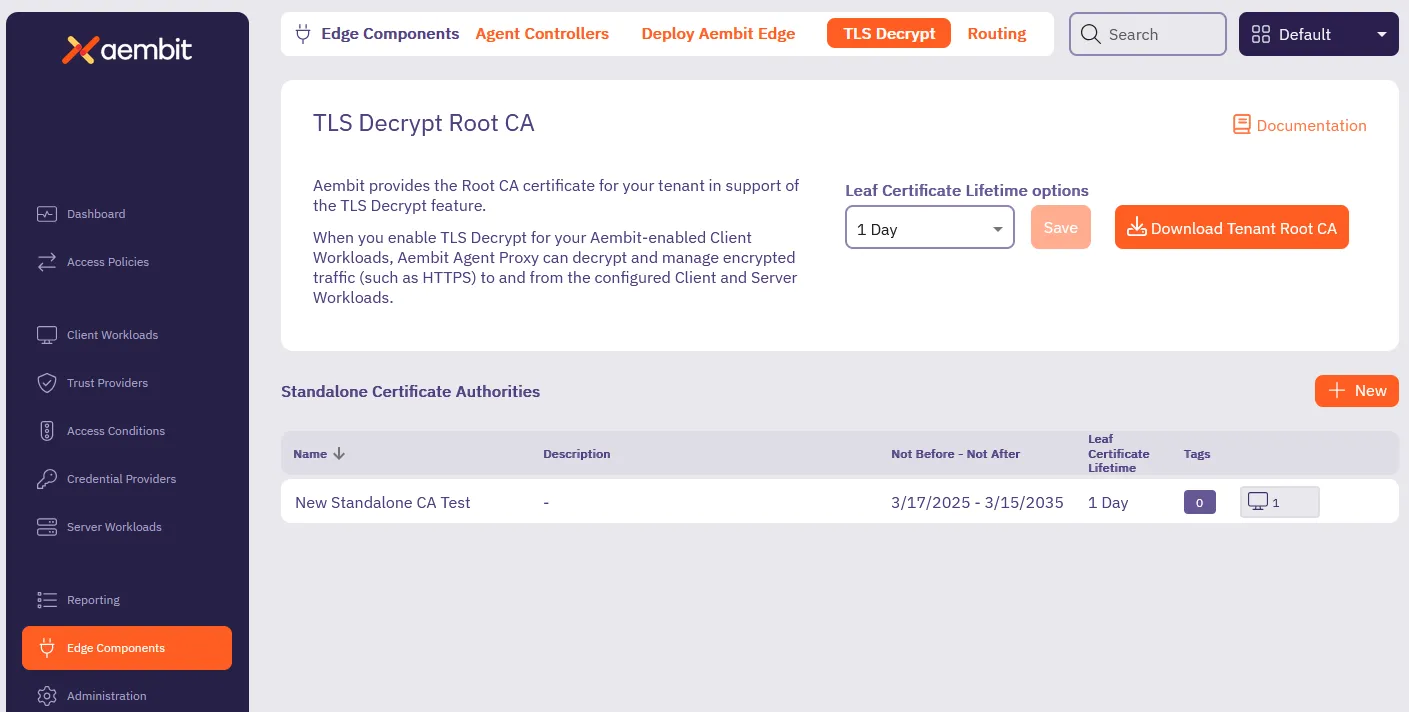 3. In the **Standalone Certificate Authorities** section, click **+ New**. This displays the **Standalone Certificate Authority** pop out menu: 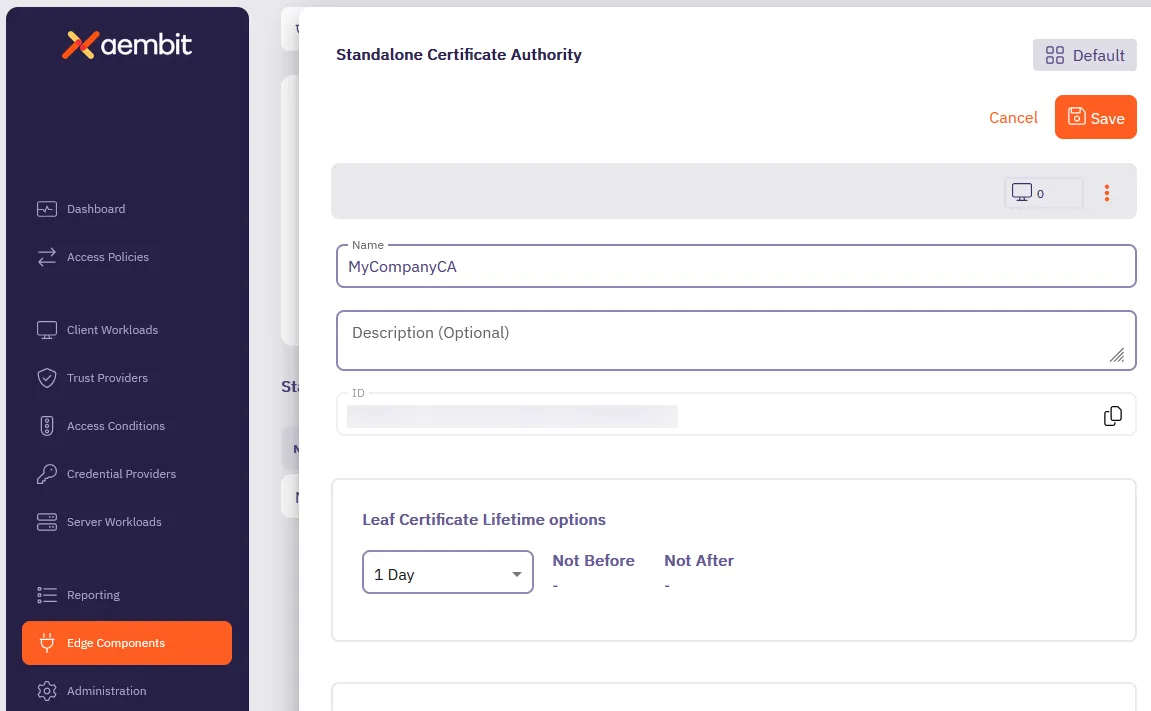 4. Enter a **Name** and optional **Description**. 5. Select the lifetime you desire from the **Leaf Certificate Lifetime options** dropdown. 6. Click **Save**. Aembit displays your new Standalone CA in the **Standalone Certificate Authorities** table. ## Assign a Standalone CA to a Resource Set [Section titled “Assign a Standalone CA to a Resource Set”](#assign-a-standalone-ca-to-a-resource-set) 1. Log into your Aembit Tenant. 2. Click **Administration** in the left sidebar. 3. At the top, select **Administration ☰ Resource Sets**. 4. Click the **Resource Set** that you want to assign a Standalone CA, then click **Edit**. Or follow [Create a new Resource Set](/user-guide/administration/resource-sets/create-resource-set) to create one. 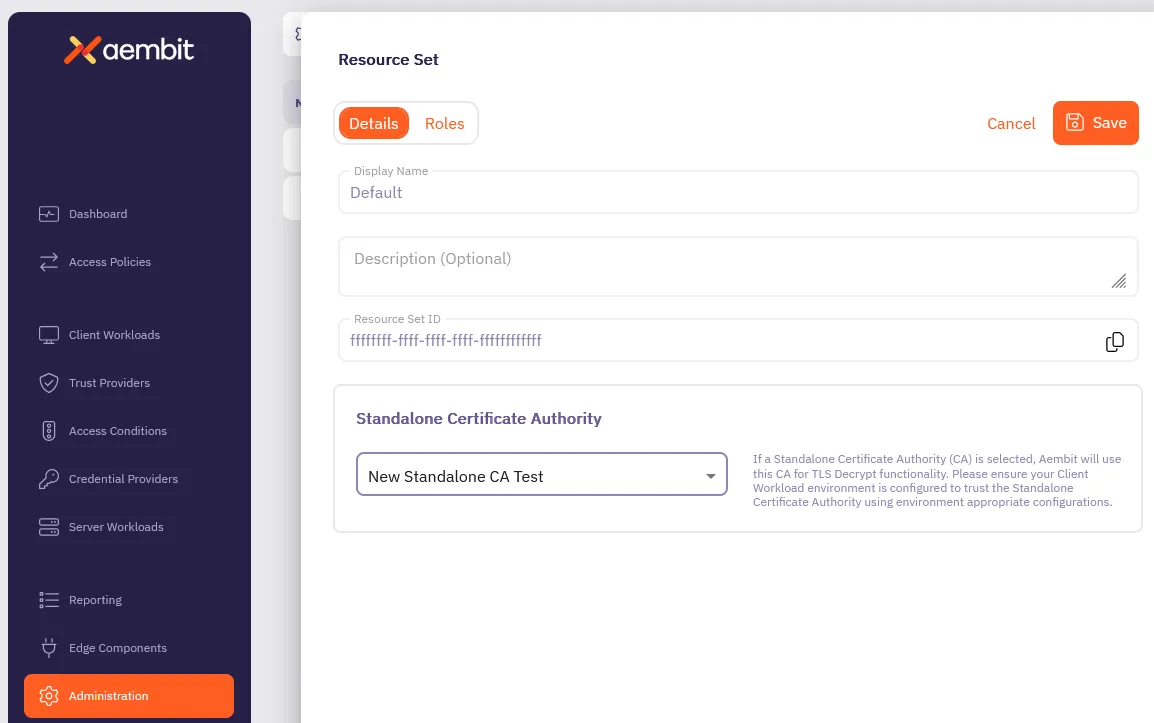 5. In the **Standalone Certificate Authority** section, select the Standalone CA you want to assign to the Resource Set. 6. Click **Save**. ## Assign a Standalone CA to a Client Workload [Section titled “Assign a Standalone CA to a Client Workload”](#assign-a-standalone-ca-to-a-client-workload) 1. Log into your Aembit Tenant, and go to **Client Workloads**. 2. In the top right corner, select the **Resource Set** where the Standalone CA you want to assign resides. Caution It’s crucial that you select the correct Resource Set, or you may not see your Standalone CA when assigning it. Or worse, you may assign the wrong Standalone CA to your Client Workload. 1. Select the Client Workload you wan to assign the Standalone CA to, then click **Edit**. 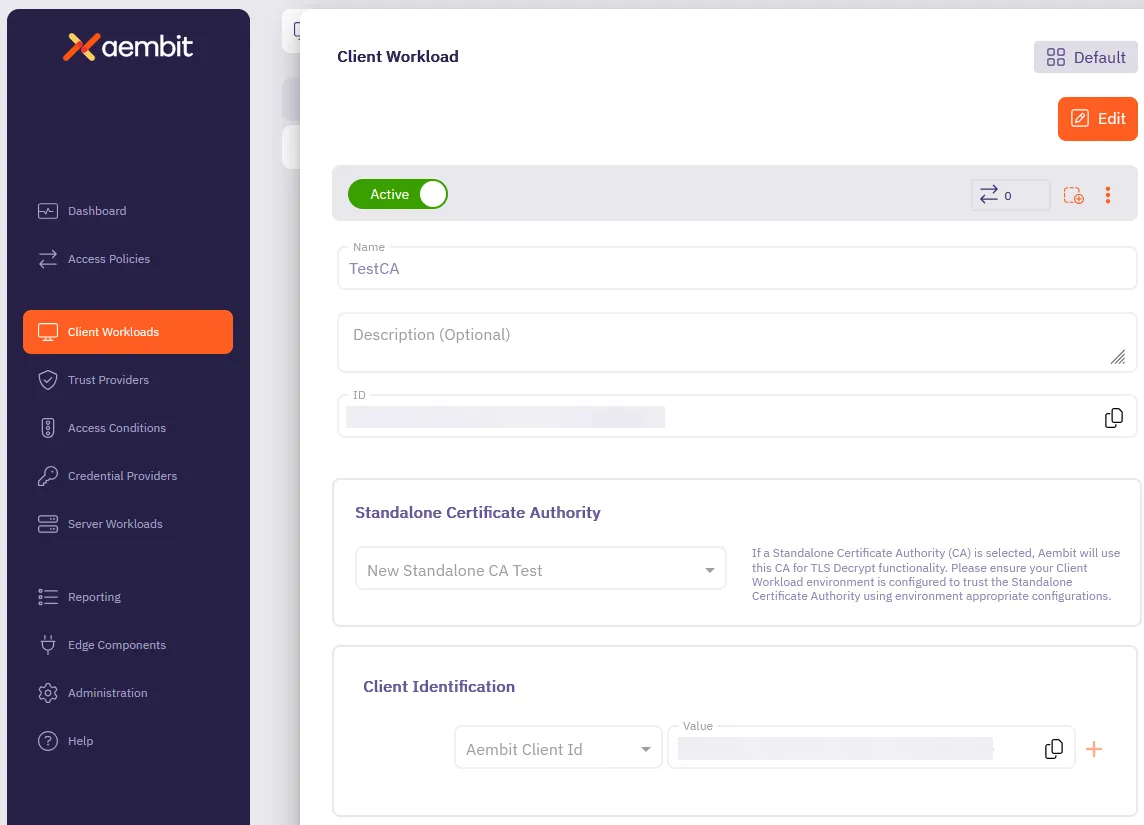 2. In the **Standalone Certificate Authority** section, select the Standalone CA you want to assign to the Client Workload. 3. Click **Save**. ## Additional resources [Section titled “Additional resources”](#additional-resources) * [About Standalone CA for TLS Decrypt](/user-guide/deploy-install/advanced-options/tls-decrypt/configure-tls-decrypt-standalone-ca) * [About TLS Decrypt](/user-guide/deploy-install/advanced-options/tls-decrypt/)
# Trusting certificates issued by private CAs
> How to configure Aembit Edge Components to trust certificates issued by private CAs
Some Server Workloads use certificates issued by private Certificate Authorities (CAs), which aren’t publicly trusted. Agent Proxy, by default, doesn’t trust certificates issued by such private CAs and won’t connect to these workloads. This article describes the steps required to configure Edge Components to establish trust with these certificate authorities. ## Add a private CA to an environment [Section titled “Add a private CA to an environment”](#add-a-private-ca-to-an-environment) The following sections describe how to add a private CA in different environments: * [Kubernetes](#kubernetes) * [AWS ECS](#aws-ecs) * [Virtual machine](#virtual-machines) ### Kubernetes [Section titled “Kubernetes”](#kubernetes) To have your private CAs trusted, pass them as the `agentProxy.trustedCertificates` parameter in the Aembit Helm chart. This parameter should be a base64-encoded list of PEM-encoded certificates. The resulting Helm command looks like this (remember to replace your tenant ID and other parameters): ```shell helm install aembit aembit/aembit \ --create-namespace -n aembit \ --set agentProxy.trustedCertificates=LS0tLS1CRUdJTiBDRVJUSUZJQ0FURS0... ``` #### Volume-mounted certificates [Section titled “Volume-mounted certificates”](#volume-mounted-certificates) If your Kubernetes deployment disallows privilege escalation or requires a read-only filesystem, you need to include all trusted certificates through a volume. To include trusted certificates as a volume, follow these steps: 1. Define a ConfigMap with the key `ca-certificates.crt`. Complete this step before deploying either the Aembit Helm chart or your Client Workload Pod. \.yaml ```yaml apiVersion: v1 kind: ConfigMap metadata: name: data: # Certificates should be PEM-encoded ca-certificates.crt: | -----BEGIN CERTIFICATE----- MIIFmzCCBSGgAwIBAgIQCtiTuvposLf7ekBPBuyvmjAKBggqhkjOPQQDAzBZMQsw ... ``` 2. Deploy your ConfigMap. ```shell kubectl -n apply -f ``` 3. Amend your Client Workload pod specification to provide your ConfigMap as a volume but do *not* deploy your Client Workload pod yet. ```yaml spec: volumes: - name: configMap: name: